

Page 1
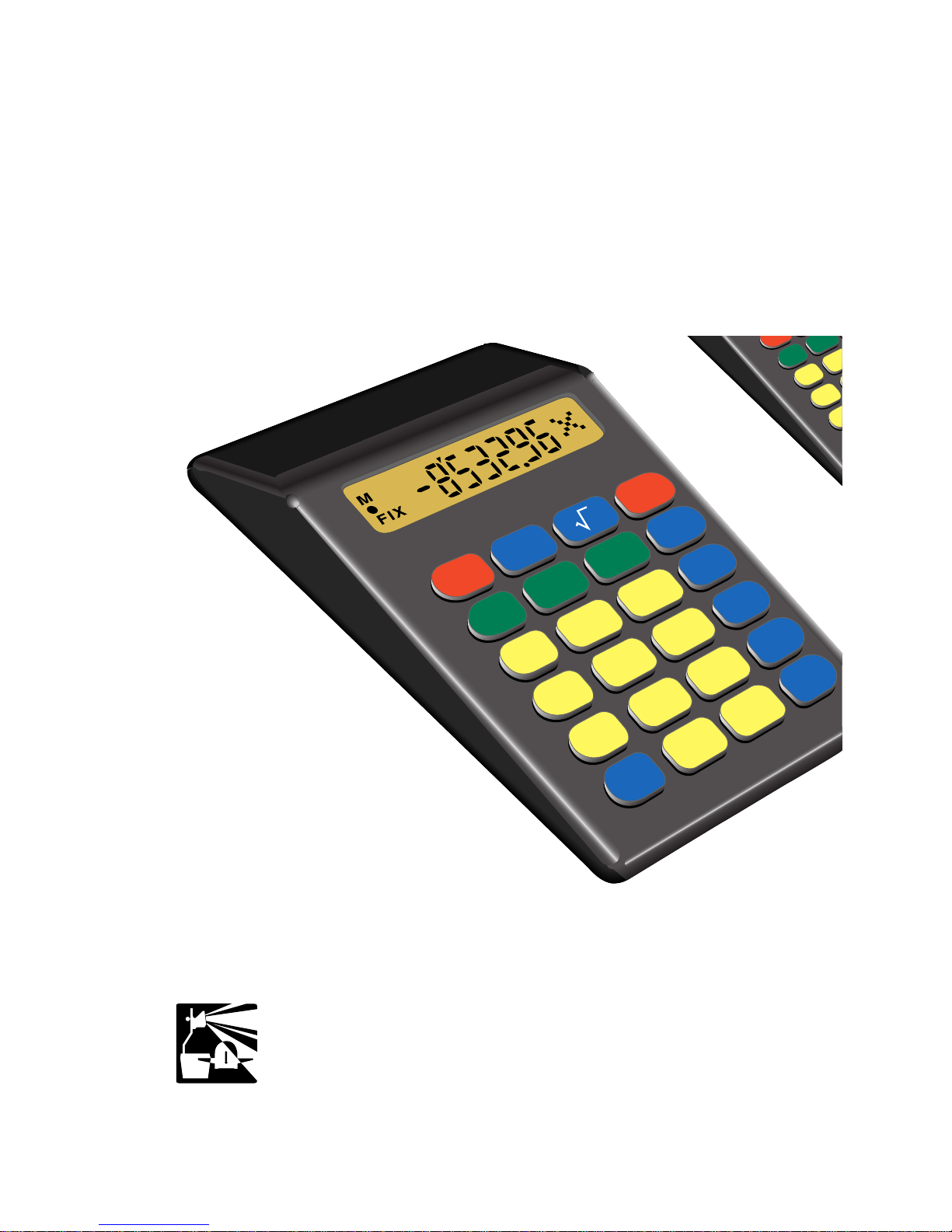
Reference Manual for the
MathMaster
™
Educational Calculator
a product of
Stokes Publishing Company
Sunnyvale, CA
MathMaster
®
K E Y E L I M I N A T O R
2
0
•
3
1
5
8
6
x
–
M+
+/–
%
MRC
RESET
4
7
+
=
CE
/
C
M
–
÷
9
8
M+
MRC
RESET
4
7
Page 2

MathMaster Key List
c Clear entry, clear
0-9, . Numeric input
+-x/
Operations
= Result
M Add to memory
m Subtract from memory
r Memory recall, memory clear
$
RESET
Clears decimal fix and
all pending operations
_
Toggles sign of dispayed number
% Percent
v Square root
MathMaster is a registered trademark of Stokes Publishing Company
Key Eliminator is a trademark of Stokes Publishing Company
©1995 Stokes Publishing Company • Sunnyvale, California
Page 3

3
Welcome to the exciting world of the
MathMaster calculator. You will be using
the “world’s finest four-function calculator,”
the only one with the patented feature, the
Key Eliminator. To take full advantage of
the many features and functions of the
MathMaster, go through this manual with
MathMaster in hand following the explanatory sequences. Most sequences contain
single-digit numbers so you can concentrate
on the process rather then on cumbersome
computations. You will then gain the
confidence and know-how to use the
MathMaster to perform difficult computations with speed and accuracy.
Exciting Features of the MathMaster
• Eliminator
This new, patented function will allow
the user to disable or make inactive one
or more keys.
• Constants
The MathMaster has full constant capability for all four operations. A counter showing in the display indicates the number of
times the constant has been used.
Page 4

4
• Fixing the Number of Decimal Places
The decimal point may be fixed to a designated number of places, from 0 to 7.
• RESET
Pressing the RESET key will reactivate any
keys that have been disabled and return
the calculator to floating decimal point
notation. All constants, pending operations, and contents of memory will be
cleared.
• Operation Icons
Icons for the operations of addition,
subtraction, multiplication, and division
will appear on the right side of the display
in a large five-by-five dot matrix to indicate
what operation is being processed or is
pending.
• Logic System
All operations are processed according to
the standard algebraic order of operations
(MDAS).
• Reading Large Numbers
Large numbers in the display are easy to
read. The periods of a large number are
separated with an apostrophe at the top
of the number.
Page 5

5
Guide to Display Symbols
The display holds up to eight digits. In addition, there are indicators which will appear
in the display to alert you to the status of the
various features and functions of the
MathMaster.
Indicator Description Page
’
Separates large numbers
into periods 4
+
Operation of addition in
progress or pending 4
–
Operation of subtraction in
progress or pending 4
x
Operation of multiplication in
progress or pending 4
÷
Operation of division in
progress or pending 4
E
Calculation resulted in error; or
(error)
display or memory exceeded 7
M
Non-zero number is stored in
memory 10
FIX
The number of decimal places
is fixed at 0 to 7 places. 14
•
Eliminator feature is in effect. 15
Page 6

6
Key Functions
c, Digit keys and =
Press c to turn on the calculator. You
should have a “0” in the display.
To display 12, press
12.
Clear the display by pressing
c.
To display 21, press
21.
Clear the display by pressing
c.
To display 3’287’914, press
3287914. Note the apostro-
phes at the top of the display separate this
seven-digit number into periods of three for
ease of reading.
Clear the display by pressing
c.
Press
5+3=. Display 8. Notice that
when the addition key was pressed, the
addition icon appeared on the right side of
the display.
Press
9-2=. Display 7. Notice that it
was not necessary to clear the display. If the
= key is pressed between separate calcula-
tions, you do not have to clear the display.
Use
c to clear a numerical input error.
Press
6+7 ‘Erase” the 7 by pressing
c4=. Display 10 (6 + 4).
Page 7

7
Press c to clear the current number in
display.
Press
6+7cc. Display 0.
The addition calculation has been cleared,
as well as both arguments.
Press c to clear errors. Key in
99,999,999.
Press
+1=. The display shows the error
indicator. The sum exceeds the display’s 8-
digit capacity. Press
c. Display 0. The
error has been cleared.
Round Off
The MathMaster performs precise calculations with a round-off feature. Press
2/3=. The right-most digit is a 7. The
rounded-off decimal equivalent for 2/3 is displayed. Press
x9=. Display 6 (2/3 x 9).
Logic System
All operations are processed according to
the standard algebraic order of operations.
For 2 x 3 + 5, press
2x3+5=.
Display 11.
For 5 + 2 x 3, press
5+2x3=.
Display 11.
Page 8

8
For 4 x 5 + 3 x 2, press
4x5+3x2=. Display 26.
For 4 x (5 + 3 x 2), press
5+3x2=x4=. Display 44.
Constant Operations
Use the constant feature to repeatedly
operate with the same number.
Example Press Display
Use 4 as a constant. RESET or CE/C 0
2 + 4, 5 + 4,
7 + 4, 9 + 4 2 2
+ 2 [+]
44
2 + 4 = 6
5 5 [+]
5 + 4 = 9
7 7 [+]
7 + 4 = 11
9 9 [+]
9 + 4 = 13
Page 9

9
Example Press Display
RESET or CE/C 0
10 x = = = = = 10 10
x 10 [x]
10 x10 = 100
10 x 10 x10 = 1000
10 x10 x10 x10 = 10000
10 x10 x10 x10 x10 = 100000
Notice that the counter shows the number of
times the entered number is used as a
factor.
Example Press Display
RESET or CE/C
2 + 3 = = = = = 2 2
+ 2 [+]
33
2 + 3 = 5
2 + 3 + 3 = 8
2 + 3 + 3 + 3 = 11
2 + 3 + 3 + 3 + 3 = 14
Notice that the counter, starting at 2, indicates the number of times the constant (3) is
being used as a addend.
Counter
Counter
2
3
4
5
2
3
4
Page 10

10
Memory Keys
The three memory keys allow the user to
store, add to, subtract from, recall, and
clear numbers in memory.
M+ Adds displayed number to memory.
(memory indicator active)
M– Subtracts displayed number from
memory. (memory indicator active)
MRC Pressed once, recalls memory to dis-
play. (memory indicator active)
Pressed twice, clears memory. (memory indicator not displayed)
Press
4+5= Display 9.
Press
M. The displayed number is stored
in memory.
The display now has an “M” in the left-hand
corner of the display. This indicator tells the
user that a non-zero number is stored.
Press
c. Display 0. The memory indica-
tor is still present.
Press r. Display 9.
Press
r. Display 9. The “M” symbol
disappears.
Press 4MMMr. Display 12.
Page 11

11
Press
rr2x3=M4x5=
Mr
. Display 26
Press
rr3x7=M2x8=
mr
. Display 5
Percent Key
Press 25%. Display 0.25
(assumes 25% of 1)
To find 25% of 60, press
25%x60=. Display 15
To find 60 multiplied by 25%, press
60x25%=. Display 15
Discount and Markup
An item that sells for $80 is discounted 25%.
What is the sale price?
Press Display
80 80
– 80 [–]
25 25
%20
=60
The sale price is $60.
Page 12

12
A dress costing $120 is to be marked up an
additional 20%. What will be the new price?
Press Display
120 120
+ 120 [+]
20 20
%24
= 144
The new price for the dress is $144.
A VCR selling for $250 is to be discounted
40%. What will the VCR cost including a 6%
sales tax?
Press Display
250 250
– 250 [–]
40 40
% 100
= 150
+ 150 [+]
66
%9
= 159
The total cost of the VCR, including tax is
$159.
Page 13

13
Mr. Palko made a 15% commission on April
sales of $12,500 and 24% commission on
June sales of $9,250. What was the total of
his two-month commissions?
Press Display
12500 12500
x 12500 [x]
15 15
% 0.15
= 1875
M+ 1875 [M]
9250 9250
Press Display
x 9250 [x]
24 24
% 0.24
= 2220
M+ 2220 [M]
MR 4095
Mr. Palko’s total two-month commission was
$4095.
Page 14

14
Change Sign Key
This key finds the opposite or additive
inverse of the displayed number.
To display the opposite of 5, press
5–.
Display -5.
To display the opposite of 237, press
237–. Display -237.
To display the opposite of 19, press
19–. Display -19.
Notice that the negative sign floats depending on the number of digits.
Square Root Key
To find the square root of 49, press
49v. Display 7
To find the square root of 12.25, press
12.25v. Display 3.5
Press
x=. Display 12.25
Fixing the Number of
Decimal Places
To change from a floating decimal mode to
a designated number of places, hold down
the decimal point key for three seconds. A
range, 0-7, and the
FIX icon appears in the
display. Press 2 for two-decimal place mode;
Page 15

15
0.00 will be displayed. Use a two-place
mode when working with money. If 8 or 9
is entered following the 3-second interval,
the display will return to the floating-decimal
point mode. Pressing RESET also returns the
display to the floating-decimal point mode.
Key Eliminator
This new, patented feature allows the user
to disable one or more keys by holding
down one key at a time for a period of 3-4
seconds. The user will then be unable to use
the number or operation that was eliminated. A large black dot will appear in the lefthand portion of the display indicating that
this feature has been activated. When RESET
is pressed, all disabled keys are once again
active. The folllowing keys cannot be disabled:
c,$MR ,M,m,=, and
.. This feature provides opportunities for
the user to explore mathematics. Here is an
example: Hold down the
v
key for 3-4
seconds. You have now disabled this key.
Use a “guess and check” method to find the
square root of 28 correct to two decimal
places.
Page 16

16
Notes on Percentages
A percentage must always relate to a fractional part of something. A statement like
“25%” is meaningless unless it is known
what the whole is. 25% of 40 is 10. 25% of
1,000 is 250, etc.
In the MathMaster, the percent key operates
in two ways, depending upon whether its
use follows an add or subtract operation, or
a multiply or divide operation. It is important
to understand this distinction when using
this calculator (or any other calculator,
for that matter, since different calculators
process percentages in different ways).
In add-on and discount problems, the calculator always assumes the first number
entered as the whole, of which it finds the
requested percentage. It then displays that
fractional part and uses it as the second
number which is then either added to or
subtracted from the first number (depending
on whether it follows an add or subtract
operation) when the equals key is pressed.
When % is used following a multiply or
divide operation, the MathMaster assumes
the whole to be 1; therefore pressing 16%
Page 17

17
will result in a display of 0.16. In the problem
of 40 x 16%, the first number, 40, is multiplied by the second number, 0.16 (16% of
1) to arrive at a result of 6.4, which is consistent with the idea of “16% of 40.”
When none of the operations (+, –, x,
÷) are
pending, and % is used following a number
entry, MathMaster assumes that percentage
of 1. For example, if the problem sequence,
24% + 3, is keyed into the calculator, the
result will be 3.24 when the equals key is
pressed.
Changing the Calculator
Identification Numbers
The MathMaster’s unique identification sys-
tem consists of two number wheels back-toback inside the back case; one transparent
wheel and one opaque wheel. Identification
(ID) numbers may be set from 00 to 99. Sets
of calculators are shipped with preset ID
numbers from 1 to 30 in order to relieve the
teacher of the task of setting them. However,
if you purchase fewer than 30 calculators,
you may receive some with duplicate ID
numbers, or some that duplicate the ID
Page 18
18
numbers of your existing MathMasters.
To set or change ID numbers, you must
open the calculator and rotate the number
wheels so that the desired digits are visible
throught the ID window. A small philips
screwdriver is required. Read each step all
the way through before accomplishing it.
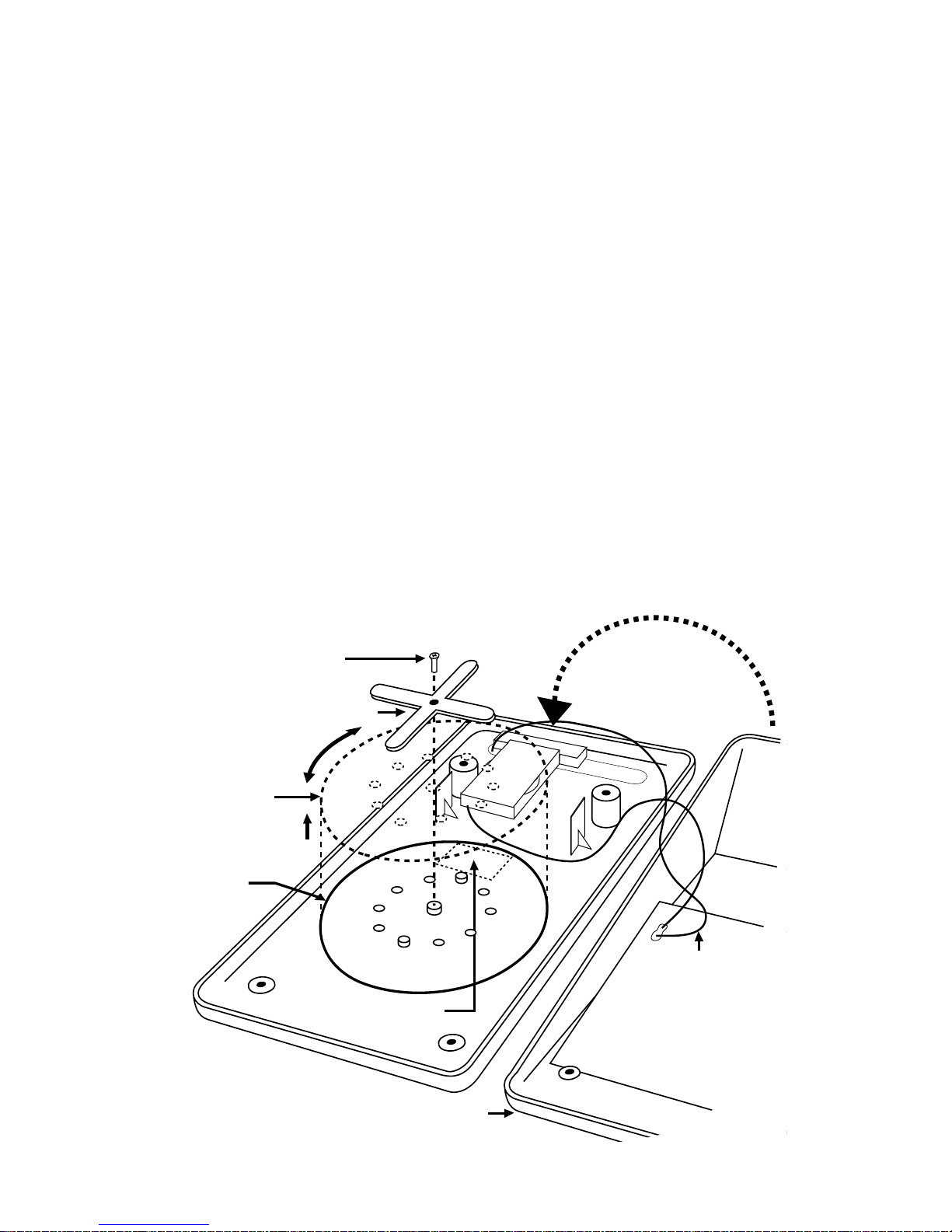
1. With the MathMaster face down, remove
the four screws securing the back case.
2. Remove the back case by lifting and rotat-
ing it to the left, and placing it back-side
down next to the main case (see figure A).
Opaque
wheel
FIGURE A
Transparent
wheel
X-shaped retainer
Retainer screw
Front of case
ID window
Lift & rotate
back of case
gently to left
Be careful not
to pull on the
battery wires
when case is
opened.
Page 19

19
Note: Be careful not to break the two
wires that attach the battery to the circuit
board.
3. Locate the ID wheels in the back case
and remove the screw from the X-shaped
retainer. Lift the retainer free from the
alignment holes in the case. Set the screw
and the retainer aside.
4. Lift both wheels and rotate each one so
that the desired numbers will be visible
through the ID window. Replace the
wheels by aligning the holes in the
wheels so that they fit over the raised
guide posts in the case. Check to see if
the desired numbers are visible through
the ID window.
Note: Be sure the transparent wheel is
positioned closest to the case with the
opaque wheel on top.
5. When the desired numbers appear in the
window, replace the X-shaped retainer by
aligning the two pins on the bottom of
the retainer with the small holes in the
wheel alignment guides. Press gently into
place.
Page 20

20
6. Install the retainer screw. Do not over-
tighten.
7. Replace the back case and install the four
screws. Be sure that no wires are pinched
by the case edges when the screws are
tightened. Tighten the screws snugly but
do not over-tighten as this could strip the
plastic threads.
Battery Replacement
The MathMaster is designed to operate for
an average of five years on the factoryinstalled battery. When the display becomes
too dim to read, the battery should be
replaced with a CR2032 or equivalent battery available wherever watch or calculator
batteries are sold.
Please read each step completely before
accomplishing it. A small phillips screwdriver
is required.
1. With the MathMaster face down, remove
the four small screws securing the back
case.
Page 21
21
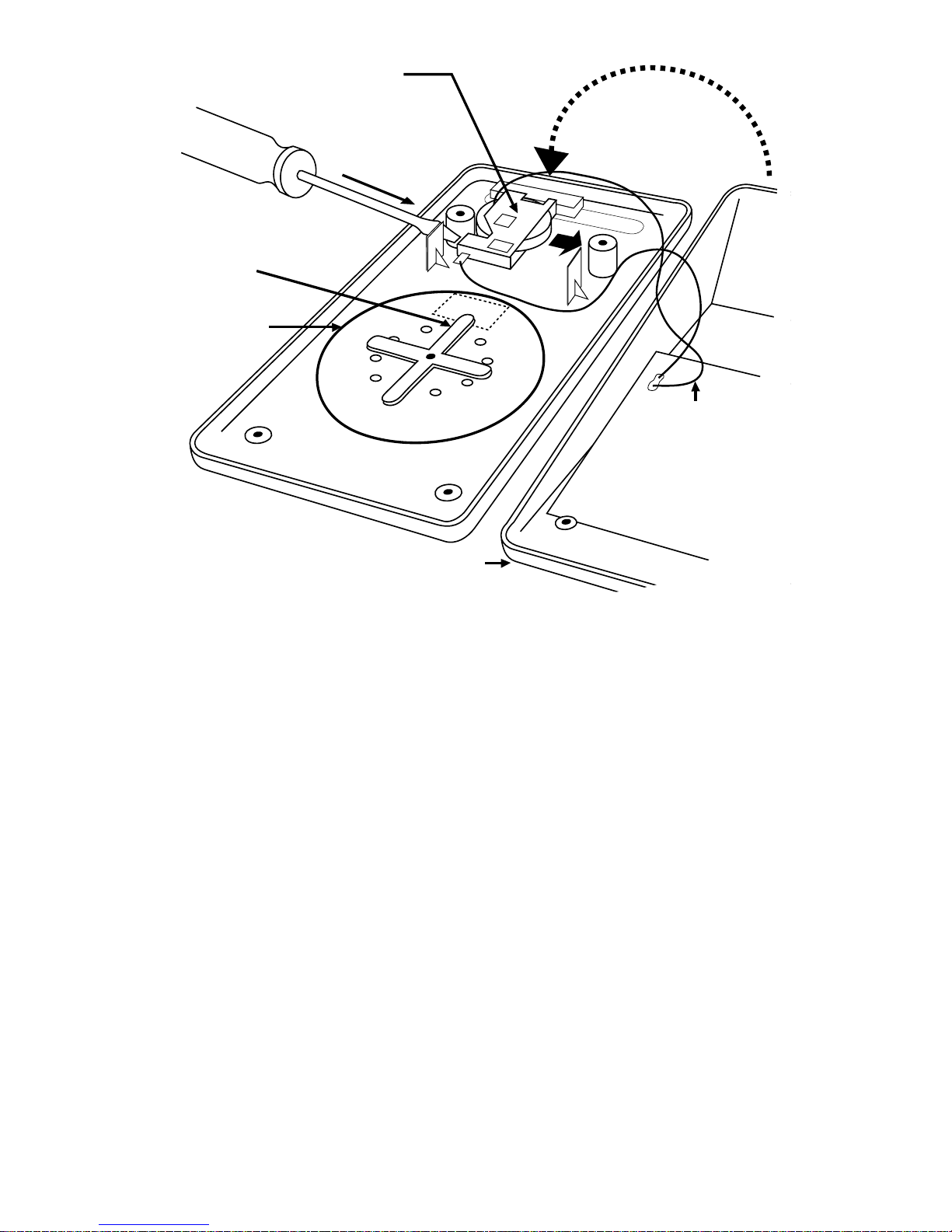
2. Remove the back case by lifting it and
rotating it to the left, and placing it backside down next to the main case. (see figure B). Be careful not to break the two
wires that attach the battery to the curcuit board.
3. Locate the battery and battery retainer.
Do not remove the battery retainer
screws.
4. Inserting a small screwdriver or similar
instrument from the left side near the
Number
wheels
Battery
retainer
FIGURE B
X-shaped retainer
Small screwdriver
Front of case
Lift & rotate
back of case
gently to left
Be careful not
to pull on the
battery wires
when case is
opened.
Page 22

22
large post, gently push against the side of
the battery until it snaps out of its retainer.
Be careful not to break the wires connected to the battery contacts. Lift the old
battery out and set it aside.
5. Install the new battery with Plus (+) side
up by placing it just to the right of the
battery retainer. Using a finger, carefully
press the battery toward the left, back
into the retainer until it snaps into place.
6. Replace the back case and install the four
screws. Be sure that the wires are not
pinched in the edge of the case. Tighten
the screws snugly; overtightening could
result in stripping the plastic threads.
7. Insure that the calculator works by turn-
ing it on and observing the display.
Do not dispose of the old battery by fire. It
could explode.
Page 23

23
One Year Limited Warranty
The MathMaster calculator is warranted against
defects of workmanship and materials for one
year from the date of original purchase by the
user from Stokes Publishing Company or an
authorized SPC dealer. Should the calculator malfunction under normal use during the warranty
period, return it to SPC (postage paid) for repair
or replacement at SPC option.
The warranty is void if the calculator is damaged
by accident, unreasonable use, negligence, or
other causes not due to defects in workmanship
or materials.
Disclaimers: Any implied warranties, including,
but not limited to, the implied warranties of merchantability and fitness of use, are limited to the
one-year duration of this warranty. SPC shall not
be liable for the loss of the calculator, or other incidental or consequential damages, expenses or
costs arising from the use of this calculator.
Some states do not allow exclusions or limitations of
implied warranties or consequential damages; therefore
the above limitations or exclusions may not apply to you.
Remedies: This warranty gives you specific legal rights,
and you may have other rights that vary from state to
state.
Page 24

STOKES PUBLISHING COMPANY
1292 Reamwood Avenue
Sunnyvale. CA 94089
Phone (408) 541-9145 • Fax (408) 541-9149
Printed in USA SPC 9/95
 Loading...