

Page 1
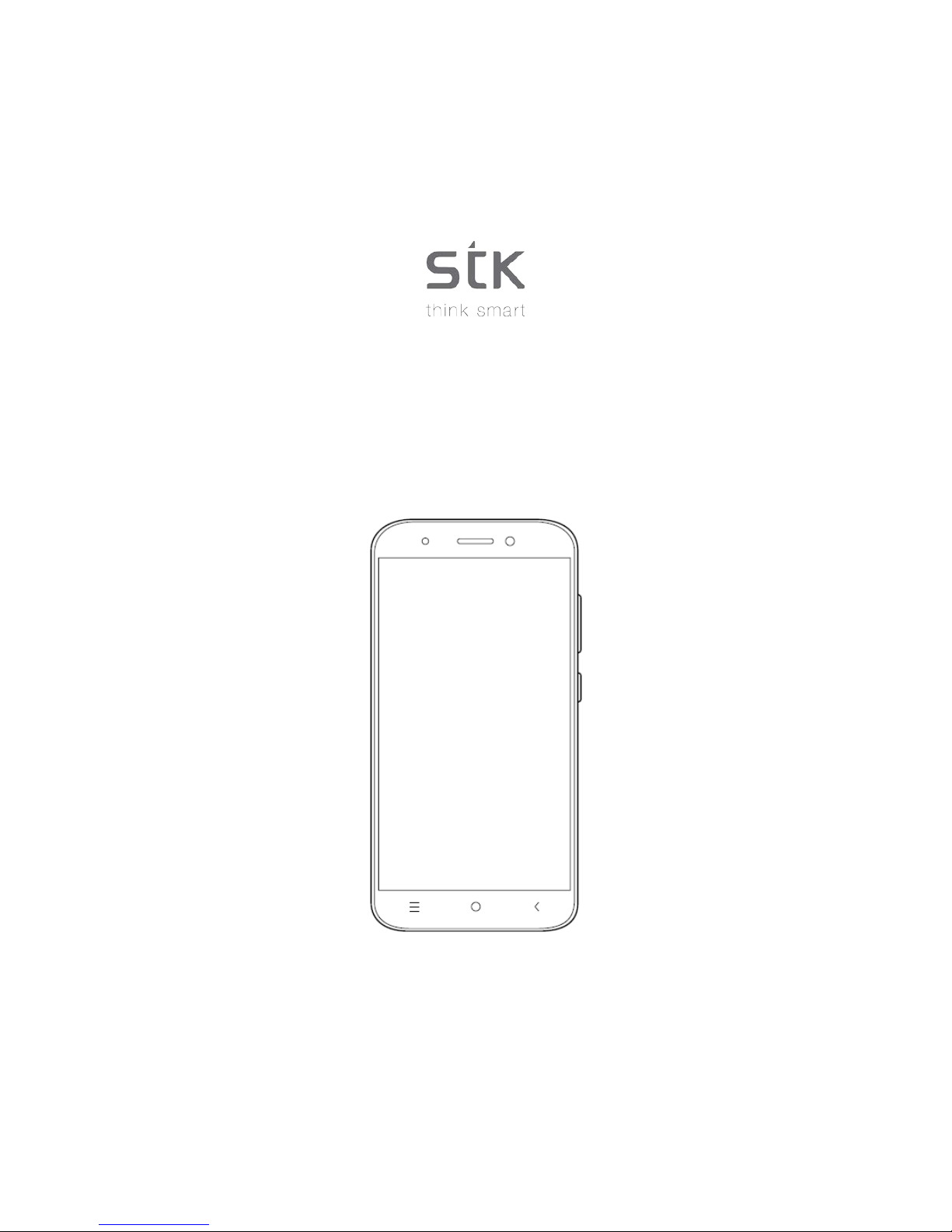
Sync 5e User Manual
Page 2

Sync 5e User Manual | English
2
Table of Contents
Welcome! .......................................................................................................................................................................... 4
1 Safety Precautions ................................................................................................................................................... 4
1.1 Specific Absorption Rate (SAR) certification information ....................................................................................... 4
1.2 ROHS Declaration .................................................................................................................................................. 4
1.3 Correct disposal ...................................................................................................................................................... 4
1.4 EU Compliance Statement ..................................................................................................................................... 5
1.5 Using Your Phone Safely ........................................................................................................................................ 5
2 Your phone ................................................................................................................................................................ 7
2.1 Overview ................................................................................................................................................................. 7
3 Getting started .......................................................................................................................................................... 7
3.1 Installing the SIM Card and the Battery .................................................................................................................. 7
3.2 Charging the battery ............................................................................................................................................... 7
3.3 Linking to the Networks and devices ...................................................................................................................... 8
3.4 Connecting to a computer via USB ........................................................................................................................ 8
3.5 Using the touch screen ........................................................................................................................................... 9
3.6 Using the onscreen keypad .................................................................................................................................... 9
3.7 Dialing Calls ............................................................................................................................................................ 9
4 Using the Menu ...................................................................................................................................................... 10
4.1 Backup Restore .................................................................................................................................................... 10
4.2 Browser................................................................................................................................................................. 10
4.3 Calculator.............................................................................................................................................................. 12
4.4 Calendar ............................................................................................................................................................... 12
4.5 Call History ........................................................................................................................................................... 12
4.6 Camera ................................................................................................................................................................. 13
4.7 Clock ..................................................................................................................................................................... 13
4.8 Downloads ............................................................................................................................................................ 13
4.9 Email ..................................................................................................................................................................... 13
4.10 Facebook .............................................................................................................................................................. 13
4.11 File manager ......................................................................................................................................................... 14
4.12 Flashlight .............................................................................................................................................................. 14
4.13 FM Radio .............................................................................................................................................................. 14
4.14 Gallery .................................................................................................................................................................. 14
4.15 Gmail .................................................................................................................................................................... 14
4.16 Google .................................................................................................................................................................. 14
4.17 Google settings ..................................................................................................................................................... 14
4.18 Hangouts .............................................................................................................................................................. 14
4.19 Maps ..................................................................................................................................................................... 14
4.20 Messages ............................................................................................................................................................. 14
Page 3

Sync 5e User Manual | English
3
4.21 Browser................................................................................................................................................................. 15
4.22 Music .................................................................................................................................................................... 15
4.23 People................................................................................................................................................................... 16
4.24 Phone ................................................................................................................................................................... 16
4.25 Play store .............................................................................................................................................................. 17
4.26 Screen Capture .................................................................................................................................................... 17
4.27 Search .................................................................................................................................................................. 17
4.28 Settings ................................................................................................................................................................. 17
4.29 SIM Tool kit ........................................................................................................................................................... 19
4.30 Sound Recorder ................................................................................................................................................... 19
4.31 Video player .......................................................................................................................................................... 19
4.32 Voice Search ........................................................................................................................................................ 19
4.33 YouTube ................................................................................................................................................................ 19
5 Troubleshooting ..................................................................................................................................................... 19
6 Taking Care of your Device ................................................................................................................................... 21
Page 4

Sync 5e User Manual | English
4
Welcome!
Please read this information before using your phone. We are not responsible for any damage due to any
misunderstanding of the infor mation in this manual. We reser ve the right to revise and change the descr iption of this
product, software and the user manual without obligation to notify users of such revisions and changes.
This manual relates to your use of this phone and is not an approval of any accessories. Pictures are for reference only.
There may be slight differences between the appearanc e of the phone, keys and contents of the display used in this
manual and those of your p hone . Ple as e ref er t o your phone when usi ng the manual. Som e f eatur es in troduced in this
manual are network or subscription-dependent features. Please contact your service provider.
1 Safety Precautions
Read this information before using your mobile device otherwise it many result to personal injury or your
device not complying with local la ws.
1.1 Specific Absorption Rate (SAR) certification information
THIS DEVICE MEETS INTERNATIONAL GUIDELINES FOR EXPOSURE TO RADIO WAVES.
Your mobile is designed not to exceed the limits for exposure to radio waves recommended by international guidelines.
The guidelines are developed by an independent scientific organization (ICNIRP) and include substantial safety margin
designed to assure the safety of all persons, regardless of age and health.
The radio wave expos ure g uid el ines use a unit of m eas ur ement known as Specific Absorption Rat e, or SAR. The SAR
Limit for mobile devices is 2.0W/kg.
Note: Please refer to the Quick User Guide for the SAR values of your device.
1.2 ROHS Declaration
Declaration of Conformity with the requirements of the e-waste Management Rules, 2011 (adopted by Notification
S.O.1035 (E) of Ministry of Environment and Forests).
The Product is in conformity with the requirements of Rule 13 of the e-waste Rules. The content of hazardous
substance with the exemption of the applications listed in SCHEDULE II of the e-waste Rules:
1. Lead (Pb) – not over 0.1% by weight;
2. Cadmium (Cd) – not over 0.01% by weight;
3. Mercury (Hg) – not over 0. 1% b y weight;
4. Hexavalent chromium (Cr6+) – not over 0.1% by weight;
5. Polybrominated biphenyls (PBBs) – not over 0.1% by weight;
6. Polybrominated diphenyl ethers (PBDEs) – not over 0.1% by weight.
1.3 Correct disposal
(Waste Electrical & Electronic equipm ent) this m arking on t he pro duct, acc esso ries or literatur e in dicates that
Page 5

Sync 5e User Manual | English
5
the product and it electro nic ac cess ories ( e.g. charger, headset, USB cable) shou ld not be dis pose d of with household
waste. This EEE is compliance with RoHS.
This marking on the battery, manual or packaging indicates that the batteries in this product should not be
disposed of with other household waste.
1.4 EU Compliance Statement
Santok Ltd, Unit L Braintree In dustrial Estate, Br aintree Road, M iddlesex, H A4 0EJ, UK. Sa ntok Ltd declare s that [all
essential radio tes t suites have b een carr ied out and that the pro duct is i n confor mit y to all the es sential r equirem ents
the R&TTE Directive 1995/5/EC.
1.5 Using Your Phone Safely
On The Road
Using a phone while driving is illegal in many countries. Please follow local laws and drive safely at all times.
Near Sensit iv e Ele ct ronics
Do not use your phon e near sensitive el ectronic equipm ent – particularl y medical devices suc h as pacem akers – as it
could cause them to m alfunction. It can a lso interfere with th e operation of fir e detectors and other automatic-control
equipment.
For more information about how your phone affects pacemakers or other electronic e quipment, please contact the
manufacturer or your local distributor.
Your phone may cause interference when used near TVs, radios or automated office equipment.
While Flying
Your p hone can cause interference with aircraft equipm ent. Therefore, it is essential you follow airline re gulations. In
addition, if airline personnel ask you to switch off your phone, or disable its wireless functions, please do as they say.
In Hospital
Your ph on e may interfere with the nor mal operation of medical equipment. F ol lo w all hos p ital re gu lat ions and turn it off
when you are asked to by posted warnings or medical staff.
At a Petrol Station
Do not use your phone at petrol stations. Radio Wave transmitted due to Wireless signal from your phone due to c a ll in
progress may generate spark s in f uel. In fac t, it is a lways best to sw itch off w hene ver you are ne ar f uels, che m icals or
explosives.
Around Water
Keep your phone away from water (or any other liquid). It is not a waterproof model.
Making Repairs
Page 6
Sync 5e User Manual | English
6
Never take your phone apart. Please leave that to the professionals. Unauthorized repairs could break the terms of your
warranty.
Broken Antenna
Do not use your phone if the antenna is damaged, as it could cause injury.
Around Children
Keep your mobile out of children’s reach. It should never be used as a toy and it might not be good for their health.
Original Accessories
Only use the original acces sories supplied with your phone or th ose ap proved b y the m anuf actur er. Using unapproved
accessories may affect performance, make the warrant y void, bre ak nationa l regul ations on the use of m obile pho nes,
or even cause injury.
Near Explosives
Turn off your phone in or near areas where explosive mater ials are used. Always obey loc al laws and turn off your
phone when requested.
Emerg en c y Calls
To mak e an emergency cal l your phone m ust be turned on an d in an area wher e there is net work coverage. Dia l the
national emergency number and press ‘send’. Explain exactly where you are and do not hang up until help has arrived.
Note: Some mobile phone may not necessarily support all the features described in this manual due to network or radio
transmission problems . Some netw orks even do not support th e emergenc y call ser vice. Therefore, do not rely s olely
on the mobile phone for critical communications such as first aid. Please consult the local network operator.
Working Temperature
The working temperature f or the phone is between 0 Degree and 40 D egree Celsius. Please do not use the phone
outside the range. Using the phone under too high or too low temperature might cause problems.
At very high volume, prolonged listening to a mobile phone can damage your hearing.
Page 7

Sync 5e User Manual | English
7
2 Your phone
2.1 Overview
Your p hone is based on Android Platform which a llows you to us e many featur e within the phone along with its main
feature of calls. Som e of the important features of phone are as, it prov ides Email Client, GP S for Map, Bluetooth f or
wireless data transfer or to connect with wireless device for various purpose. Phone also al low s yo u Sim Operated Data
facility as well as Wi-Fi so that you can use the smartphone for internet use via Wi-Fi.
3 Getting started
3.1 Installing the SIM Card and the Battery
A SIM card carries useful information, including your mobile phone number, PIN (Personal Identification Number), PIN2,
PUK (PIN Unlocking Key), PUK2 (PIN2 Unlocking Key), IMSI (International Mobile Subscriber Identity), network
information, contacts data, and short messages data.
Note: After powering off your mobile phone, wait for a few seconds before removing or inserting a SIM card.
Exercise caution when operating a SIM card, as friction or bending will damage the SIM card.
Properly keep the mobile phone and its fittings such as the SIM cards beyond children's reach.
1. Press and hold the power key to power off the mobile phone.
2. Insert the SIM Card into the SIM Card slot.
3. Insert SD/ Micro SD card into the SD card slot.
4. Insert the battery into the battery cavity.
Note: The SD card is a miniature object. Keep it out of the reach of children for fear that children swallow it!
3.2 Charging the battery
Before using the device for the first time, you must charge the battery until full.
1. Connecting the charger improperly may cause serious damage to the device. Any damage caused by misuse is
not covered under the war ranty.
2. After charging the device, ensure it is disconnected from the charging socket.
Note: Ensure that the plug of the charger, earphone, and that of USB cable are inserted in the right direction (as shown
in the diagram below). Inserting them in a wrong direction may cause charging failure or other problems.
Before the charging, ens ure that the standard v o ltage and fr equ enc y o f the local mains s up ply mat ch t he rat ed v o ltage
and power of the travel charger. Also always make sure you use the charger supplied or recommended by the supplier.
3.2.1 Optimizing battery life
You can extend your battery’s life between charges by turning off features that you do not need at the moment. Y ou can
also monitor how applications and system resources consume battery power.
To guarantee the optimal performance of your battery, please stick to the following rules:
Page 8

Sync 5e User Manual | English
8
Turn off radios that you are not using.
If you are not using Wi-Fi, Bluetooth, or GPRS, use the Setting application to turn them off.
Turn down the brightness of the screen and set a shorter screen timeout.
Turn off automatic syncing for Gmail, Calendar, Contacts, and other applications.
Note: On the Hom e scr een, press M enu icon a nd touc h Settings > De vice > B atter y. The Battery Use screen lists the
applications that have been using the battery, from greatest to least battery use. The top of the screen displays the time
since you were last conne cted to a charger or, if you are currentl y connected to one, how long you were running on
battery power before you connected to a charger. Each application or service that used battery power during that time is
displayed, in order of the amount of pow er they used. Touch an application in the Batter y Use screen to le arn details
about its power consumption. Different applications offer different kinds of information.
3.3 Linking to the Networks and devices
Your phone can connect to a variety of networks and devices, including mobile networks for voice and data
transmission, W i-Fi data network s, and Bluetooth devices , such as headsets. You can also connect your phone to a
computer, to transfer files from your phone’s SD card and share your phone’s mobile data connection via USB.
3.3.1 Connec ting to mobile networks
When you assemble your p hone with a SIM card, your phone is configure d to use your provider’s mobile networ ks for
voice calls and for transmitting data.
3.3.2 Connec ting to Wi-Fi networks
Wi-Fi is a wireless networking techn ology that can provide Internet ac cess at open dista nces of up to 100 meters,
depending on the Wi-Fi router and your surroundings.
Touch Settings > Wireless & networks > Wi-Fi. Check Wi-Fi to turn it on. The ph o ne s c ans f or avai lab le Wi-Fi networks
and displays the names of those it finds. Secured networks are indicated with a Lock icon.
Note: If the phone finds a network that you connected to previously, it connects to it.
Touch a net work to connec t to it. If the net work is open, you are prompted to c onfirm that you want to co nnect to that
network by touching Connect. If the network is secured, you are prompted to enter a password or other credentials.
3.3.3 Connec ting to Bluetooth Devices
Bluetooth is a short-range wireless communications technology that devices can use to exchange information over a
distance of about 8 meters. The most common Bluetooth devices are headphones for making calls or listening to music,
hands-free kits for cars, and other portable devices, including laptops and cell phones.
Touch Settings > Wireless & Network > Bluetooth. Check Bluetooth to turn it on.
You must pair your phone with a device before you can connect to it. Once you pair your phone with a device, they stay
paired unless you ‘unpair’ them.
Your phone scans and displays the IDs of all available Bluetooth devices in range. If the device you want to pair with is
not in the list, make it discoverable.
3.4
Connecting to a computer via USB
You can c onnec t your pho ne to a c om puter with a U SB cabl e, to tra nsf er m usic, pictures , and oth er f iles between your
Page 9

Sync 5e User Manual | English
9
phone’s SD card and the computer.
3.5 Using the touch screen
3.5.1 Touch-screen tips
• Touch
To act on item s on the screen, such as application and sett ings icons, to type l etters and symbols us ing the
onscreen keyboard, or to press onscreen buttons, you simply touch them with your finger.
• Touch & ho ld
T ouch & hold an item on the screen by touching it and not lifting your finger until an action occurs. For example,
to open a menu for c ustomizing the Home screen, you touch an empty area on the Home screen until the
menu opens.
• Drag
Touch & hold an i tem for a mom ent and then, without lifting your finger, move your finger on the sc reen until
you reach the target position.
• Swipe or slide
T o swipe or slide, you quickly move your finger across the surface of the screen, without pausing when you first
touch it (so you do not drag an item instead). For example, you slide the screen up or down to scroll a list.
• Lock screen
When Screen lock in Securit y setting is enabled, press Power key to lock the han dset. This helps to prevent
accidental touching of k eys and as well as power saving. W hen Sleep funct ion in Display sett ing is enabled,
after the handset device has been idle for preset period, the screen will be locked automatically to save power.
• Unlock screen
Press Power key to s witch on the handset de vice. The lock sc reen appears. Touch and slide right to unlock
screen, and the screen being locked last time will show.
3.6 Using the onscreen keypad
You enter text using the onscreen keyboard. Some applications open the keyboard automatically. In others, you touch a
text field where you want to enter text to open the k eyboard. You can also enter text by speak ing instead of by typing
using a speech Recognition option.
3.6.1 To enter text
Touch a text field, and the onscreen keyboard opens. Some appl ications open the k eyboard autom atically. In others,
you touch a text field where you want to enter text to open the keyboard.
3.6.2 Touch the keys on the keyboard to type.
The characters you have entered appear in the text field, with suggestions for the word you are typing below.
Use the Delete icon to era se characters to the left of the cursor. After finishing t yping, touch Back icon to close the
keyboard.
3.7 Dialing Calls
Page 10

Sync 5e User Manual | English
10
3.7.1 Dialing a call to a number in the contacts
Touch the Phon e icon or th e phone ap plicati on ico n on the Hom e s creen, then s elect the ‘Contacts’ tab . Sw ipe or s lide
upward/downward to pick out the target contact. Then you can touch the dial icon to originate a call.
3.7.2 Dialing a call to a number in call log
Touch the Phone icon or th e phone applicatio n icon on the Hom e screen, then s elect the call log tab. Swipe or s lide
upward/downward to pick out and touch the target contact. Then you can originate a call.
3.7.3 Answering incoming calls
• Touch the Answer icon to answer an incoming call.
• Touch the End icon to end the current conversation.
• To reject an incoming call, touch the Decline icon.
3.7.4 Managing multiple calls
If you accept a new call when you are already on a call, you can touch the Answer icon to answer the current calls.
4 Using the Menu
4.1 Backup Restore
You can use this function to backup or restore your phone data.
To backup or restore your phon e, from the hom e screen go into, Menu > Settings > Back up & reset (under per sonal
section). From her e you are abl e to back up your data with a Google accou nt. Be aware that ‘Factor y data reset’ will
erase all data on your device (music, contacts, files, apps etc.).
4.2 Browser
You can use the Browser to view web pages and search for information on the web.
When you open Browser, your home page opens. The web address (URL) of the current page is displayed at the top of
the window.
4.2.1 To go to a webpage or search the web
Touch the U RL box at t he top of the Bro wser screen. Enter th e a ddr es s ( UR L) of a w ebpage . Alternatively, enter terms
you want to search for. As you enter text, your web search engine makes suggestions of web pages and queries.
4.2.2 To refresh the current page
Touch Menu icon and an option interface appears, then you can touch Refresh to update the current web page.
4.2.3 To zoom in or out of a webpage
Slide your finger slightl y on the sc reen to rev eal the Z oom control. Touch the plus or minus side of the Zoom c ontrol to
zoom in or out.
4.2.4 To find text on a webpage
Touch Menu ico n and touch More > Find on page. Enter the text you are looking for. As you type, the firs t word with
matching characters is highlighted on the sc reen, and s ubsequent mat ches are boxed. Touch the left or right arrow to
Page 11

Sync 5e User Manual | English
11
scroll to and highlight the previous or next matching word.
4.2.5 Copy text from webpage
Open a webpage and scroll to the beginning of the text you want to copy, touch Menu icon and touch More > Select text.
Use your finger to drag acr oss the text you want to co py. Touch the text you selec ted and the text would be copied to
the clipboard.
4.2.6 Navigate among webpage
You can open links on a webpage, navigate back and f orward, and review your browsing history, just as in any web
browser.
To open a link: Touch a link to open it. Links that you touch are highlighted in orange until the webpage they refer
to opens in the window. To go back and forward among the pages you have opened: Press back key or touch
menu icon > forward.
To view your Browser history: As you browse the web, Browser keeps track of the pages you visit, to help you
find your way back later. Touch the icon that situates at the right of the URL box, then touch History tab, and then
you can view your browser history. Select Most visited tab and you can view a list of most visited webpage.
4.2.7 Working with multiple browser windows
You can open up to several Browser windows at once and switch among them.
To open a new Browser window, touch menu icon >new window; New windows o pen with your home page.
To switch Browser windows, touch menu icon > windows. Here, all your open windows are listed. You can select one of
them as per your need.
To close a Browser window, touch menu icon > windows. Here, all your open windows are listed. You can touch the
close icon at the right side of each open window to close it.
4.2.8 Downloading files
You can download files and even applications from webpage. The files that you download are stored on your SD card.
To download a file, Different webpage offer differ ent mechanisms for dow nloading pictures, docum ents, applications,
and other files. Touch & hold an image or a link to a file or to an ot h er we bpage. I n th e menu that opens, touch Save. If
the file is in a format supported by an application on the phone, it is downloaded to your SD card. Touch menu icon and
then touch More>do wnloads, here, you can fin d a list of downloaded fi les. If you want to delete a file, just touch the
indication box, which s ituates at the left of the d ownloaded file, and an option box will pop out, here, you can se lect
delete to delete an unnecessary file.
4.2.9 Working with bookmarks
Open a webpage to bookmark , touch menu icon> Bookm arks, here, you can view bookm arks displayed in thum bnail
style.
Touch & h old a bo okmark , an option box will pop out. T here, you can perf orm the follo wing oper ations on book marks:
Open, Open in new window, Edit bookmark, Add shortcut to Home, Share link, copy link URL, Delete bookmark and set
the current bookmark as homepage.
Page 12

Sync 5e User Manual | English
12
4.3 Calculator
You can use the Ca lculator to s olve simple arithmet ic problems or use its advanc ed operators to solve equ ations that
are more complex.
Enter numbers and arithm etic operators on the b asic screen; Drag th e basic screen to the left to open th e advanced
screen; Touch Del to delete the last number or operator you en tered. Touch & hold Del to delete e verything in the
display.
In the calculator screen, you can touch menu icon to access advanced panel.
4.4 Calendar
You can open Calendar to view events you have created.
Touch the Cale ndar icon in the main menu inter face. Events from each account you have added to your phone and
configured to synchronize calendars are displayed in Calendar.
Creating an event
1. You can us e Calend ar on your phone to c reate events. I n any calend ar view, touch menu icon > ne w event to
open an event details screen for a new event.
2. Enter a name, time, and optional additional details about the event. You can touch plus icon to add more
reminders. In the Gues ts field, you c an enter the em ail addresses of ever yone you want to invit e to the ev ent.
Separate multiple addresses with commas ( , ). If the people to whom you send invitations use Google
Calendar, they will receive an invitation in Calendar and by email.
3. You can touc h m enu ico n and touch Sho w extra op tion s to a dd details abo ut the even t. Scr oll to the b ottom of
the Event details screen and touch “Done”. The event is added to your calendar.
Synchronizing and displaying calendars
1. When you add a Google Acc ount or Microsoft Exchange ActiveSync account t o your phone that includes a
calendar service, and you configure that account to synchronize calendar events to the phone, the events from
that calendar are added and kept up to date in Calendar on the phone.
2. In calendar screen, touch menu icon and touch Ca lendars to displa y > Calendars, here, you can set whether
calendars are stored on th e phon e or v isib le. T he C a le ndars s cr een displays all the calendars you have added
or subscribed to for each account that is configured to synchronize events to your phone, organized by
account.
3. Touch the name of an account to show or hide its calendars on your phone. An icon to the right of each
calendar indicates whether its events are synchronized in the phone and whether they are visible in Calendar.
Change Calendar settings
You can change how the Calendar displays an event and how it notifies you of upcoming events. Open a Calendar view,
touch menu icon and touch settings.
4.5 Call History
You can use this function to manage your calls:
All: All calls will be in the list.
Missed: You can view a list of missed calls. If there are some missed calls , you can drag the Column notice down
to view it.
Page 13

Sync 5e User Manual | English
13
Outgoing: You can view and manage the dialed calls.
Incoming: You can view and manage the received calls.
4.6 Camera
Touch the Camera icon in the main menu interface or on the home screen, camera opens in Landscape mode, ready to
take a picture. In this m ode, you can touch the cam era icon t o take a photo , touch photo ico n and sl ide right t o switch
between photo, video and Panoramic.
Note: You can also touch the menu icon to pop out an option box. You can switch to camcorder mode.
4.7 Clock
Touch the Clock icon on the Home screen or in the main menu interface. You can set an alarm by modifying an existing
alarm or by adding a new one. You also can use word time,Timer and Stopwatch.
4.8 Downloads
Through this function, you can view a list of files and applications that you downloaded from the network.
4.9 Email
You use the Email application to read and send email. There are many email address to choose from. Touch email icon
to access it. If the Email account has not been set up, you can set up an Email account in a few steps.
4.9.1 Account setup
Create and/or enter an Email address and the accoun t’s password for the Em ail Service provider you wish to set up
account.
4.9.2 Account settings
• Set inbox checking frequency.
• Set Send email from this account by default.
• Set Notify me when email arrives.
• Set Synchronize contacts, calendar or Email from this account.
• Set Automatically download attachments when connected to Wi-Fi.
4.9.3 Compose and sending Email
To compose and send an Email:
1. Touch the create icon to compose a new Email.
2. Enter Email address(es) for intended recipient(s).
3. Touch Menu → Attach file to attach a file.
4. Touch Menu → Add Cc/Bcc to add copy or blind copy this Email to other contacts.
5. After completing the Email, Touch send icon to send the Email. Touch folder icon to check the account statu s.
For each Email account, th ere are five defau lt folders, i.e., Inb ox, Drafts, Outbox, Send and Trash f olders. To
view sent Emails, open Sent folder and tap refresh icon.
4.10 Facebook
Page 14

Sync 5e User Manual | English
14
You can use the Facebook through this function after you have a Facebook account and log in it.
Note: You need to be connected to the internet to use this function.
4.11 File manager
The phone supports SD cards. You can us e the F ile Mana ger to convenie ntly m anage var ious dir ectories a nd files on
the SD card.
4.12 Flashlight
You can tur n on/off the flashlight throu gh this function. Swiping down twice f r om the top of the s c reen allows you to tap
the flashlight icon, turning it on/off.
4.13 FM Radio
Please plug in the com patible earphone to t he device and then tur n on the radio . The earphon e cable can b e used as
FM Antenna. Please adj ust the appropri ate volume when listening to the radio. Continuous use at higher vo lume is
harmful for your ears.
4.14 Gallery
Both pictures and videos taken by camera or stored in SD card can be scanned through this function.
4.15 Gmail
This is an email provided by Google. You can view the email to use it.
4.16 Google
You can search by voice or input some words through this function that is provided by Google.
4.17 Google settings
Through this function, you can set many Google apps.
4.18 Hangouts
This is a messaging app provided by Google. Sign in it through a Google account bef ore using it.
4.19 Maps
You can use Google maps through this function.
4.20 Messages
You can use Messaging to exchange text messages (SMS) and multimedia messages (MMS) with your friends on their
mobile phones.
4.20.1 Sending a message
1. Touch message icon on the home screen and touch New message icon to edit a new message.
2. Enter a contact’s name or call num ber in the ‘To’ f ield. As the information is entered, all matc hing contacts
appear. Touch a suggested contact or multiple contacts as message recipient(s).
3. Touch Enter message to compose your message. Touch to select a message template.
Page 15

Sync 5e User Manual | English
15
4. After completing the message, touch Send icon which beside template icon to send your message.
4.20.2 Message template
Message templates can save your time in editing message with similar format. To create a message template:
Touch message icon on the home screen and touch application item to enter message settings.
Touch Message template to create or edit a message template.
4.21 Browser
You can use Browser to view web pages and search for information on the web.
When you open Browser, your home page opens. The web address (URL) of the current page is displayed at the top of
the window.
4.21.1 To go to a webpage or search the web
Touch the U RL box at t he top of the Bro wser screen. Enter th e a ddr es s ( UR L) of a w ebpage . Alternatively, enter terms
you want to search for. As you enter text, your web search engine makes suggestions of web pages and queries.
4.21.2 To refresh the current page
Touch Menu icon and an option interface appears, then you can touch Refresh to update the current web page.
4.21.3 To zoom in or out a webpage
Slide your finger slightl y on the sc reen to rev eal the Z oom control. Touch the plus or minus side of the Zoom c ontrol to
zoom in or out.
4.21.4 Copy text from webpage
Use your finger to long pre ss the text you want to co py. It w ill pop up some options, select t he Select text option to
select the text you want, and then touch the icon at the right top corner of the screen to copy or share the text.
4.21.5 Navigate among webpage
You can open links on a webpage, navigate back and f orward, and review your browsing history, just as in any web
browser.
To open a link : Touch a lin k to open it. Links that you touch are highlighted in orange until the webpage th ey refer to
opens in the window.
To go back and forward among the pages you have opened, Press back key or touch forward.
4.21.6 Working with bookmarks
Open a web page to bookm ark, touch m enu icon> Bookm arks, here, you can view bookm arks displayed in thumbnail
style.
Touch & h old a bo okmark , an option box will pop out. T here, you can perf orm the follo wing oper ations on book marks:
Open, Share link, copy link Address, Edit bookmark and Remove from bookmarks.
4.22 Music
Music plays audio files that are stored on your phone’s SD car d, so before you open Music, you mus t copy audio fi les
from your computer onto th e SD c ard. Music s up ports a wide v ar iety of audio file form ats, so it can p lay music that you
Page 16

Sync 5e User Manual | English
16
purchase from online stores, music that you copy from your CD collection, and so on.
4.22.1 To open Music and view your music library
Touch the Music icon in the main menu interface or on the Home screen.
When you copy music to your SD card, Music search es the card for music files and bui lds a catalog of your mus ic,
based on information about each file that is stored in the file itself. This can take from a few seconds to several minutes,
depending on how man y files you have copied ont o the SD card. When the catalog is c omplete, the Music library
screen opens, with tabs that you can touch to view your music library organized by Artists, Albums, Songs or Playlists.
Note: If the phone pow er off owing t o low bat tery whil e you were do wnloa ding music v ia USB cabl e, the p hone wou ld
prompt ‘SD card error’ when you power on the phone. Repower on the phone in about 5 times, the same prompt would
occur. Under this c ircumstance, you should repower on the ph one until it prompts ‘SD card error. Format? ’. Please
select format to format your SD card to ensure the phone runs properly.
Any sudden suspend during downloading music via USB cable may result in great damage to your SD card.
4.22.2 Play music
You can l ist e n to music by using the phon e ’s built-in speaker, through a wired headset, or through a wireless Bluetooth
stereo headset.
Touch a song in your library to listen to it. T he Playback screen opens and the song you touch ed starts to play. The
Playback screen c ontains several icons that you can touch to control t he playback of s ongs. On the top right of the
playback screen, you c an fi nd three f unction icons. You can touch them to open the cur rent pla ylist, s huffle the c urrent
playlist or repeat the current pla ylist / repeat the cur rent track (touch t wice). Three functi on icons, which sit uates just
above the process bar can be us ed to control the playing process of the m usic application. Their functions can be
defined as the following: switch to last song (touch) /rewind (touch & hold), play/pause and switch to next song (touch)/
fast-forward (touch & hold).
4.22.3 To delete a song from the SD card
You can delete music from the storage card. Touch & hold a song in a library list. In the menu that opens, touch Delete.
4.23 People
In the contacts screen, touch menu icon and you can perform the following operations:
• Contacts to display: you can select the contacts on different group to display.
• Import/export: you can import/export the c ontacts form SIM card or storage; you can also share the visib le
contacts.
• Accounts: you can sync with your account.
• Settings: you can set the display options in this interface.
• Send contacts by SMS/MMS: you can share your visible contacts via SMS/MMS.
• Batch delete: Se lec t t his function, then you can mark the targ et c ontacts. To delete all contacts, you just ne ed
to touch all at the top of contacts screen. Last, touch OK and confirm to delete contacts.
4.24 Phone
Touch the Phone icon on the Home screen or in main menu interface. Expand the dial pad, which situate center bottom
Page 17

Sync 5e User Manual | English
17
of interface. Touch left bottom of interface there are four tabs are listed at the top of the screen and you can dial the call
log number. You can also view all contacts in your phone and SIM card.
Note: During a conversation, you cannot originate a new call by open the dial-pad, enter number and press dial key. If
you press dial key, the current conversation would hold.
4.25 Play store
By logging into your Gm ail acc ount you c an vie w th ou s ands of applications available u nder Go ogl e Mar ket called ‘Play
Store’ and download them.
Note: To use this app please connect to an internet connection.
4.26 Screen Capture
Press Volume (-) and power button at t he same tim e to capture “Screens hot”. All capt ured screenshots will be saved
under gallery.
4.27 Search
The Search function enables you to open a search box for searching your phone and the web.
4.28 Settings
The Settings application contains most of the tools for customizing and configuring your phone.
4.28.1 Wireless and network
You can use Wireless & N etwork settings to m anage your SIM card, c onfigure and m anage connections to networks
and devices by us ing Wi-Fi. You also can set Bluetooth, data usa ge, airplane mode, Default S MS app, tethering &
portable hotspot, VPN and mobile networks in this interface.
SIM CARDS
You can make some SIM card setting through this function
4.28.2 Device
• Display
You can set Brightness, Wallpaper, Auto-rotate screen, Sleep, Daydream, Font size and Font in this interface.
• Audio profiles
There are four profiles: G eneral, Silent, Vibration and Outdoor. You can set the profiles ac cording to different
conditions. To set the profiles go to, Menu > Settings > Sound & notification
• Prompt & Notification
Notification setting can be made in these function. To m anage notification se ttings, go to, Menu > Settings >
Sound & notification
• Storage
Use the Storage settings to m onitor t he used and av ailable s pace on your phon e and on your SD card and to
manage your SD card. Menu > Settings > Storage
• Battery
You can view your battery status, battery level and battery use in this interface. Menu > Settings > Battery
Page 18

Sync 5e User Manual | English
18
• Apps
You can use the Applications settings to view details about the applications installed on your phone, to manage
their data and force th em to st op, to view an d co ntrol curr entl y running serv ices, and to vie w the s tor age us ed
by applications, etc.
• Delete application
You can use this function to uninstall the apps that install by yourself.
4.28.3 Personal
• Location
You can turn on/off location and select High acc uracy, Battery saving or Device onl y through this function.
Menu > Settings > Location
• Security
You can set the parameters about security through this function. Menu > Settings > Security
• Accounts
You can s ee manage and delete the ac counts of emails, skype, Facebook , Gmail and many other account c a n
be visible here.
Menu > Settings > Accounts
• Language & input
Use the Language & Keyboard settings to select the language for the text on your phone and for configuring the
input method. Menu > Settings > Language & input
• Backup & reset
You can back up your data and reset your phone in this interface. Menu > Settings > Backup & reset
4.28.4 Accounts
You should add account first before using this function.
4.28.5 System
• Date & time
You can use Date & Time settings to set your preferences for how dates are displayed. You can also use these
settings to set your own time and time zone, rather than obtaining the current time from the network, etc.
Menu > Settings > Date & time
• Schedule power on/off
You can auto power on/off your phone through this setting. Menu > Settings > Scheduled power on & off
• Accessibility
You use t he Accessibility settings to configure a ny accessibility pl ug-ins you have installed on your phone.
Menu > Settings > Accessibility
• Printing
You can connect to printer and print something you need through this function. Menu > Settings > Print ing
• About phone
This function enables you to view some phone related information. Menu > Settings > About phone
Page 19
Sync 5e User Manual | English
19
4.29 SIM Tool kit
STK service is the tool kit of SIM card and its functionality depends on your SIM card and the network provider. Service
menu will be auto added to the phone menu if supported by network and SIM card.
4.30 Sound Recorder
Use this function to record aud io files. Two function ic ons at the bo ttom of the R ecorder screen are corresp onding to
start recording and review record file.
4.31 Video player
With Videos, you can pla y video c lips i n your d ev ice ( f or ex ample, the video you c aptur ed b y the camera) or video files
stored in compatible SD card (if inserted).
Note: If there are available video files in the device, for example, you captured some video files by camera, the amount
of these video files will be displayed in bracket at right of Movie.
4.32 Voice Search
You can search by voice through this function.
4.33 YouTube
You can access millions of videos available in YouTube by typing on the search box or through voice search option. You
can simply view, download and/or upload videos. If you sign in your Google account, access will be more accurate and
easy, based upon your search history.
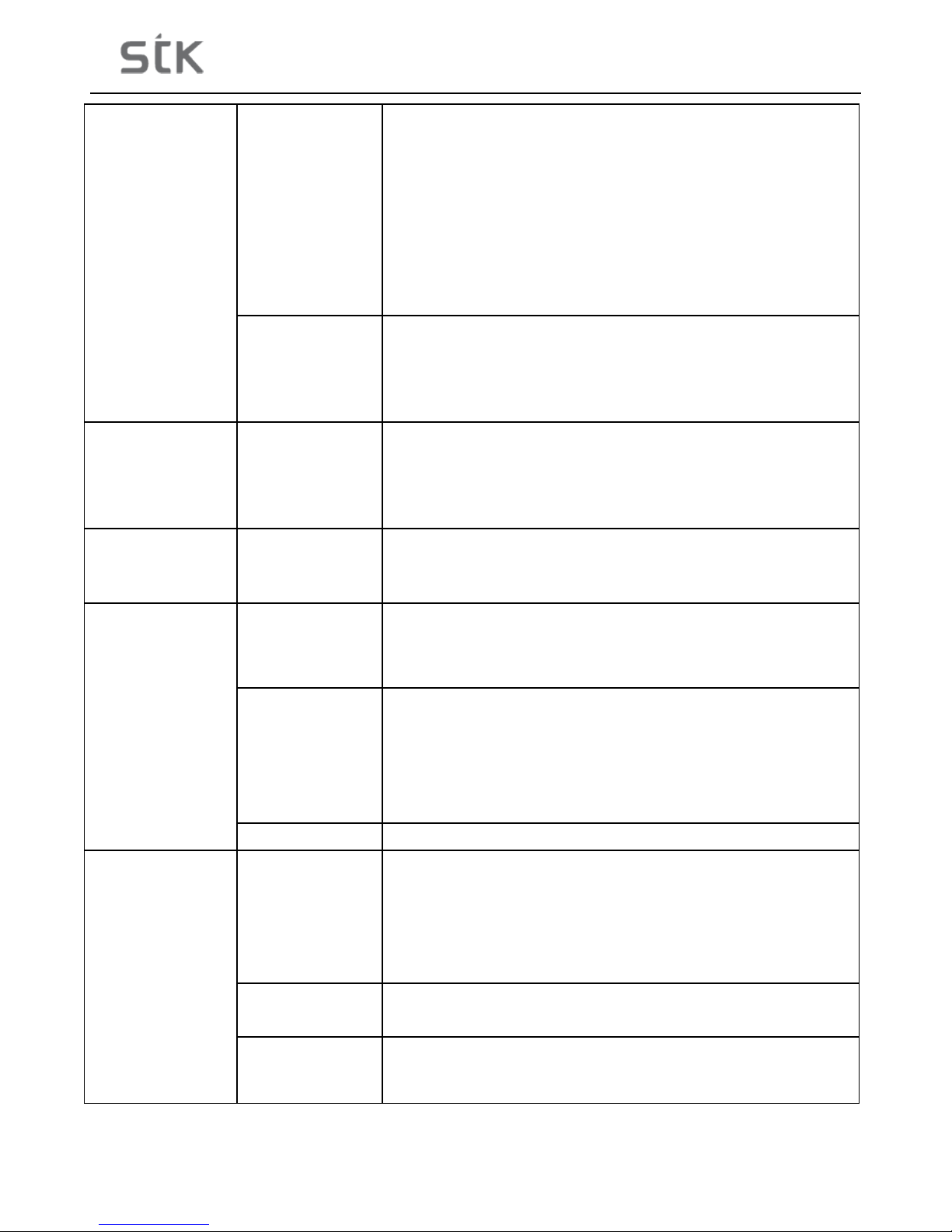
5 Troubleshooting
If you find exceptions when operating the mobile phone, restore the factory settings and then refer to the following table
to solve the problem. If the problem persists, contact the distributor or service provider.
Conditions/Problems Causes Solutions
SIM card error
The SIM card is
damaged.
Contact your network service provider
The SIM card is not
in position.
Check the SIM card
The metal face of
the SIM card is
polluted.
Clean the SIM card with a clean cloth
Page 20
Sync 5e User Manual | English
20
Poor received signal
quality
Signals are
obstructed. For
instance, radio
waves cannot be
effectively
transmitted nearby
a high building or in
a basement.
Move to a place where signals can be effectively transmitted
Line congestions
occur when you use
the mobile phone in
high-traffic hours
Avoid using the mobile phone in high-traffic hours
The mobile phone
cannot be powered
on
The battery energy
is exhausted.
Charge the battery
Calls cannot be
dialed
Call barring is
activated
Cancel call barring
The mobile phone
can
not connect the
network
The SIM card is
invalid
Contact your network service provider
The mobile phone
is not in a service
area of the GSM
network
Move to the network operator's service area
The signal is weak Move to a place where the signal quality is high
The battery cannot
be charged
The charging
voltage does not
match the voltage
range indicated on
the charger
Ensure the charging voltage m atches the voltage range indicated on
the charger
An improper
charger is used
Use the charger specially designed for the mobile phone
Poor contact Ensure the charger plug is in good contact with the mobile phone
Page 21

Sync 5e User Manual | English
21
6 Taking Care of your Device
Your device is a product of superior design and craftsmanship and should be handled with care. The following
suggestions will help you protect your phone:
• Use a dry soft cloth to wipe general dirt.
• Do not use a hard c loth, benzene or thinner to wip e the phone, otherwise, the surface of the phone will b e
scratched or could even result in the fading of color.
• Always keep the small parts of the phone away from children.
• Keep the device dr y. Precipitation, humidity, and all types of liquids or moisture can c ontain minerals th at will
rust electronic circ uits. If your de vice d oes get wet, re m ove the ba tter y, and allow the dev ice to dry com plete ly
before replacing it.
• Do not use or store the device in dusty, dirty areas. Its moving parts and electronic components can be
damaged.
• Do not store the device in high or cold temperature. High temperatures can shorten the life of electronic devices
and damage batteries.
• Do not attempt to open the device other than as instructed in this guide.
• Do not drop, knock, or shake the device. Rough handling can break internal circuit boards and fine mechanics.
• Do not use harsh chemicals, cleaning solvents, or strong detergents to clean the device. Only use a soft, clean,
dry cloth to clean the surface of the device.
• Do not paint the device. Paint can clog the moving parts and prevent proper operation.
• Use indoor chargers only .
 Loading...