

Page 1
ARCTIS | 5
PRODUCT INFORMATION GUIDE
Page 2
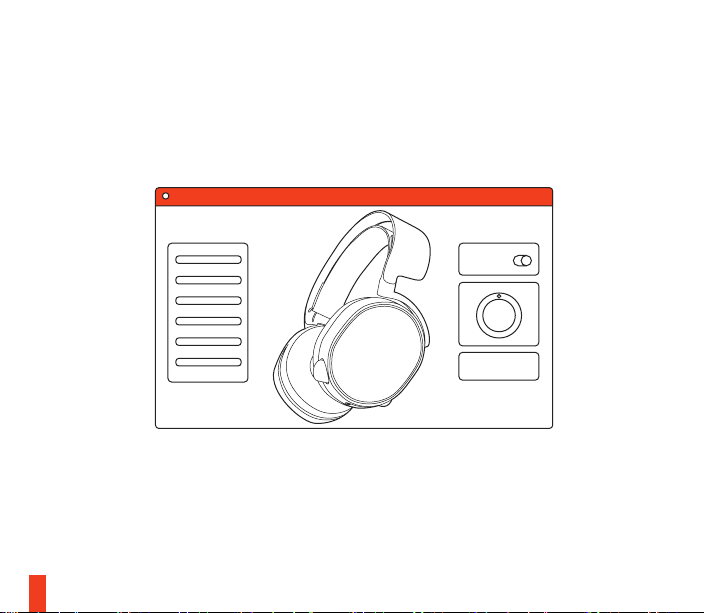
STEELSERIES ENGINE
STEELSERIES ENGINE
To enjoy DTS Headphone:X 7.1, GameSense Integration, and custom
lighting effects on your new Arctis 5 headset, download SteelSeries
Engine at steelseries.com/engine
1
Page 3

WELCOME TO ARCTIS.
Your new headset is the result of more than 15 years of
gaming expertise and our unyielding pursuit of perfection.
We poured our hearts into making your new Arctis, giving
it the best gaming mic available, 7.1 surround sound and
comfort and style unlike anything you’ve experienced before.
Y
E
A
R
S
2
Page 4

find help at support.steelseries.com
a.
PACKAGE CONTENTS
Product Information Guide
Arctis Introduction
Headset
Main Cable (1.2m)
USB ChatMix Dial
4-pole 3.5mm Adapter
3
ENGINE REQUIREMENTS
Platforms:
Windows 7 - Windows 10
Mac OS X 10.8 - 10.11
120 MB of free hard drive space
for installation
SYSTEM COMPATIBILITY
PC / MAC / MOBILE /
PS4 / XBOX ONE / VR
DTS Headphone:X 7.1 Surround available
on Windows only. Software installation
and account registration required
Page 5

CONTENTS
SteelSeries Engine
Welcome
Info and Table of contents
a.
Product overview
b.
Setup
Microphone
c.
Headband Installation
d.
System Setting: Windows
e.
f.
System Setting: Mac
Translations
Español
简体中文
繁體中文
日本語
한국어
Deutsch
Русский
Français
Italiano
Português
Regulatory
1
2
3-4
5-6
7
8
9
10
11
12
14
16
18
20
22
24
26
28
30
4
Page 6
b.
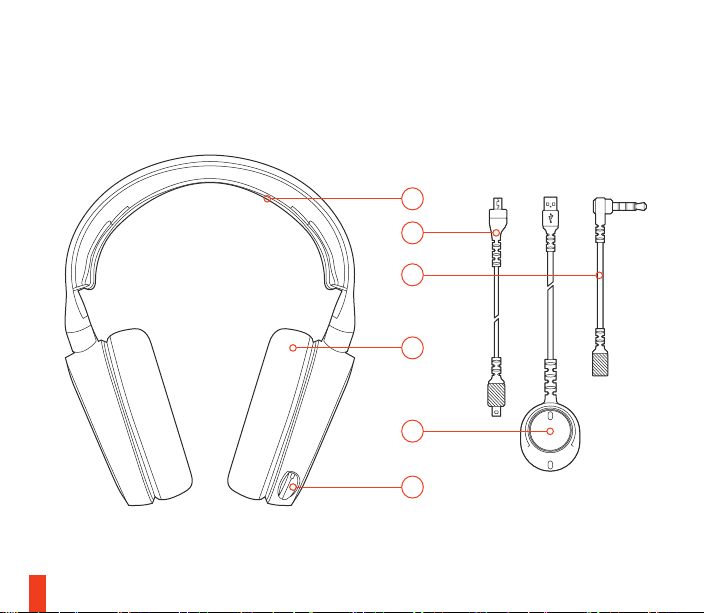
PRODUCT OVERVIEW
*selected accessories available at steelseries.com
01
02
03
04
05
GA
T
A
M
H
E
C
06
5
Page 7
01 Ski Goggle Headband *
02 Main Headset Cable *
03 4-Pole 3.5 mm Adapter *
04 Airweave Ear Cushion*
05 USB Chatmix Dial
06 Retractable Microphone
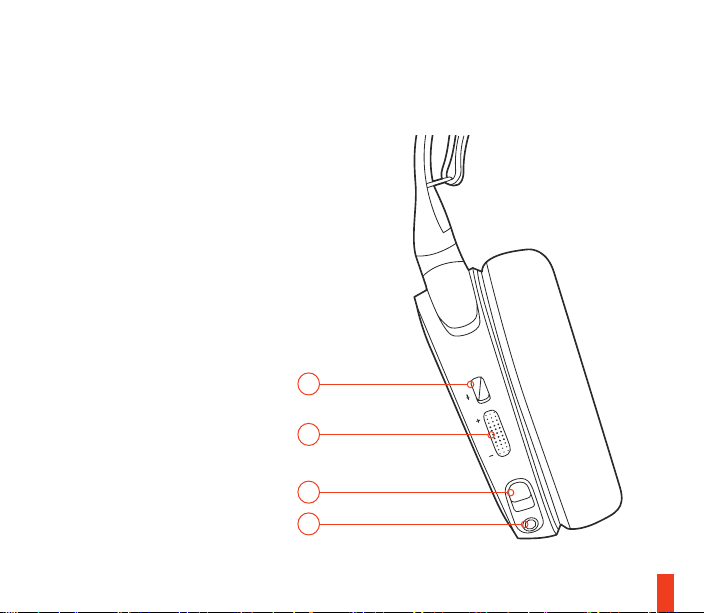
07 Microphone Mute Button
08 Volume Control
09 Main Cable Jack
10 Headphone Share Jack
07
08
09
10
66
Page 8
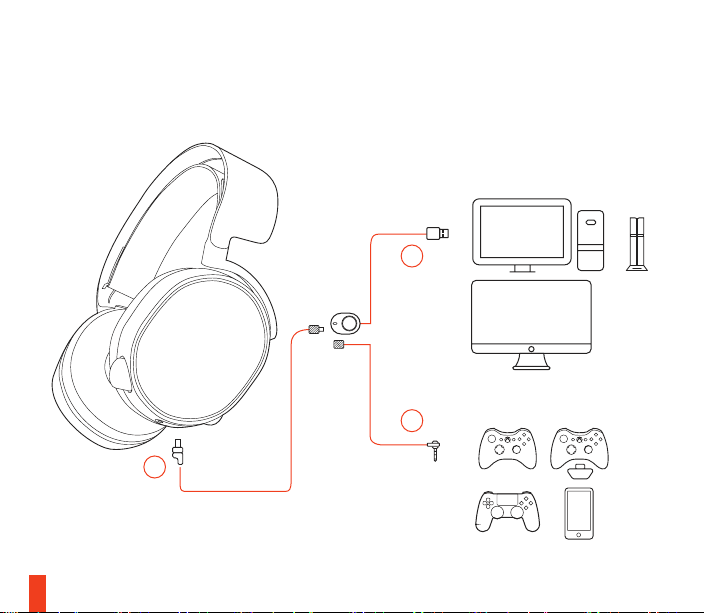
7
SETUP
find help at support.steelseries.com
05
03
02
Page 9
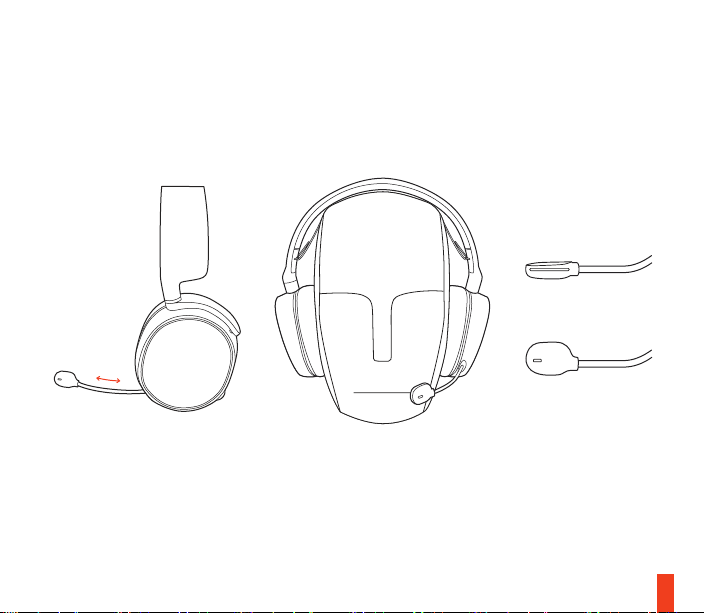
c.
MICROPHONE
Retractable microphone
Positioning
Position the microphone close to the
corner of your mouth with the flat
surface facing you
c-1
top view
front view
8
Page 10
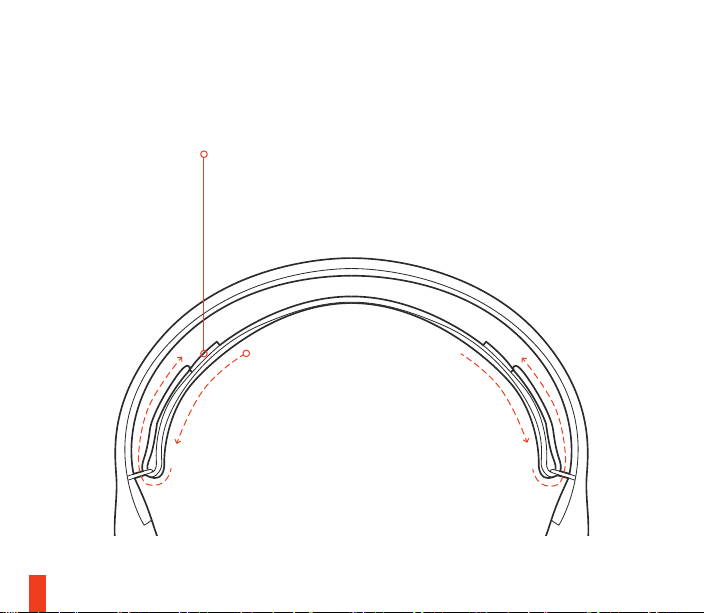
d.
SKI GOGGLE HEADBAND
Velcro
Tighten or loosen the Velcro straps
on the sides of the headband to
achieve the desired fit
9
accessory headbands available at steelseries.com
Install
Direction of headband
installation.
Page 11
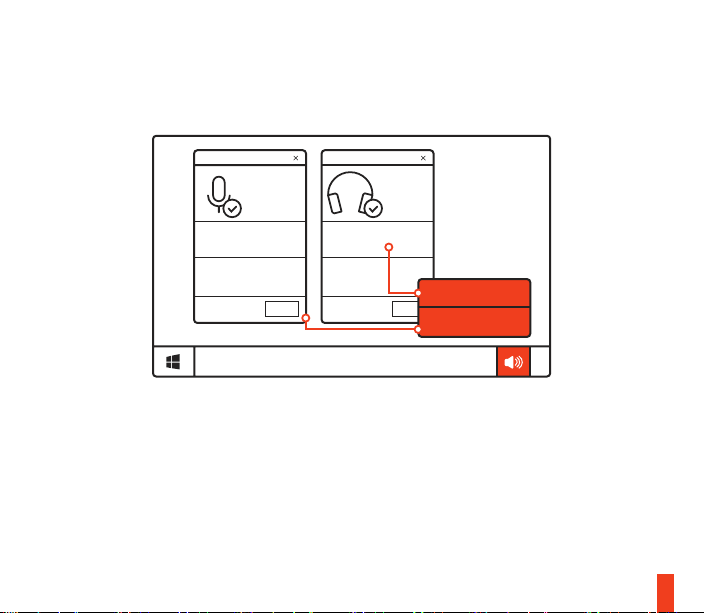
e.
SYSTEM SETTING: WINDOWS
e-1
Arctis 5
Microphone
Arctis 5
Game Audio
OK
e-2
01 Go to Sound Settings
02 Under ‘Playback’ highlight Arctis 5
03 Under ’Recording’ highlight Arctis 5
04 In your VoIP (chat) application select
playback devices
OK
recording devices
Game Audio and select ‘Set Default’
Microphone and select ‘Set Default’
Arctis 5 Chat Audio as the default
audio device
10
Page 12
f.
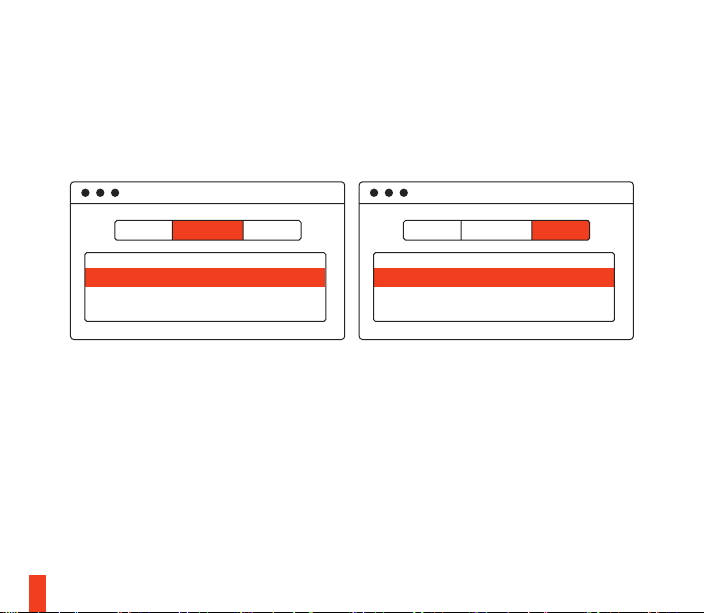
SYSTEM SETTING: MAC
f-1 f-2
sound sound
Output Input
11
find help at support.steelseries.com
Arctis 5Arctis 5 USB USB
f-3
01 Go to System Preferences > Sound
02 Under ‘Output’ select Arctis 5 Game Audio
03 Under ‘Input’ select Arctis 5 Microphone
04 In your VoIP (chat) application
select Arctis 5 Chat Audio as the
default audio device
Page 13

ESPAÑOL
Contenido Del Paquete
a.
Guía de Información del Producto
Arctis card
Auriculares
Cable principal (1.2m)
USB Cuadrante Chatmix
Adaptador de 3.5 mm 4 polos
Requisito de Engine
Plataformas:
Windows 7 - Windows 10
Mac OS X 10.8 - 10.11
Se requieren 120 MB de espacio libre
en el disco duro para la instalación
Compatibilidad del sistema
PC / MAC / TELÉFONO MÓVIL /
PS4 / XBOX ONE / VR
Sonido envolvente DTS Headphone:
X 7.1 disponible solo en Windows.
Se requiere instalación de software
y registración de una cuenta
Descarga de Engine en
steelseries.com/engine
Descripción general del producto
b.
01 Cinta para el cabello con gafas
de esquí*
02 Cable principal de los auriculares*
03 Adaptador de 3,5 mm 4 polos*
04 Almohadilla para oídos Airweave*
05 Chatmix Cuadrante USB
06 Micrófono retráctil
07 Botón de silenciar el micrófono
08 Control del volumen
09 Conector del cable principal
10 Conector para compartir auriculares
* Los accesorios seleccionados están
disponibles en steelseries.com
c.
Micrófono
Micrófono retráctil
Posicionamiento
Coloque el micrófono cerca de la
esquina de su boca con la superficie
plana hacia su rostro
c-1 Vista superior
Vista frontal
12
Page 14

Cinta para el cabello con
d.
gafas de esquí
Velcro
Ajuste o afloje las tiras de velcro de
los laterales de la cinta para lograr
el ajuste deseado.
Instalación
Instrucción para instalar la cinta
para cabello
Más cintas para cabello disponibles
env steelseries.com
Ajustes de sistema: Windows
e.
e -1 Dispositivos de reproducción
Audio para juegos Arctis 5
Dispositivos de grabación
Micrófono Arctis 5
e-2 01 Ir a ajustes de sonido
02 En "Reproducción", marca
Audio para juegos Arctis 5
y selecciona "Establecer
como predeterminado"
13
03 En "Grabación", marca
micrófono Arctis 5 y
selecciona "Establecer
como predeterminado"
04 En tu aplicación de VoIP
(chat), selecciona Audio de
chat Arctis 5 como dispositivo de audio predeterminado
Ajustes de sistema: Mac
f.
f-1 Sonido
Salida: Arctis 5 Game Audio
f-2 Sonido
Entrada: Arctis 5 Game Audio
f-3 01 Ve a Preferencias del
sistema > Sonido
02 En "Salida", selecciona
Audio para juegos Arctis 5
03 En "Entrada", selecciona
Micrófono Arctis 5
04 En tu aplicación de VoIP
(chat), selecciona Audio de
chat Arctis 5 como dispositivo de audio predeterminado
Solicite ayuda en support.steelseries.com
Page 15

简体中文
a.
包装内含
产品信息指南
Arctis卡
耳机
主线 (1.2m)
USB ChatMix Dial
4节3.5mm转换头
Engine系统需求
适用平台
Windows 7 - Windows 10
Mac OS X 10.8 - 10.11
安装需要120MB磁盘空间
系统兼容性
PC / MAC / 手机 /
PS4 / XBOX ONE / VR
只有Windows系统可设 DTS Headphone:X 7.1 环绕音效。使用前需先
安装软体以及注册账号。
访问 steelseries.com/engine 下载
b.
产品概览
01 滑雪镜头带 *
02 主耳机线*
03 四节3.5mm转换头*
04 Airweave 耳罩 *
05 USB ChatMix 旋钮
06 伸缩式麦克风
07 麦克风静音按钮
08 音量控制
09 主线接口
10 耳机分享接口
* 勾选商品可在 steelseries.com 购买
麦克风
c.
伸縮式麦克风
麦克风位置
將麦克风放置于靠近您嘴角处,
宽平面朝向您自己。
c-1 鸟瞰图
正面图
14
Page 16

d. 滑雪镜头帶
尼龙搭扣
调整头帶兩側的尼龙搭扣至适宜
松紧度
安装
头帶安装方法
更多头帶样式请参考官网
steelseries.com
系统设定: Windows
e.
e -1 播放设备
Arctis 5 游戏耳机
录音设备
Arctis 5 麦克风
e-2 01 打开声音设定
02 在播放设备的视窗里选取
Arctis 5 游戏耳机并右键选择
设置为默认设备
03 在录音设备的视窗里选取
Arctis 5 麦克风并右键选择设
置为默认设备
15
04 在您的VoIP (chat)应用程式
里将Arctis 5 游戏耳机设为默
认设备
系统设定: Mac
f.
f- 1 声音
输出:Arctis 5 游戏耳机
f-2 输入:Arctis 5 游戏耳机
f-3 01 打开偏好设定 > 声音
02 在播放设备的视窗里选取
Arctis 5 游戏耳机并右键选择
设置为默认设备
03 在录音设备的视窗里选取
Arctis 5 麦克风并右键选择设
置为默认设备
04 在您的VoIP (chat)应用程式
里将Arctis 5 游戏耳机设为
默认设备
访问 support.steelseries.com 寻求帮助
Page 17

繁體中文
包裝內容
a.
產品信息指南
Arctis卡
耳機
主耳機線 (1.2m)
雙頭3.5mm 延長線(1.8m)
4節3.5mm轉接頭
Engine 系統需求
適用平台
Windows 7 - Windows 10
Mac OS X 10.8 - 10.11
安裝需要120MB 硬體空間
系统相容性
PC / MAC / 手機 /
PS4 / XOBX ONE / VR
只有Windows系统可設定DTS Headphone: X7.1 環繞音效。使用前須先
安裝軟體以及註冊帳號
訪問 steelseries.com/engine 下载
產品概覽
b.
01 滑雪鏡頭帶*
02 主耳機線*
03 四節 3.5mm轉換頭*
04 Airweave 耳罩 *
05 USB ChatMix 旋鈕
06 伸縮式麥克風
07 麥克風靜音按鈕
08 音量控制
09 主線接口
10 耳機分享接口
* 勾選商品可在 steelseries.com 購買
麥克風
c.
伸縮式麥克風
麥克風位置
將麥克風放置於靠近您嘴角處,
寬平面朝向您自己。
c-1 鳥瞰圖
正面圖
16
Page 18

d. 滑雪鏡頭帶
魔鬼氈
調整頭帶兩側的魔鬼氈至適宜鬆緊度
安装
頭帶安装方法
更多頭帶樣式請参考官網
steelseries.com
系統設定: Windows
e.
e -1 播放設備
Arctis 5 遊戲耳機
錄音設備
Arctis 5 麥克風
e-2 01 打開聲音設定
02 在播放設備的視窗裡選取
Arctis 5 遊戲耳機並右鍵選擇
設為預設設備
03 在錄音設備的視窗裡選取
Arctis 5 麥克風並右鍵選擇設
為預設設備
17
04 在您的VoIP (chat)應用程式裡將
Arctis 5 遊戲耳機設為預設設備
系統設定: Mac
f.
f- 1 聲音
輸出:Arctis 5 遊戲耳機
f-2 聲音
輸入:Arctis 5 遊戲耳機
f-3 01 打開偏好設定 > 聲音
02 在播放設備的視窗裡選取 Arctis
5 遊戲耳機點右鍵選擇設定為預
設設備
03 在錄音設備的視窗裡選取 Arctis
5 麥克風點右鍵選擇設定為預設
設備
04 在您的VoIP (chat)應用程式裡將
Arctis 5 遊戲耳機設定為預設設
備
訪問 support.steelseries.com 尋求幫助
Page 19

日本語
a.
パッケージの内容
製品情報ガイド
Arctis カード
ヘッドセット
メインケーブル (1.2m)
USB ChatMix ダイヤル
4極3.5mmプラグ
エンジン要件
プラットフォーム
Windows 7 - Windows 10
Mac OS X 10.8 - 10.11
インストールに120MB以上の空き
容量が必要 。
システム互換性
PC / MAC / モ バイル /
PS4 / XBOX ONE / VR
DTS Headphone:X 7.1 Surround は
Windows でのみご利用いただけま
す。 ソフトウェアのインストール
とアカウントの登録が必要です。
ダウンロードは steelseries.com/
engine から
製品概要
b.
01 スキーゴーグルヘッドバンド*
02 メインヘッドセットケーブル*
03 4極3.5mmプラグ*
04 Airweave イヤークッション*
05 USB ChatMix ダイヤル
06 リトラクタブルマイク
07 マイク消音ボタン
08 音量コントロール
09 メインケーブルジャック
10 ヘッドフォン共有ジャック
steelseries.com で厳選されたア
クセサリをお求めいただけます
マイク
c.
リトラクタブルマイク
ポジショニング
マイクの位置は、平らな面が口の端
に来るように調節してください。
c-1 トップビュー
フロントビュー
18
Page 20

d. スキーゴーグルヘッドバンド
面ファスナー
きつすぎず緩すぎない、丁度いい装
着感になるように、ヘッドバンド両
側のストラップの面ファスナーを調
整してください。
インストール
ヘッドバンドの取り付け方法の
説明です。
03 [録音] から [Arctis 5 マイク]
をハイライトし、[デフォルト
に設定] を選択
04 ご利用のVoIP(チャット)ア
プリケーションで [Arctis 5 チ
ャットオーディオ] をデフォ
ルトのオーディオ機器として
選択します
他のヘッドバンドをお求めの場合は
steelseries.com をご覧ください
システム設定: Windows
e.
e -1 再生機器
Arctis 5 ゲームオーディオ
記録機器
Arctis 5 マイク
e-2 01 サウンド設定に進む
02 [再生] から [Arctis 5 ゲームオ
ーディオ] をハイライトし、[デ
フォルトに設定] を選択
19
システム設定: Mac
f.
f-1 サウンド
出力:Arctis 5 ゲームオーディオ
f-2 サウンド
入力:Arctis 5 ゲームオーディオ
f-3 01 [システム設定] > [サウンド] と
進みます
02 [出力] から [Arctis 5 ゲームオー
ディオ] を選択
03 [入力] から [Arctis 5 マイク]
を選択
Page 21

04 ご利用のVoIP(チャット)ア
プリケーションで [Arctis 5 チ
ャットオーディオ] をデフォ
ルトのオーディオ機器として
選択します
ヘルプについては
support.steelseries.com
をご覧ください
한국인
설치에 120 MB 의 하드 드라이브
공간 필요.
시스템 호환
PC / MAC / MOBILE /
PS4 / XBOX ONE / VR
DTS Headphone: X 7.1 Surround 는
Windows에서만 지원. 소프트웨어 설치
및 계정 등록이 필요합니다
steelseries.com/engine
에서 다운로드할 수 있습니다
a.
패키지 구성
제품 정보 가이드
Arctis 카드
헤드셋
메인 케이블 (1.2m)
듀얼 3.5mm 연장 케이블 (1.8m)
4극 3.5mm 어댑터
Engine 요구 사양
플랫폼
Windows 7 - Windows 10
Mac OS X 10.8 - 10.11
제품 개요
b.
01 스키고글 헤드밴드*
02 메인 헤드셋 케이블*
03 4극 3.5 mm 어댑터*
04 Airweave 이어패드*
05 USB ChatMix Dail
06 접이식 마이크
07 마이크 음소거 버튼
08 볼륨 조절
09 메인 케이블 잭
10 헤드폰 공유 잭
20
Page 22

c.
마이크
접이식 마이크
위치 조절
평평한 쪽이 얼굴을 향하도록 하여 마
이크를 입가 근처에 고정시키십시오
c-1 평면 시점
정면 시점
d.
스키고글 헤드밴드
벨크로
헤드셋 측면의 벨크로 띠의 부착을
조절하여 적절히 착용하십시오
설치
헤드밴드 설치 방향
steelseries.com 의 다른 헤드밴드 보기
시스템 설정: Windows
e.
e -1 재생 장치
Arctis 5 게임 오디오
녹음 장치
Arctis 5 마이크
21
e-2 01 소리 설정으로 이동하십시오
02 ‘재생’ 탭에서 Arctis 5 게임 오
디오를선택하고 ‘기본 장치로
설정’ 을 체크하십시오
03 '녹음' 탭에서 Arctis 5 마이를
선택하고기본 장치로 설정’을
체크하십시오
04 사용하는 VoIP(채팅) 응용프로
그램에서 Arctis 5 Chat Audio
를 기본 오디오 장치로 선택하
십시오
시스템 설정: Mac
f.
f-1 소리
출력:Arctis 5 게임 오디오
f-2 소리
입력:Arctis 5 게임 오디오
f-3 01 시스템 환경설정 > 사운드로 이
동하십시오
02 ‘출력’ 탭에서 Arctis 5 게임 오디
오를 선택하십시오
03 ‘입력’ 탭에서 Arctis 5 마이크를
선택하십시오
Page 23

04 사용하는 VoIP(채팅) 응용프로
그램에서 Arctis 5 Chat Audio
를 기본 오디오 장치로 선택하
십시오
도움말은 support.steelseries.com
에서 보실 수 있습니다
DEUTSCH
Compatibilité du système
PC / MAC / MOBILE /
PS4 / XBOX ONE / VR
DTS Headphone:X 7.1 Surround ist
nur für Windows verfügbar. Softwareinstallation und Kontoanmeldung
erforderlich
Download bei steelseries.com/engine
Packungsinhalt
a.
Produktinformationen
Arctis-karte
Headset
Hauptkabel (1.2 m)
USB ChatMix Dial
4-poliger 3.5 mm Adapter
Engine-Anforderungen
Plattformen :
Windows 7 - Windows 10
Mac OS X 10.8 - 10.11
120 MB freien Platz auf der
Festplatte für die Installation
b.
Produktüberblick
01 „Skibrillen”-Stirnband*
02 Haupt-Headset-Kabel*
03 4-poliger 3.5 mm Adapter*
04 Airweave Ohrpolster*
05 USB ChatMix Dial
06 Einklappbares Mikrofon
07 Stummschalttaste des Mikrofon
08 Lautstärkeregler
09 Hauptkabelbuchse
10 Gemeinsame Kopfhörerbuchse
* Ausgewähltes Zubehör bei
steelseries.com
22
Page 24

c.
Mikrofon
Einklappbares Mikrofon
Platzierung
Platziere das Mikrofon in die Nähe
deines Mundwinkels, wobei die
flache Oberfläche in deine Richtung
deuten soll.
c-1 Ansicht von oben
Seitenansicht
d.
„Skibrillen”-Stirnband
Klettverschluss
Das Stirnband lässt sich anhand
des Klettverschlusses auf die
gewünschte Passform einstellen.
Installieren
Richtung der Stirnband-Installation
Weitere Stirnbänder bei steelseries.com
23
Systemeinstellungen: Windows
e.
e -1 Wiedergabegeräte
Arctis 5 Game Audio
Aufnahmegeräte
Arctis 5 Mikrofon
e-2 01 Zu Sound-Einstellungen
02 Wähle bei ‘Playback’ Arctis
5 Game Audio und dann
‘Standard’
03 Wähle bei 'Aufnahme'
Arctis 5 Mikrofon und
dann 'Standard'
04 Wähle in deiner VoIP
(Chat) Anwendung Arctis
5 Chat Audio als das Standard-Tongerät
Systemeinstellungen: Mac
f.
f-1 Sound
Ausgabe: Arctis 5 Game Audio
f-2 Sound
Eingabe: Arctis 5 Game Audio
f-3 01 Gehe zu Systemeinstellun-
gen > Sound
Page 25

02 Wähle unter 'Ausgabe'
Arctis 5 Game Audio
03 Wähle unter 'Eingabe'
Arctis 5 Mikrofon
04 Wähle in deiner VoIP
(Chat) Anwendung Arctis
5 Chat Audio als das Standard-Tongerät
Solicite ayuda en
support.steelseries.com
РУССКИЙ
a.
Содержимое упаковки
Сведения об изделии
Карточка Arctis
Наушники
Основной кабель (1.2 m)
USB-колёсиком ChatMix
Переходник 3,5мм
Требования движка
Платформы:
Windows 7 - Windows 10
Mac OS X 10.8 - 10.11
Для установки нужно 120 МБ
свободного места на жёстком
диске.
Системная совместимость
ПК / MAC / МОБИЛЬНЫЕ /
PS4 / XBOX ONE / VR
Система DTS Headphone:X 7.1
Surround. (только для Windows)
Требуется установка
программного обеспечения
и регистрация аккаунта
Загрузить steelseries.com/engine
Обзор изделия
b.
01 Оголовье как у лыжных очков*
02 Основной кабель наушников*
03 Переходник 3.5мм*
04 Амбушюры Airweave*
05 USB-колёсиком ChatMix
06 Выдвижной микрофон
24
Page 26

e.
01 Кнопка отключения микрофона
02 Настройка громкости
03 Переходник основного кабеля
04 Переходник для второго
пользователя
* Аксессуары steelseries.com
c.
микрофон
Выдвижной микрофон
Platzierung
Расположите микрофон около
уголка рта, плоской стороной
к себе.
c-1 Вид сверху
Вид спереди
d.
Оголовье как у лыжных очков
Велкро
Затяните или ослабьте полосы
Велкро по бокам оголовья, чтобы
оно лучше сидело
Другие модели steelseries.com
25
Системные настройки: Windows
e -1 Воспроизведение звука
Игровой звук Arctis 5
Запись звука
Микрофон Arctis 5
e-2 01 Перейдите к настройкам
звука.
02 В разделе
«Воспроизведение»
выберите «Игровой звук
Arctis 5», а затем — «По
умолчанию».
03 В разделе «Запись»
выберите «Микрофон
Arctis 5», а затем —
«По умолчанию».
04 В приложении VoIP (чате)
установите «звук чата
Arctis 5» по умолчанию.
f.
Системные настройки: Mac
f-1 Звук
вход: Игровой звук Arctis 5
f-2 Звук
выход: Игровой звук Arctis 5
Page 27

f-3 01 Перейдите в раздел
«Системные настройки >
Звук».
02 В разделе «Вход»
выберите «Игровой звук
Arctis 5».
03 В разделе «Выход»
выберите «Микрофон
Arctis 5».
04 В приложении VoIP (чате)
установите «звук чата
Arctis 5» по умолчанию.
Техподдержка
support.steelseries.com
FRANÇAIS
Contenu de l’emballage
a.
Guide d’informations produit
Carte Arctis
Casque audio
Câble principal (1,2 m)
Cadran De Réglage USB ChatMix
Adaptateur 4 pôles 3,5 mm
Prérequis Engine
Plateformes :
Windows 7 - Windows 10
Mac OS X 10.8 - 10.11*
120 Mo d’espace disque dur
disponible pour l’installation
Compatibilité du système
PC / MAC / MOBILE /
PS4 / XBOX ONE / VR
Casque DTS X 7.1 Surround
disponible pour Windows unique-
ment. L’installation du logiciel et la
création d’un compte sont exigés
Téléchargements ici steelseries.com/engine
Présentation du produit
b.
01 Serre-tête de masque de ski*
02 Câble principal du casque audio*
03 Adaptateur 4 pôles 3,5 mm*
04 Coussinet d’oreille Airweave*
05 Cadran De Réglage USB ChatMix
06 Microphone rétractable
07 Bouton Muet du microphone
26
Page 28

e.
08 Contrôle du volume
09 Prise câble principal
10 Prise partage casque audio
* Sélection d’accessoires
disponibles ici steelseries.com
Microphone
c.
Microphone rétractable
Positionnement
Placez le microphone près du coin
de votre bouche, la surface plate
vous faisant face
c-1 Vue du haut
Vue avant
d.
Serre-tête de masque de ski
Velcro
Serrez ou desserrez les lanières en
Velcro sur les côtés du serre-tête pour
un confort optimal.
Instalación
Instruction de l’installation du serre-tête.
Plus de serre-têtes ici steelseries.com
27
Configuration système: Windows
e -1 Périphériques de lecture
Audio de jeu Arctis 5
Périphériques d’enregistrement
Microphone Arctis 5
e-2 01 Ouvrir la configuration
sonore .
02 Sous « Lecture », activez
«Audio de jeu Arctis 5 » et
sélectionnez « Par défaut ».
03 Sous « Enregistrement »,
activez « Microphone Arctis
5 » et sélectionnez
«Par défaut» .
04 Dans votre application VoIP
(de chat), sélectionnez
«Audio chat Arctis 5» en
tant que périphérique audio
par défaut.
f.
Configuration système: Mac
f-1 Son
Sortie: Audio de jeu Arctis 5
f-2 Son
Entrée: Microphone Arctis 5
Page 29

f-3 01 Ouvrez « Préférences
système > Son »
02 Sous « Sortie» , sélection-
nez « Audio de jeu Arctis 5 »
03 Sous « Entrée», sélection-
nez « Microphone Arctis 5»
04 Dans votre application VoIP
(de chat), sélectionnez «
Audio chat Arctis 5 » en tant
que périphérique audio par
défaut.
Vous obtiendrez de l’aide ici
support.steelseries.com
ITALIANO
Contenuti della confezione
a.
Guida informazioni sul prodotto
Scheda Arctis
Cuffie
Cavo principale (1.2m)
USB Barra Chatmix
Cavo jack 3.5 mm 4 poli
Requisiti Engine
Piattaforma:
Windows 7 - Windows 10
Mac OS X 10.8 - 10.11
120 MB di spazio libero sull’hard
drive per l’installazione
Compatibilità di sistema
PC / MAC / MOBILE /
PS4 / XBOX ONE / VR
DTS Headphone:X 7.1 Surround
disponibile solo per Windows.
Installazione software e registrazione
account richieste
scarica da steelseries.com/engine
Generalità sul prodotto
b.
01 Archetto stile occhiali da sci*
02 Cavo cuffia principale*
03 Cavo jack 3.5 mm 4 poli*
04 Cuscinetti Airweave*
05 USB Barra Chatmix
06 Microfono retrattile
28
Page 30

e.
07 Pulsante microfono muto
08 Controllo del volume
09 Jack cavo principale
10 Splitter per cuffie
* accessori selezionati disponibili su
steelseries.com
c.
Microfono
Microfono retrattile
Posizionamento
Sistema il microfono vicino all’angolo
della bocca con la superficie piatta
rivolta verso di te
c-1 Vista dall’alto
Vista frontale
d.
Archetto stile occhiali da sci
Velcro
Stringi o allenta le cinghie di velcro
ai lati dell’archetto per ottenere la
misura desiderata
Montaggio
Senso di montaggio dell’archetto.
Trova altri archetti su steelseries.com
29
Impostazioni di sistema: Windows
e -1 Periferica di riproduzione
Audio del gioco Arctis 5
Periferica di registrazione
Microfono Arctis 5
e-2 01 Vai a Impostazioni audio.
02 In "Riproduzione" evidenzia
audio del gioco Arctis 5
quindi seleziona "Impostazioni predefinite"
03 In "Registrazione" evidenzia
il microfono Arctis 5 quindi
seleziona "Impostazioni
predefinite"
04 Seleziona Arctis 5 Chat
Audio come periferica
audio predefinita per la tua
applicazione VoIP (chat).
f.
Impostazioni di sistema: Mac
f- 1 Audio
Uscita: Audio del gioco Arctis 5
f-2 Audio
Entrée: Microfono Arctis 5
Page 31

f-3 01 apri preferenze di sistema
> Audio
02 In "Uscita" seleziona Audio
del gioco Arctis 5
03 In "Ingresso" seleziona
Microfono Arctis 5
04 Seleziona Arctis 5 Chat
Audio come periferica
audio predefinita per la tua
applicazione VoIP (chat)
Per assistenza vai su
support.steelseries.com
PORTUGUÊS
a.
Conteúdo do pacote
Guia de informação de produto
Cartão Arctis
Headset
Cabo principal (1.2m)
USB ChatMix Dial
Adaptador 3.5mm de 4 hastes
Requisitos do Engine
Plataformas:
Windows 7 - Windows 10
Mac OS X 10.8 - 10.11*
120 MB de espaço livre em disco
para a instalação
Compatibilidade do sistema
ПК / MAC / MÓVEL /
PS4 / XBOX ONE / VR
Fone de ouvido DTS:X 7.1 Surround
disponível apenas no Windows
Necessário registro de conta e
instalação de software
faça download em steelseries.com/engine
Visão geral do produto
b.
01 Faixa de óculos de esqui *
02 Cabo principal do headset *
03 Adaptador 3,5mm de 4 hastes *
04 Almofada de orelha Airweave *
05 USB ChatMix Dial
06 Microfone retrátil
07 Botão de silenciar microfone
30
Page 32

e.
08 Controle de volume
09 Entrada do cabo principal
10 Entrada de compartilhar fone
* acessórios selecionados disponíveis
em steelseries.com
c.
Microfone
Microfone retrátil
Posicionamento
Posicione o microfone perto do
canto da sua boca com a superfície
lisa virada para você
c-1 Visão de cima
Visão frontal
d.
Faixa de óculos de esqui
Velcro
Aperte ou afrouxe as tiras de velcro
nos lados da faixa para chegar no
ponto desejado
Instalação
Direção da instalação da faixa.
mais faixas em steelseries.com
31
Configurações de sistema:
Windows
e -1 Dispositivos de reprodução
Áudio de jogo Arctis 5
Dispositivos de gravação
Microfone Arctis 5
e-2 01 Ir para configurações
de som.
02 Sob "Reprodução" seleci-
one áudio de jogo Arctis 5 e
escolha "Definir padrão"
03 Sob "Gravação" selecione
microfone Arctis 5 e escolha
"Definir padrão"
04 No seu aplicativo de VoIP
(chat) selecione áudio de
chat Arctis 5 como o dispositivo de áudio padrão..
f.
Impostazioni di sistema: Mac
f- 1 Som
Saída: Áudio de jogo Arctis 5
f-2 Som
Entrada: Microfone Arctis 5
Page 33

f-3 01 vá para Preferências do
sistema > Som
02 Sob "Saída", selecione
áudio de jogo Arctis 5
03 Sob "Entrada", selecione
microfone Arctis 5
04 No seu aplicativo de VoIP
(chat) selecione áudio de
chat Arctis 5 como o dispositivo de áudio padrão.
encontre ajuda em
support.steelseries.com
32
Page 34

Class B Product: This device complies with Part 15 of the FCC Rules. Operation is subject to the following
two conditions:
1. This device may not cause harmful interference.
2. This device must accept any interference received, including interference that may cause undesired
operation.
Attention: Any modifications or changes made to this device that are not approved by Steelseries may void
the authority granted
to the user by the FCC to operate this equipment.
Note: This equipment has been tested and found to comply with the limits for a Class B digital device, pursuant to Part 15 of the FCC Rules. These limits are designed to provide reasonable protection against harmful
interference in a residential installation. This equipment generates, uses and can radiate radio frequency
energy and, if not installed and used in accordance with the instructions, may cause harmful interference
to radio communications. However, there is no guarantee that interference will not occur in a particular
installation. If this equipment does cause harmful interference to radio or television reception, which can be
determined by turning the equipment off and on, the user is encouraged to try to correct the interference by
one or more of the following measures:
‧ Reorient or relocate the receiving antenna.
‧ Increase the separation between the equipment and receiver.
‧ Connect the equipment into an outlet on a circuit different from
that to which the receiver is connected.
‧ Consult the dealer or an experienced radio/television technician for help.
This product must not be disposed of with your other household waste. For more information about where
you can drop off your waste equipment for recycling, please contact your local city office, your household
waste disposal service or the shop where you purchased the product.
This product is compliant with requirements of Circular No. 30/2011/TT-BCT Regulations “STIPULATING
TEMPORARILY THE PERMISSIBLE CONTENT LIMITATION OF SOME TOXIC CHEMICALS IN THE ELECTRONIC, ELECTRICAL PRODUCTS”
Türkiye Cumhuriyeti: EEE Yönetmeliğine Uygundur
Restriction on Hazardous Substances statement (India)
This product complies with the “India E-waste Rule 2011” and prohibits use of lead, mercury, hexavalent
chromium, polybrominated biphenyls or polybrominated diphenyl ethers in concentrations exceeding 0.1
weight % and 0.01 weight % for cadmium, except for the exemptions set in Schedule 2 of the Rule.
Page 35
クラス B VCCI の表示 があるワークステーションおよびオプション製品は、クラス B 情報技術装置です。
これらの製品には、下記の項目が該当します。
この装置は、情報処理装置等電波障害自主規制協議会(VCCI)の基準に基づくクラス B 情報技術装置です。この装
置、家庭環境で使用することを目的としていますが、この装置がラジオやテレビジョン受信機に近接して使用さ
れると、受信障害を引き起こすことがあります。取扱説明書に従って正しい取り扱いをしてください。 VCCI-B
《废弃电器电子产品回收処裡管理条例》
为了更好地关爱及保护地球,当用戶不再需要此产品或产品寿命終止时,请遵守国家废弃电器
电子产品回收処裡相关法律法规,將其交給当地具有国家認可的回收处裡资貭的厂商进行回收处理。
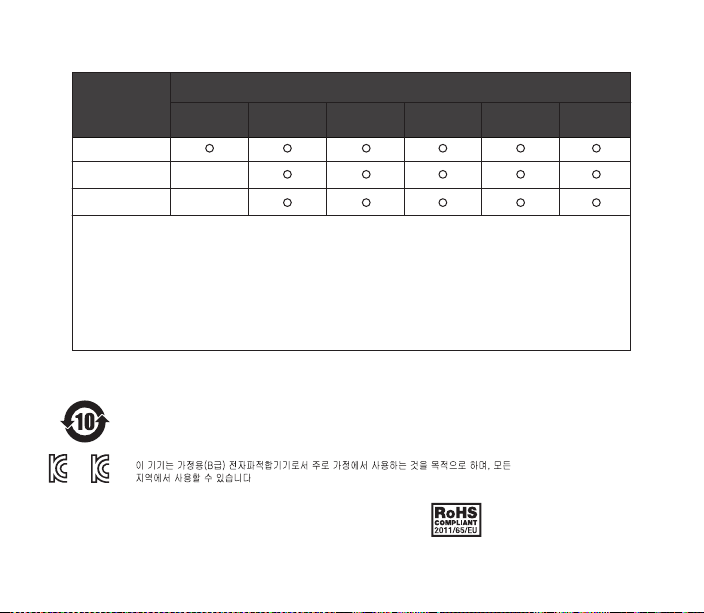
根据中国大陆《电子电气产品有害物质限制使用标识要求》,以下部分列出了产品中可能包含的有害物质的名称和含量:
(Cd)
镉
有害物质
六价铬
(Cr(VI))
多溴联苯
(PBB)
多溴二苯醚
(PBDE)
零部件名称
塑料
电路板组件
其他线材
*:电路板组件包括印刷电路板及其构成的零部件,如电阻、电容、集成电路、连接器等。
本表格依据SJ/T 11364的规定编制。
O:表示该有害物质在该部件所有均质材料中的含量均在 GB/T 26572规定的限量要求以下。
X:表示该有害物质至少在该部件的某一均质材料中的含量超出GB/T 26572规定的限量要求;
上表中打“X”的部件,应功能需要,部分有害物质含量超出GB/T 26572规定的限量要求,
但是符合欧盟RoHS法规要求(属于豁免部分)。
(Pb)
铅
(Hg)
汞
Page 36
Coarse
Classificatior,
Pb Hg Cd Cr6+ PBBs PBDEs
Chemical Substance Table
Plastic
PCBA Exempted
Cable
*PCBA consisted of bare printed circuit board, soldering and its surface-mounted elements, such as
resistors, capacitors, arrays, connectors, chips, etc.
NOTE1: The “O“ indicates taht the percentage content of the substance to be calculated is not exceeding
the reference percentage content.
NOTE 2: The “Exempted‘ item means that the specified chemical substance corresponds to the items
exempted by the standard of JIS C 0950.
MSIP-REM-
MSIP-REM-
SS4-SC-00004
SS4-HS-00011
Exempted
This class B digital apparatus complies with Candian ICES-003
Cet appareil numérique de la classe B est conforme à la norme NMB-003 du Canada
该电子电气产品含有某些有害物质,在环保使用期限内可以放心使用,
超过环保使用期限之后则应该进入回收循环系统。
Environmental conditions for transport and storage:
Temperature: -20℃ to +60 ℃
Humidity: 0% to 90% RH
Altitude: 0 - 3000m
Page 37
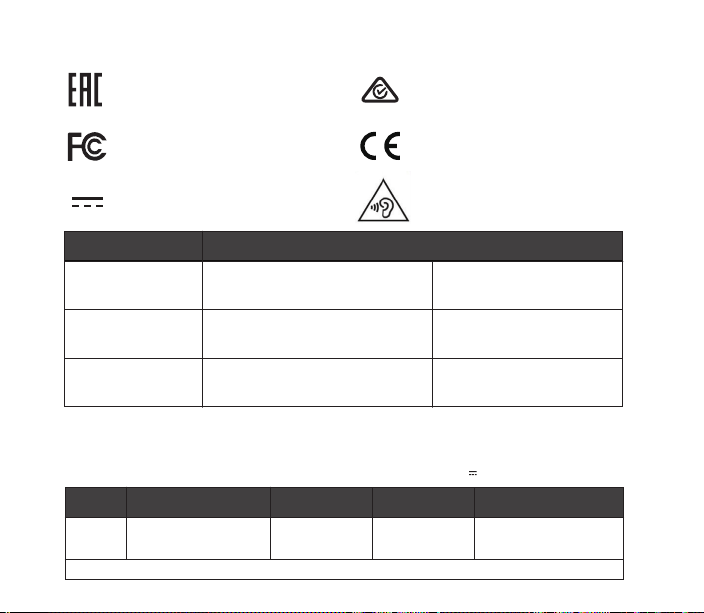
Custom Union Compliance.
(Russia / Belarus / Kazakhstan)
FCC Compliance. (USA)
Direct Current
Regions Coantact Information
ACMA Compliance (Australia/ New-Zealand)
EMC Directives 2014/30/EU and Low
Voltage Directives 2014/35/EU
Compliance. (European Commission)
To prevent possible hearing damage,
do not listen at high volume levels
for long periods.
Asia
USA
Europe
Product Name(產品名稱/产品名称): Headset (耳機/耳机)
Model No. (型號/型号): HS-00011
Made in China 中國製造/中国制造
Parts EC Number CAS Number Contained (PPM)Substance Name
LED
Hexahydromethylphthalic 247-094-1 25550-51-0 181125
‧ Please do not open the product and touch LED directly.
23511 新北市中和區建一路150號16樓
656 W Randolph St, Suite 3E
Chicago, IL 60661, USA
Dirch Passers Allé 27, 5.Sal 2000
Frederiksberg, Denmark
+886 2 8226 3858
+1 312 258 9467
+45 702 500 75
配件:
Product Name(產品名稱/产品名称): Sound Card (音效卡/声卡)
Model No. (型號/型号): SC-00004
Rated (額定值/额定值): 5V , 300mA
Page 38

learn more at steelseries.com
 Loading...