

Page 1

USER GUIDE
9H
Page 2
2
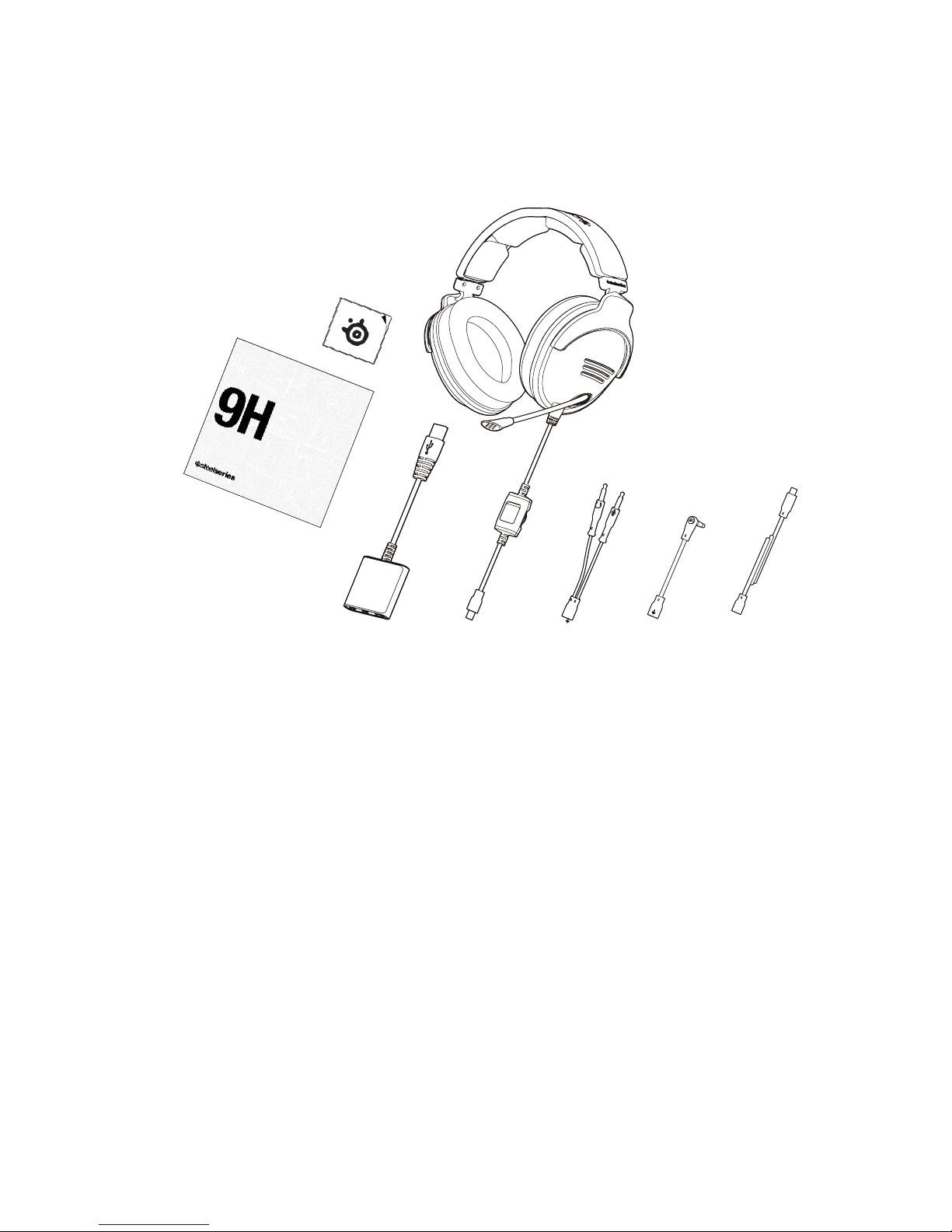
PACKAGE CONTENTS
• Quick Start Guide and SteelSeries sticker
• SteelSeries 9H Headset
• SteelSeries 2 meter extension cable
• PC cable connector with 3.5mm audio jacks
• Mobile/Mac® cable connector with 4-pole 3.5mm audio jack
• USB Sound Card
The 9H includes the following:
Page 3
3
1. Remove your new SteelSeries 9H Headset from the box.
2. Put your SteelSeries 9H Headset on and adjust to a comfortable setting.
3. Connect the main audio cable into the bottom of the left ear cup.
4. If you would like to use the microphone in the 9H, push in the outer microphone housing
for the microphone to pop out on the left ear cup. Next pull the retractable microphone
and move the microphone close to your mouth.
GETTING STARTED
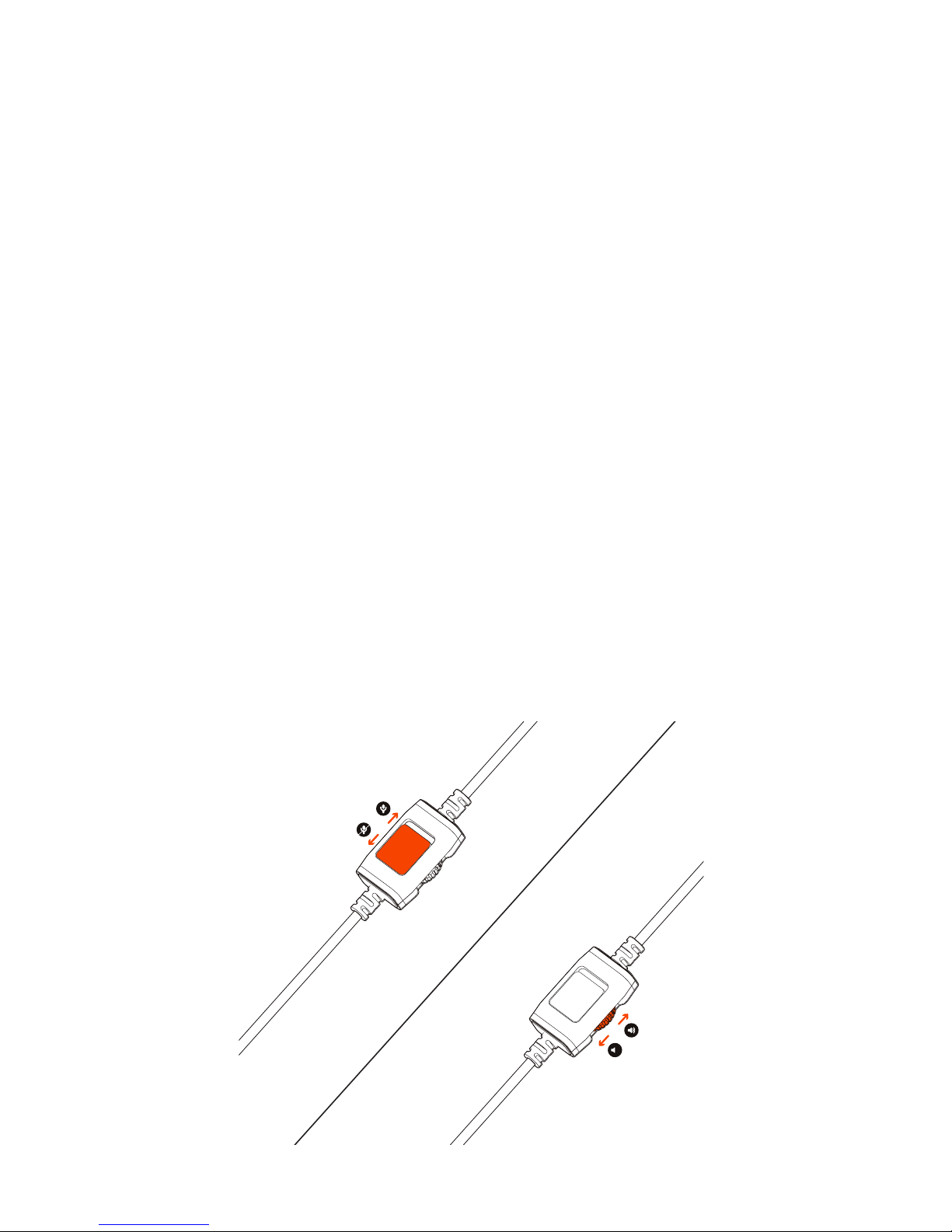
The 9H features volume and mute controls directly on the main audio cable.
Slide the mute switch back to mute the microphone and forward to unmute.
Volume control is located on the right side. Turn the dial down to lower the volume and
forward to increase the volume.
VOLUME & MUTE CONTROL
Page 4

4
The 9H comes with multiple connections allowing the headset to be compatible with PC,
Mac ®, and mobile devices.
When connecting to a PC or Mac ®, using the USB sound card and main male connector
plug supports additional sound card audio features through SteelSeries Engine 3 at
Steelseries.com/engine.
The 9H Headset can also be connected to a PC without the sound card. For this setup, rst
plug the PC connector directly into the main 9H male connector plug. Next connect the two
audio 3.5mm connectors to the audio ports on your computer. Make sure to plug the red
tipped connector into the microphone input and the green tipped connector into the speaker
output from the computer.
The Mobile connector is designed to be used with your mobile phone, tablet, or Mac®
computer that supports a single 4-pole 3.5mm jack for both audio output and microphone
input. For this setup, rst plug the mobile connector directly into the main 9H male connector
plug. Next connect the single 3.5mm connector into your mobile device or computer.
Using the PC and Mobile/Mac® connectors directly with the headset will not support any
additional sound card features.
To properly connect all male and female connectors, line up the arrow markings.
CONNECTIONS
Page 5
5
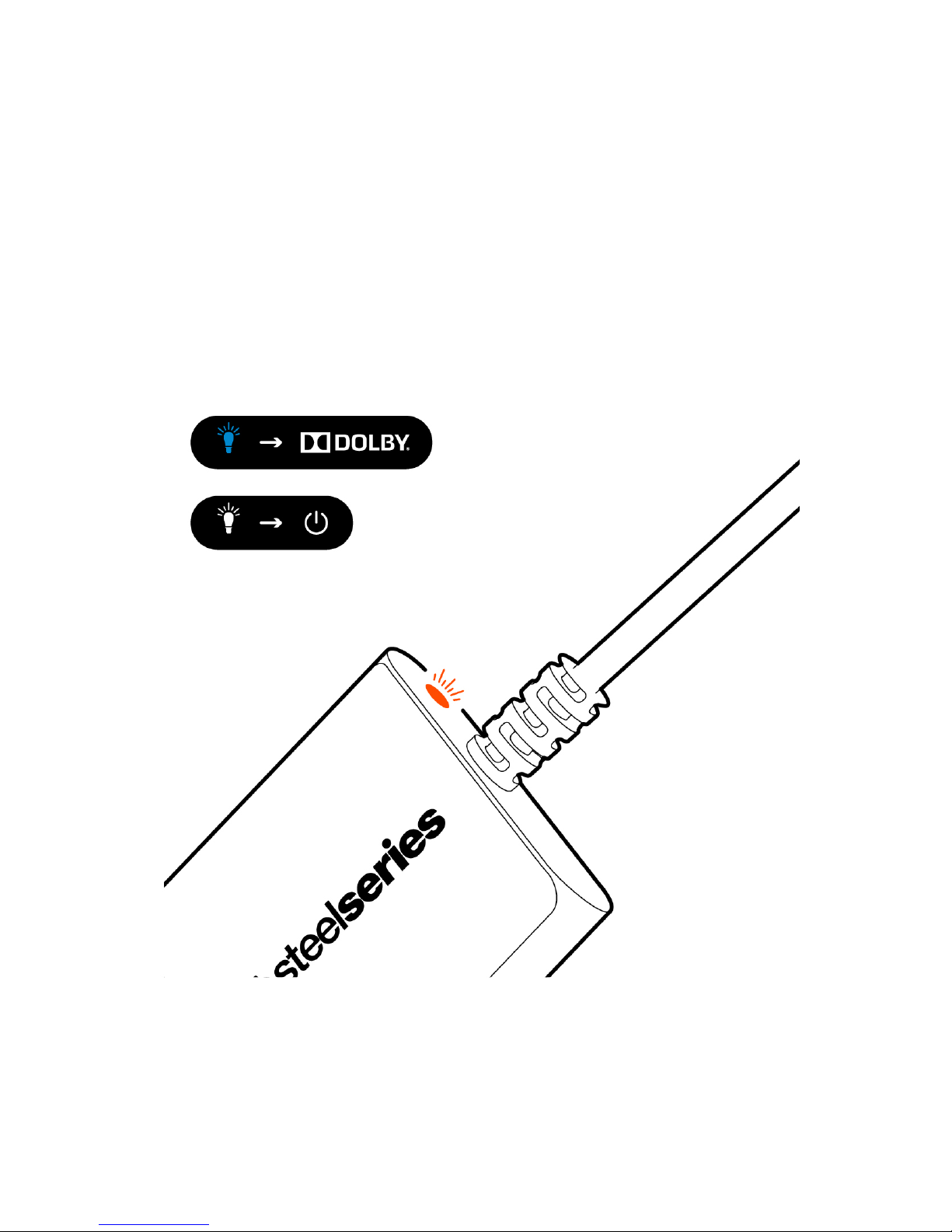
The USB sound card LED indicator informs the user the headset is getting power and
Dolby ® support.
When the LED indicator is white, power is on and Dolby ® support is turned o. When
the LED indicator is blue, Dolby ® support is turned on. Dolby ® support can only be
controlled through SteelSeries Engine 3 at Steelseries.com/engine.
STATUS
Page 6
6
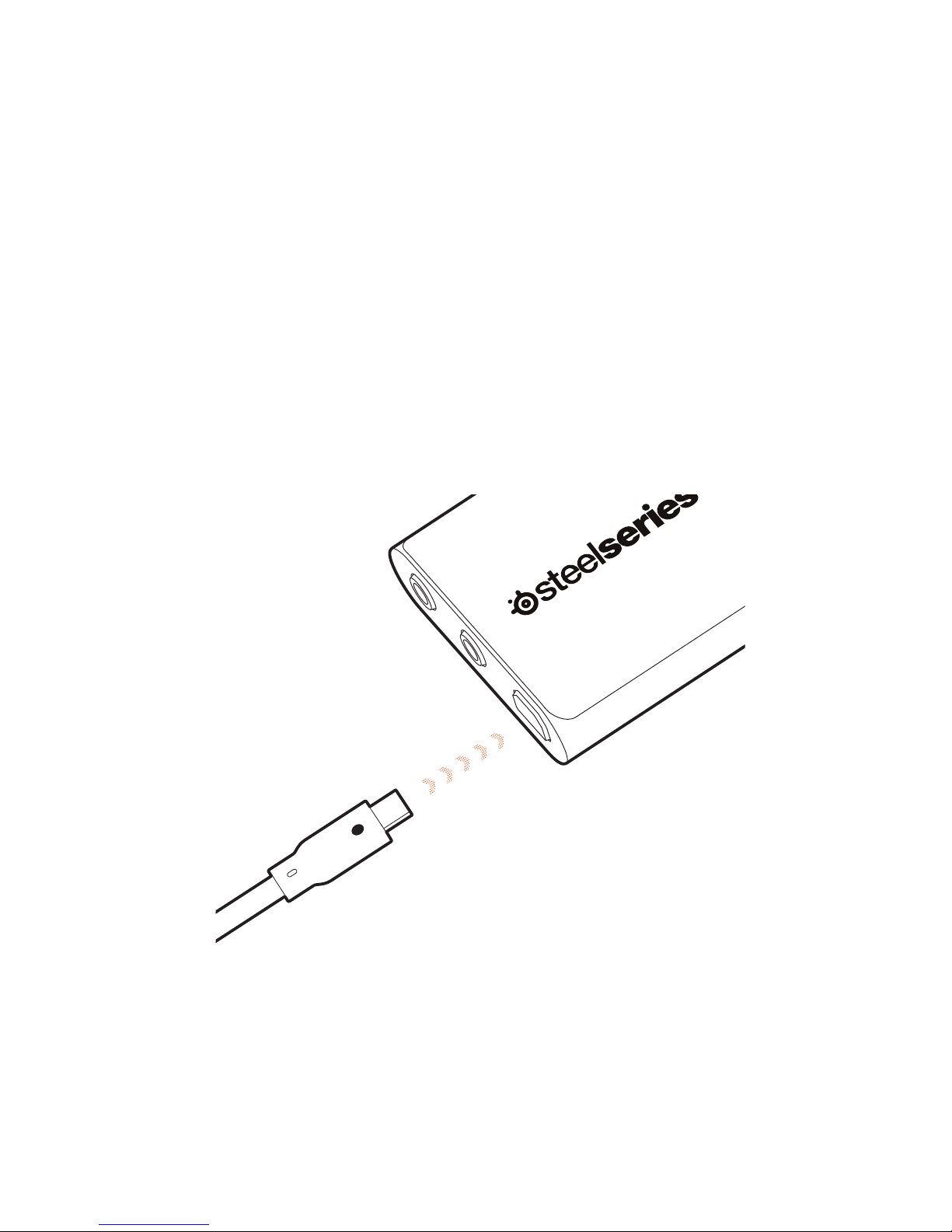
USB SOUND CARD
To get the complete USB sound card digital experience with all audio features and
illumination settings, plug the main male connector plug into the female connector on the
USB sound card. All audio features and illumination settings can be customized through
SteelSeries Engine 3 at Steelseries.com/engine.
Page 7
7
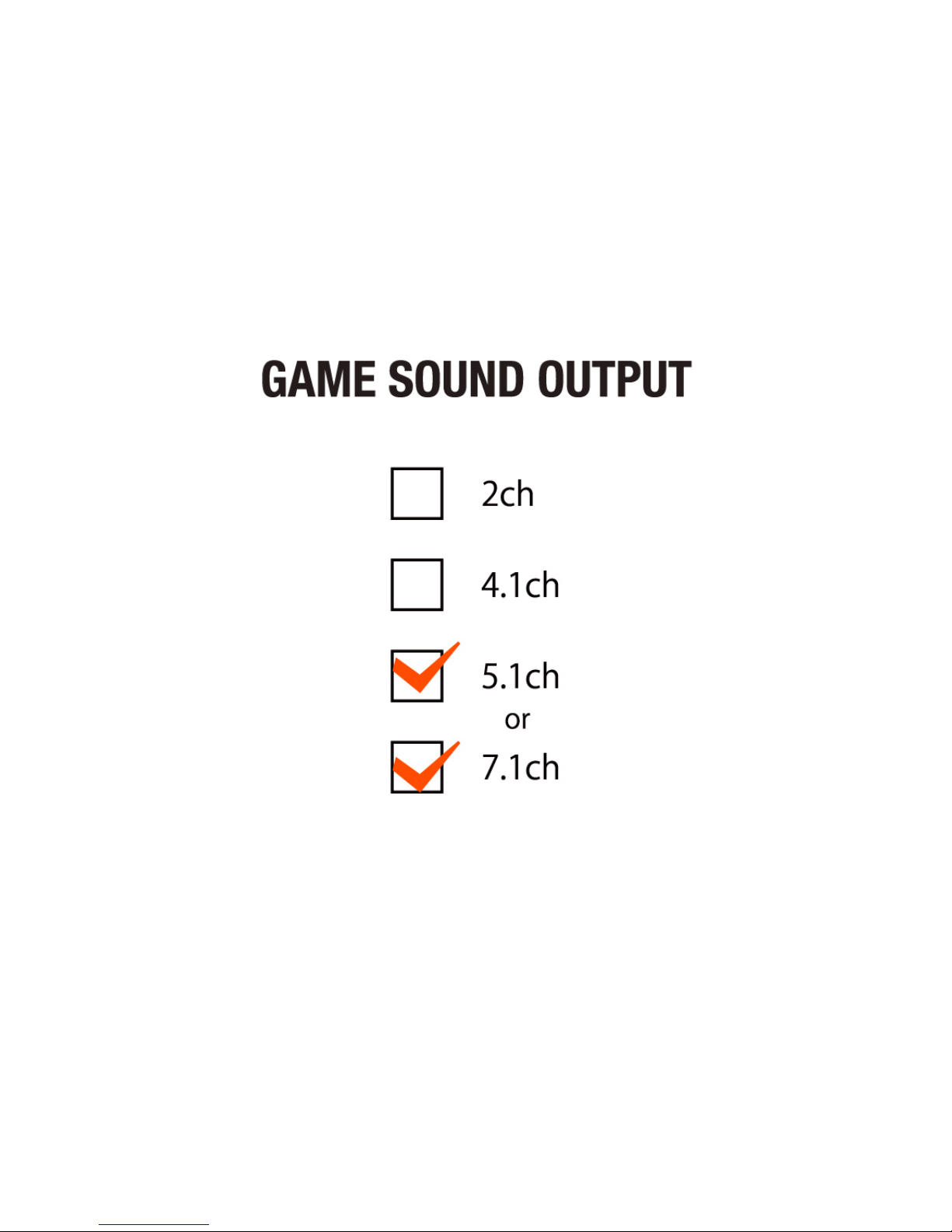
IN-GAME AUDIO SETTING FOR DOLBY
Dolby ® in-game audio supports both 5.1 and 7.1 settings.
Page 8
8
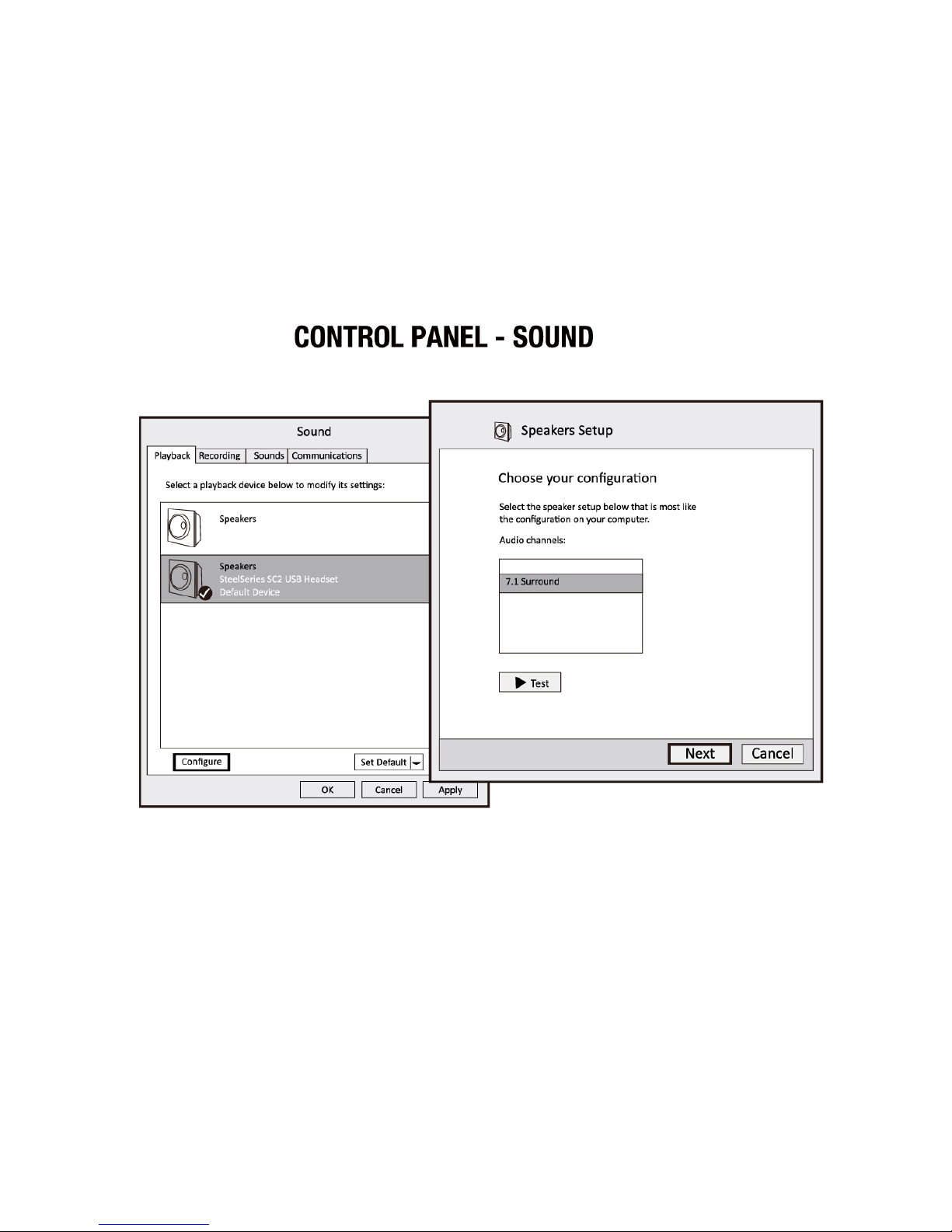
WINDOWS AUDIO SETTING FOR DOLBY
Windows audio setting for Dolby ® is located in the control panel under the sound setting.
Page 9
9
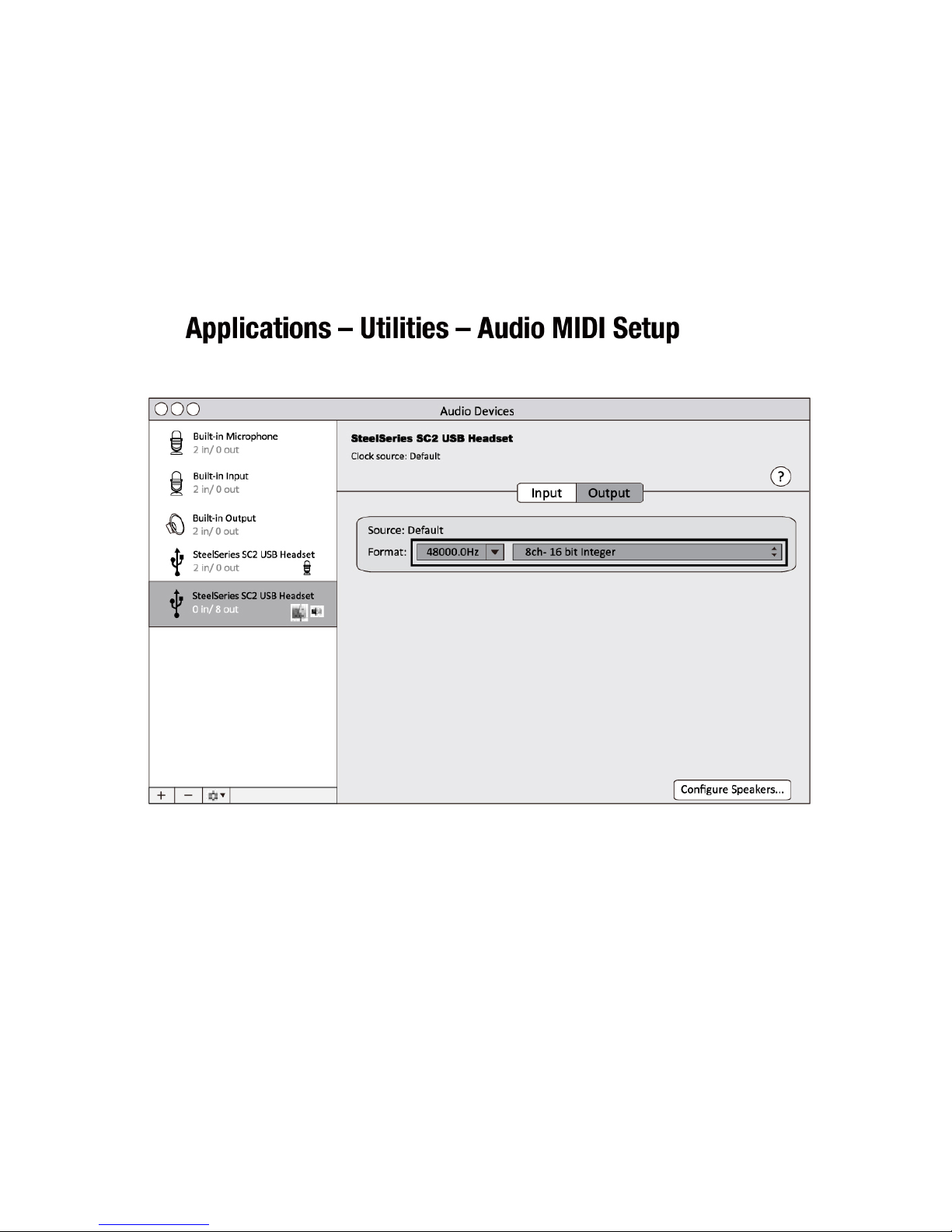
MAC AUDIO SETTING FOR DOLBY
The Mac® audio setting is located in applications under utilities.
Page 10
10
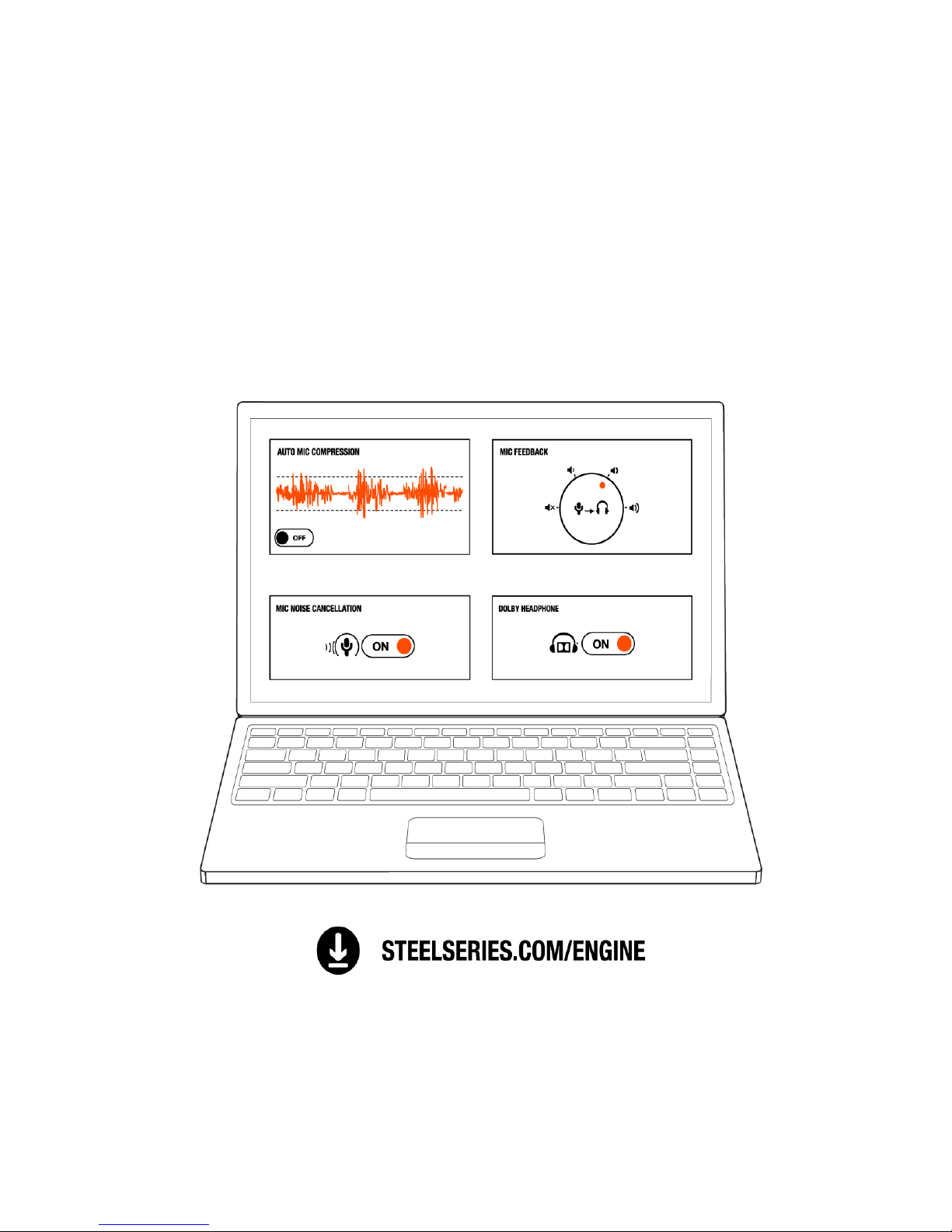
PERSONALIZE
SteelSeries Engine 3 gives the 9H the clear advantage with complete audio setting.
Through SSE3 users can enable Dolby ®, mic noise reduction, auto mic compression, mic
sidetone, and customize equalizer settings. To download SSE3 go to Steelseries.com/
engine.
Page 11

11
MORE INFO
SteelSeries products are recommended for the ultimate experience. For more information
please visit:
 Loading...