

Page 1
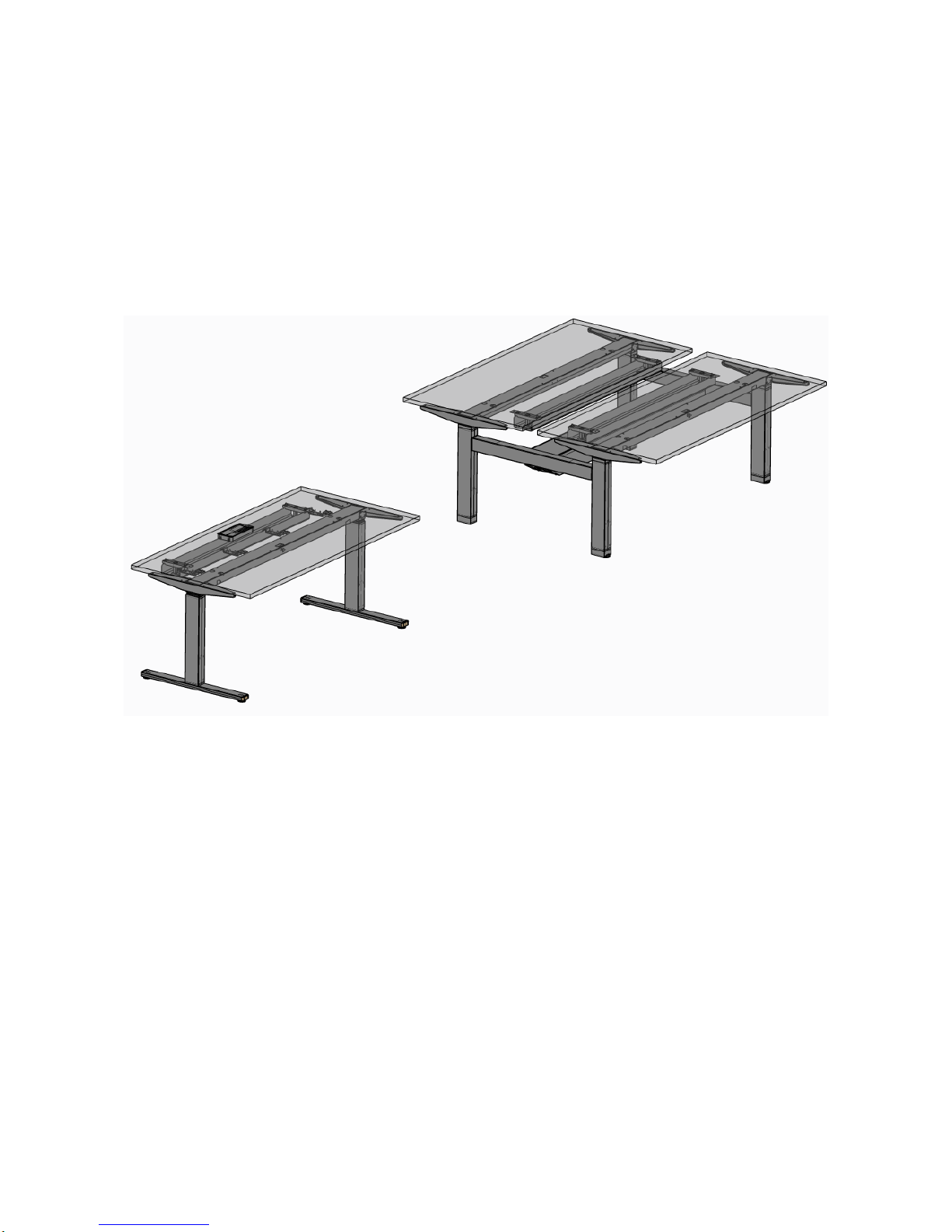
Migration
Migration Bench
User Manual
Translation of the original user manual
Page 2
Legal notice
Migration Manual -en- 2018 Page 2 of 35
Legal notice
Manufacturer
Steelcase AG
Georg-Aicher-Str. 7
83026 Rosenheim
Germany
Telephone: +49 8031 405-0
E-mail: [email protected]
www.steelcase.de
Copyright
Extracts or copies may not be disclosed to third parties or used in any other journalistic form without the prior
written consent of Steelcase.
As part of a technical documentation, the user manual is subject to German copyright law.
Liability
Under one or more of the following conditions, Steelcase's disclaimer of liability may apply:
Improper use of the product.
Use of the product that goes beyond the scope of sensible use as office furniture.
Operating the product with defective or non-functioning safety and protection devices.
Improper assembly by unauthorised personnel.
Use of components and adaptations that do not originate from Steelcase. Third-party parts are not
guaranteed to be designed and manufactured to meet the requirements of stress and safety.
Plans from third party suppliers that have been proven to lead to misuse of the product.
Unauthorised modifications of the product in its construction and design.
Loads on the product exceeding the load limits specified by the manufacturer.
Improper maintenance, maintenance by third parties and unqualified personnel.
Inadequate monitoring of the product components (function checks).
Improper disposal and return of the product or packaging to the recycling cycle.
Resale to a third party without including the user manual.
Disasters caused by foreign bodies and force majeure.
Check all components regularly and contact authorised specialist personnel or our service hotline in case of
damage (see Repairs and spare parts).
Consult specialist personnel qualified for extensive assembly, maintenance and disposal work.
Further information and instructions are available under the respective topics in the following chapters of this
user manual.
Product
The office furniture line Migration by Steelcase is subject to continuous quality control during manufacture
and distribution. This ensures fault-free functionality.
Page 3
Legal notice
Migration Manual -en- 2018 Page 3 of 35
The products are designed and manufactured according to the state of the art (in Germany at the time of
construction) and recognised safety rules; however, hazards may still arise. Please observe the respective
safety instructions! Malfunctions that could impair safety must be eliminated immediately. We reserve the
right to make technical changes to the products for technical reasons.
Steelcase applies a quality management system that meets the requirements of DIN EN ISO 9001.
Steelcase has the right to use the GS Mark for the product line Migration.
Steelcase carries the eco-audit seal of the "Eco Management and Audit Scheme".
The electric height adjustment unit type plate is located on the controller housing and on the columns, and
under the desktop.
Page 4
Table of contents
Migration Manual -en- 2018 Page 4 of 35
Table of contents
Page
Copyright ........................................................................................................................................................... 2
Liability ............................................................................................................................................................... 2
Product .............................................................................................................................................................. 2
About this user manual ........................................................................................................ 7
Text design ........................................................................................................................................................ 7
Safety instructions and warnings ....................................................................................................................... 8
Safety................................................................................................................................... 9
Intended use ...................................................................................................................................................... 9
Foreseeable misuse .......................................................................................................................................... 9
Safety instructions ............................................................................................................................................. 9
Users with limitations ......................................................................................................................................... 9
Product description ............................................................................................................ 10
Technical data ................................................................................................................................................. 10
Desk ......................................................................................................................................................... 10
Electrical components .............................................................................................................................. 10
Factory setting on delivery ............................................................................................................................... 10
Components .................................................................................................................................................... 11
Accessories ..................................................................................................................................................... 11
Overview of Migration and Migration Bench desks ......................................................................................... 12
Operating panel up/down ................................................................................................................................ 13
Operating panel Memory (optional) ................................................................................................................. 13
Electrical height adjustment ............................................................................................................................. 14
Transport and storage ....................................................................................................... 15
Safety instructions ........................................................................................................................................... 15
Interim storage ................................................................................................................................................. 15
Installation and assembly ................................................................................................... 16
Safety instructions ........................................................................................................................................... 16
Checking the delivery contents ........................................................................................................................ 16
Disposing of the packaging material ................................................................................................................ 16
Electrical connection ........................................................................................................................................ 16
Installing the desk ............................................................................................................................................ 17
Page 5
Table of contents
Migration Manual -en- 2018 Page 5 of 35
Assembling the desk ........................................................................................................................................ 17
Height compensation ....................................................................................................................................... 17
Disassembling and reassembling the desk temporarily ..................................................... 18
Disassembling the desk ................................................................................................................................... 18
Reassembling the desk ................................................................................................................................... 18
Operation and settings ....................................................................................................... 19
Safety instructions ........................................................................................................................................... 19
Optimum desk height ....................................................................................................................................... 20
Carrying out height compensation ................................................................................................................... 20
Height adjustment of the desks ....................................................................................................................... 21
Variants Lift 1 and Lift 2 ............................................................................................................................ 21
Operating panel ............................................................................................................................................... 21
Operating panel up/down ......................................................................................................................... 21
Manuel reset on operating panel up/down ............................................................................................... 22
Faulty manual reset .................................................................................................................................. 23
Adjusting the desk height with operating panel up/down ......................................................................... 23
Operating panel Memory (optional) .......................................................................................................... 24
Manuel reset on operating panel Memory ................................................................................................ 24
Adjusting the desk height with operating panel Memory .......................................................................... 25
Switching the display between centimetres and inches ........................................................................... 26
Setting the memory position ..................................................................................................................... 26
Calling up a memory position ................................................................................................................... 27
Faults and malfunctions ..................................................................................................... 28
Safety instructions ........................................................................................................................................... 28
Error messages on the display of operating panel Memory ............................................................................ 28
Table of error messages .................................................................................................................................. 29
Maintenance ...................................................................................................................... 31
Safety instructions ........................................................................................................................................... 31
Functional checks ............................................................................................................................................ 31
Table for functional checks .............................................................................................................................. 31
Maintenance work ............................................................................................................................................ 31
Disclaimer of liability ................................................................................................................................. 33
Cleaning and care .................................................................................................................................... 33
Page 6
Table of contents
Migration Manual -en- 2018 Page 6 of 35
Disposal of the desk .......................................................................................................... 34
Customer Service .............................................................................................................. 35
Delivery, installation, instruction ...................................................................................................................... 35
Repairs and spare parts .................................................................................................................................. 35
Page 7
About this user manual
Migration Manual -en- 2018 Page 7 of 35
About this user manual
Steelcase makes this user manual available on the Internet at the following address:
www. steelcase.eu/Migration/manual
Purpose of the user manual
This user manual provides information on the components, function, operation and maintenance of the
Migration desk and its components.
In case of malfunctions, it serves as an aid in troubleshooting.
The safety instructions are intended to prevent personal injury and material damage.
The users of the desk Migration commit to read and follow these safety instructions.
Steelcase assumes no liability and no warranty for damage or malfunctions resulting from non-compliance
with the user manual.
This user manual is part of the Migration desk. It is only valid as a complete document. Even when reselling
the desk, this user manual is part of the delivery contents.
Text design
Bulleted list
Bulleted list within a list of action steps
Action step
Consequence of the action
Here are tips and helpful information.
Page 8
About this user manual
Migration Manual -en- 2018 Page 8 of 35
Safety instructions and warnings
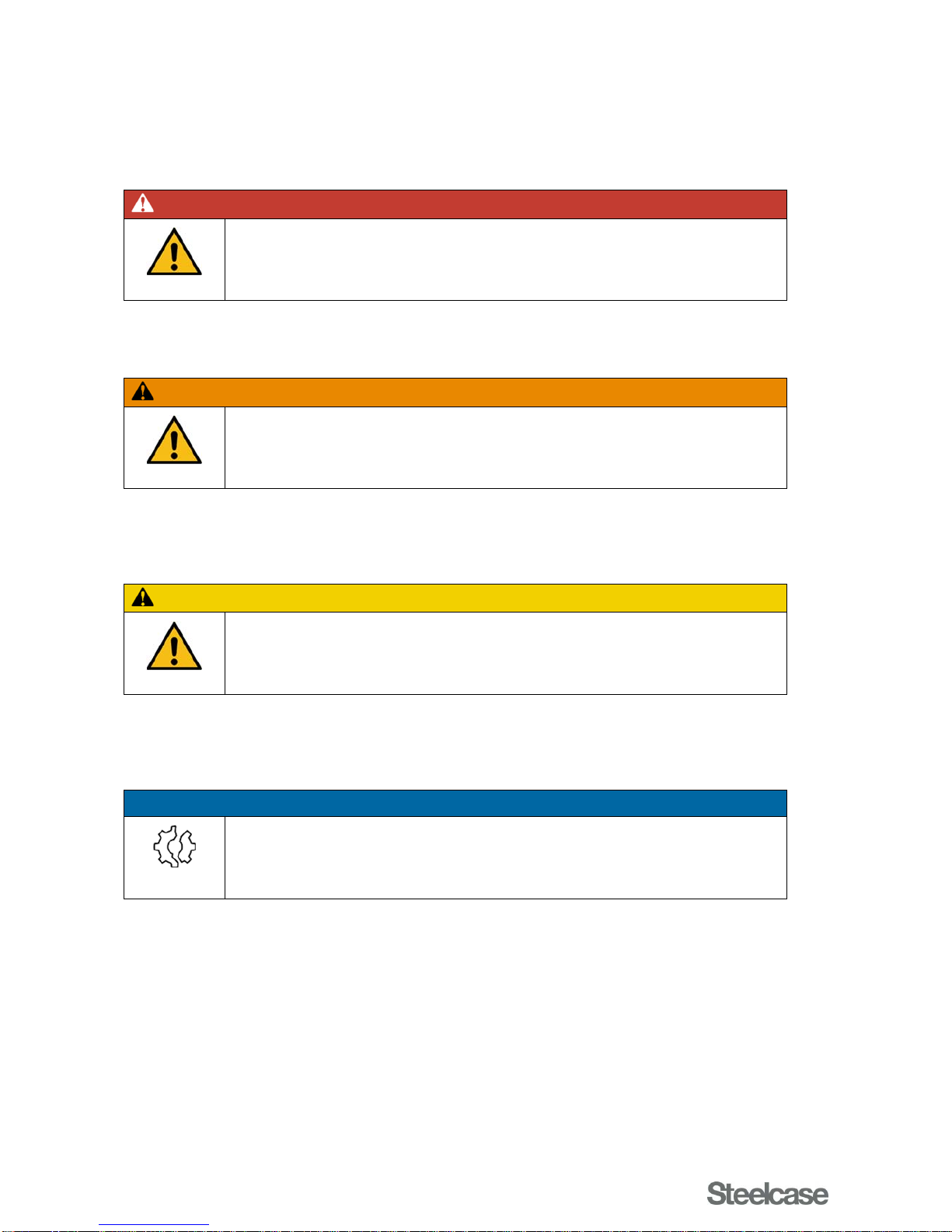
To prevent personal injury and damage to property, this user manual contains warnings at the appropriate
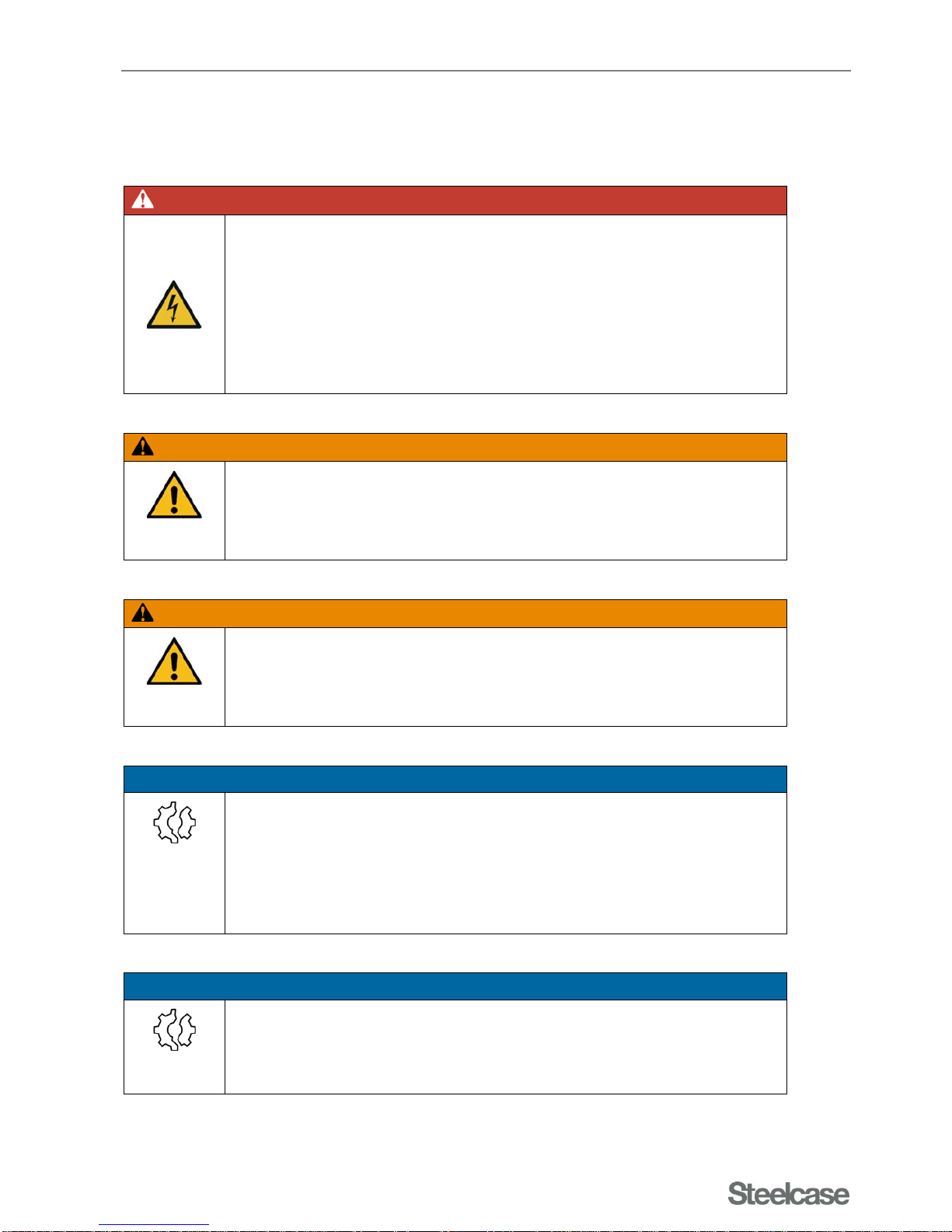
locations. The symbols and signal words have the following meaning:
DANGER
Danger
Source of danger
Prevention measures
Indicates an imminent danger situation leading to death or severe injury if the safety precautions are not
followed.
WARNING
Danger
Source of danger
Prevention measures
Indicates a potential danger situation that may result in death or severe injury if the safety precautions are
not followed.
CAUTION
Danger
Source of danger
Prevention measures
Indicates a potential danger situation that may result in minor injuries if the safety precautions are not
followed.
NOTICE
Danger
Source of danger
Prevention measures
Warning of property damage or malfunction if safety precautions are not followed.
Page 9
Safety
Migration Manual -en- 2018 Page 9 of 35
Safety
Intended use
The desk Migration is designed exclusively for use as office furniture. Any other or extended use is considered
improper.
Intended use also includes compliance with all instructions in the user manual.
Foreseeable misuse
Improper use of the product may result in dangers to life and limb as well as property damage. For this reason,
improper use is prohibited. In case of improper use, Steelcase assumes no liability for any damage that may
occur and does not guarantee that the components will function properly.
Improper use includes:
Lifting loads
Use as a climbing aid.
Permanent storage surface for objects with a total weight of more than approx. 75 kg.
Outdoor use.
Use in damp rooms.
The list does not claim to be exhaustive.
Safety instructions
The desk Migration may be used and operated only in perfect technical condition and in compliance with the
user manual.
The user of the Migration desk commits to follow the safety instructions and warnings in this user manual.
In addition to the user manual, the general and local regulations on accident prevention and environmental
protection must be made available and followed.
Users with limitations
Children from the age of 8 and individuals with reduced physical, sensory or mental abilities or lack of
experience and knowledge may use this desk under supervision or after instructions in the safe use of the desk
and having understood the resulting hazards. Children are not allowed to play with the desk. Cleaning and user
maintenance must not be executed by children without supervision.
Page 10
Product description
Migration Manual -en- 2018 Page 10 of 35
Product description
Technical data
Desk
Migration / Migration Bench
Dimensions see delivery note
Weight see delivery note
Electrical components
Controller and drive
Temperature range at the installation site: +5 °C to +35°C
Relative humidity: 5 % to 80 % (non-condensing)
Rated voltage: 230 V AC ~ ± 10 %
Rated frequency: 50 Hz
Maximum load capacity: Approx. 50 kg / 500 N
Maximum duty cycle: 2 min ON / 18 min OFF
Protection class (with earth connection) I
Maximum power consumption during the lift process:
- 2 telescopic columns per desk 240 W
Power consumption in standby mode: ≤ 0.3 W
Maximum adjustment range:
- Single telescope (Lift 1) 720 mm to 1200 mm
- Double telescope (Lift 2) 650 mm to 1250 mm
Operating panel up/down: Standard
Operating panel Memory: optional
Noise emission: < 60 dB(A)
Type plates are on the controller housing, on the columns and under the desktop.
Factory setting on delivery
The desk reference height is on delivery:
Variant - Lift 1: 720 mm
Variant - Lift 2: 650 mm
With the telescopic, crank and lift versions, you can change these settings according to your
requirements. The corresponding descriptions are available under Operation and settings.
Page 11
Product description
Migration Manual -en- 2018 Page 11 of 35
Components
The Migration desk consists mainly of the following components (the description of the variants is available
under the respective chapter):
Desktop with plastic parts for plate mounting
Migration: Columns with skid made of steel tube 65x25x2 mm, screwed, including adjustment screw for
compensating floor unevenness, cable duct (optional)
Migration Bench: Columns without skids, cross member (screwed), central cable duct optional
Top cantilever left/right
Horizontal structural tube
Optional electrical height adjustment:
Lift 1: Electric motor (720...1200), in column
Lift 2: Electric motor (650...1250), in column
Controller for lift height adjustment including software-assisted stop device
Optional: Sensor
Standard: Operating panel up/down
Optional: Operating panel with display of height; programming functions for four desktop heights
All available components are specified in the separate technical description and in the price list.
Accessories
A wide range of accessories is available in various materials, surface treatments and dimensions. Please follow
the instructions for using components and accessories (see Operation and settings).
For detailed information on available system components and for additional orders and subsequent deliveries,
please contact our Customer Service (see Customer Service).
Page 12
Product description
Migration Manual -en- 2018 Page 12 of 35
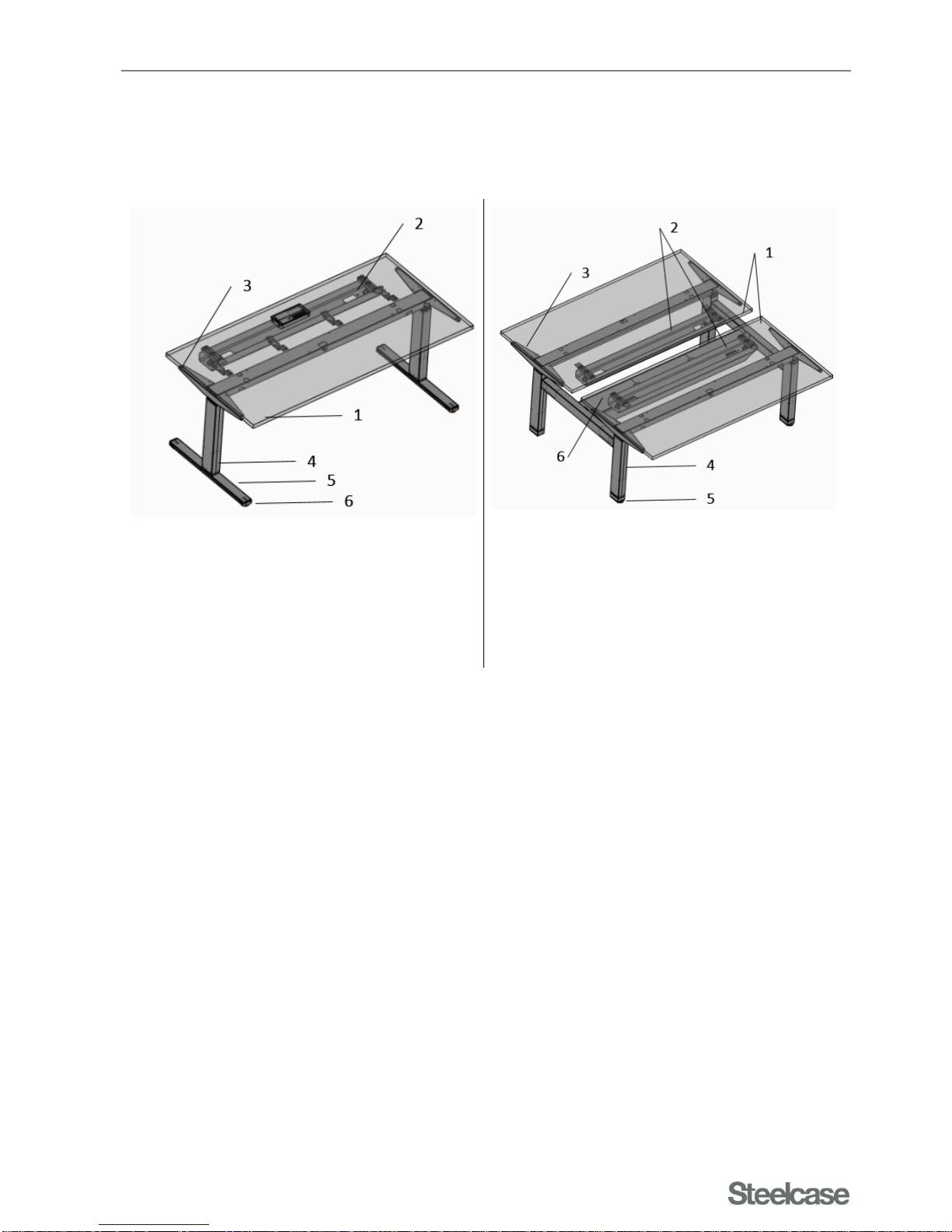
Overview of Migration and Migration Bench desks
Each illustration shows one of many design variants of the desks Migration and Migration Bench. The
illustrations merely serve to demonstrate the desk components.
Fig. 1 Migration, Lift 1/Lift 2 Fig. 2 Migration Bench, Lift 1/Lift 2
1 Desktop
2 Cable duct (optional)
3 Cantilever
4 Column
5 Skid
6 Adjusting screw for height compensation
1 Desktop
2 Cable duct (optional)
3 Cantilever
4 Column
5 Adjusting screw for height compensation
6 Cable tray (optional)
Page 13
Product description
Migration Manual -en- 2018 Page 13 of 35
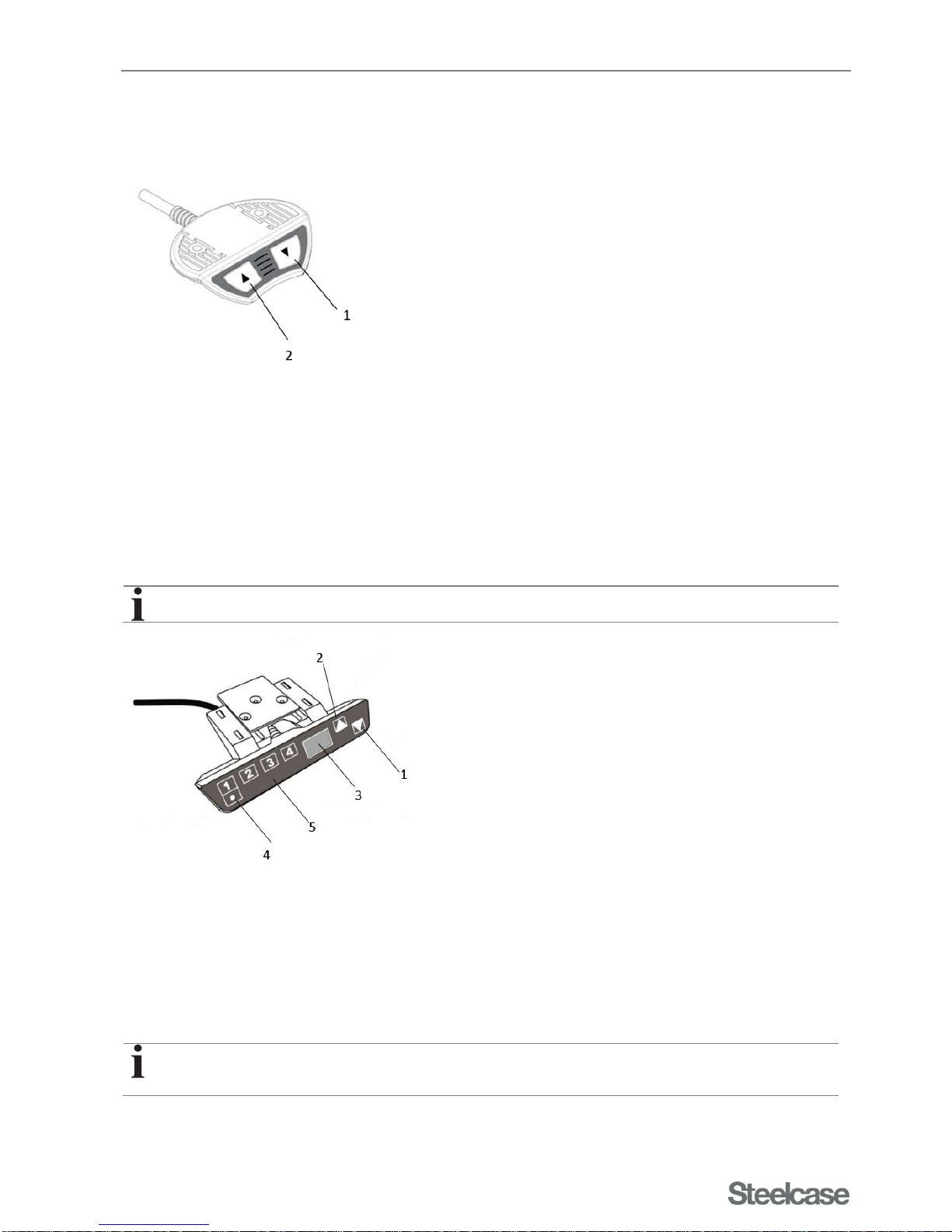
Operating panel up/down
The control panel with the functions "up" and "down" is located usually on the right underside of the desktop.
Operating panel up/down
1 Operating panel
2 Button "up"
3 Button "down"
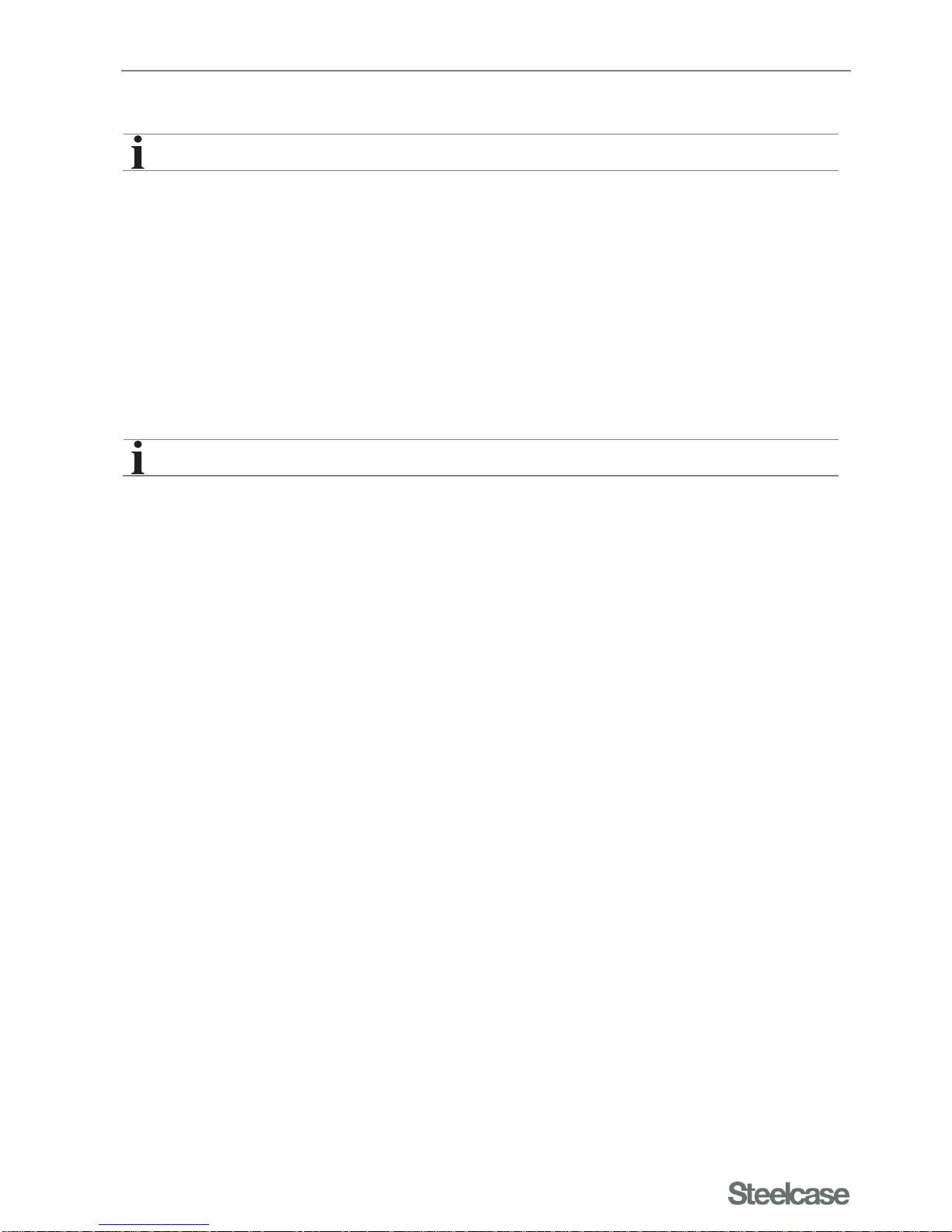
Operating panel Memory (optional)
The operating panel Memory allows the storing of three positions.
Operation and settings describes how to set the memory positions.
Fig. 3 Operating panel Memory
1 Button "down"
2 Button "up"
4 Button "STORE"
5 Keypad "MEMORY 1 / 2 / 3/ 4"
The cable of the operating panel is connected to the controller. The controller is located under the desk.
For information on the motor control, refer to the user manual COMPACT_eco Firmware Version 1.9
at www.logicdata.at.
Page 14
Product description
Migration Manual -en- 2018 Page 14 of 35
Electrical height adjustment
Operation of the electrical height adjustment is described under Operation and settings.
The electrical height adjustment allows the setting and fixed programming of three optimal desk heights (sitting
and standing height). The electrical height adjustment consists essentially of the following components:
Lift 1: Electric motor 720...1200
Lift 2: Electric motor 650...1250
Operating panel
Controller for lift height adjustment including software-assisted stop device
The stop device is an extension module for desk height adjustment. It responds as soon as the movement of the
desk is interrupted by an object, e.g. when an open window enters the movement range. The desk stops, the
direction of travel reverses and the desk moves approx. 2 cm away from the jam area.
The stop device does not respond to relatively soft objects.
The electronic controller takes over the mechanical lifting. The electronic controller is located in a plastic
housing under the desktop.
Page 15
Transport and storage
Migration Manual -en- 2018 Page 15 of 35
Transport and storage
Safety instructions
WARNING
Injuries and damage are possible!
When lifting on the desktop or attached components, the fastening screws
may tear.
Transport or move the desk only by grabbing the base frame.
NOTICE
Risk of damaging the lifting mechanism!
Values stored in the controller do not match the settings of another desk.
After disassembling the desk, for example for transport reasons:
Reassemble the two side frames only with the appropriate desktop
cross-member of the same desk.
Follow the separate assembly instructions.
Interim storage
If you want to store the desk temporarily before installation, the following conditions must be met:
The transport packaging must be intact.
Sufficient carrying capacity of the floor.
Dry floor.
Horizontal storage surface.
Temperature range +5 °C to +35 °C.
Max. rel. humidity: 80 %
Page 16
Installation and assembly
Migration Manual -en- 2018 Page 16 of 35
Installation and assembly
Safety instructions
WARNING
Danger of crushing and shearing!
The process of electrical height adjustment may result in crushing or
shearing of body parts or objects.
Maintain sufficient lateral clearance (at least 2.5 cm) to all surrounding
objects, walls, etc. throughout the lifting range.
Position the desk in such a way to ensure sufficient space for lifting and
maintenance.
WARNING
Danger of injury and damage!
When lifting on the desktop or attached components, the fastening screws
may tear.
Transport or move the desk only by grabbing the base frame.
Checking the delivery contents
After unpacking, the product must be checked immediately for transport damage and for completeness. Any
damage must be reported to the manufacturer as soon as possible.
Disposing of the packaging material
The packaging includes the following:
Outer packaging made of cardboard.
Shrink film made of polyethylene (PE)
Bubble wrap made of polyethylene (PE).
Edge protectors made of cardboard or polyethylene (PE).
Corner protectors made of polyethylene (PE).
These materials are recyclable. When the product is assembled by Steelcase or an authorised installer, the
packaging is disposed of by the manufacturer. If you install yourself, please ensure sorted separation and return
to the recycling cycle.
Electrical connection
Check the electrical equipment of the desk. Rectify defects such as loose connections and damaged cables
immediately.
Remove or insert connectors only in de-energised state.
The plug of the desk must be easily accessible at all times.
For information on the connections for the motor controller, refer to the user manual COMPACT_eco
Firmware Version 1.9 at www.logicdata.at.
Page 17
Installation and assembly
Migration Manual -en- 2018 Page 17 of 35
Installing the desk
Installation and use of the product requires detailed planning. For this purpose, Steelcase offers its own
planning department.
The partially assembled components of the Migration desk are usually delivered by specialist dealers or directly
from the manufacturer.
The installation location must meet the following requirements:
Sufficient carrying capacity of the floor.
Horizontal storage surface.
Temperature range +5 °C to +40 °C.
Max. rel. humidity: 80 %
Assembling the desk
Steelcase recommends assembly by a specialist dealer or an assembly company.
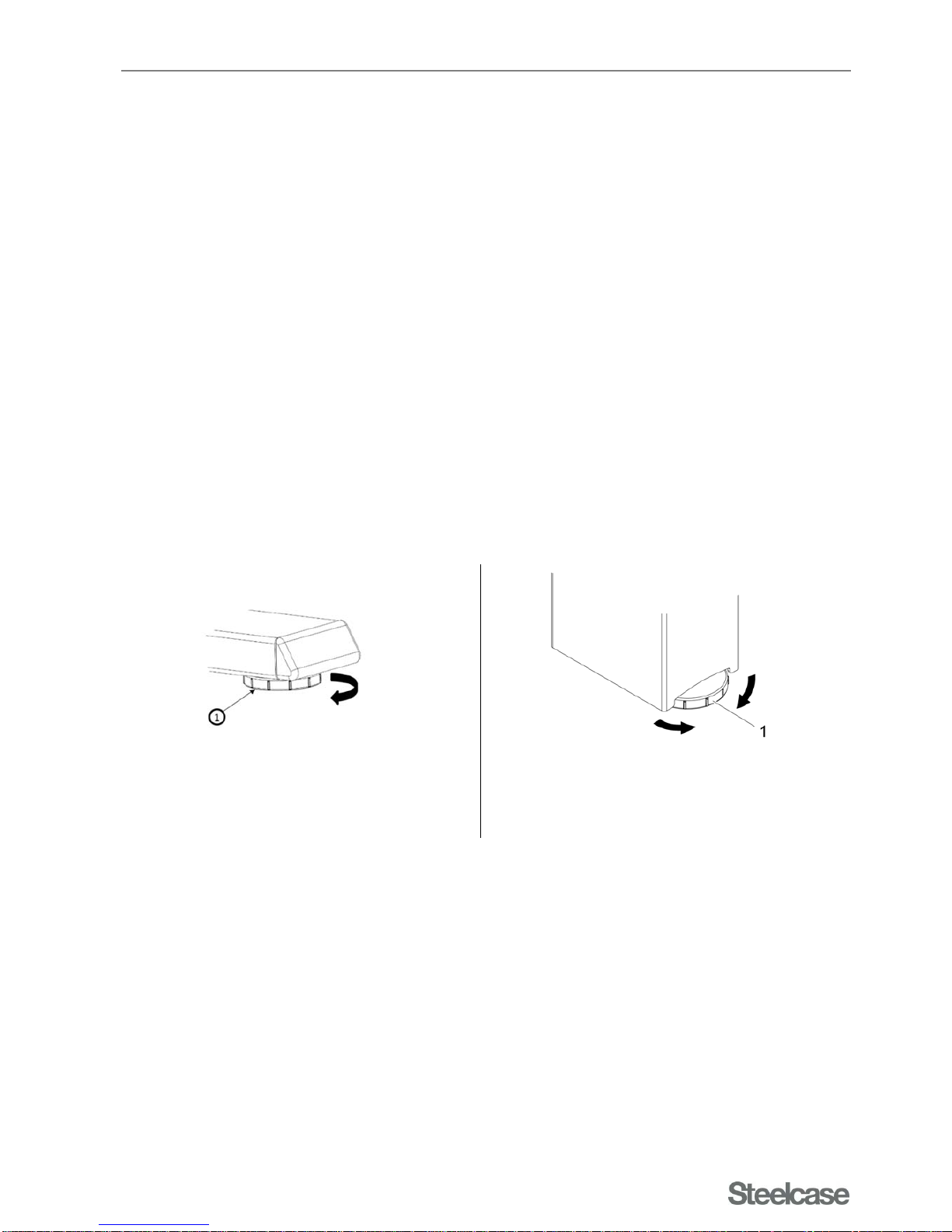
Height compensation
To compensate for uneven ground, you can raise each foot by up to 1.0 cm with an adjusting screw.
For a desk that has already been assembled: before levelling, remove any objects from the desktop.
Fig. 4 Migration height compensation / Migration
Bench height compensation
Fig. 5 Migration height compensation / Migration
Bench height compensation
1 Adjusting screw 1 Adjusting screw
Turn the adjusting screw until height compensation is complete.
Page 18
Disassembling and reassembling the desk temporarily
Migration Manual -en- 2018 Page 18 of 35
Disassembling and reassembling the desk temporarily
If you want to disassemble, temporarily store and reassemble the desk, for example for a move, see sections
Transport and storage and Installation and assembly.
Disassembling the desk
The desk can be disassembled into its partially assembled components. Disassembly should be carried out by
qualified personnel. Follow the separate assembly instructions.
NOTICE
Risk of damaging the lifting mechanism!
Values stored in the controller do not match the settings of another desk.
After disassembling the desk, for example for transport reasons:
Reassemble the two side frames only with the appropriate desktop
cross-member of the same desk.
Follow the separate assembly instructions.
If you want to disassemble the desk for good and dispose of it, follow the instructions under Disposal of the
desk.
Reassembling the desk
For reassembly, see Installation and assembly.
Page 19
Operation and settings
Migration Manual -en- 2018 Page 19 of 35
Operation and settings
Safety instructions
The desk Migration may be used and operated only in perfect technical condition and in compliance with the
user manual.
Before you change the desk height, make sure of the following:
The desktop must be horizontal. In case of uneven floors, you can adjust the height using the adjusting
screws on the feet.
No one is allowed to stay in the lifting range. Make sure that no objects (such as open doors or windows)
are in or protrude into the lifting range.
Nobody should be on the desktop.
The maximum permissible carrying capacity of the desk must not be exceeded.
DANGER
Danger from electrical voltage!
Contact with electrical voltage can cause severe injury or death by electric
shock!
Remove or insert connectors only in de-energised state.
Do not open the housings of the following components:
- Controller
- Columns
- Operating panel
DANGER
Danger from electrical voltage!
Metal parts of the desk may be under electrical voltage in case of damage to
live cables and connections.
Do not earth electrical devices on the desk frame!
WARNING
Danger of injury and damage!
When loading the CPU holder with a weight higher than the permissible
weight, the fastening screws may tear.
Note the permissible weight.
WARNING
Danger of injury and damage!
When lifting on the desktop or attached components, the fastening screws
may tear.
Transport or move the desk only by grabbing the base frame.
Page 20
Operation and settings
Migration Manual -en- 2018 Page 20 of 35
Ensure that the connecting cables of devices on the desk are long enough.
Optimum desk height
Setting the optimal desk height (seat height) is crucial for proper sitting at the workplace. The desk height to be
set for the workplace can be taken from the workplace analysis (for example, according to the German
Occupational Safety and Health Act, the German VDU Ordinance, accident prevention regulations). See also
BGI 650: Screen and office workstations. Design guidelines.
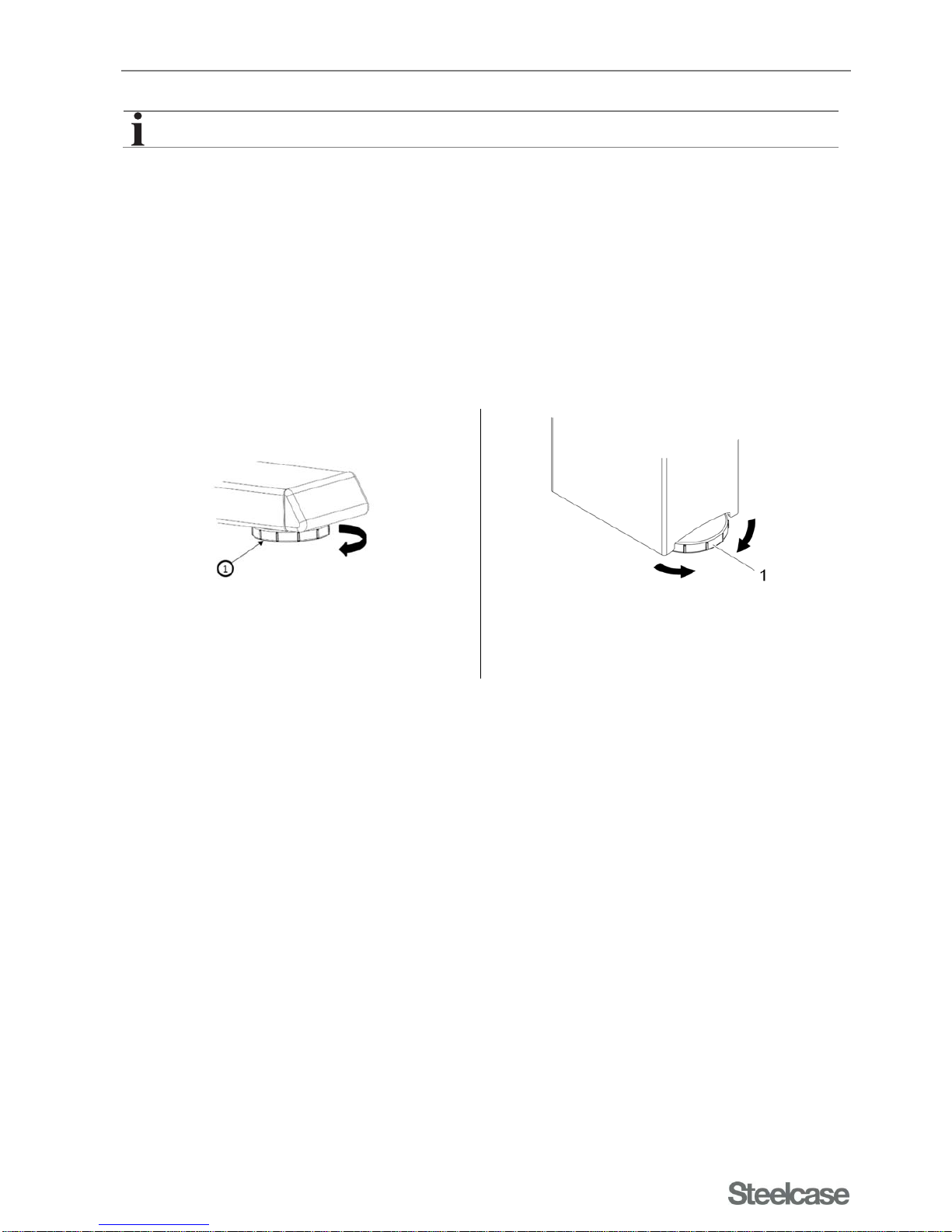
Carrying out height compensation
You can carry out height compensation on all desks. You can adjust the height by a maximum of 10 mm for
uneven floors with an adjusting screw on each desk foot.
Fig. 6 Migration height compensation Fig. 7 Migration Bench height compensation
1 Adjusting screw 1 Adjusting screw
Remove all objects from the desk.
Turn the adjusting screw until height compensation is complete.
Page 21
Operation and settings
Migration Manual -en- 2018 Page 21 of 35
Height adjustment of the desks
Remove all objects from the desk.
Loosen the adjusting wheel.
Variants Lift 1 and Lift 2
The desk can be continuously adjusted by electric motor to a height between 720 mm and 1200 mm
(Variant Lift 1) or between 720 mm und 1200 mm (Variant Lift 2).
Make sure before first use that
The desk has been assembled properly.
The controller is connected to the motor by cable.
The operating panel is connected to the controller.
All safety instructions have been followed.
You can now connect the power supply:
Insert the mains plug into a power point supplying 220/230 V.
It is necessary to carry out a manual reset before first use.
The instructions for this procedure are available in the description of the corre spo nding operating
panel.
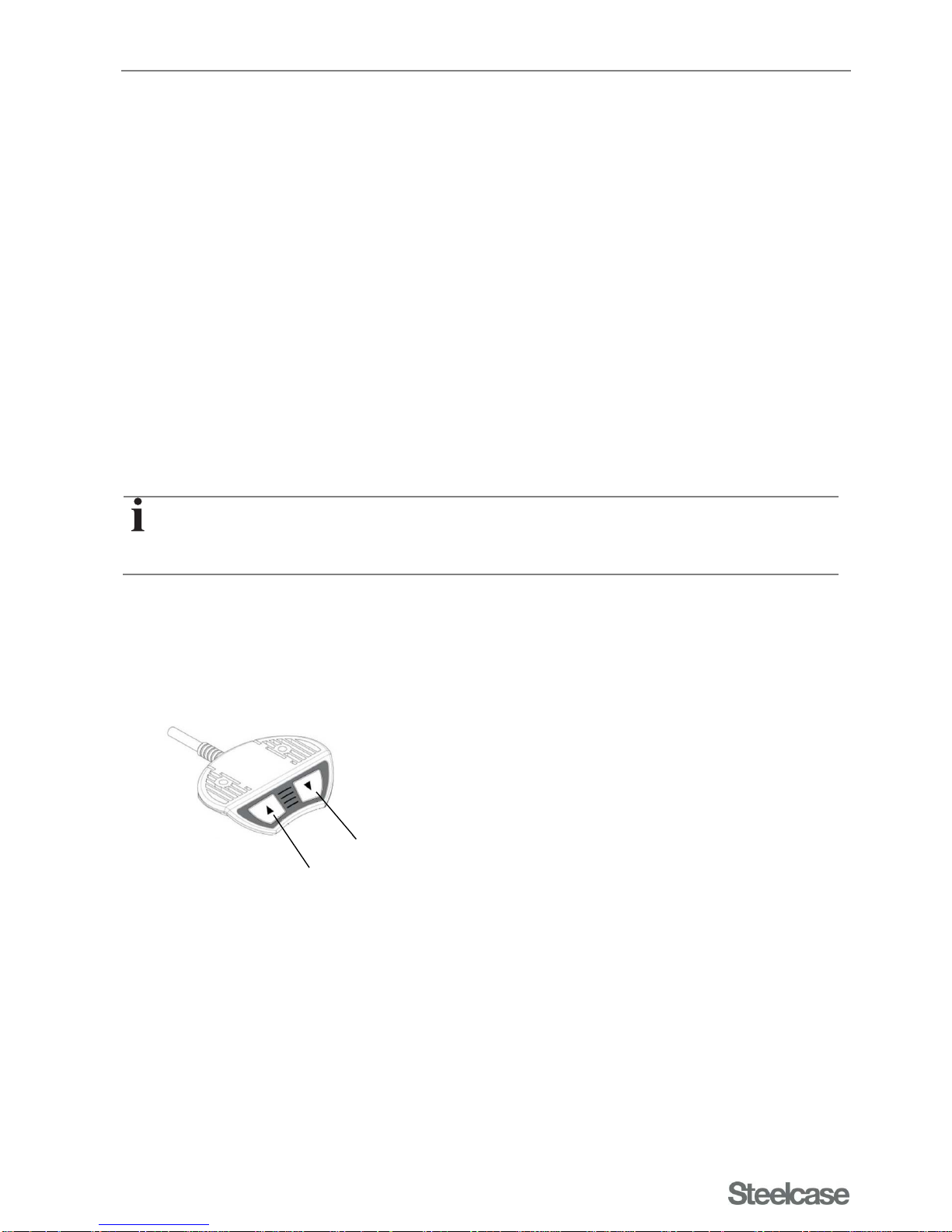
Operating panel
Operating panel up/down
The operating panel is located on the left or right on the underside of the desktop.
Fig. 8 Control buttons on operating panel up/down Version Eco Pack
1 Operating panel
2 Button "up"
3 Button "down"
1
2
Page 22
Operation and settings
Migration Manual -en- 2018 Page 22 of 35
NOTICE
Risk of damaging the operating panel!
Do not lean on the operating panel.
Do not place any objects on the operating panel.
Do not pour liquids over the control panel.
Manuel reset on operating panel up/down
You must carry out an end position calibration of the lowest desktop position:
Before first use.
When the actual desktop position no longer matches the displayed desktop position.
When a previously configured motor controller is used in a different electrically height adjustable workstation
of the same design.
WARNING
Danger of crushing and shearing!
During reset and end position calibration, the software-assisted stop device is
not active.
Keep sufficient distance from the desk during reset.
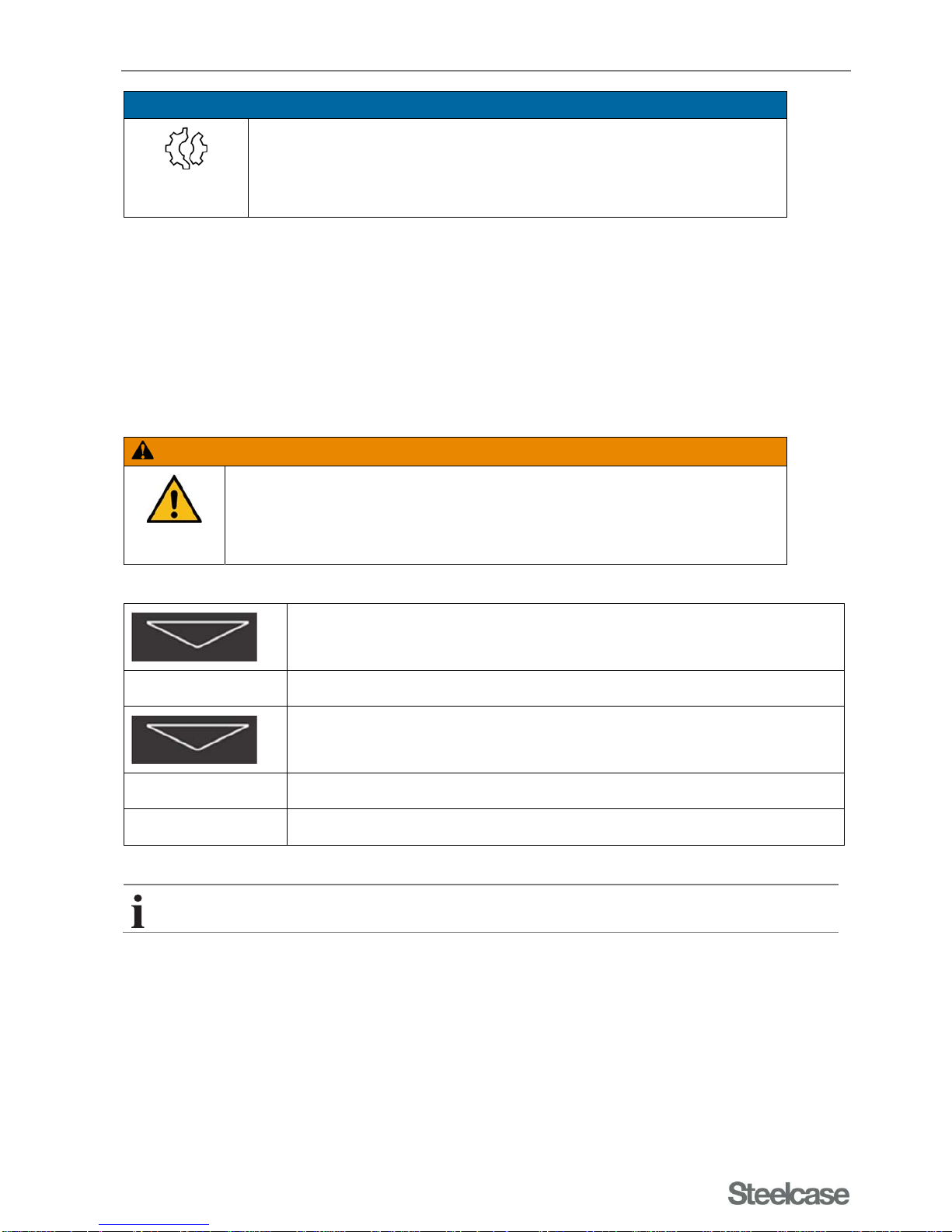
Press and hold the "Down" button until the lower end position (programmed
desktop position) is reached.
Release the "Down" button.
Again, press and hold the "Down" button for approx. 5 s.
The desktop moves to the lower end position.
Release the "Down" button. The system is now ready for operation.
Releasing the button before completing the process interrupts the reset and requires a restart.
Page 23
Operation and settings
Migration Manual -en- 2018 Page 23 of 35
Faulty manual reset
If the manual reset was not successful, proceed as follows:
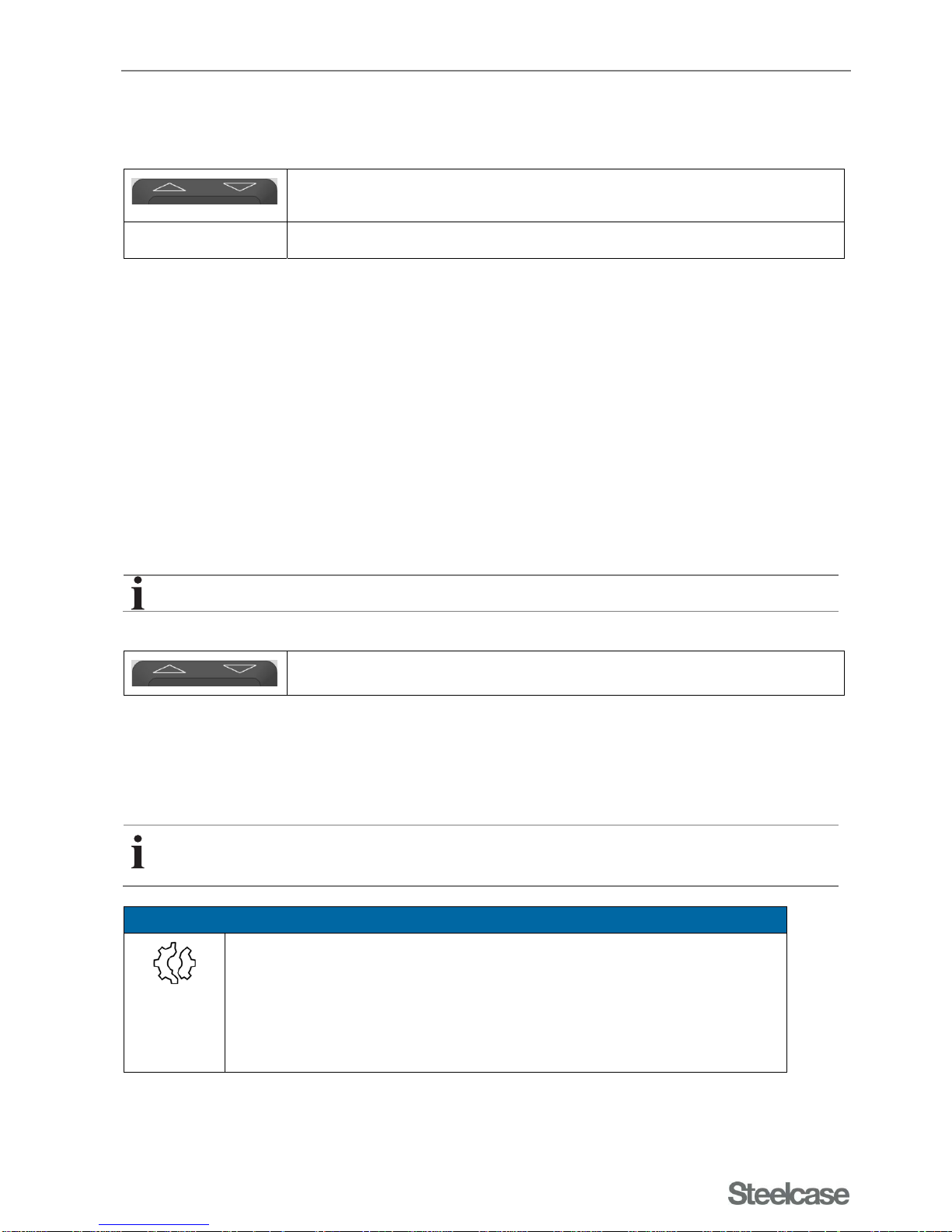
Press the "up" and "down" buttons simultaneously and hold for at least 5
seconds.
Restart the manual reset process as described above.
Adjusting the desk height with operating panel up/down
Before adjusting the height of the desk, ensure the following:
No one is in the lifting range. No objects (such as open doors or windows) are in or protrude into the lifting
range.
No objects should be in the movement area of the lift column.
No one should be on the desk.
The maximum permissible load capacity of the desk is not exceeded (see Technical data).
No heavy loads are on the desk top. Heavy loads make the height adjustment more difficult.
The desktop must be horizontal. If the floor is uneven, align the desktop with the adjusting screws on the
feet.
Ensure that the connecting cables for the devices on the desk are long enough.
Press the "Up" or "Down" button
A lift movement takes place only
As long as you press the appropriate button,
As long as the maximum load (approx. 75 kg) is not exceeded.
The desk starts moving!
CAUTION! The desk moves at a speed of approx. 4 cm/s.
NOTICE
Damage to the desktop is possible!
If the desktop is moving on one side or unevenly:
Release the button immediately to stop the movement.
Determine the cause using the fault-finding table (see Error messages on the
display of operating panel Memory).
Consult a service technician if necessary.
Page 24
Operation and settings
Migration Manual -en- 2018 Page 24 of 35
Operating panel Memory (optional)
It is necessary to carry out a manual reset before first use.
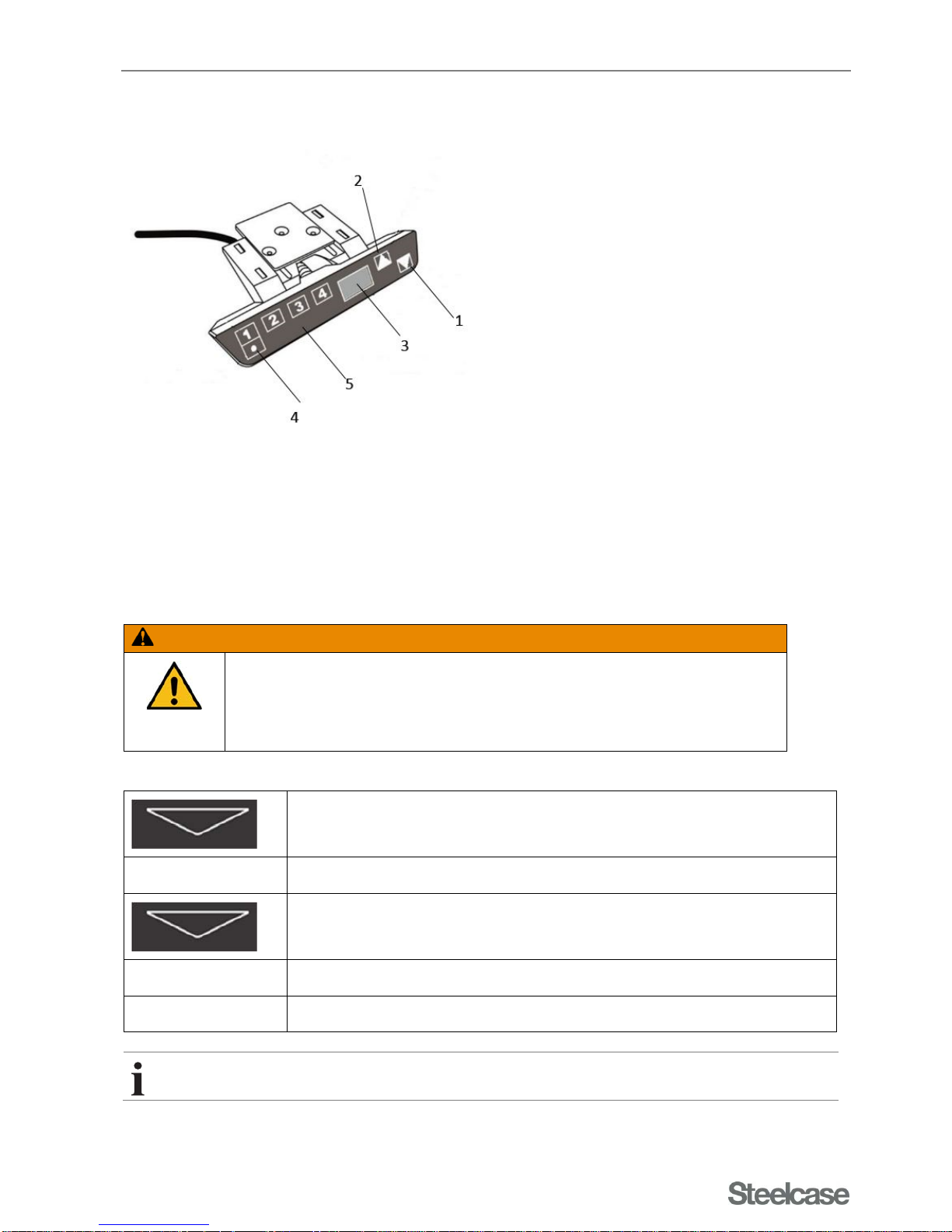
Fig. 9 Buttons and display on operating panel Memory
1 Button "Down"
2 Button "Up"
3 Display
4 Button "STORE"
5 Keypad "MEMORY 1 / 2 / 3 / 4"
Manuel reset on operating panel Memory
WARNING
Danger of crushing and shearing!
During reset and end position calibration, the software-assisted stop device is
not active.
Keep sufficient distance from the desk during reset.
Press and hold the "Down" button until the lower end position (programmed
desktop position) is reached.
Release the "Down" button.
Again, press and hold the "Down" button for approx. 5 s.
The desktop moves to the lower end position.
Release the "Down" button. The system is now ready for operation.
Releasing the button before completing the process interrupts the reset and requires a restart.
Page 25
Operation and settings
Migration Manual -en- 2018 Page 25 of 35
Adjusting the desk height with operating panel Memory
Before adjusting the height of the desk, ensure the following:
The display of the operating panel does not show an error message (see Error messages on the display
of operating panel Memory).
No one is in the lifting range. No objects (such as open doors or windows) are in or protrude into the lifting
range.
No objects should be in the movement area of the lift column.
No one should be on the desk.
The maximum permissible load capacity of the desk is not exceeded (see Technical data).
No heavy loads are on the desk top. Heavy loads make the height adjustment more difficult.
The desktop must be horizontal. If the floor is uneven, align the desktop with the adjusting screws on the
feet.
Ensure that the connecting cables of devices on the desk are long enough.
Press the "Up" or "Down" button.
A lift movement takes place only
As long as you press the appropriate button,
As long as the maximum load (approx. 50 kg) is not exceeded.
The desk starts moving!
CAUTION! The desk moves at a speed of approx. 4 cm/s.
NOTICE
Damage to the desktop is possible!
If the desktop is moving on one side or unevenly:
Release the button immediately to stop the movement.
Determine the cause using the fault-finding table (see Error messages on
the display of operating panel Memory).
Consult a service technician if necessary.
Page 26
Operation and settings
Migration Manual -en- 2018 Page 26 of 35
Switching the display between centimetres and inches
You can select between displaying the height in centimetres [cm] or in inches [inches]. This function does not
change the desk height.
To change the display, proceed as indicated in the following table:
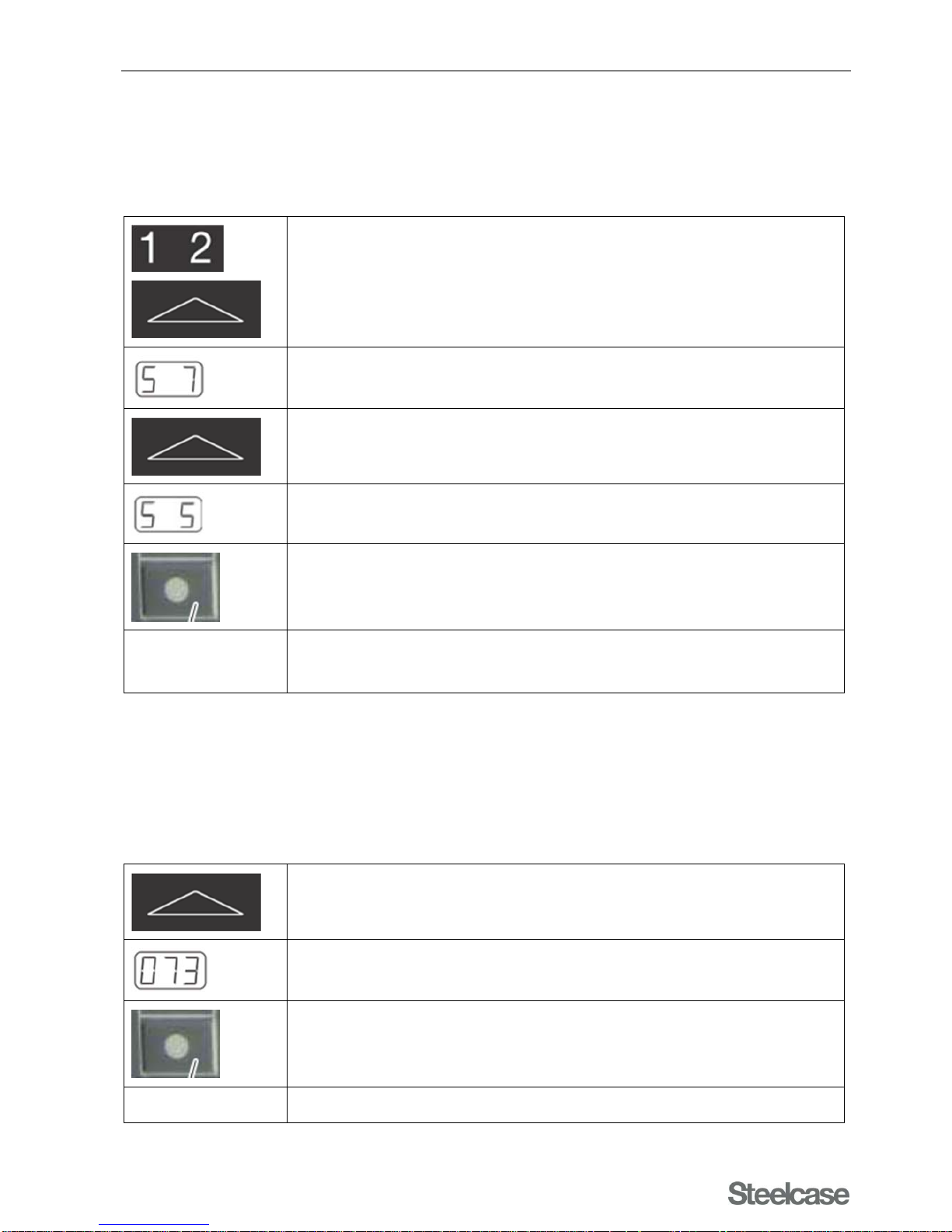
Press the position memory buttons 1, 2 and desktop Up at the same time.
Press and hold this button combination for approx. 3 s.
Release the buttons.
The display shows S and a number such as 7.
Press and hold the button desktop Up until the display show S 5.
The display shows S 5.
Press the memory button.
If the display was previously set to centimetres, it now switched to inch.
If the display was previously set to inch, it now switched to centimetres.
Setting the memory position
This function stores a defined desktop height. Each position memory button (1, 2, 3, 4) can store one desktop
height. As a result, up to four memory positions can be entered.
To store a desktop position, proceed as follows:
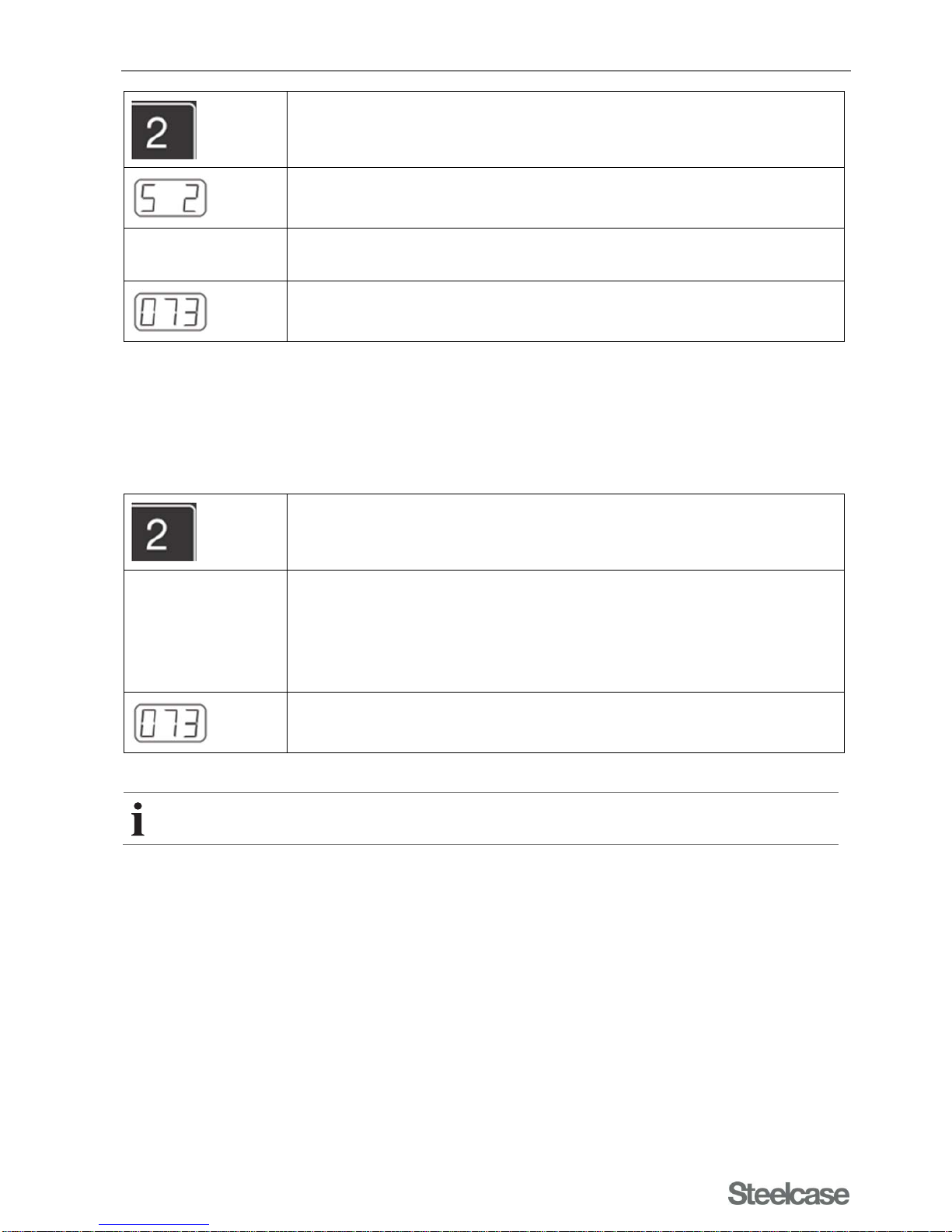
Move the desktop to the height you want.
The display shows the desktop position, e.g. 73 cm.
Press the memory button.
The display shows S.
Page 27
Operation and settings
Migration Manual -en- 2018 Page 27 of 35
Press the desired position memory button, e.g. 2.
The display shows S 2.
The set desktop position will now be stored under the selected position
memory button.
A double click will sound; after approx. 2 seconds, the saved desktop
position will be displayed.
Calling up a memory position
With this function you can set a stored desktop position.
To set a stored desktop position, proceed as follows:
Press and hold the desired position memory button, e.g. 2.
The desktop moves until the stored desktop position is reached.
If you release the button before reaching the stored desktop position, the
desktop will stop and fail to reach the stored desktop position.
The desktop has reached the stored desktop position. Now release the
position memory button.
The current desktop position will be shown on the display, e.g. 73 cm.
Always move the desk up or down until the desired or programmed height is reache d and the desk
stops. This ensures that the desk is level with one-sided load.
Page 28
Faults and malfunctions
Migration Manual -en- 2018 Page 28 of 35
Faults and malfunctions
Safety instructions
For troubleshooting, the following always applies:
DANGER
Danger from electrical voltage!
Contact with electrical voltage can cause severe injury or death by electric
shock!
Remove or insert connectors only in de-energised state.
Do not open the housings of the following components:
- Controller
- Columns
- Operating panel
NOTICE
Risk of damaging the electrical equipment!
Do not use the mains cable to pull the plug out of the power point.
Error messages on the display of operating panel Memory
If malfunctions occur during operation, please check whether the Migration desk has been handled according
to the user manual. In most cases, this will help you find and eliminate the problem.
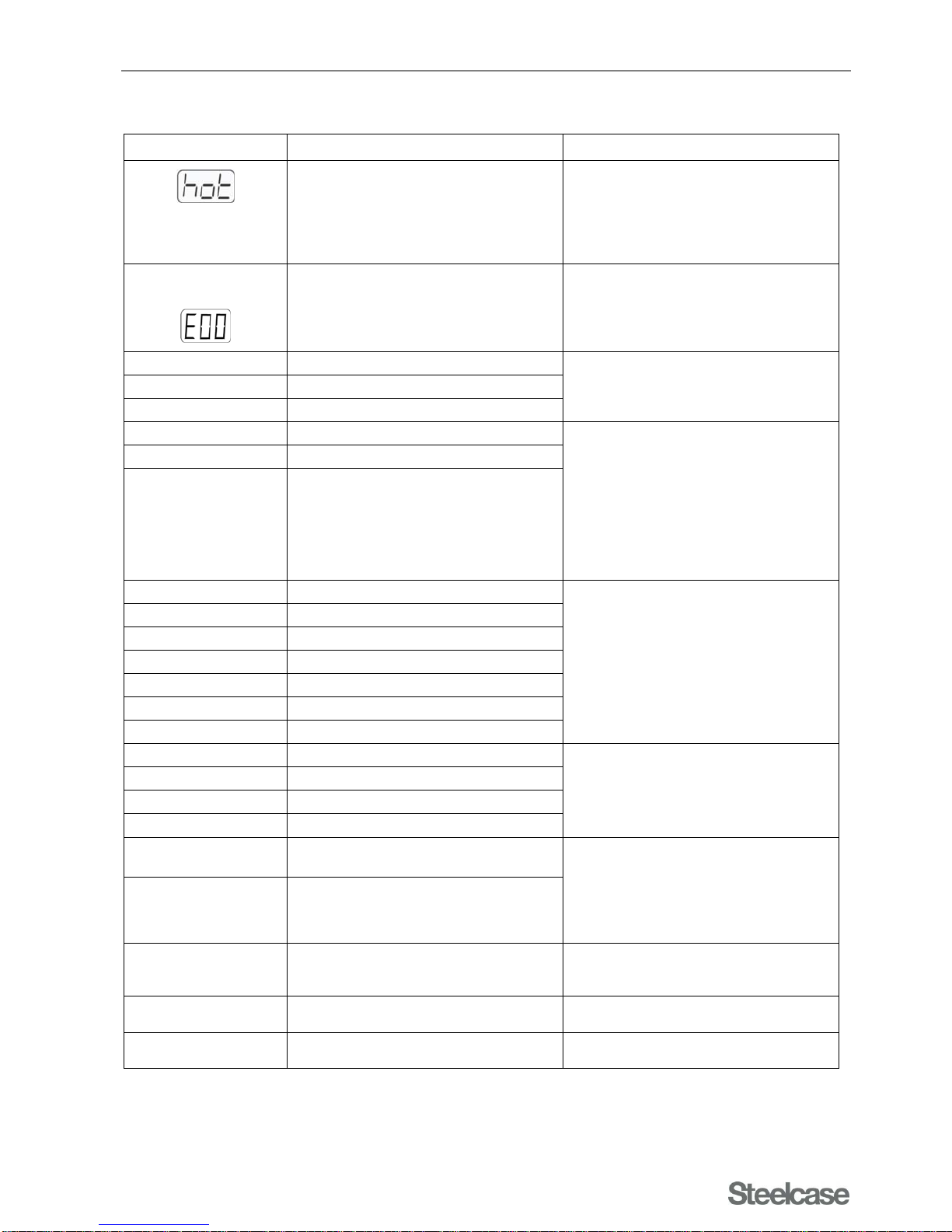
Some errors that may occur are shown on the display of the operating panel Memory. The "Error" segment
flashes.
The following table should help you find the cause and correct the error.
Page 29
Faults and malfunctions
Migration Manual -en- 2018 Page 29 of 35
Table of error messages
Display Error description / cause Measure
The motor controller COMPACT ECO is
equipped with an overheating
protection. This overheating protection
has been activated due to overheating.
Wait until the motor controller has
cooled down and the message HOT
on the display disappears. Then the
COMPACT ECO motor controller is
ready for operation again.
The display shows E
and an error number:
An internal error is present on the
COMPACT ECO motor controller.
Proceed according to the following error
list.
00 Internal error channel 1
Switch off the motor controller.
Contact Customer Service.
01 Internal error channel
02 Internal error channel 3
12 Defect - channel 1
Unplug the motor controller.
Eliminate the external short circuit.
Or:
Plug the correct motor into the
socket in question.
Start up the motor controller again.
13 Defect - channel 2
14 Defect - channel 3
24 Overcurrent - motor M1
Remove the jammed objects from
the movement range.
Table overloaded: Remove load
from the table.
Contact Customer Service.
25 Overcurrent motor M2
26 Overcurrent M3
48 Overcurrent motor group 1
49 Overcurrent motor group 2
60 Collision protection
62 Overcurrent - controller
36 Plug detection on motor socket M1
Plug the correct motor into the
socket in question.
Carry out reset.
37 Plug detection on motor socket M2
38 Plug detection on motor socket M3
61 Motor swapped
55
Synchronisation of motor group 1 not
possible
Remove load from the desk.
Carry out reset.
If the error is still displayed after the
reset, contact Customer Service.
56
Synchronisation of motor group 2 is not
possible.
67 Excessive voltage
Unplug the mains cable and contact
Customer Service.
70 Change in the drive configuration
Contact Customer Service.
71 Change in the anti-pinch configuration
Contact Customer Service.
Page 30
Faults and malfunctions
Migration Manual -en- 2018 Page 30 of 35
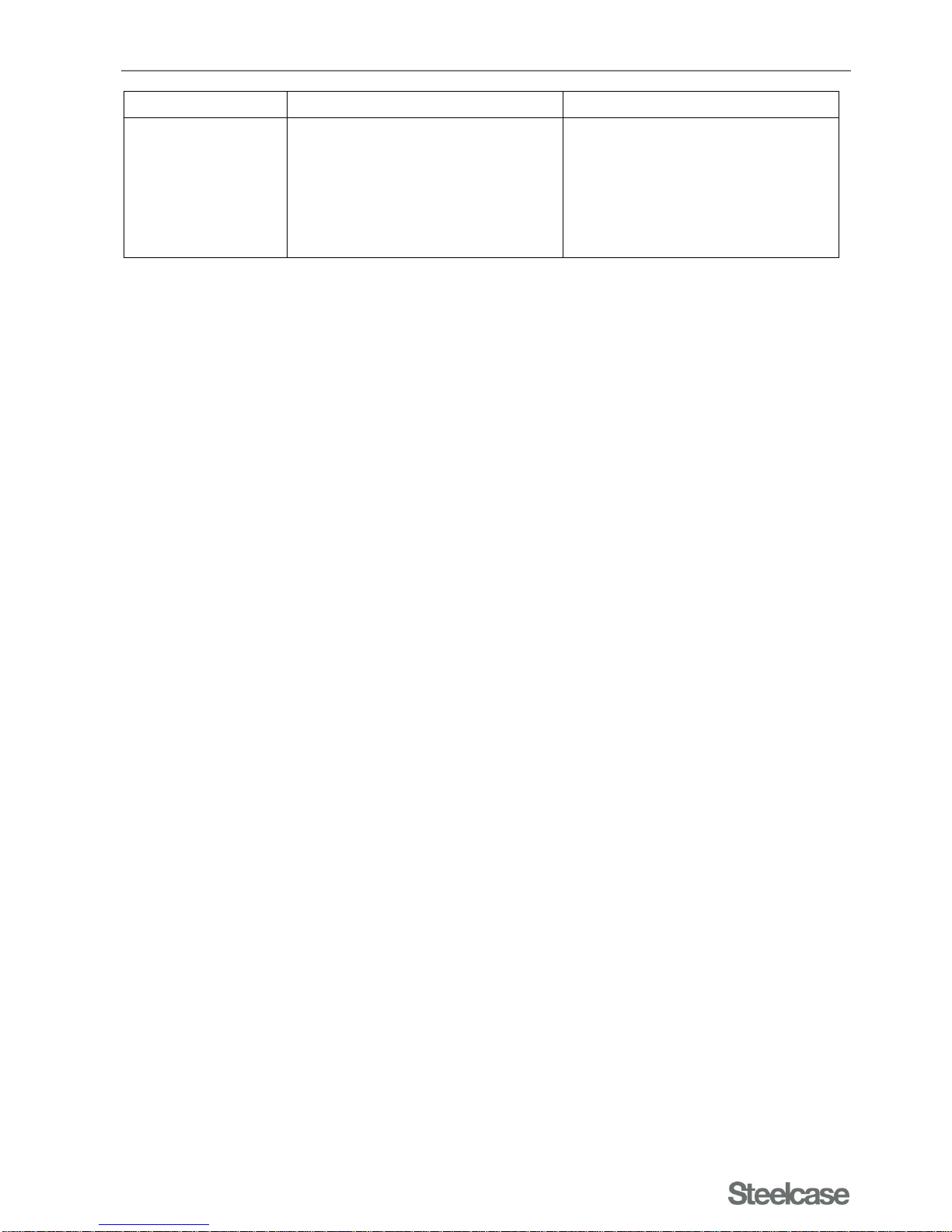
Display Error description / cause Measure
81 Internal error
Carry out reset.
Unplug the mains cable and plug it
back after a few seconds.
If this error occurs regularly, unplug
the mains cable and contact
Customer Service.
Page 31
Maintenance
Migration Manual -en- 2018 Page 31 of 35
Maintenance
Safety instructions
Only appropriately qualified and authorised personnel may carry out maintenance and repair work.
Only use suitable tools for these operations!
A damaged mains cable of this unit must be replaced by the manufacturer, his customer service or similarly
qualified personnel to prevent hazards.
Functional checks
The components of the desk Migration should be checked for their functionality at regular intervals. Note
especially the electrical connections:
The electrical equipment of the desk must be checked regularly. Rectify defects such as loose connections
and damaged cables immediately.
Remove or insert connectors only in de-energised state.
The plug of the desk must be easily accessible at all times.
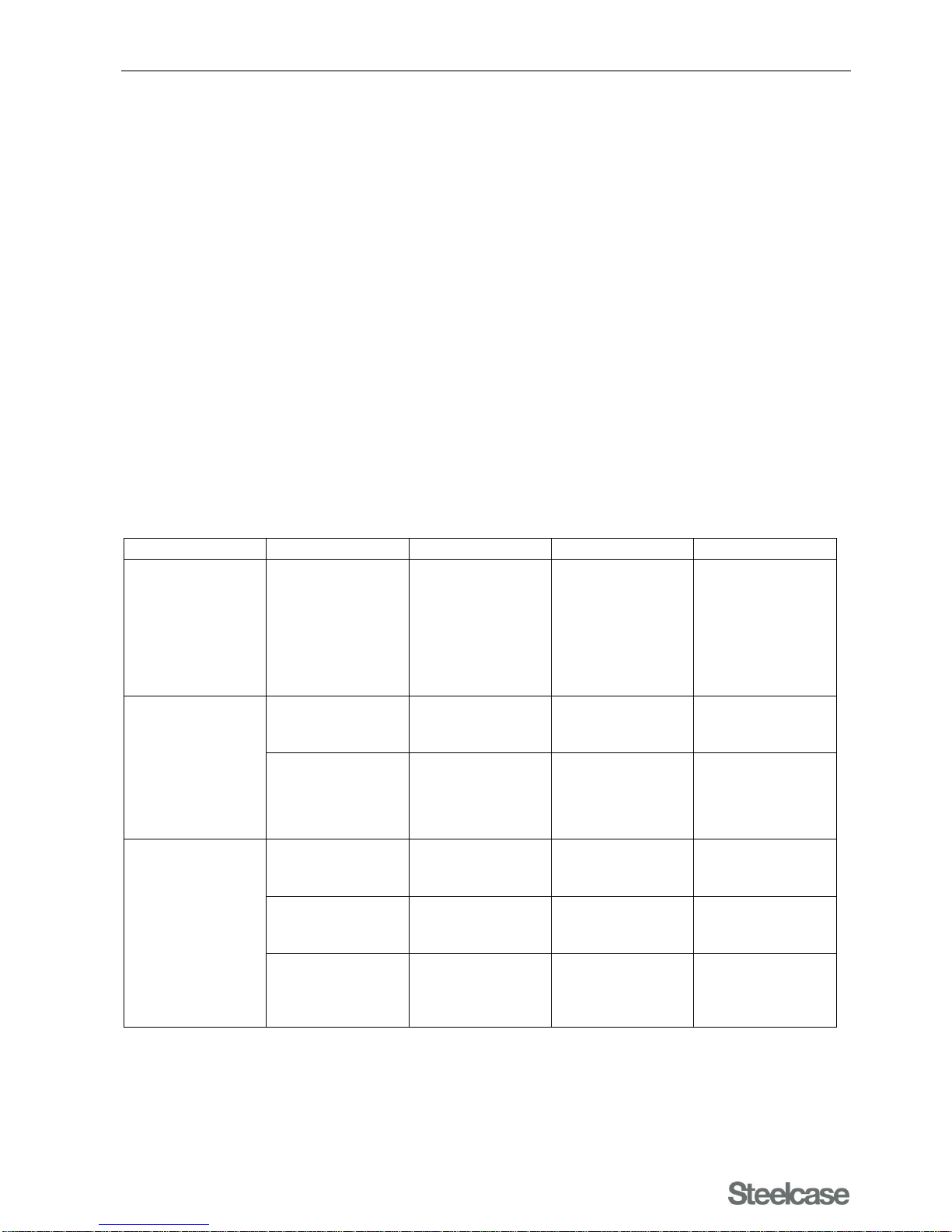
Table for functional checks
Interval Inspection point Functional check Permissible value Act if necessary
During assembly Frame parts
Position of the
desktop crossmember
Desktop crossmember
completely inserted
into the guides and
screwed tight.
Loosen the
screws, insert
the desktop
cross-member
correctly and
tighten the
screws.
Before each height
adjustment
Immediate
environment of the
desk
Check safety
distances.
No objects in the
lifting range.
Remove
objects.
Desktop
Check for
horizontal
alignment.
Horizontal
Align using the
adjusting
screws on the
feet.
Regularly
Connections of the
electrical supply
lines (cables)
Check the
insulation for
damage
No damage.
Replace
connections.
Insulation of the
electrical supply
lines (cables)
Check the
insulation for
damage
No damage.
Replace
cables.
Surroundings of
the electrical
supply lines
(cables)
Check for distance
to hot objects (e.g.
radiators).
Sufficient distance.
Establish
distance.
Maintenance work
Only authorised specialist personnel may carry out maintenance work. Please contact our Customer Service
Department for assistance (see Repairs and spare parts).
Page 32
Maintenance
Migration Manual -en- 2018 Page 32 of 35
Before adjusting the height of the desk, make sure that the desktop is horizontal. If the floor is uneven, align the
desktop with the adjusting screws on the feet.
Make sure that no objects are in the movement area of the lift column!
DANGER
Danger from electrical voltage!
Contact with electrical voltage can cause severe injury or death by electric
shock!
Remove or insert connectors only in de-energised state.
Do not open the housings of the following components:
- Controller
- Columns
- Operating panel
WARNING
Risk of injury!
Unintentional lifting or lowering of the desktop may cause injury.
For maintenance work on all non-electrical components of the desk, detach
the electrical connection of the height adjustment from the mains supply.
WARNING
Danger of injury and damage!
When lifting on the desktop or attached components, the fastening screws
may tear.
Transport or move the desk only by grabbing the base frame.
NOTICE
Risk of damaging the lifting mechanism!
Values stored in the controller do not match the settings of another desk.
After disassembling the desk, for example for transport reasons:
Reassemble the two side frames only with the appropriate desktop crossmember of the same desk.
Follow the separate assembly instructions.
NOTICE
Using unapproved spare parts may cause damage to the desk.
Only components provided by Steelcase may be used as spare parts.
Coordinate the installation of other parts with Steelcase.
Observe the specified maintenance and inspection intervals.
Page 33
Maintenance
Migration Manual -en- 2018 Page 33 of 35
Disclaimer of liability
Steelcase assumes no liability or warranty in the following cases (see Liability):
Inadequate monitoring of the product components (function checks).
Improper maintenance.
Maintenance through a third party.
Maintenance by unqualified and unauthorised personnel.
Use of components and adaptations that do not originate from Steelcase.
Unauthorised modifications of the product in its construction and design.
Intentional misuse.
Improper use.
Cleaning and care
NOTICE
Moisture may damage the operating panel and controller!
Keep the operating panel free of moisture and wetness.
Keep the controller free of moisture and wetness.
You can use commercial cleaning agents to clean the surfaces of the desk.
Only use care and cleaning agents that are suitable for the appropriate materials (plastic, metal).
Page 34
Disposal of the desk
Migration Manual -en- 2018 Page 34 of 35
Disposal of the desk
Disassembly should be carried out by qualified personnel.
Follow these steps to disassemble and dispose of the Migration desk
Disconnect the desk from the mains supply.
Disassemble the desk into its components.
Separate the resulting parts into:
reusable components,
material groups to dispose of (wood, metal, plastic, electrical parts, etc.),
and return them to the recycling cycle. Follow all applicable regional regulations.
Page 35
Customer Service
Migration Manual -en- 2018 Page 35 of 35
Customer Service
Delivery, installation, instruction
The manufacturer or a specialist retailer usually deliver, assemble and set up the desk.
The Manufacturer or a specialist retailer will instruct the users.
Repairs and spare parts
Original spare parts and accessories are available from the manufacturer.
If it is not possible to eliminate faults or malfunctions, please contact the Customer Service Department:
Steelcase AG
LineOne EMEA
Georg-Aicher-Strasse 7
83026 Rosenheim, Germany
Phone: +49 (0) 80 31 405 – 111
E-mail: DE [email protected]
 Loading...