

Page 1
Page 2
Page 3

Introduction 1
Notice to Parents 2
Safety Instructions 2
WARNING 2
Qpad PRO™ Overview 3
Front View 4
Top View 4
Left Side View 5
Right Side View 5
Unpacking the Device 6
Battery 6
Getting Started 6
Application, Software & System Settings 7
Time & Weather 7
Main Menu Screen 8
Category Screen 9
Media 10
Games 11
Web 11
Learn 12
Setting 12
Tools 13
My Desktop 14
Troubleshooting 15
Specifi cations 16
Contents
Page 4
1
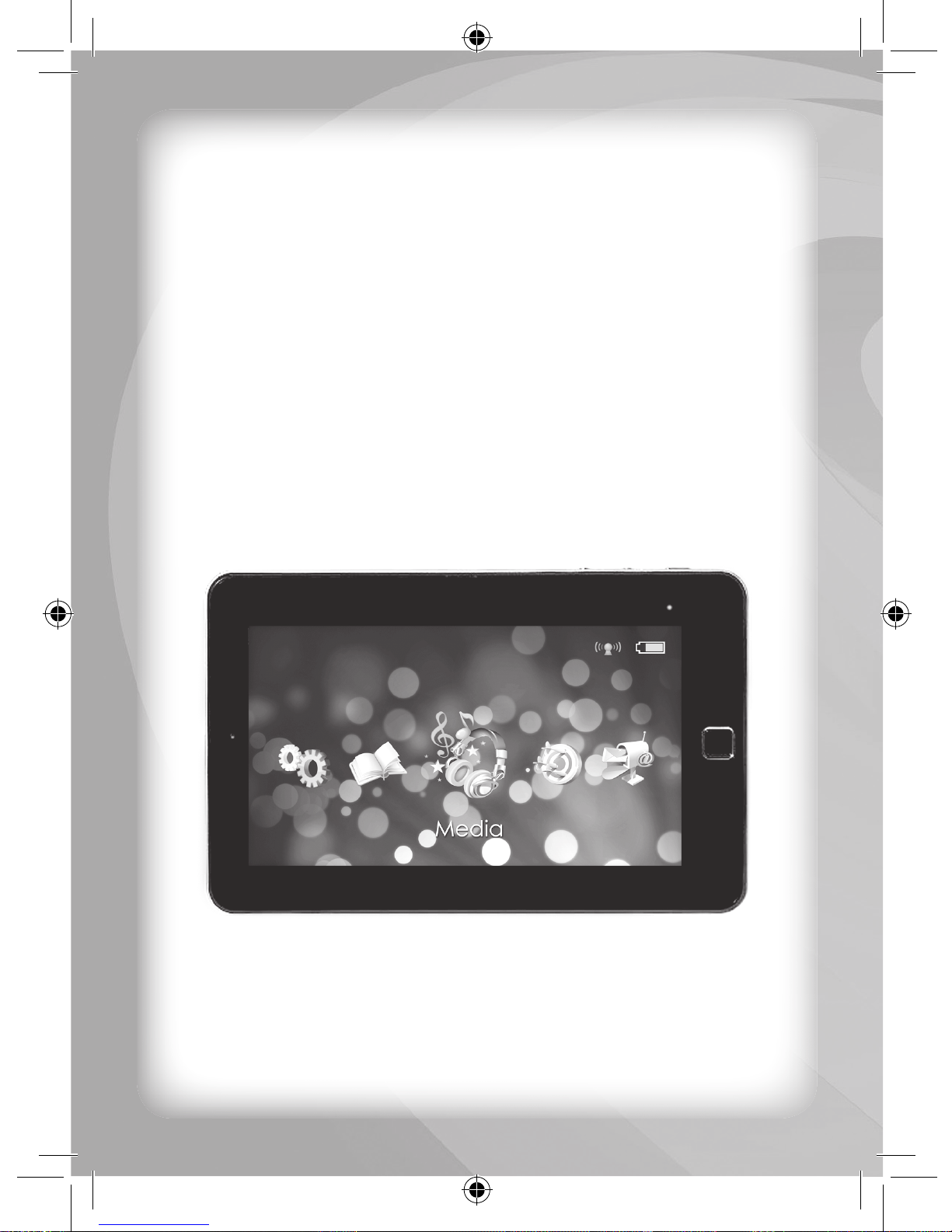
Thank you for selecting this Qpad PRO™ unit.
This box contains one (1) Qpad PRO™ unit, one (1) AC charger
adaptor, one (1) LAN adaptor, and a User Instruction Guide.
Pease read the Notice to Parents carefully before you allow your
child to use this unit. Reading through this User Instruction Guide
with your child can be a valuable learning experience.
Please discard of any packing materials such as plastic sheets,
wire ties, tags etc for your child’s safety.
Introduction
Page 5
2
Notice to Parents
Safety Instructions
CAUTION: TO REDUCE THE RISK OF ELECTRIC SHOCK. DO
NOT REMOVE COVER (OR BACK). NO USER SERVICEABLE
PARTS INSIDE. REFER SERVICING TO QUALIFIED SERVICE
PERSONNEL.
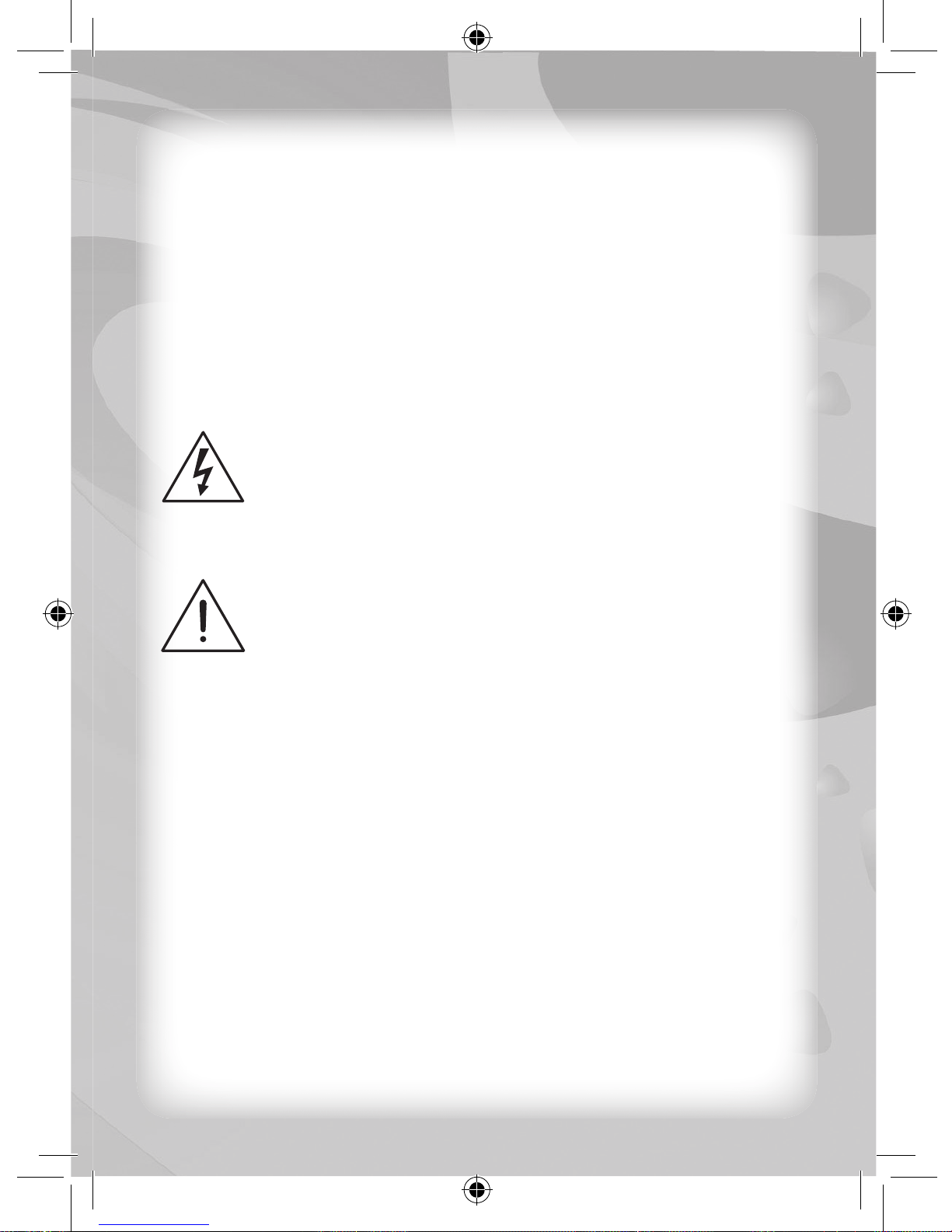
The graphic symbols on the back cover of the unit means the following:
The lighting fl ash with arrowhead symbol within an equilateral
triangle is intended to alert the user to the presence of
un-insulated “dangerous voltage” within the unit’s enclosure
that may be of suffi cient magnitude to constitute a risk of
electric shock to persons.
The exclamation point within an equilateral triangle is
intended to alert to user to the presence of important
operating and maintenance (servicing) instructions in the
literature accompanying the unit.
WARNING
THIS PRODUCT IS NOT A TOY, ADULT SUPERVISION IS
RECOMMENDED.
•
Read these instructions.
•
Keep these instructions.
•
Heed all warnings.
•
Follow all instructions.
•
Do not use the unit on your lap for more than 30 minutes without
at least a fi ve (5) minutes break.
•
Do not use this unit near water.
•
Clean only with a dry cloth.
•
Do not block any ventilation openings. Install in accordance with
manufacturer’s instructions.
Page 6

3
•
To avoid overheating, do not leave the unit in a non-ventilated
space (e.g. a schoolbag) when it is turned ON.
•
Do not install near any heat sources such as radiators, heat
registers, stoves or other apparatus (including amplifi ers) that
produce heat.
•
Do not defeat the safety purpose of the polarized or grounding-
type plug. A polarized plug has two blades with one wider than the
other. A grounding-type plug has two blades and a third grounding
prong. The wide blade or the third prong is provided for your
safety. If the provided plug does not fi t into your outlet, consult an
electrician for replacement of the obsolete outlet.
•
Protect the power cord from being walked on or pinched particularly
at plugs, convenience receptacles, and the point where they exit
from the unit.
•
Only use attachments/accessories specifi ed by the manufacturer.
•
Unplug this unit during lightning storms or when unused for long
periods of time.
•
Refer all servicing to qualifi ed service personnel. Servicing is
required when the unit has been damaged in any way, such as
the following: the power supply cord or plug has been damaged;
liquid has been spilled or objects have fallen into the unit; and/or
the unit has been exposed to rain or moisture, does not operate
normally, has changed its performance or has been dropped.
•
Do not overload the wall outlet. Use only power source as indicated.
•
Use replacement parts as specifi ed by the manufacturer.
•
Upon completion of any service or repairs on this product, ask the
service technician to perform safety checks.
Qpad PRO™ Overview
Qpad PRO™ is a powerful learning tool that encourages
independent expression. With the high-resolution colour LCD
screen, large touch screen, and applications to choose from, this
tablet offers hours of educational entertainment covering a variety
of subject areas.
Page 7
4
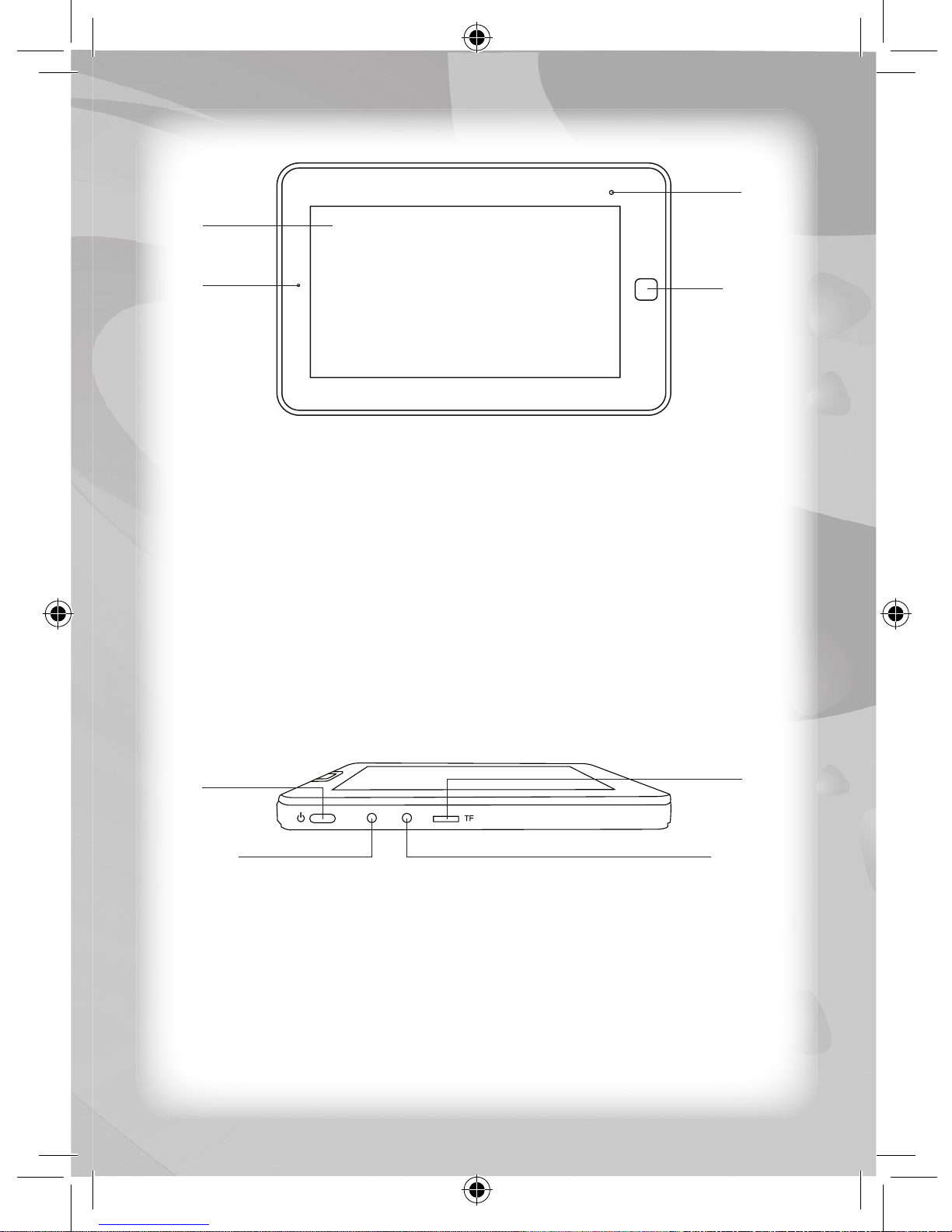
Front View
A)
Large Touch Screen: Touch once anywhere on the full screen to
input your information or select an icon.
B)
Camera
C)
LED Power Indicators: Red-Battery charging; Blue-System
working.
D)
Home/Backspace Key: Press the Home key in submenu to go
back to the main menu or in order to display clock screen from
main menu. And press the Home key to go back to the previous
screen (in some applications).
Top View
A)
Power ON/Power OFF Button: Press this button to turn the
Tablet ON. Press this button again to turn OFF the unit manually.
B)
Menu Key: Press the MENU key to display the popup menu (in
some applications).
C)
Software Key: Press the SOFTWARE key for about fi ve (5)
seconds to display the software popup menu.
D)
TF Slot: You can insert a T-Flash memory card (Micro SD card)
for storing your data, photos, music and video fi les.
A
C
D
B
C
A
B
D
Page 8
5
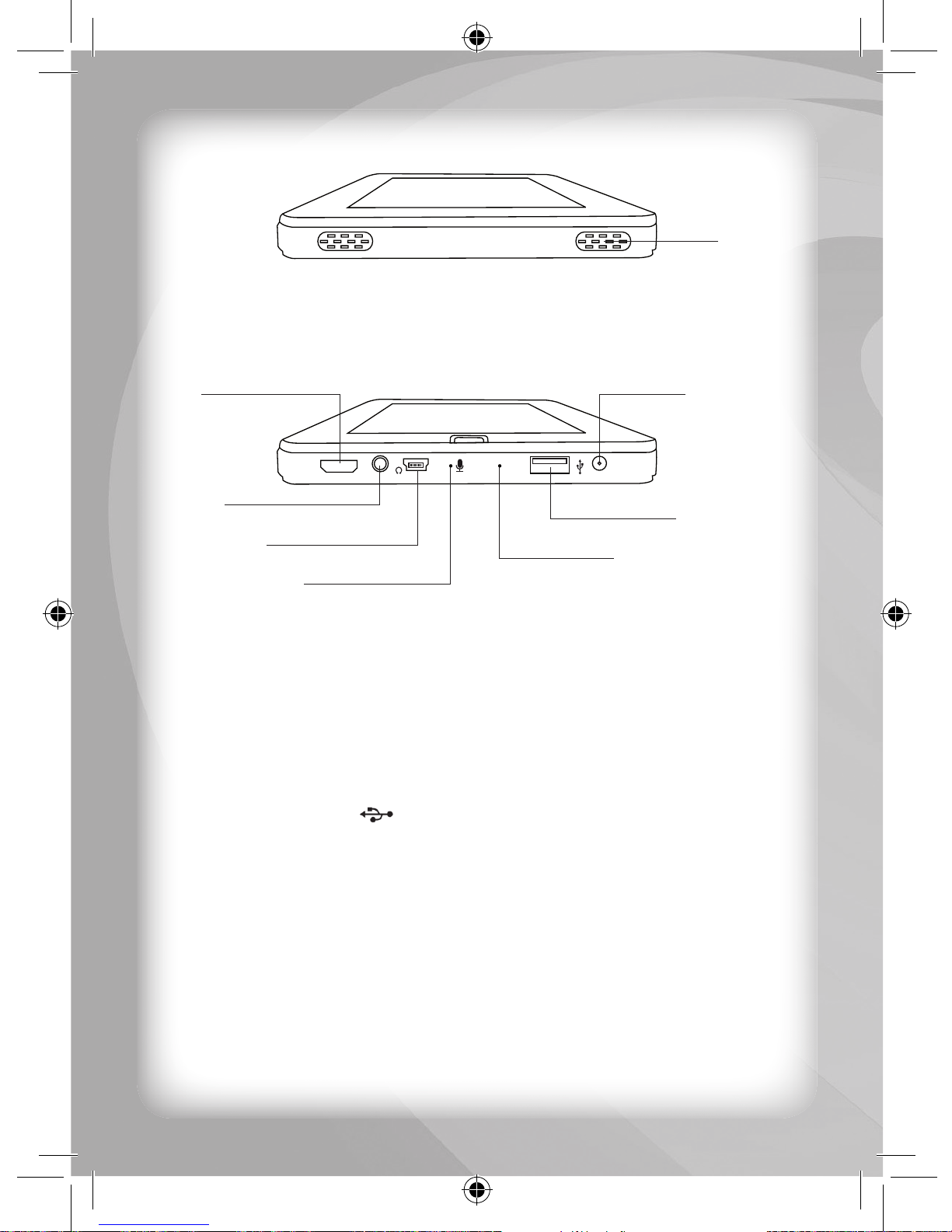
Left Side View
A)
Speakers: Built-in stereo speakers.
Right Side View
Reset
HDMI
9v
A)
DC IN: The AC charger adaptor connects to this socket. Use only
the AC charger adaptor supplied with the tablet. Using the wrong
adaptor can damage the product.
B)
USB On-the-go port: This jack allows you to connect to another
PC or Notebook via a USB cable in order to transfer data or fi les
to the unit’s internal hard disk (The USB connecting cable is not
included ).
C)
USB-U-Disk port : Use this port to connect a USB U-Disk
(not included).
D)
Earphone port: This jack allows you to use the stereo earphone.
E)
Reset: If the system stops operating as normal, please insert a
pointy object into the RESET hole and press lightly; then the
system will shutdown (Be careful with the pointy object and
request the assistance of an adult).
F)
HDMI jack: This jack allows you to connect to a television HDMI
input port using an HDMI cable (not included).
G)
Microphone: For voice recording.
F
D
G
C
E
A
B
A
Page 9
6
Unpacking the Device
When unpacking, ensure that the following are included:
1 x Qpad PRO™
1 x AC Charger Adaptor
1 x User Instruction Guide
Battery
1) Charging the Battery
This Qpad PRO™ has an internal rechargeable battery. We suggest
charging the battery when the battery power is low.
2) How to Charge the Battery
•
Plug in the Power adapter into the Power adaptor port on the
Qpad PRO™, the battery charging LED will light up. When the
LED turns off, the battery will be completed charged.
•
You may operate the unit while the battery is being charged.
Note:The charging time will be longer if the unit is operated while
being charged.
3) Checking the Battery Level
You will see the battery level icon on the top right corner of the
screen.
Getting Started
•
Insert the charger/power adaptor.
•
Connect the charger/power adaptor’s DC output plug into the DC
IN port on the right side of the unit.
•
Plug the power adapter cord into a wall outlet. The battery
charging indicator on the front of the unit should light up in red.
•
Press the POWER button to turn ON the unit.
The system starts automatically and after a few minutes, the time
& weather screen is displayed on-screen.
•
Keep your fi nger touching anywhere on the screen for a few
seconds to jump to the main menu.
•
Select a category you would like to play by touching the screen.
Page 10
7
•
Touch the Home key to go back to the main menu when
you are within a category.
Note: Touching the Home key on the main menu will jump to the
Time & Weather screen.
•
Within a category, you can touch the screen and slide left or right
on the left side of the screen to scroll the page (when the number
of the applications is over a page).
Touch the application icon that you want to open.
Touch the screen and slide up or down on the right side of the
screen to change the category.
Application, Software & System Settings
Time & Weather
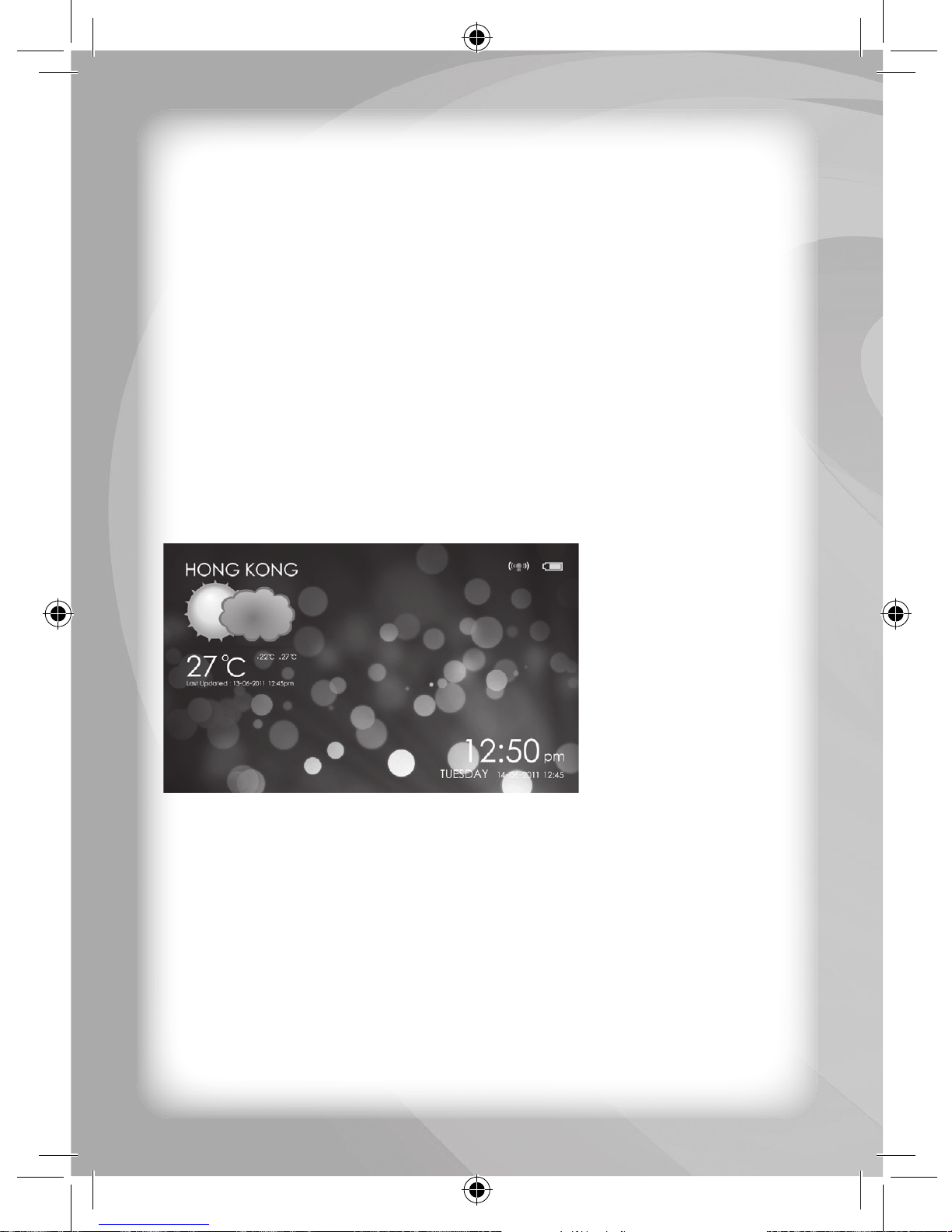
This screen will show after you power ON the unit or if the unit does
not detect any input from the user after a certain interval (the unit
will automatic jump to this Time & Weather screen as the default
screensaver).
This screen shows information about Wi-Fi connection, battery level,
date, time, as well as weather & temperature data of your selected
location.
The battery icon on the top right corner of the screen displays the
battery level information.
Page 11
8
The Wi-Fi icon on the top right corner of the screen near the battery
icon displays the status of the Wi-Fi connection.
Keep your fi nger touching anywhere on the screen for about fi ve (5)
seconds to jump to the main menu screen.
Touch and hold the location icon about fi ve (5) seconds to jump to the
weather and location settings page.
Touch and hold the weather icon to update the location and weather
information (Connect through Wi-Fi to update the location and
weather information via internet).
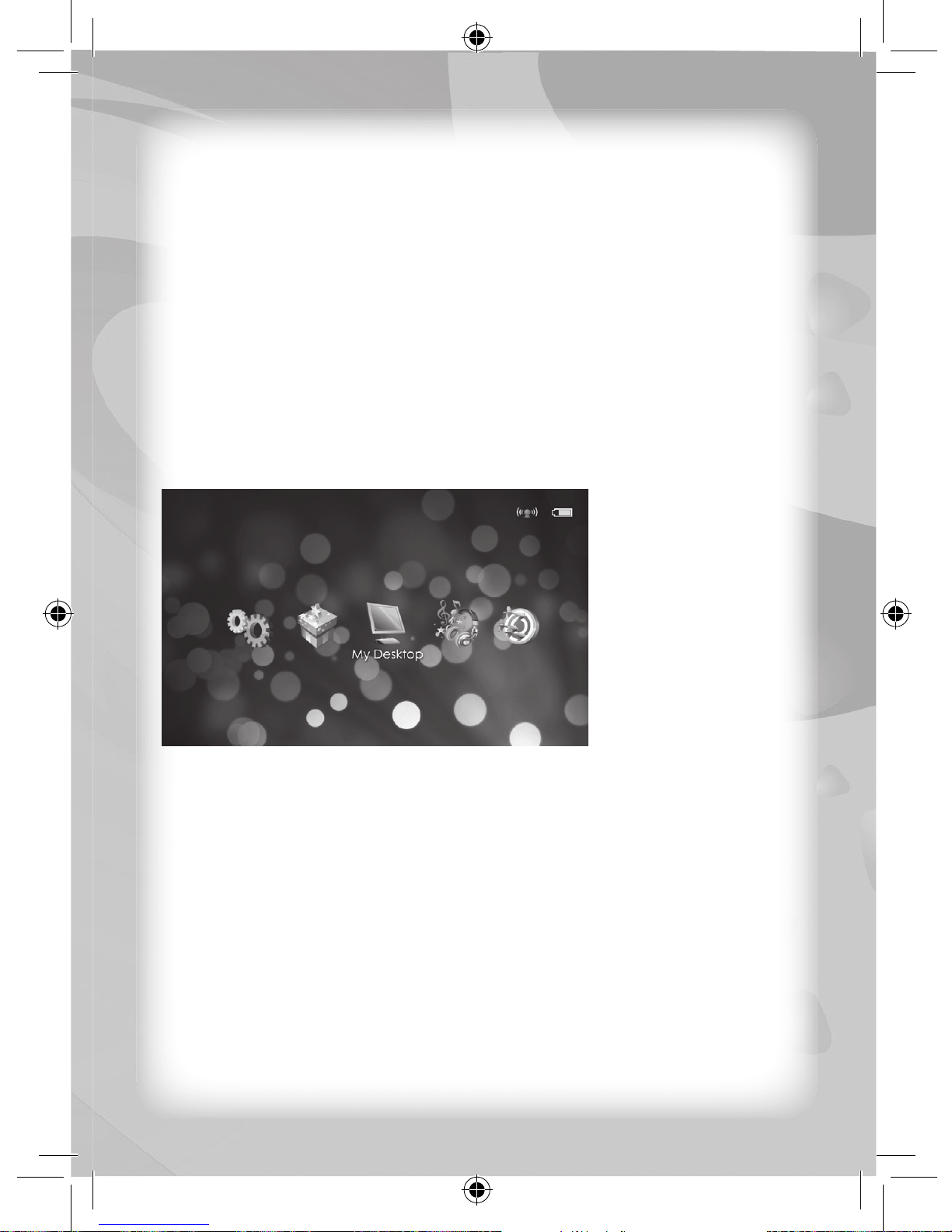
Main Menu Screen
In this main menu you can select a category icon on the screen, and
then choose an application in the category. Here you have seven (7)
category icons (Media, Games, Web, Learn, Setting, Tools & My
Desktop) to select from.
You can touch the screen and scroll to left or right in order to change
to the previous or next category icon. Alternatively, you can touch the
category icon that is not showing on the centre, and it will move to
the centre.
Touch the category icon on the centre of the screen to enter that
category.
Touch the Home key to go back to the Time & Weather screen.
Page 12
9
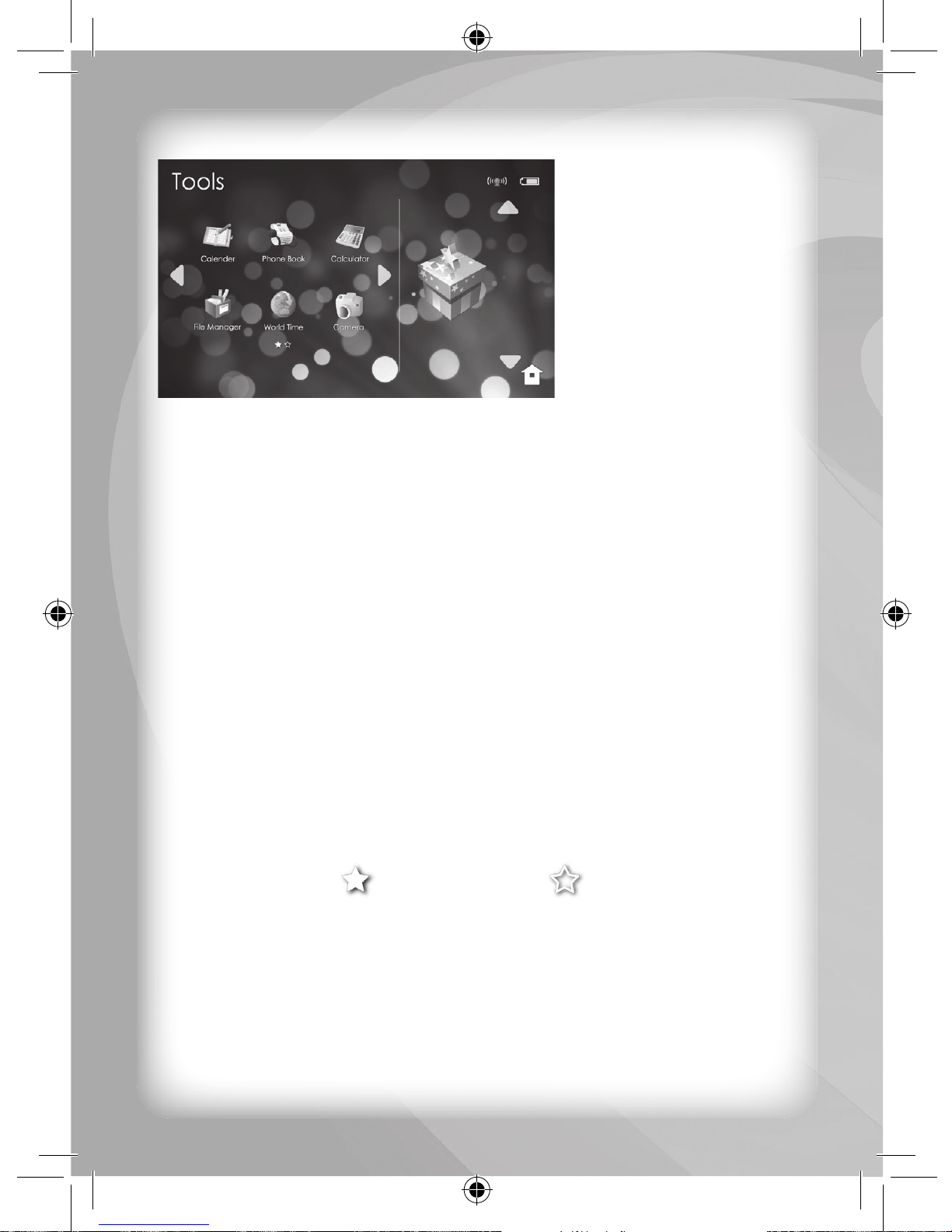
Category Screen
After you enter a category screen, the unit shows the big category
icon on the right side so that you know in which category you are. It
will show all of the corresponding applications on the left side of the
screen for you to select.
As with the main menu screen, the top right corner of the screen will
show the battery level & Wi-Fi status icons.
Touch the screen and slide up or down on the right hand side (the big
category icon area) to change the screen to the previous or next category.
Then touch the screen and slide to the left on the left side of the
screen (the applications area) to change to the next page of the
applications list. On the contrary, touch and slide right on the left side
of the screen, the application area, to change back to the previous
page of the applications list.
If there are more than six (6) applications, then the unit will insert one
more page in order to show the other applications on the list, and then
the page icon will show on the bottom of the left side of the screen.
Current page icon Page icon
You would be able to add other applications to the list if it shows
the Add application icon. Touch the Add application icon and the list of
the application that can be added will show on next screen. Choose
an application that you want to add from the list and touch its icon or
name. Once you have touched the “YES” button on the confi rmation
popup dialogue box, the new application icon will show on the list. If
you want to remove a previously added application, you will need to
touch & hold the application icon for a few seconds. The unit will then
Page 13

10
show a popup dialogue box asking if you really want to delete the
application from the list. Once you have touched the “YES” button on
the Delete application icon popup dialogue box, the application icon
will be deleted from the list and revert to the Add application icon on
the same place.
Touch the Home key to go back to the main menu screen.
Add application icon Home icon
Media
This category has some applications for your entertainment (Music
Player, Recorder, Media Player & Photo Gallery).
Music Player
Touch this icon to play music from the unit or T-Flash memory card.
You can search the songs by Artists, Albums, Songs or Playlists. The
songs will show on the screen. Touch a favourite song to play it.
Recorder
This is a convenient application that allows you to record your voice or
singing. Touch the record icon to start recording, the timer will start at
the same time and the volume indicator will show movement. Touch the
stop icon to stop recording. Touch the play icon to replay your recording.
You can play your recorded fi le in Music Player found under “Playlists”.
Media Player
Touch the media player icon on the screen to enter this application.
All the video fi les are shown on the list for you to select. Touch the fi le
name to directly play that video fi le. Touch the Home key to go back to
the fi le list screen.
Photo Gallery
Enter this application, the unit will show all of the photo fi les on the unit
& T-Flash memory card. You can display any photo on the screen by
touching the photo. Touch the folder name on the top left corner of the
screen to go back to the previous screen. Touch the camera icon on
the top right corner of the screen to open the camera application and
take a photo with the camera.
Check the details on the Camera application within the Tools category.
Page 14
11
Games
We have provided you with a classic game. Nevertheless, you can
download other favourite games from Market. Open the Market
application under the Web category and you will be able to download
many games from Android™ Market. Once downloaded, you can add
your favourite games into this category.
For information on how to add your favourite games into this category,
please refer to the Category Screen.
Web
This category has some applications for you to enjoy Internet (Gmail,
Google Talk, Map, Explorer, YouTube™ & Market).
Gmail
Touch this icon to enter Gmail. Set an e-mail account first and then open
the e-mail. You will be able to send or check your mail through this applica
tion.
Google Talk
Touch this icon to enter Google Talk. You will be able to chat to your
friends through this application.
Map
Select this icon to enter the Google™ Map application. Click the zoom
icon on the bottom right corner of the screen to zoom in or zoom out
the image. Touch and drag the screen, Move the image up and down
or right and left for selection.
You can also fi nd “My location”. This will show your current location either
by Wi-Fi or by Ethernet IP address location.
Explorer
Touch this icon to open the following web page. Access the relevant
websites by entering their web address.
YouTube
You can watch many videos via the YouTube™ application.
Market
You will be able to fi nd more applications on Android™ Market after
starting this application.
Page 15
12
In the Android™ Market, you will fi nd many software (e.g. Facebook,
msn, Quickoffi ce, Skype and Twitter) or games for you to download
and install onto the unit.
Make sure you are connected to the network (Internet) before you
start any application on this category.
Learn
EBook
We provided one educational eBook in PDF format for you to enjoy
reading. You can select an eBook fi le to read here.
If you cannot open the eBook fi le, maybe you need go visit Android™
Market (Web category -> Market) to download a new PDF reader
application in order to read these eBook fi les.
Setting
All of the system settings are included within this category.
You can set the Language, Wi-Fi connection, Date & Time, Touchscreen calibration, Sound, Accounts, Display settings & Screen
timeout within this category.
Language
Use it to select the system language. The unit supports about 13
languages for you to choose.
After you have set a new language, please restart the unit.
Wi-Fi
Use it to set/connect the Wi-Fi system. You will be able to set up &
manage the access data for the wireless network when you turn on the
Wi-Fi. If the icon shows a GREEN tick, it will mean that the device is
searching for any available network. The device will search automatically
and add the nearest Wi-Fi network to which you can connect. Click the
wireless network port and you will be able to connect to the network.
Date & Time
Use it to setup the date, time, time zone and format. Enter the date
and time when you turn ON the unit for the fi rst time. Or reset the date
and time when the date or time does not match. Enter the time zone
interface to set the time zone up.
Page 16
13
Calibration
Use it to recalibrate the touch sensitivity level of the touch-screen.
Follow one by one the prompts ndicated by the unit to touch the
relevant points on the screen.
Wallpaper
Use it to set your favourite picture as the screen background picture.
The unit provides several pictures for you to select.
Accounts
Use it to set your email and Market account login.
Sound
Use it to set the sound output. You can select the Mute function or
adjust the volume in this setting.
Silent mode: All sound will be muted except for media and alarm.
Media/alarm volume: Adjust the volume of these functions by dragging
the relevant arrowhead right or left.
Display
Use it to select the display functions. You can set Brightness,
Auto-rotate screen, Animation & Screen timeout within this setting.
Brightness: Use it to adjust the brightness of the screen by dragging
the arrowhead right or left.
Auto-rotate screen: Use it to select the “rotate screen” function. This will
automatically change the orientation according to the gravity when you
rotate the unit.
Animation: Use it to select the display effect. It will show an animation
when you open or close a window.
Screen timeout: Use it to set the timeout interval after which the unit
will revert to the screensaver if no activity from the user is detected.
About
Shows information about the device and makes it possible to select
the software update function.
Tools
This category includes some useful applications for your daily tasks
(Calendar, Phone Book, Calculator, File Manager, Alarm Clock & Camera).
Calendar
It shows the month of the calendar for you to set your schedules. Touch
Page 17
14
a date box on the screen and enter that day to create/modify your schedule
table. The unit will show the schedule table in hour-slots. Touch a cell in the
schedule table and access to it in order to enter the details. Once you have
fi nished entering the details and have clicked on “DONE” at the bottom
of the form, the unit will save your schedule. The schedule being created
will show on both the hourly schedule table and monthly schedule table.
You can set the alarm call on the schedule for the unit to remind you.
Phone Book
You can create your contact list using this application.
Touch the MENU key and select “New contact” to create a new contact
from scratch. Fill your friend information into the form on the screen
using the virtual keyboard.
Calculator
You can make mathematic calculations with this application.
File Manager
Use it to browse the fi les saved in the unit and T-Flash memory card.
Touch the MENU key or click the software icon on the screen to enter
the operator’s interface.
Alarm Clock
Use it to enter the time settings interface in order to set the time. You can
set the time display format and choose different formats to show the alarm.
Camera
Autodyne or video chat, you can enjoy at any time the happy moments
brought to you by the camera. Select photo capture by touching the camera
icon on the right side of the screen. Touch the shutter icon on the bottom
right corner of the screen in order to capture the picture shown on the screen.
You will be able to adjust the picture size, picture quality, colour effect
with the fi rst icon shown on the top right corner near the capture screen.
Set the store location by touching the second icon on the right side near
the capture screen. Touch the third icon on the right side near the
capture screen to set the white balance settings.
My Desktop
You can design your favourite page and set your favourite/commonly
used applications within this category for a more friendly use.
Page 18

15
For information on how to add your favourite/commonly used
applications in this category, please refer to Category Screen.
Troubleshooting
When you encounter a problem, you should try the following fi rst:
• Remove all the external devices and check if the problem remains.
• Make sure the power cord is properly plugged into the wall outlet
and unit.
• Make sure the power indicator of the unit is ON.
• Check for any incorrect or loose cable connections.
The unit does not power on
• Make sure the power adapter plug is fi rmly inserted into the socket.
• First, charge the battery, connect the adapter to the Tablet and
turn ON your unit.
• Make sure the power indicator is lit up when you are using the
integrated battery or AC adapter.
• If these methods do not work, contact the nearest service centre.
The unit crashes, runs slow or programs do not operate correctly
• If all the above methods fail, press the POWER button to shut
down the unit and press the RESET switch located on the right
side of the unit. Then, restart it.
The battery does not last long
• Make sure that the battery is fully charged.
• Make sure that the battery has not being left unused for an
excessive period after being fully charged.
• Recharge the battery before using it again.
• Due to the battery’s chemical properties, it is normal that after frequent
use, the battery’s service time becomes progressively shorter.
• For any further questions, please contact the nearest service centre.
After showing the Qpad PRO™ welcome screen, the Tablet
switches itself off/LCD blank screen
• Make sure that the battery has enough power for the unit to start
and operate normally.
• Plug the AC adapter into a main socket to charge the battery.
The build-in speaker does not work
• Check the volume settings in the volume control panel.
Page 19
16
• Make sure there are no headphones connected to the unit.
Disconnection of T-Flash memory Card
• Check whether the memory size of the T-Flash memory card
exceeds or not the readable memory size.
• Check the connection between the equipment and the unit.
• Try to insert the T-Flash memory card again and restart the unit.
• Check if the unit interface confi guration meets the requirements
of the device or if they are compatible.
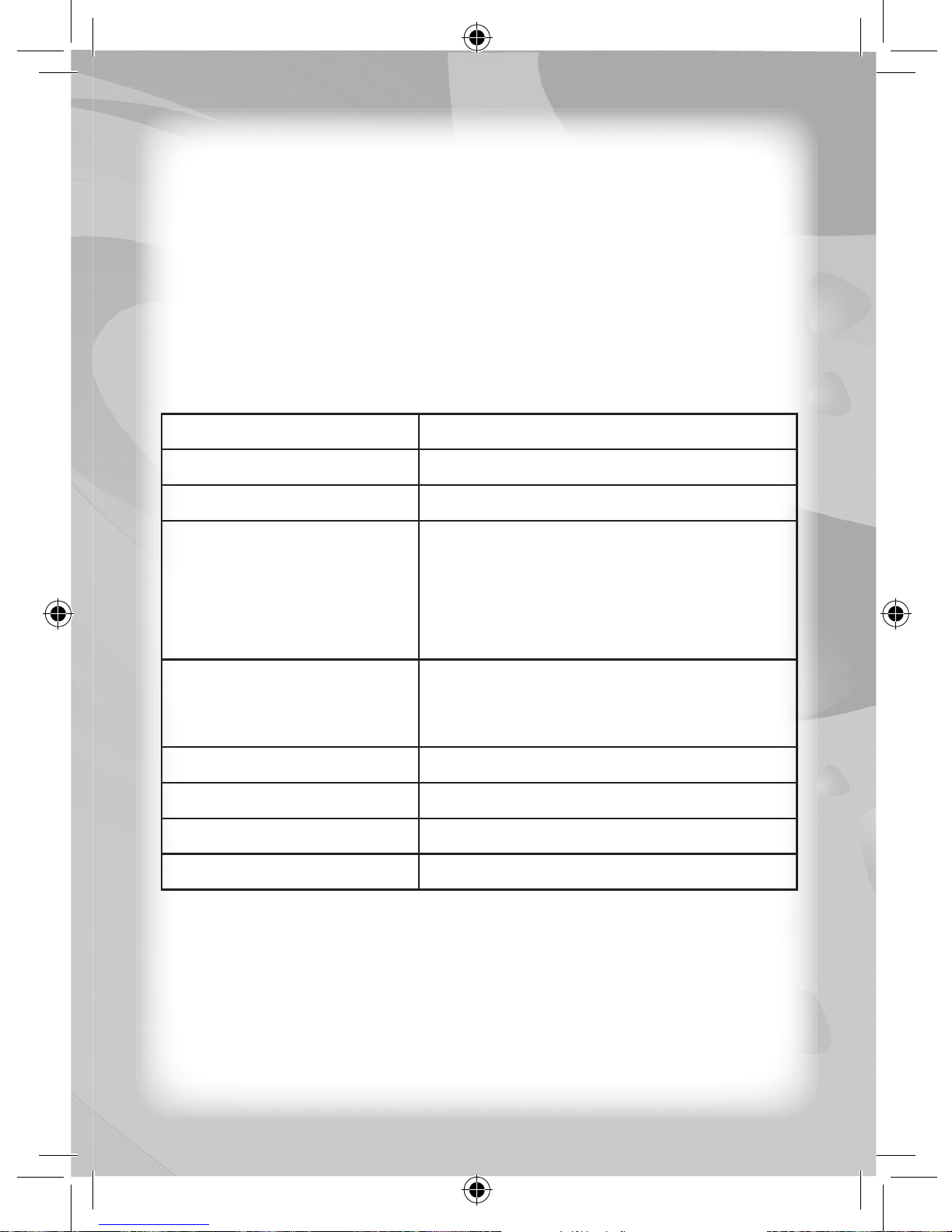
Specifi cations
CPU 1.0 GHz LNX Code 11 Processor
Display 7” High resolution TFT
Resolution (800 x 480) Widescreen
Port 1 x USB 2.0 Host port
1 x mini USB 2.0 OTG port
AC power jack, Micro SD card slot
Headphones 3.5mm jack
HDMI port
User interface Full screen size touch operation
Built-in camera
Stereo Speaker
Wi-Fi Support 802.11b/g/n
Operating System Android 2.2
Battery 2600mA Li-ion rechargeable battery
Adapter 9V DC
Note: Specifi cations and functions are subject to change without prior
notice.
Check out our other NEW educational toys!
Startright™
www.startright-kids.com
Page 20
#22213
English
Printed in China
Copyright © 2011
KAGA (H.K.) ELECTRONICS LTD.
29/F., Manhattan Place,
23 Wang Tai Road,
Kowloon Bay,
Kowloon,
Hong Kong
 Loading...