

Page 1

Page 2

Introduction 1
Bilingual Magic Notebook™ Overview 1
Notice To Parents 2
Battery Installation 2
Battery Precautions 2
Care and Maintenance 3
Getting Started 3
ON/OFF/Auto Power Off 3
Activity Selection 3
Language Selection 4
Keyboard Layout 4
Activity List 5
Category 1: The Alphabet 5
Activity 1: Upper Case Letter 5
Activity 2: Lower Case Letter 5
Activity 3: Letter Typing 5
Activity 4: Letter Sequence 6
Activity 5: Word Match 6
Category 2: Numbers 7
Activity 6: Number 7
Activity 7: Number Typing 7
Activity 8: Counting Game 7
Activity 9: Addition And Subtraction 8
Category 3: Shapes 8
Activity 10: Shape 8
Activity 11: Match Shape 9
Contents
Page 3
Learn:
Music Shapes Counting
Upper and
lower case
Activity 12: Shape Puzzle
9
Activity 13: Slotting Game 10
Category 4: Musical Fun 10
Activity 14: Music Composer 10
Activity 15: Music Tutor 11
Activity 16: Juke Box 11
Specifications 12
Page 4
1
Thank you for selecting this Bilingual Magic Notebook™ unit.
This box contains one (1) Bilingual Magic Notebook™ unit and a
user instruction guide.
Please read the Notice to Parents carefully before you allow your
child to use this unit. Reading through this User Instruction Guide
with your child can be a valuable learning experience.
Please discard of any packing materials such as plastic sheets,
wire ties, tags etc for your child’s safety.
Introduction
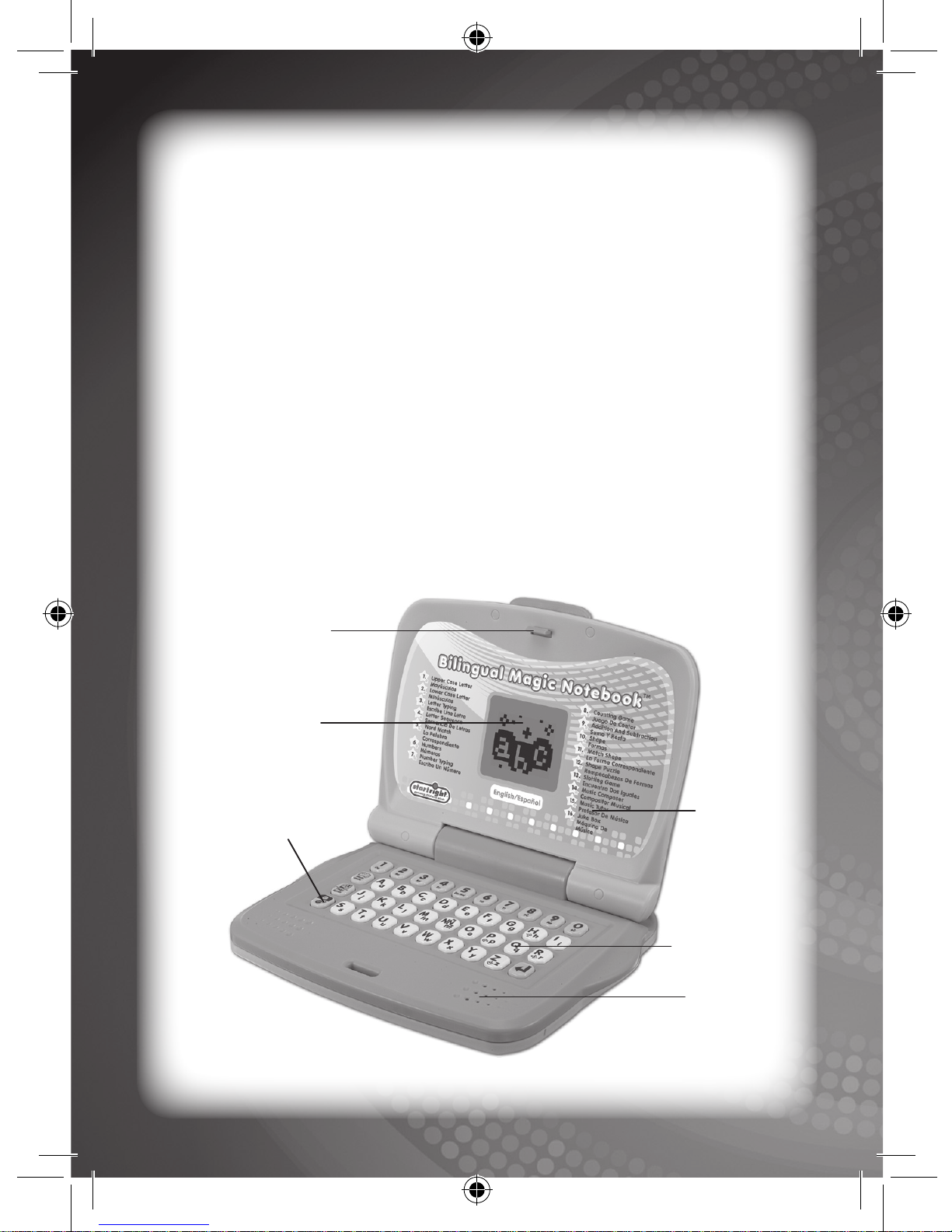
Safety Latch
LCD Screen
Activities
List
Speaker
Keyboard
Bilingual Magic Notebook TM Overview
On/Off Key
Page 5
Battery Installation
Note: Do not allow children to install batteries.
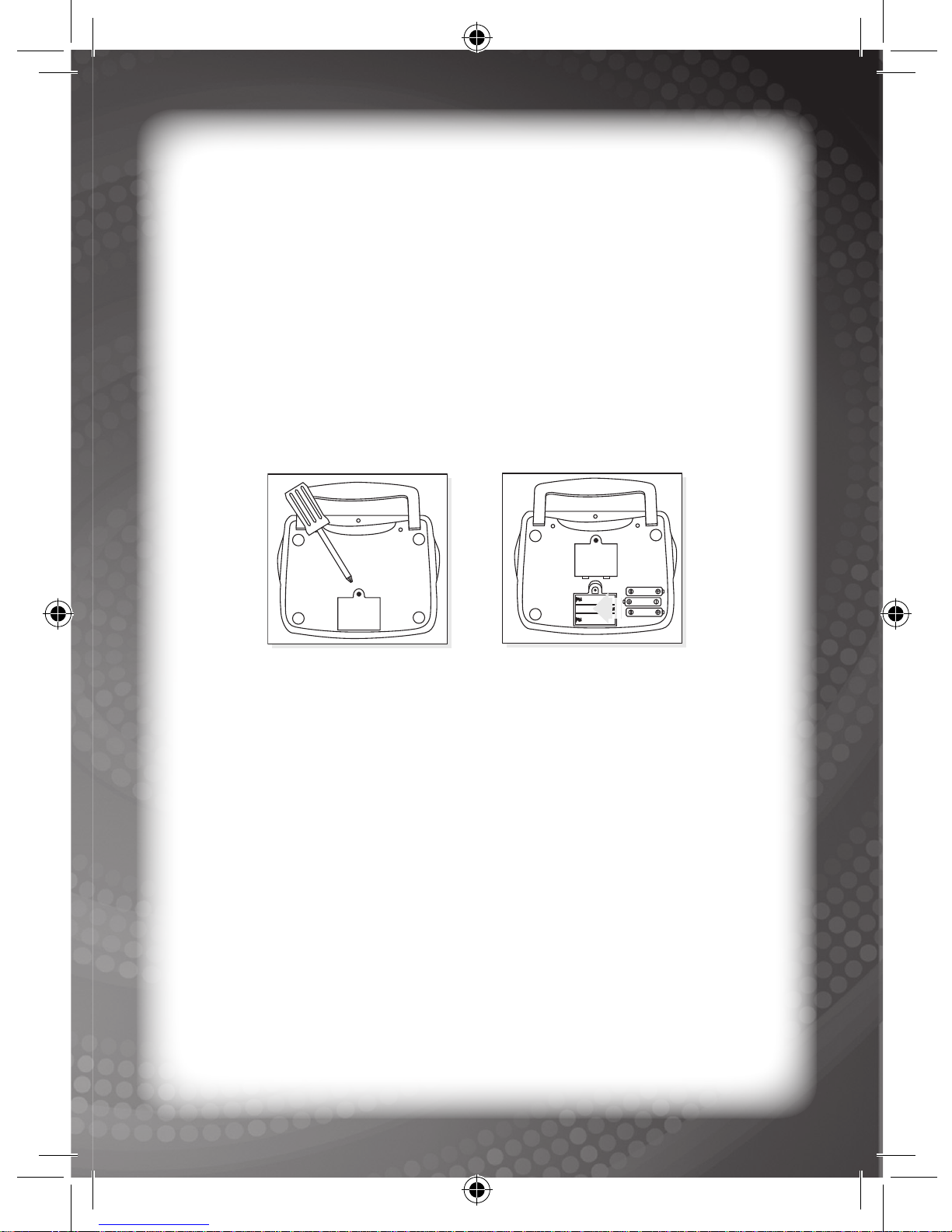
• This unit requires three (3) AA batteries (Not included). We
recommend alkaline batteries.
• Open the battery compartment found on the back of the unit.
(See Figure 1)
• Insert the batteriescorrectly, as indicated by the polarity symbols
(+) and (-) marked inside the battery compartment. (See Figure 2)
• Make sure to correctly replace the battery compartment door and
screw it rmly back in place.
Battery Precautions
• Install batteries for your child.
• Do not use rechargeable batteries.
• Do not recharge non-rechargeable batteries.
• Do not mix old and new batteries.
• Do not mix alkaline, standard (Carbon-Zinc), or rechargeable
(Nickel-Cadmium) batteries.
• Do not short circuit the supply terminals.
• Only use batteries of the same type or equivalent as
recommended.
• For best operation, always use new alkaline batteries.
• Insert batteries following the correct polarity.
• Replace the batteries if the sound weakens or the display dims.
• Remove exhausted or weak batteries from the unit.
Notice To Parents
2
2.
1.
Page 6

3
Getting Started
ON/OFF/Auto Power Off
Press the ON/OFF key to turn the Bilingual Magic Notebook™ ON.
Press the ON/OFF key once more to turn the Bilingual Magic
Notebook™ OFF.
If any key is not pressed for an extended period of time (30 seconds),
the screen saver will appear; the Bilingual Magic Notebook™ will
automatically turn itself off after 90 seconds to conserve power.
Activity Selection
Following the opening animation, the user will be asked to select an
activity. Press the keyboard to select an activity. The user then has
to press the ENTER key to conrm the selection.
The user can either use the direction keys to select an activity or
enter the activity number that corresponds to the selected activity.
• Remove batteries if you are not going to use the unit for more
than one week.
• This unit is not to be connected to more than the recommended
number of power supplies.
Care and Maintenance
• Clean this unit with a slightly damp cloth.
• Do not use any chemical solvents or abrasives on this unit.
• Do not spill any liquids on this unit.
• Avoid dropping this unit on hard surfaces.
• Do not expose this unit to moisture or immerse it in water.
• Do not try to dismantle this unit.
• It is best to switch off this unit when your child is not playing with it.
Please remind your child to do so.
• Use only a soft cloth for cleaning the LCD. Never use solvents,
abrasives or a moist cloth.
Page 7
Keyboard Layout
4
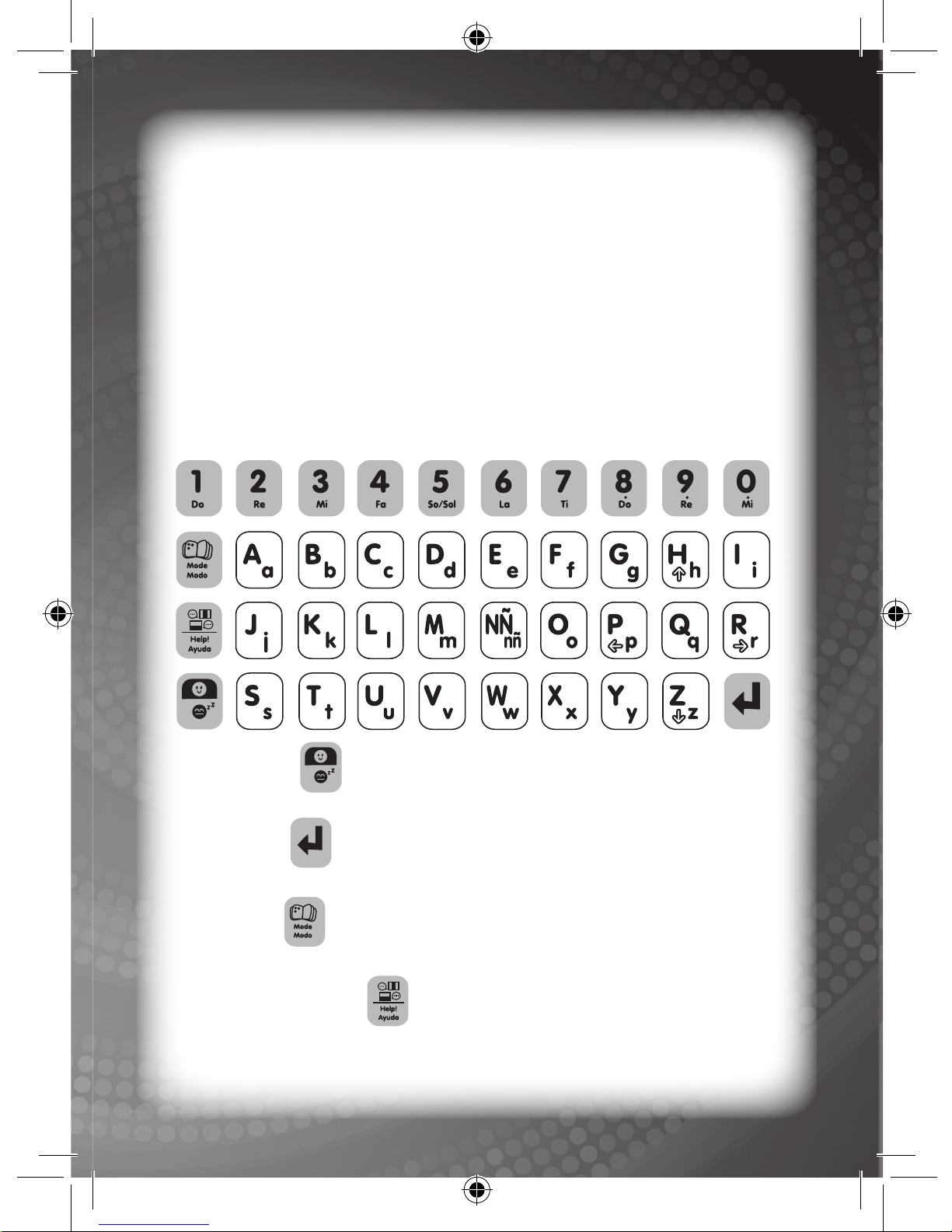
ON/OFF key:
This is used to turn the Bilingual Magic Notebook™ ON or OFF.
ENTER key:
This is used to conrm a selection.
MODE key:
This is used to select an activity.
Language/Help key:
This is used to select any 1 of 2 languages or to show the correct
answer on-screen while the user is playing a game.
Press the MODE key at any time to jump to the activity selection
window to choose a different activity.
Language Selection
Press the Language/Help key on the keyboard to select any 1 of 2
languages.
Page 8

5
Activity List
After entering each mode, the Bilingual Magic Notebook™ will display
the mode name and will play an opening animation.
Category 1 The Alphabet
Activity 1: Upper Case Letter
1. The Bilingual Magic Notebook™ will demonstrate how to write
the upper case of any selected letter followed by a corresponding
animation. Pressing a key at any time will stop the demonstration.
Learn to write another letter by pressing any letter key.
2. This activity will continue until another activity is selected.
Activity 2: Lower Case Letter
1. The Bilingual Magic Notebook™ will demonstrate how to write
the lower case of any selected letter followed by a corresponding
animation. Pressing a key at any time will stop the demonstration.
Learn to write another letter by pressing any letter key.
2. This activity will continue until another activity is selected.
Activity 3: Letter Typing
1. When the game starts, the Bilingual Magic Notebook™ will show
a letter of the alphabet on-screen and will play a corresponding
animation on-screen.
2. The user then has to press the corresponding letter of the alphabet
on the keyboard.
3. If the selected key is correct, the Bilingual Magic Notebook™ will
play an animation to reward the user for the correct answer.
4. If the selected key is incorrect, the unit will play an animation
indicating the wrong choice.
5. After the user has completed answering 5 questions the Bilingual
Magic Notebook™ will return to the main menu for the user to
select other activities.
6. Press the Language/Help key to check a given hint displayed
on-screen.
7. Press the MODE key to exit this activity and return to the main
menu immediately.
Page 9
6
Activity 4: Letter Sequence
1. When the game starts, the Bilingual Magic Notebook™ will display 2
letters and a question mark at the bottom of the screen.
2. The user needs to identify the missing letter between the 2 letters
by pressing a letter key on the keyboard.
3. If the selected key is correct, the Bilingual Magic Notebook™ will
play an animation to reward the user for the correct answer.
4. If the selected key is incorrect, the unit will play an animation
indicating the wrong choice.
5. After the user has completed answering ve (5) questions the
Bilingual Magic Notebook™ will return to the main menu for the
user to select other activities.
6. Press the Language/Help key to check the given hint displayed
on-screen.
7. Press the MODE key to exit this activity and return to the main
menu immediately.
Activity 5: Word Match
1. When the game starts, the Bilingual Magic Notebook™ will show
a word on-screen.
2. The user then has to use the direction keys ( and / and ) on
the keyboard to select a picture that matches the word and press
the ENTER key to conrm the answer.
3. If the selected picture is correct (the picture matches that word),
the Bilingual Magic Notebook™ will play an animation to reward
the user for the correct answer.
4. If the selected picture is incorrect, the unit will play an animation
indicating the wrong choice.
5. After the user has completed answering 5 questions the Bilingual
Magic Notebook™ will return to the main menu for the user to
select other activities.
6. Press the Language/Help key to check the given hint displayed
on-screen.
7. Press the MODE key to exit this activity and return to the main
menu immediately.
Page 10

7
Category 2 Numbers
Activity 6: Number
1. The Bilingual Magic Notebook™ will demonstrate how to write
any selected number and will display the word for the select number.
Press a key at any time to stop the demonstration and learn
another number.
2. This activity will continue until another activity is selected.
Activity 7: Number Typing
1. When the game starts, the Bilingual Magic Notebook™ will show
a number on-screen. This number will disappear after a few
seconds.
2. The user has to remember the number and press the corresponding
number on the keyboard.
3. If the selected number key is correct, the Bilingual Magic
Notebook™ will play an animation to reward the user for the
correct answer.
4. If the selected number key is incorrect, the unit will play an animation
indicating the wrong choice.
5. After the user has completed answering ve (5) questions the
Bilingual Magic Notebook™ will return to the main menu for the
user to select other activities.
6. Press the Language/Help key to check the given hint displayed
on-screen.
7. Press the MODE key to exit this activity and return to the main
menu immediately.
Activity 8: Counting Game
1. When the game starts, the Bilingual Magic Notebook™ will drop
an icon from the top of the screen.
2. The user has to count the number of icons that drop down and
press the correct number key on the keyboard representing the
number of icons that dropped.
3. If the selected number key is correct, the
Bilingual Magic
Page 11

Notebook™ will play an animation to reward the user for the
correct answer.
4. If the selected number is incorrect, the unit will play an animation
indicating the wrong choice.
5. After the user has completed answering ve (5) questions the
Bilingual Magic Notebook™ will return to the main menu for the
user to select other activities.
6. Press the Language/Help key to check the given hint displayed
on-screen.
7. Press the MODE key to exit this activity and return to the main
menu immediately.
Activity 9: Addition And Subtraction
1. When the game starts, the Bilingual Magic Notebook™ will show
an equation on-screen followed by the same equation displayed
using balls that the user needs to count to know the correct
answer.
2. The user then needs to press the correct number key corresponding
to the correct answer to the equation.
3. If the answer is correct, the Bilingual Magic Notebook™ will play
an animation to reward the user for the correct answer.
4. If the answer is incorrect, the unit will play an animation indicating
the wrong choice.
5. After the user has completed answering ve (5) questions the
Bilingual Magic Notebook™ will return to the main menu for the
user to select other activities.
6. Press the Language/Help key to check the given hint displayed
on-screen.
7. Press the MODE key to exit this activity and return to the main
menu immediately.
8
Category 3 Shapes
Activity 10: Shape
1. The Bilingual Magic Notebook™ will demonstrate how to draw a
shape and will display the shape’s name.
Page 12
9
2. The user will have to use the direction keys ( and / and
) to select a shape and press the ENTER key to conrm.
3. When the Bilingual Magic Notebook™ nishes the
demonstration, it will then show another shape for the user to
select.
4. This activity will continue until another activity is selected.
Activity 11: Match Shape
1. When the game starts, the Bilingual Magic Notebook™ will show
a shape on-screen.
2. The user will have to use the direction keys ( and / and )
to select the corresponding shape and to press the ENTER key to
conrm the answer.
3. If the selected shape is correct, the Bilingual Magic Notebook™
will play an animation to reward the user for the correct answer.
4. If the selected shape is incorrect, the unit will play an animation
indicating the wrong choice.
5. After the user has completed answering ve (5) questions the
Bilingual Magic Notebook™ will return to the main menu for the
user to select other activities.
6. Press the Language/Help key to check the given hint displayed
on-screen.
7. Press the MODE key to exit this activity and return to the main
menu immediately.
Activity 12: Shape Puzzle
1. When the game starts, the Bilingual Magic Notebook™ will show
a shape on-screen.
2. The Bilingual Magic Notebook™ will then divide the shape into
four (4) parts (top-left, top-right, bottom-left and bottom-right) and
randomly place the parts on-screen.
3. The user will need to place the parts in their respective locations.
4. The user will have to use the direction keys ( and / and )
to move the parts to their respective locations on-screen.
5. The user will need to press the ENTER key to conrm each
selection.
Page 13

10
Category 4 Musical Fun
Activity 14: Music Composer
1. In this activity, the number keys act as musical keys. Press any
number key to hear a musical note.
2. This activity will continue until another activity is selected.
6. If the user can complete the puzzle, the
Bilingual Magic
Notebook™ will play an animation to reward the user for the
completion.
7. After the user has completed answering 5 puzzles the Bilingual
Magic Notebook™ will return to the main menu for the user to
select other activities.
8. Press the Language/Help key to check the given hint displayed
on-screen.
9. Press the MODE key to exit this activity and return to the main
menu immediately.
Activity 13: Slotting Game
1. When the game starts, the Bilingual Magic Notebook™ will show
two (2) shapes on the left and right sides of the screen
respectively.
2. The user can then press the ENTER key to start the slotting
game.
3. When the game starts different shapes will scroll very fast on both
sides of the screen.
4. Pressing the ENTER key one more time, will make the Bilingual
Magic Notebook™ slowly stop scrolling .
5. If two (2)same shapes are shown after the scrolling stops, the
Bilingual Magic Notebook™ will play an animation to reward the
user for the correct match.
6. If the two (2) shapes do not match, the unit then plays an animation
indicating the mismatch.
7. Press the MODE key to exit this activity and return to the main
menu immediately.
Page 14

Activity 15: Music Tutor
1. In this activity, the number keys act as musical keys.
2. When this activity starts, the Bilingual Magic Notebook™ will
randomly select a song to play.
3. A musical note will be shown on-screen.
4. The user has to press the corresponding number key that matches
the musical note on the keyboard while the musical note is crossing
the mark in the middle of the screen.
5. Following this procedure will make the Bilingual Magic Notebook™
complete the song.
6. This activity will continue until another activity is selected.
Activity 16: Juke Box
1. The Bilingual Magic Notebook™ will display the mode name and
will play an opening animation after this mode is entered.
2. Press any letter or number key to hear a familiar song.
3. Press another key at any time to hear a new song.
4. This activity will continue until another activity is selected.
11
Page 15
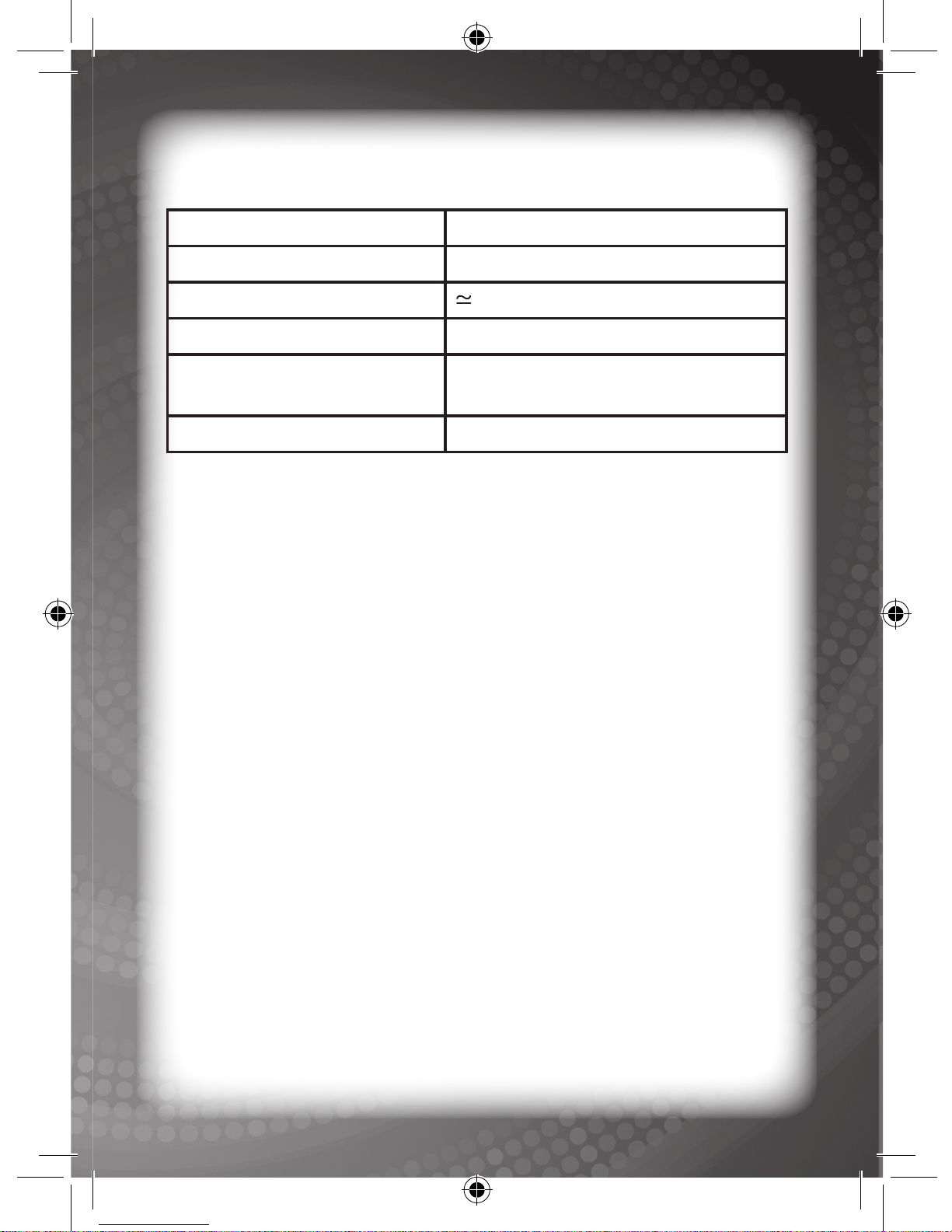
Specifications
Battery Size
AA x 3 (Not included)
Operating Voltage
1.5V x 3
Power Consumption
0.45W
Operation Temperature
10°C to 40°C (50°F to 104°F)
Unit Dimensions
254 mm (L) x 203.2 mm (W) x
63.5 mm (H)
Weight (without batteries)
0.65 kg
Note: Specications and functions are subject to change without
prior notice.
Check out our other NEW educational toys!
Startright®‚
www.startright-kids.com
12
Page 16
#11772
English
Printed in China
Copyright © 2009
HANZAWA (HK) LTD.
World Commerce Centre
Harbour City, 11 Canton Road
Tsim Sha Tsui, Kowloon
Hong Kong
www.hanzawa.com.hk
 Loading...