

Page 1
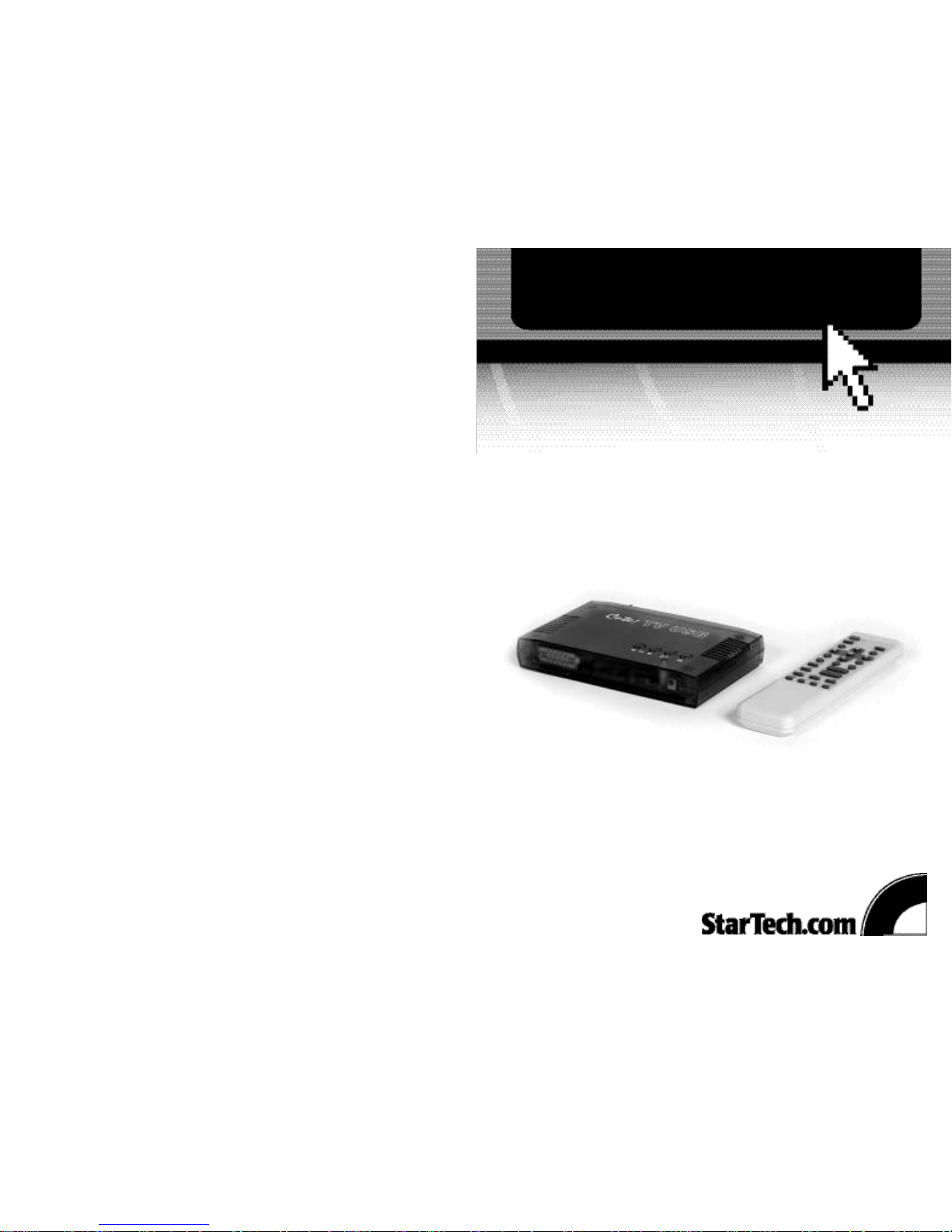
USB External PC TV Tuner
with Remote Control
USBTVTUNER
Instruction Guide
The Professionals’ Source For Hard-to-Find Computer Parts
TV TU N E R
Revised: July 27, 2004 (Rev. C)
* Actual product may vary from photo
Page 2

FCC COMPLIANCE STATEMENT
This equipment has been tested and found to comply with the limits for a Class B
digital device, pursuant to part 15 of the FCC Rules. These limits are designed to
provide reasonable protection against harmful interference in a residential installation.
This equipment generates, uses and can radiate radio frequency energy and, if not
installed and used in accordance with the instructions, may cause harmful interference
to radio communications. However, there is no guarantee that interference will not
occur in a particular installation. If this equipment does cause harmful interference to
radio or television reception, which can be determined by turning the equipment off
and on, the user is encouraged to try to correct the interference by one or more of the
following measures:
• Reorient or relocate the receiving antenna.
• Increase the separation between the equipment and receiver.
• Connect the equipment into an outlet on a circuit different from that to which the
receiver is connected.
• Consult the dealer or an experienced radio/TV technician for help.
Technical Support
The following technical resources are available for this StarTech.com product:
On-line help:
We are constantly adding new information to the Tech Support section of our web site. To
access this page, click the Tech support link on our homepage, www.startech.com. In the
tech support section there are a number of options that can provide assistance with this
card.
Knowledge Base - This tool allows you to search for answers to common issues using
key words that describe the product and your issue.
FAQ - This tool provides quick answers to the top questions asked by our customers.
Downloads - This selection takes you to our driver download page where you can
findthe latest drivers for this product.
Call StarTech.com tech support for help:
USA/Canada: 1-800-265-1844
UK/Ireland/Europe: 00-800-7827-8324
Support hours: Monday to Friday 8:30AM to 6:00PM EST (except holidays)
Warranty Information
This product is backed by a one-year warranty. In addition StarTech.com warrants its
products against defects in materials and workmanship for the periods noted below,
following the initial date of purchase. During this period, the products may be
returned for repair, or replacement with equivalent products at our discretion. The
warranty covers parts and labor costs only. StarTech.com does not warrant its products
from defects or damages arising from misuse, abuse, alteration, or normal wear and
tear.
Limitation of Liability
In no event shall the liability to StarTech.com Ltd. (or its officers, directors, employees or
agents) for any damages (whether direct or indirect, special, punitive incidental,
consequential, or otherwise), loss of profits, loss of business, or any pecuniary loss,
arising out of related to the use of the product exceed the actual price paid for
the product.
Some states do not allow the exclusion or limitation of incidental or consequential
damages. If such laws apply, the limitations or exclusions contained in this statement
may not apply to you.
9
Page 3

Table of Contents
Introduction . . . . . . . . . . . . . . . . . . . . . . . . . . . . . . . . . . . . . . . . . . . . . . . . . . . . . . . . . .2
Installation . . . . . . . . . . . . . . . . . . . . . . . . . . . . . . . . . . . . . . . . . . . . . . . . . . . . . . . . . . . 3
Installing the Software . . . . . . . . . . . . . . . . . . . . . . . . . . . . . . . . . . . . . . . . . . . . . . . . . 4
Using the Tuner for the First Time . . . . . . . . . . . . . . . . . . . . . . . . . . . . . . . . . . . . . . .4
Using Your Device . . . . . . . . . . . . . . . . . . . . . . . . . . . . . . . . . . . . . . . . . . . . . . . . . . . . . 5
Capture Functions . . . . . . . . . . . . . . . . . . . . . . . . . . . . . . . . . . . . . . . . . . . . . . . . . . . . . 6
Advanced Configuration Settings . . . . . . . . . . . . . . . . . . . . . . . . . . . . . . . . . . . . . . . 7
Installing Your VideoStudio Software . . . . . . . . . . . . . . . . . . . . . . . . . . . . . . . . . . . 8
Technical Support . . . . . . . . . . . . . . . . . . . . . . . . . . . . . . . . . . . . . . . . . . . . . . . . . . . . . 9
Warranty Information . . . . . . . . . . . . . . . . . . . . . . . . . . . . . . . . . . . . . . . . . . . . . . . . . . 9
1
Installing Your VideoStudio Software
For detailed instructions on the installation and use of the digital editing software,
consult the Ulead VideoStudio manual available on the CD. From the VideoStudio CD
setup screen click Browse CD then open the Manual folder and select your language
(Note: To view the manual, you will need Adobe Acrobat Reader, which you can
download from the Install Drivers menu on the CD). StarTech.com recommends carefully
reading the instructions supplied by Ulead before attempting to install or use the
software.
NOTE: Windows XP users may encounter some difficulties running VideoStudio. Please
visit the Ulead technical support site at www
.ulead.com/tech/vs/vs.htm and click on
the “Ulead VideoStudio x.0” (depending on your version) link under the “FAQ” heading
for more information on this issue.
1. Insert the Video Studio CD into your computer’s CD drive. The setup screen should
appear automatically. If the screen does not appear, run the CD manually by doubleclicking on My Computer then double-clicking the CD icon.
2. Click on Install Ulead Video Studio and follow the installation instructions.
3. When installation is completed, install the drivers by clicking on Install Drivers then
the driver you want to install. When required, on-screen instructions will assist you.
It is recommended that you install all the drivers.
8
Page 4

Introduction
Thank for purchasing a StarTech.com USB external PC TV tuner with remote control.
Now you can turn your desktop or notebook PC into a total video entertainment system
where you can watch television, capture live or still images, or record television
programs. The remote control and easy plug and play installation means you’ll enjoy
hassle-free control over your system without leaving the comfort of your chair.
Features
• Allows you to view and record television programs and capture live video or still
images on your notebook or desktop PC
• Easy installation through USB Plug and Play
• Built-in 181-channel TV tuner with parental lock-out
• Supports NTSC or PAL video systems
• Also allows connection of Composite or S-Video devices such as VCRs
•Audio output allows for connection directly to external speakers or by using the
included stereo cable to connect directly to your sound card’s “line-in” port
• Adjustable brightness, contrast, saturation, hue, and volume levels
• Backed by StarTech.com’s one-year warranty
Before You Begin
To ensure a quick and easy device installation, please read through this section carefully
before attempting to install the device.
System Requirements
• An IBM or compatible notebook or desktop Pentium 233MMX (or higher) computer
running Windows XP/2000/Me/98
• 32 MB of RAM and a minimum 8 MB free disk space
• An available USB port
•Sound card (optional for AVI audio capture)
•Two AA batteries (for remote control)
2
Advanced Configuration Settings
NOTE: For detailed information on the USB TV Tuner’s advanced settings and
troubleshooting tips, please consult the online documentation by pressing the Help
button in the control window.
You can access the tuner’s advanced configuration settings by clicking the Configuration
Tool in the control window. There are four tabs that allow you to configure and
customize the application.
TV Tuner
This screen allows you to set up your channel properties. On this page you can:
• Name your channels
• Lock/unlock selected channels
• Change your TV source
• Set Memory channels for use in Memory select mode
Preview
This screen allows you to set up your channel preview options. On this page you can:
• Select how many channels you want to preview at once
• Set which channels you want to appear in preview mode
Motion Capture
This screen allows you to customize the motion capture process. You can:
• Change the video format, video size, and capture frame rate
• Change where the motion capture files are saved
• Enable/disable audio capture
• Set a time limit for capture files
Video
This screen allows you to change your video settings. On this screen you can:
• Change the brightness, contrast, hue, and saturation
• Change the style of the video window
7
Page 5

Channel Select: Use to change channels while in Channel mode.
Memory Channel Select: Use to scroll between pre-defined Memory channel.
(See “Advanced Configuration Settings” on page 7)
Last Channel Return: Returns to the previous channel.
Mode Selection: Toggles between memory mode and channel mode.
Capture Functions
The USB TV Tuner allows you to capture image from your television as either motion
videos or still images.
Still Image Capture
To capture a still image, click on the Still Image Capture button in the control window, on
the tuner, or on your remote. When you click the Still Image Capture button, a capture
window will appear containing all the pictures you have taken. To save any of the
images, click on the picture and choose a file name.
NOTE: The images are not saved automatically. You have to both capture a Still Image
and manually save it. Unsaved images are deleted when the tuner is shut down.
Motion Capture
To start recording a motion file, press the Motion Video Capture button in the control
window, on the tuner, or on the remote. Press the button again to stop the recording.
While you are recording the file, you will see information on the files size and length.
As the default, Motion Capture files will be saved as .avi files with the following format:
MDDHHMMN.avi, when M is the month (from 1 to 9. O-October, N-November, DDecember), DD is the day (from 01 to 31), HH is the hour (from 01 to 24), MM is the
minute (from 00 to 59) and N is the number of recordings you have made during the
same minute (from 1 to 9). You can adjust the capture settings from the Configuration
menu. See “Advanced Configuration Settings” on page 7.
Playback
If you have captured and saved a Motion Capture file, you can play it back by pushing
the Playback button in the control window. The previously viewed/saved video clip will
be automatically played back on your screen.
Contents
This package should contain:
•1 x USBTVTUNER
•1 x stereo cable (3 ft.)
•1 x USB cable (3 ft.)
•1 x remote control
•1 x driver diskette
•1 x Ulead VideoStudio editing CD
Installation
This section will guide you through the installation of your USBTBVTUNER and the
related software. Please read through this section carefully and complete each step in the
order listed.
1. Make sure that your adapter, computer, and external video devices are turned off.
2. Connect your TV antenna or cable TV coaxial cable to the TV port on the back of
your adapter.
3. Connect your external speaker or sound card’s “Line In” port to the Audio-In ports
on your tuner using the stereo cable.
4. Connect the USB cable from an open USB port on your computer to the USB port on
your tuner.
NOTE: Completing the above steps will allow you to watch television on your PC. As an
option, you can also attach an external video device (such a VCR) to your system by
completing the following two steps.
6
3
USB
Connects to PC’s
USB port using
provided USB
cable
Speaker
Connects to
external
speakers
Audio-In
Connects to audio
ports on external
video source
(Optional)
C-In/S-In
Connects to Composite
or S-Video ports on
external video source
(Optional)
TV
Connects to antenna
or cable TV coaxial
cable
Page 6

5. Depending on your system, use the appropriate cable to connect either the S-In
(S-Video) port or the C-In (Composite video) port on the back of the adapter to your
external video source.
6. Connect the audio cables from your external video source to the Audio In ports on
the back of the adapter.
Installing the Software
The most up-to-date drivers for this device are available as a free download from our
website. Visit www.startech.com and click on the “Downloads” link for more
information.
NOTE: Depending on your OS and the configuration of your system, the instructions
below may not be identical to the instructions on your screen.
1. Windows will automatically detect the new hardware. Click Next.
2. Choose the default “Recommended” option and click Next.
3. Insert your driver disk into the disk drive. Select the location of your driver disk and
click Next.
4. When the driver has been found, click Next, then Finish to complete the installation.
NOTE: After rebooting, Windows 98 users may be required to provide their Windows 98
installation disk.
5. To install the TV Tuner application software, open the AP Software folder on the
driver disk and click on the “Setup.exe”file.
6. Choose the destination folder where you would like the software installed and click
Next.
7. Choose Yes to restart your computer then click Finish to complete the installation.
When your computer boots back up, you should see the TV USB folder on your
desktop.
Using the Tuner for the First Time
These two menus will only appear the first time you run the software or if you select the
Reset function available from the tuner’s program folder.
1. Launch your TV Tuner software by clicking on the icon.
2. Choose your country (listed in alphabetical order) by hilighting your country name
and pressing OK.
3. Select your broadcast system (antenna, cable, or both) and click OK. The system will
scan through all the channels available to you. This process may take several minutes.
Using Your Device
This section is intended as a guide only. For full details on using your TV USB software,
consult the User’s Guide available in the TV USB program folder.
Power: Shuts down the TV Tuner application.
Minimize: Minimizes the control window.
FM Mode: Not used for this device.
Video On Top: Puts the video screen on top of other windows.
Video Source Selection: Toggles through video source input choices.
Still Image Capture: See “Capture Functions” on page 6.
Motion Video Capture: See “Capture Functions” on page 6.
Play Back: See “Capture Functions” on page 6.
Preview: See “Advanced Configuration Settings” on page 7.
Configuration Tool: See “Advanced Configuration Settings” on page 7.
Size: Switches between video screen sizes.
Sound: Lowers, mutes/unmutes, or raises sound level.
Help: Opens the help file.
Video Source Input: Shows current video source input
Channel: Channel number and name, if defined.
5
4
The Control Window
 Loading...