

Page 1
Mini
Page 2

TABLE OF CONTENTS
Page 3

1 Overview 1
2 Getting Started 2
Installing the Battery and SIM Cards 2
Installing a Micro SD Card 3
Charging the Battery 4
Phone Lock 4
PIN and PUK 5
Locking the Keypad 5
3 Main Menu 5
Contacts 5
Call Logs 5
Calendar 5
Camera 6
Settings 6
Alarm 7
Browser 8
Gallery 8
Calculator 8
File Manager 8
Recorder 8
WIFI 9
Page 4

Notes 9
Tasks 9
FM Radio 9
STK 9
Games 9
Mobile TV 10
Multimedia 11
Music 11
Starmobile 11
4 Dialer 11
5 Messaging 12
6 Warnings and Precautions 12
Page 5
1
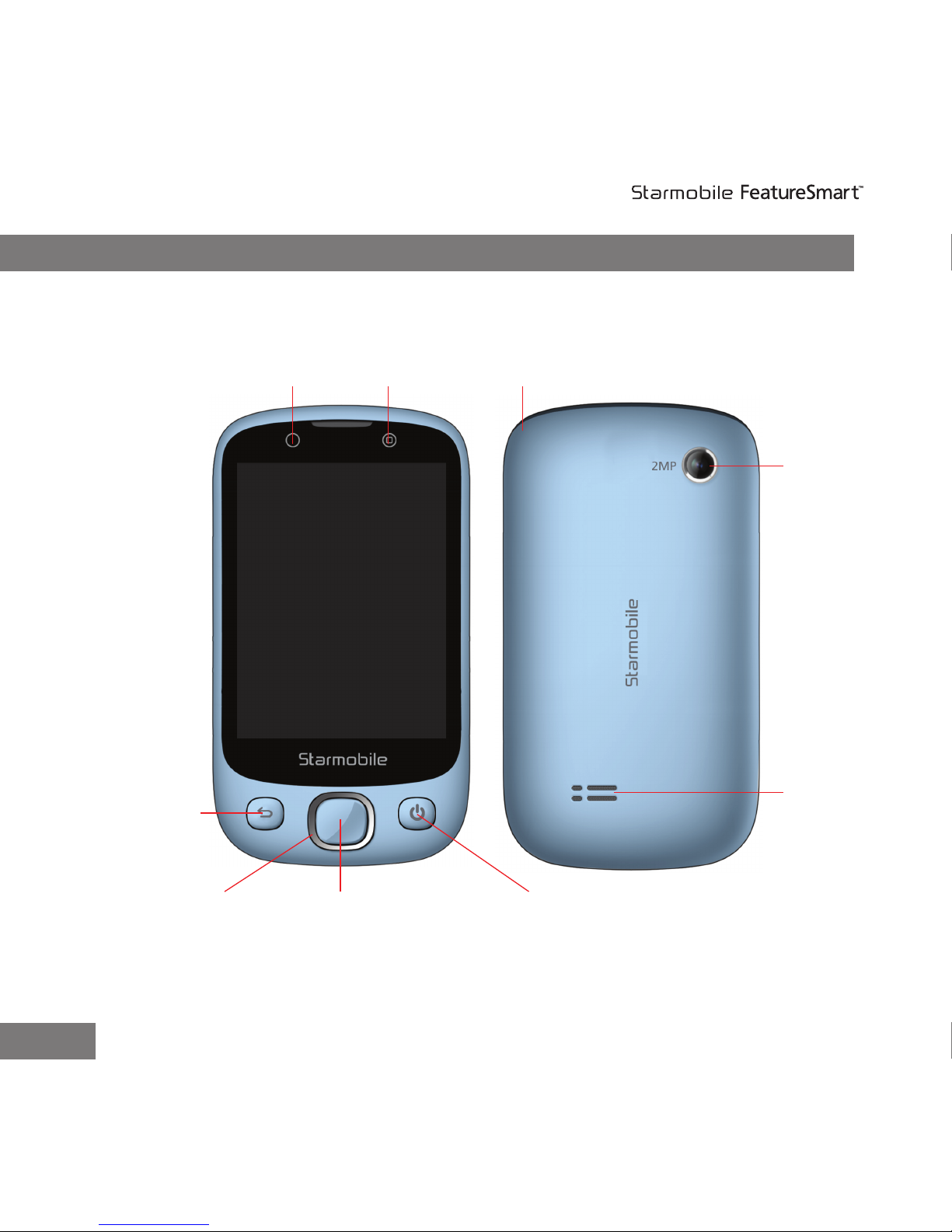
Below is a diagram of the Starmobile FeatureSmart Mini:
1. Overview
Mini
Back Key
Direction Key Power Key
Home Key
B key A key
Camera
Speaker
Antenna
Page 6
2
Mini
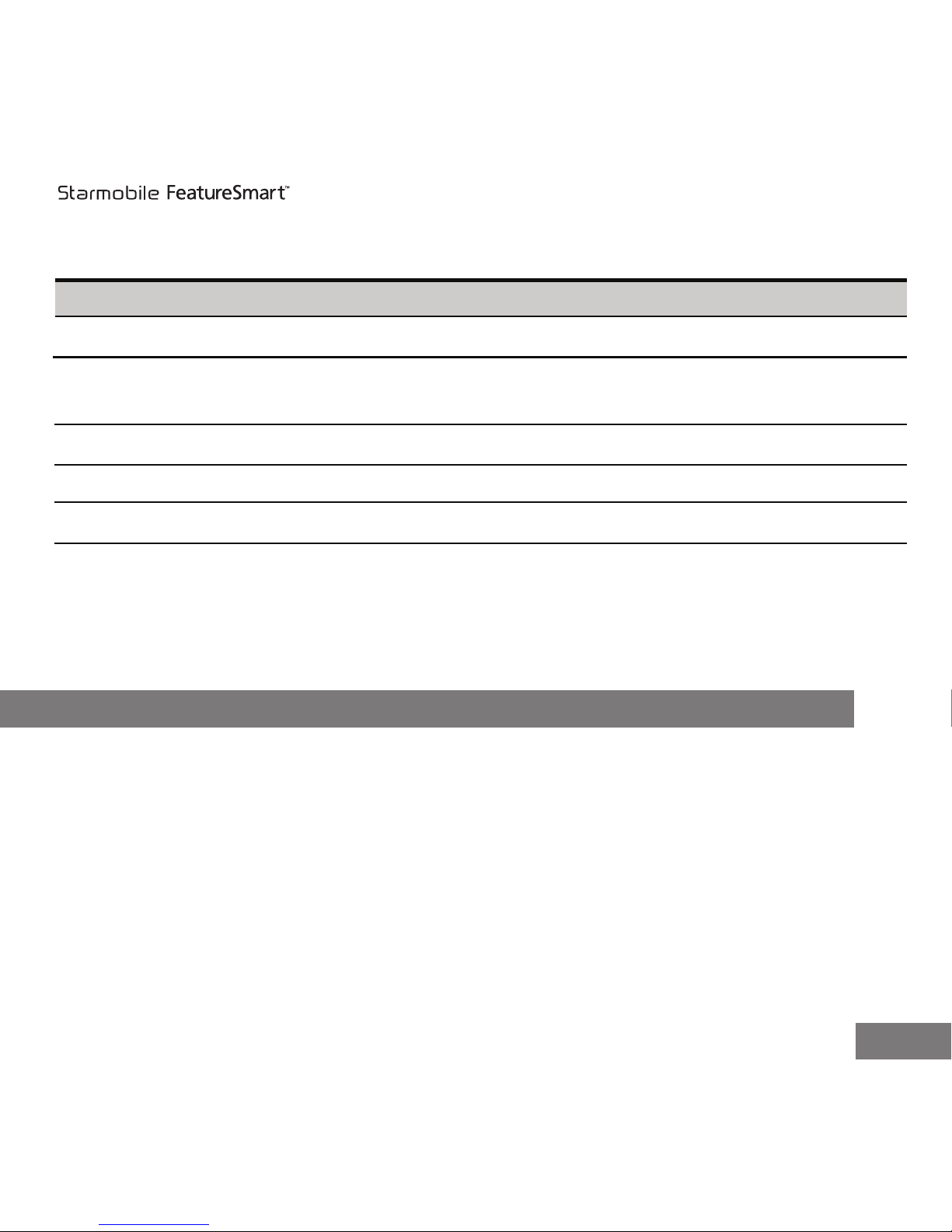
Press To
Home key
Power key
Return to standby mode
Long press to power on/off the device
Short press to lock device
Back key
Return to previous menu
A key
A key for games
B key for games
Direction keys
B key
Move up/down/left/right
2. Getting Started
Installing the Battery and SIM Cards
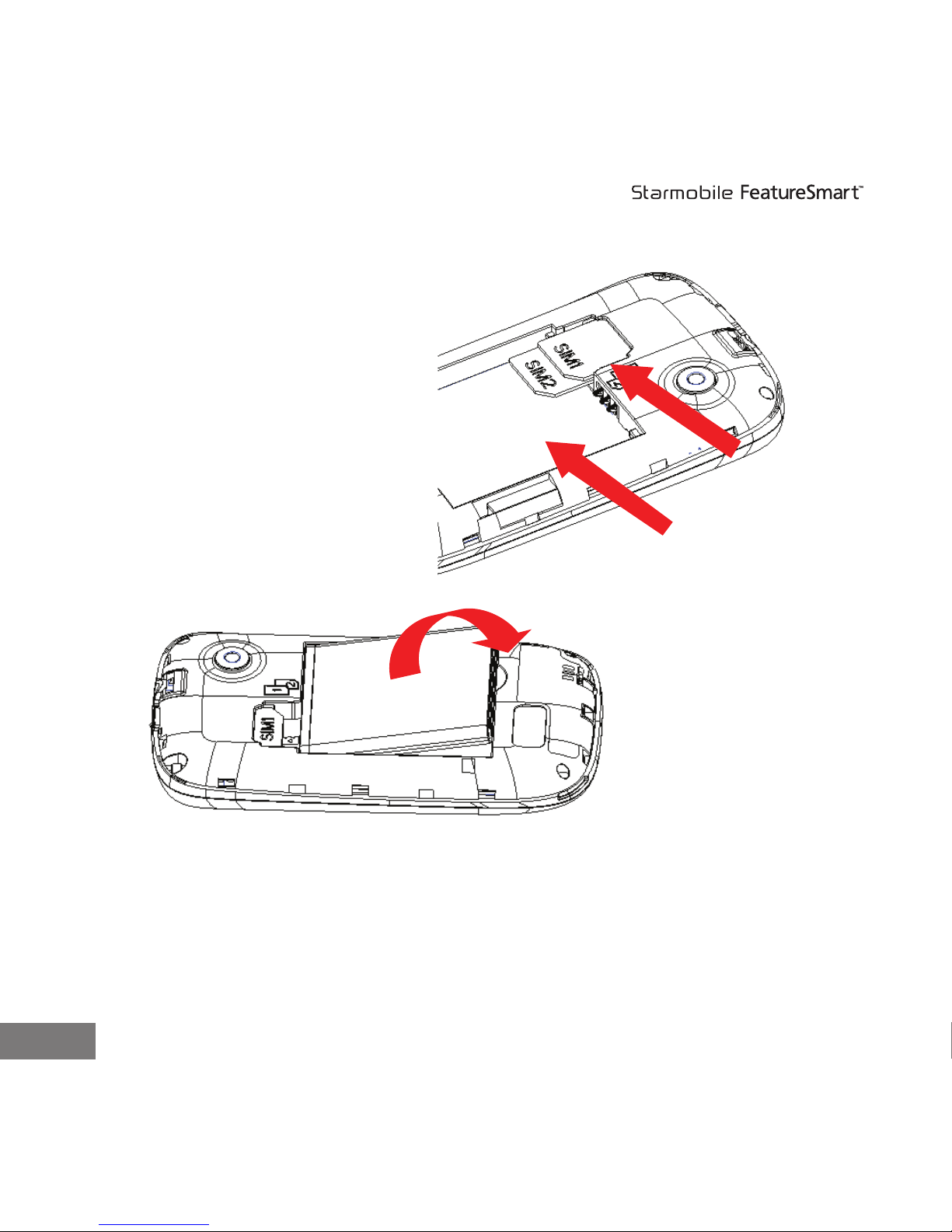
You can install two SIM cards on the phone at the same time. To install, slide in the
SIM card with its gold chip facing downward. Make sure the beveled edge of the
SIM card is properly aligned with the card slot. Once the SIM card is in place, put in
the battery and cover back into place.
Page 7
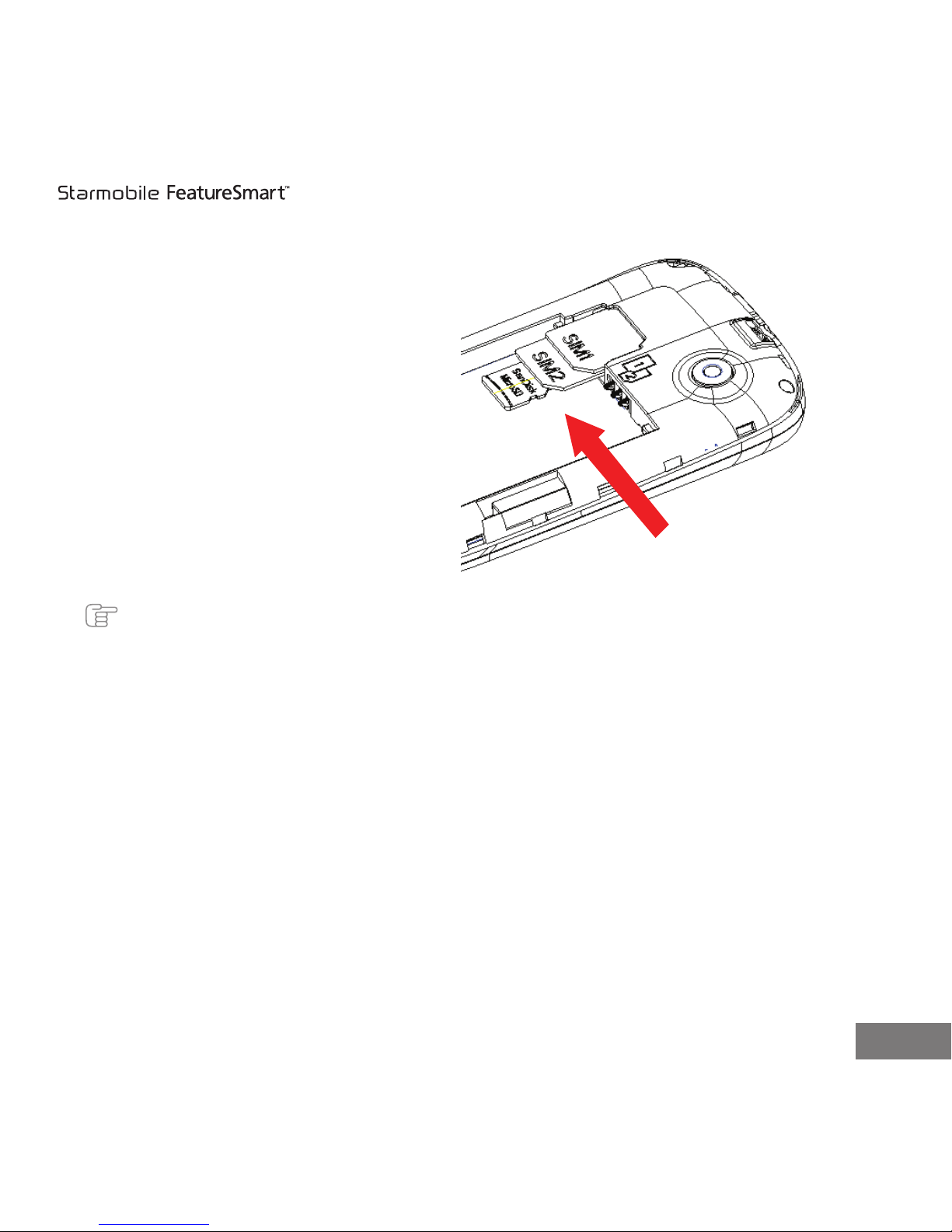
Installing a Micro SD Card
You can insert a micro SD card to expand the memory capacity of your phone.
Ensure that its gold chip is facing downward, and that the beveled edge of the micro
SD card is properly aligned with that of the card slot.
7
3
Mini
Installing Battery
Installing SIM Cards
Page 8
4
Mini
Charging the Battery
Ensure the battery is inserted in the mobile phone. To charge your mobile phone's
battery, plug in the charger connector of your phone and then plug the other end
into a power outlet.
Phone Lock
The phone lock protects your phone from unauthorized use. By default, the phone
lock function is disabled. You can change the default phone lock code (1122) into
any numeric string in the range of four to eight digits.
Do remember your phone lock code. If you cannot recall your lock code, contact the
Starmobile service center for assistance on unlocking your phone and resetting your
lock code.
Note: The FeatureSmart Mini works optimally with up to 32GB expandable memory card capacity.
Installing Micro SD Card
Page 9
5
Note: Reformatting of locked units is not covered by the warranty.
PIN and PUK
The personal identication number (PIN) protects your SIM card from unauthorized
use. The PIN Unblocking Key (PUK) unlocks a blocked PIN. Both the PIN and PUK are
provided with your SIM card. The default password code of the SIM card is 1234. For
more details, consult your network provider.
Entering the wrong PIN code three consecutive times will prompt your phone to ask
for the PUK.
Locking the Keypad
In standby mode, press the Power on/off key to lock the keypad. To unlock, hold
and slide up the Unlock icon found at the bottom center of the touchscreen.
Contacts
The phone provides two kinds of storage media: SIM card and phone. The capacity
of the phone book on your SIM card depends on the type of SIM card provided by
your network operator.
Call Logs
View call log records. Tap All to see a listing of dialed, incoming and outgoing calls
or Missed Calls for a summary of unanswered calls.
Calendar
View a timetable showing the days, weeks and months in a year.
3. Main Menu
Mini
Page 10

6
Camera
The phone comes with a built-in 2 megapixel camera at the back, for image and
video capture. Pictures are saved in the micro SD card in JPG format. You can send
pictures using the MMS/Bluetooth function.
Settings
• Network and Connectivity
i. WIFI: Enable/disable WIFI connection.
ii. Bluetooth: Enable or disable Bluetooth.
iii. Data accounts: Set up your data account information.
• Sound Settings: Allows you to congure your sound settings.
i. Silent: Switch on to cancel all active audio proles except for media and
alarms.
ii. Vibration: Switch on to activate vibration for incoming calls and
notications.
iii. Notication sound: Switch on to receive notications for events.
iv. Incoming call ringtone: Set your preferred ringtone for incoming calls.
v. New message ringtone: Set your preferred ringtone when receiving SMS.
vi. Device sound: Congure tones for your Dial pad, System alerts, Power
on/off, Touch vibration and Touch sound.
•
Notication settings: Enable or disable notications for Messaging, Call log
and Downloaded apps.
•
Security settings
i. Phone and SIM: The phone lock protects your phone from unauthorized
use. By default, the phone lock function is disabled. You
can change the default phone lock code (1122) into any
numeric string in the range of four to eight digits.
ii. Change Password: To set a new password, you must rst enter the
existing phone lock code (default code is 1122). Once
Mini
Page 11

7
7
iii. SIM1/SIM2 Security: You will be asked to input the PIN code before you
can change your SIM 1/SIM 2 security settings. If the
SIM card is in use, you will need to input the
corresponding PIN every time you turn on your mobile
phone. If you enter the incorrect PIN three (3) times,
you will be prompted to enter your PUK. The PUK is
used to release and modify the locked PIN. If you do
not have your PUK on-hand, consult your network
provider.
iv. Change PIN: You can change SIM1/SIM2 PIN, SIM1/SIM2 PIN2.
• Display: Congure settings for brightness, screen auto-lock, launcher,
wallpaper, application icons and screen lock.
• Date & Time settings: Congure Network time auto update, Home city, and
Time and Date settings.
• Dual SIM settings: Choose your desired SIM mode setting. User can activate
or deactivate SIM 1 and/or SIM 2.
• Call settings: Congure settings for the following call actions: Black list, Auto
redial, Call time reminder, Auto quick end, Set the auto
quick end time, Reject unknown number, Connect notice and
Auto answer. Tap Additional call settings to enable or disable call
waiting, call forwarding and call barring functions.
• Messaging settings: Allows you to view memory status and congure settings
for text, multimedia, service and broadcast messaging.
• Advance settings: Allows you to view SIM usage and restore factory settings.
Alarm
Your mobile phone provides up to ve alarms which you can set as needed. If you
set an alarm on your mobile phone, an icon indicating a congured alarm will
appear on your home screen.
Mini
Page 12

8
Browser
You can access WAP sites and use WAP-based services on your phone. To access
WAP sites through your phone, you will rst need to subscribe to this service from
your network provider and set the relevant parameters on your phone. The
FeatureSmart Mini comes pre-congured with network WAP settings. For details
about accessing WAP sites and their corresponding charges, consult your network
provider.
You can also connect to a WIFI network to browse.
Gallery
Displays images taken using your mobile phone’s built-in 2 megapixel camera.
Available actions while viewing pictures include: Rotate, Delete, Set as Wallpaper or
Contact Picture, and Share via MMS or Bluetooth.
Calculator
Tap Calculator from the menu to access. To use the Calculator, enter the number to
be calculated and select the mathematical operation to be applied. Tap the “=” key
to obtain the result.
File Manager
This allows you to organize your les which can be viewed in their respective folders.
If a memory card is inserted, the les stored on it are organized separately. Select
Phone or Memory card to browse les.
Recorder
Your mobile phone supports AMR and WAV recording formats. You can record
conversations, which will be saved to the Audio folder under Files.
Mini
Page 13

Note: • If a call is received while recording, recording will automatically stop and recorded data will be
saved.
• AMR adopts dynamic compression and provides longer recording time than WAVs while utilizing
the same storage space.
WIFI
Manage, add, and refresh WIFI network.
Notes
Use this note-taking app for writing down and saving text les.
Tasks
A useful tool for creating to-do lists and setting important reminders. To add tasks,
tap the Add icon and complete the elds. If activated, the phone rings as a reminder
when the set time arrives.
FM Radio
Your FeatureSmart Mini is equipped with an FM radio. You may also pull out the
antenna on the lower left corner of the phone to improve signal reception.
STK
STK stands for SIM Toolkit. This function allows you to access your SIM’s value-added
services. For details, contact your network provider.
Games
Your FeatureSmart Mini comes with a free collection of games, which have already
been preloaded in your phone or saved in the memory card separately. To start
playing, open the application then choose your desired game from the phone or
micro SD storage.
Mini
9
Page 14
1010
Mini
Function
Key Settings
Corresponding Key
A
B
A key
B key
Select
Select key
Start
Start key
Up key
DownUp
Down key
Left
Left key
Right
Right key
Power key
Exit
Options
Back key
Additional games are available for download from third party sites. You may access
these games on your phone by storing them on your memory card.
Mobile TV
The FeatureSmart Mini comes with a built-in antenna on the top left corner. Pull out
the antenna when watching TV programs to ensure good TV reception.
To begin watching, go to Mobile TV from the main menu. Select the country you are
in then scan for available channels. The TV reception depends on your location. You
can switch channels by pressing the up and down buttons or swiping the screen.
Page 15
11
Mini
Multimedia
Watch video les stored on the micro SD card. You will automatically receive push
notications when new content is available for download.
Music
This function allows you to play audio clips stored in the audio folder on the
micro SD card. To obtain better sound quality, it is recommended that you use the
headset to listen to audio clips.
Starmobile
Provides mobile access to the Starmobile website http://www.starmobile.com.ph.
Your phone requires GPRS or WIFI connection to use this feature.
Making a call
1. On idle screen, tap Dialer to open the onscreen keypad.
2. Enter the phone number.
3. Tap then select SIM to be used.
4. Tap to end a call.
Making a call from phone book
On main menu screen, tap Contacts to enter phonebook.
Dialing a previous number
You can also make calls from the call logs, contacts, and messaging functions.
4. Dialer
Page 16
12
Mini
Selecting Messaging in standby mode will give you the following options:
New Message: Write, edit, and/or send SMS/MMS.
Conversation: View, reply, forward and/or delete a single message or delete all
messages in your inbox. You can also call message senders.
Message Settings: Enables you to view memory status and congure settings for
text, multimedia, service and broadcast messaging.
Note: Functions related to the MMS are network dependent. For provision of and subscription to a
service, contact your service provider. Open multimedia messages with caution. Objects in
multimedia messages may contain hazards that can damage your phone, such as malicious
software.
This section contains important information pertaining to correct and safe usage
of your mobile phone. Read carefully before using your phone.
Electronic Device
Switch off your mobile phone in places that prohibit use of the device. Do not use
your mobile phone when it can cause danger or interference with electronic devices.
5. Messaging
6. Warnings and Precautions
Page 17

13
Mini
Medical Device
• Power off your mobile phone and follow the rules and regulations set forth by
hospitals and health care facilities.
• Pacemaker manufacturers recommend that a minimum distance of 15cm be
maintained between a device and a pacemaker to prevent potential
interference. If you are using a pacemaker, use the device on the opposite side
of the pacemaker and do not carry the device in your front pocket.
• Some mobile phones may affect the performance of hearing aids. Consult your
network provider for more information.
Potentially Explosive Environments
Comply with all signs and instructions. Switch off your device in areas that are
potentially explosive, or where you would normally be advised to turn off your
vehicle’s engine. Using your mobile phone in such areas may trigger sparks, which
could cause an explosion or re, resulting in bodily injuries or even death.
Do not switch on the device at refueling points such as service stations. Comply
with restrictions on the use of radio equipment in fuel depots, storage, and
distribution areas, and chemical plants. You must adhere to rules in areas where
blasting operations are in progress.
Before using the device, watch out for potentially explosive environments that are
often, though not always, clearly marked. Such locations include below-deck on
boats, chemical transfer or storage facilities and areas where the air contains
chemicals or particles such as grain, dust, or metal powders. Ask the
manufacturers of vehicles using liqueed petroleum gas (such as propane or
butane) if this device can be safely used in their vicinity.
Page 18

14
Mini
Trafc Security
Observe local laws and regulations while using your mobile phone. If using the
device while driving a vehicle, please comply with the following guidelines:
• Concentrate on driving. Your rst responsibility is to drive safely.
• Make only hands-free phone calls while driving.
• Park the vehicle on one side of the road before making or answering a call.
• RF signals may affect electronic systems of motor vehicles. For more
information, consult the vehicle manufacturer.
• Do not place the device over an air bag or in any air bag deployment area.
Otherwise, the device may cause harm should the air bag inate.
• Do not use your device while ying in an aircraft. Switch off your device before
boarding an aircraft. Using wireless devices in an aircraft may be dangerous to
the operation of the aircraft, disrupt pilot-ground communication, and may be
considered illegal.
Operating Environment
• Do not use or charge the device in dusty, damp or dirty places or areas with
magnetic elds. Otherwise, the circuits may not function properly.
• The device complies with the RF specications when used near your ear or at a
distance of 1.5 cm from your body. Ensure that accessories such as a case or
holster are not composed of metal components. Keep your device 1.5 cm away
from your body to meet the aforementioned requirements.
• Avoid using your mobile phone when charging in the middle of a storm to
prevent possible dangers caused by lightning.
• Avoid touching the antenna when on a call. Touching the antenna affects call
quality and increases power consumption. In effect, talk and standby time are
reduced considerably.
Page 19

15
Mini
• Observe all local laws and regulations when using your mobile phone. Respect
others' privacy and legal rights.
• Use only Starmobile-supplied accessories with your phone. Using unauthorized
accessories will render the warranty null and void.
• Keep the ambient temperature between 0ºC and 40ºC during mobile phone
charging. Keep the ambient temperature between 0ºC and 40ºC when using
your mobile phone running on battery power.
Preventing Hearing Damage
Using the receiver, earbuds, headphones, speakerphone, or earpieces at high
volume can result in permanent hearing loss. Be extremely careful when listening
at high decibel levels. Set the volume to a safe level. If you experience strange
ringing sounds in your ears or if you hear mufed speech, have your hearing
checked immediately. If you continue to use high volume, your hearing may get
affected.
Hearing experts offer the following suggestions to protect your hearing:
• Reduce the time you use the receiver, earbuds, headphones, speakerphone, or
earpieces at high volume.
• Do not increase the volume to block noisy surroundings.
• Reduce the volume if you cannot hear people speaking near or to you.
Page 20

16
Mini
Child Safety
Please comply with all precautions concerning child safety. Letting a child play with
your mobile phone or its accessories, which may include parts that can be
detached from the device, may prove dangerous, and may present a choking
hazard. Keep your mobile phone and its accessories out of reach of small children.
Environment Protection
Adhere to local regulations regarding safe disposal of mobile phones and its
electrical accessories including chargers, headsets, and batteries. Recycle as
applicable. Do not dispose of an exhausted battery or a used mobile phone as
common domestic rubbish.
Accessories
Use only the standard accessories (charger, battery, and headset) provided with
your mobile phone. Using accessories of other manufacturers or vendors with this
mobile phone might invalidate any approval or warranty applicable to the device.
It might result in the non-operation of the device, and may be dangerous.
• The battery can be charged and discharged hundreds of times before it
eventually wears out. When the standby time and talk time are shorter than
normal, it is advisable to replace the battery.
• Use the AC power supply dened in the specications of the charger. An
improper power voltage may cause re, or the charger to malfunction.
• If the ambient temperature is considerably low or high, the capacity and life of
the battery will be reduced. Using your mobile phone in temperatures lower
than 0°C will affect battery performance.
• Do not connect two poles of the battery with conductors such as metal
materials, keys or jewelry. The battery may short-circuit and may cause injuries
and burns on your body.
Page 21

17
Mini
• Do not disassemble the battery or solder the battery poles. This may lead to
electrolyte leakage, overheating, re, or an explosion.
• In the event of a battery electrolyte leak, make sure that the battery liquid does
not touch your skin and eyes. Should the battery liquid come into contact with
your skin or eyes, immediately wash with clean water immediately and consult a
doctor.
• Common signs of battery wear and/or damage includes color change, and
abnormal heat during storage or charging. If this happens, remove the battery
immediately and refrain from use. Continuous usage may lead to battery
leakage, overheating, explosion, or re.
• If the power cable is damaged (e.g., the lead is exposed or broken), or the plug
has become loose, stop using the cable at once. Otherwise, it may lead to
electric shock, short-circuiting of the charger, or re.
• Do not dispose of batteries in re as they may explode. Damaged batteries may
also explode.
Clearing and Maintenance
Hearing experts offer the following suggestions to protect your hearing:
• Your mobile phone, battery, and charger are not water-resistant and must be
kept dry at all times. Protect your mobile phone and its components from water
or vapor. Touching your mobile phone and its components with wet hands may
lead to short-circuiting, device malfunction, and electric shock.
• Do not place your mobile phone, battery, or charger in places where it can get
damaged because of collision. This may lead to battery leakage, device
malfunction, overheating, re, or explosion.
• Do not place magnetic storage media such as magnetic cards and oppy disks
near the device. Radiation from the device may erase the information on the
storage media.
Switch off your mobile phone in places that prohibit use of the device. Do not use
your mobile phone when it can cause danger or interference with electronic devices.
Page 22

• Do not leave your device, battery, or charger in extremely hot or cold places.
Doing so results in equipment malfunction and may lead to a re or an
explosion.
• If the ambient temperature is considerably lower or higher than the preferred
standard, the capacity and life of the battery may be reduced. When the
temperature is lower than 0°C, battery performance may be affected.
• Do not place sharp metal objects such as pins near the earpiece. These objects
may fall into the earpiece and cause bodily injury.
• When cleaning or maintenance, turn off the device and disconnect it from the
charger.
• Do not use any detergent, powder, or other chemical agents (such as alcohol
and benzene) to clean your mobile phone and charger. Otherwise, parts of the
device may get damaged or cause a re. It is best to use a soft antistatic cloth
for cleaning your mobile phone and charger.
• Do not dismantle the device or accessories. Otherwise, Starmobile will not be
held liable for damages, as the device and accessories are not covered by
warranty.
Emergency Call
Your mobile phone provisions for emergency calls when in the coverage of your
network service area. The connection, however, cannot be guaranteed in all
conditions. You should not rely solely on your mobile phone for essential
communications during emergency situations.
18
Mini
Page 23

Page 24

 Loading...