

Page 1
Quick Start
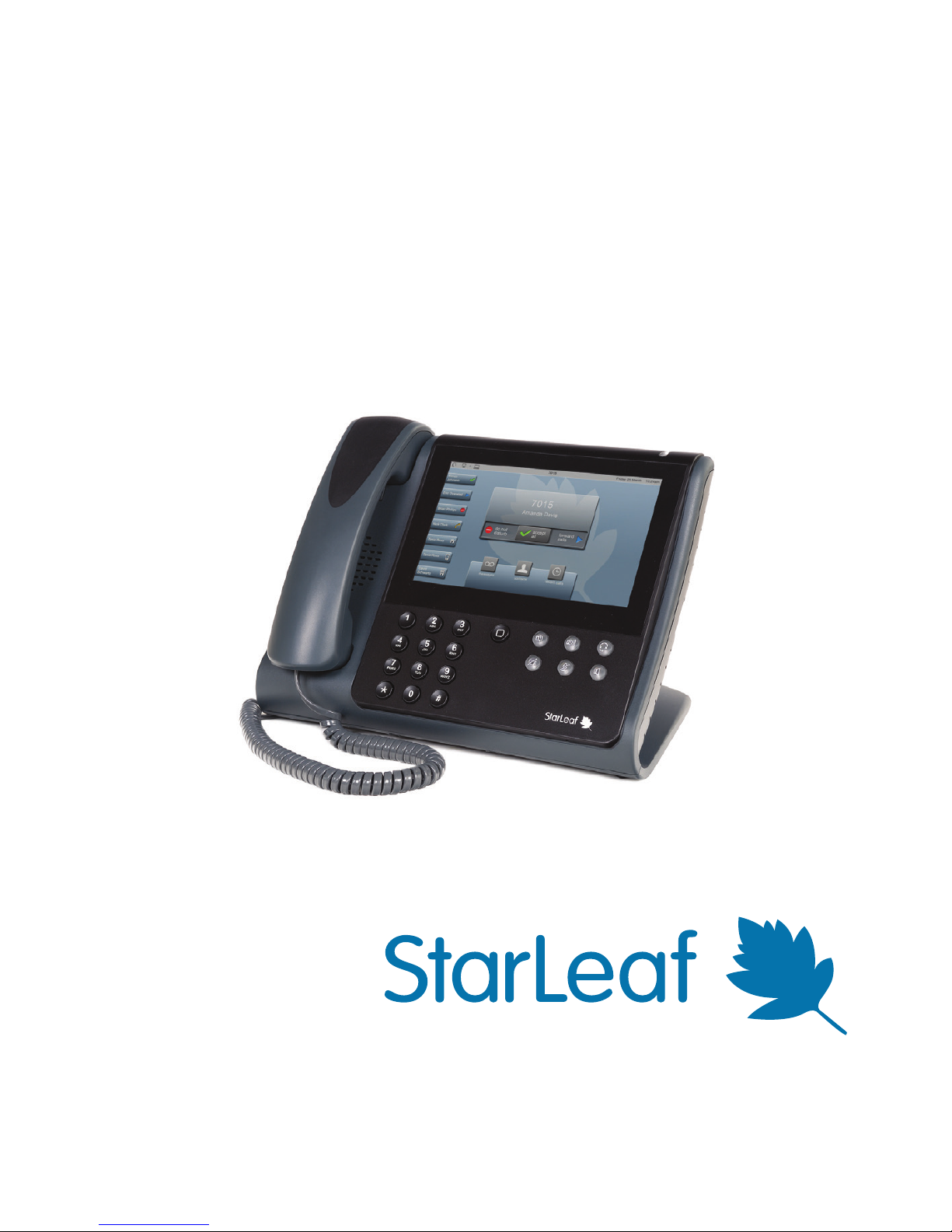
The StarLeaf Phone
Page 2
2
Installing your phone
Before installing your phone, refer to the safety information at:
www.starleaf.com/safety.
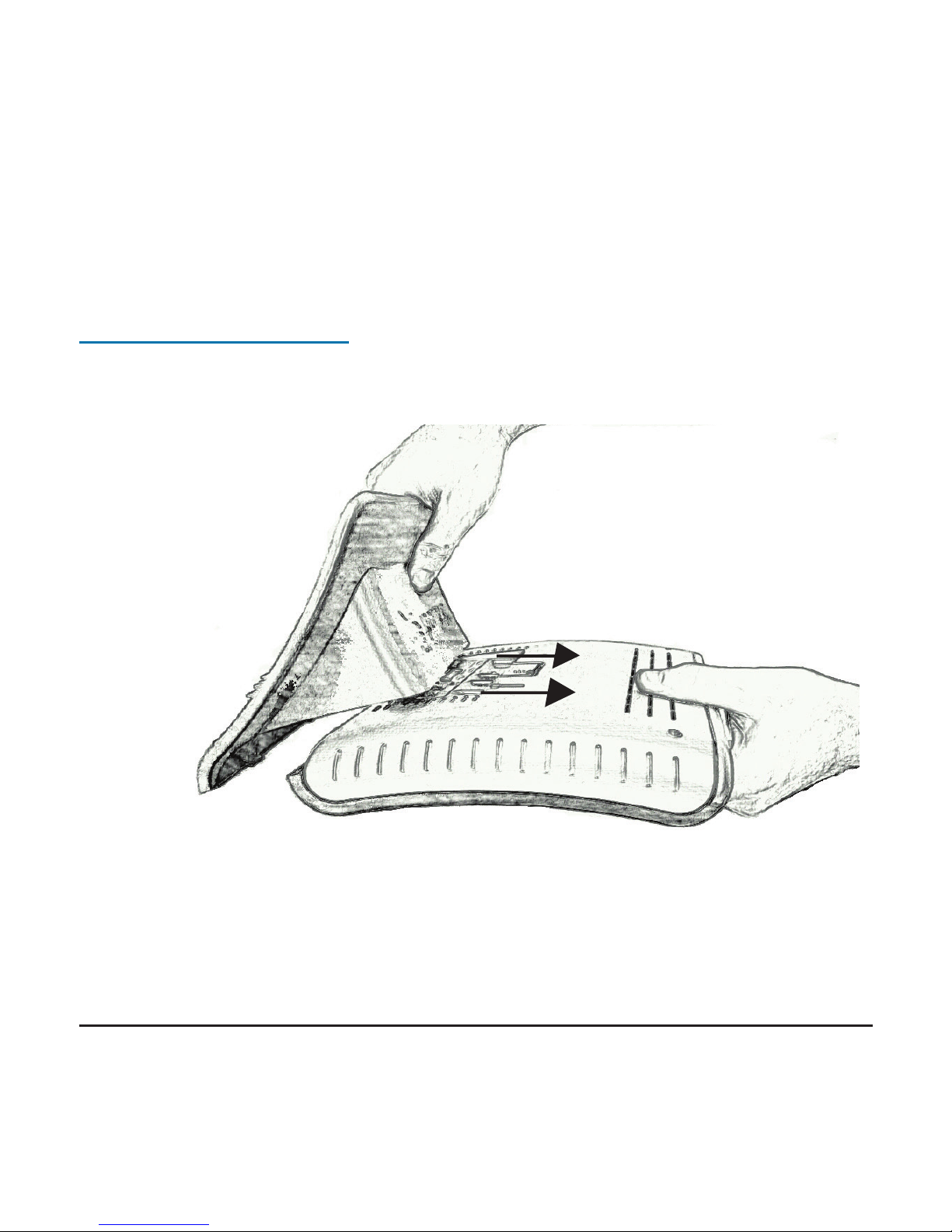
Step 1: Connect the phone base
Connect the base to the body of the phone.
Page 3
3
Step 2: Connect the handset
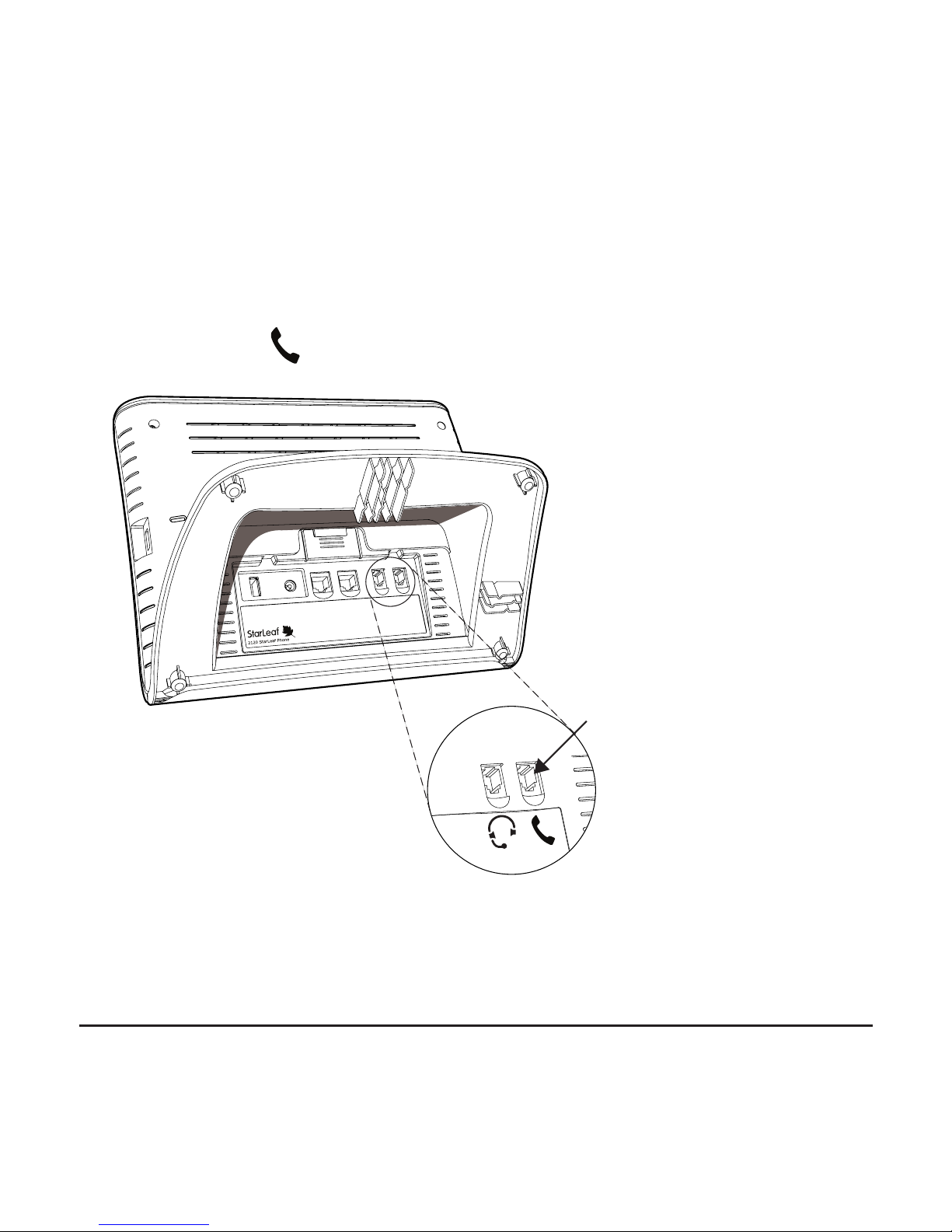
Using the supplied handset cable, connect the handset of the phone to
the handset port on the rear of the phone. The handset port is marked
with this symbol:
Handset port
Page 4

4
Step 3: Connect to the network
1. Connect one end of the supplied Ethernet cable to the network
port on the rear of the phone. The network port is marked with this
symbol:
2. Connect the other end of the cable:
•
For Personal Telepresence: Connect the other end of the
cable to an Ethernet port in your network
•
For Group Telepresence: Connect the other end of the
cable to the StarLeaf Phone connector on the Group
Telepresence system
Network port
Page 5
5
Step 4: Connect to the power
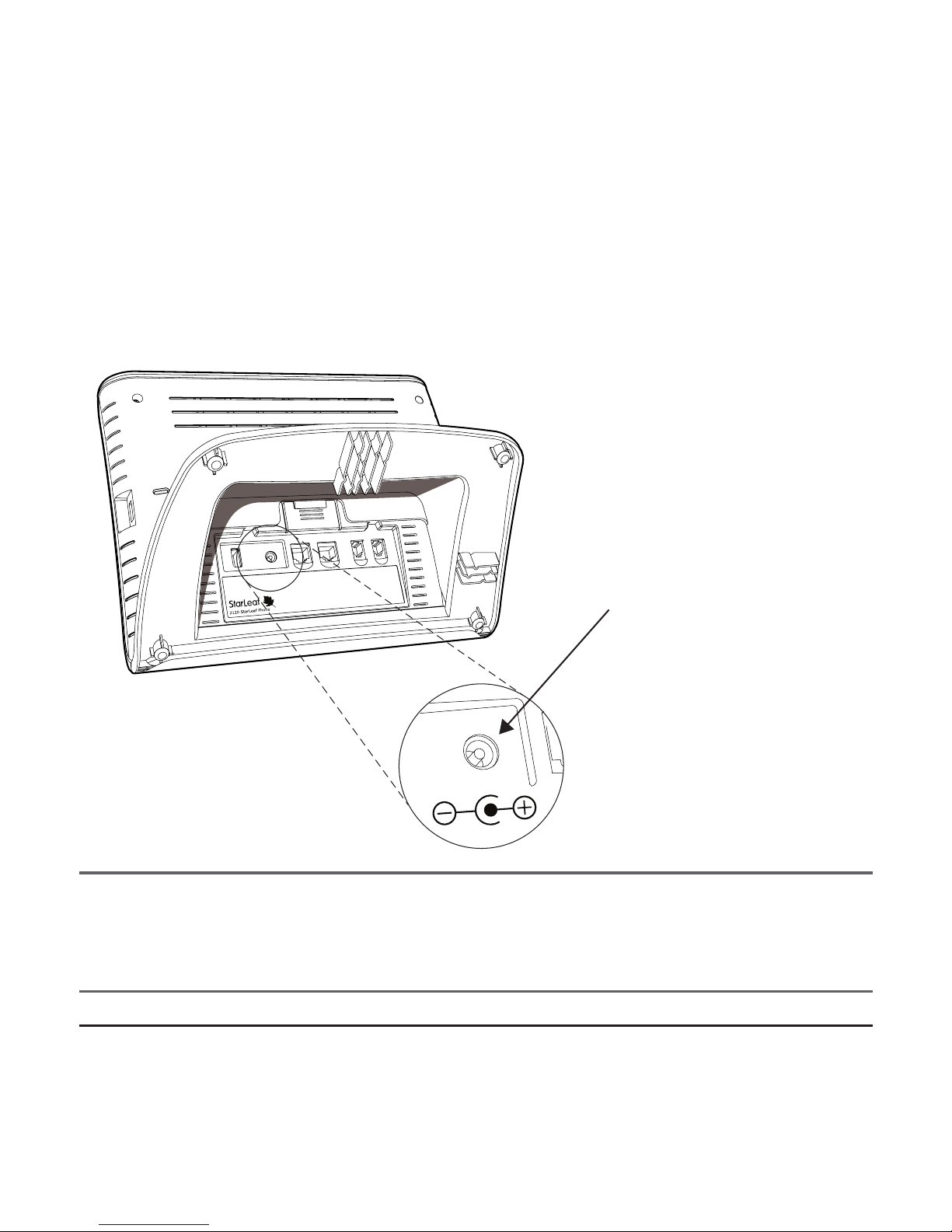
Use the AC/DC adaptor to provide power to the phone. Connect the
adaptor to the DC +48V port and then connect the adaptor to the
mains power supply using the power cable supplied with the adaptor.
Note: If you have connected the phone to Group Telepresence or
to a PoE network port, you do not need to connect the power
adaptor.
DC +48V port
Page 6
6
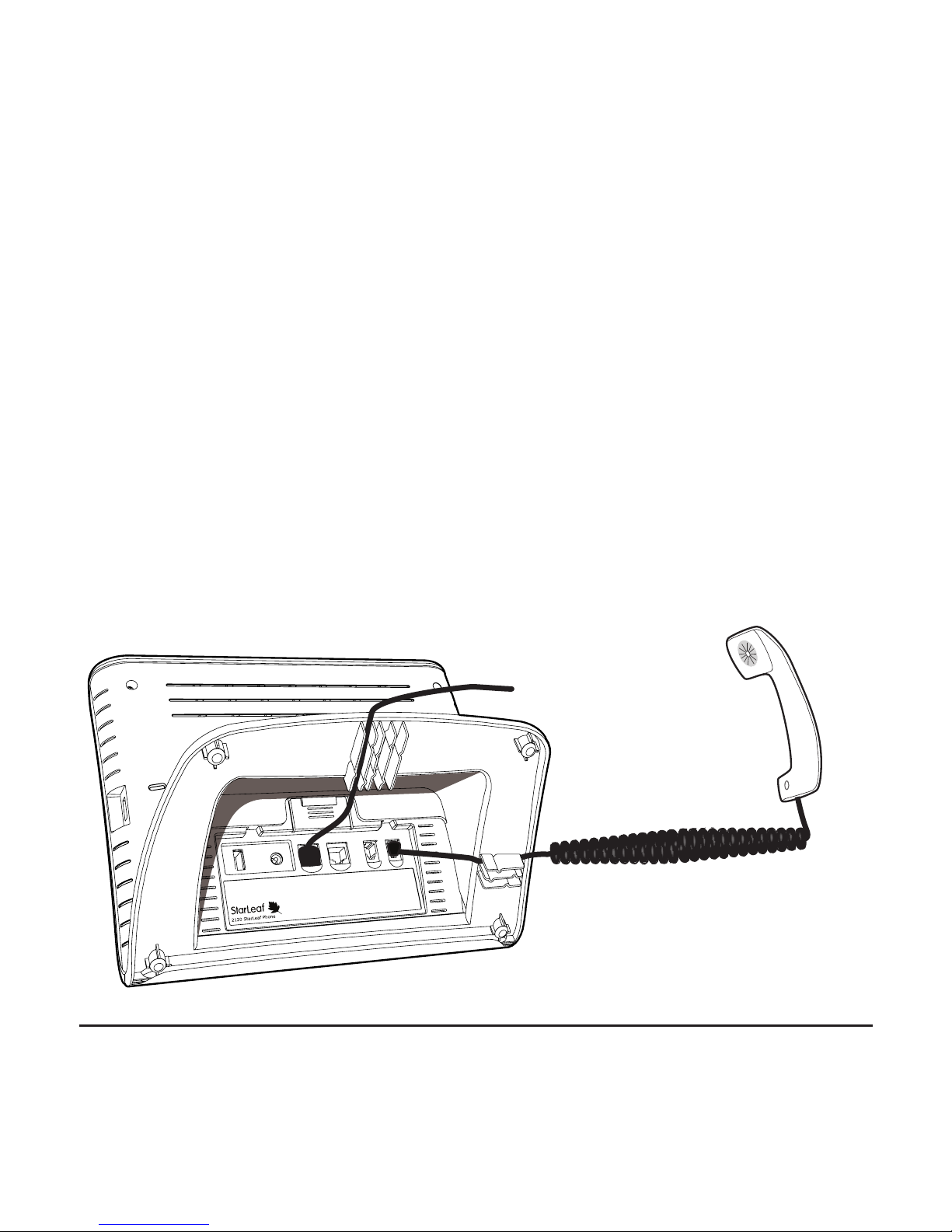
Step 5: Connect to StarLeaf telepresence
You will use the StarLeaf Phone to control one of:
•
StarLeaf Group Telepresence
•
StarLeaf Personal Telepresence
Refer to the documentation accompanying that system to complete the
installation.
Tip: Use the cable guides
Using the cable guides to channel your cables through the base of the
phone will allow your phone to sit rmly on your desk.
Page 7
7
StarLeaf Quick Connect
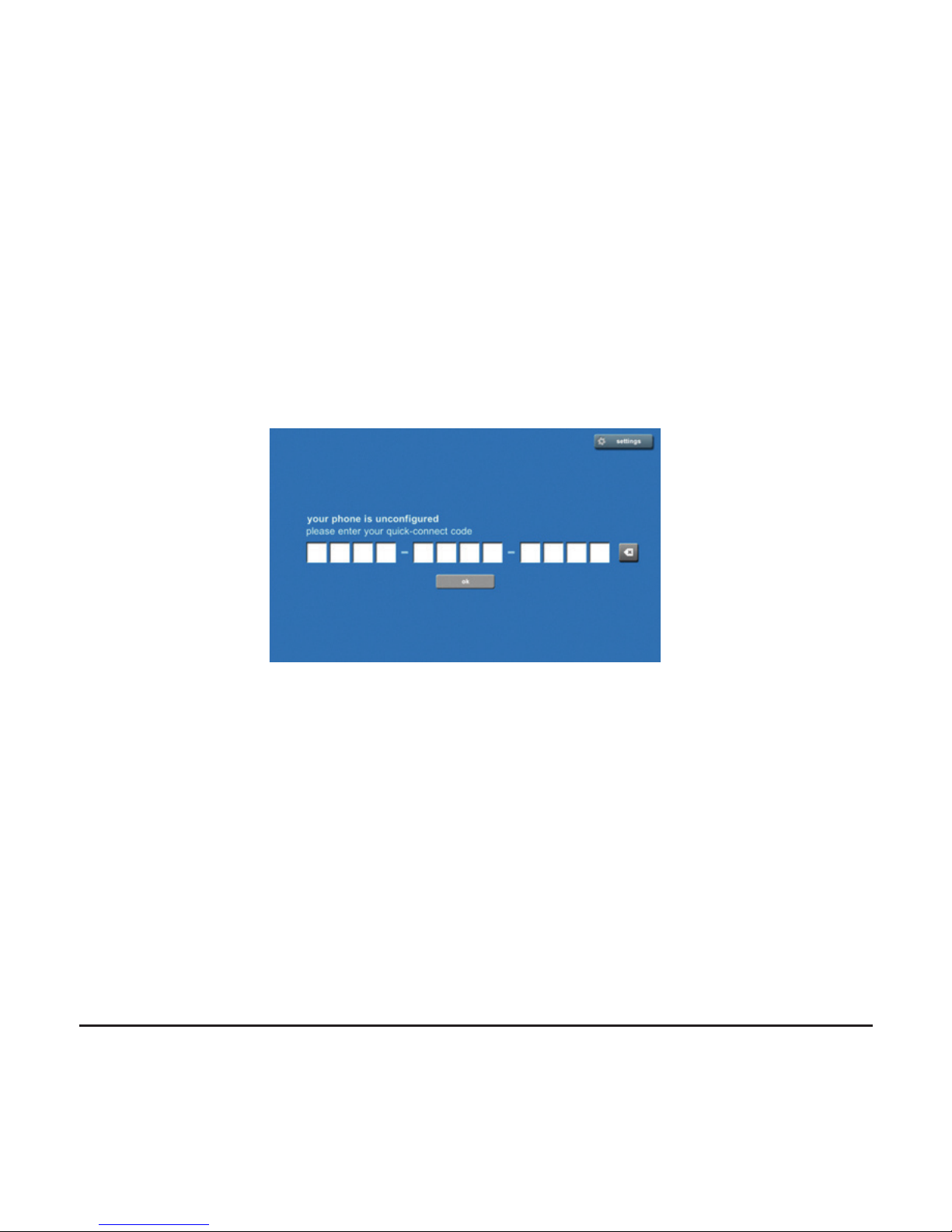
When you power the phone for the rst time, if it displays the StarLeaf
quick-connect screen (shown below), enter your quick-connect code.
If you do not have one, contact your reseller or StarLeaf technical
support.
When you have entered the quick-connect code, the StarLeaf Phone
will check if there is an upgrade available. If there is, it will upgrade
itself and restart.
The StarLeaf Phone will now display the Home screen (refer to page
9).
Page 8
8
Features of the phone
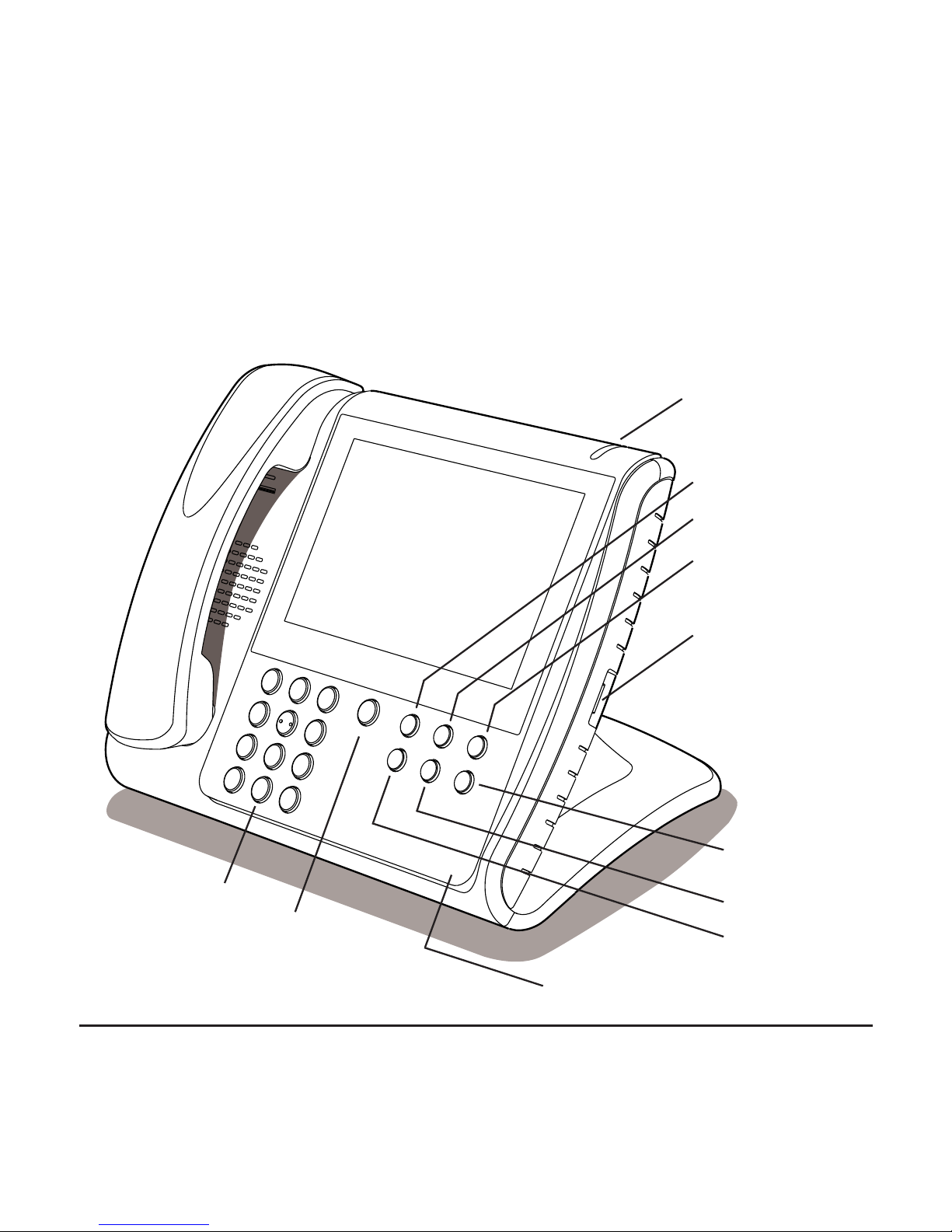
The diagram below shows the physical features of the StarLeaf Phone.
Audio volume down
Audio volume up
Headset
Speaker
Audio mute
Video mute
Home button
Keypad
Message waiting indicator
Microphone location
USB port for
supported devices
Page 9
9
The Home screen
The StarLeaf Phone screen is a touch screen. Press the buttons on the
screen to control the phone.
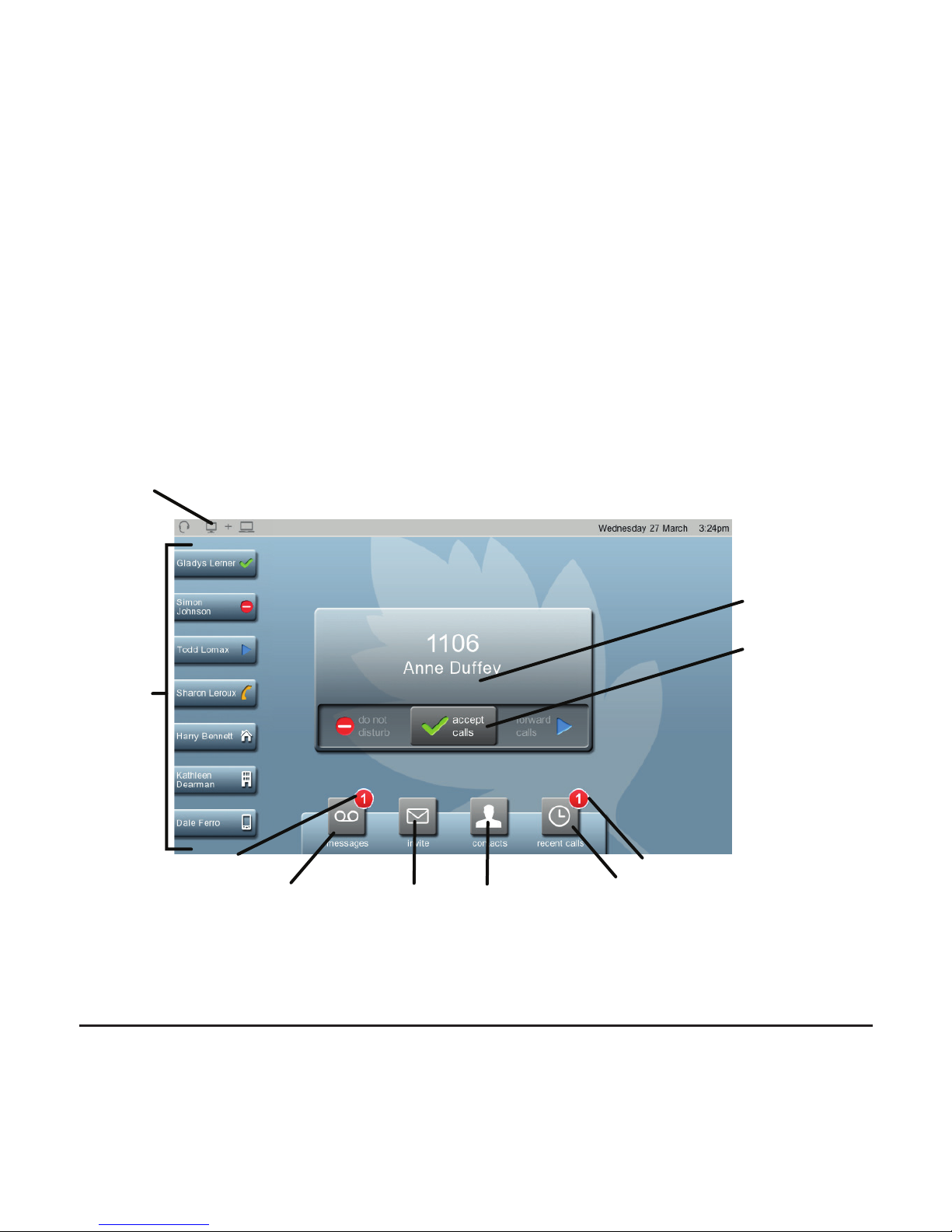
Press the Home button at any time to see the Home screen. The
picture below shows you what you might see on your Home screen.
video: anne.du[email protected]
Call acceptance
slider
Recent calls
Recent calls indicator
Messages Contacts
New message indicator
vorites
Connected
devices
indicators
Your name
and dialing
details
Invite
Page 10

10
Where to nd more information
or get help
For more information about using the StarLeaf Phone, refer to the
Phone User Guide.
All StarLeaf documentation is available from the StarLeaf web site at
http://support.starleaf.com/documentation.
You or your reseller can get help from our support team by raising a
case at http://support.starleaf.com. Make sure you have the following
information ready:
•
The serial number of the phone (double-press the Home button
to nd this)
•
Your contact email address or telephone number
•
Details of the problem
Page 11

11
Legal information
Third party software acknowledgements
Acknowledgements of third-party software are available at:
www.starleaf.com/support/legal
Disclaimers and notices
Copyright © StarLeaf 2014. All rights reserved.
This guide may not be copied, photocopied, translated, reproduced, or
converted into any electronic or machine-readable form in whole or in part
without prior written approval of StarLeaf Limited.
StarLeaf Limited reserves the right to revise this documentation and to make
changes in content from time to time without obligation on the part of StarLeaf
Limited to provide notication of such revision or change.
StarLeaf Limited provides this documentation without warranty, term, or
condition of any kind, either implied or expressed, including, but not limited
to, the implied warranties, terms or conditions of merchantability, satisfactory
quality, and tness for a particular purpose. StarLeaf Limited may make
improvements or changes to the product(s) and/or the program(s) described in
this documentation at any time. All other product and company names herein
may be trademarks of their respective owners.
Australian compliance information:
WARNING: The earpiece of this device may retain small metallic objects that may cause personal injury.
6 January 2014
 Loading...