

Page 1
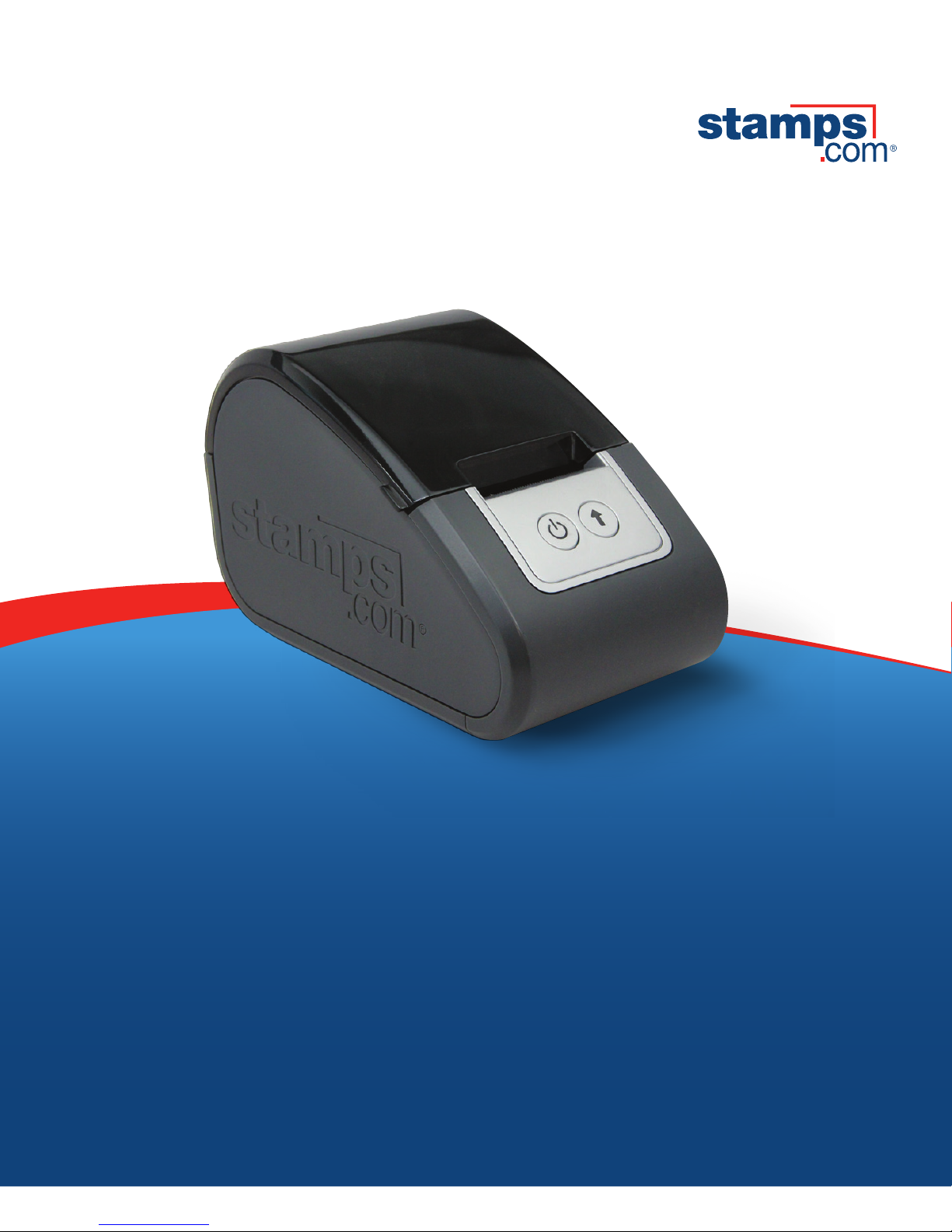
User Guide
ProLabel | 2-inch Label Printer
Page 2
2
Install software Setup printer
The ProLabel Printer only works
with version 10.1.1 or later of the
Stamps.com software. Skip this step
if you are on a supported version.
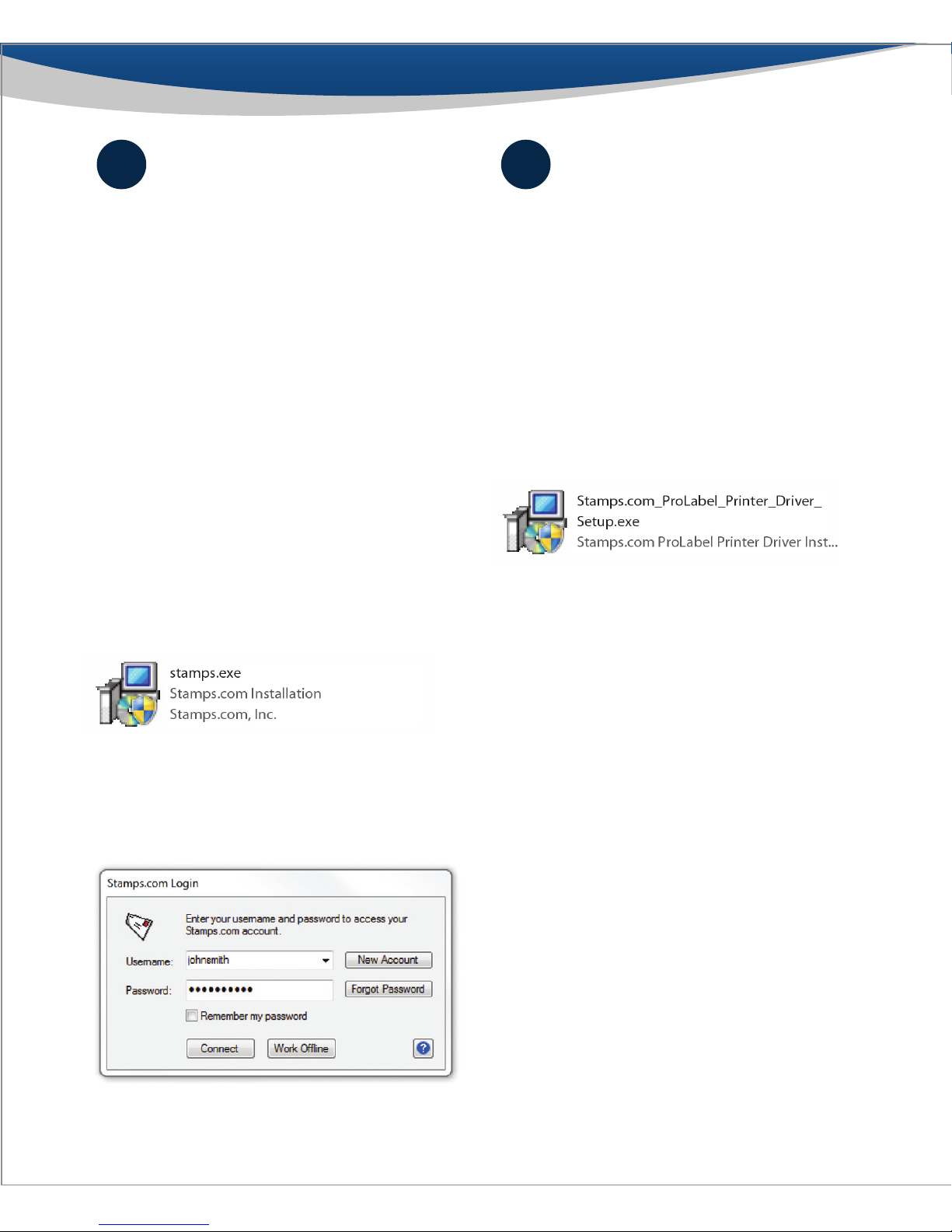
A. Download
Download the latest version from
www.stamps.com/download
B. Install
When download is complete, double
click the “Stamps.exe” icon or le to
start the installation, then follow the
install instructions in the setup wizard
to complete installation.
C. Log in
Log in using your username
and password.
A. Install printer driver
Insert the included CD-ROM into your
computer. If installation does not begin
automatically, open Windows Explorer,
and double-click the disk drive icon,
and then double-click the setup wizard
to start the installation. Follow the install
instructions in the setup wizard to
complete installation.
B. Connect printer to computer via USB
Plug the AC adapter into a power outlet and
the printer. Turn on the printer by pushing
the Power button. Plug the USB cable into the
printer and your computer. The lights should
change to Green/Blue once the printer is
synced to the network and ready to print.
C. Connect printer to computer
via Ethernet (Coming in Fall 2013 - for the latest
software driver, go to stamps.com/support)
Follow the directions above for USB for
powering on the device. Once the device
is turned on, rst plug the ethernet to your
computer/internet connection and then
plug the other end into the printer. The lights
should change to Green/Blue once the printer
is synced to the network and ready to print.
1 2
Page 3
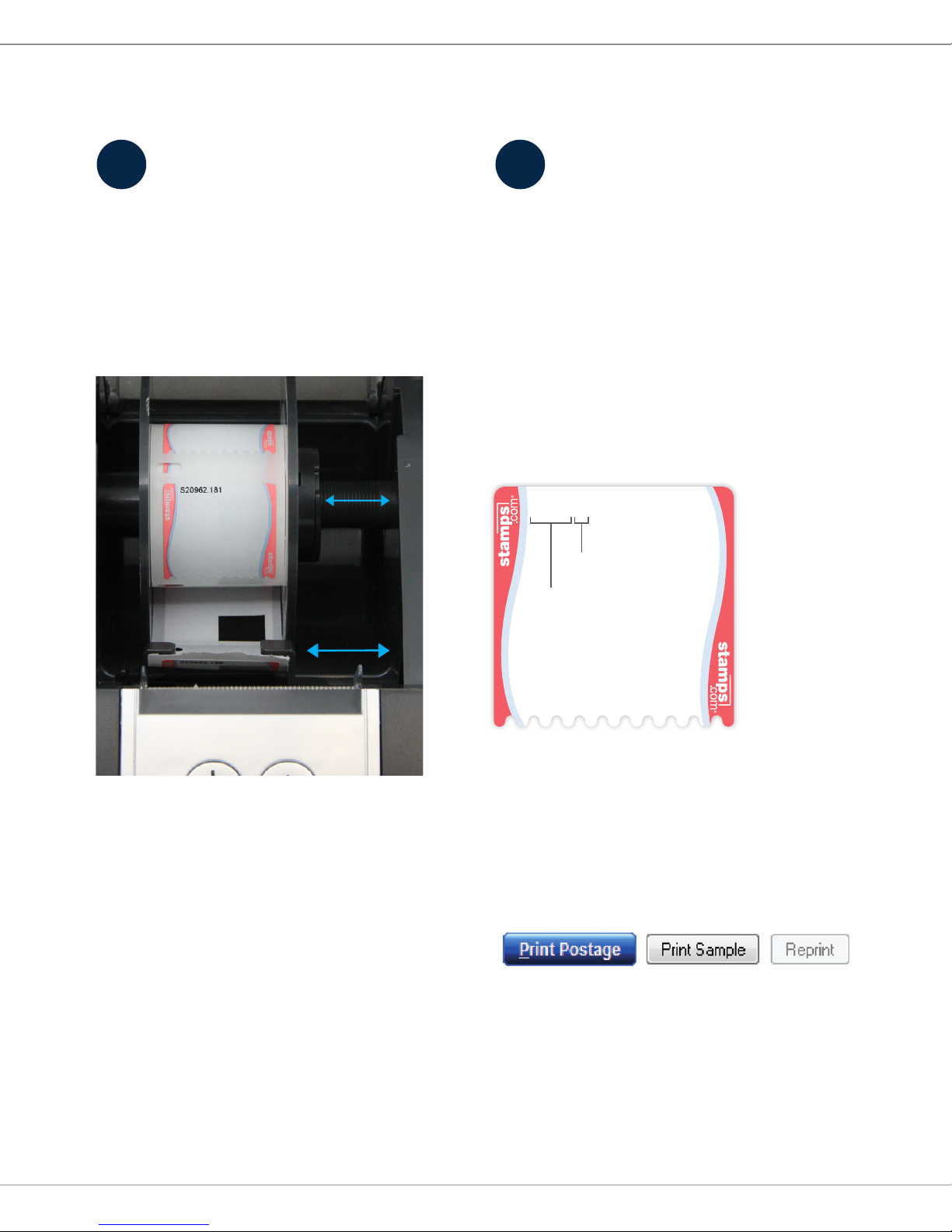
A. Load roll onto spool
Open the printer, remove the
adjustable label spool and pull apart.
Put the NetStamps label roll on the
spool and reassemble spool.
B. Load spool into printer
Load the spool into the printer with
the labels facing down. Make sure
the label strip falls between the two
adjustable label guides. The rst
label should extend past the cuto
blade. Close printer cover.
Note: See Frequently Asked Questions
if the Power Button ashes.
3
Load labels Print postage
You are now ready to print postage.
A. Enter required postage information
In the Stamps.com Software click the
STAMPS tab and set the desired postage
options in POSTAGE DETAILS.
B. Enter NetStamps label roll
serial number
C. Print a sample
Print a sample to make sure you have
correctly loaded the label roll and that
all printer settings are correct. To print a
sample, click on the “Print Sample” button.
D. Print postage
When you are ready to print your postage,
click on the “Print Postage” button.
3 4
label number
serial number
S12345.01
Adjustable
label guides
and spool
Page 4
4
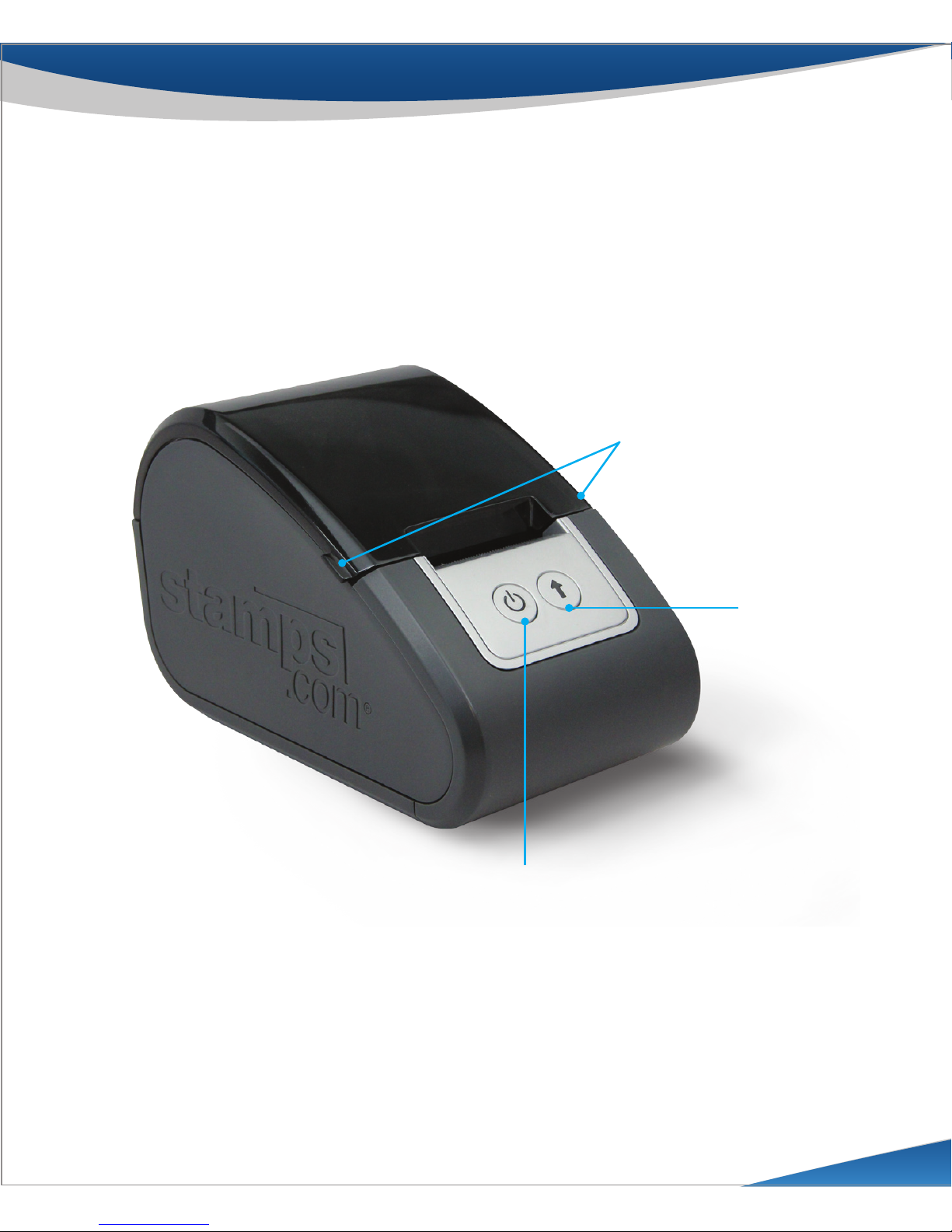
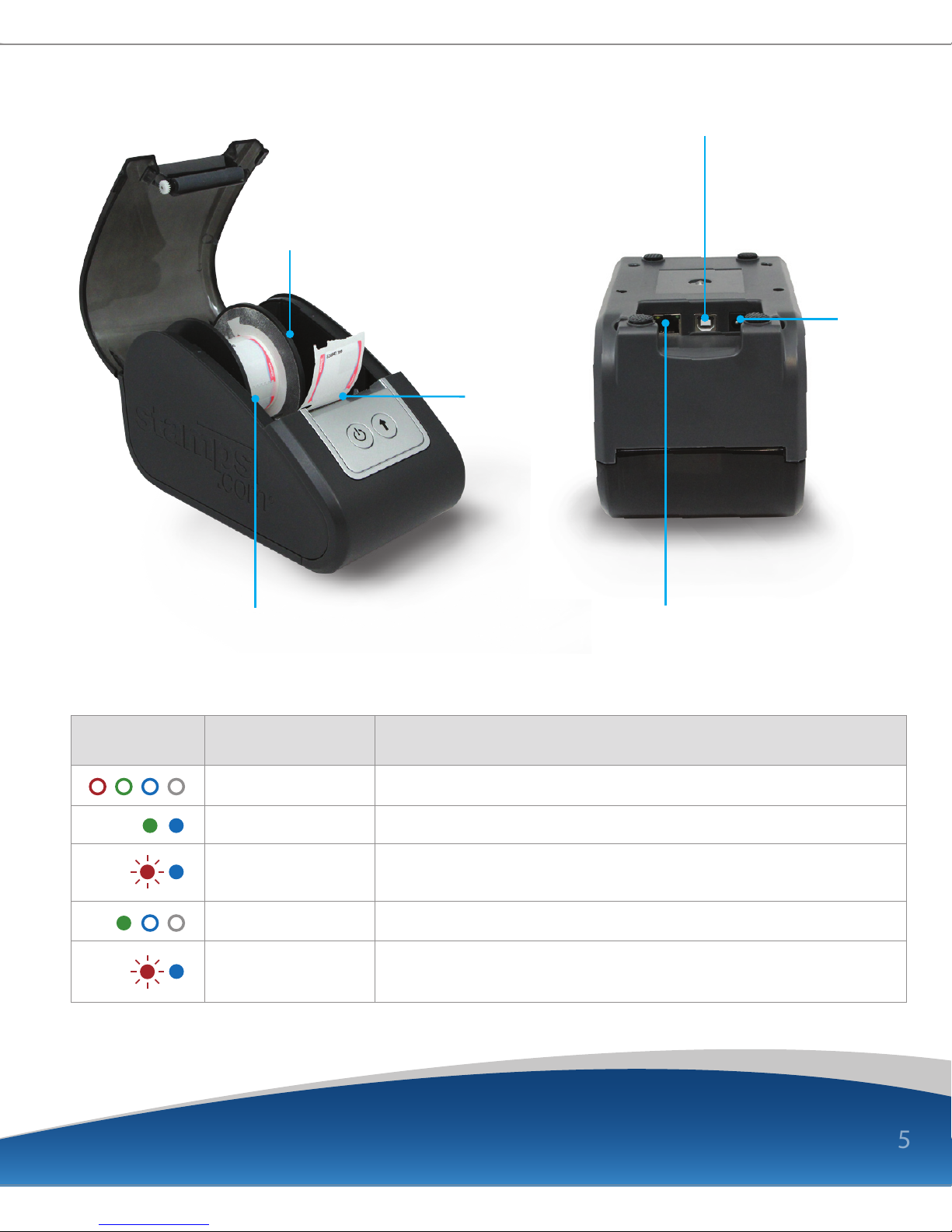
Getting to know your printer
Power Button
Push down to close
squeeze sides to open
Label Advance
Button
Page 5
5
NetStamps Label Roll
USB Connector
Power
Connector
Ethernet
Connector
Cuto Blade
Label Spool
Boot-up
Printer ready
Out-of-paper
or lid is open
Printing
No USB or LAN
connection
FUNCTIONLIGHT DESCRIPTION
cycles by lighting red, then green, then blue, then white and repeats.
green and blue LEDs are lit.
red blink, blue ON.
green ON, blue and white alternate.
red blink, blue ON.
Page 6
6
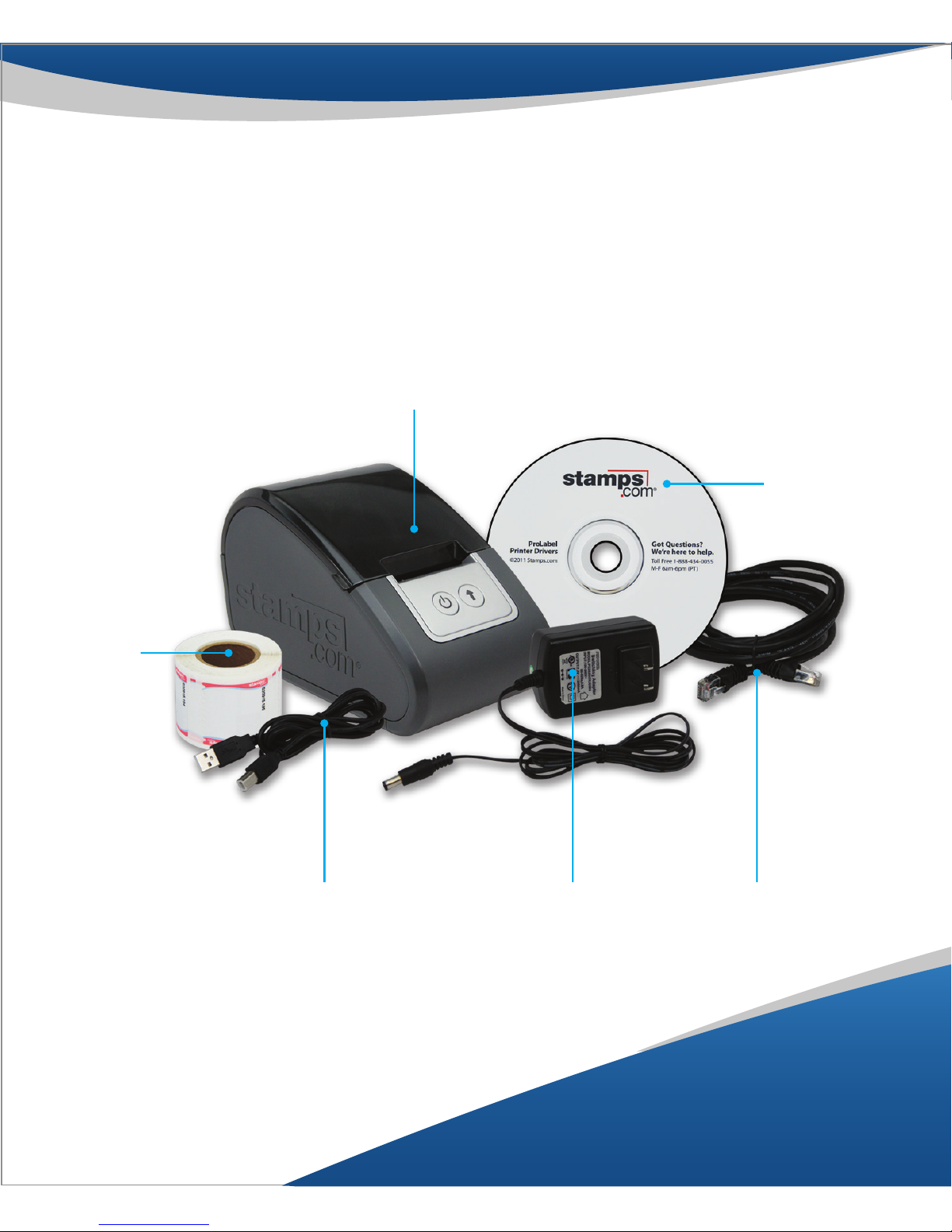
NetStamps
Label Printer
USB Cable
NetStamps®
Label Roll
AC Adapter Ethernet Cable
Installation CD
What’s in the box?
Page 7

7
Frequently asked questions
Where can I download the driver?
If you do not have the CD-ROM, download the driver software from
www.stamps.com/support.
Why is the Power Button ashing?
If the Power Button is ashing by itself, the USB cable is not properly
connected. Otherwise, make sure the NetStamps label roll has been
properly loaded in the printer. You may have to press the Label
Advance Button to load the Next label into position.
What if I get the message “The currently selected label is not
supported by this printer. Please choose another.” when I try to
print using the Stamps.com ProLabel Printer?
Make sure you are using a supported version of the Stamps.com
software. The ProLabel Printer only works with version 10.1.1
or later. In the software, click on Help > Check for Updates or
download the latest version from www.stamps.com/download.
Need additional support?
Call 1-888-434-0055, M-F, 6AM – 6PM PT
Visit: www.stamps.com/support
Email: [email protected]
7
Page 8

Warranty
Your Stamps.com ProLabel Printer has a one (1) year limited warranty against faulty workmanship and/or
materials. Warranty period shall be dened as the earlier of: one (1) year from the date listed on your proof of
purchase or bill of sale (or) one (1) year from the date on which your trial period ends.
Should your product prove defective during the warranty period, please visit www.stamps.com/returns for more
information and instructions on how to return or exchange your printer.
This warranty does not cover cosmetic damage or damage due to acts of God, accident, misuse, abuse,
negligence, or modication of, or to, any part of the product. This warranty does not cover damage due to
improper operation or maintenance, or attempted repair by anyone other than a facility authorized by Stamps.
com to service the product. This warranty is valid only in the United States.
This warranty is invalid if the factory-applied serial number has been altered or removed from the product.
EXCEPT FOR THE EXPRESS WARRANTY SET FORTH ABOVE, STAMPS.COM DISCLAIMS ALL OTHER WARRANTIES,
EXPRESS OR IMPLIED, INCLUDING ANY IMPLIED WARRANTY OF MERCHANTABILITY OR FITNESS FOR A
PARTICULAR PURPOSE. REPAIR OR PLACEMENT AS PROVIDED UNDER THIS WARRANTY IS THE EXCLUSIVE REMEDY
OF THE CONSUMER. STAMPS.COM SHALL NOT BE LIABLE FOR ANY INCIDENTAL, SPECIAL, PUNITIVE, ECONOMIC
OR CONSEQUENTIAL DAMAGES FOR BREACH OF ANY EXPRESS OR IMPLIED WARRANTY ON THIS PRODUCT.
TO THE EXTENT EXCLUSIONS OF IMPLIED WARRANTIES ARE PROHIBITED BY APPLICABLE LAW, ANY IMPLIED
WARRANTY OF MERCHANTABILITY OR FITNESS FOR A PARTICULAR PURPOSE ON THIS PRODUCT IS LIMITED IN
DURATION TO ONE (1) YEAR.
Some states do not allow the exclusion or imitation of incidental or consequential damages, or allow limitations
on how long an implied warranty lasts, so the above limitations or exclusions may not apply to you. This warranty
gives you specic legal rights, and you may have other rights that vary from state to state.
FCC Statement
This equipment has been tested and found to comply with the limits for a Class B digital device, pursuant to part
15 of the FCC Rules. These limits are designed to provide reasonable protection against harmful interference
when the equipment is operated in a commercial environment. This equipment generates, uses, and can radiate
radiofrequency energy and, if not installed and used in accordance with the instruction manual, may cause
harmful interference to radio communications. Operation of this equipment in a residential area is likely to cause
harmful interference in which case the user will be required to correct the interference at his own expense.
FCC Caution
Any changes or modications not expressly approved by the party responsible for compliance could void the
user’s authority to operate this equipment.
FCC Warning
This equipment has been tested and found to comply with the regulations for a Class B digital device, pursuant
to Part 15 of the FCC Rules.
Operation is subject to the following two conditions:
(1) This device may not cause harmful interference.
(2) This device must accept any interference received including interference that may cause undesired operation.
Page 9
User Guide
ProLabel | 2-inch Label Printer
 Loading...