

Page 1
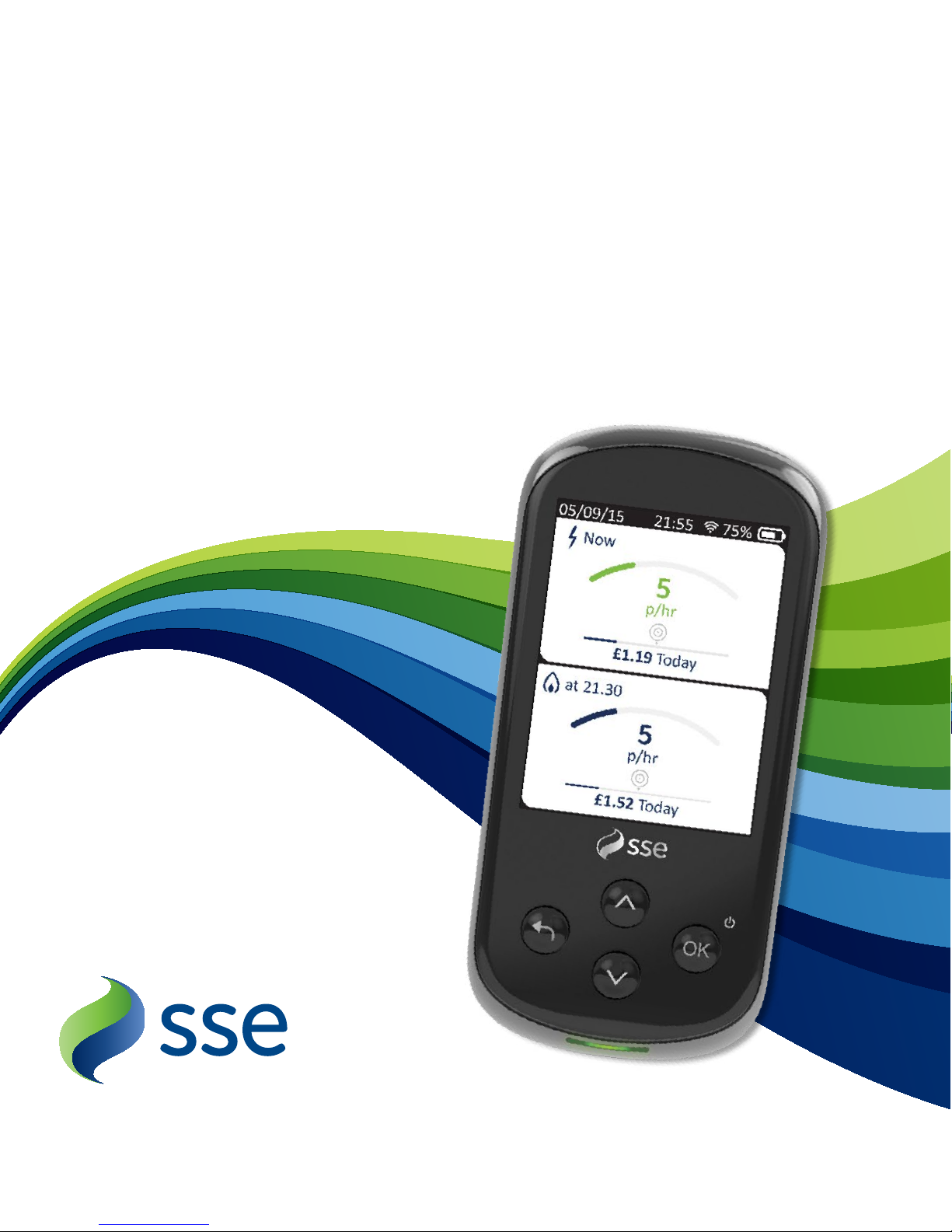
All you need to know
Your Smart
Energy Tracker
Page 2
Contents
1
Your Smart Energy Tracker
Meet your Smart Energy Tracker
A few safety rules
2
Getting Started
Walk me through it
How to fit the battery
What does it do?
Connect to your Smart meter
Your contents map
3
My Energy
How do I set targets for my usage?
How do I know what to set my
targets to?
Understanding your energy use
Cost, Energy or CO
2
?
How do I compare my energy use?
4
Do More
I want to change the way it works
How do I change the brightness?
How do I change the timer?
How do I change the way it looks?
How do I change the standby screen?
How do I change my alerts?
How do I check my account?
5
Any Questions?
Help. I'm having trouble.
How to reboot your Smart
Energy Tracker
I have a question...
Specifications
DOC compliance
Contact us
Page 3
2
Your Smart Energy Tracker connects with your smart meter
and gives you lots of useful information about your energy
use. It can help you to:
You can carry your Smart Energy Tracker around the house,
switch o appliances as you go and see straight away how
that aects the amount of energy you’re using.
Important: Just make sure you put your Smart Energy Tracker
back on charge – if the battery goes flat, it will take a couple
of days to re-load your historical energy usage.
If you stray out of range and lose your connection, bring the
Smart Energy Tracker closer to your Smart meter.
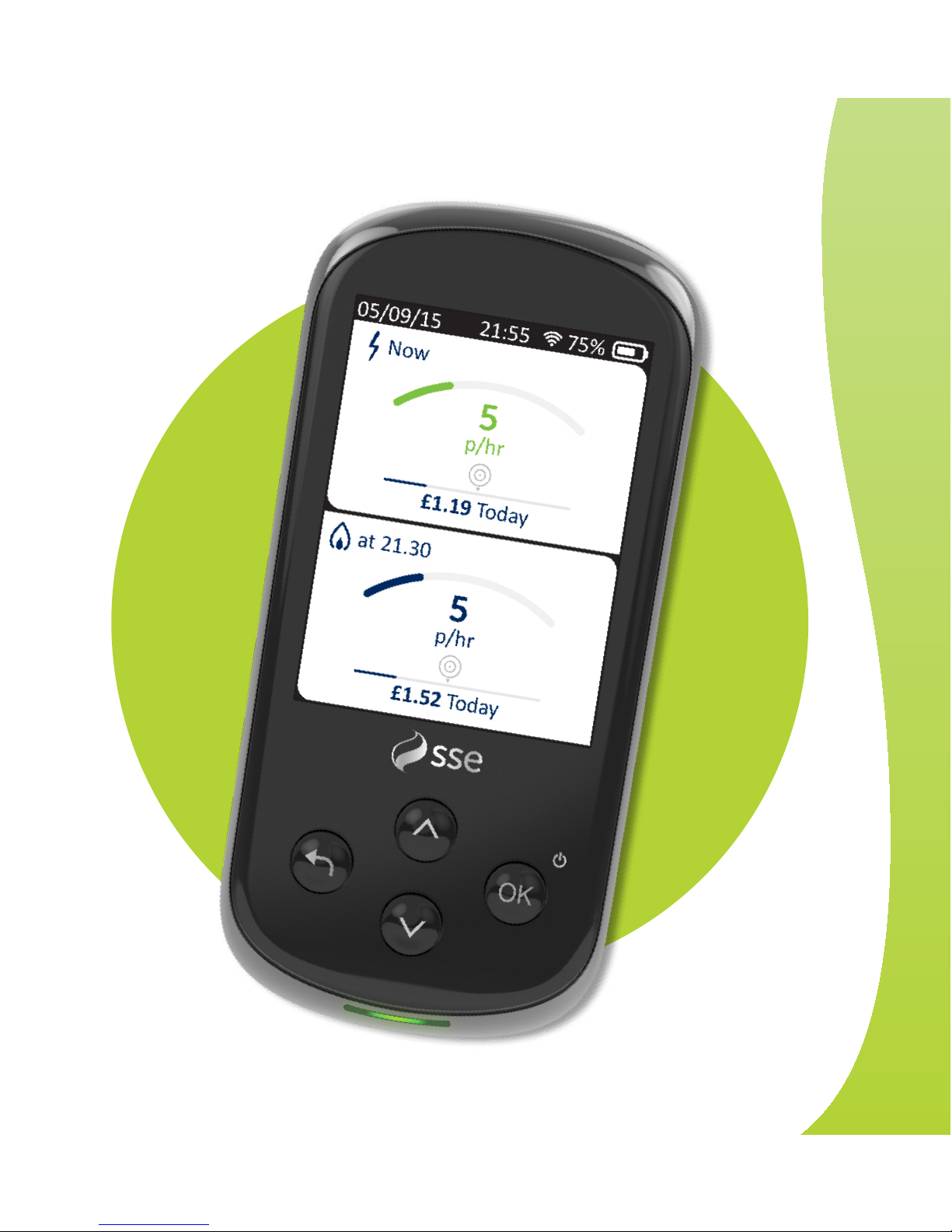
Meet your new
Smart Energy Tracker
See how much
energy you’re using
Translate kWh into
pounds and pence
See how much
you’re spending
Watch target performance
through coloured lights
Set targets for
your energy use
Take control of
your energy use
Page 4
3
1
Your Smart Energy Tracker
Page 5

4
A few safety rules
before we get started
Safety Information
Cleaning
• Only use the provided USB adapter with the Smart Energy Tracker
• Do not immerse the Smart Energy Tracker or battery in water
or any other liquid. If the Smart Energy Tracker comes in contact
with any liquid wipe immediately with a soft cloth
• Do not subject the Smart Energy Tracker or battery to excessive
force, shock, dust, temperature or humidity
• Do not tamper with the Smart Energy Tracker internal components
• Do not attempt to repair or replace any components
• Disconnect USB adapter before cleaning
• To clean Smart Energy Tracker, wipe with a damp cloth
• Do not use cleaning agents, benzene, solvents, abrasive
or corrosive materials
Page 6

5
Battery
• The Smart Energy Tracker contains a rechargeable lithium ion
battery. Exposure to battery contents through leakage,
destruction or incineration may cause injury
• Remove battery when storing for extended periods, and store
in a cool, dry and well ventilated place
• Dispose of product and batteries in accordance with your local
recycling scheme
• Do not expose to, or dispose of the battery in fire
• Do not use any equipment not specifically designed for this
device or battery
• Avoid shorting the battery terminals
• Do not use the battery in conjunction with dierent makes,
types, or models
• Keep out of the reach of children
1
Your Smart Energy Tracker
Page 7
6
I'm ready.
Walk me through it.
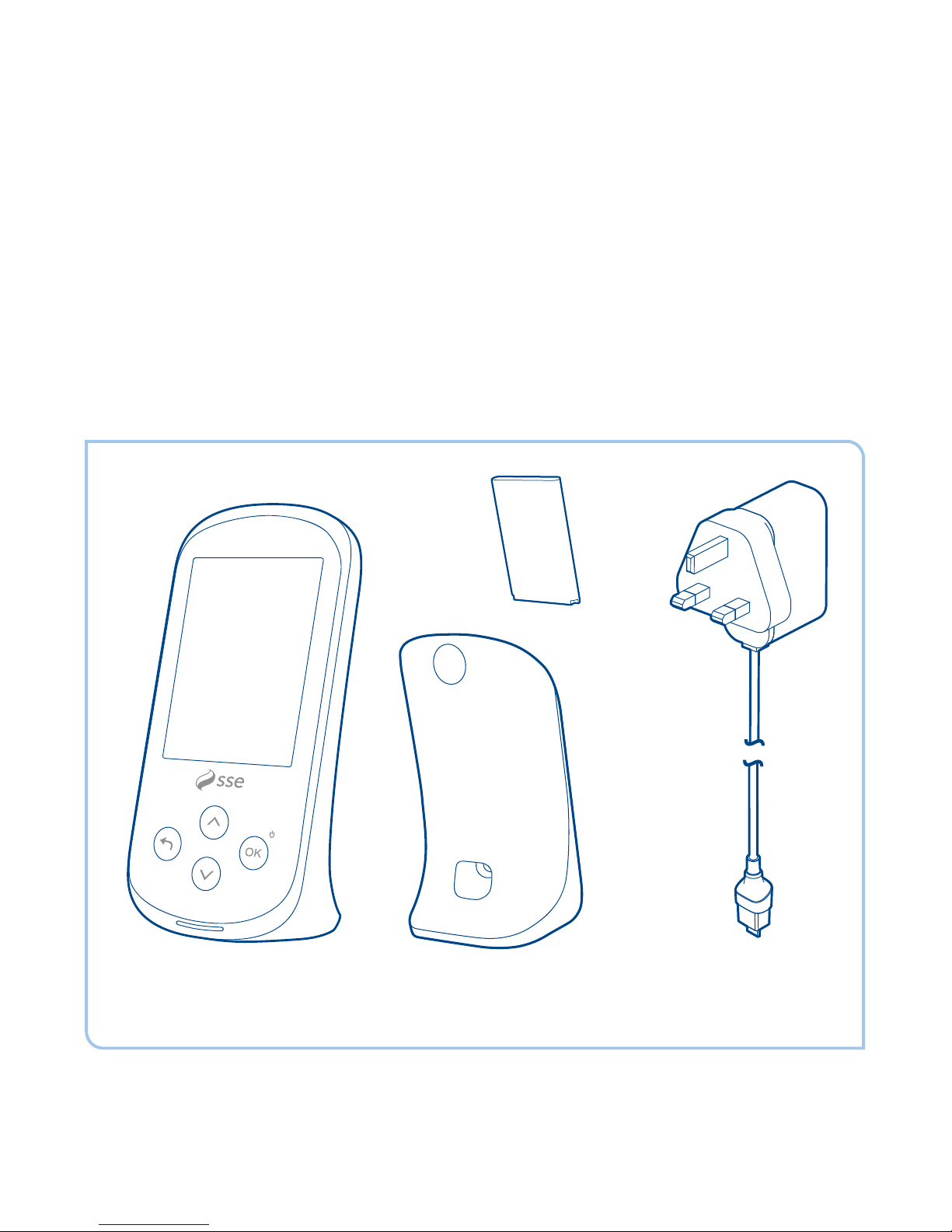
Check you have all the right bits before you get started.
You should have:
Your Smart
Energy Tracker
Battery
Battery
cover
USB
adapter
Page 8

7
The full picture
of your energy use
appears after two
days. Make sure you
keep the battery
charged.
2
Getting started
Page 9
8
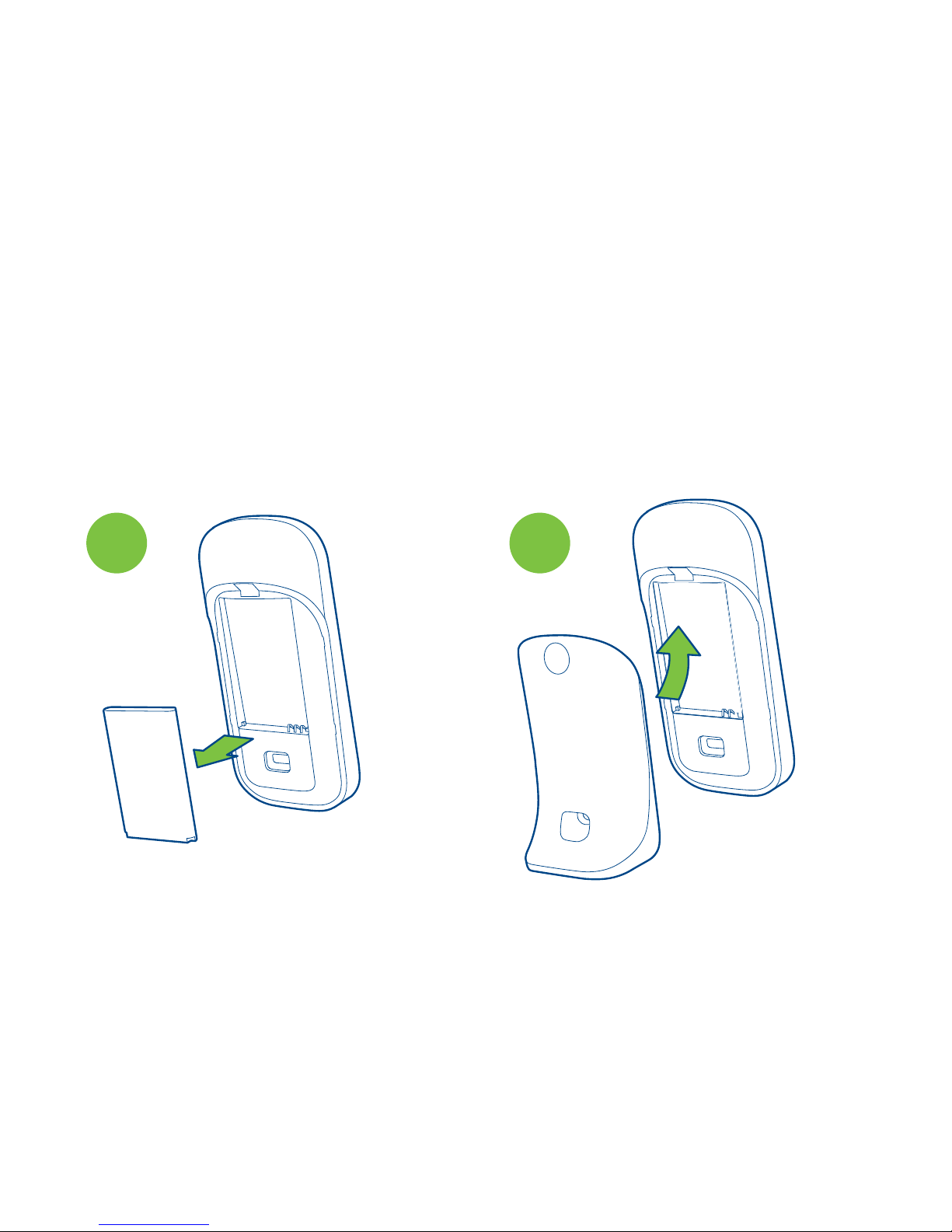
Your Smart Energy Tracker comes with its own rechargeable
battery. You’ll need to fit it yourself, but it’s straightforward.
Here’s how to do it:
How to fit
the battery
Remove the battery cover
and slot in the battery that
came with your Smart
Energy Tracker.
1
Replace the cover.
2
Page 10
9
3
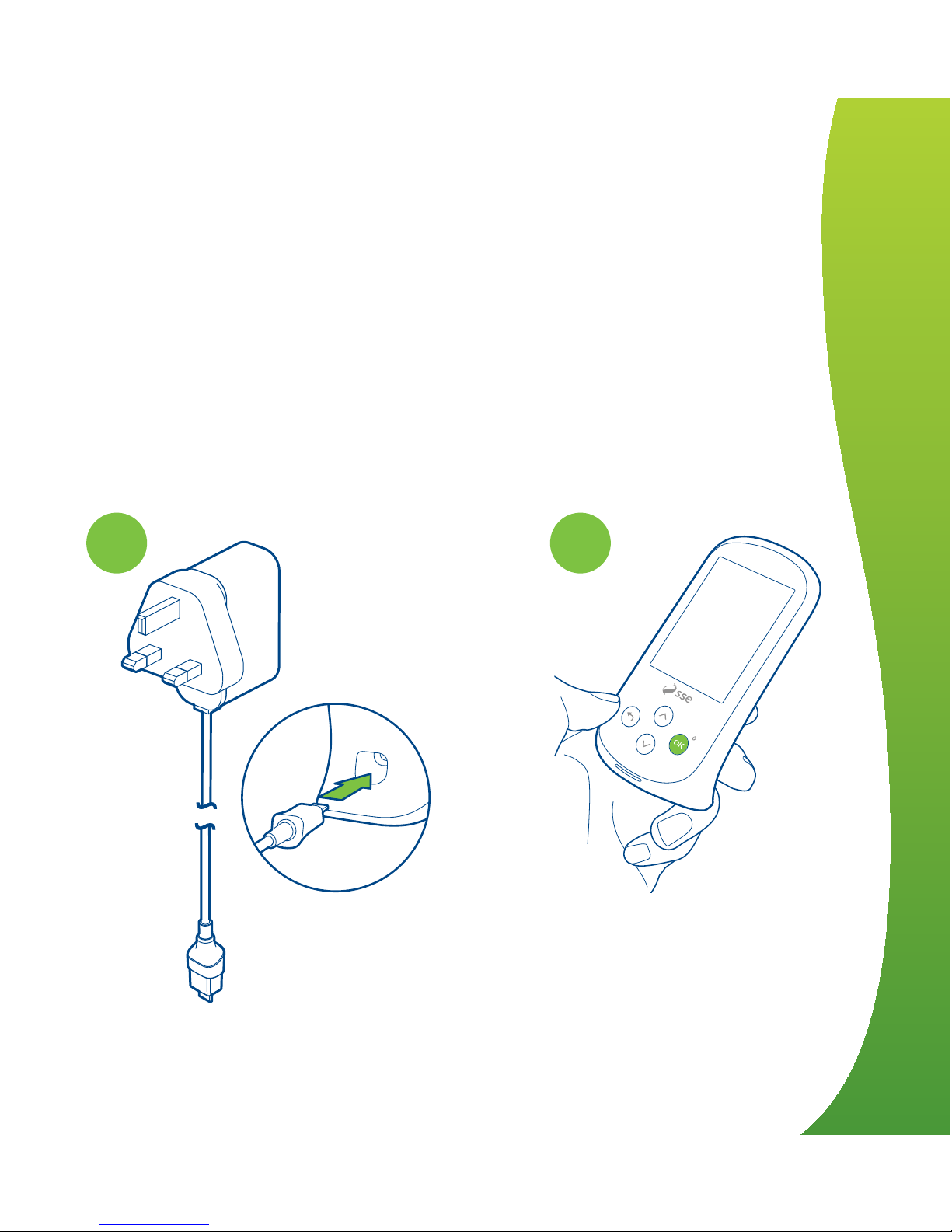
Your Smart Energy Tracker should be plugged into the
mains to charge up the battery. For that, you’ll need
the USB adapter. Please only use the USB adapter that
came with your Smart Energy Tracker.
Make sure the USB adapter
is the right way round,
then push it all the way
in. Now plug the other
end into a wall socket.
Your Smart Energy Tracker
should power on itself. If
not, just press and hold OK.
How to plug in your
Smart Energy Tracker
4
2
Getting started
Page 11
10
Looks good. But what
does this do?
6
5
4
2
3
1
10
Page 12

11
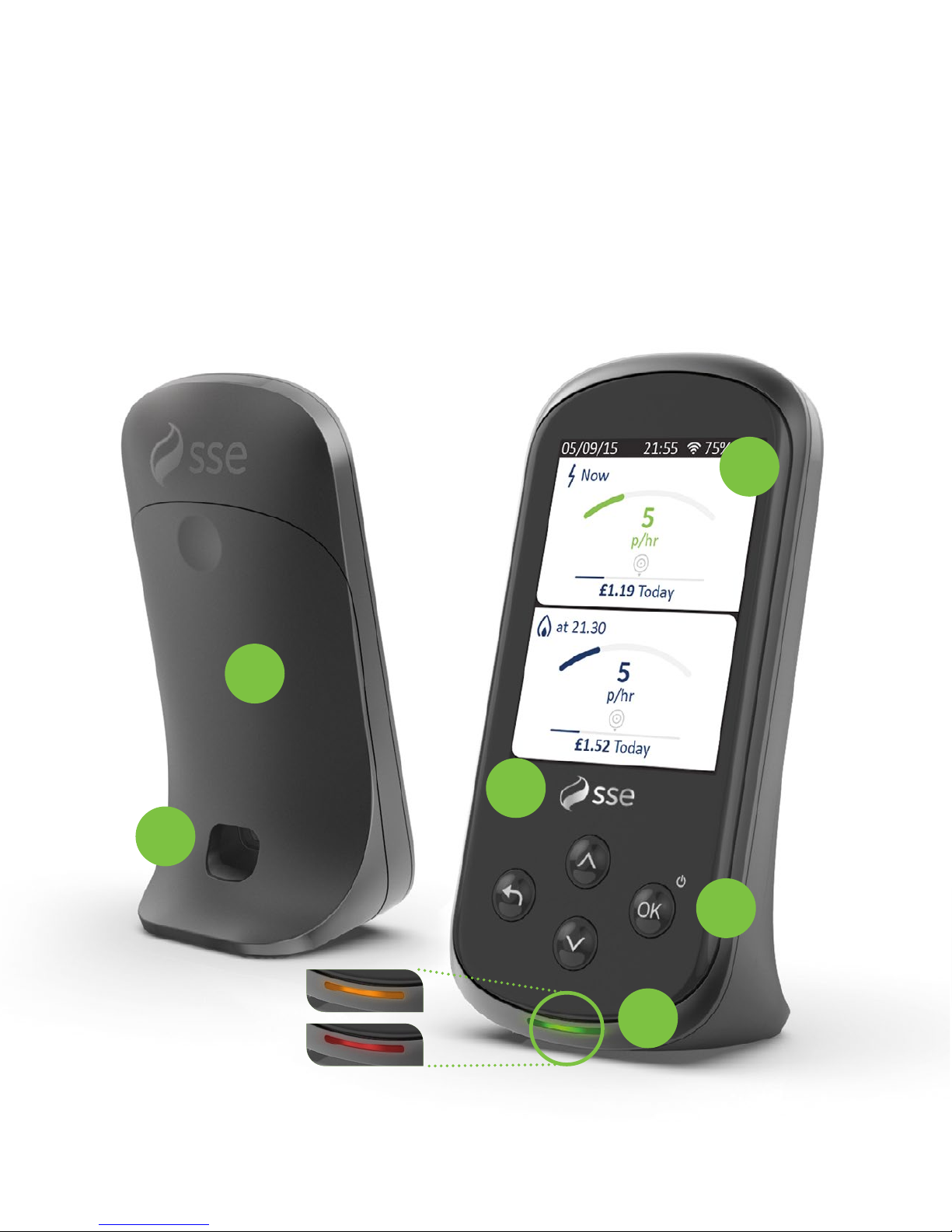
1
Colour display
Here’s where you get to see all the
information about your energy use.
2
OK button
Press and hold this button to switch on.
Use it to confirm your choices when you’re
scrolling through the menus.
3
Up, down, back buttons
Use these buttons to work your way through
the dierent menus.
4
Usage light
Glowing green, amber or red, you can see at a
glance whether your electricity use is below target,
on target or over.
5
Battery cover
Remove the cover to slot in or take out
the battery.
6
Charging point
The Smart Energy Tracker comes with its own
USB power adapter. Plug it in here to power the
device and charge the battery.
2
Getting started
Page 13
23/11/15 21:55 75%
Pairing
Seng up your SmartView+,
looking for your meter...
23/11/15 21:55 75%
Connected
Looking for your meter...
Scanning for networks...
Found meter.
Trying to connect
Seng up a secure
connecon
Pairing
12
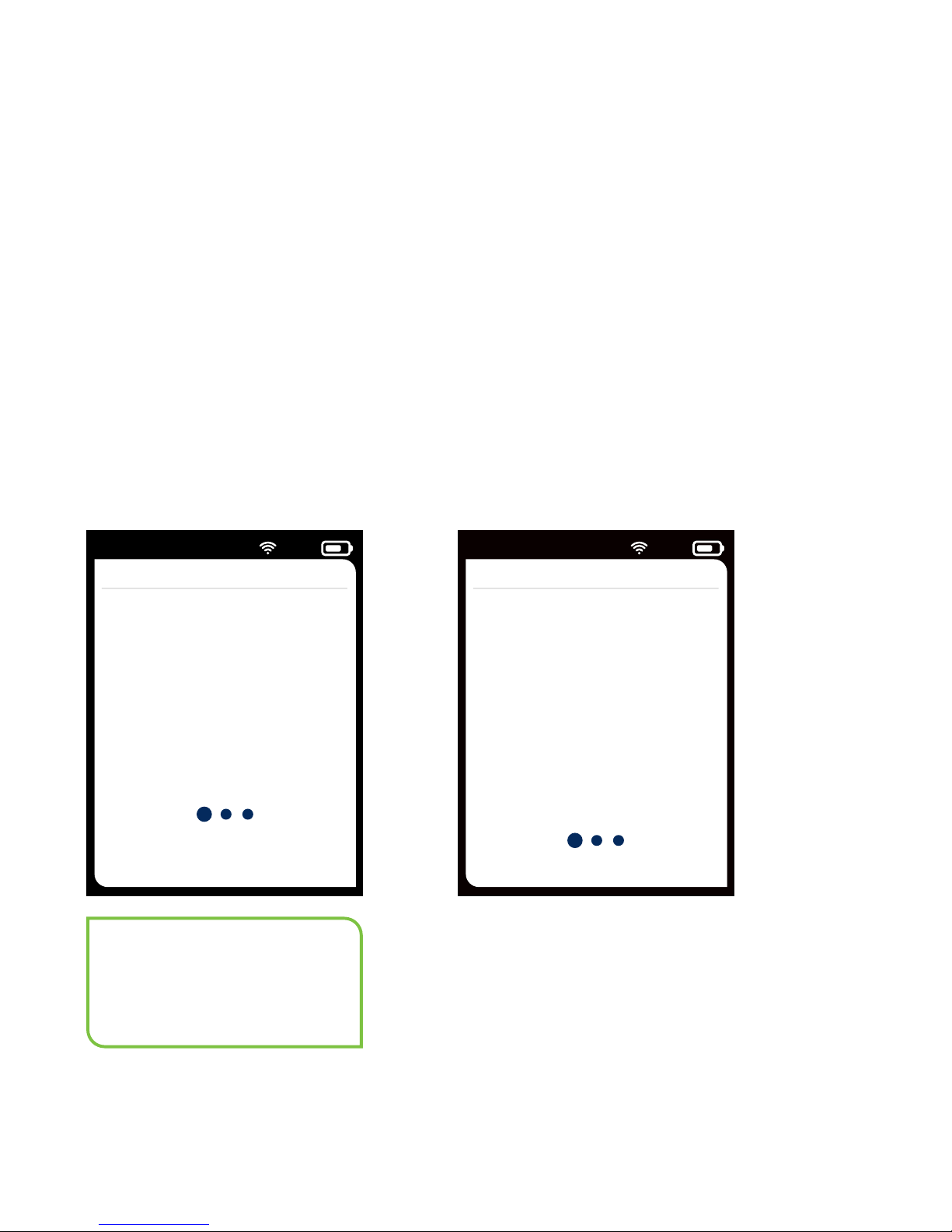
Your Smart Energy Tracker connects wirelessly to your smart
meter. Our technician will take care of this for you. If we've
posted the device to you, just give us a call and we can
connect it remotely. For this to work, you’ll need to place your
Smart Energy Tracker within 2 metres of your smart meter.
Connect to your
smart meter
Your device will refer
to a SmartView+. This is
the same as your Smart
Energy Tracker.
Here’s what you’ll see on the
screen when it’s connecting
Page 14
23/11/15 21:55 75%
All Done!
Your meter and your
SmartView+ are
now paired up.
SmartView Tutorial
Skip Tutorial
Here’s your current
electricity usage. This
updates every 8 seconds
Pressing will cycle
between cost,
energy or CO2
Now
5
p/hr
13
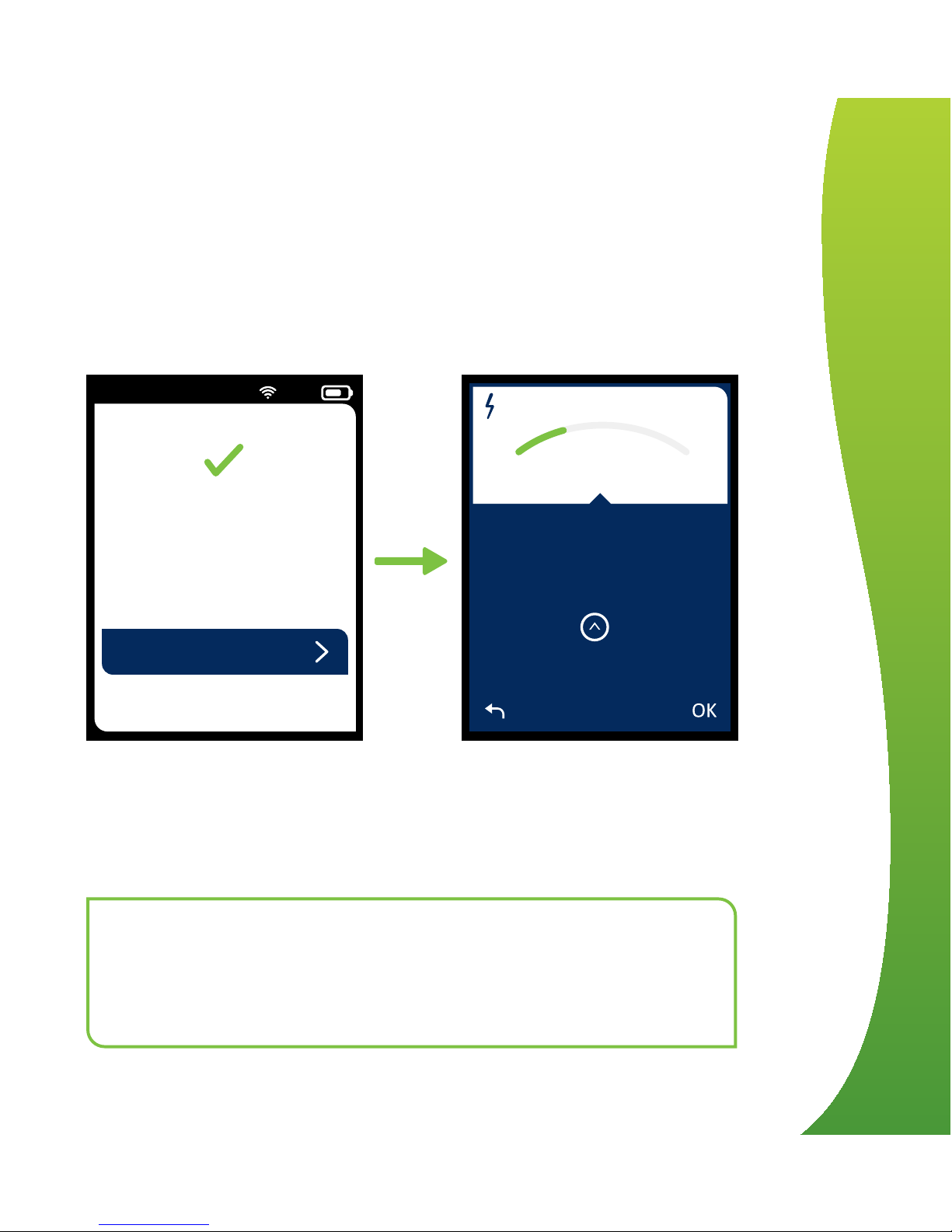
When you first switch on your Smart Energy Tracker
it’ll give you the option to run through a quick tutorial
to show how it works. Try that and then return to
this guide to find out how to get more from your
Smart Energy Tracker.
If you want to skip the tutorial for now you can
come back to it any time – you’ll find it under
‘About’ on the 'Main Menu'.
When you first connect, you’ll only see the usage for that day.
If there’s an upgrade, change, or your battery runs out, it could
take up to two days to re-load your usage history.
Remember to keep your battery charged.
2
Getting started
Page 15
14
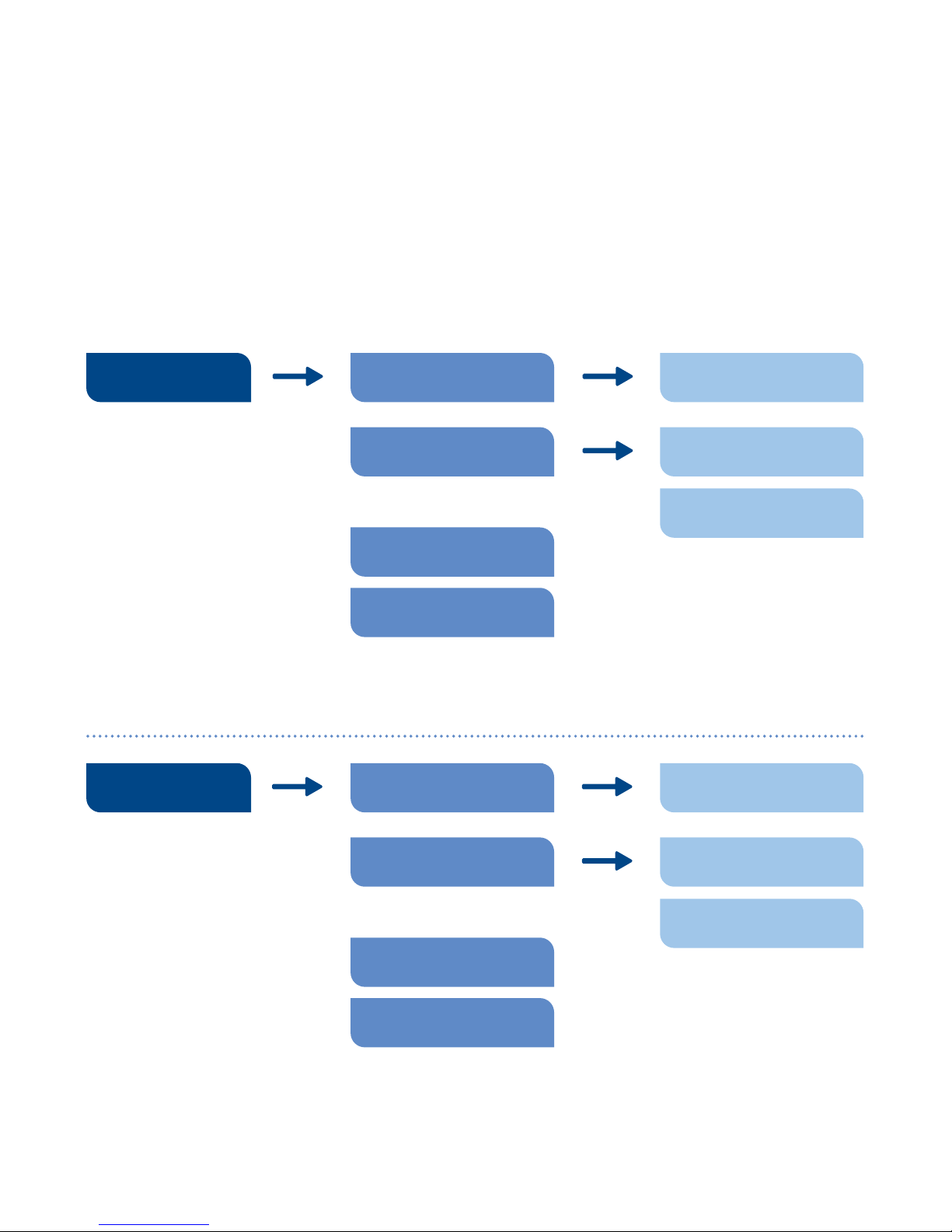
Your contents map
Your AccountElectricity
Daily Target
Meter Info
Prices
History
Today
Daily
Meter Info
Your AccountGas
Daily Target
History
Prices
Today
Daily
Page 16
15
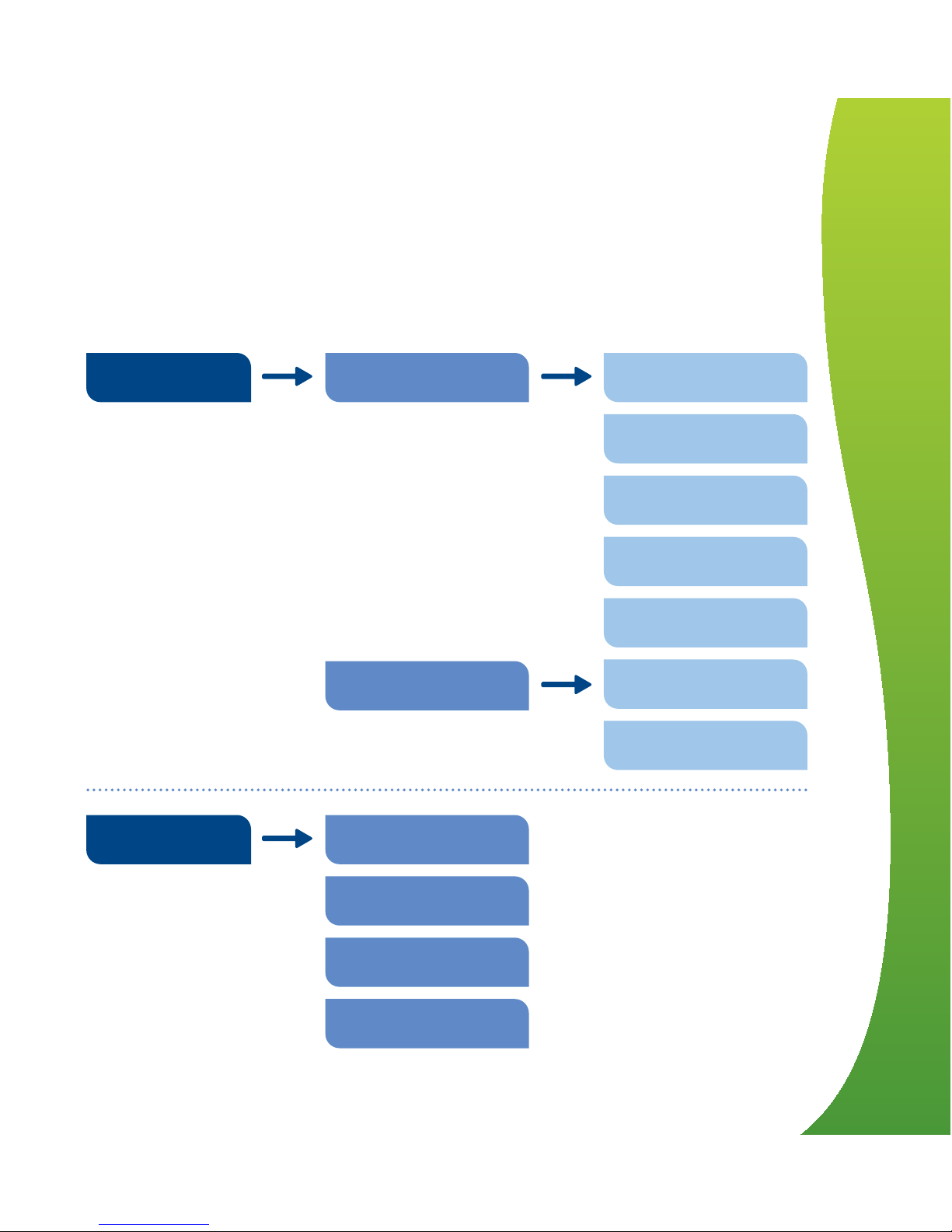
BrightnessDisplaySettings
Alerts
Pop-Ups
Volume
About Tutorial
Product Info
Serial & ID
Radio Info
Usage Light
Timers
Theme
Standby Screen
2
Getting started
Page 17
23/11/15 21:55 75%
Your Target
Source Custom
406W
Threshold
206W
35 kWh
Target
45 kWh
Average Usage
23/11/15 21:55 75%
£1.19 today
5
p/hr
£1.19 today
5
p/hr
16
The great thing about your new Smart Energy Tracker is that it
really lets you take control of your energy use. To help you do
that, you can set targets for your household and see how your
actual energy use measures up.
How do I set targets
for my usage?
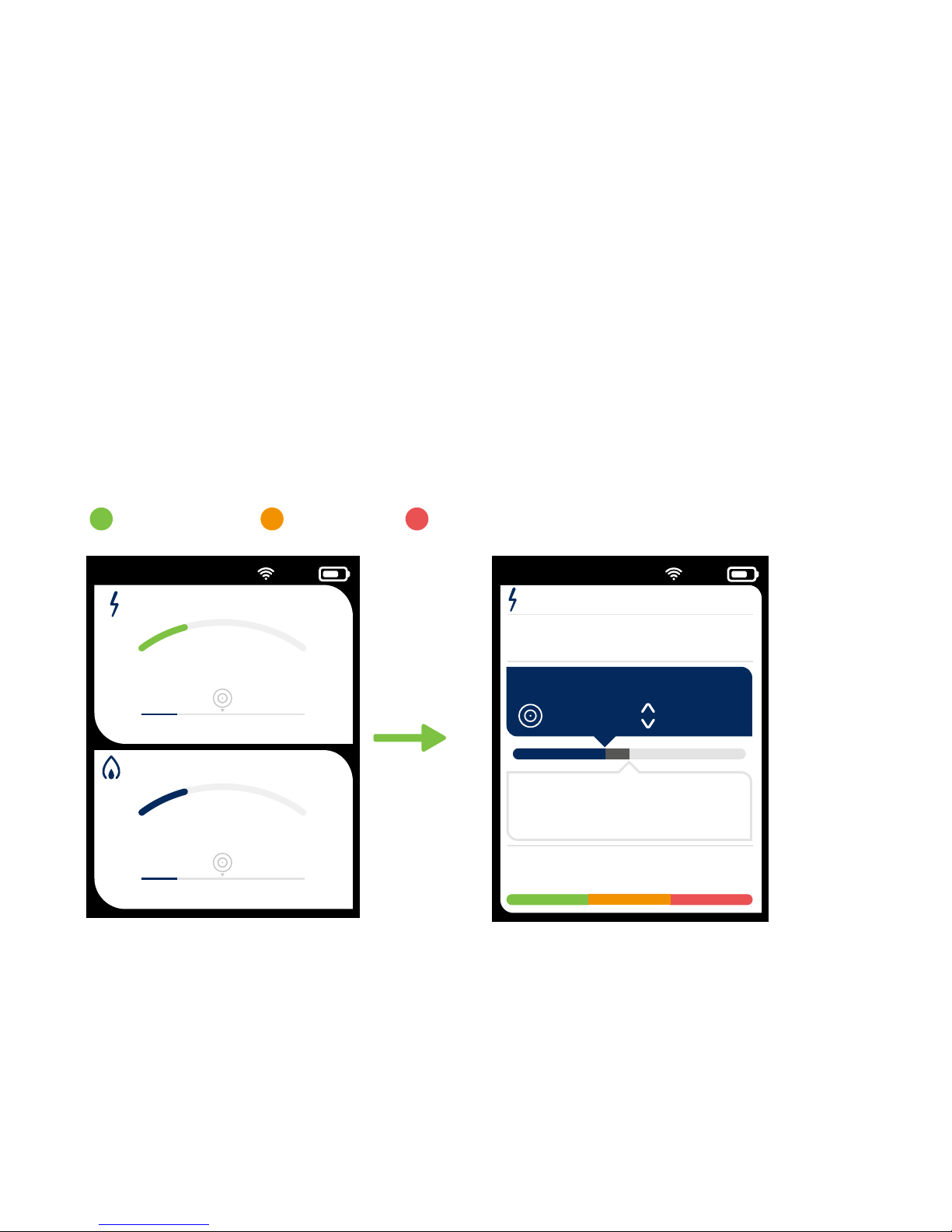
When you set a target, your Smart Energy Tracker will set
a threshold which appears at the bottom of the screen.
Below target On target Over target
Page 18

17
Your usage light also glows dierent colours to let
you know if you're under target (green), on target
(amber) or over (red).
So amber's the one to aim for. Or better still, green.
Set targets
and you can
quickly see
if your energy
use is on track
3
My energy
Page 19

18
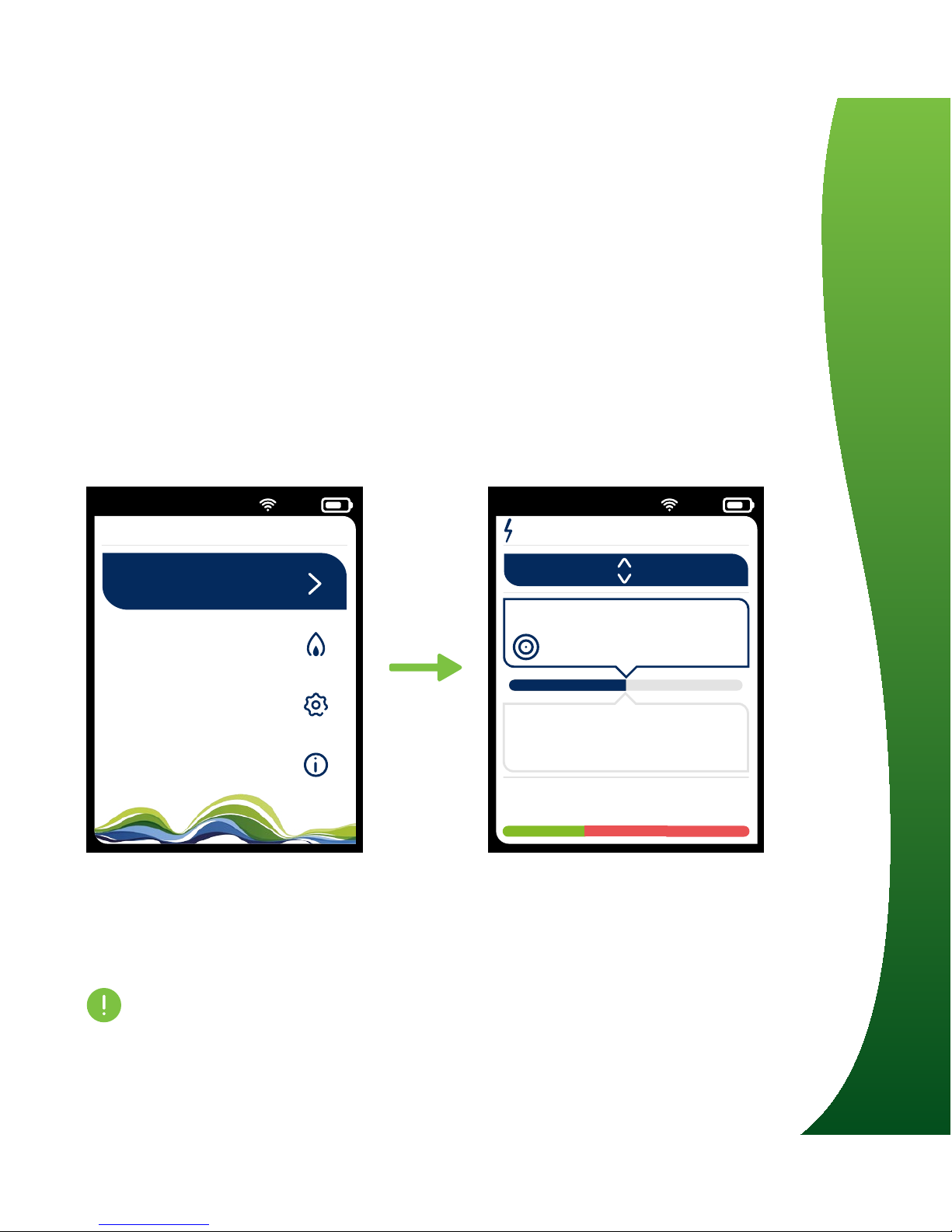
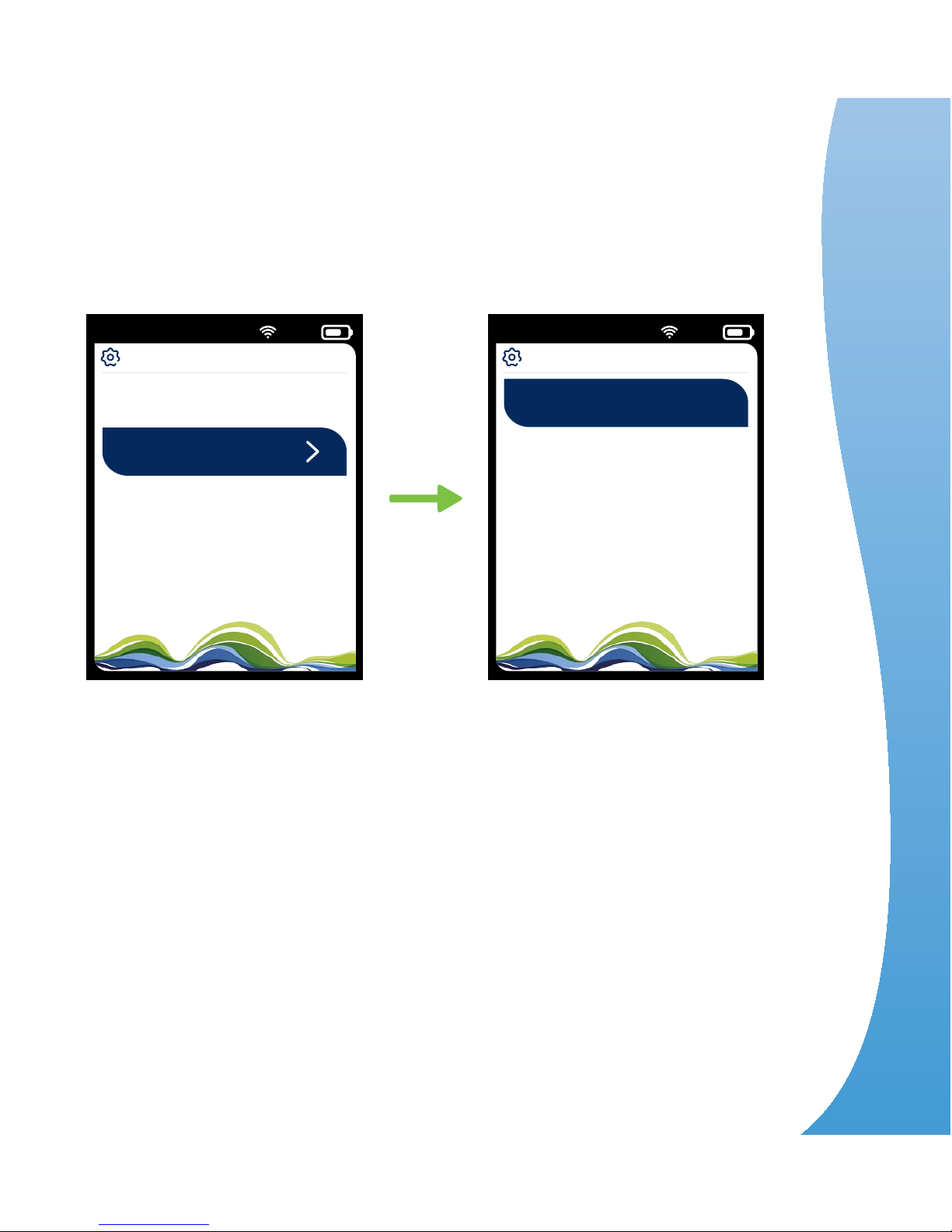
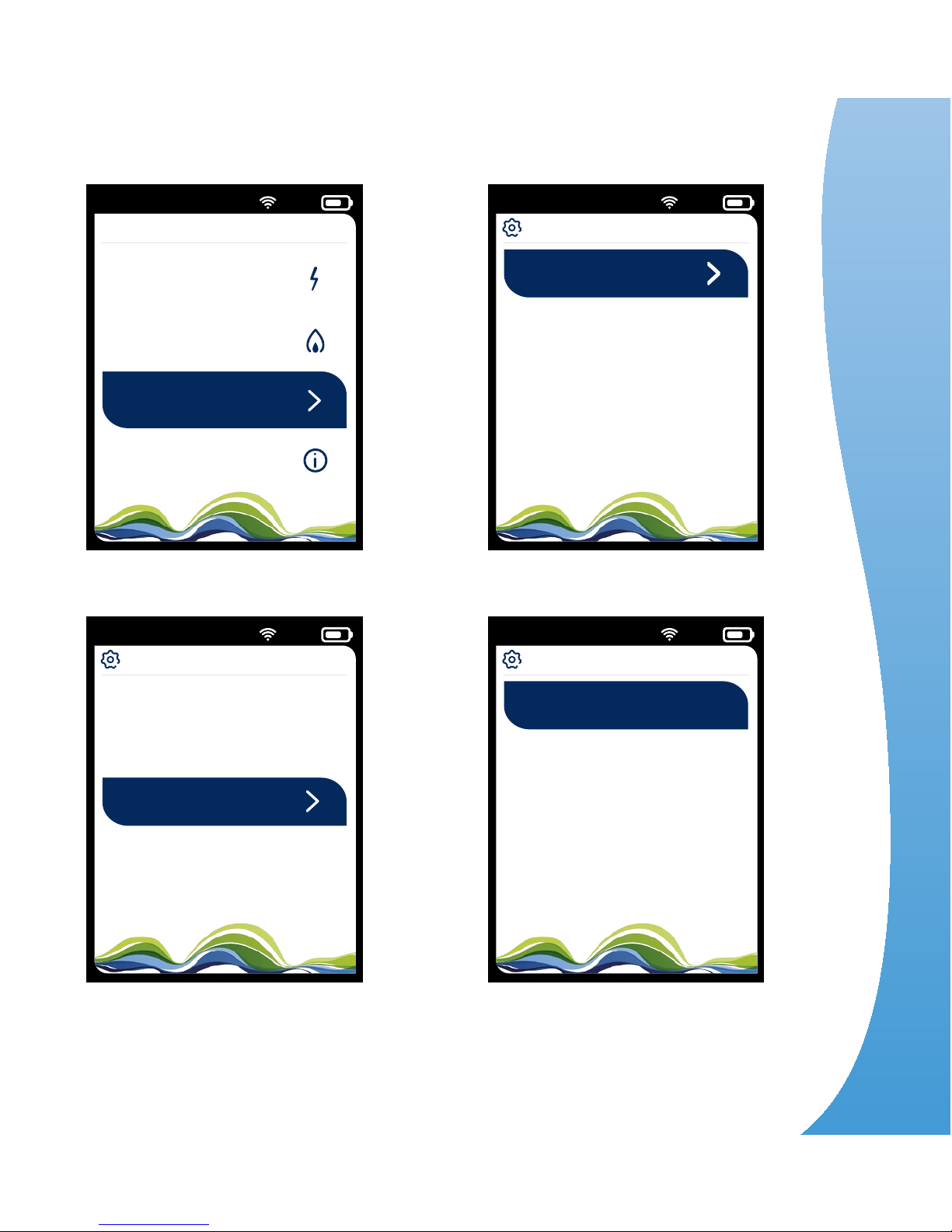
From the Home Page, press ‘OK’ to access the Main Menu.
Use the up/down arrows to select ‘Electricity’ or ‘Gas’, then
select ‘Daily Target’.
At the top of the screen, the ‘Source’ section will highlight
five dierent ways to set your targets.
Use the up/down arrows to scroll through the options
and press OK to go into your preferred target option:
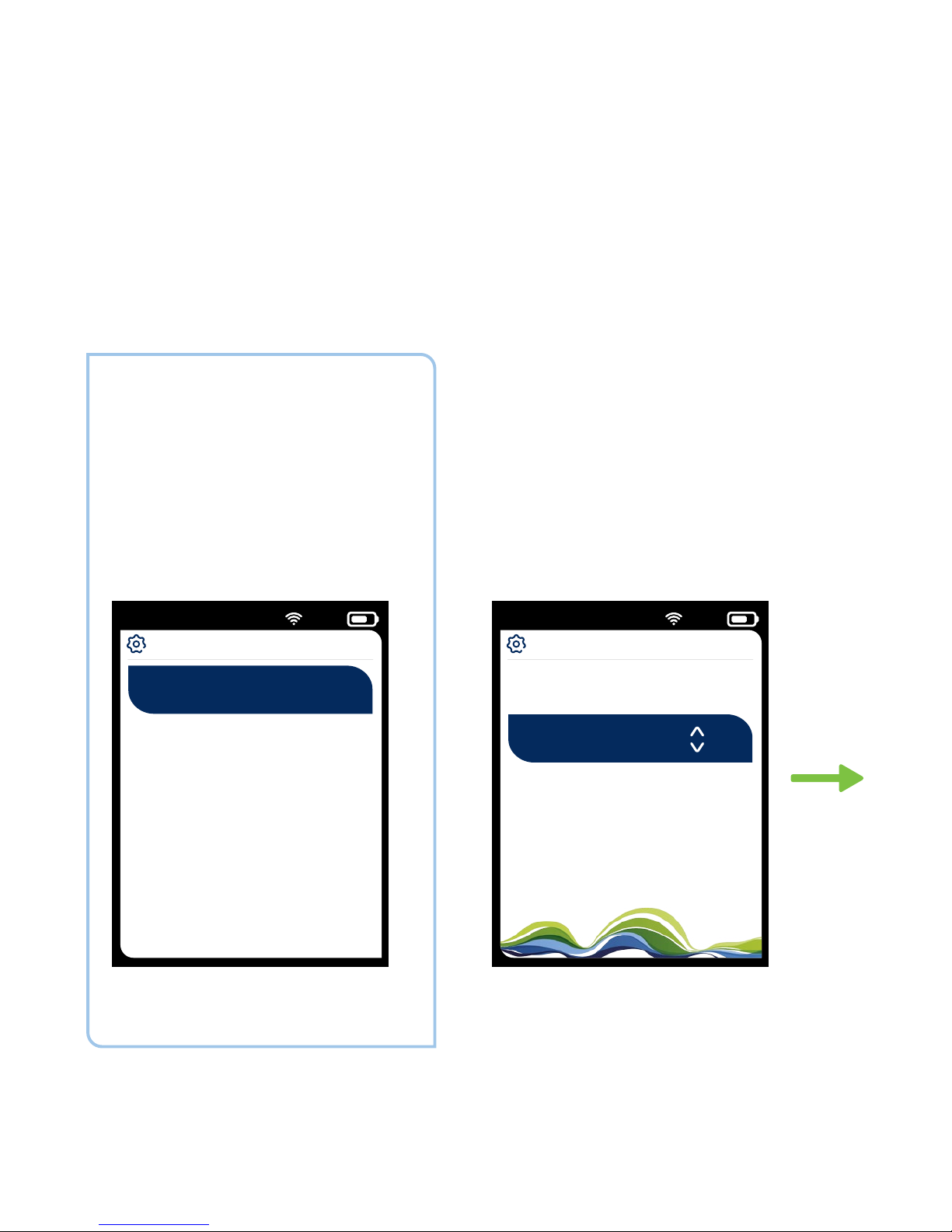
Daily Budget: With this option you can set a target in £/p for the
day. The 'Set Target' section will be highlighted and you can use
the up/down arrows to change your target amount. Press and
hold the up/down arrows for faster increments or decrements.
Once you’ve entered your target amount, press ‘OK’ to confirm.
For guidance on the sort of figure you should be aiming for,
see page 20.
Save 5%: This option works out how much you used yesterday
and sets a new target based with a 5% reduction in kWh.
Of course, this only works after you’ve used your Smart
Energy Tracker for at least two days.
How do I set targets
for my energy use?
Page 20
23/11/15 21:55 75%
Main Menu
Main Menu
Sengs
Electricity
Gas
About
23/11/15 21:55 75%
Tenancy Change
Your Target
8p/hr
Threshold
6p/hr
Source Daily Budget
£1.25
Target
£1.25
Average Usage
19
Save 10%: As above but your new target shows a
10% saving
Save 15%: As above but your new target shows a
15% saving
Custom: Set up in kWh rather than £/p
O: No targets set
These amounts are just an
example. See page 20 for help
on setting targets.
Main Menu > Choose
Electricity or Gas
Use up/down arrows to
scroll through target options
3
My energy
Page 21
20
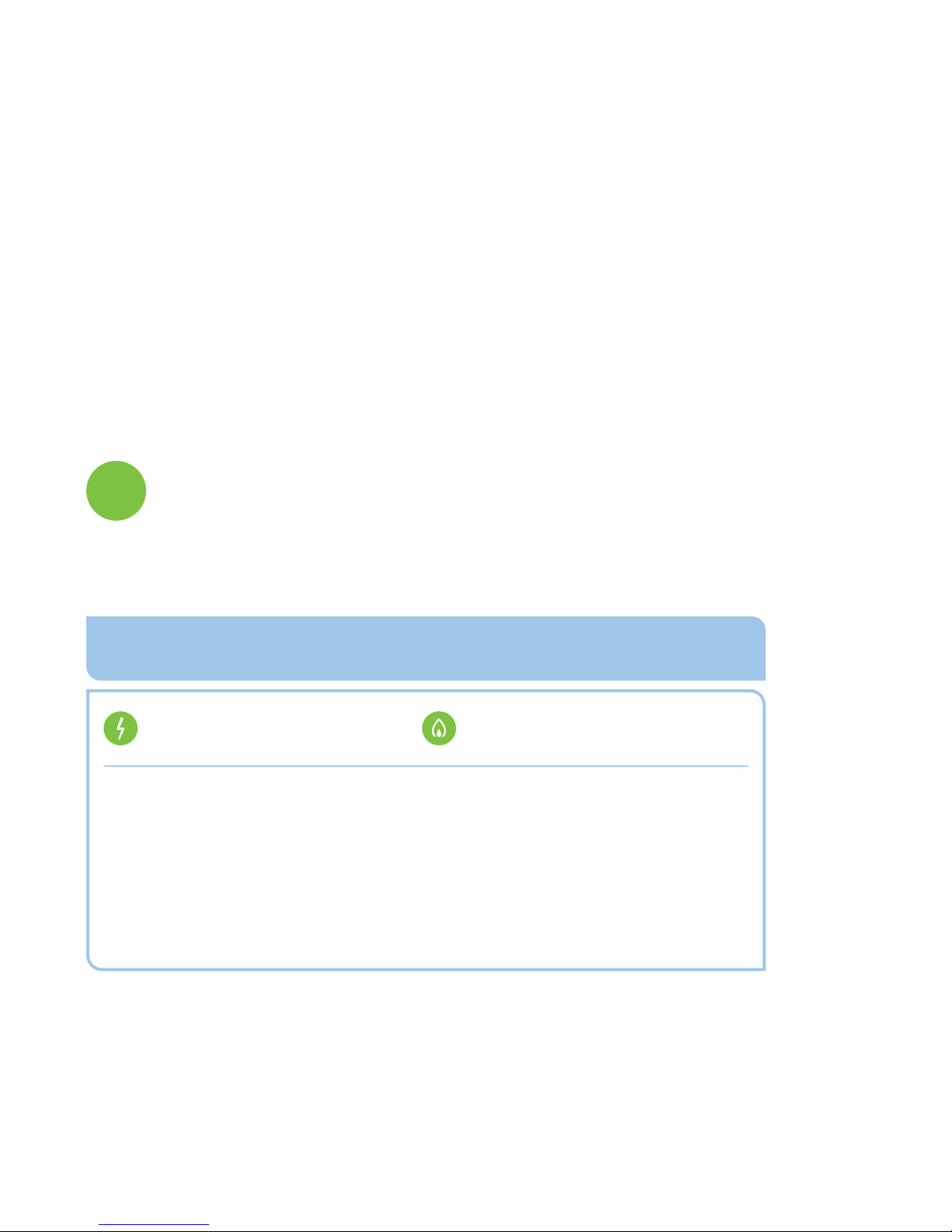
To give you an idea of the sort of target you should be aiming
for, follow these 3 simple steps;
How do I know what
to set my targets to?
Electric annual kWh's
2,000
Gas annual kWh's
8,000
Low usage (kWh's)
1-2 bed flat
1-2 people
Professional lifestyle
Using washing machine once a week
Heating and electrical appliances mainly used evenings & weekends
Using the following tables, work out which energy
average your household falls into: low, medium
or high usage.
1
Page 22
21
Electric annual kWh's
3,100
Gas annual kWh's
12,500
Medium usage (kWh's)
3 bed house
3-4 people
Small family
Using washing machine up to 3 times a week
Heating and electrical appliances being used all day
Electric annual kWh's
4,600
Gas annual kWh's
18,000
High usage (kWh's)
4+ Bed house
5+ people
Large family
Using the washing machine daily
Heating and electrical appliances being used all day
3
My energy
Page 23
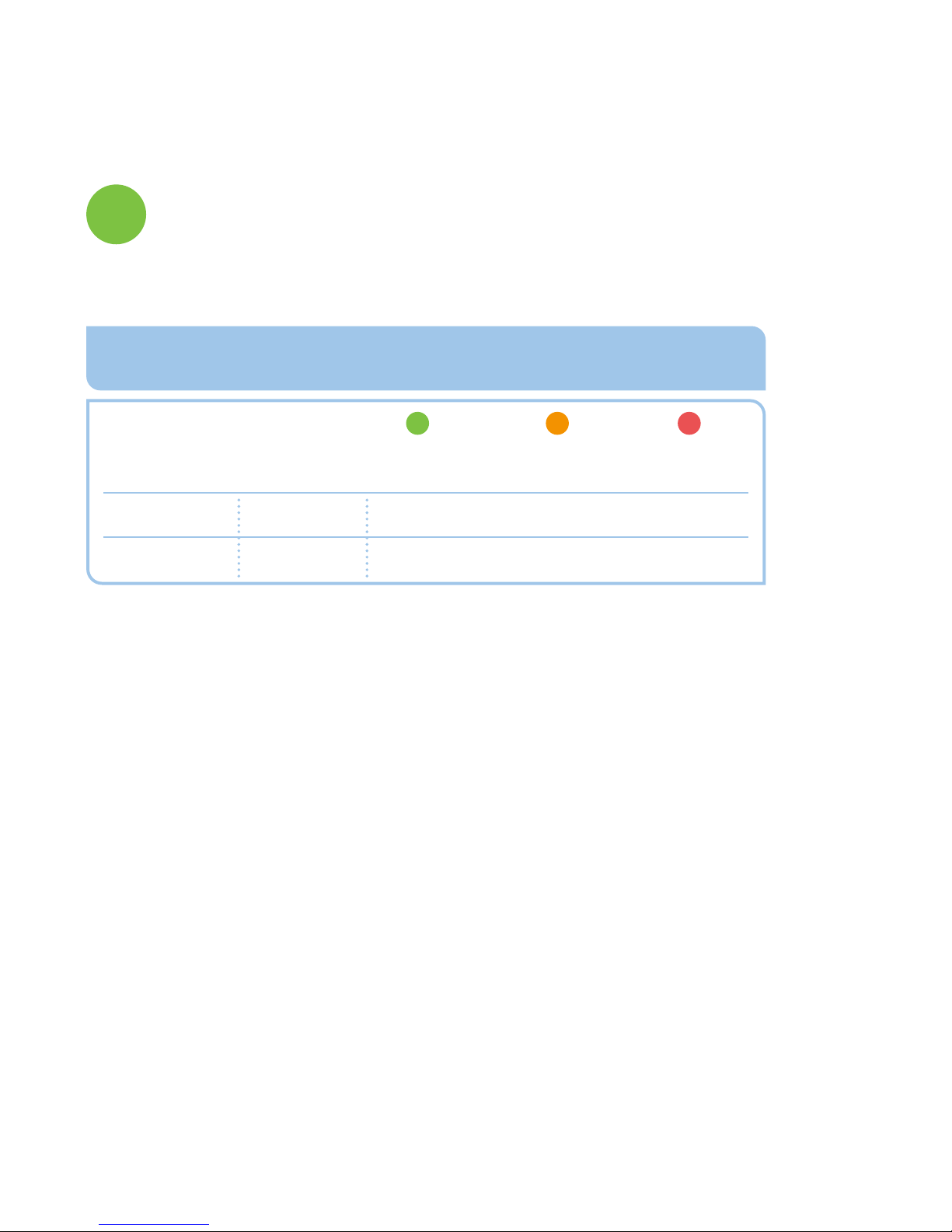
22
Electric
Gas
Medium
daily target
£1.20
£1.47
Price
per unit
Low
daily target
£0.77
£0.94
High
daily target
£1.78
£2.12
14.13p
4.30p
National average daily Gas and Electric expenditure
• Total kWh’s (2000) X Price Per Unit (PPU) 14.13 = 28,260
• 28,260 / 100 = 282.60
• 282.60 / Amount of days kWh’s is calculated over
(1 year – 365 days) = £0.77
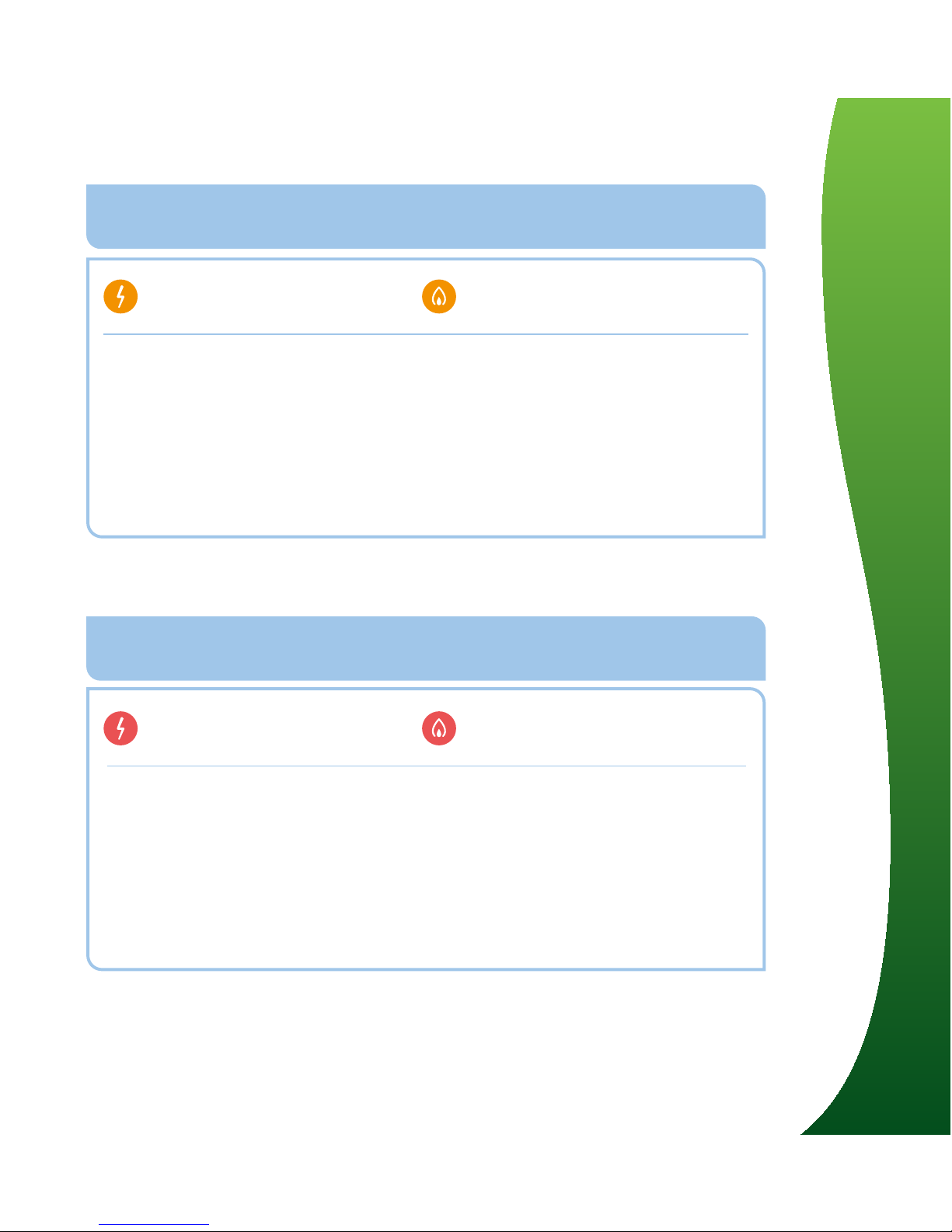
Once you know your usage level (low, medium or high),
refer to the below table to select your daily target for
electric and gas.
Please note these daily targets are based on
general averages and are just intended as a guide.
Each household will vary and you can adjust your
own daily target to suit your own usage whenever you
like. Here's how we calculated these target amounts:-
2
Page 24

23
Seeing how
much you're
actually spending
on energy can
help you save
money
3
My energy
Page 25
23/11/15 21:55 75%
£1.19 today
5
p/hr
£1.19 today
5
p/hr
24
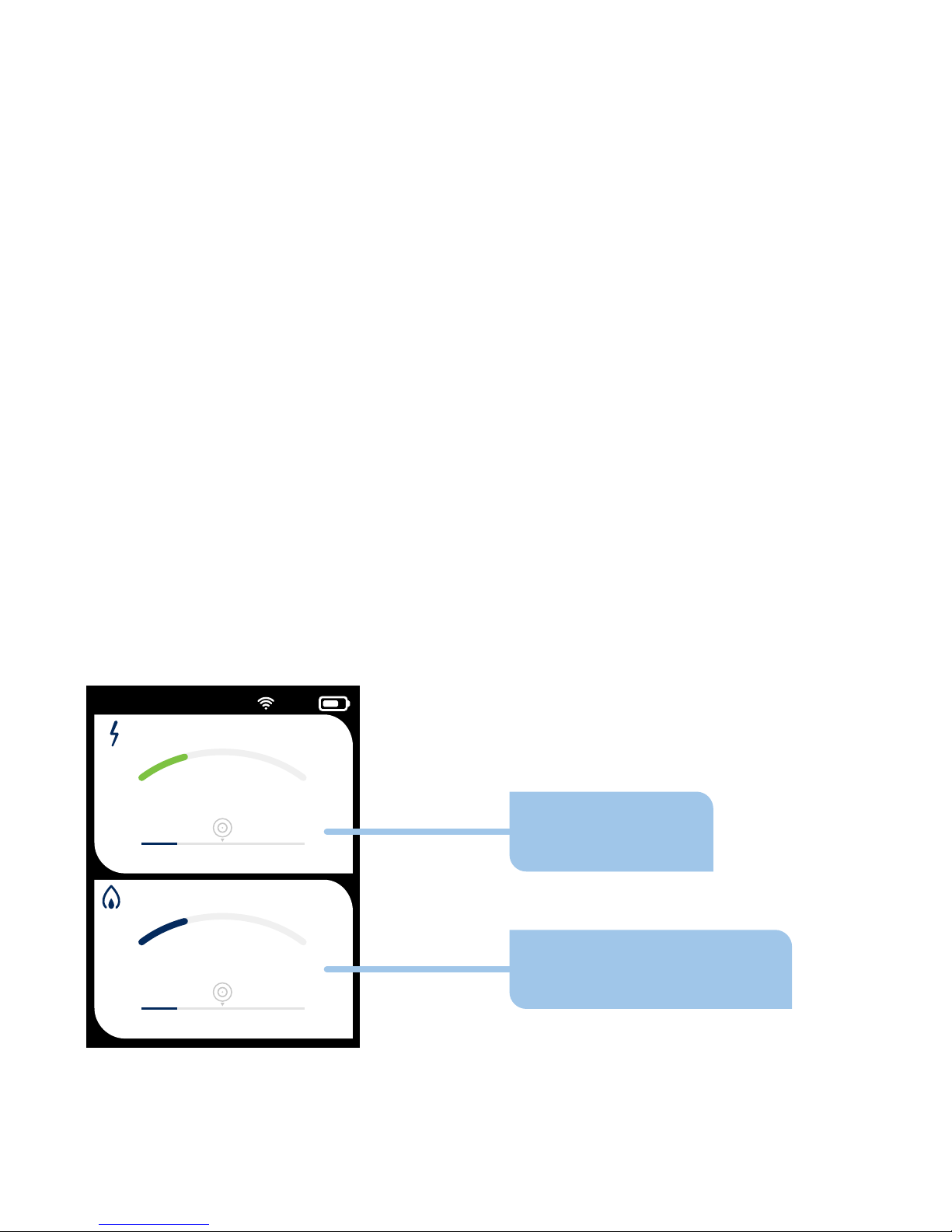
Once you’ve set a target for your energy use, your Smart
Energy Tracker can let you know at a glance how you’re doing.
Home Screen
With a target in place, your screen should now look like this.
This is your home screen and it shows how much energy
you’re using right now. If you don’t have a smart gas meter,
you’ll only be able to see electricity readings.
Current gas use
(updated every 30mins)
Electricity use
indicator
Understanding your
energy use
Page 26
23/11/15 21:55 75%
23/11/15 21:55 75%
23/11/15 21:55 75%
Now
£0.78 Today
5
p/hr
Now
£1.35 Today
18
p/hr
at 21.30
£1.19 Today
5
p/hr
at 21.30
£1.19 Today
5
p/hr
at 21.30
£1.19 Today
5
p/hr
Now
£1.09 Today
11
p/hr
25
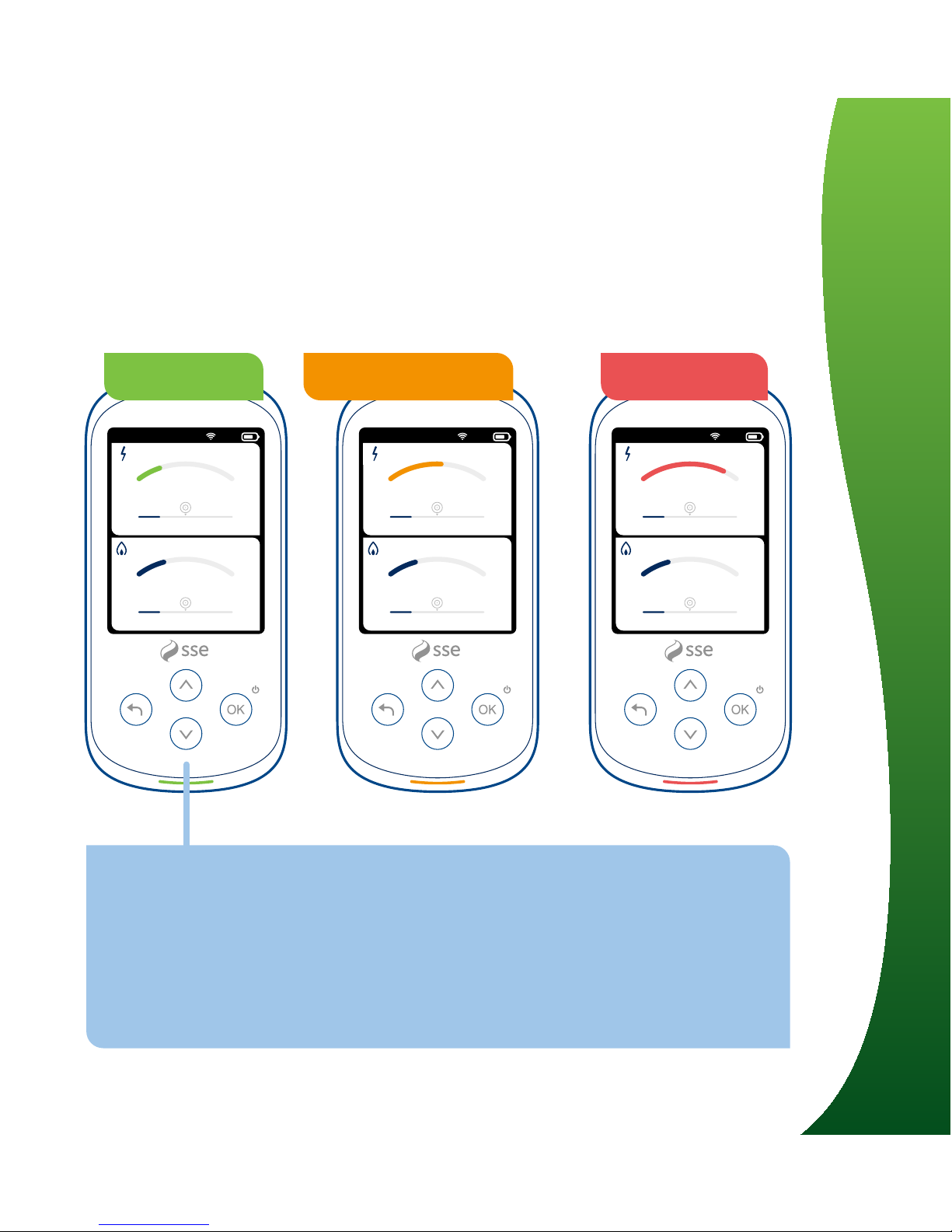
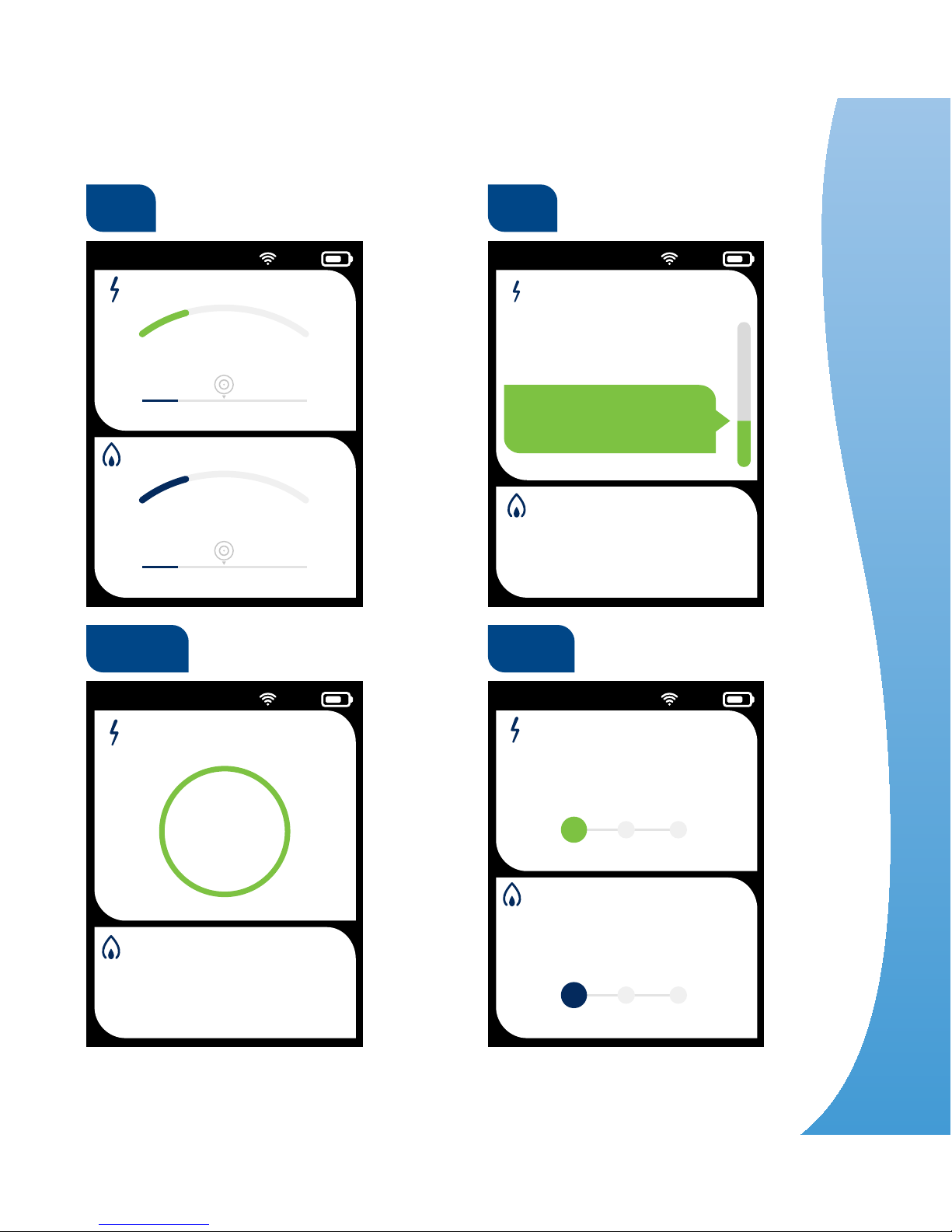
Low Usage Medium Usage High Usage
The arc moves from green to amber to red depending
on whether you’re below your target, on target or over
target. Remember, amber’s good, green’s even better.
Usage light
Your Smart Energy Tracker also has an indicator light
at the base of the unit which glows green, amber or
red depending on how your electricity use compares
against your target.
3
My energy
Page 27

26
On the home screen you’ll be able to see your current energy
use as well as the total amount you’ve used today. You can look
at your energy use in a few dierent ways. You can see:
Electricity
1. What it’s costing you in £/p
2. Your energy consumption in W/kW
3. The amount of CO2 you’re generating
Gas
1. What it’s costing you in £/p
2. Your energy consumption in W/kW
3. The amount of CO2 you’re generating
Which do you prefer?
Cost, energy or CO
2
?
Page 28
23/11/15 21:55 75%
£1.19 today
5
p/hr
£1.19 today
5
p/hr
27
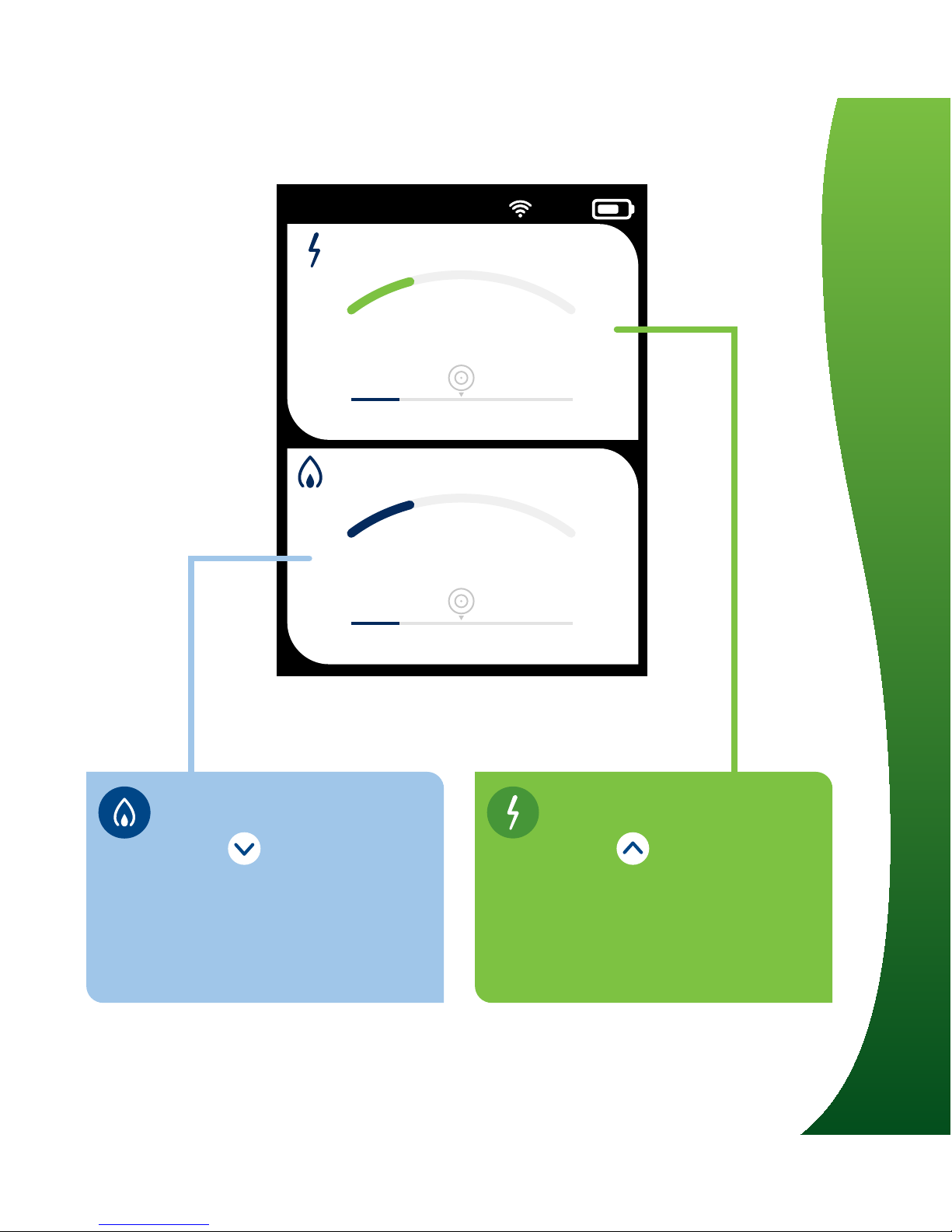
Electricity Use
Press to cycle units
Cost:
Energy:
CO
2
:
p/hr
W or kW
g/hr or kg/hr
Gas Use
Press to cycle units
Cost:
Energy:
CO
2
:
p/hr
W or kW
g/hr or kg/hr
3
My energy
Page 29
23/11/15 21:55 75%
23/11/15 21:55 75%
£1.19 today
5
p/hr
£1.19 today
5
p/hr
28
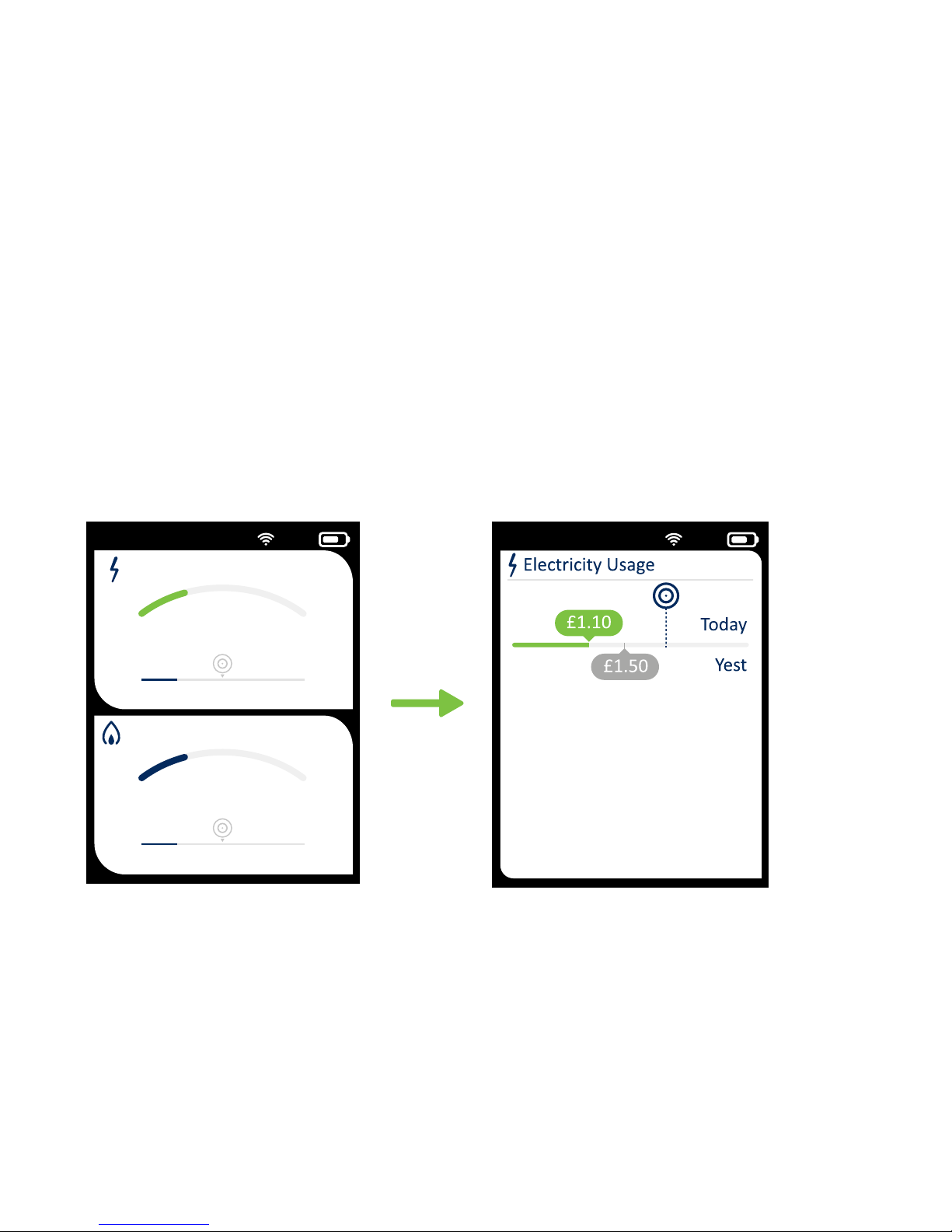
Another great thing about your Smart Energy Tracker is that
you can look at your energy use today and make a direct
comparison with yesterday – which means you have
greater control. Here’s how it works:
How do I compare
my energy use?
You should now see usage
for 'Today' & 'Yesterday'
Press up/down to switch
between your Gas and
Electricity usage
From your home screen,
press and hold the
back button
Page 30
23/11/15 21:55 75%
Today
Daily
History
23/11/15 21:55 75%
Today’s History
23:00 - Now
1.35kWh
0:00 12:00 23:59
23/11/15 21:55 75%
Daily History
So far Today
£0.95
8 kWh
60% Below Target
29
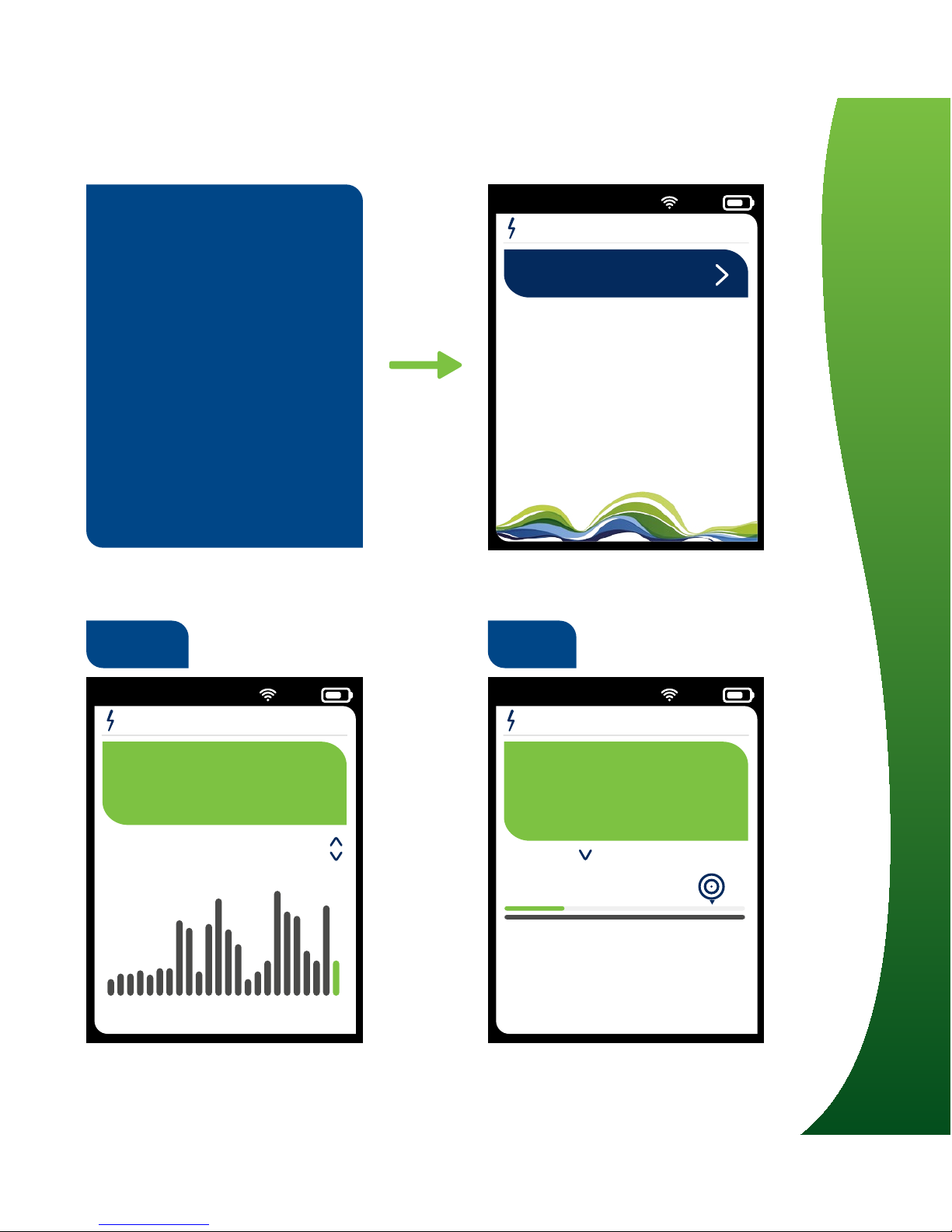
Check your History:
From your Gas or
Electricity menu,
Select ‘History’
Select ‘Today’ and
you’ll see an hour
by hour breakdown
Select ‘Daily’ and
you’ll see the total
amount for the day
Press the 'down’ button
to look at yesterday’s
usage here too.
Today
Daily
3
My energy
Page 31
23/11/15 21:55 75%
Sengs
Electricity
Gas
About
Main Menu
Main Menu
23/11/15 21:55 75%
30
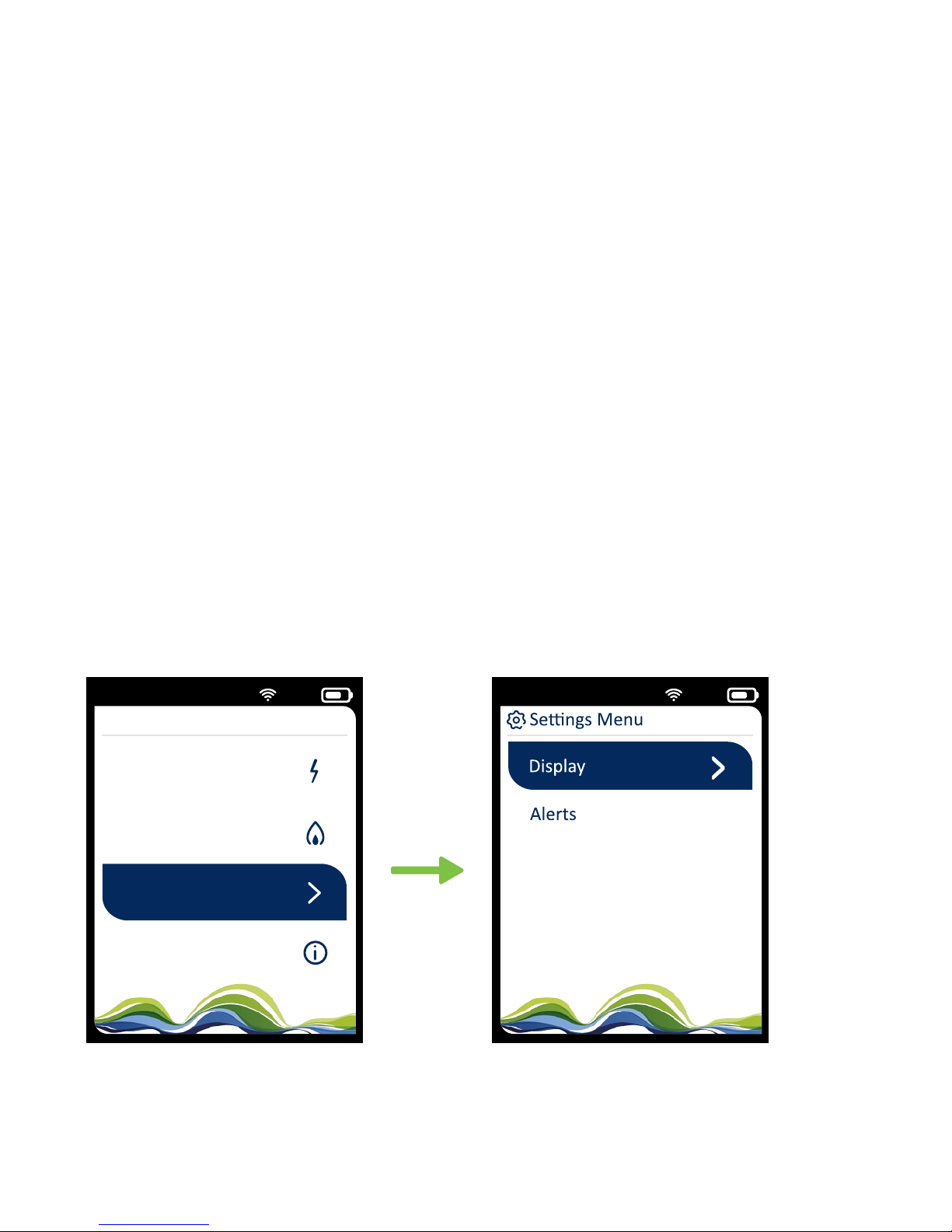
Want to change the way the display looks? Or switch o the
energy usage light? Need to switch on a couple of alerts?
You can.
Get into the 'Settings' menu and you can tinker a little
to make your Smart Energy Tracker work just the way
you want.
I want to change
the way it works
Page 32

31
Make your Smart
Energy Tracker
work just the
way you want
4
Do more
Page 33
23/11/15 21:55 75% 23/11/15 21:55 75%
Brightness
On Mains
50%
On Baery 50%
32
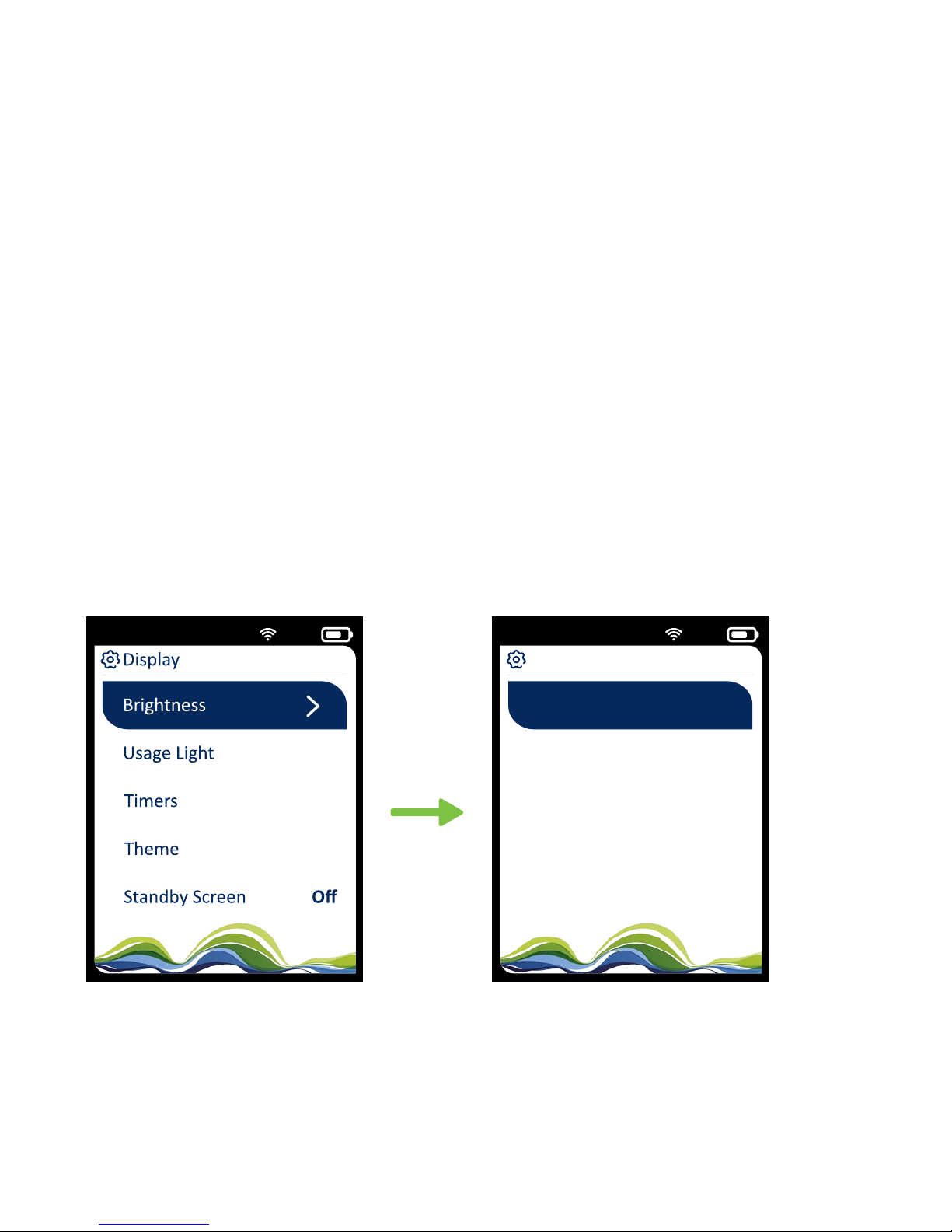
How do I change
the brightness?
Screen brightness
You can choose your own settings for screen brightness when
running on mains and battery.
When running on the battery, if you reduce the brightness,
you’ll save energy and the battery will last longer.
Settings > Display >
Brightness > Press OK
Use the up and down arrows
to select brightness
Page 34
23/11/15 21:55 75%
Display
Timers
Brightness
Usage Light
Theme
Standby Screen Off
23/11/15 21:55 75%
Usage Light
Brightness (Baery)
50%
Brightness (Mains)
50%
33
Usage light (shows energy use at the base of your unit)
You can choose your own settings for the usage light
brightness when running on mains and battery.
When running on the battery, if you reduce the
brightness, you’ll save energy and the battery will
last longer.
The usage light is at the base of the unit and shows how
your electricity use compares with your target by glowing
green, amber and red. You can alter the brightness.
Use the up and down arrows
to select brightness
Settings > Display >
Usage light > Press OK
4
Do more
Page 35

34
How do I change
the timer?
Home page
Your Smart Energy Tracker automatically jumps from your
current screen back to the home screen after a period of
time. Here you can decide how long before that happens.
Standby
After a period of inactivity, your Smart Energy Tracker will go
into standby mode. It’s set for 3 minutes but you can change
how long before it switches to standby.
Keep your
battery charged
so you can always
see your usage
for yesterday
and today
Page 36
23/11/15 21:55 75%
Sengs
Electricity
Gas
About
Main Menu
Main Menu
23/11/15 21:55 75%
Display
Timers
Brightness
Usage Light
Theme
Standby Screen Off
23/11/15 21:55 75%
Sengs Menu
Display
Alerts
23/11/15 21:55 75%
Timers
Home Page
30s
Standby 1min 30s
35
Main Menu > Settings >
Press OK
Display > Press OK
Timers > Press OK > Choose Home
Page or Standby > Press OK
Use arrows to change the
time > Press OK
4
Do more
Page 37
23/11/15 21:55 75%
Theme
Colour
Default
Home Page Arc
23/11/15 21:55 75%
Colour
Default
Home Page
Theme
36
Theme
Within themes you can change
the appearance of the display
on your Smart Energy Tracker.
You can invert the colours,
which may help if you are
colour blind.
How do I change the
way it looks?
Home page
You can change the way the
Home Page looks, and switch
between 4 dierent styles by
using the up and down buttons,
although your device is
pre-set to Arc.
Settings > Display > Theme
> Colours
Settings > Display > Theme
> Home Page
Page 38
23/11/15 21:55 75%
£1.19 today
5
p/hr
£1.19 today
5
p/hr
23/11/15 21:55 75%
5g/hr
£1.19 today
2.19kg today
CO
2
at 21:30
Cost
Now
p/hr
6
23/11/15 21:55 75%
6
p/hr
£1.19 today
5
p/hr
£1.52 today
23/11/15 21:55 75%
p/hr6
p/hr
6
£1.19 today
£0.86 today
37
Circle Dots
BarArc
4
Do more
Page 39
23/11/15 21:55 75%
£2.05
Today
23/11/15 21:55 75%
Display
Brightness
Usage Light
Theme
Standby Screen
Timers
Off
38
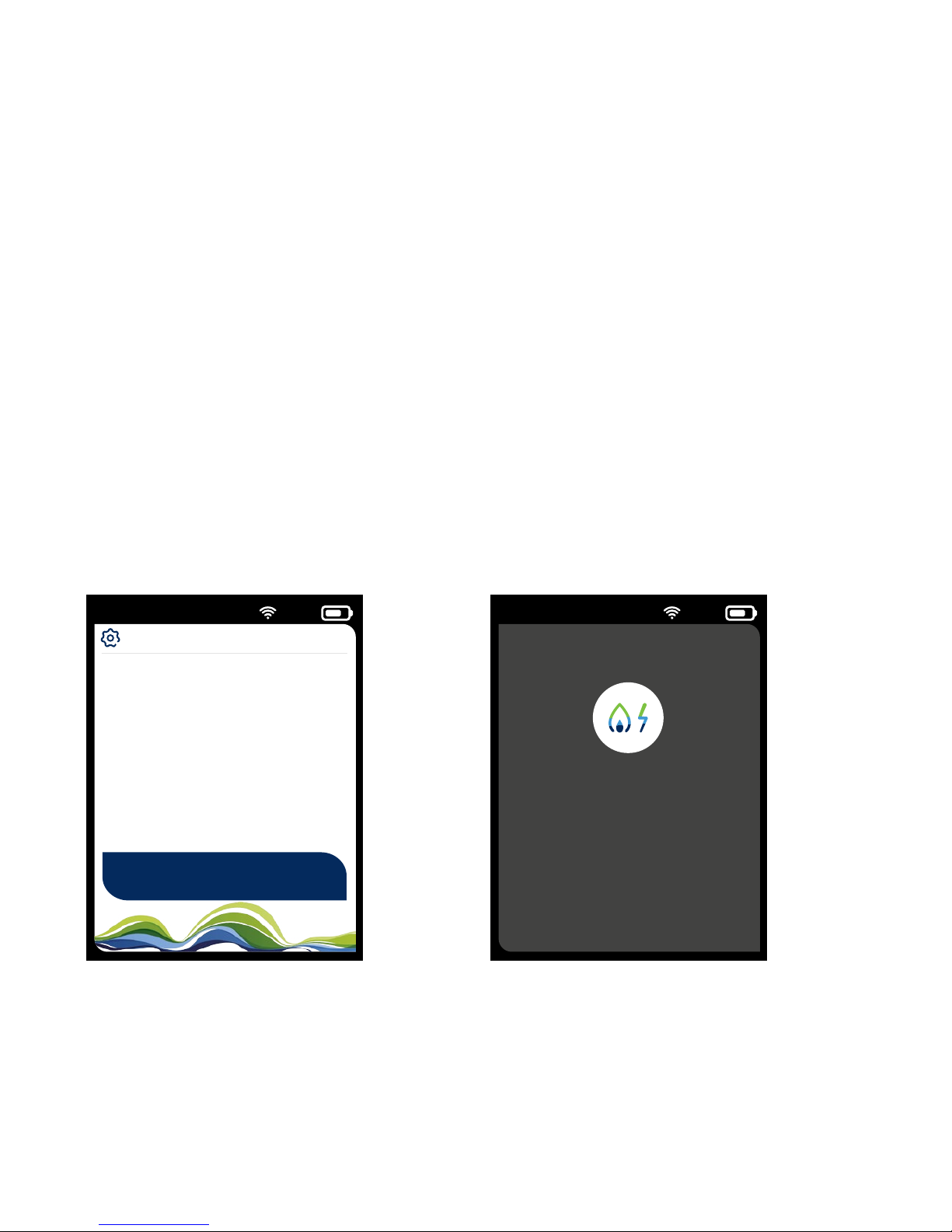
When your Smart Energy Tracker goes into standby mode after
a period of inactivity, by default it’ll display a summary of your
energy use.
You can also switch o the 'Standby' display in your 'Settings'
to save energy and extend battery life:
How do I change
the standby screen?
In Standby Screen, the
display shows a summary
of your energy use.
Turn standby o
Settings > Display > Standby
Screen > O
Page 40

39
Extend your
battery life
by changing
the ‘Standby’
settings
4
Do more
Page 41
23/11/15 21:55 75%
Alerts
Pop-Ups
Volume
23/11/15 21:55 75%
Pop-Ups
Target
New Message
New Price
Off
Off
On
Weak Signal On
40
How do I change
my alerts?
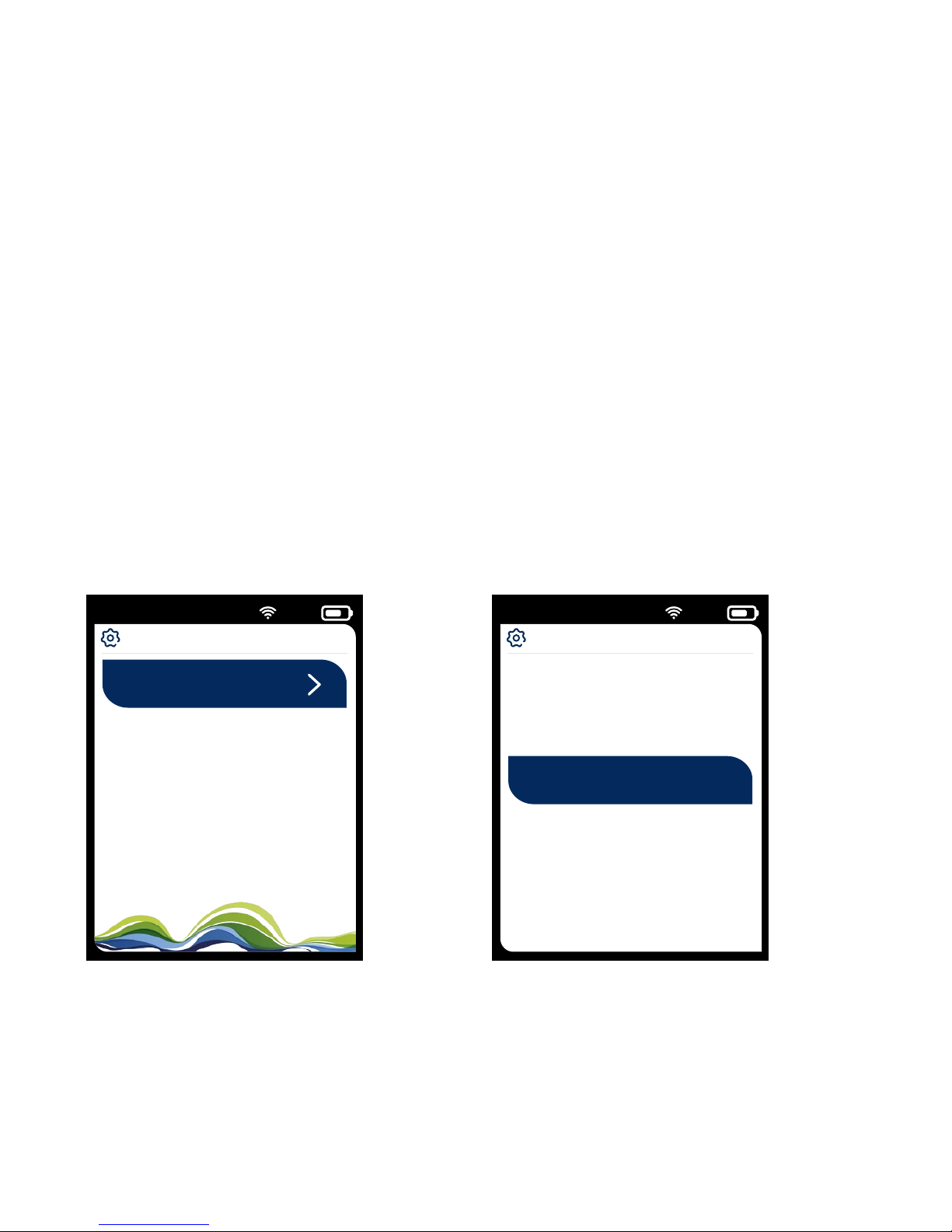
Your Smart Energy Tracker will let you know when certain things
happen. You can use the up and down buttons to select what
option you want. You can also switch o pop-ups if you prefer.
Approaching Target
When your energy use gets close to your target, a pop-up window
will appear on the display.
Approaching target
Settings > Alerts >
Pop-Ups > Target > O
Approaching target
Settings > Alerts >
Pop-Ups > Target
Page 42
23/11/15 21:55 75%
Pop-Ups
Target
New Message
New Price
Off
Off
On
Weak Signal On
23/11/15 21:55 75%
Volume
Other Alerts
Credit Alerts Med
High
41
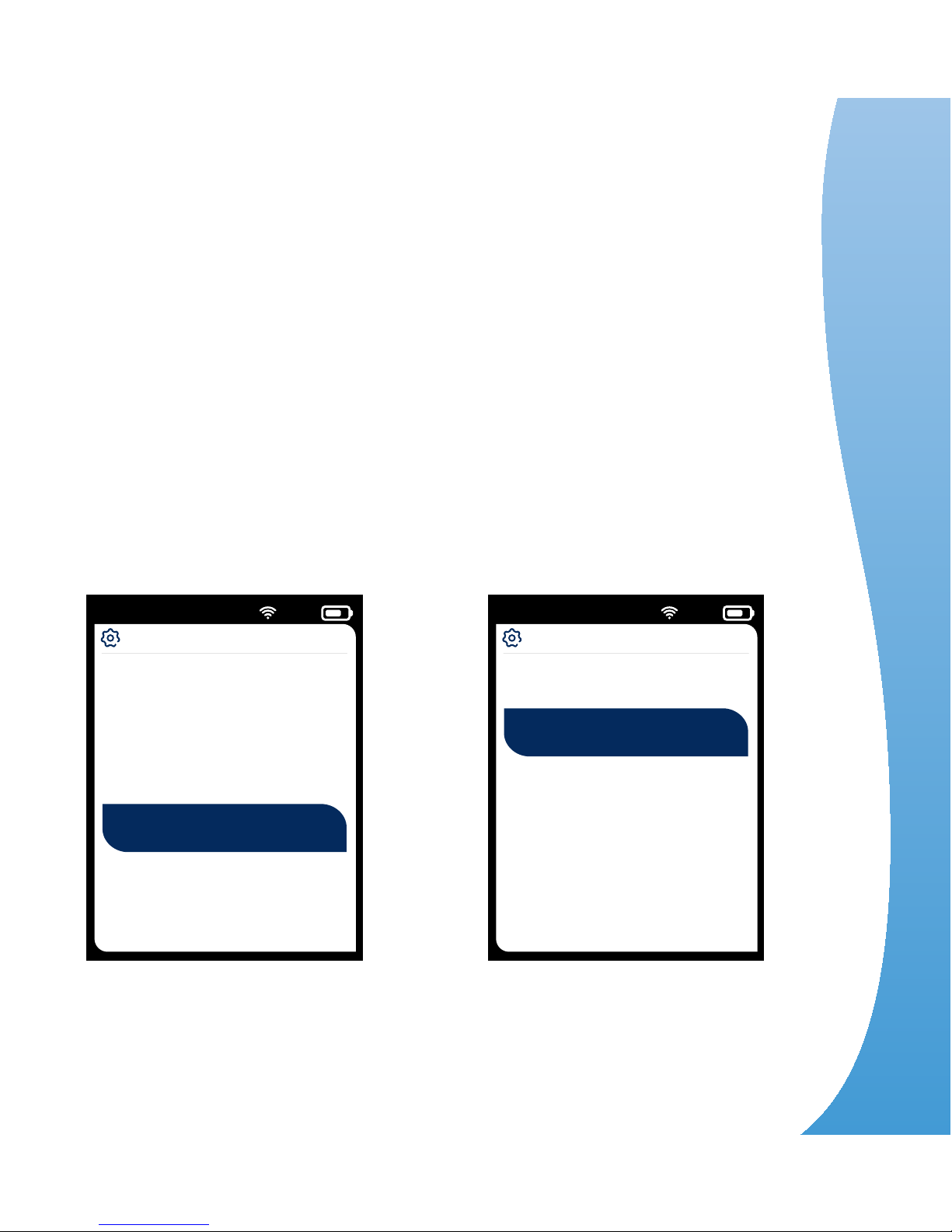
Weak signal
Settings > Alerts > Pop-Ups >
Weak Signal > Select option
Low battery
Settings > Alerts > Volume
> Other Alerts > Select option
Weak Signal
You can set an alert to let you know if your Smart
Energy Tracker is too far away from your meter. A popup window will appear telling you there’s a weak signal
between your Smart Energy Tracker and your meter.
Low Battery
When your battery starts to run low, your Smart Energy
Tracker is set to give an audible signal – a ‘beep’.
4
Do more
Page 43
23/11/15 21:55 75%
Sengs
Main Menu
Electricity
Gas
About
23/11/15 21:55 75%
Electricity Menu
Daily Target
Your Account
History
Meter Info
42
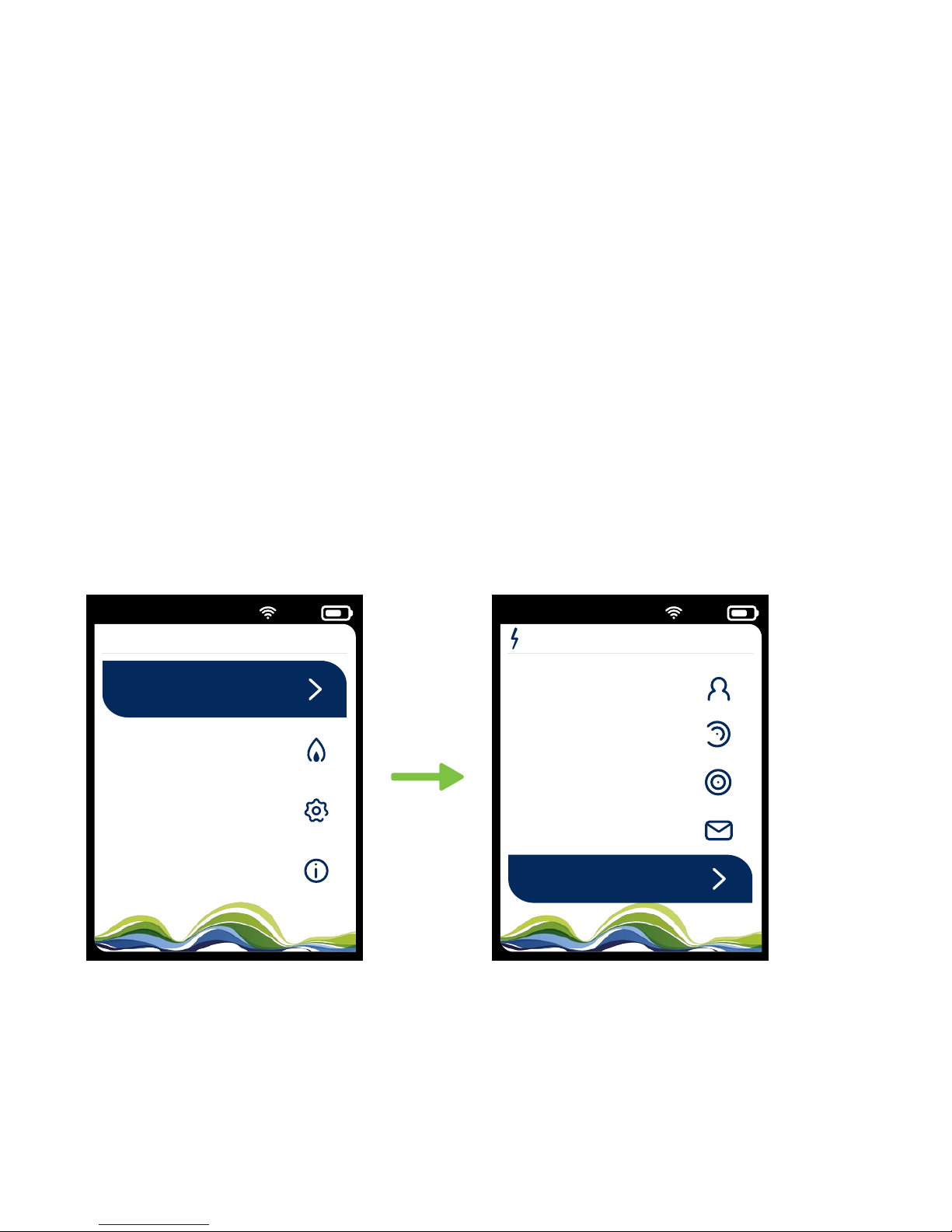
With your Smart Energy Tracker it's easy to check a few
important details on your account. Always good to know.
Check your Meter Info
Under this option, you can see the details of your
meter, including your current reading.
How do I check
my account?
Meter info
Home page > Main Menu >
Electricity (or Gas) > Meter Info
Page 44
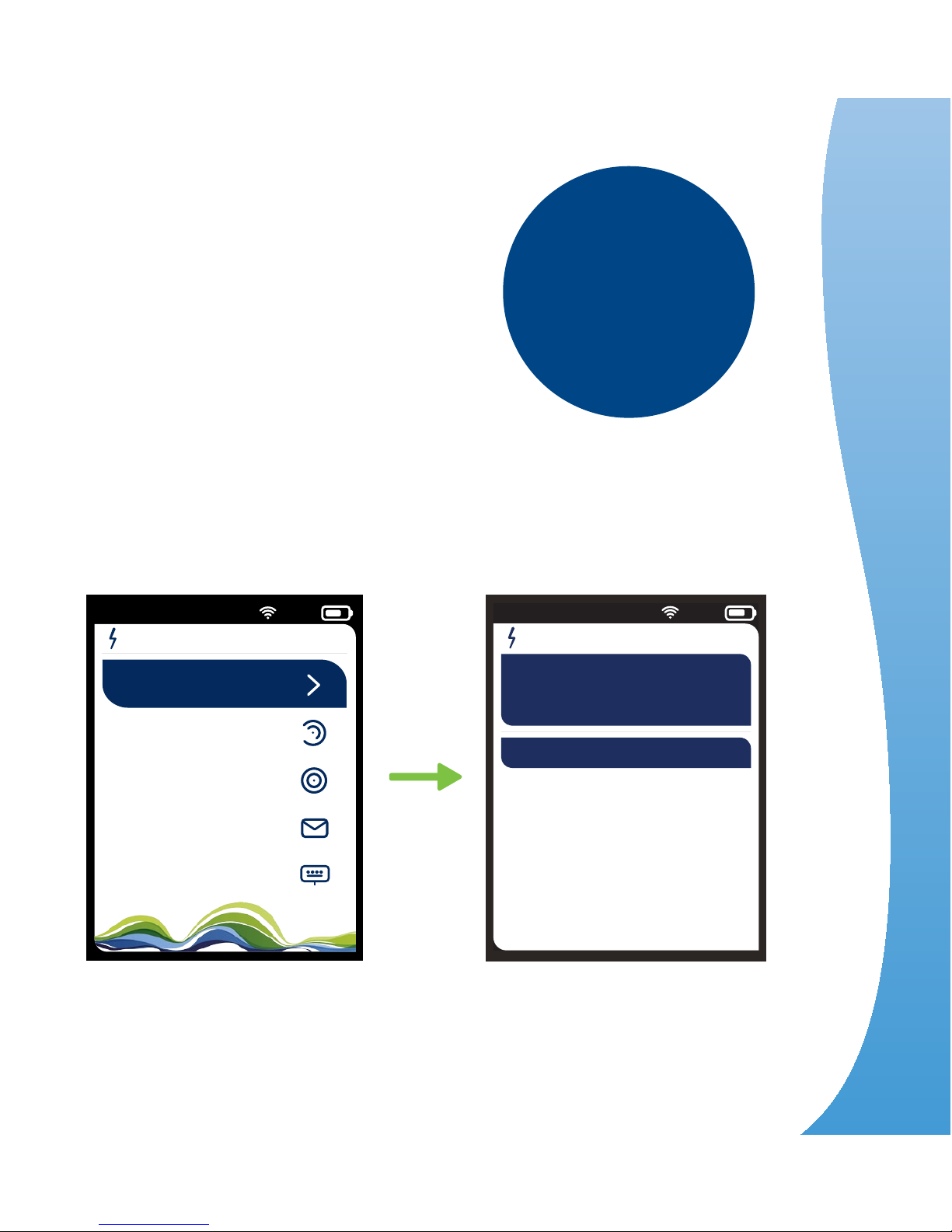
23/11/15 21:55 75%
Electricity Menu
Daily Target
Your Account
History
Messages
Meter Info
23/11/14 21:55 75%
Prices
Standing Charge
15.55p/Day
18.5p/kWhUnit rate
43
Check prices
Here, you can see your current Standing Charge
and your Unit Rate.
Your standing charge
Home page > Main Menu >
Electricity (or Gas) > Your
Account > Prices
You can view
your current meter
reading without
needing to look
at your meter
4
Do more
Page 45
44
If you’re having a spot of bother with your new Smart Energy
Tracker, you can always talk to our Customer Services team.
Just call us on 0800 052 0133 and we’ll do what we can
to help. But first, try our troubleshooting guide. It might be
something really simple...
Help.
I'm having trouble.
My Smart Energy Tracker won’t switch on
What's up What to do
Did you press the
right button?
Press and hold OK for
2 seconds
The battery may not have
enough charge
Connect the USB adapter
See page 9
It may be a glitch Reboot your Smart Energy
Tracker, see page 49
If it refuses to switch on,
the battery or USB adapter
may be faulty
Give us a call and we’ll sort
it out
Page 46
45
The screen is blank
What's up What to do
It may be a glitch Reboot your Smart Energy
tracker, see page 49
My Smart Energy Tracker isn’t showing
or updating my energy use, or my history
What's up What to do
We only update your gas
use every 30 minutes
Leave it an hour then
try again
The signal icon will
appear red
When your Smart Energy
Tracker is connected, the
signal icon will appear white
Your Smart Energy
Tracker may have lost
its connection to your
smart meter
Move your Smart Energy
Tracker closer to your
meter - within 2 metres
If the signal icon is
white and the problem
continues it may be a
connection problem
Restart your Smart Energy
Tracker. Press and hold OK
then select Restart from
the menu
5
Any questions?
Page 47
46
My Smart Energy Tracker doesn’t work
when the USB adapter’s disconnected
What's up What to do
The battery may not have
enough charge
Make sure the battery’s at
100% before disconnecting
the USB adapter
The battery’s not
connected
Connect the battery
See page 8
It may be a glitch Reboot your Smart Energy
Tracker See page 49
If the battery’s fitted
correctly and it’s showing
100% charge but the
problem continues, then
it may be a faulty battery
Pop the battery out, give
us a call and we’ll send you
another. Until then, you can
still use your Smart Energy
Tracker with the USB adapter.
The battery icon is flashing
What's up What to do
The battery’s not
connected
Connect the battery
See page 8
If the problem continues
and you’re sure the
battery’s fitted correctly,
it may be faulty
Pop the battery out, give
us a call and we’ll send you
another. Until then, you can
still use your Smart Energy
Tracker with the USB adapter.
Only fit the
battery that
came with your
Smart Energy
Tracker or one
we give you
Page 48
47
I can’t switch my Smart Energy Tracker o
What's up What to do
Have you done it properly? Press and hold OK for 2
seconds and choose 'Power
O' from the menu
It may be a glitch Reboot your Smart Energy
Tracker See page 49
You don’t have
to switch o
your device
every time.
If Standby
is active, it’ll
simply go
to sleep.
You can
choose which
of the alerts
beep by going
into 'Settings'
What's up What to do
Audio alerts, ‘beeps’, only
work with some alerts
Check your 'Alerts' set-up
in 'Settings' See page 41
It may be a glitch Reboot your Smart Energy
Tracker See page 49
Alerts are set to silent Check your 'Alerts' set-up
in 'Settings' See page 41
There are no beeps from my Smart Energy
Tracker when an alert pops up
Nothing happens when I press the buttons
What's up
What to do
It may be a glitch Reboot your Smart Energy
Tracker See page 49
5
Any questions?
Page 49
48
Keep your device charged.
If the battery goes flat, you’ll lose
your data and it will take a couple
of days until you can see your full
energy use again.
If the problem continues your
Smart Energy Tracker may be faulty.
Give us a call on 0800 052 0133
and we’ll sort it out.
Usage light isn’t on
What's up What to do
It’s been switched o
in 'Settings'
Switch on in 'Settings'
See page 33
It may be a glitch
Reboot your Smart Energy
Tracker See page 49
We’d suggest
you leave the
Usage Light
on. It lets you
see at a glance
whether your
electricity use
is on target.
Page 50
49
OK, let’s start again. A lot of the time, glitches can be sorted
out simply by rebooting your Smart Energy Tracker. Sounds
technical, but it isn’t. Here’s how it’s done:
How to reboot your
Smart Energy Tracker
1
Disconnect the USB adapter and remove the
battery cover
2
Pop the battery out carefully
Wait 60 seconds. Remember taking your battery out
will lose your data history
3
Replace the battery
4
Replace the battery cover
5
Reconnect the USB adapter
6
Your Smart Energy Tracker should re-connect within
2 minutes, but it may take up to 30 minutes for your
current energy data to appear
5
Any questions?
Page 51

50
Just a sec.
I have a question...
Where do I put my Smart Energy Tracker?
Ideally, somewhere you can keep an eye on it, so you can
check regularly how much energy you’re using. It needs to
sit about 2 metres from your smart meter (but it’s OK to carry
it around the house with you). And it needs to be kept dry.
Does the Smart Energy Tracker factor in the energy I use from
alternative sources, such as solar panels or windmills.
No. It only measures the energy supplied by SSE.
How long does the battery last?
If it’s fully charged, the battery should last around 8 hours –
whether it’s fully on or in 'Standby' mode. If the standby screen
is switched o in 'Settings' and your device shows a blank
screen, then the battery can last up to 130 hours.
How do I get a new battery or power adapter?
Give us a call on 0800 052 0133
About my Smart Energy Tracker
Page 52
51
How do I clean my Smart Energy Tracker?
Disconnect the USB adapter and wipe the unit
over with a damp cloth. Don’t use any other sprays
or liquids.
How do I switch the Smart Energy Tracker o?
Press and hold OK to show the power options. Scroll
down to 'Power O' and then press OK again.
How do I stop it beeping?
Switch the alert o in the 'Settings' menu. See p.41
How much gas or electricity have I used today?
You can check your 'Home Page', 'Recent Usage', 'History
Today' or 'History Daily' screens. See p.28
How can I see how much CO
2
I’m generating?
You can change the units on the home screen so
it shows CO2. See p.26
About my energy use
The serial number for your Smart Energy Tracker
can be found in the 'About' section of the 'Main
Menu', under 'Serial and ID'
5
Any questions?
Page 53
52
How do I get into the System Menu?
You’ll probably only need to do this if asked by our Customer
Services team. Here’s what you’ll need to do:
You now have a
number of options:
Return home
This takes you back to
your Home Page.
Default settings
This clears all your settings
and returns your Smart
Energy Tracker to its
original set up.
Unpair IHD
This disconnects your Smart
Energy Tracker from your
smart meter. All your other
settings will stay unchanged.
Burn in mode
This tests the LCD display.
1
Press and hold OK
2
Scroll down to 'Power
O' and choose 'OK'
(Your screen should
go blank)
3
Press and hold 'OK' and
the 'back' button at the
same time
4
Release 'OK' but keep
holding the 'back' button
5
Finally, release
the 'back' button
Page 54

53
The nuts and bolts for those who need to know.
Specifications
Smart Energy Tracker
Display Type: Transmissive Active Matrix TFT
Screen Resolution: 240x320 Dots
Screen Size: 2.8in (diagonal)
Display Brightness (max): 4000Cd/m
2
Display Viewing Angle: 60 degrees bottom, 70 degrees
top, left, right
Sounder Volume: ~85dB
Main Sounder Frequency: 2.7kHz Resonant Frequency
Transmit Power (max): 10mW erp
Frequency Range: 2.39 – 2.507 GHz
Operating Time on Battery (max): 10 hours
Standby Time on Battery (max): >130 hours
DC Supply Voltage: 5V
DC Power Consumption Charging: <2W
Product Weight: ~135grams
Operating Temperature: 0~45
Smart Energy Tracker + AC adapter
AC Adapter (input): 100-240Vac 0.2A
AC Adapter (output): 5V 1A
Smart Energy Tracker Battery
Battery type: Li-Ion Rechargeable
Battery Capacity: 1100mAh 3.7V
5
Any questions?
Page 55
54
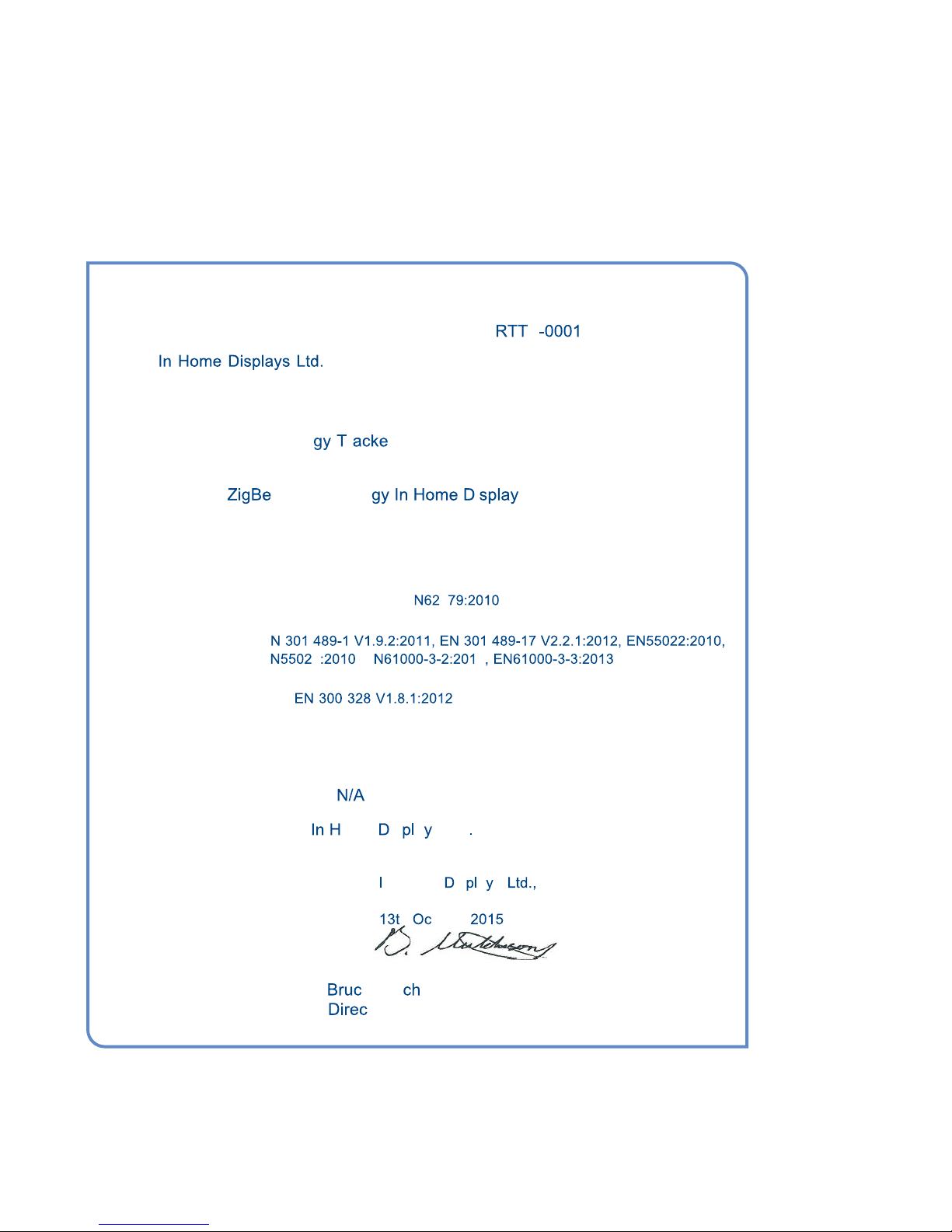
DOC compliance
R&TTE Declaration of Conformity (DoC)
Unique identification of this DoC: E
We,
Waterside House, 46 Shore, Leith, Edinburgh, United Kingdom, EH6 6QU
declare under our sole responsibility that the product:
product name: Smart Ener r r
trade name: SSE
type or model:
e Smart Ener i
to which this declaraon relates is in conformity with the essenal requirements and
other relevant requirements of the R&TTE Direcve (1999/5/EC).
The product is in conformity with the following standards and/or other normave
documents:
HEALTH & SAFETY (Art. 3(1)(a)): E 4
(title and/or number and date of issue of the standard(s) or other normative document(s))
EMC (Art. 3(1)(b)): E
E 4 , E 4
(title and/or number and date of issue of the standard(s) or other normative document(s))
SPECTRUM (Art. 3(2)):
(title and/or number and date of issue of the standard(s) or other normative document(s))
OTHER (incl. Art. 3(3) and voluntary specs): ...............................................................
(title and/or number and date of issue of the standard(s) or other normative document(s))
Supplementary information:
Notified body involved:
Technical file held by: ome is a s Ltd , Waterside House, 46 Shore,
Leith, Edinburgh, United Kingdom, EH6 6QU
Place and date of issue (of this DoC): n Home is a s Waterside House, 46 Shore,
Leith, Edinburgh, United Kingdom, EH6 6QU
h tober
Signed by or for the manufacturer: .................................................................................
(Signature of authorised person)
Name (in print): e Hut ison
Title:
tor
Page 56
55
Contact us
0800 052 0133
Mon-Fri 8am-8pm
Sat 8am-2pm
sse.co.uk
Need help?
If you need to talk to us about your
Smart Energy Tracker just give us a call on:
5
Any questions?
Page 57
Taking a
smart view
of your energy
0800 052 0133
Mon-Fri 8am-8pm
Sat 8am-2pm
sse.co.uk
Need help?
 Loading...