

Page 1
1
User Manual
Page 2

Section 1: At a Glance
Tablet Overview...................................................................................................
Cubby Mode Overview.....................................................................................
Parent Mode Overview......................................................................................
Touch Screen Basics..........................................................................................
Orientation............................................................................................................
Icon Glossary.........................................................................................................
Section 2: Getting Started
What’s Included?.................................................................................................
Charging.................................................................................................................
Power On/O.......................................................................................................
Setting Up Your Google Account.................................................................
Setting Up Google Cloud Print......................................................................
Setting Up Your Sprout Channel Cubby.....................................................
Exiting Sprout Cubby Mode...........................................................................
Section 3: Parent Controls
SproutChannelCubby.com..............................................................................
Editing Available Apps.....................................................................................
More Apps.............................................................................................................
Deposit Coins.......................................................................................................
Adding Safe Sites................................................................................................
Removing Sites....................................................................................................
Over the Air Software Updates......................................................................
Firmware Updates...............................................................................................
Uninstalling Apps................................................................................................
Removing Apps from Home Screen............................................................
Connecting to a Computer..............................................................................
Sprout Cubby Camera.......................................................................................
Settings...................................................................................................................
1
2
2
3
4
4
5
6
6
6
7
9
15
16
19
19
20
21
22
23
23
24
24
24
27
27
Page 3

3
Included Apps...................................................................................................
Section 4: Google Services
Why use a Google Account?.......................................................................
Add a Google Account..................................................................................
Remove a Google Account..........................................................................
Google Play........................................................................................................
Google Now™....................................................................................................
Google Now Cards..........................................................................................
Location Access...............................................................................................
Google Now Settings.....................................................................................
Voice Actions.....................................................................................................
Voice Commands.............................................................................................
Section 5. Tips and Tricks/FAQs
Screen Brightness............................................................................................
Apps Won’t Install............................................................................................
Won’t Connect to Computer........................................................................
Tablet Freezes...................................................................................................
Factory Restore................................................................................................
Care.......................................................................................................................
Specifications....................................................................................................
Customer Support...........................................................................................
Caution - Electric Device..............................................................................
Attention: Important Safety Information...............................................
Preventing Hearing Damage.......................................................................
Driving or Riding Safety................................................................................
Seizure Risk........................................................................................................
FCC Statement..................................................................................................
SAR Information...............................................................................................
29
34
34
35
35
37
37
38
39
40
41
43
43
43
44
44
44
45
45
45
46
46
46
46
47
47
Page 4

1
1. At a Glance
Front Camera
Next Page
Apps / Games
Parent Controls
Change User
Exit Cubby Mode
HDMI
Volume -
Speaker
Reset
Power Button
Volume +
MicroSD Card Slot
Microphone
Headphone Jack
Micro USB
Rear Camera
Silicone Bumper
Tablet Overview
Page 5
2
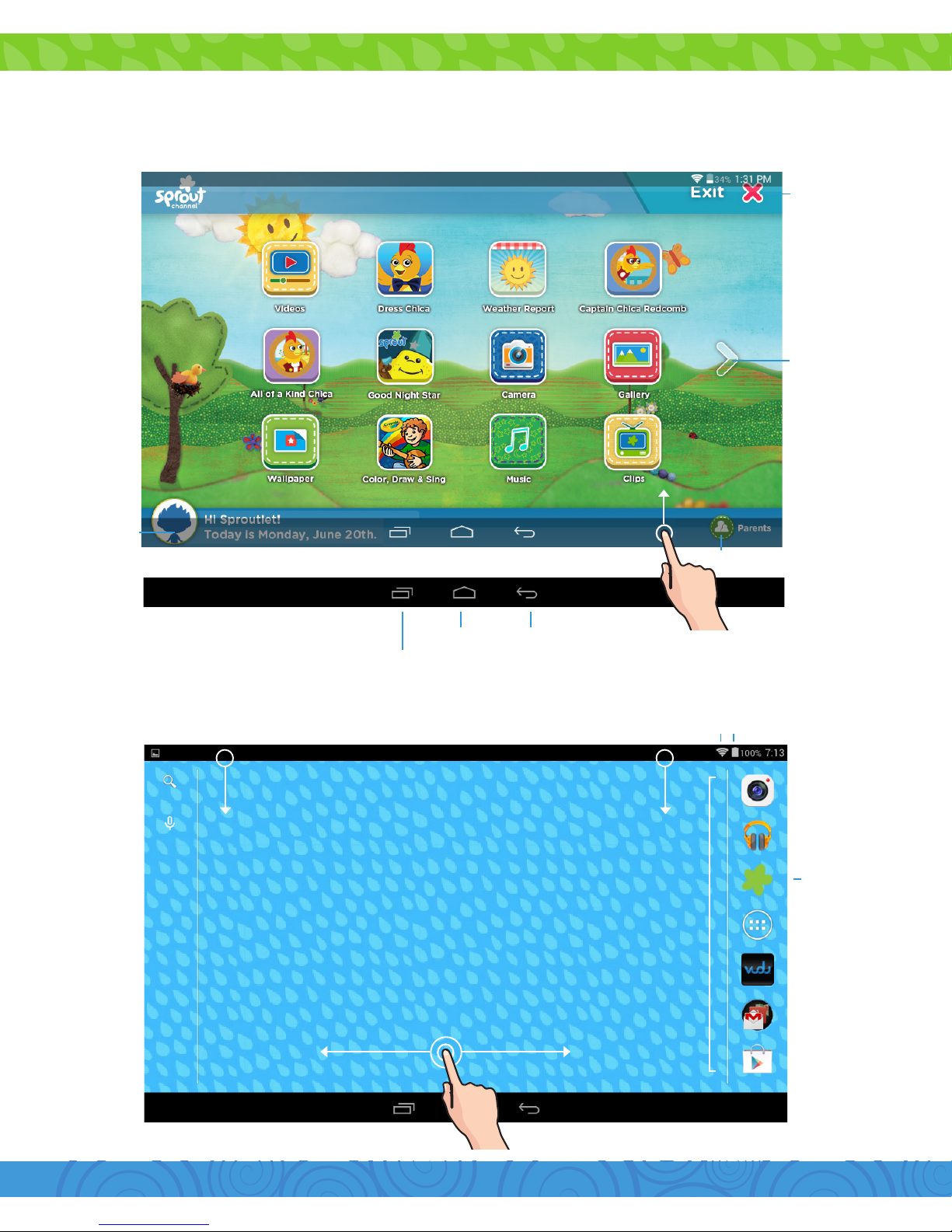
Parent Dashboard
Swipe down to reveal
your notifications.
Swipe down to reveal
your settings.
Dock
Multitasking (Does not function in Cubby Mode)
Cubby Mode Overview
Parent Mode Overview
Change User
Add another child
Swipe left or right to switch between home screens.
BatteryWi-Fi Signal
Enter
Cubby Mode
Home Back
Swipe up to reveal the navigation bar.
Exit Cubby
Mode
Tap to reveal
more apps
Page 6
3
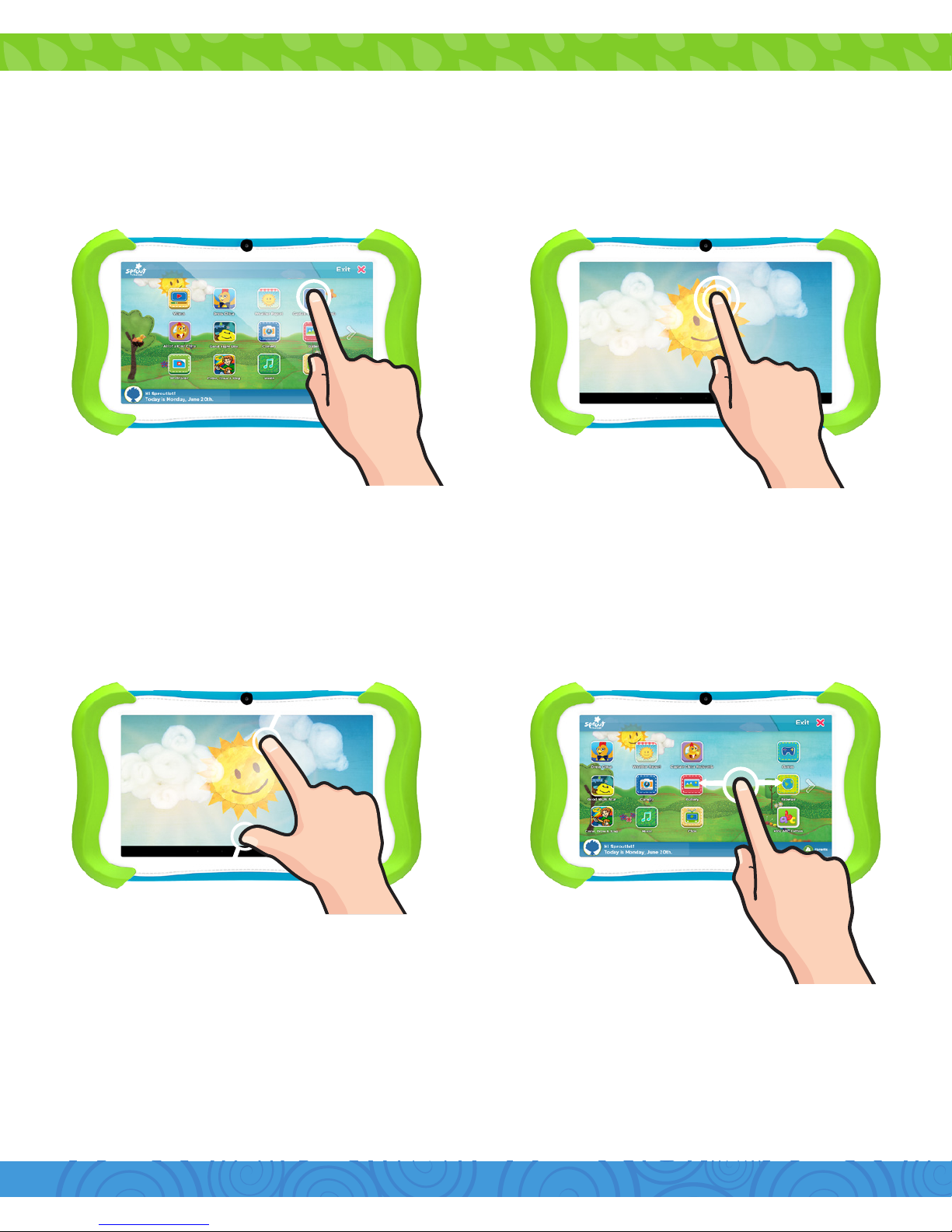
Touch Screen Basics
Ta p
Pinch Swipe
Double Tap
Tap an item once to open or activate it.
Zoom in or out by touching the screen with
two fingers then pinching them together or
spreading them apart.
To move horizontally across the screen,
simply swipe your fingers left and right.
Quickly tap twice to zoom in or out on
photos or webpages.
Page 7
4
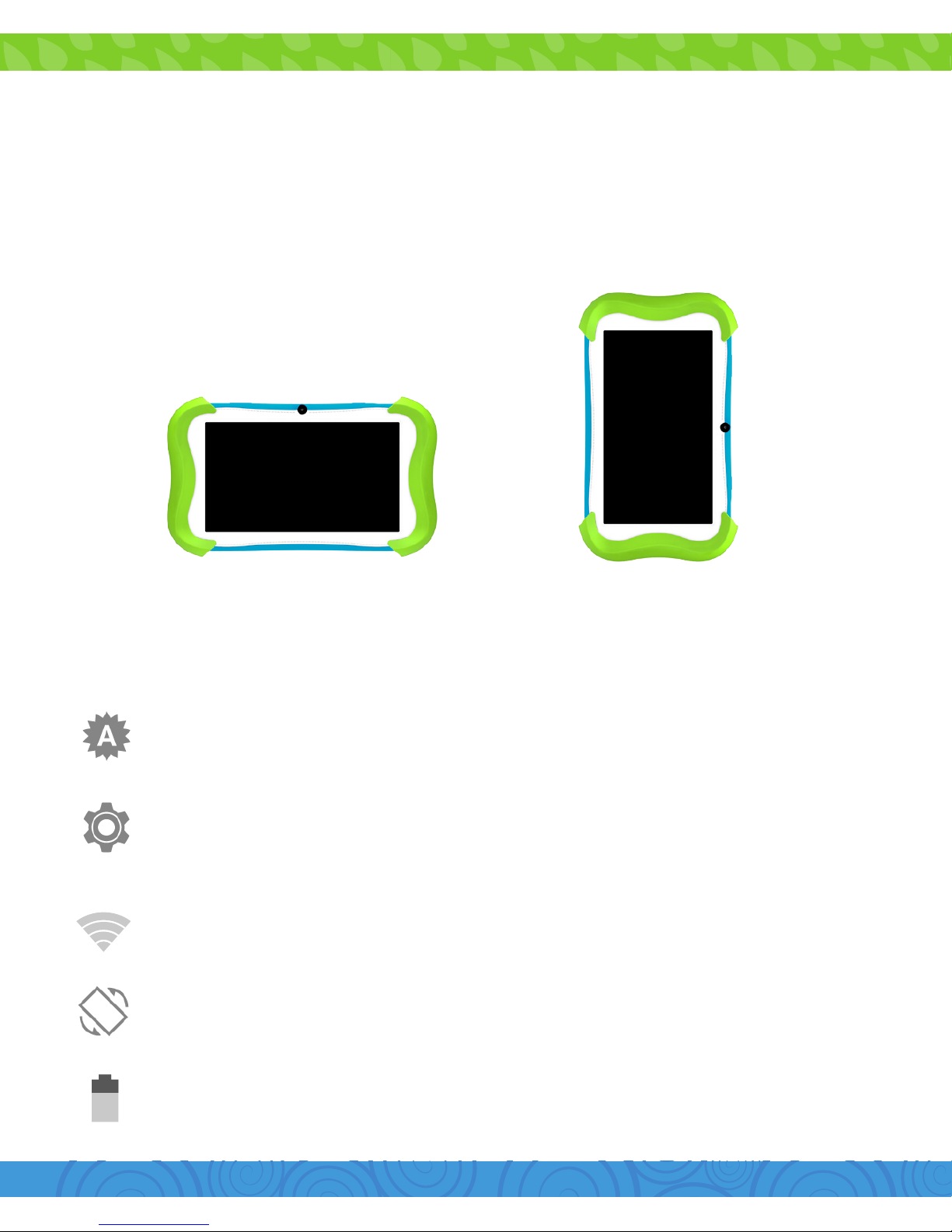
Orientation
The G-Sensor allows the tablet to automatically rotate the
screen to the appropriate orientation for easy viewing. You can
view the home screen and app in either a landscape or portrait
format. Some functions in Cubby Mode will only display in the
landscape format.
Landscape Portrait
Icon Glossary
Brightness: Adjust the screen brightness of your tablet.
Settings: Adjust your settings for Wi-Fi, screen brightness,
security settings, language options, and more.
Wi-Fi Signal: Tap to manage Wi-Fi networks.
Auto Rotate: Enable or disable screen auto-rotation.
Battery Level: Tap for battery use information.
Page 8
5
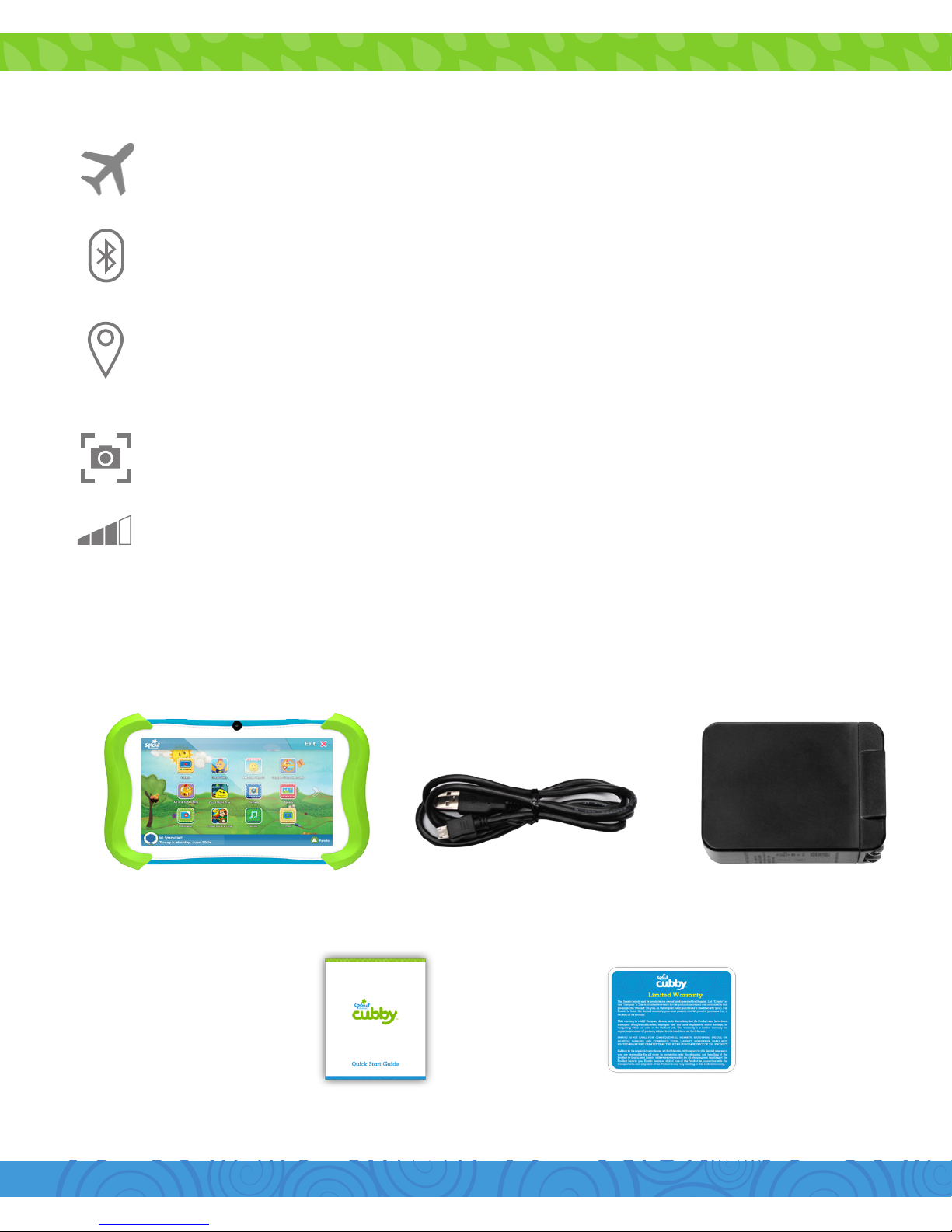
What’s Included?
2. Getting Started
Sprout Channel Cubby
with Silicone Bumper
Quick Start Guide Warranty Card
Micro USB Cable Wall Charger
Airplane Mode: Turn o wireless connections and services.
Bluetooth: Tap to see available Bluetooth devices.
Location: Tap to allow Google and other apps to use Wi-Fi
and determine your location to improve search results.
Screenshot: Tap to take a screen shot of your tablet
screen.
Volume Adjust: Tap to adjust the tablet’s volume.
Page 9
6
To turn your tablet on or o, press and hold the power key for 2
seconds. (Refer to page 1 for its location.)
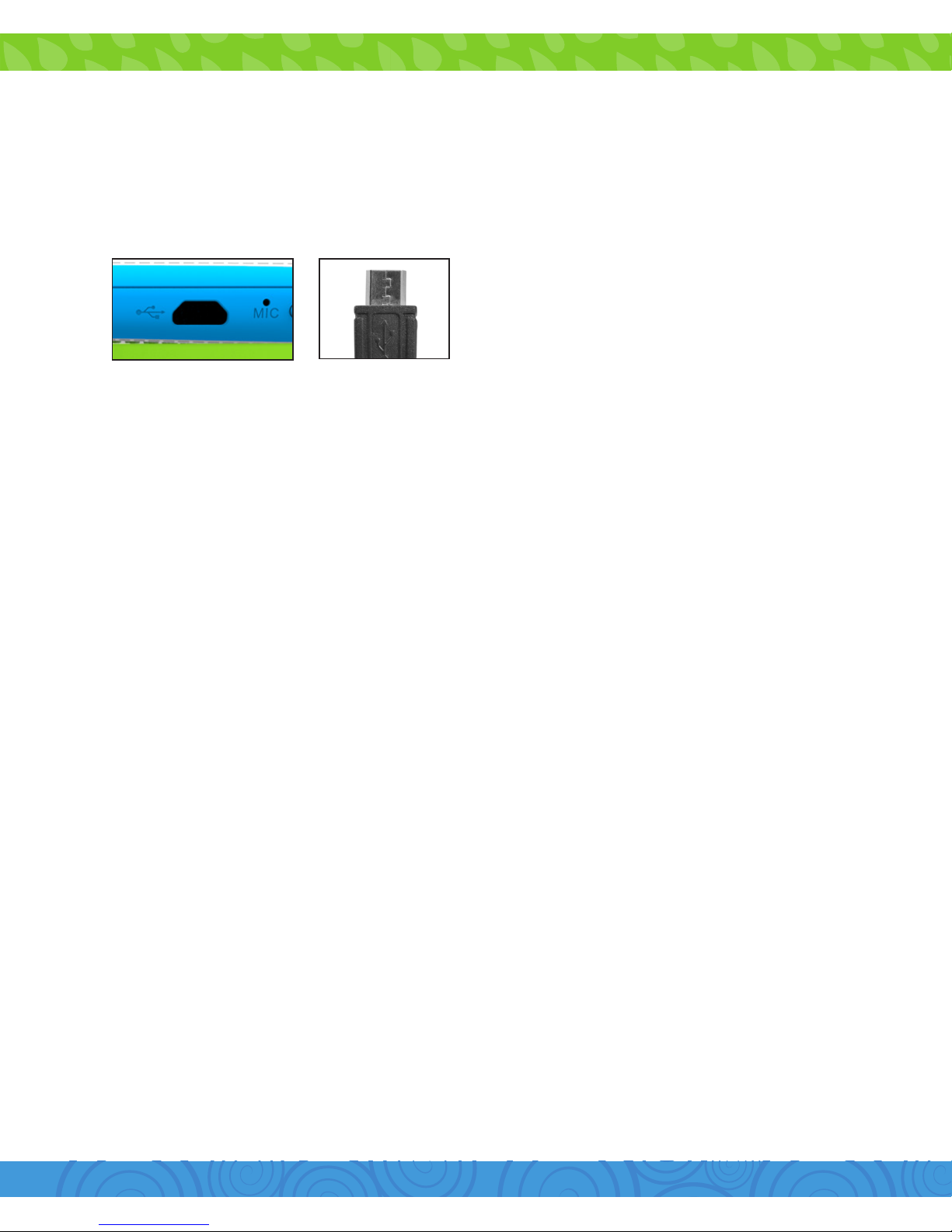
Charging
Power On/Off
The Sprout Channel Cubby uses a lithium polymer battery. It’s
recommended that you charge the device for a full 6 hours
before its first use.
Always use the provided USB
charger.
The battery indicator will show
that your device is charging.
Note: Using the USB port on your computer will take longer to
charge your Sprout Channel Cubby. It’s recommended that you
use the provided wall charger.
(Refer to page 2 for its location on an active screen. If your device has lost all power,
a battery will appear for a few seconds confirming that it’s charging.)
Sign in using the email address and password from your
Google account. If you don’t have one yet, you will have to
create one by using a computer and visiting gmail.com, clicking
on “Create an account”, and filling out the required information.
An email address that you use for any of the following counts
as a Google Account:
•Gmail™
•YouTube™
•GoogleApps™
•AdWords™
•AnyotherGoogleproduct
Setting Up Your Google Account
Page 10

7
To print from your tablet, you must add your printer by visiting:
www.google.com/cloudprint
To connect your classic printer, enable the Google Cloud Print
connector on any (non-Chrome OS) computer that is already
connected to your printer and able to print. You’ll need Google
Chrome to be installed on the computer.
1. Log in to your user account on the Windows, Mac, or Linux
computer.
2. Open Google Chrome.
3. Click the Chrome menu on the browser toolbar.
4. Select Settings.
5. Click the Show advanced settings link.
6. Scroll down to the “Google Cloud Print” section. Click
Manage.
Choose between “Add a Cloud-Ready Printer” and “Add a
Classic Printer”.
Adding a Classic Printer
Setting Up Google Cloud Print
Page 11
8
7. The next screen will show a list of devices already registered
with Google Cloud Print, and new devices available on the
network.
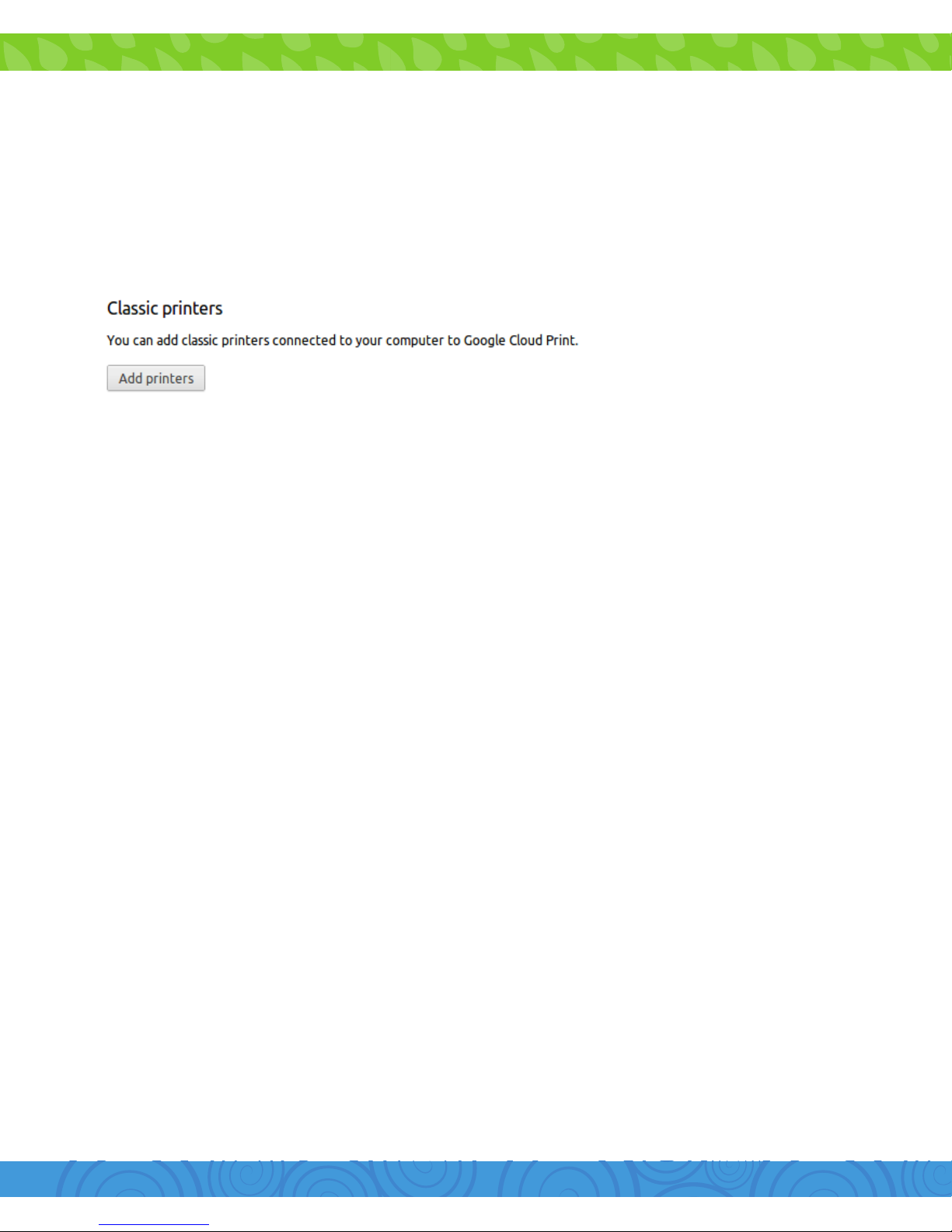
8. In the “Classic printers” section, click Add printers.
9. You’ll see a confirmation that Google Cloud Print has been
enabled. Click Manage your printers to learn more.
The printer is now associated with your Google Account and
connected to Google Cloud Print. You can print to this printer
using Google Cloud Print whenever you’re signed in with the
same Google Account.
For the best Google Cloud Print experience, we recommend
that you use a Cloud Ready printer. Cloud Ready printers
connect directly to the web and don’t require a PC to setup:
you can connect one to your Google Cloud Print account in
seconds, and immediately start printing to it.
To find more information on how to setup your Cloud-Ready
Printer visit:
www.google.com/cloudprint/learn/printers.html
Adding a Cloud-Ready Printer
Page 12
9
Setting Up Your Sprout Channel Cubby
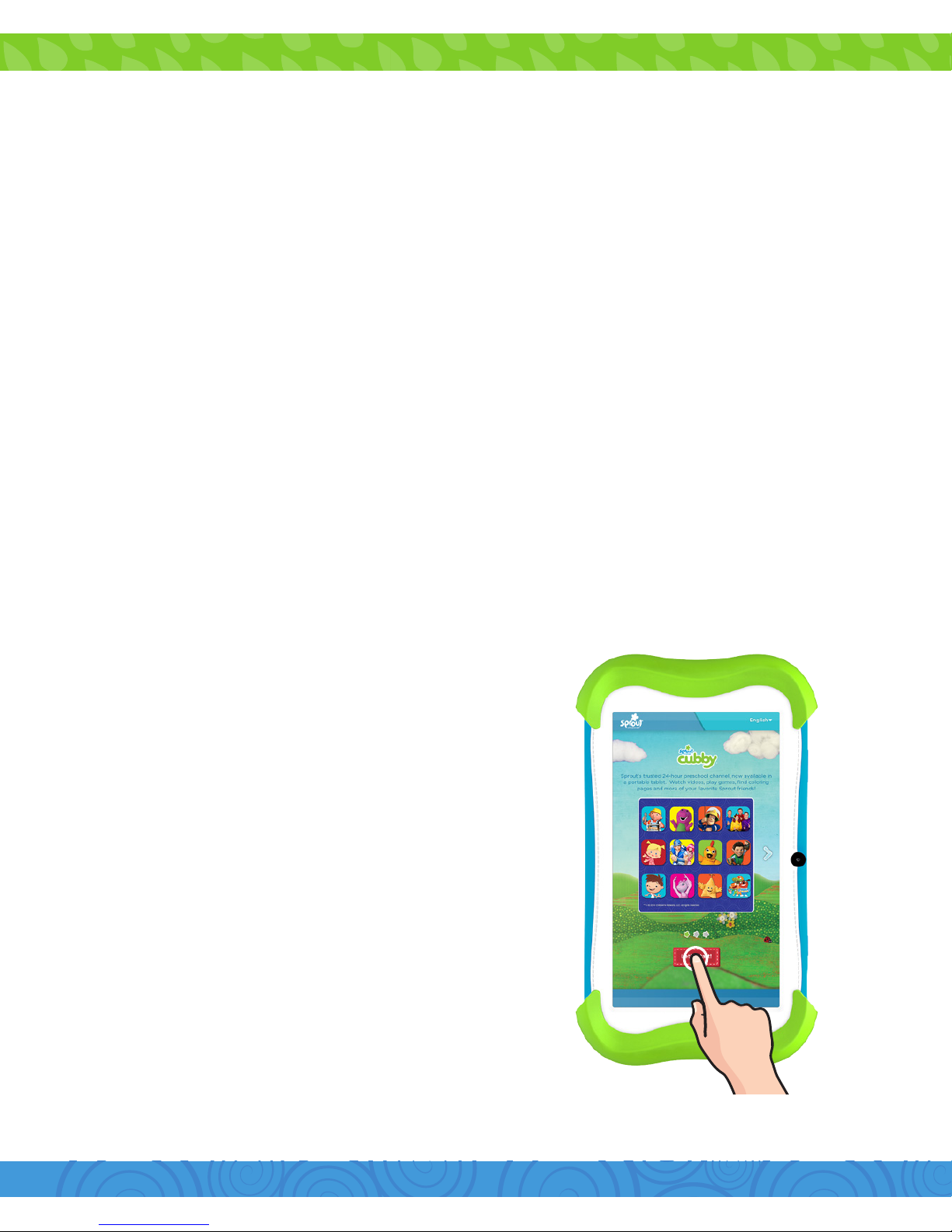
Step 1:
Tap “Lets Start!” to get started
with the setup process.
To manage settings, or access other apps on the parent side of
the device, parents simply enter a password.
Note: Wi-fi is required for the
initial setup.
After signing in with your Google account all of your email,
contacts, calendar events, and other data associated with that
account are automatically synced with your tablet. You can also
add multiple Google accounts later.
Note: Wi-Fi is required for setting up and syncing your Google
account.
Page 13
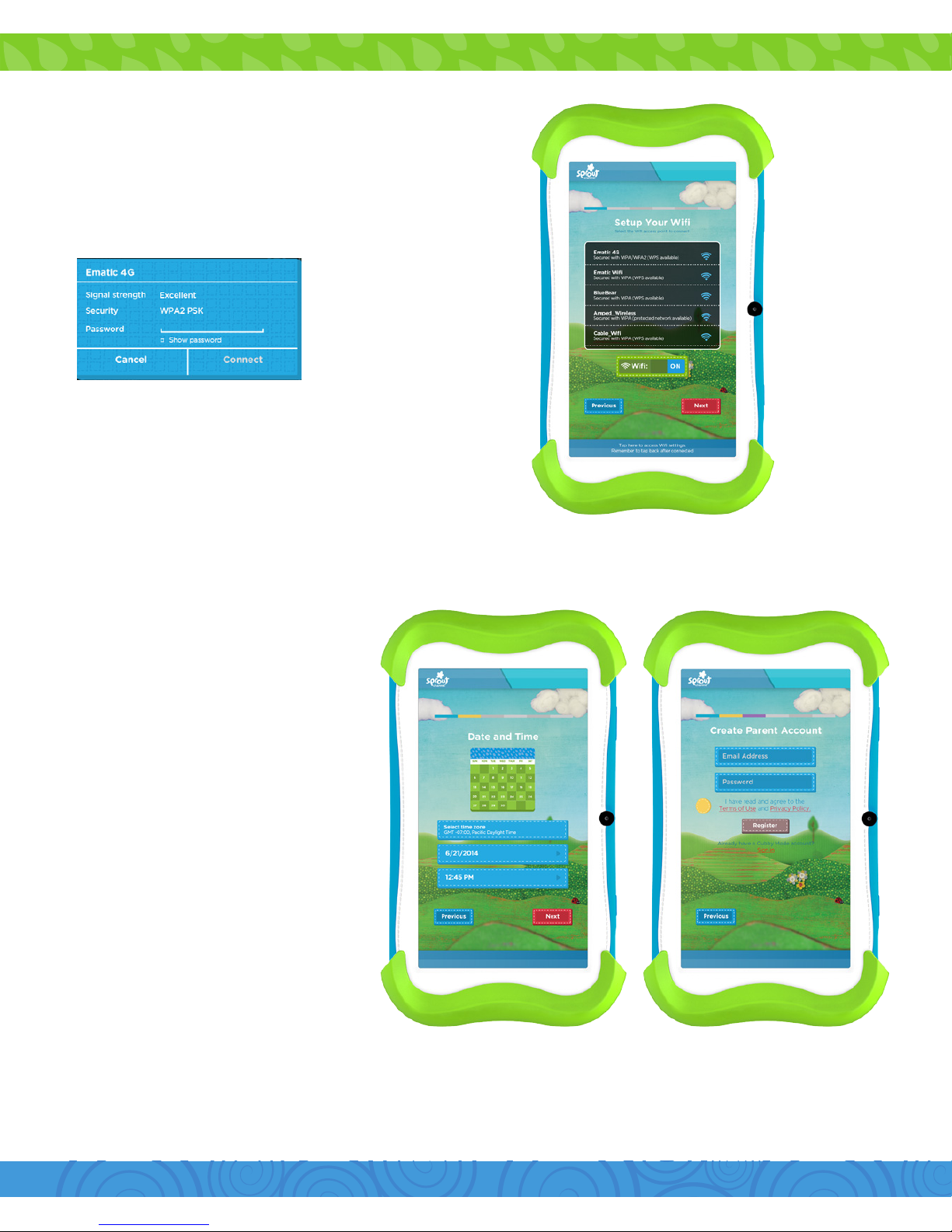
10
Step 2:
Step 3:
a. Tap to select your network.
a. Set Date and Time.
b. Tap “Next” when done.
b. Enter your password.
c. When connected, tap “Next”
Step 4:
a. Enter a valid email
address.
b. Enter a password.
Note: Please read the terms and conditions carefully before you begin using your
Sprout Channel Cubby. When you are finished, click on the checkbox to Agree
and continue in the set up process.
c. Tap “Register”.
(You will use this email
address to log into your
parent account.)
Page 14
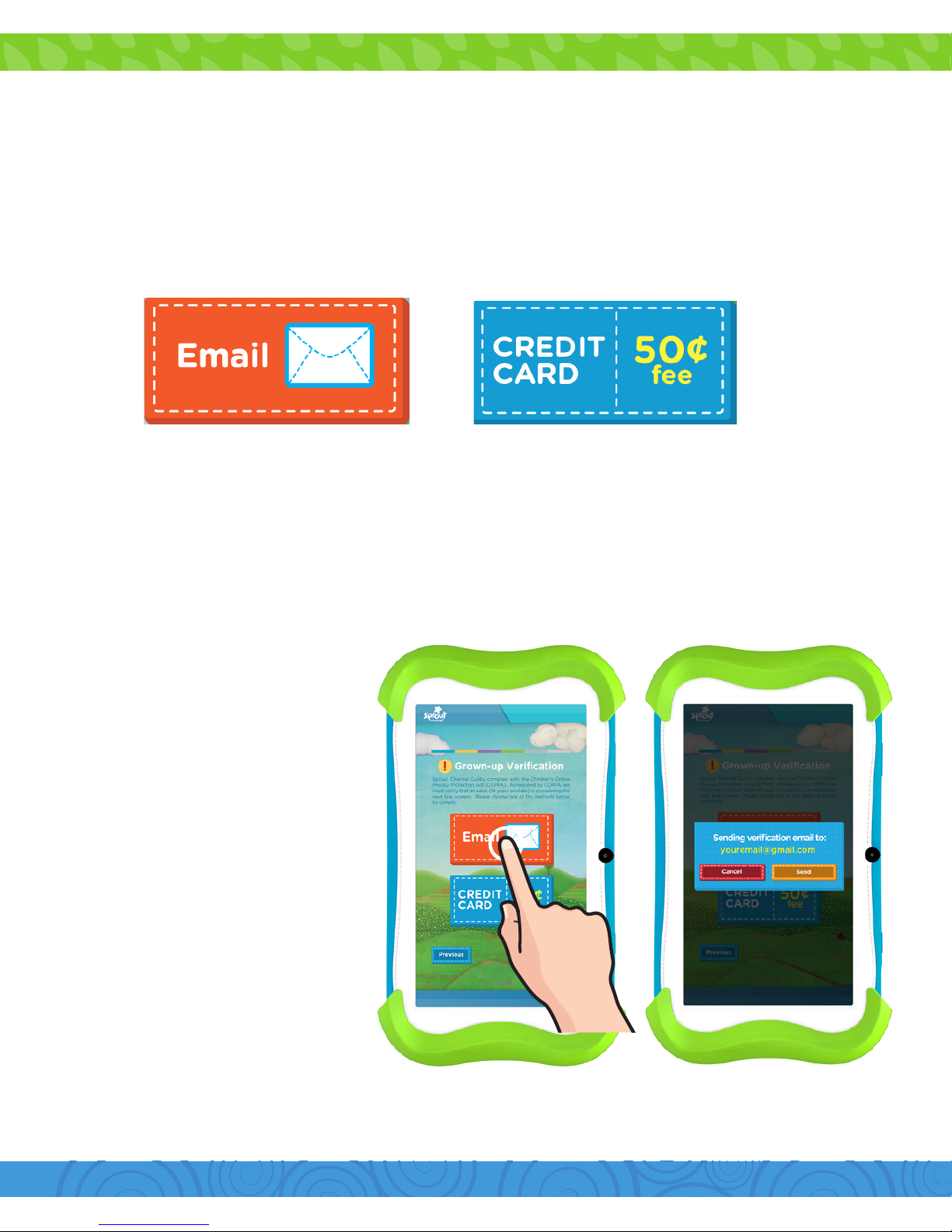
11
Email
b. Tap “Send” to send
verification email to your
email address.
a. To continue with email
verification, tap “Email”.
c. Use your computer
or other device with
internet access to visit
your email’s inbox. Follow
the instructions provided
to verify your parental
account.
Step 5: Grown-up Verication
Sprout Channel Cubby complies with the Children’s Online Privacy Protection
Act (COPPA). As required by COPPA, we must verify that an adult (18 years or
older) is completing the next few screens. Please choose between “Email” and
“Credit Card” option to comply.
Note: Email verification will require you to activate your account with an email
address. Credit card verification requires a non-refundable 50¢ fee and your
credit card information.
Page 15
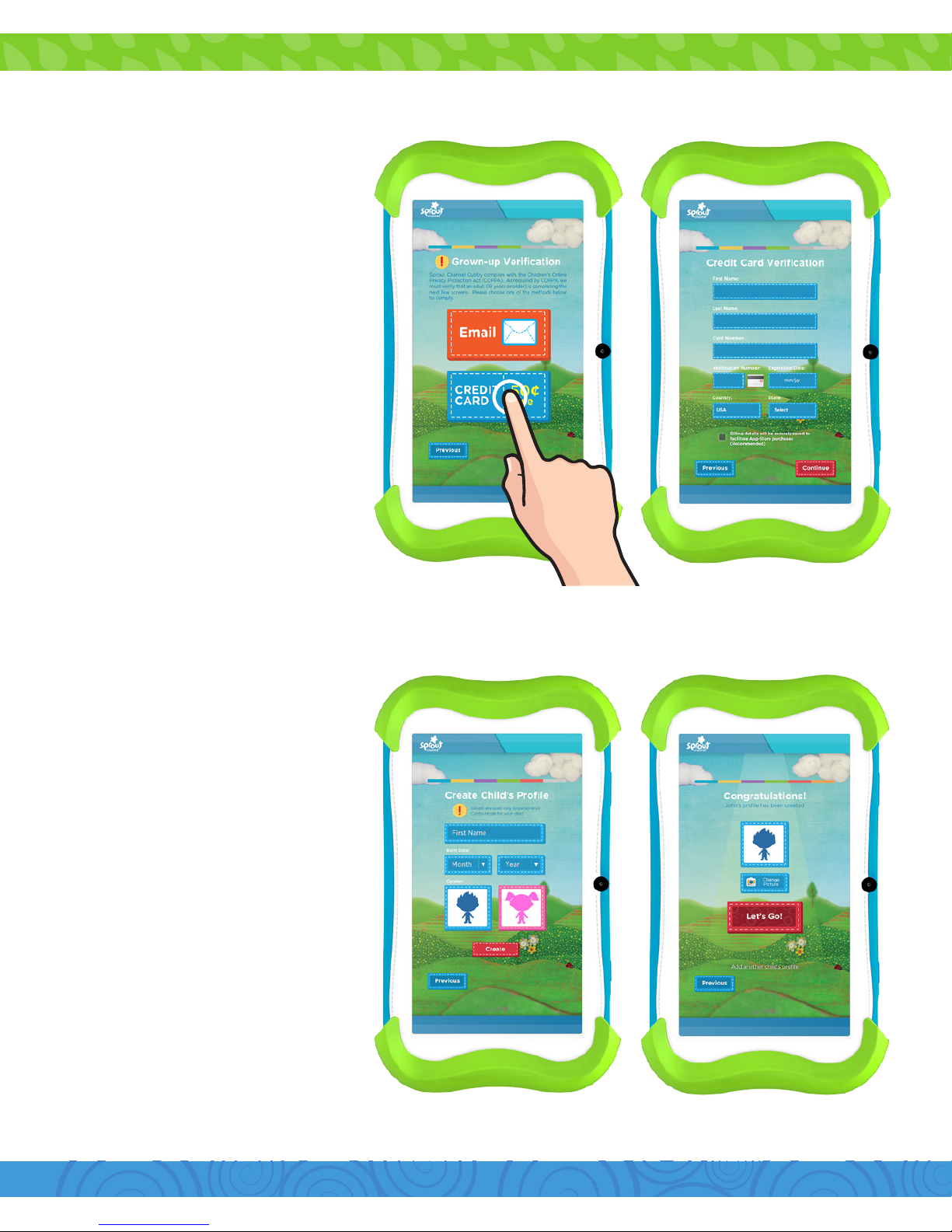
12
Credit Card
b. Enter your Credit Card
and billing information.
a. To continue with credit
card verification, tap
“Credit Card”.
Note: A one-time
nonrefundable fee of 50¢
will be charged to your
credit card.
Note: The charge is
immediate and will appear
on your credit card
statement by BLS*KIDOZ.
c. Tap “Continue”.
Step 6:
a. To create an account
for your child, enter the
required information.
b. Tap “Create”.
Step 7:
You can change your
child’s avatar here by
tapping the “Change
Picture” button.
Page 16
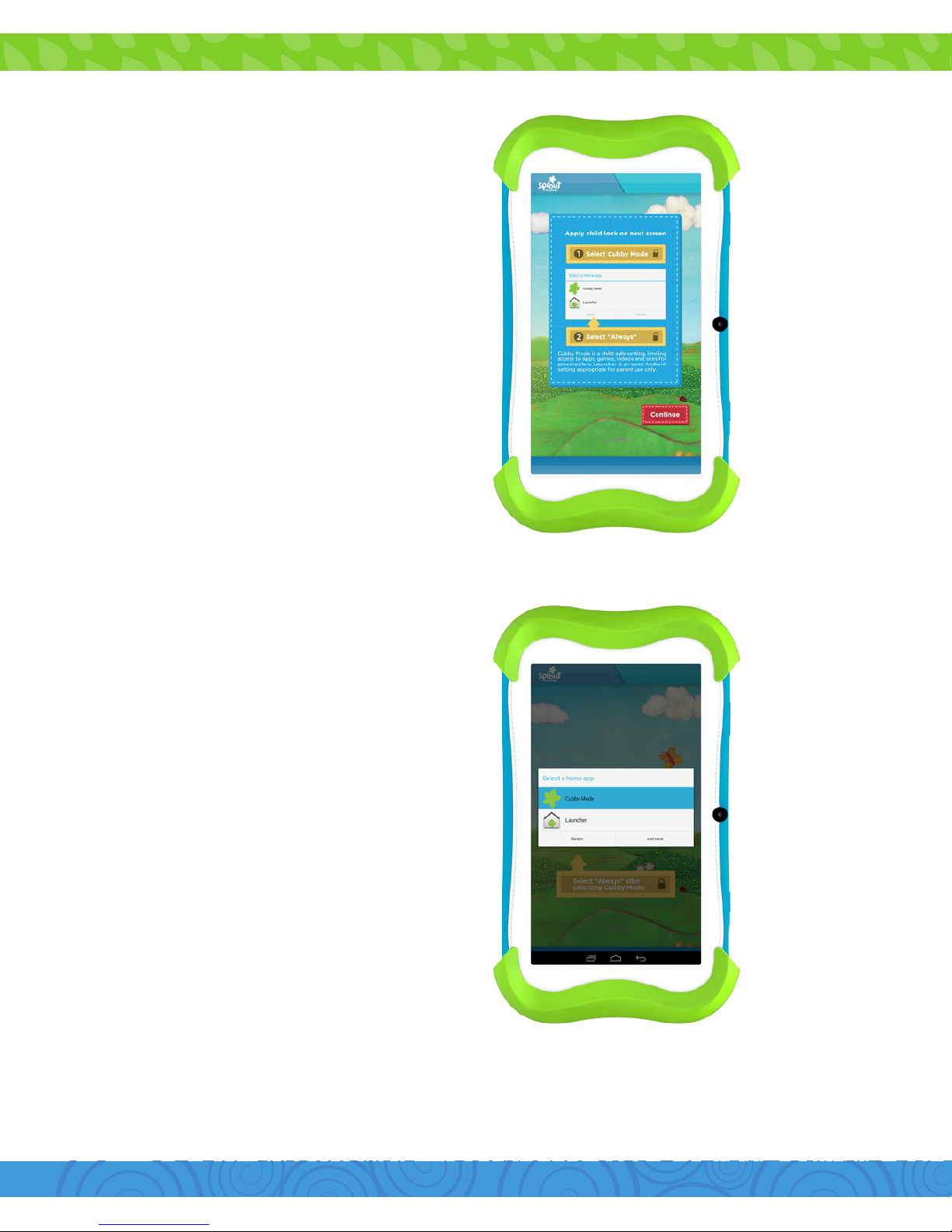
13
Step 1:
Step 2:
Turning on Child Lock
Follow the instructions on the
next screen then tap “Continue”.
Select Cubby Mode then tap
“Always”.
Page 17
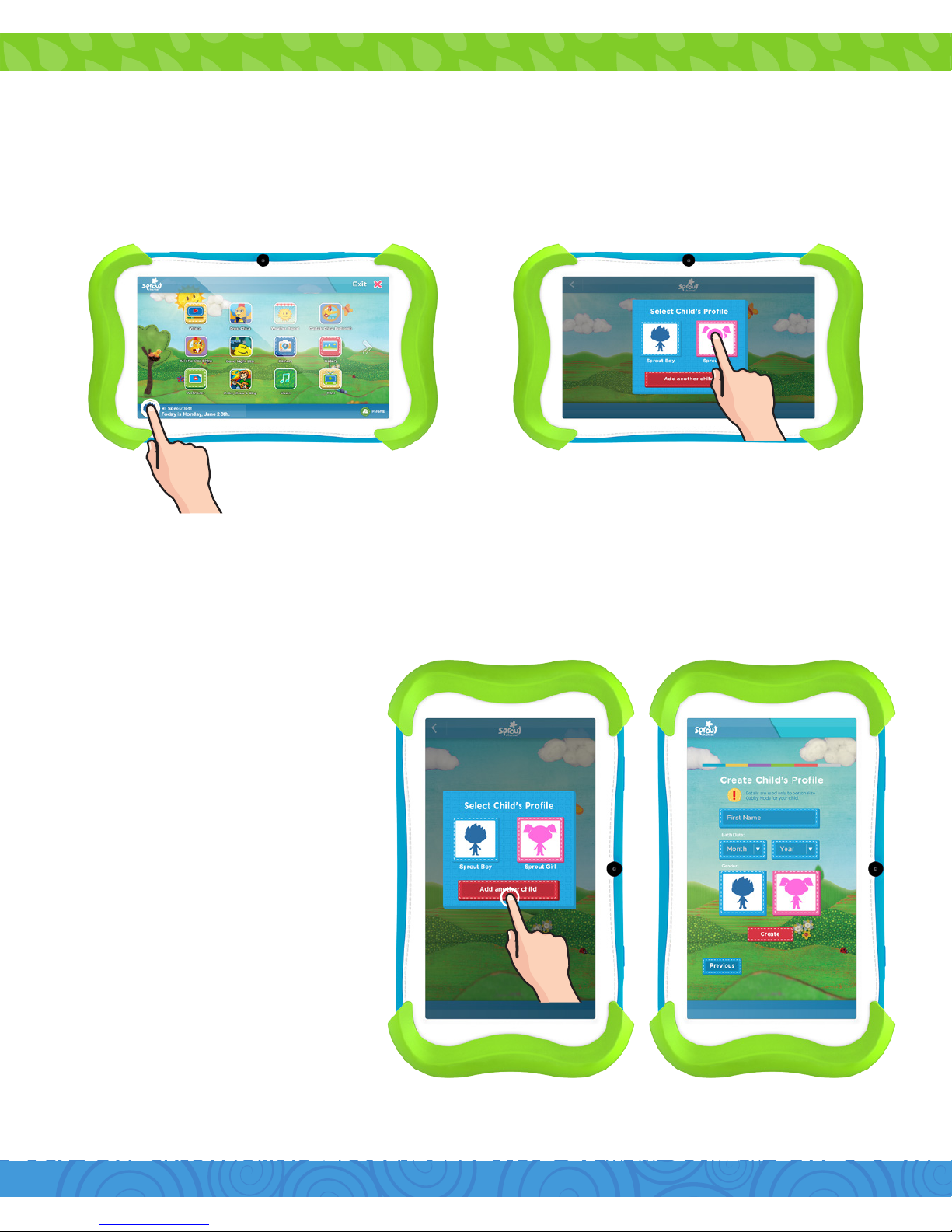
14
Step 1:
Step 2:
Switching Child’s Prole
Adding Another Child’s Prole
Tap “Add Another Child”.
a. Enter the required
information for the
additional child.
b. Tap “Create”.
Cubby mode lets you create additional child profiles. You can also switch
between 2 or more child profile that has been created.
Tap the avatar to switch profile. Tap the child’s profile you
want to use.
Page 18
15
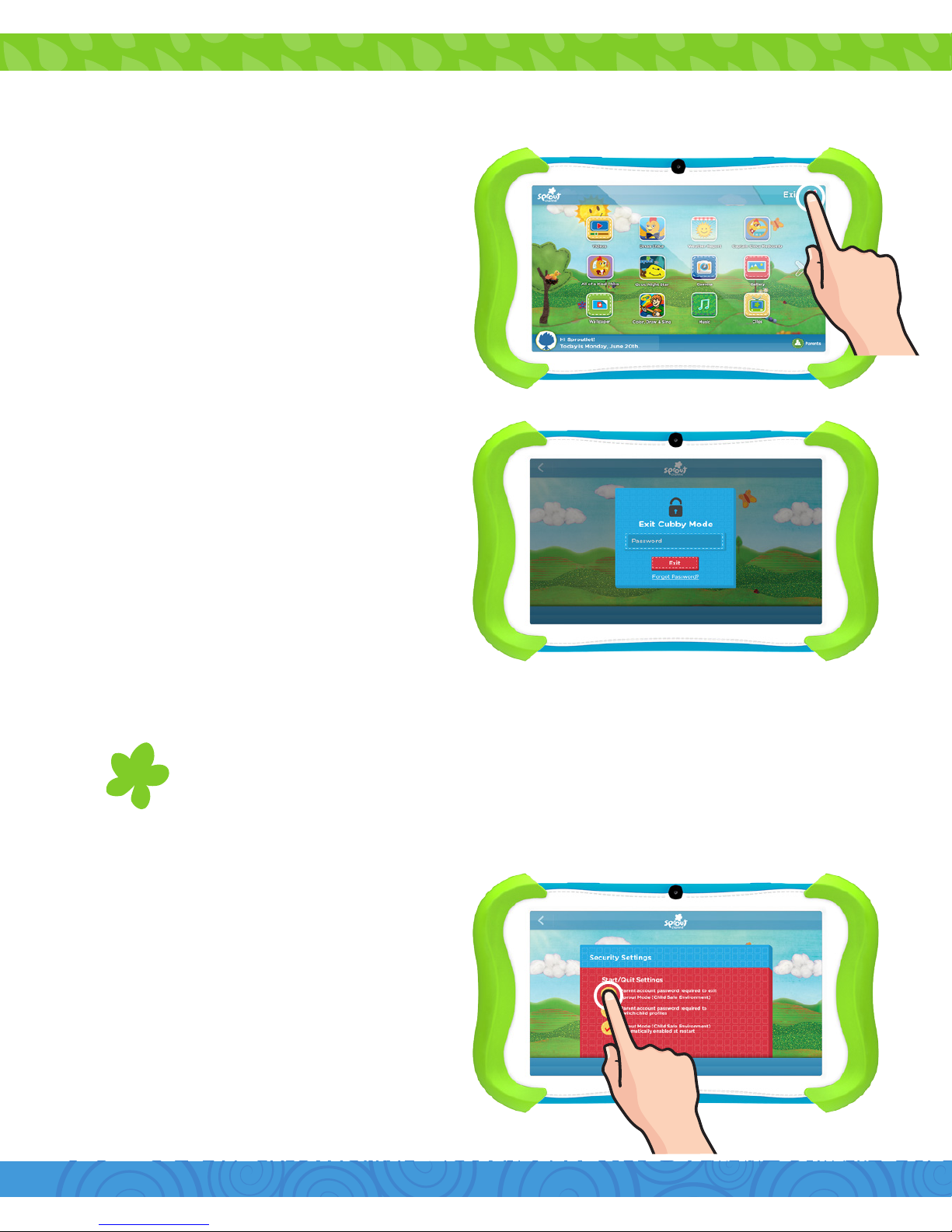
Exiting Cubby Mode
Tap the “Exit Button”.
You can change the level
of security by going to
“Security Settings” in
Parent Dashboard then
uncheck the first option.
Note: If you forget your password, type “exitkidoz” as your password.
Tap the Cubby Mode icon on the Parent Mode home screen to
return to Cubby Mode.
Exit Cubby Mode by
entering the same
password you used when
registering.
Page 19
16
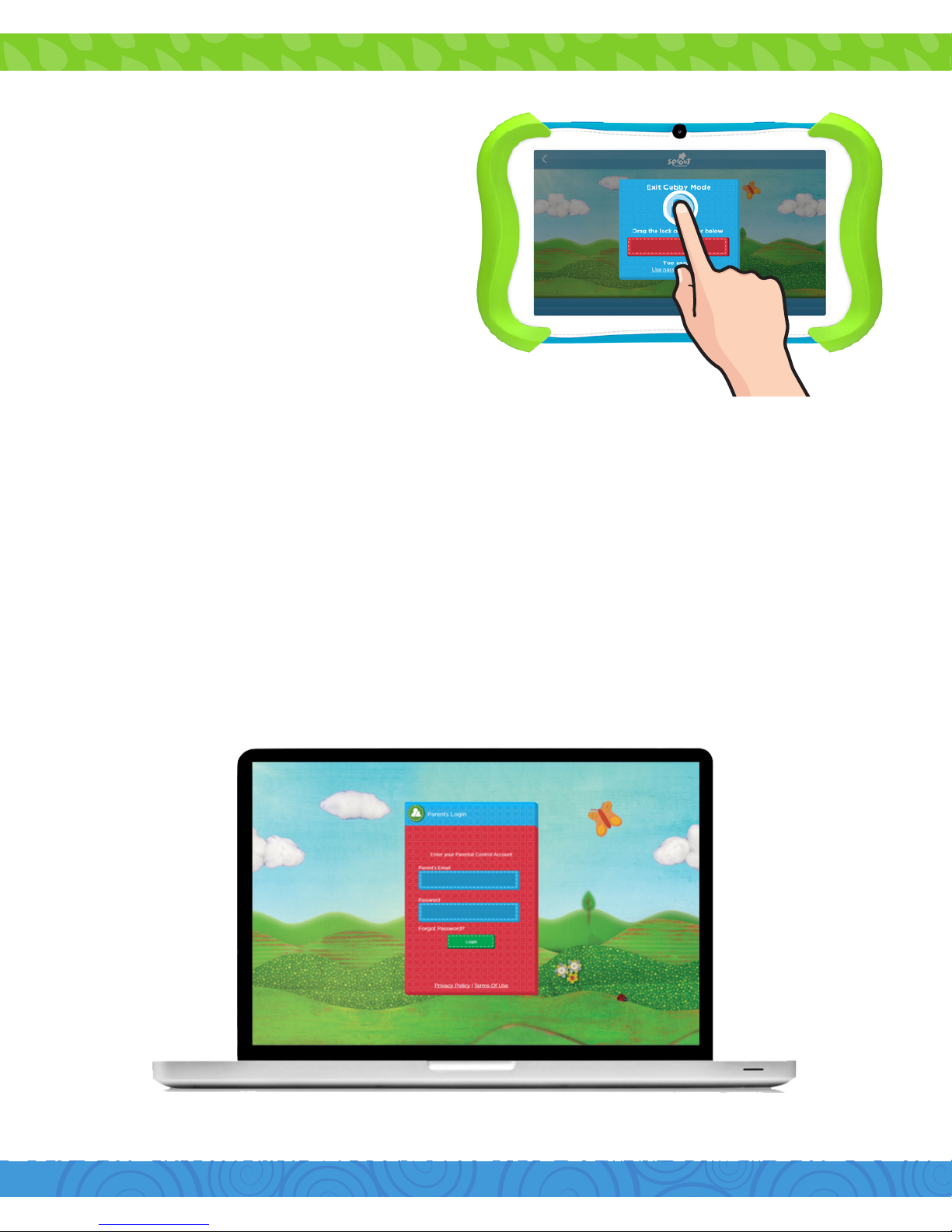
SproutChannelCubby.com
You can log into your parent account on your computer to
remotely manage your child’s profile. From there you will be
able to change your password and add or remove content and
profiles.
Visit www.sproutchannelcubby.com/parents to access your
parent account.
3. Parent Controls
Drag the lock on the bar
below to exit Cubby Mode.
Page 20
1817
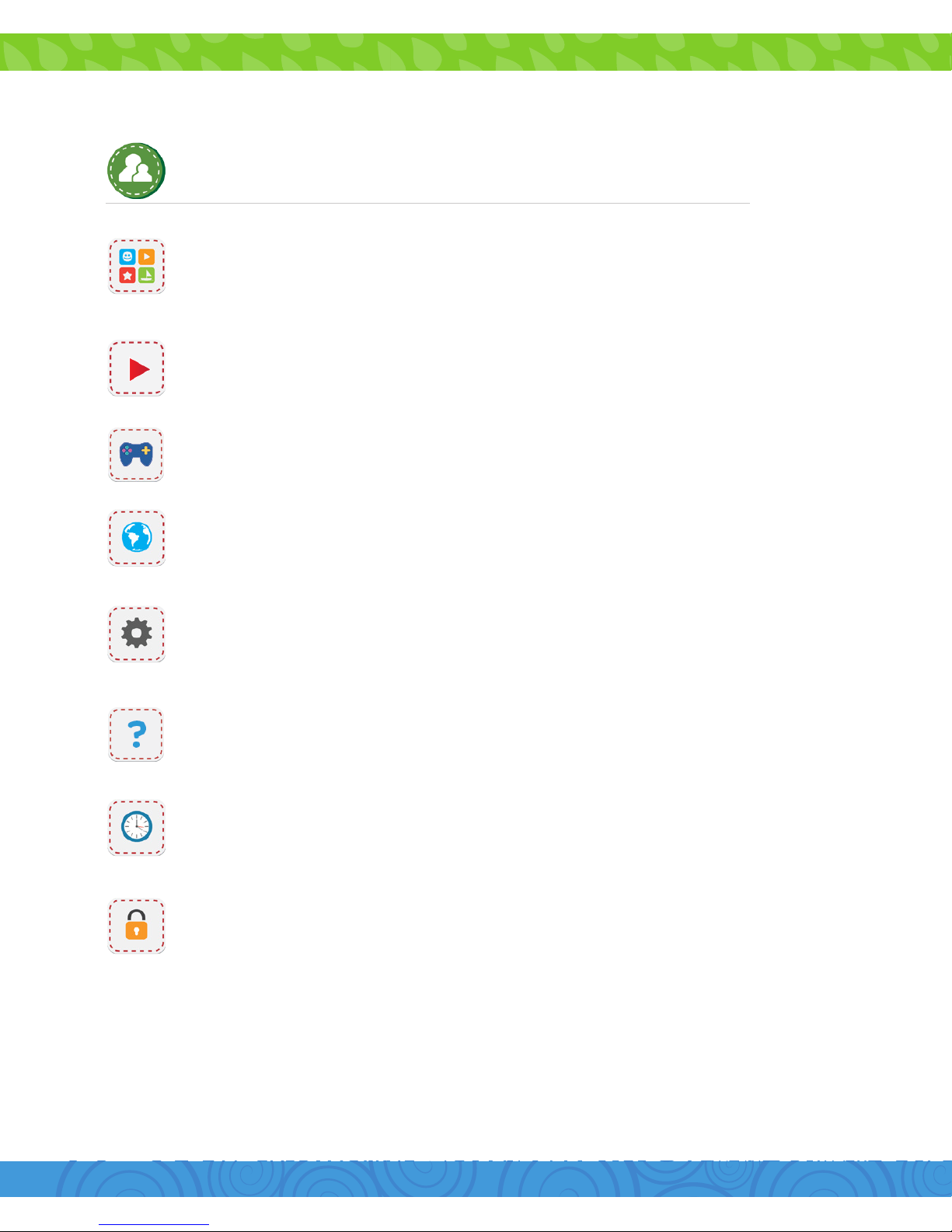
Apps: Select the Android Apps available to use from inside
Cubby Mode. (See page 15.)
Videos: Add / remove your child(ren)’s videos.
Online Games: Add / remove your child(ren)’s online games.
Websites: Add / remove your child(ren)’s websites
Account: Change your child(ren)’s accounts, delete accounts,
or change language.
Support: Send an email regarding your device.
Time Limit: Set the daily usage time and daily time frame for
your child(ren).
Security: Change the Child Safety features.
For more options tap the Parent Dashboard icon.
Page 21
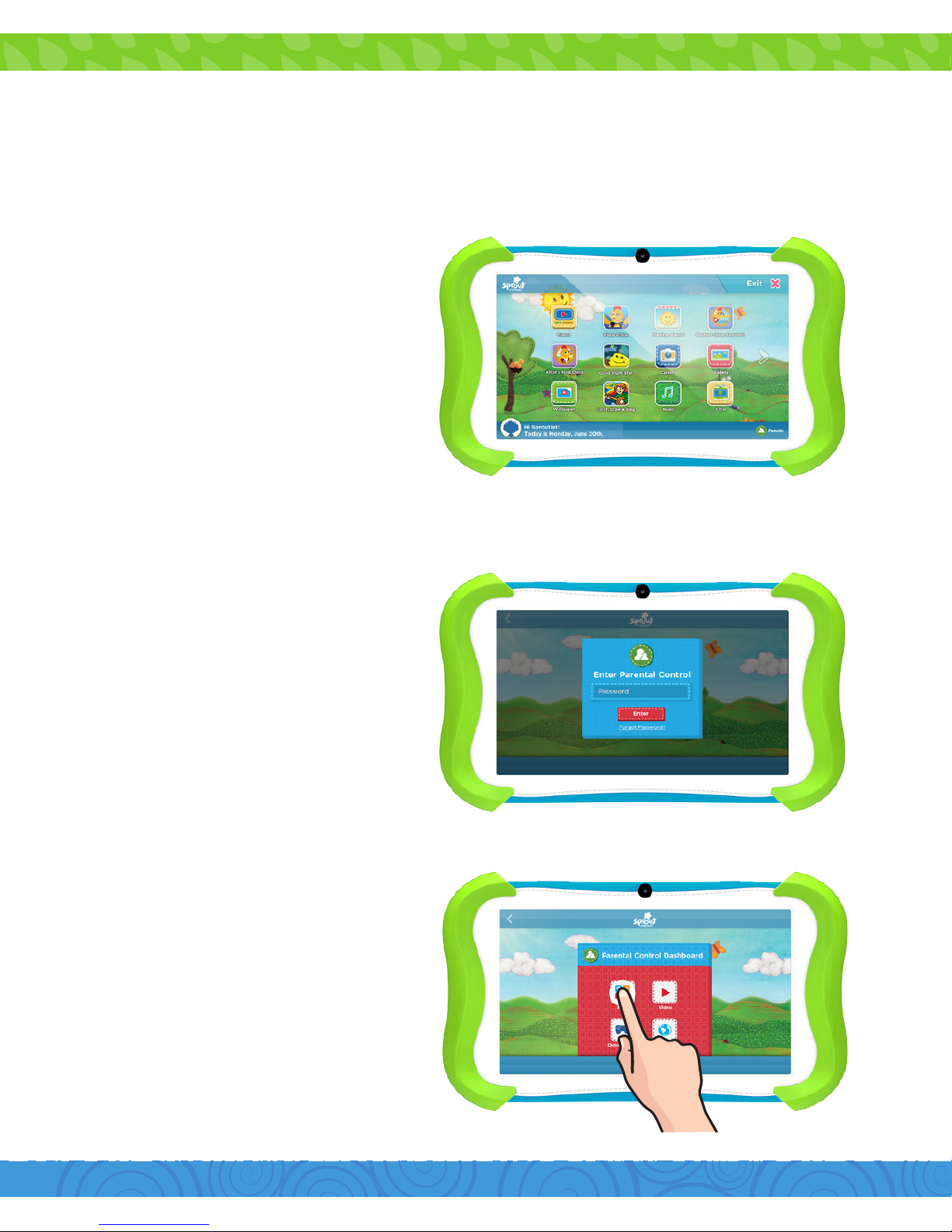
Tap “Apps”.
Step 3:
Editing Available Apps
Tap the Parent Dashboard
icon at the bottom right.
Enter your password.
Tap “Enter”.
You can edit the apps available within Cubby Mode by using the
Parent Control Dashboard and selecting or unselecting apps.
Step 1:
Step 2:
Page 22
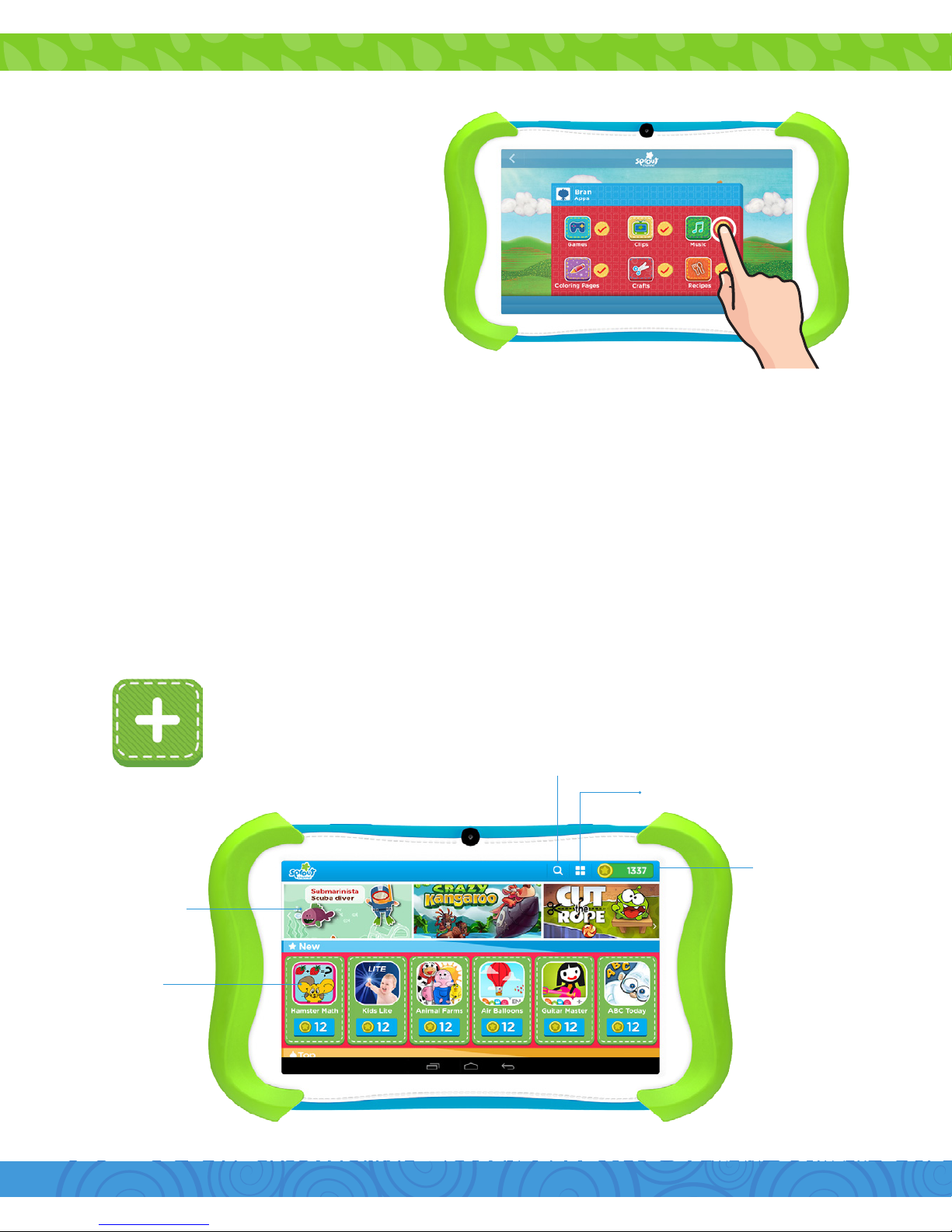
2019
Tap the check boxes to
select apps you’d like to
keep or deselect apps
you’d like to remove.
You can download and install more apps using the More Apps
or the Google Play Store. See the Downloading and Installing
Apps Section.
Step 4:
Tap the More Apps icon.
Coin Balance
Search
My Apps
Featured Apps
New Apps
Your child can download more apps and games from a list of
pre-approved Sprout Cubby Apps.
More Apps
Page 23
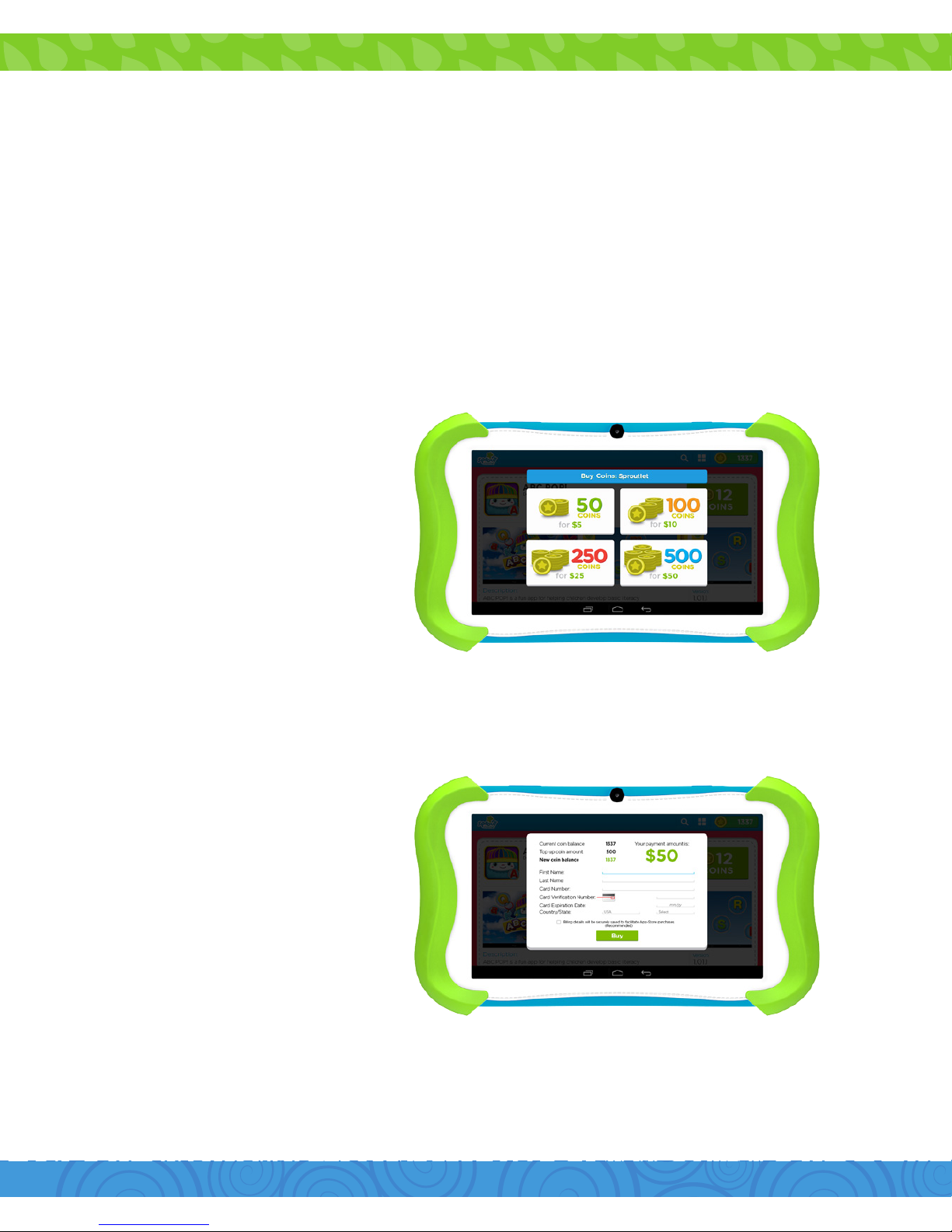
Choose between free and paid apps available. Manage or set an
allowance for your child to spend on apps weekly or monthly with
coins purchased through your parent account.
You can deposit coins by clicking the coin icon on the top right
corner of the screen.
Select the amount
of coins you want to
purchase.
Enter your Credit
card and billing
information.
Tap “Buy” to complete
the purchase.
Deposit Coins
Step 1:
Step 2:
Page 24
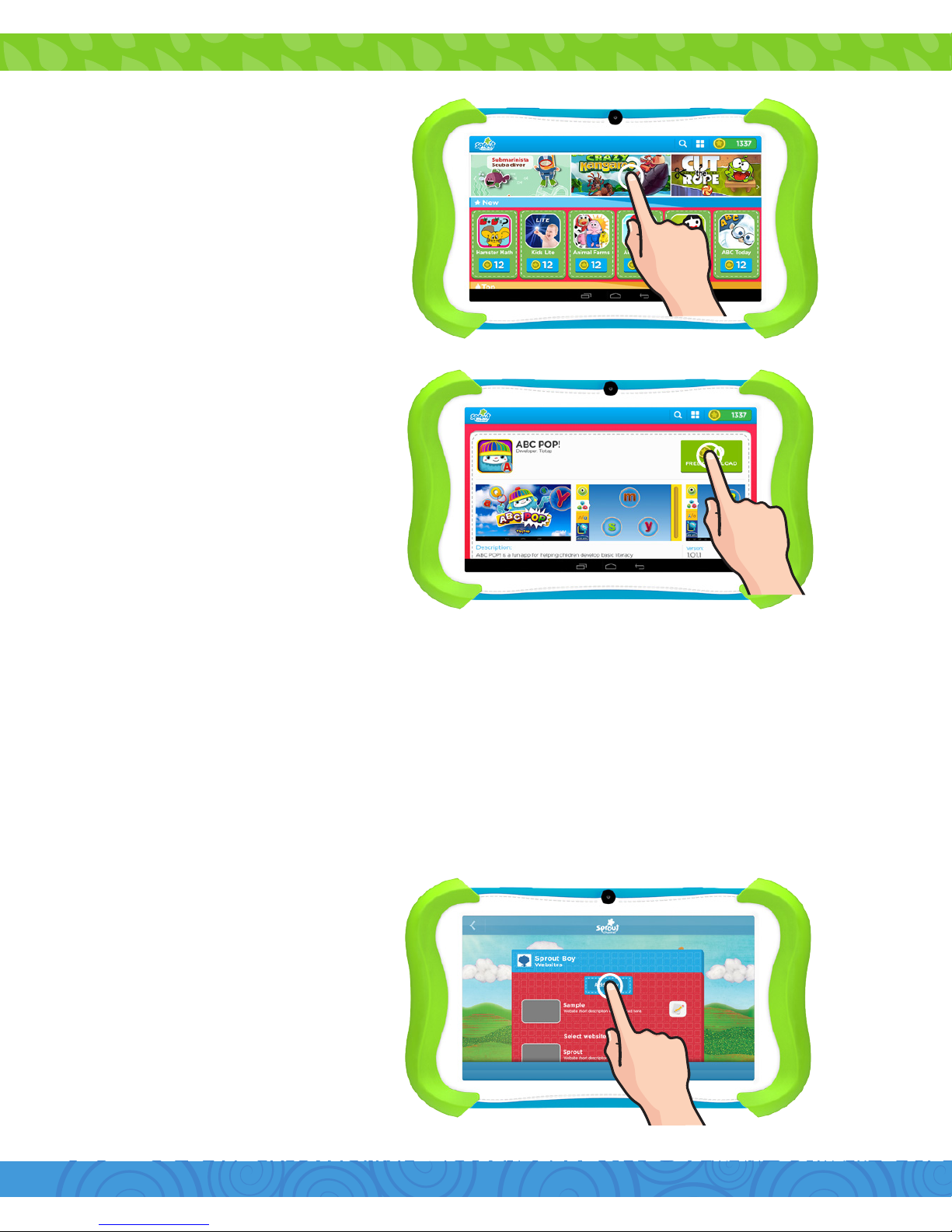
2221
Tap the app you want to
download.
Tap “Install”.
Tip: If you install too many apps, you may run out of memory.
You can uninstall an app and download it again at a later time.
You will not to have to re-purchase the app.
Step 3:
Step 4:
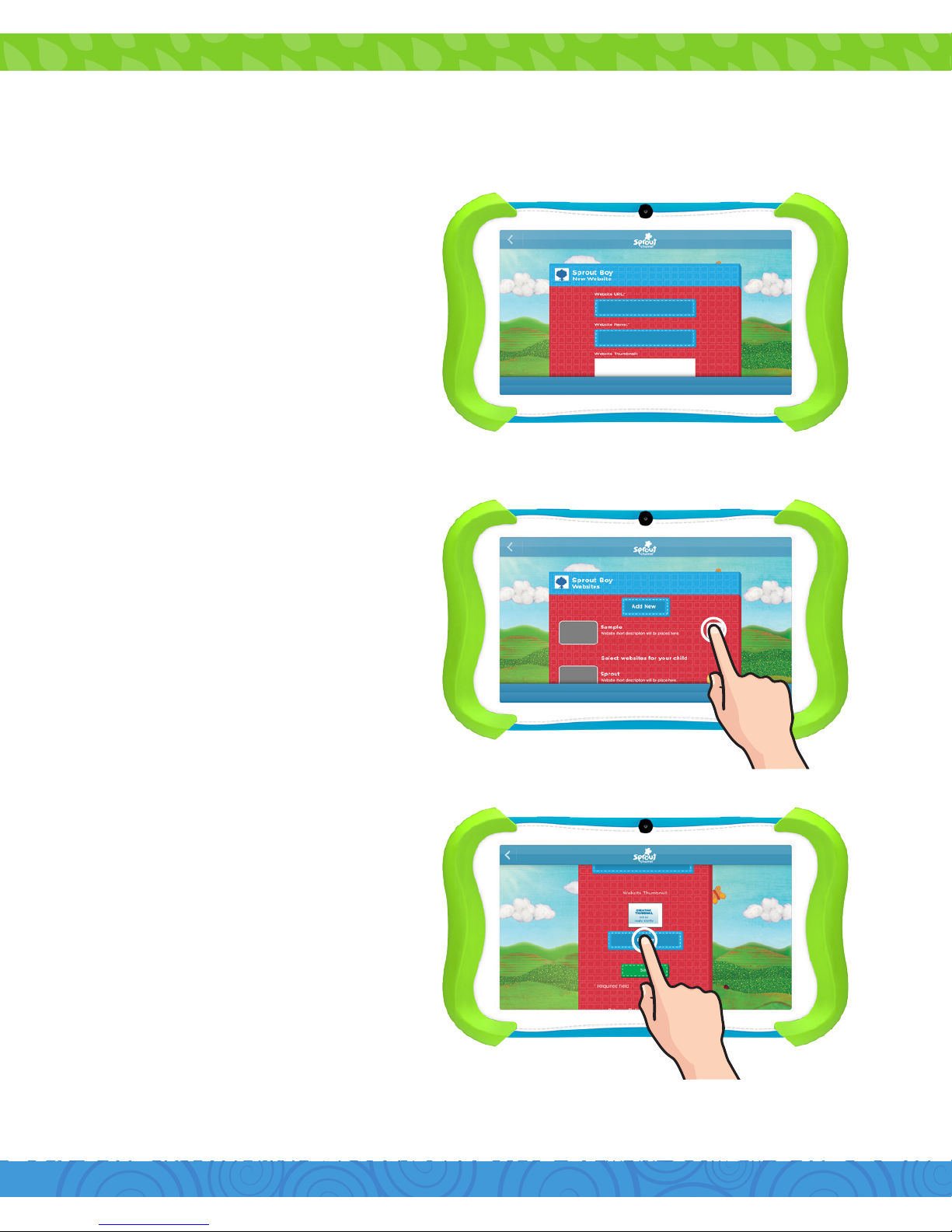
Adding Safe Sites
The Child-Safe Browser allows your child to safely browse the
internet by only giving them access to the sites you approve.
Tap “Add New”.
Step 1:
Page 25
Removing Sites
Step 1:
Step 2:
Enter the URL of the
website that you would
like to add.
Tap “Save”
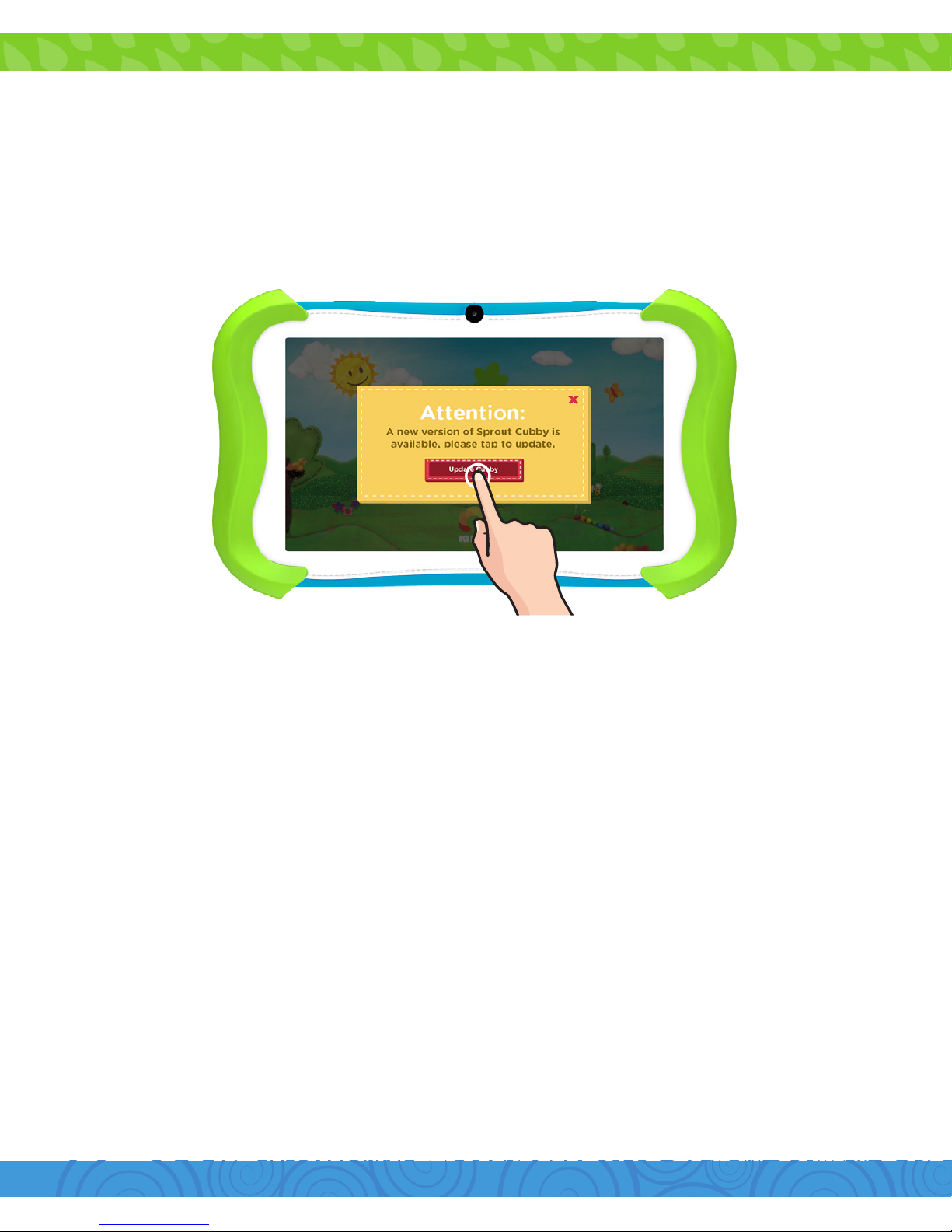
Tap the edit button to
remove a site.
Tap “Delete”.
Step 2:
Page 26
2423
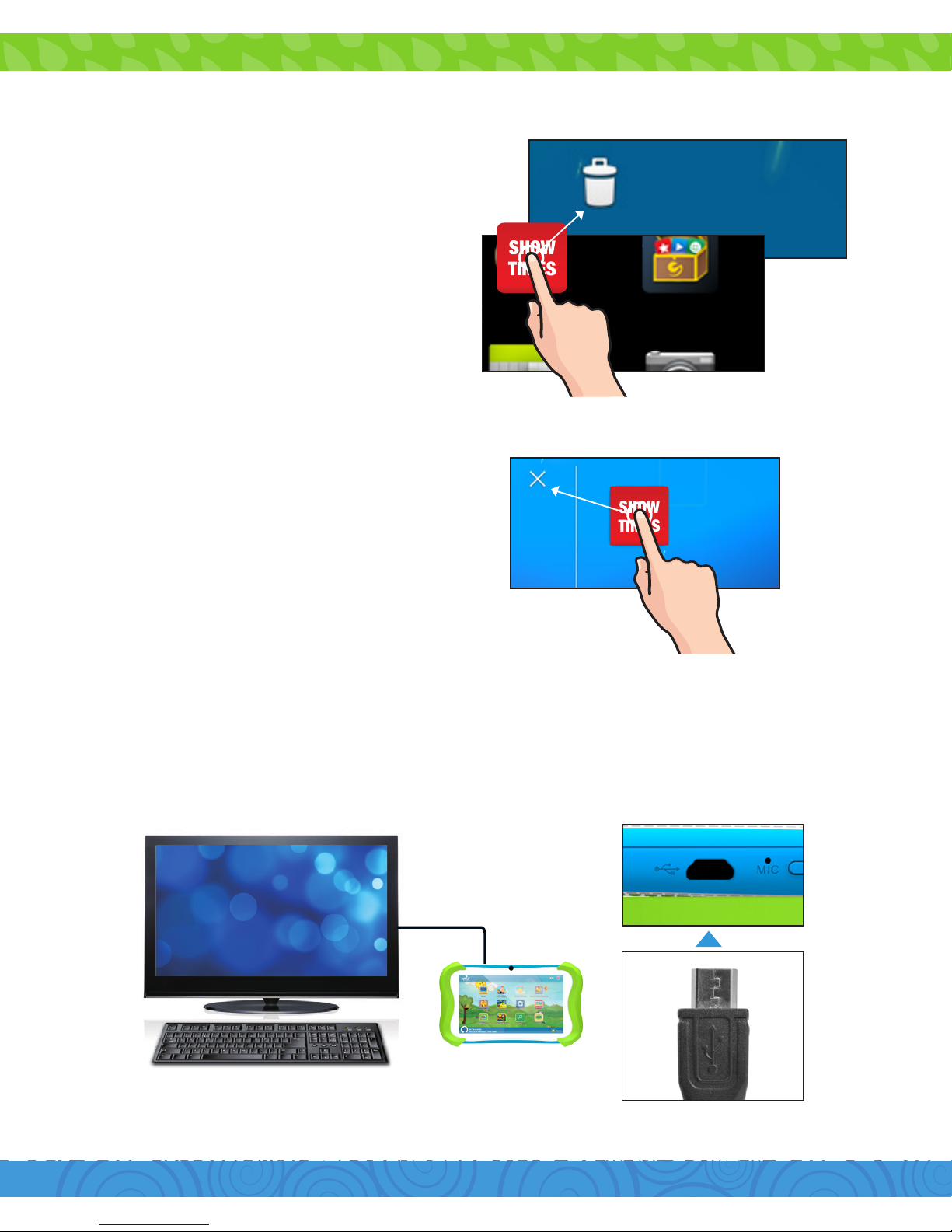
Sprout Cubby firmware updates are available via your Wi-Fi
connection. When there is a new firmware update, a notification
will appear on your Sprout Cubby, notifying you that there is a
software update available.
The Sprout Channel Cubby will automatically check for software
updates every time you open the application. If an update is
available, you will be prompted to update your Sprout Channel
Cubby.
Tap the button to update or tap the x button if you do not wish
to update at this time.
To manually check for updates in Parent Mode, tap All Apps >
Settings > About Tablet > Additional System Updates. If there
is a firmware update available, tap Download > Update Right
Now to update your software.
Over the Air Software Updates
Firmware Update
Page 27
Uninstalling Apps
Removing Apps from Home Screen
Connecting to a Computer
Show Tunes
App Mall
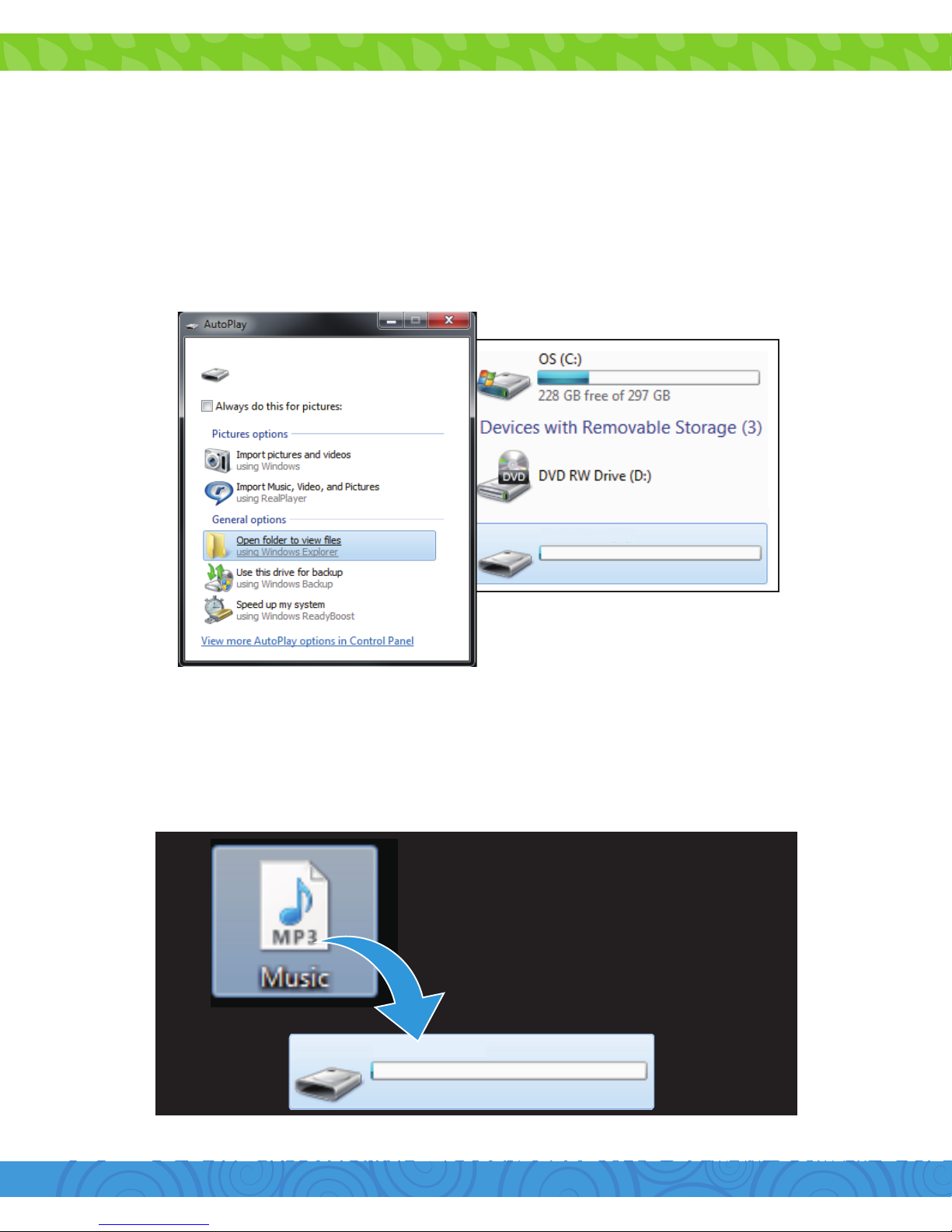
In Parent Mode, touch and hold
an app on the home screen
then drag to the X icon.
In Parent Mode, touch and
hold an app in the app menu
then drag to the trash can
icon.
You can also uninstall apps by
tapping apps in the settings
app.
You must be in Parent Mode to connect to a computer.
Connect to your computer by USB.
Step 1:
Page 28
2625
Cubby (E:)
PC
Skip to the next page if you have a Mac®.
Choose “Open folder to view files” or select the
removable disk in “My Computer” folder.
You will now be able to drag and drop files from your
computer to your tablet just as you would with a USB
flash drive.
Cubby (E:)
Step 2:
Step 3:
Cubby (E:)
Page 29
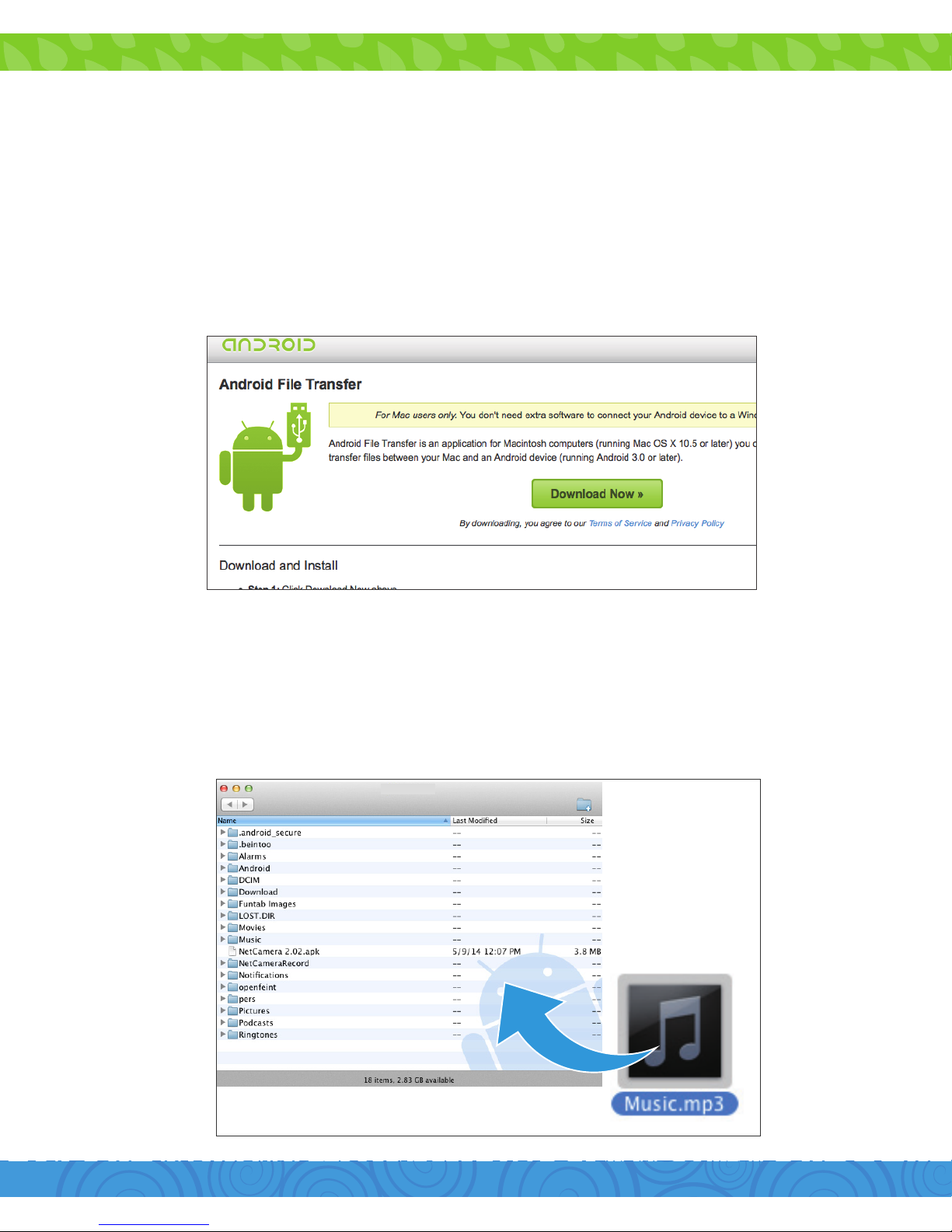
Mac
®
Go to the previous page if you have a PC.
Install the application.
The Android File Transfer application will launch
automatically when you connect your tablet. Drag
and drop files to transfer them to your device.
Step 2:
Step 3:
Step 4:
First, install the Android File Transfer application for
Mac. Go to android.com/filetransfer on your Mac and
choose “Download Now”.
Page 30
2827
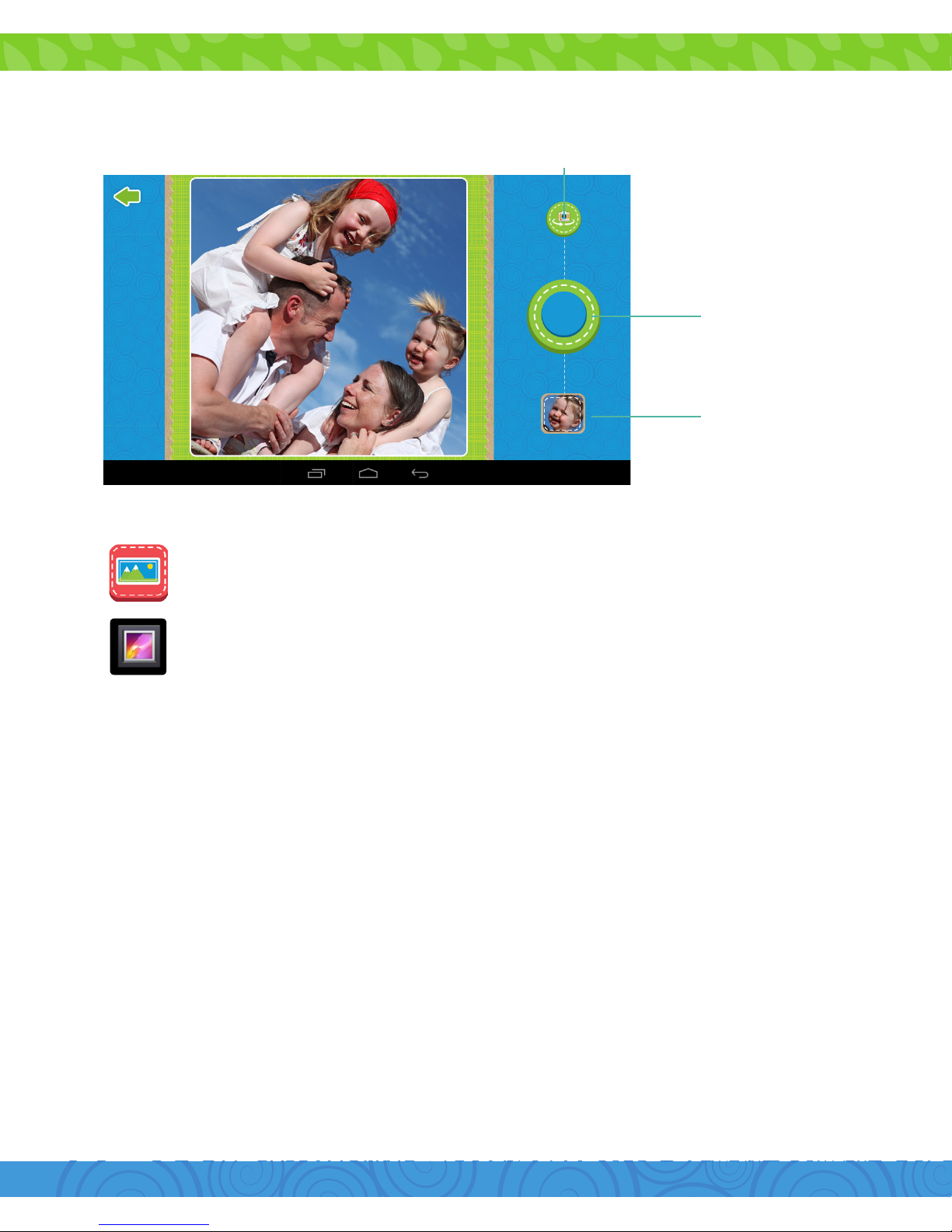
Sprout Cubby Camera
Camera Shutter
Gallery
Switch to front and rear camera
You can view your pictures by tapping the
Gallery icon.
You must exit Cubby Mode to edit pictures taken
with the Sprout Cubby Camera.
You can access them through the Gallery app in
Parent Mode.
Wi-Fi: Turn Wi-Fi on to see available networks and connect.
Bluetooth: Turn on Bluetooth to pair to another device.
Sound: Adjust the volume, notifications, and alarm sounds.
Display: Adjust brightness, change your wallpaper, sleep
settings, and font size.
Settings
Page 31

Storage: Provides storage use data.
Battery: Provides battery usage data.
Apps: Force stop or uninstall an app, move its data to the SD
card to free space on your device, or clear its stored data.
Location: Allow Google to use Wi-Fi to determine your
location for improved search results.
Security: Adjust settings to make your tablet more secure or
allow installation of non-Market apps.
Language & Input: Set language, spelling correction, keyboard
and voice settings.
Backup & Reset: Backup data and or reset your tablet to the
factory settings.
Accounts: Add or remove email accounts.
Date & time: Set the date, time, and time zone.
Accessibility: Adjust settings for users with poor vision, turn
on/o screen rotation.
Printing: Set up Google Cloud Print to connect your printer to
the web.
About tablet: Model number and general tablet information.
Page 32
3029
Included Apps
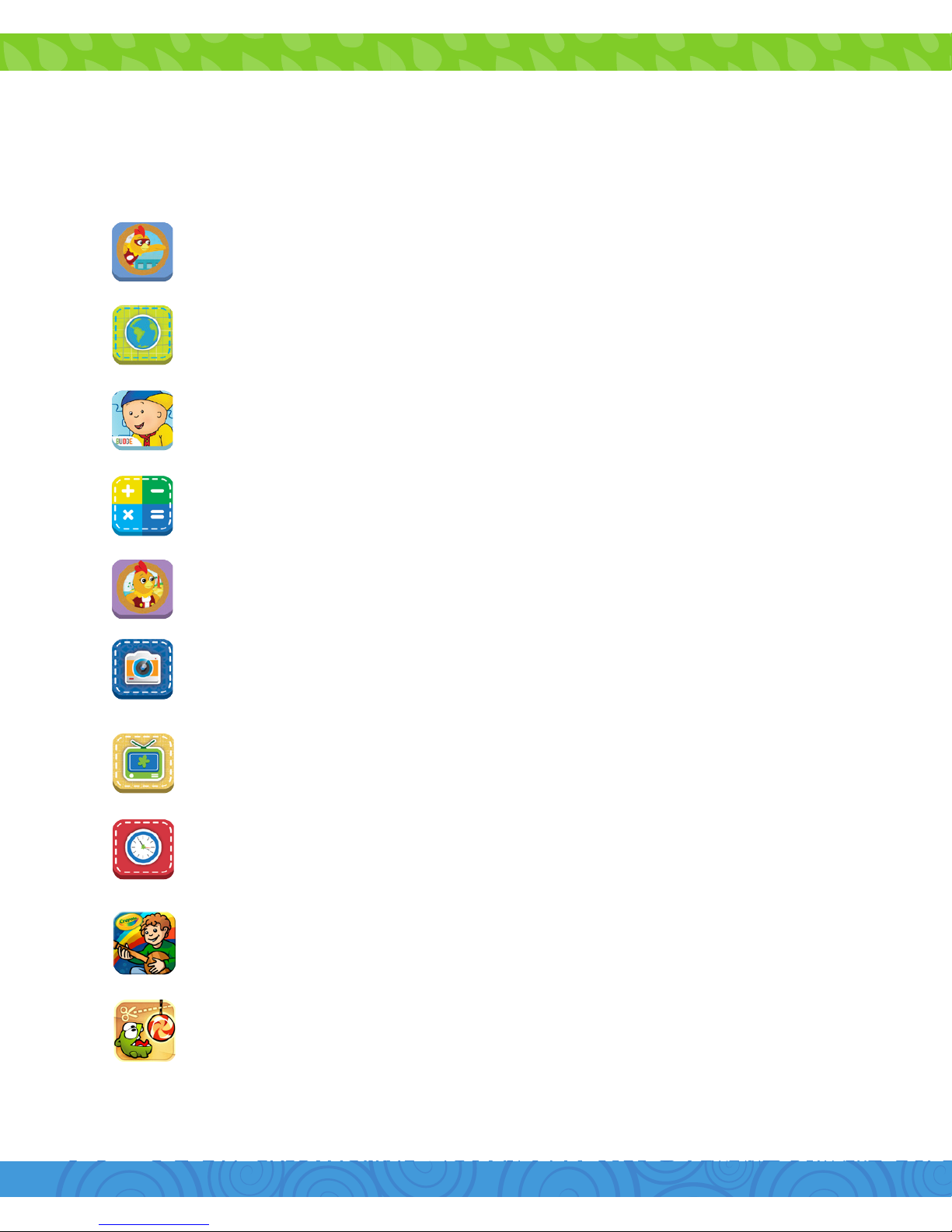
Cubby Mode Apps
All of a Kind Chica: Read-a-long story with Chica, and
play games.
Browser: Child safe internet browser where parents can
create quick links to favorite websites. Wifi needed.
Caillou Puzzle: Join Caillou and his friends as you
explore dierent rooms in his big blue house.
Calculator: Basic calculator functions.
Captain Chica Redcomb: Read-a-long story with Chica,
and play games.
Camera: Still camera.
Clips: Watch clips from Sprout Channel shows. Wifi
needed.
Clock: Keep time and set alarms.
Color, Draw & Sing: Color your favorite Sprout Channel
friends with Crayola.
Cut the Rope: Cut the rope to feed Om Nom the candy
he wants and catch stars along the way.
Page 33
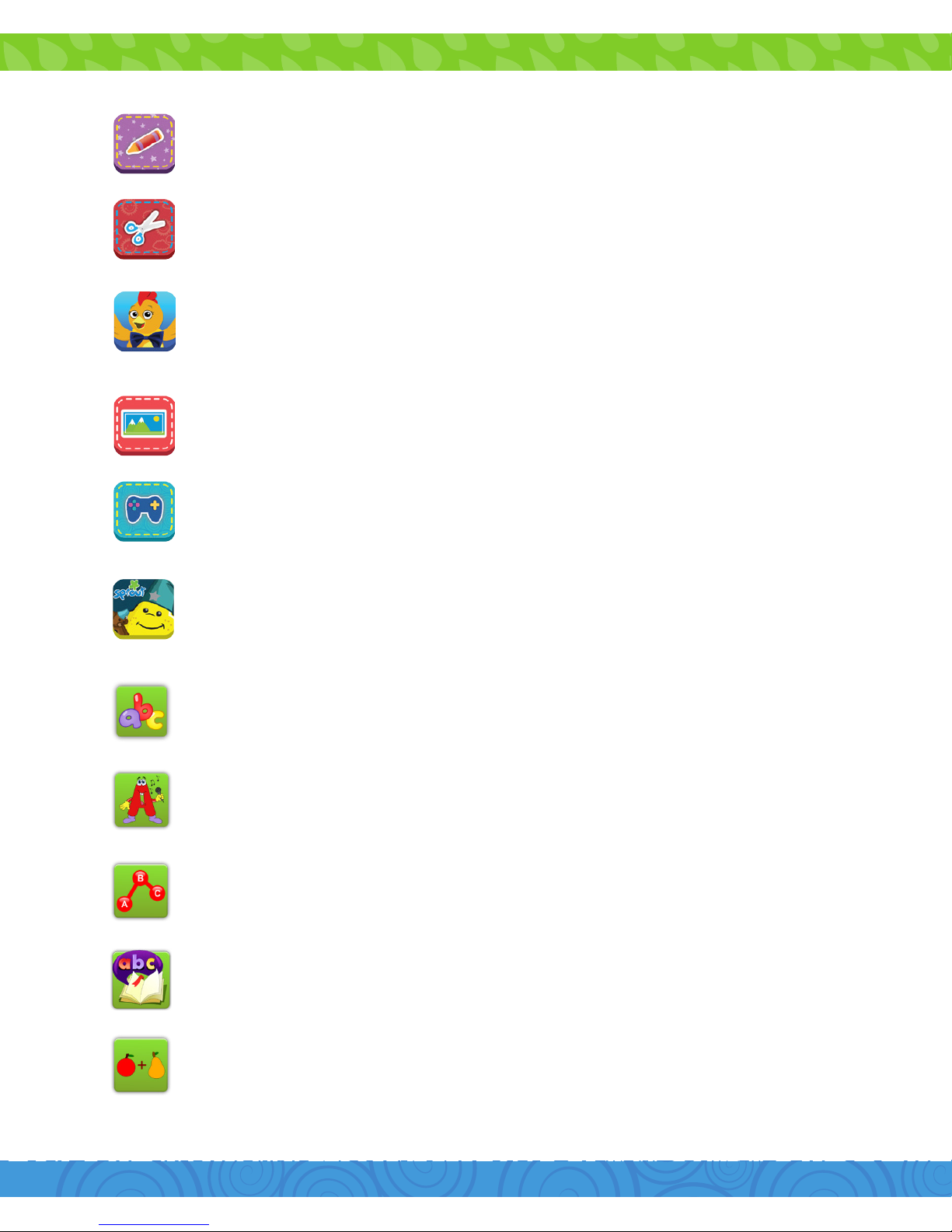
Coloring Pages: Print SproutOnline pages to color
using Google Print. Wifi needed.
Crafts: Find fun SproutOnline crafts and print using
Google Print. Wifi needed.
Dress Chica: Choose hats, masks, shirts and accesories
for Chica. Send to Sprout Channel and you may see it
on TV! Wifi needed to send to Sprout.
Gallery: View your photos.
Games: Play Sprout Online.com games. Wifi needed.
Good Night Star: A fun, interactive game for you and
your preschooler from The Good Night Show.
Kids ABC Letters: Learn the letters of the alphabet.
Kids ABC Phonics: Learn the sounds of letters.
Kids Connect the Dots: Improve letter and number
recognition skills.
Kids Learn to Read: Practice blending sounds together
to read and spell simple words.
Kids Numbers and Math: A fun way for kids to learn
numbers and build basic math skills.
Page 34
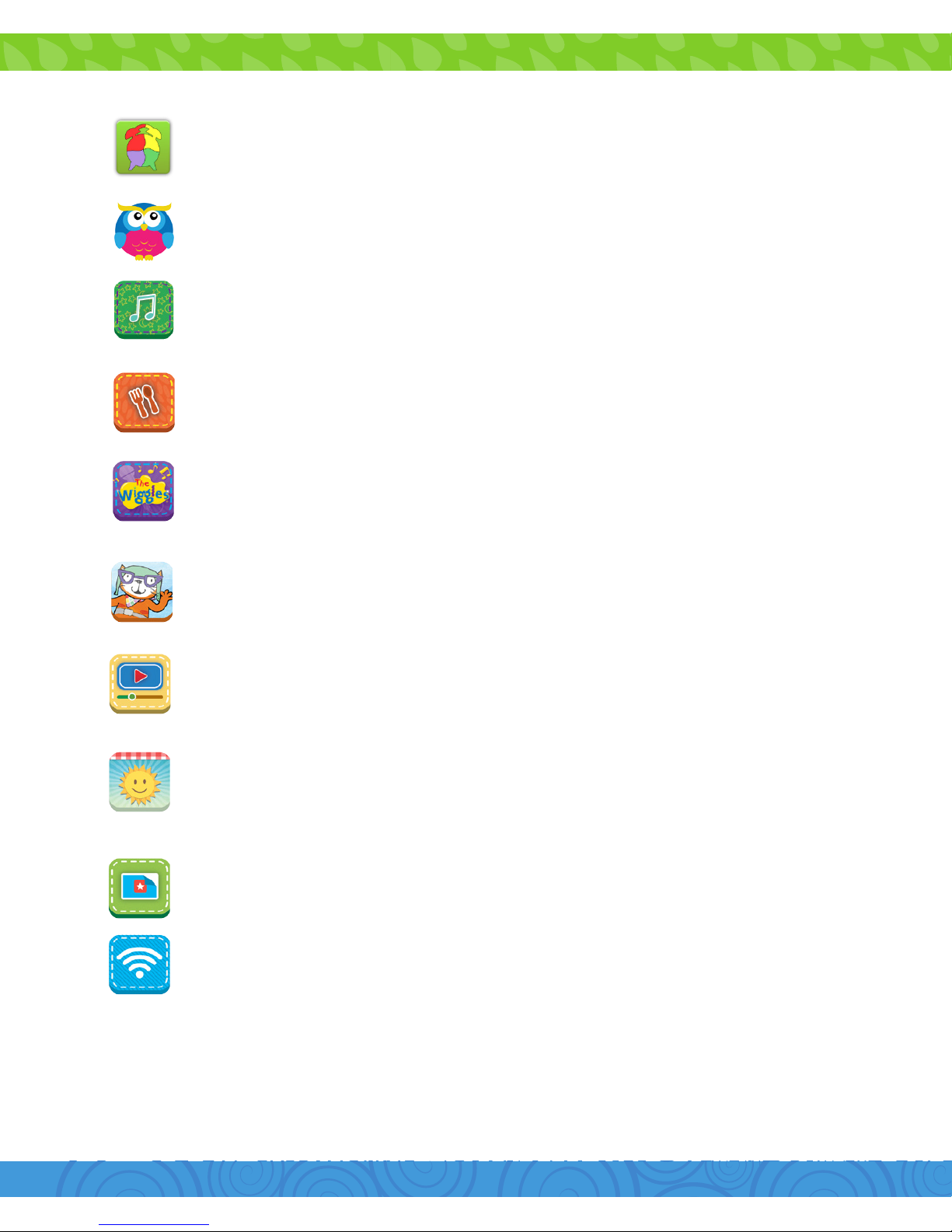
3231
Kids Preschool Puzzle: Educational fun with colorful
puzzles.
MeeGenius: Children’s book app with 10 free titles.
Access to hundreds of read-along books.
Music: Play music stored on your device.
Recipes: Find recipes from SproutOnline.com and print
using Google Print. Wifi needed.
Sing with the Wiggles: Sing and Record with The
Wiggles.
Super Looper: Fly with Poppy Cat
Videos: Preloaded Sprout Channel videos. Wifi needed
at initial set up.
Weather Report: Report the weather with the help of
Chica. Send to Sprout Channel and you may see it on
TV! Wifi needed to send to Sprout.
Wallpaper: Change your Sprout Channel Cubby
background.
Wifi: Access your Wifi settings quickly.
Page 35
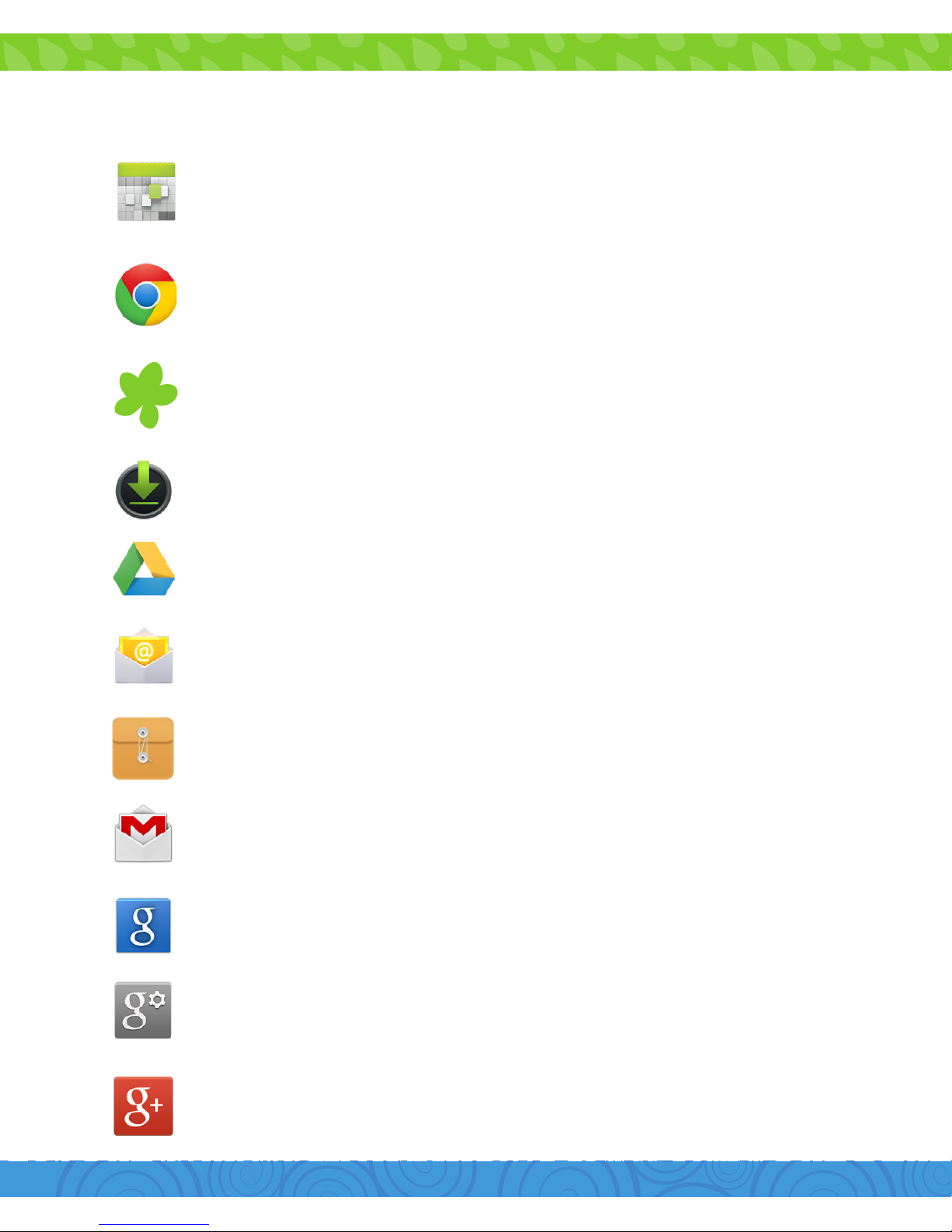
Calendar: Keep track of your schedule and set
reminders.
Chrome™: Browse the web with Google Chrome.
Cubby Mode: The primary interface for the Sprout
Channel Cubby with educational content, games, and
more.
Downloads: Manage your current downloads.
Drive: Share your Google docs and files.
Email: Sync your email accounts.
File Manager: Browse for files to open, delete, etc.
Gmail: Fast searchable email from Google.
Google: Stay up-to-date with Google Now cards.
Google Settings: Edit your Google account settings.
Google+™: Stay connected and share life as it happens
with Google+.
Parent Mode Apps
Page 36
3433
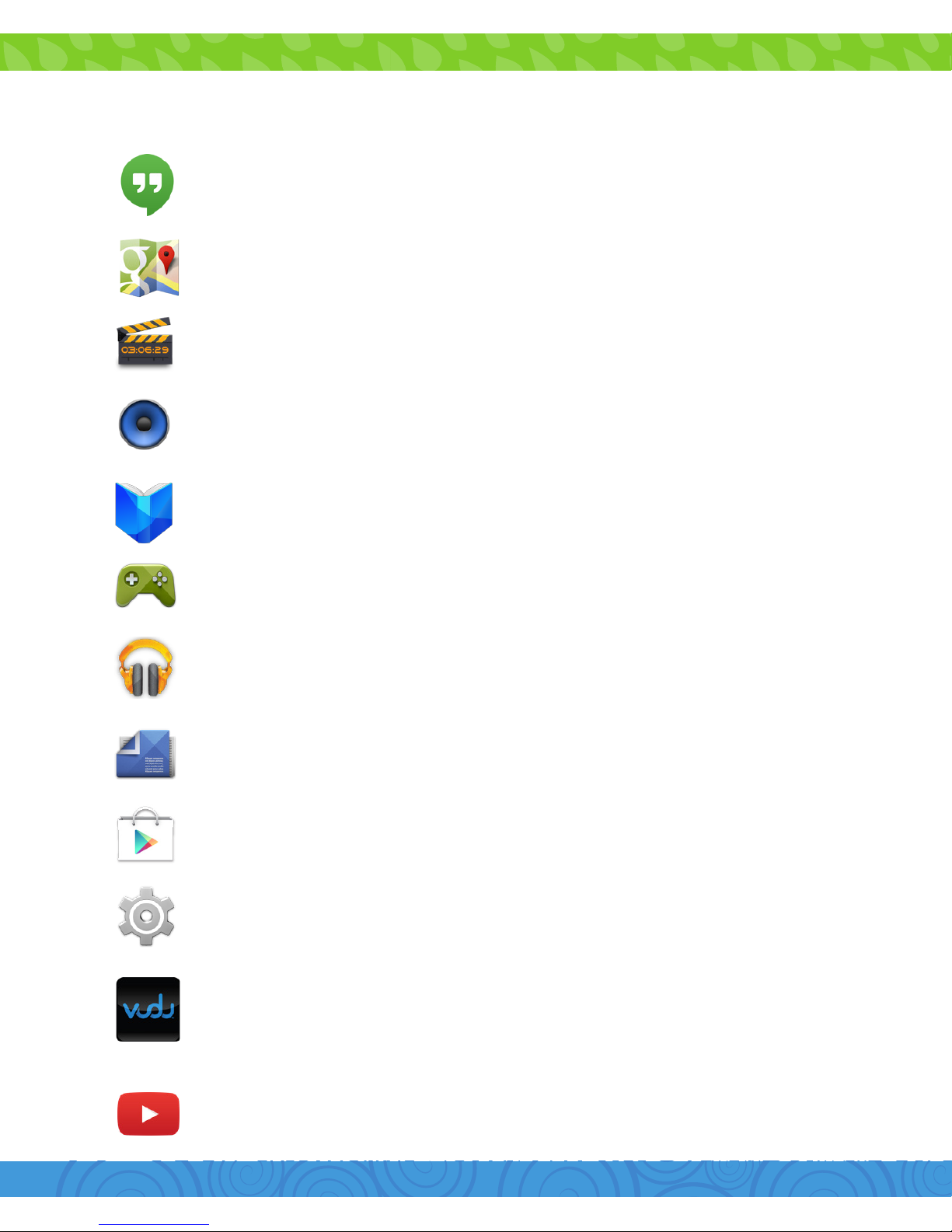
Hangouts: One-on-one and group conversations with
photos and free video calls.
Maps™: Find locations and get directions.
Movie Studio: Edit videos and create your own movies.
Music: Music player.
Play Books: Read your favorite e-books.
Play Games: Discover new games. Track achievements
and scores.
Play Music: Discover, play, store and share the music
you love.
Play Newsstand: Read magazines and the latest
headlines.
Play Store: Shop for music, books, magazines, movies,
TV shows, games and apps.
Settings: Adjust settings on the Sprout Channel Cubby.
Vudu: Get instant access to all latest movies and TV
shows.
YouTube: Stream your favorite videos on the web.
Page 37
Why use a Google Account?
Google Accounts let you organize and access your personal
information from any computer or mobile device.
You can access the following features while in Parent Mode:
Sync & Back-up: Whether you draft an email, add a contact,
or add an event to your calendar, your work is continuously
backed up and synchronizes with any computer with the same
Google Account.
Accessibility: Check your latest emails, events, or text
messages wherever you are on any computer or mobile device.
Security: Google works around the clock to ensure your private
information stays secure.
Shopping: Connect your Google Account with your Google
Wallet™ to easily purchase music, books, apps, and more on
Google Play and other online stores.
Services: Your Google Account also lets you take full
advantage of other Google apps and services such as YouTube,
Google Play, Hangouts, Google Maps, Messaging and more.
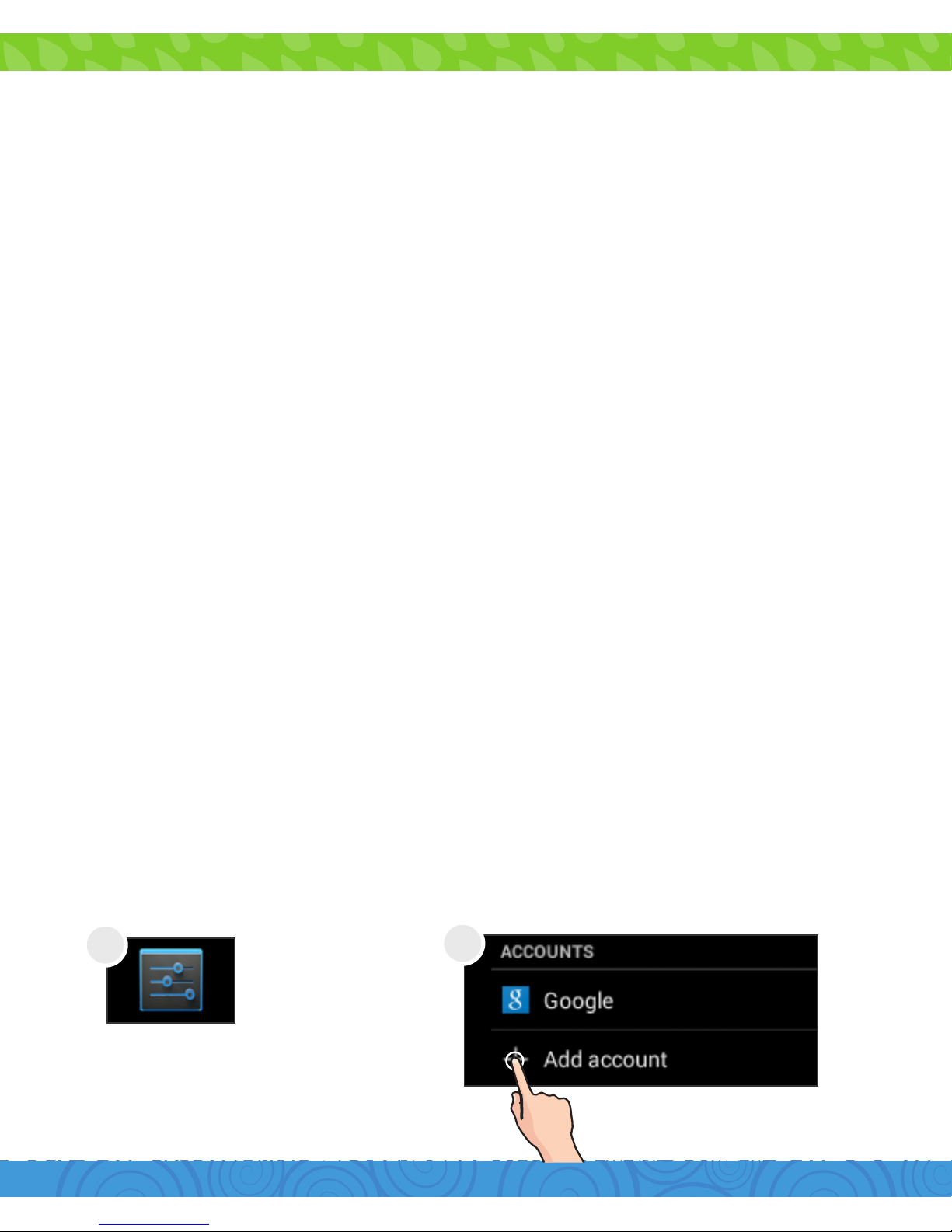
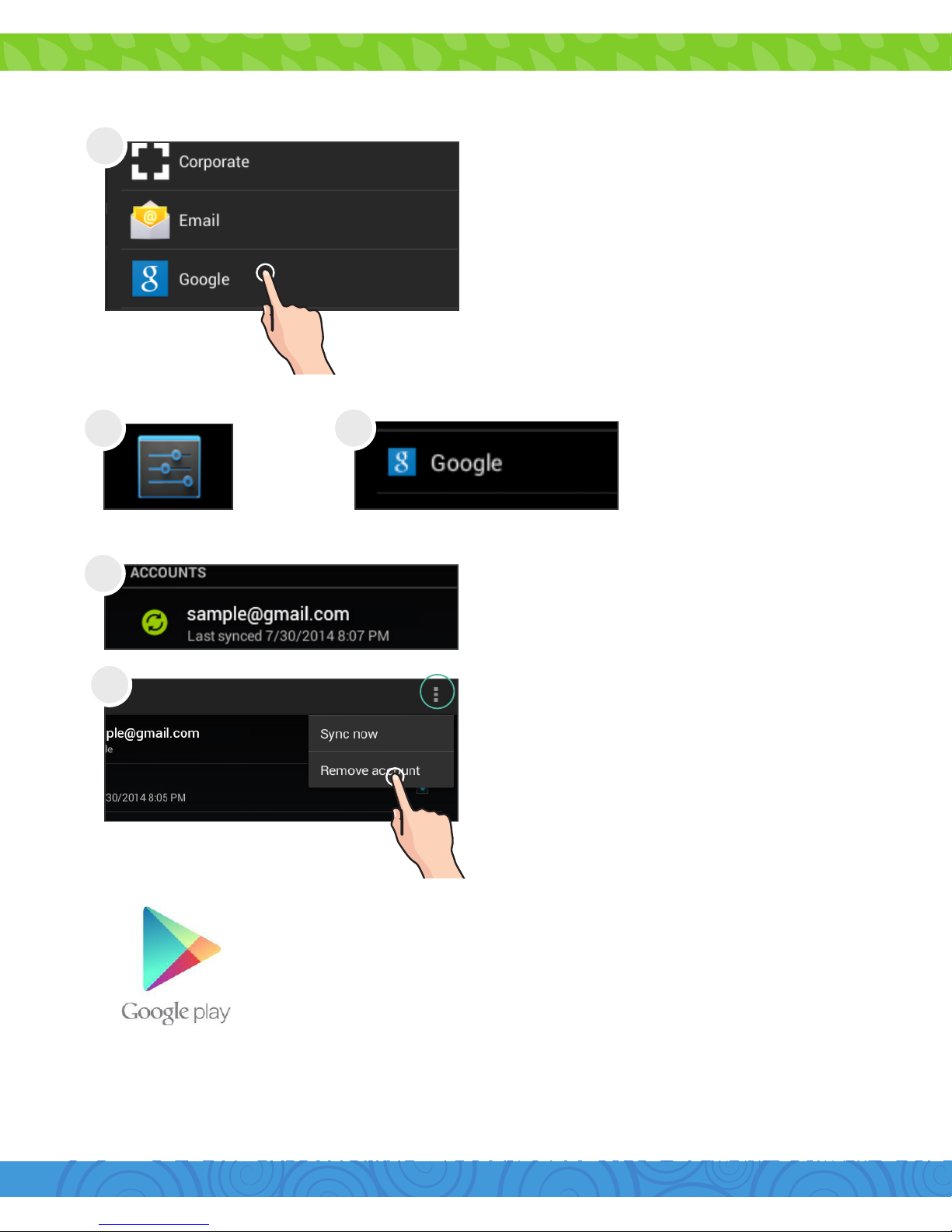
Add a Google Account
Tap Settings
4. Google Services
1
2
Page 38
3635
Google Play
Google Play collects together all of
your favorite content in one place.
Access movies, TV shows, music, books,
magazines, apps, and more when you sign
in with your Google Account. You can also
shop for more content in the Google Play
Store app.
Remove a Google Account
Tap “Settings”.
Under Accounts, tap “Google”.
Tap the Menu icon and
then “Remove account”.
Tap the account that
you want to remove.
Tap what kind of
account you want to
add and sign in.
1
2
3
3
4
Page 39
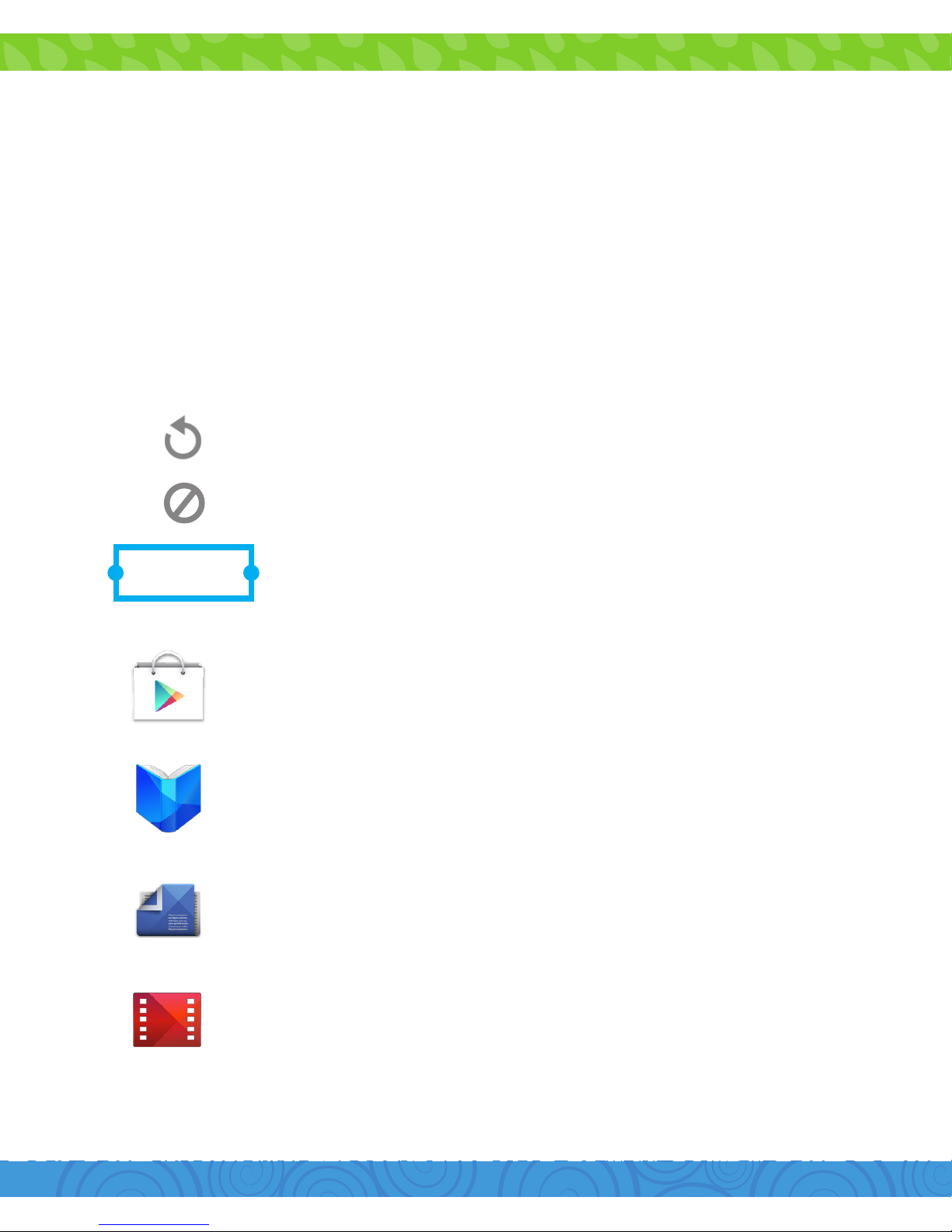
My Library: Displays your most recently used content. Tap
any of the images to view the item.
Recommended Apps: Recommends apps that you can
add to your home screen based on your past purchases.
All Google Play recommendations work the same way:
Tap to avoid future suggestions like this
Hold and drag blue dots to resize
Tap to see a dierent suggestion
Purchase music, games, books, magazines,
movies, TV shows, and apps on the Google
Play Store app
With Google Play, shop the world’s largest
eBookstore now with over 5 million booksavailable on web, tablet, and phone.
With Google Play Newsstand, discover
more of the news and magazines you love
with a newsstand made for you.
Choose from thousands of movies and TV
shows on Google Play and stream them
instantly on your Android phone, tablet or
the web.
Play Store
Play Books
Play Newsstand
Play Movies & TV
Page 40
3837
Buy now, listen now with music on Google Play.
Stream your music from any compatible device
whether it’s a tablet, smart phone, or computer.
For optimal use, sync your computer’s music
library to your account to stream anywhere.
Also great for backing up your library.
Play Music
Google Now uses contextual data from your tablet and
from other Google products to supply you with just the
right information at just the right time.
Tap the Google search bar on the Home screen or
swipe up from the icon to open Google Now.
Google Now displays cards when they’re most likely to
be useful and relevant based on the current time and
your current location. Find out what the weather is like,
how much trac to expect before you leave for work,
or how your favorite sports team is doing.
To dismiss a card from the Google Now screen, swipe
it away. The card will return the next time it’s relevant,
which may be hours or days from now.
Google Now™
Google Now Cards
Page 41
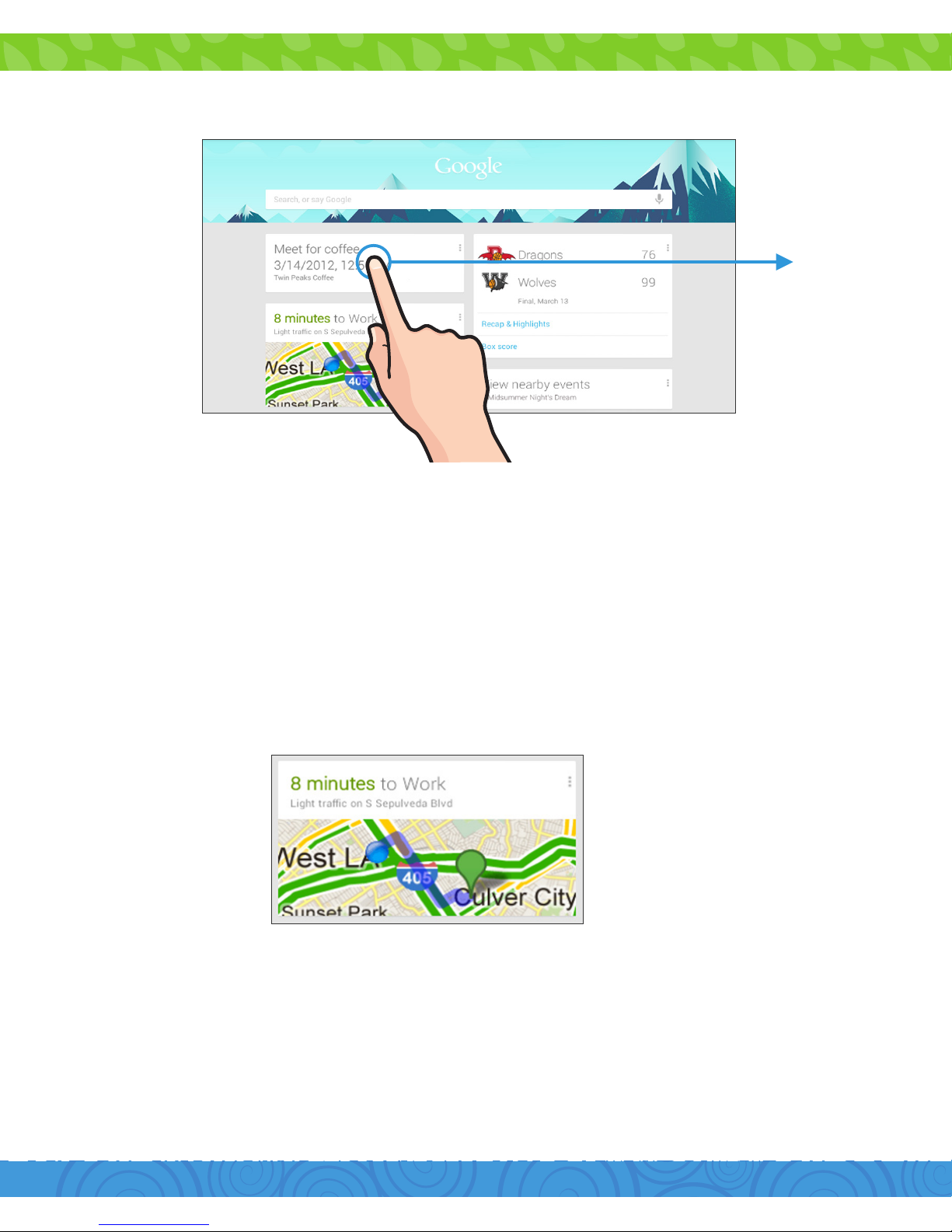
You can turn Google Now cards on or o at any time. To do
so from the main Google Now screen go to Menu > Settings >
Google Now and choose a specific card. You can then check or
uncheck when you would like that card to appear.
Check the weather or trac by confirming your home and
work locations.
Location Access
Page 42

4039
To get to your Google Now settings from the Google Now main
screen, touch the Menu icon at the bottom right of the screen.
Touch Settings. Four types of settings will be available.
Google Now: These settings allow you to turn Google Now
on or o. It will also take you through a brief introduction to
Google Now and you will be given the chance to opt in. From
the settings screen you can also change the priority of cards
and sound settings for notifications.
Voice Settings: Voice settings control dierent aspects of
speech input and output.
•Language:SelectalanguagetouseforVoiceSearches.
The Voice Search language can be dierent from the
language displayed by your tablet.
•SpeechOutput:SelectHands-FreeOnlytoturnon
speech output when using a headset.
•BlockOensiveWords:Checktoensurethatsearch
results with oensive language are blocked.
•HotwordDetection:Whenthisischecked,youcansay
“Google” when viewing the Google Now screen to initiate a
voice search or action.
Tablet Search: Select which apps in your tablet are included in
Google searches.
Privacy & Accounts: Control search-related privacy options for
your Google Account.
Google Now Settings
Page 43

•ManageLocationHistory:OpensGoogleMapssettings
where you can turn location settings and location reporting
on or o.
•LocationServices:Allowsyoutoturnlocationaccessby
all Google apps on or o.
•ShowRecentSearches:Checkifyouwantsearch
suggestions based on your recent searches.
•ManageWebHistory:Viewyourwebhistoryaftersigning
in.
Voice Actions
After installing the Google Search app you can use Voice
Actions to get directions, send messages, and perform a
number of other common tasks.
To initiate a Voice Action you can:
•TaptheMicrophoneintheGoogleSearchBaronyour
Home Screen
•TaptheMicrophoneinyourkeyboard
Next, speak the Voice Action you want to use. Here are some
typical examples:
“Set alarm for 8:30 a.m”
“Send email to Marcus Foster. Subject: Coming tonight?
Message: Hope to see you later.”
“Navigate to Mike’s Bikes in Palo Alto”
As you speak, Voice Search analyzes your speech and initiates
the action. If Voice Search doesn’t understand you, it lists a set
of possible meanings. Just tap the one you want.
Some Voice Actions, such as “send email” and “note to self.”
open a panel that prompts you to complete the action by
speaking or typing more information.
Page 44
4241
When prompted, you can:
•Touchanytextalreadyinthepaneltoaddoreditthe
text by typing. (You can tap the Microphone icon again to
continue speaking instead of typing).
•Touchunderlinedwordsorphrases,dragacrossmultiple
words to view a list of alternate transcriptions, or edit by
speaking or typing.
•Touchabuttonatthebottomofthewindowtoaddany
optional fields (you can also speak the name and content
of any of these fields).
•Whenyouaredone,touchthebuttonappropriateto
complete the action such as Send.
To initiate a Voice Action touch the Microphone icon.
*Voice Actions will only be available after downloading
the Google Search app.
Voice Commands
Some popular voice commands are:
Say
[Words you want
to search for]
“Navigate to...”
Followed By
Address, name,
business name, or
other destination
Examples
“bike shoes”
“Navigate to Union
Square” or “1299 Colusa
Ave, Berkeley, CA”
Page 45
“Go to”
“Note to self”
“Define”
“Weather”
“Movie”
“Pictures of”
“Translate to”
[A math phrase]
Search string or
URL
Message text
Word to define
Location
Movie location and
Movie name
Topic
Language & Phrase
“Go to Google.com”
“Note to self: remember to
buy milk”
“Define campanile”
“Weather Detroit”
“Movie, Los Angeles,
London After Midnight”
“Pictures of cats”
“Translate to French, Where
is the restroom?”
“75 divided by 6”
Page 46
4443
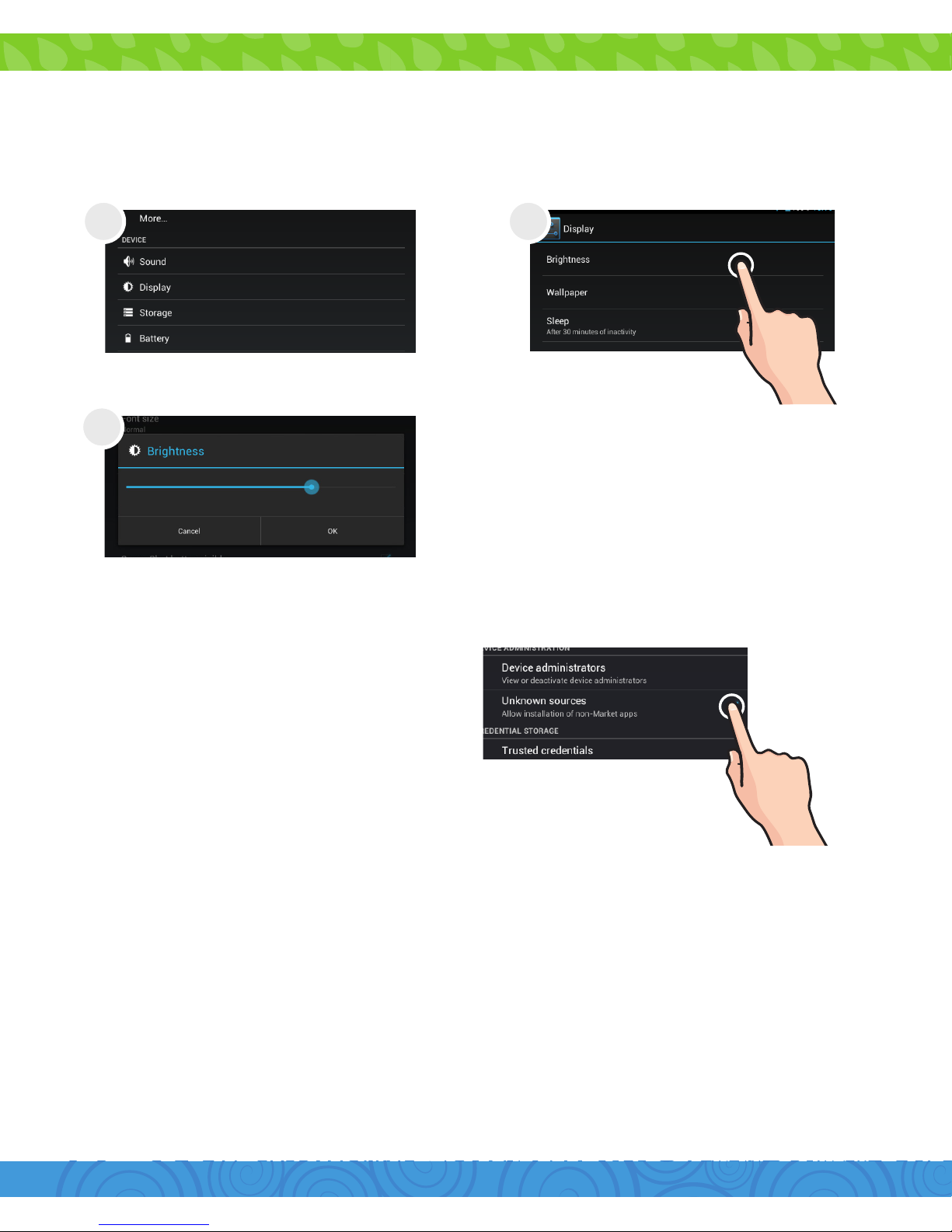
Screen Brightness
5. Tips and Tricks/FAQs
In Settings, tap “Display”.
Tap “Brightness.”
Use the slider to adjust the
brightness. Tap OK.
Tip: Lower the brightness
at night to extend your
battery life.
1 2
3
Apps Won’t Install
Won’t Connect to Computer
In Settings Tap “security”. Be
sure “Allow installation of nonMarket apps” is checked.
You must allow installed apps to be accessed in the
Spout Channel Cubby Parent Dashboard. See the
Editing Available Apps section.
Try a dierent USB port on your computer and/or
restarting your Sprout Channel Cubby.
The battery may be too low and the computer is not providing
enough power by USB. Use the wall charger to charge your
Sprout Channel Cubby for 30 minutes then re-connect to the
computer.
Page 47
Tablet Freezes
Factory Restore
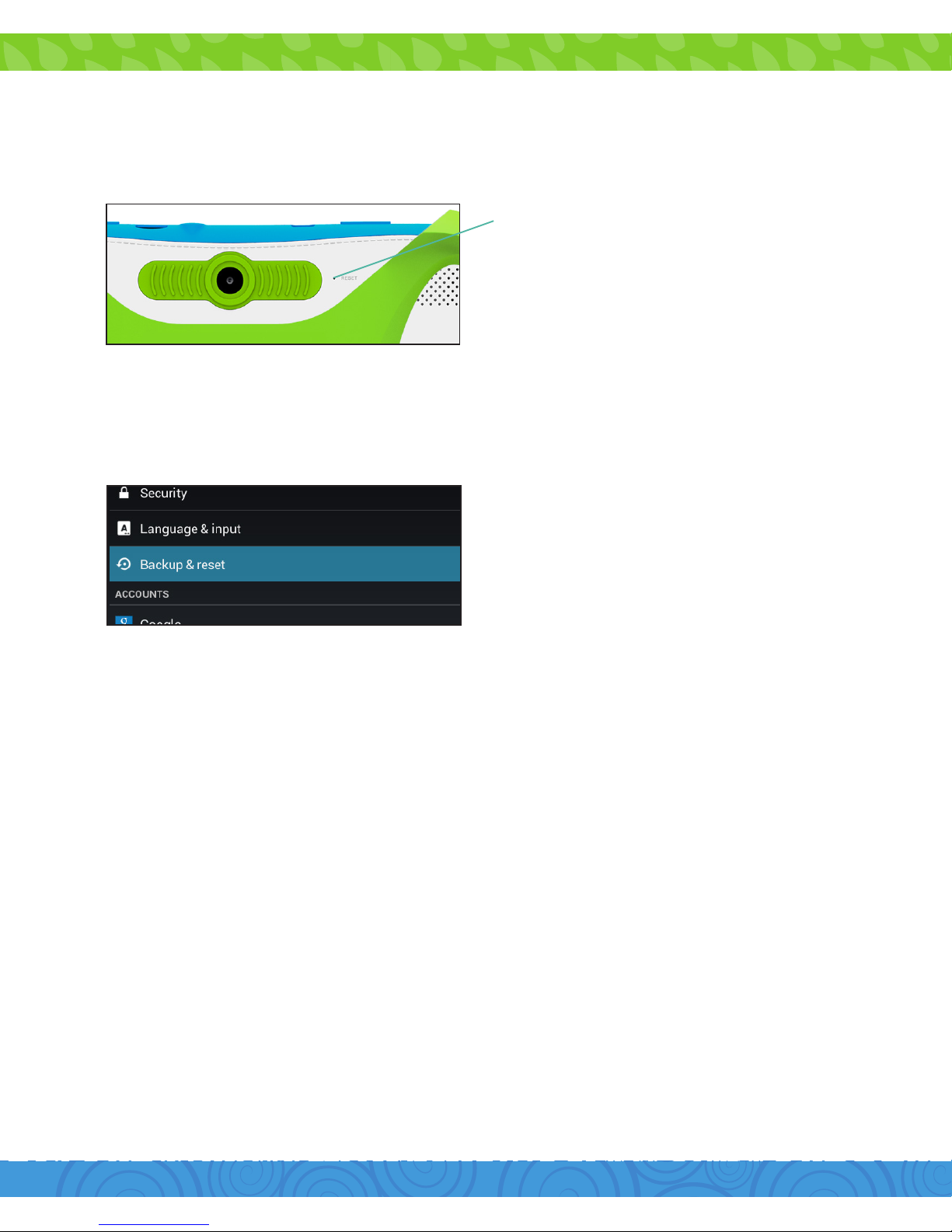
If your Sprout Channel Cubby freezes, you can reset it easily.
The reset button is located
on the back of the unit. Reset
the device by pressing the
button with a small object
such as a paper clip.
Select “Backup & reset” in
the Settings app to restore
factory settings. This will
erase all data on the tablet.
The Sprout Channel Cubby is an electronic device and can be
damaged if used improperly.
•Don’texposeyourdevicetoliquids,waterorextreme
humidity.
•Don’ttrytodrytheSproutChannelCubbyusingaheat
source such as a dryer, microwave, or oven.
•Don’tchargeyourtabletoruseitinenvironmentsabove
95°F and below 32°F.
•Don’texposetheSproutChannelCubbytodirtorsand.
•Useaclean,dryclothtocleanyourtablet.Donotuse
chemicals or water.
•TheSproutChannelCubbycanbedamagedbyshockfrom
dropping.
Care
Page 48
4645
Specications
CPU: 1.2GHz Quad-Core
RAM: 1GB
Memory: 16GB (formatted capacity will be less)
MicroSD Card Supported: Up to 32GB
Resolution: 1024x600
Battery: Rechargeable Li-Polymer
Record: Built-In Microphone
Operating System: Android 4.4, KitKat
Image Formats: JPEG, PNG, BMP, GIF
Video Formats: WMV, MKV, AVI, RM/RMVB, MPEG-2/4
Music Formats: MP3, WMA, APE, FLAC, AAC, AC3, WAV
Customer Support
Caution - Electric Device
As with all electric products, precautions should be observed
during handling and use to prevent electric shock.
Cubby is an electronic device and is easily damaged by liquids.
•DonotuseCubbyinwetenvironments.
•DonotspillfoodorliquidsonCubby.
•IfCubbygetswet,immediatelyunplugallcablesand
turn o the tablet by holding the power button then select
“Power O”.
•AllowCubbyplentyoftimetodrythoroughlybefore
turning it on again.
Visit sproutchannelcubby.com/support for customer support
regarding your device.
To submit a request, fill out the required information online.
You will be provided a ticket number regarding your issue,
which you can refer to when contacting us further.
Page 49

Attention: Important Safety Information:
Preventing Hearing Damage:
Driving or Riding Safety:
Seizure Risk:
All charging functions and mechanisms (Wall charger) are
intended for adult usage. Children should not use this device
while charging.
Permanent hearing loss can occur if earphones are used at
high volume. Extended use increases this risk. Use earphones
at a safe volume level place time limits on use. Turn the volume
down if your child can’t here you speaking to them.
Do not allow your child to ride a bike or control any vehicles
while using Cubby. Do not use Cubby yourself while driving.
A small percentage of people are susceptible to seizures when
they are exposed to flashing lights or patterns. Consult your
doctor before using Cubby if you or your child have a history of
blackouts or seizures. Discontinue use and consult your doctor
if you or your child experience blackouts, seizures, headaches,
or eye twitching while using Cubby.
Never attempt to repair Cubby or it’s accessories. Do not
attempt to remove or replace the battery. Cubby is not
user-serviceable. Visit sproutchannelcubby.com/support for
assistance.
•Donotattempttospeedthedryingprocessbyusinga
heat source such as a hair dryer, oven, or microwave.
Page 50

4847
FCC Statement
SAR Information
This device complies with Part 15 of the FCC Rules. Operation
is subject to the following two conditions:
(1) this device may not cause harmful interference, and
(2) this device must accept any interference received, including
interference that may cause undesired operation.
Changes or modifications not expressly approved by the party
responsible for compliance could void the user’s authority to
operate the equipment.
The SAR limit of USA (FCC) is 1.6 W/kg averaged over one
gram of tissue. Device types 7inch tablet-Cubby (FCC ID:
XHWCUBBY) has also been tested against this SAR limit. The
highest SAR value reported under this standard during product
certification for use on the body is 0.298 W/kg. This device
was tested for typical body-worn operations with the back of
the handset kept 1.5cm from the body. To maintain compliance
with FCC RF exposure requirements, use accessories that
maintain a 0.5cm separation distance between the user’s body
and the back of the handset. The use of belt clips, holsters and
similar accessories should not contain metallic components
in its assembly. The use of accessories that do not satisfy
these requirements may not comply with FCC RF exposure
requirements, and should be avoided.
Section 15.21 Information to user.
Changes or modifications not expressly approved by the party
responsible for compliance could void the user’s authority to
operate the equipment.
Page 51

Section 15.105 Information to the User
NOTE: This equipment has been tested and found to comply
with the limits for a Class B digital device, pursuant to part
15 of the FCC Rules. These limits are designed to provide
reasonable protection against harmful interference in a
residential installation. This equipment generates, uses and
can radiate radio frequency energy and, if not installed and
used in accordance with the instructions, may cause harmful
interference to radio communications. However, there is no
guarantee that interference will not occur in a particular
installation. If this equipment does cause harmful interference
to radio or television reception, which can be determined by
turning the equipment o and on, the user is encouraged to
try to correct the interference by one or more of the following
measures:
•Reorientorrelocatethereceivingantenna.
•Increasetheseparationbetweentheequipmentand
receiver.
•Connecttheequipmentintoanoutletonacircuit
dierent from that to which the receiver is connected.
•Consultthedealeroranexperiencedradio/TV
technician for help.
Page 52

5049
2014 Children’s Network, LLC. All rights reserved. Sprout®, the
Sprout Channel logo and associated characters, trademarks
and design elements are owned and licensed by Children’s
Network, LLC. ©2014 Ematic. All Rights Reserved. The Android
Robot is reproduced or modified from work created and
shared by Google and used according to terms described in
the Creaticve Commons 3.0 Attribution License. © 2012 Google
Inc. All rights reserved. Android, Google, and Google Play are
trademarks of Google Inc. ©2010 Bluetooth SIG, Inc. All rights
reserved. HDMI is a trademark of HDMI Licensing, LLC and
used by Ematic under a permissions process granted to Ematic
(Shaghal, Ltd.) as an adopter. Wi-Fi® is a registered trademarks
of the the Wi-Fi Alliance. The Sprout Channel Cubby tablet
(Cubby Mode only) is certified by the kidSAFE® Seal Program.
To learn more, visit www.kidsafeseal.com. kidSAFE and the
kidSAFE+ seal design are registered trademarkss of Samet
Privacy, LLC. This device complies with Part 15 of the FCC
Rules. Operation is subject to the following two conditions:
(1) this device may not cause harmful interference, and (2)
this device must accept any interference received, including
interference that may cause undesired operation. MicroSD
card not included. MicroSD card not included. Ematic is not
aliated with Microsoft, Apple, Inc., Google, Inc., (including
Android). 1 year warranty from date of purchase, 6 months only
on parts and labor.
Page 53

Page 54

 Loading...