

Page 1

1
Table of Content
General Info....................................................................................2
Safety information............................................................................4
Exposure to Radio Frequency Signal...............................................6
Antenna Installation Guidelines......................................................7
Antenna Configuration ...................................................................8
FCC Notice to Users ......................................................................8
Industry Canada Notice to Users .................................................9
European Union Directives Conformance Statemen...................9
Environmental and Recycling......................................................10
Your RoadStar Car Phone .............................................................11
Dedicated Keys Functionality.......................................................11
Display .........................................................................................12
Getting Started.............................................................................13
Install your SIM card ....................................................................13
Power Control ..............................................................................14
Volume Control ............................................................................14
Menu Access and Navigation........................................................14
Make or Answer a Call .................................................................15
Advanced Call Features...............................................................16
Phonebook...................................................................................19
Call Log........................................................................................21
Messages.....................................................................................24
Settings........................................................................................26
Specific Absorption Rate Data....................................................30
Warranty .......................................................................................31
Page 2

2
General Info
Care and maintenance of your RoadStar phone:
Your RoadStar car phone is a product of superior design and craftsmanship
and should be treated with care. The suggestions below will help you to
fulfill any warranty obligations and to enjoy this product for many years.
•
Keep RoadStar car phone and all its parts and enhancements out of the
reach of small children.
•
Keep RoadStar car phone dry. Precipitation, humidity, and all types
of liquids or moisture can contain minerals that will corrode electronic
circuits.
•
Do not use or store RoadStar car phone in dusty, dirty areas. Its moving
parts can be damaged.
•
Do not store RoadStar car phone in hot areas. High temperatures can
shorten the life of electronic devices, damage batteries, and warp or
melt certain plastics.
•
Do not store RoadStar car phone in cold areas. When it warms up (to its
normal temperature), moisture can form inside, which may damage
electronic circuit boards.
•
Do not attempt to open RoadStar car phone. Non-expert handling may
damage it.
•
Do not drop, knock or shake RoadStar car phone.
•
Rough handling can break internal circuit boards.
•
Do not use harsh chemicals, cleaning solvents or strong detergents to
clean Telit RoadStar car phone.
•
Do not paint RoadStar car phone. Paint can clog the moving parts and
prevent proper operation.
Page 3

3
•
Use only an approved antenna. Unauthorized antennas, modifications
or attachments could damage RoadStar car phone and may violate
regulations governing radio devices.
All of the above suggestions apply equally to your RoadStar car phone or
any enhancement. If any of them is not working properly, take it to your
nearest qualified service facility. The personnel there will assist you and, if
necessary, arrange for service.
Page 4
4
Safety Information
IMPORTANT: Read the following precautions carefully to avoid dangerous
situations and to ensure ideal performance of your RoadStar car phone.
Pacemakers
The Health Industry Manufacturers Association
recommends that a minimum separation of 6 inches
(15 centimeters) be maintained between a wireless
phone’s antenna and a pacemaker to avoid potential
interference with the pacemaker. These recommendations
are consistent with the independent research by and
recommendations of Wireless Technology Research.
Persons with pacemakers:
•
Should ALWAYS keep the phone more than 6 inches
(15 centimeters) from their pacemaker when the
phone is turned ON.
• Should turn the phone OFF immediately if you have
any reason to suspect that interference is taking place.
Other Medical Devices
If you use any other personal medical device, consult
the manufacturer of your device to determine if it is
adequately shielded from external RF energy. Your
physician may be able to assist you in obtaining this
information. Turn your phone OFF in health care facilities
when any regulations posted in these areas instruct you
to do so. Hospitals or health care facilities may be using
equipment that could be sensitive to external RF energy.
Page 5
5
Blasting Areas
To avoid interfering with blasting operations, turn your
RoadStar car phone OFF when in a “blasting area” or in
areas posted: “Turn off two-way radio.” Obey all signs and
instructions.
Potentially Explosive Atmospheres
Turn your phone OFF, and obey all signs and instructions.
Sparks from your battery in such areas could cause an
explosion or fire resulting in bodily injury or even death.
Areas with a potentially explosive atmosphere are often
but not always clearly marked. They include: fueling areas
such as gasoline stations; below deck on boats; fuel or
chemical transfer or storage facilities; areas where fuel
odors are present (for example, if a gas/propane leak
occurs in a car or home); areas where the air contains
chemicals or particles, such as grain, dust, or metal
powders; and any other area where you normally would be
advised to turn off your vehicle engine.
Electronic Devices
Most modern electronic equipment is shielded from RF
signals. However, certain equipment may not be shielded
against the RF signals from your wireless phone.
Posted Facilities
Turn your phone OFF in any facility where posted notices
so require.
Page 6
6
Exposure to Radio Frequency Signal
Our wireless mobile telephone is a low power radio transmitter and
receiver. When it is ON, it receives and also sends out radio
Service and Repairs
If you have questions or need assistance, you may refer to
the Warranty supplied with the purchase of this product.
For Vehicles Equipped with an Air Bag
An air bag inflates with great force. Do NOT place objects,
including either installed or portable wireless equipment,
in the area over the air bag or in the air bag deployment
area. If in-vehicle wireless equipment is improperly
installed and the air bag inflates, serious injury could
result.
Vehicles
RF signals may affect improperly installed or inadequately
shielded electronic systems in motor vehicles. Check with
the manufacturer or its representative regarding your
vehicle. You should also consult the manufacturer of any
equipment that has been added to your vehicle.
Use While Driving
Check the laws and regulations on the use of phones in
the area where you drive. Always obey them. When using
your phone while driving, please:
•
Give full attention to driving and to the road.
•
Use hands-free operation.
•
Pull off the road and park before making or answering
a call if driving conditions so require.
Page 7
7
frequency (RF) signals.
Your RoadStar car phone complies with the following RF energy exposure
standards and guidelines:
•
United States Federal Communications Commission, Code of Federal
Regulations; 47CFR part 2 sub-part J
•
American National Standards Institute (ANSI) / Institute of Electrical and
Electronic Engineers (IEEE) C95. 1-1992
•
Institute of Electrical and Electronic Engineers (IEEE) C95.1-1999 Edition
•
International Commission on Non-Ionizing Radiation Protection
(ICNIRP) 1998
•
Ministry of Health (Canada) Safety Code 6. Limits of Human Exposure to
Radiofrequency Electromagnetic Fields in the Frequency Range from 3
kHz to 300 GHz, 1999.
Note
The design of your Telit RoadStar car phone complies with these
standards when used as described in this guide.
Antenna Installation Guidelines
To meet the FCC’s RF Exposure Guidelines and satisfy the categorical
exclusion requirements for mobile transmitters, the antenna must be
installed so there is at least 30 cm of separation between the antenna and
both the occupants of the vehicle and bystanders outside of the vehicle.
Use only the supplied or an approved replacement antenna. Unauthorized
antennas, modifications, or attachments could damage the phone and may
violate local agency regulations.
Page 8

8
Antenna Configuration
Do not operate your mobile telephone when a person is within 12 inches
(30 centimeters) of the vehicle antenna. A person or object within 12 inches
(30 centimeters) of the antenna could impair call quality and may cause the
phone to operate at a higher power level than necessary and expose that
person to RF energy in excess of that established by the FCC RF Exposure
Guidelines.
FCC Notice to Users
The following statement applies to all products that have received FCC
approval. Applicable products bear the FCC logo, and/or and FCC ID in the
format FCC-ID:xxxxxx on the product label. Telit
Wireless Services Ltd.
has not approved any changes or modifications to this device by the user.
Any changes or modifications could void the user’s authority to operate the
equipment. See 47 CFR Sec. 15.21.
This device complies with part 15 of the FCC Rules. Operation is subject
to the following two conditions: (1) This device may not cause harmful
interference, and (2) this device must accept any interference received,
including interference that may cause undesired operation. See 47 CFR Sec.
15.19(3).
This equipment has been tested and found to comply with the limits for a
Class B digital device, pursuant to part 15 of the FCC Rules. These limits
are designed to provide reasonable protection against harmful interference
in a residential installation. This equipment generates uses and can radiate
radio frequency energy and, if not installed and used in accordance with the
instructions, may cause harmful interference to radio
Page 9
9
communications. However, there is no guarantee that interference will not
occur in a particular installation. If this equipment does cause harmful
interference to radio or television reception, which can be determined by
turning the equipment off and on, the user is encouraged to try to correct
the interference by one or more of the following measures:
•
Reorient or relocate the receiving antenna.
•
Increase the separation between the equipment and the receiver.
•
Connect the equipment to an outlet on a circuit different from that to
which the receiver is connected.
•
Consult the dealer or an experienced radio/TV technician for help.
Industry Canada Notice to Users
Operation is subject to the following two conditions: (1) This device may
not cause interference and (2) This device must accept any interference,
including interference that may cause undesired operation of the device.
See RSS-GEN 7.1.5.
European Union Directives Conformance Statement
Hereby, Telit
Wireless Services Ltd.
declares that this product is in
compliance with:
•
The essential requirements and other relevant provisions of Directive
1999/5/EC
•
All other relevant EU Directives
A copy of the Declaration of Conformity can be found at
www.roadstar-carphone.com
Page 10
10
Environmental and Recycling
This symbol on a Telit
Wireless Services Ltd.
product
means the product should not be disposed of with household
waste. This requirement applies to the European Union and
other locations where separate collection systems are
available. Do not dispose of these products as unsorted
municipal waste. By returning the products to collection
you help prevent uncontrolled waste disposal and promote
the reuse of material resources.
For more information about returning your obsolete product, please contact
your local waste authorities or local distributor.
Note:
Left Soft key and Right Soft key look the same on
the phone –
In case of reference to the Right Soft key, it will
be noted as follows – -L
In case of reference to the Right Soft key, it will
be noted as follows – -R
Page 11
11
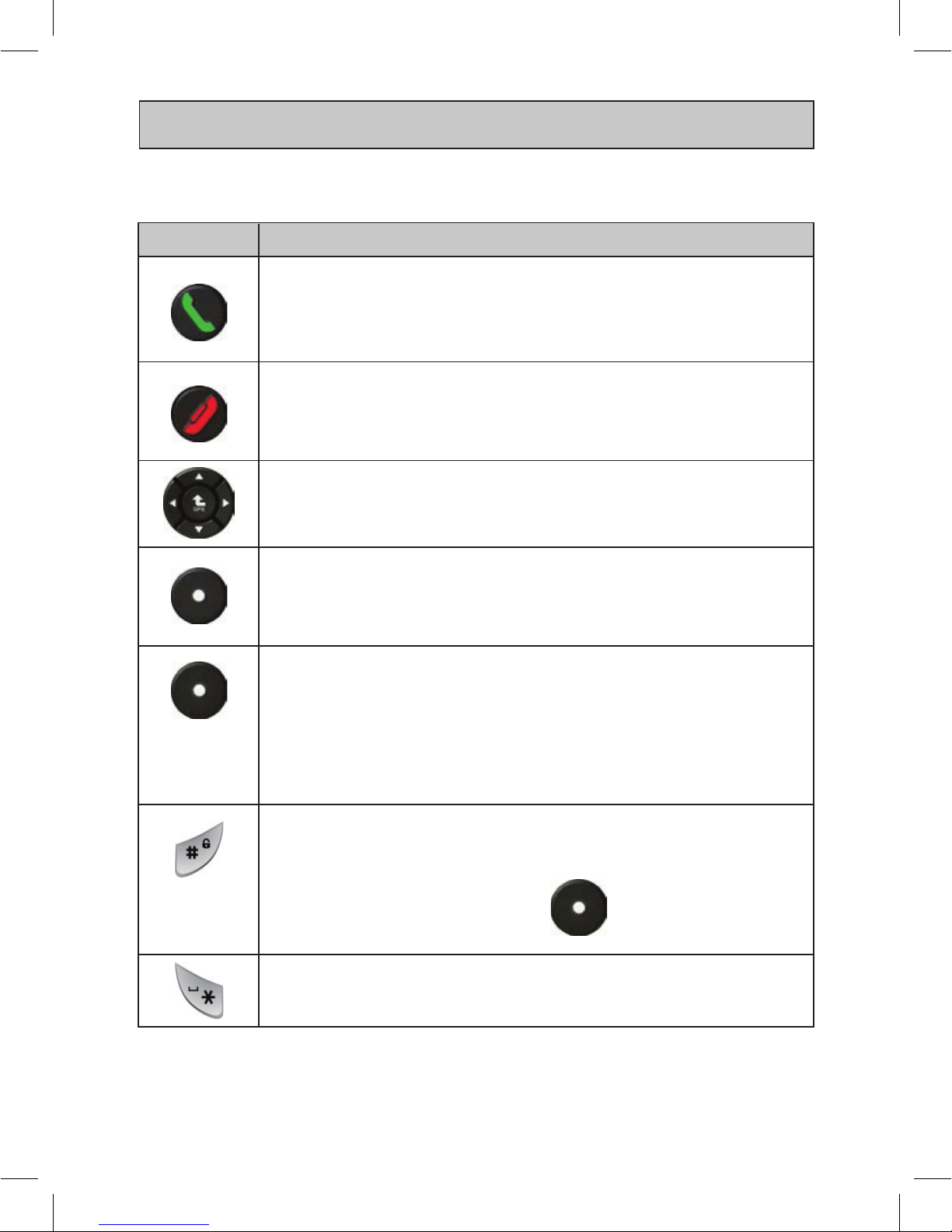
Dial key
Make or answer a call.
In Idle mode, display the Calls Log.
End key
In the Call, end a call.
In Menu mode, cancel input and return to Idle mode.
4-way navigation key
In Menu mode, scroll through menu options.
Left Soft Key
In Idle mode, enter the main menu.
In the call receiving, mute the ringtone.
Right Soft Key
In Idle mode, enter the phonebook menu.
In the call receiving, enter the call options menu.
In the Main Menu, goes back to the previous menu.
In the Entering mode, delete a character or a number.
Pound Key
Long pressing on the pound key will lock the phone
keypad.
In order to unlock press on -L and enter a code.
Default is “0000”
Hush Key
In Entering Mode, add a space.
Your RoadStar Car Phone
Dedicated Keys Functionality
Key Description
-L
-R
Page 12
12
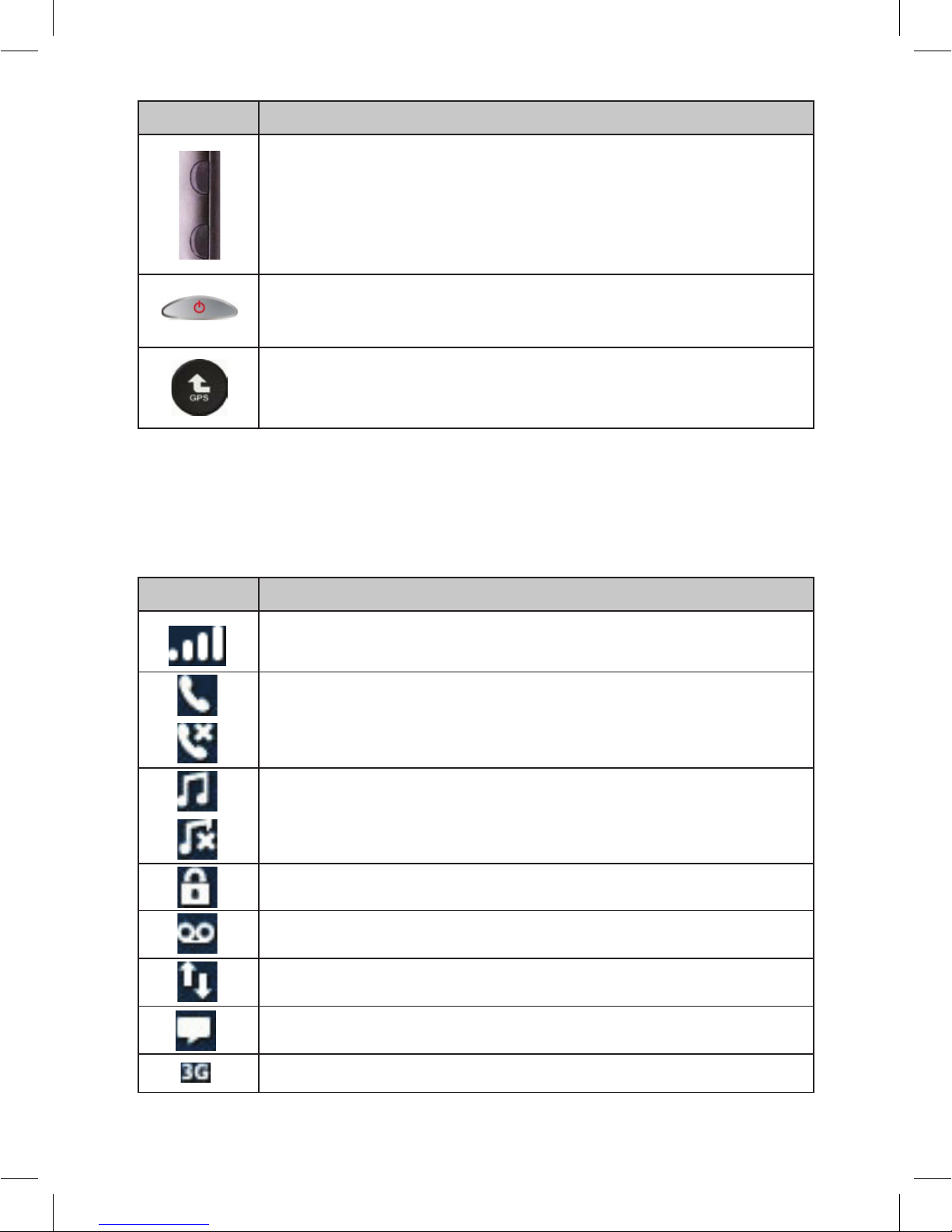
Volume key
In ldle mode, adjust the ringtone tone volume.
In the call, adjust the speaker volume.
Power key
Turn the phone on and off (press and hold).
In Menu mode, behave as OK.
Signal strength
Voice call in progress
Out of your service area
Normal profile activated
Silent profile activated
Keypad lock activated
Voice mail received
Internet connected
New message received
3G network
Key Description
Icon Description
Display
The following icons may appear on the top line of the screen to indicate your
phone’s status. Depending on your country or service provider, the icons
shown on the display may vary.
Page 13
13
Getting Started
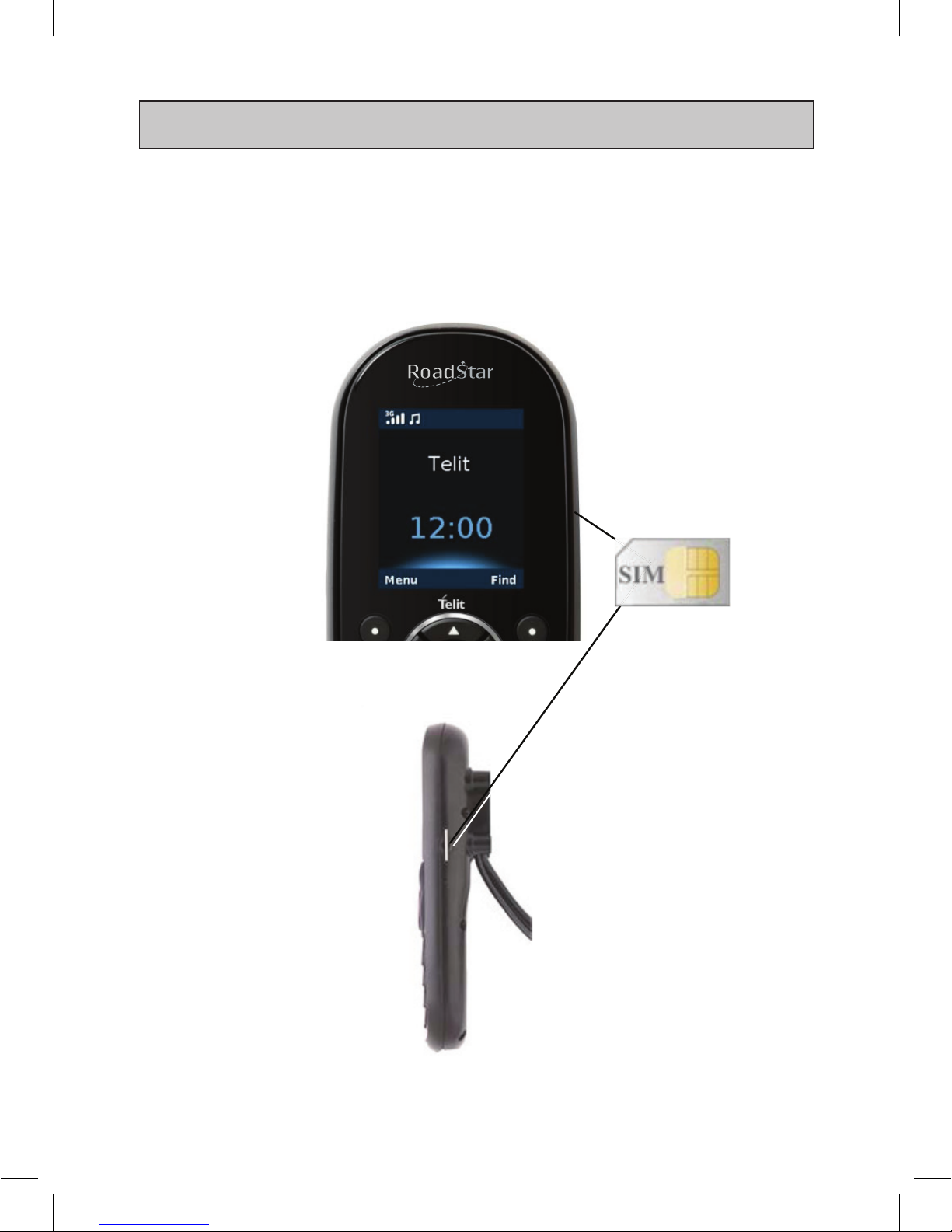
Install your SIM card
With your phone powered off, insert the SIM card into the SIM card socket at
the right side of the phone.
Page 14
14
Power Control
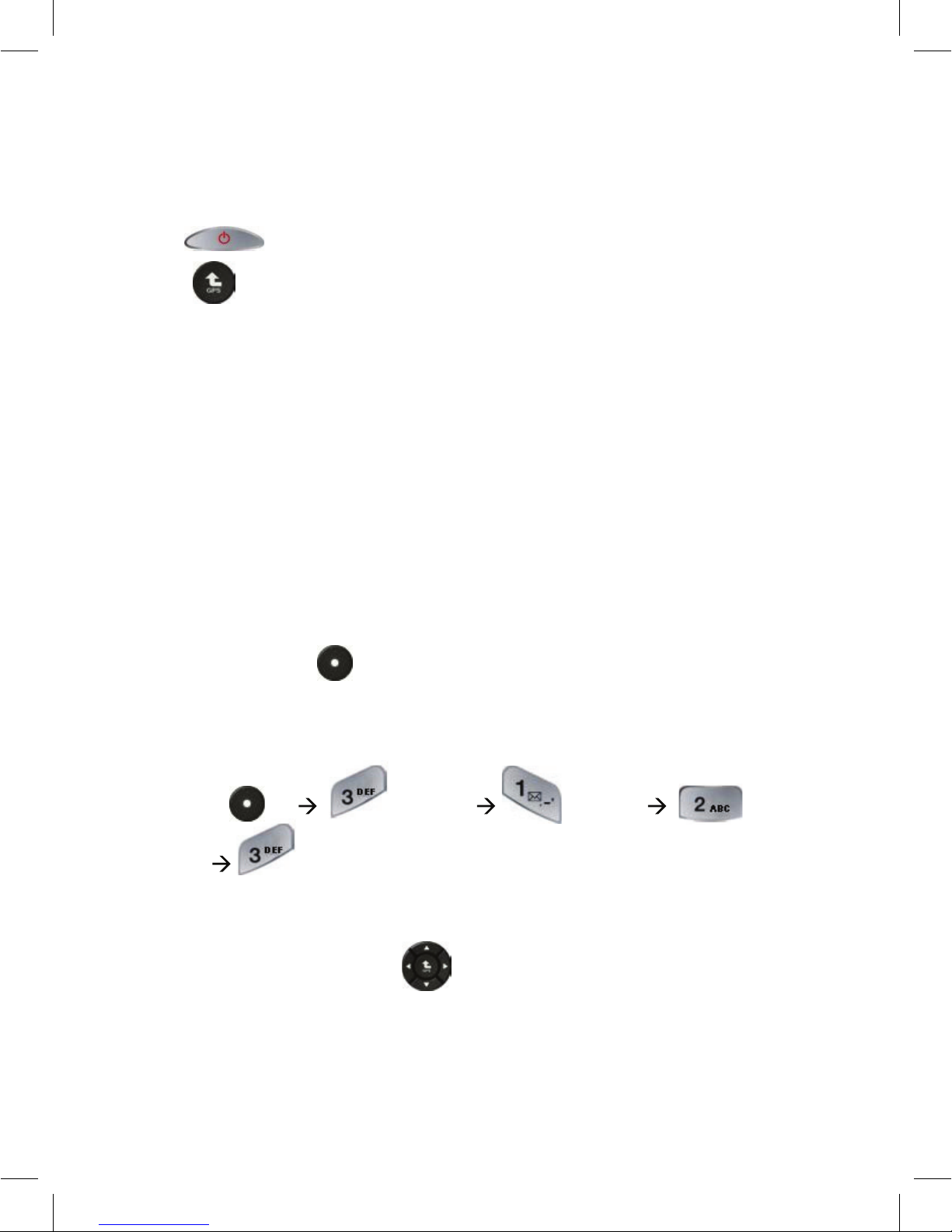
When installed properly, the phone powers on and off automatically using
the car’s ignition switch. For manual operation press and hold the power
key ( ) until the display panel lights on/off. Enter your PIN and
press (if necessary).
Volume Control
When call is inactive, press the volume keys located on the side of the phone
to set the Ring Tone Volume.
Call Volume
During a call, press either of the volume keys on the side of the phone to
adjust the call volume.
Muting Microphone
During a call, press -R to mute the microphone. To Unmute the
microphone, press this key again.
Key Volume
Press the -L Settings Sounds
Volume Key Tone, and adjust the volume with the up or down keys.
Menu Access and Navigation
Use the 4-way navigation key to navigate the menu system and
change feature settings.
You can navigate graphic menus in any direction – right, left,
Page 15
15
down and up. The primary movements within list menus are down and up.
To change settings in list menus, navigate the datebook or edit text, you can
also move left and right.
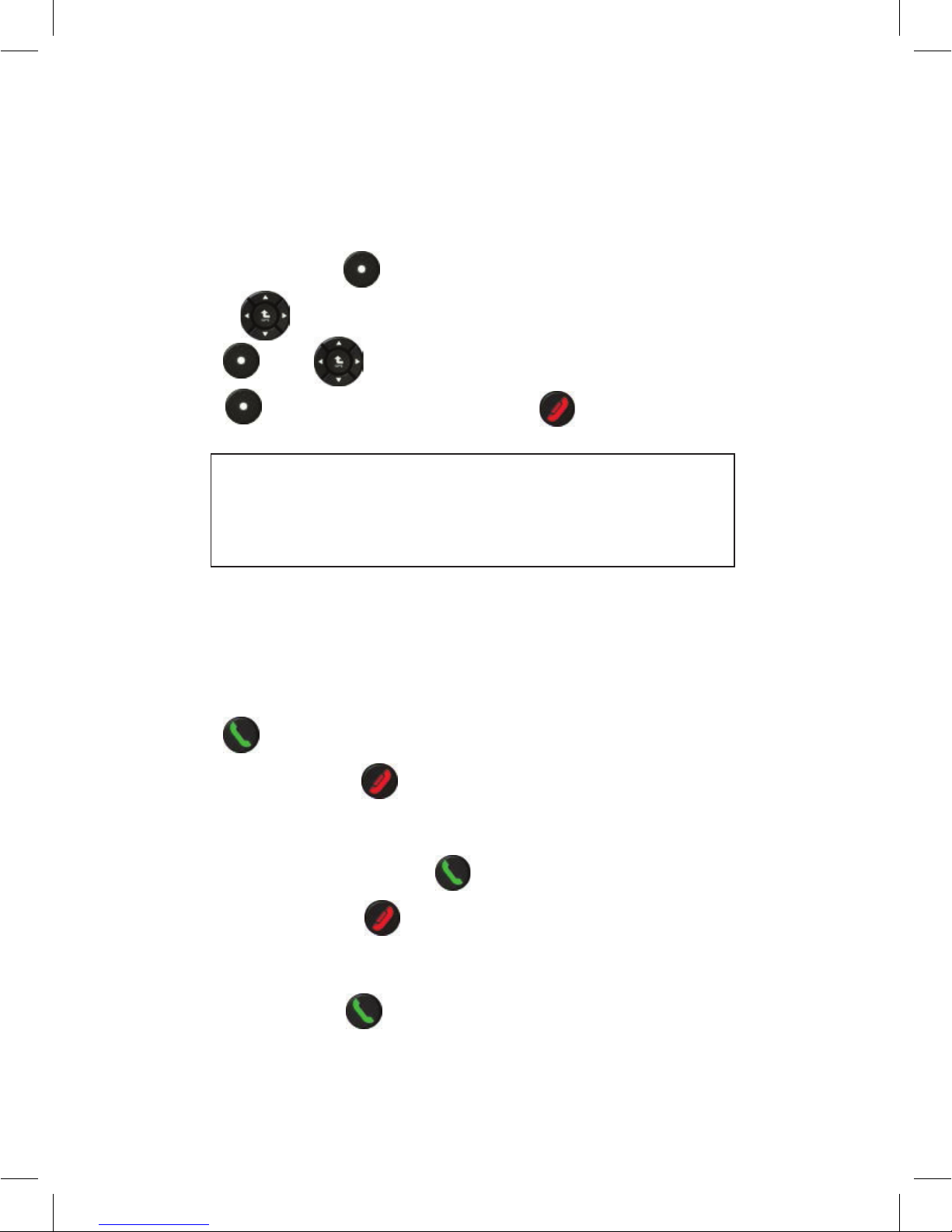
To access your phone’s menus:
1. In Idle mode, press -L to access Menu mode.
2. Use the key to scroll to a menu or option.
3. Press -L or key to confirm the highlighted option.
4. Press -R to move up one level; Press to return to Idle mode.
Note
When you access a menu requiring the PIN2, you must
enter the PIN2 supplied with the SIM or USIM card. For
details, contact your service provider.
Make or Answer a Call
Make a call
1. In Idle mode, enter an area code and a phone number.
2. Press to dial the number.
3. To end the call, press .
Answer a call
1. To accept incoming call press .
2. To end the call, press .
Call a recently dialed number
1. In Idle mode, press .
2. Scroll up or down to a number or name.
Page 16
16
3. Press Options key to view call details or to dial the number.
Advanced Call Features
Make a conference call
1. During a call, call the second participant. The first call is put on Hold.
2. Press <Options> and select Conference.
3. Repeat step 1 and 2 to add more participants.
4. To end the call, press .
Speed Dial
Your RoadStar car phone support up to 99 speed dial entries. Each entry
can contain one phone number where first entry is reserved for Voice Mail
number.
To dial speed dial number
1. Enter speed dial number, then press .
2. For 2-9 entries, press and hold the number.
3. For 10-99 entries, dial the entry and press .
4. To end the call, press .
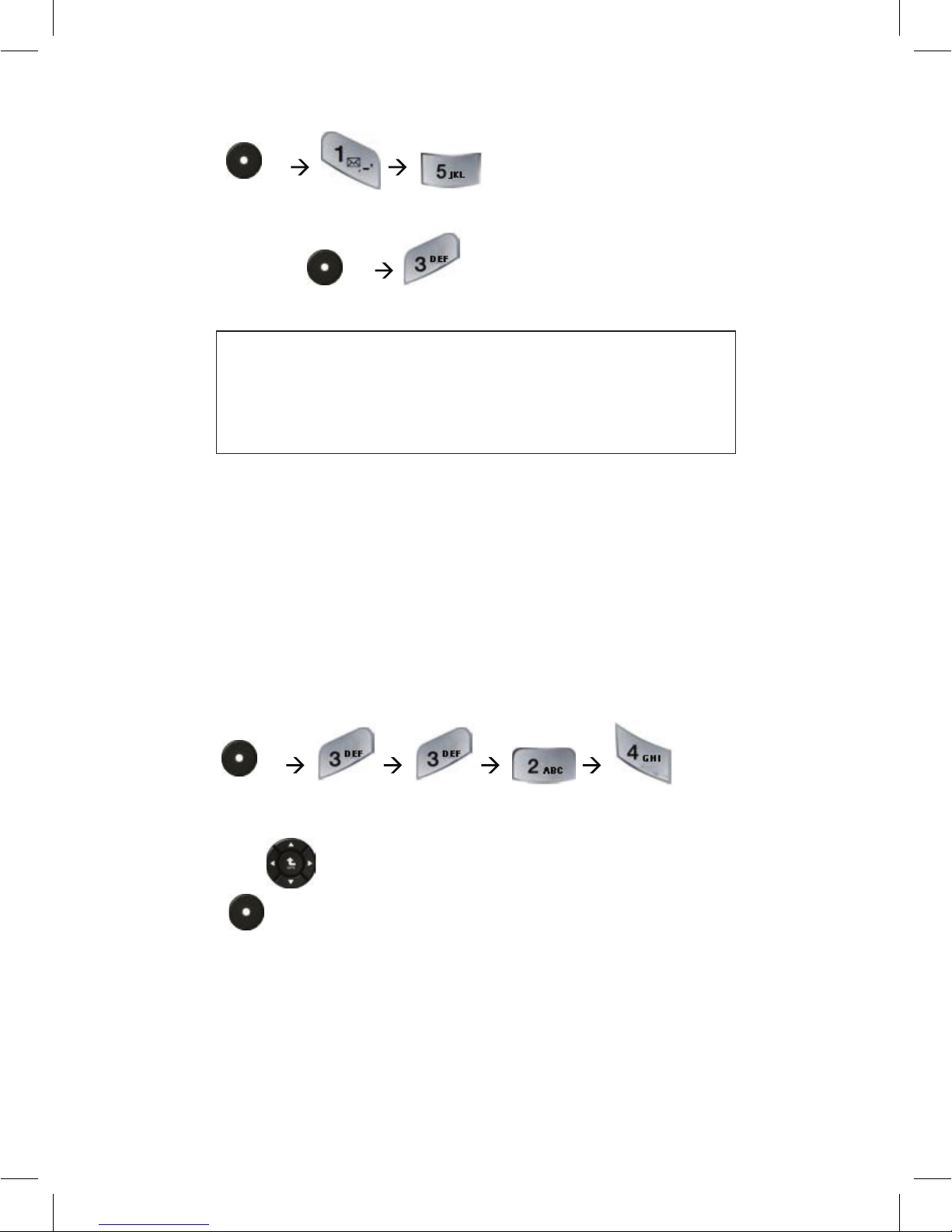
To add a speed dial entry
1. Press -L
2. Choose your speed dial entry from 2-99
3. Use key to choose the number for assignment
4. Press -L, or key to confirm your choice.
Page 17
17
To delete a speed dial entry
1. Press -L
2. Choose your speed dial entry from 2-99
3. To delete press -L
Note
Deleting speed dial will not effect phonebook contact.
while deleting a contact from the phonebook list will
erase an assigned speed dial.
Fixed Dialing
You can restrict your outgoing calls to selected phone numbers, if this
function is supported by your SIM card. To save and edit the numbers, you
need the SIM PIN2 code. When you turn on fixed dialing, you can orginate
calls only to the numbers stored in the fixed dial list.
Turn fixed dialing on or off
1. Press -L
2. Enter your PIN2
3. Scroll with between Enable/Disable.
4. Press -L to confirm.
Once FDN is enabled you will be able to use and view only FDN list of
numbers.
Page 18
18
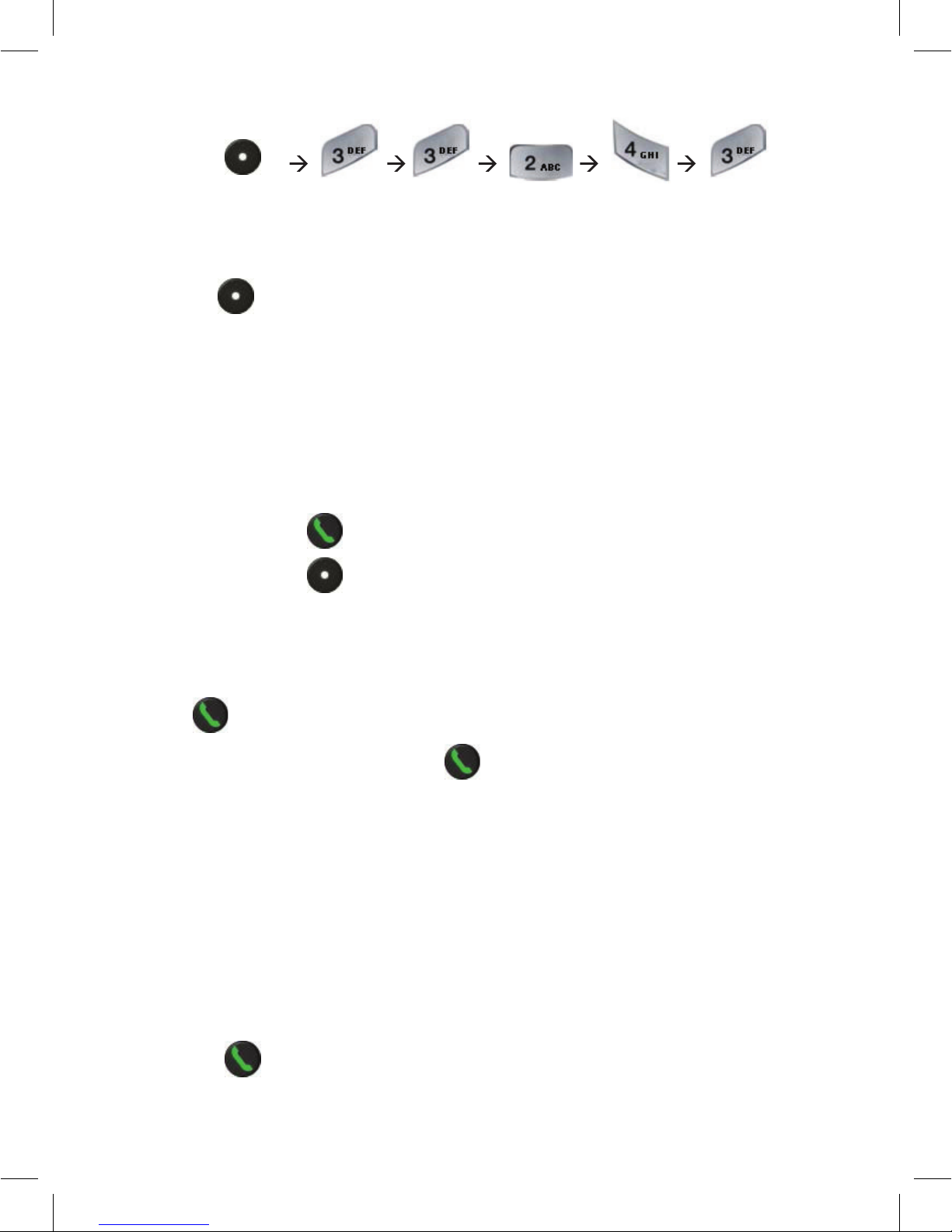
Use the fixed dial list
1. Press -L
2. Enter your FDN contacts
3. Enter your PIN2
4. Press -L to confirm.
Note
Updating or editing the fixed dial list FDN status changing or
update requires SIM PIN2, you must enter PIN2 supplied with
the SIM or USIM card. For details, contact your service provider.
Hold or Mute a Call
While in call press to put all active calls on hold.
While in call press -R to mute all active calls.
Call Waiting
During a call, an alert will be heard indicating for second call.
Press to answer the new call.
•
To switch between calls, press .
•
To connect the 2 calls, use conference option.
Emergency Calls
Your service provider programs one or more emergency phone numbers,
such as 911 or 112, so that you can call under any circumstances, even
when your phone is locked or the SIM card is not inserted.
1. Press the keypad keys to dial the emergency number.
2. Press to call the emergency number.
Page 19
19
Note
Emergency numbers vary by country. Your phone’s
preprogrammed emergency number(s) may not work
in all locations, and sometimes an emergency call cannot
be placed due to network, environmental, or interference
issues.
International Calls
If your phone service includes international call dialing, press and hold “0”
to insert your local international access code (indicated by +). Then, press
the keypad keys to dial the country code and phone number.
Phonebook
RoadStar phonebook support up to 1,000 contacts (up to 3 numbers per
each contact). When you select a name from your phone book, the first
number would be the contact mobile phone number. The phonebook contact
list could be stored in your phone memory, or to your SIM or both. You can
also copy entries from a SIM card to your car phone and from the car phone
to the SIM card.
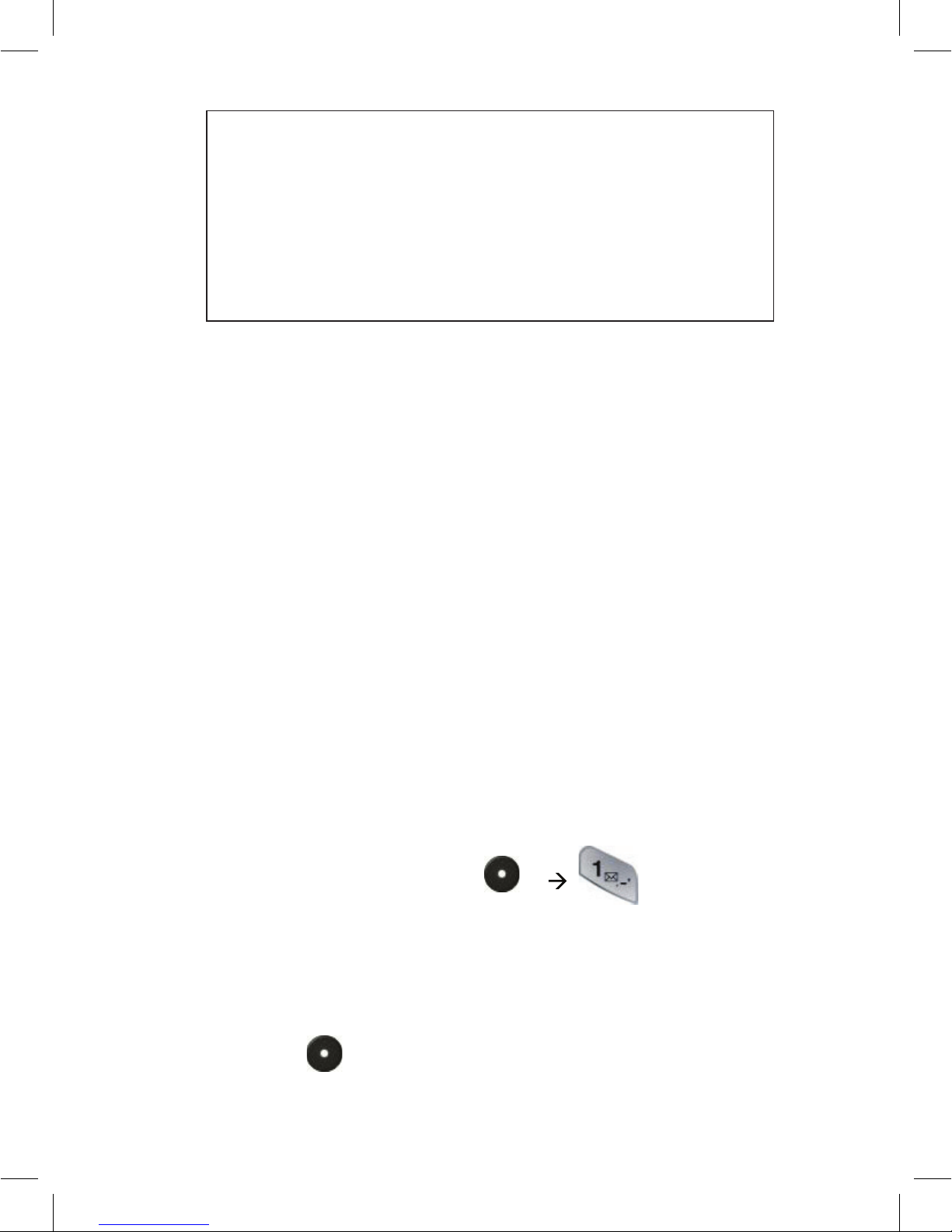
Storing a New Number
1. Enter the phone number and press -L . You can choose
to save it as new entry or add it to existing contact.
2. Scroll to select the type: Mobile, Home, Work.
3. Enter your contact name. You can switch the language or change to
numeric under -L. Additional number can be added (Home, Work).
Page 20
20
4. Upon completion, press under -L.
5. Depends on your memory selection the contact will be stored either in
phone or SIM card or both.
Searching for names and numbers
1. You can access the list of names and phone numbers quickly from the
Idle mode by pressing -R.
2. Press the first letter of the desired name.
3. You can now view all the names stored in your contacts list which start
with the selected letter. They are listed in alphabetical order.
4. Scroll with to the desired name in the list.
5. To make a call to this person, press .
6. To end the call, press .
7. To return to Idle mode, press .
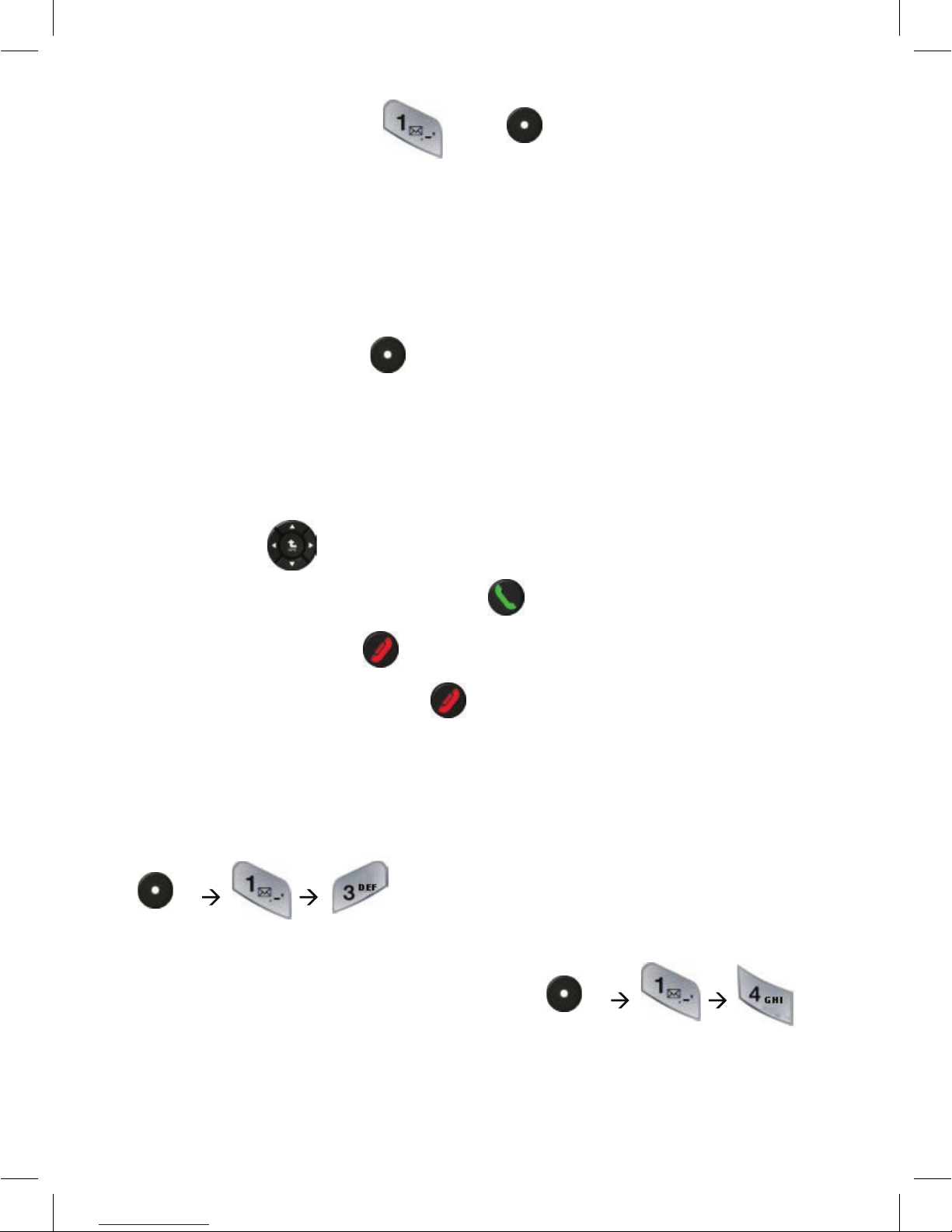
Phonebook Sync
Updates your phonebook with your Google’s contacts list. You can update up
to 1,000 entries. While updating, the phone won’t be available for use.
-L
Memory Status
You can view your memory status by pressing -L
Page 21
21
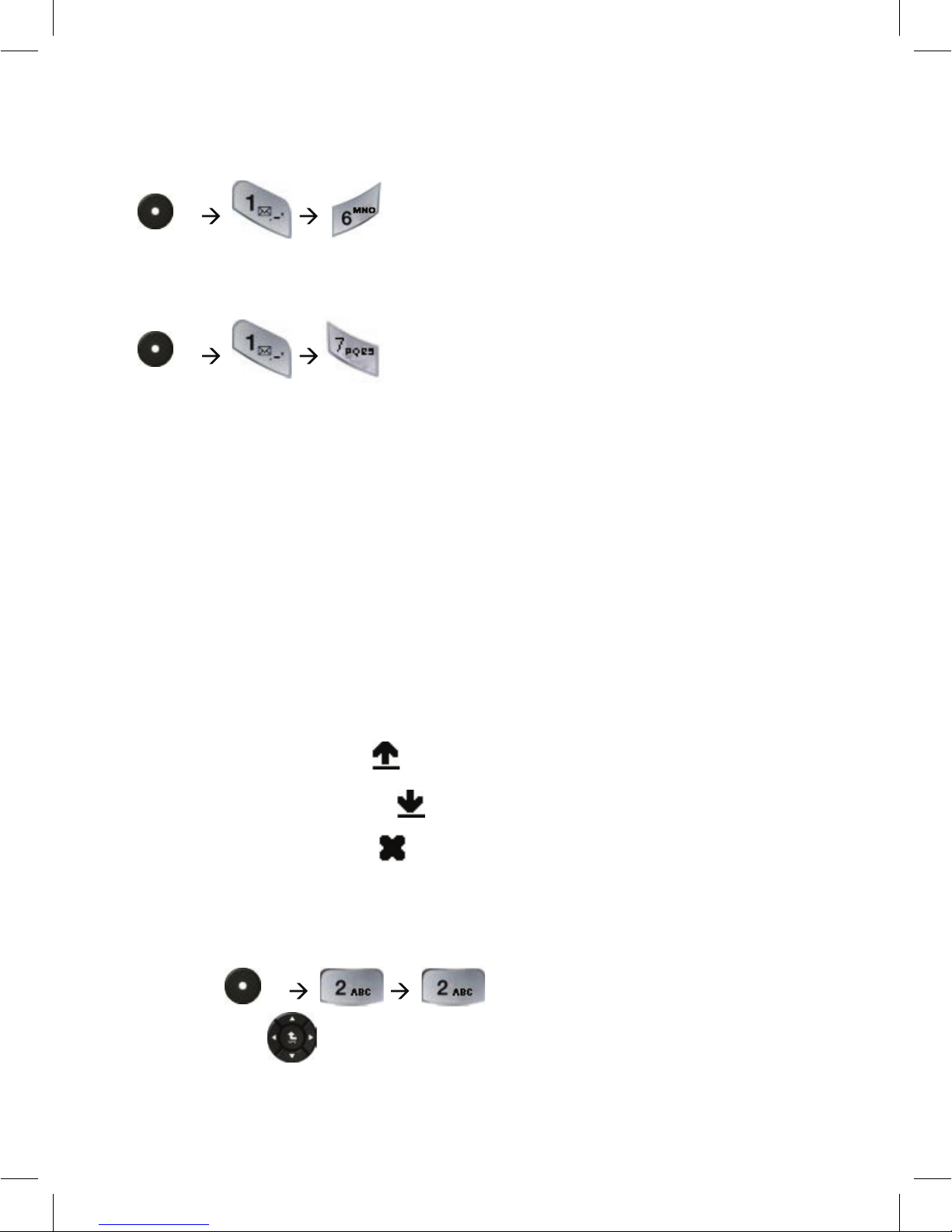
Phonebook storage
You can store either to your SIM, phone memory or both, by pressing
-L
Copy from SIM to phone
You can copy your contacts from SIM to phone by pressing
-L
Call Log
RoadStar displays the phone numbers of missed, received, and dialed calls
and the time and date of your calls.
The phone displays missed and received calls only if the network supports
these functions and if the phone is switched on and within the network’s
service area.
In these lists you can view up to 30 of the last calls made to your phone or
received or up to 30 numbers you have last dialed. They are provided for
your reference. The recently dialed item is shown at the top of the list.
•
Dialed Calls are using icon
•
Received Calls are using icon
•
Missed Calls are using icon
Missed calls
To view a list of up to 30 of the latest missed calls, with the display in idle mode:
1. Press -L
2. Scroll with through the list.
Page 22
22
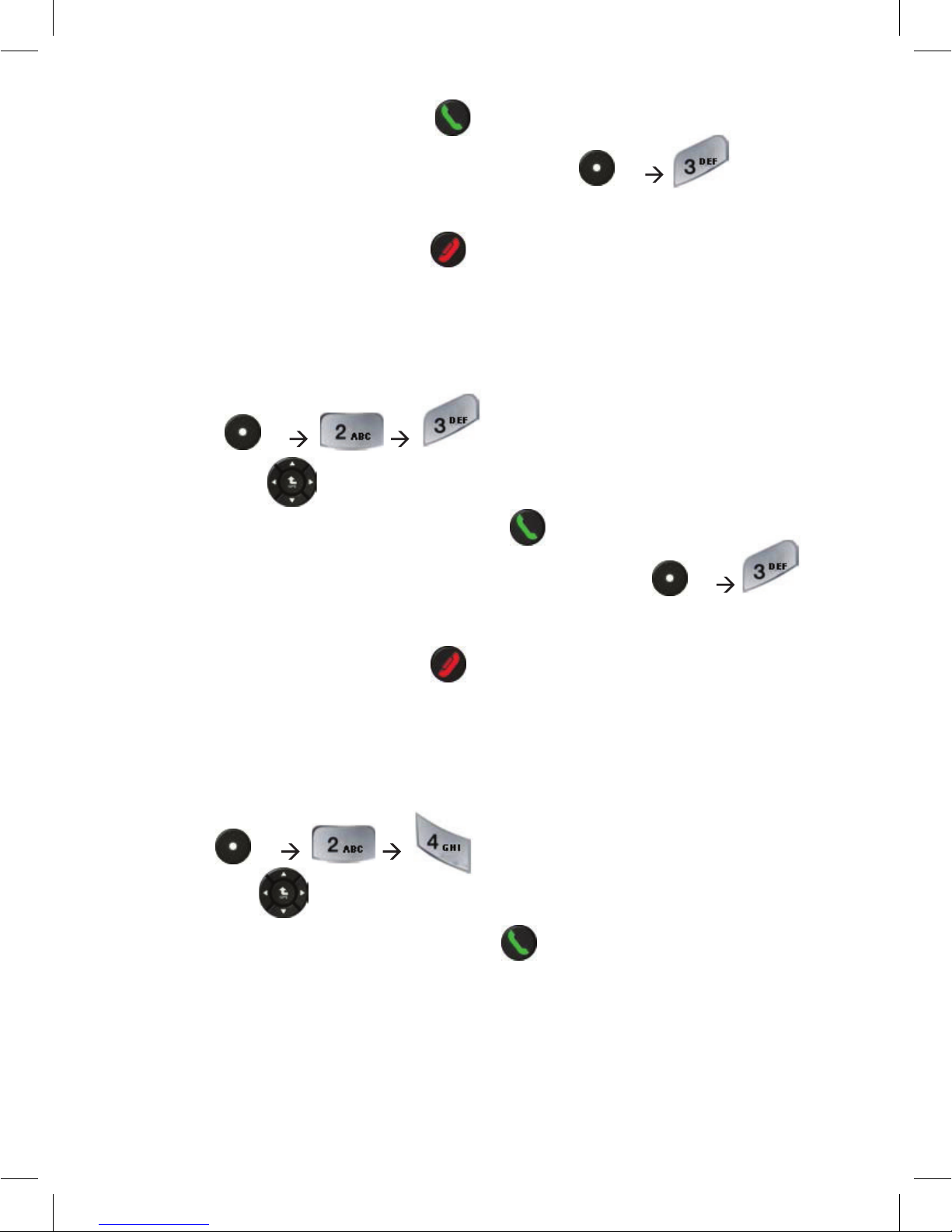
3. To make a call to entry, press .
4. To save the entry to car phone memory, press -L and
follow the instruction on page 20.
5. To return to Idle mode, press .
Received calls
To view a list of up to 30 registered numbers of your latest received calls,
while the display is in Idle mode:
1. Press -L
2. Scroll with through the list.
3. To make a call to entry number, press .
4. To save the entry number to car phone memory, press -L
and follow the instruction on page 20.
5. To return to Idle mode, press .
Dialed numbers
You can use a shortcut to view the list of up to 30 from the last dialed
numbers while the display in Idle mode:
1. Press -L
2. Scroll with through the list.
3. To make a call to entry number, press .
Page 23
23
4. To save the entry number to car phone memory, press -L
and follow the instruction on page 20.
5. To return to Idle mode, press .
Call Duration Timers
The call duration timer showing the elapsed time. This time includes busy
signals and ringing.
The period of time may not be equal to the amount of time which being use
by your service provider for billing. For billing information, contact your
service provider.
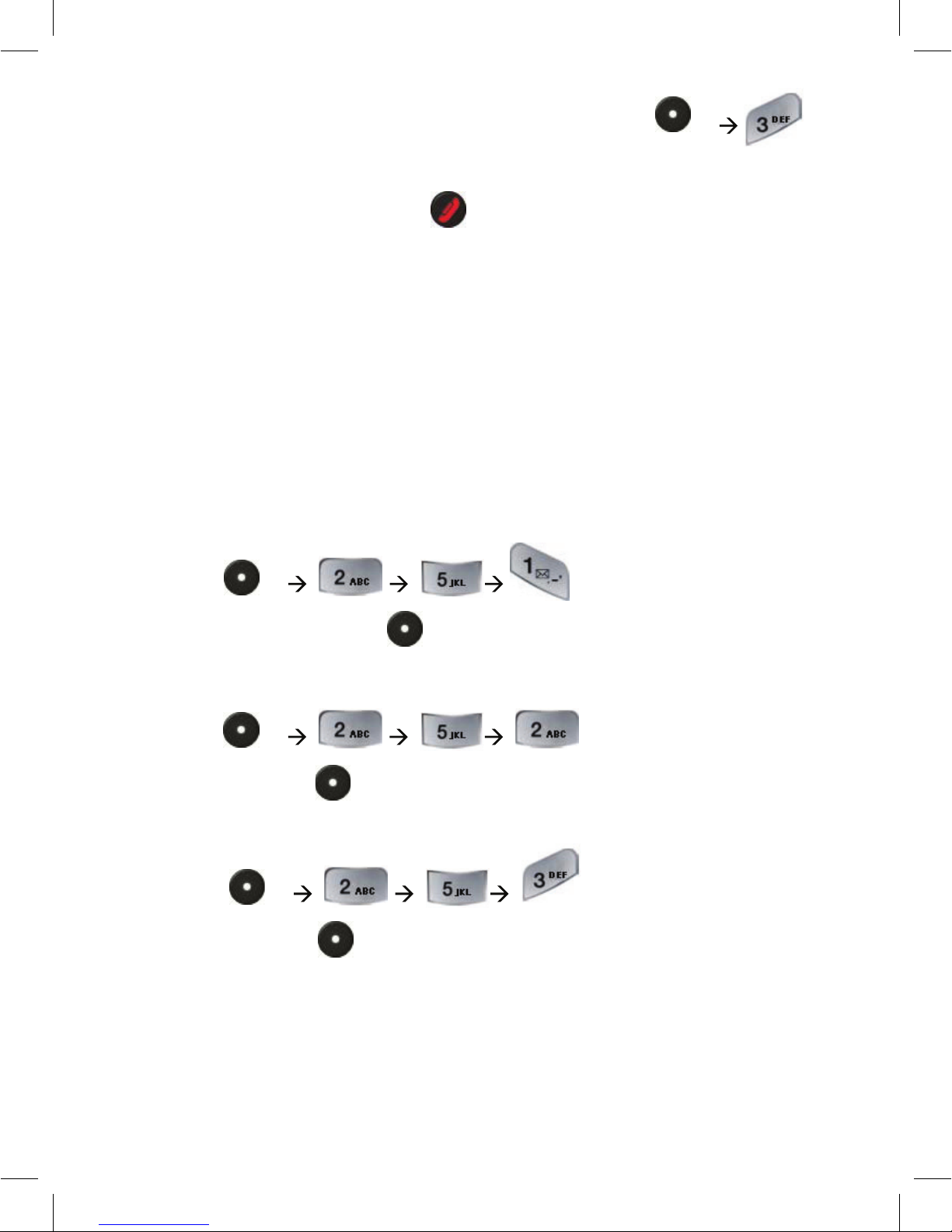
Dialed Calls
1. Press -L
2. For Timers’ reset, press -L.
Last Dialed Call
1. Press -L
2. For reset, press -L.
All Calls
1. Press -L
2. For reset, press -L .
Page 24
24
Messages
The SMS (Short Message Service) function is a network service and may not
be supported by your network.
RoadStar supports sending and receiving text messaging and obtaining
SMSC address automatically from your network SIM card provider.
Inbox
Inbox folder shown received messages and the status of each message
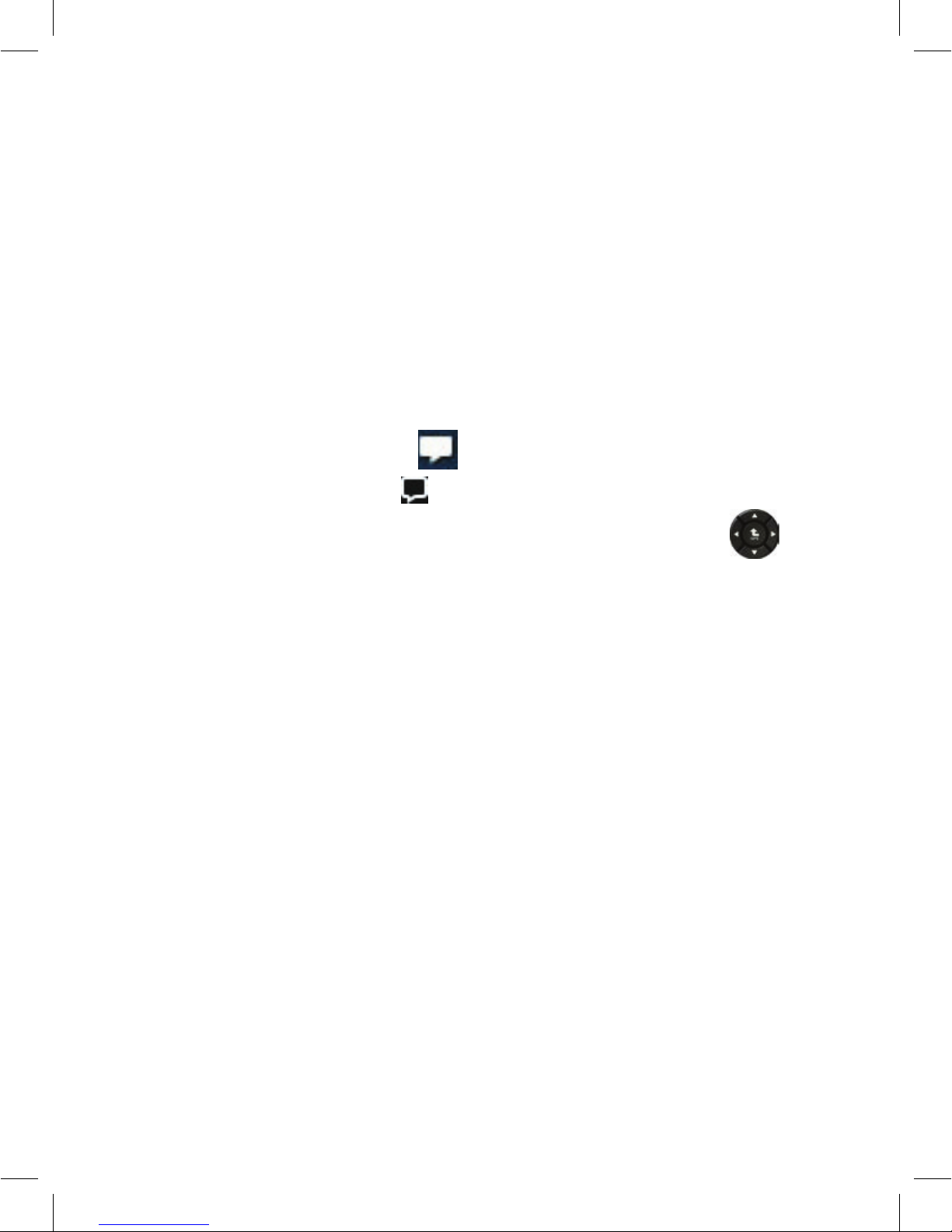
represented by the following icons:
•
Unread Messages shown by icon
•
Read Messages shown by icon
To scroll through the messages press the navigation key Up/Down .
To view messages, choose View option for more details shown on the
screen:
•
Sender’s phone number (if sent with the message) or recipient’s phone
number
•
Message text
•
Date and time at which the message was received
Received message will be accompanied with icon shown on the status line
of the screen. RoadStar is capable to store up to 100 SMS, therefore while
exceed this limit a pop up message will be displayed on the screen alerting
that the device isn’t capable to receive more messages . Use the Erase or
Erase All option in the Inbox menu to delete obsolete messages.
Page 25

25
Outbox
Outbox folder used to store the messages which were not sent for any
reason. You can resend them later or delete them from the Outbox.
New Message
This menu enables you to write text messages with up to 800 alphanumeric
characters. Upon completion, choose the destination either by entering the
phone number or choosing it from phonebook.
Settings
Delivery Reports: allows you to activate or deactivate the report function.
When this function is activated, the network informs you whether your
message has been delivered or not.
Memory status: Shown the amount of SMS’s stored in the memory. You can
store up to 100 SMS’s.
Page 26
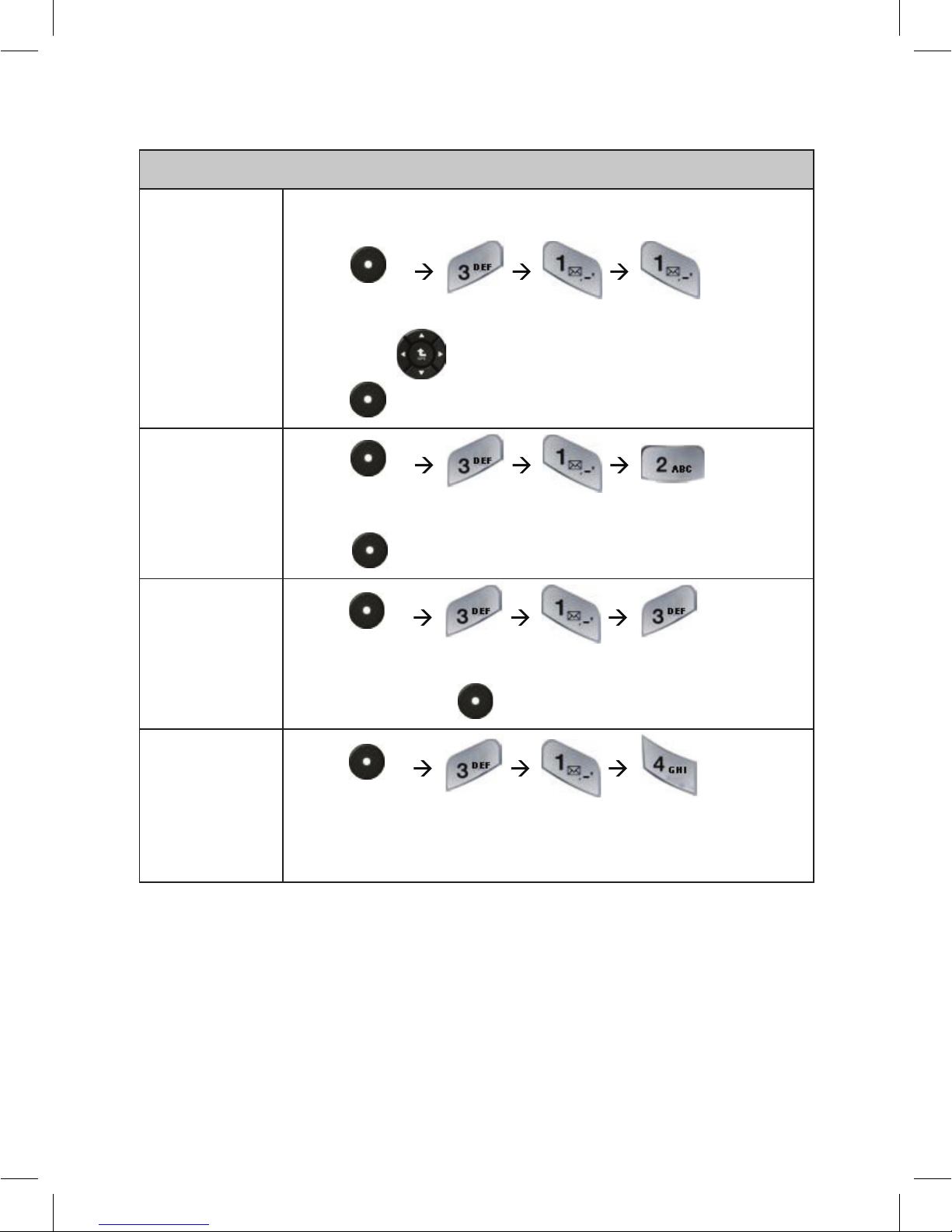
26
Sounds
Select a sound from your sounds list to use as a ringtone:
Press -L and
select the desired sound.
Scroll with through the list.
Press -L to select the chosen sound.
Sound for
Ringtone
Press -L
Choose volume for Ringer / Voice / Key Tone.
Press -L to confirm.
Volume
Press -L and select
Off or Beep.
Press left soft key -L to confirm.
Sound for
Keypad
Press -L and
select Off/On to Connect Call or to Disconnect
Call.
Alerts
Settings
Page 27
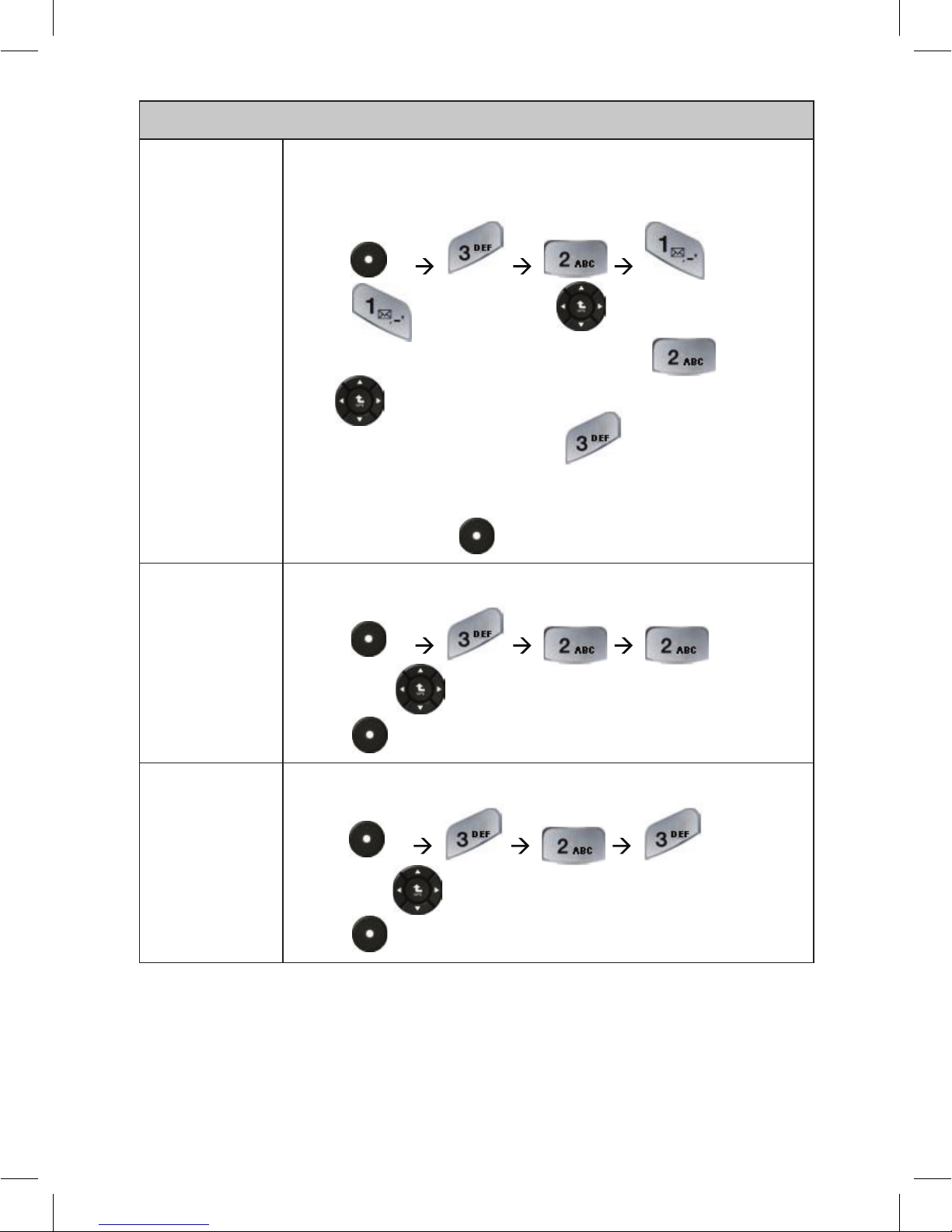
27
Display
To change the displayed text banner in Idle mode, to your
preferences.
Press -L
Press and scroll with between ON/OFF.
To choose the color of the banner press Scroll
with through the list.
To edit the banner text, press .
Edit your banner text.
Press left soft key -L to confirm.
Banner Text
To adjust the contrast of your car phone’s display:
Press -L
Scroll with through the list.
Press -L to confirm.
Display
Contrast
To adjust the keypad light timeout:
Press -L
Scroll with through the list.
Press -L to confirm.
Keypad light
intensity
Page 28
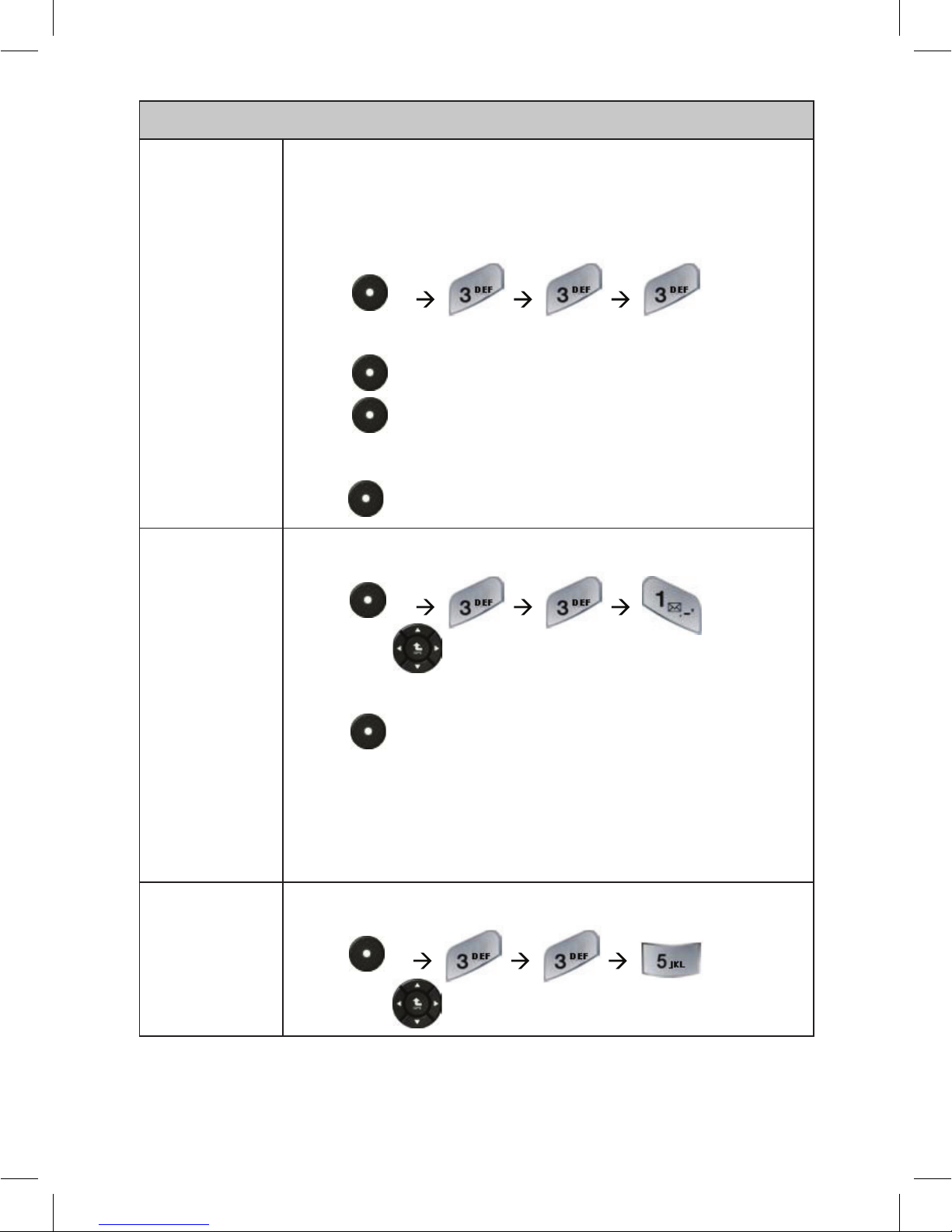
28
Security
Your phone’s 4-digit unlock code is originally set to 0000.
If your service provider did not change these codes, you
should change them:
Press -L
Enter the old code.
Press -L to confirm. Enter a new code.
Press -L to confirm. Repeat the code for
confirmation.
Press -L to confirm.
Codes &
Passwords
To lock your phone in different states:
Press -L
Scroll with between “Lock now”, “Lock on Power
On”, “Off”
Press -L to confirm.
During Incoming call when your car phone is locked,
there is no need to enter the unlock code to answer the
call.
Phone Lock
To delete all the data in your phonebook or call log:
Press -L
Scroll with between “Phone Book”, “Call History”
Delete all
Page 29
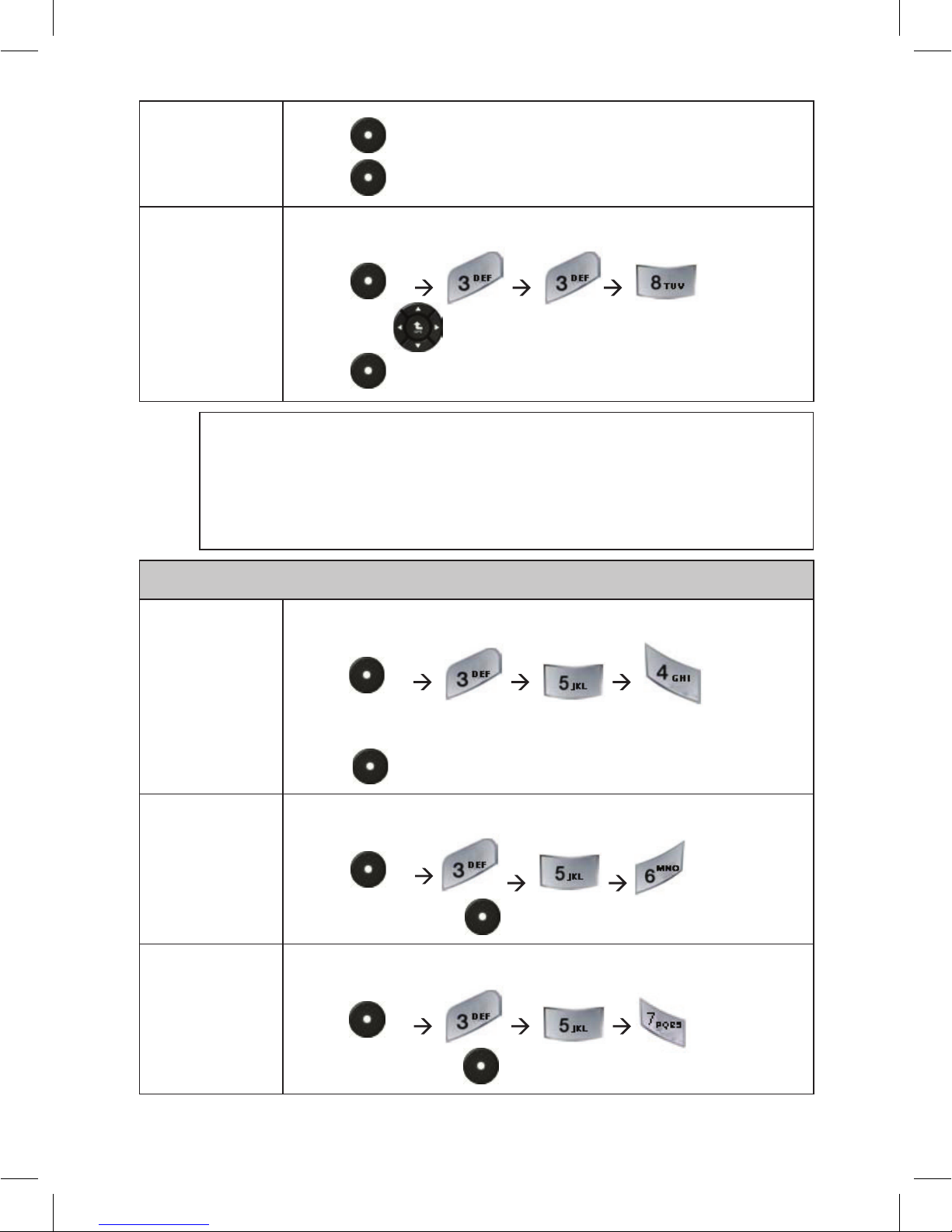
29
General
In order to set synchronize with Google contacts list:
Press -L
Enter APN, Google User and Google Password.
Press -L to confirm.
Phonebook
Sync
In order to set time:
Press -L
Enter digits. Press -L to confirm.
Set Time
In order to set time:
Press -L
Enter digits. Press -L to confirm.
Set Date
Press -L to choose
Press -L to confirm
To enable or disable PIN code:
Press -L .
Scroll with between Enable or Disable
Press -L to confirm.
PIN Code
Note
You can also change your SIM PIN or PIN2 codes. If you forget
your security code, SIM PIN code, or PIN2 code, contact your
service provider.
Page 30

30
Specific Absorption Rate Data
The antenna should be installed at least 30 cm away from all vehicle
occupants.
The World Health Organization has stated that present scientific information
does not indicate the need for any special precautions for the use of mobile
devices. They note that if you want to reduce your exposure then you can do
so by limiting the length of calls or using a “hands-free” device to keep the
mobile phone away from the head and body.
Additional Information can be found on the websites of the World Health
Organization (http://www.who.int/emf).
Page 31

31
Warranty
Without prejudice of legal warranty, The RoadStar is warranted during
1 year from the date of purchase for defects in materials and workmanship,
provided that no deterioration to the product has been made, and upon
presentation of proof of purchase (date of purchase, location of sale and
product serial number/IMEI number) to the retailer.
Warranty does not cover: upgrading of the software, data recovery,
deterioration of the external aspect due to normal use of the product, any
damage caused by accident, misuse, misapplication, or non-approved
products. The authorised distributor for Telit
Wireless Services Ltd.
products is not responsible for storage, loss or damage to data during
transit or repair. Any product wrongfully declared to be defective will be
returned to sender and inspection, process and carriage costs will be
invoiced to them.Due to the technical nature of this product, we advise you
to seek professional installation.
The authorised distributor for Telit
Wireless Services Ltd.
shall not be
held responsible for any dysfunction caused by an installation which does
not follow the instructions provided or an incorrect installation. If you are
experiencing any issues with returning your Telit
Wireless Services Ltd.
product please contact your local Authorised distributor.
 Loading...