

Page 1
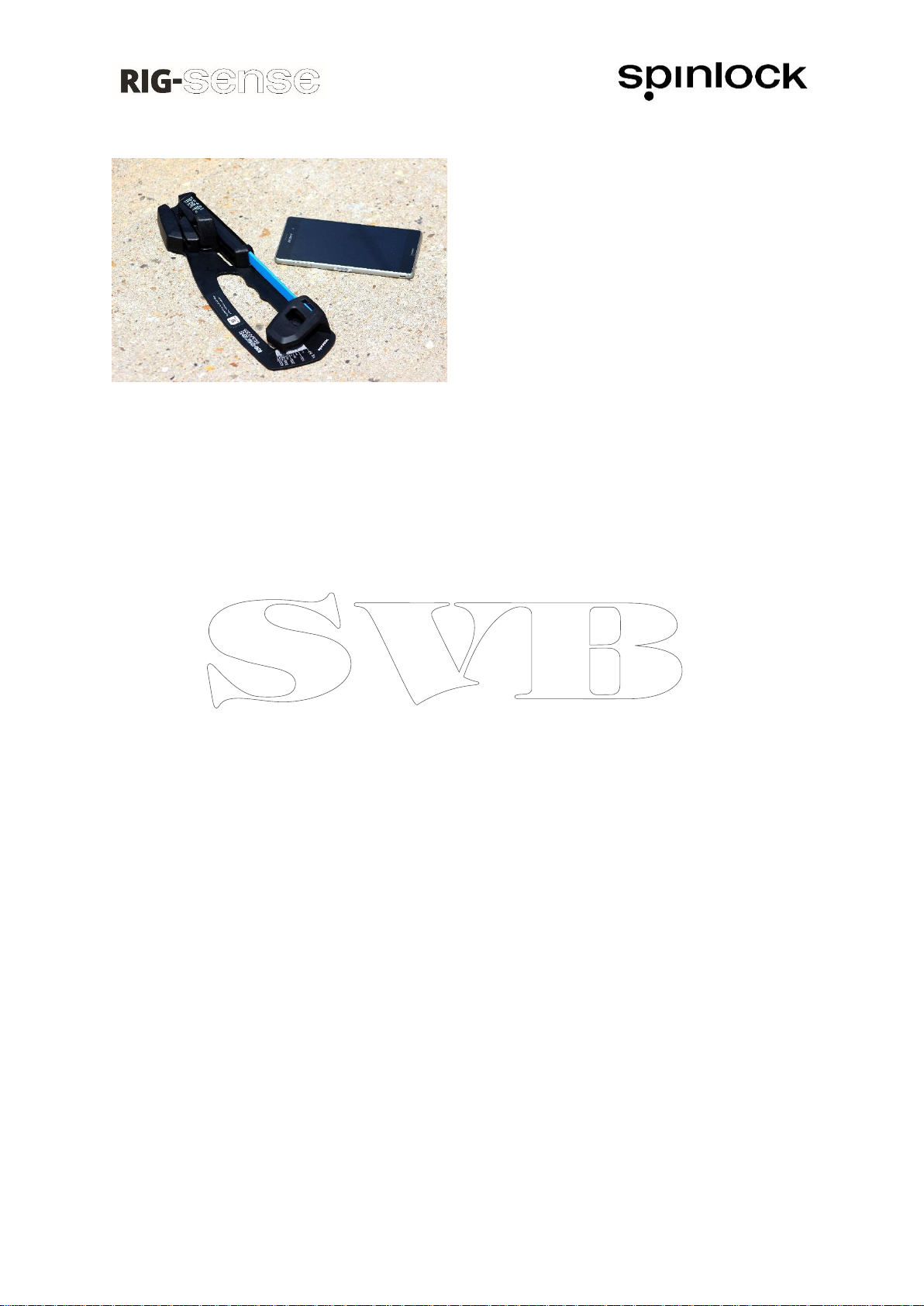
Rig-Sense by Spinlock is a new Rig tension device
for measuring the loads in wire and rope standing
rigging used on boats.
Rig-Sense is a simple to use device, measuring
the tension directly in kilogrammes to eliminate
any conversions. Rig-Sense also benefits from
being able to operated one handed and can
support itself on the rig whilst being used. It uses
quality parts for long term performance,
consistent and accurate readings over time.
About the Rig-Sense App
The Rig-Sense App is a simple mobile application for logging rig settings on any boat. By using this
App you can store multiple settings, for multiple boats and share with the crew, training partners,
classes, coaches and the rest of the world.
The intuitive and easy-to-use interface of the App makes it easy for anyone to use and understand.
You can log many types of information including shroud settings, type of spinnaker and the wind
range you choose. The App allows you to customise any aspect of your Tuning Guide and save it as a
‘Template’ and from there you can create any number of ‘Files’ for different types of boats and
conditions.
All the information is stored on your Phone or Tablet, so you can assess the data anytime, anywhere.
If you are sailing a boat for the first time you can go to the class or sailmakers website and download
the settings directly to the Spinlock RIG App. You always have the information at your fingertips so
you can focus sailing the boat!
Using the Rig-Sense App
Rig-Sense uses 2 main functions; DATA and TEMPLATES.
- DATA hold the information for your individual boat settings (i.e. Shrouds 230kg).
- TEMPLATES change the layouts for your settings (i.e. Wind range, Control settings)
Please follow these instructions to get started:
1. Depending on your device, either use the Play Store for Android phones or Apple App Store
for iPhones to download the ‘Rig-Sense App’ for free.
2. Once downloaded, click on the Rig-Sense icon on your phone to open the App. A new Data
file will be displayed.
3. True wind speed in knots is displayed along the top (TWS KTS). Your settings are displayed
down the left hand side (e.g. Shrouds, Lowers, Uppers, Outhaul, etc.). You can scroll down
and across for more wind or more settings.
4. To edit the information, unlock the Settings by tapping the ‘EDIT’ button on the menu at the
bottom of the screen.
Page 2

5. To change the title of the Settings, tap on the title at the top of the screen. You can use any
name, however we recommend using the boat name or type (e.g. Laser, 420, J70, etc.)
6. Now you can edit the info in the table to match your settings, using your own units (e.g.
250kg, 3, mk3, Tight, Medium, etc.).
7. To add a Note to the Settings (i.e. Good setup for flat water), click on the button next to the
time/date stamp at the top of the screen.
8. Once complete, tap the ‘EDIT’ button to lock and save your settings.
9. To create new Settings use the ‘NEW LOG’ button. The new file will be created using the
current default TEMPLATE.
10. All your Settings can be found using the ‘MY DATA’ button.
11. In ‘MY DATA’ you can view all your previous settings. By tapping on one of the Data files, you
will get a number of options:
VIEW DATA – View the current FILE.
EMAIL DATA – Share the FILE with someone via email.
DELETE DATA – Delete the FILE.
CANCEL – Return back to the previous screen.
12. To edit the titles of your Settings or change the Wind range, you need to edit the TEMPLATE.
Tap on the ‘MY DATA’ button, then tap on the ‘TEMPLATES’ tab at the top of the screen.
13. Tap on one of the TEMPLATES that best suits your type of boat and ability:
SPINLOCK BLANK – A blank TEMPLATE to fully customise your settings.
SPINLOCK BASIC – A starting point for beginners or single handers.
SPINLOCK STANDARD – A template for double handers or Keelboats.
SPINLOCK PRO – A TEMPLATE for Champions.
14. Once selected, you will see a number of options:
MAKE DEFAULT - Uses current template when a new log is created.
USE TEMPLATE – Uses current template and creates a new ‘Data’.
EDIT TEMPLATE – Edit the current template to customise your settings.
EMAIL TEMPLATE – Share the ‘TEMPLATE’ via email.
DELETE TEMPLATE – Delete current ‘TEMPLATE’
CANCEL – Return to the previous screen.
15. Tap ‘EDIT TEMPLATE’, now you can edit the titles of your Settings and/or the Wind range.
16. Start by changing the TEMPLATE title by tapping on the title at the top of the screen. We
recommend using the type of boat (e.g. Yacht, Dinghy, Keelboat, etc.).
17. Now click on any control title or wind setting to edit the name.
18. To delete a row, tap and hold over the title (e.g. Uppers).
19. To Add a row, tap on the ‘+’ sign at the bottom of the rows.
20. To delete a column, or set the column as your BASE settings. Tap and hold on the wind
setting (e.g. 6-10).
21. To add a column, tap on the ‘+’ sign at the end of the wind range.
22. Once complete, tap the ‘Edit’ button at the bottom Menu bar, you will be asked to SAVE
TEMPLATE AS. NOTE – Previous copies of the TEMPLATE will still be available in My Data.
23. To take an image or photo of the setting, tap on the ‘My Data’ button, and then tap on the
camera icon beside the Data title. You can save up to 3 images/photos per file.
Page 3

Importing a Data File
To import other settings from Class associations, World Champions, Sail makers, Coaches, etc. You
need to create a free Dropbox account. Please go to www.dropbox.com for more information.
Once you have a Dropbox account, follow these simple instructions:
1. Tap on ‘My Data’.
2. Tap on ‘Import’ at the top of the list.
3. Input your Dropbox account details.
4. When you are prompted to allow Spinlock RIG to access your Dropbox, click ‘Allow’.
5. If successful, click ‘continue’ in the bottom left hand corner. If not, check your Dropbox login
details.
6. Currently, you will see no files in your list.
7. Open your Dropbox on a computer or phone and import the ‘Rig settings’ file from your class
association, world champion, sail maker or coach.
8. The ‘Rig setting’ file needs to go in your ‘Spinlock RIG’ file, which is located in your ‘App’ file
in your ‘Files’.
9. Once your Rig Setting file is imported into Dropbox, open your RigSense app and you should
be able to see your Rig Setting file in the import list. Tap on the required file and tap OK.
10. Now you can view and edit the data.
TOP TIPs
Use the PINK highlighted column as your BASE settings.
Edit your TEMPLATE before you edit the FILE. Once you start your FILE, the TEMPLATE cannot be
edited.
Try logging all aspects of your boat including sail selection, water ballast, heel angle or foil angle.
Go to www.spinlock.co.uk and use the video link to find more help.
DISCLAIMER
Please refer to your boat manufacture, class association or professional riggers for advice for your rig
settings. Getting the right setting for your rig will affect your performance, safety and longevity of
your rig and boat.
Spinlock Ltd accepts no liability for the accuracy of the information provided. The sole responsibility
lies with the Skipper of the boat to make sure that their boat is properly maintained and is fit for sea.
Page 4
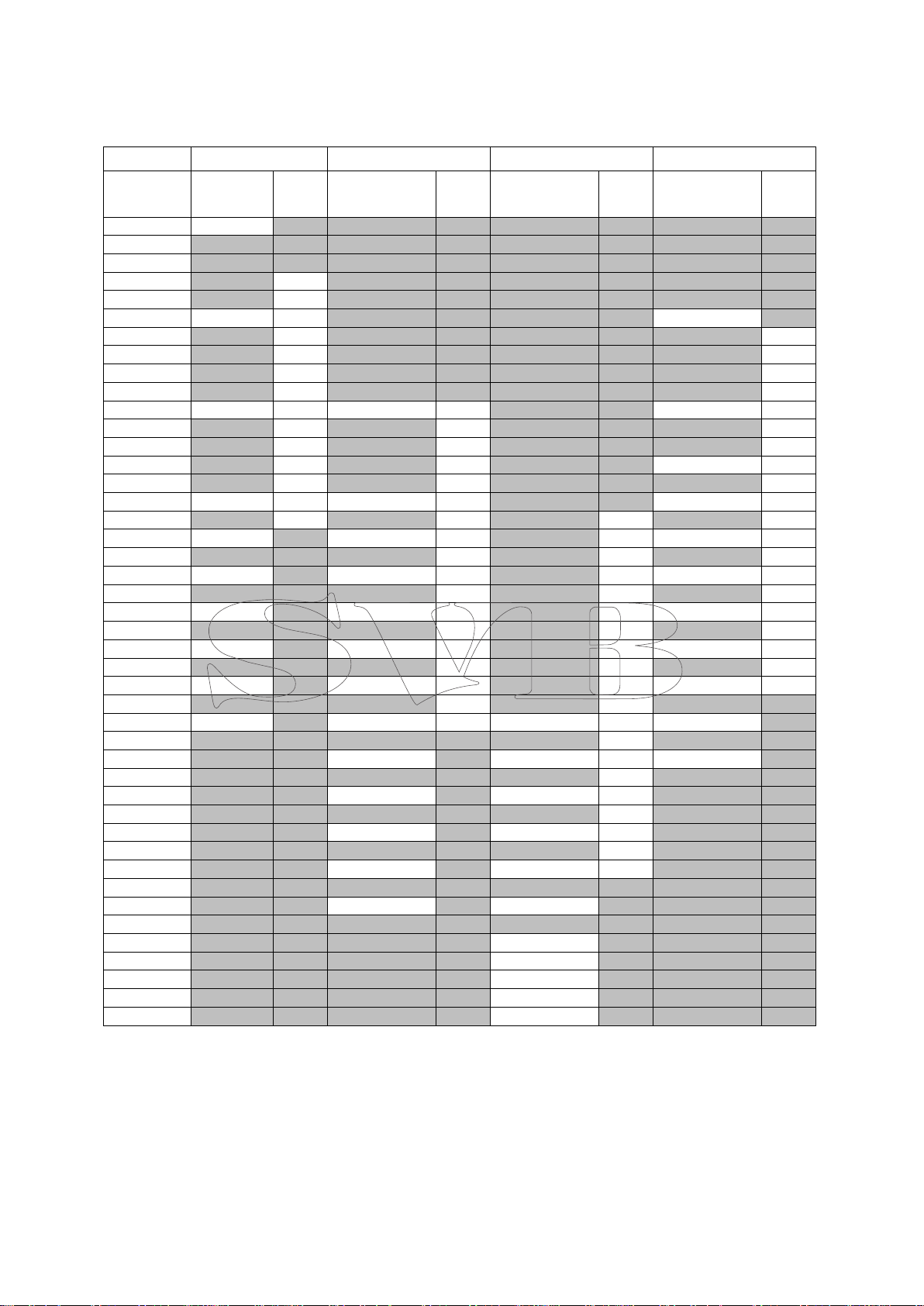
Loos Gauge conversion chart (kg)
Wire Dia.
2.5mm
3mm
4mm
5mm
Loos
Gauge
Model A
PT1
Model A
PT1
Model A
PT1
Model B
PT2
5
36 6 7
8
50
9
54
10
50
58
109
11
62
95
12
66
110
13
70
120
14
75
140
15
68
82
54
70
145
150
16
90
75
170
17
100
82
180
18
110
90
172
200
19
120
100
220
20
91
130
73
110
190
240
21
140
120
70
260
22
104
82
130
76
218
280
23
140
83
310
24
113
91
150
90
245
340
25
160
100
370
26
127
100
170
115
281
400
27
180
127
440
28
141
109
190
140
336
490
29
210
150
550
30
159
118
220
160
400
620
31
235
170
32
181
136
250
91
180
490
33
195
34
154
110
210
635
35
225
36
177
127
240
37
260
38
204
145
280
39
320
40
250
164
360
41
42
317
191
43
44
236
45
273
46
318
47
364
48
432
Page 5
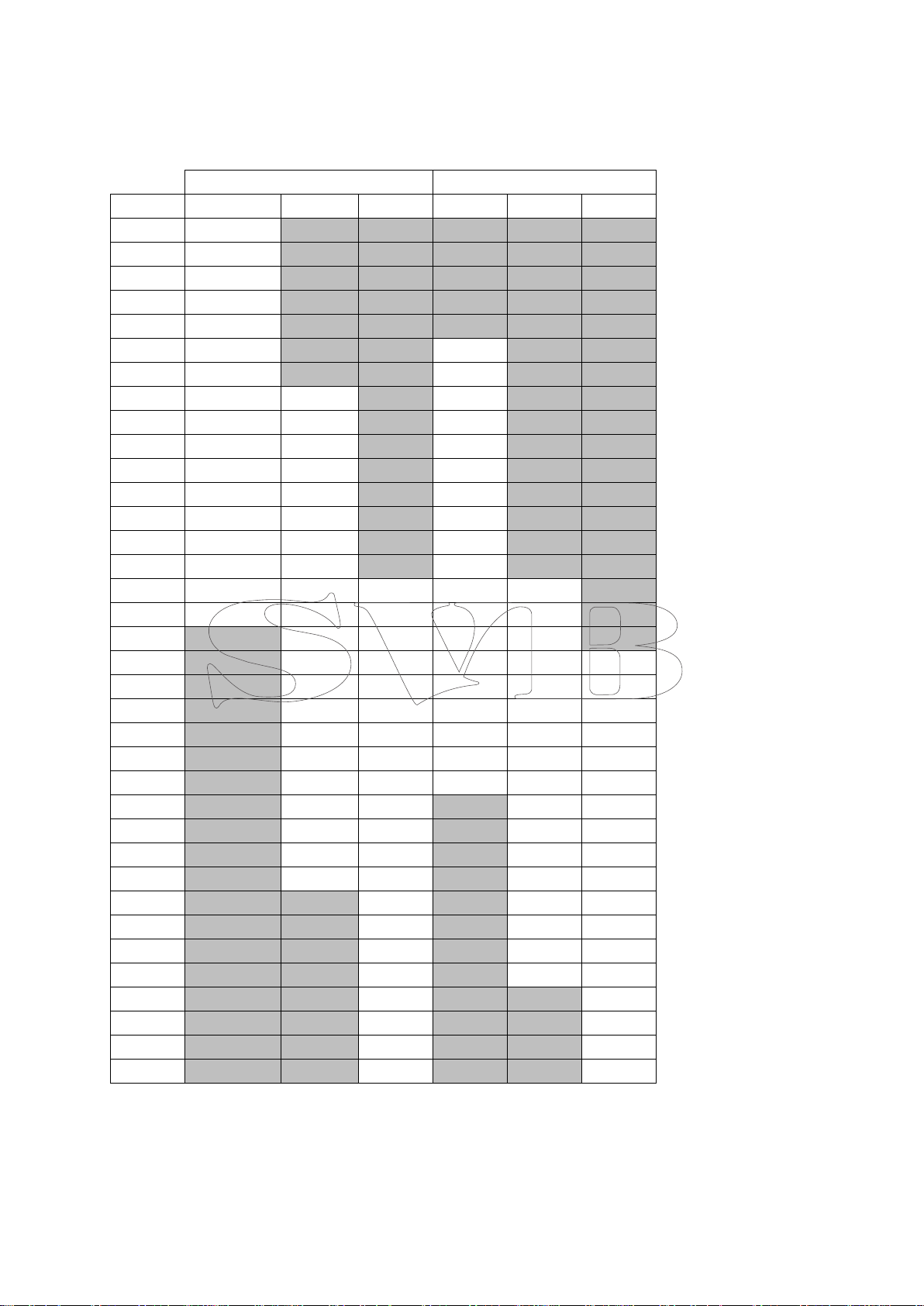
Imperial to Kg conversion chart
Figures below in kg
Model PT-1
Model PT-2
Scale
3/32
1/8
5/32
3/16
7/32
1/4
5
32
6
36
7
41
8
45
9
50
10
57
82
11
61
113
12
68
45
122
13
73
50
136
14
77
57
150
15
84
61
168
16
91
68
191
17
100
75
204
18
109
82
227
19
118
91
245
20
127
100
64
268
145
21
136
109
70
290
163
22 118
77
318
186
23 127
84
349
204
136
24 136
91
381
227
159
25 145
100
417
254
181
26 156
111
467
286
204
27 168
120
503
308
227
28 177
136
562
336
249
29 191
145 372
272
30 204
152 404
299
31 215
163 440
327
32 227
177 481
354
33
191 535
381
34
204 590
408
35
218 671
454
36
236 762
499
37
254
544
38
277
590
39
318
726
40
363
907
Page 6
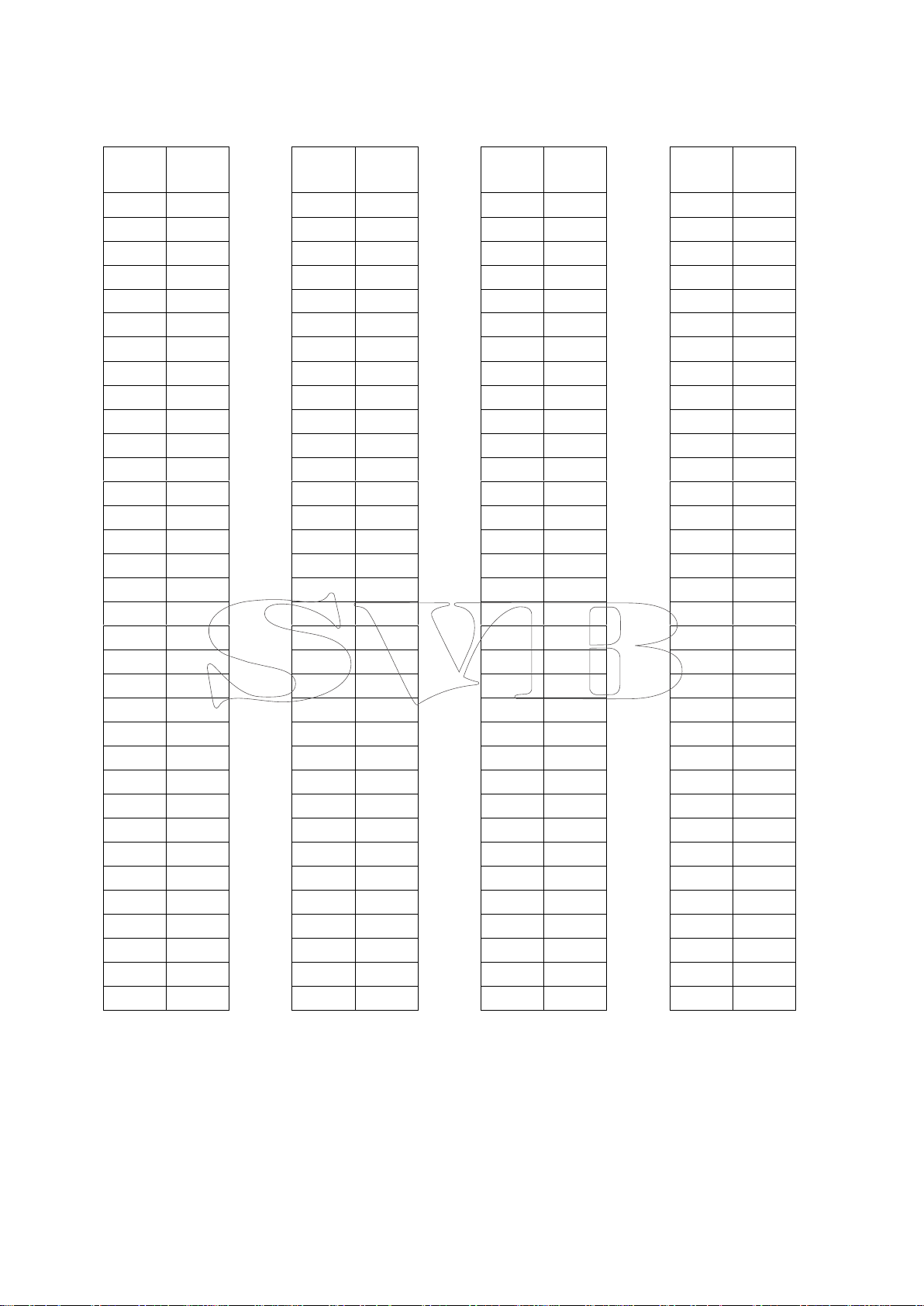
KG to LBS conversion chart
KG
LBS KG
LBS KG
LBS KG
LBS
35
77
205
452
315
694
485
1069
40
88
210
463
320
705
490
1080
45
99
215
474
325
717
495
1091
50
110
220
485
330
728
500
1102
55
121
225
496
335
739
505
1113
60
132
230
507
340
750
510
1124
65
143
235
518
345
761
515
1135
70
154
240
529
350
772
520
1146
75
165
245
540
355
783
525
1157
80
176
250
551
360
794
530
1168
85
187
255
562
365
805
535
1179
90
198
260
573
370
816
540
1190
95
209
265
584
375
827
545
1202
100
220
270
595
380
838
550
1213
105
231
275
606
385
849
555
1224
110
243
280
617
390
860
560
1235
115
254
285
628
395
871
565
1246
120
265
290
639
400
882
570
1257
125
276
295
650
405
893
575
1268
130
287
300
661
410
904
580
1279
135
298
305
672
415
915
585
1290
140
309
310
683
420
926
590
1301
145
320
315
694
425
937
595
1312
150
331
320
705
430
948
600
1323
155
342
325
717
435
959
605
1334
160
353
330
728
440
970
610
1345
165
364
335
739
445
981
615
1356
170
375
340
750
450
992
620
1367
175
386
345
761
455
1003
625
1378
180
397
350
772
460
1014
630
1389
185
408
355
783
465
1025
635
1400
190
419
360
794
470
1036
640
1411
195
430
365
805
475
1047
645
1422
200
441
370
816
480
1058
650
1433
 Loading...