

Page 1

SLEEK / SLEEK W1
User Manual
1 For Information Purpose Only
Page 2

This manual contains important safety precautions and information of correct use.
Please be sure to read this manual carefully before use so as to avoid any accidents.
•Do not place the product in hot, wet or dusty environment, especially in summer, do
not leave the product inside a car with all windows closed.
•Avoid dropping, impacting or shaking the product violently, otherwise it may cause
damages or malfunctions.
•Select a proper volume to avoid ear problem when using earphones.
•Be sure to use the provided chargers and accessories in the package.
•Be sure to charge the product when the following situations take place,
•The battery icon shows lower or empty.
•Operation keys do not respond properly.
•The device shows on the top right corner.
2 For Information Purpose Only
Page 3
READ . WATCH . PLAY . SHARE
3 For Information Purpose Only
Page 4
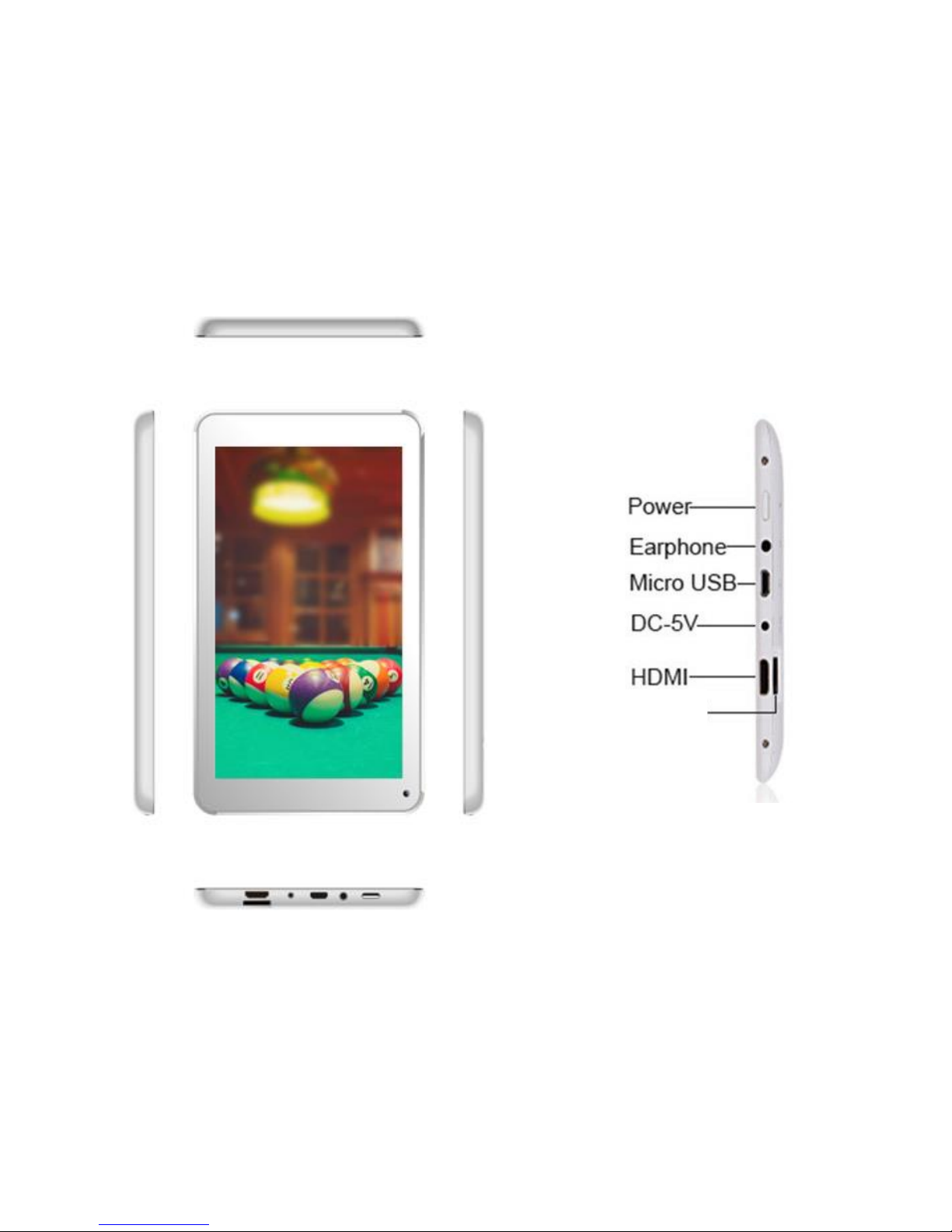
Memory
Card
4 For Information Purpose Only
Page 5
5 For Information Purpose Only
Page 6
1. Power On/Off
Long Press Power Button to turn on/off the tablet.
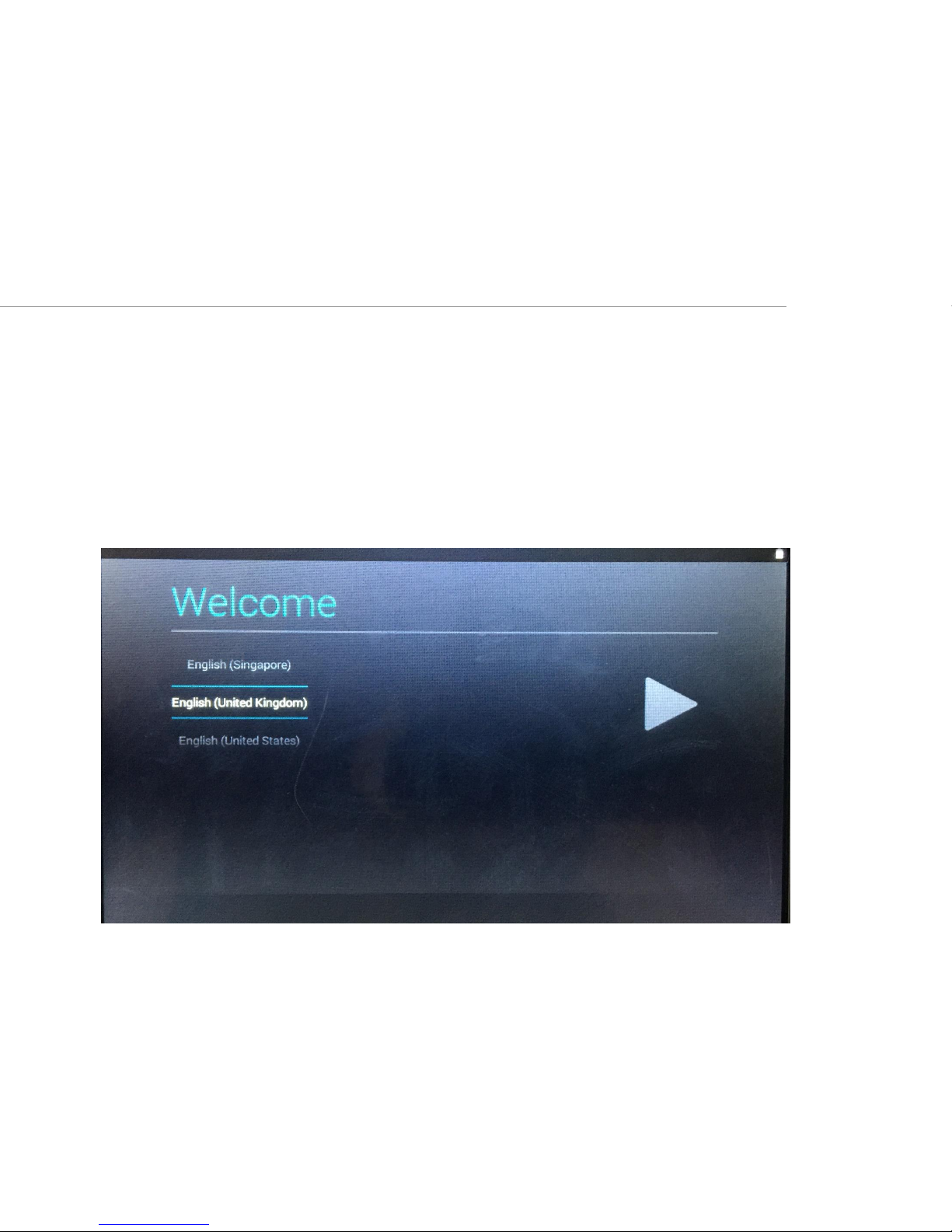
•For the very first time, it may take a minute or two to boot the device. Start up setup will
ask you to select (below are the sequence of screen shots which you will see)
• Select Country
6 For Information Purpose Only
Page 7
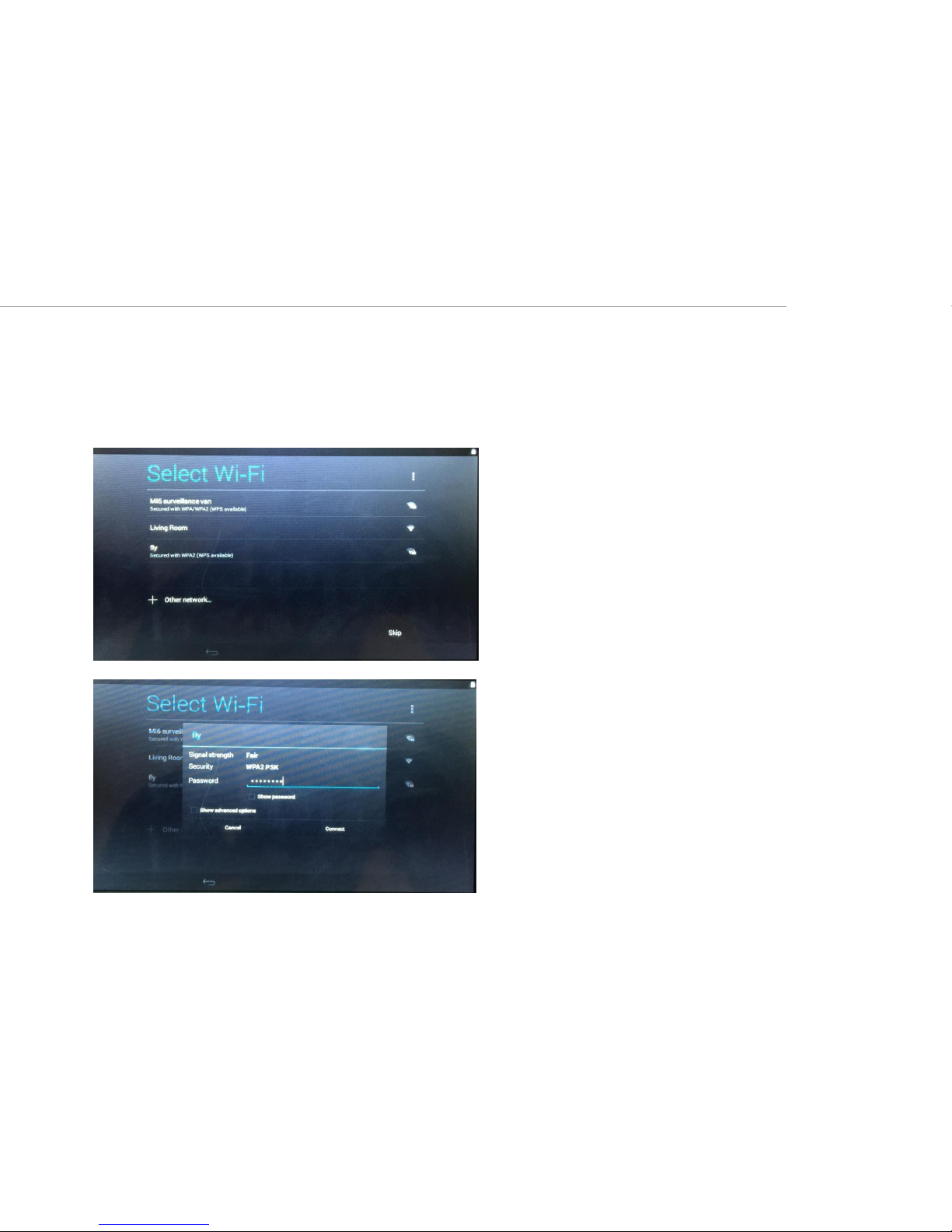
• Select WiFi / Wireless Network (You may require to enter WiFi password)
7 For Information Purpose Only
Page 8
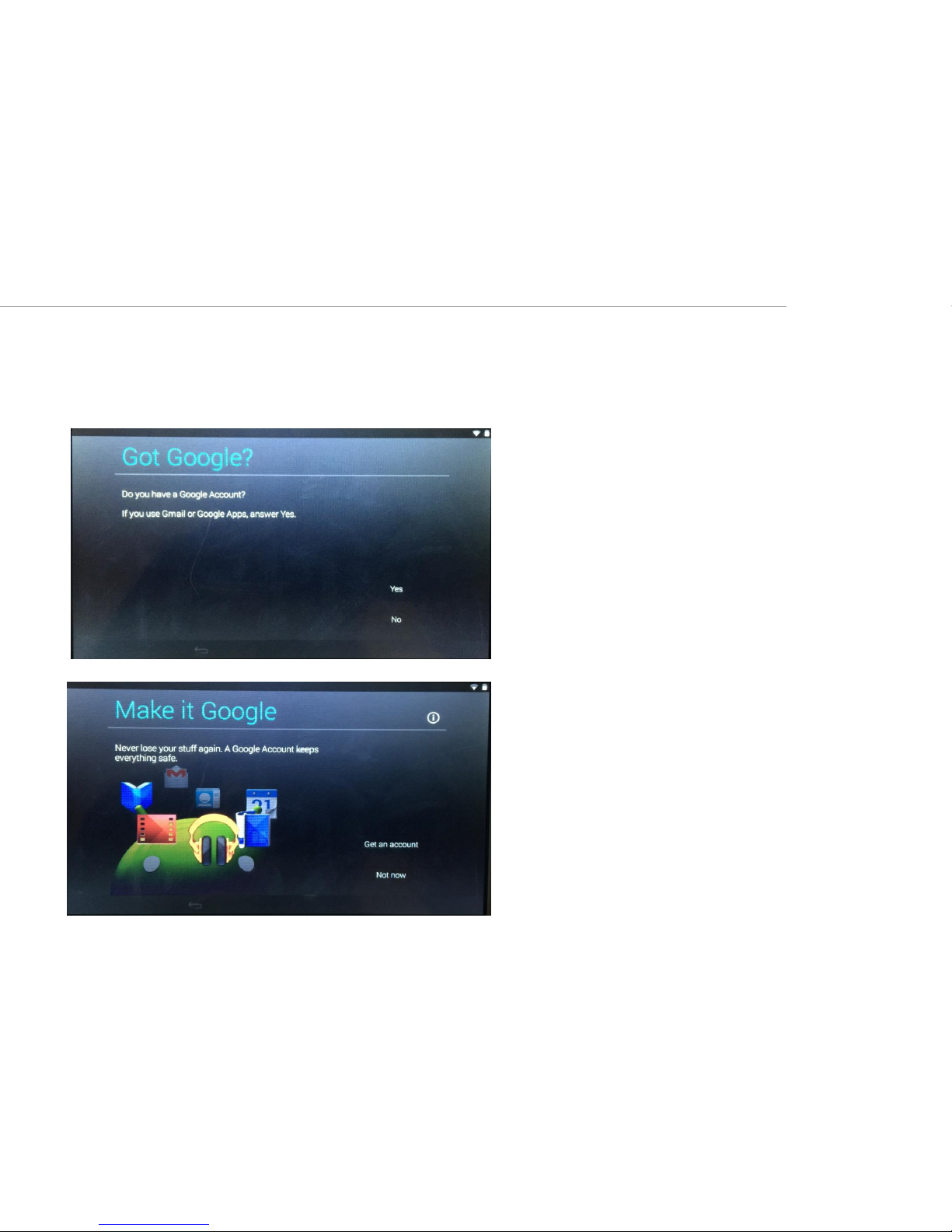
• Add Google Account information. If you do not have a Google account, start up
setup gives you an option to create one. Alternatively, you may chose to continue
however you may not be able to enjoy some of the Android features.
8 For Information Purpose Only
Page 9
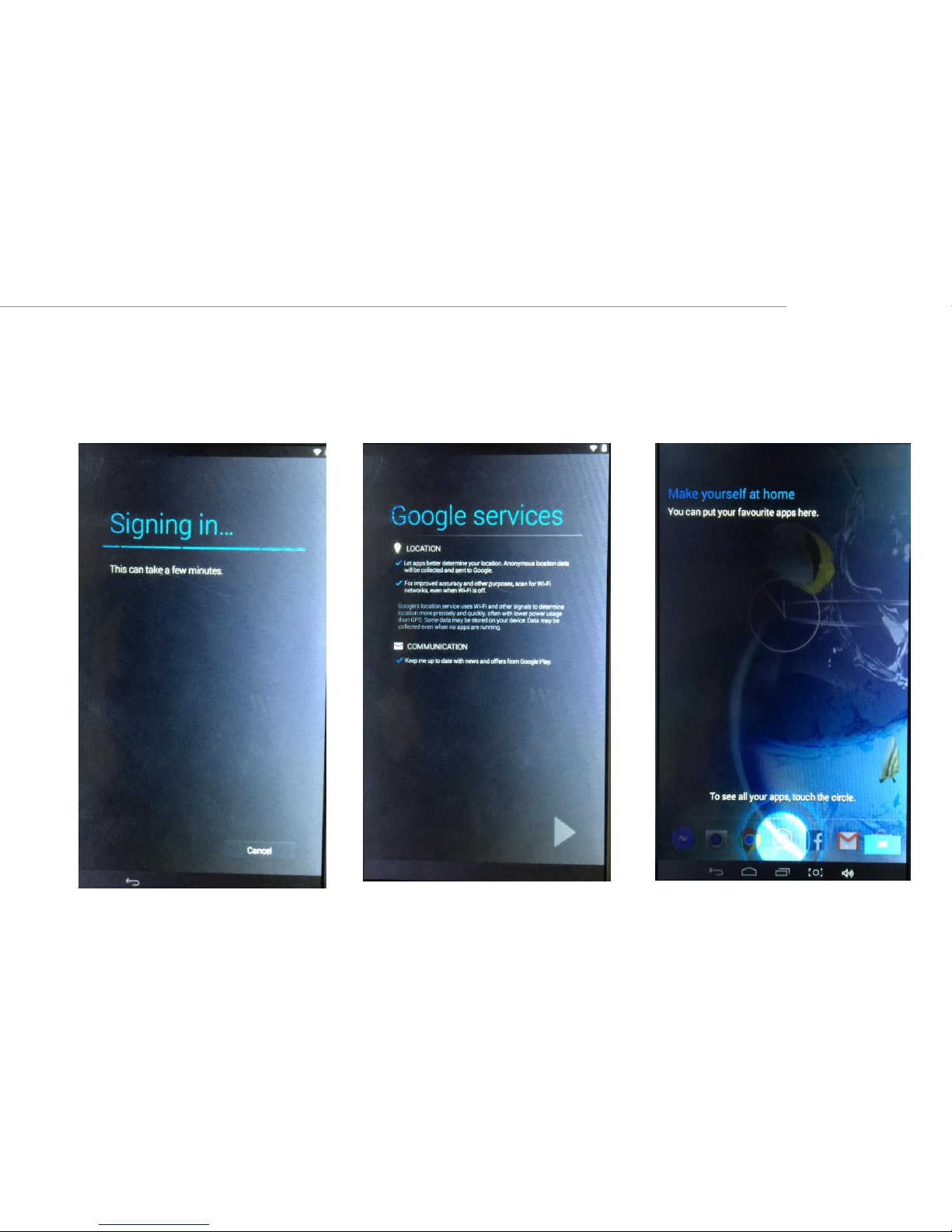
• Once you have entered your Google account, it may take few minutes to activate
all Google Services (Play Store, Location, Maps). At this step, you may wish not to
select your location services.
9 For Information Purpose Only
Page 10
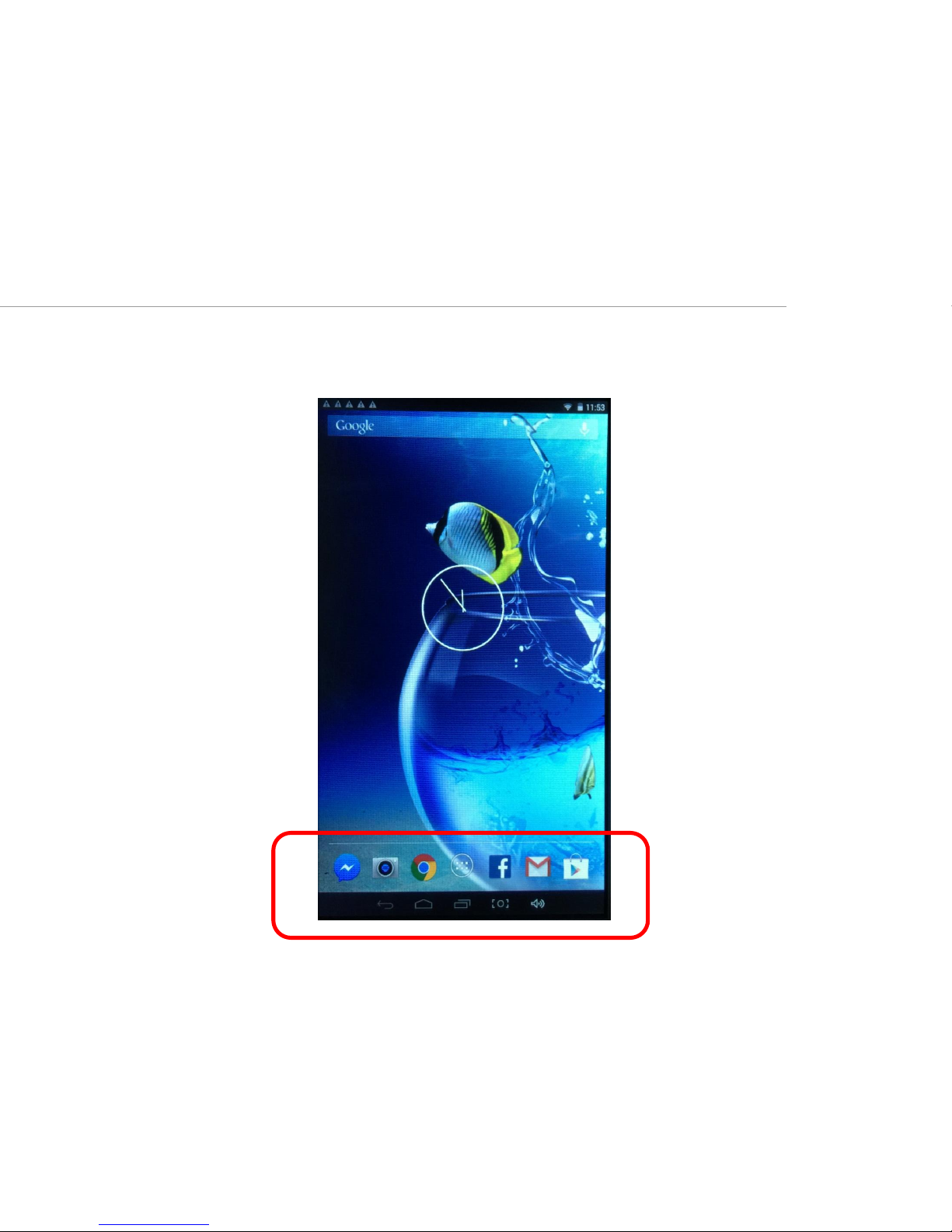
• At the end of this setup, you should see Home Screen with all pre-loaded apps and
Menu Buttons at the bottom
10 For Information Purpose Only
Page 11
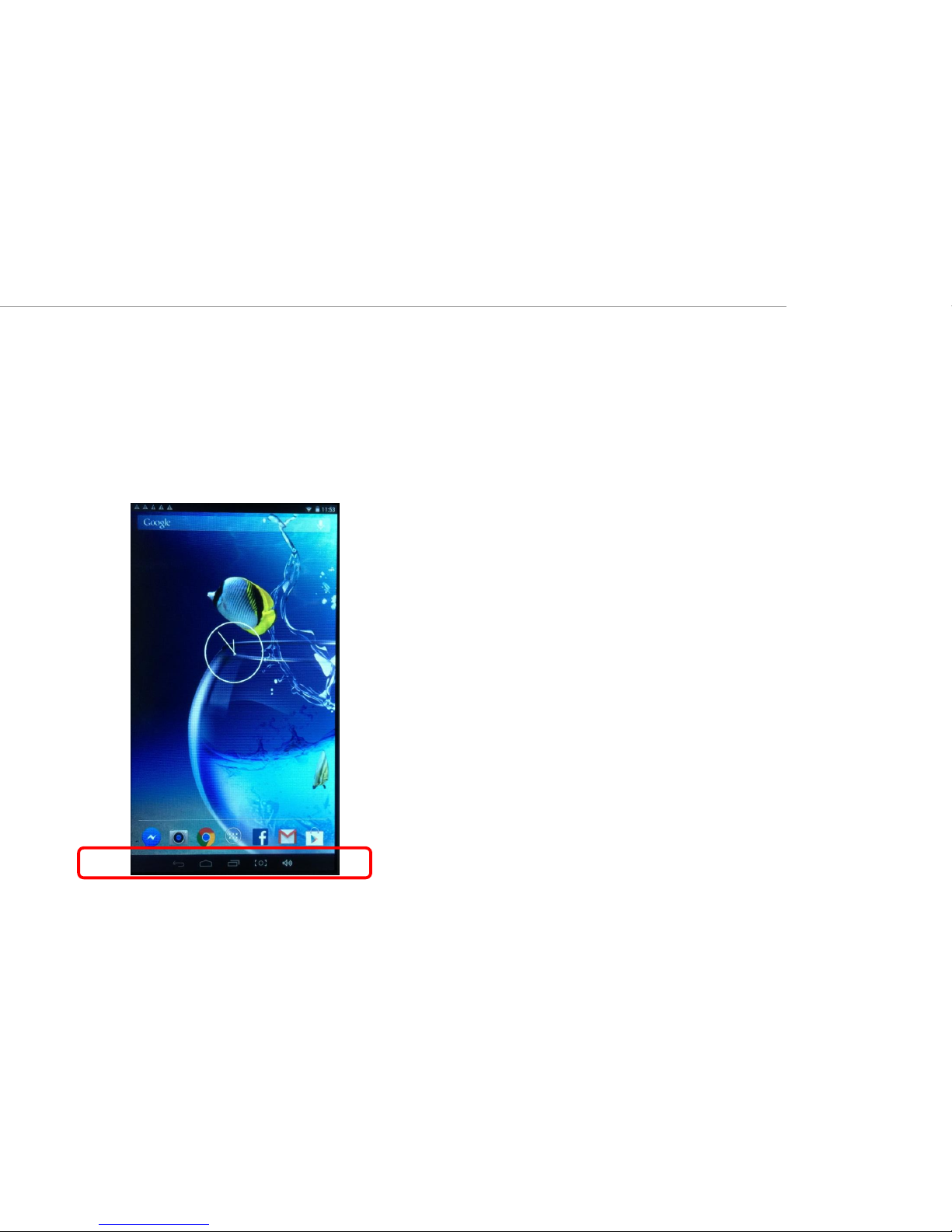
After turning on the device, desktop displays with shortcut icons (Menu button) and
arrow panel either in the centre or at one side (depending on model Sleek & Sleek W1)
2. Desktop & Menu Button
11 For Information Purpose Only
Page 12
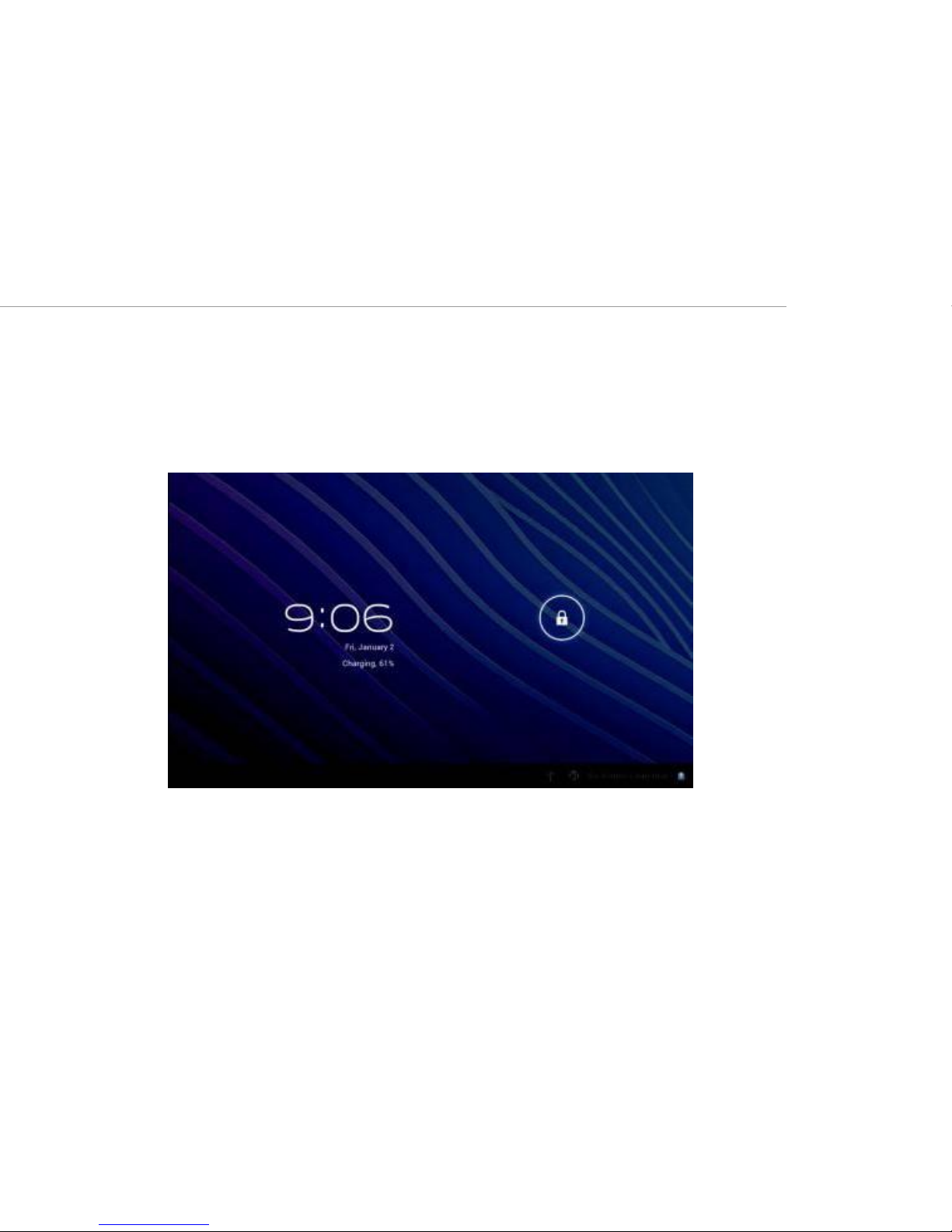
Short press power button to turn on/off the screen when in Standby Mode
After standby mode screen appears , slide the lock icon in order to unlock the screen.
3. Standby mode(Screen off mode) / Unlock the
screen
12 For Information Purpose Only
Page 13
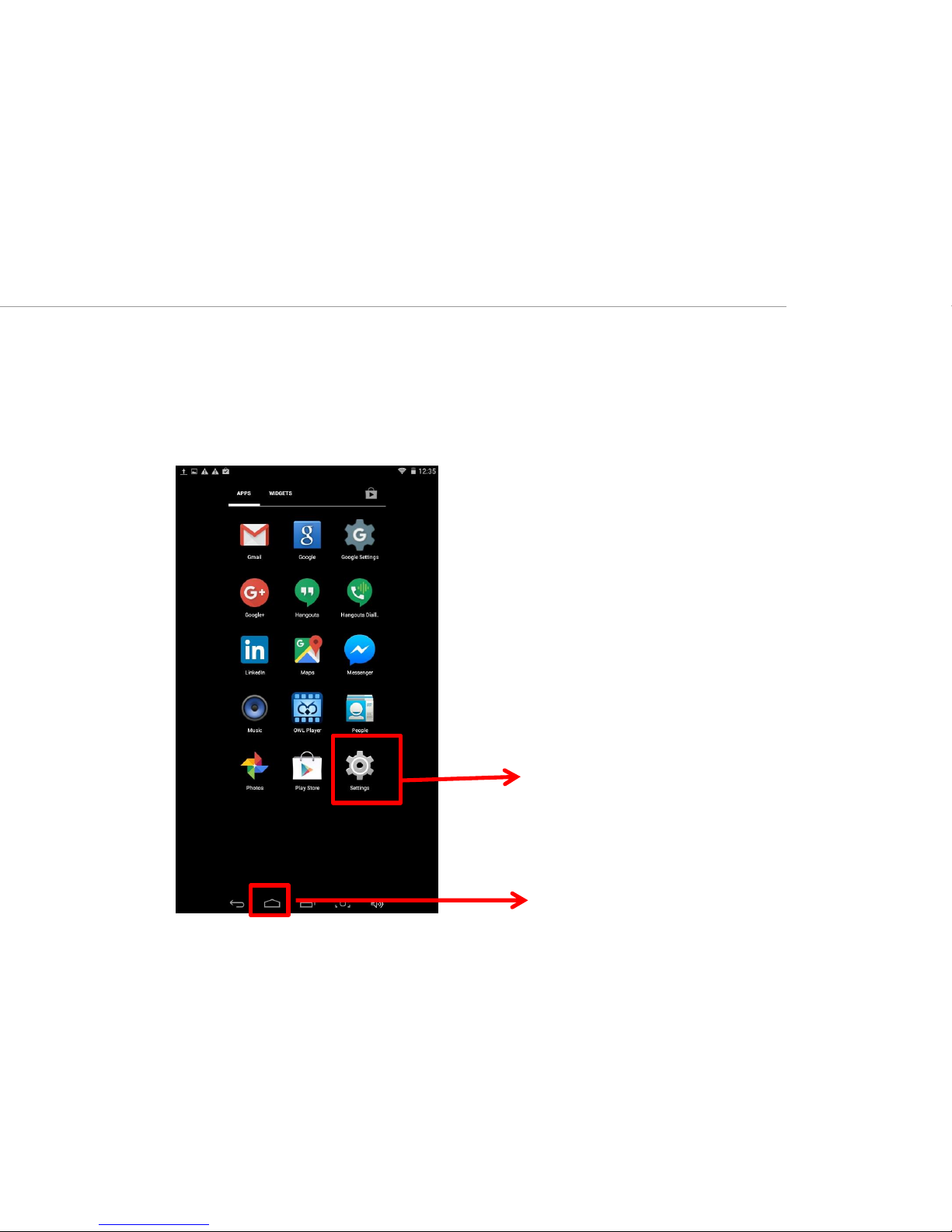
On the desktop, press Menu/Applications button (Menu button should be in the bottom
bar of Home Screen) . You may have to swipe right/left Home Screen to find Settings icon.
select system settings
4. System Settings
Menu/Applications Button
13 For Information Purpose Only
Page 14
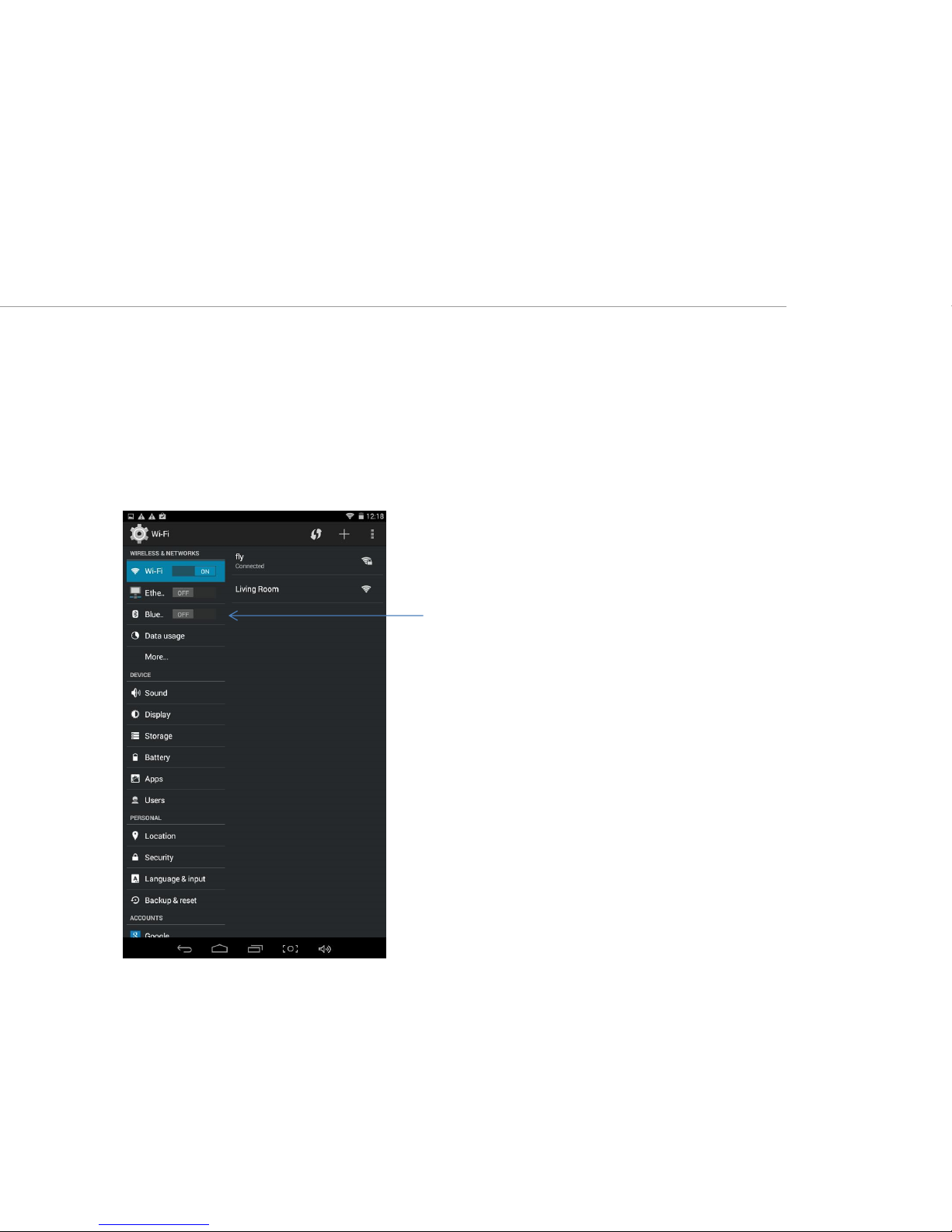
Select Wi-Fi settings from Settings menu
• Device will automatically search the available Wi-Fi signals.
• Select the network you want to connect with. You may need to enter the password for
WiFi
4.1 Wireless Network & Bluetooth
You can also Switch on/off Bluetooth on
this Setting Page
14 For Information Purpose Only
Page 15
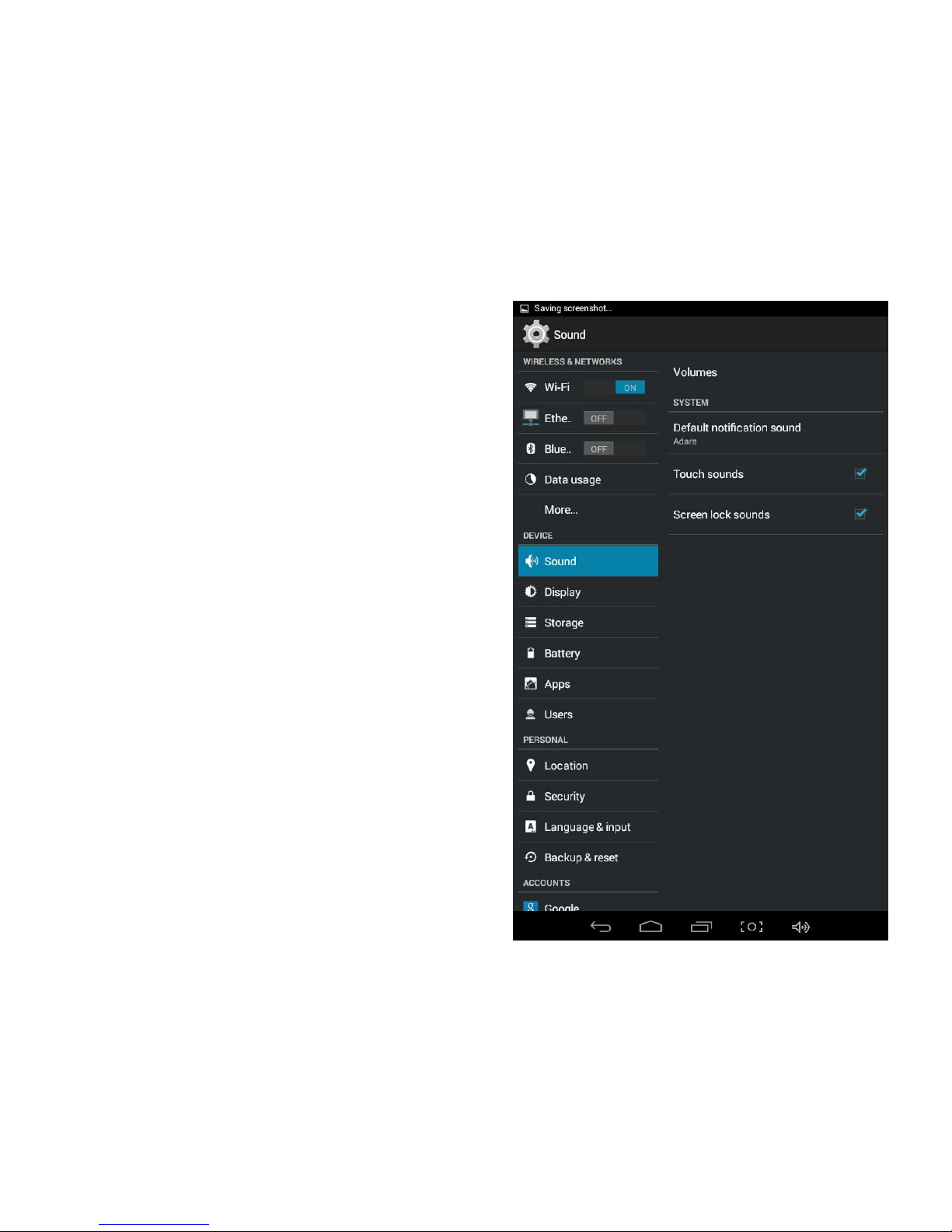
This setting allows you to select and turn on/off
System & Touch sounds.
4.2 Sound
15 For Information Purpose Only
Page 16
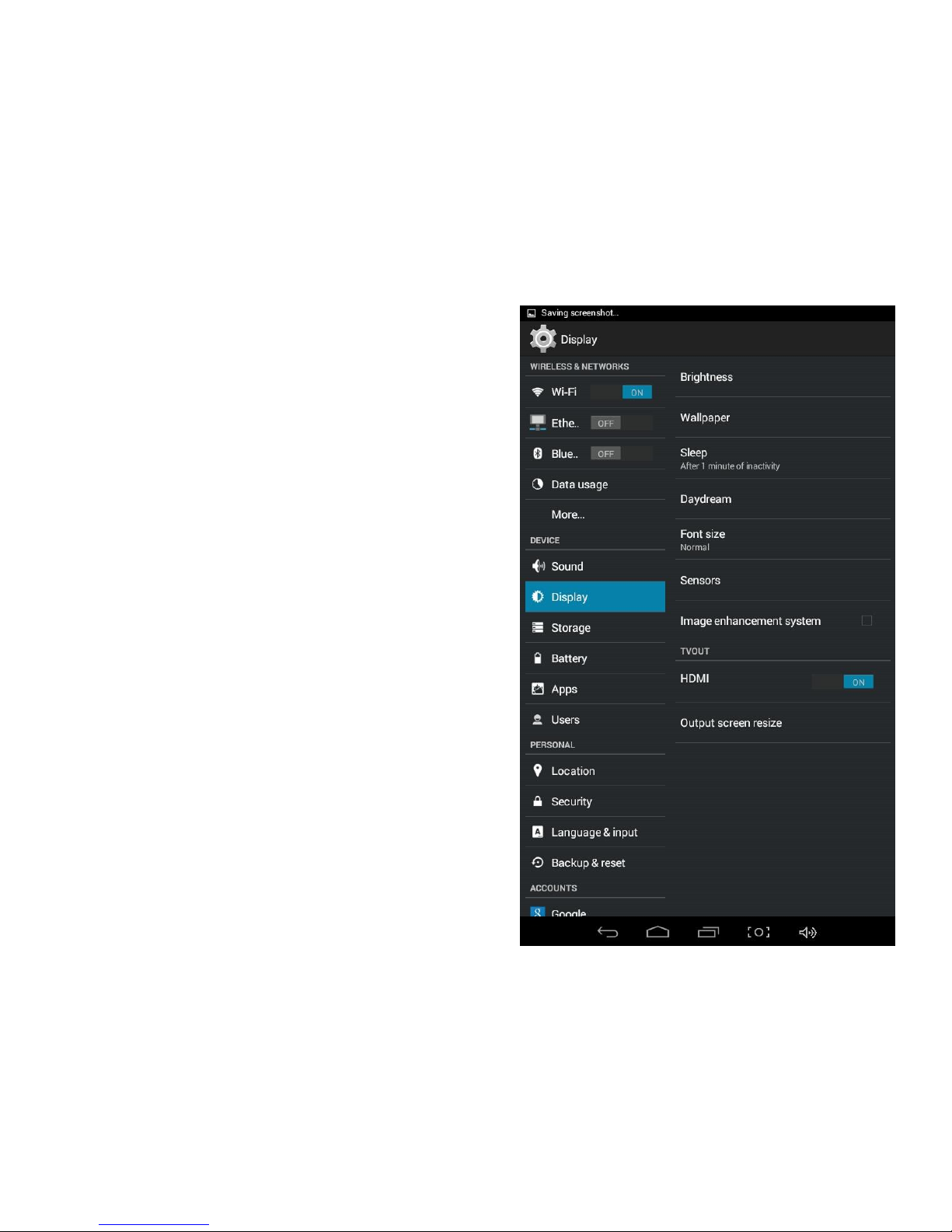
Here you can adjust brightness, change
wallpaper, and tablet sleep time. You can also
adjust tablet Font size. Display settings also let
you select HDMI output and output screen size.
4.3 Display
16 For Information Purpose Only
Page 17
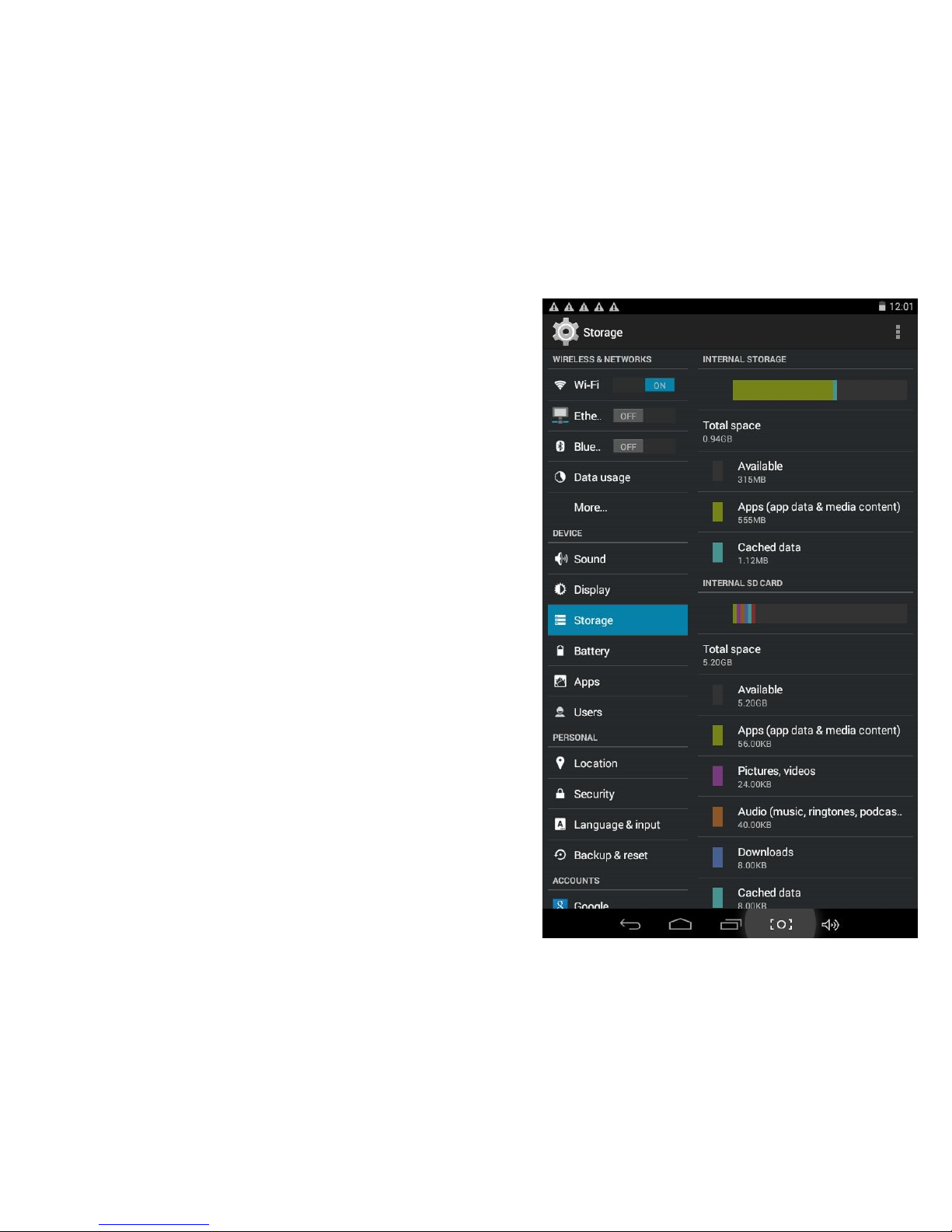
•Check device memory and microSD card
status.
•Un-mount SD card – Un-mount the SD
card for safe removal.
4.4 Storage
17 For Information Purpose Only
Page 18
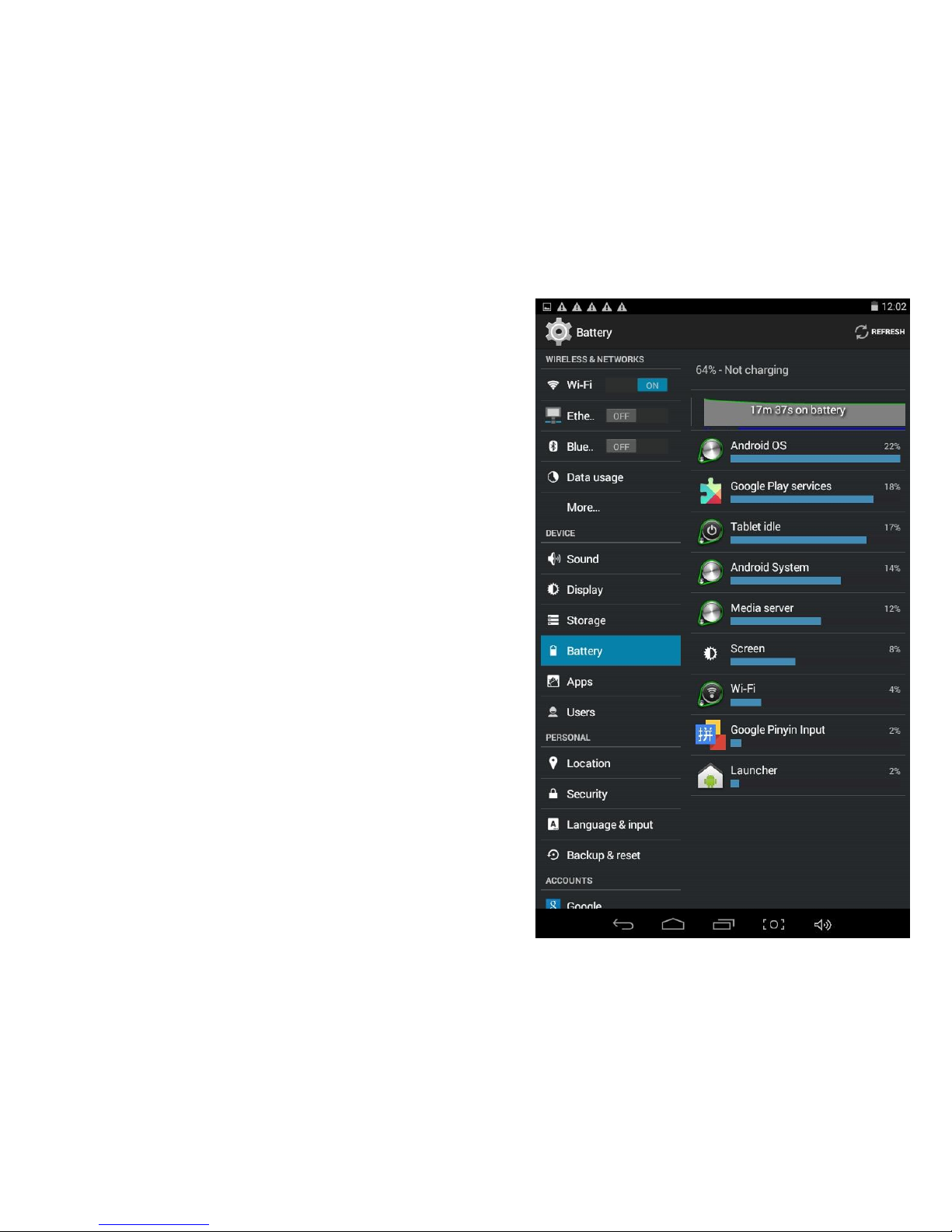
Here you can check remaining battery and
its usage status by active applications on
your tablet.
4.5 Battery
18 For Information Purpose Only
Page 19
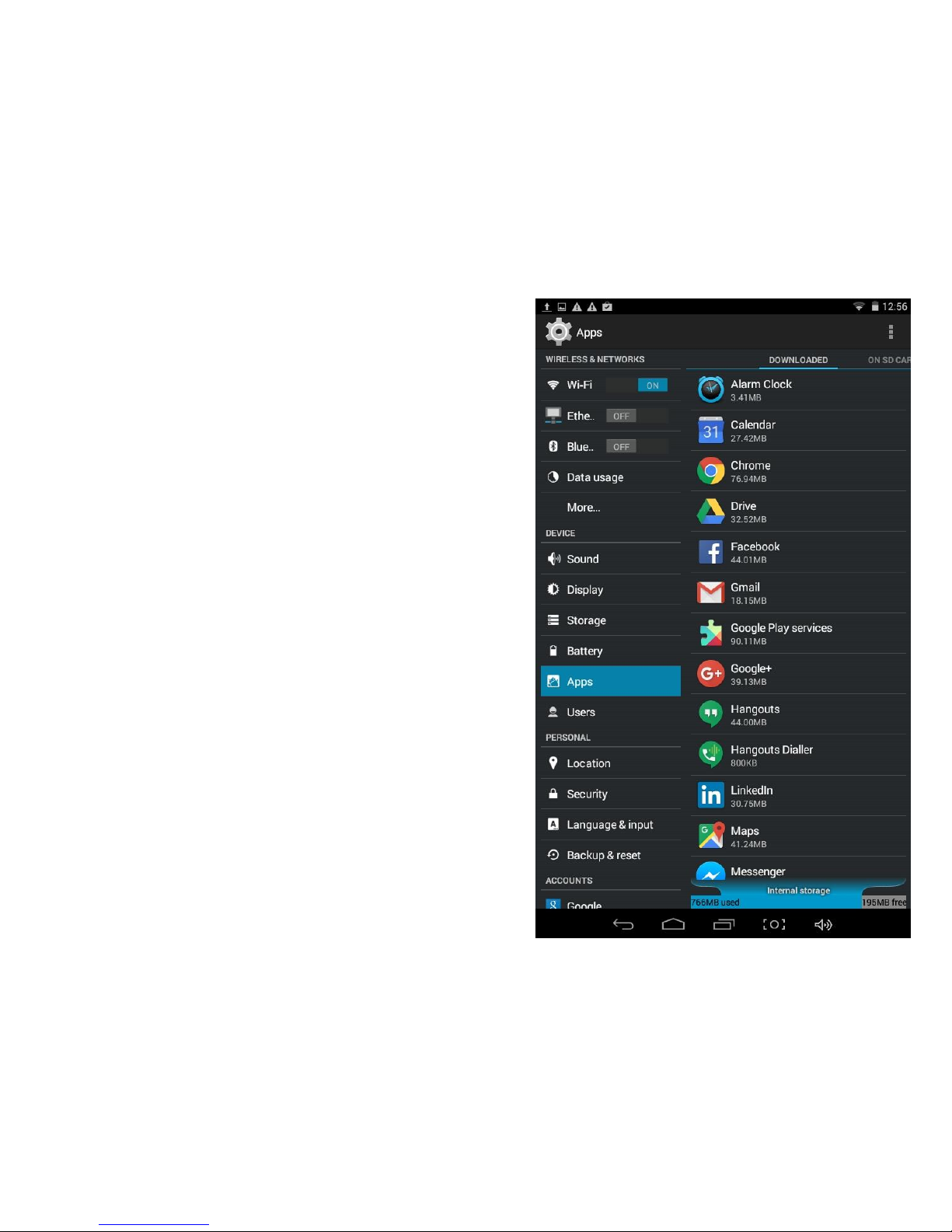
Manage downloaded or running applications.
This settings shows all the applications on your
tablet and how much storage space these apps
are using.
•Press application name to manage, stop
or uninstall
4.6 Apps
19 For Information Purpose Only
Page 20
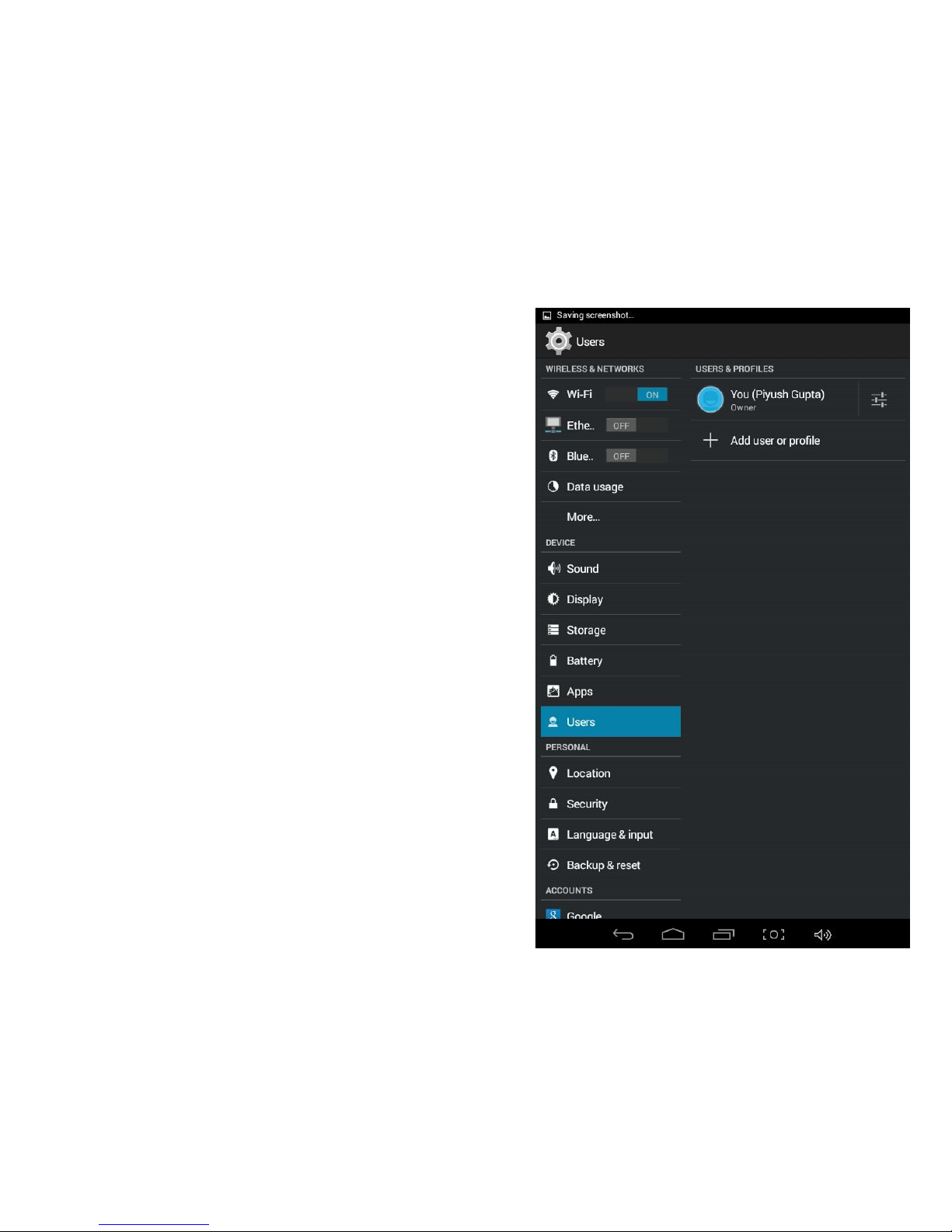
Manage and add user profiles as required.
4.7 Users
20 For Information Purpose Only
Page 21
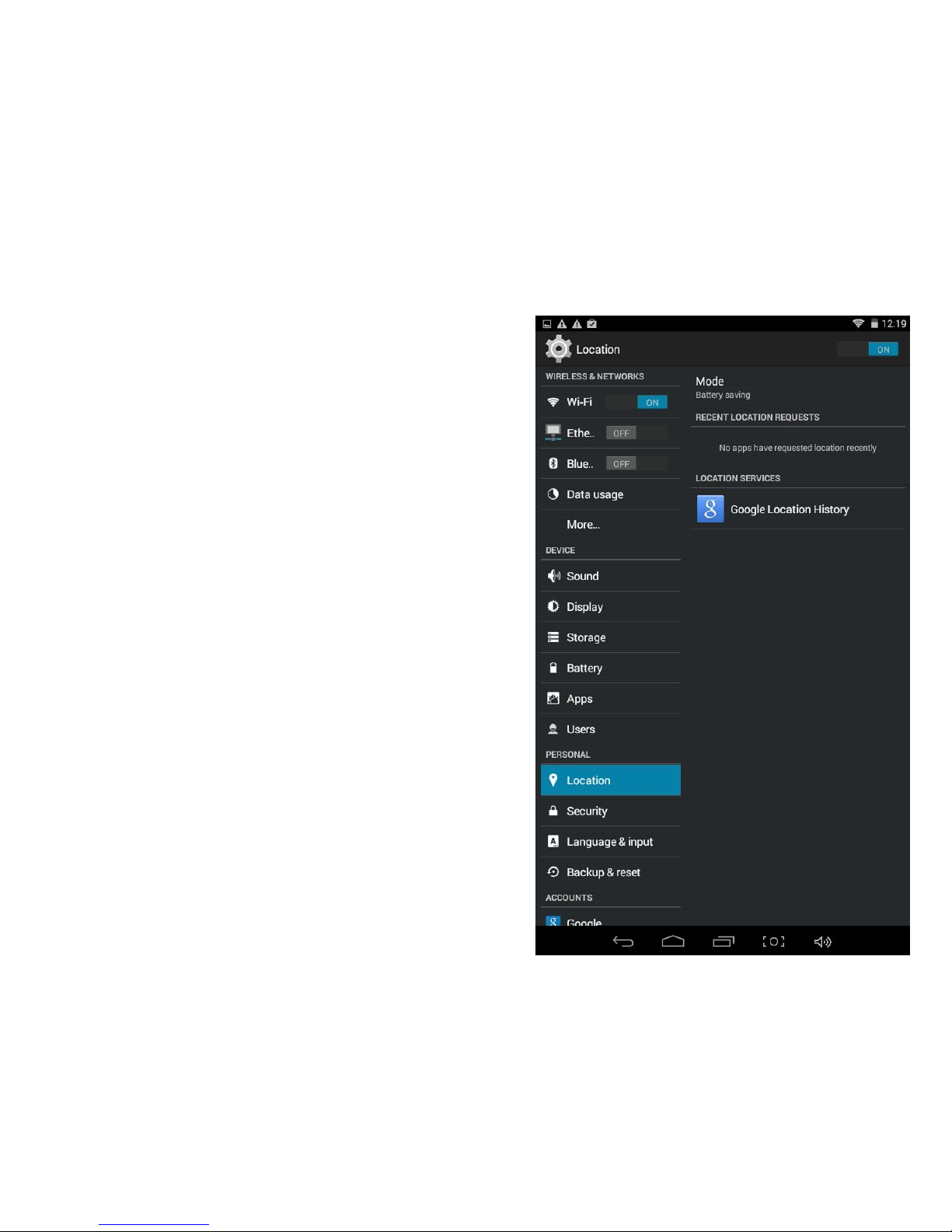
Google’s location service - Let apps use data
from sources such as WiFi and mobile networks
to determine your approximate location
4.8 Location
21 For Information Purpose Only
Page 22
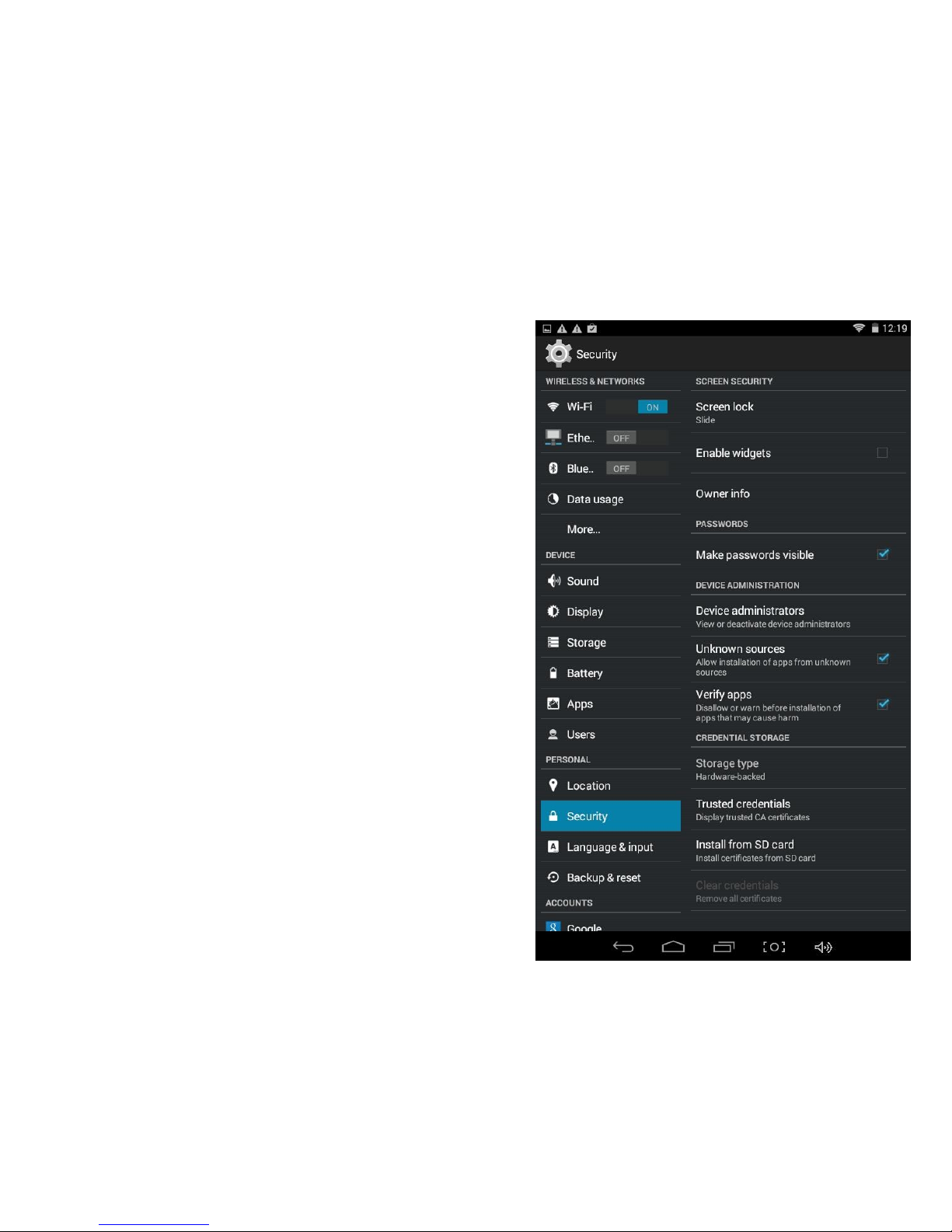
•Screen lock – Protect your device from
unauthorized use by creating a personal
screen unlock pattern. Make passwords
visible – Show password as you type.
•Unknown sources - If you want to allow
installation of non-Market Applications,
Press Unknown sources and presses OK.
•Install from SD card – Install encrypted
certificates from SD card.
4.9 Security
22 For Information Purpose Only
Page 23
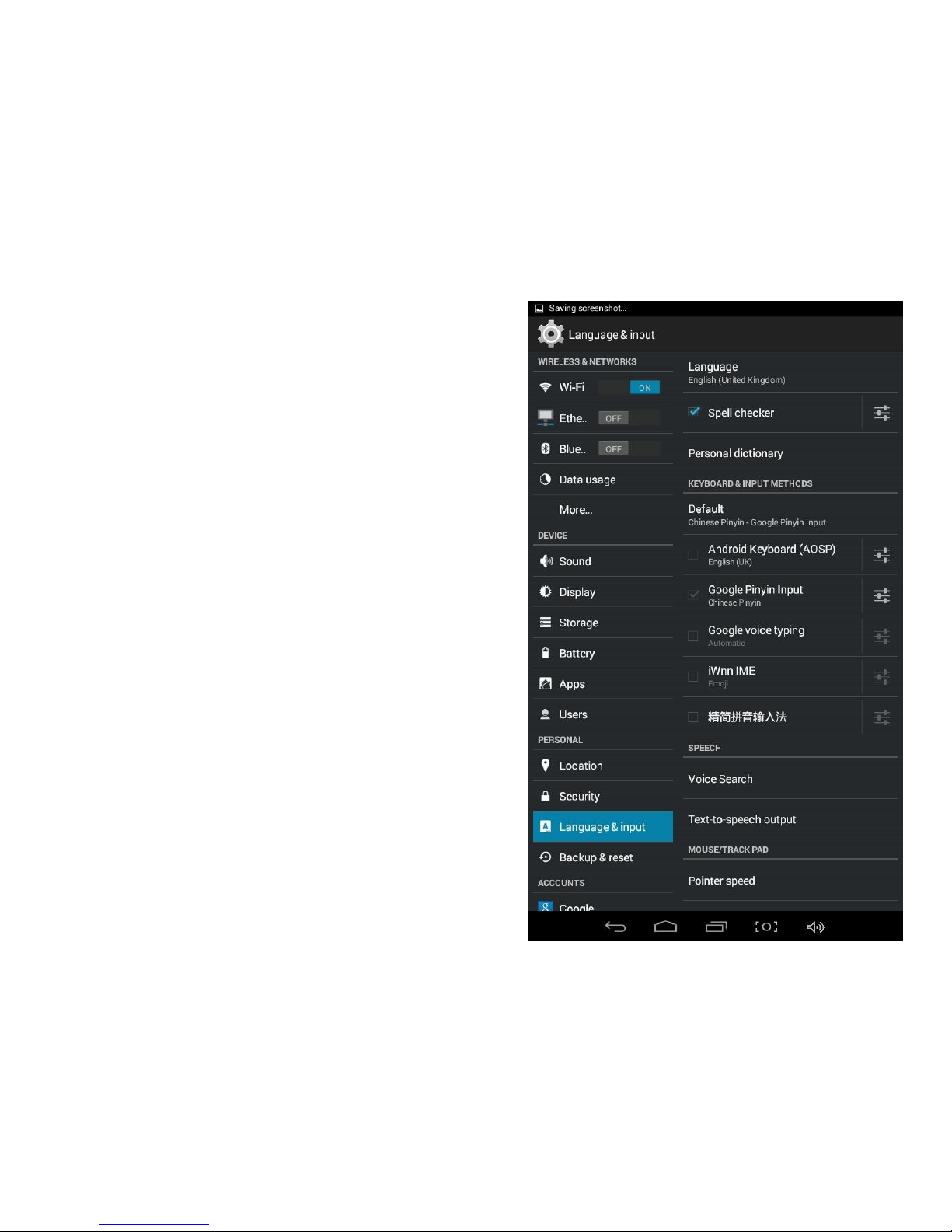
•Language – Choose your preferable
language
•Keyboard & input method – Change
keyboard & keyboard settings.
•On Language & input settings, if you need
other languages besides English on
keyboard, press the relevant keyboard and
enter the chosen Keyboard settings, select
Keyboards, press the language you need.
4.10 Language & Input
23 For Information Purpose Only
Page 24
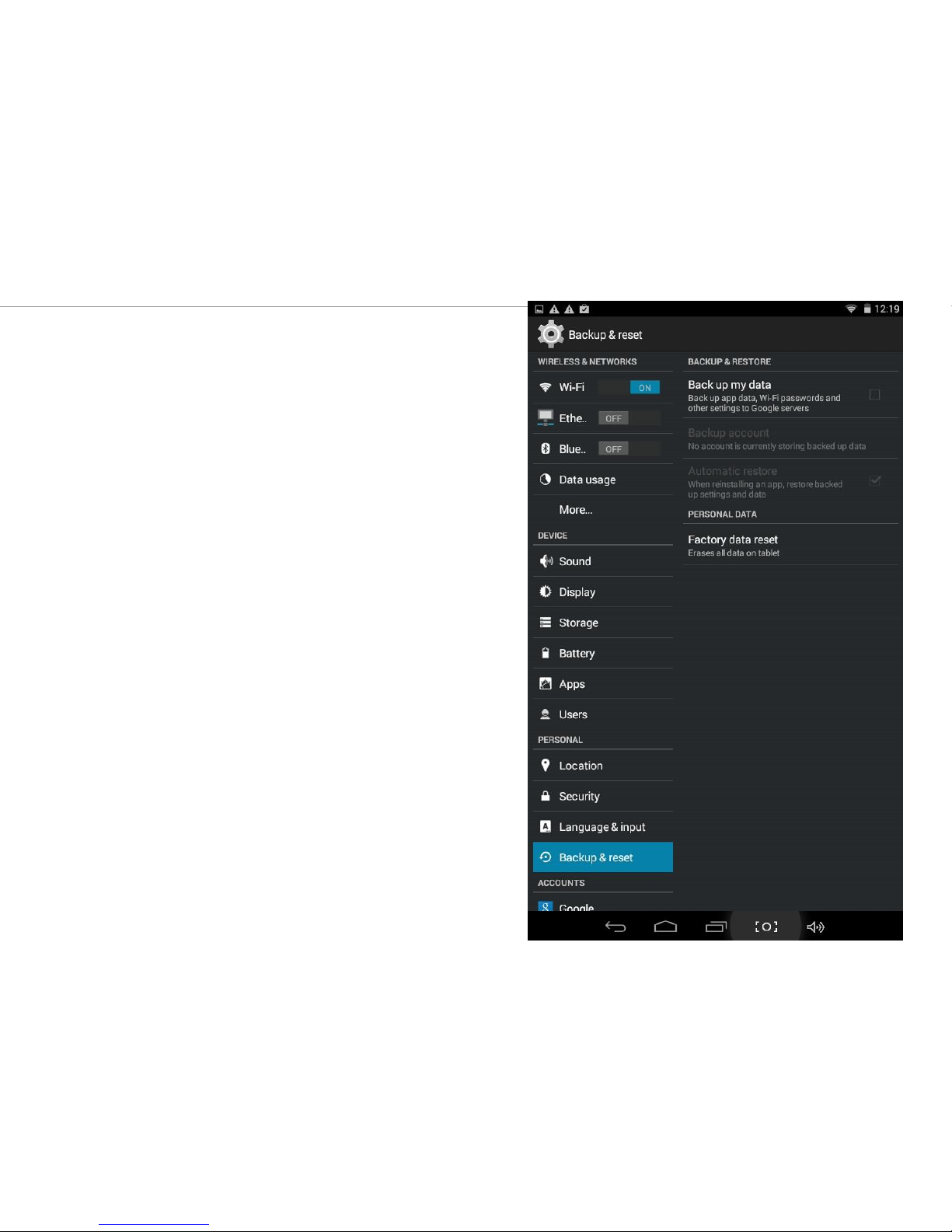
4.11 Backup & Reset /
Factory Data Reset
Back up & Reset Settings option stores your
Wi-Fi passwords and other settings to Google
Server (If you have added your Google
account)
Factory Data Reset, will erase all the data on
your device and reset it to factory default
settings.
24 For Information Purpose Only
Page 25
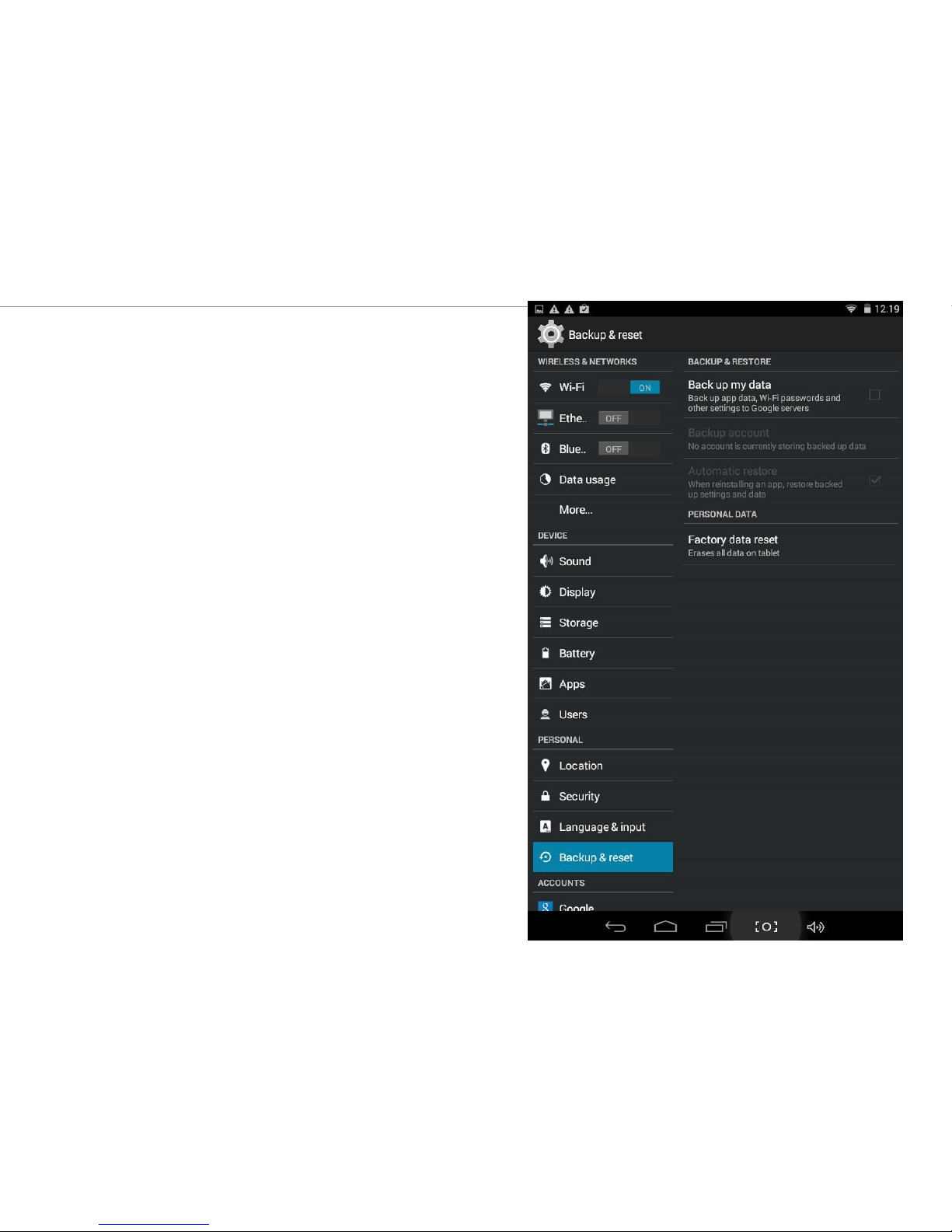
4.12 Account & Sync
Create your account. After connecting Wi-Fi
network, the e-mailing system synchronizes
your account with the device. Emails are
automatically downloaded into the device.
25 For Information Purpose Only
Page 26

4.13 Other Settings
Date & time
Set date & time and format
Developer options
Set options for application development
About tablet
See status, legal information, ETC
26 For Information Purpose Only
Page 27

5. Technical Support
In case of ay technical query, please open a ticket on www.spidotech.com or email
us on [email protected]
27 For Information Purpose Only
 Loading...