

Page 1
Page 2
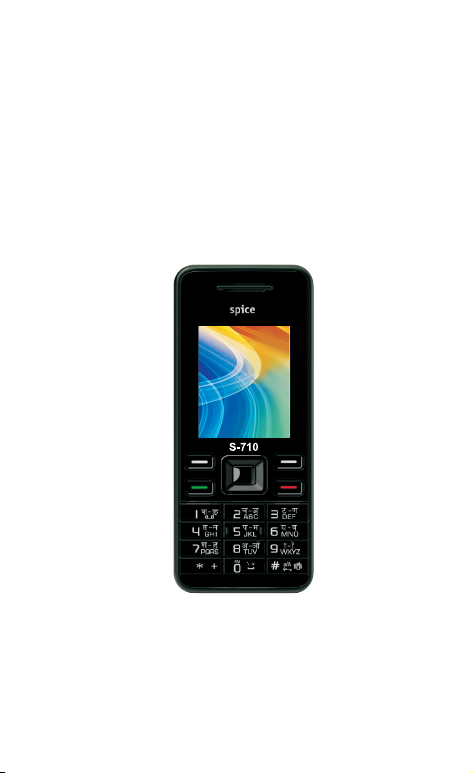
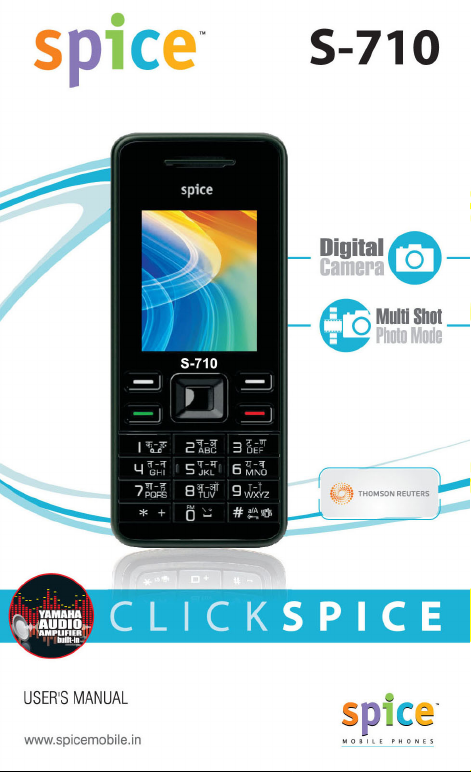
Spice S-710
User Manual
Copyright©2008 Spice Mobiles Ltd.
1
Page 3

Page 4

Welcome
Welcome
Thank you for purchasing a Spice S-710 Handset Mobile phone. We built
our Handset to give user what we believe user really want from a wireless
phone, clear sound, and fashion outlook.
Our advanced technology is designed to grow with users communications
needs so that one day you will be able to rely entirely on users Handset to
stay connected.
This guide will familiarize user with our technology and new Handset phone
through simple, easy to follow instructions. If users have already reviewed
the Quick Start Guide, which was packaged with new Handset, then user is
ready to explore the advanced features outlined in this guide.
If users have not read “Quick Start Guide”, go to Section One Getting
Started. This section provides all the information user needs to quickly
activate phone, and much more.
We congratulate on your choice.
1 Copyright©2008 Spice Mobiles Ltd.
Page 5
Contents
Safety Information
Please read and understood the details which are both safe to you and
your environment. Failure to observe these instructions may lead to
suspension of cellular phone services to the user, or some legal action
Important information for parents:
Please read the operating instructions and safety precautions carefully
before use. Explain the content and the hazards associated with using
Emergency Calls (SOS)
Emergency call can be made from your cellular phone even
without a SIM in the network service area.
Traffic Safety
Please do not use your cellular phone while driving; find a safe
place to stop first.
Switch off in Hospital
The use of cellular phones may interfere with the functionality of
some possible insufficiently protected medical devices in hospital.
Switch off in Airplane
The use of cellular phone in an aircraft may be dangerous to the
operation of the aircraft, disrupt the cellular network and may be
illegal.
Switch off in Gasoline Station and Explosive Site
It is advisable that users turn off cellular phone when refueling is in
progress, users are reminded to observe restrictions on the use of
radio equipment in fuel depots.
Operating Environment
Mobile radio transmitting equipment, including cellular phones,
may be subject to interference and may cause danger. Switch off
your phone whenever it is forbidden to use it.
Use Sensibly
Do not hold the phone to your ear when it rings or when you have
switched on the hand free function. Otherwise you risk serious
permanent damage to your hearing.
Appropriate Maintenance
Only qualified and authorized personnel should service your
cellular phone. Faulty installation or repair may be hazardous.
2
Page 6
Safety Information
Replace
You may only open the phone to replace the battery and SIM card.
You must not open the battery under any circumstances. All other
changes to this device are strictly prohibited and will invalidate the
operating license.
Interference Noticed
The phone may cause interference in the vicinity of TV sets,
radios and PCs.
Safety Warnings
Accessories
Use only accessories and charging devices approved by the
phone manufacturer! Otherwise you risk serious damage to health
and property. The battery could explode, for instance.
Power Voltage
The mains voltage specified on the power supply unit (Volt) must
not be exceeded. Otherwise the charging device may be
destroyed.
Waste Disposal
Dispose of worn out batteries and phone in accordance with local
provisions!
Rechargeable Battery
If battery is over discharged the handset will need to
pre-charge less than 10-20 minutes.
Avoid accidental shorts across the contacts of battery by
metal parts. Shorts can cause rapid discharge currents that
can damage the battery, the part that creates the short or
cause injuries.
Prevent extreme low and high ambient temperatures for the
battery. Therefore, do not place battery near a heater or
on the car dashboard.
Do not open, penetrate or otherwise physically damage the
battery.
Do not incinerate battery.
3 Copyright©2008 Spice Mobiles Ltd.
Page 7

Contents
Contents
WELCOME........... .......................................................................................................... ......1
SAFETY INFORMATION ............................................................................................... ......2
S
AFETY WARNINGS............................................................. ..................................................... 3
ETTING START ED ............................................ ....................................................................... 7
G
SIM Card and Battery Information ..................................... ............................................... 7
Insert SIM Card ................................................................................ ..............................................7
Insert Memory Card .............................................................. .........................................................7
Insert Battery............ .................................................................................. ....................................7
Charge Battery.... ....................................................................................... ....................................8
YOUR PHONE .................................................... ................................................................. 9
Front / Back / Side View of Phone .................................................................. .................. 9
Navigating Functions ............................................. ......................................................... 10
Key Function List ......................................................... ................................................... 10
Idle Mode ........................................................................... ............................................. 12
Main Menu ................................................................... ................................................... 12
Listing of Functions ............................................................ ............................................. 15
Personalizing your Phone ..................................................................................... .......... 17
Display Language ............................................................ ............................................................17
Tone..... ................................................................................. .......................................................17
Wallpaper............ ....................................................................................... ..................................17
Navigator key ................................................................... ............................................................17
Activated Profile ............................................................... ............................................................17
Silent Mode ................................................................................. .................................................18
FM Radio ..................................... ........................................................................................ ........18
Writing Text ......................................................................................... ............................ 18
Multitap text input.......... ....................................................................................... ........................18
Smart text input........ ....................................................................................... .............................18
Tips for writing text ........................................................................... ............................................19
Text Input Mode.. .................................................................................. .......................................19
Calling ...................................................................................... ....................................... 19
Missed calls .................................. ....................................................................................... ........20
To change the ear speaker volume dur ing a call ..................................................................... ...20
To use loudspeaker during a call........................................... ......................................................20
To call emergency............................................. ...........................................................................20
Tip of call options .............................................................. ...........................................................21
4
Page 8

Contents
MENU FUNCTIONS & THEIR DESCRIPTIONS ................................... ............................ 23
HONEBOOK (MENU 1) .............................................................................. ............................23
P
Search........................... .................................................................................................. 23
Add new ......................................................................................... ................................. 23
Delete...................... ........................................................................................................ 24
Copy........................ ........................................................................................................ 24
Caller groups................. ..................................................................................................25
Speed dials ......................................................................................... ............................25
Settings ................................................................................... ........................................ 26
Blacklist ..................................................................................................... ...................... 27
M
ESSAGES (MENU 2).................................................... ......................................................... 28
Write new ........................................................................... ............................................. 28
Inbox ................................................................ ............................................................... 30
Drafts........................................ ....................................................................................... 31
Sentbox. ................................................................................................................ .......... 31
Message templates. ........................................................................................................ 31
Message settings ..................................................................... ....................................... 32
Memory status............................................ ..................................................................... 34
Chat........................................... ...................................................................................... 34
Voice messages....................................................................... ....................................... 34
Broadcast message ............................................................................ ............................ 35
C
ALL HISTORY (MENU3) ....................... ................................................................................. 36
Call records. ................................................................................................................ .... 36
Missed calls.......................................... ........................................................................... 36
Dialed calls.................... .................................................................................................. 37
Received calls ..................................................................................... ............................ 37
Delete call lists ....................................................... ......................................................... 37
Call duration .................................................................................................... ................ 37
Call cost ....................................................................... ................................................... 38
SMS counter ....................................................................................... ............................ 38
GPRS counter... .......................................................................................................... ....39
S
ETTINGS (MENU 4) ............................................................................ ..................................39
Display settings ............................................................................................... ................ 39
Date and time...................... ............................................................................................ 41
Phone settings .......................................................................................... ...................... 41
Call settings.......................................... ........................................................................... 42
Security settings.................. ............................................................................................ 45
Connection setting ............................................................. ............................................. 46
5 Copyright©2008 Spice Mobiles Ltd.
Page 9

Contents
Restore factory................... ............................................................................................. 47
EDIA CENTER (MENU 5)..... .................................................................................................. 48
M
Camera .................................................................. ......................................................... 48
Photo album ................................................................................................................ ....51
Video recorder................................ ................................................................................. 52
Video player ....................................................................... .............................................53
Audio player ........................................................................................ ............................54
Voice Recorder ............................................................ ................................................... 56
FM radio .......................................................................................................... ................ 56
FM radio recorder scheduler ........................................................................................... 58
F
ILE MANAGER (MENU 6) ................................................................ .......................................59
F
UN & GAMES (MENU 7)...................................................... ................................................... 60
Games............................................ ................................................................................. 60
Themes ......................................................................................... .................................. 60
U
SER PROFILES (MENU 8)................................. ..................................................................... 61
O
RGANIZER (MENU 9)................................. ........................................................................... 63
Alarm clock........................................... ........................................................................... 63
Calendar.......................................... ................................................................................ 63
To do list.......................................... ................................................................................ 63
World clock........................................... ........................................................................... 64
S
ERVICES (MENU 10) ..................................................................... .......................................65
SpiceGang ................................................................... ................................................... 65
Reuters........................................... ................................................................................. 65
WAP...... .......................................................................................................... ................ 65
Data account....................... ............................................................................................ 69
STK .......................................................................................... ....................................... 69
E
XTRA (MENU 11)........................................................................... .......................................70
Private menu ......................................................................................................... ..........70
Calculator ........................................................................................................ ................ 72
Unit converter................ ..................................................................................................72
Stopwatch .............................................................. .........................................................73
S
HORTCUTS (MENU 12)....... .................................................................................................. 74
Shortcuts ......................................................................................................... ................ 74
T
O USE MASS STORAGE (USB CABLE) ......................................................................... ..........75
6
Page 10

Getting Started
Getting Started
SIM Card and Battery Information
Insert SIM Card
x The SIM card is inserted into the back of the phone underneath
the battery.
x Press the knob and open the battery cover off.
x Remove the bat tery.
x Place the card inside the SIM cardholder such that the golden
connectors are facing downwards.
Insert Memory Card
x Use only compatible T-Flash (Micro SD) card with this device.
Other memory cards, such Secure digital (SD) cards, do not fit in
the T-Flash (Micro SD) card slot and are not compatible with this
device. Using an incompatible memory card may damage the
memory card as well as phone, and data stored on the
incompatible card may be corrupted.
x The T-Flash (Micro SD) cardholder is the back of the phone
underneath the battery.
x Place the T-Flash (Micro SD) card in the notch. Make sure that
the T-Flash (Micro SD) card is properly inserted and that the
golden contact area on the card is facing upwards.
x Close the cover of cardholder.
Insert Battery
[Warning]:
1. If the battery is totally empty, charging icon or LED is not on.
There fore, you should charge the battery maximum up to 10-20
minutes.
2. If you turn off handset abnormally, please take out battery about
10 seconds then insert battery. Otherwise the battery will
discharge and run out of power quickly
x Slide the battery into the cradle and press the battery down flat.
x Place the back cover and slide it into place.
7 Copyright©2008 Spice Mobiles Ltd.
Page 11

Contents
Charge Battery
x Connect the USB cable the power jack on the bottom of your
phone.
x Connect the charger to an AC wall socket. The charging icon is
displayed briefly if the phone is switched on. If the battery is
completely empty, it may take a few minutes before the charging
indicator appears on the display or any calls can be made.
8
Page 12
Your Phone
Your Phone
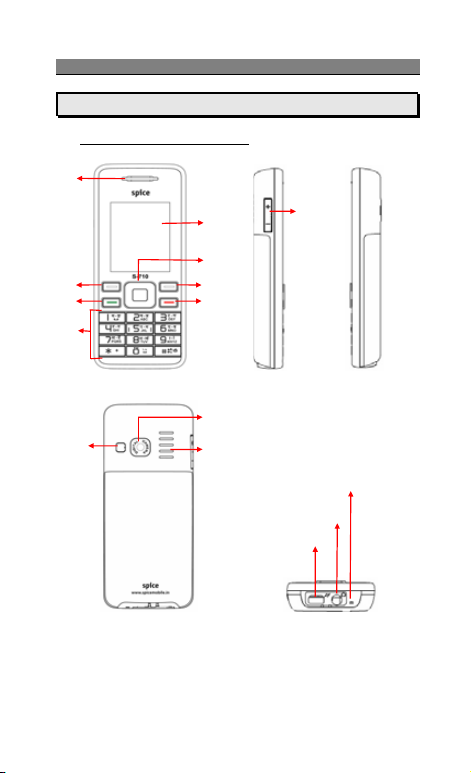
Front / Back / Side View of Phone
1
5
6
2
3
4
7
8
11
10
12
9
15
14
13
1
2 Left soft key (Left selection key)
3
4 Keypad
9 Copyright©2008 Spice Mobiles Ltd.
Ear speaker
Answer key
Page 13

Contents
5
Display screen
6 Navigation key
7
Right soft key (Right selection key)
8 End key
9
Volume key
10 Antenna area
11
Camera
12 Speaker
13 USB connector
14 Headphone jack
15
Microphone
Navigating Functions
The main menus are shown as icons on the screen. Scroll to the
highlight icon by pressing the navigation key up, down, right, left or
center and select a function.
Navigating the menu by scrolling
x To access the menu press Menu.
x Scroll with
to select highlight item
x Press right / left to move between the tabs.
x Press up / down / left / right to move the submenu.
x Scroll to a submenu item and select the one that you want.
x Press OK and enter a list of options. There are different
alternatives in the list of options depending on where you are in
the menu.
x Press Back, and go back one level in the menus.
Navigating the menu by numbering
x After entering Menu, you can access menu and submenu items
by using their matching number. For example: Press key 3, you
can access Call History setting.
Key Function List
through the menu and press left soft k ey
Power key
End key
Switch phone on and off. Also, ends
a call or Exit from any function and
back to idle mode.
10
Page 14

Your Phone
Selection key
Soft key
Navigation
key
Send key
Answer key
Number
keypad
Side key Adjust handset volume.
11 Copyright©2008 Spice Mobiles Ltd.
The function of the keys depends on
the text shown on the display above
the keys. For example, Menu and
Name in idle mode.
x Use for quick access to phone
functions in idle mode.
x Up: Launch SpiceGang WAP
site.
x Down: Access to the Shortcuts
menu.
x Left: Access to the Message
Writing menu.
x Right: Access to the Camera
menu.
x Center: Access to Audio
Player
x Use for scrolling through names
and numbers stored in the
contacts or through the phone’s
menus, submenus, and option
list.
[Note]: Navigation shortcut maybe
different depends on
personal setting in “Phone
settings/Navigator key”.
Make and answer calls; press in idle
mode to see recent dialed calls.
0-9 input number and character
Page 15
Contents
Idle Mode
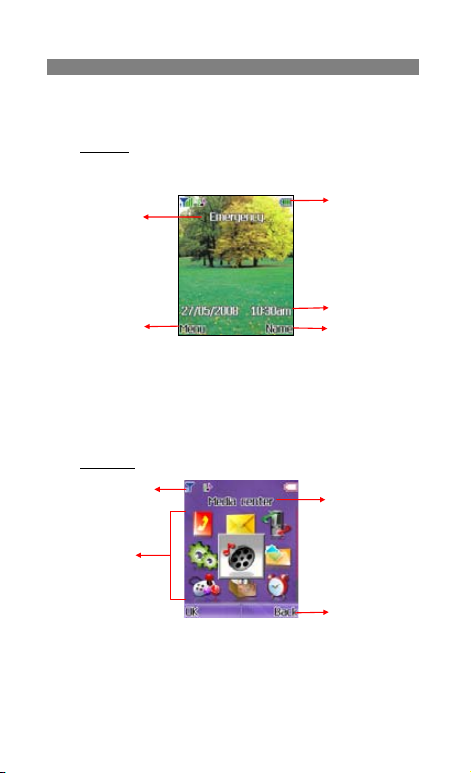
When the phone is on, and you have not keyed in any characters,
the phone is in idle mode.
2
4 5
1. Top of the screen shows Essential Indicators.
2. This line displays the operator name.
3. This line shows date and time information.
4. To enter Menu press left soft key.
5. To enter Quick search of the contacts press right soft key.
Main Menu
Essential Indicators
Menu
1
3
Menu
1. Phonebook 7. Fun & games
2. Messages 8. User Profile
3. Call history 9. O rganizer
4. Settings 10. Services
12
Soft key
Page 16

Your Phone
5. Media center 11. Extra
6. File manager 12. Shortcuts
13 Copyright©2008 Spice Mobiles Ltd.
Page 17
Contents
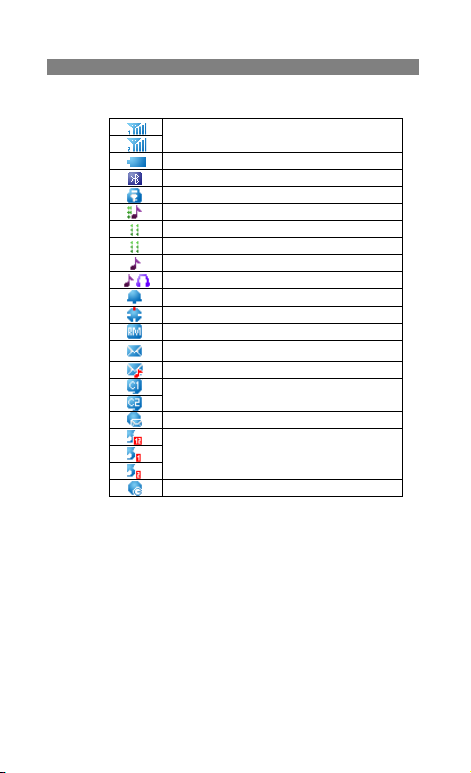
Essential Indicators
Indicates signal strength.
Shows handset current battery charge strength.
Bluetooth feature is active.
Indicates the phone keypad is locked.
Indicates the current profile is General.
Indicates the current profile type is Silent.
Indicates the current profile type is Meeting.
Indicates the current profile type is Outdoor.
Indicates the current profiles type is Headset.
The Alarm clock is set on.
The Stopwatc h function i s on.
Indicates “roaming”.
Indicates new SMS.
Indicates new MMS.
Indicates the Chat function.
Indicates new service message
Indicates call forward is set on.
Indicates GPRS is connected.
14
Page 18

Your Phone
Listing of Functions
Phonebook
Search
Add new
Delete
Copy
Caller groups
Speed dials
Settings
Blacklist
Messages
Write new
Inbox
Drafts
Sentbox
Message templates
Message settings
Memory status
Chat
Voice messages
Broadcast message
Call history
Missed calls
Dialed calls
Received calls
Delete call lists
Call duration
Call cost
SMS counter
GPRS counter
Settings
Display settings
Date and time
Phone settings
Call settings
15 Copyright©2008 Spice Mobiles Ltd.
Security settings
Connection settings
Restore factory
Media center
Camera
Photo album
Video recorder
Video player
Audio player
Voice recorder
FM radio
FM radio recorder
schedule
File manager
Phone
Card (Insert memory
card and will
reveal)
Fun & games
Games
Themes
User profiles
General
Silent
Meeting
Outdoor
Headset
Bluetooth
Organizer
Alarm clock
Calendar
To do list
World clock
Page 19

Contents
Services
SpiceGang
Reuters
WAP
Data account
STK
Extra
Private menu
Calculator
Unit converter
Stopwatch
Shortcuts
16
Page 20

Your Phone
Personalizing your Phone
Display Language
x From idle mode, press Menu and select Settings / Phone
settings / Language, press OK to enter language list.
x Select a language and press OK.
Tone
x From Idle mode, press Menu and select User profiles / General
/ Customize/ Tone settings, then select item enter to tone list.
x Select a ring tone and press OK.
Wallpaper
x You can set wallpaper for the idle screen.
x From idle mode, press Menu and select Settings / Display
settings / Wallpaper press OK to enter option list.
x Select Default or My folder and link to image list.
x Select image and press OK.
Navigator key
x Use predefined navigation key shortcuts to quickly reach certain
function. Edit the navigation key shortcuts to suit your own needs.
In idle mode, press up / down / left / right / center to go to a
shortcuts menu, or directly to a function.
x To edit a navigation key shortcut, from idle mode, press Menu
and select Settings / Phone settings / Navigator key, press
Edit to enter shortcuts list.
x Select a menu function and press OK to be assigned to the
navigation key.
Activated Profile
x To access the list of profiles from idle mode, press Menu, then
use Navigation key scroll to User profiles and press OK.
x Press Options key to activate the certain profile and press OK.
17 Copyright©2008 Spice Mobiles Ltd.
Page 21

Contents
Silent Mode
x You can switch the phone to Silent mode easy and quickly to
avoid disturbing other people.
x Long press
FM Radio
x You can also switch the phone to FM radio screen easy and
quickly.
x Long press
Writing Text
There are two ways of writing messages, notes or name in contacts,
Multitap text input and Smart text input mode.
Multitap text input
x Press a number key
keypad will be shown on the below area. Use navigation key left
and right to choose the character that you wanted and press
Select.
x When you are writing text, press either
mode.
x The most common punctuation marks are available under the
number key
Smart text input
Smart text input mode is based on a built- in dictionary. And this
input mode is only available for the modes and languages on the
mode list. When you writing text, you can key in any letter with a
single key press. The word changes after each keystroke.
x Start writing a word by using the keys
x Example: To write Happy
selected, press
for p,
x When you have finished writing the word and it is correct, confirm
it by press options.
in idle mode.
in idle mode.
to all the characters of that
to change input
.
Press each key only once for one letter. The word
changes after each keystroke.
when the predictive test mode is
once for H, once for A, once
once for other p, and once for Y.
18
to .
Page 22
Your Phone
Tips for writing text
x To insert a space, press
x To move the cursor to the left, right, down or up, press the
Navigation key.
x To delete a character to the left of the cursor, press clear. Press
and hold clear to delete all characters more quickly.
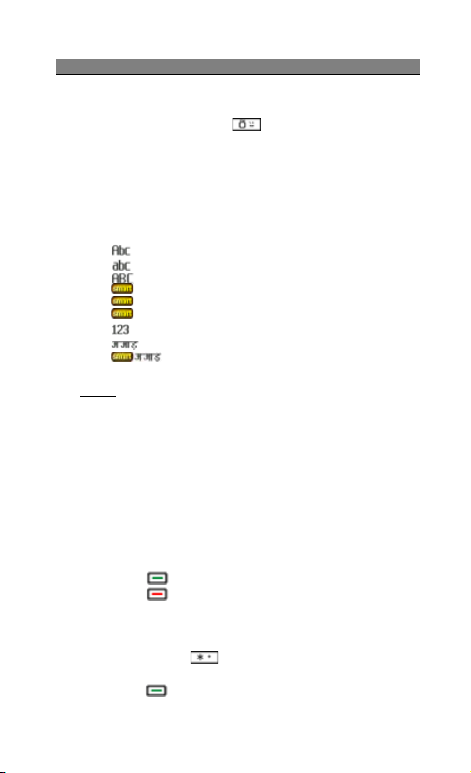
Text Input Mode
Multitap Abc (Traditional input mode)
Multitap abc (Traditional input mode)
Multitap ABC
abc Smart abc (English Smart mode)
Abc Smart Abc (English Smart mode)
ABC Smart ABC (English Smart mode)
Numeric
Multitap Hindi (Hindi input mode)
Calling
Making and answering call
Before you can make or answer any calls, make sure that the phone
is charged and your SIM card is inserted before you power on the
phone.
Ensure that the phone is on, the network operator name is displayed
and the signal strength meter shows network coverage is available
in the current area.
To make a call
x Enter phone number include area code you want to dial. If you
key in wrong character, press Clear to delete it.
x Press
x Press
attempt.
To make international call
x Press and hold
x Enter the country code, area code and phone number, and then
press
19 Copyright©2008 Spice Mobiles Ltd.
Smart Hindi
(Send key) to call the number.
(End key) to end the call or to cancel the call
(Send key) to make a call.
.
key until a Ѐ sign appears.
Page 23

Contents
To answering call
x To receive a call, the phone must be switched on and the signal
strength met er must be dis played.
x Press
Missed calls
x When an incoming call is not answered, the Missed call log is
x Select the entry and press
To change the ear speaker volume during a call
During a activate call; press
the Loudspeaker activate, use
also.
To use loudspeaker during a call
x Loudspeaker mode is uses handset as loudspeaker during a call.
x The loudspeaker is automatically deactivated when you end the
x The loudspeaker is default setting for playing MP3, voice
To call emergency
x Your phone supports the international emergency number, for
x You can place emergency calls “ dial 112 or 911 and press
(Answer key) to answer a call.
displayed on your screen. To display the Missed call entry.
Do not hold the handset to your ear if loudspeaker mode on. To
activate/deactivate the loudspeaker during a call, press
(Right soft key) H-free/H-held, and the single will show on the
screen.
call or call attempt or connect the headset to the phone
recorder, using the loudspeaker with MP3 player and Voice
recorder, see detail on MP3 player and Voice recorder.
example, 112 or 911. This number can normally be used to make
emergency calls in any country, with or without a SIM card
inserted, if a GSM network is within range.
(Send key) ” even if your phone is locked or your account is
restricted.
(Left soft key) to read call detail.
(side key) to adjust volume. If
(side key) adjust volume
20
Page 24

Your Phone
Tip of call options
x A call can be connected to any single caller by pressing
(Left soft key). When user press
call, user can choose one of those functions from the list:
x Hold: Put a call on.
x Retrieve: Reconnect a holding call.
x Retrieve all: Reconnect all holding call.
x Split: To suspend the multi-party call.
x End: End a call.
x New call: Make a new call during an active call.
x Contacts: Shortcut to phonebook menu.
x SMS: Shortcut to Message menu.
x Inbox: Enter to message inbox.
x Sound recorder: Star recorder conversation.
x Mute: Mute the call during the conversation.
x Swap: Switch between the call on hold and active.
x Conference: Make a multi-party conversation.
x Transfer: Transfer a call.
x End single: End one of conference call.
x End all: End a multi-party call.
x DTMF: Set On / Off for DTMF (Dual Tone Multi-Frequency)
tone dialing system.
Hold a call
Pressing
active call on hold. This feature can be used when an incoming call
is received during an active call or if you want to make another
without disconnecting the active call.
Make a new call during a call
x You can dial a number during a call without disconnecting the
21 Copyright©2008 Spice Mobiles Ltd.
(Options) and selecting Hold allows you to put an
active call.
x Press
x Press Options and select Swap, new number will go on hold,
(Send key) and selecting Hold to put an active
call on hold and press Options select New call make a new
call by keying new number.
(Options) during active
Page 25

Contents
and old number will be active.
x Also, you can select record from phonebook, after select New
call, press Back to option list and choose Contacts.
Multiparty call
x You can connect to several people together or individually at a
time.
1. Make a call to the first participant.
2. Call the second participant as explained in Make a new call
during a call.
3. Press
4. Repeat step 2 and 3 to allow new participants to be
5. Press Options and select End all to end the call. Or press
x Any call (participant) can be disconnected by press Options key
and select End Single.
Switch two calls
x Press
x To switch between two calls, press Options and choose Swap.
x To end the active call press
at the same time. Press Options, and then move to End all calls.
And press OK.)
(Options) and select Conference. This joins the
calls to the conference.
connected to the Conference.
(End k ey).
(Options) key. The first call is put on hold.
(End key). (Or to end both calls
22
Page 26

Menu Function – Phonebook
Menu Functions & Their Descriptions
Phonebook (Menu 1)
Search
You can search contacts by name characters or number.
x Name and Number, allow you key in the first characters of the
name or number for which you are searching in the editor line,
the matched record will be shown.
x To search the name, users also can put up to 9 characters in the
editor line; the matched record will be shown.
x To input or edit a searched item, press Options key to enter
into the submenu.
x You can View, Edit, Delete, Delete all, Copy, Move,
Move all, Send SMS, Send MMS, Send contact, Add
to blacklist, Move to Private and Mark an entry.
x To view the detail information of the item, press
key.
** If the contact is moved to the private, you cannot see the detail
information in the Phonebook,
Extra--Private menu--Phonebook.
[Note: The defa ult password is 1122]
Add new
x It is possible to store phone numbers in three places:
¾ Add to the Phone memory
¾ Add to the SIM card.
¾ Add to private
i To store a Number in the Phone memory:
In main menu, enter to Phonebook menu and select Add
new. You can store 500 entries in your phone.
¾ Then sel ect Add to pho ne memory, press OK.
¾ Enter the name and number, press Done.
¾ For each number or text item you can choose:
Name / Number / Home number / Company name /
Email address / Office number / Fax number /
23 Copyright©2008 Spice Mobiles Ltd.
it will be find in the
center
Page 27

Contents
Birthday / *Image /*Video call / *Tone / Caller group
[Note]: Tone support MP3, Midi, AMR, and WAV files.
[Note]: Image support JPEG, GIF format. The JPEG
/GIF images size should be less than 200k.
[Note]: Video support motion JPEG files.
* When users select Ring tone, Image, Video, you can go to
File manager page to choose from every folder. When
users use these functions, if there is an incoming call, the
Video function will only be performed by Image, the Ring
tone will not work. The Video function can be on or off.
When the Video sound is off, the Ring tone can be used.
x To store a Number in the SIM card:
In main menu, sel ect Phonebook, and select Add new.
You can store 250 entries (Maximum) in your SIM card for
name, telephone number and image. Then select Add to
SIM card, press OK.
x Enter the name, number, caller group and image, press
OK.
[Note]: Image support JPEG, GIF format. The JPEG /GIF
images size should be less than 200k.
[Note]: The number of store entries in SIM card, it may be
different depend on your SIM card service provider.
Delete
You can remove name and phone numbers from selected contacts
all at once.
x In the Phonebook Menu, select Delete then press OK.
x Choose All from phone memory, All from SIM card or
One by one press OK. User needs to enter phone code
to confirmed delete then press OK.
[Note: The default phone code is 1122.]
Copy
x You can copy names and phones number from the
phone’s memory to SIM card’s memory or from SIM
24
Page 28

Menu Function – Phonebook
card’s memory to Phone’s memory. The copy options
have: All from phone or All from SIM.
x Copy entry records will both save in SIM and Phone’s
memory.
Caller groups
x You can set the phone to sound a specific ring tone and
flash a selected graphic on the display when you receive
a call from a particular name and phone number. To do
this, first include a name and number in a caller group.
Then define a ring tone and picture/animation for this
group. If you want to activate this function, please store
names and phone numbers in the SIM card and phone
memory.
x After entering the Caller group’s menu, use Navigation
key to select group name. Group default name include:
Friends, Family, VIP, Business and Others.
x After selecting the Group name, you can make Group
settings to edit Group name, Group tone, Group image,
Group Video call and Group member list for each
group. After each setting, press Done and Save.
Speed dials
In this function, you can make a call by using the speed dialing
keys.
x You can set any of the numbers key
work as a speed-dialing key. To do this you need to
assign a contact record to a number key.
x Within Speed Dials submenu, select Status to
activation or deactivation the function.
x Select Set number and select records from contacts
then press OK.
x After assigning a number to a speed dial key, you can call,
reassign the record or undo the speed dial.
x When a phone number is assigned to one of the speed
dialing keys (
number in the following ways:
If you have set the menu function Speed dials to on, press
and hold to corresponding speed dialing key until the call
25 Copyright©2008 Spice Mobiles Ltd.
to ) you can call the phone
to to
Page 29

Contents
is started.
Settings
i My numbers
x You can view and edit personal phone number. To display my
number on idle screen.
i Service dial number
x Your service provider may program some special phone
numbers into your SIM. It is not possible to modify the Service
Dial Numbers.
x The phone number pointed to can only be recalled or dialed.
i Memory status
x You can check what percentage of the phone’s internal
memory is occupied and how many name and number
entries can still be stored in SIM card’s and Phone’s
memory.
i Prefer storage
x You can choose where you want to save the name and
phone number. You can select Phone memory and SIM
card, Phone memory or SIM card.
i Phonebook backup
x You can backup your phonebook to memory card or
restore the phonebook.
x Selected the phone, and the phonebook will be backup or
restore to Images, Audio, Themes, Bluetooth, My
music, Photos, Received, Videos and Phonebook
files.
x Selected the card, and the phonebook will be backup or
restore to Images, Videos, Music, Sounds, Other files,
Audio, My music, phone and Test files.
i Fields
x The phone allows you to personalize the contacts looking.
In the Setting submenu, selected Fields, and choose the
26
Page 30

Menu Function – Phonebook
item you want to display or not.
i My vCard
x You can edit personal vCard in the handset. Also, you
can send vCards to your friends that numbers save in the
contacts list.
x Edit my vCard
In the My vCard submenu, select Edit my vCard enter the
information for your vCard then select Done.
x Send my vCard
In the My vCard submenu, select Send contact and select
transfer method: Send by SMS, Send by MMS, Send by
Bluetooth and Save to file.
i Video Audio
You can turn the function to On or Off.
Blacklist
Black list will automatically reject any unwanted call. You can define
the list of correspondents you don’t want to answer. If this rule is
activated and some one from the list is calling, Black list function will
automatically decline this call.
i Mode: To turn on/off call black list setting.
i Black list: Edit black list from contacts list or hand input.
i Reject log: To view the reject list
27 Copyright©2008 Spice Mobiles Ltd.
Page 31

Contents
Messages (Menu 2)
This function only used if your network operator or service provider
supports it. Only devices that offer compatible picture message, or
multimedia message features can receive and display these messages.
Devices that do not have multimedia features may receive details of a
link to a web page.
In Messages you can create, send receive, view, and edit text message
(SMS) / multimedia message (MMS).
Write new
For detail information is about how to write text in the phone.
x Select Write new press OK, the create options appear, you can
select one of the following options:
SMS
Create and send a text message.
Use navigation key up/down to select message type then
press OK. If selected “SMS”, the text message editor screen
appear.
In the navigation bar, you can see the message length
indicator counting backwards from 160. For example, 30
means that you can still add 30 characters for the text to be
sent as two messages.
The “SMS” option list includes options for Done, Abort, Use
template, Insert object and Input method.
The handset supports the sending and receiving of
multimedia message that contain several pages (slides). Each
slide can contain text, one image and one sound clip.
x You can add pictures, animations, melodies and sound
effects to a text message and format the text using EMS.
(Enhanced Messaging Service). In the message press
Options key, select Insert object, the object option list
appears: Picture, My picture, Animation, My animation,
Melody, My melody and Sound.
x In the message press Options key, select Use template.
28
Page 32

Menu Function – Messages
You can choose templates from the list.
x To send the message, press Options, select Done and
send option appear, choose send option: Send, Save,
Send & Save, Send to many, Send to by group and
press OK.
x If users select Send, you should enter the Phone
number by yourself or search the contacts by pressing
LSK, which is Quick Search (in this page, users can
put up to 9 characters to sorting the desired names.)
and press OK to send the message.
x If users select Save, you can choose Save to normal
and Save to private.
Save to normal: the sent message is stored in
the Messages---Drafts folder.
Save to private: the sent message is stored in
the Organizer---Private
menu---Messages---Drafts.
* If the message is stored in Private, users need
MMS
Create and send a multimedia message.
Use navigation key up/down to select message type then
press OK. If select “MMS”, the MMS editor screen appear.
x Use navigation key to select recipients from the contacts
x To edit the subject of the MMS or email, scroll to Subject
x Scroll to Edit content, press Edit enter Edit slide text.
29 Copyright©2008 Spice Mobiles Ltd.
to enter the password to view the detail
information of the message.
[Note: The default password is 1122.]
directory, or write the phone number or email address of
the recipien t in the To field if you are sending a MMS or
email to the recipient. You also can edit the phone number
or email address of the recipient in the CC and BCC fields
if you are sending a MMS or email to the recipient.
field.
Press Options, you can select: Done, Input method,
Add image, Add audio, Add video and Add attachment,
Page 33
Contents
Add slide before, Add slide after, Delete slide, Next
slide, Preview, Slide timing.
x To insert a file in the message, scroll to Add attachment
option then press OK. Press Open to link a specific folder
in File manager and scroll to the desired file, then press
OK and Done. An attached file is indicated with the file
name in the message.
x To send the message, press Done and send option
appear, choose send option: Send only, Send and save,
Save to drafts, Send options, Exit and press OK.
x If users select Send and save/Save to drafts, the sent
message is stored in the Messages---Drafts folder.
Inbox
x To check an unread message later:
i From Messages menu selects Inbox press OK.
i Move to desired message and press OK to enter list. Press
Options and inbox option list appears, you can select View,
Delete, Delete all, **Move to private, Detail and Mark. The
message is stored in the inbox folder after you have read it.
x While reading the message, press Options to select
x The inbox message option list includes options have Reply,
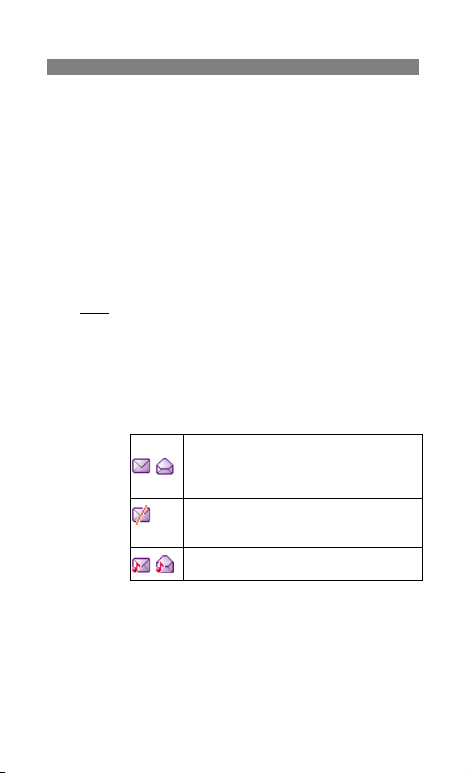
The icon is indicate whether a SMS is read or
unread and also show message stored position in
front of the message in the list.
The icon indicates whether a SMS is illegal
message format or broken message, which
cannot be displayed in the Message body screen.
The icon is indicating whether a message is read
or unread in front of the message in the list.
through the list of options and press OK at the highlighted
option to select it.
Delete, Dial, Edit, Forward, Chat, Advance (Copy / Move
/ Copy all / Move all), Use number, Extract URL, Save
objects and Mo ve to private .
30
Page 34

Menu Function – Messages
Drafts
i To finish or view an draft message
i From Message submenu select Drafts move to desired message
and press Options, the options list appears you can select View,
Delete, Delete all, **Move to private, Detail and Mark.
i While reading the message, press Options to select through the
list of options and press OK at the highlighted option to select it.
i The Dra fts message option list includes options have Send, Edit,
Delete, Use number, Extract URL, Move to private.
Sentbox
x In Idle mode enter Menu, Messages and Sentbox than Press
OK.
x Move to desired message and press OK to enter list. Press
Options and inbox option list appears, you can select View,
Delete, Delete all, **Move to private, Detail and Mark.
x While reading the message, press Options to select through the
list of options and press OK at the highlighted option to select it.
x The sentbox message option list includes options have Send,
Delete, Edit, Copy, Move, Use number, Extract URL, Save
objects, Move to private and Mark.
** If the SMS is moved to the private, you can not see the detail
information in the Messages---Inbox/Drafts/Sentbox folder, it
will be find in the Extra --- Private menu --- Messages --- Inbox
/ Drafts / Sentbox folder.
Message templates
x Select Templates press OK, the templates options appear, you
can select one of the following options: SMS / MMS.
x From the SMS templates list, press Options key to Edit, SMS or
Erase template message.
x From the MMS templates list, press Options key to View, Detail
and Create MMS.
x When have an incoming call, you can press
31 Copyright©2008 Spice Mobiles Ltd.
(RSK) mute the
Page 35

Contents
ring tone and press (RSK) SMS again enter the templates
list to send a text message.
Message settings
Message setting have been divided into groups according to the
different message types. Select the settings you want to edit, and
press OK key.
x SMS
x Profile setting: lists all the message centers that have been
defined.
x Common settings: The message settings under the SMS
menu are common to all outgoing SMS, irrespective of the
selected set.
Delivery report
x User can turn On or Off this function if user wants to
receive delivery report from service provider or not.
Reply path
x Also, user can choose to use the same service center as
the received message to reply or not.
x Prefer storage
You can choose where you want to save the message
depend on memory status.
If either one of storage locations, SIM card or Phone,
already full, the phone will automatically save information
to another.
Select Phone memory or SIM card and press OK.
x Prefer bearer
The Prefer bearer settings to set the settings for selected
bearer.
The Pref. bearer list are:
x Prefer GPRS
x Prefer GSM
x GSM only
i MMS
x Within the Setting submenu of the Message setting you
can change the settings of a Multimedia message sending
32
Page 36

Menu Function – Messages
option:
x Sending:
Vali dity
period
Delivery
report
Read report
Priority
Slide timing
Delivery time
x Retrieve:
Home
network
Roaming
Read report
Delivery
report
x Filters:
Anonymous
Max size (KB)
Advertisement
x Edit profile:
33 Copyright©2008 Spice Mobiles Ltd.
This is the duration that your message is stored
at the Message center. Delivery attempts will be
repeated until the message has been delivered
or expired.
The options of length of time have: Max. /1
hour/ /12 hours/1 day/1 week.
User can turn On or Off this function if user
wants to receive de livery repor t from service
provider or not.
User can turn On or Off this function if user
wants to receive report from service provider or
not.
User can choose message priority; the options
have: Normal, High, and Low.
User can set slide timing by own desire.
The option of length of time has: Immediate/ In
one hour/In 12 hours/In 24 hours.
The options of home network have: Immediate /
Restricted / Delayed.
The options of roaming network have: As home
/ Delayed / Restricted.
The options of read report have: On request /
Send / Never send.
User can turn On or Off this function to ask the
network to send delivery reports about your
message.
The option of anonymous have: Allow/ Reject.
Set multimedia messages size by user.
The option of advertisement setting has: Allow/
Reject.
Page 37

Contents
You may use network or service provider to receive and send
multimedia message.
Memory status
i You can check what percentage of the phone’s internal memory
is occupied and how many messages can still be stored in SIM
card’s or Phone’s memory.
i The phone will show message to remind user if SIM card and
Phone set both out of memory.
Chat
Chat is a way of sending short, simple text message. You send your
message to different person in the same time via chat room 1&2.
x Starting a chat message
x Enter the Chat menu, select Chat room from the list
x Press Options enter chat room submenu, you can see
Chat room info
x Press Edit to edit the nickname that you want to use
during chatting.
x Scroll to Remote number, press Edit to edit the
number that you want to chat with.
x Press Done when confirm save message show up.
Start ne w
x Go to Start new and press OK to write chat message.
Voice messages
i Voice messages are a network service and you may need to
subscribe to it first. For more information and for the voice mail
number, contact your service provider. Press Menu, and select
Messages, and Voice messages.
x Each phone line may have its own voice mailbox number.
x Within Voice messages submenu, choose phone line 1 or 2.
The option are:
x Edit: general number editor.
x Erase: erase the voice mail number.
x Dial to listen: user can dial the voice mail server
34
Page 38

Menu Function – Messages
number to listen voice mails.
Choose the option and press OK to save it.
In the Idle mode, holding and pressing can connect
to voice mail.
Broadcast message
Broadcast message are spread by the network service to all
handsets in a cell. User cans enable/disable the service to choose if
user wants to receive broadcast messages from particular channels
or not.
x Info service
When you turn on/off the mode, you can choose to receive or
not receive the last broadcast message received.
x Topics
Using the direction of Navigation key allows you browse
through the message. Press OK or Back, if you want to read
or exit.
x Languages
User can select the languages of the Info Messages user
wants to receive.
x Channel settings
You can select the channels from the channel list.
You can add new channels where you want the messages
to be received to the list. Then select it from select list.
Also, the function allows you Select, Add, Edit, and
Delete setting.
35 Copyright©2008 Spice Mobiles Ltd.
Page 39

Contents
Call history (Menu 3)
The numbers of the last 150 (Each page of Missed calls / Dialed calls/
Received calls can save 50 calls) calls that you have made are saved in
the call history list. If your subscription includes the Calling Line
Identification service and the caller’s number is identified, the call history
list also shows the numbers of received and missed calls. Miss calls,
Dialed calls and Received calls are list under separate tabs. User can
(Send key) enter call list from idle mode. Use navigation key to
press
scroll between the tabs.
Call records
x From idle mode, press (Send key). Scroll to the Call
records press OK. Within the submenu, you can view all the
Missed, Dialed, and Received calls.
x In the list of Call records press OK display Call information.
x In the Call logs list, press Options, you can: Delete / Save / Dial
/ Edit / Send SMS / Send MMS / Add to blacklist / Delete all /
Move to private.
Missed calls
x From idle mode, press (Send key). Scroll to the Missed
calls press OK. Within the submenu, you can view the phone
numbers from which somebody has most recently tried to call
you
x In the list of missed calls press OK display Call information.
x In the missed calls list, press Options, you can: Delete / Save /
Dial / Edit / Send SMS / Send MMS / Add to blacklist / Delete all
/ Move to private.
Users also can press Menu, select Call history press OK to see all the
Missed calls, Dialed calls and Received calls information in this
submenu.
*Users only can see Call logs information by pres sing
from idle mode.
**If the call record is moved to the private, you can not see the detail
informatio n in the Call history---Missed calls / Dialed calls / Received
(Send key)
36
Page 40

Menu Function – Call history
calls folder, it will be find in the Extra---Private Menu---Call
record---Missed calls / Dialed calls / Received calls folder.
[Note: The default password is 1122]
Within the Call record submenu, we also have many other functions:
Dialed calls
x From idle mode, press (Send key). Scroll to the Dialed
calls press OK. Within the submenu you can view the numbers
from which you have most recently called or attempted calls.
x In the list of dialed calls press OK display Call information.
x In the dialed calls list, press Options, you can: Delete / Save /
Dial / Edit / Send SMS / Send MMS / Add to blacklist / Delete all
/ Move to private.
Received calls
x From idle mode, press (Send key). Scroll to the
Received calls press OK. Within the submenu you can view
the numbers from which you have most recently accepted calls
x In the list of missed calls press OK display Call information.
x In the received calls list, press Options, you can: Delete / Save
/ Dial / Edit / Send SMS / Send MMS / Add to blacklist / Delete
all / Move to private.
Delete call lists
x In this submenu, Press OK display
i Press OK to delete it
Call duration
x This function records the length of time or duration of all
incoming and outgoing calls in hours, minutes, and seconds.
37 Copyright©2008 Spice Mobiles Ltd.
x Missed calls
x Dialed cal ls
x Received calls
x Delete All
x Last call time: Display last one outgoing call in hours,
minutes, and seconds.
x Total dialed: Display the time for all outgoing calls in
hours, minutes, and seconds.
Page 41

Contents
x Total received: Display the time for all incoming calls in
hours, minutes, and seconds.
x All Call Time: Display the time for all outgoing and
incoming calls in hours, minutes, and seconds.
x Reset all time: Clear the time records.
Call cost
x This network service allows you to check the cost of your last
call or all calls. The call costs are shown separately for each
SIM card.
x Last call cost: you can set the phone to show the cost
of last call. You may need the PIN2 code to select the
currency or unit. Contact your service provider for
charging unit prices.
x Total cost: you can set the phone to show the
remaining talk time in terms of charging units or units of
currency by using this option. You may need the PIN2
code to select the currency or unit. Contact your
service provider for charging unit prices.
x Max cost set:
certain amount of charging units or units of currency by
using this option. You can make and receive charged
calls as long as the specified cost limit is not exceeded.
The number of remaining units is shown in the idle
mode. You may need the PIN2 code to set the Max
cost.
x Reset cost: this option allows you to reset the call cost
counter. You may need the PIN2 code to clear your
setting.
x Price per unit: this is the cost that the Service Provider
charges for one unit of call time. At this point you will
be asked to enter your PIN 2 code to set this function.
SMS counter
This function can show you how many SMS you already sent and
received.
you can limit the costs of your calls to a
38
Page 42

Menu Function – Call history
GPRS counter
With the GPRS counter you can check the amount of data sent and
received data in last session in total and to clear the counters. The
counters unit is a byte. To reset counter, answer “Yes” when confirm
window show up.
Settings (Menu 4)
Display settings
x Wa llpaper
x You can set your phone to display a background picture,
wallpaper, when the phone is in idle mode. You can also
download wallpaper from WAP and MMS and then save them
in My folder under File manager. Your phone supports JPEG,
GIF formats.
[NOTE]: The wallpaper and screen saver should be less than
1280x1024(for JPG) and 320x240(for GIF). In
addition, the file size can’t be over 300kb.
[NOTE]: If image size is over size, the image displays speed
might get slow and please wait for more time to show
up.
x To select a wallpaper picture
Press Menu, and select Settings, Display Settings and
Wallpaper.
x Select Default and image list will be shown.
Use navigation key left and right direction to select the
image and press OK to choose the desired picture then
press OK.
x To set own picture for wallpaper.
To s el ec t My folder and press OK. Users can select
wallpaper from Images/ Photos and Phone folders. Scroll
to desired folder and press Open. Use navigation key
and down direction to select the image or photo and
press OK.
39 Copyright©2008 Spice Mobiles Ltd.
Page 43

Contents
x Screen saver
x The screen saver is activated when the phone is in idle
mode and none of the phone’s function been used for a
certain time. Press any key to deactivate the screen saver.
x Turn Settings on to activate the screen saver.
x With Select, you can choose an image or animation as screen
saver from the Default list.
x Select in timeout after which time the screen saver will be
activated.
x To set own picture for Screen Saver, with Select, choose
From Gallery.
x Users can select screen saver from Images/ Photos and
Phone folders. Scroll to desired folder and press Open.
x Use Navigation key up and down direction to select the
image and press OK to select.
x Standby mode settings
x Date and time
You can turn this function on or off to show or hide Date and
Time.
x Own number
You can turn the function on or off to display or hide own
number.
x Network name
You can turn the function on or off to display or hide your
service provider name in idle screen.
x LCD backlight
To set the LCD backlight.
x Font setting
x Font size
This function allows you to change the size of the font
displayed in SMS or Phonebook. The options are: Normal
font / Large font.
[Note: Font size setting only for SIM and Phonebook.]
x Font color
This function allows you to change the color of the font
40
Page 44

Menu Function – Settings
displayed in Title, Content and Softkey. The options are:
Theme color/ Red/ Cyan/ Teal/ Yellow/ Green/ Navy/ Blue/
Purple/ Black/ Silver/ Gray/ White/ Maroon/ Fuchsia/ Lime/
Olive.
Date and time
x S et the time
This function allows you to set the time. The format is <HH:MM>.
x Ti me forma t
This function allows you select the format of the time display, 12
or 24. Use navigation key to change it and press OK.
[Note]: The time and date format display is depending on user
settings.
x S et the date
This function allows you to set the date.
x Date format
This function allows you select format of the date display, use
navigation key to change it press OK.
x Aut o-update of date / time
x Within Settings menu, select Auto-update of date / time
(network service) to set the phone to automatically update the
time and date according to the current time zone, select On.
x Automatic update of date and time does not change the time
you have set for the alarm clock, calendar or the alarm notes.
They are in local time. Updating may cause some alarms you
have set to expire.
Phone settings
x L anguage
This allows you to switch between different languages and to
select a language for the display texts.
x Welcome note
41 Copyright©2008 Spice Mobiles Ltd.
Page 45

Contents
x You can turn the function on or off to display or not display the
“Welcome note”, when you switch on the phone.
x If you turn the function on, you can edit the Note.
x P referred input methods
This allows you to set the preferred input method.
i Navigator key
x You can edit some specific functions to the navigation key for
your personal hot key and activate them.
x Within Up, Down, Left, and Right, and shortcut options list,
select desired shortcut from the function list.
x Users can select every menu for shortcut menu, but we have
set 46 standard menus in shortcut.
i Flight mode
x You can switch you phone to flight mode when you take
aircraft. The options of flight mode are: Normal mode, Flight
mode and Query when power on.
Call settings
x Caller ID
In the call setup menu, the Caller ID allows you to check the
status of whether a caller’s identification is sent.
x In the submenu, you can choose Set by network, No or Yes.
x When you choose Set by network, your phone must be
registered with a network.
x Call waiting
x This network service allows you to answer an incoming call
while you have a call in progress if you have activated the
menu function
x In the submenu, select Act ivate and press OK to switch on
function. It way, selects Deactivate to switch off the
function.
x You can check function status while you select Check
status.
x Call divert
42
Page 46

Menu Function – Settings
This network service allows you to redirect incoming calls from
you phone.
x Divert all voice calls
All voice calls are diverted and no ringing tone is played at
an incoming call.
x Divert if out of reach
Voice calls are diverted when your phone is switched off or
outside of the network service area.
x Divert if not answered
Voice calls are diverted when you don’t answer a call within
the present timeout.
x Divert if busy
Voice calls are diverted when your number is busy. If divert
If busy is activated, rejecting an incoming call will also divert
the call.
x Divert all data calls
All data calls are diverted.
x Canc el all diverts
In the submenu, select Cancel all divert, Press OK to cancel
all diverts
x Call barring
This network service allows you to restrict incoming calls to
and outgoing calls from your phone. A barring password is
required for using the function.
x Outgoing calls
To barring all Outgoing calls.
x International calls
To barring Outgoing international call.
x Int. calls except to home country
To barring Outgoing international call expect home
country.
x Incoming calls
To barring all Incoming calls.
x Incoming calls when roaming
To barring all Incoming calls when roaming.
x Cancel all barrings
This function is cancel all call barring.
43 Copyright©2008 Spice Mobiles Ltd.
Page 47

Contents
This service may sometimes not be supported by your
network. Also, a network code is required to access
this service.
x Change bar code
To set barring call, you are asked to input your barring
call password. This menu enables you to change your
barring call password. To know the default password
setting, please contact your service operator.
i Line Switch
x Line for outgoing calls is a network service to select phone
line 1 or 2 that is subscriber number for making calls, within
call setup submenu, select Line Switch, and choose Line1
or 2.
If you select Line2 and have not subscribed to this
networks service, you will not be able to make call.
However, calls on both lines can be answered
regardless of the selected line.
i Call time reminder
Turn function On/Off to remind duration of a call. When this
option is set to On, there will be a short beep when duration of
a call exceeds the reminder time.
i Call time display
Turn function On/Off to show calling time.
i Auto redi al
Select On and your phone will make a maximum of ten
attempts to connect the call after an unsuccessful call
attempt.
i Closed user group
This is a network service that specifies the group of people
whom you can call and who can call you. For more
information place contact your network operator or service
provider.
44
Page 48

Menu Function – Settings
Security settings
x Pin lock
x This function allows you to lock the phone with a specific
SIM card. The feature is designed to prevent the use of your
phone by means of another person’s SIM cards if your
phone becomes lost.
x You can switch on or off to activate the PIN lock function. If
you switch PIN Lock on, every time you turn phone on, you
need to enter the PIN number to set the request on.
x Phone lock
You can switch When switch on / Off the Phone lock function
to protect your phone. If you select When switch on, you need
enter the password to set the request on.
[Note]: the default password is 1122.
x Auto keypad lock
x This allows you to lock the phone’s keypad to prevent
accidental key presses.
x In s ubmenu, select the time that after the last key press will
be disabled, then press OK.
x Fixed dialing
x You can switch mode on and off.
x This function dials only the numbers in the fixed dialing
number (FDN). To save and edit numbers on the list, you
need the PIN2 code.
x Barred dialing
You can switch mode on and off.
x Change PIN code
x Change PIN code
This allows you to change the PIN number.
x Change PIN2 code
This allows you to change the PIN2 number.
x Change s ecurity code
This allows you to change the password.
45 Copyright©2008 Spice Mobiles Ltd.
Page 49

Contents
Connection setting
x Bluetooth
You can utilize wireless technology of Bluetooth to connect
other inclusive devices. The inclusive device may include the
mobile phone, the computer and earphone, etc. You can utilize
Bluetooth technology transfer image, the film, music and sound
file.
[NOTE]: After opening the Bluetooth function, will increase the
power consumption of the battery.
x Power
Turn on or off the Bluetooth function. After turn on the
Bluetooth function, will reveal
x Inquiry audio device
Search the new Bluetooth device in the range and pair it.
Before pairing, please set up the password, and reach an
agreement to use the same password with another device
user.
x My device
Pair the old Bluetooth device.
x Active device
To Active the Bluetooth device that has.
x Settings
Visibility: Whether setting up your mobile phone should
let the other Bluetooth device be found.
Change device name: Change your mobile telephone
name (the display among other Bluetooth apparatuses).
Authentication: Turn on / off the Authentication function.
Audio path: Whether choose from mobile phone
answering a call directly or forward to BT headset.
FTP settings: File transfer protocol setting.
x About
Your Bluetooth mobile phone device explains.
x Network settings
The function allows you to set network related settings.
x Network selection
The phone automatically selects one of the cellular
networks available in you area, when auto mode is
in top screen.
46
Page 50

Menu Function – Settings
selected.
In manual mode the phone will show a list of available
networks that you can choose from. Only networks that
have a roaming agreement with your home network
operator are allow to be selected.
x Prefer netw orks
The network list is used when the mode is set to automatic.
The order of the prefer network list indicates the search
priority. Press Options key to edit prefer networks: “Add
from list”, “Create new ”, “Change priority” and “Delete”.
x Band selection
The wireless phone described in this guide is approved for
use on 900MHz, 1800MHz, and Auto networks. You can
choose the band from the list.
x GPRS connection
“Always onlin e” and “When needed” options are available
for the GPRS connection status.
Restore factory
x Within this menu you can reset the menu settings to their
original values. The security code is needed for this function.
[Note]: The default password is 1122.
x After you select restore factory, setting values are returned
default value. Those value including Profile, Ring tone, Call log,
Caller group, Time format, Wallpaper, Screen saver, Themes,
WAP setting etc.
47 Copyright©2008 Spice Mobiles Ltd.
Page 51
Contents
Media center (Menu 5)
Camera
[Note]: Please obey all local laws governing the taking of picture.
Your phone has a digital camera and digital video recorder. You can
take pictures, record video clips, view them and send them in MMS.
To do this, you must subscribe to these services. Please check with
your network operator. The camera lens is on the back of the
handset and the display of the handset works as viewfinder. The
camera produces pictures in JPEG format and the video clips in
motion JPEG format. Please pay attention; if handset is not enough
memory to take a new photo, you need to free some by deleting old
photos or other files in the File manager.
To access this menu, press Media center and select Camera.
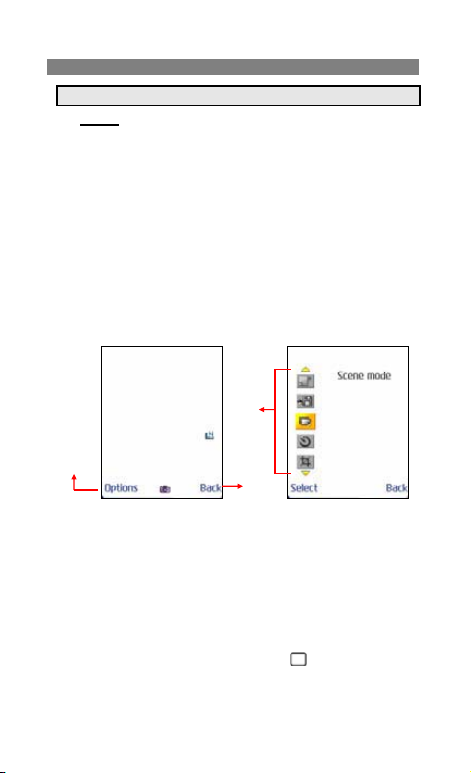
2
1. Press “Back” to go back previous level.
2. To select option displayed in the areas, press the Options to
choose camera options.
3. Camera’s options menu.
4. Area used for displaying functions icon, such as image size.
i Taking a Photo
x The live image appears on the display, and you can use the
display as a viewfinder.
x To take a photo press center key
taking a photo a shutter sound is heard. The phone saves
the photo in the Photo album of the Media center menu.
3
1
to capture. When
48
Page 52

Menu Function – Media center
i To setup camera option
Press Options enter options bar. User can select:
Capt ure mode: Take a photo in the following mode.
x Single: Take a photo in the normal mode.
[Note]: When user set camera capture mode to “Single”,
and then all camera options available except “Mode
setting”.
x Sticker: Take a photo with frame.
[Note]: To switch photo frame, by pressing the
corresponding number key
x Burst shot: Take a series of photos.
[Note]: To switch/adjust camera Burst shot setting, by
pressing the corresponding number key
(M ode setting): The option might change depend on
Capture mode, for detail see table below.
S ave mode: There are Manual Save and Auto Save that
you can choose.
Scene mod e: This mode provides the best scene position
setting for the scene being shot, for detail see table below.
[Note]: To switch/adjust camera Scene mode setting, by
pressing the corresponding number key
Self timer: Set a time delay before the camera takes a
photo, the detail option see below table.
[Note]: To switch/adjust camera Self-timer setting, by
pressing the corresponding number key
Image siz e: Select an image size, for detail see table below.
[Note]: To switch/adjust camera Image size setting, by
pressing the corresponding number key
Image qu ality: To define how much the photo file will be
compressed when saving the image, the detail option see
below table.
[Note]: To switch/adjust camera Image quality setting, by
pressing the corresponding number key
Effect settings: Apply a special effect to the photo, the
detail option see below table.
[Note]: To switch/adjust camera effect setting, by pressing
the corresponding number key
49 Copyright©2008 Spice Mobiles Ltd.
.
.
.
.
.
.
.
Page 53
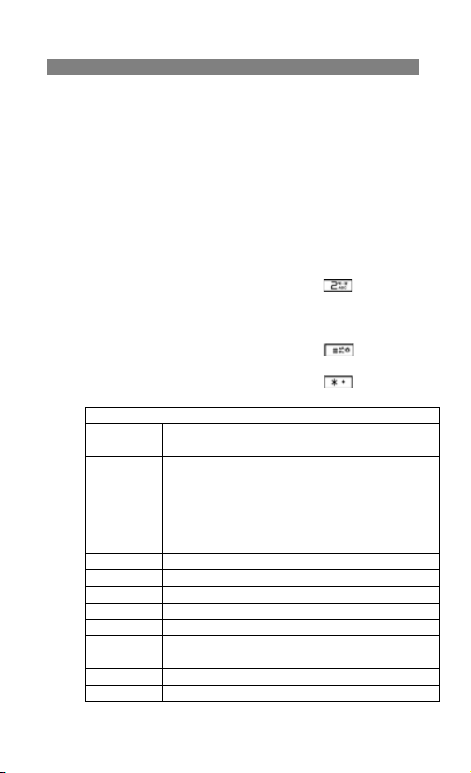
Contents
S hutter sound: Select the sound that you hear when you
take photo.
EV: Select the value of EV to the photo, for detail see table
below.
AE meter: This determines the exposure by metering and
calculating the light levels in the center and other areas of
the image separately.
Bandin g: Adjust screen backlight flicker, the detail option
see below table.
White balance: Adjust the color balance of the photo, the
detail option see below table.
[Note]: To switch/adjust camera White balance setting, by
pressing the corresponding number key
Stor age: Select storage place in phone or memory card.
Restore default : Restore camera setting to default.
To turn on/off the option icon displayed on the screen, by
pressing the corresponding number key
To switch between camera/video recorder mode, by
pressing the corresponding number key
Capture
mode
Mode setting 1. If capture mode set to Burst shot, the mode setting
Save Mode Take and save / Automatic save
Scene mode Auto / Night
Self timer Off / 5 sec / 10 sec / 15 sec
Image size 160*120 / 176*220 / 320*240 / 640*480
Image quality Low / Normal / High / Fine
Effect settings Normal / Gray scale / Sepia / Sepia green / Sepia blue /
Shutter sound Off / Sound 1 / Sound 2 / Sound 3
EV EV+1 ~ EV+4 / EV0 / EV-1 ~ EV-4
Single / Sticker / Burst
2. If capture mode set to Sticker shot, the mode setting
3. If capture mode set to single shot, the mode setting
Color invert
Camera options
have options are: 4 shots / 6 shots
have options are: Frame 1 / Frame 2 / Frame 3
will be disabli ng.
50
.
.
.
Page 54

Menu Function – Media center
AE meter Auto / Spot / Weight / Average
Banding 50 Hz / 60 Hz
White
Balance
Storage Phone / Memory card
Restore
default
Photo album
Photo album is a folder under Media center; it is a folder to save
the photo images. You can view image in this folder.
Press Options and choice one of the following functions that may be
available for the selected files:
i View: To view the photo.
When you viewing the photo, press side key
in/out and navigation key
[Note]: Press
i Image info: To display image detail information.
i View mode: To select image display style.
i Forward: You can use the photo to Wallpaper and Screen saver
or to Contacts, or send the photo via MMS, and Bluetooth.
i Rename: Change the name of photo.
i Delete: Delete selected photo.
i Delete all: Delete all photos in the photo gallery.
i Sort: To sort the file by File name, File type, Time or File size and
None.
i Storage: Select storage place in phone or memory card.
i Mark: You can choose many photos to delete, copy or move.
Auto / Daylight / Tungsten / Fluorescent / Cloudy /
Incandescence
Restore camera setting to default
to Zoom
can change image.
can rotate image.
51 Copyright©2008 Spice Mobiles Ltd.
Page 55
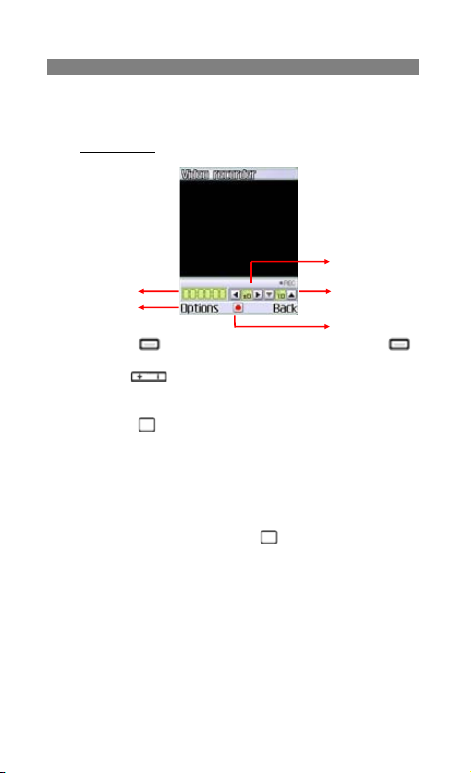
Contents
Video recorder
3
1
1. Press
2. Use
3. Use the navigation key up/down key direction to adjust EV.
4. Press
5. Area used for displaying recorder time.
i To record a video clip
i To setup video recorder option
(LSK) to choose video recorder options, press
(RSK) to back to previous level or saving recording.
out.
1. Press Menu, and select Media center and Video recorder.
2. The live image appears on the display, and you can use the
3. To record a video clip, press
4. The phone saves the video in the Video player of the Media
Enter options list. User can select:
Video recorder settings: The settings including -White
Video settings: The settings including Video quality / Rec
side key up/down direction to zoom in and zoom
center key to start record video.
display as a viewfinder.
center menu. For detail information about playing video, see
Video player.
balance / EV/ Night mode / Banding. For detail see table
below.
52
center key.
25
4
Page 56

Menu Function – Media center
time limit / Record audio. For detail see table below.
Effect settings: Apply a special effect to the photo, the detail
option see below table.
Storage: Select storage place in phone or memory card.
Restore default: to restore video settings to default.
White balance Auto / Daylight / Tungsten / Fluorescent / Cloudy
EV EV+1 ~ EV+4 / EV0 / EV-1 ~ EV-4
Night mode On / Off
Banding 50 Hz / 60 Hz
Video quality High / Normal / Low / Fine
Rec time limit No limit / 15 sec / 30 sec / 60 sec
Record audio On / Off
Effect settings Normal / Gray scale / Sepia / Sepia green / Sepia
Storage Phone / Memory card
Restore default Restore video recorder settings to default
Video player
Video player is a folder under Media center, the folder name Video
player. It is a folder to save the video. You can view video in this
folder.
Press Options and choice one of the following functions that may be
available for the selected files:
i Play: play the video.
i Forward: Set the video to Contacts, Screen saver, or send the
video via MMS or Bluetooth.
i Rename: Change the name of the file.
i Delete: Delete the file.
i Delete all: Delete all the recorder files.
i Sort: To sort the file by File name, File type, Time, File size and
None.
i Storage: Storage place in phone or memory card.
Video recorder options
/ Incandescence
blue / Color invert
53 Copyright©2008 Spice Mobiles Ltd.
Page 57

Contents
Audio player
Your phone includes a Music player for listening to music tracks.
MP3 files stored in the Audio folder (Default setting) will
automatically be detected and added to the default play list. You can
listen to the sound files via a compatible headset, or the phone’s
loudspeaker. You can make or answer a call while using the music
player. During a call, the playback is paused.
[Note]: Because of the small dimension of the speaker, in some cases
the audio could be distorted, especially at maximum volume and when
there are lots of bass sounds. Therefore, we recommend you to use
the stereo headset in order to appreciate the high quality of your
music.
The Music Player supports: AAC, AAC+, MP3, AMR, WAV, MIDI,
iMelody formats.
i Playing the audio
x User can listen to music on the loudspeaker or with
headphone.
x MP3 headphones jack: Only for playing MP3 file. It provides
the other user can also listen to the music or sound from MP3
file by his headphones.
x Use the functions of the four ways Navigation key as describe
in the bellow table:
Four Ways
Navigation key
Up XPlay / Pause music
Down Stop
Left Short press to skip previous tracks
Right Short press to skip next tracks
i In the Audio player menu, pressing List allows access to the
following settings.
x List
You can view all the tracks available on the track list and play
the desired track. If you press Options in the Play list, you
Audio Play Function
Long press to jump previous segment
Long press to jump next segment
54
Page 58

Menu Function – Media center
can:
Pl ay: To play selected music.
Add: To add music, which not store in the MP3 folder.
Delete: To delete the selecting music.
Rena me: To modify the name of the selecting music.
Add to ring tone: To add selected music for ring tone.
De tail: To show music information
Delete all: To delete all the music in the play list.
x Settings
Music player’s setting options.
Stor age: To select Storage from phone or card.
L ist auto generate: Turn On/Off for List auto generate.
i When List auto generate function turns on, user can
refresh the track list (for example after adding new
tracks to the list) and change the track list that is
shown.
i When List auto generate functions turns off, user can
add tracks from the different folder in File manager.
Skin : To change the skin. The function include: Skin 1 ~
Skin 3.
Repeat : To play the current track or the enter track list
repeatedly.
S huffle: Turn On/Off Shuffle function.
Backgrou nd play: Turn On/Off Background play function.
i On: Allow music continuing playing when left music
player.
i Off: When user left music player, music will stop.
[Note]: All music tracks must be storage in My Music (Default
setting, user may not be change path.)
x Add / Delete Music to play list
i Please turn off the handset before Add/Delete music.
i Plug in cable (USB) to handset and PC, screen show three
options:
Mass storage mode: For add / remove music or image.
In the Mass Storage mode, user can add / remove music
to handset via PC.
55 Copyright©2008 Spice Mobiles Ltd.
Page 59

Contents
COM port: as USB charger.
[Note]: When you plug in USB cable, can select Mass storage,
the handset will remain power on status. The handset
will automatically connect to memory card only. If you
want connect to the phone, please power off the
handset.
Voice Recorder
Voice Recorder is a simple voice recording application, which
provides functionalities for the user to manage voice files.
Within Recorder/List submenu, press Options you can select:
x Record: To record new sound.
x Play: Play the selected sound.
x Append: To append the new sound with the already existing
sound (for AMR format only).
x Rename: To modify the name of the selecting sound.
x Delete: To delete the selected sound file.
x Delete all: To delete the entire available sound files.
x Settings: The further setting of recorder
Storage: Select file storage in Phone or Card.
File format: There are two types format setting: AMR or WAV.
x Forward: To forward the sound file to “To incoming call tone”,
“To message tone”, “To MMS” or “To Bluetooth”.
x Mark: To mark the record file.
FM radio
To listen to the FM radio on your phone connects the compatible
headset connector on the left side of the phone. Note that the quality
of the radio broadcast depends on the radio station’s coverage in
that particular area.
i To turn on the radio
x Press Media center and select FM radio.
x Press Navigation down direction to turn on/off radio.
On the dis play are:
x Channel location number and the name of the radio
channel if you have saved the channel.
x Frequency of the radio channel.
56
Page 60
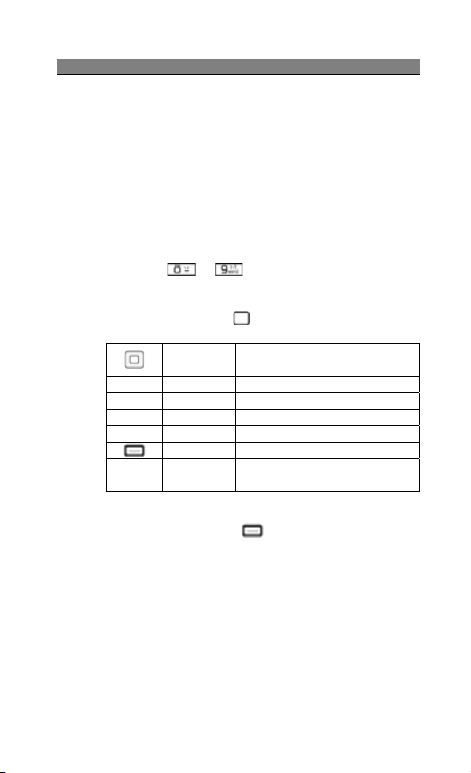
Menu Function – Media center
i If you have already saved radio channels, you can scroll to the
channel you would like to listen to or select a radio channel
location 1 to 20 by pressing the corresponding number key.
i Search a radio channel
When the radio is on, press navigation up to enable / disable
Auto search then press navigation left/right direction or key
to search channel when a channel is found searching will stop.
Or you can press navigation left/right direction or key to
search channel by hand.
i Saving radio channels
To save channels quickly in positions 1-20, press and hold
number key
save in position 0-9, and press key 0-9.
i FM recorder
To record FM radio, press
Up Turn On / Off auto search
Down Turn On / Off radio
Left Press to skip 0.05 MHZ
Right Press to skip 0.05 MHZ
Key 1 ~ 9 To change radio channel, by pressing
i Using the radio
When the radio is on, press
Stations: To save the channel you have found, press and
select Edit. Key in the name of the channel and Frequency
press OK. You can save 10 radio channels in the handset.
Set frequency: If you know the frequency of the radio
channel you would like to listen to (between 87.5 MHz and
108.0 MHz), key it in and press OK.
Auto search: If you want to search radio channel, press Yes
when Preset list confirm message show up. The search stops
when channels has been found and show channel in
Stations.
57 Copyright©2008 Spice Mobiles Ltd.
to . Selecting a channel you want to
center key to begin FM recorder.
Four Ways
Navigation key
LSK Enter radio option list
FM Radio Function
the corresponding number key.
key and select.
Page 61

Contents
Record: Beginning record FM radio.
Append: To append new radio with the already existing file.
File list:
Show amount of record files.
Settings:
FM radio setting options:
Backgrou nd play: Turn On/Off Background play function.
x On: allow radio continuing playing when exit FM radio.
x Off: when user exits FM radio, radio will stop.
Record fo rmat: Select the record format, AMR/WAV.
L oud speaker: To turn On / Off the speaker.
Record st orage: save the radio file in the phone or
memory card.
[Note]: Before use FM radio option, please turn on the radio first.
[Note]: You can normally make a call or answer an incoming call
while listening to the radio. The volume of the radio is muted.
When you end the call, the radio volume will automatically
be turned up again. Also, when an application using GPRS
or HSCSD connection is sending or receiving data, it may
interfere with the radio.
FM radio recorder scheduler
i Press Menu, select Media center/FM radio recorder scheduler,
press OK to enter submenu of FM radio recorder scheduler.
i To set the recorder scheduler, press Edit and set on the radio,
key in the date, and time to start and stop.
i You can repeat the recorder to Everyday, Once, Days, Weekly or
Monthly.
58
Page 62

Menu Function – File manager
File manager (Menu 6)
In the File manager menu, you can manage images, photos, recordings,
tones that you have.
i Press Menu, select File manager, press OK to enter submenu of
File manager.
x In the File manager screen, a list of folders is shown.
x Scroll to the desired device, Phone or Card (If you have memory
card inserted) and press Options, you can choose Open, Create
folder, Memory status and Format item. One of the options is
available.
Open: To view the files in the folder. The files in this
Create folder: To add a new folder into list.
Memory status:
Format:
x Scroll to the desired file, and press Options select options, the
file option have: View (image), Play (video, audio), Set to, Detail,
Rename, Copy, Move, Delete, Delete all, Sort, Move to
private and Mark.
folder have: Audio, Bluetooth, Images, My Music,
Photos, Received and Video.
For selected folder, press “Options”, one of the
options is available: Open, Create folder,
Rename, Delete, Sort and Move to privacy
You can check what percentage of the phone’s
internal memory is occupied and how many files
can still be stored in Phone’s memory and
memory card.
You can format the file list.
59 Copyright©2008 Spice Mobiles Ltd.
Page 63

Contents
Fun & games (Menu 7)
Games
i Your phone software includes some games specially designed for
this handset.
i You can launch a game by press Menu/ Fun & games and select
Games.
i Use Navigation key select a game or game set, press OK.
i Press OK again, you can choose the option that you want:
Resume
Start game
Game level
Best grades
Game help
i Game setting
This function design for Games use only.
Background music: Turn On / Off music.
Background sound: Turn On / Off effect of game.
Vibration: Turn On / Off vibration effect of game.
Themes
i You can change the appearance of the display, for example, the
colors and background picture, by use Themes. Your phone
comes with some pre-set color schemes. You cannot delete
these color schemes and choose one of them from the list. There
are three themes canned been choosing.
i For activate each one themes, press Options to Activate.
60
Page 64

Menu Function – User profiles
User profiles (Menu 8)
Within the Profiles menu, you can adjust and customize the phone tone
for different events, environments and caller groups.
i Activate
x In the idle mode, press Menu and select User Profiles and
press OK to access the list of profiles.
x Use Navigation key to select the profile. Pressing Options to
activate and customize the profile.
i Customize
x Within Profile submenu, select one of the following profiles
and press Options.
General / Silent / Meeting / Outdoor / Headset / Bluetooth.
Use Navigation key to select the profile. Press Options to
customize the profile.
x In the idle mode, user can hold and press the
change profiles to Silent quickly and easily. Or in the list of
profiles, scroll to Silent and press Options/Activate Silent
mode.
x Select the Customize and choose the desired option and
press OK that you want to personalize. For example, Tone
setting, Volume, Alert type, Ring type, Answer mode, Extra
tone.
Once you have selected the setting customize, you can
personalize the following settings of the selected profile:
x Tone settings
Incoming call: To define how the phone notifies you of
an incoming voice call.
Keypad tone: To set any one of the options and the
active one is highlighted.
Power on: To set any one of the options and the active
one is highlighted.
Power off: To set any one of the options and the active
one is highlighted.
Message tone: To define how the phone notifies you of
receiving a message.
* Ring tone can support these formats: MP3, VDO + sound,
Midi, AMR and also can select files from NAND or Memory
61 Copyright©2008 Spice Mobiles Ltd.
to
Page 65

Contents
Card. Message tone can also support MP3 (no longer than
5 seconds), Midi and AMR formats.
x Volume: To set the volume level for the Ringing volume,
Key tone and Message tone.
x Alert type to choose the phone notifies you for incoming
calls and receiving a message. The options are: Ring
/Vibration only / Vibrate and ring / Vibrate then ring / Light
only / Beep once.
x Ring type: To set the ring type, the options have Repeat,
Single and Ascending.
x Answer mode: To set the phone answer incoming voices call
by press any key.
The answer mode have two options Send key and
Any key options.
x Extra tone: To set the Warning tone, Error tone, Camp-on
tone, Connect tone, Miss Calls and Unread Messages On or
Off. For example, when set Extra tone function to on, the
phone sounds a warning tone when the battery is running
out of power.
i Rename
Yon can change the name of selected profiles.
62
Page 66

Menu Function – Organizer
Organizer (Menu 9)
Alarm clock
The alarm clock uses the time format set for the clock.
i Press Menu, select Organizer/Alarm clock, press OK to enter
submenu of Alarm clock.
i To set the alarm, press Edit and set on the alarm, key in the
alarm time. You can set at 5 lists.
i You can set the alarm to repeat, Once, Days or Everyday.
i Press Stop to stop the alarm. If you let the phone continue to
alarm for a minute or press Snooze, the alarm stops for about 5
minute and t hen resumes.
i If the alarm time is reached while the phone is switched off, the
phone switches itself on and starts sounding the alarm tone, if
you press Stop, the phone ask whether you want to active the
phone (Power on?), Press No to switch off the phone or Yes to
switch on the phone.
Calendar
i You can use the phone’s calendar to keep track of reminders,
calls you need to make, meetings and birthdays. You can set the
calendar to sound an alarm when it’s time for you to make a call
or to go to a meeting.
i Press Menu, select Organizer/Calendar. Press Options to the
options list, you can Add task, View, week view, Jump to date.
i Calendar display depend on user setting calendar format in the
Calendar setting, for example: you can select Thai Calendar
when language setting is Thai mode
i If you want to add new task, within the calendar submenu, use
Navigation key move to the day you want or use Go to date
option the current day is indicated with a frame around the day. If
there is any tasks set for the day, the day is changed display icon.
To view the appointments, press OK to Edit and Delete.
To d o l is t
i In this function, you can View the task, Add task, Edit task,
Delete task, and Delete all the list of tasks. You can also select
63 Copyright©2008 Spice Mobiles Ltd.
Page 67

Contents
and view a single task.
i The task view allows you to view the details of the select task.
You can move through the task.
i When setting time is coming, the alarm notification is enable, the
phone will remain user his activities.
World clock
i The screen shows the city name, current date and time.
i You can press Navigation key to choose the city and check the
local time.
x The time zone setting of each city in world time menu may be
affected by network condition.
64
Page 68

Menu Function – Services
Services (Menu 10)
Your phone supports both SIM Service and WAP (Wireless Application
Protocol) services. These services allow you to browse all kinds of
information such as news, weather reports, flight schedules,
dictionaries, etc. Even more, you can connect to the Internet and go to
your favorite WAP enabled web sites. The following sections explain
how to setup and use these wonderful services.
SpiceGang
SpiceGang is a WAP portal from where user can download Ringtones,
Wallpapers, Animations, Videos and other kind of content.
Step1:
Check the GPRS settings for your operator
Step2:
Initiate SpiceGang WAP portal to browse and download the content
Charges for download apply as per operator pricing
Step3:
Explore the whole world of Entertainment with SpiceGang.
Reuters
Reuters India gives you the latest India, World and Business news and
more. Also, get the latest stock market information along with tools like
the currency converter and weather in your city on your mobile phone.
Please ensure that you have GPRS settings in your phone to open
Reuters. Contact your operator for GPRS settings.
WAP
The WAP service enables your phone to surf the Internet. Your
phone offers you several default profiles to choose form. These
default profiles are based on the connection settings of major
operators at the time this phone was manufactured. You can apply
the desired connection settings by simply activating the respective
profile, and you are ready to go.
i Homepage
x For eac h profile you are allowed to store a “Home URL”
(Universal Resource Locator) address. You can quickly
65 Copyright©2008 Spice Mobiles Ltd.
Page 69

Contents
access the homepage of the active profile by selecting
“Home URL” when the WAP menu is displayed.
i Bookmarks
You can save the addresses of web pages as bookmarks in
the phone’s memory.
Press Menu, and select Services, WAP and
Bookmarks.
Choose the bookmarks you want to use and press
left soft key (Options). And then you can:
Goto:
Edit:
Delete:
Delete all:
Add bookmark:
i Recent pages
You can view the recent pages that you have read. And you
can press left soft key (Options), then you can:
Goto:
View URL:
Delete:
Delete all:
i Go to URL
x Key in the URL address and press OK to connect to the
address.
i Settings
x Edit profile
The WAP settings are stored in a WAP profile. In
most cases you only need to use one of the default
profiles to access the Internet. The settings are
different from operator to operator. Please consult
your operator or service provider for the correct
Open a connection to the page
associated with the bookmark
Edit the select bookmark
Delete the select bookmark
Delete all select bookmark
Add a new bookmark by entering the
title and URL address
Connect to the select page
View the select page’s URL
Delete the select bookmark
Delete all select bookmark
66
Page 70

Menu Function – Services
settings and proceed with care. Wrong settings will
cause the connection to fail.
Within Edit profile submenu, press OK key to enter
profile-editing list. And then you can:
Activate profile:
Rename profile:
Homepage:
Data account:
Connection
type:
User name:
Password:
x Brow ser options
Time out:
Show
images:
x Service message settings
Turn
Off or On to decide whether you want to receive the
service message or not. The message is saved in the
Service inbox.
x Clear cache
The informati on or data you have accessed are
stored in the cache of the phone. A cache is a file
Active the select WAP profile
Rename the selected WAP profile
Enter a title and address of the WAP
web site as the homepage. You can
only have a homepage for each
profile.
Users are only allowed to choose a
data account. The list of the
accounts should be consistent to
those under Service menu - Data
account.
Select Connection-oriented or
HTTP from the list.
Enter your user ID for the WAP
gateway
Enter your user password for the
WAP gateway
Set the timeout value for the browser.
The browser will stop connecting to the
web site if the web site does not
respond within the timeout time.
Set option On/Off to view pictures while
browsing.
67 Copyright©2008 Spice Mobiles Ltd.
Page 71

Contents
buffer that is used to store data temporarily.
Within Settings submenu, select Clear cache, and
press OK.
x Clear cookies
It is advisable to clear any sensitive information like
cookies of previously visited web sites. This is to
avoid privacy and security risks if your phone is
misplaced, lost or stolen.
Press OK to clear all the cookies
x Clear recent page list
It is advisable to clear any sensitive information
About previously visited web pages in Recent Page
List. This is to avoid privacy and security risks if your
phone is misplaced, lost or stolen.
Press OK to delete all the recent pages.
x Trusted certificates
For us ing some services, such as banking services,
you need security certificates. After you have
downloaded the required security certificate from the
Internet, you can view the certificate and then save or
delete it. If you save it, the certificate is added to the
list of trust certificates under the Settings of WAP
menu.
Vi ew the list of Trusted C ertificates :
x Press M enu, select, Services, WAP, Settings,
Edit profile, and Trusted certificates press View
key.
If the security indicator is displayed during a
connection, the data transmission between the phone
and the gateway server is encrypted. However, the
security indicator does not indicate that the data
transmission between the gateway and the content
server (the location where the requested resource is
stored) is secure. It is up to the service provider to
secure the data transmission between the gateway
68
Page 72

Menu Function – Services
and the content server.
Data account
Connect way while choosing the mobile phone to browse
through the WAP. Detailed materials setting up value,
please arrange with a network supplier
STK
In addition to the functions available in the phone, your SIM card*
may provide additional services under the SIM service submenu**.
By entering the submenu, you can find a list of services provided by
your operator. The requested information may be responded via
voice speech or SMS (Short Message Service). Additional charges
may apply for services involve sending a SMS or making a phone
call.
Note:
* Some SIM cards may not support SIM service. In such
case, you won’t be able to see the SIM service submenu.
** SIM service varies from operator to operator. The name
and contents of the menu depend entirely on the SIM card
provided by your operator. For availability, rates and
information on using the SIM service, contact your
network operator, service provider or other third-party
vendor.
69 Copyright©2008 Spice Mobiles Ltd.
Page 73

Contents
Extra (Menu 11)
Private menu
You can move the Call records, Messages and Phonebook to the
Private menu, if you do not want others see this detail information.
[Note]: To enter the submenu of the Private Menu, users need to
enter the password. The default password is 1122.
i Call record:
x Missed calls:
Press OK to enter the Missed calls list. Scroll to the
desired item, press OK or
detail information.
The Options of the item have: Delete, Save to
Phonebook, Dial, Edit, Send SMS, Send MMS, Ad d to
blacklist, Delete all and Move to normal.
x Dialed calls:
Press OK to enter the Dialed calls list. Scroll to the
desired item, press OK or
detail information.
The Options of the item have: Delete, Save, Dial, Edit,
Send SMS, Send MMS, Add to blacklist, Delete all
and Move to normal.
x Received calls:
Press OK to enter the Received calls list. Scroll to the
desired item, press OK or
detail information.
The Options of the item have: Delete, Save, Dial, Edit,
Send SMS, Send MMS, Add to blacklist, Delete all
and Move to normal.
x Delete call list:
Press OK to enter the Delete call list. Within this
submenu you can choose delete Missed calls, Dialed
calls, Received calls and Delete all.
i Messages:
x Write new
For detail information about how to write text in the phone,
70
center key to see the
center key to see the
center key to see the
Page 74

Menu Function – Extra
see also “Writing Text” on page 18.
x Inbox:
Press OK to enter the Inbox list. Scroll to the desired
message, press Options. The Options of the message
have: View, Delete, Delete all, Move to normal, Detail
and Mark.
After viewing the message, press Options. The Options
have: Reply, Delete, Dial, Edit, Forward, Detail,
Advance, Use number, Extract URL, Save objects
and Move to normal.
x Drafts:
Press OK to enter the Drafts list. Scroll to the desired
message, press Options. The Options of the message
have: View, Dele te, Delete all, Move to normal, Detail
and Mark.
After viewing the message, press Options. The Options
have: Send, Edit, Delete, Detail, Use number,
Extract URL, Save objects and Move to normal.
x Sentbox:
Press OK to enter the Sentbox list. Scroll to the desired
message, press Options. The Options of the message
have: View, Delete, Delete all, Move to normal, Detail
and Mark.
After viewing the message, press Options. The Options
have: Send, Edit, Delete, Detail, Use number,
Extract URL, Save objects and Move to normal
i Phonebook
Press OK to enter the phonebook list. Scroll to the
desired item, press OK or
detail information.
The Options of the item have: View, Edit, Delete, Delete
all, Send SMS, Send MMS, Send contact, Add to
blacklist, Move to normal and Mark.
i File manager
Press OK to enter the File manager list. Scroll to the
71 Copyright©2008 Spice Mobiles Ltd.
center key to see the
Page 75

Contents
desired item, press OK or center key to see the
detail information.
The Options of the item have: View, Forward, Detail,
Rename, Delete, Delete all, Sort, Move to normal and
Mark.
i Setting
x Change code: Change the private’s password.
Calculator
i You can use your phone’s calculator to add, subtract, multiply
and divide.
i Press Menu, select Extra/Calculator, and press OK.
i With the screen showing a “0”, enter the first number in the
calculation.
i Use Navigation key to select add, subtract, multiply, and divide
then press OK or center key to continue operation.
i Press
i Press Clear to start the new calculation.
Unit converter
i To convert measures such as Weight from one unit (Pound) to
another (Kg), press the Menu, and select Extra then Unit
converter.
i In the Unit converter submenu, press Options to select
converter options, option in Set weight converter is Reverse
converter and Set converter.
[Note]: the Converter option display is depending on user settings
i In the first amount field, and enter the value you want to convert,
the other amount field automatically shows the converted value.
For example, in weight converter, pound units expressed in kg
units, enter 110 and 49.895164 automatically show in kg field.
i Press Navigation key up/down to reverse converter, or press
Options to select reverse converter option.
i If you want to select other converter types, press Options and
select Set converter to open a list of measures. Choose the
measure you want to use and press OK to enter converter unit
to enter a decimal point.
72
Page 76

Menu Function – Extra
list.
i Choose the converter unit from which you want to converter and
press Options\Acti vate.
Stopwatch
You can measure time, take intermediate times, or take lap times
using the stopwatch. During timing, the other functions of the phone
can be used. To set the stopwatch timing in the background, press
the end key.
Using the stopwatch or allowing it to run in the background when
using other features increases the demand on battery power and
reduces the battery life. The stopwatch continues to run when you
answer an incoming call.
i Press Menu, select Extra / Stopwatch, press OK to enter
submenu of Stopwatch.
Split timing:
Lap timing:
Count down timer:
View record:
To take intermediate times. To start the time
observation, press Start, press Split every
time that you want to take an intermediate
time. To stop the time observation, press
Stop. To save the measured time, press
Back. To start the time observation again,
press Resume, the new time is added to the
previous time.
To take lap times. To set the stopwatch timing
in the background presses the
To count down timer. Set up the time of count
down timer, and then begin to count down
according to press Start.
To view the saved time. The record options
have: View, Delete and Delete all.
(End key).
73 Copyright©2008 Spice Mobiles Ltd.
Page 77

Contents
Shortcuts (Menu 12)
Shortcuts
x The Shortcuts screen displays 10 favorites items set by the
user.
x You can edit some specific functions to the default l ist for your
personal favorites list and activate them.
x Within Favorites menu, turn On / Off from the function list.
x The phone offers you an extensive range of functions, which
are grouped in menus and submenus. From idle mode, press
Navigation key direction down can access the shortcuts
menus.
x For some reason, if user turns Off all favorites functions before,
when user press Navigation key direction down in the idle
mode, handset will show edit favorites message remind user.
74
Page 78
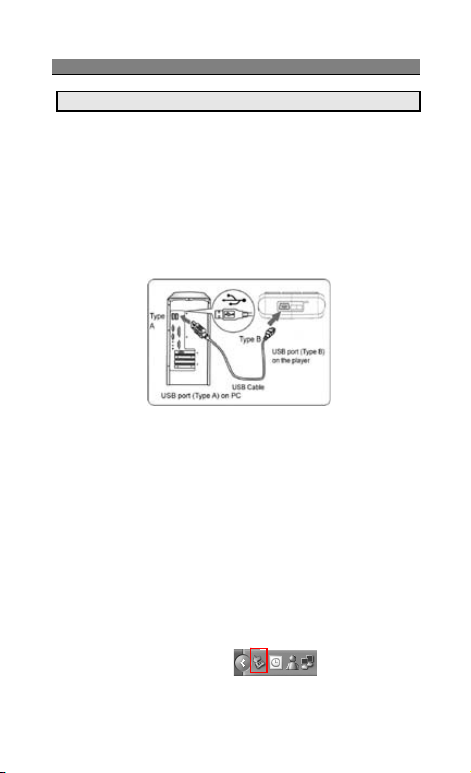
USB Cable Functions
To Use Mass storage (USB cable)
[NOTE]: System default requirement: PC hardware and software for
Windows 2000/XP and above. For more information, please
see below “Install USB Software for Window 2000”
[NOTE]: Please use USB according to the standard steps as below;
otherwise the data may lose or cause damage.
If you want to add/remove music and images to the Handset, connect
it to a PC with USB cable.
z Plug in cable (USB) to handset and PC, screen show three options:
x Mass storage mode: for add / remove music or image files.
x COM port: as USB charger.
i Connecting the handset to PC
x After connected the handset and PC, choice “Mass
Storage” handsets will automatic turn off.
x The OS will automatically generate two “Removable
Disk” in My Computer, one for handset, one for
memory card. You can enter the disk to access the
data in the handset.
x You can access to the handset from the Window
Explorer (Windows 2000/XP) / File Manager or My
Computer and add / erase audio, image or other files
to the handset.
x If you want to remove the USB cable from the handset
after adding or erasing files
Double click the Remove Hardware icon in the
taskbar tray.
75 Copyright©2008 Spice Mobiles Ltd.
Page 79

Contents
Select “USB Mass Storage”, then clicks Stop when
the message “You can remove hardware now”
appears on the screen, and remove the handset.
i Copy files into the handset
x After connecting the handset to a PC successfully,
there will be two new disks “Removable Disk” in My
computer.
Enter the directory stored your music, image, or other files, and
select them thru your mouse. After selection, move your mouse on the
selected files and click right button of your mouse to select “Copy”,
enter the Removable Dis k from My Computer, and click right button
of your mouse to select “Paste” then the selected files will be copied
into the handset.
76
Page 80

 Loading...