

Page 1

WWeellccoomme
C-5300 is a CDMA mode mobile phone (hereafter referred to as “phone” or “phoneset”),
with 65536 color CSTN display, 32 polyphonic ringtones. Mp3/Video player, Camera, FM
radio, and common PDA functions support.
Note: In this user manual, to “press” a key means to press shortly; to “long press” a key
means to press and hold for a while (> 2 seconds).
² Please read this manual before using your phone.
² For a newly bought phone, charge it for 4 hours before the first time of use, and
charge the second time only after the power has been used up. Repeat this several
times, and the battery will reach the best use effect.
² All illustrations in this user manual are for illustration only and may not accurately
depict the actual phone.
² We operate a policy of continuous development and reserve the right to make
changes and improvements to any of the products described in this manual without
prior notice.
e
Page 1 of 21
Page 2

Table of Contents
Welcome..........................................................................................................................1
1 Safety information...............................................................................................3
2 General information............................................................................................6
3 Basic Operations.................................................................................................10
4 Phone Book...........................................................................................................13
5 Messages................................................................................................................14
6 Call History............................................................................................................16
7 Settings...................................................................................................................16
8 Multimedia.............................................................................................................18
9 File Manager.........................................................................................................19
10 Profiles....................................................................................................................19
11 Organizer................................................................................................................20
12 UTK Services.........................................................................................................20
13 Maintenance.........................................................................................................20
14 Troubleshooting..................................................................................................20
Page 2 of 21
Page 3

11 SSaaffeettyy iinnffoorrmmaattiioonn
11..11 NNoottiiccee ttoo tthhee UUssee ooff PPhhoonnee
l Before you use the phone, please carefully read this section to grasp the correct
method of use and ensure the safety of the holder, others and properties.
l All the screens in this manual are for reference only, and some contents actually
displayed may depend on the presetting of the service provider or the network operator,
or the UIM card. If any functions referred to in this manual are different from those of
your phone, please follow your phone.
l The specifications and appearance of this product are subject to change due to
improvement of functions without notice.
l For CDMA service-related problems, consult your CDMA service provider.
l Please back up your important data timely and keep them properly. The company is not
liable for any failure to call or loss of data due to misoperation, poor signal or power cut,
etc.
l Do not use the phone in an environment of extremely high or low temperature,or an
environment of high humidity, otherwise, may cause malfunctions of the phone, the
charger and the battery.
l The phone using enviroment recommendation: temp 5~35℃, humidity 35% ~ 85%,
charging temp:0~45℃.
l Do not drop or strongly impact the phone, otherwise, malfunctions may be caused and
the phone can’t be used.
l Do not use the phone near any electronic device vulnerable to interference. Otherwise,
malfunctions of electronic device may be caused. Such electronic devices include
medical electronic devices, such as hearing aids and pacemaker, fire alarms, auto
doors and other automatic equipment. If you have to use the phone near such devices,
please first consult the manufacturers and dealers of these devices to avoid
interference.
l Switch off the phone when you are on the plane or in the hospital where the use of
mobile phones is prohibited to avoid interfering with electronic and medical equipment.
If you have to use the phone in such places, please follow the regulations of the sites.
l The phone has an internal antenna. When switched on, do not hold the antenna area
on the top of the phone, otherwise, the quality of connection and the performance of
the antenna may be influenced, and the max. talk time may be reduced.
l To avoid degaussing, do not put financial cards, phone cards or other magnetic cards
near the charger and the phone to avoid failure of use due to the cards.
l Do not place the phone and the battery under direct sunlight or in a car under burning
sun or other places of high temperature to avoid injury due to overheating, leakage,
cracking, distortion, or even fire of the battery.
l Do not put the phone in a place with excessive dust or vibration (which may cause
failure) to avoid malfunctions of the phone.
l Do not take apart the phone, the charger and the battery, or modify the internal
structure without permission to avoid malfunctions and accidents.
l Do not let children fiddle with the phone or the accessories to avoid injuring themselves
or others, or damaging the phone or the accessories. The phone or the accessories
Page 3 of 21
Page 4

may contain small removable components which may easily cause suffocation of
children。
l If the phone is contaminated, please wipe it with a dry cloth. Do not use organic solvent
such as gasoline to wipe the phone to avoid causing damages of the outer surface.
l If smoke or peculiar smell is produced during use, please immediately switch off the
phone and remove the battery. Please have the phone repaired as arranged by the
store where you bought the phone. Do not continue to use to avoid causing injury.
l Do not dispose the phone as urban waste. For details, please refer to the local
regulations for the disposition of waste electronics.
11..22 NNoottiiccee ttoo tthhee UUssee ooff BBaatttteerryy aanndd CChhaarrggeerr
l The time for using the battery is an estimated time under 25 and stable signal. If ℃
used in a place with weak signal, extremely high or low temperature, or outside the
service area, the consumption of battery power will be faster, thus the standby time and
max. talk time may be reduced.
l Please use the accessories, such as battery and charger, specified by the company to
avoid risks due to overheating, leakage, explosion, or even fire of the battery caused
by non-compliance with the specifications.
l The battery should be put in a cool, ventilative and sunlight-free place. If the battery is
in the exhausting status for a long time, it can’t be charged. Therefore, if you do not use
the phone for long, please charge the battery periodically.
l The battery is expendable goods. All the batteries have a certain life. If the
performance of the battery can’t be improved after repeated charging, the battery may
be discarded as useless and must be replaced with a new one.
l Please fully charge the battery before you use the newly bought phone.
l Do not charge the battery in a place with direct sunlight, a temperature equaling to or
below 0 or equaling to or above 45, high humidity, excessive dust or vibration ℃℃
(which may cause failure), or a place near TV or radio (as it may produce noise
interference to video or sound signal).
l Please switch off the phone and wait over 2 seconds before removing the battery.
l Do not dismantle the phone and the charger for modification without permission to
avoid malfunctions or injury.
l Do not strongly impact or throw the phone or the battery to avoid leakage or
overheating of the battery, or malfunctions of the phone.
l Do not short the two polarities of the battery to avoid leakage, overheating, fire or
explosion of the battery.
l If leakage of the battery enters the eyes accidentally, please immediately wash the
eyes with fresh water and go to a doctor. If it is not treated quickly, it may cause serious
injury, such as blindness.
l If the battery is contaminated with liquid, it may cause burn or malfunctions due to
overheating of the battery. The charger may also cause overheating, damages, electric
shock and malfunctions. If the charger is accidentally sunk in water, or smoke or
peculiar smell is produced during charging, please immediately switch off the phone
and unplug the AC cable from the socket. Please have the phone repaired as arranged
by the store where you bought the phone. Do not continue to use to avoid causing
injury.
Page 4 of 21
Page 5

l Do not put the charger and the AC cable in a place with flame or ovens to avoid
causing injury due to overheating, leakage or fire of the battery.
l Do not touch the charger, the power cable and the plug of AC power supply with wet
hands to avoid electric shock or malfunctions.
l Do not strongly pull the wire, or put heavy objects on the wire, otherwise electric shock
or fire may be caused.
l When the battery is fully charged, please unplug the charger from the socket.
l Do not dispose the used battery together with daily waste. Please dispose the used
battery in accordance with the regulations issued by the local authority.
Page 5 of 21
Page 6
22 GGeenneerraall iinnffoorrmmaattiioonn
22..11 CChheecckkiinngg tthhee pphhoonnee aanndd aacccceessssoorriieess
Open the packing box of the phone and check that you have the phone, charger and user
manual. If anything is missed, or any mistake is found in the user manual, such as missing
pages, please contact the local dealer.
22..22 TTeecchhnniiccaall ssppeecciiffiiccaattiioonnss
Network CDMA2000: 800MHz
Battery Lithium battery, 3.7V, 1000mAh
Dimensions
Weight About 68g
Standby time(maximum)* Up to 180 hours
Talk time(maximum)* Up to 210 minutes
*Standby and talk times are estimates and only possible under optimal network conditions.
Actual times vary depending on UIM card, operating temperature, battery age and
condition, network conditions, features selected, and many other factors, and may be
remarkably shorter than those mentioned above.
About 102 X 43.6 X 14.45(mm)
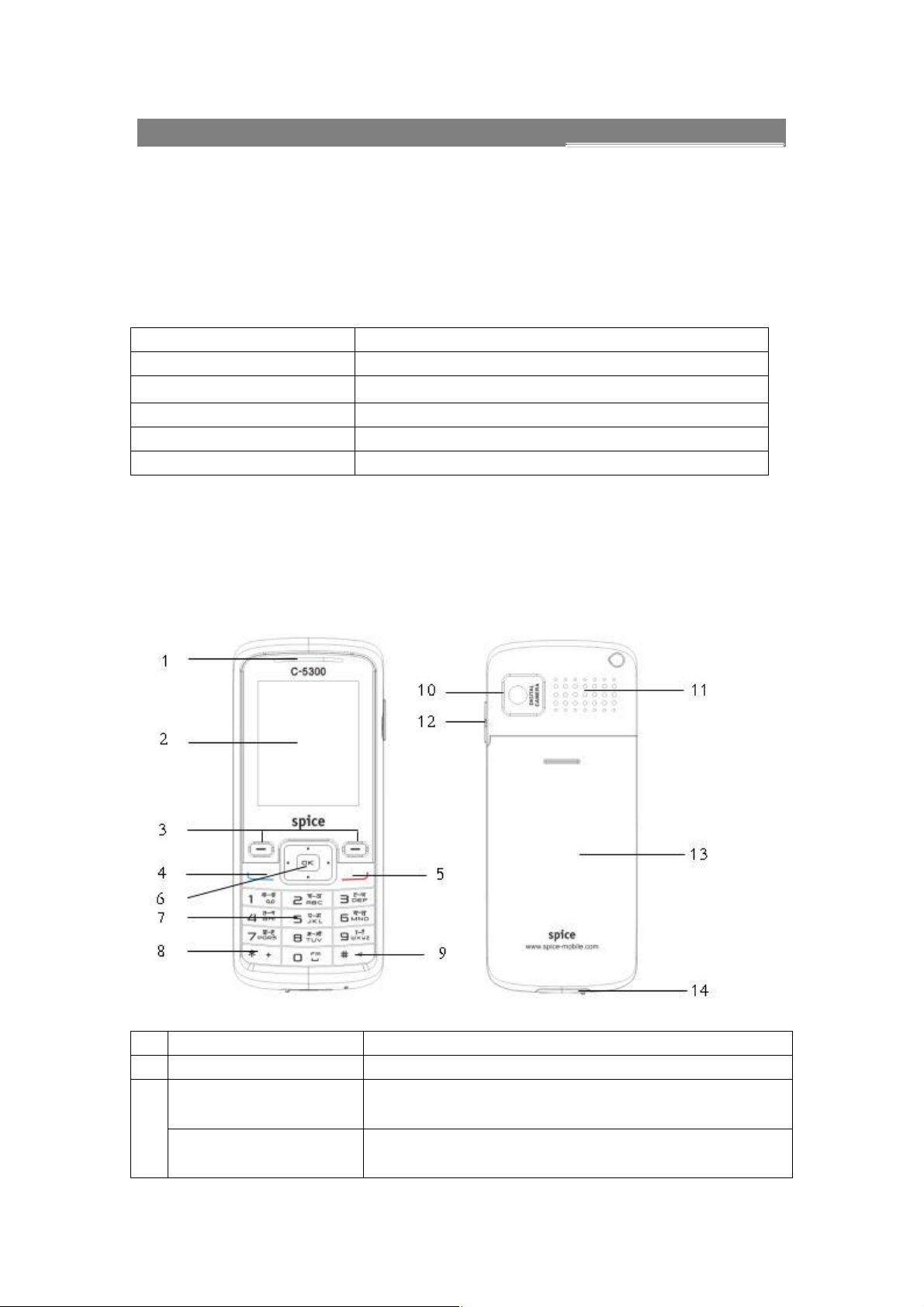
22..33 IIlllluussttrraattiioonnss ooff tthhee pphhoonnee aanndd ffuunnccttiioonn
Earpiece
1
Display
2
Left Soft-Key
3
Right Soft-Key
l Execute the function shown at the bottom left of the
display.
l Enter the Contacts in idle.
l Execute the function shown at the bottom right of the
Page 6 of 21
Page 7
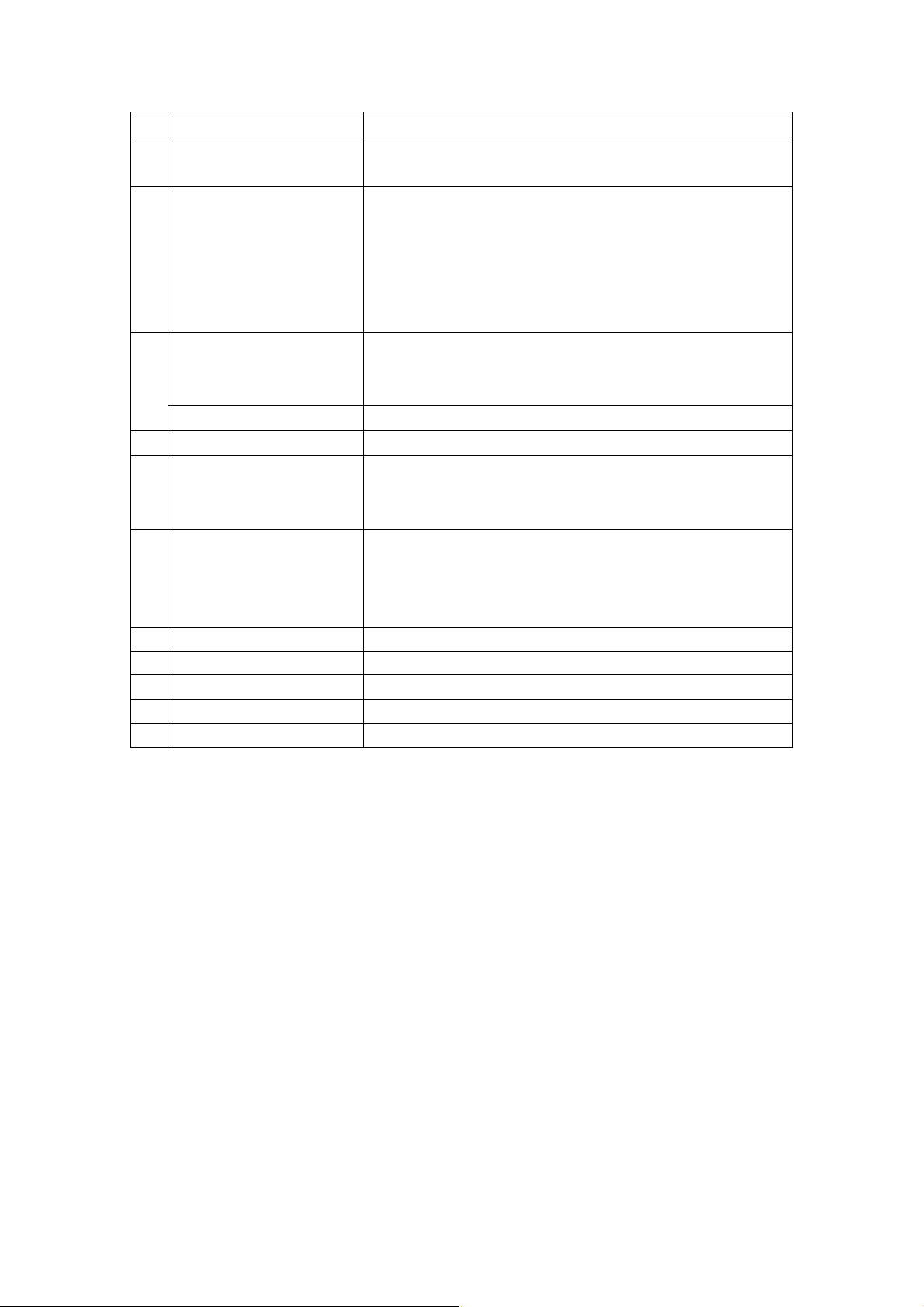
Send Key
4
End Key
5
Navigation Key (Up/
Down/Left/Right)
6
OK Key
Numeric Key
7
* Key
8
# Key
9
Camera
10
Speaker
11
Earphone interface
12
Battery cover
13
USB/Charger interface
14
display.
l Make or answer a call.
l Enter call log in idle.
l Long press to power the phone on when the phone is
off.
l Long press to power the phone off when the phone is
in idle.
l End or reject a call.
l Return to idle display.
l Move the cursor.
l To perform the operation designated to the navigation
key in idle.
l Execute the function selected on the display screen.
l Enter phone numbers, characters.
l When enter numbers, press once for “*”, twice for “+”,
three times for “P”, and four times for “T”.
l When edit, enter the symbol list.
l When edit, switch input methods.
l Lock/unlock the keypad by pressing Right Soft-Key
then #.
l Long press to enter or exit the vibrator mode in idle.
Page 7 of 21
Page 8
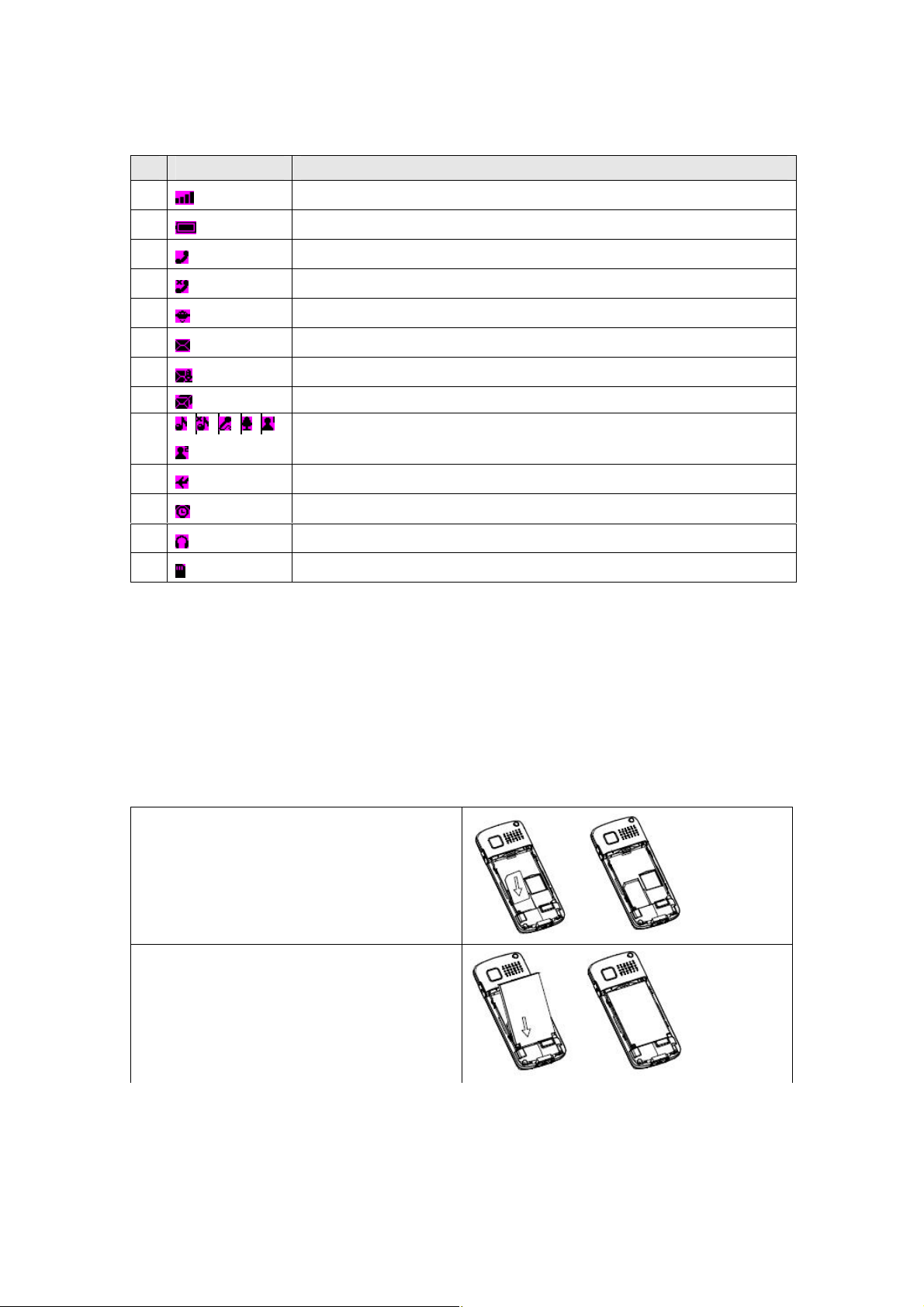
22..44 IIddllee mmooddee ddiissppllaayy
Icon Descriptions
1
2
3
4
5
6
7
8
9
10
11
12
13
/ / / / /
Indicates signal strength level and more bars means better signal.
Indicates battery power.
Indicates during a call.
Indicates the phone is off-line.
Indicates the phone is in roaming status.
Indicates you have unread messages.
Indicates you have unread voice mails.
Indicates the message capacity is full.
Indicates the current profile is General/Silent/Meeting/Outdoor/My
style 1/My style 2.
Indicates the flight mode is set on.
Indicates the alarm is set on.
Indicates the earphone is inserted.
Indicates the memory card is inserted.
22..55 AAbboouutt UUIIMM ccaarrdd && bbaatttteerryy && mmeemmoorryy ccaarrdd
Keep all UIM cards out of the reach of children.
The UIM card and its contacts can be easily damaged by scratches or bending, so be
careful while handling, inserting or removing the card.
To prevent damage to the phone you should Power off the phone before installing or
removing the battery or UIM card.
2.5.1 Installing UIM card & battery
1. Place the UIM card into the slot with
the metal contact facing down.
2. Attach the battery to the phone.
Page 8 of 21
Page 9
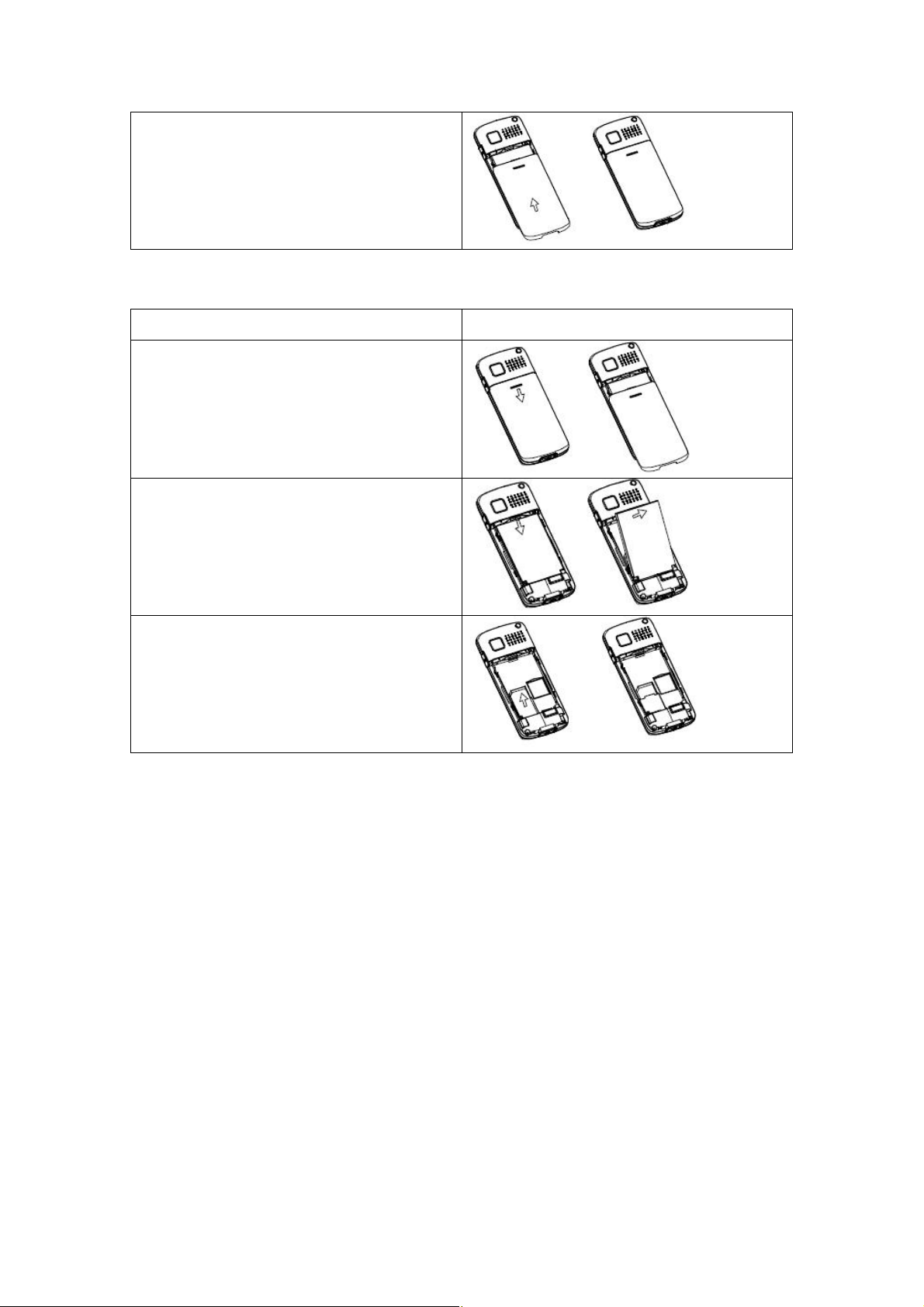
3. Push the battery cover upwards until it
clicks into place.
2.5.2 Removing UIM card & battery
1. Power off the phone.
2. Push and remove the battery cover.
3. Remove the battery.
4. Slide the UIM card.
2.5.3 Installing memory card
1. Place the memory card into the slot with the metal contact facing down, then lock the
card slot cover.
2. Install the battery and battery cover.
Tip: Some memory Cards have poor compatibility. Please buy and use tested and
certified memory cards.
2.5.4 Removing memory card
1. Remove the battery cover and battery, Pull out the memory card slot cover with
fingertip, then remove the memory card.
2. Lock the memory card slot cover, then install the battery and battery cover.
2.5.5 Charging the battery
Plug the connector of the charger into the jack at the bottom of the phone, and plug the
charger into a standard AC wall outlet. During charging, the battery icon is flashing.
When charging is completed, the battery icon stops flashing.
Page 9 of 21
Page 10

Charging……. Fully Charged
Tips:
When is shown in the screen, it indicates that there is not enough power, please
charge the phone.
You must fully charge the battery before using the phone for the first time. It is
recommended you charge the battery for four hours for the first time.
If the phone is turned on during charging, you can still make or answer calls, but this will
consume battery power, thus extend the charging time of the phone.
In the follow-up using, it is recommended you charge the battery when it runs out to
enhance the battery life.
33 BBaassiicc OOppeerraattiioonnss
33..11 TToo sswwiittcchh oonn aanndd ooffff
To switch on: Long press End Key when it is off.
If phone lock is set on, you are required to enter the password. The phone password is
preset to “1122” at the factory.
Warning: If UIM lock is set on, you are required to enter the PIN. If you enter wrong PIN
three times in a row, you need the PUK to unlock it. PIN and PUK are both provided by the
network operator.
To switch off: Long press End Key when it is in idle.
33..22 IIddllee mmooddee ooppeerraattiioonnss
The so-called “Idle mode” refers to the standard mode where the phone has been
normally switched on and logged in the network, but no calls are in process or no menu is
used.
Press Menu to enter the main menu.
Press Names to enter the contacts.
Press Send key to enter the call history list.
Press Right Soft-Key then #Key to lock or unlock the keypad.
Long press 0 to enter FM radio.
Long press 1 to call the voice mailbox.
Press 2 - 99 and then Send key to dial the set speed dial numbers.
Long press #Key to activate the vibrator mode or return to the previous mode.
Tip: When you activate the Smart Desktop Mode (Menu > Settings > Display Settings
> Smart Desktop), there will be 5 applications showed in idle, you can press Navigation
key to move the cursor and press Select to select function.
33..33 IInnppuuttttiinngg TTeexxtt
You can input English, Hindi, digits, and symbols. The input methods include Abc, abc,
ABC, Hn, En, en, and Numeric (digits).
Press # key to switch input methods.
Press * key to enter the symbol list.
Page 10 of 21
Page 11

33..44 TToo mmaakkee ccaallllss
3.4.1 Making a call from idle
If the icon is displayed on the screen, you can make or answer calls.
Tip: The signal strength may influence the quality of connection.
Press To
1 Number Keys
input phone numbers
2 Send Key
3 End Key
make calls
end calls
3.4.2 To dial international numbers
You need to insert the local international connection code “+”. In the standby mode, Press
* Key twice to input “+”.
3.4.3 Inserting a pause sign when dialing
There are two methods to dial an extension number with a pause symbol: to dial the
extension number automatically (the pause time is controlled automatically); to switch
manually (the pause time is controlled manually). The phone supports both of the two
applications of the pause symbol.
To dial the extension number by automatic switching:
In the standby mode, input a phone number.
Press * Key three times to input the pause symbol P.
Input the extension number.
Press Send Key to dial the phone number, then the phone will dial the extension number
after P automatically.
Tip: The pause time depends on the number of “P” input.
To dial the extension number by manual switching:
In the standby mode, input a phone number.
Press * Key four times to input the pause symbol T.
Input the extension number.
Press Send Key to dial the phone number, then the phone will prompt whether to
continue dialing the extension number after T.
Tip: This lets you select whether to dial an extension number by pressing a key when
appropriate.
3.4.4 Dial from Phone Book
Enter the Contacts, select an entry from the entry list and press Send Key to dial.
Tip: If the entry contains more than one numbers, once you press Send Key, the default
number will be dialed.
3.4.5 Speed Dials
You can specify speed dial numbers to frequently used phone numbers.
Page 11 of 21
Page 12

Press the number keys 2 - 99 then press Send key to dial the phone number.
Tip: You must have set a speed dials number for that Number Key, and the Speed Dials
function has been activated (See 4.6 Speed Dials).
33..55 TToo aannsswweerr//rreejjeecctt aa ccaallll
When the phone prompts that a call is coming in:
Press To
1 Accept / Send Key
2 Mute / SMS Reply
3 End Key
When a call comes in, if an entry in the Contacts corresponds to the number, the related
information will be matched.
If the number has been saved in the Contacts and has a name, the screen will display the
name when a call from the number comes in.
33..66 MMiisssseedd ccaallllss
The missed calls are displayed in the display. Select and press OK to check the missed
calls..
33..77 DDuurriinngg aa ccaallll
answer the call
mute the ring or vibration / Select a SMS from Templates
and send it to the incoming number without disconnecting
the call
end the call
3.7.1 Muting a call
During a call, you can prevent the other party from hearing you:
Options > Mute / Unmute
3.7.2 Call Recording
During a call, you can record conversations:
Options > Start Record / Stop Record
Tip: For FM recording, please insert memory card.
3.7.3 Handsfree earpiece
During a call, you can press the Right Soft-Key [H-Free] / [H-Held] to activate or
deactivate handsfree earpiece.
3.7.4 Adjusting volume
During a call, You can press the Navigation key (Up/Down) to adjust the volume of the
receiver during a call.
3.7.5 Send DTMF
During a call, you can select to send DTMF tone.
Option > Send DTMF
Page 12 of 21
Page 13
33..88 CCaallll DDiivveerrtt
With the Call Divert function (needs network support); you may divert incoming calls to
another mobile phone or a direct line telephone, but not any extensions of a fixed
telephone.
Menu > Settings > Call Settings > Network Service > Call Divert
33..99 CCaallll wwaaiittiinngg
The function needs the support from the local network. In some districts, you can use the
function only after you apply with the local network operator.
Menu > Settings > Call Settings > Network Service > Call Waiting
44 PPhhoonnee BBooookk
You can store contacts in the memory of the phone or UIM card. Phone memory can store
up to 1000 entries. The storage of UIM card memory depends on its type. To check your
UIM card memory, please check with your telecom operator.
44..11 TToo aadddd nnaammee ccaarrddss
In the standby mode, input numbers directly, press Save. Or: Menu > Phone Book >
Contacts > Options > Add new contact
You can enter name and number then save them. If you want to add more details to the
saved record, such as numbers, e-mail, address, URL, note, ringer and so on, in the detail
screen, you can select Options > Add Details. You can also select Options > Add to
group to add the record to a group.
44..22 TToo sseeaarrcchh tthhee CCoonnttaaccttss
Functions Description
Quick Search
Name Search Menu > Phone Book > Contacts > Options > Search Name
44..33 TToo ccooppyy // mmoovvee // ddeelleettee aa nnaammee ccaarrdd
Functions Description
Single
Copy/Move/Delete
Multiple
Copy/Move/Delete
Copy/Move/Delete All Menu > Phone Book > Copy Contacts / Move Contacts /
Menu > Phone Book > Contacts > Input characters directly
> Input Name then press Search
Open the contacts list, select the entry to be copied/moved/
deleted:
Options > Copy Contact / Move Contact / Delete contact
Menu > Phone Book > Contacts > Mark the names to be
copied/moved/ deleted:
Options > Copy Marked / Move Marked / Delete Marked
Delete All Contacts
Tip: You need to input the phone password when you want to
delete all contacts. The preset phone password is 1122.
Page 13 of 21
Page 14

44..44 TToo sseett ggrroouuppss
Menu > Phone Book > Groups
You can set five groups, and edit the members list of each group, you can also set a
ringtone for each group.
44..55 TToo vviieeww aanndd eeddiitt tthhee oowwnneerr nnuummbbeerr
Menu > Phone Book > My Numbers
44..66 SSppeeeedd DDaaiillss
Menu > Phone Book > Speed Dails
You can set a speed number for 2 - 99.
44..77 SSeettttiinnggss
Menu > Phone Book > Settings
You can set the storage location and view the memory status.
55 MMeessssaaggeess
55..11 SSeenndd MMeessssaaggeess
Menu > Messages > New Message
1. Write the content of the SMS, you can press Options >
Insert Templates: Select a phrase from templates and insert it to the content.
Insert Contact: Select a contact and insert Non-empty fields of the contact to the
content of the SMS.
2. When the writing is finished, you can you can press Options >
Send: To enter the number edit screen. You can input numbers directly, or select
contact/groups from phone book.
Save: Save the SMS to draft box.
55..22 IInnbbooxx
The messages you received are listed here.
Menu > Messages > Inbox
When viewing the inbox list or reading an SMS, you can Reply / Forward / Delete / Move
( to archive box ) / Copy ( between UIM card and phone) the SMS, view Detail Info of the
SMS, select Call Back to dial the number of the sender, and select Use Detail to extract
the number of the sender and the number(s) contained in the SMS. For viewing the inbox
list, you can also select Mark / Unmark from options to mark some messages then Copy
/ Delete them, or save them to Archive.
55..33 SSeennttbbooxx
The messages sent successfully are stored in the Sentbox.
Menu > Messages > Sentbox
When viewing the sentbox list or reading an SMS, you can Resend / Forward / Delete /
Page 14 of 21
Page 15

Move ( to archive box ) / Copy ( between UIM card and phone) the SMS, view Detail Info
of the SMS, and select Use Detail to extract the number of the recipient and the number(s)
contained in the SMS. For viewing the sentbox list, you can also select Mark / Unmark
from options to mark some messages then Copy / Delete them, or save them to
Archive.
55..44 OOuuttbbooxx
The messages sent unsuccessfully are stored in the Outbox.
Menu > Messages > Outbox
When viewing the outbox list or reading an SMS, you can Resend / Edit / Delete / Move
( to archive box ) / Copy ( between UIM card and phone) / the SMS, view Detail Info of
the SMS, and select Use Detail to extract the number of the recipient and the number(s)
contained in the SMS. For viewing the outbox list, you can also select Mark / Unmark
from options to mark some messages then Copy / Delete them, or save them to
Archive.
55..55 DDrraafftt
The messages saved directly after edit are listed here.
Menu > Messages > Draft
When viewing the drafts list or reading an SMS, you can Send / Edit / Delete the SMS,
view Detail Info of the SMS. For viewing the outbox list, you can also select Mark /
Unmark from options to mark some messages then Copy / Delete them, or save them to
Archive.
55..66 AArrcchhiivvee
Menu > Messages > Archive
The messages Move from others boxes are stored in this box.
55..77 TTeemmppllaatteess
The phone has preset frequently used phrases which may be selected and added to the
text when you are editing message.
Menu > Messages > Templates
55..88 DDeelleettee MMeessssaaggeess
Menu > Messages > Delete Messages
You can select to delete the SMS in inbox/sentbox/outbox/draft/archive, or delete all the
messages.
Tip: You need to input the phone password when you want to delete messages. The
preset phone password is 1122.
55..99 VVooiiccee MMaaiill
Menu > Messages > Voice Mail
55..1100 MMeessssaaggee SSeettttiinnggss
Menu > Messages > Message Settings
You can set the send options, storage, message replace, and voice mail number.
Page 15 of 21
Page 16

Tips:
1. Menu > Messages > Message Settings > Other Settings > Message Replace >
Select Inbox or Sentbox to replace old messages when capacity is over.
2. If you have set the voice mail number, Long press 1 in idle to dial the corresponding
number.
55..1111 MMeemmoorryy SSttaattuuss
Menu > Messages > Memory Status
You can view the memory status of the phone and UIM card.
66 CCaallll HHiissttoorryy
66..11 AAllll CCaallllss // MMiisssseedd CCaallllss // RReecceeiivveedd CCaallllss // DDiiaalleedd CCaallllss
Menu > Call History > All Calls / Missed Calls / Received Calls / Dialed Calls
You can view the detail of each call log. You can also dial the number, send SMS to the
number and save it to contacts.
66..22 DDeelleettee CCaallll LLooggss
Menu > Call History > Delete Recent Calls
You can select to delete Missed/ Received / Dialed Calls, or Delete All.
66..33 CCaallll TTiimmee
Menu > Call History > Call Duration
You can view the last call time, total time of outgoing calls, total time of answered calls,
and total time of all calls.
Reset Timers:
Menu > Call History > Call Duration > Options > Clear / Clear All
66..44 SSMMSS CCoouunntteerr
Menu > Call History > Message History
You can view Sent SMS number and Received SMS number.
77 SSeettttiinnggss
77..11 DDiissppllaayy SSeettttiinnggss
Functions Description
Set the smart desktop Menu > Settings > Display Settings > Smart Desktop
Set the theme Menu > Settings > Display Settings > Theme Settings
Set the wallpaper Menu > Settings > Display Settings > Wallpaper
Adjust the Brightness Menu > Settings > Display Settings > Brightness Level
Set the time of
backlight
You can open the Smart Desktop Mode, and can set the
desktop applications.
Menu > Settings > Display Settings > Backlight
Page 16 of 21
Page 17
77..22 TTiimmee AAnndd DDaattee SSeettttiinnggss
Functions Description
Set the clock display Menu > Settings > Time And Date Settings > Clock
Set the time format Menu > Settings > Time And Date Settings > Time Format
Set the date format Menu > Settings > Time And Date Settings > Date Format
77..33 CCaallll SSeettttiinnggss
Functions Description
Set the anykey answer Menu > Settings > Call Settings > AnyKey Answer
Activate the speed dial Menu > Settings > Call Settings > Speed Dialing
Set the international
prefix
Activate the voice
privacy
Activate the roaming
call alert
Set the network
service
Auto answer after
some time
77..44 PPhhoonnee SSeettttiinnggss
Functions Description
Select language Menu > Settings > Phone Settings > Language
Auto keypad lock Menu > Settings > Phone Settings > Automatic Keyguard
Set the DTMF Menu > Settings > Phone Settings > DTMF Tones
Set the greeting text Menu > Settings > Phone Settings > Greeting Text
Adjust the volume of
power on/off
Flight Mode Menu > Settings > Phone Settings > Flight Mode
Check the phone info Menu > Settings > Phone Settings > Phone Info
Menu > Settings > Call Settings > International Prefix
Menu > Settings > Call Settings > Voice Privacy
Menu > Settings > Call Settings > Roaming Call Alert
Menu > Settings > Call Settings > Network Service
You can set the call divert and call waiting.
Menu > Settings > Call Settings > Answer Machine
Enable
This phone support 2 languages – English and Hindi.
Menu > Settings > Phone Settings > Power On/Off
Volume
77..55 SSeeccuurriittyy SSeettttiinnggss
You need to input the phone password when you want to enter the security settings. The
preset phone password is 1122.
Functions Description
Phone lock Menu > Settings > Security Settings > Phone Lock
Change phone
password
PIN code management Menu > Settings > Security Settings > PIN Management
Menu > Settings > Security Settings > Change Security
Code
The preset password is 1122.
You can activate/deactivate the PIN lock and change the PIN
code.
Page 17 of 21
Page 18
Warning: If you input three wrong PIN codes in a row, you
need to input the PUK code to unlock. PIN code and PUK
code are provided by the network operator.
Set the blacklist /
whitelist
Mobile Tracker
Restore factory default Menu > Settings > Security Settings > Reset To Default
Menu > Settings > Security Settings > Blacklist / Whitelist
You can set the mode to Blacklist or Whitelist, and edit the
list of numbers.
When the Blacklist mode is activated, the phone will not
accept the numbers in the Blacklist; when the Whitelist mode
is activated, the phone will only accept the numbers in the
Whitelist.
Menu > Settings > Security Settings > Mobile Tracker
You can set a mobile tracker number and activate the mobile
tracker function. So, if a new UIM card is inserted in your
phone, the phone will send a message to the mobile tracker
number use the new SIM card.
Tip: You need to input the phone password when you want to
reset to default. The preset phone password is 1122. Please
bear your password in mind. If you have forgotten, contact
the local dealer or an authorized service center.
88 MMuullttiimmeeddiiaa
88..11 AAuuddiioo PPllaayyeerr
Menu > Multimedia > Audio Player
When playing, you can press Navigation key (up/down) to adjust volume, and press
Navigation key (Left/Right) to move the focus of the softkeys on the screen, then press
OK key to implement the corresponding operations.
The functions of the softkeys as follows: previous song, play / pause, stop, next song, the
play mode.
Tip: For playing audio files, memory card is required. User can not save audio files in
phone memory
88..22 VViiddeeoo PPllaayyeerr
When playing, you can press Navigation key (up/down) to adjust volume, and press
Navigation key (Left/Right) to move the focus of the softkeys on the screen, then press
OK key to implement the corresponding operations.
The functions of the softkeys as follows: previous video, play / pause, stop, next video.
Tip: Only recorded videos by this handsets can be played in the phone.
88..33 VViiddeeoo RReeccoorrddeerr
Menu > Multimedia > Video Recorder
When the video recorder is activated, the phone enters the view finding status. You can
press OK Key to begin recording. During the recording, you can press OK key to
pause/resume recording, or press Stop to end the recording and save the video.
If you need to switch to the camera mode, you can press * key on the view finding screen.
Tip: Videos cannot be saved in phone memory, please insert memory card.
Page 18 of 21
Page 19
88..44 CCaammeerraa
Menu > Multimedia > Camera
When the camera is activated, the phone enters the view finding status. You can press
OK Key to shoot photos.
You can change Camera Settings by pressing Options, and press * key to go to Video
Recorder.
Tip: You can change the storge site by Options > Storage Site.
88..55 IImmaaggee VViieewweerr
Menu > Multimedia > Image Viewer
The phone will automatically read the entries with the format supported by the phone
under the folder Photos in phone or memory card, and display a list of entries.
88..66 FFMM RRaaddiioo
Menu > Multimedia > FM Radio
When playing, you can press Navigation key (up/down) to adjust volume, and press
Navigation key (Left/Right) to switch Channels.
You can select Options > Auto Scanning to search and save channels.
You can also press the numeric keys to switch to the corresponding channel (* key
equivalent to “10+”, # key equivalent to “20+”.)
Tips:
1. You can long press 0 in idle to enter FM radio.
2. With the memory card inserted, you can record the playing FM program by Options >
Record.
88..77 GGaammeess
Menu > Multimedia > Games
Menu> File Manager
Phone Folder Description
Phone Photos
Memory
Card
Menu > Profiles
My Music
Photos
Records
Video
If you set the storage to “Phone” in Camera, the photos
will be saved in this folder.
The playlist of Audio Player is created from this folder.
If you set the storage to “Memory Card” in Camera, the
photos will be saved in this folder.
All voice recording files are saved in this folder, including
FM recording and conversation recording files.
All video recording files are saved in this folder.
Page 19 of 21
99 FFiillee MMaannaaggeerr
1100 PPrrooffiilleess
Page 20
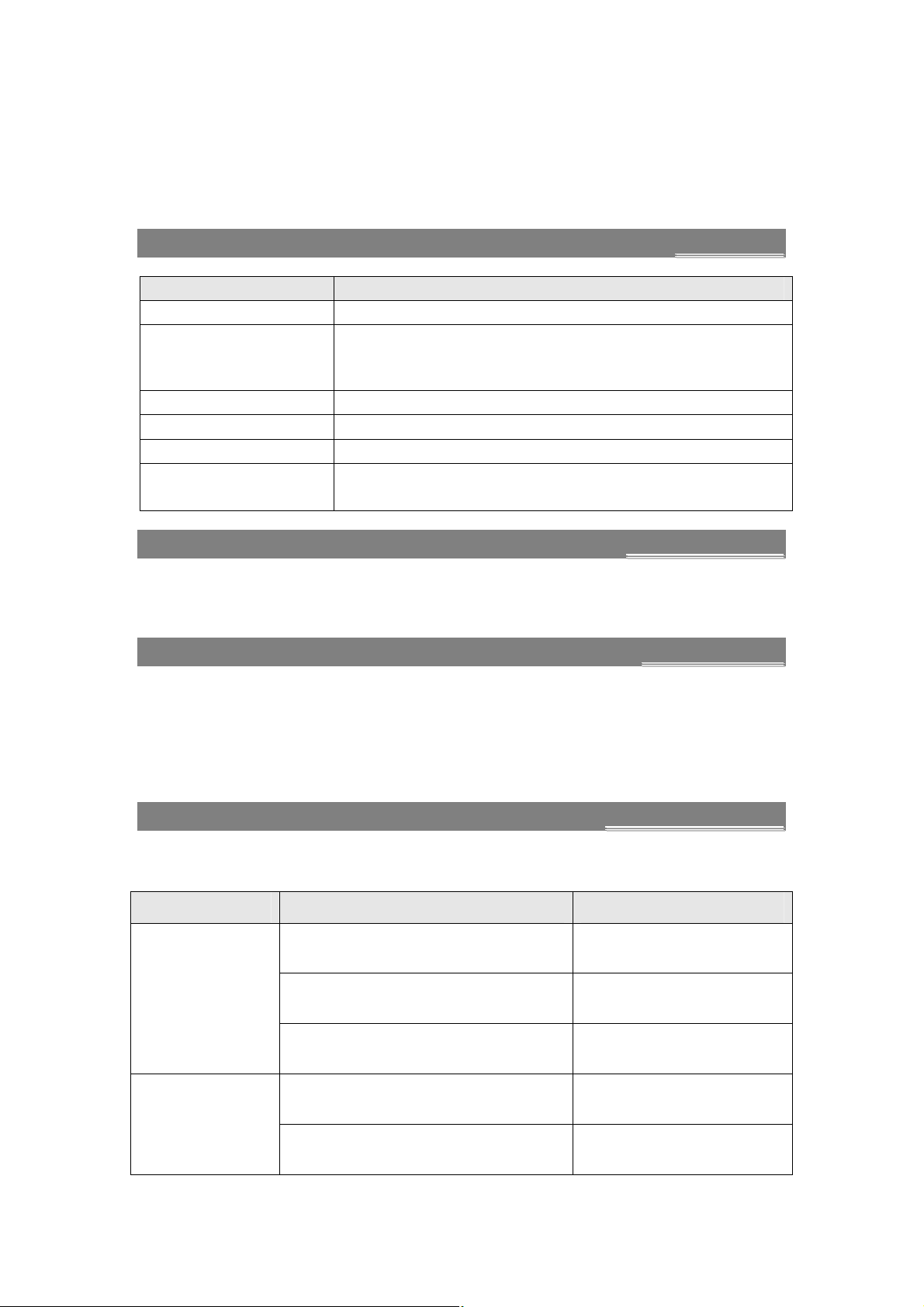
There are 6 modes you can set, Including General, Vibrator, Meeting, Outdoor, and two
custom modes.
For every mode(except Vibrator mode), you can set the Incoming Call Alert, Ringing
Tone, Ringing Volume, Vibrating Alert, Message Alert Tone, Keypad Tones, and
Warning Tones. For the custom modes, you can also modify the profile name.
1111 OOrrggaanniizzeerr
Functions Description
View the world clock Menu > Organizer > World Clock
View calendar /
Schedule management
Set alarm Menu > Organizer > Alarm
Use calculator Menu > Organizer > Calculator
Use stop watch Menu > Organizer > Stop Watch
Use Notepad Menu > Organizer > Notepad
Menu > Organizer > Calendar
You can press View to view the schedule of the focus date.
You can also select Options> New to add a new schedule.
You can add or delete notes handily.
1122 UUTTKK SSeerrvviicceess
If your UIM card supports UTK, you may use the corresponding value-added services.
Menu > Services
1133 MMaaiinntteennaannccee
Use a dry soft cloth to wipe general dirt. For a large amount of dirt, use a soft towel soaked
with neutral scour and twisted to gently wipe the dirt and use a dry soft cloth to wipe the
phone.
Do not use a hard cloth, benzene or thinner to wipe the phone, otherwise, the surface of
the phone will be scratched, change color or fade.
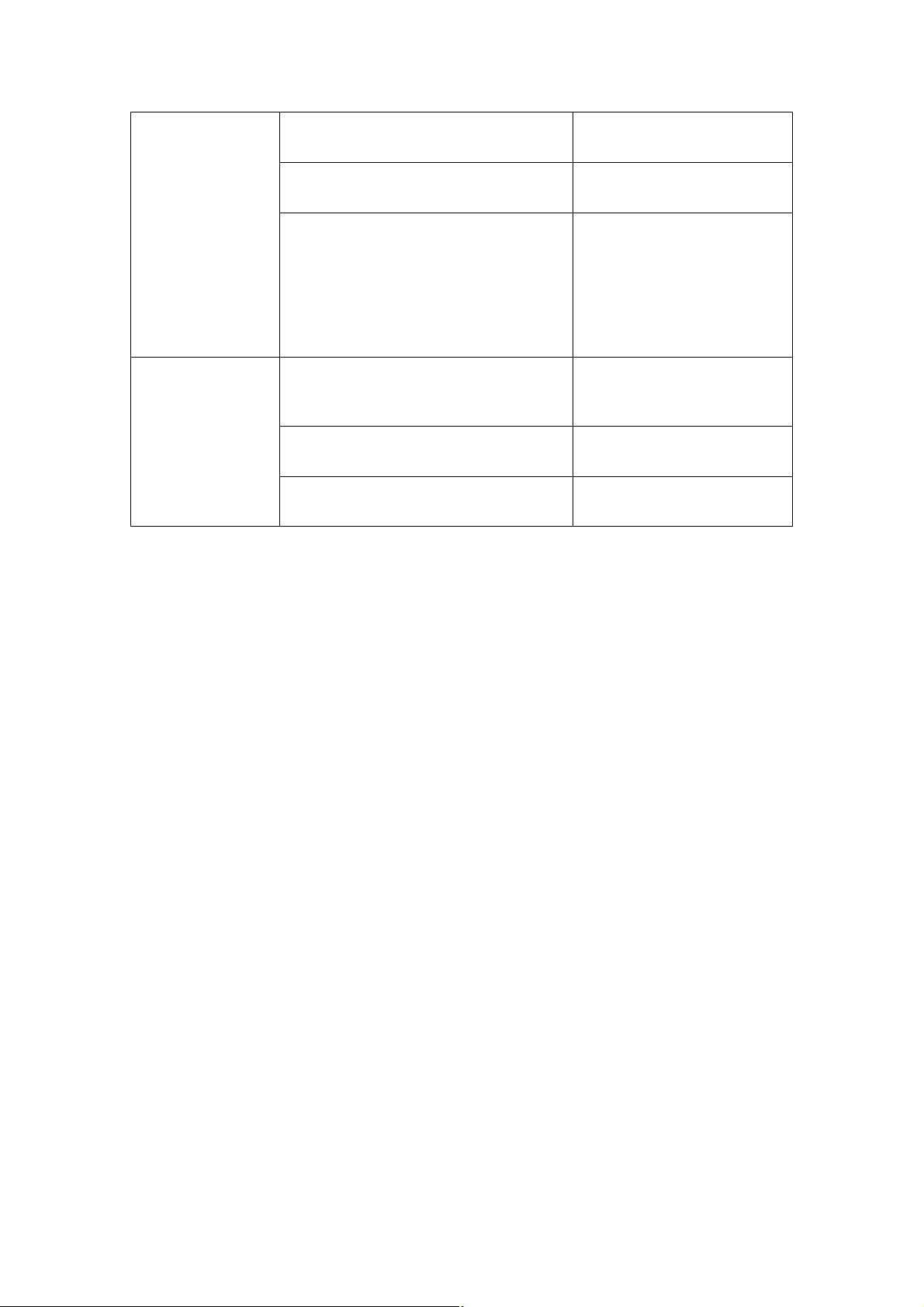
1144 TTrroouubblleesshhoooottiinngg
If any problem occurs in your phone, please refer to the help information in the table below.
If the problem continues, contact the dealer.
Problem Possible Causes Solutions
l Charge the battery.
l Press End key for over 2
seconds.
l Insert the battery
correctly.
l Move to a place with
strong signal.
l Check that the number is
correct.
The phone can’t
be switched on.
I can’t make
calls with the
phone.
l Check if the battery power has
been used up?
l Do you press End key for adequate
time?
l Is the battery inserted correctly?
l Has the signal bar disappeared?
l Is the phone number correct?
Page 20 of 21
Page 21
l Are you in a place with weak
signal?
l Move to a place with
strong signal.
The call is
interrupted or
there is noise
during the calls.
The battery can’t
be charged.
l Is there any object around that
obstructs signal transmission?
l Are you talking when you are in a
high speed?
l Is the plug of the charger inserted in
the charging interface of the
phone?
l Is the power cable of the charger
disconnected from the socket?
l Is the battery too old?
l Go to another place.
l Signal will be interrupted
for very short time when
the phone passes
through different base
stations. Please slow
down or do not move
during calls.
l Insert it correctly.
l Check the connection.
l Replace it with a new
battery.
Page 21 of 21
 Loading...