

Page 1
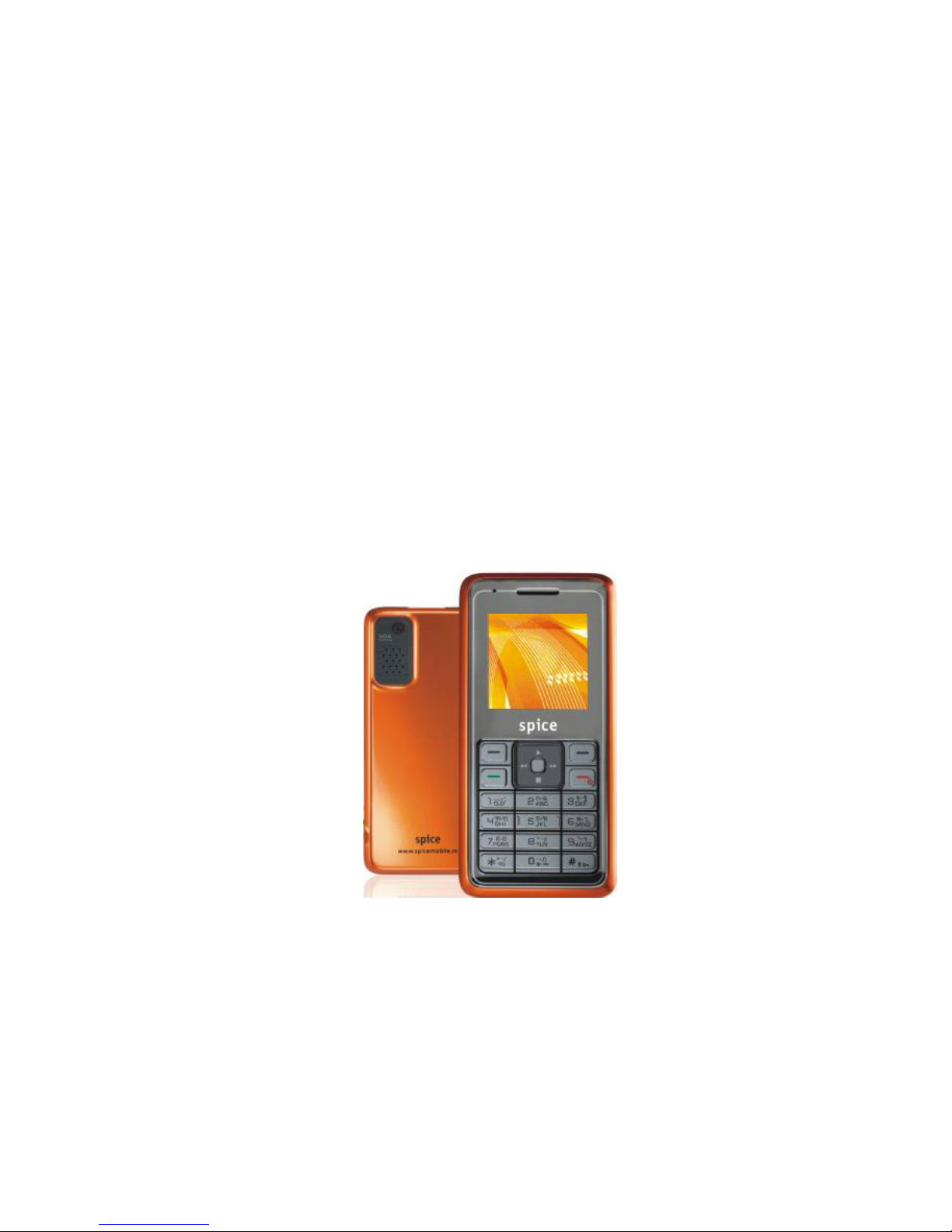
Spice S-705
User Manual
Copyright©2008 Spice Mobiles Ltd.
Page 2

.
Page 3

.
i
CONTENTS
YOUR PHONE .........................................................1
S
TANDBY MODE
................................................ 3
GETTING STARTED...............................................4
I
NSTALLING THE
SIM
CARD AND THE BATTERY
...... 4
C
HARGING THE BATTERY
.................................... 7
S
WITCHING THE PHONE ON AND OFF
.................... 8
CALL FUNCTIONS................................. ................9
M
AKING A CALL
.................................................. 9
A
NSWERING OR REJECTING AN INCOMING CALL
.. 10
C
ALL WAITING
................................................. 10
M
AKE A CONFERENCE CALL
.............................. 10
T
IPS FOR CALL OPTIONS
....................................11
INPUT METHOD...................................................12
PHONE BOOK ..............................................15
Q
UICK SEARCH
............................................... 15
S
EARCH ENTRY
............................................... 17
A
DD NEW ENTRY
............................................. 17
C
OPY
............................................................. 18
D
ELETE
.......................................................... 19
M
OVE
............................................................. 19
C
ALLER GROUP
............................................... 19
S
EARCH BY CALLER GROUP
............................ 20
E
XTRA NUMBER
............................................... 20
C
ALLER PICTURE
............................................. 22
Page 4

.
ii
C
ALLER RING TONE
......................................... 22
C ALL HISTORY ...........................................22
M
ISSED CALLS
................................................ 23
D
IALED CALLS
................................................. 23
R
ECEIVED CALLS
............................................. 24
D
ELETE CALL LOG
........................................... 24
C
ALL TIME
....................................................... 24
C
ALL COST
..................................................... 25
SMS C
OUNTER
............................................... 25
GPRS C
OUNTER
............................................ 26
SERVICES .......................................................26
WAP.............................................................. 26
Homepage ............................................... 27
Bookmarks............................................... 27
Recent Pages .......................................... 28
Enter Address.......................................... 28
S
ERVICE INBOX
............................................... 28
Settings.................................................... 29
MESSAGES ...................................................32
SMS (S
HORT MESSAGE SERVICE
) ................... 32
To write a message.................................. 33
To read messages ................................... 34
To send a message ................................. 35
MMS (M
ULTIMEDIA MESSAGE
) ......................... 39
To write a MMS........................................ 39
To send a MMS........................................ 41
Page 5

.
iii
Inbox ........................................................ 42
Outbox ..................................................... 43
Drafts........................................................ 44
Template .................................................. 45
MMS Settings .......................................... 45
C
HAT
.............................................................. 48
To start chatting ....................................... 49
V
OICE MAIL SERVER
........................................ 50
B
ROADCAST MESSAGE
.................................... 51
FILE MANAGER ..........................................52
DRM R
IGHTS
................................................. 52
M
EMORY CARD
................................................ 52
ORGANIZER ................................................53
C
ALENDAR
...................................................... 53
TO DO L
IST
..................................................... 55
A
LARM
............................................................ 55
C
ALCULATOR
................................................... 59
MUSIC PLAYER ...........................................60
Play the music ......................................... 60
MEDIA CENTER ..........................................63
C
AMERA
......................................................... 63
GAMES ........................................................... 65
I
MAGE VIEWER
................................................ 66
V
IDEO RECORDER
........................................... 68
V
IDEO PLAYER
................................................ 70
Page 6

.
iv
S
OUND RECORDER
.......................................... 72
FM R
ADIO
...................................................... 73
S
CHEDULE
FM R
ECORD
.................................. 75
SETTINGS .....................................................76
U
SER PROFILES
.............................................. 76
To activate the User Profiles.................... 76
To edit the Profiles................................... 77
P
HONE SETTING
.............................................. 78
T
IME AND DATE
............................................... 78
S
ET HOME CITY
.............................................. 78
S
ET TIME/DATE
............................................... 78
S
ET FORMAT
................................................... 79
S
CHEDULE POWER ON/OFF
............................. 79
L
ANGUAGE
...................................................... 79
Preferred Inp ut Method............................ 80
D
ISPLAY SETTING
............................................ 80
Greeting T ext ........................................... 82
S
PEED DIAL
.................................................... 82
Dedicated Key ......................................... 83
Flight Mode.............................................. 83
Misc Setting ............................................. 83
Shortcuts.................................................. 84
CALL SETTING................................................. 86
Caller ID................................................... 86
Call Waiting.............................................. 86
Call Divert................................................ 87
Call Barring.............................................. 88
Line Switching.......................................... 88
Page 7

.
v
Call Time Reminder................................. 89
Call Time Display..................................... 89
Auto Redial .............................................. 89
Closed User Group.................................. 89
N
ETWORK SETTING
......................................... 90
Network Selection.................................... 90
Preferred Network.................................... 90
GPRS Connection ................................... 92
SECURITY SETTING.......................................... 92
SIM Lock.................................................. 92
Phone Lock.............................................. 92
Auto Keypad Lock.................................... 92
Fixed Dial................................................. 93
Barred Dial............................................... 93
Change Password................................... 93
Restore Factory Settings......................... 93
GENERAL INFORMATION.................................94
A
CCESSORIES
................................................. 94
B
ATTERY CARE
................................................ 94
A
CCESS CODES
.............................................. 96
C
ARE AND MAINTENANCE
................................. 97
I
MPORTANT SAFETY INFORMATION
.................... 99
EMERGENCY CALLS........................................104
Page 8
.
1
Your Phone
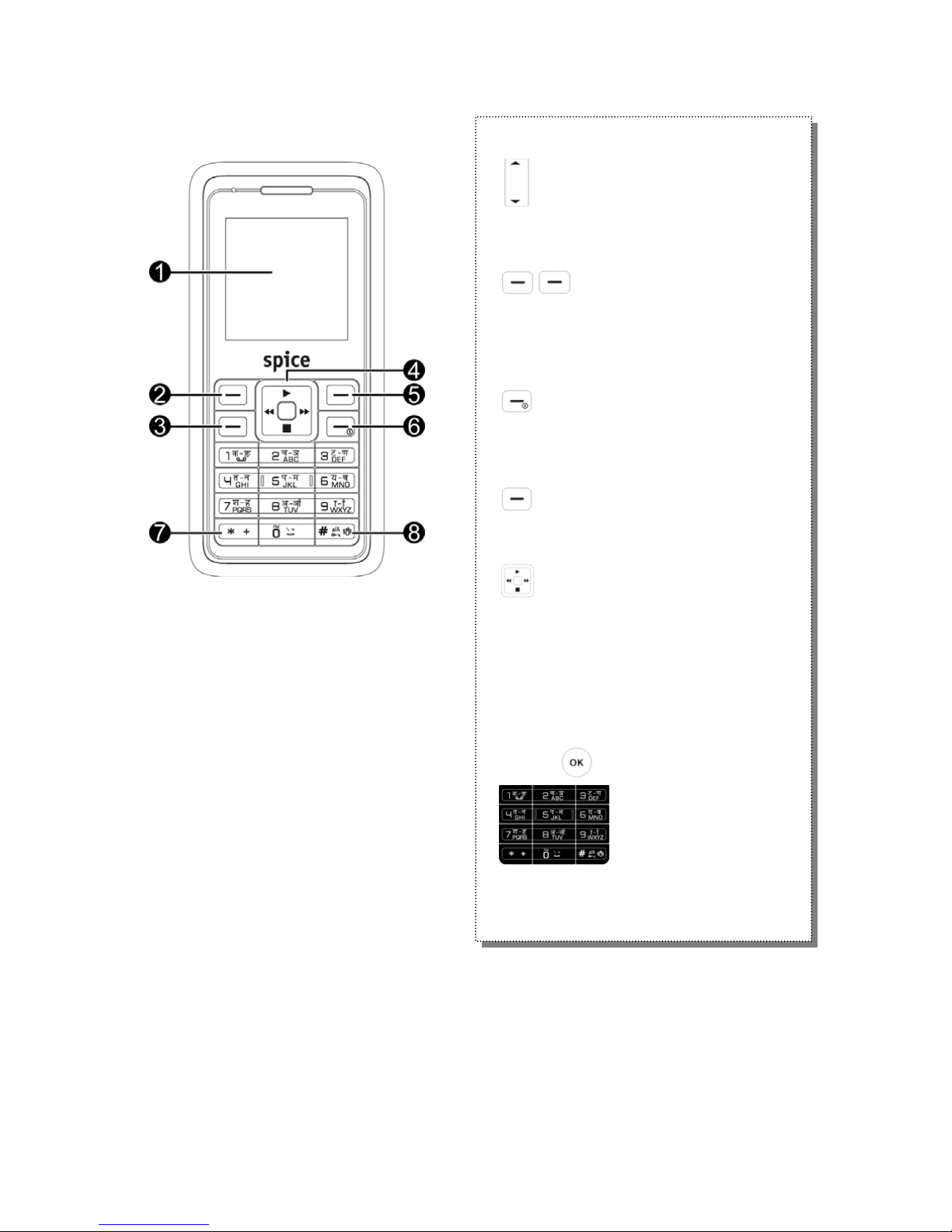
1. Main display
2. Left soft key (LSK)
3. Talk key/Y es key
4. Navigation keys
5. Right soft key (RSK)
6. Power on/End call
7. * key
8. # key
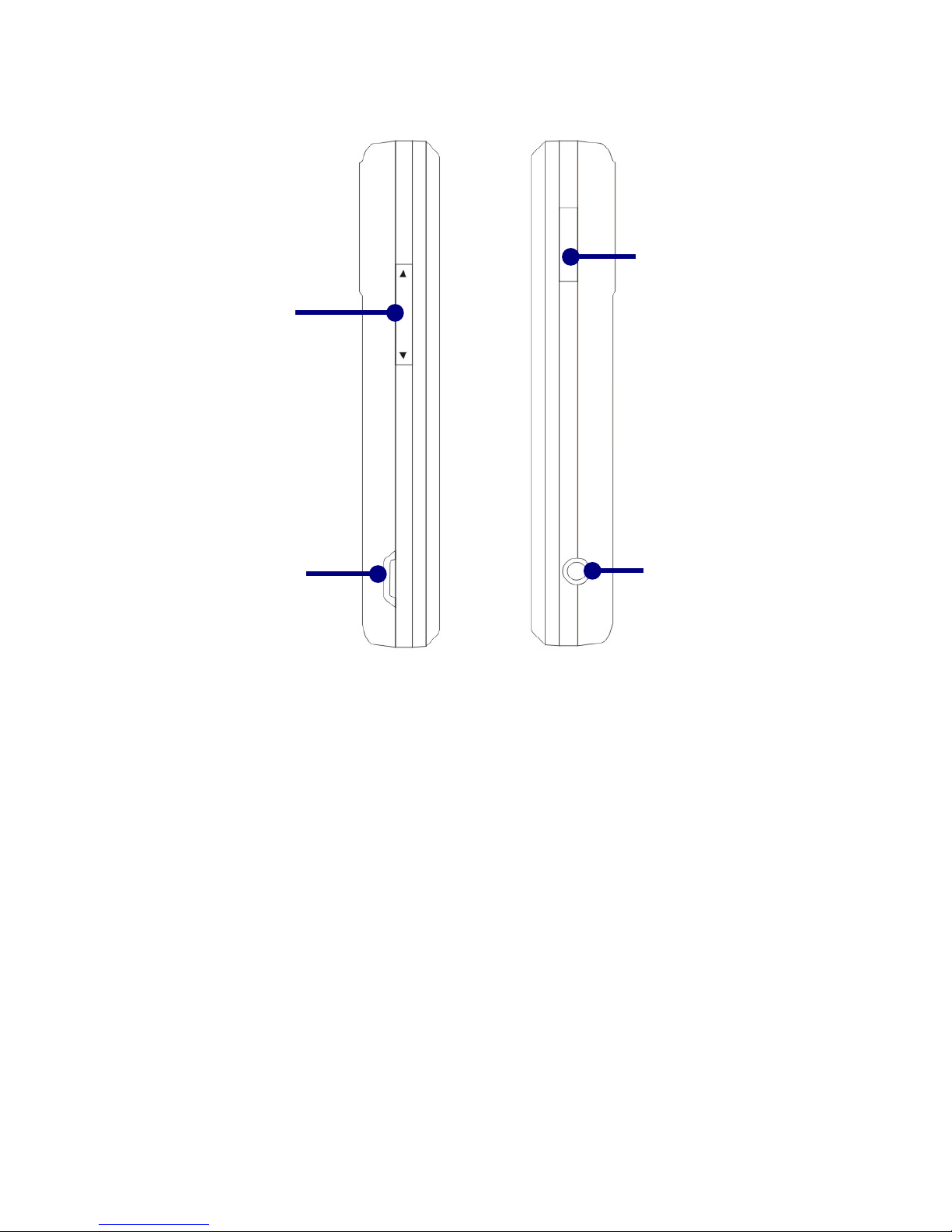
Side key- Volume (+ -)
• During a call, adjusts the
earpiece volume.
Soft key
• The current functions are
displayed in the bottom line of
LCD. Access main menu and
phonebook accordingly.
Off Hook
• To make phone call when
dialing phone number or pick
up a phone call
On Hook
• To hand on a call during a call
• Or power on/off use.
Navigation key
• In standby mode, quick access
to
↑
Spice Gang
←
Write Message
→
Music Player
↓
Shortcut
OK/Confirm key
Number key
• Input number or characters
Page 9
Copyright © 2008 Spice Mobiles Ltd.
2
Earphone Jet
MicroSD slot
Volume key
MiniUSB cable &
charger connector
Page 10
.
3
Standby Mode
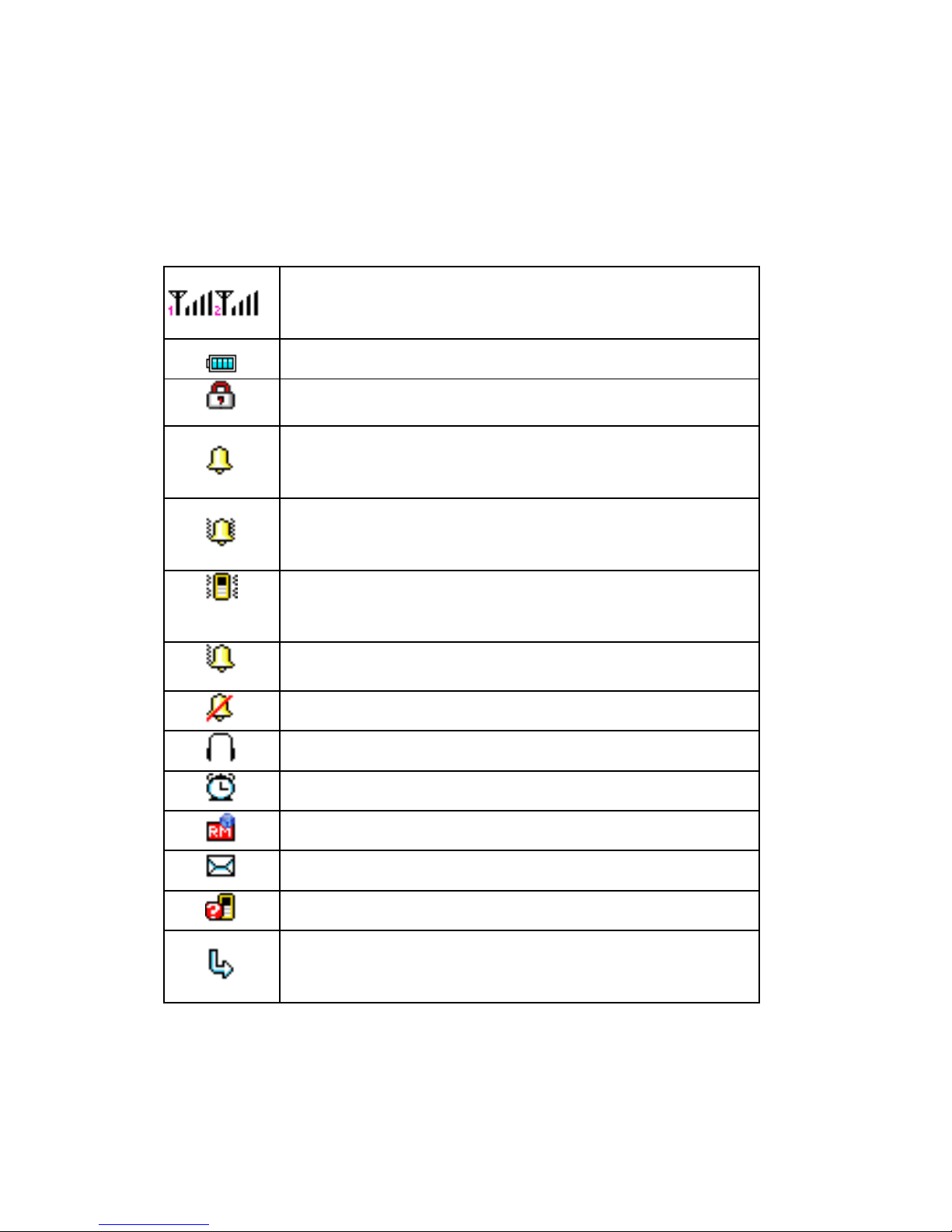
In the main display, you may see several icons
showed on your status bar.
The meaning of icons are explained in the below:
The signal strength of the cellular
network at your current location
The battery charge level
Phone locked
Phone is in general, indoor profile
(Alert type: Ring)
Phone is in outdoor profile (Alert type:
Ring and vibrate)
Phone is in meeting, silent profile
(Alert type: Vibrate only)
Alert type: Ring than vibrate
Alert type: Light only
Phone is in headset profile
The alarm clock is to set on
You are in roaming
Message(s) received
Missed call
Call forward; All your calls are
diverted to another number
Page 11
Copyright © 2008 Spice Mobiles Ltd.
4
Getting Started
Installing the SIM card and the battery
You need to insert the SIM card and charge the
battery before using the phone.
• Keep all miniature SIM cards out of the reach
of little children.
• Be careful to handle, insert or remove the SIM
card since the SIM card and its contacts can
easily be damaged by scratched or bending.
• Before installing/removing the SIM card,
always make sure that the phone is switched
off.
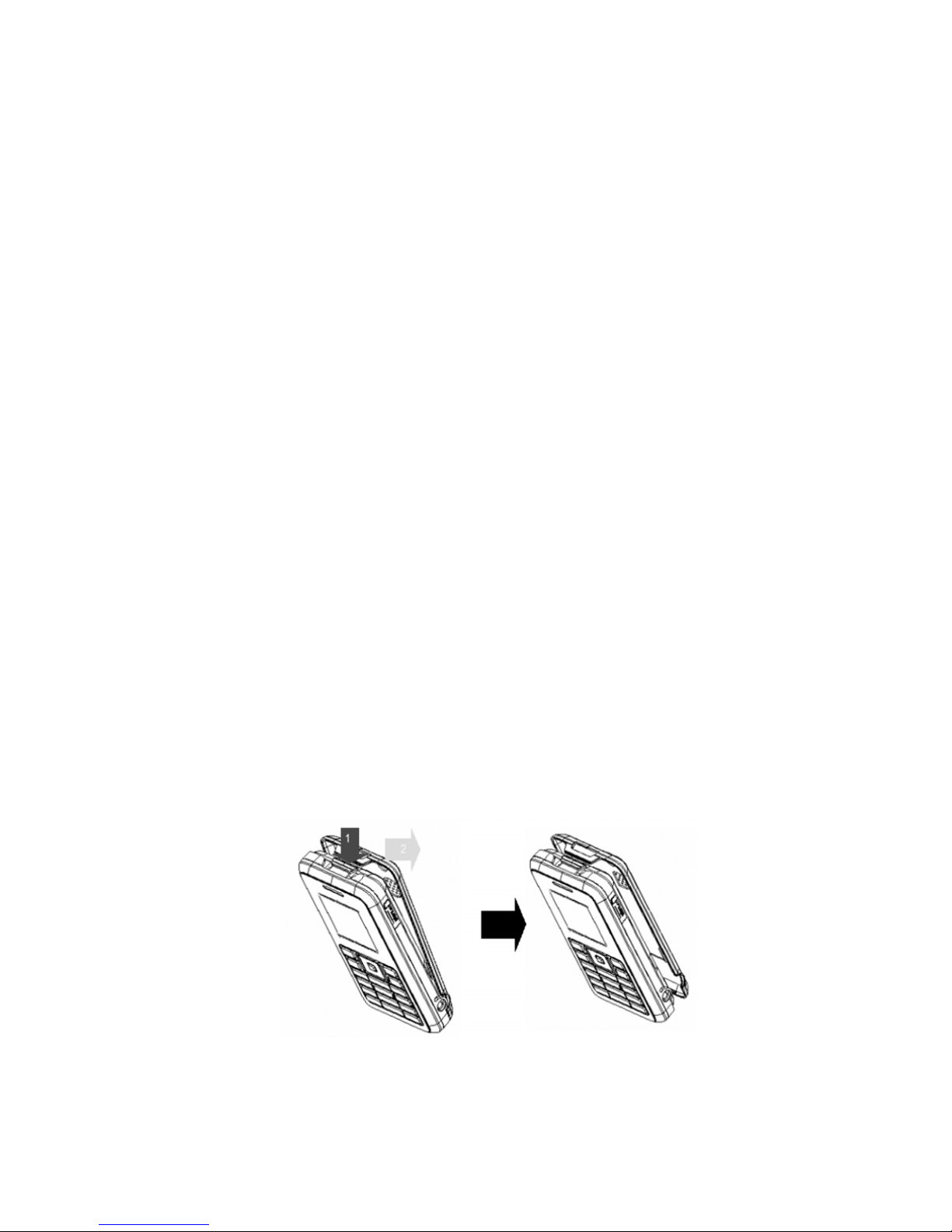
1. Put your thumb on the button located on the
top of the phone as indicated by the down-side
arrow in the left-side picture (A) below. Then,
press down and drag toward to the direction
as shown by right-side arrow in the left-side
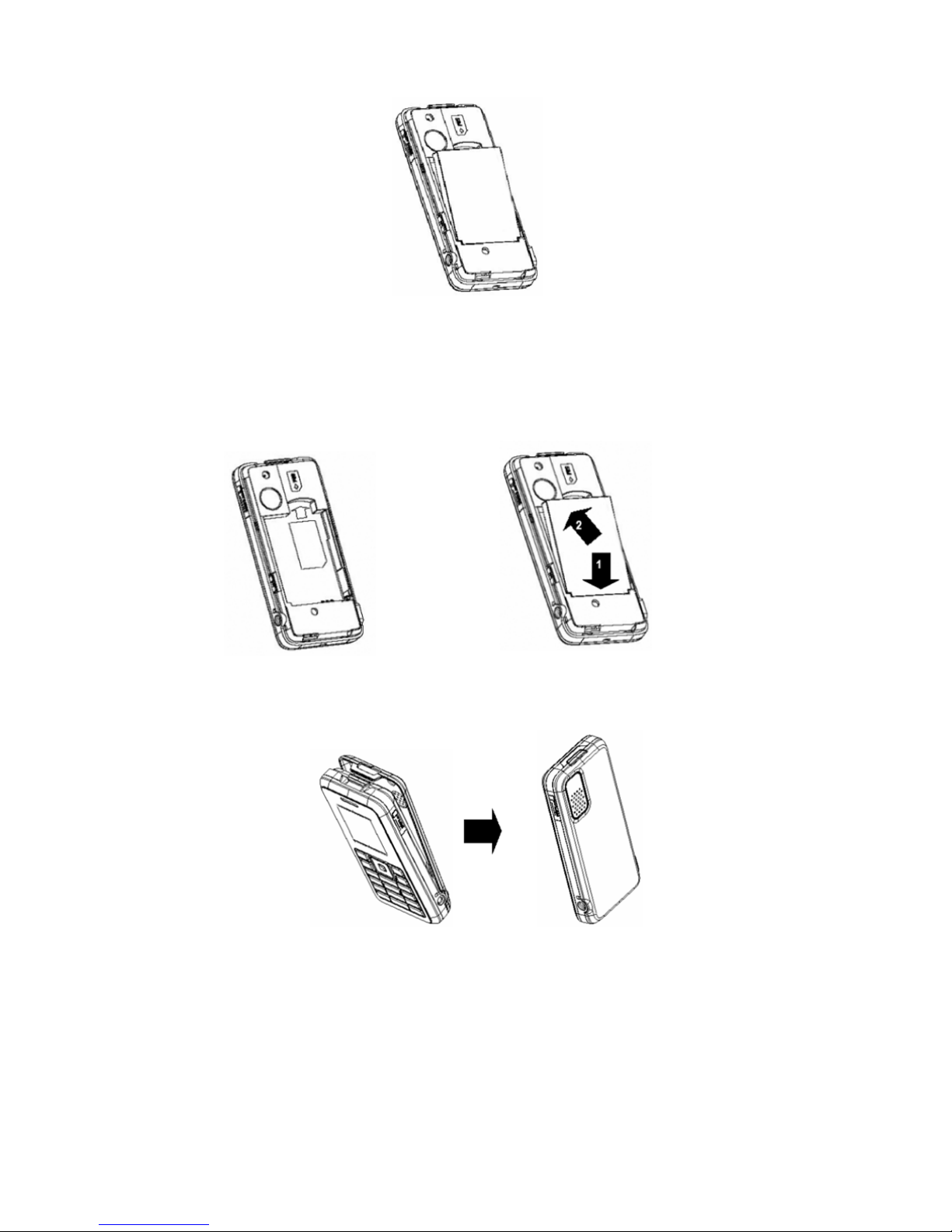
picture (A). Detach the battery cover from the
mobile phone itself (B).
(A)
Page 12
.
5
(B)
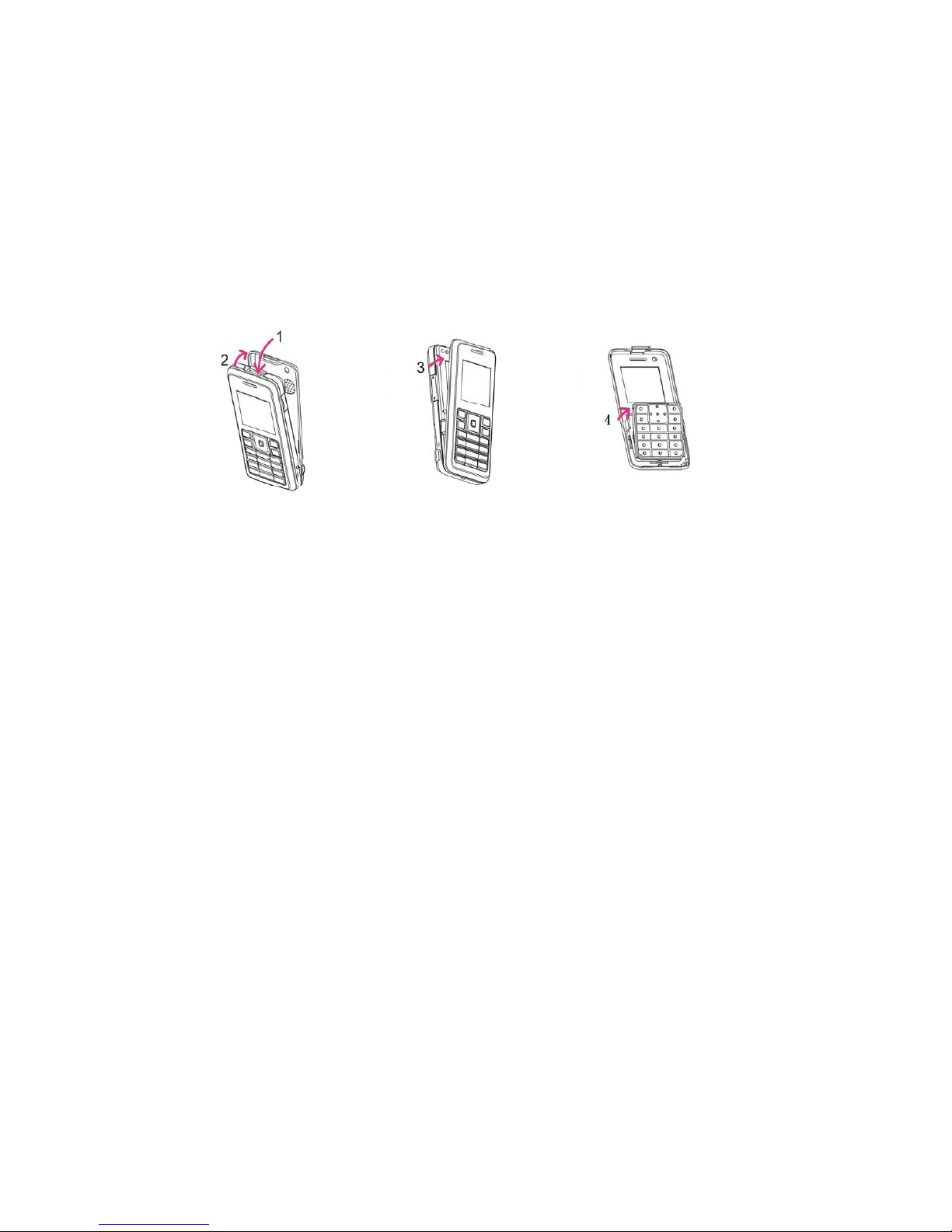
2. Insert and slide the SIM card (C), battery (D)
and battery cover (E).
(C) (D)
(E)
Page 13
Copyright © 2008 Spice Mobiles Ltd.
6
Change the front cover
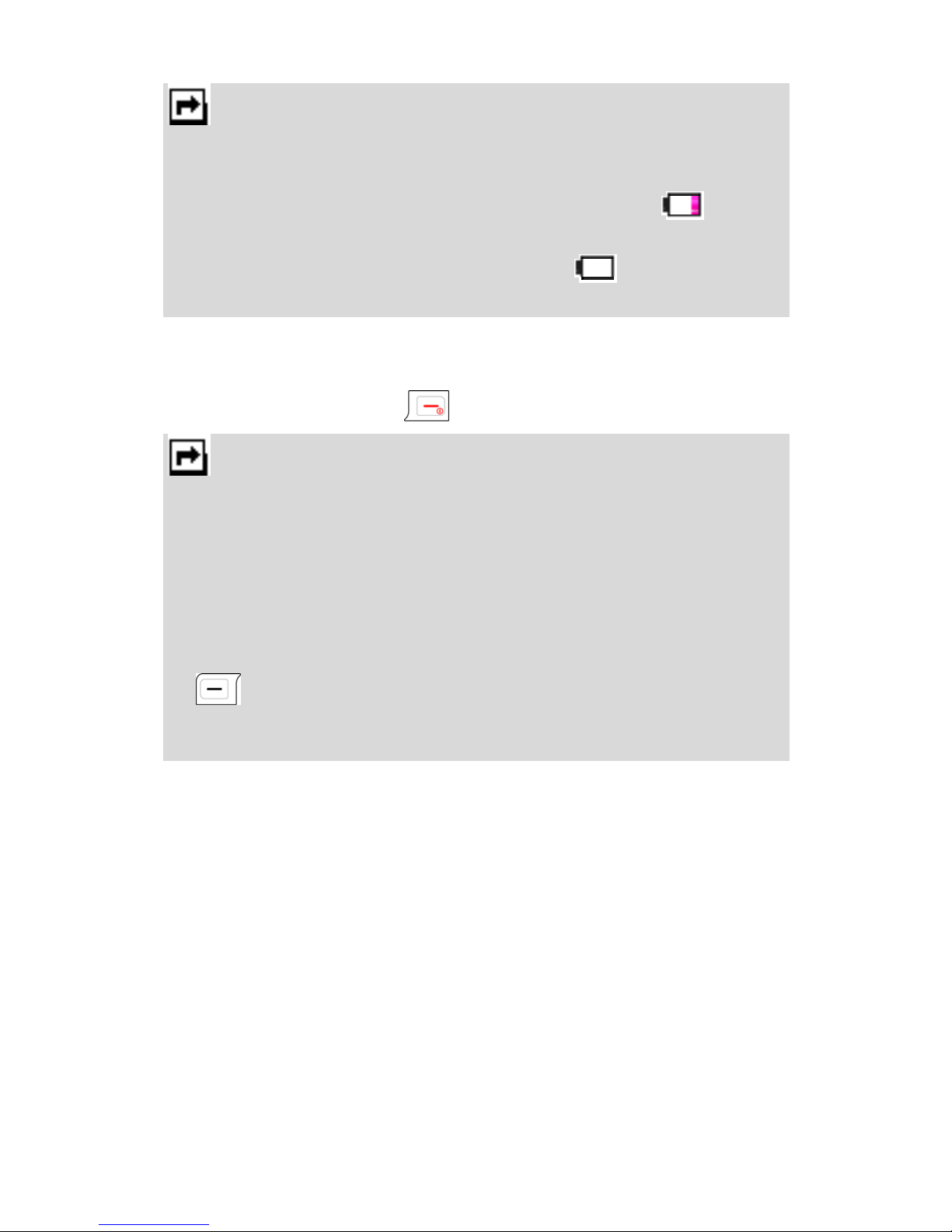
Spice S-705 is designed with an exchangeable
front cover. User is allowed to change the front
cover according to personal preference.
Step1: press and hold the Battery Cover lock at position as shown in the picture
Step2: Remove Battery Cover
Step3: Remove Front Cover by pulling from the top in the direction as shown in
the picture
Step4: Remove Key Pad from Front Cover
Page 14

.
7
Insert th e M i cr oSD card
Spice S-705 is designed to support expansion
card—MicroSD card slot. Before inserting the
MicroSD card, please make sure the golden pad
side needs to be faced up, as shown below:
Charging the battery
You must fully charge the battery before using
your phone for the first time.
1. Connect the lead of the travel adapter to the
socket on the left of your phone (A).
2. Connect the charger to an AC wall outlet (B).
(A) (B)
Page 15
Copyright © 2008 Spice Mobiles Ltd.
8
Notes:
1. You can use the phone while the charger is connected but
charging is suspended during that time.
2. When the battery level is weak as indicated by “ ”on the
display, you will hear a warning sound. When the battery
level becomes too low as indicated by “ ” on the display,
the pone will be switched off automatically.
Switching the phone on and off
•
Press and hold key.
Notes:
1. If the phone shows “Insert SIM” when SIM card is properly
inserted, contact your network operator or service provider.
2. You can also use the phone without SIM card. The workable
functions would include multimedia, profiles, Organizers&
time and date except the dialing out and receiving the phone
call.
3. If the phone asks PIN code, key in the PIN code, and press
left soft key (LSK) to confirm.
4. Do not switch the phone on when wireless phone use is
prohibited or when it may cause interference or danger.
Page 16

.
9
Call Functions
This gives you information about the calling
service supported in your phone.
Making a call
In standby mode, key in the number, including the
area code, press
key.
Making a call from the Phone Book
1. In standby mode, press
right soft key to
enter Contact, select one name or key in the
name in the search bar, followed by pressing
key to call.
2. You could also press Menu and choose to
enter Contact submenu to make a call.
Making an international call
1. For international calls, double-press
key
for the international prefix (character +).
2. Key in the country code, area code and the
phone number.
3. Press
to call.
Page 17

Copyright © 2008 Spice Mobiles Ltd.
10
Answering or rejecting an incoming call
To answer the incoming call
• Press to answer the call.
To reject the incoming call
• Press to reject the call.
• You can also reject an incoming call by doing
the following steps:
Press
(LSK) when the phone rings.
Select “Deflect” option to reject the call.
Call Waiting
You can answer another incoming call while you
have a call in progress. During a call, press
left soft key (LSK) to enter option menu to hold a
call.
Make a conference call
You can make a conference call while you have
multi calls in progress.
1. Make a call to the first participant.
2. Call the second participant by pressing Option
during an active call, and select New call to
make a new call during an active call.
3. Press
LSK and select Conference. This
joins the calls to the conference.
4. Repeat step 2 and 3 to allow new participants
to be connected to the conference call.
5. Press Options and select End all to end the
Page 18

.
11
call. Or press
.
6. Any call (participant) can be disconnected by
pressing Option and select End single.
Tips for call options
A call can be connected to any single caller by
pressing Option. When you press Option during
an active call, you would have following functions
as listed in below:
1. Hold: put a call on
2. End: End a call.
3. New call : make a new call during an active
call.
4. Contact: shortcut to Contact menu.
5. SMS: shortcut to Write message menu.
6. Sound Recorder: to record your conversation
during an active phone call.
7. Mute on/off: set On/ Off to mute the call
during the conversation.
8. DTMF: set On / Off for DTMF (Dual Tone
Multi-Frequency) tone dialing system.
Page 19

Copyright © 2008 Spice Mobiles Ltd.
12
Input method
You can type text by using the traditional method
or predictive smart input. You can enter letters
individually or with predictive text entry, which
helps you complete words as you enter them.
You can enter letters in upper case, lower case,
or both, or insert symbols. Your phone is
designed to support English and Hindi
languages.
To select input method
You can select the preferred language from
Setting>Phone Setting>Language.
Note:
The option of
Automatic
in
Language
depends on
your service provider and languages supported by
your phone. If you select
Automatic
, your phone
will auto detect the language supported by your SIM
and phone.
A quick way to change input method:
Short Press
to change the input method.
To insert a space
In multi-tap or T9 input method, you could use
key to insert spaces.
Page 20
.
13
Traditional English input
Your phone provides Multi-tap function. For
example, press
key twice to display letter B,
and press three times to display letter C.
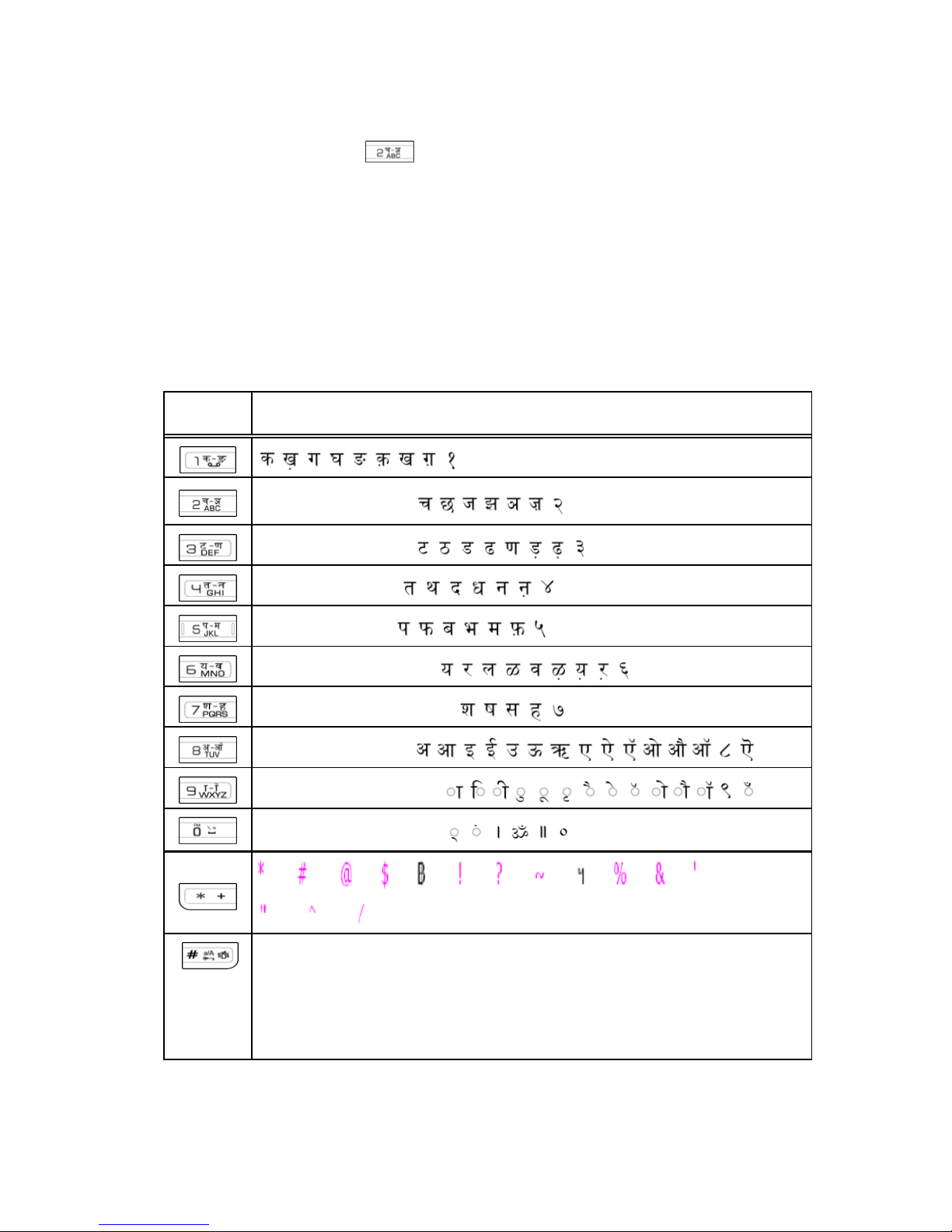
The character tables (English and Hindi) below
display the characters when you press the
keypad using English or Hindi input methods.
Characters Table
Key Unshifted and shifted Character
A B C a b c 2
D E F d e f 3
G H I g h i 4
J K L j k l 5
M N O m n o 6
P Q R S p q r s 7
T U V t u v 8
W X Y Z x y z 9
SPACE 0 F.M.
In Idle mode, short press to type # symbol,
long press to activate vibrator, press after
RSK to lock keypad. In Edit mode, press to
change the input methods.
Page 21
Copyright © 2008 Spice Mobiles Ltd.
14
Text entry with “T9”
“T9” uses a built-in dictionary to recognize the
most commonly used word for every sequence of
key presses.
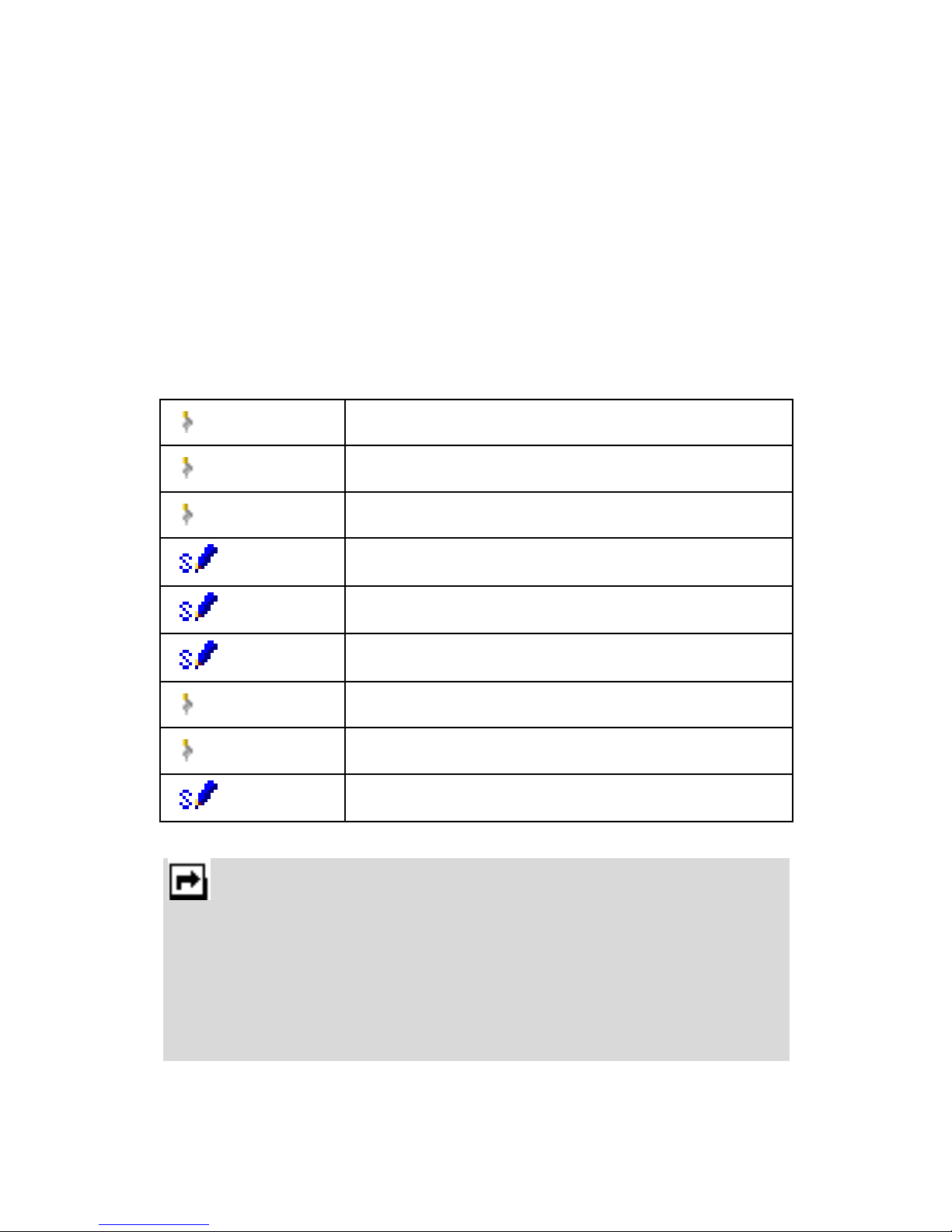
The selected input method will be shown the icon
in the indication bar. You can choose to turn on or
off your T9 input method in option list.
Input Methods options available:
Notes:
You can also Insert Symbol in Input Method. Press
Messages>SMS>Write Message>Optio n>Input
Method>OK>Insert Symbols
. The phone offers 36
special symbols. Use four ways navigation keys to
highlight the symbol you want to insert and press
OK
to
select it.
ABC Multitap ABC
Abc Multitap Abc
abc Multitap abc
ABC
Smart ABC
Abc
Smart Abc
abc
Smart abc (English Smart mode)
123 Numeric
Hindi Hindi
Hindi
Smart Hindi
Page 22

.
15
Phone Book
Your phone book is saved either in the SIM card’s
memory or Phone’s memory. You can also
choose to save in both memories.
Quick Search
Allow you to search names and numbers saved
in the contacts.
To search a number and a name:
In Phone Book menu, key in full name or first
character of contact person’s name through
Quick Search or Search Entry. The contact list
will automatically jump to the contact list with the
character you have entered or the matched
contact will be shown.
1. Also, you can review the contact list by
scrolling up/down the navigation key
.
Select the one you wish to call by pressing
to start making a call.
Press
(Center-OK key) or Option to edit the
selected phone number.
Page 23

Copyright © 2008 Spice Mobiles Ltd.
16
Your phone provides the following selections
for Entry Option:
• Send SMS: Allow you to send the SMS
to the selected person.
• Send MMS: Allow you to send the MMS
to the selected person.
• View: Allow you to read the contact
person’s information.
• Edit: Allow you to edit name & phone
number of the contact person.
• Delete: Allow you to delete the selected
contact person’s information.
• Copy: Allow you to copy the contact
person’s information to phone or SIM.
(depend on where you have saved the
phone number.)
• Move: Allow you to move the select
contacted person’s information to phone
or SIM.
• Duplicate: Allow you to duplicate the
selected contact person’s information to
the same memory storage.
•
Send vCard: Allow you to send vCard to
the selected contact person. Press OK
to select sending vCard by Send By
SMS, Send By MMS or Save to File.
Page 24

.
17
Search Entry
Allow you to search names and numbers saved
in the Phone Book by keying in the character.
1. In Phone Book menu, select Search Entry.
2. Key in full name or 1st letter of the name you
wish to call. The matched contact will be
shown.
3. Press
to start making a call.
4. The option list will be the same as you process
quick search function.
Note:
To quick change the input method, short press
pound (#)
key.
Add New Entry
Allow you add new name and number in the
Phone Book saved in either in phone or SIM
memory.
To add a phone number and a name in phone
book.
1. In Phone Book menu, choose Add New
Entry, select Storage Location: To SIM card
or To Phone, press OK or
center key.
Also, you may add contacts directly from idled
screen by entering the numbers.
2. Key in the name, press OK and use navigation
key to select the number column, and key in
the phone number.
Page 25

Copyright © 2008 Spice Mobiles Ltd.
18
3. You may also edit the name, home number,
company name, email address, office number,
fax number, birthday, image, ring tone and
caller group for individual contact if you
choose to save the contact in phone instead of
SIM card.
Notes:
1. Your phone allows you to save 1000 entries of phone
numbers.
2. During editing the contact number, you may change the input
method anytime by short pressing
.
Copy
You can copy and transfer your phone data from
SIM card to your phone (or from phone to SIM).
1. In Phone Book menu, select Copy.
2. Choose an item from All From SIM, All From
Phone or One by One, and press OK.
Page 26

.
19
Delete
Your phone allows you to delete all numbers and
names stored in the Phone Book.
1. In Phone Book menu, select Delete.
2. Choose All From SIM, All From Phone or
One by One, and press OK.
Move
Your phone allows you to move all numbers and
names stored in the Phone Book.
1. In Phone Book menu, select Move.
2. Choose All From SIM, All From Phone or
One by One, and press OK.
Caller Group
You can send a message to all members of a
group at the same time through this setting.
To add a name in a Caller Group:
1. In Phone Book menu, choose Caller Group,
and press OK.
2. Choose one group from caller group list, and
press OK.
3. You are allowed to edit ring tone, and pictures.
4. Choose Member List, press OK.
5. Press Add, and then choose from Phone
Book.
Page 27

Copyright © 2008 Spice Mobiles Ltd.
20
Notes:
1. Your phone provides 5 caller groups including:
Friends,
Family, VIP, Business & Others.
2. You need to store contacts into phone if you want to add
contacts into Caller Group function.
Your phone provides the following selections for
your option:
•
Group Name: Groups includes Friends,
Family, VIP, Business and Others. You are
allowed to edit the group name.
• Ring Tone : Allow you to set the profile of ring
tone for this particular call group
•
Pictures: Allow you to set a picture for the
group.
•
Member List: Allow you to add a member in
the specified group.
Search By Caller Group
You can search your contact list by group. There
are 5 different default caller groups: Friends,
Family, VIP, Business and Others.
Extra number
Allow you to edit Owner Number, Service Dial
Number and SOS Number for your personal
preference.
Page 28

.
21
Note:
Your service provider may program some special
phone numbers into your SIM. It is not possible to
modify the Service Dial Numbers if it is not
supported.
Settings
Your phone provides you various setting options
to personalize your phone, including:
1. Memory Status: You can check what
percentage of the phone’s internal memory is
unoccupied and how many name and number
entries can still be stored in SIM card’s and
Phone’s memory.
2. Preferred Storage: You can choose your
preferred storage in phone, SIM or both.
3. Fields: You may customize the contact
information you want to show on your display.
4. My vCard: Allow you to edit your personal
vCard saved in the handset.
• Edit my vCard: Enter the submenu, and you
may input your vCard information
• Send my vCard: Allow you to send your
vCard via SMS, MMS or file transfer.
Page 29

Copyright © 2008 Spice Mobiles Ltd.
22
Caller Picture
Allow you to use your friend’s photo or any other
picture as his/her picture ID when calling.
Caller Ring Tone
Allow you to personalize the incoming ring tone
for specific person or caller group in your contact
list.
Call History
Your phone can save information for missed,
received and dialed calls and the length and cost
of your calls.
Notes:
1. For Missed, Dialed & Received Calls, you can press talk.
2. Once the call list exceeds the memory limitation, the oldest
one is deleted.
Press
to have a quick review. Your phone
provides several options: Delete, Save to
Contacts Dial, Edit, Send SMS or Send MMS
if you select a certain phone number.
Page 30

.
23
Missed Calls
Your phone allows you to view the last 30 Missed
Calls.
To view Missed Calls:
• In Call History menu, choose Missed Calls,
and press OK to view the records.
Dialed Calls
Your phone allows you to view the last 30
outgoing calls.
To view Dialed Calls:
• In Call History menu, choose Dialed Calls
and press OK to view the records.
Your phone provides the following selections for
your option:
• Delete: Allow you to erase the number from
the list.
• Save to Contact: Allow you to save the
number in Phone Book.
•
Dial: Allow you to call the number shown on
the screen.
•
Edit: Allow you to edit the number.
• Send SMS: Allow you to send a text
message to the number shown on the screen.
• Send MMS: Allow you to send a multimedia
message to the number shown on the screen.
Page 31

Copyright © 2008 Spice Mobiles Ltd.
24
Received Calls
Your phone allows you to view the last 30
Received Calls.
To view Received Calls
•
In Call History menu, choose Received Calls,
and press OK to view the records.
Delete Call Log
Your phone allows you to delete some of your call
history.
• Missed Calls/Dialed Calls/Received Calls/
Delete All
Call Ti me
Your phone allows you to view the timers for calls
made and received.
1. In Call History menu, choose Call Time and
press OK.
2. Choose an item, and press OK to view the
content.
Page 32

.
25
Your phone provides the following selections for
your option:
•
Last Call Time: List out the last call time of
your conversation.
• Total Sent: Sum of total time you have called
out.
•
Total Received: Sum of total call time you
have received.
•
Reset All Time: Reset the time counter to zero.
Call Cost
This function allows you to check the cost while
making phone call. However, you would need to
contact with your service provider for password.
Your phone provides the following selections for
your option:
• Last Call Cost: Last call you made
•
Total Cost: Sum of costs you made so far
•
Reset Cost: To reset the counter
•
Max Cost: To set the max cost allowed
•
Price Per Unit: To set the unit cost of the call
SMS Counter
This function allows you to check the numbers of
message. It is a counter. You may press reset to
restart the counter.
•
Sent: The message number you sent
•
Received: The message number you received
Page 33

Copyright © 2008 Spice Mobiles Ltd.
26
GPRS Counter
This function allows you to check the data size of
GPRS packet you used.
• Last Sent: The message size you last time
sent
•
Last Received: The message size last time
you received
• All Sent: The total message size you have sent
•
All Received: The total message size you
have received
• Reset Counter: To reset the counter
Services
Services described below are supported by your
service provider. If you cannot connect either
one of those services, you might contact with
your service provider for further information.
WAP
Your phones support Web Browser. You can
obtain various services such as up-to date news,
weather, sport, and other information as well as
use e-mail and other Internet services. These
services are designed and maintained by WAP
service providers.
The WAP service uses Wireless Markup
Language (WML) on their WAP pages. You may
not view the Internet web pages on your phone.
Page 34

.
27
Notes:
1. To activate WAP service, you may need to contact your
service provider.
2. Do not switch the phone on when wireless phone use is
prohibited or when it may cause interference or danger.
Homepage
To access the browser from the standby mode,
go to WAP in Service and press Homepage.
Once connected, the homepage is displayed. The
content depends on the service provider.
To exit the browser, press
key.
Bookmarks
You can use this menu to save URL addresses to
quick access a website.
Your phone also provides you for the following
selections for your option.
Goto: Allow you to link the website.
Edit: Allow you to edit URL address.
Delete: Allow you to delete the selected
bookmark.
Delete All: Allow you to delete all bookmarks at
once.
Add Bookmark: Allow you to add URL address.
Page 35

Copyright © 2008 Spice Mobiles Ltd.
28
Recent Pages
You can view the recent pages you have visited.
Press Goto to connect the selected page.
Enter Address
You can key in the URL address and enter the
address followed by selecting Done. Your phone
will connect the URL you just keyed in. After the
address is entered, you may select the URL and
press OK to connect next time.
Service Inbox
In addition to the functions available in the phone,
your service provider may offer additional
applications such as weather or stock market
information via the SIM card. This function is only
supported when SIM card inserted.
To set the Service Inbox service:
• In WAP under Services menu, choose Service
Inbox, press Select.
Notes:
1. For availability, you need to register for the services from
your service provider.
2. Accessing these services may involve sending an SMS for
which you may be charged.
Page 36

.
29
Settings
GPRS (General Packet Radio Service) is a
technology used for sending and receiving data
over the mobile network. The applications that
use GPRS are WAP services, MMS and SMS
messaging and GPRS dial-up (such as Internet
and e-mail). You can set the phone to
automatically register to a GPRS network when
you switch the phone on.
WAP Setting
If the settings have made by the service provider,
you may begin immediately. If access profiles
have been assigned by your service provider,
select a profile and activate it.
Otherwise, you may key in setting manually. For
appropriate settings, contact your network
operator or service provider.
Key in the service settings manually:
1. In WAP menu, choose Edit Profile in
Settings, and press OK.
2. Choose Edit Profile, select a profile to start
setting. You will be requested to provide the
information on Homepage, Data account,
Connection Type, User name, and
Password in your phone. To get the
information, you may need to contact your
operator.
Page 37

Copyright © 2008 Spice Mobiles Ltd.
30
Note:
In most cases, you only need to use one of the
default profiles to access the Internet. The settings
are different from operator to operator. Please
consult your operator or service provider for the
correct settings and proceed with care. Wrong
settings will cause connection to failure.
Activate WAP settings
After you complete all WAP settings (see WAP
settings function), please choose Activate
Profile in WAP Profile mode, and press OK.
Browser Options
You can set the timeout value for the browser.
The purpose is to stop the browser connecting
the website if the website does not respond within
the timeout. Also, you can choose either On or
Off to show the image while browsing.
Service Message Settings
You can choose either receive or not receive the
service message which is saved in the service
inbox sent by your service provider.
Clear Cache
The information or date you have accessed is all
stored in the cache of the phone. A cache is a file
buffer used to store dates temporarily. You can
clear the history by selecting this option.
Page 38

.
31
Clear Cookies
Under the consideration of privacy and security
issue, we would suggest you to clear cookies
which may contain sensitive information just in
case your phone is misplaced, lost or stolen.
Trusted Certificates
Displays trusted web certificates while browsing
and manages your "trust list". Trusted
Certificates are used to verify the WAP gateway
that you are trying to connect to. If you press
Trusted Certificates in Settings option under
WAP menu, you will see two trusted certificates
entries: Entrust.net and US VeriSign, Inc. You
may also download certificates from Arima
Communications Internet or other WAP pages.
Dat a Account
Default data accounts based on major operators
at the time this phone is manufactured are
provided.
You can access WAP via GSM or GPRS.
To get the analogue number or ISDN number
information, you may need to contact your
operator for the service.
To get the access point of GPRS, you may need
to contact your operator for the service.
Page 39

Copyright © 2008 Spice Mobiles Ltd.
32
GSM Data
Press Edit to change the GSM data account
settings, including: Account name, Number,
User name, Password, Line Type, Speed and
DNS.
GPRS
Press Edit to change the data account settings,
including: Account name, APN, User name,
Password and Auth . type.
Messages
Your phone services voice mail notification
messages and text messages. Voice mail, short
message service (SMS) and multimedia message
(MMS) are network service.
SMS (Short Message Service)
Your phone services voice mail notification
messages and text messages. Voice mail and
short message service (SMS) are network
service. Your phone also allows you to send and
receive text messages containing pictures or
melodies. A message with pictures was made up
of several text messages. Therefore, sending
messages with pictures may cost more than
sending one text message.
Page 40

.
33
To write a message
1. In Messages menu, choose SMS, press OK.
2. Choose Write message, press OK to write an
message.
3. You can also personalize your message with
more different special effect by selecting
following functions in option list which are:
Use Template: You might insert default
template for quick writing.
Insert Object: You might insert picture,
animation, melody and sound in your text
message.
Format Text: You might choose text size,
style, alignment or start with new
paragraph.
Insert Contact Number: You can select
the phone number from phone book.
Insert Contact Name: You can select the
name from phone book.
Insert Bookmark: You can insert the
bookmark saved in your phone to share.
Input Method: You might choose an input
method as you wish.
Notes:
1. To quick access Message function, you can press of
navigation key in standby mode.
2. To key in the content, please refer to
“Input method
“ on
page 12.
Page 41

Copyright © 2008 Spice Mobiles Ltd.
34
To read messages
When you have received a message, the
indicator
will appear on the display. If your
inbox is full, there will be a pop-up window to
remind you to delete some of your old
messages. Otherwise, your message will be
saved in the phone instead of SIM Card.
1. In Messages menu, choose SMS, press OK
and then select Inbox.
2. Choose one message you would like to read
by pressing OK to view the content.
Note:
The message you have received will be saved in
SIM as default setting.
When you read the message, your phone
provides following selections for your options.
• Reply: Allow you to reply by sending a text
message.
• Delete: Allow you to delete the message in
progress.
• Edit: Allow you to edit the text message.
• Forward: Allow you to forward a text
message.
• Copy to SIM: Allow you to copy the
selected text message to your SIM card.
• Move to SIM: Allow you to move the
selected text message to your SIM card.
• Chat: Allow you to chat with Internet
Messenger users. You need to launch your
internet browser.
Page 42

.
35
• Delete All: Allow you to delete all
messages at once.
• Copy All: Allow you to copy all messages
to your phone at once.
• Move All: Allow you to move all messages
to your phone at once.
• Use Number: Allow you to save the
number in your phone book.
• Use URL: Allow you to save the URL in
your phone.
: The message that has been read.
: The message that has not been read.
To send a message
1. In Messages menu, choose SMS and press
OK.
2. Choose Write Message, press OK to start
writing a message.
3. After finishing the writing, select Done.
Note:
To use picture message function, your network
operator or service provider support is necessary.
Only phones that contain this function can receive
and display picture messages.
Page 43
Copyright © 2008 Spice Mobiles Ltd.
36
Your phone provides the following selections for
your send option:
• Send only: Allow you to send a text
message immediately.
• Save and Send: Allow you to save and
send a text message.
• Save: Allow you to save the message and
send it later.
•
Send to Many: Allow you to send many
contacts at once. Successful sent
messages will not be stored in outbox.
• Send by Group: Allow you to send a
caller group you have grouped in the
phone.
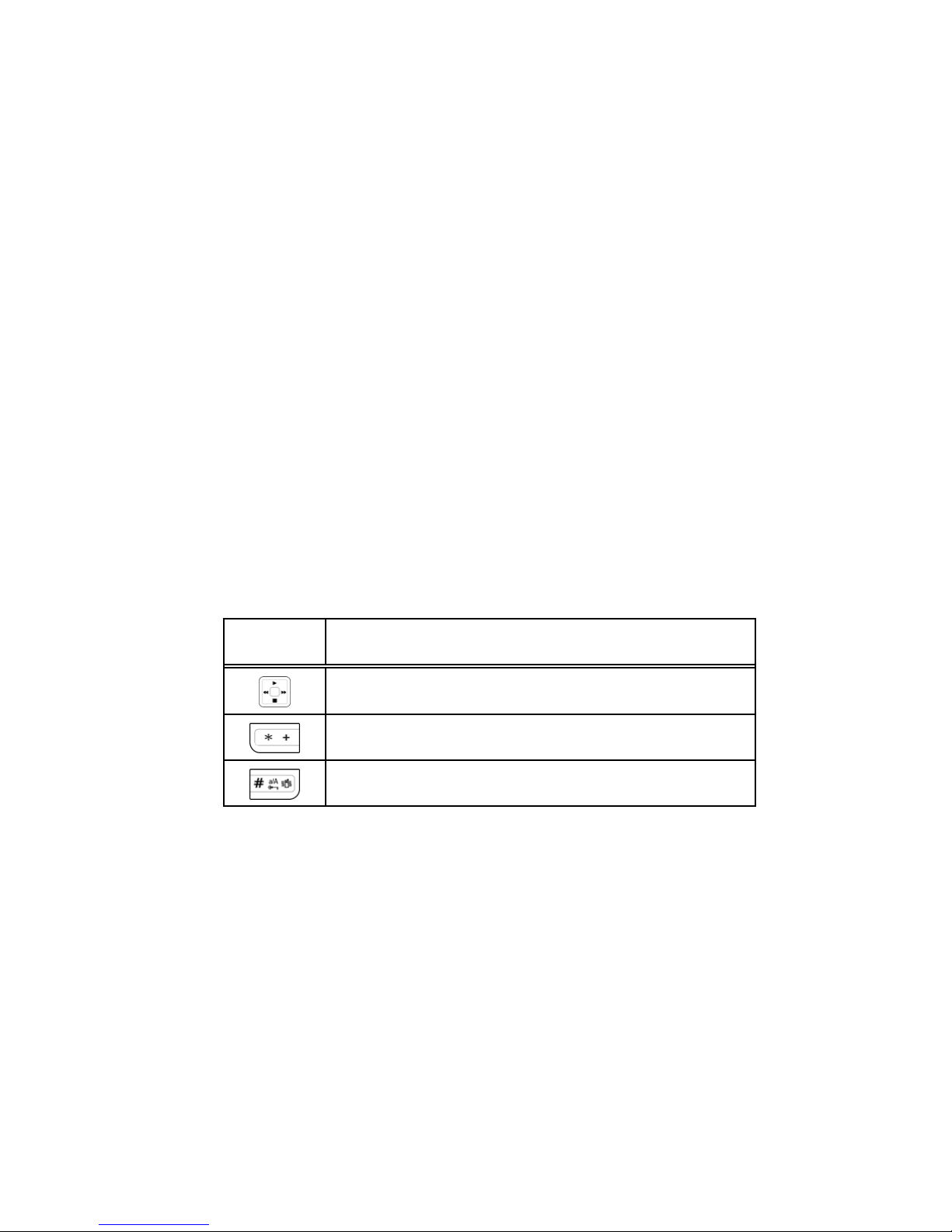
Keypad Information
Key Character
Shift the cursor.
Insert symbol.
Change input method.
Page 44

.
37
Outbox Message
After sending out the message, the message is
saved in the outbox folder. You are allowed to
read messages you have chosen to save with the
following options:
• Send: Allow you to send the message.
• Edit: Allow you to edit the saved message.
• Delete: Allow you to delete the message in
progress.
• Copy to Phone: Allow you to copy the
selected text message to your phone.
• Move to Phone: Allow you to move the
selected text message to your phone.
• Delete All: Allow you to delete all messages
in your phone at once.
• Copy All: Allow you to copy all messages to
your phone at once.
• Move All: Allow you to move all messages to
your phone at once.
• Use Number: Allow you to save the number
in your contacts.
• Use URL: Allow you to save the URL in your
phone.
Page 45

Copyright © 2008 Spice Mobiles Ltd.
38
Template
There are several default templates in your
phone for quick message writing. You can also
edit or even erase these templates and change to
your words.
Message Settings
Your phone allows you to set up default setting on
the SMS feature.
In Messages menu, choose SMS, press OK.
Choose Message Settings, press OK.
Your phone provides the following settings:
• Profile Setting: If more than one message
profile is allowed by your SIM, you may
edit the profile separately.
•
Common Setting: You may select
whether to enable or disable the delivery
report and change your reply path of your
service center if any.
• Memory Status: Allow you to check your
memory status in SIM card and phone
• Preferred Storage: Allow you to change
your preferred storage either in SIM or
phone.
• Pref. Bearer: Allow you to choose your
preferred bearer-GSM or GPRS.
Page 46

.
39
MMS (Multimedia message)
The feature allows you to send the message
that contain text, sound and a picture.
Depending on the network, you may receive a
text message that includes an Internet address
where you can view the multimedia message.
Your phone supports the following formats in
MMS function.
Picture: JPG, GIF and BMP.
Sound: Scalable Polyphonic MIDI (SP-MIDI),
i-Meldoy.
Note:
You are not able to receive multimedia messages
during a call, a game, or any active WAP
connection over GPRS data.
To write a MMS
1. For availability to the multimedia messaging
service, please contact your network operator
or service provider.
2. In Messages menu, choose MMS and press
OK.
3. Choose Write message and press OK.
4. Add number or e-mail to: To, Cc, and Bcc
fields you wish to send. Edit the subject and
content by pressing Edit.
5. In content, you are able to add text, image,
audio and attachment into the slide.
Page 47

Copyright © 2008 Spice Mobiles Ltd.
40
Notes:
1. To key in the content, you can refer to
“Input method “.
2. To use picture message function, your network operator or
service provider support is necessary.
Your phone provides the following selections for
your option when editing the slides:
Done: Allow you to exit the editing page
and go back to Edit content page.
Input Method: Allow to you change the
input method.
After adding text into the content, you will see
more options:
Add Text: Allow you to add text in the
slide show.
Add Image: Allow you to add an image file
in your message.
Add Audio: Allow you to add an audio file
in your message.
Add Attachment: Allow you to attach a file
in your message.
Add Slide Before: Allow you to insert
another slide before the text or slide in
your message.
Add Slide After: Allow you to insert
another slide after the text or slide in your
message.
Preview: Allow you to preview the slide(s)
you just wrote.
Slide Timing: Allow you to edit the slide
timing.
Page 48

.
41
To send a MMS
1. In Messaging menu, choose MMS and then
press OK.
2. Choose Write Message, and press OK.
3. After finished writing the message by following
the steps, select Done to either Send only,
Save and Send, Save to Drafts, Send
Options, or Exit the message.
4. You can also choose the Send options to edit
the MMS; otherwise the message will be sent
as default setting.
Notes:
1. To key in the content, you can refer to
“Input method “.
2. To use picture message function, your network operator or
service provider support is necessary.
Your phone provides the following selections
for your option:
Send only: Allow you send a text message
immediately.
Save and send: Allow you to save a
message and send immediately.
Save to drafts: Allow you to save a
message and send it later.
Send options: Allow you to personalize the
sending options, including Validity period,
Delivery report, Read report, and Priority.
Exit: Allow you to choose to save or not save
the message you have written.
Page 49
Copyright © 2008 Spice Mobiles Ltd.
42
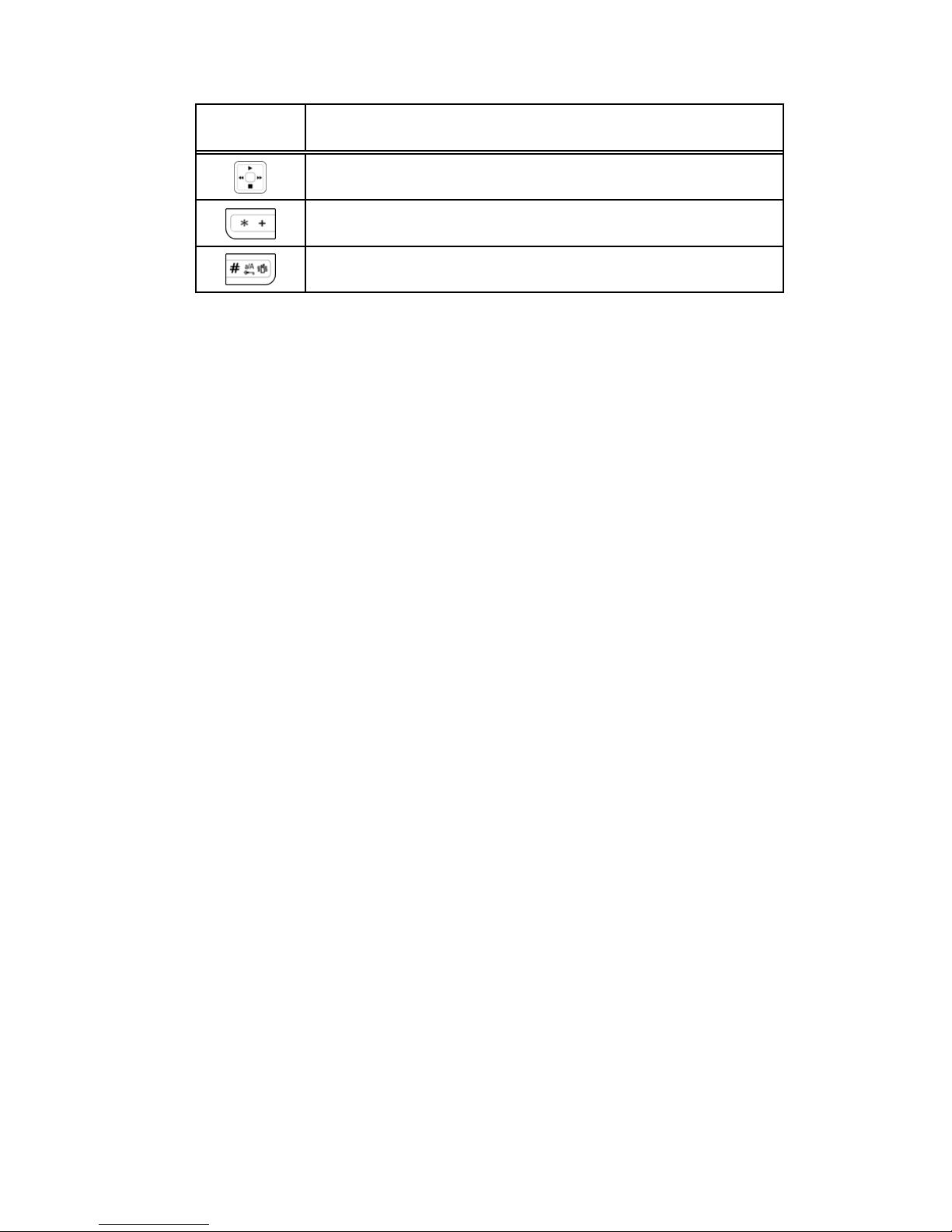
Keypad Information
Key Character
Shift the cursor.
Insert symbol.
Change input method.
Inbox
Your phone saves the multimedia messages
that have been received in the Inbox folder of
the Multimedia messages menu.
To read received multimedia messages
1. In Messages menu, choose MMS and then
press OK.
2. Select Inbox and press OK.
3. Choose a message, press Option to view
the message.
Your phone provides the following selections
for your option:
View: Allow you view a multimedia message
immediately.
Reply: Allow you to reply the sender.
Reply to All: Allow you to reply the group.
Forward: Allow you to forward the message.
Delete: Allow you to delete the selected
message.
Delete All: Allow you to delete the all
message.
Page 50

.
43
Properties: Allow you to view the mailing list.
Use Detail: Allow you to add/view phone
number and URL.
Outbox
Multimedia messages that have not been sent
will be saved in Outbox folder of the multimedia
messages menu. The multimedia messages
that have been sent are saved in the Outbox
folder of the multimedia messages menu.
To view outbox multimedia messages:
1. In Messaging menu, choose MMS, press
OK, choose Outbox, press Select
2. Choose a message, press OK to view.
Your phone provides the following selections for
your option:
View: Allow you view a multimedia message
immediately.
Resend: Allow you to send the message to
others.
Delete: Allow you to delete the selected
message.
Delete All: Allow you to delete the all
message.
Properties: Allow you to view the mailing list
Use Detail: Allow you to add/view phone
number and URL.
Page 51

Copyright © 2008 Spice Mobiles Ltd.
44
Drafts
Your phone saves the multimedia messages
that have not been sent in the Drafts folder of
the multimedia messages menu.
To read unsent multimedia messages:
1. In Messages menu, choose MMS and press
OK.
2. Select Drafts, and press OK.
3. Choose a message, press Option to view
the message.
Your phone provides the following selections
for your option:
View: Allow you view a multimedia message
immediately.
Send: Allow you to send the message
Edit Message: Allow you to edit the
message.
Delete: Allow you to delete the selected
message.
Delete All: Allow you to delete the all
message.
Properties: Allow you to view the mailing list
Use Details: Allow you to add/view phone
number and URL.
Page 52

.
45
Template
This phone allows you to have a quick entry for
your multimedia message.
1. In Messages menu, select MMS and press
OK.
2. Select Template, press OK, select a
template, press Options.
3. Choose Write Message to send the
multimedia message.
4. Select Done to either send or save the
message.
You can view the content of template via View
options to read the slide and Properties to read
the message content and size.
MMS Settings
Before you send the MMS message, you need
to finish MMS setting
1. In Messages menu, choose MMS and
press OK.
2. Select Message Settings and press OK.
3. Your phone provides the following selections
for your option:
• Compose: You can set your compose
format based on the option listed below:
Creation Mode: Select
Free/Restricted settings for what to
allow in picture messages. Some
content in picture messages might be
Page 53

Copyright © 2008 Spice Mobiles Ltd.
46
difficult for recipients to view.
Image Resizing:
160x120/320x240/640x480/Off
Auto Signature: On/Off
•
Sending: this option contains 3 settings:
Validity period: Set the duration for
how long to try to re-send failed
messages. The length of time
includes: Max/ 1 Hours/ 12 Hours/ 1
Day/ 1 We ek .
Delivery report: You can turn on this
function if you want to receive the
confirmation from service provider that
your message has been delivered.
Read report: You can choose to turn
on this function if you want to receive
the confirmation from service provider
that your message has been read.
Priority: You can choose message
priority which includes Normal, Hi gh,
and Low.
Slide Timing: You can set slide timing
by personal preference.
Delivery Time: The option of length of
delivery time includes Immediate, In
one hour, In 12 hours and In 24
hours.
• Retrieval:
Home network: The option of home
network includes Immediate,
Restricted, and Delayed.
Page 54

.
47
Roaming: The option of roaming
network includes As Hom e , Del ayed
and Restricted.
Read Report: The option of read
report includes On Request, Send
and Never Send.
Delivery Report: You can choose to
turn On this function to request the
network to send delivery reports of the
past message.
• Filter:
Anonymous: The option of
Anonymous includes Allow and
Reject.
Max Size: The limitation of 300 KB in
file size for multimedia message.
Advertisement: The option to receive
advertisements includes Allow and
Reject.
• Edit Profile: You may receive and send
multimedia messages through certain
network or service provider. To activate
or edit profile detailed setting, press
OK (center key) to confirm.
• Memory Status: You can check the
percentage of the MicroSD card memory
is unoccupied.
Note:
You may contact with your network service
operator to consult MMS settings.
Page 55

Copyright © 2008 Spice Mobiles Ltd.
48
Chat
Your phone allows you to chat on-line, real-time
with your friends and family using instant
messaging. The phone offers you Chat Room1
and Chat Room2 for online conversation.
Before chatting, you need to do the following
steps:
1. From the main menu, select Messages and
press OK.
2. Select Chat and press OK.
3. Select Chat Room1 or Chat Room2 and
press Option.
4. Select Chat Room Info and press OK.
5. Create a nickname by pressing Edit. After you
finish inputting your nickname, press Option.
6. Press Done and select Remote Number.
7. Press Search and select a contact from the
phone book. Press OK.
Page 56

.
49
To start chatting
1. After chat room is set (See Chat on page 48),
use the navigation keys to select Messages
from the main menu and press OK.
2. Select Chat and press OK.
3. Select Chat Room1 or Chat Room2, press
Option > Start New, and press OK.
4. Enter a message and press Option.
5. Select Send and press OK.
6. After sending the message, the Chat room is
activated.
7. Your can begin your chat now.
Your phone provides the following selections
when you start to chat.
•
Send: Send message you have written.
•
Use template: Inserts a template in your SMS
template option.
•
Insert PHB Nu mber: Inserts phone numbers
from your contacts.
•
Insert PHB Na me: Inserts names from your
contacts.
•
Input Method: Changes your input method.
Page 57

Copyright © 2008 Spice Mobiles Ltd.
50
Your phone provides the following options while
chatting:
Reply: Replies to a received chat message.
Use number: Saves the number of a chatter or
a number sent by a chatter.
Clear chat: Clears chat conversation.
Temp leave: Temporarily leave the chat room.
Quit: Quit chat.
Chat Room Info: Displays chat room
information.
Note:
Upon temporarily leaving a chat, you can either
Resume or End the chat.
Voice Mail Server
Your phone allows you to access your voice
mailbox with a quick way if your operator
supports this function. Your voice mail number
will be provided by your service provider and
showed in the phone. In the Voice Mail Server
submenu, you can choose line 1 or 2 and options
list including:
1. Edit: Allow you to edit name & number of
voice mail line 1.
2. Connect to Voice: Allow you to connect
your voice mailbox.
• In standby mode, long press to
access your voice mail server directly.
Page 58

.
51
Note:
To use this function, you may need to enter the
voice server number obtained from your service
provider.
Broadcast Messag e
Your phone allows you to receive commercial
message. You can either enable or disable the
receiving mode and set some other settings
based on your personal preference.
Your phone provides the following selections:
Receive Mode: You can choose to receive or
not receive the last broadcast message you
have received.
Read Message: You can read messages by
pressing “OK” (
LRK or center OK key)
or exit by pressing “Back”.
Languages: You can set up the languages of
broadcast message you want to receive.
Channel Setting: You can select channels
from the channel list or add new channel where
you want the messages to be received to the
list. Then, select channel(s) from the select list.
You are allowed to edit, add and delete it.
Page 59

Copyright © 2008 Spice Mobiles Ltd.
52
File Manager
In this menu, you can manage images, photos,
recordings and tones you had. There will be a
storage shown:
DRM Rights
Memory card
You may check files saved in your memory card.
To start viewing/organizing the File Manager:
1. When you enter this menu, you may see one
drive named Memory card if you insert the
MicroSD card in.
2. Scroll to the desired folder and press option
select options: Open, Create Folder, Format
and Remove.
3. Your phone provides the following selections
for your option when you select the one of
those folders (Images, Audio, My Music,
Photos and Videos).
4. You can:
Open: Allow you to open the folder.
Create Folder: Allow you to create a new
folder.
Rename: Allow you to rename the file.
Delete: Allow you to delete the selected file.
Sort: Allow you to sort the files by name, type,
time and size.
Page 60

.
53
Organizer
Calendar
This feature allows you to keep track of your
schedule and tasks saved in calendar. You can
also switch alarm with the task for reminding.
To make a note and reminder in Calendar first
time:
1. In Organizer menu, and choose Calendar.
2. Use left/right/up/down navigation keys to
select a day in the calendar.
3. Press Option, choose View Tasks and
press OK.
4. Press Add or
center OK key to start edit
your new task.
5. Input the start and end time of your task,
and describe the task contents in Note.
6. In Note, you can use templates stored in
Option by pressing Edit.
7. After you finish editing the contents of your
task, press Option and select Save to save
your Note.
8. Choose Alarm to turn on or off, and then
press Done to either save or not to save the
task.
Page 61

Copyright © 2008 Spice Mobiles Ltd.
54
Your phone provides the following selections for
your option:
• View: To view the task stored in specified
day.
• Add: To add new task in specified day.
• Edit Task: To edit the task in specified day.
• Delete Task: To delete the specific task.
• Delete All: To delete all tasks.
•
Send vCalendar: To send the task by SMS
and MMS, or save to file.
To quick jump to the wish date, you may:
1. In Organizer menu, choose Calendar and
press OK.
2. Press Option, select Jump to Date and
press OK.
3. Key in year, month and day to quick jump to
the date you wish, followed by pressing OK.
Note:
You could press and to go to previous
and next year. You could also press and
to go to previous and next month.
Page 62

.
55
To Do List
This feature list out all your tasks you have added
from calendar option. You can also view, edit or
delete the tasks from the options under this
feature. For the first time use, you will need to do
the following steps:
1. Press Add in the Task List
2. Edit your To Do list by entering time, data,
and note.
3. You can choose to turn the alarm on as the
reminder and schedule of alarm.
4. Finally, select “Yes” to save your to-do list.
Your to-do list will then be shown in this sub-
menu and will be highlighted in your Calendar.
Your phone provides the same options as
Calendar described above.
Alarm
This function allows you to set the alarm to ring at
the time specified. The alarm clock works even
when the phone is switched off.
1. In Organizer menu, choose Alarm and
press OK.
2. Select Edit to input at most 5 sets of alarm
times and select one time to edit.
3. To set the alarm, directly input the hours and
minutes via numeric keys, using either 12-
Page 63

Copyright © 2008 Spice Mobiles Ltd.
56
hour or 24-hour time format. You can
change the time format from 24-hour to 12-
hour in Set Format under Time and Date
option of Phone Setting submenu of
Settings menu.
4. Choose Once/Everyday/Days in Repeat
option for your ring mode, and press OK.
5. In Audi o Opt ions, you may customize the
alarm tone from tone/MIDI selections
provided or from an FM Radio channel.
Press left/right side navigation keys to
switch between tone/FM Radio options.
Setting Alarm Tone:
Tone: Select Tone in Audio Options,
press <empty> and
center OK key to
select ring tones from Ring 1 to Ring 6, or
MIDI melodies from MID1-5. The phone
also allows you to record another five
tunes according to user preference.
Setting FM Radio as Alarm alert:
1) If you intend to use the FM radio as
your alarm clock alert, connect the
headset to your phone first.
2) In Audio Options, press right side
navigation key to switch to FM Radio
option. Press down side navigation
key, and press Option to select from
Channel List and Manual Input.
3) In Channel List, you may select any
FM channel from a list of 9 channels
Page 64

.
57
at most.
4) Select one channel and press Option.
5) Choose Select and press OK.
6) Before choosing Select, you may also
choose Preview to trial listen to the
set FM channel.
7) You may also input the FM channel
frequency number you like through
Manual Input option.
8) Select Alert Type as Vibra and Ring
by pressing left-arrow navigation key.
9) Press Done and OK to save the
setting.
10) When the alarm time is reached, the
FM radio alarm plays through the
loudspeaker even though the headset
is connected. If the headset is
removed, the default alarm tone
replaces the radio.
6. In Snooze (Mins) option, you may set the
alarm to snooze from 1 to 5 minutes after the
alarm time is up. Press navigation left-arrow
key to set the minutes you prefer. After the
phone alerts you at the set alarm time, you
may press Snooze to activate the snooze
function. If you don’t like your phone to alert
you the second time, press Stop to end the
Snooze function.
7. In Alert Type option, you may set the alert
method that you like your phone to remind you.
You may select from three options: Vibration
Page 65

Copyright © 2008 Spice Mobiles Ltd.
58
Only, Vibration and Ring, and Ring. Press
left/right navigation key to switch between the
three options.
8. After you finish all the settings above, press
Done and OK to validate the alarm setting.
When the alarm expires:
If the alarm time is reached while the device is
powered off, the phone will switch itself on and
the alarm will start to sound. If you press Stop,
the phone asks whether you want to power on
the phone or not. Press No to power off the
phone or Yes to make and receive calls. When
the alarm tone sounds while the phone is
powered on, the display flashes the alarm clock
image, and shows the current time. To turn off the
alarm, press Stop. To stop the alarm for five
minutes, press Snooze.
Page 66

.
59
Calculator
The calculator applies simple calculator function
such as addition, subtraction, multiplications and
division.
To use the calculator:
• In Organizer menu, choose Calculator, and
press OK.
Your phone provides the following compose
mapping for your option:
• Four way key Up: + (Addition)
• Four way key Down: - (Subtraction)
• Four way key Left: x (Multiplication)
• Four way Right:
÷
(Division)
• Numeric # key: . (Point)
• Press OK to get the result.
Note:
This calculator has a limited accuracy rounding
errors may occur, especially in long divisions.
Page 67

Copyright © 2008 Spice Mobiles Ltd.
60
Music Player
Your phone provides you a friendly music player
device for entertainment purpose. You may enter
the music player via main menu or use the side
key quick key to quick access. Also another way
is the navigation key up to enter music player.
You may listen to music, speech, or even having
an English lesson in MP3 and AAC format.
You may also download the music content via
USB or other connection. Music tracks must to be
saved in the My Music folder in the File
Manager in order to be automatically detected
and added into default play list. You may listen to
the music through headset or loudspeaker.
.
Note:
You can make or answer a call while using the
audio player. During a phone call, the playback will
be paused and resumed after you finished the call.
Play the music
Before using the music player, you will need to
save songs into My Music folder in memory card.
Insert the memory card and go to Music Player
menu. You may press List to access the following
settings.
If you are 1st time user, your music player will
automatically detect and add music tracks into
music player.
Page 68

.
61
When you use music player next time, select any
music track. You will have the following options:
•
Play: Allow you to play the selected song
immediately.
•
Detail: Allow you to review the channel, quality,
size and time of selected song.
• Add to Rings: Allow you to add the selected
song as ring tone.
• Remove: Allow you to remove the selected
music track.
• Remove All: Allow you to remove all music
tracks in the selected play list.
•
Playlist: Allow you to create 3 your personal
play lists.
•
Classify Audio: Allow you to sort your music
by Artist, Album, Genre, and Year .
•
Refresh List: Allow you to refresh the list if you
have changed the name of a song or even
remove the song somehow.
• Settings: Allow you to select your play list from
phone or SIM card, to turn on the auto gen., to
change the skin, equalizer, etc. In the Music
Player menu, select one song to enter the
Option list. Choose Settings.
Page 69
Copyright © 2008 Spice Mobiles Ltd.
62
The setting options include:
• Repeat: you can choose to repeat all songs,
one song or turn off this function.
•
Shuffle: this function is to play music in
random order.
•
Background Play: this function allows the
phone to play music continuously in idle mode.
•
Equalizer: there are 8 kinds of equalizers
which include Normal, Bass, Dance,
Classical, Treble, Party, Pop and Rock.
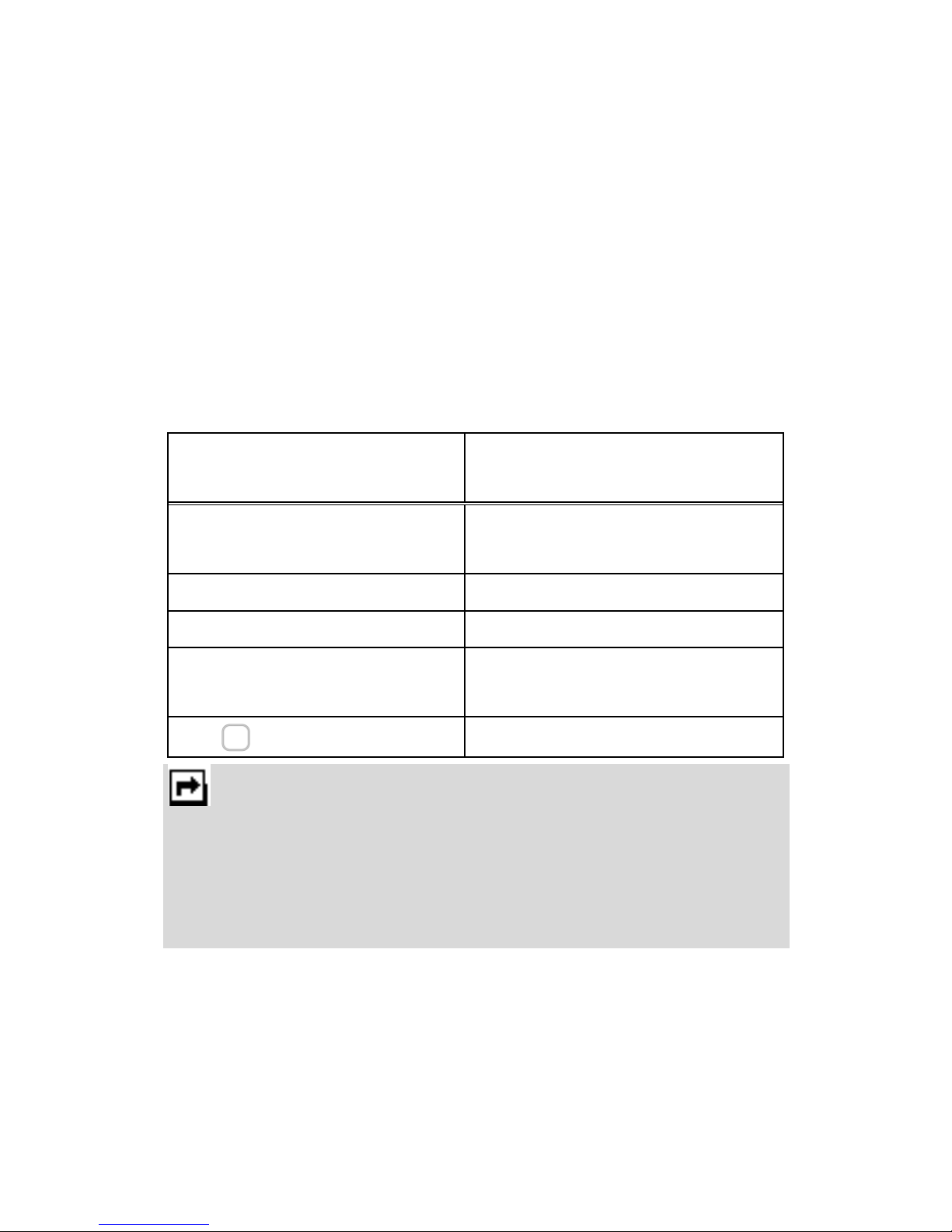
Five Ways
Navigation Key
Audio Play Function
y
►Play / Pause
music
z
Stop
x
Skip to next track
w
Skip to previous
track
(Center key) Rotate EQ mode
Notes:
1. You can adjust this volume +/- through side keys.
2. Your mobile phone is designed to be able play the music
during flight. You have to go to:
SettingsPhone
SettingFlight Mode
to change your setting to
Flight
Mode
for flight security concern.
Page 70
.
63
Media Center
Camera
You can use this phone in taking photos with the
phone’s built-in camera and adjust its settings.
The camera lens is on the back of the phone, and
the display of the phone works as a viewfinder. If
there’s not enough memory for camera, you need
to delete old photos to free some spaces for new
photos.
Note:
Do not use this feature when it violates local laws.
To start using Camera:
1. In Media Center menu, select Camera and
press OK. Hold the phone on the upside of the
scene you like to shot to capture the image
into the display. Press OK to complete taking
the picture.
2. Press Option to personalize your camera
setting. You can also take the picture by simply
pressing
center OK key.
3. To zoom screen in/out, please press volume
key.
Note:
The photo will be saved in the folder called
Photo
of
File Manager
menu. You can also view the
picture by selecting Album mode from option list
and press
OK
to jump to Image Viewer.
Page 71
Copyright © 2008 Spice Mobiles Ltd.
64
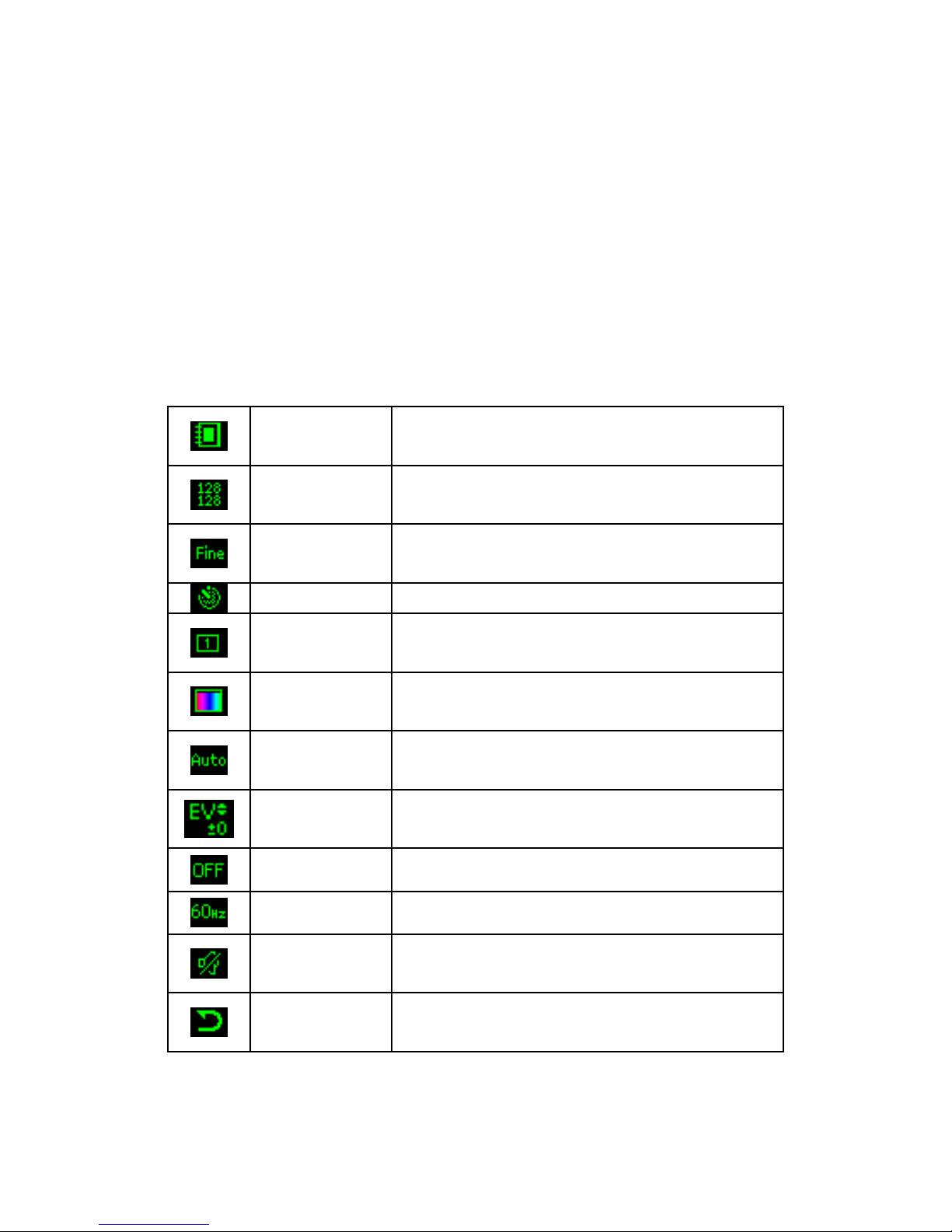
Setting the Camera:
1. In the preview mode, you can press “Option”.
All options will be displayed at the bottom of
the screen, and you can adjust the setting
through the preview mode directly and your
setting will be displayed on top of the screen.
2. Use Navigation key right/left to select different
camera settings and up/down to select your
preference. The options are listed below:
Album
mode
You can review pictures you have
taken by pressing OK.
Image Size
80x60, 128x128, 320x240,
640x480, 160x120
Image
Quality
Normal / High / Low
Delay Timer Off / 5, 10, 15 sec.
Continue
Shot
Off/ 3 Shot / 5 Shot / 9 Shot
Effect
Setting
Normal/ Grayscale/ Sepia/ Sepia
Green/ Sepia Blue/ Color Invert
White
Balance
Auto/ Daylight/ Tungsten/
Fluorescent/ Cloud/Incandescence
EV
EV-4 / EV-3 / EV-2 / EV-1 / EV 0 /
EV+1 / EV+2 / EV+3 / EV+4
Night Mode Off / On
Banding 50 / 60 Hz
Shutter
Sound
Sound 1/ Sound 2/ Sound 3
Restore
settings?
You can restore the factory setting
by selecting this option.
Page 72

.
65
Games
Spice S-705 builds in 5 creative games for this
product. You may use navigation key to select the
game you like and press OK to enter the game.
After entering the game, you may start game,
choose game level, check your grades in Best
Grades and read the instruction manual in Game
Help. You can also adjust the game setting at
the very beginning when you enter the game
menu.
The games in the phone offer the following
options:
Start Game: Start to play the game
Game Level: Easy/ Normal/ Hard
Best Grades : Ranking for your play history
Game Help: Display the play rule for the game
Games Setting:
Game Audio: You can turn on this function for
audio play while playing a game.
Game Vibration: You can set the phone to
vibrate if you score any point while playing the
game.
Page 73

Copyright © 2008 Spice Mobiles Ltd.
66
Image Viewer
All images from EMS, MMS, WAP, camera could
be reviewed from here and storage is located in
either phone or memory card. You may choose
to view your images in List or Matrix Style.
Your phone provides the following selections for
your option:
View: Allow you to view the pictures saved in
File Manager.
Browse Style: Allow you to select the style
when you browse pictures.
Forward: Allow you to forward your pictures as
wallpaper, screen saver, power on/off display,
contact ID or send to others via MMS.
Rename: Allow you to rename the file name.
Delete: Allow you to delete the pictures in the
File Manager.
Delete All Files: Allow you to delete all pictures
in once.
Sort: Allow you to sort your photos by name,
type, time, or size.
Note:
When sending pictures via MMS, the message size
cannot be larger than 300KB. Note your service
provider determines the maximum size of pictures
sent via MMS.
Page 74

.
67
To view the pictures
1. From the main menu, select Image V i ewer
and press OK. The pictures are then displayed
on the phone screen.
2. Press navigation keys up/ down to browse
your pictures saved in your phone/ memory
card.
3. Press
right soft key to go back to the file
list page.
Image forward
Your pictures saved in your phone/ memory can
be set as wallpaper, a screen saver, power on/ off
display, contact, and multimedia message. Follow
the steps below to set this function.
1. From the main menu, select Image V i ewer
and press OK. The pictures are then displayed
on the phone screen.
2. Select the picture you like to forward and
press Option.
3. Press Forward and select from To Wallpaper/
To Screen Saver / To Power On Display/ To
Power Off Display/ To PhoneBook/ To MMS.
Then forward the picture you select.
Page 75

Copyright © 2008 Spice Mobiles Ltd.
68
Video Recorder
You can record a video clip through the build-in
camera. This function also enables audio
recordings. See further details in the following
descriptions.
To shoot a video clip
1. From the main menu, select Video Recorder
from Media Center and press OK to start the
recording.
2. Select Video Recorder and press OK.
3. Press Options to personalize your video
recorder settings.
4. You may review your video clips in the Video
Player mode.
Notes:
1. The video clip is saved as AVI (MJPEG) format and saved in
the Video folder of File Manager. You can also listen to the
audio clips from the
Album
or
Video Player
mode (see
Video Player
on page 70).
2. You can also jump to the camera function by selecting the
camera mode.
3. See the table on the next page for function keys in
Video
Recorder
mode.
Page 76
.
69
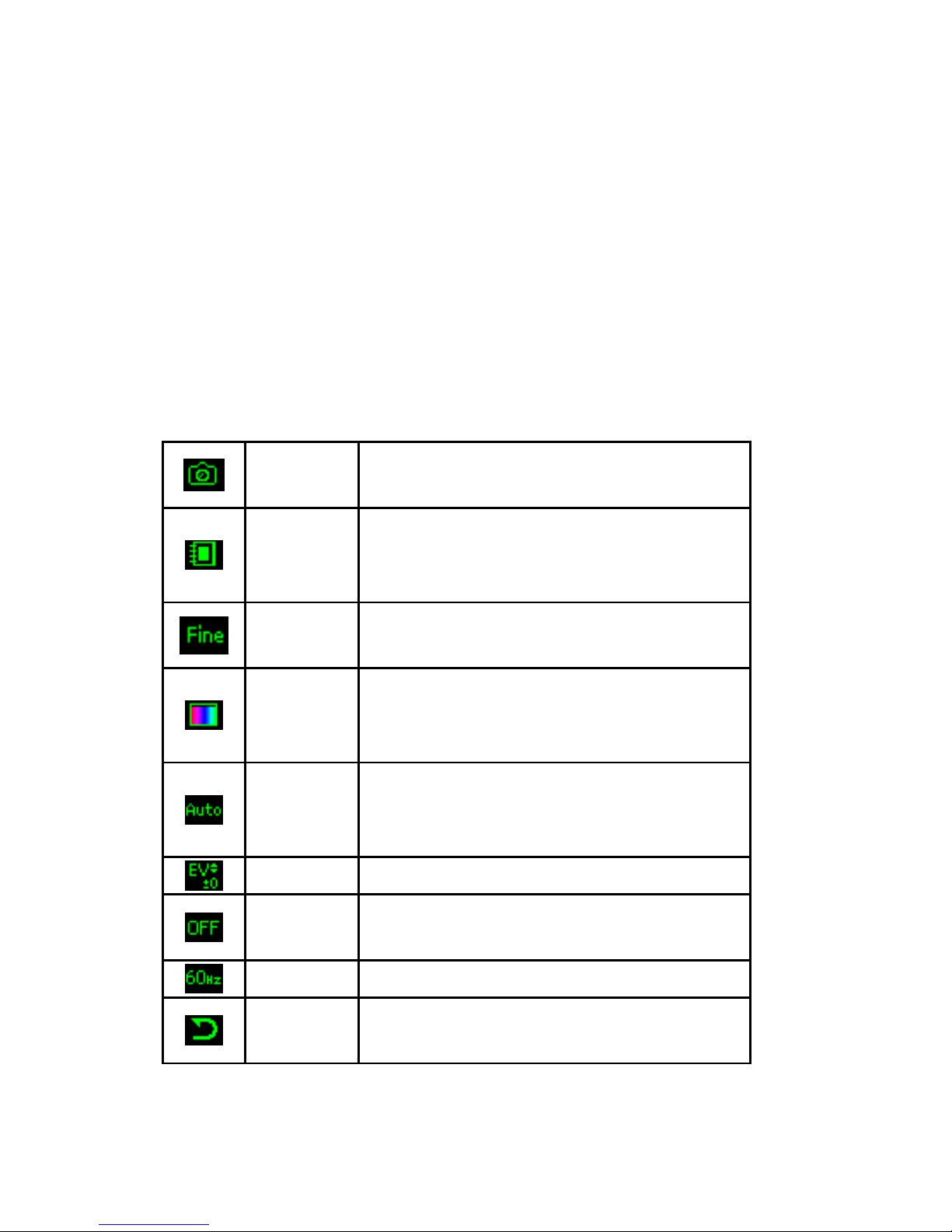
Setting the Video Recorder:
1. In the preview mode, you can press “Option”.
All options will be displayed at the bottom of
the screen, and you can adjust the setting
through the preview mode directly and your
setting will be displayed on top of the screen.
2. Use Navigation key right/left to select different
video recorder settings and up/down keys to
select your preference. The options are listed
below:
Camera
mode
You can jump to the camera
function by selecting this mode.
Album
mode
Press
OK
to jump to
Video Player
mode review video clips you have
taken.
Image
Quality
Normal / High / Low
Effect
Setting
Normal/ Grayscale/ Sepia/ Sepia
Green/ Sepia Blue/ Color Invert/
Blue Carving/ Copper Carving
White
Balance
Auto/ Daylight/ Tungsten/
Fluorescent/
Cloud/Incandescence
EV EV-4 / EV-2 / EV 0 / EV+2/ EV+4
Night
Mode
Off / On
Banding 50 / 60 Hz
Restore
settings?
You can restore the factory setting
by selecting this option.
Page 77

Copyright © 2008 Spice Mobiles Ltd.
70
Video Player
This folder stores videos saved from your phone
or downloaded from your PC.
This phone supports
AVI (MJPEG) format with 128x128 video size
.
To play the video clip
1. From the main menu, select
Video Player
from
Media Center
.
2. Select the file you wish to play and press
OK
.
3. Press
Play
in option list.
4. Press the volume keys up/ down to adjust the
volume. Press the
left soft key to pause
playing the video clip, and press
right soft
key to stop the playing.
Your phone provides the following selections
when you select
Media Center > Video player >
Option
from the main menu:
Play
: Plays and views video content.
Forward
: Allow you to forward the video to
screen saver, power on display or power off
display. You can also forward the video clip to
contacts or new callers (thanks to caller ID) via
MMS.
Rename
: Renames the video
Delete
: Deletes the melody saved in File
Manager.
Delete All Files
: Deletes all videos saved in
File Manager.
Page 78

.
71
Sort: Sorts video clips by name, type, time, or
size.
Video clip forward
Your video clips saved in your phone/ memory
can be set as multimedia message. Follow the
steps below to set this function.
1. From the main menu, select Medi a Center
and choose Video Player.
2. Select a video clip from the list and press OK.
3. Select Forward and select To MMS. Press
OK. Your phone will request you to select the
number or e-mail address of the receiver(s) of
this multimedia message from Phone Book in
To, CC or BCC columns. You will also need to
type in Subject.
4. Press Done to send out the message; Exit to
stop sending the message.
Page 79

Copyright © 2008 Spice Mobiles Ltd.
72
Sound Recorder
Sound recorder is a simple sound recording tool,
providing functionalities for you to manage voice
files.
To start recording:
1. In Media Center menu, choose Sound
Recorder, and press OK.
2. Press Option and select Record, choose OK
to start it.
Notes:
1. During recording, you may pause or stop the voice recording
anytime by pressing soft keys.
2. After recording, the file is saved as AMR or WAV format.
Your phone provides the following selections for
your option:
Record: Allow you to record the sound during
your phone call or other situation.
Play: Allow you to play the sound record.
Append: Allow you to record in the same file.
Rename: Allow you to rename a file name.
Delete: Allow you to delete the file saved in the
Sound Recorder.
Delete All: Allow you to delete all content
saved in this folder.
Settings: Allow you to choose your storage
and file format.
Forward: Allow you to forward the file to user
profile or share to friends via MMS
Page 80

.
73
FM Radio
This feature allows you to listen to your favorite
FM radio station program anytime with
frequencies ranging from 87.5MHz to 108.0MHz.
To start using
1. Before using FM radio, you will need to plug-in
your headset which performs as FM antenna.
2. Then, go to Media Center menu, choose FM
Radio, press OK.
3. You can choose to either turn on or off the
auto search by clicking navigation up key.
4. Press right or left navigation key to start
searching.
Note:
To use auto search function, you will need to turn
on Auto search mode by pressing navigation key
up and navigation down at the same time.
Your phone provides the following selections for
your option:
• Channel List: Allow you to bookmark 9 radio
stations by entering the channel name and
frequency. You can have quick access to the 9
radio stations through numeric keys from
to
.
• Manual Input: Allow you to key in the radio
station frequency manually. Use
key to
add point (.) when you are keying in the radio
station frequency.
• Preset Auto Search: Allow you to auto scan
the radio station without pressing forward or
Page 81
Copyright © 2008 Spice Mobiles Ltd.
74
backward key all the time and station searched
will be memorized in the channel list.
• Loudspeaker: Press OK to switch between
On and Off of loudspeaker function.
• Settings: Allow you to change the background
play, record format and storage. You could
select record format as AMR or WAV.
• Record: Allow you to record your favor
program.
• Append: Allow you to resume the file you have
recorded and continue to record at the same
file.
• File List: Allow you to listen the radio program
you have recorded. You may play, forward,
detail, rename, delete or sort the file.
Five Ways
Navigation Key
Audio Play Function
y
Search mode
(manual/auto) on/off
z
Turn on / off FM
x
Forward
w
Backward
Recording on / off
Note:
You have to plug-in the earphone in order to use
the FM radio.
Page 82

.
75
To quick listening to FM radio by channel list:
1. Before listening to FM radio programs, you will
need to plug-in your headset which acts as FM
antenna.
2. Then, go to Media Center menu, choose FM
Radio, press OK.
3. Press Option to set the channel list and edit
the channel list by entering the channel name
and frequency.
4. There are 9 channel lists you may pre-set
through 9 numeric keys for quick access.
5. Press any numeric key to jump to the radio
station you have set.
Schedule FM Record
This phone allows you to pre-schedule programs
from FM radio. You are able to record 4
programs according to your personal setting. The
option of settings includes: to turn on/off
recording, to set up dates and time period of
program pre-scheduling, to record Days/ Weekly/
Monthly/ Once/ Everyday, to set up channels
through Channel List or manual input, and to set
up file format and storage.
Note:
You must inset earphone headset as the antenna
when setting the pre-scheduled radio channels.
Page 83
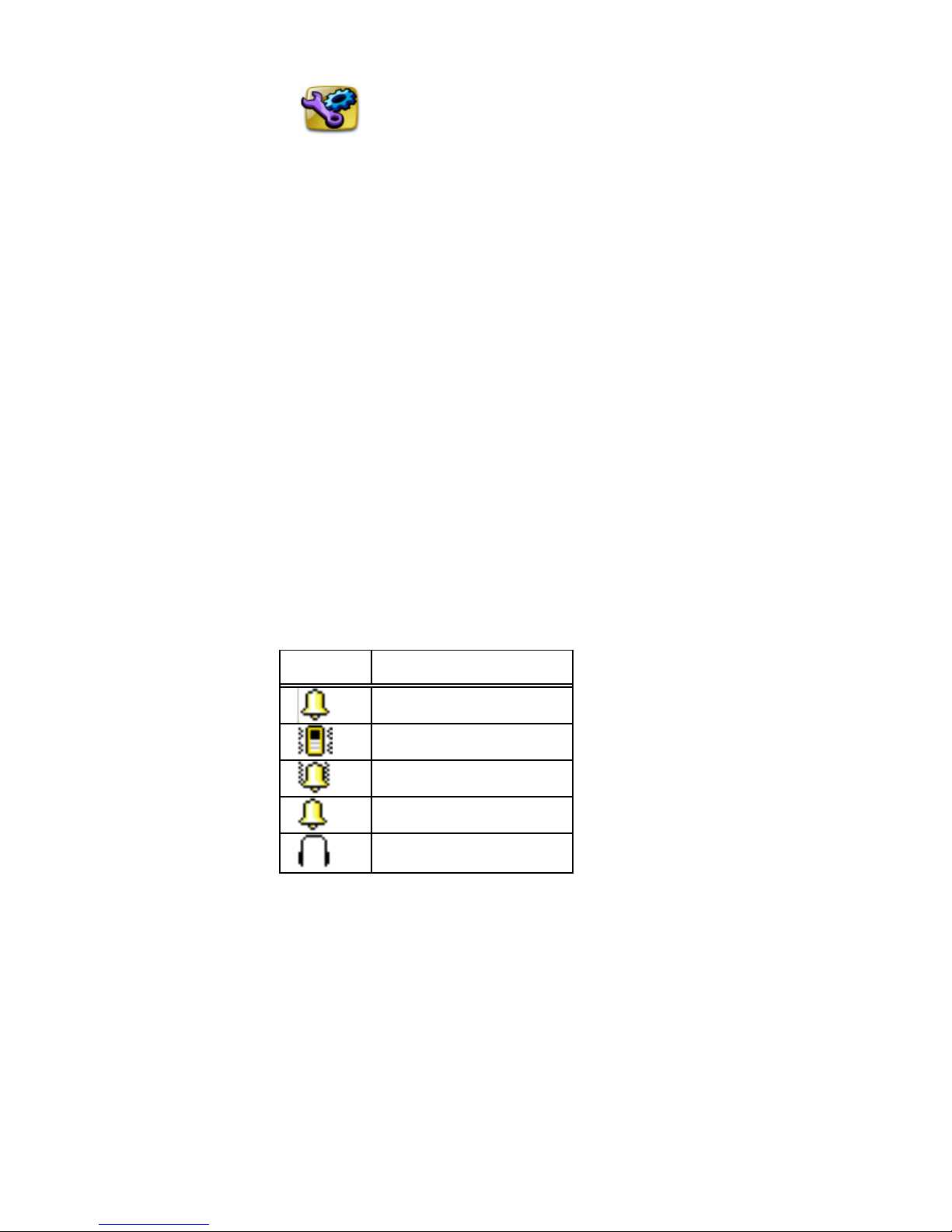
Copyright © 2008 Spice Mobiles Ltd.
76
Settings
User Profiles
You can set following different profiles to adapt to
different environment conditions. Your phone
provides 5 different profiles, including:
• General: Standard profile as phone default
setting.
• Meeting: The alert type is set to be vibrated.
• Outdoor: Ring and key tone volume is set to
be loud.
• Indoor: Ring and key tone volume is set to be
low and vibrator is off.
•
Headset: Profile for headset plug-in.
Indication Icon on the idle screen
Icon Profile Mode
General
Meeting
Outdoor
Indoor
Headset
T o a c tivate the User Profiles
1. In User Profiles menu, select a profile and
press OK.
2. Choose Activate and press OK.
Page 84

.
77
To edit the Profiles
You can customize User Profiles settings to
meet your preference.
1. In User Profiles menu, select a profile and
press OK.
2. Choose Customize and press OK.
Your phone provides the following selections for
your personalize option:
• Tone Setting: Allow you to set ring tone for
incoming calls, phone power on, phone power
off, message tone and keypad tone according
to your preference. You may select Silent
when you power on/off your phone in Power
On and Power Off options under Tone S ettin g.
• Volume: Allow you to adjust the volume of ring
tone and key tone.
• Alert Type: Allow you to select different alert
types, including Ring, Vibration Only, Vibrate
And Ring, Vibrate Then Ring , and Light Only.
• Ring Type: Allow you to single, repeat or
ascending ringing when an incoming call
arrives.
• Extra Tone: Allow you to either turn on or off
other tones. The options include Warning,
Error, Camp on, Connect, and Unread
SMS/Missed call. Press OK to switch between
On and Off of each option.
• Answer Mode: Allow you to choose the way to
answer the phone.
Page 85

Copyright © 2008 Spice Mobiles Ltd.
78
Phone Setting
Time and Date
This function allows you to set your home city,
view and change the time and date set in your
phone, and set the time format.
Set Home City
1. In Phone Setting menu, choose Time and
Date, and press OK.
2. Select “Set home city ”, and press OK.
3. All major cities are listed in the phone. You
may use navigation keys to scroll up/down for
your selection. Or, press the first character of
home city you wish to find by numeric key for
quick search.
4. After finding your home city, press OK to go
back to Time and Date submenu.
Set Time/Date
1. In Settings menu, choose Time and Date,
and press OK.
2. Set Time & Date by using navigation and
numeric keys, and press OK.
3. You can choose turn on/off daylight saving.
Page 86

.
79
Set Format
1. In Phone Setting menu, choose Time and
Date, and press OK.
2. Choose Set Format, and press OK.
3. Set Time Format as 24-hour or 12-hour
format and Date format as MM/DD/YYYY or
YYYY/MM/DD. Press OK.
Schedule Power On/Off
You are allowed to schedule power-on and off
time for 4 different time settings.
Language
This phone allows you to set a language for the
display in this phone.
•
In Phone Setting menu, choose Language,
press OK.
• Choose a language, and press OK.
Note:
The option of
Automatic
depends on your service
provider and languages supported by your phone.
If you select
Automatic
, your phone will auto
detect the language supported by your SIM and
phone.
Page 87

Copyright © 2008 Spice Mobiles Ltd.
80
Preferred Input Method
You can decide your preferred input methods
based on your use behavior. You may check
page 12 “Input Method” section for types of input
methods Spice S-705 provides.
Display Setting
This feature allows you to personalize your
display setting through following options:
Wallpaper: Allow you to change wallpaper shown
on idle screen.
Wall Paper Setting:
1. In Phone Setting menu, choose Display
Setting, press OK.
2. Choose Wallpaper, press OK.
3. Choose System or User define, press OK.
4. Choose System, press OK, select Image 1 or
Analog Clock, press View, press OK to select
as wallpaper.
Screen Saver: Allow you to play different screen
savers. You may customize the screen saver’s
setting with the options of turning on or off the
screen saver, or display time. When you select
Display Time for screen saver setting, the screen
will show the current time in the idled mode. The
waiting time after which the screen saver is
activated is from 5 sec. to 1 min. The Waiting
entry where you are supposed to enter the
waiting time you desire will show Invalid when
Page 88

.
81
you select the screen saver function as Off and
Display Time, and you can’t enter any waiting
time for the two settings.
Select an Image for screen saver
After the above setting is completed, go back to
the Screen Saver submenu, and choose Select
to enter either System or User Define to choose
an image as your screen saver. You may choose
Image 1 or Analog Clock image in System, or
download images from File Manager. The
operation press is the same as Wallpaper display
setting.
Power On/Off Display: This phone allows you to
set the power-on/off animation from system,
phone/card memory or disable animation.
Themes: Allow you to change the theme based
on you preference. There are three color themes
options in your phone: Blue White, Orange and
Purple. For each color themes, you can choose
to Activate, Update Period and Set Order.
•
Activate: allow you to activate the selected
color theme.
•
Update Period: allow you to update the color
theme hourly, daily, weekly, monthly and
seasonally.
•
Set Order: allow you to arrange the display
order of the color themes.
Page 89

Copyright © 2008 Spice Mobiles Ltd.
82
Show Date and Time: Allow you to show or not
to show the date and time on idled screen.
Show Owner Number: Allow you to
enable/disable your phone number shown on
idled screen.
Show Operator Name: Allow you to choose
either show or not to show your operator’s name
on idled screen.
Greeting Text
This function indicates the message when you
power on in main display. You may edit any
message for your welcome note.
Speed Dial
If you assign the number to one of the speed
dialing keys (from
to
) saved in the
Phone Book, you can dial the phone number by
long pressing the assigned key in standby mode.
1. In Phone Setting menu, choose Speed Dial.
2. Turn on the Speed Dial from Enable Speed
Dial option.
3. Select Set Number and press OK through
LSK
or Center key to edit the number
from your phone book.
Page 90

.
83
Dedicated Key
This function allows you to re-assign the quickaccess-feature default setting in 4 directions of
navigation key.
Flight Mode
This function allows you to play the music player
during flight if you switch the mode to Flight Mode
instead of Normal Mode. You will be able to
listen to the music only.
Normal Mode: GSM/GPRS network still works,
which means you are allowed to make a call.
Flight Mode: GSM/GPRS will be disabled for
security reason if you wish to listen to the music
on the airplane.
Query When Power On: You will be requested to
select either Normal or Flight mode whenever
your phone is powered on.
Misc Setting
Signal LED: This function allows you to enable or
disable the LED indicator if there is any signal
received.
LCD Backlight: Allow you to adjust LCD’s
brightness and time of turning dark.
Page 91

Copyright © 2008 Spice Mobiles Ltd.
84
Shortcuts
The phone allows you to customize shortcuts for
phone functions frequently used. Press
navigation down key to enter Shortcuts menu.
Add the first shortcut:
1. Press Add and OK.
2. Select one phone function you like to establish
the shortcut, and press OK.
3. Then you will enter the Change Order window
which shows the phone function you just
selected as a shortcut is ordered no.1. Press
OK.
Page 92

.
85
Add more shortcuts:
Press Option under Shortcuts list screen, and
press Add to select more phone functions as
shortcuts.
Shortcuts provides several options as follows:
• Add: this function allows you to add new
functions as shortcuts.
• Edit: this function allows you to replace the
current shortcut with another phone function.
•
Delete: this function allows you to remove the
shortcut you select.
•
Delete All: this function allows you to remove
all the shortcuts that have been set.
•
Disable: this function allows you to shut off the
shortcut selected. After you select Disable
option for the selected shortcut, you will find
the pink ball inside the blue square icon
preceding the function text will disappear.
•
Change Order: this function allows you to
change the order that the selected shortcut is
arranged in Shortcuts list. Press navigation
right key to change the order number.
Page 93

Copyright © 2008 Spice Mobiles Ltd.
86
Call Setting
Caller ID
This function allows you to either send or hide
your ID during calling or sending out the message.
Your phone is defaulted in Set by Network,
which means your ID is determined by your
service provider.
Call Waiting
This network service enables you to be informed
when someone is trying to reach you during
another call.
1. In Settings menu, choose Call Setting, and
press OK.
2. Choose Call W aiting, press OK, choose
Activate or Deactivate and press OK.
3. Select Query Status to see this function is
activated or deactivated.
Page 94

.
87
Call Dive rt
You can set the call condition by which calls are
diverted to another number.
To set call divert
1. In Settings menu, choose Call Setting, and
press OK.
2. Choose Call Divert, press OK and then
choose one option, press OK.
3. Choose Activate, and press OK.
4. Enter the number where you want your calls to
divert, and press OK.
Your phone provides the following divert
selections for your option:
Divert All Voice Calls: All voice calls are
diverted.
Divert If Unreachable: Calls are diverted
when you not in a location covered by your
service provider.
Divert If No Answer: Calls are diverted when
the call is not answered.
Divert If Busy: Calls are diverted when your
phone is engaged on other calls.
Divert All Dat a Ca lls: All data calls are
diverted.
Cancel All Divert: Cancel the above settings.
Page 95

Copyright © 2008 Spice Mobiles Ltd.
88
Call Barri ng
This network service allows you to restrict
incoming calls and outgoing calls from your
phone. A barring password is required for using
the function.
Outgoing Calls: To bar All Calls/International
Calls/ International Call Except Home.
Incoming Calls: To bar All Calls/When
Roaming.
Cancel All: To cancel all the bar call setting
(you will need to enter the barring password).
Change Barring Password: To set barring call,
you are asked to input you barring call
password. This menu enables you to change
your barring call password. To know the default
password setting, please contact your service
operator.
Line Switching
This is a network service to select phone line 1 or
2, which is the subscriber number for making
calls within ALS Setting submenu.
Note:
If you select Line 2 but not subscribe this network
service, you will not be able to make a call.
However, calls on both lines can be answered
regardless of the selected line.
Page 96

.
89
Call Time Reminder
This function allows you to set a time reminder
during a call.
1. In Settings menu, choose Call Setting, and
press OK.
2. Choose Call Time Reminder, press OK.
3. Choose an item, press OK.
Your phone provides the following time alert
selections for your option:
Off
Single
Periodic
Note:
The minimum time of Periodic is 30 seconds at
least.
Call Time Display
This function allows you to enable/disable the call
time shown on display.
Auto Redial
This function allows you to set auto redial. Select
On and your phone will make a maximum of ten
attempts to connect the call after an unsuccessful
call attempt.
Closed User Group
This function allows you to set the limited call
Page 97

Copyright © 2008 Spice Mobiles Ltd.
90
group. Only the person in the specific group is
allowed to make a call to you and receive call
from.
Network Setting
Network Selection
Your phone provides you 3 selections for your
network connectivity.
New Search: You can always refresh your
network connectivity before using network.
Select Network: Your phone will list the
network list for your selection if you select
Manual mode.
Selection Mode: The function enables you to
make operator selection by Manual or
Automatic.
If you select Autom a tic mode, the phone
automatically selects one of the cellular networks
available in your area and then press OK.
In Manual mode, the phone will show a list of
available networks and you can select the
desired network if this network has a roaming
agreement with your home network operator.
Preferred Network
Preferred Network is used when the network
selection mode has been set to Automatic. The
location numbers in the preferred network list
Page 98

.
91
show the search priority. Your service provider’s
network will be shown in the display. This feature
helps you to select your GSM/GPRS network if
your service provider does provide more than one
network choice. However, please make sure you
have applied the international roaming service
when you are traveling aboard.
Your phone provides the following options:
Add From List: Allow you to add network list
selecting from over 300 networks in the worlds.
Create New: Allow you to create new network
list by entering MCC/MNC and adjust the
priority.
Change Priority: Allow you to change the
priority of your preferred network list.
Delete: Allow you to delete the selected item.
Page 99

Copyright © 2008 Spice Mobiles Ltd.
92
GPRS Connection
You can change GPRS connection status of your
phone through options: “When Needed /
Always” by pressing OK to switch.
Security Setting
SIM Lock
This function allows you to lock the phone with a
specific SIM card. The feature is designed to
prevent the use of your phone by means of
another person’s SIM cards if your phone
becomes lost.
You can switch on or off to activate the PIN lock
function.
Phone Lock
You can switch on or off to activate the phone
lock function to protect your phone. If you switch
Phone Lock on, you need enter the password to
set the request on. The default password is “1111”.
Auto Keypad Lock
This allows you to lock the phone’s keypad to
prevent accidental key pressed.
In Auto Keypad Lock submenu, select the time
that after the last key press will be disabled, and
press OK.
Page 100

.
93
Fixed Dial
This function dials only the numbers in the fixed
dialing number (FDN). To save and edit numbers
on the list, you need the PIN2 code.
Barred Dial
You can switch the mode on and off to have a
restricted call. However, you need to check if
your SIM supports this function or not.
Change Pas sw ord
PIN: Allows you to change the PIN number.
PIN2: Allows you to change the PIN2 number.
You would need to check with your service
provider for old PIN2 number.
Phone Lock Password: Allows you to change
the phone lock password.
Restore Factory Settings
This function allows you to reset the entire phone
setting to the original setting when it is produced.
The security code is needed to access this
function.
 Loading...