

Page 1

1
ALL RIGHTS RESERVED
Spice Retail Ltd. © 2015. All rights are reserved. No part
of this document can be reproduced without permission.
All trademarks and brand names mentioned in this
publication are property of their respective owners.
While all the efforts have been made to ensure the
accuracy of contents in this manual, we presume no
responsibility for errors or omissions or statements of any
kind, whether such errors are omissions or statements
resulting from negligence, accidents, or any other cause.
We operate a policy of continuous development and
reserve the right to make changes, modifications and
improvements to the device, device features/
specifications or any of its parts without prior notice.
Your device may have preinstalled bookmarks and links
for third party internet sites and may allow you to access
third party sites. These are no affiliated with Spice, and
Spice does not endorse or assume liability for them. If
you access such sites, take precautions for security or
content.
Page 2

2
The limited warranty does not cover user manuals or any
third party software, settings, content, data or links,
whether included/downloaded in the product, whether
included during installment, assembly, shipping or any
other time in the delivery chain or otherwise and in any
way acquired by you. To the extent permitted by
applicable law(s), Spice does not warrant that any Spice
software will meet your requirements, will work in
combination with any hardware or software applications
provided by a third party, that the operations of the
software will be uninterrupted or error free or that any
defects in the software are correctable or will be
corrected.
Note: User’s Manual is providedjusttoguidetheuserabout
the functionality of the device. This does not seem to be any
certificate of technology. Some functions may vary due to
modifications and up‐gradations of software or due to printing
mistake.
Page 3

3
TABLE OF CONTENTS
SAR (S
PECIFICABSORPTIONRATE
)
...................................
8
UNDERSTANDING YOUR DEVICE
...............................
10
G
ENERAL INFORMATION
................................................
10
T
ECHNICALSPECIFICATIONS
...........................................
10
D
EVICEOVERVIEW
.......................................................
11
P
OSITION OF KEYS
........................................................
12
F
UNCTION OFKEYS
.......................................................
12
S
TATUSICONS
.............................................................
13
GETTING STARTED
......................................................
14
I
NSTALLING
SIM C
ARD ANDBATTERY
.............................
15
I
NSTALLING
M
EMORYCARD
..........................................
15
C
HARGING THEBATTERY
...............................................
16
S
WITCHON
/O
FF THEDEVICE
........................................
17
A
UTOMATICCUSTOMERREGISTRATION
...........................
17
BASIC OPERATIONS
....................................................
17
T
O MAKE CALLS
..........................................................
17
T
ODIALINTERNATIONALNUMBER
.................................
18
A
NSWER/REJECT ANINCOMINGCALL
.............................
19
MAIN MENU
................................................................
19
CALL LOGS
................................................................
20
CONTACTS
................................................................
21
MUSIC
......................................................................
23
CAMERA
...................................................................
23
MESSAGES
...............................................................
23
MULTIMEDIA
...........................................................
25
FILE MANAGER
........................................................
26
FUN & GAMES
.........................................................
26
ORGANIZER
..............................................................
27
Page 4

4
TOOLS
......................................................................
27
SETTINGS
.................................................................
29
INTERNET
.................................................................
33
SUPPORT AND CONTACT
........................................
34
ENVIRONMENTAL CONCERN
..................................
35
Page 5

5
SAFETY PRECAUTIONS
Please read the following safety guidelines before using
the device.
¾ Do not use the phone while you are driving.
¾ Do not place magnetic storage media near your phone.
Radiation from the ph one may erase the information
stored on them.
¾ Keep your phone and its accessories away from children.
¾ Mobile phones can interfere with the functioning of
medical devices such as hearing aids or pacemakers.
People having active medical implants should keep their
cell phone at least 15 cm away from the implant.
¾ Permanent hearing loss may occur if you use earphones
or headphones at high volume.
¾ Use a wireless hands-free system (headphone/ headset)
with a low power Bluetooth emitter.
¾ Keep your calls short or send a text message (SMS)
instead. This advice applies specially to children
adolescents and pregnant women.
¾ Use cell phone when the signal quality is good.
¾ Keep distance – Hold the cell phone away from body to
the extent possible.
¾ Do not press the phone handset against your head. Radio
Frequency (RF) energy is inversely proportional to the
square of the distance from the source -- being very
close increases energy absorption much more.
¾ Put the cell phone on speaker mode.
Page 6

6
¾ Ifthe radio signal is weak, a mobile phone will increase
its transmission power. Find a strong signal and avoid
movement – Use your phone where reception is good.
¾ Metal & water are good conductors of radio waves so
avoid using a mobile phone while wearing metal-framed
glasses or having wet hair.
¾ Let the call connect before putting the handset on your
ear or start speaking and listening – A mobile phone first
makes the communication at higher power and then
reduces power to an adequate level. More power is
radiated during call connecting time.
¾ If you have a choice, use a landline (wired) phone, not a
mobile phone.
¾ When your phone is ON, don't carry it in chest/breast or
pants pocket. When a mobile phone is ON, it
automatically transmits at high power every one or two
minutes to check (poll) the network.
¾ Reduce mobile phone use by children as a younger
person will likely have a longer lifetime exposure to
radiation from cell phones.
Notice:
¾ Do not dismantle the device or accessories otherwise,
manufacturer is not liable to pay for damages as the
device and accessories are not covered by warranty.
¾ Use only original batteries and charging devices.
¾ Please back up your important data timely and keep
them properly. The company is not liable for any failure
to call or loss of data due to mis-operation, poor signal
or power cut, etc.
Page 7

7
¾ All the screens in this manual are for reference only, and
some contents actually displayed may depend upon the
presetting of the service provider or the network operator,
or the SIM card. If any functions referred to in this manual
are different from those of your device, please follow
your device.
¾ Do not put use it in a place with flammable gas such as a
petrol pumps. The temperature recommended for using
thedeviceis5-35℃ . Do not touch the charger, power
cable or socket with wet hands. This may cause an
electric shock.
If your phone or any of its accessories do not function
normally, then please visit your nearest authorized
service facility. The qualified personnel will assist you,
and if necessary, will arrange for the service.
Myths and Facts
Various Myths about Mobile Handsets & Mobile base
stations:
Myth -Mobile phone use cause headaches.
Fact - Headaches are not related to Mobile phone use and
there is no scientific evidence.
Page 8

8
Myth- It is safer using a mobile phone in a car as the car
shields from the radiation.
Fact - The RF radiation is increased by Mobile phones
when used in a car to overcome the shielding.
Myth- Mobile phones cause brain cancer to the people
who use it.
Fact - There is no scientific evidence that Mobile Phone
can cause brain cancer.
Myth - Nobody is investigating the health effects of RF
radiation.
Fact - The World Health Organization, many national &
international organizations and independent expert
groups are coordinating to investigate health effects of RF
radiation.
SAR (Specific Absorption Rate)
Your device conforms to the Indian guidelines for
exposure to radio waves. The limits are given in terms of
a unit referred to as the Specific Absorption Rate (SAR),
which is a measure of the amount of radio frequency
energy absorbed by the body when using a mobile phone.
Page 9

9
The SAR value as per the Indian guidelines standard is
1.6 Watts per kg (Watt/kg), averaged over a 6 minutes
period and taken over a volume containing a mass of 1
gram of human tissue. The highest SAR value of device
when tested is 0.620 Watt/kg. You can check the SAR
value of your handset by pressing *#07#.
Page 10
10
UNDERSTANDING YOUR DEVICE
General Information
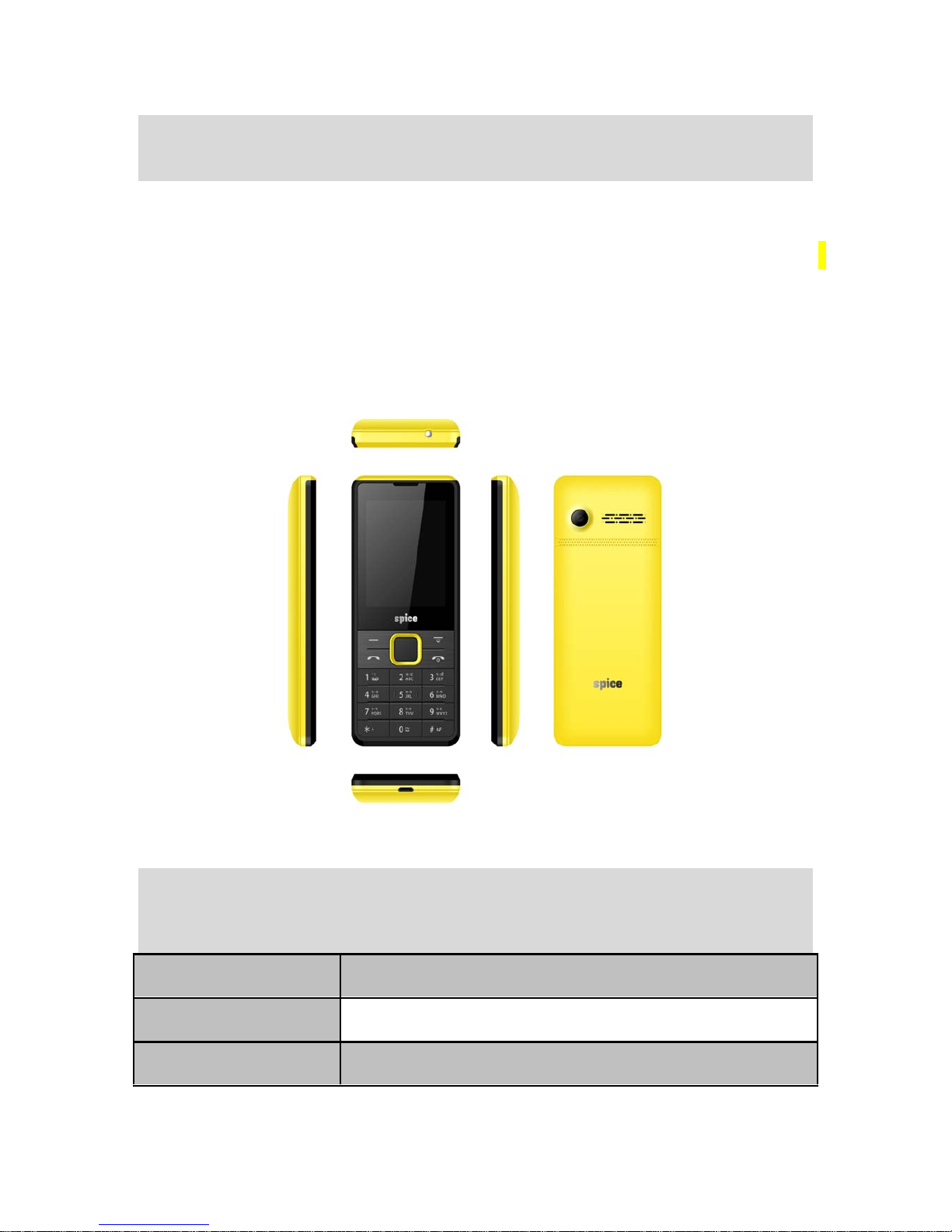
Your device encloses features, such as Digital Camera,
Video Player, Audio Player, FM Radio etc. The SIM card
inserted in the slot1 is called Master SIM, and the one in
the slot2 is known as Slave SIM.
Technical Specifications
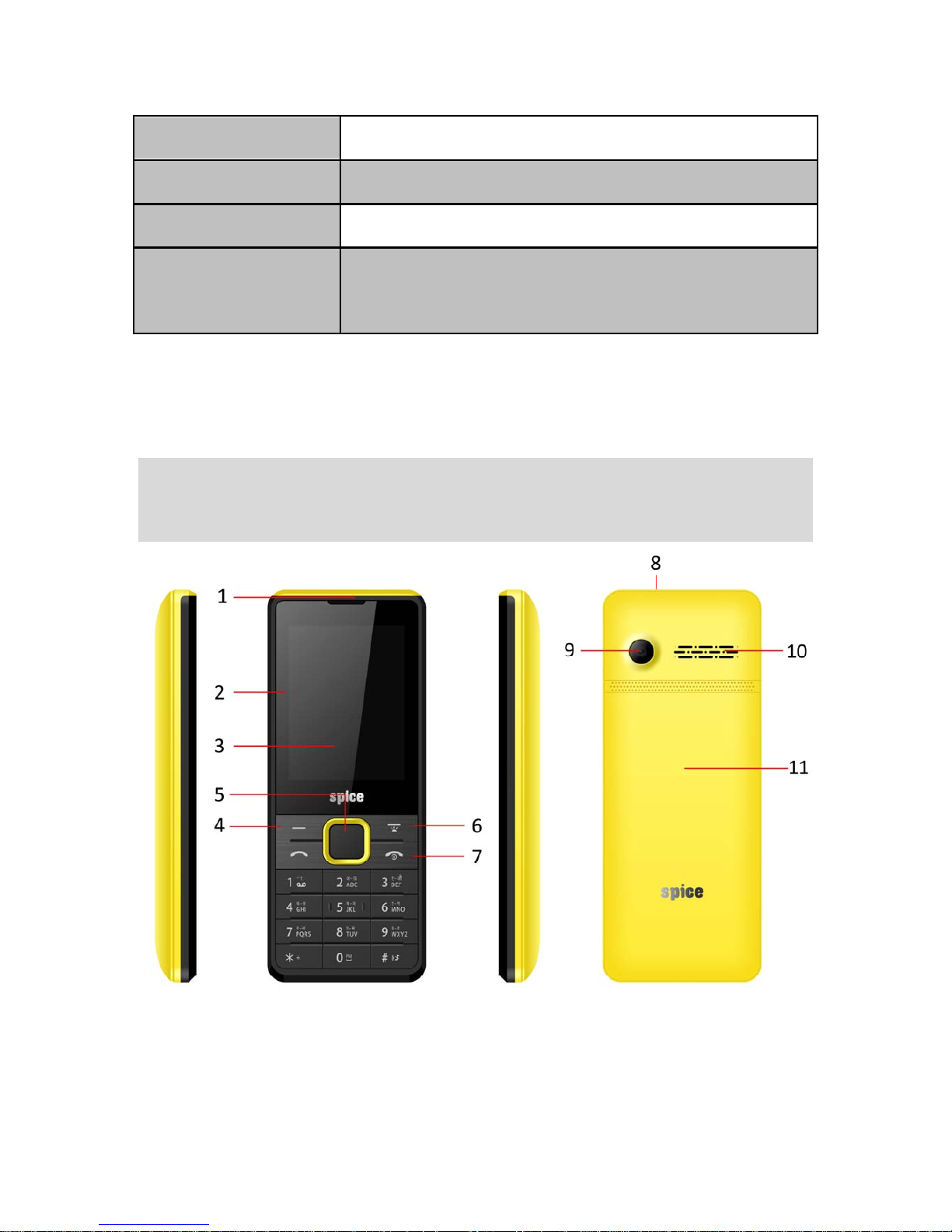
Battery 3.7V/1500mAh
Charger 100-300V, 5V/0.5A
Dimensions 124*50*13mm
Page 11
11
Weight 2.2g
Screen 2.4 Inch
Standby Time* Up to 350 hours
Maximum Talk
Time *
Up to 8 hours
*
The standby time and maximum talk time depend upon the
network signals and settings.
Device Overview
Page 12
12
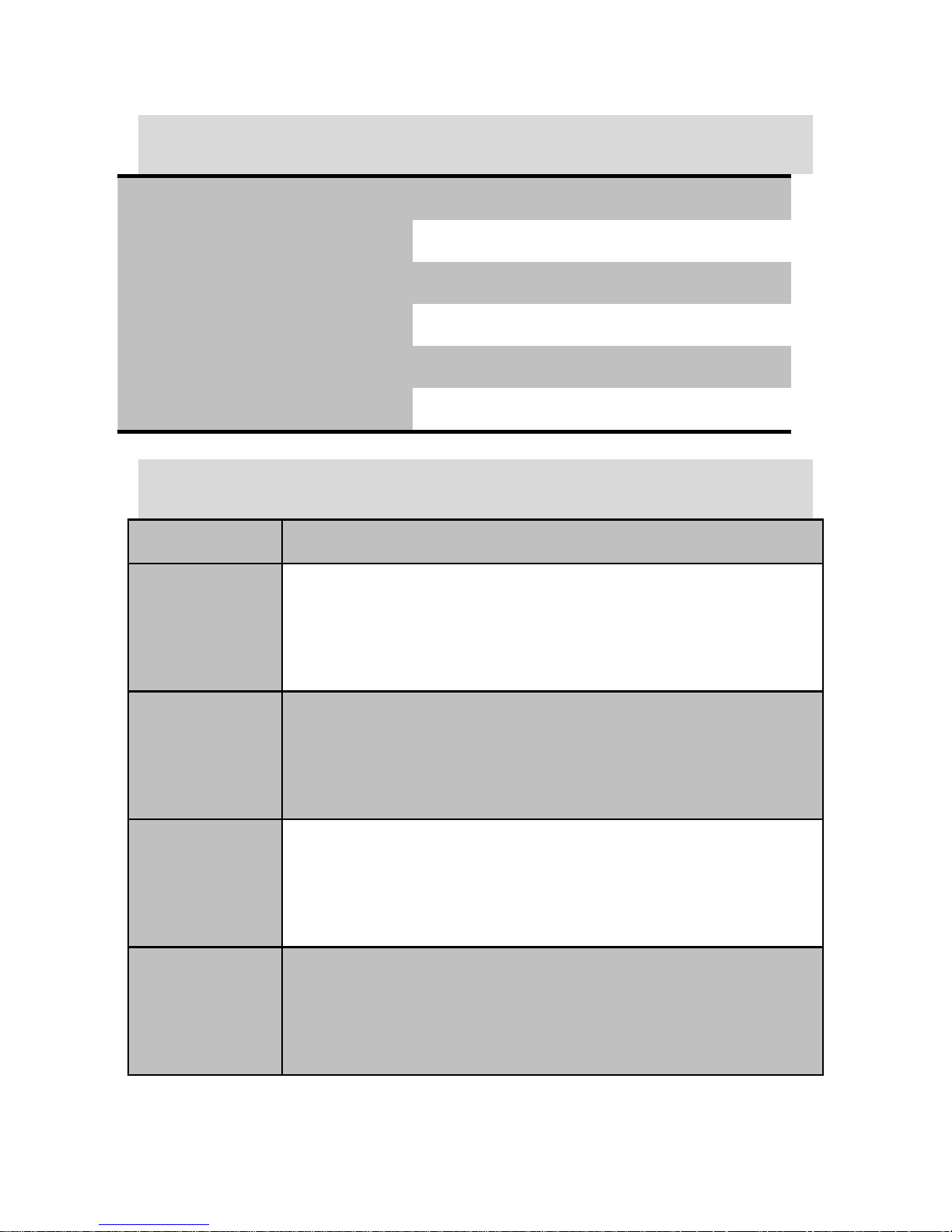
Position of Keys
1. Receiver 2. LCD
3. LCD lens 4. Menu Key
5. Navigation key 6.Torch key
7. End/Power 8.Torch
9. Camera 10. Speaker
11. Battery cover
Function of Keys
Key Description
Master SIM
Key
To make/answer a call from Master SIM.
In the standby mode, press this key to
view Call Logs.
Slave
SIM/LSK/M
enu Key
To make a call from Slave SIM.
In the standby mode, press the key to
access Main Menu.
RSK/Right
Soft Key
Use RSK to execute the functions indicated
at the right of the prompt bar on the
screen.
End/Power
Key
End an ongoing call.
Press and hold this key to turn on or off the
device.
Page 13
13
Navigation
Keys
In the editing mode, use the keys to move
the cursor.
In the standby mode, press the keys to
access the function assigned to these keys.
Keypad Use to enter numbers, letters and special
characters.
In the standby mode, long press 0Keyto
switch on the FM Radio.
Press LSKand*keyto lock/unlock keypad.
Long press RSK key to switch on the torch.
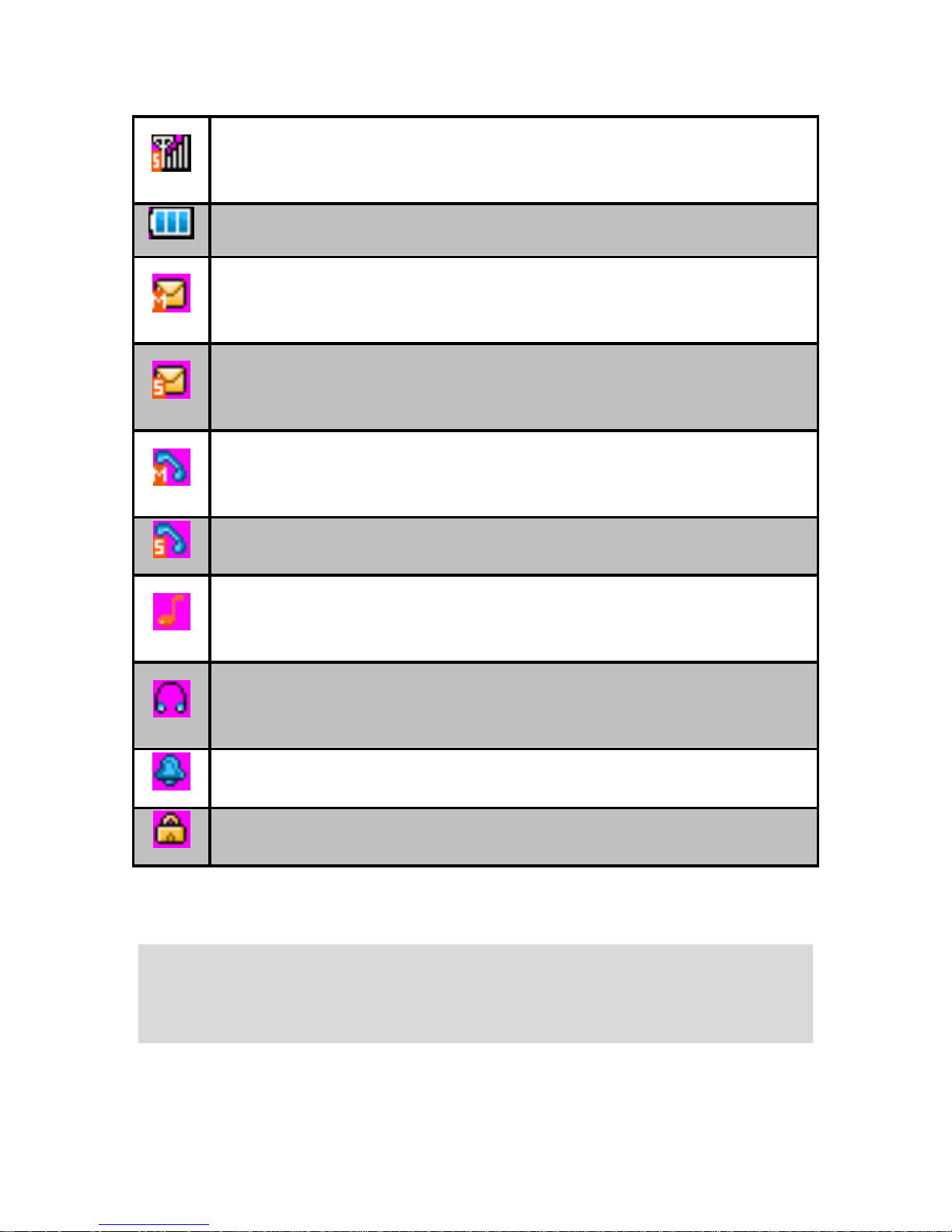
Status Icons
The table below lists various icons that might appear on
the status bar while using the device. Apart from the
icons for signal strength level and the power, other icons
are displayed as per the current mode and priority of the
device.
Icon Description
Indicates the network signal strength of Master
SIM.
Page 14
14
Indicates the network signal strength of Slave
SIM.
Indicates the current battery capacity.
Indicates that there is an unread SMS in Master
SIM.
Indicates that there is an unread SMS in Slave
SIM.
Indicates that there is a missed call in Master
SIM.
Indicates that there is a missed call in Slave SIM.
Indicates that Alert type of current profile is Only
Ring.
Indicates that the current profile is Headset
mode.
Indicates that alarm clock is set as activated.
Indicates the current keypad-locked state.
GETTING STARTED
Page 15

15
Please switch off your device before inserting or removing
the battery/SIM card or memory card.
Installing SIM Card and Battery
Your device is provided with two SIM slots for two
different SIM cards. The SIM card inserted in the slot1 is
called Master SIM, and the other one in the slot2 is
known as Slave SIM.
• Remove the back cover of the device.
• Hold the phone with the front facing downwards;
pull the cover.
• Insert the SIM cards and battery in the device.
• Attach the battery.
• Push the battery cover until it clicks into place.
Installing Memory Card
Your device supports T-Flash card, which is a multimedia
memory card used to multiply the memory of the device.
The T-flash card is small and should be pulled out and
installed carefully and prudently in order to avoid any
kind of damage.
• Switch off your device.
• Remove the battery cover.
Page 16

16
• Slide the T-Flash card into the slot.
• Attach the battery.
• Push the battery cover until it clicks into place.
Charging the Battery
The device prompts a warning tone and message stating
insufficient battery when the battery power of your
device is low.
Please follow the instructions mentioned below to charge
your device:
• Plug the connector of the charger into the jack of
the device.
• Plug the charger into a standard AC wall outlet.
Note: When
is shown on the screen, it indicates that there is
not enough power and you should now charge your device. When
charging is complete, the battery icon will stop flashing. You
must fully charge the battery before using the device for the first
time. It is recommended to charge the battery for four hours
before using the device for the first time. If the device is turned on
during charging, you can still make or answer calls, but this will
consume battery power, thus will extend the charging time of the
device.
Page 17

17
Switch On/Off the Device
To turn on/off the device, press and hold the End/Power
Key. If you have enabled the SIM Lock function then
enter the PIN code (4 to 8 digits secret code of your SIM
card). It is preconfigured and provided to you by your
networkoperatororretailer.If you enter an incorrect PIN
code 3 times in succession, your SIM card will be locked.
To unlock it, you must obtain a code from your network
operator.
Automatic Customer Registration
After 1 hours of usage a SMS from the device will be sent
automatically for the customer registration.
Note: standard
SMS charges apply.
BASIC OPERATIONS
To Make Ca lls
If the icon / appears on the screen, then you can
make or receive calls.
• Input the phone numbe
r
(should affix the
Page 18

18
international/ national/regional code or district code
if necessary) and then press the Master/Slave SIM
key to make a call.
• You can select a number from Contacts and call the
Contacts person.
Tip: The signal strength may influence the quality of connection.
To Dial International Number
Your device supports dialing the international emergency
phone number, also the distress number 112. With the
device, you can dial an emergency call in any country or
region under the normal situation regardless of SIM card
inserted when the device is located within the coverage
of the GSM network. Input the emergency phone number
and press Master/Slave SIM Key to dial. The device will
select the main network automatically after powered on if
it is located within the coverage of the main network. The
device can use other network, called as roaming, if the
device is not located within the coverage of the main
network when the network operator protocol permits. You
can dial or answer a call when the symbol of the network
operator appears on the screen.
Page 19
19
Answer/Reject an Incoming Call
• Press Call/Master SIM Key to receive the incoming
call. You can also use the earphone (short press) to
answer/reject the call when the generic headset is
inserted in the device.
• Press End Key to reject an incoming call.
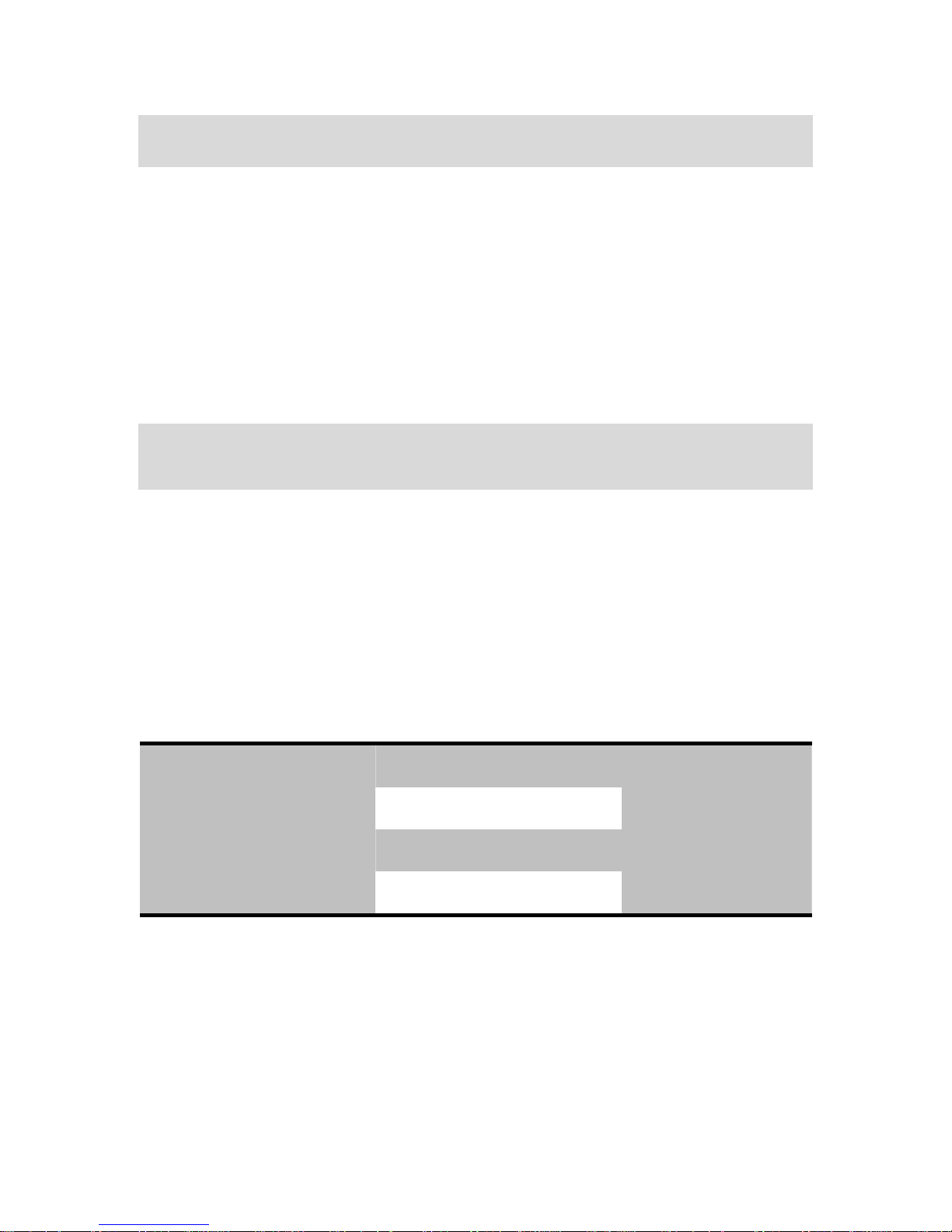
MAIN MENU
Menu guides you to the various applications, features and
utilities available in your device. In the idle mode, press
Menu/Slave SIM key to access the Main Menu. Use the
navigation keys to choose the desired operation and
press Ok to enter the selected operation.
Call Logs Contacts Music
Camera Messages Multimedia
File Manager Fun & Games Organizer
Tools Settings Internet
Page 20

20
CALL LOGS
Call sub-menu lets you view the call details i.e. the
missed, received & dialed call logs. In the standby mode,
press LSK key to access Menu > Call Logs.
CALL LOGS
Missed Calls
With this function, you can check recent missed calls.
Scroll the Up/Down keys to select a missed call. Press OK
key to access missed call information, and perform
operations, such as View, Call, Delete, Edit before dialing,
Send message, add to contacts.
Dialed Calls
With this function, you can check recent dialed calls.
Press OK key to access dialed call information, and
perform operations, such as View, Save, Call, Delete, Edit
before call, Send message.
Page 21

21
Received Calls
With this function, you can check recent received calls.
Press OK key to access received call information, and
perform operations, such as View, Call, Delete, Edit
before dialing, Send message, add to contacts.
Delete All
You can delete all records of missed calls, dialed calls,
received calls, or rejected calls through this sub-menu.
Call timers
In this menu you can check during time of Master/slaver
SIM last call, dialed calls, received calls and you can reset
all.
CONTACTS
This menu refers to the directory wherein all the Contacts
are stored in an alphabetical order. You can view, edit,
delete, send message and perform various other
functions on each contact of your phonebook.
Page 22

22
Add New Contact
• Go to Main Menu > Contacts > Options > Create
contact
• Press ok > select the storage and enter the details
Search Contact
• Go to contacts and input the initials of a name to be
searched.
• Select a desired entry from the list.
Select a Contact from the list and press Options to
perform the following operations:
• Create contact: select to create a new contact.
• SMS: send message to the selected contact.
• Call: call the contact.
• Add to Blacklist: add the contact to the blacklist.
• Import/Export: copy the contacts from/to
phone/SIM.
• Send vcard: send contacts via Bluetooth or SMS.
• Contact Settings: access this menu for other
settings such as memory status.
Page 23

23
MUSIC
This menu allows you to play audio files. Please save your
audio files in the My Music folder of the memory card.
You can pause, play and change song using the
navigation keys or earphone button.
CAMERA
Your device is provided with Camera, which supports the
photographing and video shooting functions.
MESSAGES
Your device features, sending and receivi ng of SMS
(Short Message S ervice). Press LSK key to access Main
Menu and then select Messages.
Write message
You can create and send SMS to a particular Contact
using this sub-menu.
Inbox
Inbox sub-menu enables you to view all the messages
received on your Master/Slave SIM.
Page 24

24
Outbox
The messages that do not reach the receiver successfully
get stored in the Outbox folder.
Drafts
The created messages can be saved to drafts folder for
future use. After selecting a message from the Drafts
folder, select Options to edit/delete or send the saved
message from the desired SIM.
Sentbox
All the messages that are sent successfully get stored in
sent messages.
Templates
Your device is provided with some commonly used pre-
defined messages. These messages can be edited and
send instantly.
Broadcast message
Access this men u for accessing Cell Broadcast messa ge
like Location info.
Page 25

25
MULTIMEDIA
This menu is specifically designed for the entertainment
purpose of the user. To enter this menu, go to the Main
Menu and select Multimedia. The various multimedia
features offered by your device include Camcorder, Video
Player, Sound Recorder, My Images and FM Radio.
Camcorder
In standby mode, select Menu > Multimedia > Camcorder
to launch the video recorder and shoot your videos.
Video Player
Your device supports playing various video formats. All
the videos available in the storage selected by you will be
displayed. Select a video clip and press OK key to open it.
My Images
Pictures taken can be accessed quickly through this menu.
Select an image to view and press ok key to perform
operations, such as, set the image as wallpaper.
Sound Recorder
You can record conversations, which will be saved to the
Audio folder under File Manager. After selecting a
Page 26

26
recording, you can select to set as ringtone, send by
bluetooth etc.
FM Radio
You can use your device to listen to FM radio stations
after inserting the headphones. When in the Radio
interface, press options to view channel list and settings.
FILE MANAGER
File Manager enables you to browse, open and manage
the data saved in Memory card. The device supports the
T-Flash card. You can use the file manager to
conveniently manage various directories and files on the
T-Flash card. You can also format the storage of memory
card.
FUN & GAMES
This menu is specifically designed for the entertainment
oftheuser.Thedeviceisprovided with interesting game
namely Tweety Bird.
Page 27

27
ORGANIZER
This menu gives you access to a number of features
including Alarm, Calendar and World Clock.
Alarm
Your device provides alarms and you can set them as per
your need. If you have configured an alarm, an icon
indicating that you have configured the alarm will appear
on the status bar.
Calendar
You can view the monthly and yearly calendar and edit
the memo of a specified date with this function.
World Clock
You can view the local time of some cities around the
world via world clock.
TOOLS
This menu gives you access to a number of features
including E-book, Bluetooth, Calculator, Stopwatch, Torch,
Timer and Unit Conversion.
Page 28

28
E-book
Your device supports reading files in the *.txt format,
which is ideal for reading an e-book.
Bluetooth
Your phone is designed to be compliant with Bluetooth
technology. Bluetooth technology enables wireless
connections between electronic devices. The Bluetooth
connection can be used to listen to stereo music, send
images, video, texts and vcard.
Calculator
Calculator enables you to make basic arithmetic
calculations, such as addition, subtraction, multiplication
and division. Enter the numbers and choose the desired
operator.
Stopwatch
Stopwatch is used for measuring time with possibility to
register several results and suspend/resume
measurement.
Timer
You can set time using the timer option under Tools
menu.
Page 29

29
Unit Conversion
The phone provides the unit conversion for weight and
length.
SETTINGS
In the standby mode, press Menu key to access Menu >
Settings.
Phone Settings
• Time and Date: change the settings related to date
and time.
• Language: Your device supports English a nd Hindi
language.
• Shortcuts: You can set shortcuts for those functions
you often use.
• Schedule Power on/off: Set scheduled power on/off
time.
Display
Set wallpaper, idle display settings, brightness etc. by
accessing this sub menu.
Page 30

30
Security
-Phone locked: You can switch on or off to activate the
phone lock function to protect your phone. If you switch
Phone Lock on, you need to enter the password to set the
request on. The default password is “1122”.
Change password: You can change password here. The
default password is “1122”.
-M tracker
Now be sure of your device with Mobile Tracker. This
feature allows users to track their device if it is lost or
stolen. Switch on Mobile Tracker application and
whenever a new SIM is inserted in your device you will
receive a SMS on pre-defined numbers.
1) Status
This function requires your network support. You can set
ON or OFF. When the function is ON the device will send
a message to the number which you have set. The
message will tell you that which number is using your
device now.
2) Change password
TIP: This function requires your network support. First
you need change the password before you access this
function and the default password is 1122.
Page 31

31
-Privacy
Now you can protect your Call Logs, Contacts, Messages
and File Manager by using Privacy lock feature. If it is
switched on then all these services will become password
protected. The default password is 1122.
Call Settings
• Call divert: According to the conditions you
have set for transfer, the incoming calls will
be transferred to voicemail or the appointed
number in the appropriate conditions.
• Call waiting: Activate, the network will notify
you of a new incoming call while you have a
call in progress (Network Service).
• Call barring:
T
his feature allows you to
restrict the phone call or answer an incoming
call.
• Hi de ID (Requires the network to support):
The receiver hides your phone number when
you make a call.
• Blacklist: Blacklist: A d d the numbers to the
blacklists, they can’t dial to you. You can
select on/off this option
• Oth ers: you can select call time
reminder/auto redial/vibration when
connected/reject by SMS/ a uto record voice
call as your desire.
Page 32

32
Connections
Please Contacts the network operator for the following
network service.
• Network Selection: You can choose Automatic or
Manual to select the network (Auto is
recommended). When you select Automatic, the
device will make the selection according to the
network. If you select Manual, you will have to
select the network manually.
Dual SIM Settings:
Set the appropriate option as per your usage.
Profiles
The phone provides pre-defined user profiles that allow
the operations of the phone to best suit the environment
you are in. The profiles are General, Silent, Meeting,
Indoor, Outdoor, Earphone and Bluetooth.
General
Activate
Settings
You can choose to change the ring, volume, ring type and
alert type settings
Silent
Select “Activate” in “Options”.
Page 33

33
Meeting
Please select activate to enable the meeting mode on.
Outdoor
Please refer to ”General” for more details.
Indoor
Please refer to ”General” for more details.
Restore factory settings
Enter the default password 1122 to reboot the factory
setting.
INTERNET
To access this menu, enter the Main Menu in the standby
mode and then select Internet. You can use the network-
related services with this function.
Page 34

34
SUPPORT AND CONTACT
You can visit
www.si2imobility.com/spicemobiles/
for
additional information, downloads and services related to
your Spice handset.
For further assistance or queries, you can call on SPICE
customer care number 1860 200 1003 or mail at
Note: After sales service of the device is confined to the country in
which the purchasing is done.
Page 35

35
ENVIRONMENTAL CONCERN
Help us save Our Environment…GO GREEN..!!
All our endeavors are directed towards providing
environment friendly products to you. The material used
in our devices are recyclableandcanbereusedtomake
new products. We strive to make products that are safe
for our consumers as well as the environment. Come join
hands with us and make world a better place to live.
Preserve natural resources for future generations by
recycling your phone. The phone contains some metals,
when recycled properly; these can be put back into
circulation, decreasing the need for new metal mining.
Recycling reduces the need for raw materials, saves
energy, helps mitigate Global Warming and reduces
pollution, reduces waste products in landfills; therefore
preserving natural resources for the future and saving the
planet.
Follow some simple steps and contribute towards saving
the planet.
Page 36
36
DOs
• Recycle your handset and its accessories.
• To protect natural resources and to promote re-use
of the material, kindly separate batteries from other
type of waste.
DONTs
• Do not dispose off your m obile and its battery in fire.
• Do not dispose you
r
mobile with the regularwaste.
• Do not ove
r
charge yourhandset. Remove the
charger when battery is full.
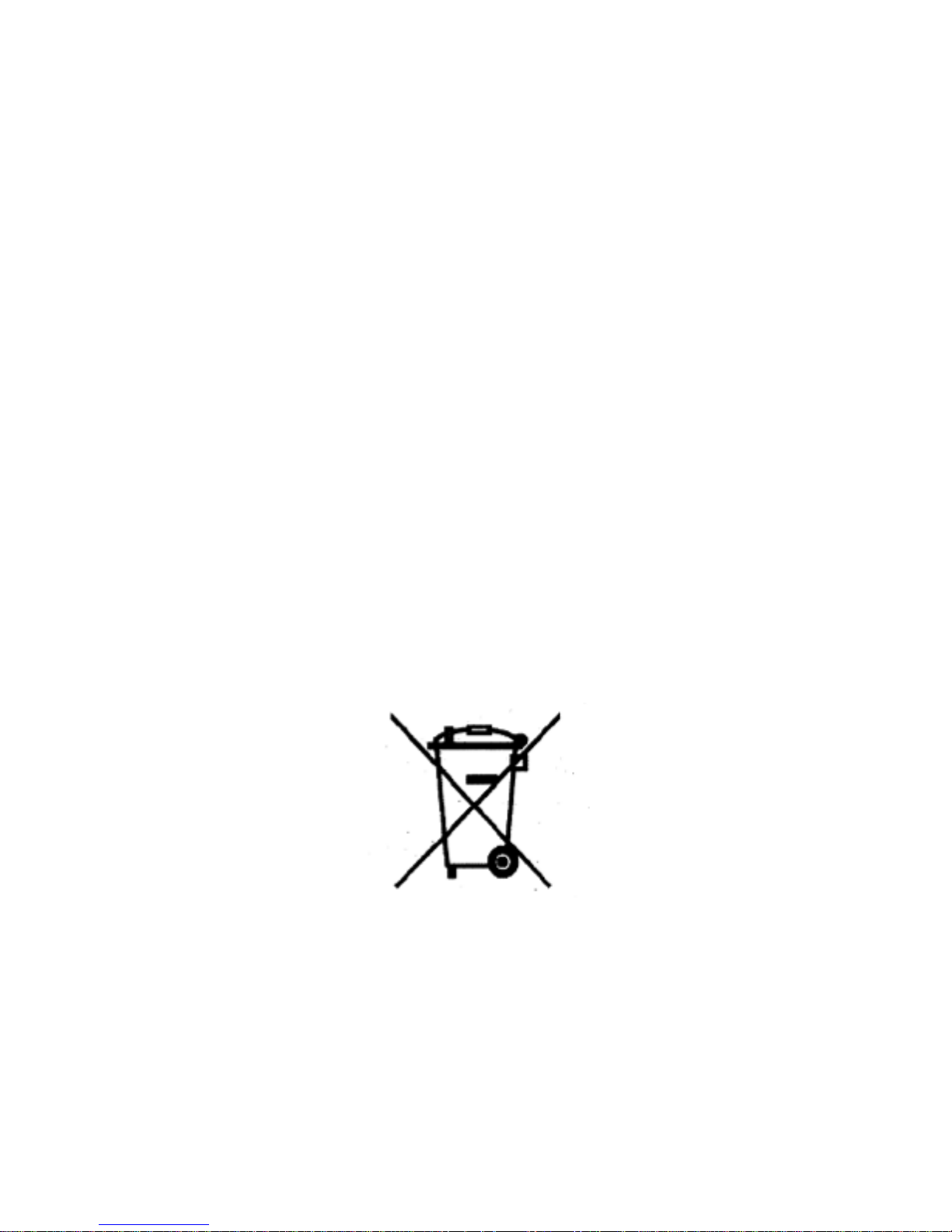
Don’t trash your phone, instead RECYCLE it
This logo signifies that this product and/or its
consitituents should not be disposed off with other
household waste.
Page 37

37
Hazards of Improper handling, accidental breakage,
damage and /or improper recycling of hazardous
elements
If this product is improperly handled, broken or damaged
or carelessly recycled or disposed off in the fire, can
result in environmental and data security concerns,
including the following:
• Affect nearly every system in the human body and
result in birth defects, brain, heart, liver, kidney and
skeletal system damage. They will also significantly
affect the nervous and reproductive systems of the
human body ;
• When burned, create cancer-producing dioxins
which are released into the air we breathe ;
• If thrown in landfills, may leach into groundwater
affecting your local community ;
• In warm climates, the oxidation of mercury in the
environment can be accelerated, leading to the
creation of oxidized Hg atoms that are known to be
associated with ozone depletion; and
Page 38

38
• Improper recycling additionally results in data
security issues, as private electronic information
remains on hard drive, if not properly removed
before disposal.
How to Recycle
Please get your electronics products recycled only
through authorized recyclers, approved by Pollution
Control Board. We provide facility of recycling of our
products. For details of our collection centers, please visit
our website or call our customer care. Help us to GO
GREEN.
Constitution of Hazardous Elements in your Device:
Your device does not contain the following hazardous
elements in a proportion higher than the limits provided
hereunder:
• maximum concentration value of 0.1% by weight in
homogenous materials for lead, mercury,
hexavalent chromium, polybrominated biphenyls
and polybrominated diphenyl ethers ; and
Page 39

39
• maximum concentration value of 0.01% by weight
in homogenous materials for cadmium.
 Loading...