

Page 1
P/N: 5839003281
Page 2

ALL RIGHTS RESERVED
Spice Mobiles Ltd. ©2010. All rights are reserved. No part of this document can
be reproduced without permission. All trademarks and brand names
mentioned in this publication are property of their respective owners.
While all the efforts have been made to ensure the accuracy of contents in this
manual, we presume no responsibility for errors or omissions or statements of
any kind, whether such errors are omissions or statements resulting from
negligence, accidents, or any other cause. We operate a policy of continuous
development and reserve the right to make changes, modifications and
improvements to the phone, phone features/specifications or any of its parts
without prior notice.
Your device may have preinstalled bookmarks and links for third party internet
sites and may allow you to access third party sites. These are no affiliated with
Spice, and Spice does not endorse or assume liability for them. If you access
such sites, take precautions for security or content.
The limited warranty does not cover user manuals or any third party software,
settings, content, data or links, whether included/downloaded in the product,
whether included during installment, assembly, shipping or any other time in
the delivery chain or otherwise and in any way acquired by you. To the extent
permitted by applicable law(s), Spice does not warrant that any Spice software
will meet your requirements, will work in combination with any hardware or
software applications provided by a third party, that the operations of the
software will be uninterrupted or error free or that any defects in the software
are correctable or will be corrected.
Note: User‟s Manual is provided just to guide the user about the functionality
of the phone. This does not seem to be any certificate of technology. Some
functions may vary due to modifications and up-gradations of software or due
to printing mistake.
Page 3

TABLE OF CONTENTS
SAFETY PRECAUTIONS ............................................................ 2
UNDERSTANDING YOUR PHONE ............................................... 4
General Phone Information.................................................................... 4
PHONE OVERVIEW ................................................................... 5
Position of the Keys ............................................................................... 5
Function of Keys ................................................................................... 6
Status Icons .......................................................................................... 7
GETTING STARTED .................................................................. 8
Installing SIM Card and Battery ............................................................ 8
Installing Memory Card ......................................................................... 8
Charging the Battery ............................................................................. 8
Switch On/Off the Phone ...................................................................... 9
BASIC OPERATIONS ............................................................................. 9
MAIN MENU ............................................................................ 11
Phonebook........................................................................................... 11
Messages ............................................................................................. 11
Call Center .......................................................................................... 13
User Profiles ........................................................................................ 15
Media Center ....................................................................................... 16
Fun Spice ............................................................................................ 18
Settings ............................................................................................... 20
File Manager........................................................................................ 22
Organizer ............................................................................................ 22
Shortcuts ............................................................................................ 23
Extra ................................................................................................... 23
Services ............................................................................................... 24
FREQUENTLY ASKED QUESTIONS AND TROUBLESHOOTING . 25
SUPPORT AND CONTACT ........................................................ 27
Page 4
2
SAFETY PRECAUTIONS
Please read the following safety guidelines before using the
phone.
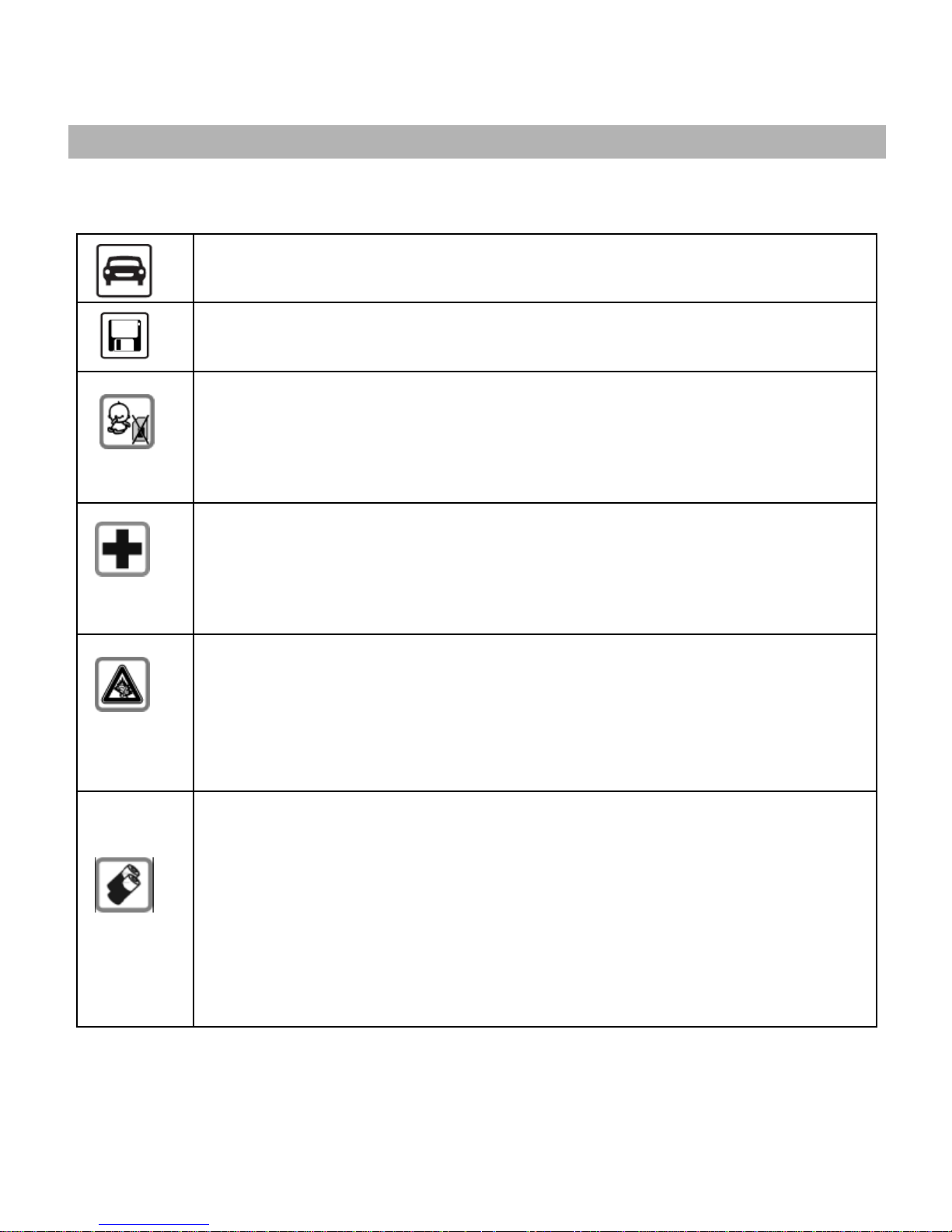
Do not use the phone while you are driving. Pull over and stop your
automobile to dial or listen to a phone call.
Do not place magnetic storage media near your phone. Radiation
from the phone may erase the information stored on them.
Keep your phone and its accessories away from children. Do not
allow children to use your phone without guidance. Small parts
such as the SIM card, dust cap, lens ring and lens cap as well as
the microSD card can be dismantled and swallowed by small
children.
Mobile phones can interfere with the functioning of medical devices
such as hearing aids or pacemakers. Keep at least 20 cm (9 inches)
between the phone and pacemaker. When using the mobile phone
hold it to the ear which is furthest away from the pacemaker. For
more information, consult your doctor.
Permanent hearing loss may occur if you use earphones or
headphones at high volume. You can adapt over time to a higher
volume, which may sound normal but can be damaging to your
hearing. Set your volume to a safe level. If you experience discomfort
or buzzing in your ears, reduce the volume or discontinue use of
your earphones or headphones.
Use only original batteries and charging devices, otherwise you may
risk serious damage to health and property. Battery can cause
property damage, injury or burns if a conductive material, such as
jewelry, keys or beaded chains touch exposed terminals. The
material may complete an electrical circuit and become quite hot.
Take extra care while handling any charged battery, particularly
when placing it inside your pocket, purse or other container with
metal objects. Do not dispose of batteries in fire as they may
explode.
Notice:
Do not dismantle the device or accessories otherwise, manufacturer is not liable
to pay for damages as the device and accessories are not covered by warranty.
Page 5

3
Please back up your important data timely and keep them properly. The
company is not liable for any failure to call or loss of data due to mis-operation,
poor signal or power cut, etc.
All the screens in this manual are for reference only, and some contents actually
displayed may depend on the presetting of the service provider or the network
operator, or the SIM card. If any functions referred to in this manual are
different from those of your phone, please follow your phone.
Improper use will invalidate the guarantee! These safety instructions also apply
to original accessories.
Do not put your phone in a high-temperature place or use it in a place with
flammable gas such as a petrol pumps.
Do not touch the charger, power cable or socket with wet hands. This may cause
an electric shock.
Do not use the phone in an environment of extremely high or low temperature,
or an environment of high humidity. It may cause malfunction of the phone, the
charger and the battery. The phone using environment recommendation: temp
5-35℃, humidity 35%-85%, charging temp: 0oC-45 oC .
If you have difficulties installing the battery, do not force the installation. This
may cause battery leakage, overheating, explosion or even fire.
Note: If your phone or any of its accessories do not function normally, please send
them to the nearest authorized service facility. The qualified personnel will assist you,
and if necessary, will arrange for service.
Page 6

4
UNDERSTANDING YOUR PHONE
General Phone Information
Spice M-5161n is a multi SIM phone that encloses features, such as Bluetooth,
digital camera, video player, phone as modem, audio player, FM radio etc. The phone
supports T-flash card of up to 4 GB. This phone is provided with two SIM slots for
two different SIM cards. The SIM card inserted in the slot1 is called Master SIM, and
the other one in the slot2 is known as Slave SIM. You can select to operate SIMs as
per your personal and professional needs.
Technical Specifications
Battery
1200 mAh
Charger
Input: AC100-240V
Output: DC5.0V-500mA
Dimensions
110mm×47mm×14.6mm
Weight
88g
Screen
Size: 2.0‟
Resolution: 176 X 220
Color: 65K
Standby Time*
Up to 300 hrs
Maximum Talk Time*
Up to 4.5 hrs
SAR Level
GSM 900: 0.68 W/Kg
DCS 1800: 0.68W/Kg
* The standby time and maximum talk time depend upon the network signals
and settings.
Page 7
5
PHONE OVERVIEW
Position of the Keys
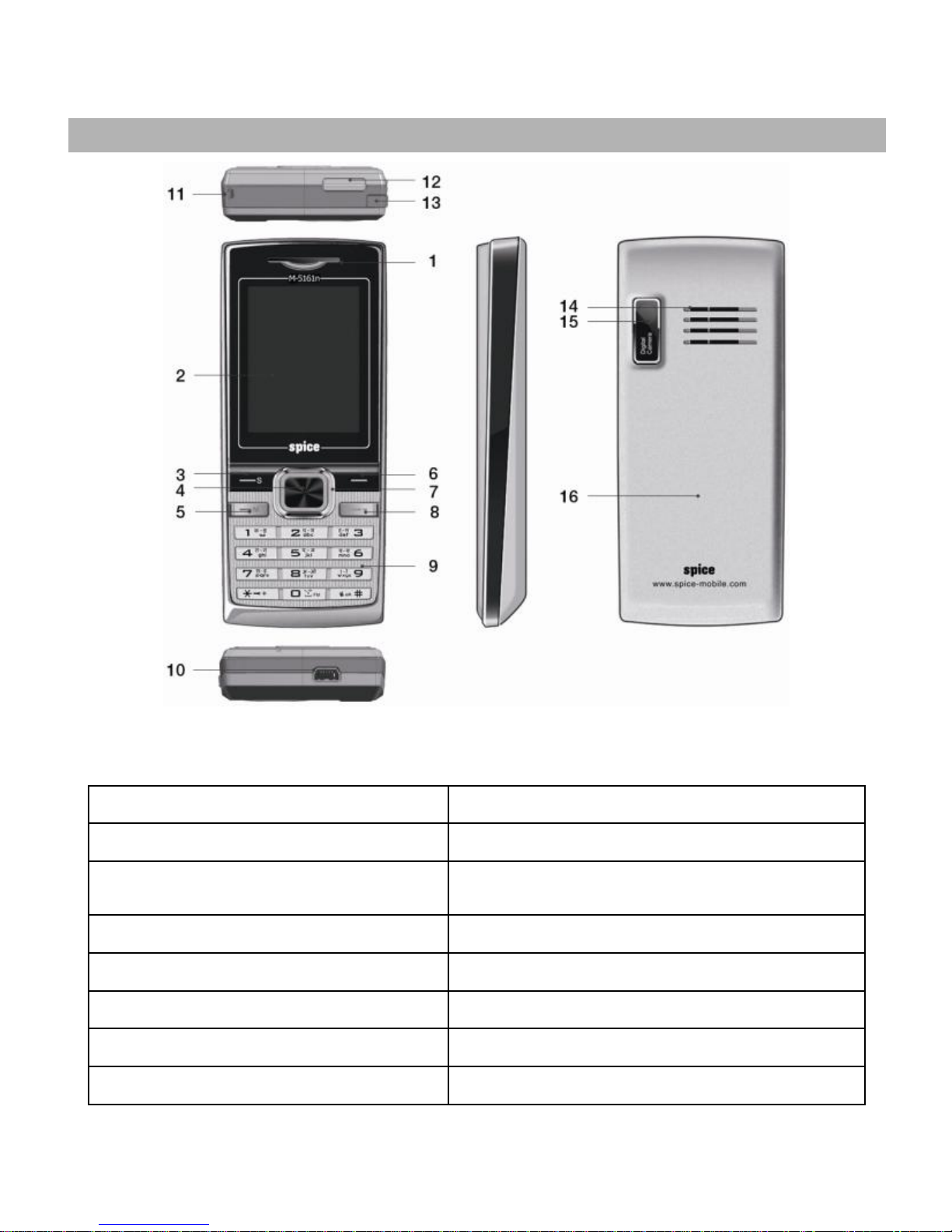
1. Earpiece
9. Number Keys
2. Screen
10. Charger/Accessories Connector
3. Left Soft Key/ Slave SIM Call
Key
11. Cord Hole
4. Ok Key
12. Torch/ Currency Checker
5. Master SIM Call Key
13. FM Antenna
6. Right Soft Key
14. Speaker
7. Selection Key
15. Camera
8. End and Power Key
16. Battery Cover
Page 8
6
Function of Keys
Key
Name
Description
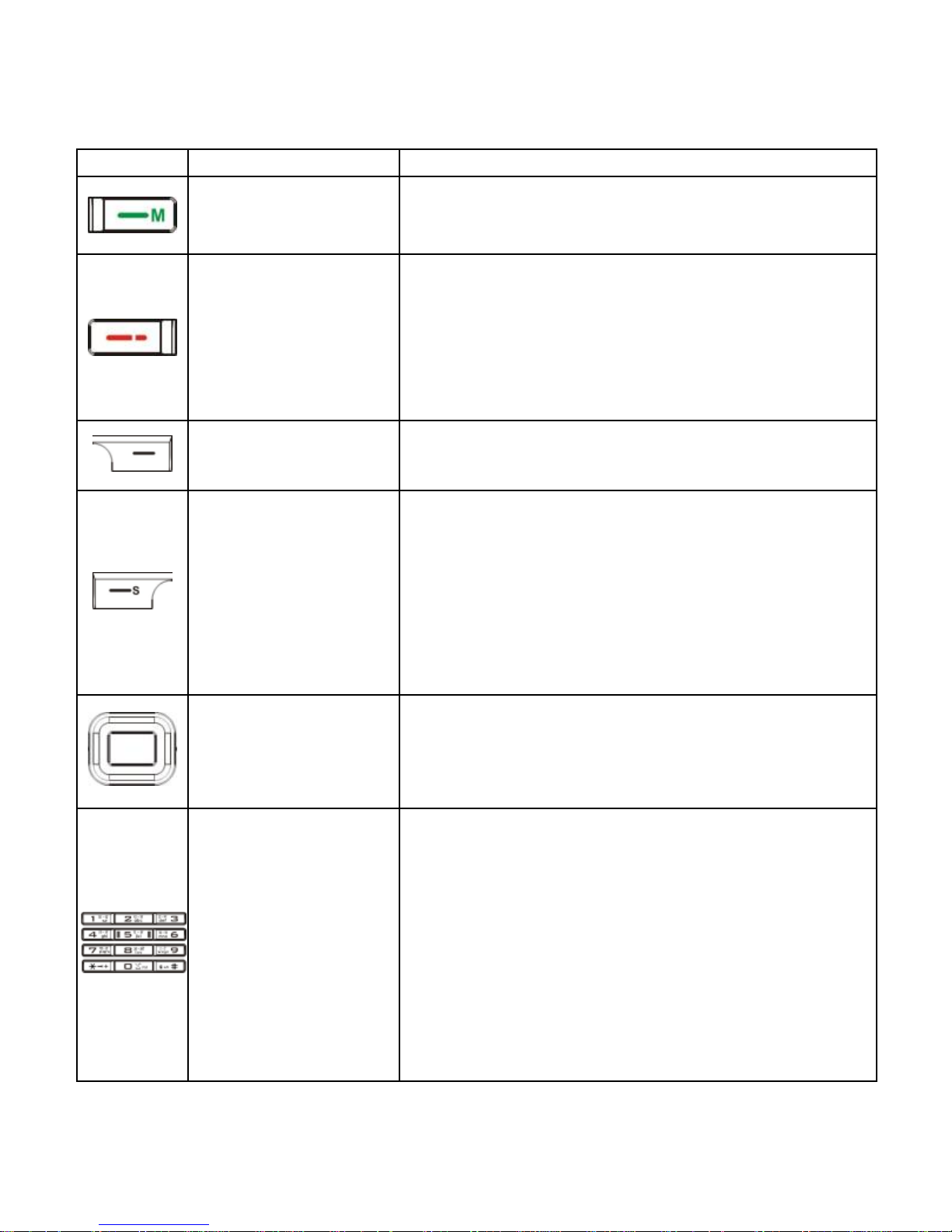
Master SIM Call Key
Making or answering a call from Master SIM.
In the standby mode, press this key to access
the Call Logs.
End Key
End an ongoing call.
Press and hold this key to turn on or off the
mobile phone.
In the menu mode, press this key to return the
standby mode and cancel current operations.
Right Soft Key
Use the right soft key to execute the functions
indicated at the right of the prompt bar on the
screen.
Slave SIM Call Key
/ Left Soft Key
Use the left soft key to execute the functions
indicated at the left of the prompt bar on the
screen.
In the standby mode, press this key to access
main menu.
When the “Master SIM & Slave SIM open” has
been selected, press the left soft key to make a
call from Slave SIM after entering the number
key or selecting a number from phonebook.
Selection Key
In the edit mode, it is used for moving the
cursor.
In the standby mode, press the keys to access
the function assigned to these keys.
Numeric Keys
Used to enter numbers, letters and some
special characters.
In the standby mode, press and hold the # key
to activate Silent mode,
In the edit mode, you can press the # key to
switch among the input methods, press the *
key to enter symbols.
Long Press of “*” Key to activate/ deactivate
“Torch Light”, Long Press of “5” Key to
activate/deactivate “UV Currency Checker
Light”, Long Press of “0” Key to activate “FM
Radio”.
Page 9
7
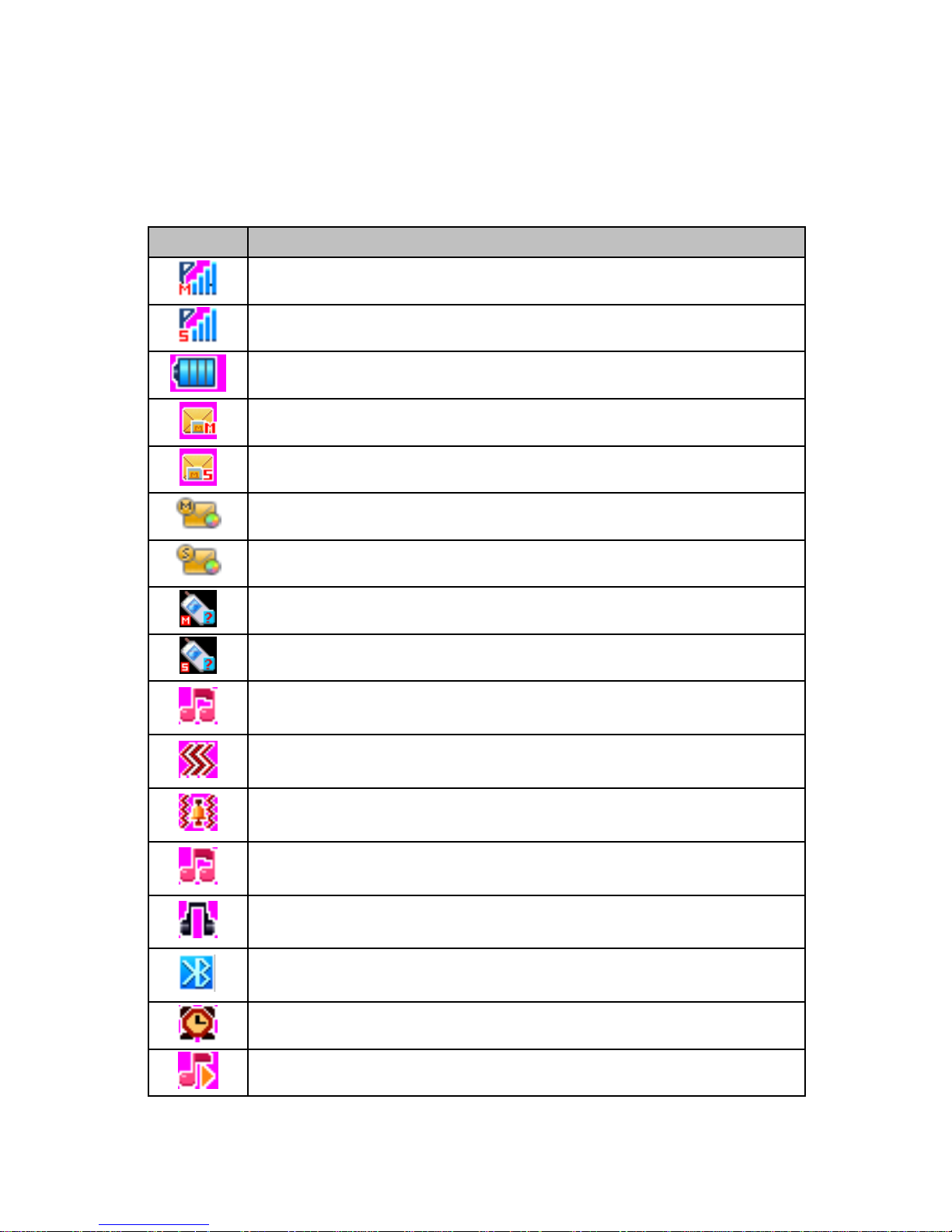
Status Icons
The table below lists the various icons that might appear on the status bar while
using the phone. Apart from the icons for signal strength level and the power, other
icons are displayed as per the current mode and priority of the phone.
Icon
Description
Indicates the network signal strength of Master SIM.
Indicates the network signal strength of Slave SIM.
Indicates the current battery capacity.
Indicates that there is an unread SMS in Master SIM.
Indicates that there is an unread SMS in Slave SIM.
Indicates that there is an unread MMS in Master SIM.
Indicates that there is an unread MMS in Slave SIM.
Indicates that there is a missed call in Master SIM.
Indicates that there is a missed call in Slave SIM.
Indicates that the current profile mode is the General
mode.
Indicates that the current profile mode is the Meeting
mode.
Indicates that the current profile mode is the Outdoor
mode.
Indicates that the current profile mode is the Indoor
mode.
Indicates that the current profile mode is the Headset
mode.
Indicates that the current profile mode is the Bluetooth
mode
Indicates that the current alarm clock is set as activated.
Indicates that the audio player is running.
Page 10

8
Indicates the current keypad-locked state.
GETTING STARTED
Please switch off your phone before inserting or removing the battery/SIM card or
memory card.
Installing SIM Card and Battery
Your phone is provided with two SIM slots for two different SIM cards. The SIM card
inserted in the slot1 is called Master SIM, and the other one in the slot2 is known as
Slave SIM.
Remove the back cover of the phone
Hold the phone with the front facing downwards; pull the battery cover
Insert the SIM cards in the phone.
Attach the battery.
Push the battery cover until it clicks into place.
Installing Memory Card
The phone supports T-Flash card, which is a multimedia memory card used to
multiple the memory of the phone. The T-flash card is small and should be pulled out
and installed carefully and prudently in order to avoid any kind of damage.
Switch off your phone.
Remove the battery cover.
Open the external cover of the T-Flash card slot.
Slide the T-Flash card into the slot.
Attach the battery.
Push the battery cover until it clicks into place.
Charging the Battery
The phone prompts a warning tone and message stating insufficient battery when the
battery power of your phone is low.
Please follow the instructions mentioned below to charge your phone:
Plug the connector of the charger into the jack of the phone.
Plug the charger into a standard AC wall outlet.
Note:
When is shown on the screen, it indicates that there is not enough power and you
should now charge your phone. When charging is complete, the battery icon will stop
flashing.
Page 11

9
Charging……. Fully Charged…….
You must fully charge the battery before using the phone for the first time. It is
recommended to charge the battery for four hours before using the phone for the first
time.
If the phone is turned on during charging, you can still make or answer calls, but
this will consume battery power, thus will extend the charging time of the phone.
Switch On/Off the Phone
To turn on/off the phone, press and hold the End key.
If you have enabled the SIM Lock function then enter the PIN code (the 4 to 8 digits
secret code of your SIM card). It is preconfigured and provided to you by your
network operator or retailer. If you enter an incorrect PIN code 3 times in succession,
your SIM card will be locked. To unlock it, you must obtain a code from your network
operator.
BASIC OPERATIONS
To Make Calls
If the icon / appears on the screen, then you can make or receive calls.
Input the phone number (should affix the international/national/regional code
or district code if necessary) and then press [M/S] in the standby mode.
Press [M/S] to dial a phone number listed in the recent call log in the standby
mode.
Press and hold numeric keys [2]-[9] to dial the speed dial number assigned to
the numeric keys.
You can select a contact number from the phonebook and call the contact
person.
Tip: The signal strength may influence the quality of connection.
To Dial International Number
The phone supports dialing the international emergency phone number, such as 112
and 911. With the phone, you can dial an emergency call in any country or region
under the normal situation regardless of SIM card inserted when the phone is located
within the coverage of the GSM network. Input the emergency phone number and
press [M/S] to dial.
In the idle mode, press * key twice to input “+”.
The phone will select the main network automatically after powered on if it is located
within the coverage of the main network. The phone can use other network, called as
roaming, if the phone is not located within the coverage of the main network when
the network operator protocol permits.
Page 12

10
You can dial or answer a call when the symbol of the network operator appears on
the screen.
Answer/Reject an Incoming Call
Press [M/S] to receive the incoming call. You can use the earphone to answer
the call when the generic earphone or Bluetooth earphone is inserted in the
phone.
Press [End] to reject an incoming call.
Options during a call
Press <Option> to use the following functions during the call:
Hold Single Call: temporarily hold the current call.
End Single Call: end the current call.
New Call: call the opposite party to build a Call to Many.
Phonebook: enter in the phonebook menu.
Messages: enter in the SMS menu.
Sound Recorder: record the current call.
Mute: open or close the mute mode.
DTMF: open or close the DTMF function during the call.
Call History: view call logs.
Page 13
11
MAIN MENU
Menu guides you to the various features, applications and services available in your
phone. Press the Menu [LEFT SOFT Key] in the idle mode to access the main menu.
Press the Navigation Keys Up/Down/Left/Right to choose the desired operation and
press Ok to enter the selected operation.
Phonebook
Messages
Call Center
User Profiles
Media Center
Fun Spice
Settings
File Manager
Organizer
Shortcuts
Extra
Services
Phonebook
Phonebook refers to the directory wherein all the contacts are stored in an
alphabetical order. You can view, edit, delete, send message and perform various
other functions on each contact of your phonebook.
Press <Menu> in the standby mode and then select Phonebook. OR
Press Names (RIGHT SOFT KEY) to directly access the phonebook.
Search Contact
Input the first characters of a name to be searched.
Select a desired entry from the list.
Select a contact from the phonebook and press<Option> to perform the following
functions:
View: view the detailed info of a selected contact.
Send SMS: send an SMS to the current contact.
Send Multimedia Message: send an MMS to the current contact.
Call: to make a call.
Edit: edit the current contact.
Delete: delete the current contact.
Copy: copy the entry to phone memory, SIM memory or to a file.
Move: move the entry from phone to SIM or vice-versa.
Send Contact: send contact as text message, as MMS, via Bluetooth.
Add to Blacklist: add the contact to the blacklist list.
Mark Several: you can choose one or more options, and to Unmark,
Send text message, Delete marked, Unmark all operation.
Caller Groups: you can group the contacts with this function.
Phonebook Settings: manage the phonebook with this function.
Print: print the desired contact (Bluetooth must be on).
Messages
Press <Menu> in the standby mode and then select Messages to send/read/ delete
SMS/MMS.
Page 14

12
Write Message
You can edit the SMS.
Inbox
The phone will prompt you when you receive a new message.
Drafts
In the Drafts, please select Options, and then you can do send from SIM1/SIM2, edit
and some other operations.
Outbox
This function is used to check messages in outbox.
MMS
Please consult your network operator to obtain the MMS services.
Write Message
While writing messages, you can select To, Cc, Bcc, Subject or Edit content.
To: You can enter the phone number or E-mail address..
Cc: send the MMS to others at the same time. You can enter phone numbers or
E-mail addresses.
Bcc: send the MMS to others secretly at the same time. You can enter phone
numbers or E-mail addresses.
Subject: edit the Subject of the MMS.
Edit content: enter the text or add picture, audio and so on.
Inbox
The phone saves the received MMS into the inbox.
All received Messages are saved in the inbox, and the icon means the MMS is
unread. Use the Down/Up key to scroll the cursor to check the list, and the sender's
name and number will display. If the MMS has been read, the icon will change to the
read icon. Please press the left soft key to access Options, and then you can view,
reply, delete and so on.
Outbox
In the Outbox, please select Options, and then you can send, or select other
operations.
Drafts
In the Drafts, please select Options, and then you can send, edit or select other
operations.
Templates
You can use the pre-defined MMSs to send.
MMS Settings
Please follow steps described as below:
Profiles: You can Add New or select one profile to activate, or edit.
Common Settings:
Compose: You can configure Creation Mode, best page time, auto signature,
signature, Picture Resizing.
Page 15

13
Send: You can configure Validity period, Delivery Report, Read Report, Priority,
Slide Timing, and Delivery Time.
Retrieve: You can configure Home Network, Roaming, Read Report, and Delivery
Report.
Filter: You can configure Anonymous and Advertisement.
Memory Status: You can check the Usage, Used space and Free space.
Broadcast Message
This network service enables you to receive all kind of text messages, such as
weather reports or transportation information. There are several networks who
afford this service in this world. Please consult your network operator for more
reference.
Receive Mode: Turn on or off the Cell Broadcast.
Read Message: Scroll the Up/Down Key to select the message.
Languages: Select the desired language to display the broadcast message.
Note: Your network operator decides whether the language is supported or
not.
Channel Settings: You can choose Select, Add, Edit or Delete to receive the
Broadcast information.
Templates
You mobile phone saves many messages in common use. You can edit, remove or
write message.
SMS Settings
You can set the default information about SMS properties.
Schedule SMS
Press the left soft key to access the Add or Options > Add, and then you can set SIM,
the date, time, message and Phone number. Press Done and Save the message will
sent out the message to the number as your desire.
Call Center
In the standby mode, press left soft key to access Menu > Call Center.
Call history
Master /Slave SIM Call history
Missed Calls
With this function, you can check recent missed calls.
Scroll the Up/Down key to select a missed call.
Press OK key to access Missed Call Information, and you can Delete, Save to Phone
book, call, Edit and so on.
Dialed Calls
With this function, you can check recent dialed calls. In this function, you can
Delete, Save to Phone Book, Call, Edit and so on.
Received Calls
With this function, you can check recent received calls. In this function, you can
Delete, Save to Phone Book, Call, Edit and so on.
Page 16

14
Delete Call Logs
You can delete all records of missed calls, dialed calls or received calls with this
function or Delete all folders drastically.
Call Timers
Last Call: The last call time can be checked.
Dialed Calls: The total time for all dialed calls can be checked.
Received Calls: The total time for all received calls can be checked.
Reset All: Reset the counters.
Call Cost
Last Call Cost: You can check the cost of last call.
Total Cost: You can check the total cost of all calls.
Reset Cost: You can modify the cost of call, and reset the cost to 0. PIN2 code is
required while modifying.
Max Cost: You can check and modify the upper limit. PIN2 code is required while
modifying.
Price per Unit: You can check and modify the call rate. PIN2 code is required
while modifying.
Note: This function is related with the SIM card. Some SIM cards don't support the
function. PIN2 is provided from the network operator. Please consult your network
operator to obtain the number.
Text message Counter
Sent: You can check and clear the number of sent messages.
Received: You can check and clear the number of received messages.
Note: This function has nothing to do with the SIM card. The amount of sent or
received messages will not change even if you change the SIM card.
GPRS Counter
You can check or reset the Last Sent, Last Received, All Sent, All Received and Reset
Counter.
Call Settings
Smart Divert
Setting:
1. Master Divert number: You need set Slave SIM card number.
2. Slave Divert number: You need set Master SIM card number.
3. Remind when Phone on: Set On or Off.
Activate: Activate smart divert feature.
Deactivate: Deactivate smart divert feature.
Check Status: View Smart Divert Status is on or off.
Note: Provide Master SIM, Slave SIM call forward between each other. For example,
when Master SIM is receiving a call and someone calls on Slave SIM, instead of
showing Slave SIM as out of reach or switched off, this feature will divert the call to
Master SIM so that the user knows that a call is ongoing. And you could choose
answer or reject incoming call.
Page 17

15
Master SIM/Slave Call Settings
Caller ID (Net work Service): You can select Set By Network, Hide ID or Send ID.
The default state is the Set By Network.
Call Waiting > Activate, the network will notify you of a new incoming call while
you have a call in progress (Net work Service).
Call Divert: This network service allows you to divert your incoming calls to
anther number. For details, contact your service provider.
Call Barring > Activate, this network service allows you to restrict incoming calls
from your phone. For details, contact your service provider.
Close User Group (only for Master SIM): if On, this network service specifies the
group of people whom you can call and who can call you. For further information,
contact your network operator or service provider.
Advance Settings
Blacklist: you can set 20 numbers. When this Black list is enabled, you won‟t receive
the calls from the numbers entered in the Blacklist.
Auto Redial > On, the phone will automatically redial the last called number after a
while if you fail to connect to the number. The times for auto redial are up to 10
times. Press Abort to end Auto Redial.
Call Time Display > On, the call time will display.
Call Time Reminder: This function prompts you to end the call in time to save the
call cost. You can select Off, Single, or Periodic.
Auto Call Disconnect: You can set ON/ OFF, and set a time (1~9999s) as your
desire.
User Profiles
The phone provides seven pre-defined user profiles that allow the operations of the
phone to best suit the environment you are in. The profiles are General, Silent,
Outdoor, Indoor, Headset, Bluetooth and Power Saving. The phone will automatically
enter the headset profile if you connect the headset to your phone.
General
Activate
Customize
Tone Settings: Includes Master/Slave SIM Incoming Call, Power on, Power off,
Master/Slave SIM Message, Key. You can select built-in ring tunes, or the tunes
composed by yourself.
Volume: Includes the volume setting of Ring Tone and Key Tone. The volume
degree is from 1 to 7.
Alert Type:
Ring Only: Just ringing, no vibration.
Vib. Only: Just Vibrating, no ringing.
Vib. then Ring: Ringing after vibration.
Silent: No ring or vibration.
Ring Type:
Page 18

16
Single: Rings once when a call is coming.
Repeat: Rings continuously when a call is coming.
Ascending: Rings continuously and the volume increases gradually.
Extra Tone:
Warning: If necessary, you will be warned by the prompt tone.
Error: You will be warned by a tone if you make a mistake.
Camp On: A prompt tone will be heard after searching the network
successfully.
Connect: A prompt tone will be heard after the call gets connected.
Answer Mode:
Any Key: Press any key to answer a call (Except of Hang Up Key and Right
Soft Key).
Silent
Please refer to “Normal” for more details.
Note: Press and hold the # key to enable or cancel the silent mode.
Outdoor
Please refer to “Normal” for more details.
Indoor
Please refer to “Normal” for more details.
Headset
Insert the earphone and access the Headset mode automatically. This mode has no
Activate option. Please refer to “Normal” for more details.
Bluetooth
You will enter into Bluetooth mode after you activate the Bluetooth function. This
mode has no Activate option; the detailed operation has been shown in the “General”.
Power Saving
This is a special profile which increases the usage time of the phone. In this profile
only important functions of the phone will work so the power consumption of the
phone will be minimizes.
Media Center
This menu is specifically designed for the entertainment purpose of the user. To enter
this menu, go to the main menu and select media center.
Camera
The phone is provided with a digital camera, which supports the photographing and
video shooting functions. Pictures are saved in the file system of the phone or the
memory card.
Image Viewer
Pictures taken can be accessed quickly in Image viewer. Select Options for available
options while viewing pictures.
Page 19

17
Video Recorder
In standby mode, select Menu > Media Center > Video Recorder to launch the video
recorder and shoot your videos.
Video Player
Select a video clip and press OK key to open it. Press OK key to start playing the
video clip.
Audio Player
Audio Player allows you to play audio files. The phone supports T-Flash memory
card.
Sound Recorder
The mobile phone supports WAV, AMR recording formats. You can record
conversations, which may be saved to the Audio folder under File Manager. If there is
a record, press left soft key you can do: Play, Append (only for AMR), Rename, Delete,
Delete All files, Use As and Send.
Note: If a call is coming while recording, the record will abort and the data will be
paused. AMR adopts dynamic compression and provides a longer recording time than
WAV„s while utilizing the same storage space.
FM Radio
You can use your phone to listen to FM radio stations once the original Headset is
plugged into the accessories connector. Select FM Radio in the Menu to access the
radio controls.
Schedule FM Radio
With this function, your phone can record the FM program as the schedules once the
original Headset is plugged into the accessories connector. You can set On/Off, the
date and time, repeat style, channel settings and record settings.
Melody Composer
The mobile phone enables you to compose your favorite music as the tune of the
incoming call, alarm.
Note: The phone can save multiple tones edited by you according to the volume of
tones.
When the Tune Editing List is blank, you can edit your favorite tunes by pressing
“Add”. After you have finished editing, press Options to select a music instrument or
playing speed to play the editing tunes. You can also save the edited tunes.
Fun & Games
For your entertainment purpose, your phone is provided with several interesting
games, such as Puzzle, Panda and Robot. To access this function, press Menu in the
idle mode, then Media Center and select Fun & Games.
You can set the BGM, sound effect and volume of the game as per your choice by
selecting the Game Settings sub-menu.
Page 20

18
Fun Spice
Fun Spice menu is specifically for the entertainment purpose and all the functions
belonging to this menu are chargeable. All the functions of Fun Spice will work only
if GPRS is activated on your SIM card.
Spice Gang
Spice Gang is a WAP portal from where user can download ringtones, wallpapers,
animations, video and other kind of content.
Step1: Check the GPRS settings for your operator.
Step2: Initiate Spice Gang WAP portal to browse and download the content.
Step3: Charges for download apply as per operator pricing.
Explore the whole world of Entertainment with Spice Gang.
Wapedia
Welcome to Wapedia, the encyclopedia for mobile devices. Wapedia brings the
contents of Wikipedia to mobile devices offering the most high speed and up-to-date
articles. Standard Wikipedia pages are typically too long for display on these devices,
so long pages are divided into smaller chunks to fit into the small displays. Wapedia
can be accessed through Fun Spice section in your spice mobile phone. Please ensure
that you have GPRS settings in your phone to open Wapedia. Contact your operator
for GPRS settings.
Free Videos
Vuclip is a Mobile Video search and Delivery service which gives you a premium
experience by providing real time device optimization and delivery of Videos. Write the
search term for video in the search box and you get options for both downloading and
streaming. Videos can be played in different resolutions and in parts. You can also
create your own playlist by adding your favorite video to „Add to my Cliplist‟ tab.
Please ensure that you have GPRS settings in your phone to open Vuclip. Contact
your operator for GPRS settings.
Email2SMS
Emergic Email2SMS is a product of Netcore Solutions Pvt. Ltd. provided by Spice
Mobiles. Email2SMS allows you to receive email on your phone via SMS without
GPRS. You can Read, Reply, Compose and Forward your emails via SMS. This service
is only available for Gmail, Indiatimes and Corporate Account Holders. Spice Mobiles
offers FREE subscription for one month.
1. Just send SPICE START <Location> to 575758 to register for Email2SMS service.
For composing new mail type NEW <Receiver's Email-Id> S: <Subject> B: <Message>
and send it to 575758.
2. For replying to any mail types REPLY <Message-Id> <Message> and send it to
575758.
3. For replying to all in the mail type REPLY <Message-Id> <Message> and send it to
575758.
4. For forwarding the mail type FWD <Message-Id> <Receiver's Email-Id> <Message>
and send it to 575758.
5. For reading the remaining part of mail types READ <Message-Id> and send it to
575758.
Page 21

19
NOTE: Message-Id is the number which you get at the end of SMS. i.e., 01, 02, 03,
04.
For more details contact Customer Support:
Phone: +91 22 6662 8130,
Email: [email protected],
Chat ID: [email protected], [email protected],
Disclaimer: For any Third Party application, Spice Mobiles disclaims all
responsibilities from its usage, whether express or implied.
Instant Messenger
Nimbuzz, another path-breaking innovation is available exclusively to the users of
Spice Mobiles. Nimbuzz is a common IM platform that allows one to chat, message
and send files on the move. This service is common for most of the commonly used
IM portals including Skype, MSN, yahoo, ICQ, AIM, Google talk – one log-in, one
contact list for all accounts. Please check your GPRS settings before accessing
Nimbuzz.
Top News
Reuters India gives you the latest India, World and Business news and more. Also,
get the latest stock market information along with tools like the currency converter
and weather in your city on your mobile phone.
Ibibo
Now connect with the ibibo community on Spice Mobiles. Go and create your profile,
search for people based on their age, sex & location, make new friends and send or
receive blurbs. Invite your existing friends to join your new community. Please check
your GPRS settings before accessing Ibibo.
Free SMS
Free SMS service is powered by Ibibo. You can now send free SMS to your friends
using this feature. You require GPRS connection to use this feature. Please contact
your operator for GPRS activation.
Cricket Updates
Cricket Updates service is powered by Ibibo. With this service you can now check live
cricket score and schedule of matched. You require GPRS connection to use this
feature. Please contact your operator for GPRS activation.
MGurujee
MGurujee is India's leading M-Learning portal delivering unique anytime anywhere
mobile phone based learning experience with access to a wide variety of quality
knowledge content from market leaders. Please check your GPRS settings before
accessing MGurujee.
Schedule SMS
Press the left soft key to access the Add or Options > Add, and then you can set the
date, time, message, enter number, and select SIM card. Press Done and Save the
message will sent out the message to the number as your desire.
Note: The time format of this function is 24 hours.
Page 22

20
Mobile Tracker
Now be sure of your mobile phones with Mobile Tracker offered by Spice Mobiles.
This feature allows users to track their phone if they are lost or stolen. Switch on
Mobile Tracker application and whenever a new SIM is inserted in your phone you
will receive a SMS on pre defined numbers.
1) Tracker Mode
This function requires your network support. You can set ON or OFF. When the
function ON and the phone change a SIM card, the phone will sent a message to the
number which you set in Fun Spice > Mobile Tracker > Number. The message will tell
you that which number is using your phone now. The default password is 1122.
2) Number
You can set Tracker number.
TIP: This function requires your network support. When you set Tracker Mode OFF,
and then you can set the tracker number you want.
Settings
In the standby mode, press left soft key to access Menu > Settings.
Multi SIM Setting
You can choose one mode as your desire.
Phone Settings
Time and Date
Set Time Zone: Select the desired home city.
Set Time / Date: Enter the current time and date.
Set Format: Select a time and a date format.
Update with Time Zone: It can be set to On or Off.
Schedule Power On / Off
You can set the time for auto power on /off. Do turn the status on before using that
function, and then the time.
Note: Please disable the Schedule Power On function before you board an airplane.
Language
Select the desired language for the display text. In M-5161n you can select 4
language options English, Hindi, Bengali, and Telugu.
Pref. Input Methods
Select the desired input method for the default input method.
Display Settings
With this function you can configure the basic status of display characteristics
including Wallpaper, Screen saver, Power On Display, Power Off Display, Main menu
style, Show date and time, Show owner number.
Themes
You can choose your theme as you want.
Page 23

21
Dazzle Ringtone
Abb Har Bar Naya Gana Bajega! You like lot of songs and also like to set those all
songs to be a ring tone of your mobile phone?? For this you have to change ring tone
every time with new song.
Not anymore. M-5161n gives you the facility of Dazzle/Shuffle Ringtones. Where you
can set up to 10 songs in one time as your ring tone.
Now whenever a new call will come every time a new song will play as your ring tone.
Motion Sensor
In this function you can set change your wallpaper, music and mute incoming call by
shaking your phone.
Greeting Text
Set the status on, greetings will display when power on.
Dedicated Key
You can configure short cut functions for the Up, Down, Left and Right key
respectively. In the standby mode, press any one of them to access the appointed
function.
Auto Update of Date and Time
It can be set to On or Off.
UART Settings
When using this phone for GPRS, select different UART port to decide whether Master
/Slave SIM to be used.
Misc. Settings
LCD backlight: You can set the LCD backlight.
Network Settings
Please contact the network operator for the following network service.
Master/Slave SIM Network setup
Network Selection
You can choose Automatic or Manual to select the network (Auto is recommended).
When you select Automatic, the phone will make the preferential selection according
to the network where the SIM card belongs. When you select Manual, you are
required to select the same network as the registered network with the network
operator by SIM card for your use.
Preferences
Select the Preferred Networks. The default network is the network where the SIM card
belongs. Select Options to perform the following operations:
Add From List: Display all PLMN list.
New: Create a new network and set the network priority.
Change Priority: Reset the selected Network Priority.
Delete: Delete the current preferred network.
Security Settings
Master SIM/Slave SIM Security Settings
Master SIM/Slave SIM Lock:
Page 24

22
You will be asked to input the PIN. It can be configured if the PIN is correct. If SIM
card is set on, you will need to input the PIN every time you switch on the power. If
you enter incorrect PIN three times, you will be asked to enter PUK. PUK is used to
release and modify the locked PIN. If PUK is not provided or missed, please consult
your network operator.
Fixed Dial:
If this function is enabled, only phone numbers in the Fixed Dial List can be dialed.
PIN2 is required for this function. Network support is also required.
Note: You need to enter PIN2 after the phone gets switched on; PIN2 is not required
before the phone is switched off. Therefore, please switch off the phone and switch it
on again after configuration, if you do not want others to change the status of the
Fixed Dial.
Barred Dial(only for Master SIM):
If this function is activated, the phone numbers in the barred dial list cannot be
dialed. PIN2 is required for the function. Network support is also required.
Change Password:
You can change Master SIM/Slave SIM PIN, Master SIM/Slave SIM PIN2.
Phone Lock
You can lock or unlock the phone. Enter the password to activate or deactivate the
phone lock. When the phone is locked, you will be required to enter the phone
password. 4-8 numbers can be used for the phone password. The default phone
password is 1122.
Auto Keypad Lock
You can lock/unlock the phone keyboard and set the Key Lock Time to None, 5 sec,
30 sec, 1 min, and 5 min.
Change Password
You can change phone password and Tracker Password.
Restore Factory Settings
Access Settings to select Restore Factory Settings, and press OK. All settings can
be restored to factory settings with this function. The default password is 1122.
File Manager
In "File manager", you can browse, open and manage the data saved in the Phone
and Memory card.
Organizer
The organizer menu gives you access to a number of features including Bluetooth,
calendar, tasks, alarm, torch and world clock.
Calendar
You can view and edit the memo of a specified date with this function.
View: You can view or edit the daily arrangement of the day.
View All: You can view or edit all the daily arrangement of the day.
Add Event: You can select task types: Reminder, Meeting, and Course.
Page 25

23
Delete Event: You can select delete entries form All, Overdue, Spec
Period.
Jump to Date: Skip to the specified date to view or edit the daily
arrangements of the day.
Go To Weekly/Monthly View: Go to the specified date to check which
week/Month it is.
Indian Calendar: You can view or edit: Tithi details, Festival list, Date to
tithi, Yearly tithi
Onscreen Prompts: It can be set to None or Indian.
Print: print the desired contact (Bluetooth must be on).
Tasks
You can View, Add, Edit, Delete, Delete Overdue, Delete All, Send Vcalendar and Save
As File as desired. Start up the Tasks and press OK. Press Add to access to add a
new memo.
Alarm
The mobile phone provides 5 alarms and you can set them as your need. If you have
configured an alarm, an icon indicated that you have configured the alarm will
appear.
World Clock
Scroll to browse every city‟s time zone in the world map. The related date and time
will display at the bottom of the screen.
Torch
You can turn On/ Off the torch light by long press of “*” Key in ideal screen mode.
UV Light
You can turn on/ off the currency checker function by long press of “5” key in ideal
screen mode.
Bluetooth
You can transfer data, such as music to other device using Bluetooth. Search the
device and accept/transfer data. The received data is automatically stored in the
directory.
Shortcuts
You can set shortcuts for those functions you often use. You can edit, delete/add and
set the order of the shortcut list members. In the shortcut list, press the up and
down direction keys or the number keys to designate the function menus, select
options to edit the selected shortcut.
Extra
Calculator
The calculator can add, subtract, multiply and divide. To use the calculator:
Press the # key to enter the decimal point
Page 26

24
Press the up, down, left and right key to select + , - , ×, ÷, =
respectively.
Press Clear to delete the figure.
Health
Provides the reference of body mass index (height, weight and sex).
Ebook Reader
The phone supports reading files in the *.txt format, which is ideal for reading an ebook. Store the *.txt files in the Ebook folder, and then you can read them in E-Book
reader.
Services
To access the Services menu, enter the Main Menu in the standby mode and then
select Services. You can use the network-related services with this function.
STK Service
This service is offered as the SIM card service provided by the network operator.
Internet Service
You can surf on the network with this function. After entering in the function, you
can perform:
Homepage: indicates the default website of the internet
Bookmarks: used to save most commonly-used websites
Recent Pages: browse the record of the recently browsed web pages
Input Address: input the website to be searched and press finish button
to access to the network directly
Service Inbox: save the short messages sent from the website
Settings: set up WAP-related service
1. Select SIM: select a SIM card to access to WAP
2. Profiles: the GPRS is set up for the phone by default
3. Browser Options: set up the waiting time and display image
4. Service Message Settings: set up to open/close the service,
prohibit/always use the white list setting, never confirm/confirm/
not confirm SL setting and add the white list
5. Clear cache: clear the cache
6. Clear cookies: clear the data
Data Account:
You can use this function to edit the account related settings.
Page 27

25
Frequently Asked Questions And Troubleshooting
If you encounter problems while using the phone, or if it performs erratically, you can
refer to the information given in the following table.
Problem
Causes
Solution
The phone
cannot be
switched on
Check if the battery power has
been used up completely.
Did you press the End Key for
adequate time?
Have you inserted the battery
properly?
Charge the battery
Press the power on key for
about 1 second.
Please remove and re-install
the battery and turn on the
phone.
SIM card
error
SIM card malfunction or
damage.
SIM card is not inserted
properly.
Take the SIM card to your
service provider for testing.
Insert the SIM card properly.
Unable to
make calls
Has the signal bar
disappeared?
Is the phone number entered
by you is correct?
Move to a place with strong
signal.
Please re-check whether the
number entered by you is
correct or not.
You cannot
answer
incoming
calls.
You have activated the call
barring feature.
Go to Settings > General call
settings > MASTER SIM card
/SLAVE SIM card call
settings > Call Barring/Line
Switching, and then select
Cancel All/Line1.
Fail to
connect to
the
network.
Weak signals.
Invalid UIM card.
Please try and move to a
location with strong signal
and try connecting to the
network again
Please ensure that you have
a valid UIM card. Please
contact your network
provider for further
information.
Poor
reception.
The network signal is too weak
at your current location, for
example, in a basement or
near a tall building, because
wireless transmissions cannot
effectively reach it.
The network is busy.
You are too far away from a
Move to a location where the
network signal can be
properly received.
Avoid using the phone at
such time, and try again
after waiting for a while.
You can request for a service
area map from your service
Page 28

26
base station of your service
provider.
provider.
Echo or
noise
during the
calls
Poor network trunk quality on
the part of your service
provider.
Press the ending key and
dial again. You may be
switched to a better-quality
network trunk or phone line.
Unable to
enter
information
in the
phone
book.
The memory of the phone
book is already full.
Delete unnecessary data
from the phone book.
Unable to
charge
battery
The battery or battery charger
is damaged.
The temperature of the phone
is below 10°C or higher than
55°C.
Poor contact between the
battery and charger.
Contact the dealer.
Adjust the battery charging
environment to avoid
extremes of temperature.
Check all connectors to
make sure all connections
have been properly made.
PIN Code is
blocked
You have entered an incorrect
PIN code three times in a row.
Contact your service
provider. If the service
provider provides the PUK
code of the SIM card, use the
PUK code to unlock the SIM
card.
Fail to set
certain
functions
Wrong operation
The network provider does not
support the function, or you
have not applied for it.
Please refer to the user
manual
Please contact your service
operator.
Short stand
by time
The standby time is related to
your service provider system
configuration. The same
phone used with different
service providers‟ system will
not provide exactly the same
length of standby time.
The battery is depleted.
If you are located in an area
where signals are weak,
temporarily switch off your
phone.
Use a new battery.
If you still face problems while using your handset or the solution to your query is
not mentioned here, then you can visit nearest Spice service center. For further FAQ‟s
you can refer to the support section of our website www.spice-mobiles.com.
Page 29

27
SUPPORT AND CONTACT
You can visit www.spice-mobile.com for additional information, downloads and
services related to your Spice handset.
To check for your nearest SPICE service center, you can visit www.spice-
mobiles.com/support-services .
For further assistance or queries, you can call on SPICE customer care number
1800-300-77423 (toll free) or mail at [email protected] or
To know the address of your nearest Spice service station please SMS- SPICE
SERVICE to 56300.
 Loading...