

Page 1
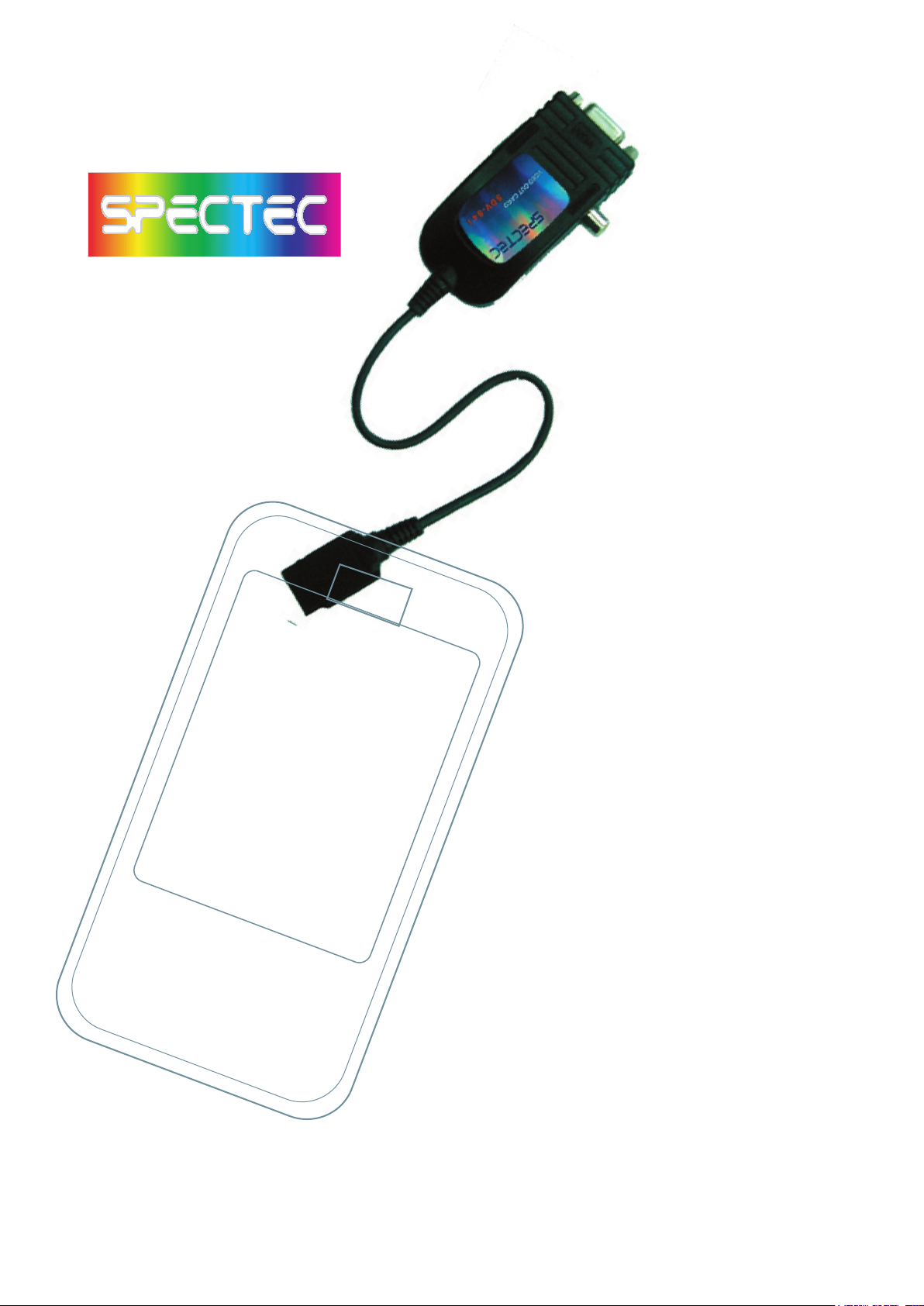
VIDEO-OUT CARD
TM
TM
1b
1b
VIDEO-OUT CARD
User’s Manual
ver. 2.0
Page 2

Content
Inside Package ................................................................................................P.0
System Requirements & Installation Description...........................................P.0
Installation Procedure ...............................................................................P.1-P.9
How to using the Video-Out Card with PDA...............................................P.10
Page 3
Thank you for choosing SPECTEC SDIO VIDEO-OUT Card, the fantastic product
you can get in the market place. It’s easy to carry and use. Just start to enjoy the
most convenient wireless experience.
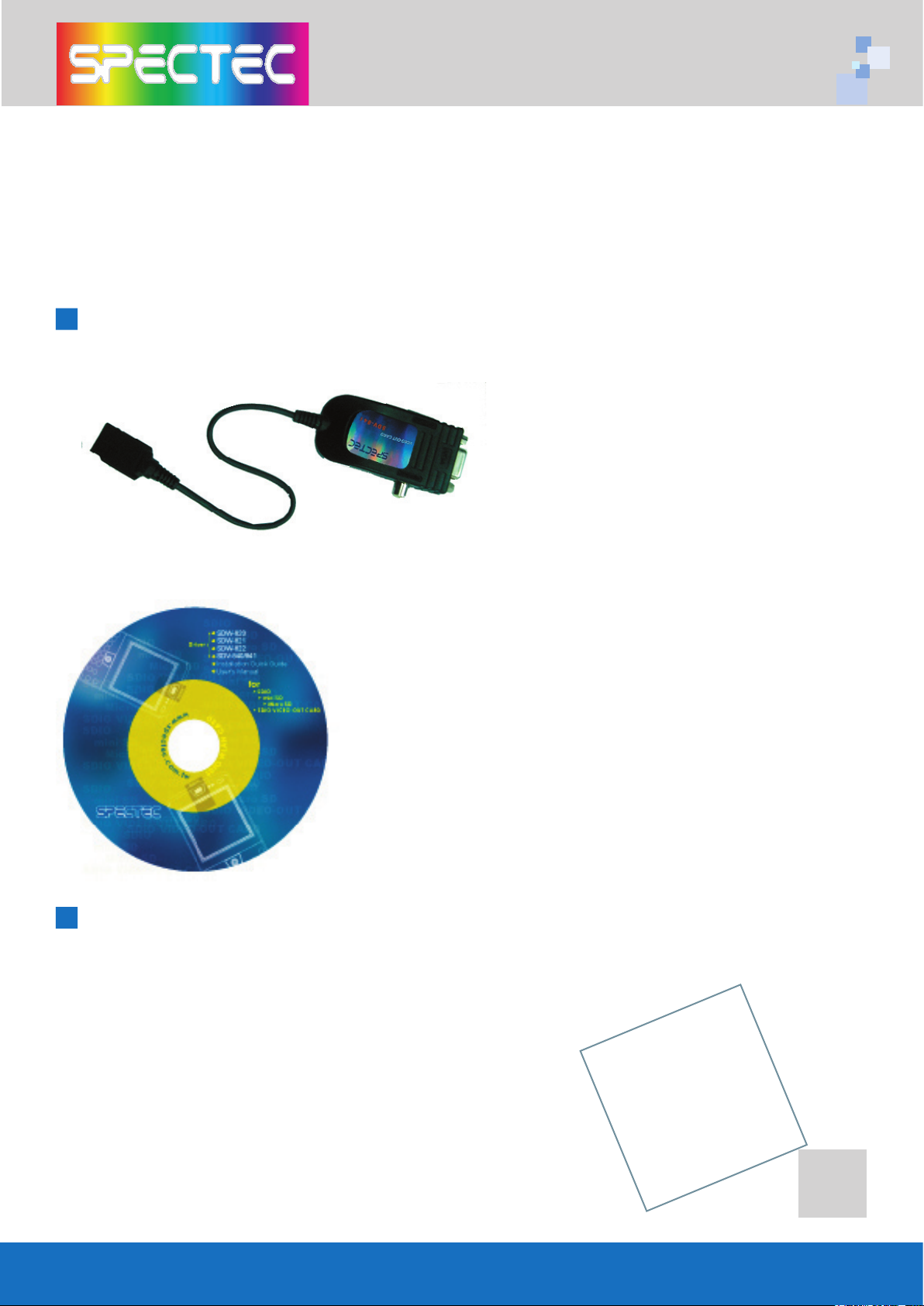
Inside Package
Driver & User Guide CD
System Requirements & Installation Description
1. This SPECTEC SDIO VIEDO-OUT card can only be
used with Windows Mobile 2002 or newer versions
of this operation system.
2. This SPECTEC SDIO VIEDO-OUT card can only be
used on PDAs with the SDIO drive.
0
Page 4
Installation Procedure
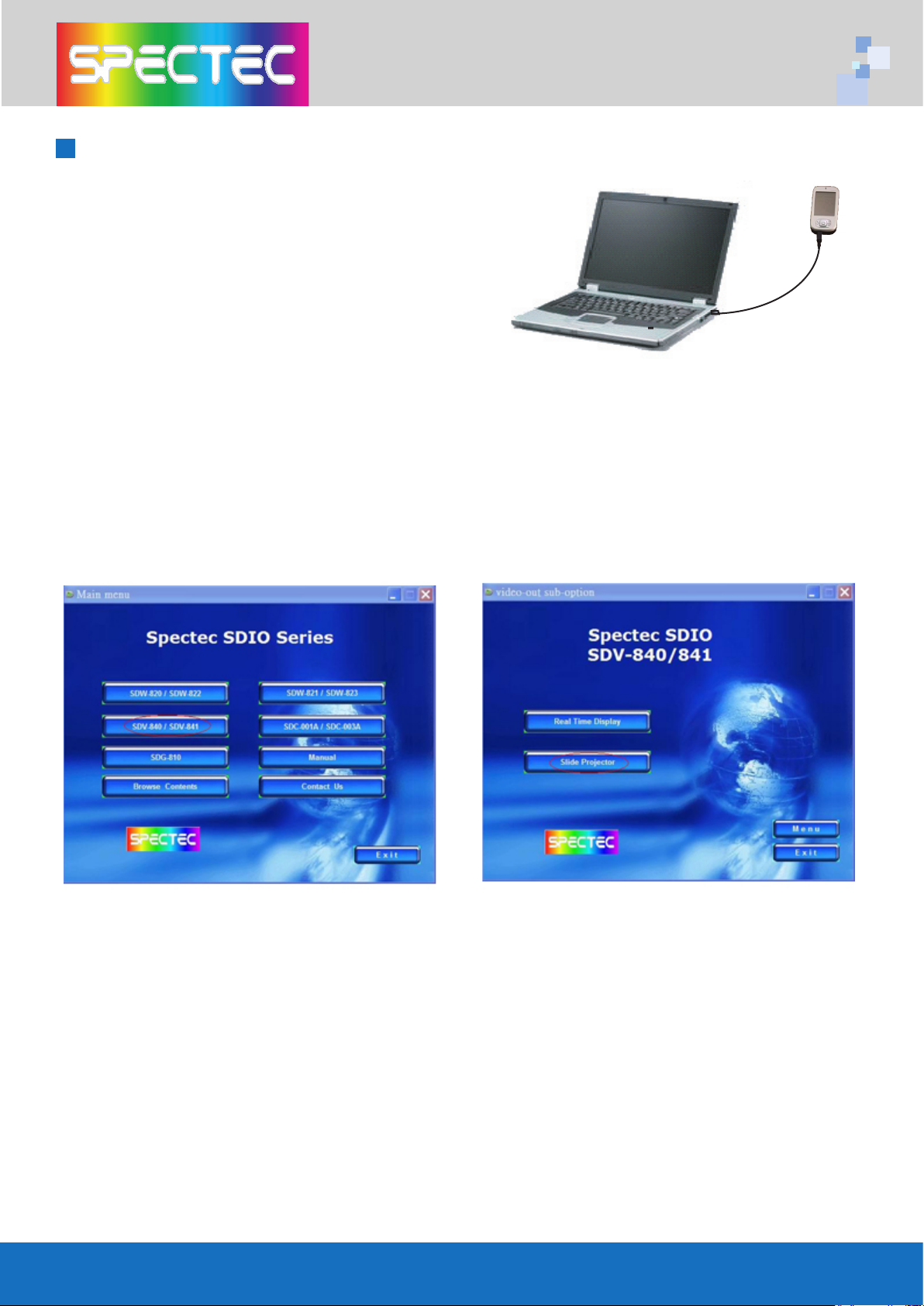
< First, connect PDA to your computer
with a USB wire.
< Main menu window will pop-up when
you insert the Spectec SDIO Series
Installation CD by autorun:
<Click the "SDV-840/ SDV-841" item, then click "Slide Projector" item again.
1
Page 5
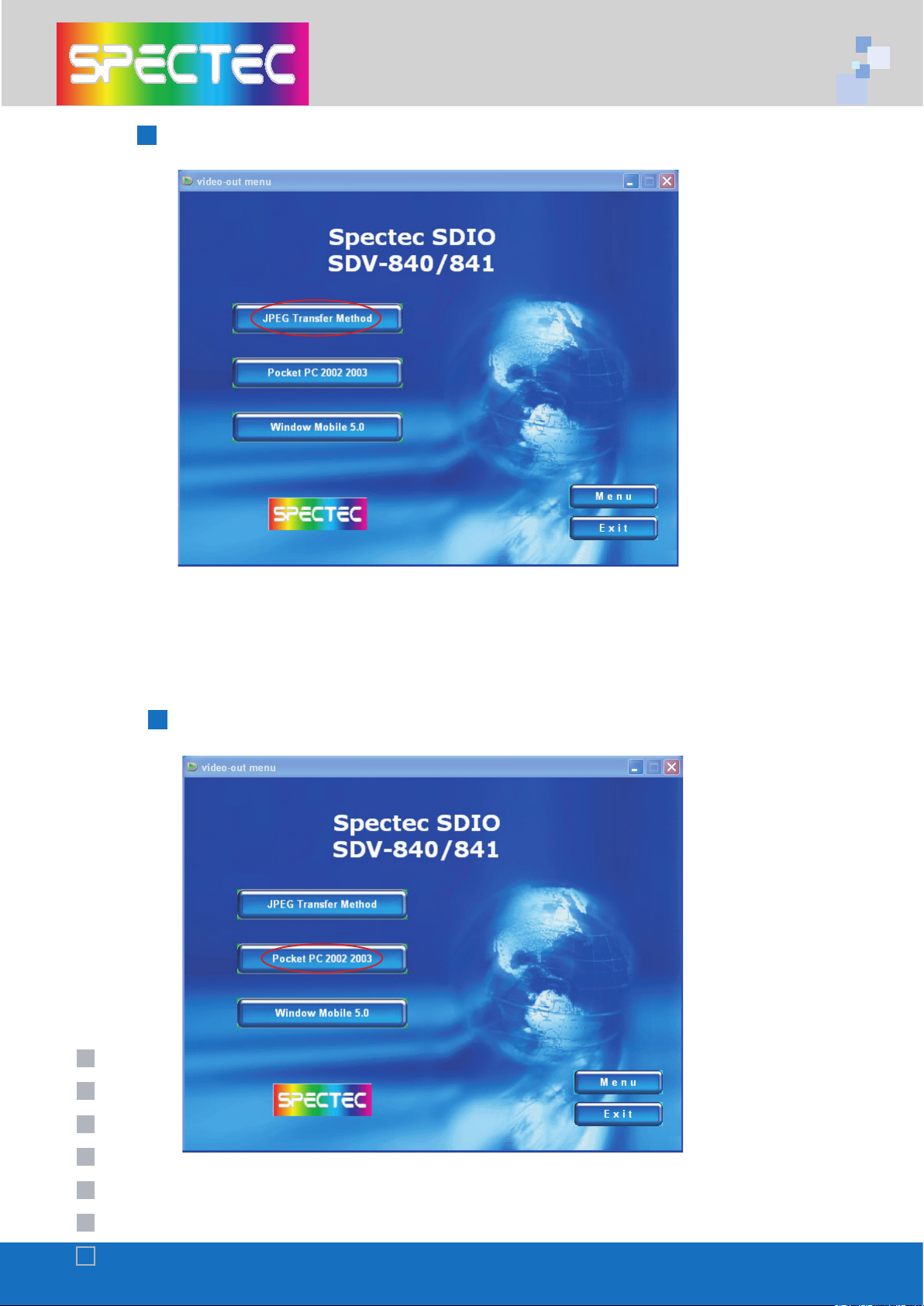
How to add a new printer for make JPEG file
<Click the JPEG Transfer Method item
(*Note : To install Acrobat software for browse specs)
Install driver for PPC2002 / 2003 OS
<Click "Pocket PC 2002 / 2003"
2
Page 6
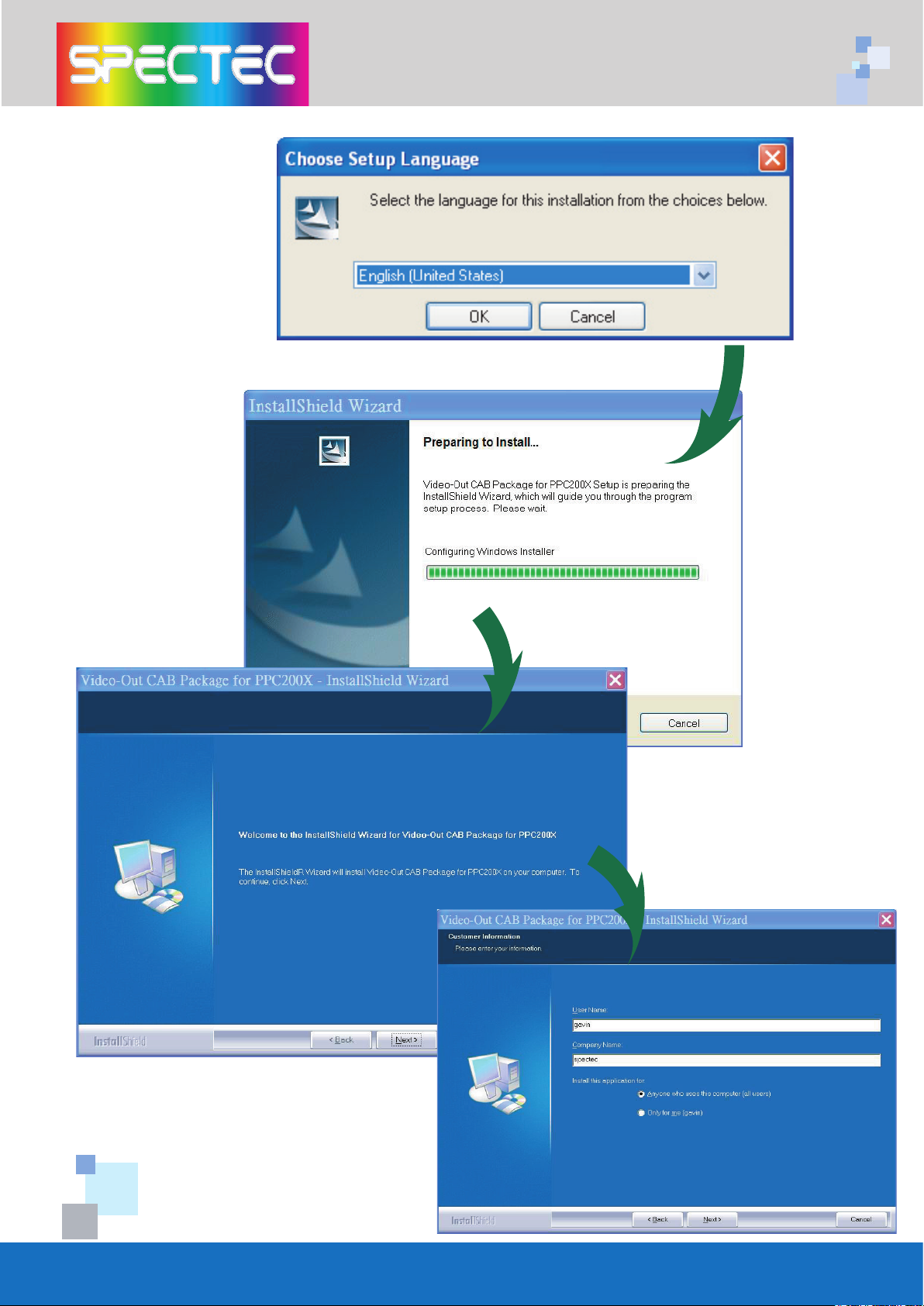
<Choose the desired
Language, then click OK
<Click Next
<Enter user information
then click Next
3
Page 7
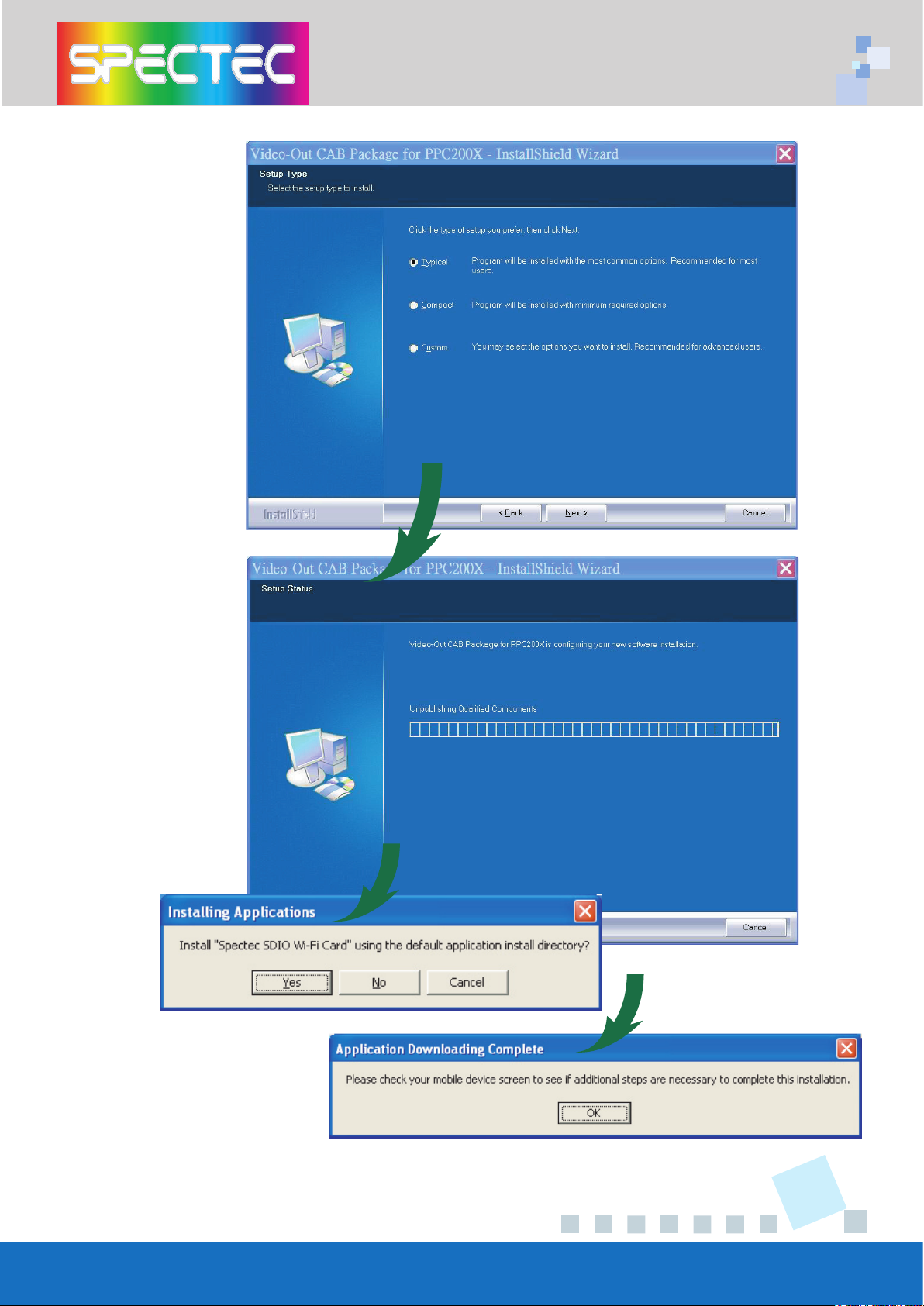
<Choose Setup type,
then click Next
<The driver package
will be installed automatically.
<Click Yes to proceed with
installation. Click OK to finish
installation.
4
Page 8
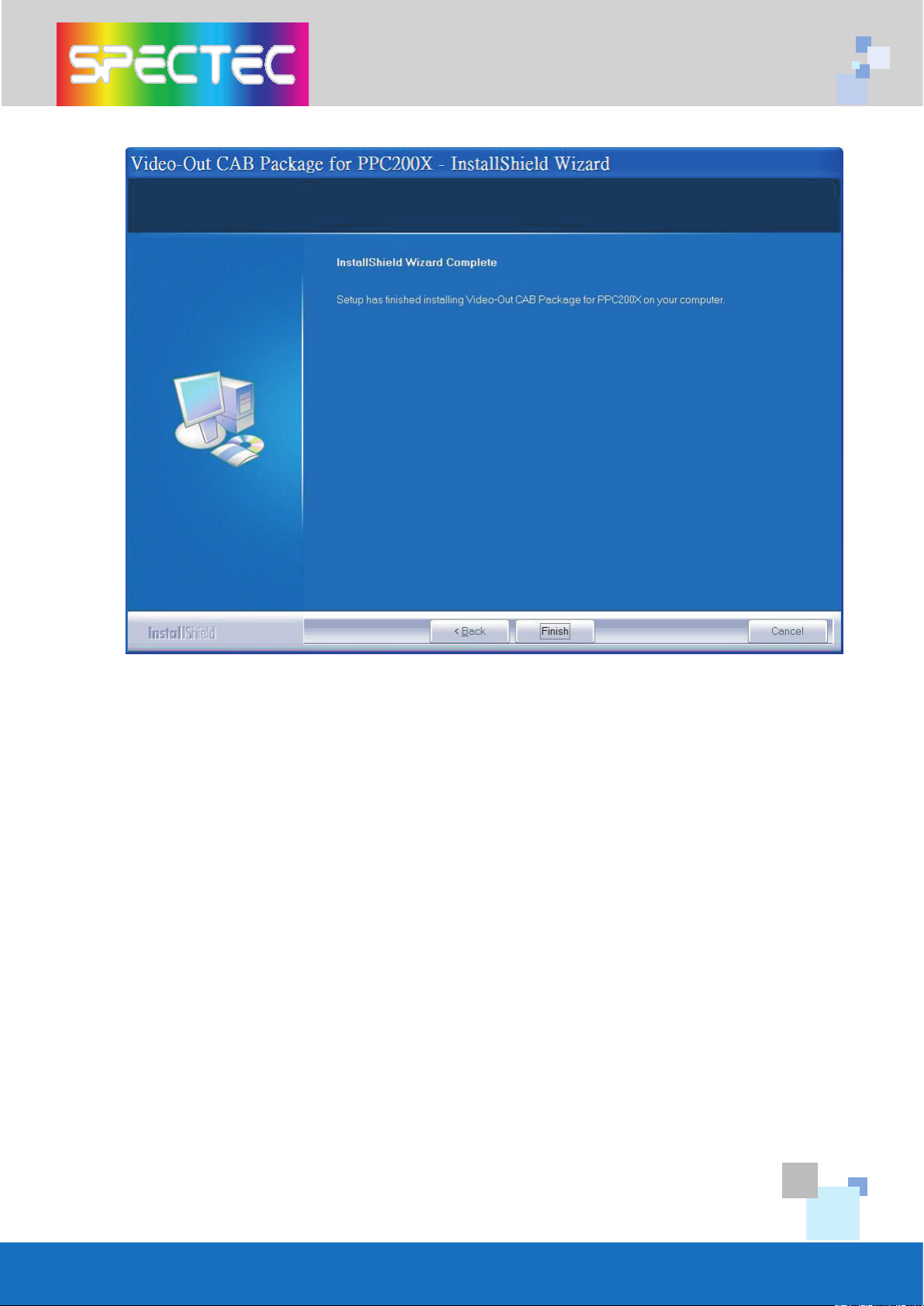
<Click Finish to complete the driver package installlation process.
(*Note : Pls. reset the device to complete install Process)
5
Page 9
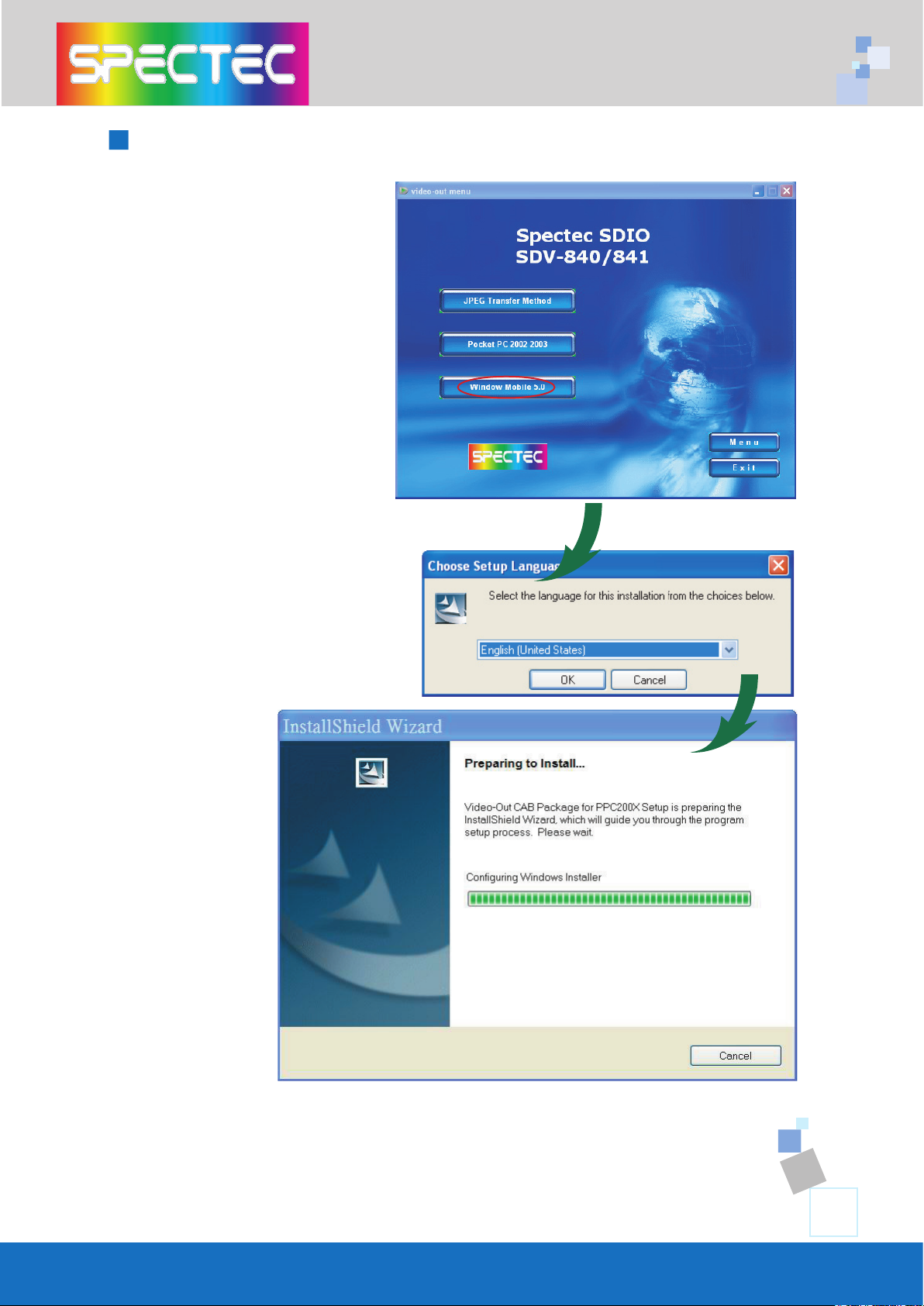
Install driver for WM5.0 OS
<Click Window Mobile 5.0
item
<Choose the desired Language,
then click OK
6
Page 10
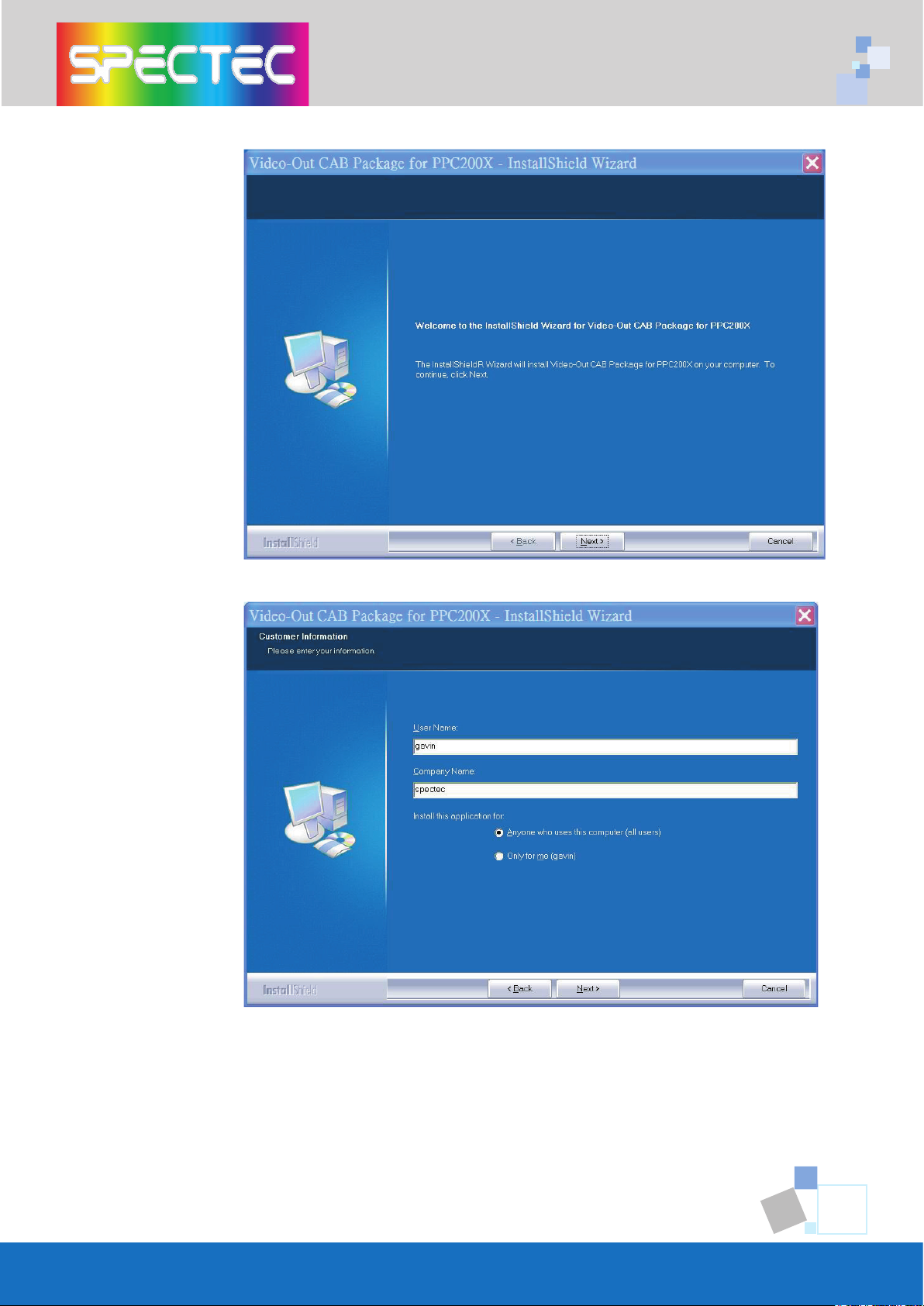
<Click Next
<Enter user information then click
Next
7
Page 11
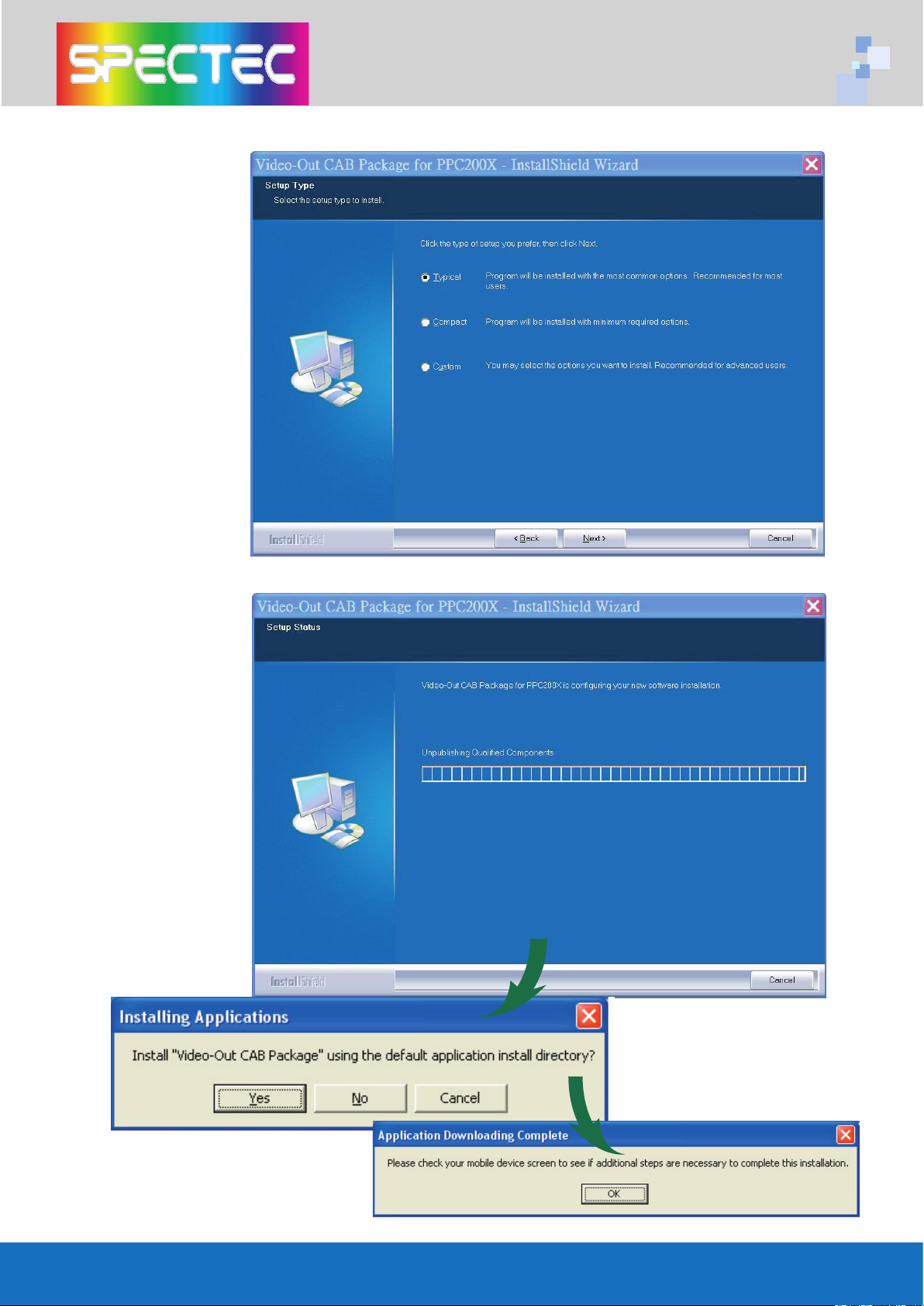
<Choose Setup
type, then click
Next
<The driver package will be installed
automatically.
<Click Yes to proceed with
installation. Click OK to finish
installation.
8
Page 12
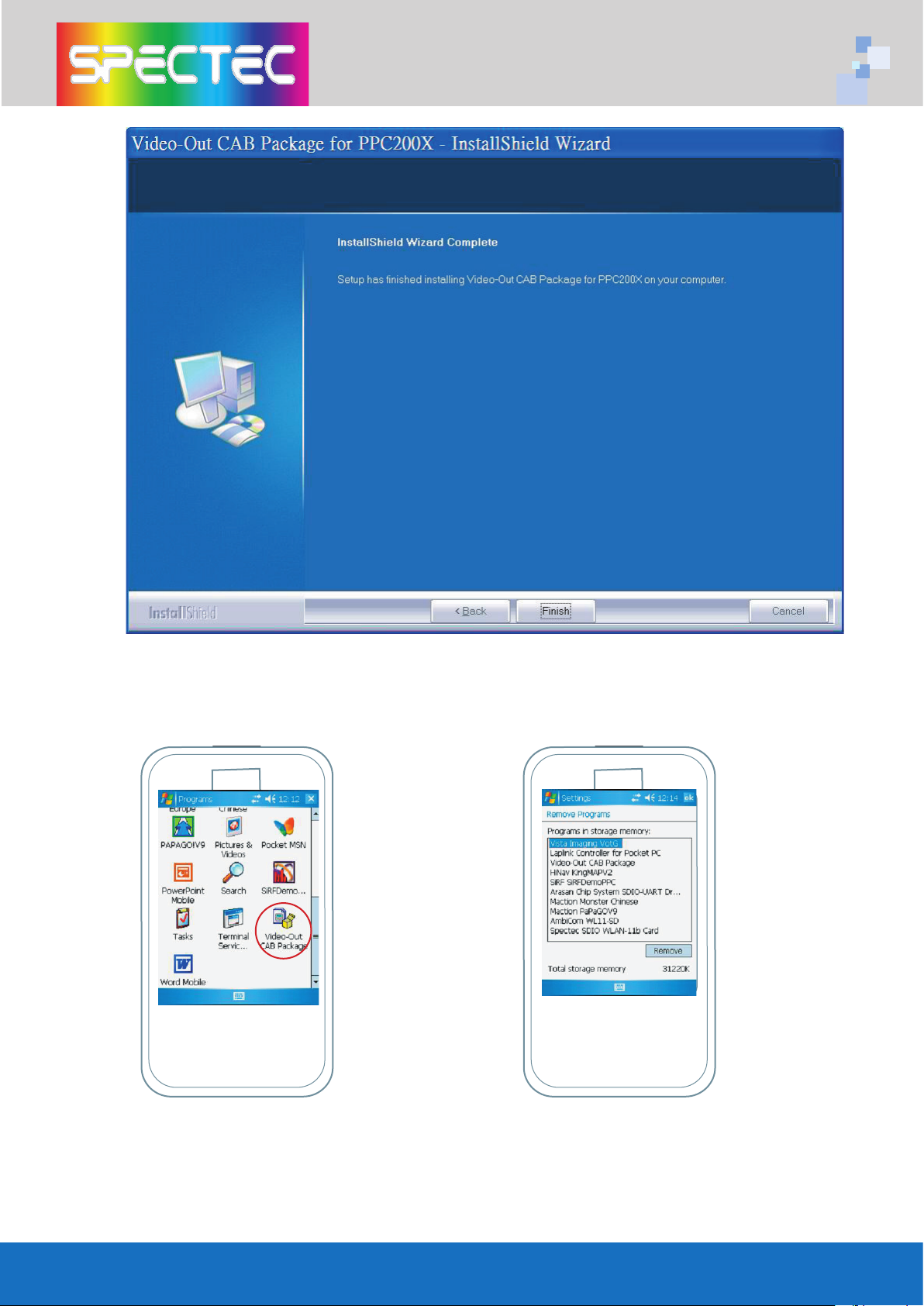
<Click Finish to complete the driver package installlation process.
TM
802.11b
www.spectec.com.tw
WLAN-11b
<Click “Video-Out CAB Pacage“
to install Video-Out driver from PDA
PATH:Start/Programs.
TM
802.11b
www.spectec.com.tw
WLAN-11b
<Checking the install driver
"Spectec VotG" from PDA
PATH : Start/ Settings/ System/
Remove Programs.
9
Page 13
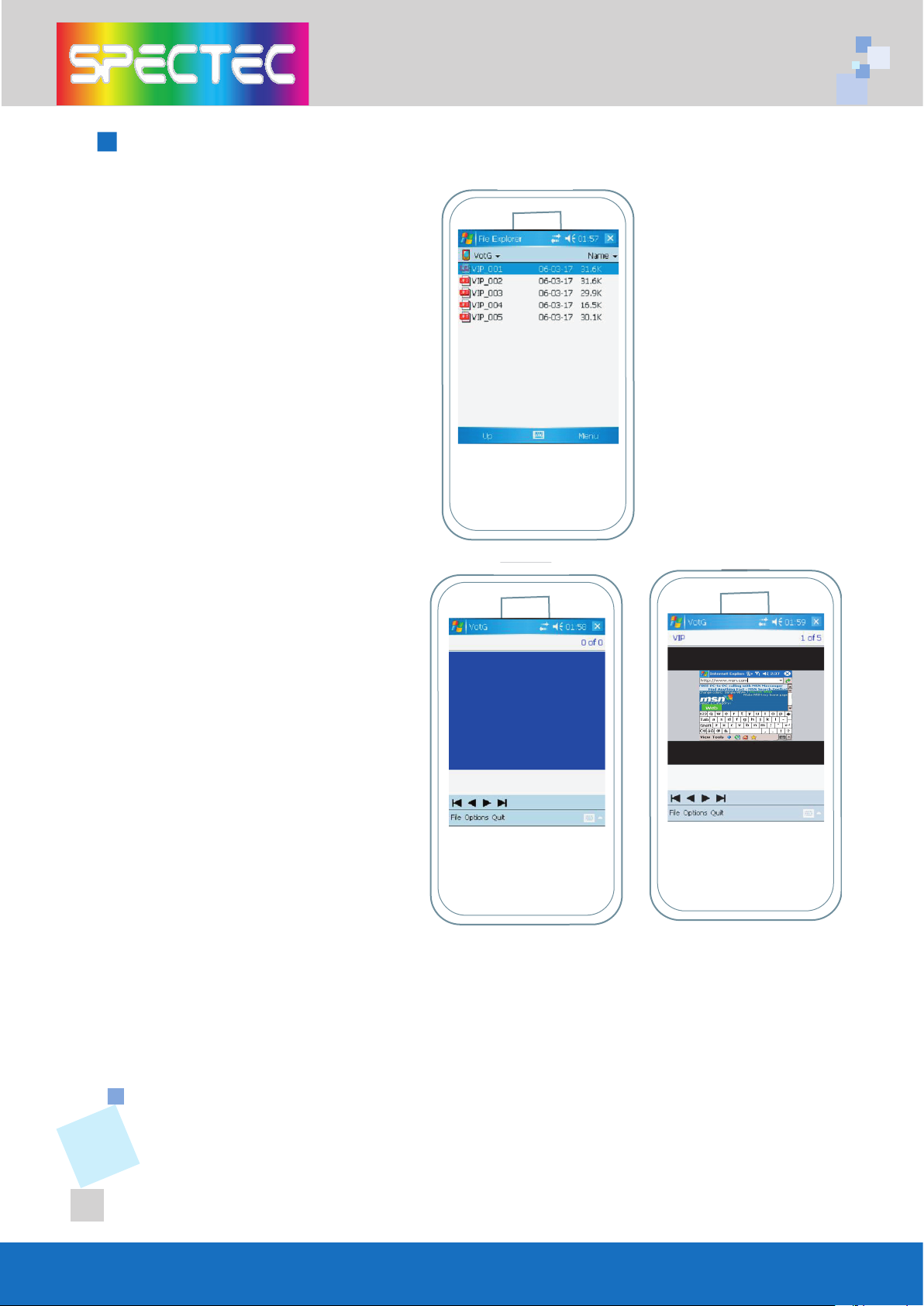
How to using the Video-Out Card with PDA
1. Use ActiveSync software and
Copy the JPEG file to PDA :\My
Documents (Please note the
file only can be detected when
you save your file in \My Docu
-
ments) .
2. Insert the SPECTEC SDIO
Video-Out card into the PDA. The
program will be started
automatically, and select the
image file that would be played.
www.spectec.com.tw
WLAN-11b
www.spectec.com.tw
WLAN-11b
www.spectec.com.tw
WLAN-11b
3. Select the appropriate way of composite Video Output, S-Video Output,
or VGA Monitor Output Port, and connect.
10
Page 14
Specifications
Interface: SDIO 1 bit, 4 bit & SPI modes of operation via SD
card interface cable
Resolution: Full-color (YUV 4:2:2) 640 x 480
Remote Control: 10-button Infrared with dual IR receivers
Composite Video Output: NTSC/PAL 1Vp-p video signal
S-Video Output: NTSC/PAL 1Vp-p component video signals
VGA Monitor Output Port:
< VGA 640 x 480 RGB at 60Hz interface for connection to stan
dard monitor or projector
< Single +5 volt regulated power source
Source Presentation Format: Slides can be created from any print
able WindowsTM XP/2000 application
Handheld: Pocket PC handhelds & Smartphone with SD/mini SD slot
supporting SDIO protocol
Display & Presentation Devices:
< Display Device with HD-15 (VGA) connector and support for 640 x
480 resolution at 60Hz (This includes most CRT monitors and projectors)
< Any NSTC or PAL composite or S-Video, video monitor
*All specifications are subject to change without prior not
-
-
Page 15
Thank You for Purchasing Spectec’s Products
 Loading...