

Page 1
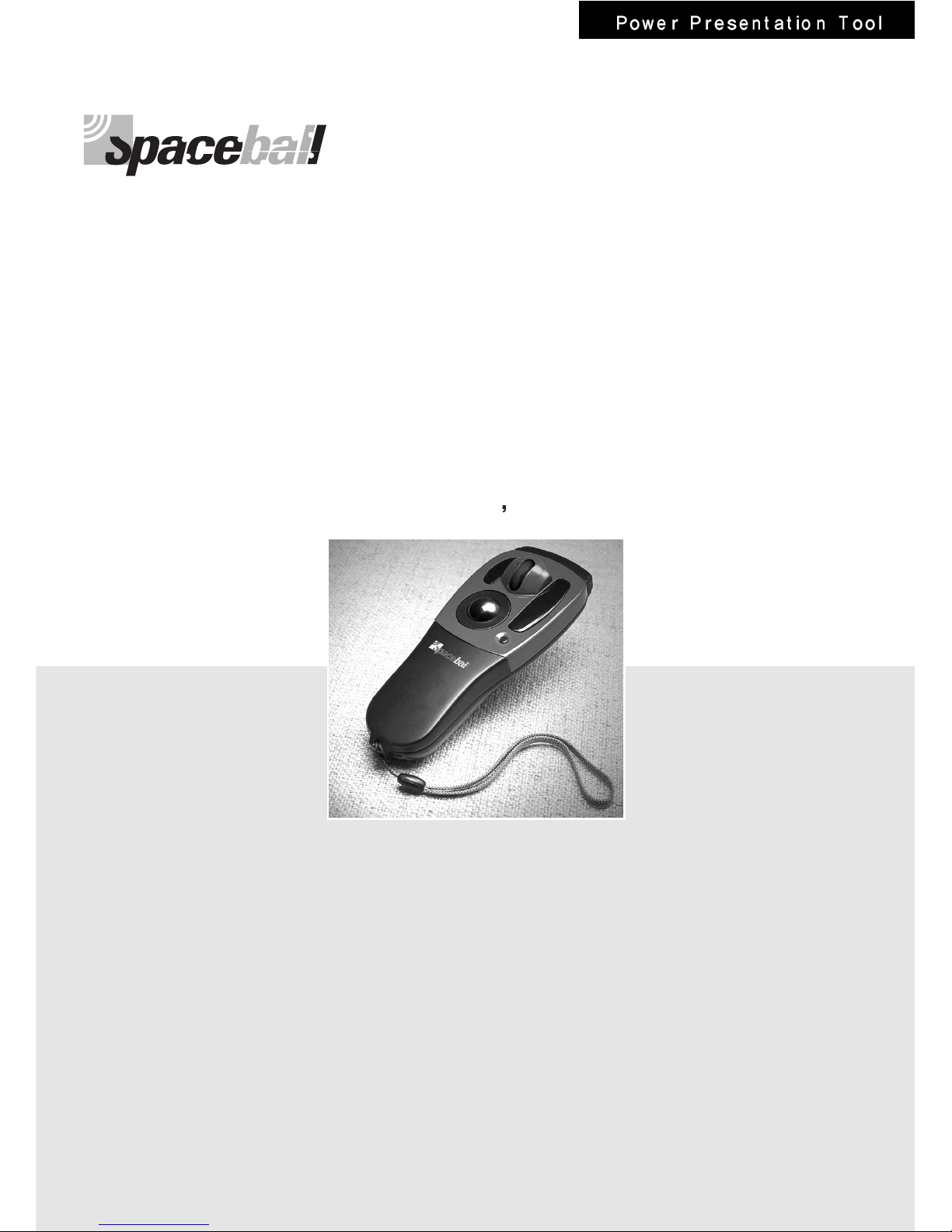
Mouse
UNC-800 User s Manual
Wireless Wheel & Ball
Page 2
2
Spaceball Mouse
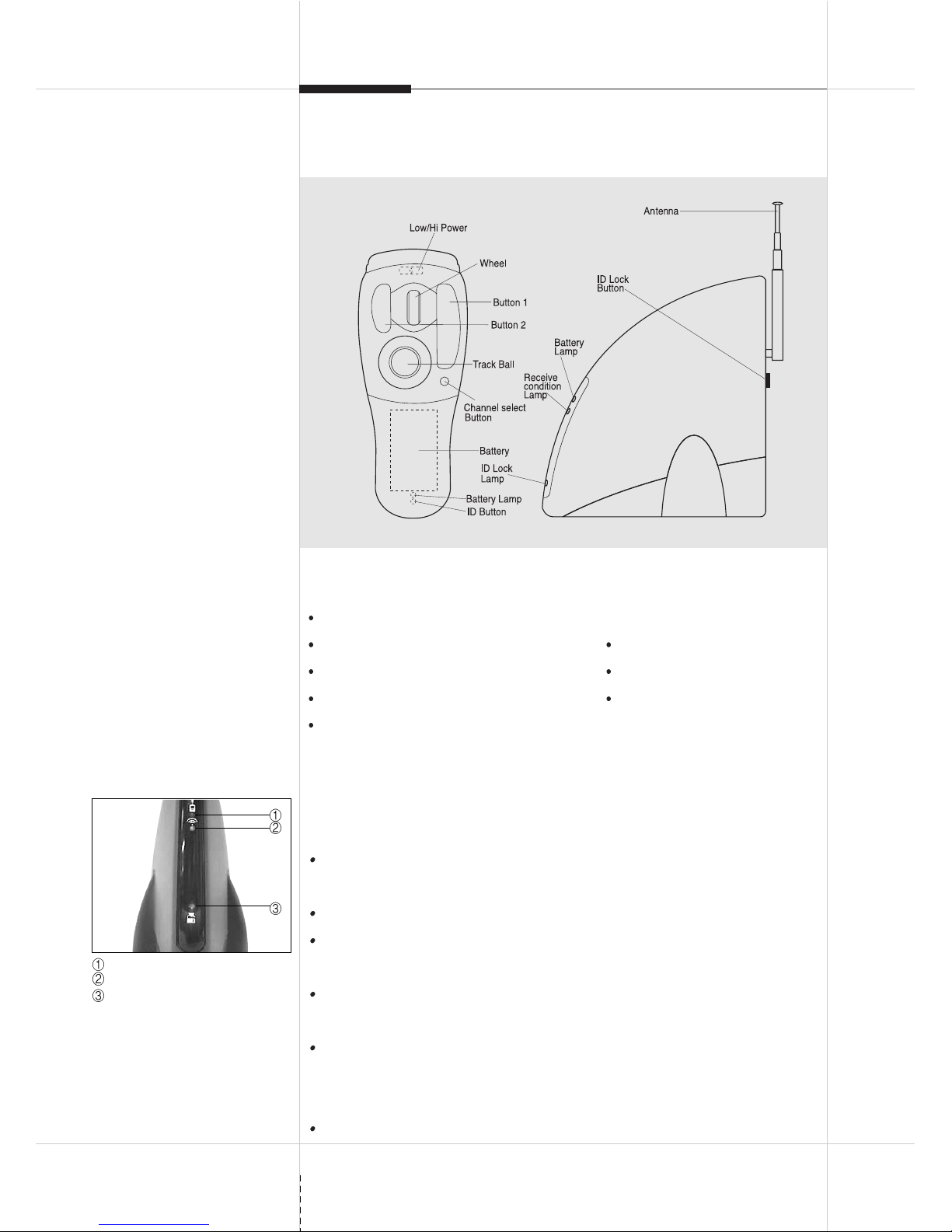
Low/Hi Power : (Low : 2~3M, Hi : 6~7M) Select, Power Button
Button1 : enter key Button2 : shift key
Wheel : scroll & zoom, page up/down Trackball : move cursor
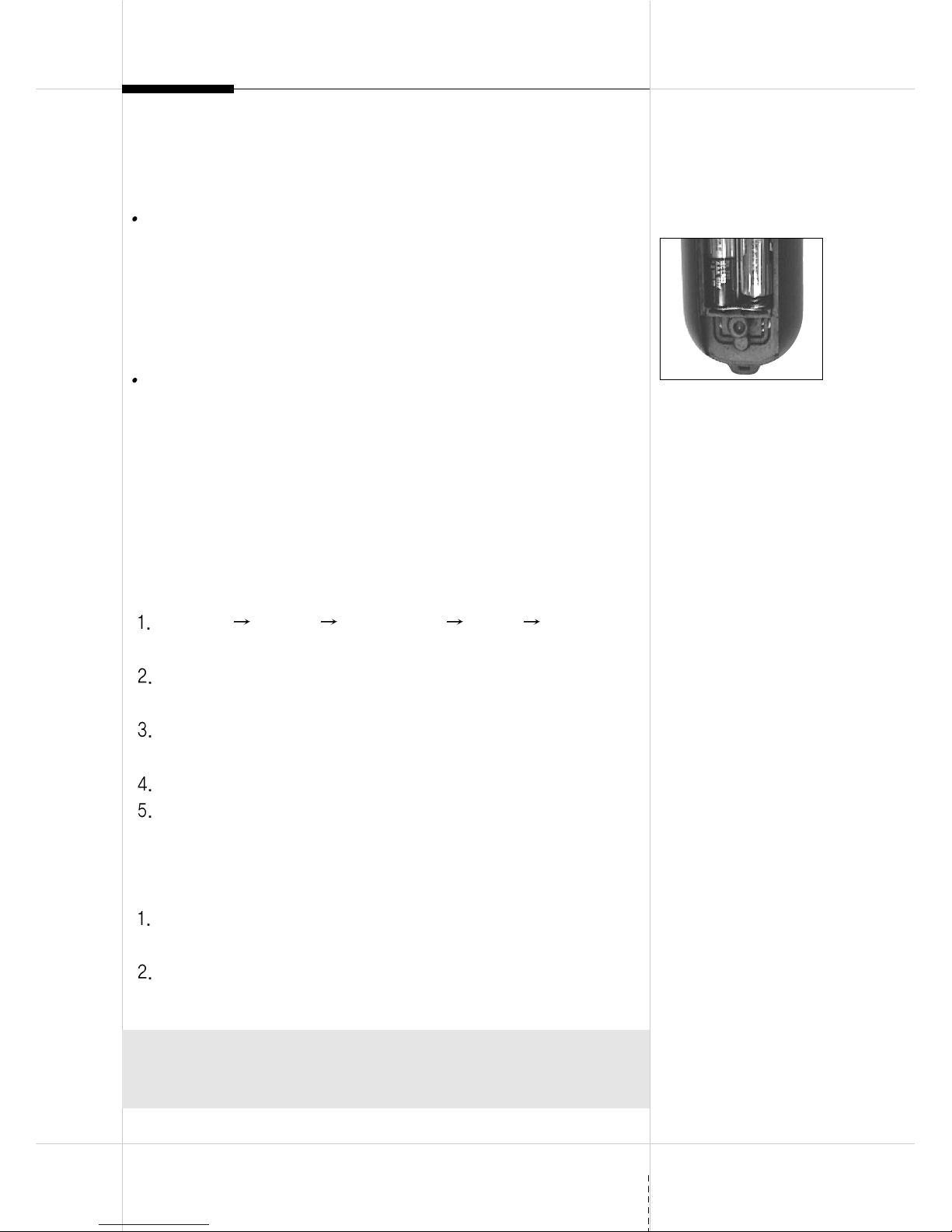
Battery Holder(Back) : AAA type x 2 Channel Select Button
ID Button : It will be change ID when every short press on it
Receiver
Spaceball operation has verify range depend on the receiver position
because of radio frequency.
Caution : Leave alone in the place where it does not have the metal
material or the interference of the electric wave.
Battery lamp : It will be lighting when the battery low Condition.
Receive condition lamp : It will be lighting when the SPACEBALL work
normally.
ID & Channel Lock lamp : It will be green lighting when the Receiver is
locked by lock button.
ID & Channel lock button : It make lock and unlock ID & Channel.
Button locate Receiver back side. It is useful function when the other
mouse conflict.
Antenna.
NAME OF PARTS
Battery lamp
Receive condition lamp
ID & Channel Lock lamp
Page 3
3
Install driver in ‘Windows 98/ ME and Windows 2000’
If your computer uses USB port first time, it requires new hardware
information. When a message pops up saying it needs Windows CD for an
update, insert Window Installation CD that comes with your computer
when it was purchased. Then start installing Windows CD, according to the
instruction displayed on your computer. After the installation, check for
‘HID-compatible mouse’ from the mouse icon in the control panel. ‘HIDcompatible mouse’ indicates that USB port is activated. Keep ‘Wireless
Mouse Spaceball Installation CD’ handy for installation.
First, hook up Spaceball receiver to USB port.
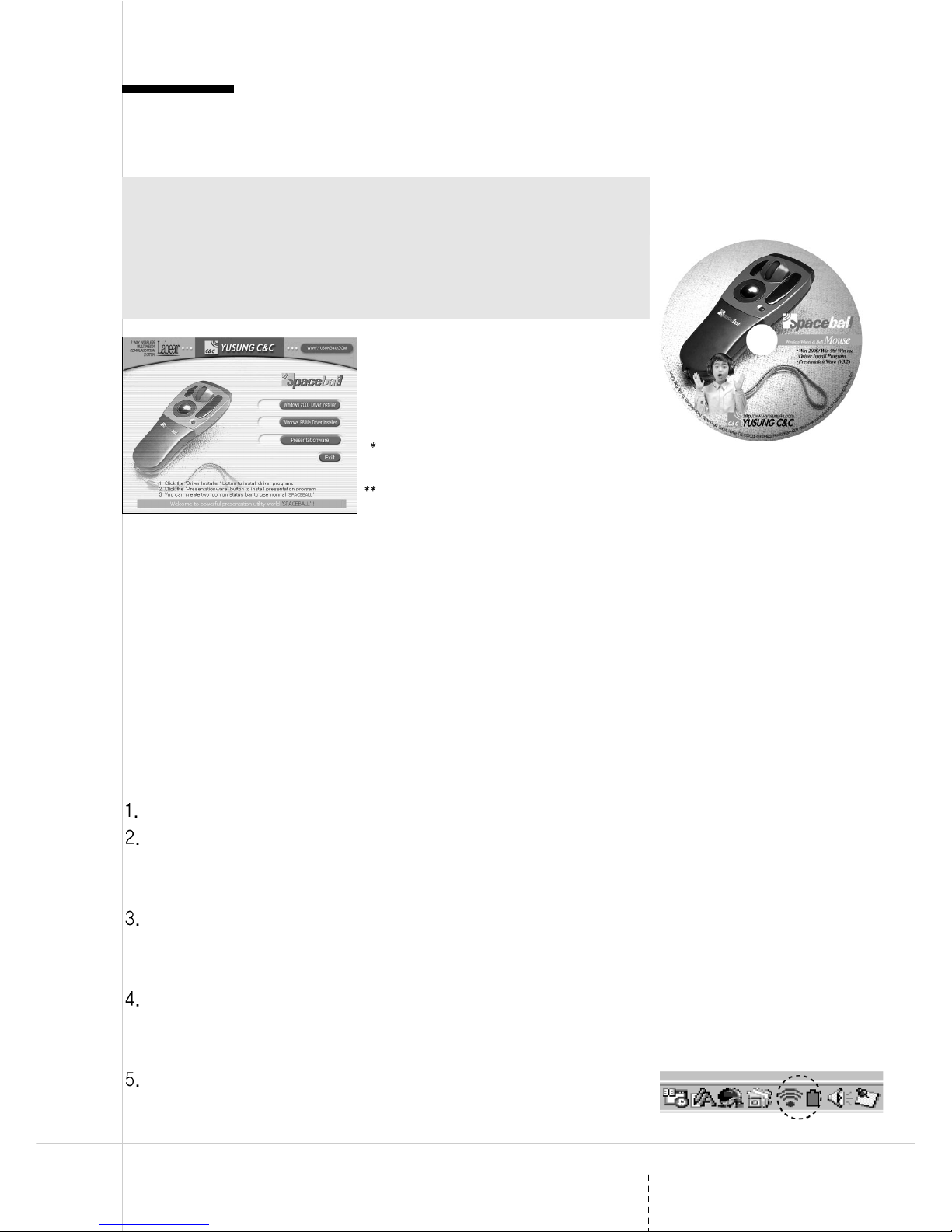
Insert “Wireless Mouse Spaceball Installation CD” in the CD-ROM
drive. (Upon inserting, the program starts installing itself through
Autorun function.)
Choose between ‘Windows98/ME driver installer’ and ‘Windows 2000
driver installer’ button from the menu bar on the right side of installation
window, depending on your operating system and then click.
Read the explanation on the window, while proceeding the installation.
Reboot your system, when installation is complete.
(After Install finish, you must restart PC)
Once the installation is normally completed, “Spaceball” icon similar to a
dot & battery should be on the left side of the task bar and starting
menu.
HOW TO INSTALL SPACEBALL PROGRAM
Our program CD put on CD driver.
It will start auto-run, you can see Install panel on
monitor
You could click ‘DRIVER SETUP’ and progress
Install
NOTE
- First, check the operating system of your computer
(i.e. \windows 98/ ME/ 2000)
- If your computer uses a USB port first time, it will require hardware information,
when the spaceball receiver connect to USB port to make computer accept
USB port, get the ‘WINDOWS Installation CD’ that came with your computer
ready to activate USB port and then install Spaceball program.
Page 4
HOW TO INSTALL SPACEBALL PROGRAM
To check the status of USB port
On the window, click
start
Settings Control panel System (Hardware)
Administrative tool Universal direct bus controller
2. To check the property
[Company Name] PCI to USB Universal Host Controller, USB Root Hub
USB port is operational, if the above message shows up.
To check the mouse driver and reinstalling it
On the window, click
Start
Settings Control panel System (Hardware)
Administrative tool Mouse
To check the property
Information on the existing mouse ( i.e.: PS/2 Compatible mouse port)
The driver is properly installed, if the above information comes on.
* HID-compatible mouse (Spaceball RF Mouse for Windows 2000)
If the property shows other information than ‘HID-compatible mouse’
or ‘Spaceball RF Mouse’
1) Double-click Drive Name to open up ‘property’.
Click ‘driver’ button on the property.
2) In a new window, click ‘Driver update’ button at the bottom of the
window. In the next window, click “Next” to bring up a list, then press
“Select a driver” and “Next”.
4
Page 5
USE & FUNCTION
Battery discharge it checks
Battery exchange time
- Battery Icon which is indicated in the monitor show in red character ‘X’
on battery shape.
- On Spaceball Status panel, it is appear ‘Low battery’
- The switch of the mouse it lets in ON condition, the ramp on the back of
mouse continues 3 second degree, it is a good condition.
Shift method
Fix the new dry cell battery correct direction and insert.
Auto save mode
For the save battery, automatically power off when the mouse do not use.
Spaceball work normally if the ball move or click any button on it.
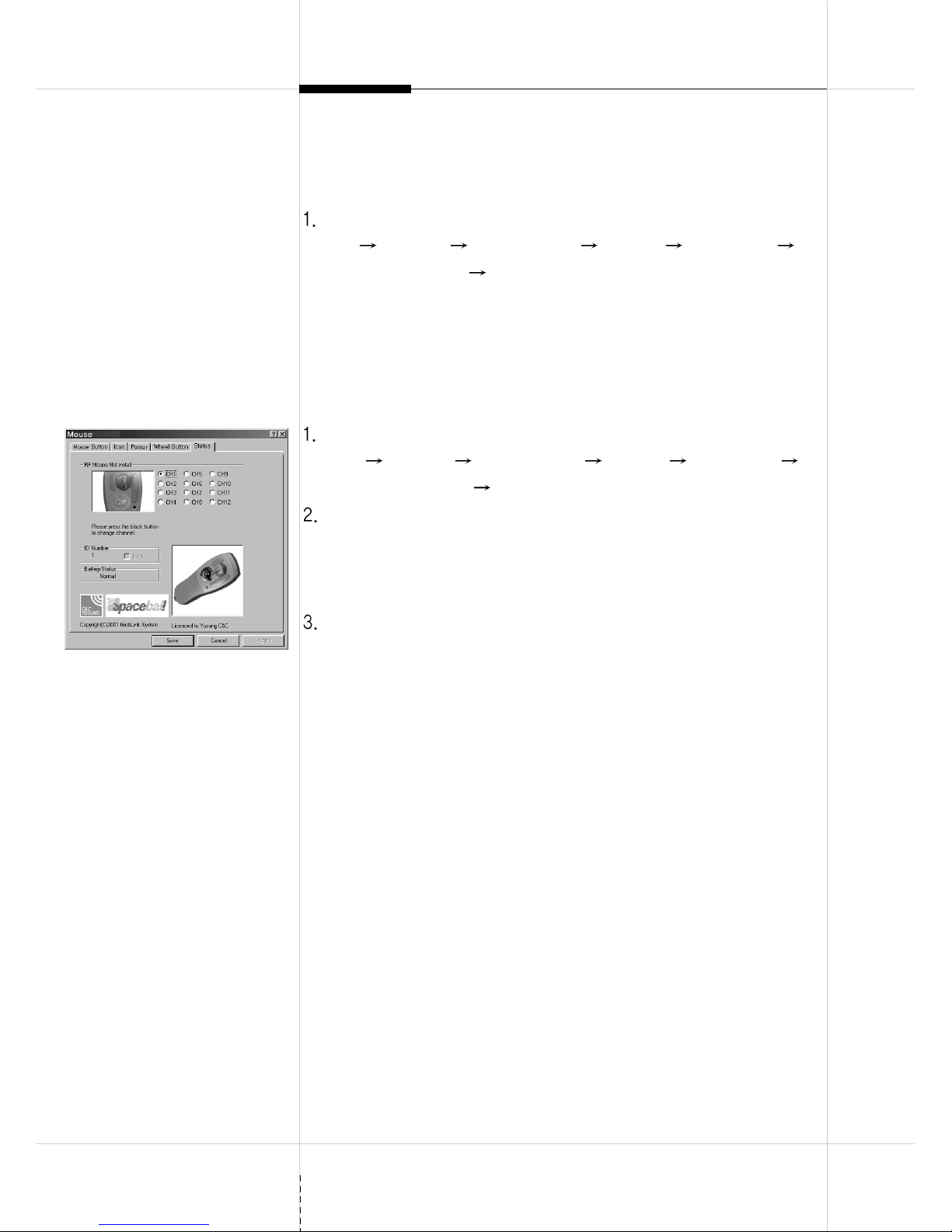
Changing ID and CH (Channel)
* Make sure to turn off “Lock Button” before changing ID and CH.
Go “Start Settings Control Panel Mouse Status” and
activate the mouse.
Open up a battery cover and click ID button. Every short press
increases ID.
Every short press on the CH (Channel) button in order to changes
CH (Channels).
Select ID and change CH (Channel).
Press “Lock button” on the back of Receiver to confirm the changed
receiver ID and CH (Channel).
Going back to default ID and CH (Channel)
When Lock light comes on, press Lock lamp on the back of
receivers to delete the current settings.
Open up the battery cover, press ID button for 4 seconds to turn on
the red light.
5
Battery checks lamp
* The installation path in Windows 98/ME
and Windows 2000 is basically the same.
However, the words in the mouse of the
control panel are different. Windows 98/
ME cases Spaceball ‘HID-Compatible
mouse’, while Windows 2000 defines it as
‘Spaceball RF Mouse’.
Change ID & Channel
ID and channel can not change if lock button work (Green lamp on
receiver show lock condition and ‘Status’ panel have lock information).
Page 6
6
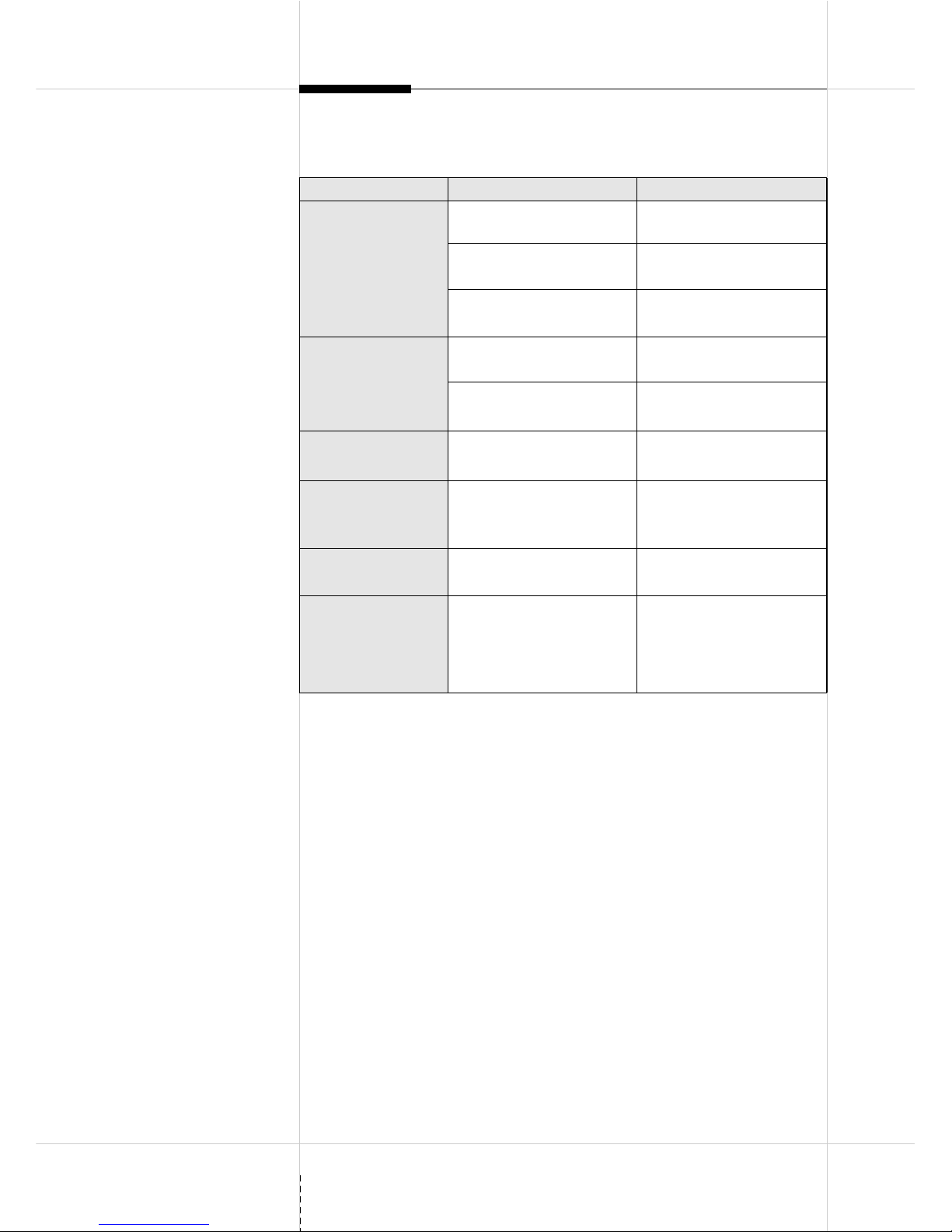
ASSESSING AND SOLVING PROBLEMS
Conditions
Mouse doesn’t
move
ID and CH (Channel)
don’t change
Mouse stops moving
all of a sudden
Mouse moves of its
own or at random
Mouse distance is
too short
Light on the
receiver is on, but
cursor doesn’t
move
Check
Is receiver plugged into USB
port?
Is the power switch turned
off?
Are batteries inserted
properly?
Is the light on Lock lamp?
Is drive installed properly?
Check ID/CH?
Was an interruption from
other mouse?
Is mouse set at HI?
Is Spaceball receiver
installed properly?
Drive is installed properly,
but mouse doesn’t move.
Application
Plug Spaceball receiver into
USB port.
Turn on the power switch
into Hi/Low.
Check positive (+) and
negative side (-) of batteries.
Press Lock button on the
back of receiver to turn it off.
Read “how to install and
change drives” section.
Go back to default ID/CH.
Differentiate ID/CH of your
mouse from a mouse
working in a close proximity.
Low : 2~3M, Hi : 6~7M
Read how to install a drive.
Go back to default ID/CH.
Page 7
7
SPACEBALL SOFTWARE FOR ULTIMATE PRESENTATION
Install and use Spaceball Presentation Ware
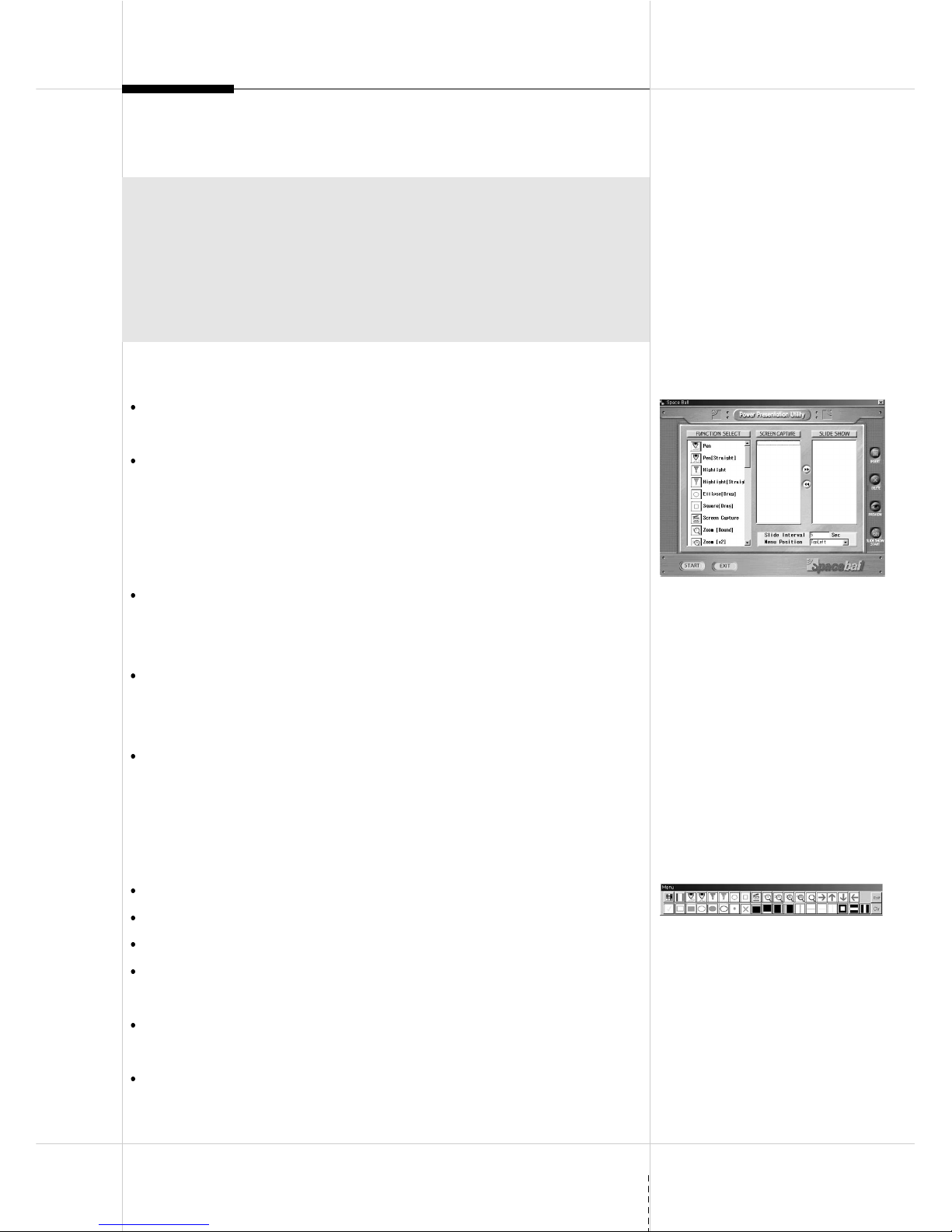
Launch the program installation by clicking “Presentation Ware” on the
starting window of a CD, which comes with Spaceball Mouse.
Complete the setup. Setting up could slightly vary depending on the
settings of installation program. Click on “Start” on the left bottom of a
monitor to bring up a stand-on menu bar, go to “Program” in the menu
bar and then “Presentware” to launch the starting window of
presentation ware.
Set the location of menu in the starting window and click “Start.”
Then, the starting window will disappear and toolbar comes up in the
location of menu.
Click “close” on the toolbar and then the starting window will come back.
In the starting window, you will be able to change the location, capture,
perform slide shows and close the program.
Toolbar goes into hide and becomes invisible, when other application is
in use. Click the mouse button#2 to bring it back.
(Refers to the name of functions on the toolbar)
Useful functions for presentations
Pencil, Line, Blank, Tick, Point, Cross, Hollow, Solid, Horizontal, Vertical
2X, 3X, 4X, Free Zoom
Color Select, Hidden Function etc.
Capture : Click “Capture Icon” on the toolbar to save the presentation
slides into bmp files one by one.
Slide shows : set the time line for captured images and enable slide
shows.
Go to http://www.yusung4u.com for more information and download.
Overview
Spaceball Presentation ware is powerful software equipped with enhanced
functions that assists your presentations experience. Working together with
Spaceball Wireless Mouse, it will bring perfection to your presentation. Spaceball
Presentation Ware supports easy-to-use slide shows and writing. It lets you
export and publish presentations to Internet and other application, by being
active concurrently with Internet. Spaceball Presentation allows you to create
powerful presentations with any applications.
Page 8

Yu Sung Bldg 865-13, Bang Bae-Dong,
Seo Cho-Ku, Seoul 137-060 Korea
TEL:(822)533-6660(Rep.) FAX:(822)594-4279
E-Mail:[email protected]
 Loading...