

Page 1
“j
p=l
Pentium
Page 2

SOYO
’”
About This Guide
This User’s Guide is for assisting system manufacturers and end users in setting up and
installing the
rnainboard. Information
in this guide has been carefully checked for
reliability;
however, no guarantee is given as to the correctness of the contents. The information in this
document is subject to change without notice,
Copyright Notice
Copyright
1996,
Soyo Computer Inc.
All
rights reserved. This manual is copyrighted by Soyo
Computer Inc. You
may
not reproduce, transmit, transcribe, store in a retrieval system, or
translate into any language, in any form or by any means, electronic, mechanical, magnetic,
optical, chemical, manual, or otherwise, any part of this publication without express written
permission of Soyo Computer Inc.
Trademarks
Soyo is a registered trademark of Soyo Computer Inc. AU trademarks are the property of their
owners.
Disclaimer
Soyo Computer Inc. makes no representations or warranties regarding the
contents
of this
manual. We reserve the right to revise the manual or make changes in the specifications of the
product described within it at any time without notice and without obligation to notify any
person of such revision or change. The information contained in this manual is provided for
general use by our customers. Our customers should be aware that the personal computer
field is the subject of many patents. Our customers should ensure that they take appropriate
action so that their use of our products does not infringe upon any patents. It is the policy of
Soyo Computer Inc. to respect the valid patent rights of third parties and not to infringe upon
or assist others to infringe upon such rights.
Restricted Rights Legend
Use, duplication, or disclosure by the Government is subject to restrictions set forth in
subparagraph (c)( I)(ii) of the Rights in Technical Data and Computer Software clause at
252.277-7013.
Product Rights
Product mentioned m this manual are mentioned for identification purpose
only.
Product
names appearing in this manual may or may not be registered trademarks or copyrights of
their respective companies
If you need any further information, please come to our home page on internet. The
address is
"http://www.soyocom.tw"
ttp//vmvw.soyo.com.tw”
Edition:
January 1996
Version 1.0
5S M2/M5 SERIAL
100% :w%:::,~
Visit SOYO On-Line at http
//www. soyo.
com.t w
Page 3

Table of Contents
Chapter 1: Introduction
. . . . . . . . . . . . . . . . . . . . . . . . . . . . . . . . . . .
. .
. . . . . . . . . . . . .1
.
Key Features . . . . . . . . . . . . . . . . . . . . . . . . . . . . . . . . . . . . . . . . . . . . . . . . . . . . . . . . . . . . . . . . . . . . . . . . . . . . . . . . . . . . . . . . . . . . . . . . . . . . 1
Mainboard Layout w/ default settings* . . . . . . . . . . . . . . . . . . . . . . . . . . . . . . . . . . . . . . . . . . . . . . . . . . . . . . . . . . . 2
Onboard VGA Chip Features
(Optional)
. . . . . . . . . . . . . . . . . . . . . . . . . . . . . . . . . . . . . . . . . . . . . . . . . . . . . . . . 4
Unpacking the
Mainboard
. . . . . . . . . . . . . . . . . . . . . . . . . . . . . . . . . . . . . . . . . . . . . . . . . . . . . . . . . . . . . . . . . . . . . . . . . . . . . . . 4
Resolutions Supported . . . . . . . . . . . . . . . . . . . . . . . . . . . . . . . . . . . . . . . . . . . . . . . . . . . . . . . . . . . . . . . . . . . . . . . . . . . . . . 5
Electrostatic Discharge Precautions . . . . . . . . . . . . . . . . . . . . . . . . . . . . . . . . . . . . . . . . . . . . . . . . . . . . . . . . . . . . . . . .
5
Chapter 2: Hardware Setup
. . . . . . . . . . . . . . . . . . . . . . . . . . . . . . . . . . ● . . . . . . . . . ...0... ● . . . . .
6
Jumpers
. . . . . . . . . . . . . . . . . . . . . . . . . . . . . . . . . . . . . . . . . . . . . . . . . . . . . . . . . . . . . . . . . . . . . . . . . . . . . . . . . . . . . . . . . . . . . . . . . . . . . . . . . . . .
6
Factory Set Jumpers . . . . . . . . . . . . . . . . . . . . . . . . . . . . . . . . . . . . . . . . . . . . . . . . . . . . . . . . . . . . . . . . . . . . . . . . . . . . . . . . . .
6
JP25:
Sleep Switch Connector Enable/Disable . . . . . . . . . . . . . . . . . . . . . . . . . . . . . . . . . . . . . . . . .
6
JP3: Display
Type
. . . . . . . . . . . . . . . . . . . . . . . . . . . . . . . . . . . . . . . . . . . . . . . . . . . . . . . . . . . . . . . . . . . . . . . . . . . . . . . . . . . . . 7
JP5:
CMOS
Clear
Jumper . . . . . . . . . . . . . . . . . . . . . . . . . . . . . . . . . . . . . . . . . . . . . . . . . . . . . . . . . . . . . . . . . . . . . . . . . . . 7
JP33:
Pipeline Select .. . . . . . . . . . . . . . . . . . . . . . . . . . . . . . . . . . . . . . . . . . . . . . . . . . . . . . . . . . . . . . . . . . . . . . . . . . . . . . . 7
JP34:
L1 Write-Back /Write-Through Cache Select . . . . . . . . . . . . . . . . . . . . . . . . . . . . . . . . . 8
JP46:
VRM (Voltage Regulator Module)
Socket
(Optional) . . . . . . . . . . . . . . . . . . . . . 8
JPS2: PS/2Mouse
Function
Jumper . . . . . . . . . . . . . . . . . . . . . . . . . . . . . . . . . . . . . . . . . . . . . . . . . . . . . . . . . . 8
JP38, JP42:
Bus Fraction Core/Bus Ratio Select . . . . . . . . . . . . . . . . . . . . . . . . . . . . . . . . . . . . . . . .
9
JP40:
CPU Burst Mode
Select
. . . . . . . . . . . . . . . . . . . . . . . . . . . . . . . . . . . . . . . . . . . . . . . . . . . . . . . . . . . . . . . . . . 10
CPU
Type Configuration
. . . . . . . . . . . . . . . . . . . . . . . . . . . . . . . . . . . . . . . . . . . . . . . . . . . . . . . . . . . . . . . . . . . . . . . . . . . . . . . 10
JP43~JP45:
CPU
Voltage Select......
. . . . . . . . . . . . . . . . . . . . . . . . . . . . . . . . . . . . . . . . . . . . . . . . . .
13
Memory Configuration . . . . . . . . . . . . . . . . . . . . . . . . . . . . . . . . . . . . . . . . . . . . . . . . . . . . . . . . . . . . . . . . . . . . . . . . . . . . . . . . . .
14
Cache
Configu
ration . . . . . . . . . . . . . . . . . . . . . . . . . . . . . . . . . . . . . . . . . . . . . . . . . . . . . . . . . . . . . . . . . . . . . . . . . . . . . . . . . . . . . .
14
Cache Size and RAM
Locations
. . . . . . . . . . . . . . . . . . . . . . . . . . . . . . . . . . . . . . . . . . . . . . . . . . . . . . . . . . . . . . . 14
Multi 1/0
Port
Addresses . . . . . . . . . . . . . . . . . . . . . . . . . . . . . . . . . . . . . . . . . . . . . . . . . . . .. . . . . . . . . . . . . . . . . . . . . . . .
16
Connectors . . . . . . . . . . . . . . . . . . . . . . . . . . . . . . . . . . . . . . . . . . . . . . . . . . . . . . . . . . . . . . . . . . . . . . . . . . . . . . . . . . . . . . .. . . . . . . .
16
J1-PS/2 Mouse Connector . . . . . . . . . . . . . . . . . . . . . . . . . . . . . . . . . . . . . . . . . . . . . . . . . . 16
J3-Keyboard Connector . . . . . . . . . . . . . . . . . . . . . . . . . . . . . . . . . . . . . . . . . . . . . . . . . . . . . . . . . . . . . . . . . .
16
J4-Power Supply Connectors . . . . . . . . . . . . . . . . . . . . . . . . . . . . . . . . . . . . . . . . . . . . . . . . . . . . . . . . . . . . . . 16
J17-Keylock
& Power LED Connector . . . . . . . . . . . . . . . . . . . . . . . . . . . . . . . . . . . . . . . . . . . . . . . . . 17
J18-Speaker
Connector . . . . . . . . . . . . . . . . . . . . . . . . . . . . . . . . . . . . . . . . . . . . . . . . . . . . . . . . . . . . . . . . . . . . 17
JP19-Hardware Reset
Control. . . . . . . . . . . . . . . . . . . . . . . . . . . . . . . . . . . 17
J20-External Battery Connector
. . . . . .. . . . . . . . . . . . . . . . . . . . . . . . . . . . .
17
J22-Turbo LED Connector ..
...... . . . . . . . . . . . . . . . . . . . . . .
17
Page 4

IDE1/IDE2
- On-board Primary/Secondary IDE HDD Connectors . . . . . . 17
LED1/LED2– HDD
LED Connectors . . . . . . . . . . . . . . . . . . . . . . . . . . . . . . . . . . . . . . . . . . . . . . . . . . . . . 17
COM1/COM2 Connectors
. . . . . . . . . . . . . . . . . . . . . . . . . . . . . . . . . . . . . . . . . . . . . . . . . . . . . . . . . . . . . . . . . . . . . . .
18
FDC Connector
. . . . . . . . . . . . . . . . . . . . . . . . . . . . . . . . . . . . . . . . . . . . . . . . . . . . . . . . . . . . . . . . . . . . . . . . . . . . . . . . . . . . . . .
18
PRT1 Connector
. . . . . . . . . . . . . . . . . . . . . . . . . . . . . . . . . . . . . . . . . . . . . . . . . . . . . . . . . . . . . . . . . . . . . . . . . . . . . . . . . . . . . .
18
VGA
Connector (Optional)
. . . . . . . . . . . . . . . . . . . . . . . . . . . . . . . . . . . . . . . . . . . . . . . . . . . . . . . . . . . . . . . . . . . .
18
VGA
Feature Connector (Optional) . . . . . . . . . . . . . . . . . . . . . . . . . . . . . . . . . . . . . . . . . . . . . . . . . . . . . . .
18
AUDIO Connector . . . . . . . . . . . . . . . . . . . . . . . . . . . . . . . . . . . . . . . . . . . . . . . . . . . . . . . . . . . . . . . . . . . . . . . . . . . . . ...18
JP52-
Wave Table Connector . . . . . . . . . . . . . . . . . . . . . . . . . . . . . . . . . . . . . . . . . . . . . . . . . . . . . . . . . . . . . . . . 18
Audio Adapter Function . . . . . . . . . . . . . . . . . . . . . . . . . . . . . . . . . . . . . . . . . . . . . . . . . . . . . . . . . . . . . . . . . . . . . . . . . . . . . . . .
19
WTC1-Wave
Table Card Connector . . . . . . . . . . . . . . . . . . . . . . . . . . . . . . . . . . . . . . . . . . . . . . . . . . . . 19
SB1- Audio
Adapter
Connector
. . . . . . . . . . . . . . . . . . . . . . . . . . . .. . . . . . . . . . . . . . . . . . . . . . . . . . . . . . .
19
J1-CD-ROMAudio
In Connector . . . . . . . . . . . . . . . . . . . . . . . . . . . . . . . . . . . . . . . . . . . . . . . . . . . . . . . . .
19
JACK1
- Speaker Out Jack
. . . . . . . . . . . . . . . . . . . . . . . . . . . . . . . . . . . . . . . . . . . . . . . . . . . . . . . . . . . . . . . . . . . . . .
19
JACK2-Line
Out
Jack . . . . . . . . . . . . . . . . . . . . . . . . . . . . . . . . . . . . . . . . . . . . . . . . . . . . . . . . . . . . . . . . . . . . . . . . . . . .
19
JACK3- Line In
Jack . . . . . . . . . . . . . . . . . . . . . . . . . . . . . . . . . . . . . . . . . . . . . . . . . . . . . . . . . . . . . . . . . . . . . . . . . . . . . . .
19
JACK4-
MC
In
Jack . . . . . . . . . . . . . . . . . . . . . . . . . . . . . . . . . . . . . . . . . . . . . . . . . . . . . . . . . . . . . . . . . . . . . . . . . . . . . . .
19
DB15
– Game Port Connector
. . . . . . . . . . . . . . . . . . . . . . . . . . . . . . . . . . . . . . . . . . . . . . . . . . . . . . . . . . . . . . . .
19
Chapter 3: BIOS Setup
. . . . . . . . . . . . . . . . . . . . . . . . . . . . . . . . . . . . . . . . . . . . . . . .
....
21
Standard CMOS Setup . . . . . . . . . . . . . . . . . . . . . . . . . . . . . . . . . . . . . . . . . . . . . . . . . . . . . . . . . . . . . . . . . . . . . . . . . . . . . . . . . . . 22
BIOS Features
Setup
. . . . . . . . . . . . . . . . . . . . . . . . . . . . . . . . . . . . . . . . . . . . . . . . . . . . . . . . . . . . . . . . . . . . . . . . . . . . . . . . . . . . . . 23
Chipset Features
Setup
. . . . . . . . . . . . . . . . . . . . . . . . . . . . . . . . . . . . . . . . . . . . . . . . . . . . . . . . . . . . . . . . . . . . . . . . . . . . . . . . . . 25
Power Management Setup
. . . . . . . . . . . . . . . . . . . . . . . . . . . . . . . . . . . . . . . . . . . . . . . . . . . . . . . . . . . . . . . . . . . . . . . . . . ...27
PCI Configuration
Setup
. . . . . . . . . . . . . . . . . . . . . . . . . . . . . . . . . . . . . . . . . . . . . . . . . . . . . . . . . . . . . . . . . . . . . . . . . . . . . . . . 29
Load Setup Defaults . . . . . . . . . . . . . . . . . . . . . . . . . . . . . . . . . . . . . . . . . . . . . . . . . . . . . . . . . . . . . . . . . . . . . . . . . . . . . . . . . . . . . . . 32
Supervisor
Password . . . . . . . . . . . . . . . . . . . . . . . . . . . . . . . . . . . . . . . . . . . . . . . . . . . . . . . . . . . . . . . . . . . . . . . . . . . . . . . . . . . . . 33
User Password . . . . . . . . . . . . . . . . . . . . . . . . . . . . . . . . . . . . . . . . . . . . . . . . . . . . . . . . . . . . . . . . . . . . . . . . . . . . . . . . . . . . . . . . . . . . . . . 33
IDE HDDAuto
Detection . . . . . . . . . . . . . . . . . . . . . . . . . . . . . . . . . . . . . . . . . . . . . . . . . . . . . . . . . . . . . . . . . . . . . . . . . . . . .
34
Page 5

1 Introduction
The
SiS
551X / P54C
PCI
ma inboard is a high-performance system board that
supports
Pentium
P54CX and
Cyrix
6x86 family
CPUs.
You can install 256K to 512K
of external cache memory on the
mainboard.
The
mainboard
is fully compatible
with industry standards, and adds many technical enhancements.
Key Features
●
●
●
●
●
●
●
●
●
●
●
●
●
●
Supports
P54CX
family CPU running at 75/90/100/120/133/150/166/180/200
MHz speed and
Cyrix
6x86 CPU running at 100/120/133/MHz speed.
Supports SOCKET
7 &
VRM
for upgrade (optional)
Integrated Second Level
(L2)
Cache Controller
(256K/512K)
“
—
Write Through and Write Back Cache Modes
—
Direct Mapped Organization
—
On-board Pipeline Burst
SRAMs
Cache and
Pipelined
Burst module
slot support.
Integrated DRAM Controller
—
Concurrent Write Back
—
CAS#-before-RAS#
Transparent DRAM Refresh
—
256K,
512K, lM,
2M, 4M, or 16M x N 70ns Fast Page and EDO
DRAM
(symmetric and asymmetric)
—
On-board memory configurations from 2 to 512 Mbytes
—
Supports single 32 bits SIMM for booting and operating on SIMM 2
and SIMM 4
Supports
CPU
Stop
Clock
Supports "Table-Free
"
DRAM
configuration
Compliant to PCI specifications
v2.O
Three 32-bit PCI slots (Masters) and Three ISA slots, 4-layer PCB
System BIOS built-in NCR81O SCSI Card BIOS and
"Plug and Play"
function
On-board built-in PCI Master IDE controller and floppy controller
On-board supports for two high speed UARTS (w/i 16550 FIFO) and
Multimode parallel port for Standard, Enhanced (EPP) and high speed (ECP)
modes, and
supports PS/2 mouse function
On-board supports FLASH Memory for easy upgrade BIOS
On-board
SVGA
function and
attaching software
MPEG (optional)
On-board
built-in
Creative
CT-2504
’-
25O4
sound chip (optional)
Page 6
2
Introduction
Mainboard
Layout
w/ default settings*
n Ii
n nl.k3F+@l
I
~
1
7
.
PHJLHJ y]
p
’f’q
ll,,,
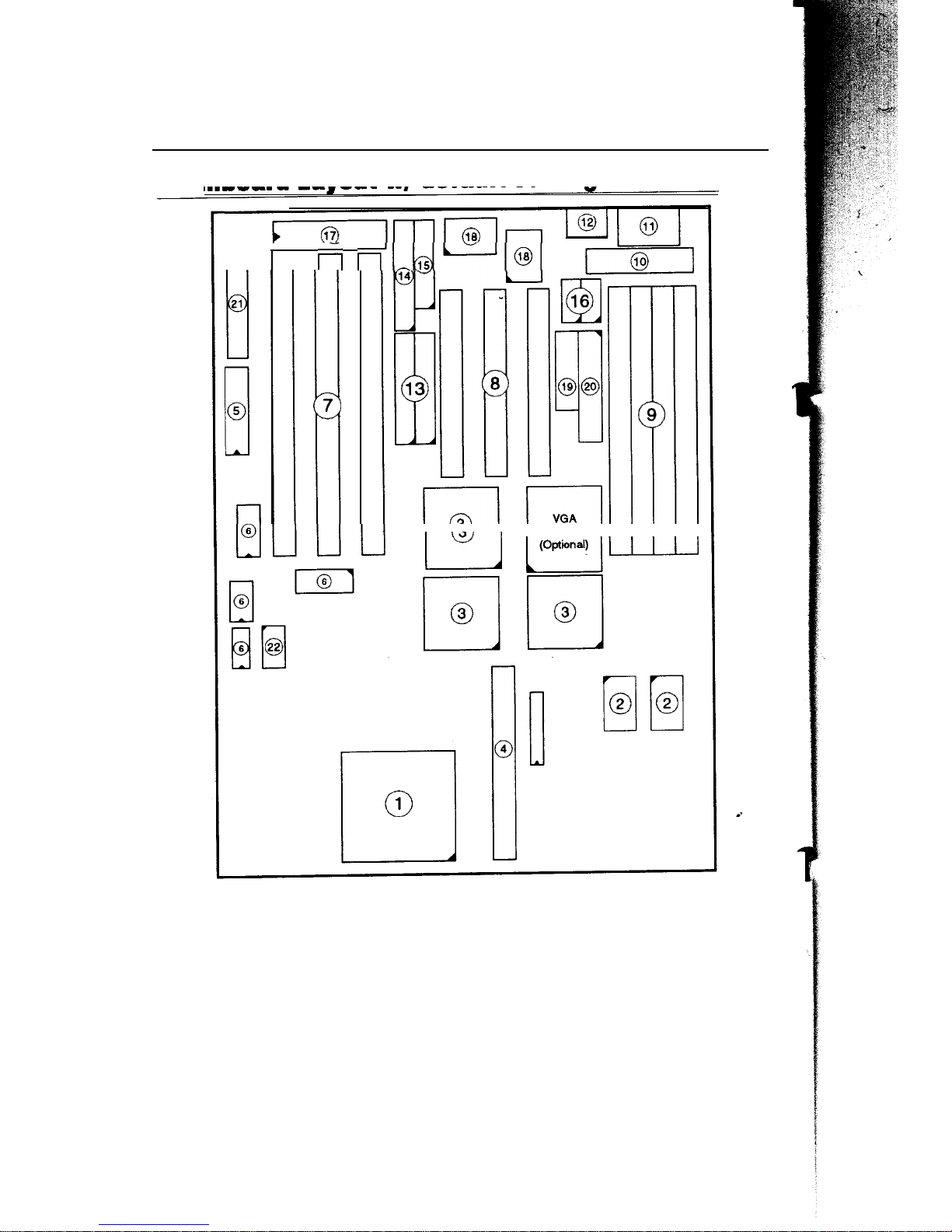
Figure
1-1.
Mainboard Layout
1.
P54 in
ZIF
socket
7
12.
2
3.
4.
5.
6.
7.
8.
9.
10.
11.
Pipelined
Burst SRAM
Sis 551X
Chipset
Pipelined
Burst SKAM Module Slot
PnP
FLASH BIOS
Audio
Chipset
ISA
Slots
PCI Slots
SIMM Memory Bank
5V DC
Power
Connector
Keyboard
Connector
13.
14
15.
16.
17.
18.
19.
20,
21
U
PS/2 Mouse Connector
IDE1/IDE2
Connector
Floppy Connector
Parallel
Port
Connector
COM1/COM2
connector
Keyboard BIOS
super
I/O
Chipset
VGA Connector
(optional)
VGA Feature
Connector (optional)
Audio
Connector
Wave Table Connector
Page 7
Introduction
3
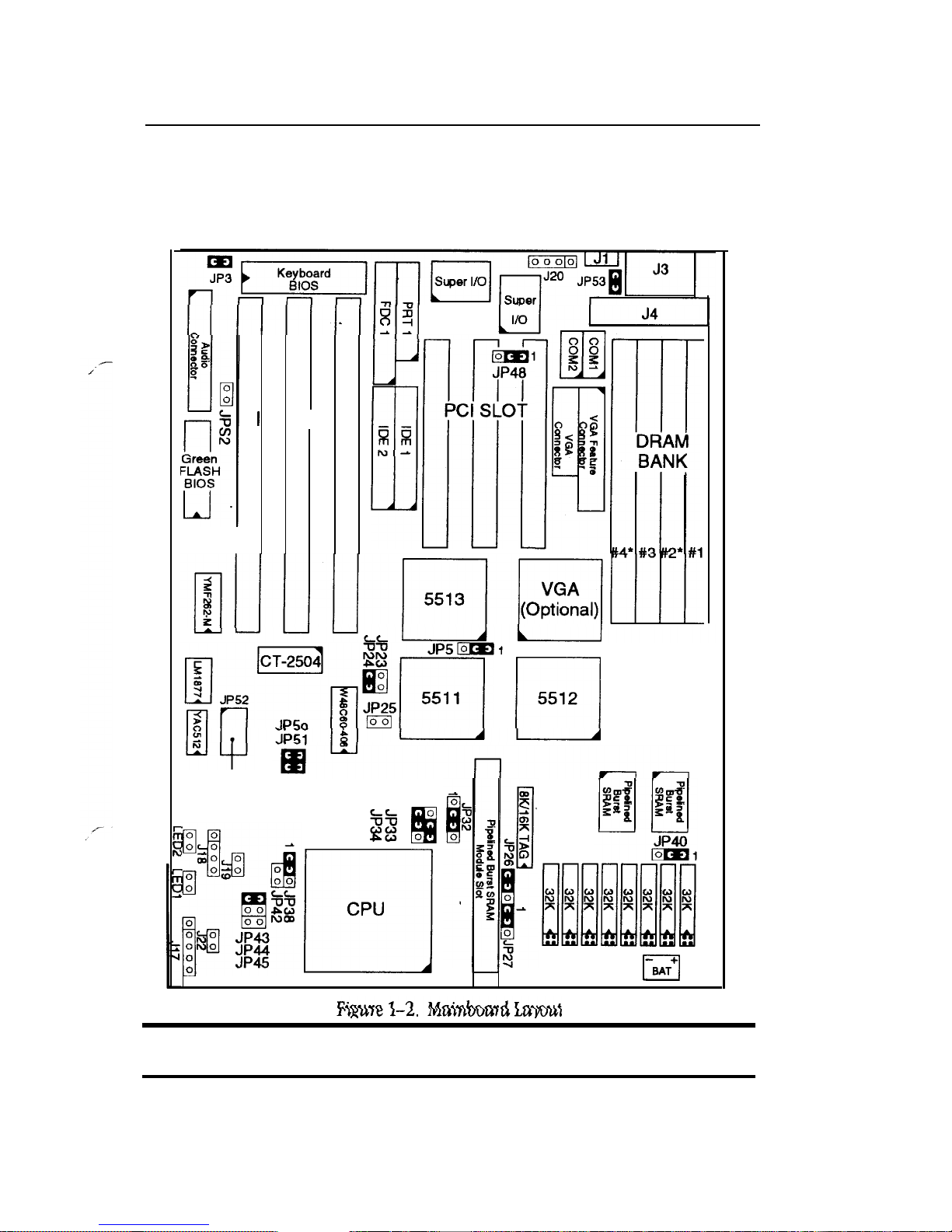
Refer to Figure 1-2 for the
mainboard
layout and the default settings areas follows:
Pentium 100MHz CPU, 256K W/B Pipelined Burst cache, Address Pipeline Enabled,
On-board EIDE Enabled (PIO Mode), FDD Enabled, 2 high speed UART Enabled
(w/ 16550 FIFO), 1
EPP/ECP
port (standard mode), and PS/2 Mouse Disabled.
1-111111-1111
$?2
. .
I
I
SA
SLOT
LPr
mii
JP48
II
D[u[
PCI SLOT
65
mm
N-
Wave Table
Connector
Eh-Ei
’m
”
IT
5512
m
35
o“
El
CPU
m
—
1
Important:
Make sure the system is
well
ventilated to prevent
overheating and ensure system stability.
*Note:
SIMM2
and
SIMM
4
can install
single32
bits SIMM.
Page 8

4
Introduction
Onboard VGA Chip Features (Optional)
●
●
●
●
●
●
●
●
Supports
share memory for both system memory and display memory
Supports 32 bit
PCI local bus standard revision 2.1
Supports
PCI
multimedia design
guide
revision 1.0
Supports 32/64 bit display memory path
Supports VESA DPMS compliant VGA monitor for power
management
Supports resolution up to 1280 x 1024256
colors(NI)
or 1280x 102464K colors
(Interlace only)
Supports virtual screen up to
2048 x 2048
Supports
sofiware
MPEG function.
Resolutions Supported
Resolution
1 MByte DRAM* 2 MByte DRAM*
640x480x256
I
I
640x480x64K
I
I
640x480x16M
I
I
800X600X16
I
I
800X600X256
I
800X600X64K
I
I
800X600X16M
I
x
I
l/
1024x768x16
I
I
1024x768x2%
I
I
1024x768x64K
x
J
1024x768x16M
x
x ’
128OX1O24X16
/
d
128OX1O24X256
x
J
This size is controlled
by
BIOS and shared with the system main
memory.
Note:
The VGA online manual can be found in VGA diskettes 1 under the
"MANUAL" subdirectory.
Page 9

Introduction
5
Unpacking the
Mainboard
The
mainboard
package contains:
●
The
SiS
551X / P54C
Mainboard
●
This User's Guide
Note: Do not unpack the
mainboard until you
are ready to install it.
Follow the precautions below while unpacking the
mainboard,
1.
2.
3.
Before handling the
mainboard,
ground yourself by grasping an unpainted
portion of the system's metal chassis.
Remove the
mainboard
from its anti-static packaging and place it on a grounded
surface, component side up.
Check the
mainboard
for damage. If any chip appears loose, press carefully to
seat it
firmly
in its socket.
Do not apply power if the
rnainboard
appears damaged. If there is damage to the
board contact your dealer immediately.
Electrostatic Discharge Precautions
Make sure you ground yourself before handling the
mainboard
or other system
components. Electrostatic discharge can easily darnage the components. Note that
you must take special precaution when handling the
mainboard
in dry or
air-
conditioned environments.
Take these precautions to protect your equipment from electrostatic discharge:
● Do not remove the anti-static packaging until you are ready to install the
rnainboard
and other system components.
●
Ground yourself before removing any system component from its protective
anti-static packaging. To ground yourself grasp the expansion slot covers or
other unpainted portions of the computer chassis.
●
Frequently ground yourself while working, or use a grounding strap.
●
Handle the
rnainboard
by the edges and avoid touching its components.
Page 10

2
Hardware Setup
This chapter explains how to configure the
mainboard
's
’s
hardware. After you install
the
mainboard,
you can set jumpers, install memory on the
mainboard,
and make
case connections. Refer to this chapter whenever you upgrade or reconfigure your
system.
CAUTION:
Turn
off power
to the
mainboard,
system
chassis, and
peripheral devices
before performing
any work on
the
mainboard
or
system
Jumpers
Factory Set Jumpers
'
The following jumpers are set at the factory as below. -
Jumpers
Factory settings
JP28, JP29, JP31, JP36,
JP37,
Factory fixed at Short
JP47
J21
Reserved
JP5,
JP34,
JP48,
JP53,
JP50,
Factory setting at
1-2
JP51
JP28, JP29, JP32, JP33,
JP47
Factory setting at 2-3
JP30
Factory freed at
3-5
and 4-6
JP25:
Sleep Switch Connector
Enable/Disable
Toggle this jumper to force the system into power saving (Green) mode. Any
hardware IRQ signal makes the system
wakeups.
Page 11
8
Hardware Setup
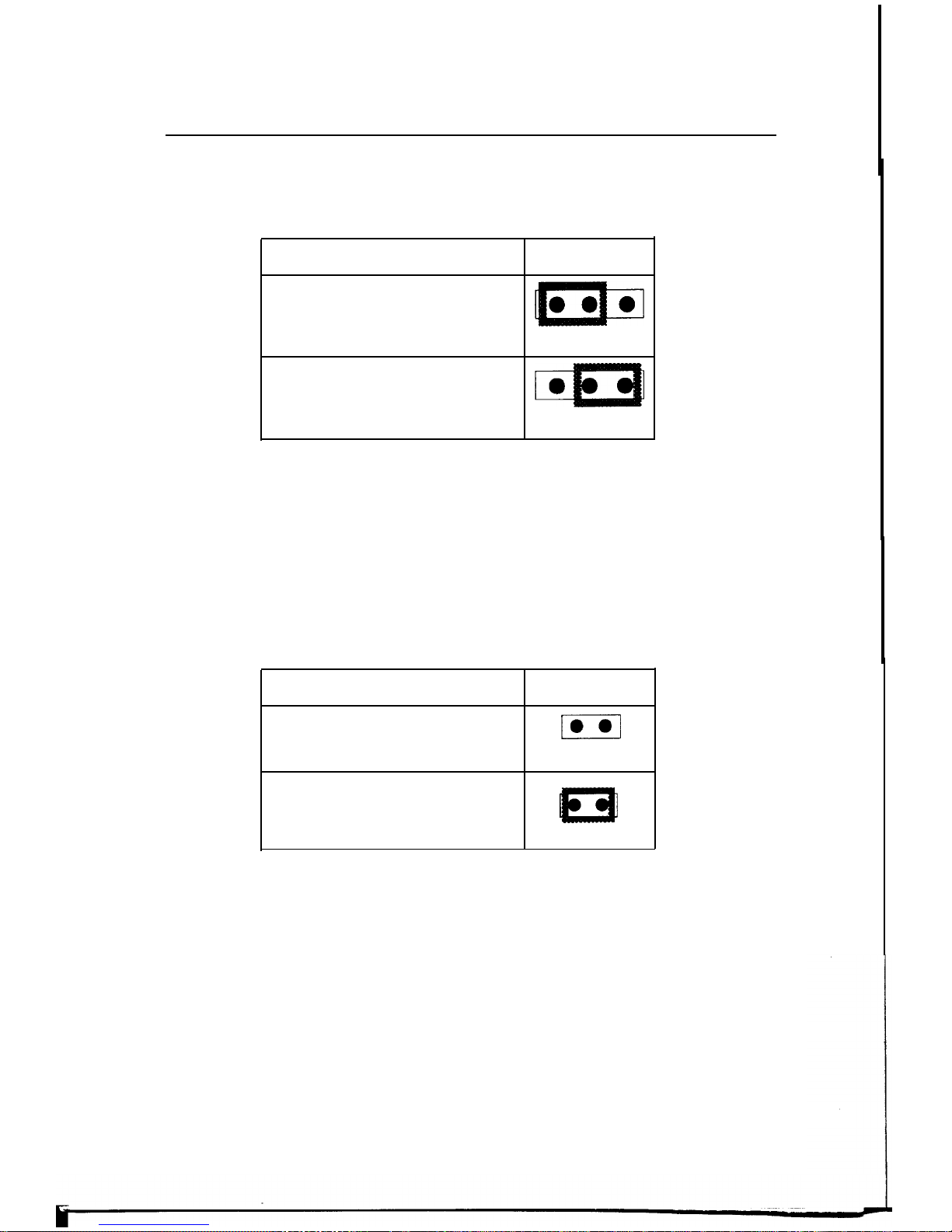
JP34:
11 Write-Back /Write-Through Cache Select
Set JP34 to configure the
mainboard
for L1 Write-Back/Write-Through Cache.
11 Cache
JP34
Write Back Cache
(default)
m
123
Write Through Cache
m
123
JP46:
VRM (Voltage Regulator Module) Socket (Optional)
VRM socket
is dedicated for 2.5V
CPU to use. It converts 3.3V to 2.5V for the
advance high speed
P54CX.
JPS2: PS/2
Mouse Function Jumper
Set PS/2 mouse function enabled or disabled.
PS/2 Mouse Function
JPS2
Disabled
m
(default)
12
Enabled
=
12
Note: The
IRQ12
is dedicated to PS/2 mouse when choose enabled of
PS/2
Mouse
Function.
Page 12
Hardware Setup
9
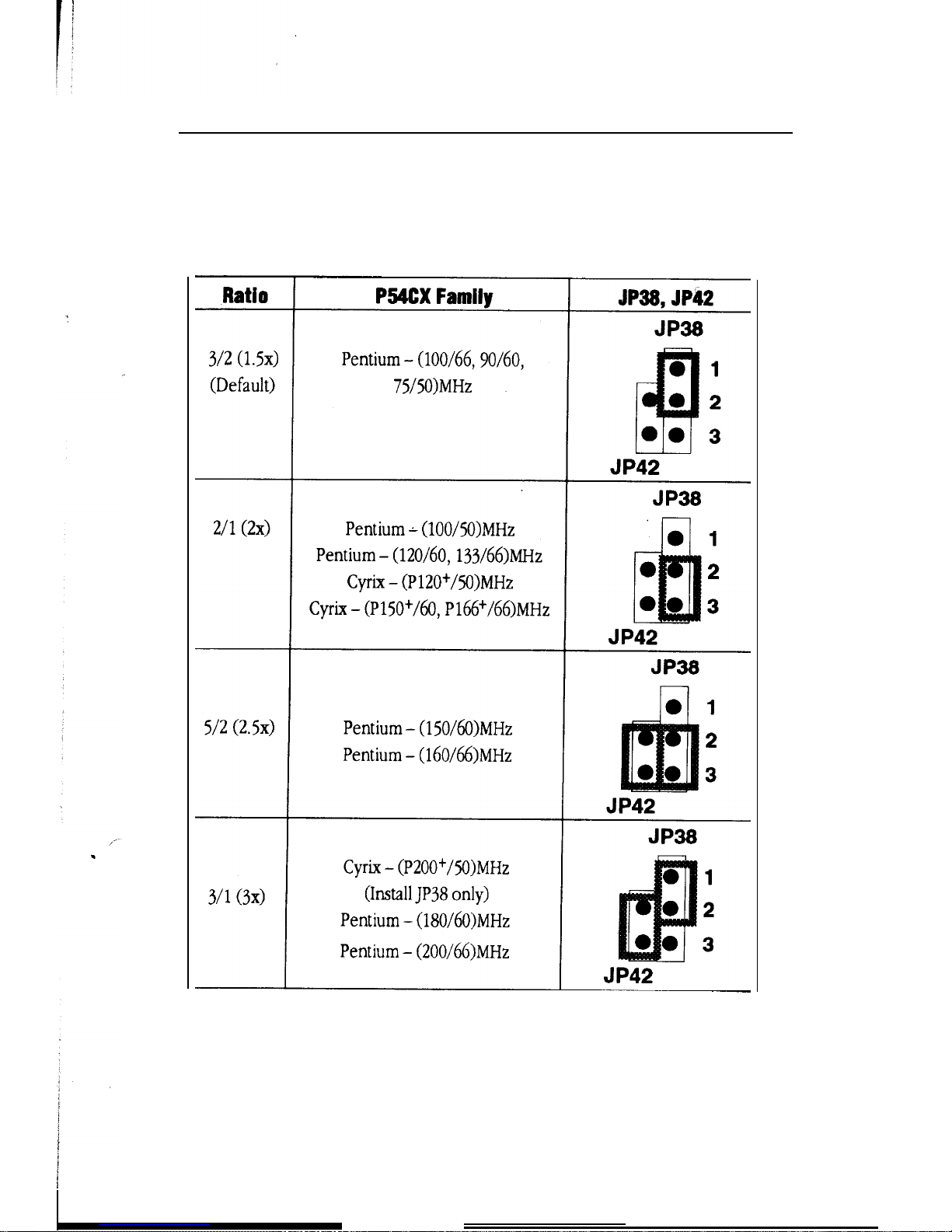
JP38,
JP42:
Bus Fraction Core/Bus Ratio
Select
Set this
jumper
according to your CPU clock and this setting is only for
Pentium.
Note: For
PentiumX
/Y MHz, X stands for CPU core clock, Y stands for bus clock.
Page 13

10
Hardware Setup
JP40: CPU Burst Mode Select
Set JP40 to select the two different kinds of burst mode which is decided by the type
of CPU that you use.
Burst Mode
Interleave burst for INTEL
(default)
Linear burst for
Cyrix
CPU Type Configuration
JP40
321
Set the
mainboard'ss
CPU jumpers JP23 and JP24 according to CPU type as described
below, and then set JP43~JP45 for the proper voltage of the CPU.
Pentium -
75*/90*/100*
’9
O*/100*
CPU Settings (RED Caps) (1.5x clock)
Pentium - 75’/50 MHz
JP23
EEl
JP24
Pentium - 90’/60 MHz
JP23
m
JP2;
Pentium - 100”/66 MHz
Figure 2-1-1.
CPU
Jumper Settings
JP23
El
o
JP24°
Page 14

I
Hardware Setup
11
Pentium
-
100*/120*/133* CPU
Settings (RED Caps) (2.0X
clock)
P54CX
Family
4
Pentium -
100*/’/50 MHz
JP23
P23
El
JP24
Pentium
- 120*/’/60 MHz
JP23
HI
p
m2%
Pentium
- 133*/’/66 MHz
JP23
El
o
JP240
Figure
2-1-2.
CPU
Jumper Settings
Pentium
- 150* CPU Settings (RED Caps) (2.5x clock)
Pentium
- 150*/’/60 MHz
d
J 23
0
JP2;
g
I
Pentium - 166*/”/66 MHz
&
JP23
m
JP24
I
4
Figure
2-1-3. CPU Jumper Settings
i
Page 15

,
12
‘
Hardware
Setup
Pentium
- 180*/200* CPU Settings (RED Caps) (3.0x clock)
I
,
I
Pentium
- 180*/60 MHz
JP23
III
JP24
Pentium
- 200’/66 MHz
JP23
El
o
JP24
Figure 2-1-4. CPU Jumper Settings
Cyrix 6x66- P120+P150+P166+ CPU Settings (RED
Caps)
(2.0x
clock)
6x66 -
P120+/50 MHz
JP23
EEl
JP24
6x66 -
P150+/60 MHz
#
J3
z
&
JP24
6x66 - P166+/66 MHz
Iii
o
0
0
n
@r
CX6X86
JP24°
%%
&%
Family
A
Figure 2-1-5.
CPU Jumper Settings
Page 16

Hardware
Setup
.
13
Cyrix 6x66-
P200+
CPU Settings (RED Caps) (3.0x clock)
6x66 -
P200+/50
MHz
JP23
EI!l
g
?
u
i!
CX6X86
Family
Figure 2-1-6. CPU Jumper Settings
JP43~JP45:
CPU Voltage Select
Set
JP43~JP45
to configure the
Proper voltage
for the installed CPU.
CPU Type Voltage
JP43~JP45
Standard and VR
P54CX
CPU (33V + 5%)
5
JP43 ● ●
(Default)
JP44. ● ●
JP45 ● ● 1
.H
JP43 ● ●
VRE
P54CX
CPU (345V - 36v)
JP44 ● ●
JP45 ● ● 1
rliiiii
JP43 ● ●
Reserved
JP44 ● ●
JP45 ● ● 1
Note:
Check with your CPU
vendor to
make sure of
the
CPU type voltage.
Page 17

14
Hardware
Setup
Memory Configuration
The
mainboard
supports two banks of 72-pin SIMM
or
FDO
DRAM (with or
without parity). The
mainboard
requires SIMM of at least 80ns access time.
The
mainboard
supports
from
2 to
512
Mbytes with no other restrictions on
memory configurations. You can install DRAM in any combination without having to
rely on a memory
configuration
table. Memory configuration is thus
‘(Table-Free.”
. You can use
single 32
bits
DRAM on
SIMM2
and
SIMM4.
Cache Configuration
The
mainboard
has a write-back caching scheme. You can configure the
mainboard
's
’s
cache by installing cache chips in
jumpers JP26 and JP27 to set the
mainboard
Figures 2-2-2-3 for cache configurations,
the sockets noted below and then set
for the type of SRAM installed. See
Cache Size and RAM locations
1
Cacheable
Cache Size
Cache RAM
TAG RAM
Range
256KB
U19, U20
8K,
16Kx8/
32MB
U18
512KB
U19, U20,
and 256KB
16K, 32Kx8/ 64MB
‘6
Pipelined Burst upgrade
U18
module
I
I
Page 18

Hardware
Setup
15
256K Pipelined Burst Cache Configuration (White Caps)
El
’E
l
El
CPU
m
-u
R’
@:
Intel CPU
>.
Es Es
(default)
n n
/Em#
JP40
Figure 2-2.
256K
Pipelined Burst Cache Configuration
512K Pipelined Burst Cache Configuration (White Caps)
A
256KB Pipelined Burst upgrade module has to install into Pipelined Burst Module
Slot
(J23).
Figure 2-3. 512K
Pipelined
Burst
Cache Configuration
CAUTION: Contact your supplier for Pipelined Burst upgrade module to
upgrade your onboard cache
SRAM
up to
512KB.
Page 19

16
Hardware
Setup
Multi
I/O
Port Addresses
Default settings for multi-I/O port addresses are shown in the table below.
. .
Port*
I/O Address
IRQ
status
LPT1 378H
7
ECP/EPP
COM1
3F8H
4
COM2
2F8H
3
If default 1/0 port addresses conflict with other 1/0 cards (e.g. sound cards or 1/0
cards), you must adjust one of the 1/0 addresses to avoid address conflict. (You can
adjust these 1/0 addresses from the BIOS..)
Note:
Some
sound
cards have a default IRQ setting for IRQ 7, which may
conflict with printing functions. If this occurs do not use sound card
functions at the same
time you print.
Connectors
Attach the
mainboard
to case devices, or an external battery, via connectors on the
mainboard.
Refer to Figure 1-1 for connector locations and connector pin positions.
J1 -
PS/2
Mouse Connector
Attach PS/2 mouse cable to this connector.
J3 - Keyboard Connector
A
five-pin female DIN keyboard connector
the keyboard jack into this connector.
J4 - Power Supply Connectors
is located at the rear of the board. Plug
The
mainboard
requires a power supply with at least 200 watts and a ‘(power good
signal. J3 has two six-pin male header connectors. Plug the dual connectors from the
power directly onto the board connector while making sure the black leads are in
the center,
.
Page 20

Hardware
Setup
17
J17 -
Keylock
& Power LED Connector
J17 is a connector for a lock that may “be installed on the system case for enabling or
disabling the keyboard. J17 also attaches to the case’s Power LED.
J18 - Speaker Connector
Attach the system speaker to
connector J18
JI 9- Hardware Reset Control’
Attach the Reset switch to J19. Closing the Reset switch restarts the system.
J20 - External Battery Connector
J20 is a 4-pin connector to which you can attach an external battery. Pin 1 of J20 is
positive ( + ) and pin 4 is negative ( - ).
J22
- Turbo LED Connector
Attach the sleep LED to J22. The LED lights when the system is in Turbo mode,
lDE1/lDE2
- On-board Primary/Secondary IDE HDD
Connectors
Attach on-board hard disk drives to these connectors.
LED1/LED2 - HDD LED Connectors
Attach on-board hard disk drive LEDs to this connector. The LED lights when an
HDD is active.
Page 21

COM1/COM2
Connectors
Attach
COM1/COM2
cable to these connectors.
FDC Connector
Attach floppy cable to this connector.
PRTI Connector
Attach parallel port cable to this connector.
VGA Connector (Optional)
Attach VGA cable to this connector.
VGA Feature Connector (Optional)
Attach VGA Feature cable to this connector.
AUDIO Connector
Attach AUDIO adapter to this connector.
JP52 - Wave Table Connector
Attach the cable of Wave Table card to this connector.
Page 22

Hardware Setup
19
Audio Adapter Function
Plug in this Audio Adapter to the motherboard for connecting the external device,
such as wave table card, speaker, microphone, and joystick. Function of every
connector is described below.
WTCI - Wave Table Card Connector
Attach wave table card to this connector for enable the wave table function.
SBI
- Audio Adapter Connector
Attach this end to the audio connector of the motherboard for connection.
JI
- CD-ROM Audio In Connector
Attach CD-ROM Audio line to this connector for transferring CD-ROM’s audio to the
speakers.
JACKI - Speaker Out Jack
Attach the cable of the speakers’ to this jack for enable the speakers.
JACK2
- Line Out Jack
Attach line out cable to this jack.
JACK3
- Line In Jack
Attach line in cable to this
jack.
JACK4 -
MIC
In Jack
Attach the cable of microphone to this jack,
DB15
- Game Port Connector
Attach to the device which could use game port.
Page 23

.
\
20
Hardware Setup
1
I
Figure 2-4-1. Top View of the
Audio
Adapter
Attach Audio
Adapter here
1
.
H
n
ISA
u
n
H
SLOT
u
I
El
Figure 2-4-2. Audio Adapter
Connection
‘
Page 24

3
The
mainboard's
BIOS setup
BIOS Setup
program is the ROM
PCI/ISA
BIOS from Award
Software” Inc. Enter the Award BIOS program
’s
Main Menu as follows:
1. Turn on or reboot the system. After a series of diagnostic checks, you are asked
to press DEL to enter Setup.
2. Press the
<DEL>
key to enter the Award BIOS program and the main screen
appears:
ROM PCI/ISA BIOS
CMOS SETUP UTILITY
AWARD SOFTWARE , INC .
STANDARD CMOS SETUP
BIOS FEATURES SETUP
CHIPSET FEATURES SETUP
POWER MANAGEMENT SETUP
PCI & ONBOARD 1/0 SETUP
LOAD SETUP DEFAULTS
Esc : Quit
F1O : Save & Exit
SetuD
IDE HDD AUTO DETECTION
SAVE & EXIT SETUP
EXIT WITHOUT SAVING
~ ~+ +
: Select Item
(Shift) F2 : Change Color
Time, Date, Hard Disk Type. . .
3. Choose an
option
and press
<Enter> . Modify
the system
parameters to reflect
the options installed in the system. (See the following sections.)
4. Press
<ESC> at
anytime
to return to the
Main Menu.
5. In the
Main Menu, choose
"
SAVE
AND EXIT SETUP"
to
save your changes
and
reboot the system. Choosing "EXIT WITHOUT SAVING
”
" i
gnores your changes
andexits the program.
The MainMenu options oftheAward BIOSare described
in
the sections thatfollow.
Page 25

22
BIOS
Setup
Standard CMOS Setup
Run the Standard CMOS Setup as follows.
1. Choose
“S
TANDARD CMOS SETUP” from the Main Menu. A screen appears.
ROM PCI/ISA BIOS
STANDARD CMOS SETUP
AWARD SOFTWARE , INC
Date (mm:dd:yy) : Fri, Feb 1 1995
Time
(hh:mm:ss)
: 7 : 30 : 33
HARD DISKS TYPE
SIZE
CYLS HEAD PRECOMP LANDZ
SECTOR MODE
Primary
Master : None
o
0 0
0
0
0
Primary Slave : None
o
00
0
0
0
- - - -
——
Secondary Master : None
o
0
0
0
0
0
Secondary Slave : None
o
00
0 0 0
-—-.
Drive A :
1.44M,
3.5 in.
Base Memory:
640K
Drive
B : None
Extended Memory:
3328K
Other Memory:
128K
Video : EGA/VGA
Halt On : All Errors
Total Memory: 4096K
Esc : Quit
‘r
4+.+
: Select Item
PU/PD/+/- : Modify
F11
: Help
(shift) F2 : Change Color
F3
: Toggle Calendar
2.
Use arrow keys to move
between items
and select
values.
Modify selected fields
using PgUp/PgDn/+/-
keys. Some fields letyou enter values directly.
Date(mm/dd/yy)
Type thecurrentdate.
Time(hh:mm:ss)
Type
the current time.
Primary
(Secondary) Choose fromthe standard harddisktypes 1 to 46 Type
Master & Slave
47
is user definable ,If a hard disk is not
installed choose
"Not
installed.
"
(default)
Choose
360KB,51/4 in.,
l.2MB,51/4 in.,
720KB,31/2in.,
1.4M, 3 1/2 in. (default),
2.88MB,
3 1/2 in.,
Not installed
Choose Monochrome,
Color
40x25,
VGA/EGA (default),
Color 80x25
3.
When
you finish, press
the <ESC>
key to return e
Main Menu.
Page 26

BIOS
Setup
23
BIOS Features Setup
Run the BIOS Features Setup as follows.
1. Choose "BIOS FEATURES SETUP
"
from the Main Menu and a screen with a list
of
items appears. (The screen
below shows the BIOS
default settings.)
ROM PC I/ISA BIOS
BIOS FEATURES SETUP
AWARD SOFTWARE , INC .
CPU Internal Cache : Enabled
Video BIOS Shadow
: Enabled
External Cache
: Enabled
C8000-CBFFF Shadow
: Disabled
Quick Power on Self Test : Enabled
CCOOO-CFFFF Shadow
: Disabled
Boot Sequence
A,C
DOOOO-D3FFF Shadow : Disabled
Swap Floppy Drive : Disabled
D4000-D7FFF Shadow
: Disabled
Boot Up NumLock Status
: On D8000-DBFFF Shadow
: Disabled
Gate A20 Option
: Fast
DCOOO-DFFFF Shadow : Disabled
Memory Parity Check
: Disabled
Typematic Rate Setting
: Disabled
Typematic Rate (Chars/See): 6
Typematic Delay
(Msec)
: 250
Security Option Setup
PCI/VGA Palette Snoop
: Disabled
ESC : Quit
? ~+ +:
Select
Item
F1
: Help
PU/PQ/+/–
:
Modify
F5
: Old Values (Shift)F2 : Color
F6
: Load BIOS Defaults
F7
: Load Setup Defaults
2. Use the arrow keys to move between items and to select values.
Modify
the
selected fields using thePgUp/PgDn/+/- keys.
<F>keys
are explained below:
<Fl>:
’
g
gives options available
for each
item.
Shift<F2>:
Change color. .
<F5>:
Get the old values. These values are the values with which
the userstartedthe
current session.
<F6>:
Load all options with the BIOS Setup default values,
<F7>:
Load all options with the Power-On default values,
Page 27

24
BIOS
Setup
A short description of screen items follows:
CPU Internal
Cache
External
Cache
Quick
Power
On
Self
Test
Boot Sequence
Swap Floppy
Drive
Boot
Up
Num
Lock Status
Gate
A20
Option
Memory Parity
Check
Typematic
Rate
setting
Typematic
Rate
(Chars/Sec)
Typematic
Delay
(Msec)
This option enables/disables the CPUS internal cache. (The
Default setting is Enabled.)
This option enables/disables the external cache memory. (The
Default setting is Enabled.)
Enabled provides a fast POST at boot-up.
The default setting attempts to first boot from drive A: and then
from hard disk
C:
You can reverse this sequence with ‘(C:
A
:",
”,
but then drive A: cannot boot directly.
Enabled changes the sequence of the A: and B: drives. (The
Default setting is Disabled.)
Choose On or Off. On puts numeric keypad in Num Lock
mode at boot-up. Off puts this keypad in arrow key mode at
boot-up.
Choose Fast (default) o Normal. Fast allows RAM accesses
above lMB using the fast gate A20 line.
Choose Enabled or Disabled (default). This item
enables/disables the Memory Parity check option. Do not
enable this setting if SIMM modules are without parity RAM.
Enable this option to adjust the keystroke repeat rate.
Choose the rate a character keeps repeating.
Choose how long after you press a key that a character begins
repeating.
Page 28

BIOS Setup
25
security
option
PCI/VGA
Palette
Snoop
Video
BIOS
shadow
Choose Setup or System, Use this feature to prevent
unauthorized system boot-up or use of BIOS Setup.
"System"- Each time the system is booted the password
prompt appears.
"System"- If a password is set, the password prompt only
appears if you attempt to enter the Setup program.
Enabled:
The color of monitor may be incorrect if uses
with MPEG card. Enable this option to make the
monitor normal.
Disabled:
Default setting.
BIOS shadow copies BIOS code from slower ROM to faster
RAM. BIOS can then execute from
RAM.
These 16K segments
can be shadowed from ROM to RAM. BIOS is shadowed in a
16K segment if it is enabled and it has BIOS present.
3. After you have finished with the BIOS Features Setup program, press the
<ESC>
key and follow the screen instructions to save or disregard your settings.
Chipset Features Setup
The Chipset Features Setup option changes the values of the chipset registers. These
registers control system options in the computer.
Note:
Change these
settings only
if
you are
familiar
with the
Chipset.
Run the
Chipset
Features Setup as follows.
1.
Choose "CHIPSET FEATURES SETUP
"
from the Main Menu and the following
screen appears. (The screen below shows default settings.)
Page 29

26
BIOS Setup
ROM PCI/ISA BIOS
CHIPSET FEATURES SETUP
AWARD SOFTWARE, INC.
Auto Configuration : Enabled
ISA Bus Clock Frequency : PCICLK/4
System BIOS Cacheable
: Disabled
L1 Cache Update Mode
: WB
Video BIOS Cacheable : Disabled
L2 Cache Update Mode
: WB
Memory Hole At 15M-16M : Disabled
Asyn. SHAM Leadoff Tim. : R3 W4 Ck
VGA Shared Memory Size : lMB
Asyn. SRAM Burst
Tim.
:2Ck
Sync. SRAM Leadoff Tim.
:3Ck
DRAM RAS to CAS Delay :3Ck
RAS Active When Refresh
:5Ck
CAS Delay In Posted-WR
:lCk
FP DRAM CAS Prec. Timing : 2 Ck
FP DRAM RAS Prec. Timing : 4 Ck
ESC : Quit
~~+-:
Select Item
F1
: Help
PU/PD/+/– : Modify
F5
’5: Old Values (Shift)F2 : Color
F6
: Load BIOS Defaults
F7
: Load Setup Defaults
2,
Use the arrow keys to move between items and select values. Modify selected
fields using the
PgUp/PgDn/+/-
keys.
A short description of screen iterns follows:
Auto Configuration
Enable this option (strongly recommended) and
the system automatically sets all options on the
left side of the screen (except cache update
mode
& BIOS cacheable).
If this options is Enabled. you must boot
fromTurbo mode.
L1
(L2) Cache Update Mode
Choose WB or
WT.
The default setting is WB
(Write Back). WB offers better performance
than WT.
Asyn.
SRAM Lead off Timing
Use the default setting.
Asyn. SRAM Burst Timing
g
Use the default setting.
Sync. SRAM Lead off Timing
Use
the
default setting.
DRAM RAS to CAS Delay
RAS Active When Refresh
CAS
Delay
In
Posted-WR
’R
Use the default setting.
Use the default setting.
Use the default setting.
FP DRAM CAS
PrechargeTime
Usethe defaultsetting.
Page 30

BIOS
Setup
27
FP DRAM
RAS Precharge
Time
Use the default setting.
ISA Bus Clock Frequency
System BIOS
Cacheable
Video BIOS
Cacheable
Memory
Hole At
15M-16M
VGA Shared Memory Size
The default setting is the
PCI
Clock (the item
above) divided by 4.
—
i.e. 7.5 MHz (30/4) or 8
MHz (33/4).
Disabled:
Enabled:
Disabled:
Enabled:
The ROM area
FOOOOH-FFFFFH
is
not cached.
The ROM area
FOOOOH-FFFFFH
is
cacheable
if cache controller is
enabled.
The video BIOS
COOOOH-C7FFFH
is
not cached.
The video BIOS
COOOOH-C7FFFH
is
cacheable
if cache controller is
enabled.
Choose Enabled or Disabled (default). Some
interface cards will map their ROM address to
this area. If this occurs, you should select
Enabled, otherwise use Disabled.
Choose
lMB(default)
or 2MB.
Choice of this option depends on your VGA
resolution (see page 2).
3. After
YOU
have
finished with the Chipset Features Setup, press the
<ESC>
key
and follow the screen instructions to save or disregard your settings.
Power Management Setup
The Power Management Setup option sets the system's power saving functions.
Run the Power Management Setup as follows.
1.
Choose "POWER MANAGEMENT SETUP
"
from the Main Menu and a screen
with a list of items appears.
Page 31

28
BIOS Setup
ROM PCI/ISA BIOS
CMOS SETUP UTILITY
POWER
MANAGEMENT
SETUP
Power Management
: Disabled
VGA Activity : Disabled
PM
Control by APM
: No
IRQ 3 (COM 2) : Enabled
Video Off Method
: V/H SYNC+Blank
IRQ 4
(COM
1) : Enabled
Suspend Switch
: Enabled
IRQ 5
(LPT 2)
: Enabled
lRQ
6
[[;;py; ‘i
Sk)
:
Enabled
**
PM Timers
**
IRQ 7
: Enabled
HDD Power Down
: Disabled
IRQ 8 (RTC Alarm) : Disabled
Doze Mode
: Disabled
IRQ 9
(LRQ2
Redir) : Enabled
Standby Mode
: Disabled
IRQ 10 (Reserved) : Enabled
Suspend Mode
: Disabled
IRQ 11 (Reserved) : Enabled
IRQ 12
(PS/2
mouse)
: Enabled
** PM Events
**
IRQ 13 (Coprocessor) : Enabled
COM Ports Activity
: Enabled
IRQ 14 (Hard Disk) : Enabled
ILPT Ports Activity : Enabled
IRQ 15 (Reserved)
: Enabled
HDD Ports Activity : Enabled
PCI/ISA Master Act. : Enabled
ESC : Quit
?’ ~ ++:
Select Item
IRQ1-15 Activity
: Enabled
F1
: Help PU/PD/+/- : Modify
F5
: Old Values (Shift)F2 : Color
I
F6
: Load BIOS Defaults
F7
: Load Setup Defaults
2.
Use
the arrow keys to move between items and to select values. Modify the
selected fields using thePgUp/PgDn/+/- keys.
A short description
of selected screen
items follows:
Power Management
PM Control by APM
Video Off Method
Suspend Switch
Options are as follows:
User Define
Disabled
Min
Saving
Max Saving
Let’s you define the HDD and system
powerdowntimes.
Disables the Green PC Features.
Doze timer= 40Min.
Standbytimer= 40Min.
Suspendtimer=40 Min.
HDDPowerDown
=15Min
Doze timer =20 Sec.
Standbytimer= 20Sec.
Suspend timer =20 Sec.
HDDPowerDown
=lMin
Choose Yes or No (default). APM stands for Advanced
Power Management .TouseAPMyoumust run
"
power.exe" under
DOS v6.00r laterversion.
Choose V/H
Sync+
Blank (default), Blank screen, or
DPMS for the selected PM mode.
Choose Enabled (default) or Disabled. This option
enables or disables JP33 (refer to page
5)
Page 32

BIOS
Setup
29
HDD
Doze Mode
Standby
Mode
Suspend
Mode
xxx Ports Activity
PCI/ISA
Master
Activity
IRQx
VGA Activity
When
the
set time has elapsed, the BIOS sends a
command to the HDD to power down, which turns off
the motor. Time is adjustable from 1 to 15 minutes. The
default setting is Disabled. Some older model HDDs may
not support this advanced function.
When the set time has elapsed, the BIOS sends a
command to the system to enter doze mode (system
clock drops to 33 MHz). Time is adjustable from 20
seconds to 40 minutes.
The default is Disabled. Time is adjustable from 20
seconds to 40 minutes.
The default is Disabled. Only an SL-Enhanced (or SMI)
CPU can enter this mode. Time is adjustable from 20
seconds to 40 minutes. Under Suspend mode, the CPU
stops completely (no instructions are executed,)
The hardware monitors these ports for activity, If activity
occurs from the Enabled item the system will not enter
Green mode (power saving).
The hardware monitors the master signals for activity. If
activity occurs from the Enabled item, the system will not
enter Green mode (power saving.)
The BIOS monitors these items for activity, If activity
occurs from the Enabled item the system
will
not enter
Green mode (power saving).
3.
After
you have
finished with the Power Management Setup, press the
<ESC>
key
to return to the Main Menu,
PCI Configuration Setup
This option sets the
rnainboard
's
’s
PCI
Slots. Run this option as follows:
1. Choose "PCI CONFIGURATION SETUP
"
”
from the Main Menu and the following
screen appears. (The screen below shows default settings.)
Page 33

ROM PCI/ISA BIOS
PCI & ONBOARD 1/0 SETUP ,
’ . .
AWARD SOFTWARE, INC.
PnP BIOS Auto Config
: Disabled
Onboard FDC Controller : Enabled
1st Available IRQ*
, 9*
Onboard Serial Port 1
:
COM1/3F8
2nd Available IRQ*
: 10*
Onboard Serial Port 2
:
COM2/2F8
3rd Available IRQ*
: 11*
Onboard Parallel Port
: 378H/IRQ7
4th Available IRQ*
: 12*
Parallel Port Mode : ECP/EPP
ECP Mode Use DMA
:3
PCI IRQ Activated BY
: Level
Serial Portl MIDI
: Disabled
PCI IDE 2nd Channel
: Enabled
Serial Port2 MIDI :
Disabled
PCI IDE IRQ Map To
: PCI-AUTO
Primary IDE INT#
:A
Secondary IDE INT#
:B
Internal PCI/IDE
Both
IDE Primary Master PIO
: Auto
ESC : Quit
T$++:
Select
Item
IDE Primary Slave PIO
: Auto
F1
: Help Pu/PD/+/- : Modify
IDE Secondary Master PIO
: Auto
F5 : Old Values (Shift)P2 :Color
IDE Secondary Slave PIO
: Auto
F6
: Load BIOS Defaults
IDE HDD Block Mode
: Enabled
F7’7
: Load Setup Defaults
*: These items will disappear when
PnP
BIOS Auto
Config.
is enabled.
2. Use the arrow keys to move between items and select values, Modify selected
fields
using the
PgUp/PgDn/+/-
keys.
A short description
of screen items follows:
,
PnP BIOS Auto Config.
Disabled: BIOS doesn't’manage ISA
PnP
card (i.e.
IRQ) but PCI card.
Enabled:
BIOS auto manage PCI and
ISA PnP
card,
1st
(2nd)
(3rd)
(4th)
If slot 1-4 is set to AUTO in the item above,
then the
Available
IRQ
BIOS automatically routes the
INT#
to the specified
IRQ following the
1st
(2nd) (3rd) (4th) IRQ order –
you assign.
PCI IRQ Activated By
Choose Edge or Level. Most
PCI
trigger
signals
are
Level. This setting must match the
PCI
card.
PCI IDE 2nd Channel
Choose Enabled (default) or Disabled. When
Enabled is set,
IRQ15
is dedicated for secondary IDE
use. When Disabled is set,
IRQ15
is released for
other devices.
Page 34

BIOS
Setup
31
PCI
IDE
IRQ
Map To
Primary IDE
INT#
Secondary IDE
INT#
Internal
PCI/IDE
IDE Primary Master PIO
IDE Primary Slave PIO
IDE
Secondary
Master PIO
IDE Secondary Slave PIO
IDE
HDD Block
Mode
Onboard FDC
Control
Select PCI-AUTO, ISA, or assign a
PCI
SLOT number
(depending on which slot the
PCI
IDE is inserted).
The default setting is
PCI-AUTO.
If
PCI-AUTO
does
not work, then assign an individual PCI SLOT
number.
Choose
INTA#, INTB#,
default setting is
INTA#.
Choose
INTA#, INTB#,
default setting is
INTB#.
Choose Both (default),
Disabled.
INTC#,
or
INTD#.
The
INTC#,
or
INTD#.
The
Primary, Secondary, or
Both:
Turns on the Primary and Secondary
IDE function.
Primary
Turns on the Primary IDE function.
Secondary Turns on the
Secondary
IDE function.
Disabled Turns off the Primary and
Secondary
IDE function.
Choose Auto (default) or mode 0-4. Mode O is the
slowest speed, and HDD mode 4 is the fastest speed.
For better performance and stability, we suggest you
use the Auto setting to set the HDD control timing,
Choose Enabled (default) or Disabled. Enabled
invokes multi-sector transfer instead of one sector
per transfer. Not
all
HDDs support this function,
Enabled: Use the on-board floppy controller
(default).
Disabled: Turn off the on-board floppy controller.
Page 35

32 BIOS Setup
Onboard Serial Port
1
Onboard
Serial
port
2
onboard parallel
port
Parallel Port Mode
ECP
Mode Use
DMA:
Serial
Port
1/2
MIDI
Choose serial port 1 & 2''s I/0 address. Do no set
port
1 & 2 to the same value except for Disabled.
COM
l/3F8H I COM3/3E8H
COM 2/2F8H I COM4/2E8H
(default) I
Choose the printer 1/0 address:
378H/IRQ7
(default), 278H/IRQ5,
3BCH/IRQ7
Choose normal,
EPP/SPP,
or
EPP/ECP
(default)
mode. The mode choice depends on the external
device that is connected to the port.
Choose 3 (default) or 1.
This option is available only when ECP mode and
Parallel port 378H/278H are selected.
Choose Enabled or Disabled to enable or disable the
MIDI function from the serial port.
3. After you have finished with the
PCI
Slot Configuration, press
the <ESC>
key
and follow the screen instructions to save or disregard your settings.
Load Setup Defaults
This item loads the system values you have previously saved. Choose this item and
the following message appears:
"Load SETUP Defaults (Y/N)? N“
To use the SETUP defaults,
change
the prompt to "Y" and press <Enter>,
This item is recommended if you need to reset the system setup,
Page 36

BIOS Setup
33
Supervisor Password
This Main Menu item lets you configure the system so that a password is required
every time the system boots or an attempt is made to enter the Setup program.
depending on the setting you made in the "Security Option
"
of the "BIOS Features
Setup
"
.
Change the password as follows:
1.
2.
3.
4.
Choose "Supervisor Password
"
in the Main Menu and press <Enter>. The
following message appears:
"Enter
Password:"
Enter a password and press <Enter>.
(If you do not wish to use the password function, you can just press <Enter> and
a "Password disabled" message appears. )
After you enter your password, the following message appears prompting you
to confirm the new password:
"Confirm
Password:"
Re-enter your password and then Press
<ESC>
to exit to the Main Menu.
Important:
If
you forget or lose the password, the only way to access the
system is to set jumper
JP5
to
clear
the CMOS RAM.
All
setup
information is lost and you must run the BIOS setup program
again.
User Password
This Main Menu item lets you configure the system so that a password is required
every time the system boots or an attempt is made to enter the Setup program,
depending on the setting you made in the "Security Option
"
of th e "BIOS Features
Setup" Change the password as follows:
1. Choose "User Password
"
”
in the Main Menu and press <Enter>. The following
message appears:
“E
"Enter Password”
2,
Enter a password and press <Enter>.
(If
YOU
do
not wish toto use the
the
password function, you can just press <Enter> and
a "Password disabled
"
message appears. )
Page 37

34 BIOS
Setup
3.
4.
5.
After you enter your password, the following message appears
prompting
you
to confirm the new password:
"Confirm Password”
Re-enter
your password and then Press
<ESC>
to exit to the Main Menu.
User Password 's right does ' n allow you to change any setting in the "CMOS
Setup Utility
"
except the use r’ password.
Important
If you forget or lose the password, the only way to access the
system is to set jumper
JP5 to
clear
the CMOS RAM.
All
setup
information is lost and you must run the BIOS setup program
again.
IDE HDD Auto Detection
This
Main
Menu item automatically detects the hard disk type and configures the
STANDARD CMOS SETUP accordingly.
Note.
This function is
only valid
for
IDE
hard disks.
ROM PC I/ISA BIOS
CMOS SETUP UTILITY
AWARD SOFTWARE , INC.
HARD DISKS
TYPE
SIZE
CYLS HEAD PRECOMP LANDZ SECTOR
MOD E
Primary Master : None
o
00
0
0 0
----
Primary Slave
: None
o 0 0
0
0 0
-
- -
-
Secondary Master : None
o 0 0
0
0 0
---—
Secondary Slave : None
o 0
0
0
0 0
Do you accept this drive C (Y/N) ? N
ESC : Skip
 Loading...