

Page 1
17
User Manual
Enjoy the advanced features of this
technological product that we have
developed with maximum guarantees
for you.
EN
Sekury D850
SAI/UPS
Page 2

19
1. INTRODUCTION
SoyntecTM thanks you for purchasing your new Sekury
D850. We wish you enjoy using it.
The UPS Sekury D850 provides full protection to your
computer and peripherals, such as TFT screens, Routers and etc. Moreover, prevents data los generated by
blackouts, surge and other electrical disturbances. In
these cases, the UPS will quickly provide enough power
to allow you adequate time to save your files, close your
applications and turn off the computer avoiding damage
to your data and devices.
We suggest you read this user manual to enjoying this
product in a safe way and with the best performance.
2. KEEP THESE INSTRUCTIONS
≥ Please read the following information carefully
and save this manual for further reference.
Disregard of these safety notes may endanger life
or health, as well as the function of the equipment
and the safety of your data.
Page 3

20
3. MAIN fEATURES
≥ Power protection against surge, overvoltage,
overload, short-circuit and spikes.
≥ Line interactive technology with microprocessor
control.
≥ AVR: Automatic Voltage Regulation.
≥ Telephone / fax / Router protection.
≥ USB connection for computer monitoring.
≥ PC monitoring software.
≥ Cold start function: power up your devices during
blackouts.
≥ Off-mode battery charging.
Page 4
21
4. PACKAGE CONTENTS
≥ UPS Sekury D850.
≥ User manual.
≥ USB cable.
≥ CD-ROM with monitoring software.
5. PRODUCT OVERVIEw
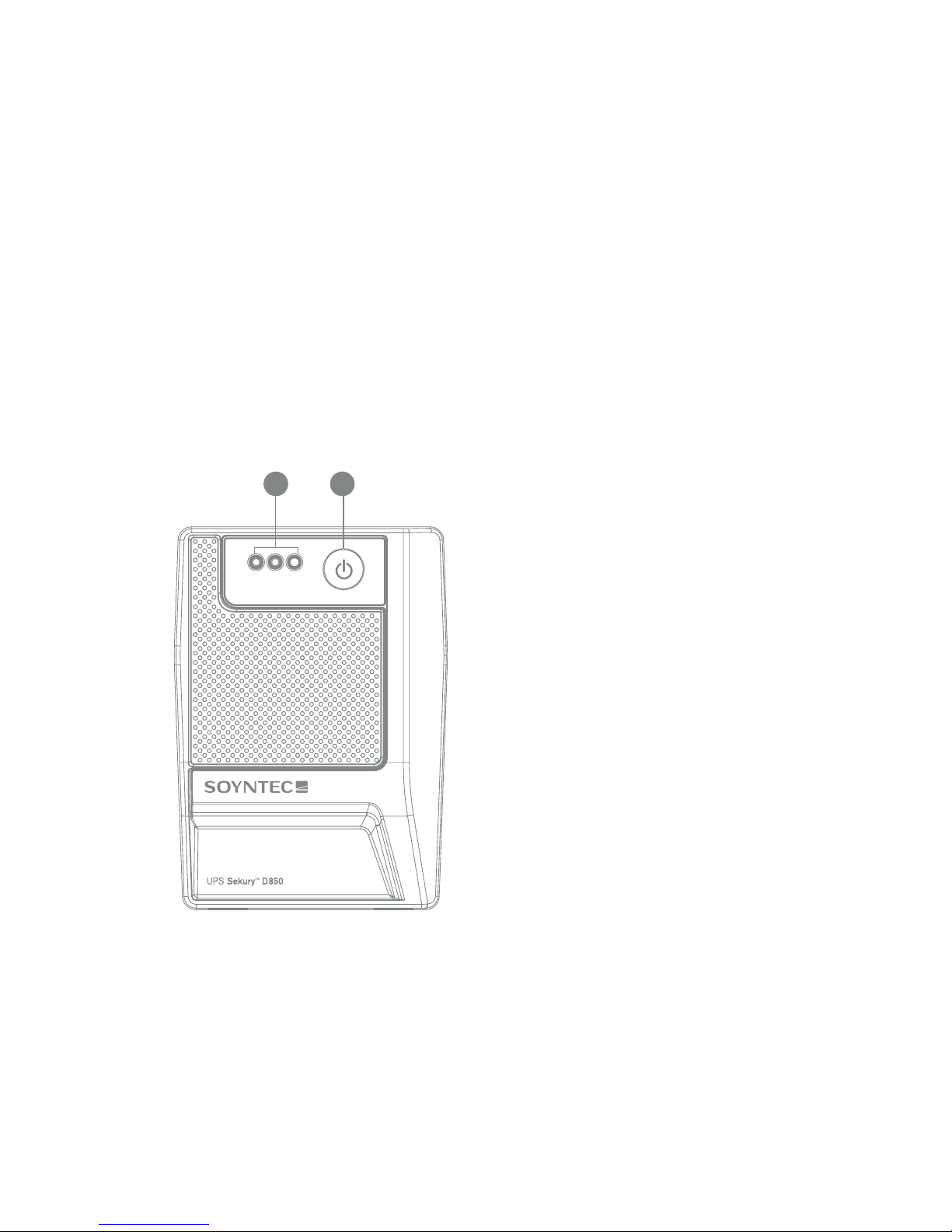
12
FRONT VIEw
1.
Power Switch
2. UPS status LED
≥ Normal mode (AC): green LED on.
≥ Battery Mode: green LED flashing.
Page 5
22
1
2
3
5
4
IN
O U T
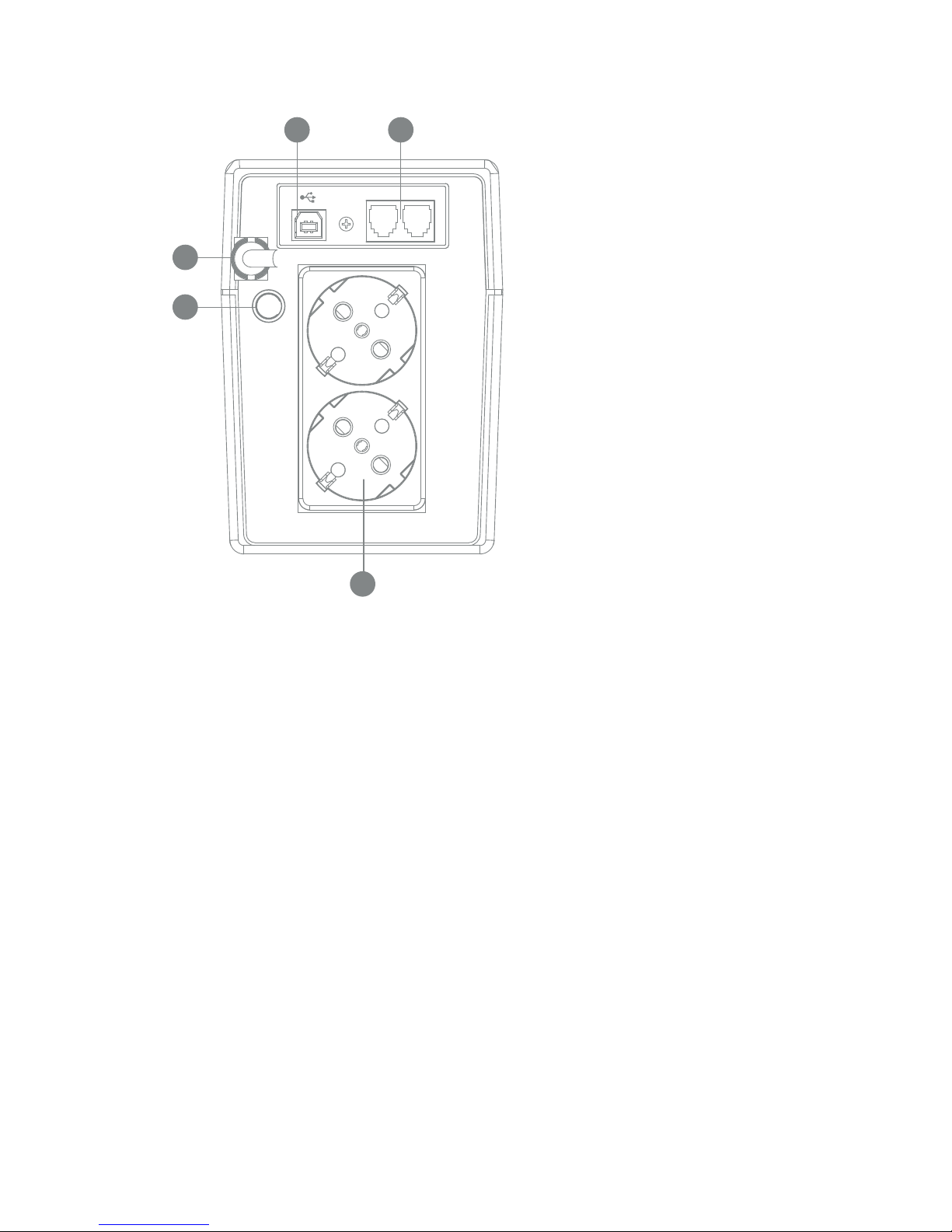
BACk VIEw
1.
Protected
Schuko outlets
2. AC input
3. Rearm fuse
4. USB port
5. RJ11 connectors
for telephone/fax/
Router protection
6. INSTALLATION AND INITIAL SETUP
Before installation, please inspect the unit. Make sure that
the UPS it’s in perfect conditions and free of any kind of
external damages.
Placement & Storage Conditions
Install the UPS in a protected area that is free of excessive
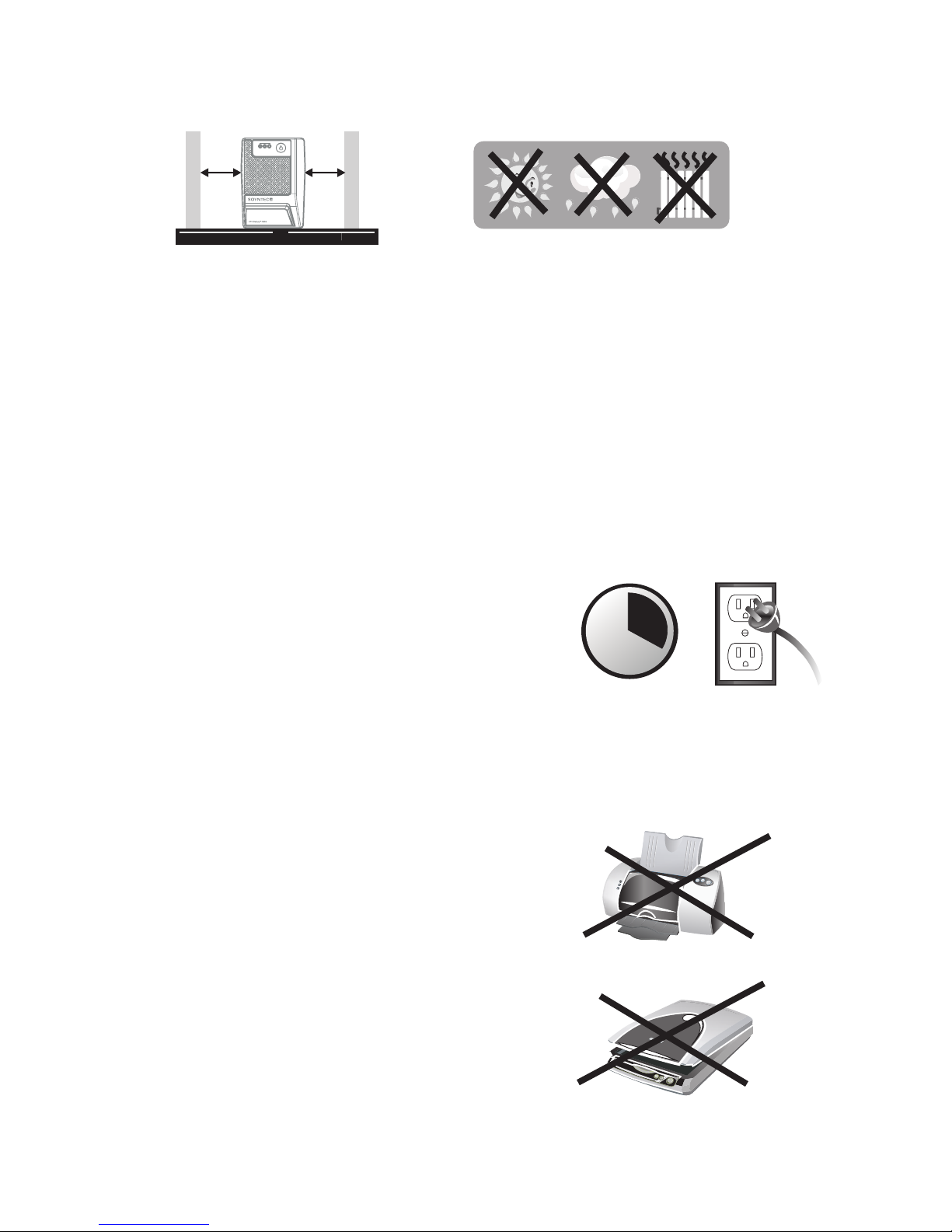
dust and has adequate air flow. Please place the UPS
away from other units at least 20 cm to avoid interference.
Do NOT operate the UPS where the temperature and
humidity is outside the specific limits.
Page 6
23
2 0 c m
2 0 c m
Connection to mains and charging
Plug in the AC input cord to the wall outlet. This unit is
shipped from the factory with its internal battery fully
charged, however, some charge may be lost during
shipping and the battery should be recharged prior to
use. Plug the unit into an appropriate power supply and
allow the UPS to charge fully by leaving it plugged in for
at least 8 hours with no load (no electrical devices such
as computers, monitors, etc.) connected.
Devices connection
Plug in the devices to the outlets on the UPS rear panel.
Simply switch on the UPS unit and the devices connected
to the UPS will be protected.
CAUTION: NEVER
connect a
laser printer or scanner to the
UPS unit. This may cause
unit damage.
8 hours
Page 7

24
RJ-11 connection for Router Phone
Router surge protection
Connect a single Router/phone line into surge-protected “IN”
outlet on the back panel of the UPS. Connect from “OUT”
port to the computer with another phone line cable.
Turn On/Off
Turn on the UPS unit by pressing the power switch. Turn off
the UPS unit by pressing again the power button.
Cold Start Function
The cold start function allows to power up your devices
during blackouts. To use the cold start function, just switch
on the UPS, turn on you computer and peripherals as usual.
The battery should have enough charge in order to perform
the start up of your connected devices.
7. IMPORTANT SAfETY INSTRUCTIONS
≥
Risk of Electric Shock. Do not open the UPS (except
for battery replacement following the safety norms).
≥
Risk of Electric Shock. This unit receives power from
more than one source. Disconnection of AC sources and
the DC source is required to deenergize this unit before
servicing.
≥
Risk of Electric Shock. Hazardous live parts inside this unit
are energized from the battery supply even when the input
AC power is disconnected.
Page 8

25
≥
To reduce the risk of overheating the UPS, do not cover the
UPS’ cooling vents and avoid exposing the unit to direct
sunlight or installing the unit near heat emitting appliances
such as space heaters or furnaces.
≥
To prevent the risk of fire or electric shock, install in a
temperature and humidity controlled indoor area free of
conductive contaminants.
≥
Do not attach non-computer-related items, such as medical
equipment, life-support equipment, microwave ovens, or
vacuum cleaners to UPS.
≥
Do not plug the UPS input into its own output.
≥
Do not allow liquids or any foreign object to enter the UPS.
Do not place beverages or any other liquid-containing
vessels on or near the unit.
≥
In the event of an emergency, press the OFF button and
disconnect the power cord from the AC power supply to
properly disable the UPS.
≥
Do not connect the UPS into a non-earthed outlet or with
distinct plug formats apart from type C/F.
≥
When replacing the batteries, use the same number and
type of batteries.
≥
Do not dispose of batteries in a fire. The battery may explode.
Do not open or mutilate the battery or batteries. Released
electrolyte is harmful to the skin and eyes.
≥
Unplug the UPS prior to cleaning and do not use liquid or
spray detergent.
≥
A battery can present a risk of electric shock and high short
circuit current. The following precaution should be observed
before replacing batteries:
• Remove watches, rings, or other metal objects.
• Use tools with insulated handles.
• Wear rubber gloves and boots.
Page 9

26
8. MONITORING SOfTwARE SETUP
Please do not connect the UPS to the computer USB port
until the software setup process it’s finished.
a) Install the monitoring software included in the CDROM.
b) Follow the on-screen instructions to install the
software.
c) When your computer restarts, the monitoring
software will appear as an orange plug icon located
in the system tray.
The UPS monitoring software installation guide and user
manual can be found in the CD-ROM.
UPS-Computer connection through the USB port
Once software setup process it’s finished, please
connect the USB cable to the computer’s free USB port.
The USB connection will allow you to monitor and manage
the UPS through the PC with the software provided.
Page 10

27
9. TROUBLESHOOTING
Problem Possible Cause Solutions
No LED display on
the front panel.
Low battery.
Charge the UPS at
least 8 hours.
Battery fault.
Replace the battery
with the same type of
battery.
The UPS it’s not
turned on.
Press the power
switch again to turn
on the UPS.
Alarm continuously
sounds when the
mains is normal.
UPS overload.
Remove some
devices first. Before
reconnecting
equipment, please
verify that the load
matches the UPS
capability specified in
the specs.
When power fails,
back-up time is
short.
UPS overload.
Remove some critical
load.
Battery voltage is
too low.
Charge the UPS at
least 8 hours.
Battery defect. It
might be due to
high temperature
operation
environment, or
improper operation
to battery.
Replace the battery
with the same type of
battery.
The mains is
normal
but LED is
flashing.
Power cord is
loose.
Reconnect the power
cord properly.
Page 11

28
10. SPECIfICATIONS
Model Sekury D850
CAPACITY
850 VA /480 W
INPUT
Voltage 220/230/240 VAC
Frequency 50 Hz/ 60 Hz
Voltage Range 162-290 VAC
OUTPUT
Voltage 230V AC
Frequency 50 Hz +/-1%
Transfer Time Typical 2-6 ms
Output waveform Modified sinusoidal
BATTERY
Type
Sealed, acid battery,
12 V/9 AH x 1
Charging Time
8 hours to recover 90%
of the capacity
PHYSICAL
Dimensions 287 x 100 x 142 mm
Weight 4.9 Kg (with battery)
ENVIRONMENTAL CONDITONS
Temperature 0 - 40° C
Humidity 0% - 90%
SOfTwARE
Compatibility
Windows 98 SE / ME / NT /
2000 /2003 /XP / 2008 / Vista
Page 12

29
wARRANTY
Energy Sistem Soyntec SA is liable for any lack of conformity
which exists at the time the goods were purchased during a period
of 36 months. Batteries are excluded from the 36-month warranty,
having a warranty period of 12 months.
This warranty covers any defects in workmanship or materials.
This warranty doesn’t cover any failure of the product due to accidents, misuse or alteration made by an unauthorized person.
The special 36-months warranty is valid for the European Union.
For other countries, please refer to your specific legislation or your
local distributor.
wARRANTY PROCEDURE
1. Visit the Support section at http://support.soyntec.com
and select your product to view the FAQ (Frequently Asked Questions), user manuals, drivers and updates available, as the possibility to submit a query to the Technical Service or consult the
warranty.
2. Alternatively, you may prefer to contact the distributor from
which you purchased the product, presenting the purchase receipt or invoice.
Specifications are subject to change without notice.
Trademarks. All companies, brands and product names are tra-
demarks or registered trademarks of their respective companies.
© 2013 by Energy Sistem Soyntec S.A. All rights reserved.
Page 13

30
DECLARATION Of CONfORMITY
Manufacturer Name: Energy Sistem Soyntec S.A.
Address: Pol. Ind. Finestrat, C/.Calpe, 1 - 03509, Finestrat,
Alicante (Spain)
Tel: 902 388 388
Fax: 902 119 034
NIF: A53107488
We declare under our own exclusive responsibility that the
product:
SoyntecTM SAI/UPS Sekury D850
Manufacturing country: China
2006/95/EC
2004/108/EC
93/68/EEC
Is in compliance with the essential norms and standards of the
Directive 2004/108/EC of the European Parliament and of the
Council of December 15th 2004.
This symbol on the product or the instructions means that
your electrical and electronic equipment should be disposed
at the end of life separately from your household waste.
For more information, please contact the local authority or
dealer where you purchased the product.
19/12/2012
 Loading...