

Page 1
Mini lector de tarjetas universal 85-en-1
EN
User manual
Enjoy the advanced features of this technological
product that we have developed with maximum
guarantees for you.
15
Joinsee 600 HD
Series
WebCam VGA
Page 2

Page 3

1. INTRODUCTION
Soyntec® thanks you for purchasing your new Joinsee webcam. We wish you
enjoy it.
The Joinsee works with a USB port to be connected with PC / laptop. It is a
perfect webcam for its plug and play and real-time transmission.
Its mini size, easily carrying, high resolution and high speed make your life more
colorful and make your long distance communications fresh and vivid.
We suggest reading this user manual for enjoying this product in safe way and
with the best per formance.
2. CARE AND MAINTENANCE
≥ Do not expose your Joinsee™ to shakes, dust, direct sun light, moisture
or extreme temperatures.
≥ Do not use abrasive or corrosive cleaners.
≥ Keep the device clean and without dust with a soft and dry cloth.
≥ Do not disassemble the device. Any repair work must be per formed by
qualified Energy Sistem Soyntec’s personnel.
≥ Keep distance to water or moisture which could be harmful to the
device.
≥ Avoid to look directly to the sensor light in the bottom of the mouse.
17
Page 4

3. MAIN FEATURES AND TECHNICAL SPECIFICATION
≥ High Resolution VGA CMOS Color Sensor
≥ Resolution: Real 1300K Pixel.
≥ Simple Plug & Play Chipset.
≥ Up to 5.0Mega Pixels( Video) and 12Mega Pixels(Picture) Interpolated
with Sof tware.
≥ Frame rate: 30-15fps VGA
≥ Focus distance: 50mm-infinity
≥ Built-in Image Compression
≥ Automatic White Balance and Exposure, Colors Compensation
≥ Manual Adjusting Focus, Controlling Images Saturation, Contrast,
Sharpness
≥ Easy Capture
≥ Digital Zoom.
≥ Face tracking.
≥ Special Photo Effects.
≥ With Snapshot Button to Take Instant Photo.
≥ Built-in high quality Microphone.
≥ Compatible with Windows XP / 20 00 / VISTA / 7.
4. PRODUCT CONTENTS
≥ Webcam.
≥ CD with drivers and software.
≥ User manual.
18
Page 5
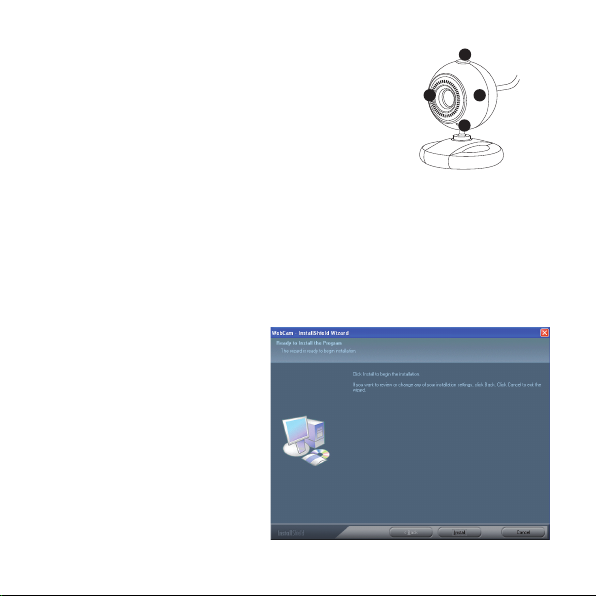
5. PRODUCT OVERVIEW
The following picture shows the main part of the webcam:
1. Snapshot button.
2. Lens with manual adjustable focus.
3. Status LED indicador.
4. Adjustable neck.
1
42
3
6. SOFTWARE INSTALLATION
Please note that you need in your computer one USB port free to install the
webcam.
1. Connect webcam to PC. After hardware founded, put “CD Driver” disk in the
CD-Rom and an interface as below would come out automatically:
Click “Install”.
19
Page 6
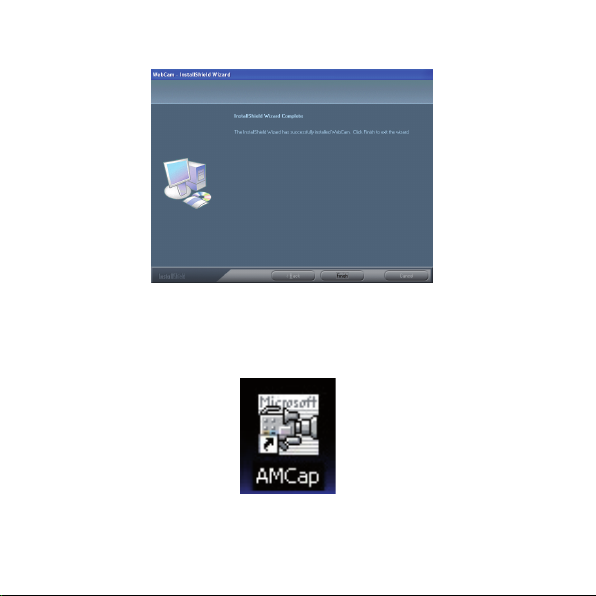
2.
AFollow the next indication:
Click“Finish”.
3. You can see a VideoCap shor tcut on your desk top.
Do double click on “AMCap” and enjoy your new Joinsee webcam.
20
Page 7
7. FEATURES
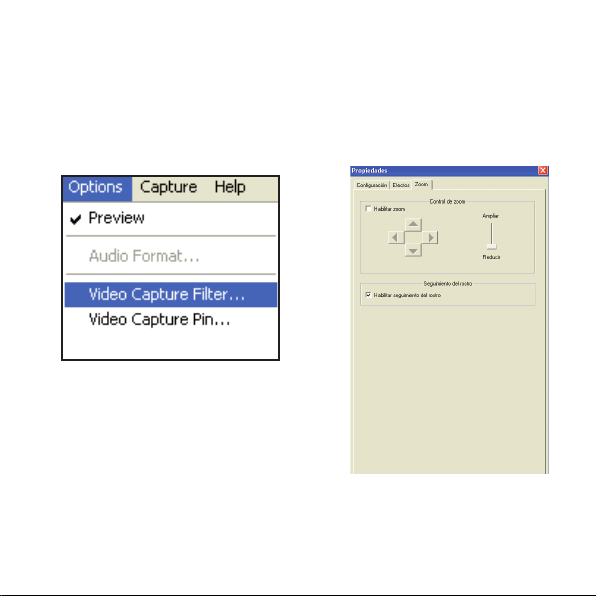
1. DIGITAL ZOOM
Open “AMCap”, inside the OPTION window choose VIDEO CAPTURE FILTER.
You will find the window ZOOM;
then you can select DIGITAL ZOOM and adjust it like you wish.
21
Page 8
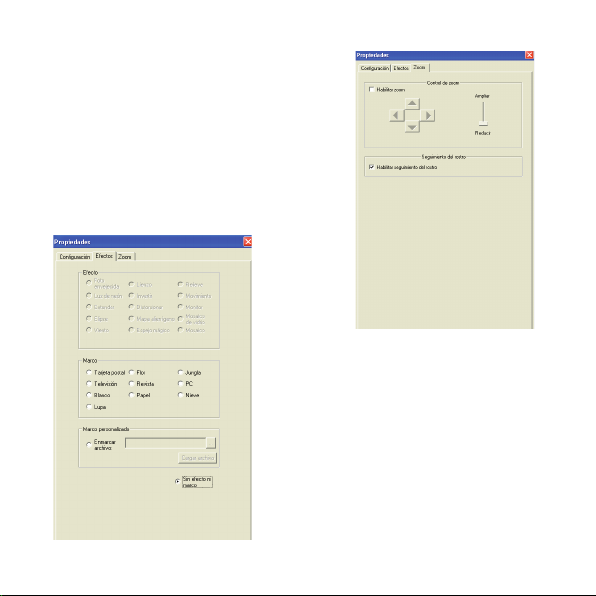
2.
FACE TRACKING
Open “AMCap”, inside the OPTION window
choose VIDEO CA PTURE FILTER.You will
find the window ZOOM; then you can select
FACE TRACKING.
3. SPECIAL EFFECT.
Open “AMCcap”, inside the OP TION
window choose VIDEO CAPTURE
FI LT ER.
You will find the window EFFECTS, you
can select one of the 15 different options.
22
Page 9
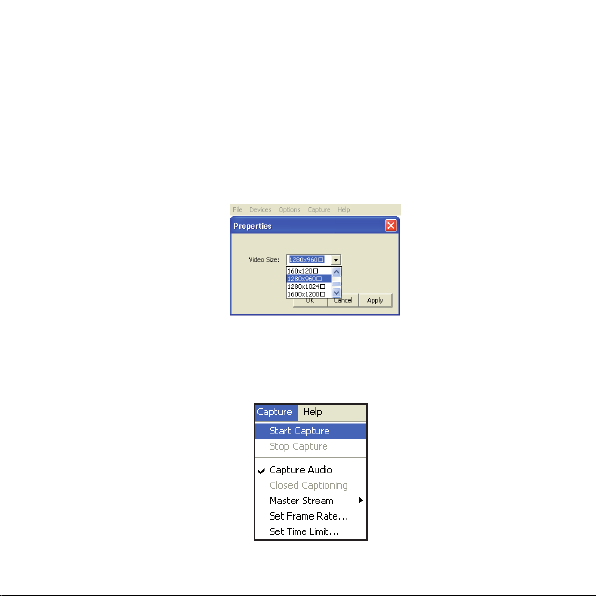
4.
VIDEO DEFINITION
Open “AMCcap”, click “OPTIONS” select “VIDEO PIN”.
You can choose the different options
The default output size is 640*48 0
The max. definition is 2560*1920.
5. VIDEO CAPTURE.
Open “Videocap”, inside the OP TION you will find “Start Capture”. When you
select this option, automatically you start with the record.
To finish with the record you have to click again in the same option.
23
Page 10

IM P O R TANT:
≥ Don’t use the fingers to clean the webcam’s lens.
≥ Use a special wipe or cot ton cloths to clean the optic part of the webcam.
≥ Don’t use this product when ambience is too hot or cold or dusty.
8. WARRANTY
Energy Sistem Soyntec SA is liable for any lack of conformity which exists at the
time the goods were purchased during a period of 36 months.
This warranty covers any defects in workmanship or materials. This warrant y
doesn’t cover any failure of the product due to accidents, misuse or alteration
made by an unauthorized person.
The special 36-months warranty is valid for the European Union. For other countries, please refer to your specific legislation or your local distributor.
24
Page 11

9. GUARANTEE PROCEDURE
1) Visit the Support section at http://support.soyntec.com and select
your product to view the FAQ (Frequently Asked Questions). The
solution to your problem is very likely to have been already published
there. You will also be able to download user manuals, user guides,
drivers and updates. You can check the availability of the user manual in
your language at
http://www.soyntec.com/es-es/item/joinsee_600
2) If you cannot find an appropriate solution in the Support section,
you may send us your enquiry or warranty service request by email:
[email protected]
3) Alternatively, you may prefer to contact the distributor from which
you purchased the product, presenting the purchase receipt or invoice.
Trademarks. All company, brand and product names are trademarks or
registered trademarks of their respective companies.
®
© 2012 by Soyntec
. All rights reserved.
25
Page 12
10. AGREEMENT DECLARATION
14/0 6/2012
Manufacturer Name: Energy Sistem Soyntec S. A .
Address: Pol. Ind. Finestrat, C/. Calpe, 1 - 03509, Finestrat Alicante (Spain)
Tel : 902 388 388
Fax: 902 119 034
NIF: A5 310748 8
We declare under our own exclusive responsibility that the product:
Soyntec® Joinsee™ 600 HD
Manufacturing country: China
Is in compliance with the essential norms and standards of the Directive
2004/108/EC of the European Parliament and of the Council of December 15th
2004.
26
 Loading...