

Page 1
V 2.0
1.2
1.2
1.21.2
Setup Guide
Setup Guide
Setup GuideSetup Guide
Revised: 04-12-00
Page 2

Digital 328 V2 and
Digital 328 V2 and Soundscape
Digital 328 V2 and Digital 328 V2 and
Mixtreme Setup Guide
Mixtreme Setup Guide
Mixtreme Setup GuideMixtreme Setup Guide
Soundscape
SoundscapeSoundscape
Contents:
1111 Connecting The System 2
2222 Digital 328 Setup 3
3333 Mixtreme Setup 6
Soundscape Mixtreme 1.2 Setup Guide
1
Page 3
Connecting The System
Connecting The System
Connecting The SystemConnecting The System
1
Audio Connections
Audio ConnectionsConnections
Connections
Audio ConnectionsAudio Connections
ConnectionsConnections
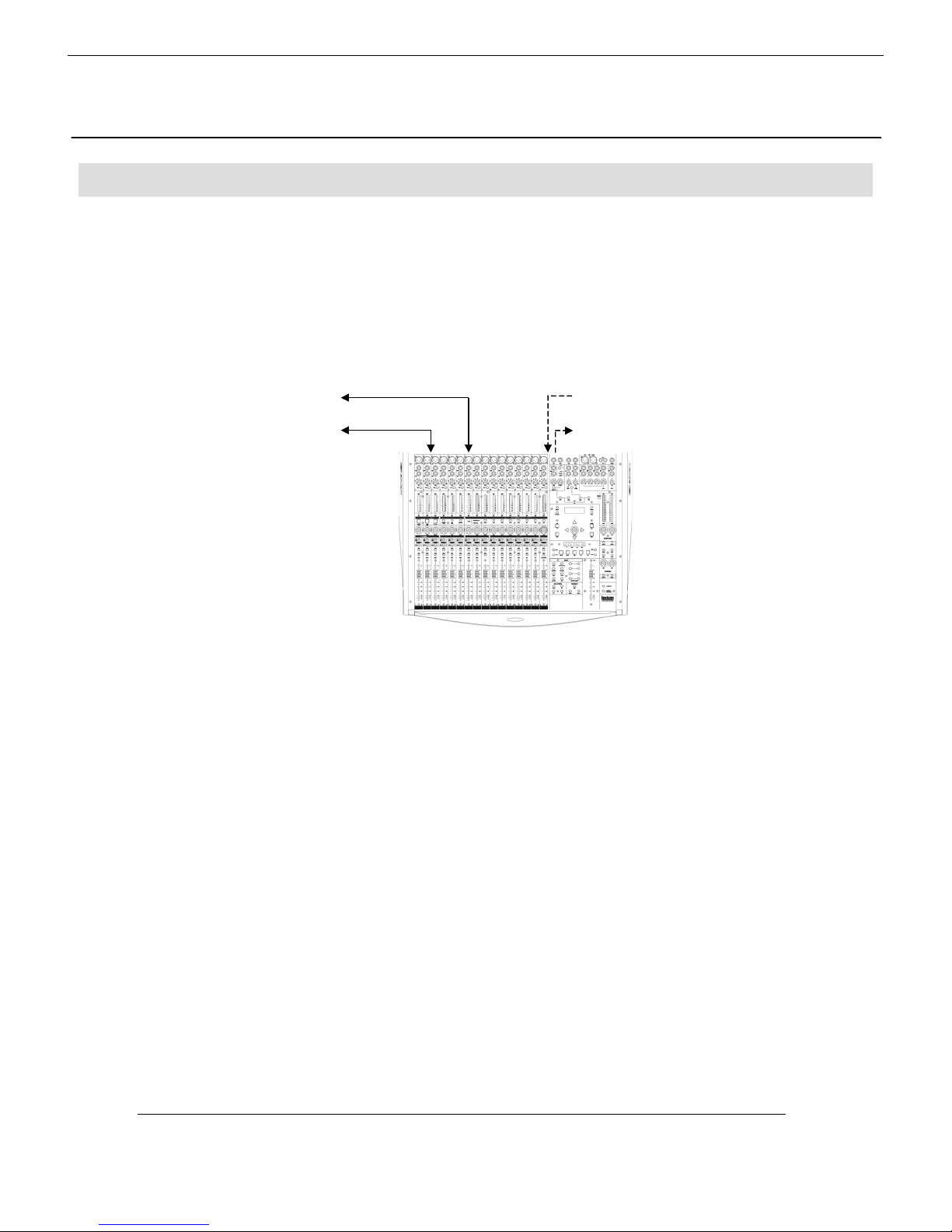
Connect audio connections as shown in the diagram below. TDIF cables must be connected from
the 2 TDIF ports of the Mixtreme card to the 2 TDIF ports of the 328.
The Mixtreme card is available with an S/PDIF option. If your Mixtreme card has the S/PDIF
option installed, coaxial digital S/PDIF cables should also be connected from the Mixtreme S/PDIF
output to the 328 S/PDIF input and vice versa.
328 TDIF 1 Î Mixtreme TDIF 1
328 TDIF 2 Î Mixtreme TDIF 2
The TDIF connections allow digital transfer of either direct outputs for input channels 1-16 to the
Mixtreme card, or the Digital 328’s 8 Group outputs. The S/PDIF output from the console can be
assigned to either the Mix output or 1 of 3 stereo auxilliary outputs. The 328 S/PDIF Input can
be configured to be a digital Stereo Input or as a digital 2 Track Return.
Mixtreme S/PDIF Out Î 328 S/PDIF In
328 S/PDIF Out Î Mixtreme S/PDIF In
2
Spirit Digital 328 v2
Page 4

Wordclock
Wordclock
WordclockWordclock
To configure the Digital 328 as the wordclock master, enter the 328 menu pages by pressing the
<MENU> button on the right hand side of the LCD display. Using the encoder beneath the
display, scroll up or down until the 'Clock Source Sel' menu is highlighted, and press <ENTER>.
Here, either the internal 44.1kHz clock or the internal 48kHz clock must be selected, depending
on the sampling rate at which you wish to work. Press <ENTER> to set the sample rate and
<MENU> to return to the menu pages.
Digital 328 Setup
Digital 328 Setup
Digital 328 SetupDigital 328 Setup
2
<Wordclock Src.>
Internal:44.1kHz
Tape Ports
Tape Ports
Tape PortsTape Ports
To ensure that the Digital 328 Tape Ports are both set to TDIF to work with the Mixtreme, enter
the 328 Menu pages by pressing the <MENU> button on the right hand side of the LCD display.
Using the encoder beneath the display, scroll up or down until the 'Tape Port Select' menu is
highlighted. Press <ENTER> and keep pressing the Up cursor arrow until the
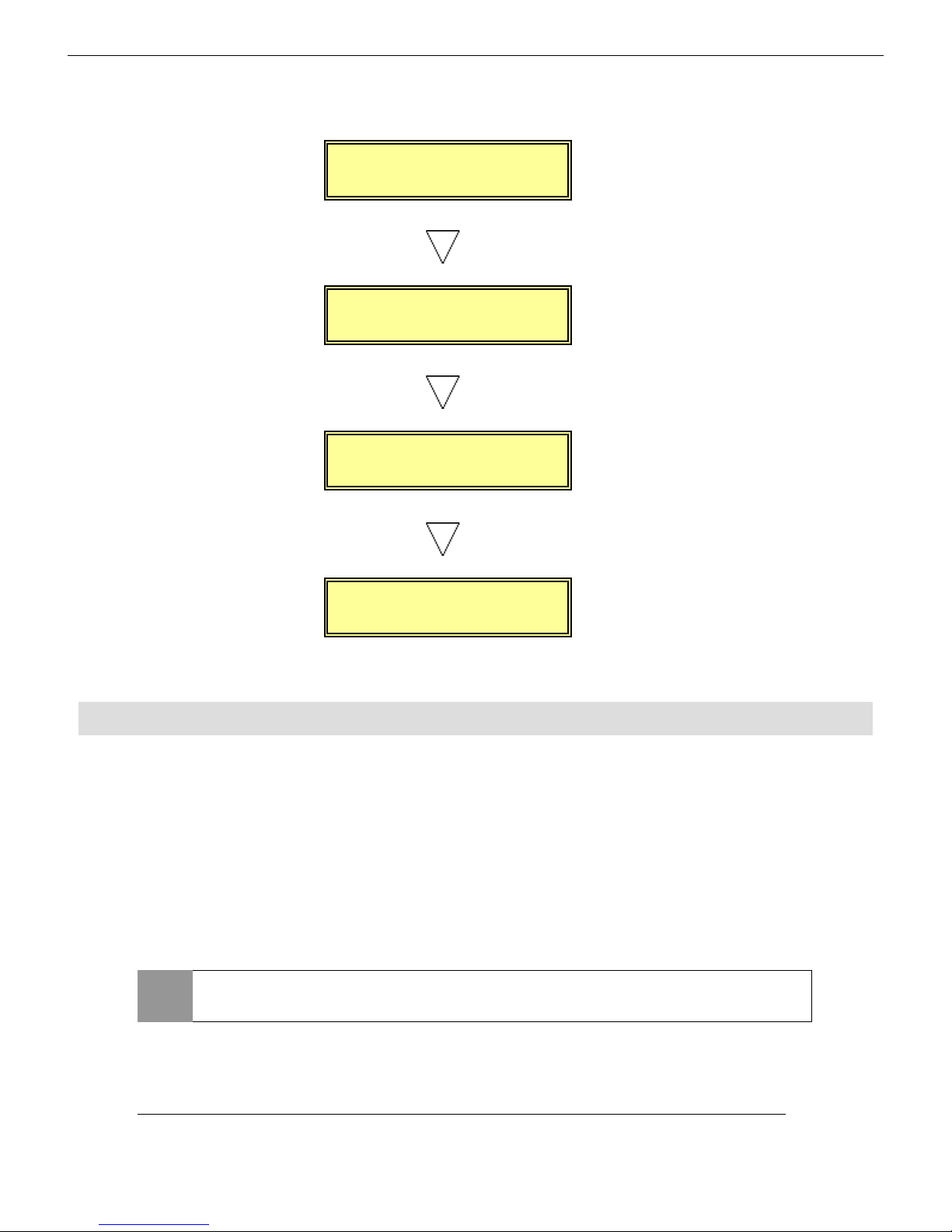
'<Tape Ch17-24 >' menu page is displayed. Using the encoder, set the Bank Source to TDIF.
Press the Down cursor arrow once more, to set the wordlength. The Mixtreme is capable of 24bit recording, and so for optimum results, 24-bit wordlength can be selected here. If your audio
sequencer software does not allow 24-bit recording, 20-bit or 16-bit should be selected. The
sequencer manuals should be consulted for further information. Set the desired wordlength on
the 328 using the encoder.
Scroll down again and set the sample rate flag setting to the same sample rate as set in the
wordclock setting above.
Scroll down once more and set the '<Tape 25-32>' settings to the same settings as in the '<Tape
17-24>' pages, as described above.
or
<Wordclock Src.>
Internal:48.0kHz
Soundscape Mixtreme 1.2 Setup Guide
<Tape Ch17->24 >
Bank Source:TDIF
<Tape Ch17->24 >
Wordlength: 16
3
Page 5
<Tape Ch17->24 >
<T
Ch25->32 >
S/Rate Flag:44k1
<Tape Ch25->32 >
Bank Source:TDIF
<Tape Ch25->32 >
Wordlength: 16
ape
S/Rate Flag:44k1
S/PDIF Input
S/PDIF Input
S/PDIF InputS/PDIF Input
The 328 S/PDIF input can be routed to any one of the following inputs:
Stereo Input 1;
Stereo Input 2;
FX Return 1;
FX Return 2;
2 Track Tape Return,
providing that the AES/EBU input has not already been assigned to that input. Commonly the
Mixtreme S/PDIF output would best be routed to Stereo Input 2, or the 2 Track Tape Return
input.
NOTE
4
Assigning a digital source to an input will override an analogue signal, if
present.
Spirit Digital 328 v2
Page 6
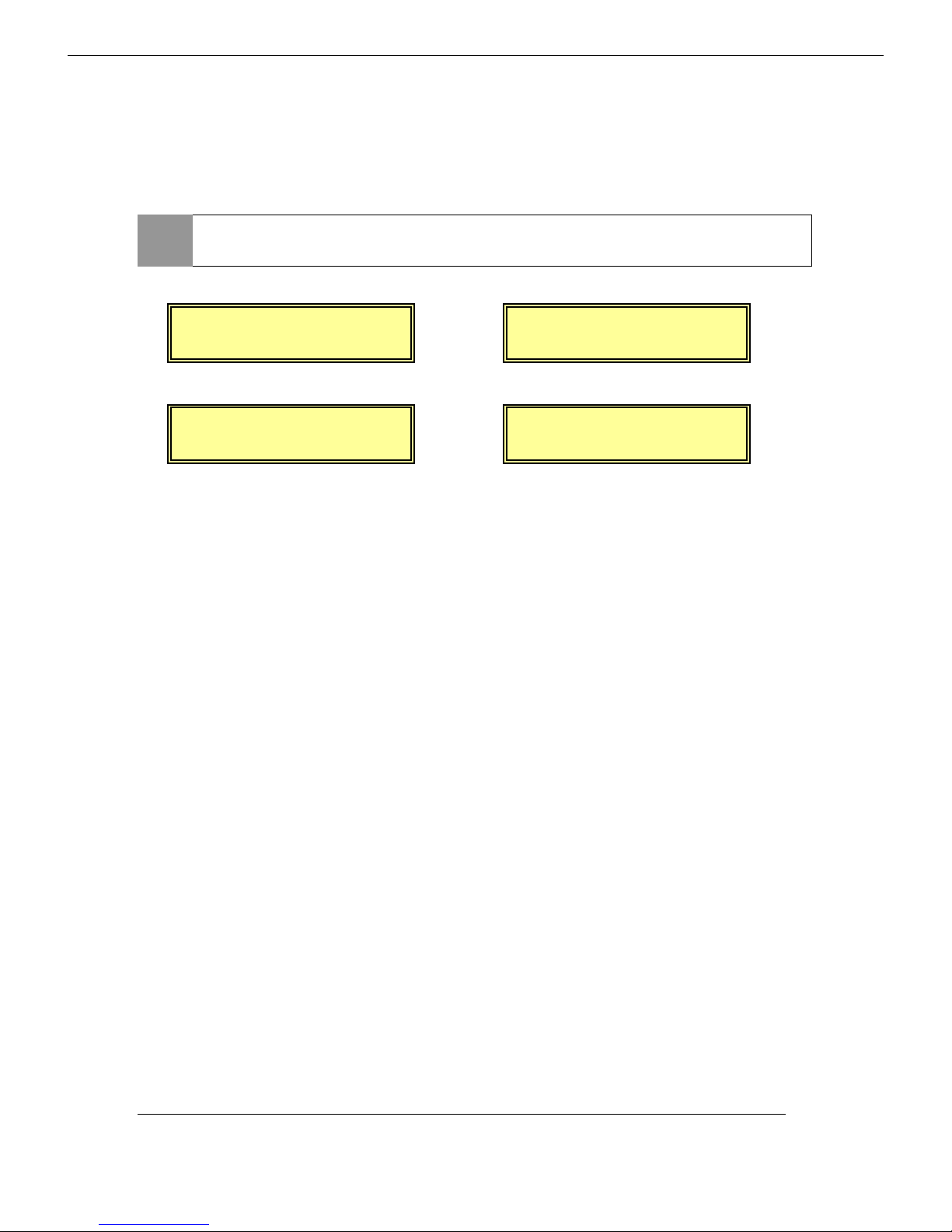
Press <MENU> to enter the menu pages, scroll through the pages until the ‘SPDIF I/P Setup’ is
R
R
R
R
highlighted and press <ENTER>. Using the encoder, select the destination for the S/PDIF input,
press <ENTER> to set and <MENU> to return to the menu pages.
NOTE
If the S/PDIF input is not required, NOWHERE should be selected in the
menu.
< SPDIF Input >
oute To: STE-1
< SPDIF Input >
oute To: 2TRK
< SPDIF Input >
oute To: FX-1
< SPDIF Input >
oute To:NOWHERE
Soundscape Mixtreme 1.2 Setup Guide
5
Page 7
Mixtreme Setup
Mixtreme Setup
Mixtreme SetupMixtreme Setup
2
Wordclock
Wordclock
WordclockWordclock
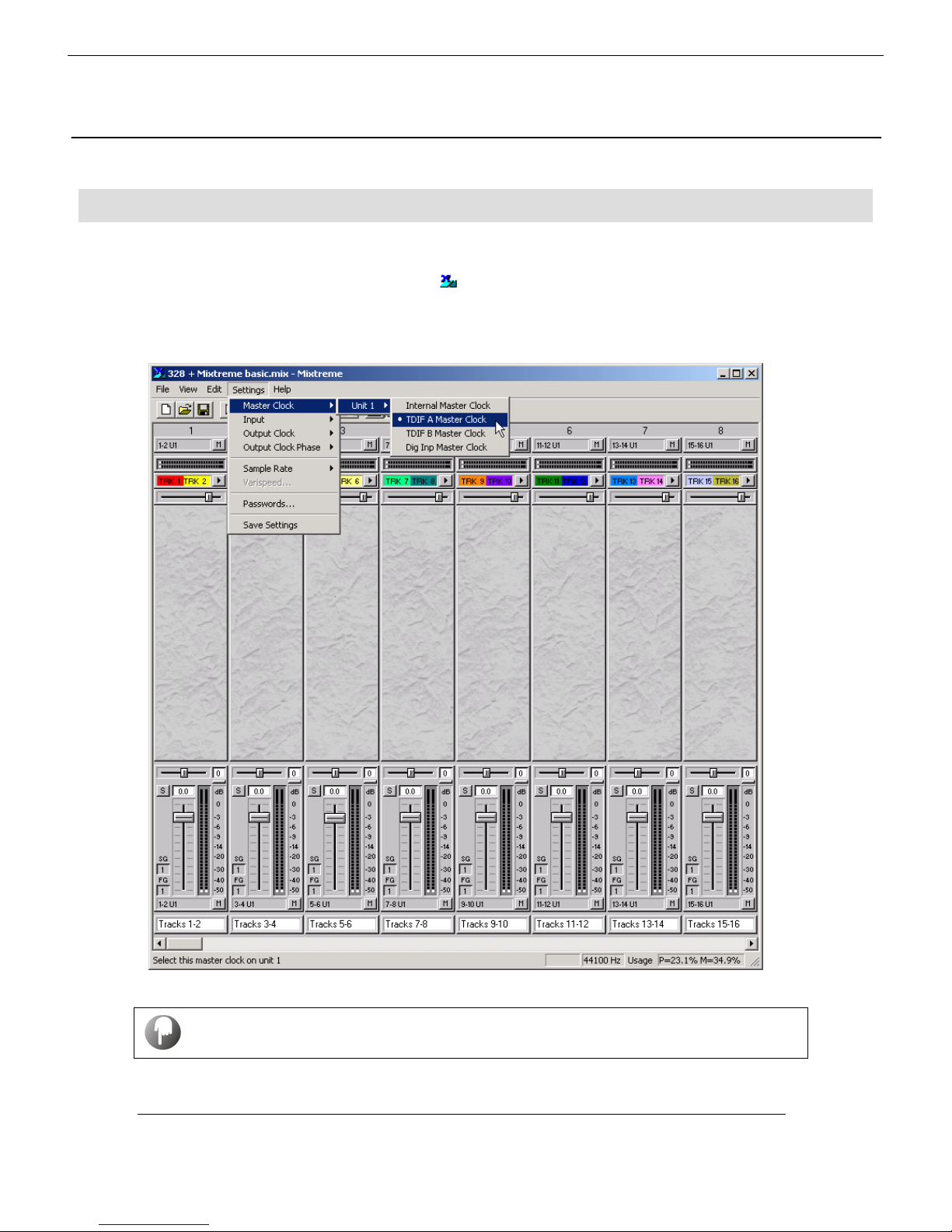
The Mixtreme must be set up to receive the wordclock transmitted by the 328. Open the
Mixtreme mixer from via the Mixtreme icon on the Windows Taskbar.
Under the Settings menu, set the Master Clock to TDIF Master Clock A.
To save these settings, click on the ‘Settings’ menu and select
‘Save Settings’.
6
Spirit Digital 328 v2
Page 8
Mixtreme Mixer Setup
Mixtreme Mixer Setup
Mixtreme Mixer SetupMixtreme Mixer Setup
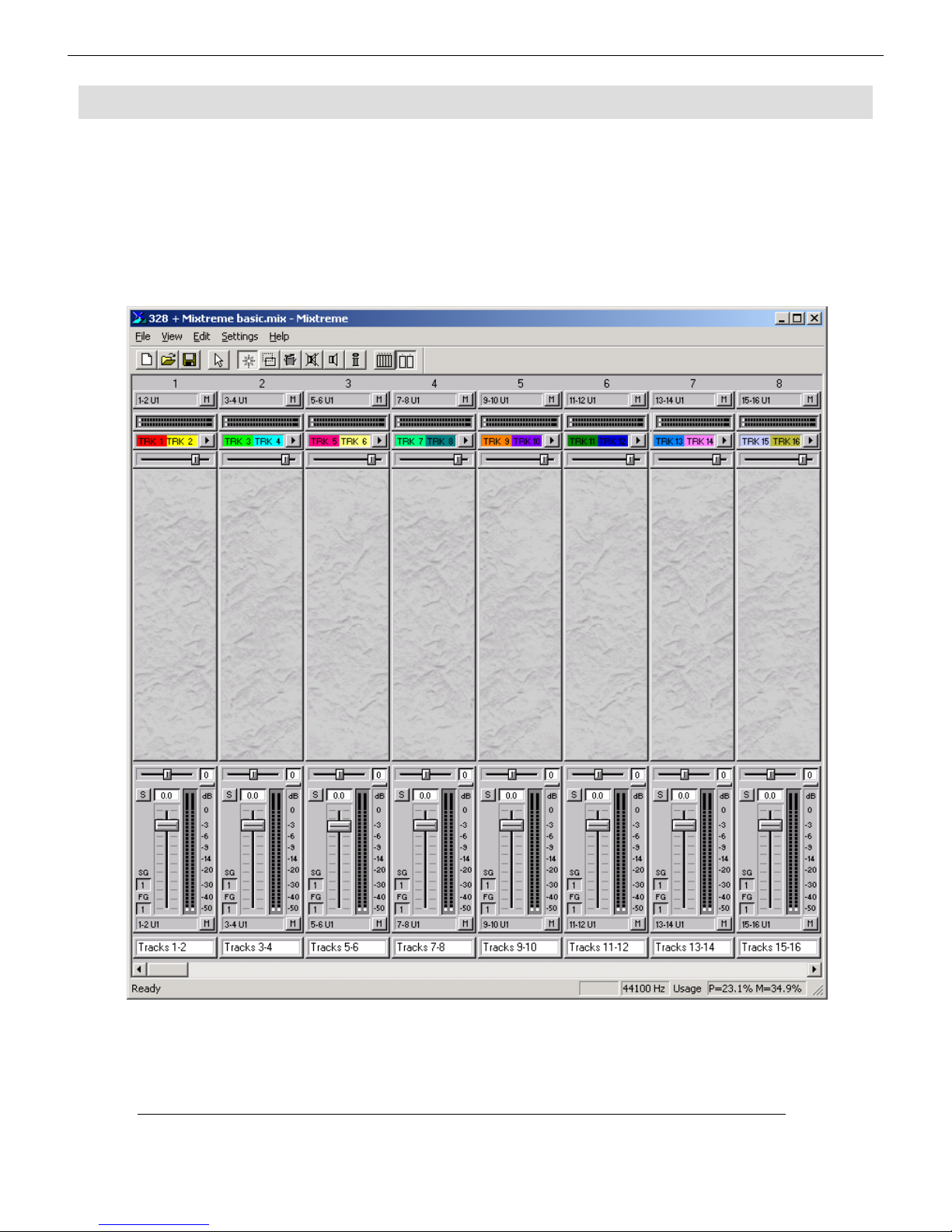
The Mixtreme mixer software allows full customisation for the routing of the 16 inputs and
outputs available on the Mixtreme card. A basic setup utilising all 16 inputs and outputs is shown
below. The mixer can be fully customized depending on the required configuration - consult the
Mixtreme manual for more information.
Soundscape Mixtreme 1.2 Setup Guide
7
Page 9

8
Spirit Digital 328 v2
Page 10

Spirit by Soundcraft
Harman International Industries Ltd., Cranborne House,
Cranborne Road, Potters Bar, Herts EN6 3JN, England.
Tel: +44 (0)1707 665000 Fax: +44 (0)1707 665461
web: http://www.spiritbysoundcraft.com
e-mail: [email protected]
[email protected] (US)
Soundscape Mixtreme 1.2 Setup Guide
9
 Loading...