

Page 1

© Sothis. All Rights Reserved.
Manual
Loans App
Page 2

© Sothis. All Rights Reserved.
1
1. Index
2. Complete the installation 3
3. First steps 5
Aviso: Este documento puede contener información confidencial y/o secretos industriales que pertenecen a Sothis Tecnologías
de la Información, S.L. Esta información se entrega únicamente para permitir al destinatario poder valorar la oferta descrita en
el presente documento. Cuando se reciba el presente documento el destinatario se compromete a tratar esta información como
confidencial y a no reproducir, ni divulgarla, exceptuando a personas directamente responsables de la propia evaluación del
contenido de la misma, sin el consentimiento de Sothis, quien se reserva el derecho sobre retomar las copias de esta oferta
una vez terminada su evaluación.
Page 3
© Sothis. All Rights Reserved.
2
Complete the installation
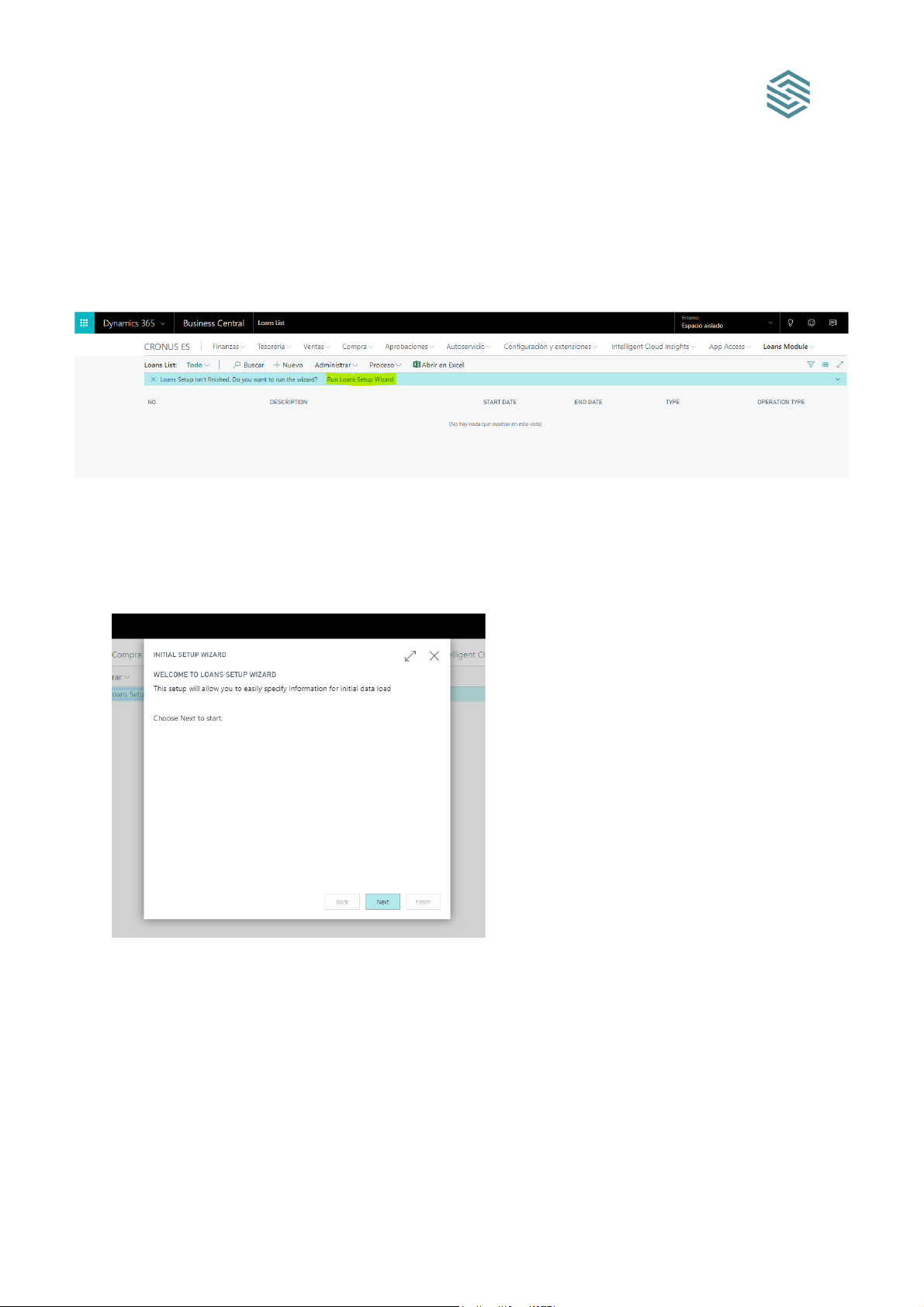
Once the installation of the App is complete we will need to finish configuring it for proper
operation, for this we will run the Initial Setup Wizard which will automatically notify us when
accessing the Loans Module > Loans List menu as we see below:
Now we will follow the steps:
We will welcome the settings of the App, it is important to know that any of the parameters
that we will configure below, in case it is not previously created in BC, this will be created
automatically and with an initial configuration by default.
Press Next
Page 4
© Sothis. All Rights Reserved.
3
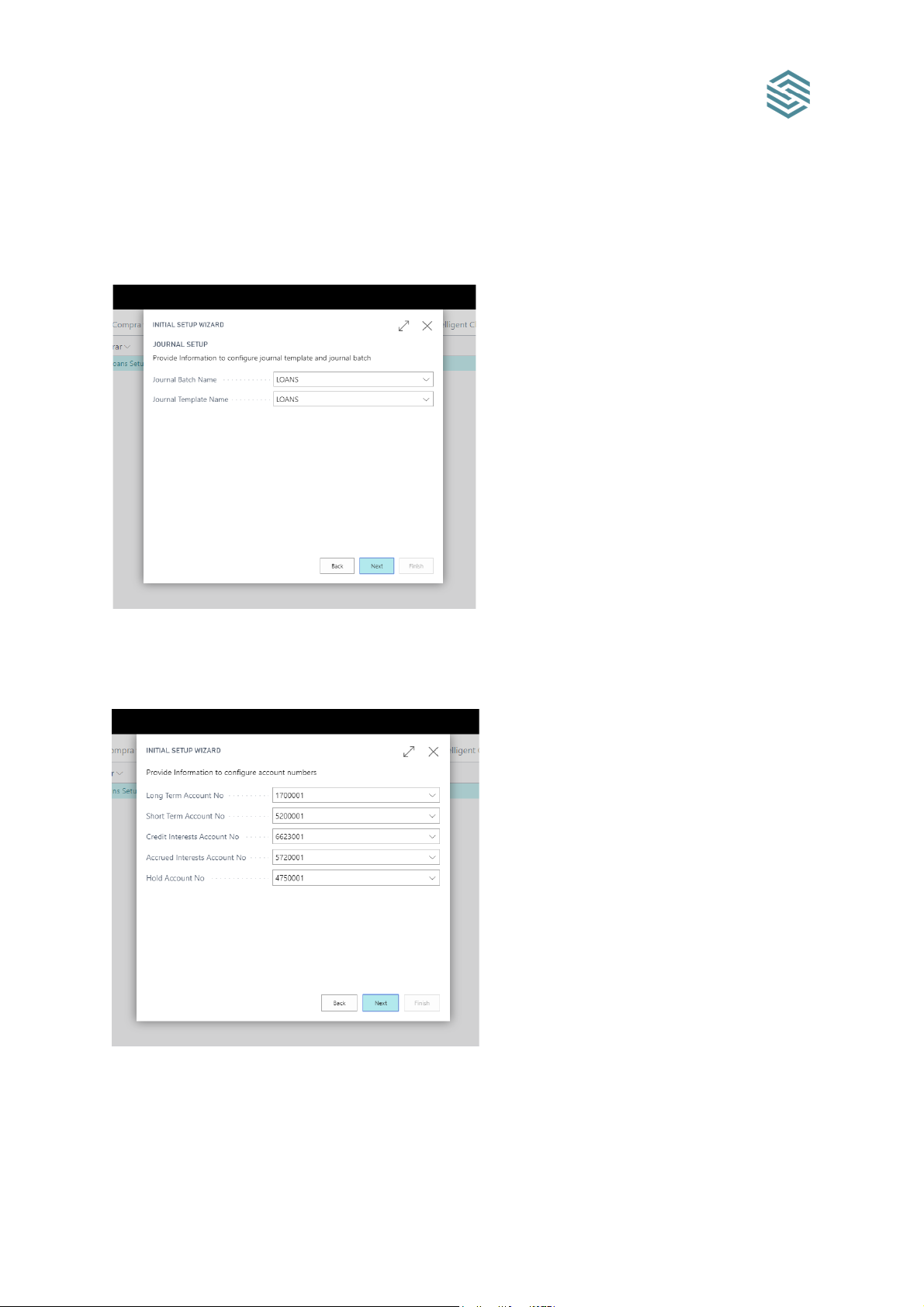
We set up the book and journal section that we want our App to use and Next
Now we set up the account numbers on which the notes will be made and Next
Page 5
© Sothis. All Rights Reserved.
4
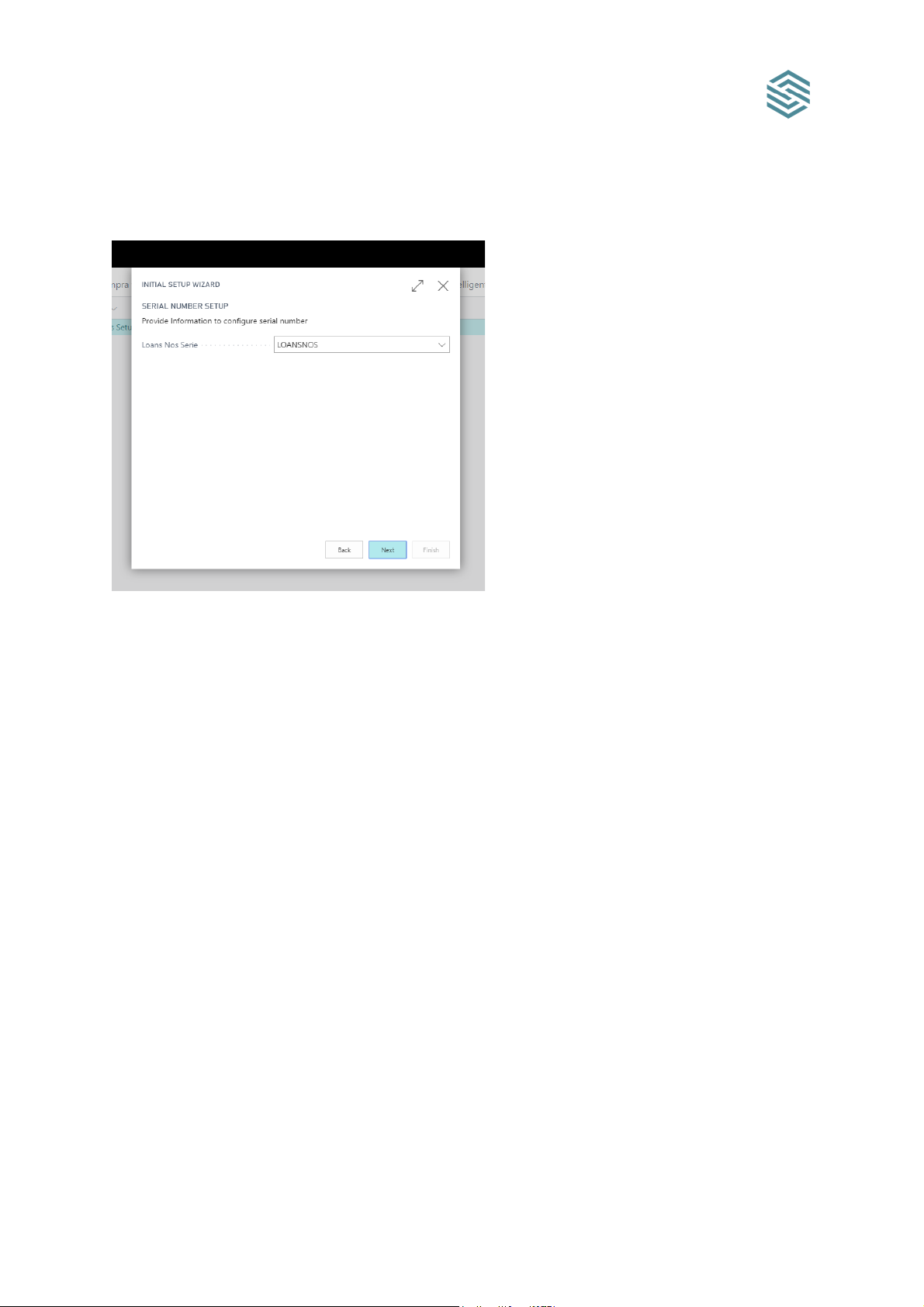
Finally we configure the serial number that we want the loans to use, click Next and in the
next Finish window.
Once all the steps have been completed correctly the App will be configured and ready to
start being used.
Page 6
© Sothis. All Rights Reserved.
5
First steps
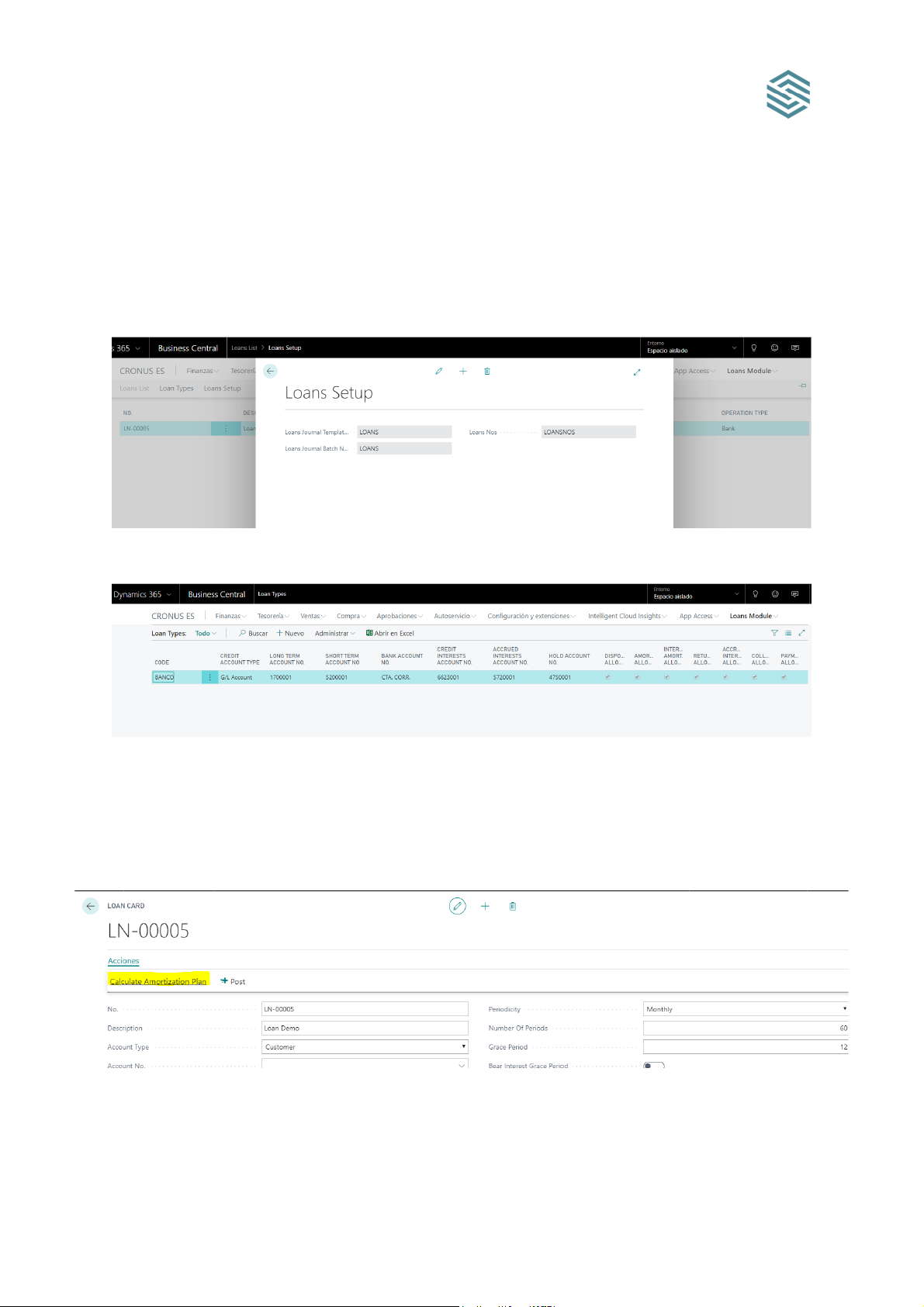
Now we will see how our App has been configured to do this, we will access the Loans
Module > Loans Setup menu in which we will see the configuration of journals and serial
numbers.
On the other hand, we can see the configuration of a loan type which uses the accounts we
have indicated above, in Loans Module > Loans Types
Finally, in the Loans Module ; Loans List we can see that you have created a Demo loan for
us, this loan is using the above configuration and is ready to calculate a repayment plan
automatically for this includes a first line of type disposition on which you will calculate that
plan. As we see below:
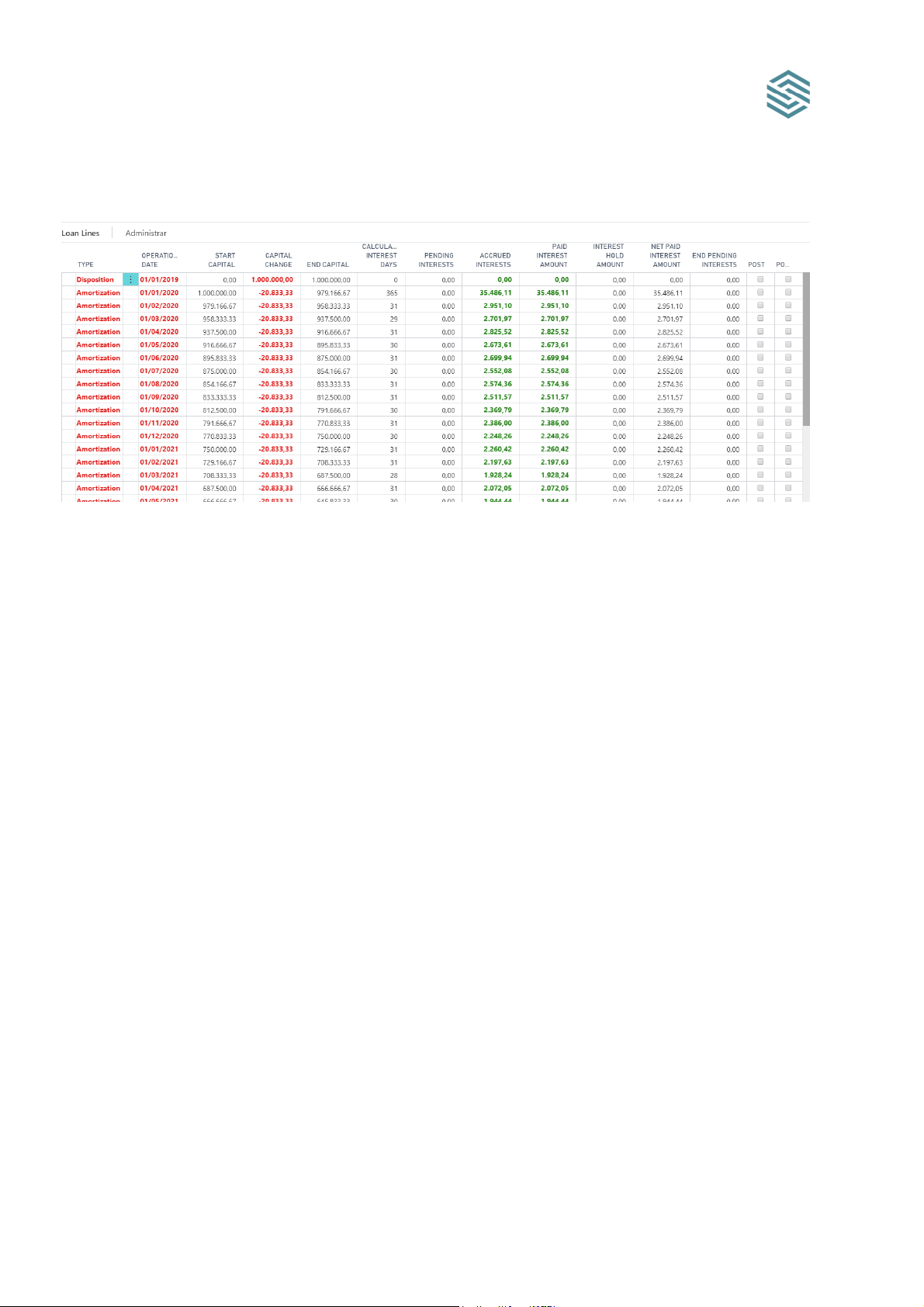
Click the Calculate Amortization Plan action
Page 7
© Sothis. All Rights Reserved.
6
It generates all the lines corresponding to the depreciation plan.
With this example we can start setting up our types of loans so that we can create the loans
that we consider.
 Loading...