

Page 1

User Guide
Personal Computer
VGN-SZ200 Series
N
Page 2

Contents
Before Use .........................................................................................................................................................................6
Documentation .............................................................................................................................................................6
Ergonomic Considerations...........................................................................................................................................8
Getting Started .................................................................................................................................................................10
Locating Controls and Ports.......................................................................................................................................11
About the Indicator Lights ..........................................................................................................................................17
Connecting a Power Source ......................................................................................................................................19
Using the Battery Pack ..............................................................................................................................................20
Shutting Down Your Computer Safely .......................................................................................................................25
Using Your VAIO Computer .............................................................................................................................................26
Using the Keyboard ...................................................................................................................................................27
Using the Touch Pad .................................................................................................................................................29
Using Special-function Buttons ..................................................................................................................................30
Using the Built-in MOTION EYE Camera...................................................................................................................31
Using the Optical Disc Drive ......................................................................................................................................32
Using PC Cards .........................................................................................................................................................42
Using the ExpressCard Media ...................................................................................................................................45
Using the Memory Stick Media ..................................................................................................................................49
Using Other Memory Cards .......................................................................................................................................53
Using the Internet.......................................................................................................................................................56
Using Wireless LAN (WLAN) .....................................................................................................................................57
Using the Bluetooth Functionality ..............................................................................................................................66
2
nN
Page 3

3
nN
Using Peripheral Devices .................................................................................................................................................73
Connecting a Docking Station....................................................................................................................................74
Connecting External Speakers ..................................................................................................................................83
Connecting an External Display.................................................................................................................................84
Selecting Display Modes............................................................................................................................................88
Using the Multiple Monitors Function.........................................................................................................................89
Connecting an External Microphone..........................................................................................................................91
Connecting a Universal Serial Bus (USB) Device......................................................................................................92
Connecting a Printer ..................................................................................................................................................95
Connecting an i.LINK Device .....................................................................................................................................96
Connecting to a Network (LAN) .................................................................................................................................98
Customizing Your VAIO Computer ................................................................................................................................100
Selecting Performance Modes .................................................................................................................................101
Setting the Password ...............................................................................................................................................102
Using Fingerprint Authentication..............................................................................................................................112
Using Trusted Platform Module (TPM).....................................................................................................................129
Setting Up Your Computer with VAIO Central .........................................................................................................135
Using the Power Saving Modes...............................................................................................................................136
Managing Power with VAIO Power Management ....................................................................................................141
Protecting the Hard Disk ..........................................................................................................................................144
Upgrading Your VAIO Computer....................................................................................................................................145
Adding and Removing Memory................................................................................................................................146
Page 4

4
nN
Precautions ....................................................................................................................................................................153
On Handling the LCD Screen ..................................................................................................................................154
On Using the Power Source ....................................................................................................................................155
On Handling Your Computer....................................................................................................................................156
On Using the Built-in MOTION EYE Camera...........................................................................................................158
On Handling Floppy Disks .......................................................................................................................................158
On Handling Discs ...................................................................................................................................................159
On Using the Battery Pack.......................................................................................................................................160
On Using Headphones.............................................................................................................................................161
On Handling Memory Stick Media............................................................................................................................161
On Handling the Hard Disk ......................................................................................................................................162
On Handling the Memory Card Adapter...................................................................................................................163
Troubleshooting .............................................................................................................................................................164
Computer .................................................................................................................................................................166
System Security .......................................................................................................................................................174
Battery......................................................................................................................................................................176
Built-in MOTION EYE Camera.................................................................................................................................178
Internet.....................................................................................................................................................................181
Networking ...............................................................................................................................................................183
Bluetooth Technology ..............................................................................................................................................186
CDs and DVDs.........................................................................................................................................................190
Display .....................................................................................................................................................................195
Printing.....................................................................................................................................................................197
Microphone ..............................................................................................................................................................198
Page 5

5
nN
Mouse ......................................................................................................................................................................199
Speakers..................................................................................................................................................................200
Touch Pad................................................................................................................................................................201
Keyboard..................................................................................................................................................................202
Floppy Disks ............................................................................................................................................................203
PC Cards .................................................................................................................................................................204
Audio/Video..............................................................................................................................................................205
Memory Stick Media ................................................................................................................................................206
Peripherals ...............................................................................................................................................................207
Docking Station ........................................................................................................................................................208
Support Options .............................................................................................................................................................209
Sony Support Information ........................................................................................................................................209
Program Support Information...................................................................................................................................212
Page 6

nN
Before Use
Before Use
Congratulations on your purchase of this Sony VAIO® computer, and welcome to the on-screen User Guide. Sony has
combined leading-edge technology in audio, video, computing, and communications to provide state-of-the-art personal
computing.
Documentation
Your documentation includes printed information and user guides to read on your VAIO computer.
Printed Documentation
❑ Welcome mat — Contains an overview of connections, setting up information, etc.
❑ Safety Information — Contains safety guidelines and owner information.
6
Page 7

7
nN
Before Use
Non-printed Documentation
❑ User Guide (this manual) — Contains features of your computer. It also includes information about the software programs
included with your computer, as well as information on solving common problems.
❑ Specifications — The online Specifications describe the hardware and software configuration of your VAIO computer.
To view the online Specifications:
1 Connect to the Internet.
2 Go to the Sony online support Web site at http://esupport.sony.com/EN/VAIO/
at http://www.sony.ca/support
for customers in Canada, or at http://esupport.sony.com/ES/ for customers in Latin
American countries or areas.
❑ VAIO Recovery Guide — Provides information about restoring individual software programs, software drivers, and drive
partition(s) or your entire hard disk drive to the original factory installed settings.
To access this on-screen guide:
1 Click Start, point to All Programs, and click VAIO Support Central.
2 Click VAIO Documentation.
3 Click VAI O Recovery Guide.
❑ SmartWi Connection Utility Guide (Selected models only) — Provides information about setting up Bluetooth, Wireless
LAN, and Wireless WAN functionalities.
To access this on-screen guide:
1 Click Start, point to All Programs, and click VAIO Support Central.
2 Click VAIO Documentation.
3 Click SmartWi Connection Utility Guide.
for customers in USA,
Page 8
8
nN
Before Use
Ergonomic Considerations
You will be using your computer as a portable device in a variety of environments. Whenever possible, you should attempt
to take account of the following ergonomic considerations to both stationary and portable environments:
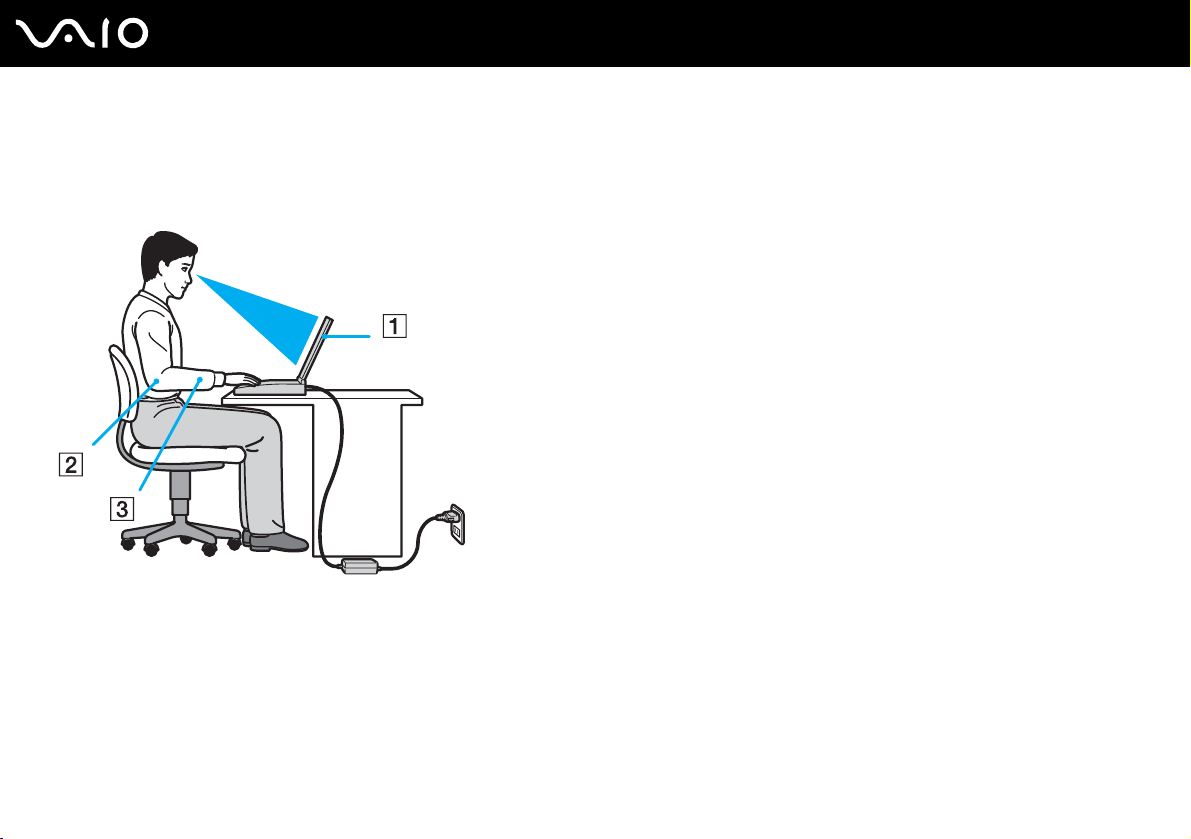
❑ Position of your computer – Place the computer directly in front of you (1). Keep your forearms horizontal (2), with your
wrists in a neutral, comfortable position (3) while using the keyboard, touch pad, or external mouse. Let your upper arms
hang naturally at your sides. Have breaks during sessions with your computer. Excessive use of the computer may strain
muscles or tendons.
❑ Furniture and posture – Sit in a chair with good back support. Adjust the level of the chair so your feet are flat on the
floor. A footrest may make you more comfortable. Sit in a relaxed, upright posture and avoid slouching forward or leaning
far backwards.
Page 9

9
nN
Before Use
❑ Viewing angle of the computer's display – Use the display's tilting feature to find the best position. You can reduce eye
strain and muscle fatigue by adjusting the tilt of the display to the proper position. Adjust the brightness setting of the
display as well.
❑ Lighting – Choose a location where windows and lights do not create glare and reflection on the display. Use indirect
lighting to avoid bright spots on the display. You can also purchase accessories for your display that help reduce glare.
Proper lighting adds to your comfort and work effectiveness.
❑ Positioning an external display – When using an external display, set the display at a comfortable viewing distance.
Make sure the display screen is at eye level or slightly lower when you are sitting in front of the monitor.
Page 10

Getting Started
Getting Started
This section describes how to get started with using your VAIO computer.
!
Before the first computer startup, do not connect any new hardware that did not normally come with your computer. Make sure to start up your
computer with only the supplied accessories connected and set up your system. Upon completion, connect one device (for example, a printer, external
hard disk drive, scanner, and so on) at a time, following the manufacturer's instructions.
❑ Locating Controls and Ports (page 11)
❑ About the Indicator Lights (page 17)
❑ Connecting a Power Source (page 19)
❑ Using the Battery Pack (page 20)
❑ Shutting Down Your Computer Safely (page 25)
10
nN
Page 11
Locating Controls and Ports
Take a moment to identify the controls and ports shown on the following pages.
!
Please note that the illustrations in this manual may not necessarily apply to your model.
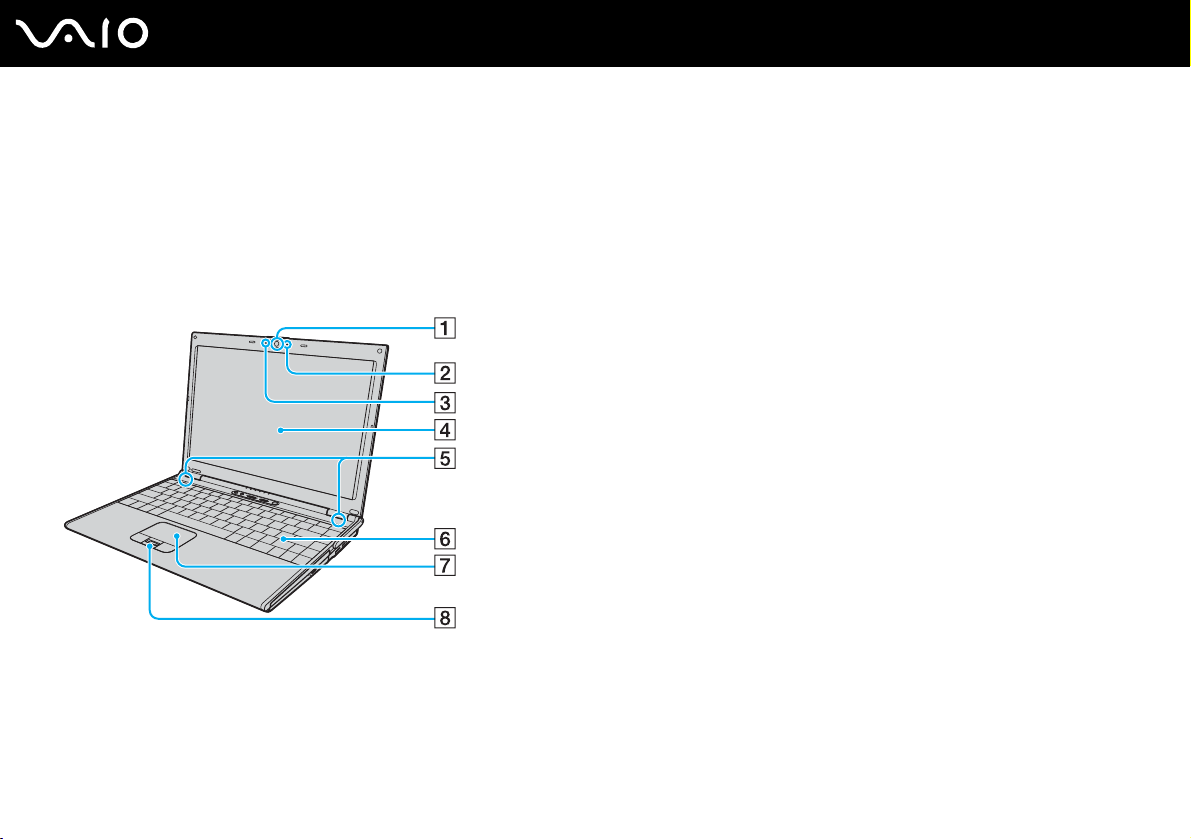
Front
11
nN
Getting Started
A Built-in MOTION EYE camera
B Built-in MOTION EYE camera indicator
C Built-in microphone (monaural)
D LCD screen (page 154)
E Built-in speakers
F Keyboard (page 27)
G Touch pad (page 29)
H Fingerprint sensor (page 112)
* On selected models only.
*
(page 31)
*
*
(page 17)
Page 12

Power indicator (page 17)
A
B Battery indicator (page 17)
C Hard disk drive indicator (page 17)
D WLAN (Wireless LAN) indicator (page 17)
E WWAN (Wireless WAN) indicator
F Bluetooth indicator
*
(page 17)
*
(page 17)
G S1/S2 buttons (page 30)
H STAMINA mode indicator (page 17)
I Performance selector switch (page 101)
J SPEED mode indicator (page 17)
K WIRELESS switch (page 57)
L Num lock indicator (page 17)
M Caps lock indicator (page 17)
N Scroll lock indicator (page 17)
O Power button
* On selected models only.
12
nN
Getting Started
Page 13

Back
A DC IN port (page 19)
B SIM card slot
See the SmartWi Connection Utility Guide for more
information.
C Battery connector (page 20)
D Air vents
E Security slot
* On selected models only.
*
13
nN
Getting Started
Page 14

Right
A Optical disc drive (page 32)
B Optical disc drive indicator (page 17)
C Manual eject hole (page 190)
D Drive eject button (page 32)
E ExpressCard
F Hi-Speed USB (USB 2.0) ports
™
/34 slot*1 (page 45)
*2
(page 92)
G Network (Ethernet) port (page 98)
H Modem port (page 56)
I WWAN antenna
*1
Referred to as the ExpressCard/34 slot hereinafter.
*2
Supports high-/full-/low- speeds.
*3
On selected models only.
*3
(page 57)
14
nN
Getting Started
Page 15
Left
15
nN
Getting Started
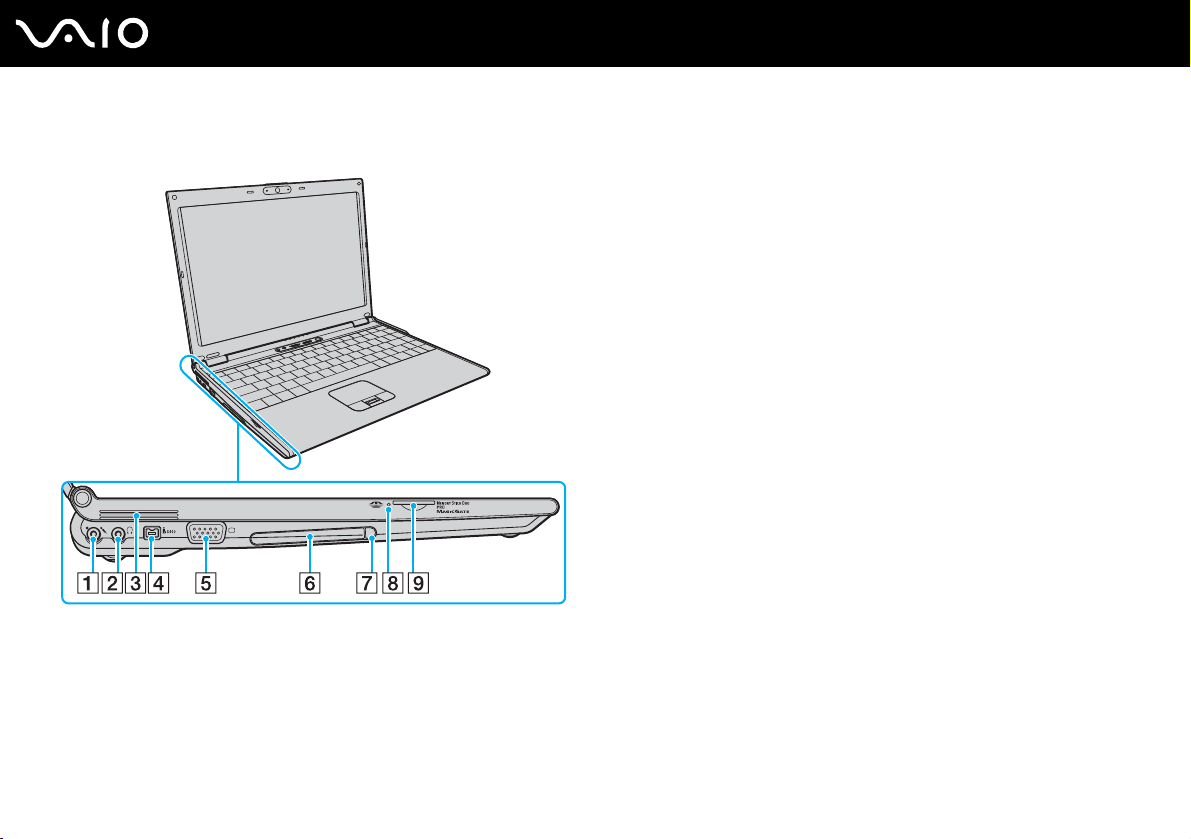
A Microphone jack (page 91)
B Headphones jack (page 83)
C Air vents
D i.LINK
®
(IEEE 1394) S400 port (page 96)
E Monitor (VGA) port (page 85)
F PC Card slot (page 42)
G PC Card release button (page 44)
H Memory Stick Duo/PRO Duo media indicator (page 17)
I Memory Stick Duo/PRO Duo media slot
* Your computer supports Memory Stick Duo media and Memory Stick PRO
Duo media with high speed and high capacity capabilities.
*
(page 50)
Page 16
Bottom
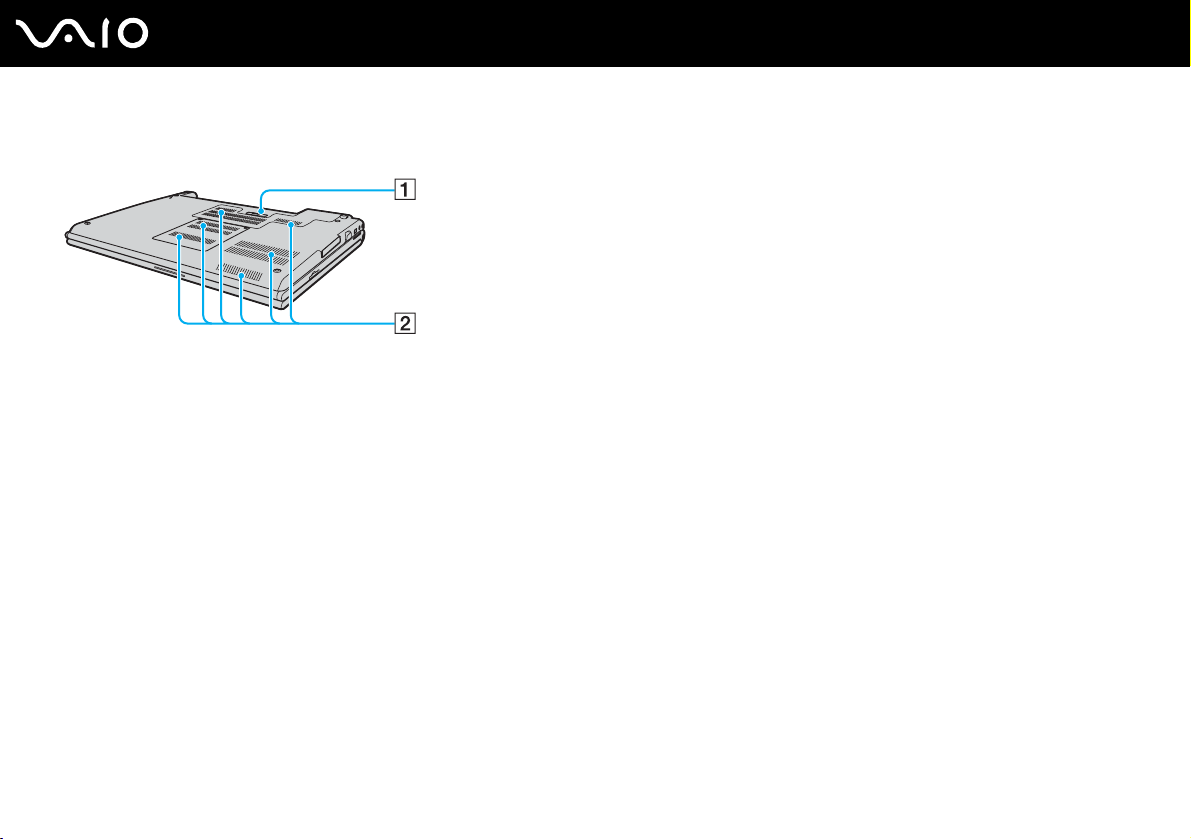
A Docking station connector (page 75)
B Air vents
16
nN
Getting Started
Page 17
Getting Started
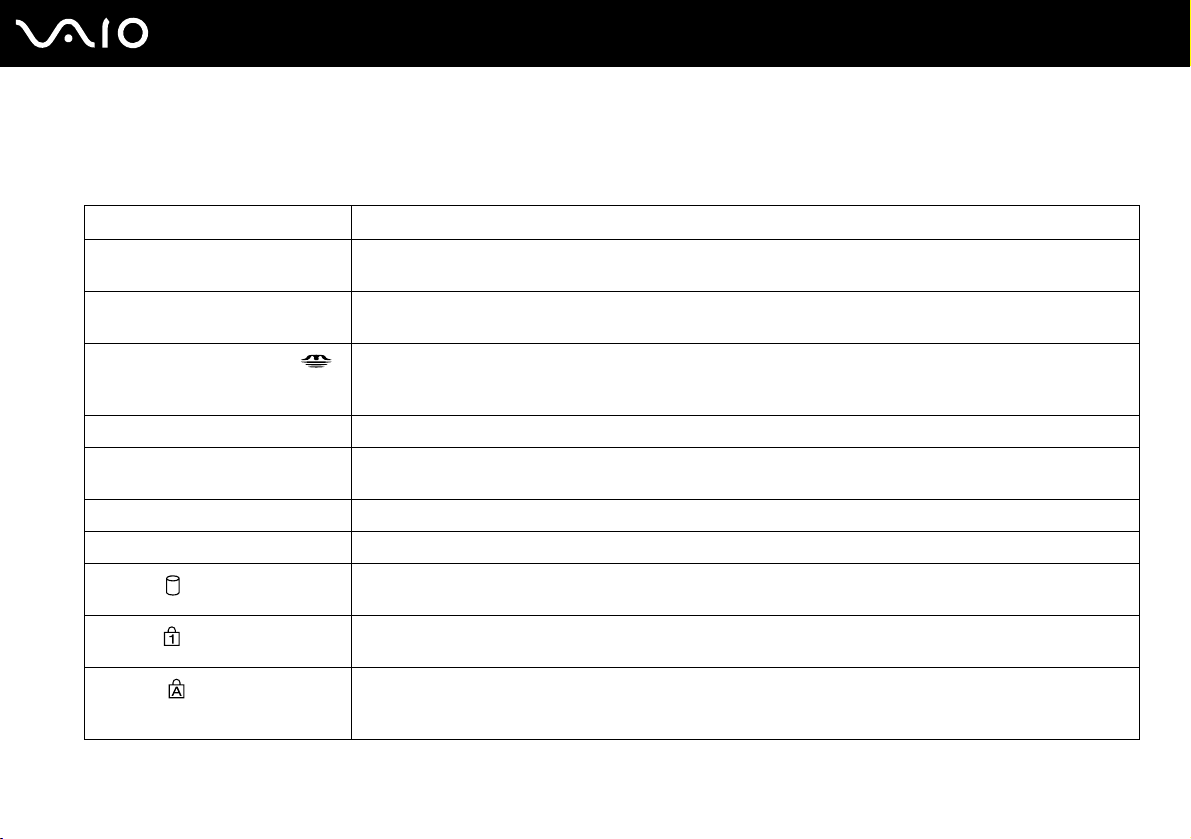
About the Indicator Lights
Your computer is equipped with the following indicator lights.
Indicator Functions
Power 1 Illuminates when the power of the computer is on, blinks in Standby mode, and turns off when the computer is
in Hibernate mode or off.
Battery e Illuminates when the computer is using battery power, blinks when the battery is running out of power, and
Memory Stick Duo/PRO Duo
Built-in MOTION EYE camera* Illuminates while the built-in MOTION EYE camera is in use.
Optical disc drive Illuminates when data is read from or written to the optical disc. When the indicator is off, the optical disc is not
STAMINA mode Illuminates when the computer is in STAMINA mode to conserve battery power.
SPEED mode Illuminates when the computer is in SPEED mode to provide faster performance.
Hard disk
Num lock
Caps lock
double-blinks when the battery is charging.
Illuminates when data is read from or written to the Memory Stick media in the Memory Stick Duo/PRO Duo
slot. (Do not enter Standby mode or turn off the computer when this indicator is on.) When the indicator is off,
the Memory Stick media is not being used.
being used.
Illuminates when data is read from or written to the hard disk. Do not enter Standby mode or turn off the
computer when this indicator is on.
Press the Num Lk key to activate the numeric keypad. Press it a second time to deactivate the numeric keypad.
The numeric keypad is not active when the indicator is off.
Press the Caps Lock key to type letters in uppercase. Letters appear in lowercase if you press the Shift key
while the indicator is on. Press the key a second time to turn off the indicator. Normal typing resumes when the
Caps lock indicator is off.
17
nN
Page 18

Indicator Functions
Scroll lock
Bluetooth technology
WIRELESS LAN Illuminates when the wireless LAN function is running.
WIRELESS WAN
* On selected models only.
*
*
Press the Scr Lk key to change how you scroll the display. Normal scrolling resumes when the Scroll lock
indicator is off. The Scr Lk key functions differently depending on the program you are using and does not work
with all programs.
Illuminates when the WIRELESS switch is set to ON and Bluetooth technology is enabled.
Illuminates when the wireless WAN function is enabled.
18
nN
Getting Started
Page 19

19
nN
Getting Started
Connecting a Power Source
You can use either an AC adapter or a rechargeable battery pack as a power source for your computer.
Using the AC Adapter
✍
Use the computer only with the supplied AC adapter.
To use the AC adapter
1 Plug one end of the power cord (1) into the AC adapter (3).
2 Plug the other end of the power cord into an AC outlet (2).
3 Plug the cable attached to the AC adapter (3) into the DC IN port (4) on the computer or on the optional docking station.
!
The shape of the DC In plug varies depending on the AC adapter.
✍
To disconnect the computer completely from AC power, unplug the AC adapter.
Make sure that the AC outlet is easily accessible.
If you do not use the computer for a long period of time, put the computer into Hibernate mode. See Using Hibernate Mode (page 139). This power
saving mode saves the time of shutting down or resuming.
Page 20

Using the Battery Pack
The battery pack supplied with your computer is not fully charged at the time of purchase.
Installing the Battery Pack
To install the battery pack
1 Turn off the computer and close the LCD screen lid.
2 Slide the battery lock switch (1) to the UNLOCK position.
3 Slide the battery into the battery compartment until it clicks into place.
20
nN
Getting Started
4 Slide the battery lock switch (1) to the LOCK position to secure the battery on the computer.
Page 21

✍
When the computer is directly connected to AC power and has a battery pack installed, it uses power from the AC outlet.
!
This computer is designed to operate only with genuine Sony batteries.
21
nN
Getting Started
Page 22

Getting Started
Charging the Battery Pack
The battery pack supplied with your computer is not fully charged at the time of purchase.
To charge the battery pack
1 Install the battery pack.
2 Connect the AC adapter to the computer.
The computer automatically charges the battery (the battery indicator light flashes in a double blink pattern as the battery
charges). When the battery is about 85% charged, the battery indicator turns off.
Battery indicator light status Meaning
On The computer is using battery power.
Blinks The battery is running out of power.
Double blinks The battery is charging.
Off The computer is using AC power.
22
nN
Page 23

Getting Started
✍
When the battery is running out of power, both the battery and power indicator lights blink.
Keep the battery pack in the computer while it is directly connected to AC power. The battery pack continues to charge while you are using the computer.
If the battery level falls below 10%, you should either attach the AC adapter to recharge the battery or shut down the computer and install a fully charged
battery.
The battery pack supplied with the computer is a lithium ion battery and can be recharged any time. Charging a partially discharged battery does not
affect battery life.
The battery indicator light is on while you use the battery pack as a power source. When the battery life is nearly depleted, both the battery and power
indicator lights start flashing.
For some software applications and some peripheral devices, the computer may not enter Hibernate mode even when battery life is low. To avoid loss
of data when using battery power, you should save your data frequently and manually activate a power management mode, such as Standby or
Hibernate. If the battery wears out when the computer enters Standby mode, you will lose any unsaved data. Going back to the previous work state is
impossible. To avoid loss of data, you should save your data frequently.
When the computer is directly connected to AC power and has a battery pack installed, it uses power from the AC outlet.
23
nN
Page 24

Getting Started
Removing the Battery Pack
!
You may lose data if you remove the battery pack while the computer is on and not connected to the AC adapter or if you remove the battery while the
computer is in Standby mode.
To remove the battery pack
1 Turn off the computer and close the LCD screen lid.
2 Slide the battery lock switch (1) to the UNLOCK position.
3 Slide and hold the battery release latch (2) and slide the battery away from the computer.
24
nN
Page 25

25
nN
Getting Started
Shutting Down Your Computer Safely
To avoid losing unsaved data, be sure to shut down your computer properly, as described below.
To shut down your computer
1 Turn off any peripherals connected to the computer.
2 Click Start and then Turn Off Computer.
The Turn off computer window appears.
3 Click Turn Off.
4 Respond to any prompts warning you to save documents or to consider other users and wait for the computer to turn off
automatically.
The power indicator light turns off.
Page 26

Using Your VAIO Computer
This section describes how to get the most out of using your computer.
❑ Using the Keyboard (page 27)
❑ Using the Touch Pad (page 29)
❑ Using Special-function Buttons (page 30)
❑ Using the Built-in MOTION EYE Camera (page 31)
❑ Using the Optical Disc Drive (page 32)
❑ Using PC Cards (page 42)
❑ Using the ExpressCard Media (page 45)
❑ Using the Memory Stick Media (page 49)
❑ Using Other Memory Cards (page 53)
❑ Using the Internet (page 56)
❑ Using Wireless LAN (WLAN) (page 57)
❑ Using the Bluetooth Functionality (page 66)
26
nN
Using Your VAIO Computer
Page 27
nN
Using Your VAIO Computer
Using the Keyboard
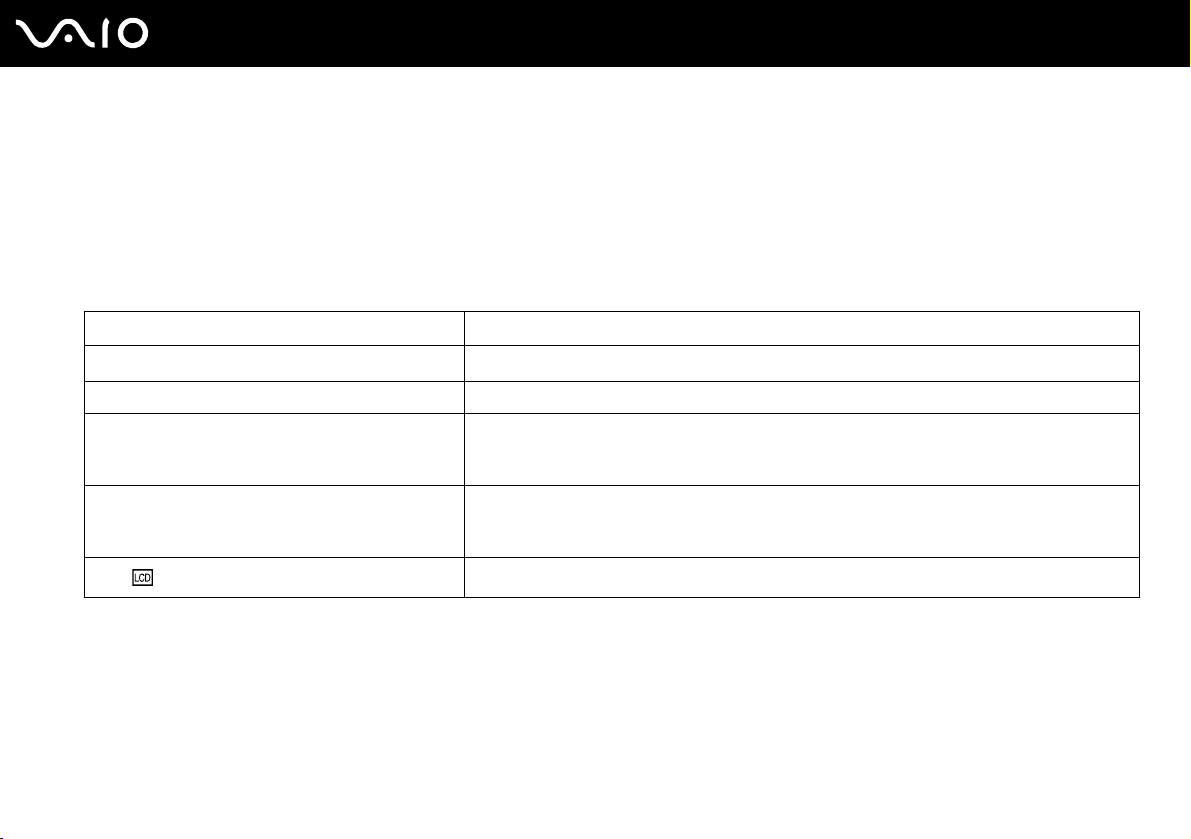
Your keyboard is very similar to a desktop computer keyboard, but has additional keys that perform model-specific tasks.
Combinations and Functions with the Fn Key
✍
Some functions are not available until Windows is launched.
Combinations/Feature Functions
Fn + F1: wireless switching
Fn + % (F2): speaker switch Turns on and off the built-in speakers and the headphones.
Fn + 2 (F3/F4): volume Adjusts the volume level.
Fn + 8 (F5/F6): brightness control Adjusts the LCD brightness of your computer screen.
Fn + /T (F7): display output
*
Toggles among Bluetooth, Wireless LAN, and Wireless WAN functionalities.
To increase volume, press Fn+F4 and then M or ,, or keep pressing Fn+F4.
To decrease volume, press Fn+F3 and then m or <, or keep pressing Fn+F3.
To increase lightness intensity, press Fn+F6 and then M or ,, or keep pressing Fn+F6.
To decrease lightness intensity, press Fn+F5 and then m or <, or keep pressing Fn+F5.
Toggles among your computer screen, an external display, and simultaneous output to both.
27
Page 28

Combinations/Feature Functions
Fn + (F10): zoom
Fn + (F12): Hibernate
* On selected models only.
28
nN
Using Your VAIO Computer
Changes the screen resolution to magnify/restore your computer's screen view.
✍
The magnified view is not as clear as the standard view, as it is implemented by applying a lower resolution
to the computer screen with a higher resolution.
This key combination is disabled during video playback. Make sure to quit such software before pressing
the key combination.
This key combination may not work with graphic images as it magnifies the screen view by changing the
resolution.
The location and size of software windows may change when the screen view is magnified or the standard
view is restored because pressing this key combination changes the resolution.
When your computer's screen view is magnified, switching the view to the external display disables the
function and restores the standard view.
Provides for the lowest level of power consumption. When you execute this command, the
states of the system and the peripheral devices are written to the hard disk and the system
power is turned off. To return the system to its original state, use the power button to turn on the
power.
For details on power management, see Using the Power Saving Modes (page 136).
Page 29
29
nN
Using Your VAIO Computer
Using the Touch Pad
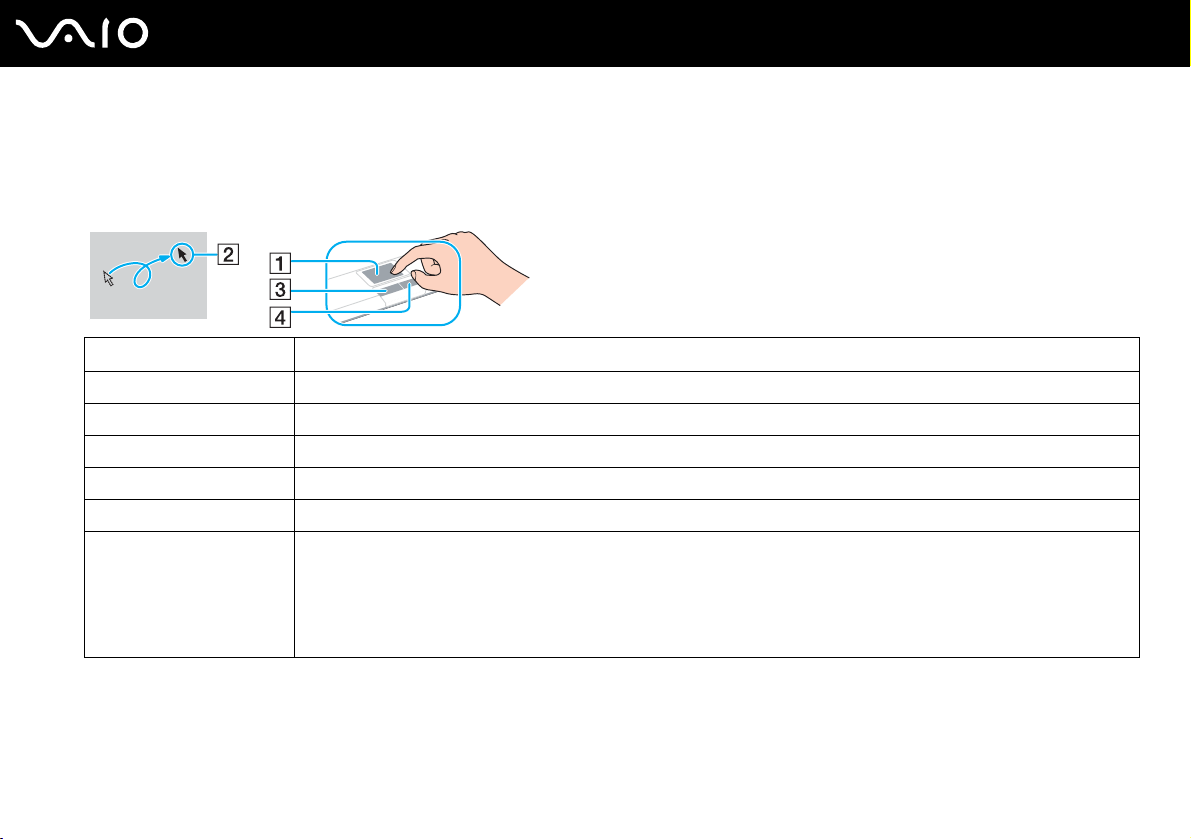
The keyboard contains a cursor-pointing device, the touch pad (1). You can point to, select, drag, and scroll objects on the
screen using the touch pad.
Action Description
Point Slide one finger on the touch pad to place the pointer (2) on an item or object.
Click Press the left button (3) once.
Double-click Press the left button twice.
Right-click Press the right button (4) once. In many applications, this action displays a shortcut menu.
Drag Slide one finger on the touch pad while pressing the left button.
Scroll Move your finger along the right edge of the touch pad to scroll vertically. Move your finger along the bottom to scroll
horizontally (the scroll function is available only with applications that support a touch pad scroll feature).
✍
You can also use the fingerprint sensor for vertical scrolling while the Scroll lock indicator is lit. Press the Fn+Scr Lk keys to turn on
and off the indicator.
Page 30
Using Special-function Buttons
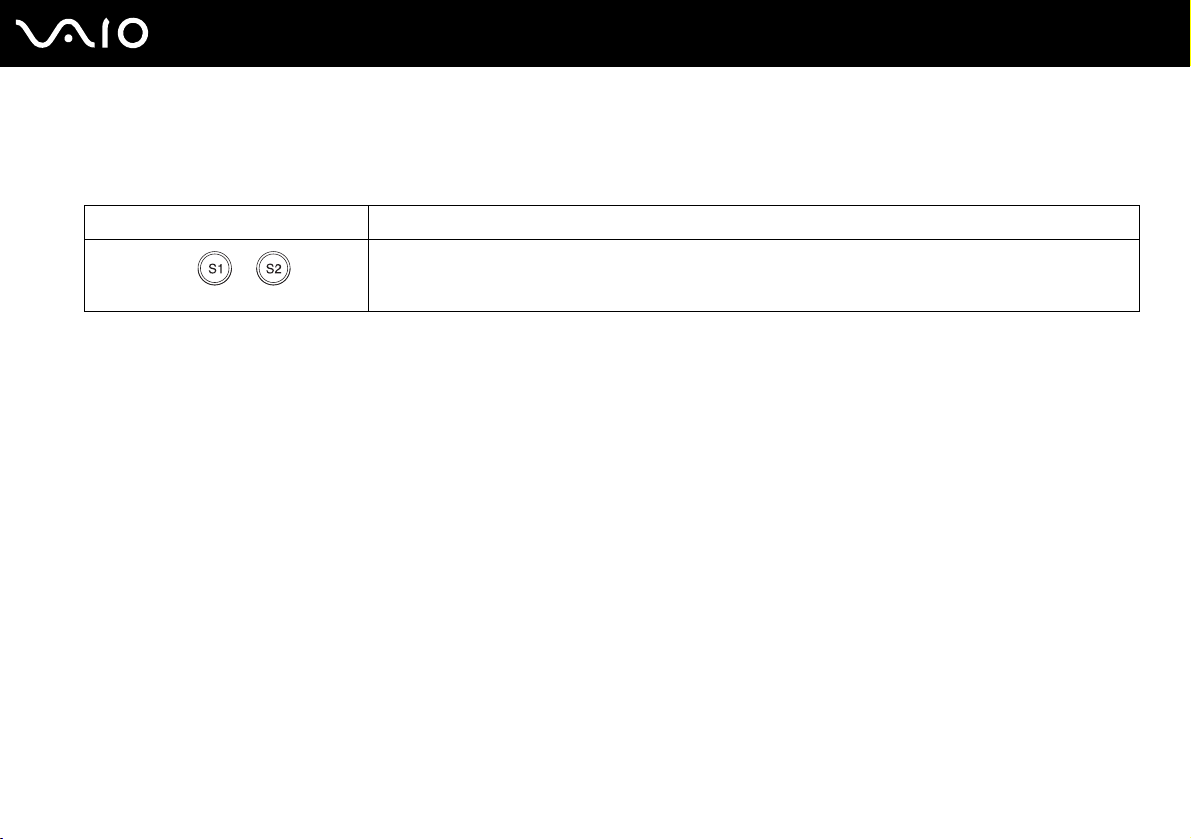
Your computer is equipped with special buttons to help you use specific functions of the computer.
Special-function button Functions
By default, the S1 button turns the volume on and off and the S2 button lowers the CPU speed to reduce the
S1/S2 buttons
fan noise. You can change these button assignments on the window for changing the S button assignments.
To display this window, press and hold either button or launch and navigate through VAIO Central.
30
nN
Using Your VAIO Computer
Page 31

31
nN
Using Your VAIO Computer
Using the Built-in MOTION EYE Camera
Your computer may be equipped with a built-in MOTION EYE camera. See the online Specifications to find whether your
model is equipped with the built-in MOTION EYE camera.
The built-in MOTION EYE camera adds video functionality to instant messaging software and video editing software, for
example Windows Messenger and Windows MovieMaker.
Turning on the computer activates the built-in MOTION EYE camera, so the computer is ready for a video conference using
such software.
Note that launching or exiting your instant messaging or video editing software does not activate or deactivate the built-in
MOTION EYE camera, respectively. Make sure that the camera is activated before using the software.
✍
The built-in MOTION EYE camera cannot be shared by more than one software application. If another software application is using the camera, exit the
application before using the built-in MOTION EYE camera.
!
The viewer window may show some noises, for example horizontal streaks, if you view a rapid-moving object. This is normal and does not indicate a
malfunction.
Page 32

Using Your VAIO Computer
Using the Optical Disc Drive
Your computer is equipped with an optical disc drive.
To insert a disc
1 Turn on the computer.
2 Press the drive eject button (1) to open the drive.
The tray slides out.
3 Place a disc in the middle of the tray with the label side facing up and gently push it until the disc clicks into place.
32
nN
Page 33

Using Your VAIO Computer
4 Close the tray by pushing it in gently.
!
Do not remove the optical disc when the computer is in a power saving mode (Standby or Hibernate). Doing so may cause the computer to malfunction.
✍
If you plan to use an external optical disc drive, connect the drive before you launch any preinstalled CD/DVD program.
33
nN
Page 34

34
nN
Using Your VAIO Computer
Reading and Writing CDs and DVDs
Your computer plays and records CDs and DVDs, depending on the model you purchased. Check your specifications for the
type of optical disc drive installed on your model. Use the table below to see which types of media your optical disc drive
supports.
Optical disc drive Plays Records to
DVD-ROM CD, CD-R, CD-RW, DVD, most DVD-R, DVD-RW,
DVD+R, DVD+RW, DVD+R DL (Double Layer), and
DVD-R DL (Dual Layer)
CD-RW/DVD-ROM CD, CD-R, CD-RW, DVD, most DVD-R, DVD-RW,
DVD+R, DVD+R DL (Double Layer),
DVD-R DL (Dual Layer), and DVD+RW
DVD±RW (Supporting DVD+R DL) CD, CD-R, CD-RW, DVD, most DVD-R, DVD-RW,
DVD+R, DVD+R DL (Double Layer),
DVD-R DL (Dual Layer), and DVD+RW
DVD±RW/+R DL/RAM CD, CD-R, CD-RW, DVD, most DVD-R, DVD-RW,
DVD+R, DVD+R DL (Double Layer),
DVD-R DL (Dual Layer), DVD+RW, and DVD-RAM
DVD±RW (Supporting DVD±R DL) CD, CD-R, CD-RW, DVD, most DVD-R, DVD-RW,
DVD+R, DVD+R DL (Double Layer),
DVD-R DL (Dual Layer), and DVD+RW
DVD±RW/±R DL/RAM CD, CD-R, CD-RW, DVD, most DVD-R, DVD-RW,
DVD+R, DVD+R DL (Double Layer),
DVD-R DL (Dual Layer), DVD+RW, and DVD-RAM
—
CD-R and CD-RW
CD-R, CD-RW, DVD-R, DVD-RW, DVD+R,
DVD+R DL (Double Layer), and DVD+RW
CD-R, CD-RW, DVD-R, DVD-RW, DVD+R,
DVD+R DL (Double Layer), DVD+RW,
and DVD-RAM
CD-R, CD-RW, DVD-R, DVD-RW, DVD+R,
DVD+R DL (Double Layer), DVD-R DL (Dual Layer),
and DVD+RW
CD-R, CD-RW, DVD-R, DVD-RW, DVD+R,
DVD+R DL (Double Layer), DVD-R DL (Dual Layer),
DVD+RW, and DVD-RAM
Page 35

35
nN
Using Your VAIO Computer
!
This product is designed to playback discs that conform to the Compact Disc Digital Audio standard specifications (CD Standard). A DualDisc is a two
sided disc product which mates DVD recorded material on one side with digital audio material on the other side. Please be aware that the audio side
(non-DVD side) of a DualDisc may not play on this product because it does not conform to the CD Standard.
!
Due to the multiple formats of discs now available, when buying pre-recorded or blank discs for use with a VAIO computer, be sure to read the notices
on the disc packaging carefully to check both playback and recording compatibility with your computer's optical disc drives. Sony does NOT guarantee
the compatibility of VAIO CD drives with discs that are not compliant with the official "CD" format standard (or "DVD" standard in relation to DVD drives).
USING NON-COMPLIANT DISCS CAN CAUSE FATAL DAMAGE TO YOUR VAIO PC OR CREATE SOFTWARE CONFLICTS AND CAUSE SYSTEM HANGING.
For inquiries about disc formats, contact the individual publisher of the pre-recorded disc or the manufacturer of the recordable disc.
✍
Supports writing data to DVD-RW discs compliant with DVD-RW version 1.1/1.2.
Supports writing data to DVD-R discs compliant with DVD-R for General version 2.0/2.1.
Supports 8cm disc reading, but does not support 8cm disc writing.
Writing data to DVD+R DL (Double Layer) discs is available only on discs supporting DVD+R DL (Double Layer) recording.
Writing data to DVD-R DL (Dual Layer) discs is available only on discs supporting DVD-R DL (Dual Layer) recording.
The DVD±RW/RAM disc drive on your computer does not support the DVD-RAM cartridge. Use non-cartridge discs or discs with removable cartridge.
Writing data to single-sided DVD-RAM discs (2.6 GB) compliant with DVD-RAM version 1.0 is not supported.
Page 36

36
nN
Using Your VAIO Computer
Notes on writing data to a disc
❑ To make the data on a disc readable on an optical disc drive, you need to close the session before you eject it. To complete
this process, follow the instructions included with your software.
❑ Only use circular discs. Do not use discs in any other shape (star, heart, card, etc.), as this may damage the optical disc
drive.
❑ Do not strike or shake the computer while writing data to a disc.
❑ Deactivate the screen saver and exit anti-virus software before writing data to a disc.
❑ Do not use memory-resident utility software while writing data to a disc. This may cause the computer to malfunction.
❑ When using your software application to burn discs, make sure you exit and close all other applications.
❑ Never touch the surface of the disc. Fingerprints and dust on the surface of a disc may cause writing errors.
❑ Do not switch power modes while using the pre-installed software and while using the CD burning software.
❑ Never affix an adhesive label to discs. This will affect the use of the disc irreparably.
❑ Connect and use the AC adapter to power the computer or make sure your battery is at least 50 percent charged.
❑ Some DVD players and computer's DVD drives may not be able to play DVDs created on applicable models using the
VAIO Zone software.
Page 37

37
nN
Using Your VAIO Computer
Notes on playing DVDs
To achieve optimum performance when playing DVDs, you should follow these recommendations.
❑ You can play DVDs using the optical disc drive and the DVD playback software, such as VAIO Zone or WinDVD. See the
help file on such software for details.
❑ Close all open applications before playing a DVD movie.
❑ Do not use memory-resident utility software to speed up disc access when playing a DVD. This may cause the computer
to malfunction.
❑ Deactivate the screen saver and exit anti-virus software before playing a disc.
❑ Some discs recorded at 20 or 24 bits may produce noise while playing. If you have audio devices connected, this may
damage your hearing and the speakers. Reduce the volume before playing a DVD.
❑ Do not switch to power saving modes while the computer is playing a DVD.
❑ Region code indicators are labeled on the DVDs to indicate in which region and on what type of player you can play the
disc. If the DVD is labeled "all," this means that you can play this DVD in most regions of the world. If the region code of
your residence area is different from the label on the DVD disc or on the packaging, you cannot play the disc on your
computer.
!
You can change the DVD region code only a limited number of times. When you have exceeded this number, the drive's DVD region code is permanently
assigned and you will not be able to change it again. Reconfiguring the computer does not reset this count.
If you change the DVD region code while the WinDVD software is running, restart the software or eject the disc and re-insert it to make the new setting
effective.
Page 38

38
nN
Using Your VAIO Computer
❑ If your computer has the Wireless LAN functionality and Wireless LAN is activated, playing DVDs may cause some
interruptions in audio and video.
❑ When you are playing a DVD (video or audio) and you want to remove a USB device, such as USB-compatible speakers,
make sure you stop the DVD first. Removing a USB-compatible device during DVD (video or audio) playback may cause
a malfunction.
Page 39

39
nN
Using Your VAIO Computer
Playing CDs
To play an audio CD
1 Insert a disc into the optical disc drive.
2 If nothing appears on the desktop, then click Start, point to All Programs, and click to open a CD program, such as the
SonicStage software.
If the Audio CD window appears, click to select an option.
Page 40

40
nN
Using Your VAIO Computer
Copying Files to CDs
See the online Specifications to find the type of your optical disc drive, and then Reading and Writing CDs and DVDs
(page 34) to find about the supported disc media.
To copy files to a disc
!
Do not strike or shake the computer while writing data to a disc.
1 Insert a blank disc into the optical disc drive.
If the CD Drive window appears, click Take no action and then click OK.
2 Right-click Start and then click Explore.
3 In the Folders panel on the left, locate the file(s) or folder(s) you want to copy, right-click the file(s) or folder(s), point to
*
Send To, and then click the optical disc drive
4 Close the window.
5 Click Start and then My Computer.
6 Click the optical disc drive icon under Devices with Removable Storage. A new window appears with the file(s) or
folder(s) you want to copy listed under Files Ready to Be Written to the CD.
7 In the CD Writing Tasks box, click Write these files to CD.
8 Follow the instructions in the CD Writing Wizard.
* The read/write drive letter designation may vary, depending on your system's hardware configuration.
name.
Page 41

41
nN
Using Your VAIO Computer
Playing DVDs
To play a DVD
1 Close all open programs.
2 Insert a DVD into the optical disc drive.
3 If nothing appears on the desktop, then click Start, point to All Programs, and click to open a DVD program to play the
DVD.
For instructions on how to use a program, see the help file included with the DVD program.
Copying Files to DVDs
The DVD writing function is available on selected models only. See the online Specifications to find the type of your optical
disc drive, and then Reading and Writing CDs and DVDs (page 34) to find about the supported disc media.
To copy files to a disc
1 Connect the AC adapter to the computer.
2 Insert a disc into the optical disc drive.
3 If nothing appears on the desktop, then click Start, point to All Programs, and click to open a DVD program you want to
use.
For instructions on how to use a program, see the help file included with the DVD program.
Page 42

Using PC Cards
PC Cards allow you to connect portable external devices to your computer.
Inserting a PC Card
!
Some PC Cards or their functions may not be compatible with the computer.
You do not need to shut down the computer before inserting or removing a PC Card.
To insert a PC Card
1 Push the PC Card release button so that the release button pops out.
2 Push the PC Card release button a second time so that the PC Card slot protector pops out.
3 Gently take hold of the protector and pull it out of the slot.
4 Insert the PC Card into the PC Card slot with the front label facing up.
5 Gently push the PC Card into the slot.
The PC Card is automatically detected by your system.
The Safely Remove Hardware icon appears on the taskbar.
42
nN
Using Your VAIO Computer
Page 43

Using Your VAIO Computer
!
Insert the PC Card slot protector to protect against debris entering the slot when not using a PC Card. Before moving the computer, make sure to insert
the PC Card slot protector into the slot.
✍
Some devices may not function properly if you continually switch to Normal mode from Standby mode or Hibernate mode. For some PC Cards, if you
alternate between Normal mode and Standby or Hibernate mode while the card is inserted, you may find that a device connected to your system is not
recognized. Restart your system to correct the problem. Restarting will restore the original state of the computer.
While the card is inserted, the computer may not enter Hibernate power management mode. It may enter Standby mode. We recommend that you
remove the card before the computer enters Hibernate mode.
Make sure you use the most recent software driver provided by the PC Card manufacturer.
If an "!" mark appears on the Device Manager tab in the System Properties window, remove the software driver and then reinstall it.
Do not force a PC Card into the slot. It may damage the connector pins. If you have difficulty inserting a PC Card, check that you are inserting the PC
Card in the correct direction. See the manual that came with your PC Card for more information.
43
nN
Page 44

44
nN
Using Your VAIO Computer
Removing a PC Card
Follow the steps below to remove the PC Card while your computer is on. If it is not removed properly, your system may not
work properly.
To remove a PC Card
✍
To remove a PC Card when the computer is off, skip steps 1 to 6.
1 Double-click the Safely Remove Hardware icon on the taskbar.
The Safely Remove Hardware window appears.
2 Select the hardware you want to unplug.
3 Click Stop.
The Stop a Hardware Device window appears.
4 Confirm that the device can be safely removed from the system.
5 Click OK.
A window appears, explaining that it is safe to remove the device.
6 Click Close.
7 Push the PC Card release button so that the release button pops out.
8 Push the PC Card release button a second time so that the PC Card pops out.
9 Gently take hold of the Card and pull it out of the slot.
10 If the PC Card release button is still out, push it back in.
Page 45

45
nN
Using Your VAIO Computer
Using the ExpressCard Media
Your computer is equipped with an ExpressCard™/34 slot* to accommodate ExpressCard™/34 (34 mm wide) media*. You
can use this slot to transfer data among digital cameras, camcorders, music players, and other audio/video devices.
* Hereinafter, referred to as the ExpressCard/34 slot and the ExpressCard/34 media.
The ExpressCard slot can also accommodate other memory cards, including standard-size Memory Stick media, via the
memory card adapter. See Using Other Memory Cards (page 53) for the instructions to use the memory card adapter and
other memory cards.
Page 46

Using Your VAIO Computer
Inserting an ExpressCard Media
!
Your computer is delivered with a slot protector in the ExpressCard slot. Remove the slot protector before you use the ExpressCard slot for the first time.
Use care when inserting or removing the ExpressCard media from the slot. Do not force it in or out of the slot.
✍
You do not need to shut down the computer before inserting or removing an ExpressCard media.
To insert an ExpressCard media
1 Push the ExpressCard slot protector to pop it out.
2 Gently take hold of the ExpressCard slot protector and pull it out of the slot.
3 Hold the ExpressCard media with the arrow facing up and toward the ExpressCard slot.
4 Carefully slide the ExpressCard media (1) into the slot until it clicks into place.
Do not force it into the slot.
46
nN
Page 47

Using Your VAIO Computer
!
Insert the ExpressCard slot protector to protect against debris entering the slot when not using an ExpressCard media. Before moving the computer,
make sure to insert the ExpressCard slot protector into the slot.
✍
If the media or adapter does not go into the slot easily, remove it gently and verify you are inserting it in the proper direction.
Make sure you use the most recent software driver provided by the ExpressCard media manufacturer.
47
nN
Page 48

48
nN
Using Your VAIO Computer
Removing an ExpressCard Media
Follow the steps below to remove the ExpressCard media while your computer is on. If it is not removed properly, your system
may not work properly.
To remove an ExpressCard media
✍
To remove an ExpressCard media when the computer is off, skip steps 1 to 6.
1 Double-click the Safely Remove Hardware icon on the taskbar.
The Safely Remove Hardware window appears.
2 Select the hardware you want to unplug.
3 Click Stop.
The Stop a Hardware Device window appears.
4 Confirm that the device can be safely removed from the system.
5 Click OK.
A window appears, explaining that it is safe to remove the device.
6 Click Close.
7 Push in the ExpressCard media toward the computer to pop it out.
8 Gently take hold of the ExpressCard media and pull it out of the slot.
Page 49

49
nN
Using Your VAIO Computer
Using the Memory Stick Media
Your computer supports the Memory Stick media. Memory Stick media is a compact, portable, and versatile device especially
designed for exchanging and sharing digital data with compatible products, such as digital cameras, mobile phones and other
devices. Because it is removable, it can be used for external data storage.
For the latest information on Memory Stick media, visit the Sony online support Web site at http://esupport.sony.com/EN/
VAIO/ for customers in USA, at http://www.sony.ca/support for customers in Canada, or at http://esupport.sony.com/ES/ for
customers in Latin American countries or areas.
!
Your computer has been tested and found compatible with the Sony branded Memory Stick media with capacity of up to 4 GB that are available as of
January 2006. However, not all Memory Stick media that meet the same conditions as the compatible media are guaranteed of compatibility.
Write-protecting a Memory Stick Media
Some versions of Memory Stick media are designed with an erasure prevention switch to protect valuable data from
accidental erasure or overwriting.
Move the tab horizontally or vertically
be saved on the Memory Stick media. When the erasure prevention switch is on, data can be read from but not saved on the
Memory Stick media.
*
to set or release write-protection. When the erasure prevention switch is off, data can
* Some versions of Memory Stick media do not have an erasure prevention switch.
Page 50

Using Your VAIO Computer
Inserting a Memory Stick Media
There are two ways you can insert a Memory Stick media into your computer.
❑ Using the Memory Stick Duo/PRO Duo media slot
The Memory Stick media slot accommodates a small-size Memory Stick media: Memory Stick Duo or Memory Stick PRO
Duo media.
❑ Using the ExpressCard/34 slot
To insert a standard-size Memory Stick media, use the ExpressCard/34 slot. To do this, you need the supplied memory
card adapter. See Using the ExpressCard Media (page 45) and Using Other Memory Cards (page 53) for more
information.
To insert a Memory Stick media using the Memory Stick Duo/PRO Duo media slot
1 Hold the Memory Stick media with the arrow facing up and toward the Memory Stick Duo/PRO Duo media slot.
2 Carefully slide the Memory Stick media into the slot until it clicks into place.
The Memory Stick media is automatically detected by your system and appears in your My Computer window as a local
drive, under the appropriate letter (depending on the configuration of the computer).
50
nN
Page 51

Using Your VAIO Computer
!
Be sure to hold the Memory Stick media with the arrow pointing in the correct direction as you insert it into the slot. To avoid damaging the computer
or the Memory Stick media, do not force the Memory Stick media into the slot if you cannot insert it smoothly.
Do not insert more than one Memory Stick media into the slot. Inserting the media improperly may damage the computer.
✍
The computer supports Memory Stick Duo media and is equipped with the Memory Stick Duo/PRO Duo slot that is only compatible with the duo-size
media. For more information on Memory Stick Duo media, visit the Memory Stick web site at http://www.memorystick.com/en/
.
To view the contents of the Memory Stick media
1 Click Start and then My Computer to open the My Computer window.
2 Double-click the Memory Stick media icon to view the list of data files saved in the Memory Stick media.
To format a Memory Stick media
Use the Memory Stick Formatter software. See the help file on the Memory Stick Formatter software for details.
51
nN
Page 52

Using Your VAIO Computer
Removing a Memory Stick Media
To remove a Memory Stick media from the Memory Stick Duo/PRO Duo media slot
1 Check that the Memory Stick Duo/PRO Duo media indicator is off.
2 Push the Memory Stick media in toward the computer.
The Memory Stick media ejects.
3 Pull the Memory Stick media out of the slot.
!
Always remove the Memory Stick media gently, or it may pop out unexpectedly.
Do not remove the Memory Stick media while the Memory Stick Duo/PRO Duo media indicator is turned on. If you do, you may lose data. Large volumes
of data may take time to load, so be sure the indicator is off before removing the Memory Stick media.
52
nN
Page 53

53
nN
Using Your VAIO Computer
Using Other Memory Cards
Your computer is delivered with the memory card adapter for the ExpressCard/34 slot to support the following memory cards
besides the ExpressCard/34 media:
❑ Standard-size Memory Stick and Memory Stick PRO
❑ Secure Digital (SD)
❑ MultiMediaCard (MMC)
❑ xD-Picture Card
!
The MagicGate feature of the Memory Stick media and the Memory Stick PRO media is not supported.
The copyright protection and high-speed data transfer features of the SD memory card are not supported.
As for the Memory Stick PRO media, only Sony branded media is recommended to use with the adapter.
Your computer has been tested and found compatible only with major memory card media available as of January 2006. However, not all memory card
media that meet the same conditions as the compatible media are guaranteed of compatibility.
Page 54

nN
Using Your VAIO Computer
Inserting a Memory Card
To insert a memory card to the memory card adapter
1 Insert any one of the memory cards (2) to the memory card adapter (1).
!
Make sure to insert a memory card into the memory card adapter in the correct direction to avoid possible damage to the memory card adapter.
2 See Inserting an ExpressCard Media (page 46) to insert the memory card adapter into the ExpressCard/34 slot.
54
Page 55

55
nN
Using Your VAIO Computer
Removing a Memory Card
To remove a memory card from the memory card adapter
See Removing an ExpressCard Media (page 48) to remove the memory card adapter from the ExpressCard/34 slot. Then,
firmly grasp the extended part of the memory card and carefully pull it out of the memory card adapter.
Page 56

56
nN
Using Your VAIO Computer
Using the Internet
Setting Up a Dial-up Internet Connection
Before you can connect to the Internet, you need to connect your computer to a telephone line with a telephone cable (may
not supplied). Once you have set up your telephone cable connection, you're ready to connect to the Internet.
To connect a telephone cable
1 Plug one end of the phone cable (1) into the modem port on the computer.
2 Plug the other end into the wall jack (2).
✍
The computer does not work with party lines, cannot be connected to a coin-operated telephone, and may not work with multiple telephone lines or a
private branch exchange (PBX). Some of these connections may result in excess electrical current and could cause a malfunction in the internal modem.
If you connect a telephone cable coming through a splitter, the modem or connected device may not work properly.
To set up a dial-up connection to the Internet
1 Click Start, point to All Programs, Accessories, Communications, and click New Connection Wizard.
The New Connection Wizard appears.
2 Click Next. If the Location Information window appears, follow the on-screen instructions.
3 If it is not already selected, click to select Connect to the Internet, and click Next.
4 Follow the on-screen instructions.
Page 57

57
nN
Using Your VAIO Computer
Using Wireless LAN (WLAN)
Using the Sony Wireless LAN (WLAN), all your digital devices with built-in WLAN functionality communicate freely with each
other through a powerful network. A WLAN is a network in which a user can connect to a local area network (LAN) through
a wireless (radio) connection. So there is no need anymore to pull cables or wires through walls and ceilings.
The Sony WLAN supports all normal Ethernet activities, but with the added benefits of mobility and roaming. You can still
access information, internet/intranet and network resources, even in the middle of a meeting, or as you move from one place
to another.
You can communicate without an access point, which means that you can communicate between a limited number of
computers (ad-hoc). Or you can communicate through an access point, which allows you to create a full infrastructure
network (infrastructure).
❑ Wireless WAN model users
Please see the SmartWi Connection Utility Guide for setting up Wireless LAN and Wireless WAN functionalities.
❑ Other model users
Please see the following for setting up Wireless LAN functionality.
✍
In some countries, using WLAN products may be restricted by the local regulations (e.g. limited number of channels). Therefore, before activating the
WLAN functionality, read the Safety Information carefully.
*
WLAN uses the IEEE 802.11a
Privacy (WEP), which is a security protocol and WiFi Protected Access (WPA - Proposed jointly by the IEEE and Wi-Fi Alliance, WiFi Protected Access
is a specification of standards based, interoperable security enhancements that increase the level of data protection and access control for existing WiFi
networks. WPA has been designed to be forward compatible with the IEEE 802.11i specification. It utilizes the enhanced data encryption TKIP (Temporal
Key Integrity Protocol) in addition to user authentication using 802.1X and EAP (Extensible Authentication Protocol)). Data encryption protects the
vulnerable wireless link between clients and access points. Besides that, there are other typical LAN security mechanisms to ensure privacy, such as:
password protection, end-to-end encryption, virtual private networks, and authentication.
/b/g standard, which specifies the used technology. The standard includes the encryption method: Wired Equivalent
* See the online Specifications to see whether your model supports the IEEE 802.11a standard.
Page 58

58
nN
Using Your VAIO Computer
Wireless LAN devices using the IEEE 802.11a standard and the ones using the IEEE 802.11b or g standard cannot communicate because the frequencies
are different.
IEEE 802.11b: The standard speed is 11 Mbps, or about 30 to 100 times faster than a standard dial up.
IEEE 802.11a/g: The standard speed is 54 Mbps, or about 5 times faster than a Wireless LAN device using the IEEE 802.11b standard.
The 2.4 GHz bandwidth used by wireless LAN compatible devices is also used by other various devices. Although technologies to minimize interference
from other devices that use the same bandwidth are employed on wireless LAN compatible devices, such interference may cause lower communication
speed, narrower communication range, or broken wireless connections.
The communication speed varies depending on the distance between communication devices, existence of obstacles between such devices, the device
configuration, the radio conditions, and the software in use. In addition, communications may be cut off depending on the radio conditions.
The communication range varies depending on the actual distance between communication devices, existence of obstacles between such devices, the
radio conditions, the ambient environment that includes existence of walls and materials of such walls, and the software in use.
Deploying IEEE 802.11b and IEEE 802.11g products on the same wireless network may reduce the communication speed due to radio interference.
Taking this into consideration, the IEEE 802.11g products are designed to reduce the communication speed to ensure communications with
IEEE 802.11b products.
When the communication speed is not as fast as expected, changing the wireless channel on the access point may increase the communication speed.
Page 59

59
nN
Using Your VAIO Computer
Communicating without an Access Point (Ad-hoc)
An ad-hoc network is a network in which a local network is created only by the wireless devices themselves, with no other
central controller or access point. Each device communicates directly with other devices in the network. You can set up an
ad-hoc network easily at home.
❑ If the Wireless connection is initiated by the VAIO computer, channel 11 will be selected.
❑ If the Wireless connection is initiated by peer Wireless LAN equipment, the Wireless LAN communication will make use
of the channel selected by the peer Wireless LAN equipment.
Page 60

Using Your VAIO Computer
To communicate without an access point (ad-hoc)
1 Turn on the WIRELESS or WIRELESS LAN switch.
The WIRELESS LAN indicator lights up.
Except in Peru and Venezuela, you cannot select the 5 GHz bandwidth, which is used for the IEEE 802.11a standard, on
ad-hoc networks.
*1
On models that support the Bluetooth functionality
on the taskbar to display the Wireless Device Switch window. Select your desired wireless option(s) and click OK.
2 Click Start and then Control Panel.
3 Click Network and Internet Connections.
4 Click Network Connections.
The Network Connections window appears.
5 Right-click Wireless Network Connection, then click Properties.
The Wireless Network Connection Properties window appears.
6 Select the Wireless Networks tab.
7 Click the Add… button.
The Wireless network properties window appears.
8 Enter a network name (SSID)
*2
.
You can choose a 32-digit alphanumeric name.
9 Select Open from the Network Authentication drop-down box.
10 Select WEP from the Data Encryption drop-down box.
11 Deselect the The key is provided for me automatically option button.
Some information becomes visible.
and/or the IEEE 802.11a/b/g standard*1, double-click ( / )
60
nN
Page 61

61
nN
Using Your VAIO Computer
12 Enter the network key*2.
The network key should be 5 or 13 alphanumeric characters or 10 or 26 hexadecimal
*3
characters long. You can choose
whichever you want.
13 Enter exactly the same network key again, for confirmation.
14 Select the check box This is a computer-to-computer (ad hoc) network; wireless access points are not used at the
bottom of the window.
15 Click OK.
Your network name appears in the Preferred networks.
16 Click Advanced.
The Advanced window appears.
17 Select the Computer-to-computer (ad hoc) networks only option button.
18 Click Close.
19 Click OK.
The computer is ready to communicate with another computer.
*1
See the online Specifications to see whether your model supports the Bluetooth functionality and/or the IEEE 802.11a/b/g standard.
*2
If you want to communicate between two or more computers, you need to configure all these computers in the exact same way. This means that you need to enter the
same network name and the same network key on all computers as on the first computer you configure.
*3
Hexadecimal: A number representation using the digits 0-9, with their usual meaning, plus the letters A-F (or a-f) to represent hexadecimal digits with values of (decimal)
10 to 15.
✍
An ad-hoc network does not support WPA.
Page 62

To disconnect from a computer-to-computer (ad-hoc) network
1 Click Start and then Control Panel.
2 Click Network and Internet Connections.
3 Click Network Connections.
The Network Connections window appears.
4 In the right panel under LAN or High-Speed Internet, right-click Wireless Network Connection.
5 Click Properties.
The Wireless Network Connection Properties window appears.
6 On the Wireless Networks tab, click Advanced.
The Advanced window appears.
7 Click to select Any available network (access point preferred), and click Close.
8 Click OK.
9 Close the Network Connections window.
10 Turn off the WIRELESS or WIRELESS LAN switch.
62
nN
Using Your VAIO Computer
Page 63

63
nN
Using Your VAIO Computer
Communicating with an Access Point (Infrastructure)
An infrastructure network is a network that extends an existing wired local network to wireless devices by providing an access
point, for example the Sony Access Point. The access point bridges the wireless and wired LAN and acts as a central
controller for the Wireless LAN. The access point coordinates transmission and reception from multiple wireless devices
within a specific range.
The access point will select which channel to use on an infrastructure network.
!
For details on how to select the channel that will be used by the access point, see the manual that came with your access point.
Page 64

Using Your VAIO Computer
To connect to a wireless network
1 Make sure an access point is set up.
See the manual that came with your access point for more information.
2 Turn on the WIRELESS or WIRELESS LAN switch.
The WIRELESS LAN indicator lights up.
*
On models that support the Bluetooth functionality
the taskbar to display the Wireless Device Switch window. Select your desired wireless option(s) and click OK.
3 Click Start and then Control Panel.
4 Click Network and Internet Connections.
5 Click Network Connections.
6 In the right panel under LAN or High-Speed Internet, double-click Wireless Network Connection.
The Wireless Network Connection window appears.
7 Follow the on-screen instructions.
* See the online Specifications to see whether your model supports the Bluetooth functionality and/or the IEEE 802.11a/b/g standard.
and/or the IEEE 802.11a/b/g standard*, double-click ( / ) on
64
nN
Page 65

Using Your VAIO Computer
To connect to a wireless network (Models with the Wireless Setup Utility software only)
Use the Wireless Setup Utility software to guide you through the set up process and provide you with more detailed
information about wireless connections.
1 Make sure an access point is set up.
See the manual that came with your access point for more information.
2 Turn on the WIRELESS or WIRELESS LAN switch.
The WIRELESS LAN indicator lights up.
On models that support the Bluetooth functionality
*
and/or the IEEE 802.11a/b/g standard*, double-click ( / ) on
the taskbar to display the Wireless Device Switch window. Select your desired wireless option(s) and click OK.
3 Click Start, point to All Programs, and click Wireless Setup Utility.
The Wireless Setup Utility appears.
4 Follow the on-screen instructions.
* See the online Specifications to see whether your model supports the Bluetooth functionality and/or the IEEE 802.11a/b/g standard.
To disconnect from a wireless network
Turn off the WIRELESS or WIRELESS LAN switch.
!
Turning off the wireless LAN functionality while accessing remote documents, files, or resources may result in data loss.
65
nN
✍
For WPA-PSK or WPA2-PSK authentication, you must enter a network key of 8 to 64 alphanumeric characters long.
Page 66

66
nN
Using Your VAIO Computer
Using the Bluetooth Functionality
The Bluetooth functionality is available on selected models only. See the online Specifications to see whether your model
supports the Bluetooth functionality.
You can establish wireless communication between your computer and other Bluetooth devices such as another computer
or a mobile phone. You can transfer data between these devices without cables and up to 33 feet (10 meters) range in open
space.
❑ Wireless WAN model users
Please see the SmartWi Connection Utility Guide for setting up Bluetooth functionality.
❑ Other model users
Please see the following for setting up Bluetooth functionality.
To connect to a Bluetooth device
1 Turn on the WIRELESS switch.
2 Double-click ( / ) on the taskbar to display the Wireless Device Switch window.
3 Select the Enable Bluetooth Device option.
4 Click OK.
Page 67

67
nN
Using Your VAIO Computer
Notes on using the Bluetooth functionality
❑ The data transfer rate varies, depending on the following conditions:
❑ Obstacles, such as walls, located between devices
❑ Distance between devices
❑ Material used in walls
❑ Proximity to microwaves and cordless telephones
❑ Radio frequency interference and other environmental conditions
❑ Device configuration
❑ Type of software application
❑ Type of operating system
❑ Use of both Wireless LAN and Bluetooth functionalities at the same time on the computer
❑ Size of file being exchanged
❑ Note that due to limitations of the Bluetooth standard, large files may occasionally be corrupted during continuous transfer
due to electromagnetic interference from the environment.
❑ All Bluetooth devices must be certified to make sure that the applicable standard requirements are maintained. Even if
standards are met, individual device performance, specifications, and operation procedures can vary. Data exchange may
not be possible in all situations.
❑ The 2.4 GHz band, with which Bluetooth devices or wireless LAN devices work, is used by various devices. Bluetooth
devices use the technology to minimize the interference from other devices that use the same wave length. Simultaneous
use of the Bluetooth functionality and wireless communication devices, however, may cause radio interference and result
in poorer communication speeds and distances than the standard values.
Page 68

68
nN
Using Your VAIO Computer
❑ The Bluetooth functionality may not work depending on the third party devices or the software version used by third party
companies.
❑ As general characteristics of Bluetooth technology, connecting multiple Bluetooth devices to your computer may cause
bandwidth congestion, resulting in poor performance of the devices.
Bluetooth Security
The Bluetooth wireless technology has an authentication function, which allows you to determine whom you choose to
communicate. With the authentication function, you can avoid any anonymous Bluetooth device to access your computer.
The first time two Bluetooth devices communicate, a common passkey (a password required for authentication) should be
determined for both devices to be registered. Once a device is registered, there is no need to re-enter the passkey.
✍
The passkey can be different each time, but must be the same at both ends.
For certain devices, such as a mouse, no passkey can be entered.
Page 69

nN
Using Your VAIO Computer
Communicating with Another Bluetooth Device
You can connect your computer to a Bluetooth device such as another computer, a mobile phone, a PDA, a headset, a
mouse, or a digital camera without the use of any cables.
69
Page 70

70
nN
Using Your VAIO Computer
To communicate with another Bluetooth device
To communicate with another Bluetooth device, you need first to set up the Bluetooth functionality. For setting up and using
the Bluetooth functionality, see the help file on the Bluetooth utility software.
To see the help file
1 Right-click the Bluetooth icon on the taskbar, and select Help from the menu.
Stopping the Bluetooth Connection
To stop the Bluetooth connection, turn off the WIRELESS switch. The Bluetooth indicator turns off.
Page 71

71
nN
Using Your VAIO Computer
Using the Bluetooth Headset
The Bluetooth headset is available as an optional accessory. It will come in handy during a video conference over the Internet
using instant messaging software, for example Windows Messenger. For details on using the Bluetooth headset, see the
manual that came with your Bluetooth headset.
To connect the headset with your computer
1 Press and hold the headset power button for at least five seconds to turn on the Bluetooth headset.
2 Press and hold the volume buttons for at least five seconds until the indicator light blinks in red and green.
3 Right-click the Bluetooth icon on the taskbar and select Bluetooth Settings from the menu.
The Bluetooth Settings window appears and Add New Connection Wizard automatically starts.
4 If the Add New Connection Wizard window does not appear, click New Connection.
The Add New Connection Wizard window appears.
5 Select Express Mode [Recommended] and then click Next.
The wizard searches for Bluetooth devices in range and lists available devices, if any.
6 Select HBH-608 and then click Next.
The Bluetooth Manager-Bluetooth Security window appears when a connection is established.
7 Enter "0000" for Bluetooth Passkey (PIN) and then click OK.
8 Press the headset power button.
9 Click Finish.
The headset icon appears in the Bluetooth Settings window.
10 Click the headset icon and then press the headset power button.
The computer should now be ready to communicate with the Bluetooth headset.
Page 72

To disconnect the headset from your computer
1 Right-click the Bluetooth icon on the taskbar and select Bluetooth Settings from the menu.
The Bluetooth Settings window appears.
2 Select HBH-608, click Next, and select Disconnect from the Bluetooth menu.
3 Click Yes.
72
nN
Using Your VAIO Computer
Page 73

Using Peripheral Devices
You can add functionality to your computer by using the various ports on the computer.
❑ Connecting a Docking Station (page 74)
❑ Connecting External Speakers (page 83)
❑ Connecting an External Display (page 84)
❑ Selecting Display Modes (page 88)
❑ Using the Multiple Monitors Function (page 89)
❑ Connecting an External Microphone (page 91)
❑ Connecting a Universal Serial Bus (USB) Device (page 92)
❑ Connecting a Printer (page 95)
❑ Connecting an i.LINK Device (page 96)
❑ Connecting to a Network (LAN) (page 98)
73
nN
Using Peripheral Devices
Page 74

74
nN
Using Peripheral Devices
Connecting a Docking Station
Attaching a docking station enables you to connect additional peripherals to your computer, such as a printer and an external
display.
A docking station is not supplied with your computer and is available as an optional accessory.
Locating Ports on the Docking Station
Back
A DC IN indicator
Illuminates when the docking station is powered.
B IN USE indicator (page 79)
C UNDOCK button (page 79)
D DC IN port (page 19)
E Network (Ethernet) port (1000BASE-T / 100BASE-TX /
10BASE-T) (page 98)
F Hi-Speed USB (USB 2.0) port
G DVI-D port (page 85)
H MONITOR (VGA) port (page 85)
I Hi-Speed USB (USB 2.0) ports
* Supports high-/full-/low- speeds.
*
(page 92)
*
(page 92)
!
The docking station can be powered only through the AC adapter supplied with your computer. Do not unplug the AC adapter from the docking station
and the AC outlet while using the docking station; this may cause data damage or hardware malfunctions.
Page 75

Attaching Your Computer to the Docking Station
!
When the computer has no battery inserted, do not attach the computer to the docking station.
To attach your computer to the docking station
!
To prevent loss of unsaved data, be sure to turn off your computer before attaching it to the docking station.
1 Disconnect all peripherals from the computer.
2 Plug the power cord (1) into the AC adapter (2) and an AC outlet.
3 Plug the cable attached to the AC adapter (2) into the DC IN port (3) on the docking station (4).
75
nN
Using Peripheral Devices
Page 76

4 Slide open the docking station connector cover on the bottom of the computer.
76
nN
Using Peripheral Devices
Page 77

Using Peripheral Devices
5 Align the rear bottom corners and the left side of the computer with the guides on the docking station.
77
nN
Page 78

Using Peripheral Devices
6 Gently push down the computer until it clicks into place.
7 Turn on the computer.
!
Use the AC adapter supplied with your computer.
Do not move the computer while attached to the docking station; this may detach the docking station and cause damage to the docking station and the
computer.
78
nN
Page 79

Using Peripheral Devices
Disconnecting Your Computer from the Docking Station
!
To prevent loss of unsaved data, be sure to turn off the computer before disconnecting it from the docking station.
Be sure that no devices connected to the docking station are in use before disconnecting the computer.
Do not disconnect the computer from the docking station when the IN USE indicator is lit. Disconnecting the computer while the IN USE indicator is lit
may result in loss of unsaved data or a failure of the computer.
When the battery is running out of power, disconnecting the computer from the docking station may result in loss of unsaved data.
Do not disconnect the computer from the docking station during video playback. Be sure to close video playback software before disconnection.
79
nN
Page 80

To disconnect your computer from the docking station
1 Press the UNDOCK button and wait until the IN USE indicator (2) turns off.
✍
If the IN USE indicator is unlit, you do not have to press the UNDOCK button.
80
nN
Using Peripheral Devices
Pressing the UNDOCK button while the computer is in a power saving mode returns the computer to Normal mode first, and then initiates the
disconnection process.
Page 81

2 Lift the computer away from the docking station.
3 Close the docking station connector cover on the bottom of the computer.
81
nN
Using Peripheral Devices
Page 82

82
nN
Using Peripheral Devices
Alternatively, you can disconnect the computer from the docking station as follows:
1 Click Start and then Undock Computer.
2 Make sure that a message balloon appears and the IN USE indicator turns off; and then lift the computer away from the
docking station.
3 Close the docking station connector cover on the bottom of the computer.
✍
It is extremely important to close the docking station connector cover after disconnecting the computer from the docking station. If the cover is left
open, dust may get inside and damage the computer.
To disconnect the docking station completely from AC power, unplug the AC adapter.
Page 83

Connecting External Speakers
You can enhance the sound quality of your computer by connecting external speakers.
To connect external speakers
1 Plug the speaker cable (1) into the headphones jack (2) i.
2 Plug the other end of the speaker cable to the external speaker (3).
3 Turn down the volume of the speakers before you turn them on.
✍
Make sure your speakers are designed for computer use.
83
nN
Using Peripheral Devices
!
Do not place floppy disks on the speakers; their magnetic field may damage the data on the disks.
Page 84

84
nN
Using Peripheral Devices
Connecting an External Display
You can connect an external display to your computer. For example, you can use the computer with a computer display or a
projector.
❑ Connecting a Computer Display (page 85)
❑ Connecting a Multimedia Computer Display (page 86)
❑ Connecting a Projector (page 87)
✍
Connect the power cord after connecting all other cables.
Connected external displays are used as second screens.
On Windows systems only, you can also use an external display to set up multiple monitors.
Page 85

85
nN
Using Peripheral Devices
Connecting a Computer Display
You can connect a computer display (monitor) either directly to your computer or via the optional docking station.
To connect a computer display
1 If necessary, plug one end of the display's power cord (1) into the display, and the other end into an AC outlet.
2 If you want to connect a VGA monitor, plug the display cable (2) (not supplied) into the monitor (VGA) port (3) a on the
computer or on the docking station.
3 If you want to connect a TFT/DVI monitor, plug the display cable (not supplied) into the DVI-D port on the docking station.
✍
DVI-D stands for Digital Visual Interface - Digital. It is a type of DVI connector that supports only digital video signals (no analog video signals). It has
24 pins.
A DVI-I connector (Digital Visual Interface - Integrated) supports digital video and analog video signals. It has 29 pins.
!
You can use a TFT/DVI monitor only when your computer is in SPEED mode. See Selecting Performance Modes (page 101) for mode selection.
Page 86

86
nN
Using Peripheral Devices
Connecting a Multimedia Computer Display
You can connect a multimedia computer display that includes built-in speakers and a microphone to your computer or via the
optional docking station.
To connect a multimedia computer display
1 Plug the power cord of the multimedia computer display (1) into an AC outlet.
2 Plug the display cable (2) (not supplied) into the monitor (VGA) port (3) a on the computer or on the docking station.
3 Plug the speaker cable (4) into the headphones jack (5) i on the computer.
4 Plug the microphone cable (6) into the microphone jack (7) m on the computer.
Page 87

nN
Using Peripheral Devices
Connecting a Projector
You can connect a projector (for example, the Sony LCD projector) directly to your computer or via the optional docking
station.
To connect a projector
1 Connect the power cord (1) of the projector into an AC outlet.
2 Plug the RGB signal cable (2) into the monitor (VGA) port (3) a on the computer or on the docking station.
3 Plug the audio cable (4) (not supplied) into the headphones jack (5) i.
4 Plug the RGB signal cable and the audio cable into the jack and port on the projector (6).
87
Page 88

88
nN
Using Peripheral Devices
Selecting Display Modes
You can select which display to be used as the primary monitor when an external display (desktop monitor, etc.) is connected
to your computer.
If you want to work on your computer screen and the external display at the same time, see Using the Multiple Monitors
Function (page 89) for more information.
To select a display
When using the Intel Graphics Media Accelerator (STAMINA mode)
1 Right-click on the desktop to display the context menu.
2 Click the menu item for graphic properties.
3 Follow the on-screen instructions to change the settings.
✍
You may not be able to display on your computer screen and the external display or projector at the same time, depending on the type of your external
display or projector.
Before turning on the computer, turn on the peripheral devices.
When using the NVIDIA video controller (SPEED mode)
1 Right-click on the desktop and select NVIDIA Control Panel from the menu.
2 Click the Display icon.
3 Click Change Display Configuration.
4 Follow the on-screen instructions to change the settings.
✍
For selecting a video controller, see Selecting Performance Modes (page 101).
Page 89

89
nN
Using Peripheral Devices
Using the Multiple Monitors Function
The Multiple Monitors function allows you to distribute portions of your desktop across separate displays. For example, if you
have an external display attached to the monitor (VGA) port, your computer screen and the external display can function as
a single desktop.
You can move the cursor from one display to the other. This allows you to drag objects, such as an open application window
or a toolbar, from one display to the other.
✍
Your external display may not support the Multiple Monitors function.
Certain software applications may not be compatible with Multiple Monitors settings.
Make sure that the computer does not enter Standby or Hibernate mode while you are using Multiple Monitors mode; otherwise the computer may not
return to Normal mode.
If you set different colors on each display, do not divide one single window on two displays; otherwise your software may not work properly.
Set fewer colors or a lower resolution for each display.
Page 90

Using Peripheral Devices
To select the Multiple Monitors mode
When using the Intel Graphics Media Accelerator (STAMINA mode)
1 Right-click on the desktop to display the context menu.
2 Click the menu item for graphic properties.
3 Follow the on-screen instructions to change the settings.
When using the NVIDIA video controller (SPEED mode)
1 Right-click on the desktop and select NVIDIA Control Panel from the menu.
2 Click the Display icon.
3 Click Change Display Configuration.
4 Follow the on-screen instructions to change the settings.
✍
For selecting a video controller, see Selecting Performance Modes (page 101).
You can also change one of the S button assignments to activate the Multiple Monitors mode with the respective S button. To change the S button
assignments, press and hold any S button to display the window for changing the assignment. For details on the S buttons, see Using Special-function
Buttons (page 30).
90
nN
✍
Additionally, you can set the display colors and resolution for each display and customize the Multiple Monitors mode.
Page 91

nN
Using Peripheral Devices
Connecting an External Microphone
If you need to use a sound input device (for example, to chat on the Internet) you need to plug in an external microphone.
To connect an external microphone
Plug the microphone cable (1) into the microphone jack (2) m.
✍
Make sure your microphone is designed for computer use.
91
Page 92

Using Peripheral Devices
Connecting a Universal Serial Bus (USB) Device
To prevent your computer and/or USB devices from damage, observe the following:
❑ When moving the computer with USB devices connected, avoid any shock or force to the USB ports.
❑ Do not put the computer into a bag or carrying case when it has USB devices connected.
Connecting a USB Mouse
To connect a USB mouse
1 Choose the USB port (1) you prefer to use.
2 Plug the USB mouse cable (2) into the USB port.
You can now use your USB mouse (3).
92
nN
✍
The VAIO USB mouse software driver is preinstalled on the computer. As a result, you only need to plug the USB mouse into the USB port and you can
start working.
Page 93

Connecting a USB Floppy Disk Drive
You can purchase a USB floppy disk drive and connect it to your computer.
To connect a USB floppy disk drive
1 Choose the USB port (1) you prefer to use.
2 Plug the USB floppy disk drive cable (2) into the USB port.
Your USB floppy disk drive (3) is now ready for use.
!
When using a USB floppy disk drive, do not apply force on the USB port. This may cause a malfunction.
93
nN
Using Peripheral Devices
Page 94

94
nN
Using Peripheral Devices
Disconnecting a USB floppy disk drive
You can disconnect a USB floppy disk drive when the computer is on or off. Disconnecting the drive when the computer is in
a power saving mode (Standby or Hibernate) may cause the computer to malfunction.
If the computer is off, you can unplug the USB cable directly from the computer.
To disconnect a USB floppy disk drive
1 Close all programs accessing the floppy disk drive.
2 Double-click the Safely Remove Hardware icon on the taskbar.
The Safely Remove Hardware window appears.
3 Select the floppy disk drive you want to unplug.
4 Click Stop.
The Stop a Hardware device window appears.
5 Make sure the floppy disk drive is selected, and click OK.
A message appears stating it is now safe to remove the hardware device.
6 Click Close to close the Safely Remove Hardware window.
7 Remove the floppy disk drive from the computer.
Page 95

Connecting a Printer
You can connect a Windows-compatible printer to your computer to print documents.
Connecting a Printer Using the USB Port
You can connect a USB printer compatible with your version of Windows to the computer.
To connect a printer using the USB port
1 Plug the printer power cord into an AC outlet (1).
2 Choose the USB port (3) you prefer to use.
3 Plug one end of a USB printer cable (2) into the USB port and the other end to your printer.
95
nN
Using Peripheral Devices
Page 96

96
nN
Using Peripheral Devices
Connecting an i.LINK Device
Notes on connecting i.LINK devices
❑ The computer includes an i.LINK (IEEE 1394) port, which you can use to connect to an i.LINK device such as a digital
video camcorder or to connect two VAIO computers in order to copy, delete or edit files.
❑ The i.LINK port on the computer does not supply power to external devices generally powered by i.LINK ports.
❑ The i.LINK port supports transfer rates up to 400 Mbps; however, the actual transfer rate depends on the transfer rate of
the external device.
❑ i.LINK cables compatible with the computer include cables with the following part numbers:
VMC-IL4415 (a 1.5 meter cable with a 4-pin connector at each end), VMC-IL4408 Series (a 0.8 meter cable with a 4-pin
connector at each end).
❑ The optional i.LINK cables may not be available, depending on the country or area of your residency.
❑ An i.LINK connection with other compatible devices is not fully guaranteed.
❑ The i.LINK connection varies depending on the software applications, operating system and i.LINK compatible devices
you use. See the manual that came with your software for more information.
❑ Check the working conditions and OS compatibility of i.LINK-compatible PC peripherals (for example, an HDD or CD-RW
drive) before you connect them to the computer.
Page 97

97
nN
Using Peripheral Devices
Connecting a Digital Video Camcorder
To connect a digital video camcorder
1 Plug one end of the i.LINK cable (1) into the i.LINK port (2) on the computer and the other end into the DV In/Out ports
(3) on the digital video camcorder.
2 Launch the DVgate Plus software.
✍
On Sony digital video cameras, ports labeled DV Out, DV In/Out or i.LINK are i.LINK-compatible.
The Sony digital video camcorder shown here is an example; your digital video camcorder may need to be connected differently.
You cannot access the pictures stored on a Memory Stick media when using an i.LINK connection.
Page 98

98
nN
Using Peripheral Devices
Connecting to a Network (LAN)
You can connect your computer to 1000BASE-T*/100BASE-TX/10BASE-T-type networks via an Ethernet network cable.
Connect one end of an optional network cable to the network (Ethernet) port on the computer or the optional docking station
and the other end to your network. For detailed settings and devices needed to connect to the network, see your network
administrator.
* Available only via the network (Ethernet) port on the optional docking station.
✍
The computer can be connected to the network with the default settings.
When the computer is attached to the optional docking station, you need to select which network (Ethernet) port to use. Follow the on-screen
instructions.
Page 99

Using Peripheral Devices
!
Telephone lines cannot be connected to the network (LAN) connector on your computer.
If the network (LAN) connector is connected to the telephone lines mentioned below, high electric current to the connector may cause damage,
overheating or fire.
- Home (intercom speakerphone) or business-use telephone lines (multi-line business telephone)
- Public telephone subscriber line
- PBX (private branch exchange)
!
Do not plug a telephone cable into the network port.
99
nN
Page 100

100
nN
Customizing Your VAIO Computer
Customizing Your VAIO Computer
This section briefly describes how to change the main settings of your computer. Among other things, you will learn how to
use and customize the look of your Sony software and utilities, etc.
❑ Selecting Performance Modes (page 101)
❑ Setting the Password (page 102)
❑ Using Fingerprint Authentication (page 112)
❑ Using Trusted Platform Module (TPM) (page 129)
❑ Setting Up Your Computer with VAIO Central (page 135)
❑ Using the Power Saving Modes (page 136)
❑ Managing Power with VAIO Power Management (page 141)
❑ Protecting the Hard Disk (page 144)
 Loading...