

Page 1

Welcome
Congratulations on your purchase of this Sony VAIO® computer, and welcome to the online VAIO® Computer User Guide.
This user guide provides detailed information on all aspects of using your new VAIO computer, from keyboard functions to
preinstalled software programs.
In the left navigation window, click the topics you want to learn more about, and that information will be displayed in this
main window.
View the Electronic Flyer, which provides updates and supplemental information about your computer.
Go to the Sony Computing Support Web site to view the VAIO® Computer Specifications, which list your computer's
hardware specifications and preinstalled software information.
For Sony software information, click Start and select Welcome to VAIO life.
Page 1
Page 2

Ergonomics and Caring for Your Computer
This section provides information on how to safely use your Sony computer.
Applying Ergonomics
Storing Your Computer
Cleaning Your Computer
Handling the LCD Screen
Page 2
Page 3

Applying Ergonomics
Your computer is a portable device and can be used in a variety of environments. Whenever possible, you should apply the
following ergonomic considerations:
Position of your computer — Place the computer directly in front of you as you work. Keep your forearms
horizontal, with your wrists in a neutral, comfortable position while using the keyboard, touch pad, or external
mouse. Let your upper arms hang naturally at your sides. Take breaks during sessions with your computer.
Excessive use of the computer may strain muscles or tendons.
Furniture and posture — Sit in a chair with good back support and armrests. Adjust the level of the chair so your
feet are flat on the floor. A footrest may make you more comfortable. Sit in a relaxed, upright posture and avoid
slouching forward or leaning far backward.
Viewing angle of the computer's display — Tilt the display to find the best viewing angle. Also try adjusting the
brightness setting of the display. Following these suggestions can reduce eye strain and muscle fatigue.
Lighting — Choose a location where windows and lights do not create glare or reflection on the display. Use indirect
lighting to avoid bright spots on the display. You can purchase accessories for your display that help reduce glare.
Proper lighting adds to your comfort and work effectiveness.
Placement of an external display — When using an external display, set the display at a comfortable viewing
distance. Make sure the display screen is at eye level or slightly lower when you are sitting in front of the monitor.
Page 3
Page 4

Storing Your Computer
Do not use or store your computer in a location subject to:
Heat sources, such as radiators or air ducts
Direct sunlight
Excessive dust
Moisture or rain
Mechanical vibration or shock
Strong magnets or speakers that are not magnetically shielded
Ambient temperature higher than 95ºF (35ºC) or less than 40ºF (5ºC)
High humidity
Do not place electronic equipment near your computer. When running, the computer's electromagnetic field may
cause other electronic equipment in close proximity to malfunction.
Provide adequate air circulation to prevent internal heat buildup. Do not place your computer on porous surfaces
such as rugs or blankets, or near materials such as curtains or draperies that may block ventilation. Leave a space
of at least 8 inches (20 cm) behind the back of the computer.
If the computer is brought directly from a cold location to a warm one, moisture may condense inside your computer.
In this case, allow at least one hour before turning on your computer. If any problems occur, unplug your computer,
and contact your Sony Service Center.
The computer uses high-frequency radio signals and may interfere with radio or TV reception. Should this occur,
move the computer a suitable distance away from the radio or TV.
Do not drop the computer or place heavy objects on top of the computer.
Page 4
Page 5

Using Cables and Connections
Use only specified peripheral equipment and interface cables.
Do not use cut or damaged connection cables.
If the telephone company makes a service call to your home or office and determines that your computer is
responsible for a problem, the telephone company may bill you for the service call. Also, if you do not disconnect
your computer when it is adversely affecting a telephone line, the telephone company has the right to disconnect
your service until you correct the problem.
Page 5
Page 6

Cleaning Your Computer
Clean the computer with a soft, dry cloth or a soft cloth lightly moistened with a mild detergent solution. Do not use
any type of abrasive pad, scouring powder, or solvent such as alcohol or benzine, as these may damage the finish
of your computer. You can use canned compressed air specifically for computers to remove dust.
If a solid object falls onto the computer or a liquid leaks into the computer, immediately turn off and unplug the
computer. It is best to have the computer checked by qualified personnel before you use it again.
Avoid rubbing the LCD screen as this can damage the screen. Use a soft, dry cloth to wipe the LCD screen or
canned compressed air.
Always disconnect the power cord before cleaning the computer.
Page 6
Page 7

Handling the LCD Screen
Direct sunlight can damage the LCD. Be careful when using the computer near a window.
Do not scratch the LCD or exert pressure on it. This can cause a malfunction.
Using the computer in low temperature conditions may produce a residual image on the screen. This is not a
malfunction. When the computer returns to normal temperature, the screen returns to normal.
The screen becomes warm during operation. This is normal and does not indicate a malfunction.
The LCD is manufactured using high-precision technology. You may, however, see tiny black points and/or bright
points (red, blue, or green) that continuously appear on the LCD. This is a normal result of the manufacturing
process and does not indicate a malfunction.
Page 7
Page 8
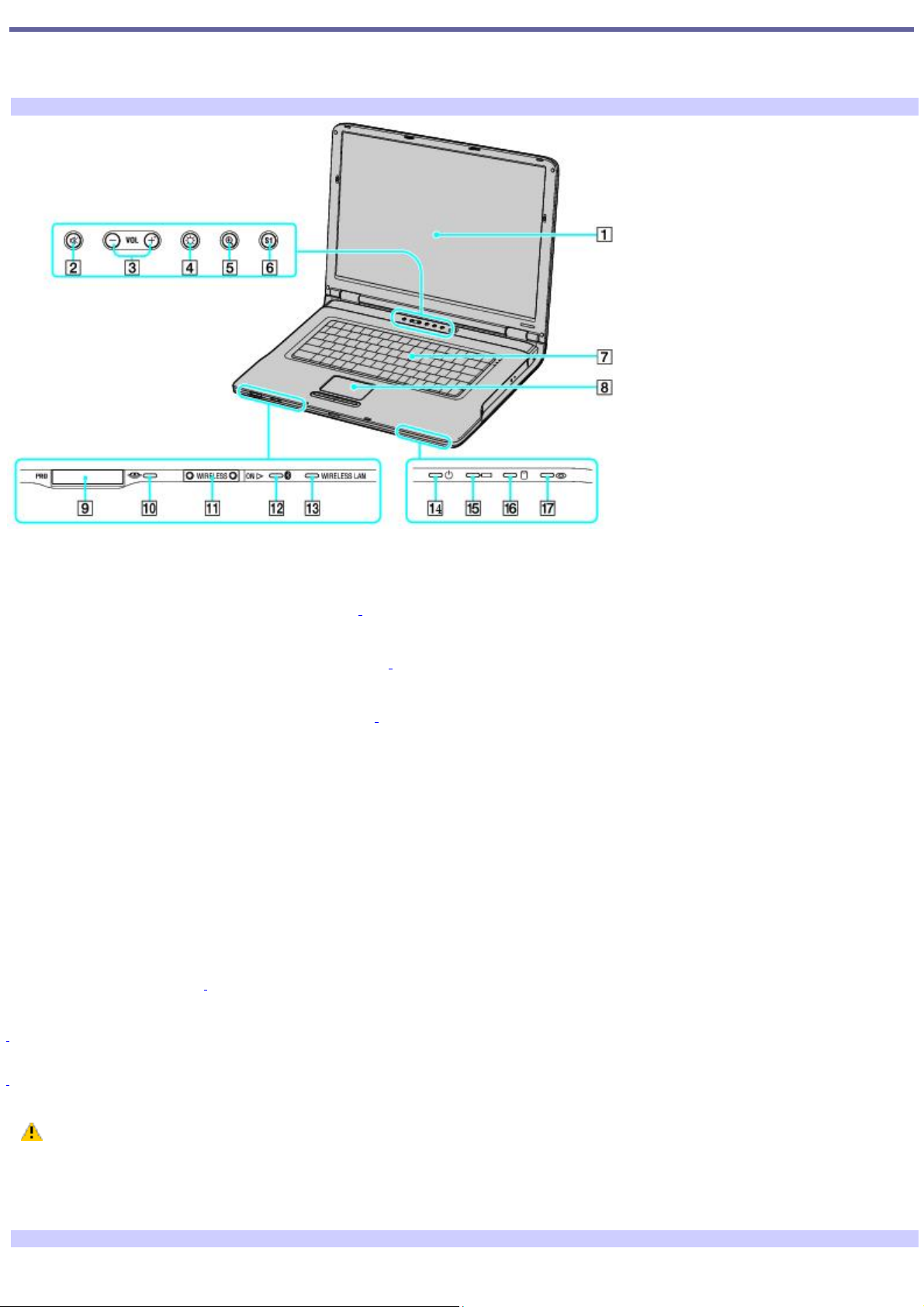
Locating Controls and Ports
Congratulations on your purchase of the Sony® VAIO® computer. Sony has combined leading-edge technology in audio,
video, computing, and communications to provide state-of-the-art personal computing.
Front
1 LCD screen 10 Memory Stick® media indicator
2 Mute button 11 Wireless switch1
3 Volume buttons 12 Bluetooth® indicator1
4 Brightness button 13 Wireless indicator1
5 Magnify screen button 14 Power indicator
6 S1 button 15 Battery indicator
7 Keyboard 16 Hard disk drive indicator
8 Touch pad 17 Optical drive indicator
9 Memory Stick® media slot2
1
Wireless LAN and Bluetooth functionality available on selec ted models only.
2
Y our c omputer s upports M emory Stick Duo media and Memory Stick PRO high speed and high capacity capabilities.
Do not insert more than one Memory Stick media into the Memory Stick media slot as it may damage the
computer.
Insert the Memory Stick media with the arrow facing up and toward the slot. Inserting the media improperly may
damage the computer.
Front
Page 8
Page 9
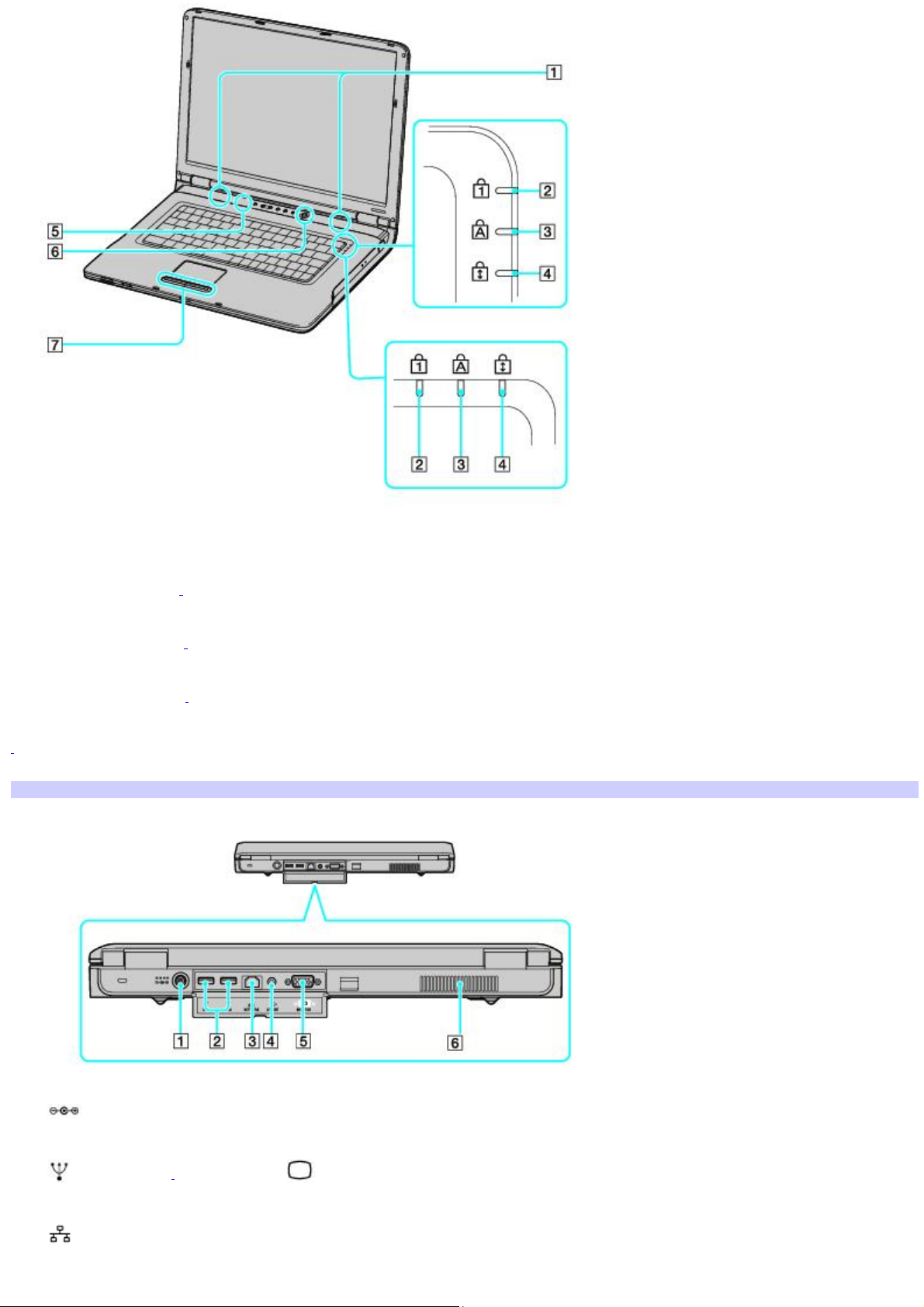
1 Speakers 5 Brightness sensor
2 Num lock indicator1 6 Power button
3 Caps lock indicator1 7 Left and right buttons
4 Scroll lock indicator1
1
Indicator appears on the top or right corner of the keyboard depending on the model that you purchased.
Back
1 DC In port 4 AV Out jack
2 USB 2.0 ports1 5 Monitor (VGA) port
3 Network (Ethernet) port 6 Air vent
Page 9
Page 10
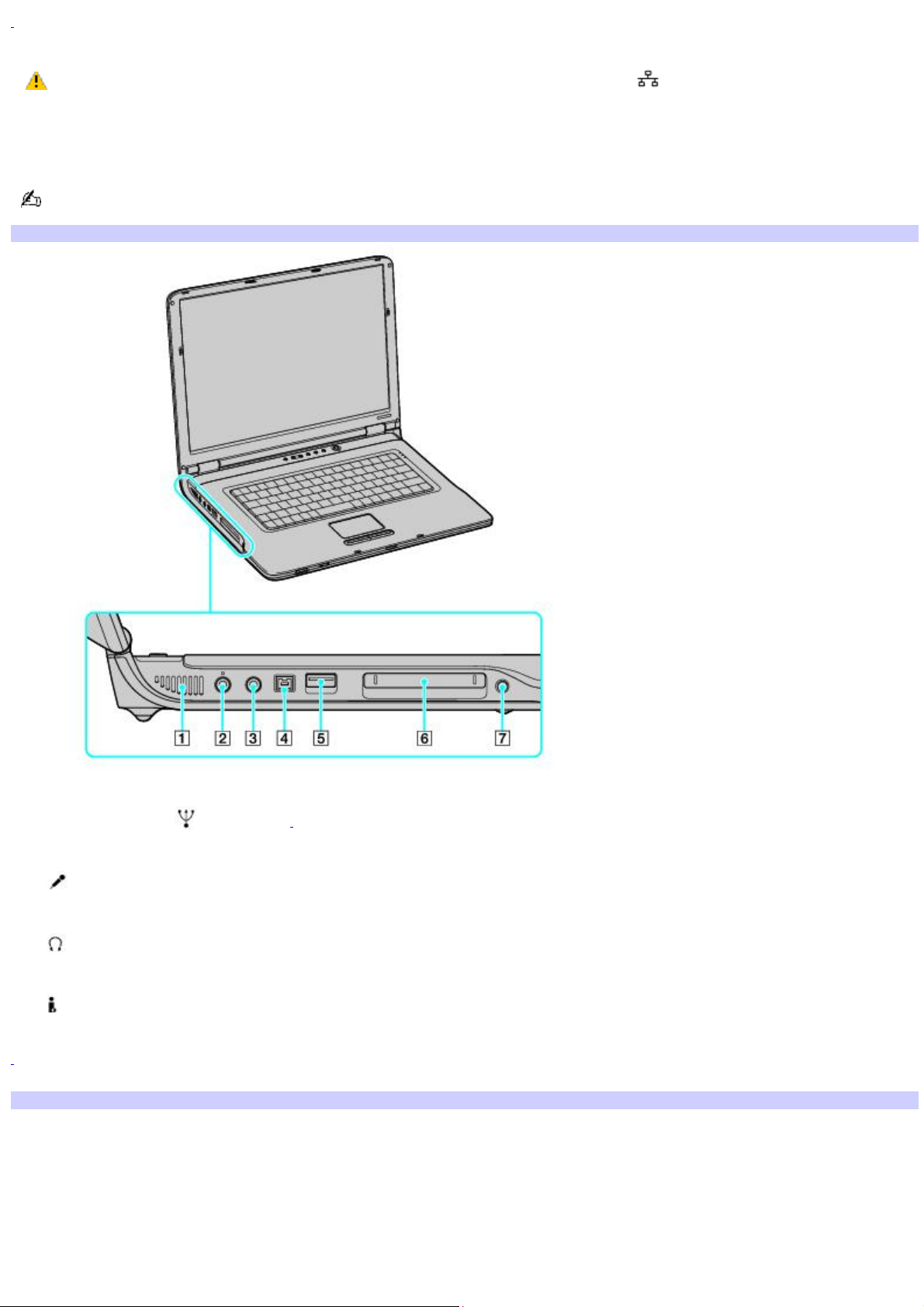
1
Supports high-/full-/low- speeds.
Only connect 10BASE-T, 100BASE-TX, 1000BASE-TX cables to the Network (Ethernet) port. Do not
connect any other type of network cable or any telephone line to this port. Connecting cables other than those listed
above may result in an electric current overload and could cause a malfunction, excessive heat, or fire in the port.
To connect the unit to a network, refer to your on-screen VAIO® Computer User Guide or contact your network
administrator.
Only selected models support a 1000BASE-TX connection.
Left
1 Air vent 5 USB 2.0 port1
2 Microphone jack 6 PC Card slot
3 Headphone jack 7 PC Card eject button
4 i.LINK® (IEEE 1394) S400 port
1
Supports high-/full-/low- speeds.
Right
Page 10
Page 11
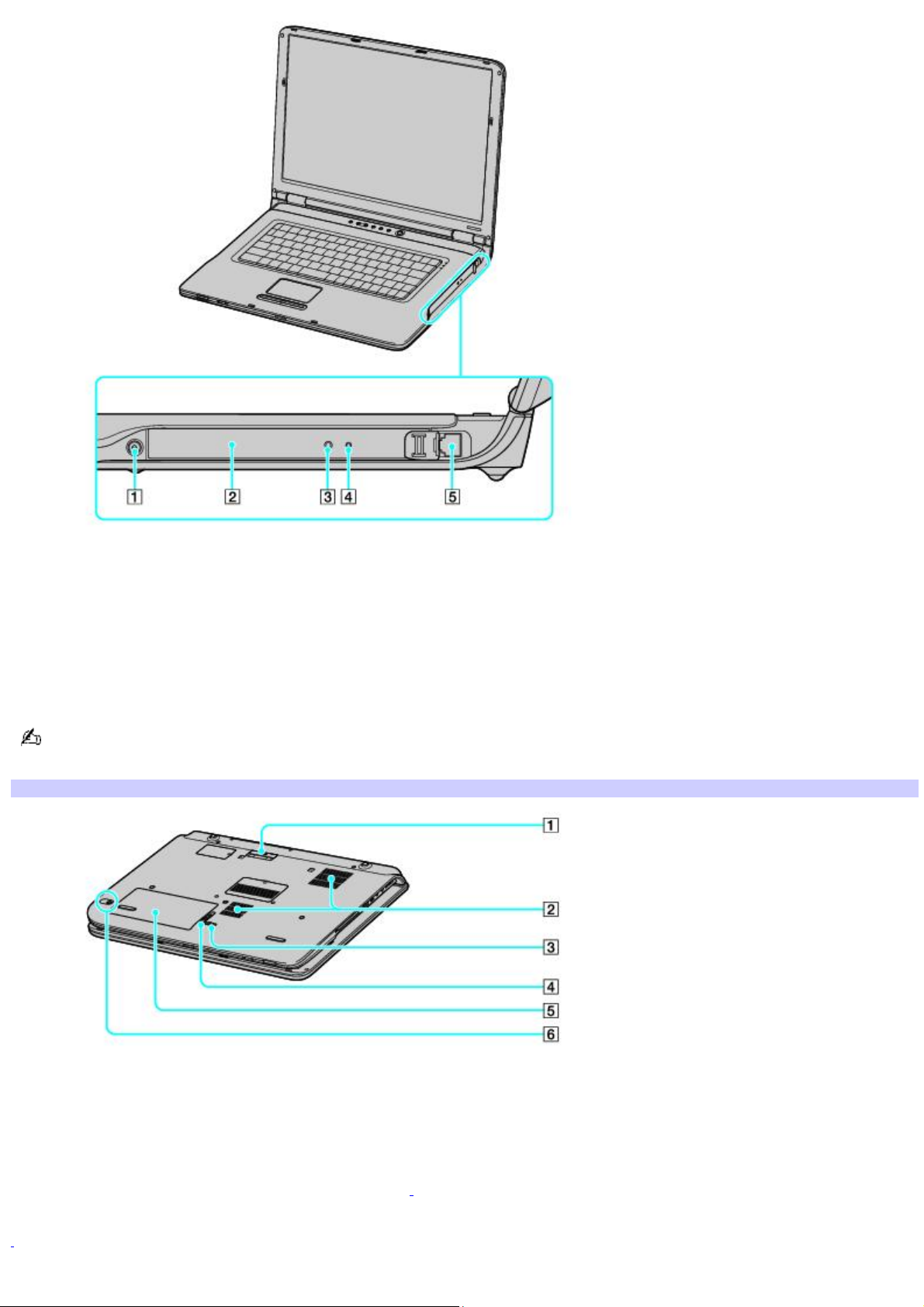
1 Drive eject button 4 Manual eject hole
2 Optical drive 5 Modem jack
3 Drive eject button
You can use either drive eject button to eject the optical drive tray. The drive eject button located next to the optical
drive functions only with Microsoft® Windows® operating system.
Bottom
1 Port replicator connector 4 RELEASE switch
2 Air vents 5 Battery bay
3 LOCK/UNLOCK switch 6 CONNECT button1
1
O n selected models with wireles s mouse functionality.
Page 11
Page 12
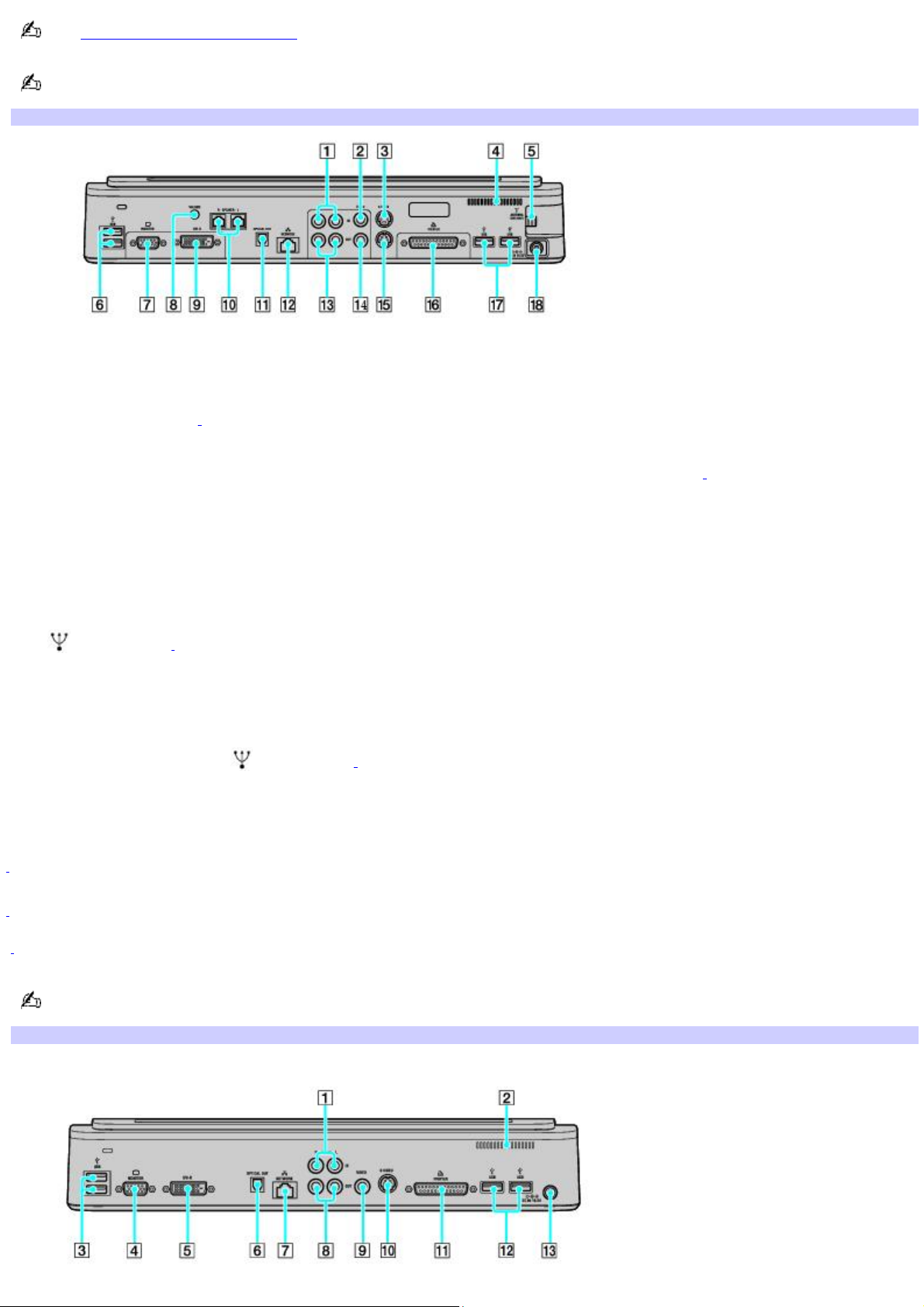
See Connecting a Wireless Mouse for more information about using the wireless optical mouse.
The printer port on this port replicator is intended for printer connections only.
A/V Port Replicator
1 Composite Audio In jacks 10 Speaker jacks (right and left)
2 Composite Video In jack 11 Optical Out port
Output frequency (48 kHz1/44 kHz)
3 S Video In port 12 Network (Ethernet) port (10BASE-T / 100BASE-TX / 1000BASE-TX2)
4 Air vent 13 Composite Audio Out jacks
5 VHF/UHF port 14 Composite Video Out jack
6 USB 2.0 ports3 15 S Video Out port
7 Monitor (VGA) port 16 Printer port
8 Volume jack 17 USB 2.0 ports3
9 DVI-D port 18 DC IN port
1
O utput frequency is 4 8 kH z for all frequenc ies except 32 kHz and 4 4 .1 kHz.
2
O nly selec ted models s upport a 10 0 0 BA SE-TX c onnec tion.
3
Supports high-/full-/low- speeds.
The printer port on this port replicator is intended for printer connections only.
Business Port Replicator
Page 12
Page 13

1 Composite Audio In jacks 8 Composite Audio Out jacks
2 Air vent 9 Composite Video Out jack
3 USB 2.0 ports1 10 S Video Out port
4 Monitor (VGA) port 11 Printer port
5 DVI-D port 12 USB 2.0 ports1
6 Optical Out port
Output frequency (48 kHz2/44 kHz) 13 DC IN port
7 Network (Ethernet) port (10BASE-T / 100BASE-TX / 1000BASE-TX3)
1
Supports high-/full-/low- speeds.
2
O utput frequency is 4 8 kH z for all frequenc ies except 32 kHz and 4 4 .1 kHz.
3
O nly selec ted models s upport a 10 0 0 BA SE-TX c onnec tion.
Page 13
Page 14

About the Indicator Lights
Indicator Function
Power
Turns on when the power to the computer is on, blinks in Standby mode, and turns off when the computer is
in Hibernate mode or off.
Battery
Turns on when the computer is using battery power, blinks when the battery is running out of power,
double-blinks when the battery is charging.
Memory Stick®
Turns on when data is read from or written to the Memory Stick media. (Do not enter Standby mode or turn off
the computer when this indicator is on.) When the indicator is off, the Memory Stick media is not being used.
Hard Disk
Turns on when data is read from or written to the hard disk. Do not enter Standby mode or turn off the
computer when this indicator is on.
Num Lock
Press this key to activate the numeric keypad. Press it a second time to deactivate the numeric keypad. The
numeric keypad is not active when the indicator is off.
Caps Lock
Press this key to type letters in uppercase. Letters appear in lowercase if you press Shift while the indicator is
on. Press the key a second time to turn off the indicator. Normal typing resumes when the Caps Lock indicator is off.
Scroll Lock
Press this key to change how you scroll the display. Normal scrolling resumes when the Scroll Lock indicator is
off. The Scroll Lock key functions differently depending on the program you are using and does not work with all programs.
Bluetooth®1 Turns on when the wireless switch is set to ON and Bluetooth technology is enabled.
Wireless
LAN* Turns on when the wireless LAN function is running.
1
O n selected models only.
See Internet and Network Connections for more information about Bluetooth and wireless technology.
Page 14
Page 15

Using Special Buttons
Your VAIO® computer is equipped with a variety of audio- and video-oriented function buttons: Volume, Brightness, and
Magnify screen.
Page 15
Page 16
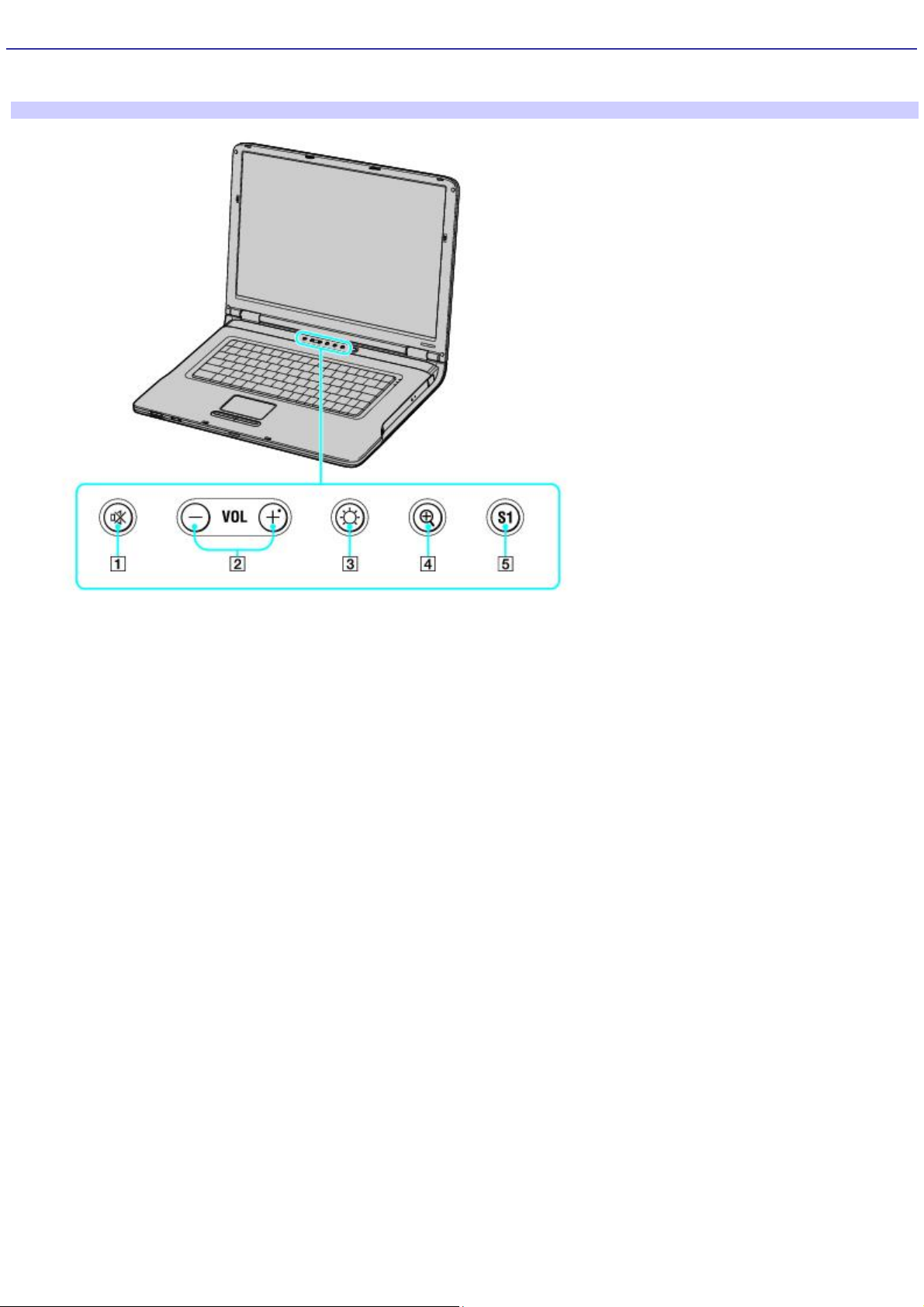
About the special buttons
The following information shows where the special buttons are located, and briefly describes their functionality.
Special Buttons
Number Type of Button
1 Mute. The Mute button enables and disables the audio output when using headphones or the internal speakers.
This button does not enable and disable the audio output for Optical Out, Line Out, or AV Out connections. The Mute button
illuminates when the audio output is disabled.
2 Volume. The Volume buttons control the audio output on your computer.
3 Brightness. The Brightness button, located between the Magnify screen and Volume buttons, toggles brightness
levels for the computer's LCD screen. There are three brightness settings: Auto, Brightness, and Max. The brightness
button illuminates when the brightness level is set to Brightness or Max.
4 Magnify screen. The Magnify screen button, located next to the computer's brightness button, works as a screen
resolution toggle button. By pressing it, you can alternate between different screen resolutions.
5 S1. The S1 button is a pre-programmable button that enables you to enter a power saving mode, switch between
displays, or launch an application.
Page 16
Page 17
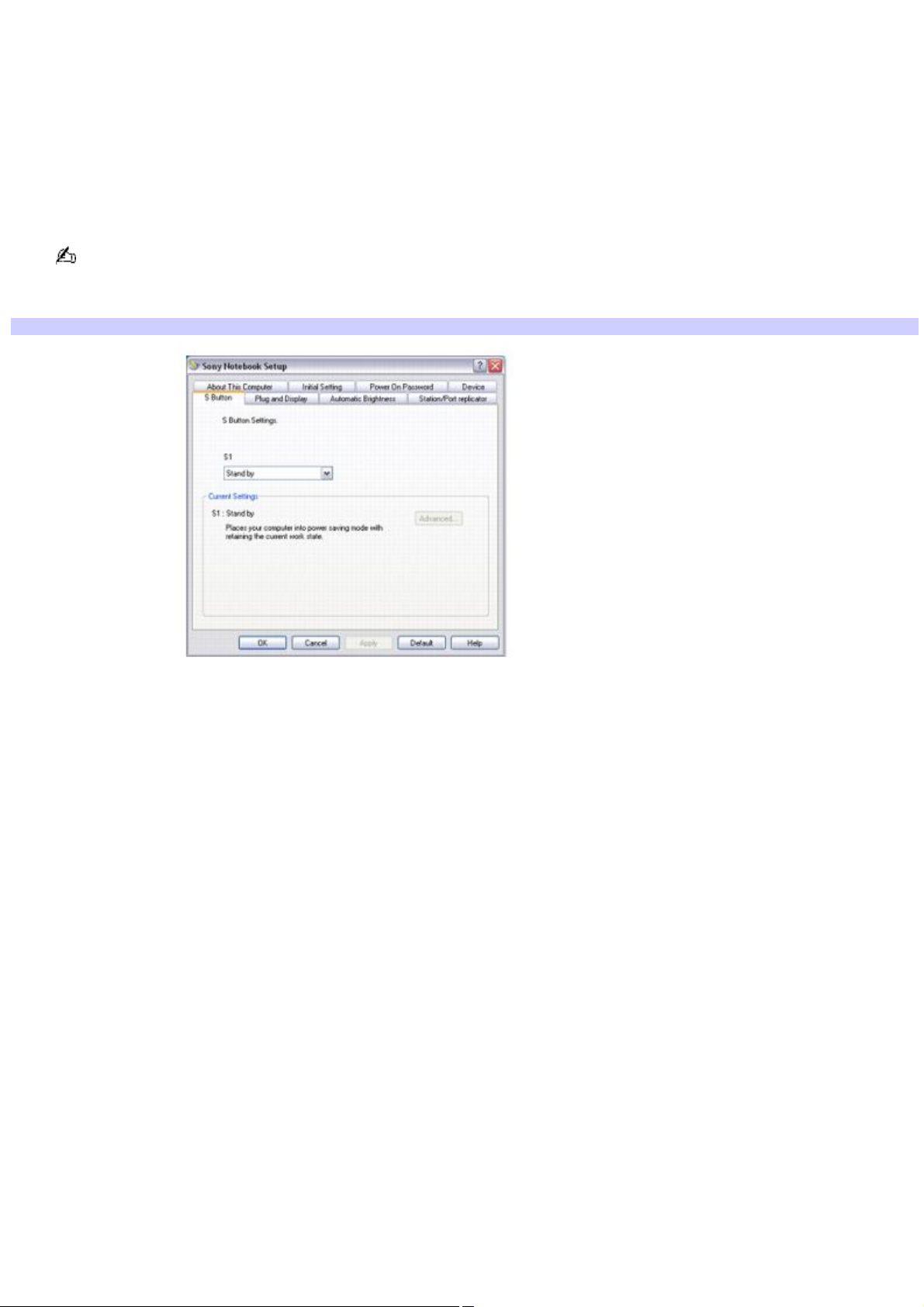
Using the S1 button
As a shortcut, you can assign a pre-programmable S1 button to enter a power saving mode, switch between displays, or
launch an application.
To assign a function to a programmable button
1.
Click Start, and point to All Programs and then Sony Notebook Setup.
2.
From the Sony Notebook Setup submenu, click Sony Notebook Setup.
You can also click the S1 button on the computer to launch Sony Notebook Setup.
3.
Click the S1 Button tab.
Sony Notebook Setup
4.
Click to select a key assignment from the S1 drop-down menu.
5.
Click Apply.
6.
Depending on the key assignment, you may be able to customize the S1 button further by clicking Advanced, if it
becomes available, in the Current Settings box.
Page 17
Page 18

Additional information about adjusting the brightness of the LCD screen
Your computer comes with a brightness sensor that automatically increases and decreases the LCD screen's brightness
level depending on the amount of external light. The automatic sensor is engaged the first time you turn on your computer.
To override the automatic setting and manually adjust the brightness, follow these steps:
Press the Brightness button, located next to the Volume buttons, and select one of the three brightness settings
(Auto, Brightness, or Max).
Press the Fn and F6 keys to increase brightness.
Press the Fn and F5 keys to decrease brightness.
Page 18
Page 19

Mice and Keyboards
Using the Keyboard
Although your computer's keyboard is very similar to a typewriter's keyboard, you can use the additional keys on the
computer's keyboard to perform specific computer-related tasks.
Page 19
Page 20

Mice and Keyboards
Using the Keyboard
Although your computer's keyboard is very similar to a typewriter's keyboard, you can use the additional keys on the
computer's keyboard to perform specific computer-related tasks.
Page 20
Page 21
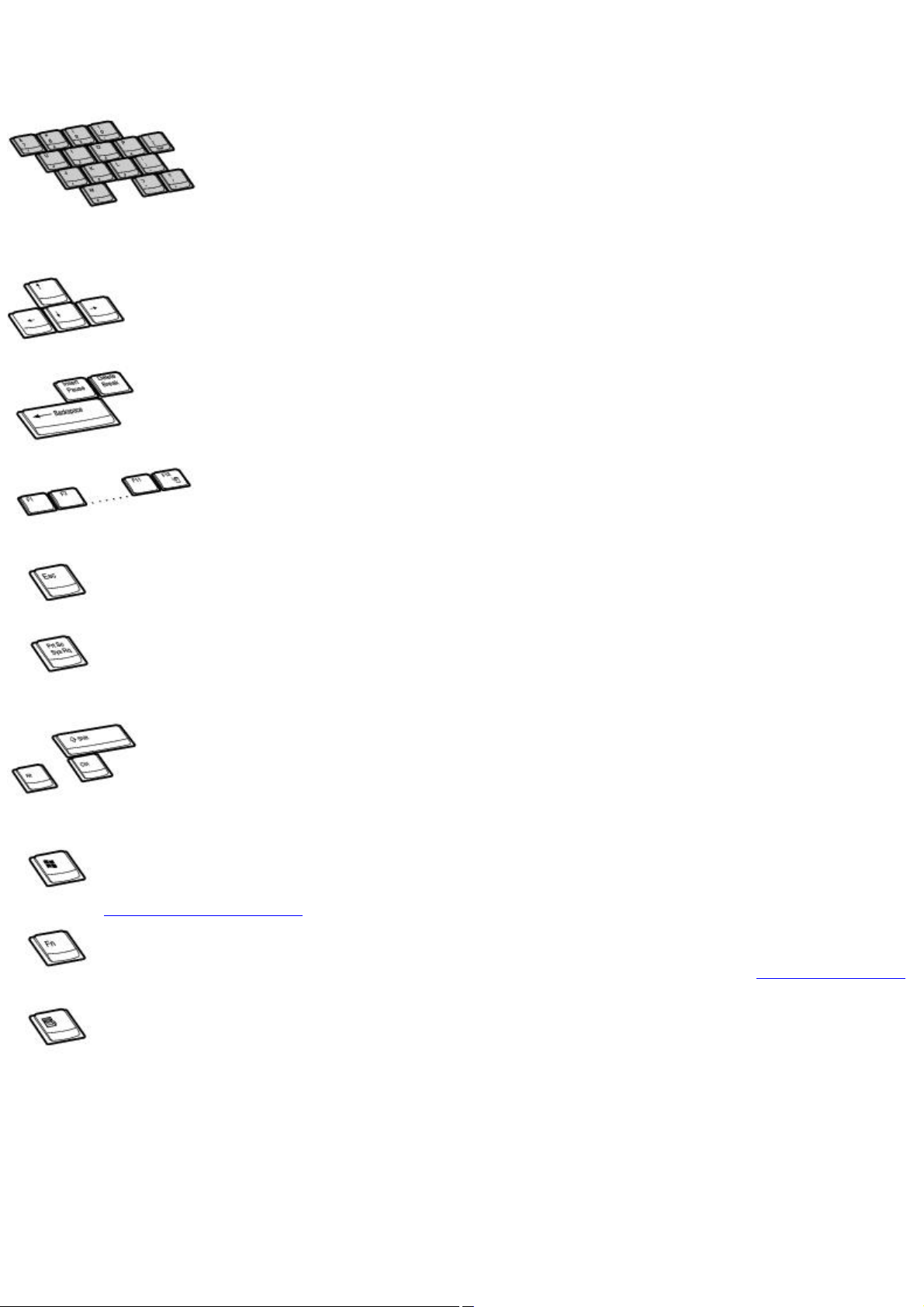
Keyboard descriptions
Key Description
The numeric keypad contains the keys found on a typical calculator. Use the numeric keypad to
type numbers or perform mathematical calculations, such as addition and subtraction. Numbers appear on the front beveled
edge of the numeric keys. Press the Num Lock key to activate the numeric keypad. (When you do so, the Num Lock indicator
light turns on.) Press the Num Lock key again to deactivate the numeric keypad.
The arrow keys move the pointer on the screen. They also function as the Home, End, Page Up,
and Page Down keys, respectively, when the Fn key is pressed.
The correction keys enable you to make corrections to keystrokes.
The 12 function keys along the top of the keyboard perform designated tasks. For example, in
many programs, F1 is the Help key. The task associated with each function key may vary from one program to the next.
The Escape key cancels commands.
The Print Screen key takes an electronic snapshot of the screen and moves it to the Clipboard.
You can then paste the screen shot into a document and print it.
The operator keys provide a variety of commands. For example, in many programs, instead of
choosing the Save command from a menu, you can hold down Ctrl and press S (referred to as Ctrl+S). Also, the Shift key
to produces capital letters or special symbols, such as @ and $.
The Windows key opens the Start menu. It is the equivalent of clicking Start on the Windows
®
taskbar. See Windows key combinations for more information.
The Fn key is used in combination with other keys to issue commands. See Fn key combinations
for more information.
The Applications key opens a shortcut menu of context-sensitive choices. It is the equivalent of
clicking the right mouse button.
Page 21
Page 22

Windows key combinations
Key combination Function
+F1 Displays the VAIO Help and Support Center window.
+Tab Switches the selected button on the taskbar.
+D Displays the desktop.
+E Displays the My Computer window.
+F Displays the Search Results window, where you can find a file or folder. This is the equivalent of selecting
Search from the Start menu.
+Ctrl+F Displays the Search Results - Computers window, where you can locate other computers. This is the
equivalent of selecting Search, and then Computer from the Start menu.
+M Minimizes all displayed windows.
Shift+ +M Returns all minimized windows to their previous size.
+R Displays the Run window. This is the equivalent of selecting Run from the Start menu.
Fn+ +Insert Displays the System Properties window. This is the equivalent of selecting Control Panel, and then
System from the Start menu.
Page 22
Page 23

Fn key combinations
Key combination Function
Fn+F5 Decreases the LCD screen brightness.
Fn+F6 Increases the LCD screen brightness.
Fn+F7 Toggles the display between the computer screen (LCD), a connected external display, and both the LCD and an
external display. Select one display when playing a DVD.
Fn+F12 Puts the system into Hibernate mode, a power management state. To return the system to normal operating
mode, press the power button. Hibernate mode consumes the lowest level of power.
Fn+Esc Puts the system into Standby mode, a power management state. To return the system to the active state,
press any key or the power button.
Page 23
Page 24

Connecting a Mouse or Keyboard
Your computer is compatible with many popular mice and keyboards. To function properly, the device you connect must be
compatible with the Microsoft® Windows® operating system installed on your computer.
Page 24
Page 25
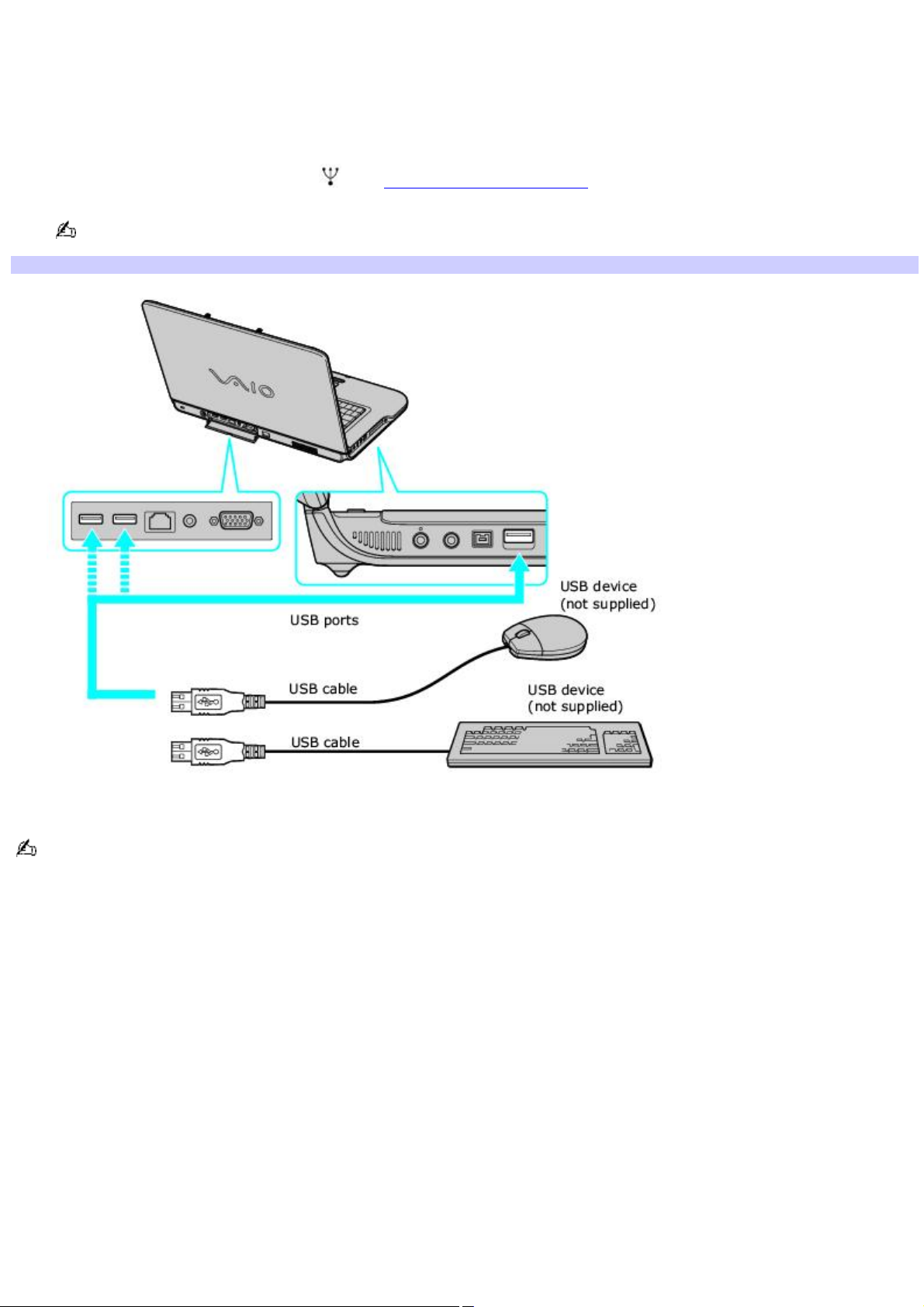
Connecting a mouse or keyboard
If you connect the mouse or keyboard when the computer is on, you may need to restart the computer for it to recognize
the device.
To connect a USB mouse or keyboard to your computer
1.
Plug the USB cable into the USB port . See Locating Controls and Ports.
One USB port supports one USB connection.
Connecting a USB Mouse or Keyboard
2.
If the New Hardware Wizard appears, follow the on-screen instructions to complete the installation process.
Although the New Hardware Wizard guides you through the software installation, some devices require separate
driver software installation. See the instructions that accompanied your mouse or keyboard for more information
Page 25
Page 26

Disconnecting a mouse or keyboard
You can disconnect a USB mouse or keyboard when the computer is on or off. However, disconnecting the mouse or
keyboard when the computer is in a power saving mode (Standby or Hibernate) may cause the computer to malfunction.
To disconnect a mouse or keyboard
Unplug the USB cable from the USB port.
Page 26
Page 27
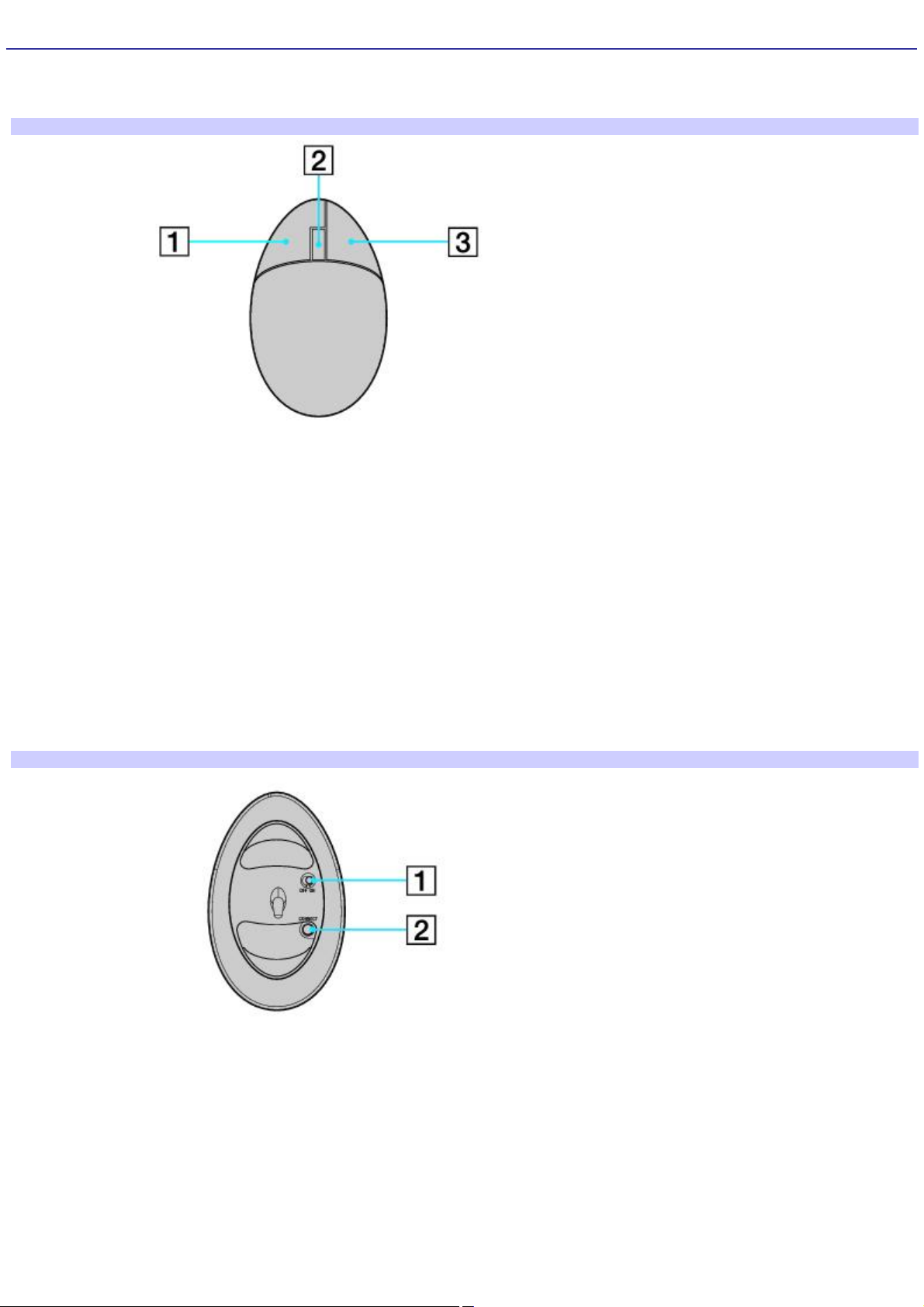
Connecting a Wireless Mouse
A wireless mouse is optional with your VAIO® computer. The following section explains the parts of the wireless mouse and
how it works.
Wireless mouse (top)
1 Left mouse button
Press to perform specific mouse functions.
2 Wheel button
Rotate the wheel to scroll up or down on the LCD screen.
3 Right mouse button
Press to perform specific mouse functions.
Wireless mouse (bottom)
1 Power switch
Slide power switch to turn the mouse on or off.
2 CONNECT button
Press to enable communication between your VAIO® computer and the wireless mouse.
Page 27
Page 28
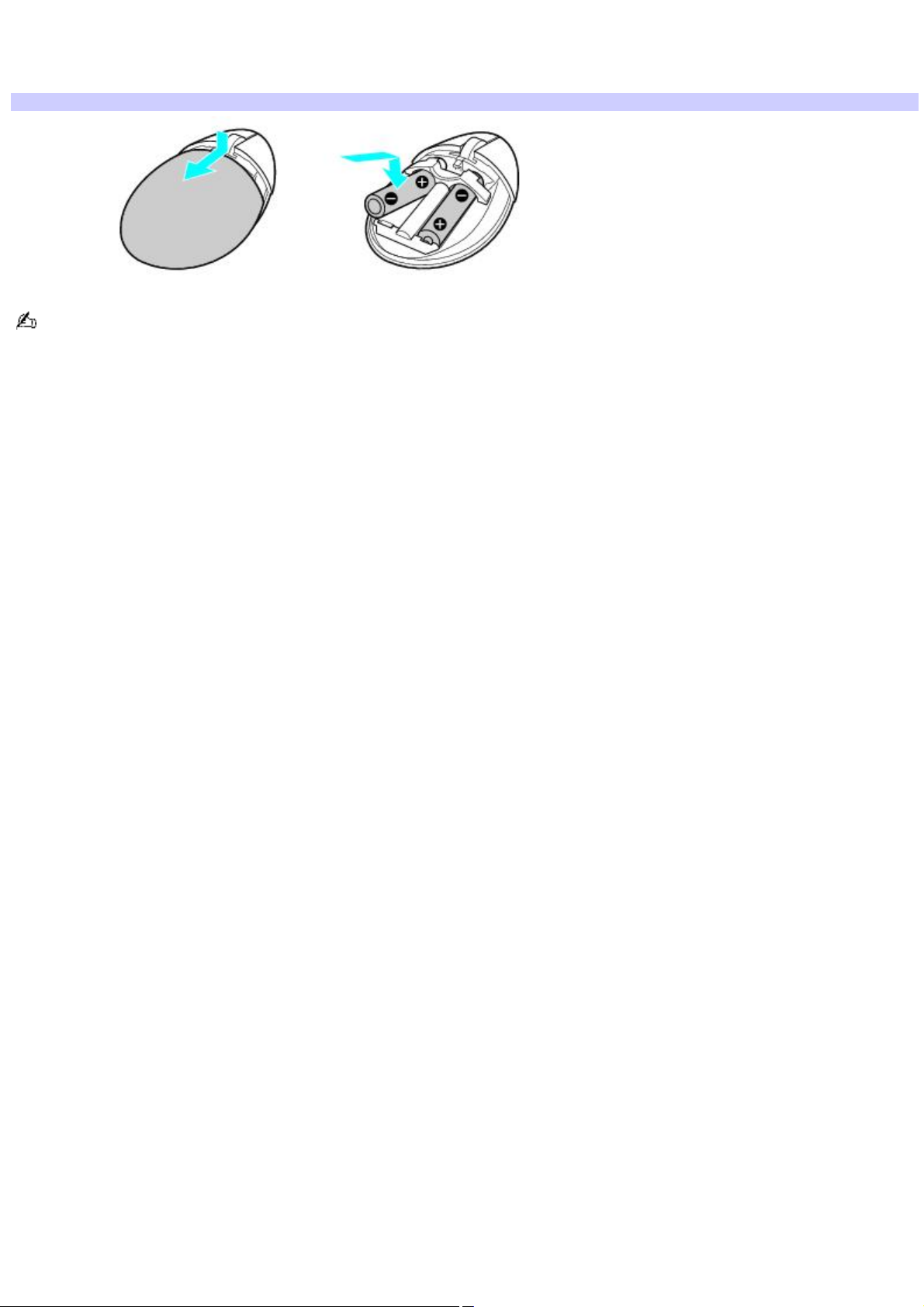
To set up the wireless mouse
Insert two AA batteries (supplied with the mouse) into the wireless mouse as shown.
Inserting batteries into the wireless mouse
If your wireless mouse does not operate properly, the batteries may need to be replaced. When your wireless mouse
is not being used for extended periods of time, remove the batteries to avoid possible damage from battery leakage.
Page 28
Page 29
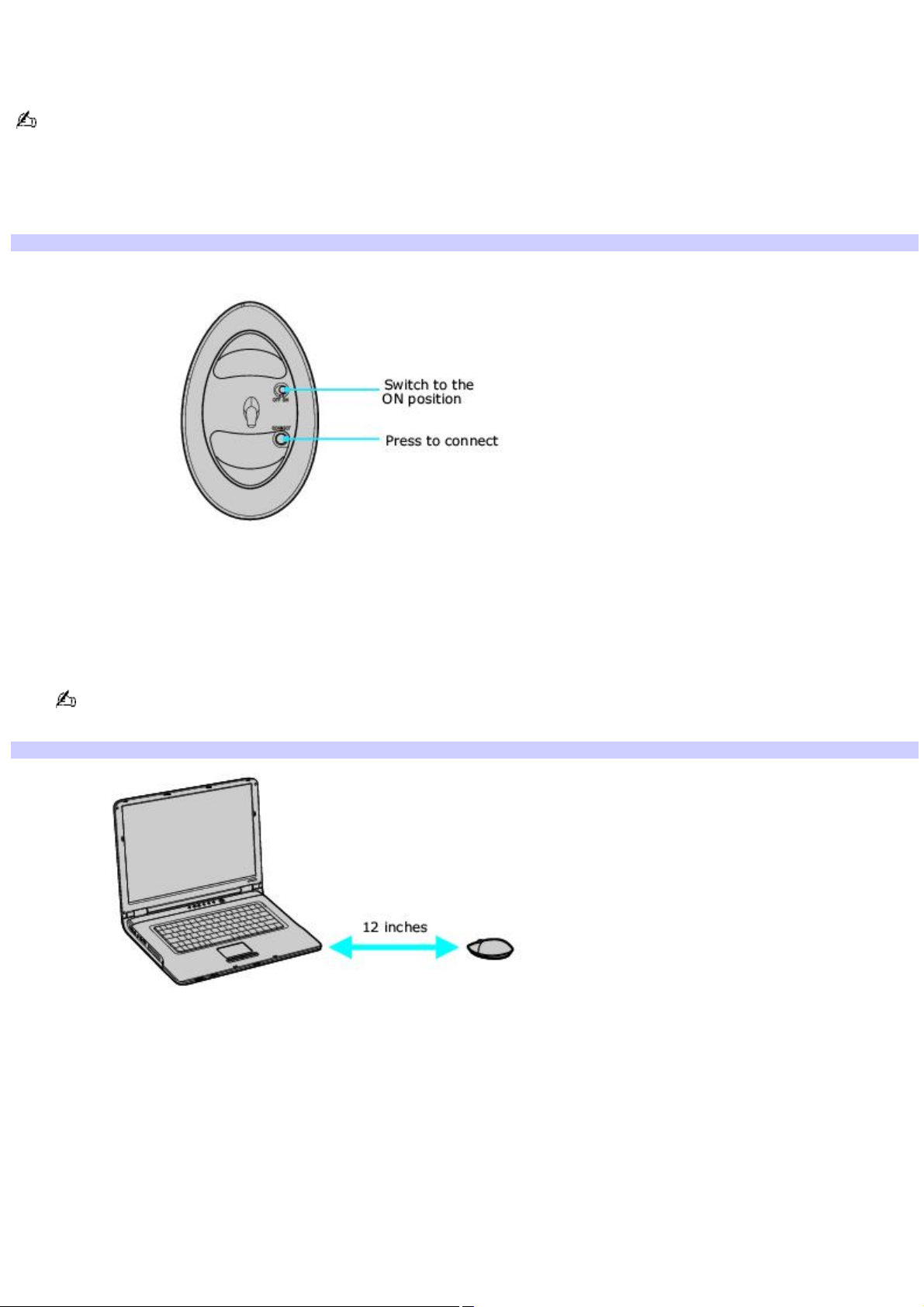
To connect the wireless optical mouse
Before attempting to use the wireless mouse, you must enable communication between the computer and the mouse.
When attempting to connect the wireless mouse, confirm that the AA batteries (supplied) are properly inserted into
the mouse before your computer is turned on.
1.
Turn the wireless mouse over.
2.
Slide the power button on the wireless mouse to the ON position.
Connecting the mouse
3.
Turn on your computer.
4.
Reach underneath the right side of the computer and press the CONNECT button.
5.
Immediately, press the CONNECT button on the wireless mouse.
Make sure to press the CONNECT button on the wireless mouse within 30 seconds after pressing the CONNECT
button on the computer. The wireless mouse must be within 12 inches of the computer.
Positioning the mouse
6.
Place the optical mouse on an appropriate surface to enable tracking.
Page 29
Page 30

Additional information about the wireless optical mouse
The wireless optical mouse requires an ideal surface texture in order to provide precision pointing and tracking.
Use surfaces such as plain paper, card stock, or fabric that have minimal repetitive patterns.
Avoid surfaces such as mirrors, smooth glass, or magazines that have half- tone printing.
The wireless optical mouse requires unobstructed communication with the system unit for proper operation.
Do not exceed a maximum distance of 2 feet between your VAIO® computer and your wireless mouse.
Confirm that the supplied AA batteries are properly installed.
Press the Connect buttons located underneath the right side of the computer and on the bottom of the mouse, to
establish the communication between the equipment.
Verify the infrared receiver on the computer's front panel is free of obstructions that may prevent proper operation.
Avoid using radio-controlled toys or equipment, CB radios, and other wireless devices in the area near your wireless
mouse. These devices may cause interference, causing your mouse to stop working properly.
Do not place metal furniture near your computer or wireless mouse, as this may create interference, causing your
mouse to stop working properly.
Page 30
Page 31

Using the Touch Pad
Describing the Touch Pad
A pointing device called a touch pad is located in front of the keyboard. You can point to, select, drag, and scroll objects on
the screen using the built-in touch pad.
Page 31
Page 32

Using the Touch Pad
Describing the Touch Pad
A pointing device called a touch pad is located in front of the keyboard. You can point to, select, drag, and scroll objects on
the screen using the built-in touch pad.
Page 32
Page 33

Locating and using the touch pad
Locating the Touch Pad
Touch Pad Action Description
Sliding one finger Equivalent to using a mouse to place the pointer on an item.
Tapping once Equivalent to pressing the left button once.
Tapping twice Equivalent to pressing the left button twice.
Sliding one finger while pressing the left button Equivalent to using the mouse to drag an item.
Moving your finger along the right edge of the touch pad Equivalent to scrolling vertically. (The scroll function is available
only with programs that support a touch pad scroll feature.)
Moving your finger along the bottom to scroll horizontally Equivalent to scrolling horizontally. (The scroll function is
available only with programs that support a touch pad scroll feature.)
Page 33
Page 34

Customizing the touch pad
Sony Notebook Setup lets you customize, enable, or disable the touch pad. Open the Mouse Properties dialog box to set
your touch pad and mouse preferences, such as changing pointers, enabling or disabling the tapping feature, clicking both
buttons simultaneously, and adjusting the touch pad speed.
To customize the touch pad and mouse
Right-click the Touchpad icon on the Taskbar Notification area, and click Mouse Properties from the shortcut
menu. The Mouse Properties dialog box appears.
To enable the touch pad
1.
Press the Windows key . The Start menu appears.
2.
Press P until All Programs is selected, and press Enter.
3.
Press S until Sony Notebook Setup is selected, and press Enter. A submenu appears with Sony Notebook
Setup preselected.
4.
Press Enter. The Sony Notebook Setup dialog box appears.
5.
Press the Right Arrow key to select the Device tab.
6.
Press the Tab key to select the Default button, and press Enter. A pop-up window appears.
7.
Press the Left Arrow key to select OK, and press Enter. The Enable Touchpad option is automatically
selected.
8.
Press the Tab key to select the Apply button, and press Enter.
9.
Click OK.
To disable the touch pad
1.
Click Start on the Windows® taskbar, and point to All Programs.
2.
Point to Sony Notebook Setup, and click Sony Notebook Setup in the submenu. The Sony Notebook Setup
dialog box appears.
3.
Click the Device tab.
4.
In the left panel, click to cancel the Pointing Device check box.
5.
Click Apply. A Sony Notebook Setup message appears.
6.
Click Yes.
Page 34
Page 35

Using the Multilingual User Interface Language Option
(Microsoft® Windows® XP Professional only) After you have initially setup your new VAIO® computer, you can change the
language displayed in Microsoft® Windows® XP Professional operating system. The multilingual user interface (MUI) language
option changes the text controlled by Windows XP Professional operating system. Menus, help files, and icons generated by
Windows XP Professional are shown in your selected language. All other programs are displayed in English as the default
language.
The multilingual user interface language option is not designed to replace a localized version of the Microsoft
Windows® XP Professional operating system. Under certain conditions, some third-party software applications may not
function properly.
To Change the Language Option
1.
Click Start on the Windows® taskbar, and then click Control Panel.
2.
Click Date, Time, Language and Regional Options, and then click Regional and Language Options. The
Regional and Language Options dialog box appears.
3.
Click the Languages tab.
4.
From the Language used in menus and dialogs shortcut menu, select the desired language:
English
Español
Português
Français
5.
Click Apply. The Change Regional Options shortcut window appears.
®
6.
Click OK.
7.
Click Start on the Windows® taskbar, and then click Logoff.
Additional users can also change to their desired language(s) without affecting your existing language settings.
Page 35
Page 36

Changing Numbers, Currency, Time, and Date Formats
You can change your operating system's number, currency, time, and date formats to coordinate with your chosen country
or language settings.
To change these formats
1.
Click Start on the Windows taskbar, and then click Control Panel.
2.
Click Date, Time, Language and Regional Options, and click Regional and Language Options. The Regional and
Language Options dialog box appears.
3.
From the Regional Options tab, click the Standards and formats shortcut menu to view the available country
choices. Select the desired country.
4.
Click Customize to change the number, currency, time, and date settings.
5.
Click Apply.
6.
Click OK.
7.
Click OK.
Page 36
Page 37

Powering Your Computer
Your VAIO® computer comes with a battery and an AC adapter. This chapter explains how to install and use these supplied
accessories to power your computer. It also describes ways you can efficiently utilize the battery as a power source.
Page 37
Page 38

Using AC Power
The supplied battery is not charged when you receive your computer. To charge the battery and begin using the computer
immediately, insert the battery into the computer and use the supplied AC adapter as a power source. The computer
automatically charges the installed battery while it uses AC power.
Page 38
Page 39

Connecting the AC adapter
To connect the AC adapter
1.
Plug the AC adapter cable into the DC IN port.
Connecting the AC Adapter to the Computer
2.
Plug the power cord into the AC adapter and an AC outlet.
Use only the supplied AC adapter with your computer.
Page 39
Page 40

Turning on the computer
To open and turn on the computer
1.
Press the release button and lift the cover while holding the bottom of the computer firmly.
Opening the Computer
2.
Press the power button until the green power indicator turns on.
Turning on the Computer
If you continue to press the power button, the computer turns off.
3.
If necessary, adjust the brightness of the LCD screen.
Your computer comes with a brightness sensor that automatically increases and decreases the LCD screen's brightness
level depending on the amount of external light. To override the automatic setting and manually adjust the brightness,
follow these steps:
Press the Brightness button, located next to the Volume buttons. See Using Special Buttons for more information.
Press the Fn and F6 keys to increase brightness.
Press the Fn and F5 keys to decrease brightness.
Page 40
Page 41

Using the Battery
Your computer, depending on the model you purchased, may come equipped with one battery bay and one multipurpose
bay that supports a second battery. If your computer comes with two bays, you can purchase a second rechargeable
battery to extend your computing time. For information on how to extend the life of the battery, see Conserving Battery
Power for more information.
When operating your computer on battery power, your computer's CPU speed is reduced.
The battery that comes with your computer is not fully charged at the time of purchase.
Only genuine Sony batteries may be used.
Page 41
Page 42

Using the Battery
The supplied battery is not charged when you unpack it. To charge it for future use, install the battery, and then connect
the AC adapter to power your computer. The battery charges from AC power regardless if the computer is on or off. For
information on how to extend the life of the battery, see Conserving Battery Power.
Page 42
Page 43

Inserting a battery
To insert a battery
1.
First turn the computer over so the bottom panel is facing up.
2.
Slide the LOCK/UNLOCK switch to UNLOCK, and then slide the RELEASE switch in the direction of the arrow to
lift the battery bay cover.
Opening the Battery Bay
3.
Slide the battery (with the logo facing up) into the battery bay cover. The two hooks on each side of the battery
bay cover should click into the grooves on the battery.
Inserting a Battery
4.
With the battery securely inserted into the battery bay cover, align the hooks on the battery bay cover with the
grooves inside the battery bay.
5.
Lower the battery into the battery bay until you hear it click.
Securing the Battery
6.
Slide the LOCK/UNLOCK switch to LOCK.
If a port replicator is attached to your computer, do not insert or remove the battery. Lifting and turning the computer
with a port replicator attached could cause a temporary loss of power.
Page 43
Page 44

Some programs and peripheral devices prevent the system from automatically entering Hibernate. If you are using battery
power, save your data frequently to avoid data loss and manually activate a power saving mode. See Using power saving
modes for more information.
Page 44
Page 45

Removing a battery
If you are not using the computer for an extended period of time, remove the battery from the computer to avoid damaging
the battery.
If the computer is on, connect the AC adapter and exit a power saving mode before you remove the battery.
To remove a battery
1.
Make sure the computer is turned off.
2.
Turn the computer over so the bottom panel is facing up.
3.
Slide the LOCK/UNLOCK switch to UNLOCK, and then slide the RELEASE switch in the direction of the arrow to
lift the battery bay cover.
Remov ing the Battery
4.
Holding the battery bay cover steady, gently pry the tabs located on either side of the battery bay cover from
the grooves in the battery, and lift the battery from the battery bay cover.
Page 45
Page 46

Locating battery information
Displaying the battery status provides useful information, such as remaining battery life.
To view battery information
1.
Click Start on the Windows® taskbar, and click Control Panel.
2.
Click Performance and Maintenance, and click Power Options. The Power Options Properties window
appears.
3.
Select the Power Meter tab. The total remaining battery charge is listed as a percentage.
You may also use the power icon on the Windows® taskbar to quickly view battery information. See To display the
power icon on the taskbar for instructions on how to set up this shortcut.
To display the power icon on the taskbar
1.
Click Start on the Windows® taskbar, and click Control Panel.
2.
Click Performance and Maintenance, and click Power Options. The Power Options Properties window
appears.
3.
Select the Advanced tab, and then select Always show icon on the taskbar in the Options box. The power icon
appears on the taskbar. See the power icon descriptions below for more information.
You can rollover the power icon to view the remaining battery charge, and you can double-click the power icon to open the
Power Meter window, which also displays the remaining battery charge.
Power icon Power status
Computer is using AC power.
Computer is using AC power and charging the battery.
Battery is charging.
Battery is fully charged.
Battery is discharging.
No battery is inserted in the computer.
Page 46
Page 47

Charging a battery
You will need to charge the battery if battery power drops below 10 percent or you have not used the battery for a long
time. The lithium-ion battery supplied with your computer may be recharged at any time, whether you wait until the battery
is completely or partially discharged. Charging a partially discharged battery does not affect battery life. If you charge the
battery and find that battery power is still low, the battery may be reaching the end of its life, and you may need to replace
it.
The battery supplied with your computer is not charged at the time of purchase.
To charge a battery
You can charge the battery when the computer is on or off. However, the battery will charge faster when the computer is
off. Charging the battery takes several hours.
Charge the battery at temperatures between 50°F and 80°F (10°C to 30°C). Lower temperatures require more time
to charge.
1.
Insert the battery into the battery bay.
2.
Connect the AC adapter to the computer. The computer automatically charges the battery as long as the
computer is using AC power.
The battery indicator blinks while the battery charges. The battery indicator stops blinking when the battery is fully
charged.
When using two batteries, the battery you insert first charges first. The second battery you insert begins charging
when the first battery is 85 percent charged.
Battery indicator status Description
On The computer is using battery power.
Single blink The battery is running out of power.
Double blink The battery is charging.
Off The computer is using AC power.
Page 47
Page 48

Notes on batteries
Never leave the battery in temperatures above 140°F (60°C), such as under direct sunlight or in a car parked in the
sun.
While the battery is in use or being discharged, the battery heats up. This is normal and is not cause for concern.
Keep the battery away from heat sources.
Keep the battery dry.
Do not open or disassemble the battery.
Do not expose the battery to any mechanical shock.
Battery life is shorter in a cold environment because of decreased battery efficiency at low temperatures.
Only genuine Sony batteries may be used.
Page 48
Page 49

Conserving Battery Power
You may use the power saving modes and power schemes to conserve battery power. Conserving battery power may
significantly extend your computing time, depending on how you use your computer.
Page 49
Page 50

Using power saving modes
In addition to the normal operating mode, which allows you to turn off specific devices to save power, your computer has
two distinct power saving modes: Standby and Hibernate. Use the Standby and Hibernate power saving modes to override
a power profile setting and initiate immediate action.
Standby — Saves the state of the system and peripheral devices in memory (RAM). Power consumption is reduced
to a minimum. The system remains on, and the computer screen (LCD) is off.
Hibernate — Saves the state of the system and peripheral devices to the hard disk. Power consumption is reduced
to the lowest possible setting without being completely off. Hibernate mode consumes the lowest level of power.
Your computer enters Hibernate mode when the remaining battery charge drops below 5 percent, regardless of the
setting you select.
Since some programs and peripheral devices prevent the system from entering Hibernate mode, save your data
frequently to avoid data loss.
To activate Standby mode
1.
Press the Fn and Esc keys. The power indicator blinks in this mode.
2.
Press any key to return to normal mode.
To activate Hibernate mode
1.
Press the Fn and F12 keys, or press the power button and release it immediately. Do not move the computer
until the power indicator turns off.
2.
Press the power button to return to normal mode.
If your computer does not activate Hibernate mode, see Why doesn't my computer enter Hibernate mode? for more
information.
Page 50
Page 51

Using power schemes
You can use the preset power schemes or you can customize the power profiles to conserve power. By using the power
schemes and power profiles, you control the power supplied to different devices, such as the computer screen (LCD) and
the hard disk drive, in your computer. You also control when the computer activates a power saving mode (Standby or
Hibernate).
To select a power scheme
1.
Click Start on the Windows® taskbar, and click Control Panel.
2.
Click Performance and Maintenance, and click Power Options. The Power Options Properties window appears
with the Power Schemes tab selected.
3.
Select a power scheme from the drop-down menu in the Power schemes box. Each power scheme is preset to
utilize your power supply efficiently, according to your computing functions. Select the power scheme that best
explains how you want to use your computer.
4.
Click Apply.
To create a power scheme
1.
Click Start on the Windows® taskbar, and click Control Panel.
2.
Click Performance and Maintenance, and click Power Options. The Power Options Properties window appears
with the Power Schemes tab selected.
You can also right-click the Power icon on the Windows® taskbar, and select Adjust Power Properties to open
the Power Options Properties window.
3.
Select your changes from the drop-down menus in the Settings for....power scheme box, and click Save As in
the Power schemes box. The Save Scheme window appears.
4.
Type a name for your customized power scheme, and click OK. The power scheme you created appears in the
Power schemes box.
If you want to delete a power scheme, select the power scheme and click Delete. When the Delete Scheme window
appears, click Yes.
To customize your power properties
1.
Click Start on the Windows® taskbar, and click Control Panel.
2.
Click Performance and Maintenance, and click Power Options. The Power Options Properties window
appears.
If you want to access the power scheme information quickly from the Windows® taskbar, see To display the
power icon on the taskbar for more information.
3.
Select the Advanced tab, and select your changes from the drop-down menus in the Power buttons box. See
Using power saving modes for information on how Standby and Hibernate modes affect power consumption.
4.
Click Apply.
To use VAIO Power Management
VAIO Power Management is a software program that enables you to further adjust the power settings on your computer.
Once you have selected a power scheme under the Power Schemes tab, you can modify it in the VAIO Power Management
tab to enhance your computer's operations.
1.
Click Start on the Windows® taskbar, and click Control Panel.
2.
Click Performance and Maintenance, and click Power Options. The Power Options Properties window
appears.
3.
Select the VAIO Power Management tab, and specify the options you want to adjust.
Page 51
Page 52

4.
Click Apply.
To set your battery alarm
You can change your computer settings to notify you when the battery power reaches a certain level.
1.
Click Start on the Windows® taskbar, and click Control Panel.
2.
Click Performance and Maintenance, and click Power Options. The Power Options Properties window
appears.
3.
Select the Alarms tab, and then select the type of alarm you want the computer to activate: a low or a critical
battery alarm.
4.
Drag the slider to the battery level at which you want the computer to activate the alarm. By default, the Low
battery alarm is set to 10 percent, and the Critical battery alarm is set to 5 percent.
5.
Click OK.
To further customize your alarm settings, click Alarm Action. In this window, you can select the type of alarm you
want the computer to activate and how you want the computer to respond to the alarm.
Page 52
Page 53

Locating battery information
Displaying the battery status provides useful information, such as remaining battery life.
To view the Power Meter window
1.
Double-click the Power icon. The Power Meter window appears. You can also rollover the Power icon to view the
remaining battery charge.
Power icon Power status
Computer is using AC power.
Computer is using AC power and charging the battery.
Battery is charging.
Battery is fully charged.
Battery is discharging.
No battery is inserted in the computer.
If the Power icon is not displayed on the Taskbar Notification area, see To display the Power icon on the taskbar.
Power Meter*
* T he P ower Meter window may appear slightly different on your computer, depending on the number of batteries your computer supports.
To display the Power icon on the taskbar
1.
Click Start on the Windows® taskbar, and click Control Panel.
2.
Click Performance and Maintenance, and click Power Options. The Power Options Properties window
appears.
3.
Select the Advanced tab, and then select Always show icon on the taskbar in the Options box. The power icon
appears on the taskbar. See the power icon descriptions above for more information.
Page 53
Page 54

Internet and Network Connections
Internet Connections
This section describes the basic steps for setting up your dial-up or Ethernet connection to the Internet. The New
Connection Wizard guides you through the process of connecting to the Internet and choosing an Internet service provider
(ISP) or setting up an existing account. When you connect to the Internet, you can register your VAIO® computer, use online
services, and gain access to Sony Computing Support.
Page 54
Page 55

Internet and Network Connections
Internet Connections
This section describes the basic steps for setting up your dial-up or Ethernet connection to the Internet. The New
Connection Wizard guides you through the process of connecting to the Internet and choosing an Internet service provider
(ISP) or setting up an existing account. When you connect to the Internet, you can register your VAIO® computer, use online
services, and gain access to Sony Computing Support.
Page 55
Page 56

Setting up a dial-up Internet connection
Before you can connect to the Internet, you need to connect your computer to a telephone line via a telephone cable (not
supplied). Once you set up your telephone cable, you're ready to connect to the Internet.
To connect a telephone cable
1.
Locate the Modem jack on your computer. For location information, see "Locating Controls and Ports."
2.
Plug one end of the telephone cable into the Modem jack. Make sure it clicks into place.
3.
Plug the other end into the wall jack.
Connecting a Telephone Cable
Your computer does not work with party lines, cannot be connected to a coin-operated telephone, and may not
work with multiple telephone lines or a private branch exchange (PBX). Some of these connections may result in excess
electrical current and could cause a malfunction in the internal modem.
If you connect a telephone cable coming through a splitter, the modem or connected device may not work properly.
To set up a dial-up connection to the Internet
1.
Connect your computer to a telephone line. See To connect a telephone cable for more information.
2.
Click Start, point to All Programs, Accessories, Communications, and click New Connection Wizard. The New
Connection Wizard appears.
New Connection Wizard
Page 56
Page 57

3.
Click Next. If the Location Information dialog box appears, follow the on-screen instructions.
4.
If it is not already selected, click to select Connect to the Internet, and click Next.
5.
Follow the on-screen instructions.
Page 57
Page 58

Setting up an Ethernet Internet connection
Your computer accommodates both 10BASE-T and 100BASE-TX Ethernet connections, with data transfer speeds of between
10 and 100 Mbps.
To connect an Ethernet cable
1.
Locate the Ethernet port on your computer. For location information, see "Locating Controls and Ports."
Connecting an Ethernet Cable
2.
Plug one end of the Ethernet cable into your computer's Ethernet port and the other into the network
connection.
To set up an Ethernet connection to the Internet
1.
Connect your computer to a network connection.
2.
Click Start, point to All Programs, Accessories, Communications, and click New Connection Wizard. The New
Connection Wizard appears.
New Connection Wizard
Page 58
Page 59

3.
Click Next. If the Location Information dialog box appears, follow the on-screen instructions.
4.
If it is not already selected, click to select Connect to the Internet, and click Next.
5.
Follow the on-screen instructions.
Page 59
Page 60

Customizing your Internet connection
The Internet Properties dialog box enables you to change the way you view the Internet. You can change your home page,
fonts, language, and colors. You can also regulate content and set browsing preferences.
To open the Internet Properties dialog box
1.
Click Start on the Windows® taskbar, and then Control Panel.
2.
Click Network and Internet Connections, and then Internet Options. The Internet Properties dialog box
appears.
3.
Click the tabs to view options.
4.
Make changes, and click Apply to activate your changes.
5.
Click OK.
Page 60
Page 61

Network Connections
With a Sony computer, you can easily set up or connect to a variety of networks. The New Connection Wizard and Network
Setup Wizard make it easy to gain access to networks (LANs) using wireless, Ethernet, or dial-up connections.
For more information about networking, click Start, Help and Support, and then Networking and the Web.
Types of Networks*
* T he c omputers repres ented in this illus tration are for repres entative purposes only and may not be identical to the model you purchased.
Page 61
Page 62

Using Ethernet and dial-up connections
For setting up local area networks (LANs), Ethernet is a widely installed technology. Your computer accommodates both
10BASE-T and 100BASE-TX Ethernet connections, with data transfer speeds of between 10 and 100 Mbps.
To connect to a local area network using a telephone or Ethernet cable
1.
Connect an Ethernet or telephone cable to your computer. See To connect an Ethernet cable and Setting up a
dial-up Internet connection for more information.
Connecting an Ethernet Cable
2.
Click Start, point to All Programs, Accessories, Communications, and click Network Setup Wizard. The
Network Setup Wizard appears.
Network Setup Wizard
Page 62
Page 63

3.
Click Next. If you are prompted to the Local Information dialog box, follow the on-screen instructions.
Only connect 10BASE-T and 100BASE-TX cables to the Ethernet port . Do not connect any other type
of network cable or any telephone cable. Connecting cables other than those listed above may result in an electric
current overload and could cause a malfunction, excessive heat, or fire in the port. To connect the unit to the network,
see Using Ethernet and dial-up connections or contact your network administrator.
You can connect to an Ethernet network from a remote location and use data, programs, and network resources. See
Microsoft® Windows® Help by clicking Help and Support from the Start menu, and then clicking Networking and the Web in
the left panel.
To connect to a remote network using a telephone or Ethernet cable
1.
Connect an Ethernet or telephone cable to your computer. See To connect an Ethernet cable and Setting up a
dial-up Internet connection for more information.
2.
From the Start menu, point to All Programs, Accessories, Communications, and click New Connection Wizard.
3.
Click Next. If you are prompted to the Local Information dialog box, follow the on-screen instructions.
4.
Click Connect to the network at my workplace, and then click Next.
5.
Follow the on-screen instructions.
6.
Ask your network administrator for the detailed settings and devices needed to connect to an existing network.
Page 63
Page 64

Using wireless network connections (selected models only)
A wireless local area network (LAN) is a network in which you can connect to a LAN through a wireless (radio) connection.
You can opt to purchase a Sony Wireless LAN Access Point to set up a LAN.
The wireless LAN access point is designed for building a wireless LAN environment. Because a wireless LAN configuration
requires no wiring, you can operate multiple computers more freely than ever before.
Your computer is equipped with a built-in mini PCI card that allows for wireless connections. For information about your
computer's wireless capabilities, see the VAIO® Computer Specifications.
For more information on Sony Wireless LAN, go to http://www.sonystyle.com/vaio.
There are two types of wireless connections:
An infrastructure network is one that extends an existing wired local network to wireless devices by providing an
access point. The access point bridges the wireless and wired LAN and acts as a central controller for the wireless
LAN. The access point coordinates transmission and reception from multiple wireless devices within a specific range.
For more information, see To connect to a wireless network.
A computer-to-computer (ad-hoc) network is one in which a local network is created only by the wireless devices
themselves, with no other central controller or access point. Each device communicates directly with other devices in
the network. You can set up an ad-hoc network easily at home. For more information, see To set up a
computer-to-computer (ad-hoc) network.
To connect to a wireless network
1.
Make sure an access point is set up. See the instructions that accompanied the access point for more
information.
2.
Move the Wireless LAN switch to ON. (For location information, see "Locating Controls and Ports.")
The Switch wireless devices window appears.
Switch Wireless Devices
3.
Click to select the Bluetooth option, and then click OK.
During first use, the Welcome to BlueSpace NE window appears.
To open the Switch wireless devices window, click the Bluetooth-ON icon on the Taskbar Notification area.
4.
Click Start, Control Panel, Network and Internet Connections, and then click Network Connections. The
Network Connections window appears.
5.
In the right panel under LAN or High-Speed Internet, click Wireless Network Connection Enabled. The
Wireless Network Connection window appears.
Wireless Network Connection
Page 64
Page 65

6.
From the Available wireless networks list, select the name of the network in which you want to connect. If you
do not see the network name, see If the network does not appear in the Available wireless networks list box.
7.
If required, type the network key in the Network key box. (If necessary, ask the administrator for the key.)
8.
Retype the network key in the Confirm network key box.
9.
Click Connect.
If the network does not appear in the Available wireless networks list box
1.
Click Advanced on the Wireless Network Connection dialog box. The Wireless Network Connection Properties
dialog box appears.
Wireless Network Connection Properties
2.
Click Add in the Preferred networks box. The Wireless network properties dialog box appears.
Wireless Network Properties
Page 65
Page 66

3.
Type the name of the network (access point) you want to connect to in the Network name (SSID) box.
The following steps are for networks that require a network key. If you do not know the network key or are not
sure a network key is required, see the network administrator or the guide that accompanied your access point for
more information.
4.
If available, make sure the Data encryption (WEP enabled) check box is selected.
If the Data encryption (WEP enabled) check box is not available:
1.
Select an authentication method from the Network Authentication menu.
2.
Select a data encryption method from the Data Encryption menu.
5.
Click to cancel the The key is provided for me automatically check box.
6.
Type the network key in the Network key box if it is required by the selected authentication method.
7.
Retype the network key in the Confirm network key box.
8.
Click OK. The network name appears in the Preferred networks list box.
To set up a computer-to-computer (ad-hoc) network
The computer-to-computer (ad-hoc) network is only supported by the IEEE 802.11b wireless standard.
1.
Move the Wireless LAN switch to ON. For location information see "Locating Controls and Ports."
2.
Click Start, Control Panel, Network and Internet Connections, and then click Network Connections. The
Network Connections window appears.
3.
In the right panel under LAN or High-Speed Internet, click Wireless Network Connection Enabled. The
Wireless Network Connection window appears.
Wireless Network Connection
Page 66
Page 67

4.
Click Advanced. The Wireless Network Connection Properties dialog box appears.
Wireless Network Connection Properties
5.
Click Add. The Wireless network properties dialog box appears.
Wireless Network Properties
Page 67
Page 68

6.
Type the name of the network you want to connect to in the Network name (SSID) box.
7.
If available, make sure the Data encryption (WEP enabled) check box is selected.
If the Data encryption (WEP enabled) check box is not available:
1.
Select an authentication method from the Network Authentication menu.
2.
Select a data encryption method from the Data Encryption menu.
8.
Click to cancel the The key is provided for me automatically check box.
9.
Type a network key in the Network key box.
10.
Retype the network key in the Confirm network key box.
11.
Click to select This is a computer-to-computer (ad hoc) network; wireless access points are not used.
12.
Click OK. The network name appears in the Preferred networks list box.
13.
Click Advanced. The Advanced dialog box appears.
Advanced
14.
Click to select Computer-to-computer {ad hoc} networks only, and then click Close.
To disconnect from a wireless network
For computers with built-in wireless LAN functionality, move the Wireless LAN switch to OFF.
Turning off the wireless LAN functionality while accessing remote documents, files, or resources may
result in data loss.
To disconnect from a computer-to-computer (ad-hoc) network
1.
Click Start, Control Panel, Network and Internet Connections, and then click Network Connections. The
Network Connections window appears.
2.
In the right panel under LAN or High-Speed Internet, click Wireless Network Connection Enabled. The
Wireless Network Connection Status window appears.
3.
Click Properties. The Wireless Network Connection Properties dialog box appears.
4.
On the Wireless Networks tab, click Advanced. The Advanced dialog box appears.
5.
Click to select Any available network (access point preferred), and click Close.
6.
Move the Wireless LAN switch to OFF.
Page 68
Page 69

Checking your network connection status
Whether you have a wireless, Ethernet, or dial-up connection, you can check the status of that connection.
To check your network connection status
1.
Click Start on the taskbar, and click Control Panel, Network and Internet Connections, and Network
Connections. The Network Connections window appears.
2.
Under LAN or High-Speed Internet, click the enabled network connection to open the connection status
window.
Wireless Network Connection Status
Page 69
Page 70

Bluetooth Connections
Bluetooth® wireless technology provides short-range connectivity without the need for cabling. When the Bluetooth
functionality is turned on, your computer can exchange data and images with other compatible Bluetooth devices within a
range of up to 32 feet.
With Bluetooth technology, your computer transmits a radio frequency of 2.4 GHz. Sensitive locations, such as
hospitals and airplanes, may have restrictions on the use of Bluetooth devices, due to radio interference. Check with facility
staff to verify that use of the Bluetooth feature on your computer is permitted.
Page 70
Page 71

Using Bluetooth technology
Using Bluetooth® technology, your computer can communicate with:
Compatible devices with integrated Bluetooth functionality, such as computers, mobile telephones, personal digital
assistants (PDAs), mice, and keyboards.
Compatible devices with an installed Bluetooth adapter, such as computers, printers, mice, and keyboards.
Some Bluetooth devices may not work with your computer, depending on the type of equipment, software version,
and other factors. Before purchasing a Bluetooth device, check its operating environment requirements.
A computer with Bluetooth features can:
Send files and images between compatible devices
Exchange vCards (electronic business cards)
Connect to the Internet using a dial-up connection
Print files and images on a printer equipped with Bluetooth technology
Exchange addresses with compatible cellular phones
Page 71
Page 72

Establishing wireless connections
The "Switch wireless devices" window enables you to select a wireless connection: Bluetooth, Wireless LAN, or Bluetooth
and Wireless LAN function.
Bluetooth® technology is designed for a short-range connection of up to 32 feet (10 meters), while Wireless LAN technology
has a wider connection range of up to 328 feet (100 meters). Your computer is capable of both Bluetooth and Wireless LAN
connections. For more information about Wireless LAN, see Using wireless network connections (selected models only).
To establish a Bluetooth connection
1.
On your computer, move the WIRELESS switch to ON.
The Switch wireless devices window appears.
Switch Wireless Devices
2.
Click to select the Bluetooth option, and then click OK.
During first use, the Welcome to BlueSpace NE window appears.
To open the Switch wireless devices window, click the Bluetooth-ON icon on the Taskbar Notification area.
Welcome to BlueSpace NE
3.
Click OK.
The BlueSpace NE window appears.
You can also click the Bluetooth-Standing by icon on the Taskbar Notification area to open the BlueSpace NE
window.
BlueSpace NE
Page 72
Page 73

4.
Click Device Discovery.
The Device Discovery window appears and searches for other nearby Bluetooth devices.
Device Discovery
When a device is detected, it appears in the The device currently found window next to the New icon .
BlueSpace NE — Devices Currently Found
5.
In The device currently found area, click to select the device in which you want to connect. (There may be more
than one device displayed.)
6.
If the device to which you want to connect has already been authenticated, the Authentication icon is
displayed next to the device. Click Service Discovery for a list of available services, such as transferring files or
images.
If the device to which you want to connect has not already been authenticated, a window prompt may ask if you
want to authenticate the device. Follow the on-screen instructions. For more information, see Authenticating
devices.
BlueSpace NE — Service Discovery List
Page 73
Page 74

Page 74
Page 75

Authenticating devices
Authentication is a security feature, which prevents unauthorized communication between Bluetooth® devices. The first time
Bluetooth devices attempt to communicate with each other, a common passkey must be entered before the two devices are
allowed to exchange data. If the detected device has the same passkey as your computer, then authentication is
successful, and your computer can communicate with the Bluetooth device. If the detected device does not have the same
passkey as your computer, authentication fails.
A passkey is a private code entered by the user to enable two Bluetooth devices to communicate. When the same
code is entered on both devices, communication becomes possible. The passkey may be changed at each communication
session.
If a communication session is disconnected, you need to re-establish the passkey. Enter the passkey within approximately
30 seconds or authentication will fail.
To authenticate a Bluetooth device
1.
If the Confirmation for the authentication window does not automatically appear, right-click the device you
want to authenticate, and then click Authentication from the shortcut menu.
The Confirmation for the authentication window appears.
Confirmation for the Authentication
2.
Click Yes.
The Bluetooth Connection Wizard appears.
Bluetooth Connection Wizard
3.
Click Next.
Another Bluetooth Connection Wizard window appears.
Bluetooth Connection Wizard — Passkey
Page 75
Page 76

4.
In the Passkey text box, type your own passkey or use the passkey that is provided. Click Next.
On the Bluetooth device in which you are trying to connect, a message may appear, stating that a Bluetooth
device requires authentication. If this message appears, follow the on-screen instructions.
5.
On the Bluetooth device, type the same passkey as the one entered on your computer. If the passkey is not
entered within approximately 30 seconds, authentication fails.
If authentication fails, the Bluetooth Connection Wizard states, The device was not authenticated. Click Finish,
and try the authentication procedure again.
The passkey text box location may vary, depending on the Bluetooth device. For more information, see the
documentation that accompanied the device.
6.
Click Next.
Your computer begins the authentication process.
Bluetooth Connection Wizard — Authentication Status
You receive confirmation when the device is authenticated.
Bluetooth Connection Wizard — Authentication Completed
Page 76
Page 77

Page 77
Page 78

Renaming the Bluetooth USB Device
The Bluetooth® device installed on your computer has an assigned name that you may not recognize. Renaming this device
makes it easy for you to identify your computer during authentication.
To rename the Bluetooth USB device
1.
From the Start menu, click Control Panel.
2.
Click Printers and Other Hardware, and then click Wireless Link.
The Wireless Link window appears.
3.
Click the Hardware tab.
Wireless Link
4.
Select USB Bluetooth Device, and then click Properties.
The USB Bluetooth Device Properties window appears.
5.
Click the Advanced tab, and type a new name in the Name text box.
USB Bluetooth Device Properties
6.
To see the new USB Bluetooth Device name, turn off the Bluetooth feature by moving the WIRELESS switch on
your computer to OFF, and then restart it by moving the WIRELESS switch to ON.
Page 78
Page 79

Sending data and image files
When a connection is made between your computer and another Bluetooth® device, connection services become available.
You can click Service Discovery for a list of available services that can be performed during your connection. If the File Push
and Image Push icons appear, then your computer can send and receive data and image files.
For information about services, see Using connection services.
To send data files
1.
Establish a connection with another Bluetooth device.
For more information, see Establishing wireless connections.
2.
On the BlueSpace NE window, click Service Discovery.
The File Push icon appears in the Service Discovery area if the service is available.
3.
Click the File Push icon in the Service Discovery area.
The Select Files to Send window appears.
4.
Select the file you want to send, and click Send.
The Completed Send File window appears when your file is received by the Bluetooth device to which your
computer is connected.
Completed Send File — BlueSpace NE
To send image files
1.
Establish a connection with another Bluetooth device.
For more information, see Establishing wireless connections.
2.
On the BlueSpace NE window, click Service Discovery.
The Image Push icon appears in the Service Discovery area if the service is available.
3.
Click the Image Push icon .
The Select Image Files to Send window appears.
4.
Select the file you want to send, and click Send.
A confirmation window appears when the image file is successfully sent.
When your computer receives an image, the file automatically opens.
Page 79
Page 80

Using connection services
When a connection is made between your computer and another Bluetooth® device, you can click Service Discovery for a list
of available services that can be performed during your connection. When clicked, the purple Service Discovery icons search
for a connection method.
For more information about the different services, see the BlueSpace NE help guide:
1.
On the BlueSpace NE window, click Help.
2.
Select Search for topic.
The Help for BlueSpace NE window appears.
For information about the File Push and Image Push services, see Sending data and image files.
Page 80
Page 81

Setting Bluetooth preferences
The Bluetooth Options feature enables you to set hardware preferences for discovery, connection, and authentication.
To access Bluetooth Options
1.
Click Start, Control Panel, Printers and Other Hardware, and Wireless Link.
The Wireless Link window appears.
2.
On the Bluetooth tab, click Options.
The Bluetooth Options window appears.
Bluetooth Options
3.
Set your desired preferences, and click OK.
For more information about preferences, click the Bluetooth Connection Options link near the bottom of the
window.
Page 81
Page 82

Setting BlueSpace NE preferences
The BlueSpace NE Settings feature enables you to set software preferences for changing folder location, responding to
device discovery, displaying windows, and more.
To set BlueSpace NE settings
1.
Verify that your computer is not connected to another Bluetooth device.
2.
From the BlueSpace NE window, click Setting, and then click BlueSpace NE settings.
The BlueSpace NE Settings window appears.
BlueSpace NE Settings
3.
Click each tab to navigate through the window and set your preferences.
For more information about settings, click Help.
Page 82
Page 83

Adding a Bluetooth device
Your computer can connect to several compatible Bluetooth® devices, such as printers, mobile telephones, modems for
dial-up Internet connections, digital cameras, and personal digital assistants (PDAs). For specific device connection
information, see the documentation that accompanied the device. You can also get connection information in the Bluetooth
and BlueSpace NE help guides
To access the Bluetooth help guide
1.
From the Start menu, click Control Panel.
2.
Click Printers and Other Hardware, and then click Wireless Link.
The Wireless Link window appears.
3.
From the Bluetooth tab, click the Bluetooth link near the bottom of the window.
The Bluetooth help guide appears.
4.
Click Installing and authenticating Bluetooth devices for a list of devices.
To access the BlueSpace NE help guide
1.
If the BlueSpace NE window is not already open, click the Bluetooth - Standing by icon on the Taskbar
Notification area.
2.
On the Help menu, click Search for topics.
The Help for BlueSpace NE window appears.
Page 83
Page 84

Disconnecting a Bluetooth device
To disconnect or remove a device
1.
If the BlueSpace NE window is not already open, click the Bluetooth - Standing by icon on the Taskbar
Notification area.
2.
In the Devices currently found window, select the device you want to disconnect or remove.
3.
From the BlueSpace NE window, click Device.
4.
From the Device menu, click either Remove device, Remove all devices, or select an option from the
Disconnect submenu.
Page 84
Page 85

Additional information
The data transfer rate varies, depending on the following conditions:
Obstacles, such as walls, located between devices
Distance between devices
Material used in walls
Proximity to microwaves and cordless telephones
Radio frequency interference and other environmental conditions
Device configuration
Type of software application
Type of operating system
Use of both Wireless LAN and Bluetooth functions at the same time on the computer
Size of file being exchanged
The 2.4 GHz radio frequency used by Bluetooth® and wireless LAN devices is also used by other devices. Bluetooth
devices incorporate technology that minimizes interference from other devices using the same wavelength,
however, communication speed and connection range may be reduced. Interference from other devices may also
stop communication altogether.
Large files may occasionally become corrupted due to radio wave interference during continuous transfer.
All Bluetooth devices must be certified to make sure that the applicable standard requirements are maintained. Even
if standards are met, individual device performance, specifications, and operation procedures can vary. Data
exchange may not be possible in all situations.
Page 85
Page 86

Frequently asked questions
Why can't other Bluetooth devices discover my computer?
Make sure both devices have the Bluetooth feature enabled.
Your computer and the device may be too far apart. Wireless Bluetooth technology works best when the devices
are within 32 feet (10 meters) of each other.
The discovery option on your computer may be disabled. To ensure the discovery option is available, follow these
steps:
1.
From the Start menu, click Control Panel.
2.
Click Printers and Other Hardware, and then click Wireless Link.
The Wireless Link window appears.
3.
On the Bluetooth tab, click Options.
The Bluetooth Options window appears.
4.
In the Discovery box, click to select the Allow Bluetooth devices to find this computer check box. Click
OK.
Your security settings may not permit a response to device discovery. To ensure your computer sends a response,
follow these steps:
1.
From the BlueSpace NE window, click Setting, and then click BlueSpace NE settings.
2.
Click to open the Security tab.
3.
If it is not already selected, click to select the Respond to Device Discovery check box.
Why can't other Bluetooth devices connect to my computer?
Make sure the other device is authenticated. For more information, see Authenticating devices.
Your computer may not allow connections from other devices. To enable Bluetooth device connections, follow these
steps:
1.
On the BlueSpace NE window, click Setting, and then click BlueSpace NE settings.
2.
Click to open the Security tab.
3.
If it is not already selected, click to select the Allow connection from other devices check box.
The incoming connections option on your computer may be disabled. To ensure the incoming connections option is
available, follow these steps:
1.
From the Start menu, click Control Panel.
2.
Click Printers and Other Hardware, and then click Wireless Link.
The Wireless Link window appears.
3.
On the Bluetooth tab, click Options.
The Bluetooth Options window appears.
4.
In the Allow Incoming Connections box, click to select the Allow incoming connections check box.
5.
Click OK.
How will I know when another Bluetooth device is requesting authentication?
A notification prompt appears on the Windows® taskbar. To verify the notification feature is enabled, follow these steps:
Page 86
Page 87

1.
From the Start menu, click Control Panel.
2.
Click Printers and Other Hardware, and then click Wireless Link.
The Wireless Link window appears.
3.
On the Bluetooth tab, click Options.
The Bluetooth Options window appears.
4.
In the Authentication Agent box, click to select the Enable Authentication Agent check box. Click OK.
Why is my Bluetooth connection slow?
The 2.4 GHz radio frequency used by Bluetooth and wireless LAN devices is also used by other devices. Bluetooth
devices incorporate technology that minimizes interference from other devices using the same wavelength,
however, communication speed and connection range may be reduced. Interference from other devices may also
stop communication altogether.
Connection availability is affected by distance and obstructions. You may need to move your computer away from
obstructions or closer to the device to which it is connected.
Identify and remove obstacles between your computer and the device to which it is connected.
Please note that due to limitations of the Bluetooth standard, large files may occasionally be corrupted during
continuous transfer due to electromagnetic interference from the environment.
Can I use a device equipped with Bluetooth technology on airplanes?
With Bluetooth technology, your computer transmits a radio frequency of 2.4 GHz. Sensitive locations, such as hospitals and
airplanes, may have restrictions on the use of Bluetooth devices, due to radio interference. Check with facility staff to verify
that use of the Bluetooth feature on your computer is permitted.
Page 87
Page 88

CDs and DVDs
Inserting and Ejecting CDs or DVDs
Avoid using adhesive labels to identify your CDs or DVDs. Adhesive labels may damage the optical drive if they come
off while the disc is in the drive.
To insert a disc
1.
Turn on the computer or exit a power saving mode (Standby or Hibernate) if one is active. For more information,
see Using power saving modes.
2.
Press the drive eject button to open the drive tray.
There are two drive eject buttons: one on the cover of the optical drive and one next to the optical drive. Use the
drive eject button located next to the optical drive to open the optical drive tray.
Opening the Drive Tray
3.
When the drive tray slides out, place a disc on the drive tray with the label facing up.
You can play some DVDs on both sides. Insert this type of DVD with the side you want to play facing up.
Inserting a Disc
4.
Press the disc onto the tray until the disc clicks securely into place.
If you do not seat the disc firmly over the hub, the disc may come loose while it is in the drive. A loose
disc may damage the optical drive and make opening the drive tray difficult.
5.
Push the drive tray gently to close it. The Busy indicator on the drive cover blinks while your computer is reading
data from the drive.
To eject a disc
1.
Turn on the computer or exit a power saving mode (Standby or Hibernate) if one is active. For more information,
see Using power saving modes.
Page 88
Page 89

2.
Close all programs that access the optical drive, and wait for the Busy indicator on the drive cover to turn off.
3.
Press the Eject button on the drive cover to open the drive tray. The drive tray slides out.
If the Eject button does not work, turn off the computer and insert a thin, straight object (such as a paper clip)
into the manual eject hole next to the Eject button.
4.
Lift the disc from the drive.
5.
Push the drive tray gently to close it.
Page 89
Page 90

CDs and DVDs
Inserting and Ejecting CDs or DVDs
Avoid using adhesive labels to identify your CDs or DVDs. Adhesive labels may damage the optical drive if they come
off while the disc is in the drive.
To insert a disc
1.
Turn on the computer or exit a power saving mode (Standby or Hibernate) if one is active. For more information,
see Using power saving modes.
2.
Press the drive eject button to open the drive tray.
There are two drive eject buttons: one on the cover of the optical drive and one next to the optical drive. Use the
drive eject button located next to the optical drive to open the optical drive tray.
Opening the Drive Tray
3.
When the drive tray slides out, place a disc on the drive tray with the label facing up.
You can play some DVDs on both sides. Insert this type of DVD with the side you want to play facing up.
Inserting a Disc
4.
Press the disc onto the tray until the disc clicks securely into place.
If you do not seat the disc firmly over the hub, the disc may come loose while it is in the drive. A loose
disc may damage the optical drive and make opening the drive tray difficult.
5.
Push the drive tray gently to close it. The Busy indicator on the drive cover blinks while your computer is reading
data from the drive.
To eject a disc
1.
Turn on the computer or exit a power saving mode (Standby or Hibernate) if one is active. For more information,
see Using power saving modes.
Page 90
Page 91

2.
Close all programs that access the optical drive, and wait for the Busy indicator on the drive cover to turn off.
3.
Press the Eject button on the drive cover to open the drive tray. The drive tray slides out.
If the Eject button does not work, turn off the computer and insert a thin, straight object (such as a paper clip)
into the manual eject hole next to the Eject button.
4.
Lift the disc from the drive.
5.
Push the drive tray gently to close it.
Page 91
Page 92

Copying and Playing CDs and DVDs
Your computer plays and records CDs and DVDs, depending on the model you purchased. Check your specifications for the
type of optical drive installed on your computer and use the table below to see which types of media your optical drive
supports.
Optical Drive Media (disc) Support
CD-ROM Plays CD, CD-R, and CD-RW
CD-RW Plays CD, CD-R, and CD-RW
Records to CD-R and CD-RW
CD-RW/DVD-ROM Plays CD, CD-R, and CD-RW
Records to CD-R and CD-RW
Plays DVD and most DVD-R and DVD-RW
DVD-RW Plays CD, CD-R, and CD-RW
Records to CD-R and CD-RW
Plays DVD, DVD-R, and DVD-RW
Records to DVD-R and DVD-RW
DVD±RW Plays CD, CD-R, and CD-RW
Records to CD-R and CD-RW
Plays DVD, DVD-R, DVD-RW, DVD+R and DVD+RW
Records to DVD-R, DVD-RW, DVD+R, and DVD+RW
Do not remove the optical drive when the computer is in a power saving mode (Standby or Hibernate). Doing
so may cause the computer to malfunction.
If you plan to use an external optical drive, connect the drive before you launch any preinstalled CD/DVD program.
Page 92
Page 93

Playing CDs
Before you play an audio CD, you may need to enable your computer's audio feature.
To enable the audio feature
1.
Click Start on the Windows® taskbar, and then click Control Panel, Performance and Maintenance, and System.
The System Properties dialog box appears.
As a shortcut, you can press Fn + Windows key + Insert to open the System Properties dialog box.
2.
Select the Hardware tab, and in the Device Manager box, click Device Manager. A window with a listing of the
computer's hardware devices appears.
3.
Double-click the optical drive device to open the submenu.
4.
Double-click the listed drive, and select the Properties tab.
5.
Click to select the Enable digital CD audio for this CD-ROM device check box if it is not already selected.
6.
Click OK.
To adjust the volume for playing CDs and DVDs
Some programs have built-in volume controls, which you can adjust. If there are no volume controls, then adjust the volume
of your computer's built-in speakers by using the Volume buttons, which are located above the keyboard.
Press the left Volume button to decrease the volume.
Press the right Volume button to increase the volume.
An on-screen display may appear, notifying you when a change occurs.
Use the Volume icon.
1.
Double click the Volume icon on the Taskbar Notification area. The Volume Control dialog box appears.
2.
In the Volume Control and Wave columns, move the Volume sliders up to increase volume and down to
decrease volume.
To play an audio CD
1.
Insert the disc into the optical drive.
2.
If nothing appears on the desktop once you insert an audio CD disc, then click Start, point to All Programs, and
click to open a CD program, such as SonicStage® software.
If the Audio CD window appears, click to select an option.
Audio CD
Page 93
Page 94

Page 94
Page 95

Copying files to CDs
Before you copy files to a CD-RW or CD-R disc, read the following notes to avoid a computer malfunction and ensure the
best results:
Deactivate the screen saver and exit anti-virus software.
Deactivate memory-resident disc utilities to avoid data loss.
Disable the FindFast program if it is installed on your computer. Click Start and point to All Programs to see a list of
programs on your computer.
Connect and use the AC adapter to power your computer or make sure your battery is at least 50 percent charged.
See Powering Your Computer for more information.
To copy files to a CD-RW or CD-R
1.
Insert a blank CD-R or CD-RW disc into the optical drive.
If the CD Drive window appears, click Take no action.
CD Drive
2.
Open Windows Explorer by pressing the Windows key and the E key simultaneously.
3.
In the Folders panel on the left, locate the file(s) or folder(s) you want to copy and either:
Right-click the file(s) or folder(s), point to Send To, and click the optical drive1 name.
Drag the file(s) or folder(s) onto the optical drive icon in the Files Stored on This Computer panel.
4.
Close Windows Explorer.
5.
Click Start, and My Computer.
6.
Click the optical drive icon under Devices with Removable Storage. A new window appears with the file(s) or
folder(s) you want to copy listed under Files Ready to Be Written to the CD.
7.
In the CD Writing Tasks box, click Write these files to CD.
8.
Follow the instructions on the CD Writing Wizard.
CD Writing Wizard
Page 95
Page 96

Do not strike or shake the computer while writing data to a disc.
1
T he read/write drive letter des ignation may vary, depending on your s ystem's hardware configuration.
Page 96
Page 97

Playing DVDs
You can play DVDs in your computer's optical drive and view the video on a TV or other multimedia display.
Page 97
Page 98

Connecting your computer to a TV
Your computer is equipped with an AV Out jack, which enables you to connect your computer to a TV. To locate the AV Out
jack on your computer, see Locating Controls and Ports.
To connect a TV to your computer
1.
Connect one end of an audio-video (AV) cable (not supplied) into the A/V OUT jack.
2.
Connect the other end of the AV cable into the audio and video ports on the TV.
Connecting a TV to the Computer
3.
Switch the TV input channel to external input.
To connect a TV to the port replicator
Your computer does not recognize more than one TV connection at a time. If you connect a device using both the standard
video cable and an S Video cable, the S Video connection takes precedence over the standard video connection.
The Plug and Display feature enables you to connect an external display to the computer and instantly view an image
on the connected display. If you use more than one TV connection at the same time, Plug and Display may not work
properly.
Your TV may have standard video or S Video connection capability. Select one option from the following instructions.
Option 1
1.
Connect an S Video cable (optional) directly into the S Video jack on your port replicator.
2.
Connect the other end of the S Video cable into the appropriate port on your compatible TV.
3.
Connect an audio cable with double RCA plugs at each end (optional) into the composite audio L and R jacks.
4.
Switch the TV input channel to external input.
Option 2
1.
Connect a video cable (optional) directly into the Video jack on your port replicator.
2.
Connect an audio cable with double RCA plugs at each end (optional) into the composite audio L and R jacks on
the port replicator.
Page 98
Page 99

3.
Connect the other ends of an audio cable with double RCA plugs at each end into the appropriate jacks on your
compatible TV.
4.
Switch the TV input channel to external input.
See the guide that accompanied your TV for information on how to switch to external input.
Page 99
Page 100

Playing DVDs on a TV
Do not remove the optical drive when the computer is in a power saving mode (Standby or Hibernate). Doing
so may cause the computer to malfunction.
Connect the external optical drive if you plan to use one.
To play a DVD
1.
Close all open programs.
2.
Disable the screen saver and the virus checker.
3.
Connect the TV to the computer. See Connecting your computer to a TV and Selecting a display for more
information.
4.
Open a preinstalled DVD program, such as WinDVD® software, by following these steps:
1.
Click Start on the taskbar, and point to All Programs.
2.
Select a program, such as WinDVD software, to play the DVD. For instructions on how to use a
program, see the help guide included with the DVD program.
5.
Select a display.
1.
Press the Fn+F7 keys to view the image on either the computer screen (LCD) or the TV. See Selecting a
display for more information.
6.
Insert the DVD into the optical drive.
Systems equipped with a CD-RW/DVD-ROM drive can read most DVD-R media.
Some discs recorded at 20 or 24 bits may produce noise while playing. If you have audio devices
connected, this may damage your hearing and the speakers. Reduce the volume before playing a DVD.
Do not switch power saving modes while the computer is playing a DVD.
Do not use memory-resident utility software to speed up disc access when playing a DVD. This may cause the
computer to malfunction.
Page 100
 Loading...