

Sony VAIO Countertop Computer, PCV-RX650, PCV-RX660, PCV-RX670, PCV-RX672 Quick Start Manual
...Page 1

VAIO Digital Studio™
Computer QuickStart
Page 2

Page 3

Contents
Welcome.................................................................5
Features.....................................................................................5
Unpacking Your Computer ....................................................9
To Choose an Ergonomic Location for Your Computer....11
Setting Up Your
VAIO Digital Studio Computer............................13
To Set Up Your Computer....................................................13
To Turn on Your Computer.................................................18
To Register Your Computer.................................................19
To Set Up Your Dial-up Connection....................................20
To Set Up Power Management Modes.................................23
To Shut Down Your Computer ............................................25
About The Software On Your Computer ...........27
Overview of Software Applications......................................27
For Answers to Your Software Questions...........................34
Troubleshooting ..................................................37
Topics......................................................................................37
Notes on Use ...........................................................................51
Resources................................................................................56
Index .....................................................................59
3
Page 4

VAIO Digital Studio QuickStart
4
Page 5

Welcome
Congratulations on your purchase of the Sony VAIO Digital Studio™
computer! Your new, high-performance, multimedia computer combines
audio, video, and information technology features.
Features
Your computer may not be equipped with all of the hardware features listed in this
✍
section. To view the specific hardware configuration for your system, see the
Specifications sheet.
VAIO AV applications
This suite of Sony original applications includes PictureGear™, Smart Capture,
DVgate™, DigitalPrint, SonicStage™, MovieShaker™, VisualFlow™, and
Media Bar™ DVD Player. These software applications make it easy to use
advanced multimedia techniques to develop your personal audio and video
creations. Using the i.LINK ports, you can capture, view, and share both still and
video images, then catalog everything for fast, easy storage and retrieval.
DVD-RW drive (not available on all models)
This new optical storage technology provides increased storage capacity and a
dynamic multimedia computing experience. Your state-of-the-art DVD-RW
drive writes to DVD-R/DVD-RW and CD-R/CD-RW media, and plays your
favorite DVDs and CDs. This drive also functions as the ideal solution for
making backups and archiving data, with the ability to store up to 4.7 GB of data
on a single DVD-R/DVD-RW media (You can store up to 650 MB of data on a
single CD-R/CD-RW media). Save movies, videos and still images to share with
family and friends.
5
Page 6

VAIO Digital Studio QuickStart
DVD-ROM drive (not available on all models)
This optical storage technology provides increased storage capacity and a rich
multimedia computing experience. Your DVD-ROM drive plays both DVDs and
CDs.
CD-RW drive (not available on all models)
This drive is the ideal solution for making backups and archiving data, with the
ability to store up to 650 MB of removable, rewritable storage on a single
rewritable CD. Save your movies to CD-R or CD-RW media and share videos
and images with family and friends.
CD-ROM drive (not available on all models)
You can play your favorite audio and video CDs using this high-quality
CD-ROM drive.
i.LINK (IEEE1394) interface
Two built-in i .LINK ports, located on the fron t and rear panels, provide you w it h
digital connection capability. The i.LINK name and logo identify a high-speed
communication interface, which allows you to easily connect compatible digital
camcorders.
i.LINK is a trademark of Sony used only to designate that a product contains an
✍
IEEE1394 connection. The i.LINK connection may vary, depending on the software
applications, operating system and compatible i.LINK devices. All products with an
i.LINK connection may not communicate with each other.
Please refer to the documentation that came with your compatible i.LINK device for
information on operating conditions and proper connection. Before connecting
compatible i.LINK PC peripherals to your system, such as an optical or hard disk drive,
confirm their operating system compatibility and required operating conditions.
VAIO Smart keyboard
This PS/2®
keyboard has programmable shortcut buttons for launching your
favorite programs or accessing the Internet.
6
Page 7

Welcome
Sony audio and video quality
Take advantage of today’s advanced multimedia applications, games, and
entertainment software with the Sony high-fidelity audio system, high-powered
3-D graphics, and “Sony-Tuned” MPEG digital video playback.
Microsoft Windows
XP operating system
Your system includes this latest consumer operating system from Microsoft®.
Preinstalled software
All the software on your computer is preinstalled, configured, and ready for you
to use right out of the box.
Communications
You have the choice of a variety of popular online s ervices to br owse the Internet,
access e-mail, send faxes, and much more.
Exceptional performance
Your computer includes an Intel® processor, a 10BASE-T/100BASE-TX Fast
Ethernet interface, and a V.90 data/fax modem.
*
* Actual upload and download speeds may vary due t o li ne conditions, ISP support, and gov-
ernment regul at ions.
7
Page 8

VAIO Digital Studio QuickStart
8
Page 9
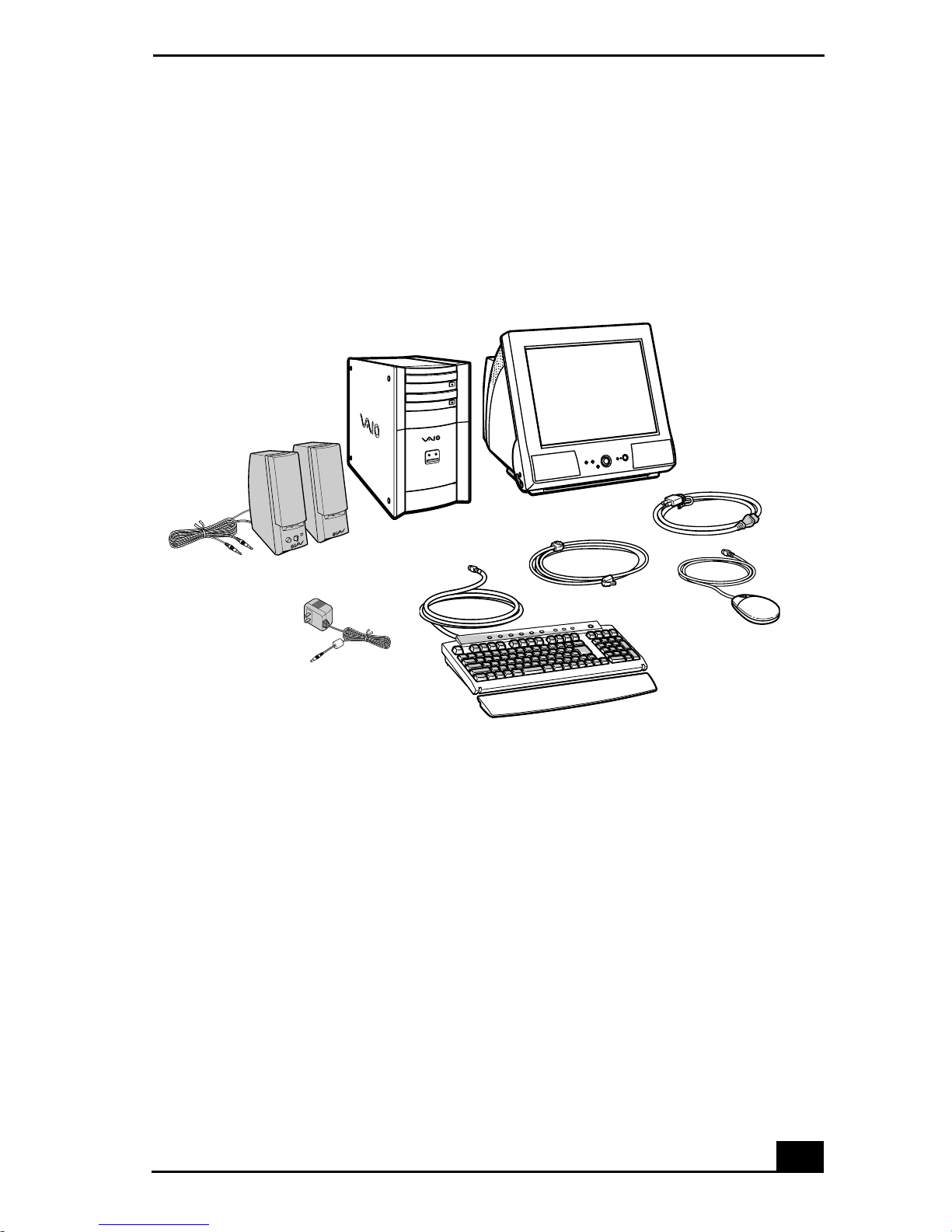
Unpacking Your Computer
Computer and supplied accessories
Display (Sold separately)
System Unit
Speakers
Unpacking Your Computer
Power Cord
Modem Cable
AC Adapter (Speaker)
Keyboard
Manuals
VAIO Digital Studio™ Computer QuickStart — Contains information on
❑
unpacking and setting up your computer, supplementary updates, support
information, and software information.
VAIO Digital Studio™ Computer User Guide — Contains informat ion on
❑
the hardware and preinstalled software applications included with your
system. To access the online manual:
1 Click Start in the Windows taskbar, then click VAIO Help and Support.
Mouse
2 From the VAIO Help and Support menu, click VAIO User Guide.
Giga Pocket™ Personal Video Recorder Getting Started Guide — (For
❑
models equipped with Giga Pocket) Contains information on setting up and
using the Giga Pocket Personal Video Recorder equipment and software
applications.
9
Page 10

VAIO Digital Studio QuickStart
Information About DV D Recording — (For models equipped with a DVD-
❑
RW drive) Contains information designed to help you become familiar with
your DVD-RW drive and the DVD recording software applications included
with your computer.
Safety Information — Contains safety and legal information about your
❑
VAIO computer.
Home Networking Solutions — (For models equipped with a HomePNA
❑
modem) Contains information on using an installed HomePNA modem with
Sony VAIO computers.
Specifications — Contains information on the hardware and physical
❑
configurations of your VAIO computer.
Microsoft® Windows® XP Guide — Contains information on how to use
❑
the basic features of the Windows® operating system.
Recovery CDs
System Recovery CD(s) — Enables you to restore the software that shipped
❑
with your computer if it becomes corrupted or is erased. System Recovery
CDs can only be used to restore the hard disk of the Sony computer you
purchased.
Application Recovery CD(s) — Enables you to reinstall individual
❑
applications if they become corrupted or are erased.
Driver Recovery CD — Enables you to restore device drivers if they
❑
become corrupted or are erased.
Software Library
The Software Library contains the Microsoft software license agreement and the
Sony end-user license agreement.
10
Page 11

To Choose an Ergonomic Location for Your Computer
To Choose an Ergonomic Location for Your
Computer
Before you get started, find the best location for your new computer.
Planning your workspace
Stable work surface — Use a stable work surface large enough to support
❑
the computer and other peripheral equipment.
Ventilation — Leave at least eight inches of space on the left and back sides
❑
of your computer to enable proper ventilation.
Placement of the keyboard, mouse, and other input devices — Place
❑
your keyboard, mouse, and other input devices so that your arms and hands
are in a relaxed, comfortable position. The keyboard should be directly in
front of you. Adjust the level of the keyboard so that your lower arms are
parallel to the floor. Keep your wrists in a relaxed position when you are
using the keyboard—not angled up or down. Use the palmrest only briefly,
for resting. While typing, never use the palmrest or rest your hands on the
table. Position the mouse at the same level as the keyboard. Hold the mouse
with a relaxed hand, and use your whole arm to move i t. Take breaks during
sessions with your computer. Excessive use of the mouse or a joystick may
strain muscles or tendons.
Furniture and posture — Sit in a chair with good back support and
❑
armrests. Adjust the level of the chair so your feet are flat on the floor. A
footrest may make you more comfortab le. Sit with relaxed , upright
posture—avoid slouching forward or leaning far backward.
Viewing angle of the display — Position the display 18 to 26 inches
❑
directly in front of you, with the top of the screen at or a little below eye
level. Use the display’s tilting feature to find the best position. You can
reduce eye strain and muscle fatigue by placing the display in the proper
position.
Lighting — Choose a location where windows and lights do not create glare
❑
and reflection on the display. Use indirect lighting to avoid bright spots on
the display. You can also purchase accessories for your display that help
reduce glare. Proper lighting adds to your comfort and work effectiveness.
11
Page 12

VAIO Digital Studio QuickStart
12
Page 13
Setting Up Your
VAIO Digital Studio Computer
Your computer has many new and exciti ng f eat ures. This section contains
information on setting up your computer and peripheral devices.
To Set Up Your Computer
Your computer may not be equipped with the same hardware features shown in
this section. See the Specifications sheet for your system's configuration.
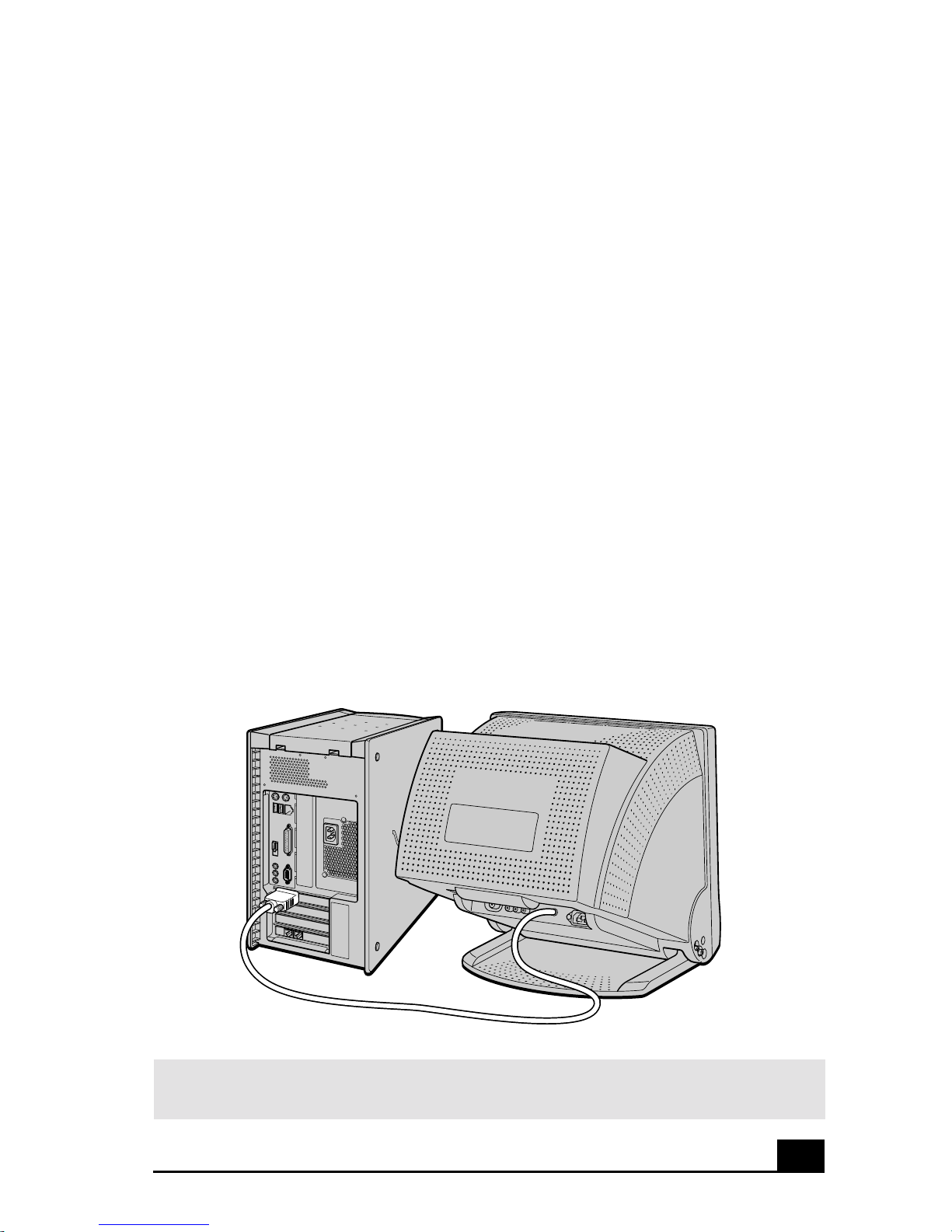
Connecting a display (moni tor)
1 Plug the display cable into the Monitor port.
2 If necessary, plug the display cable into the rear of the display.
Connecting a display
Install your equipment so that you can easily reach the power outlet in the event of an
✍
emergency.
13
Page 14
VAIO Digital Studio QuickStart
i.LINK
S400
HEADPHONES
MIC
LINE IN
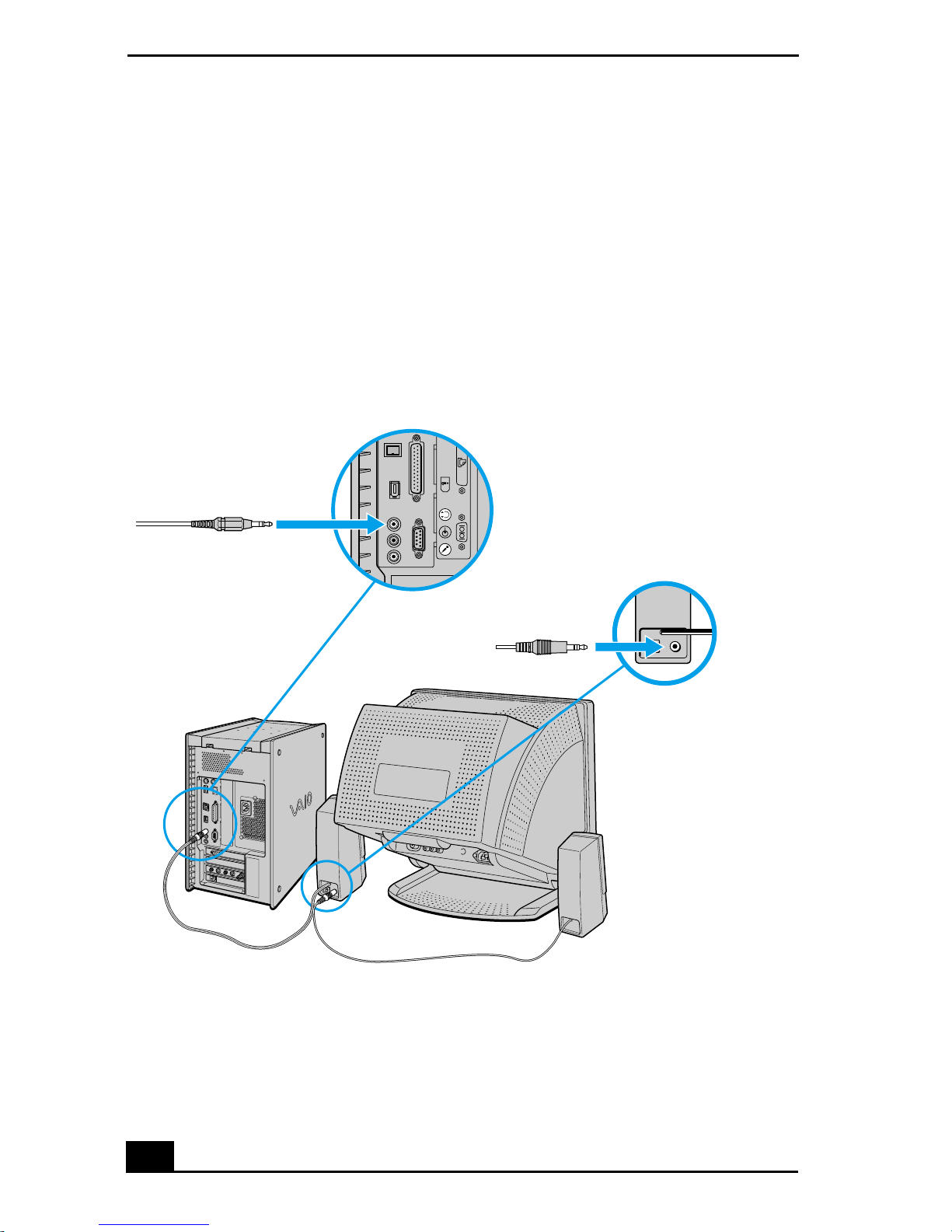
Connecting the speakers
1 Plug the cable attached to the left speaker into the L Out jack on the back of
the right speaker.
2 Plug the cable attached to the right speaker into the Headphones jack.
3 Plug the jack end of the AC adapter cord into the DC In jack on the back of
the right speaker and plug the other end into a grounded AC wall outlet or
power strip.
Connecting the speakers
SERIAL
14
Page 15
Setting Up Your VAIO Digital Studio Computer
PRINTER
i.LINK
S400
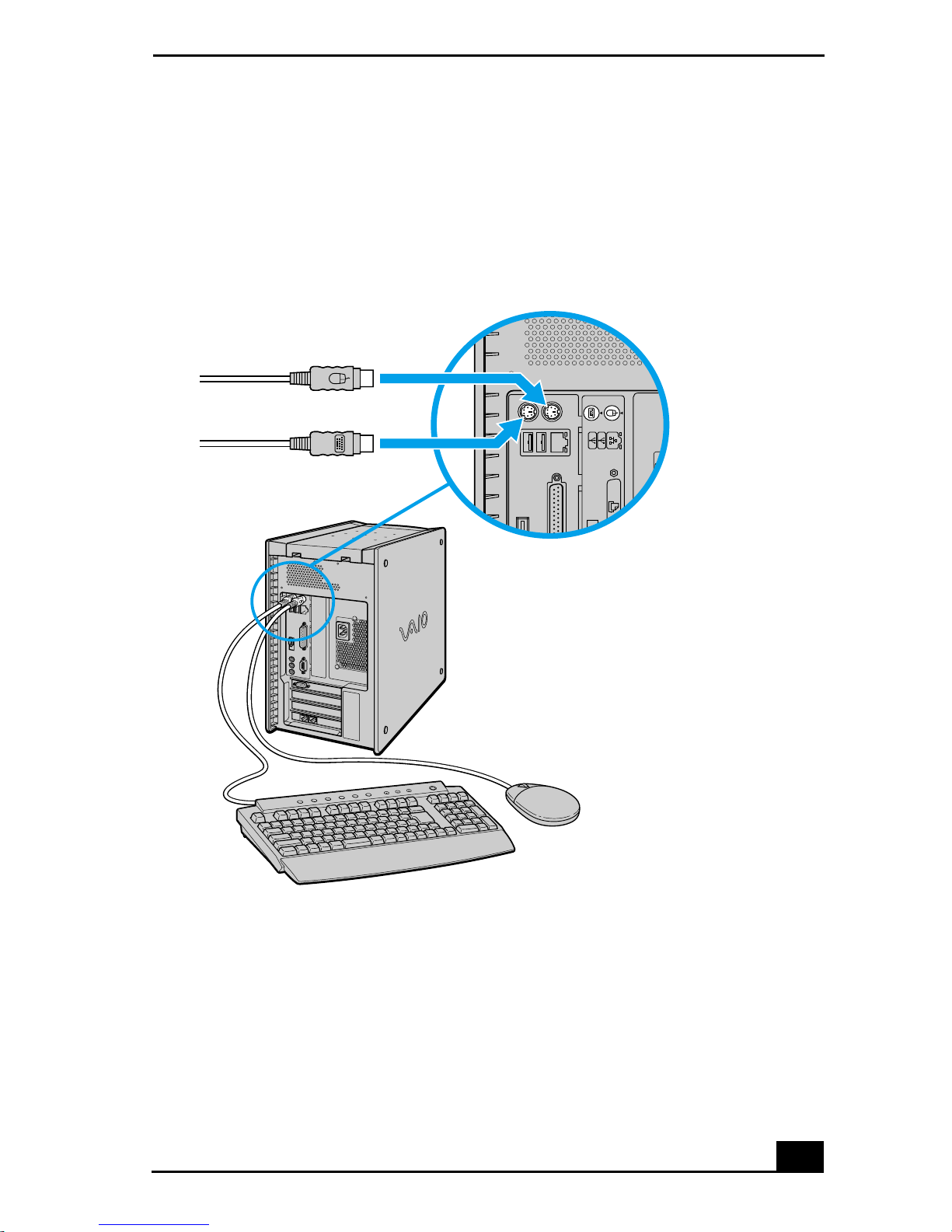
Connecting the keyboard and mouse
1 Plug the keyboard cable into the Keyboard port on the back of the computer.
2 Plug the mouse cable into the Mouse port.
Connecting the keyboard and mouse
KEYBOARD
MOUSE
USB NETWORK
ACT
LINK
15
Page 16
VAIO Digital Studio QuickStart
4
3
2
1
LINE
TELEPHONE
MONITOR
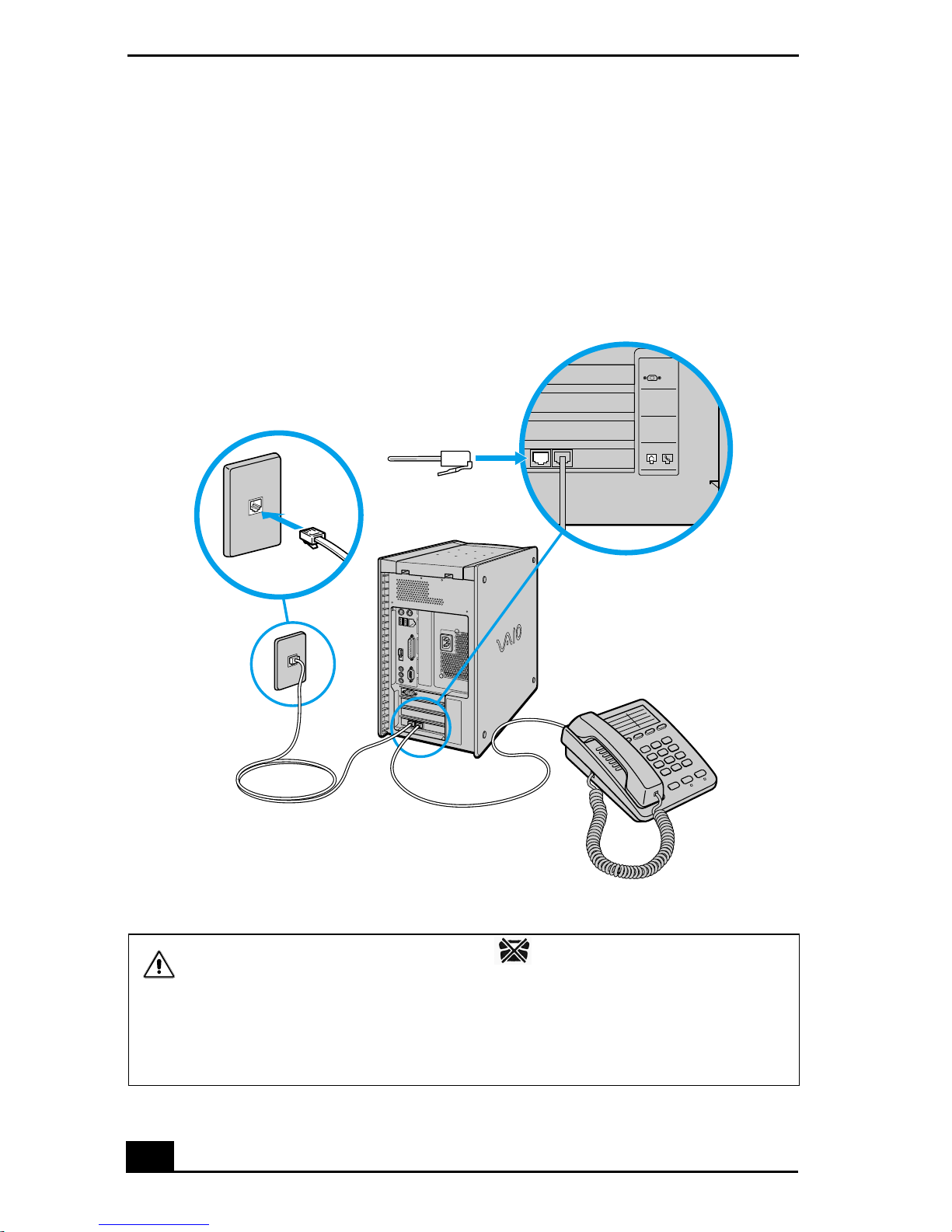
Connecting the modem cable
1 Unplug your telephone from the wall jack.
2 Plug the modem cable (supplied) into the Modem line jack on the computer,
and then plug the other end of the cable into the wall jack.
Connecting the modem cable
Your computer has a protective sticker covering the Ethernet port located
on the rear panel. Connect only 10BASE-T and 100BASE-TX cables to the
Ethernet port. Using other cables or a telephone cable may result in an
electric current overload and can cause a malfunction, excessive heat or fire
in the port. For help on connecting to a network, see your network
administrator.
16
Page 17
Setting Up Your VAIO Digital Studio Computer
KEYBOARD
MOUSE
PRINTER
HEADPHONES
LINE IN
USB NETWORK
ACT
LINK
i.LINK
S400
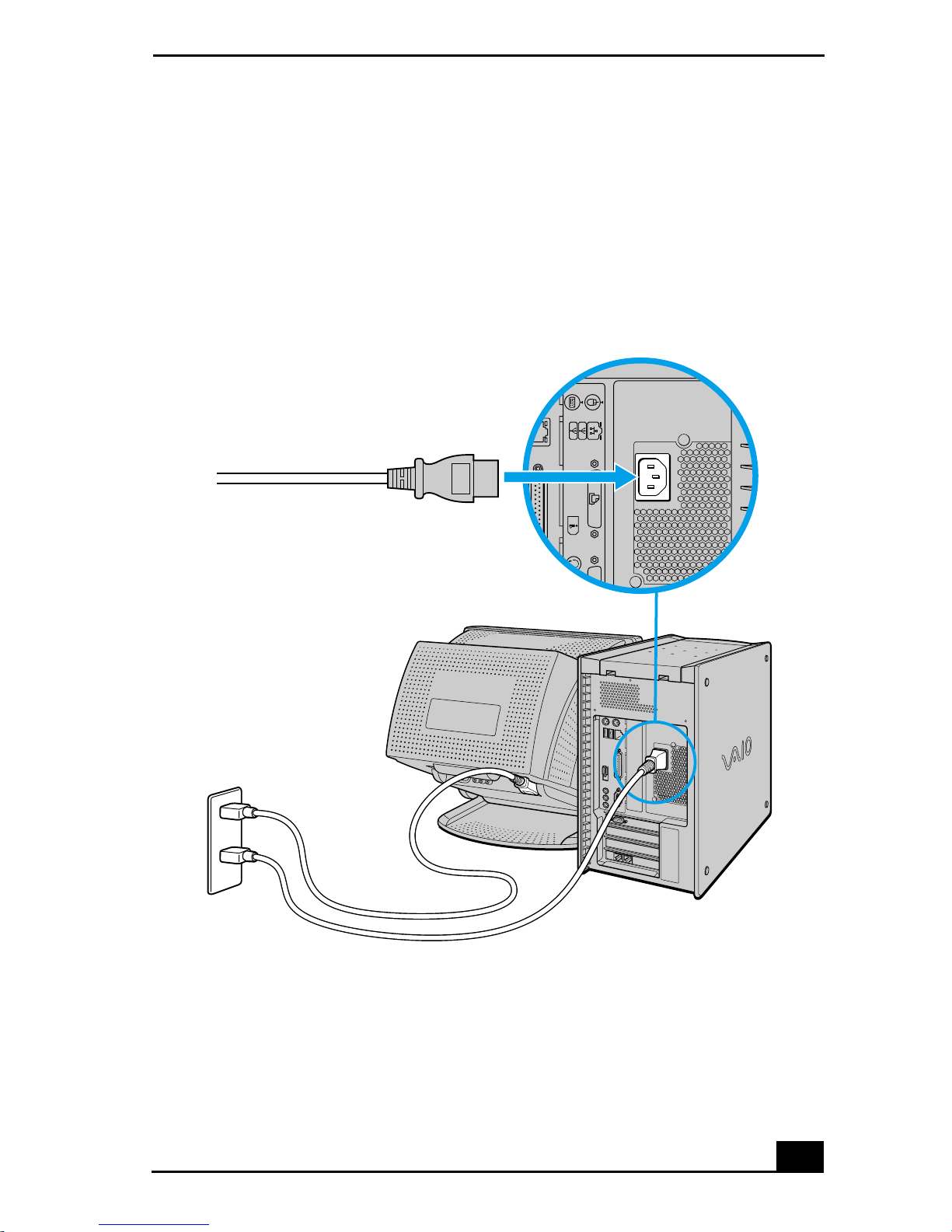
Connecting the power cords
1 Plug the power cord into the back of the computer.
2 Plug both the display and power cords into a grounded AC wall outlet or a
power strip.
Connecting the power cords
SERIAL
17
Page 18
VAIO Digital Studio QuickStart
To Turn on Your Com puter
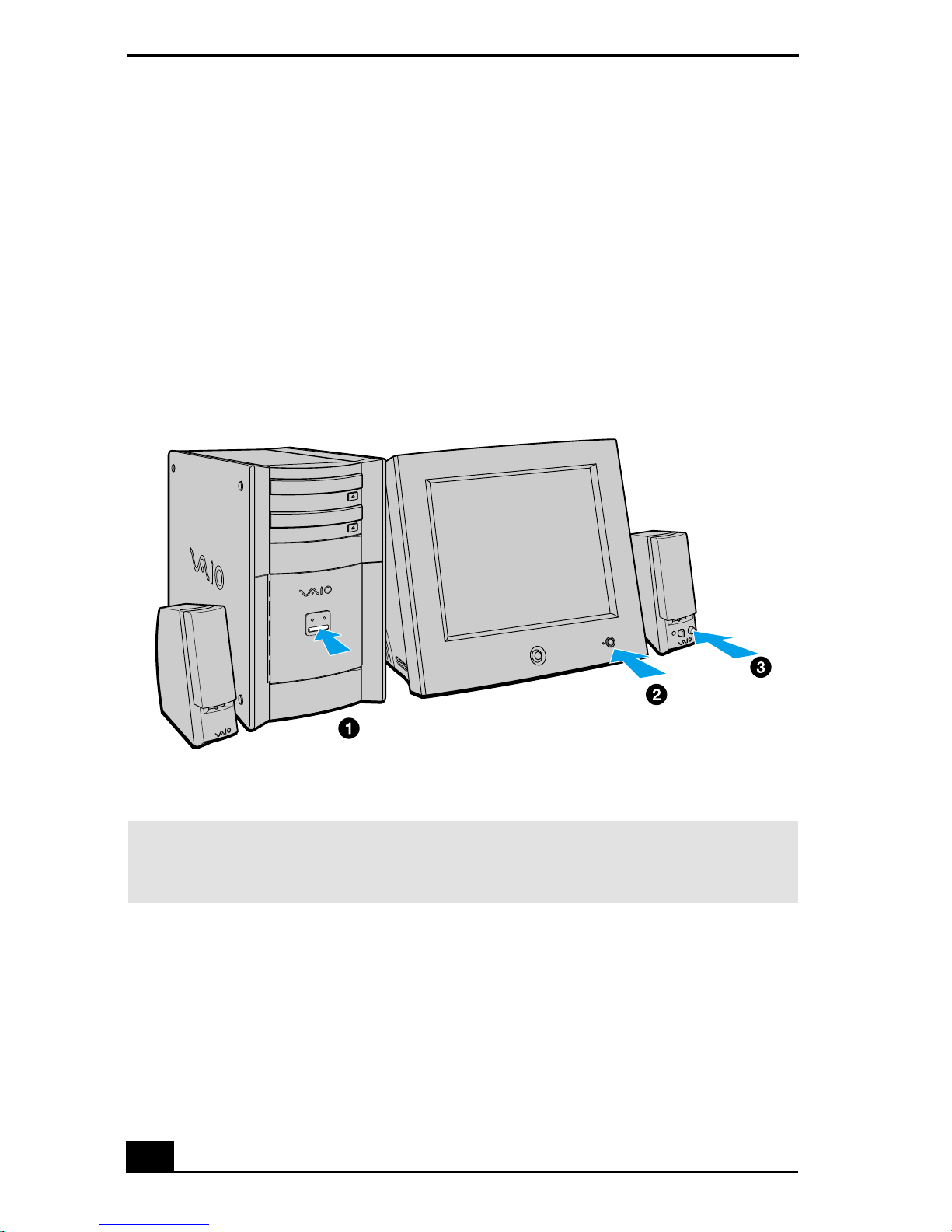
Turning on your computer
1 Press the power switch on the computer to turn on the power.
2 Press the power switch on the display to turn on the power.
3 Press the power switch on the right speaker to turn on the power.
Turning on your computer
When you start your system for the first time, your computer may detect new
✍
equipment and display a dialog box that asks you to restart your computer. Please
respond to this request immediately.
18
Page 19

To Register Your Computer
To Register Your Computer
Take advantage of Sony’s commitment to quality customer support and receive
these benefits by registering your computer:
Sony Customer Support — C o mmunicate with a Support Representative
❑
to troubleshoot problems you may be having with your computer.
Limited warranty — Protect your investment. See the Warranty Card for
❑
more details.
You are prompted to register your computer the first time you turn on the unit. Follow
✍
the on-screen instructions to complete the registration process. If you are not able to
register your computer during the first session, you are provided with additional
registration opportunities later.
19
Page 20
VAIO Digital Studio QuickStart
To Set Up Your Dial-up Connection
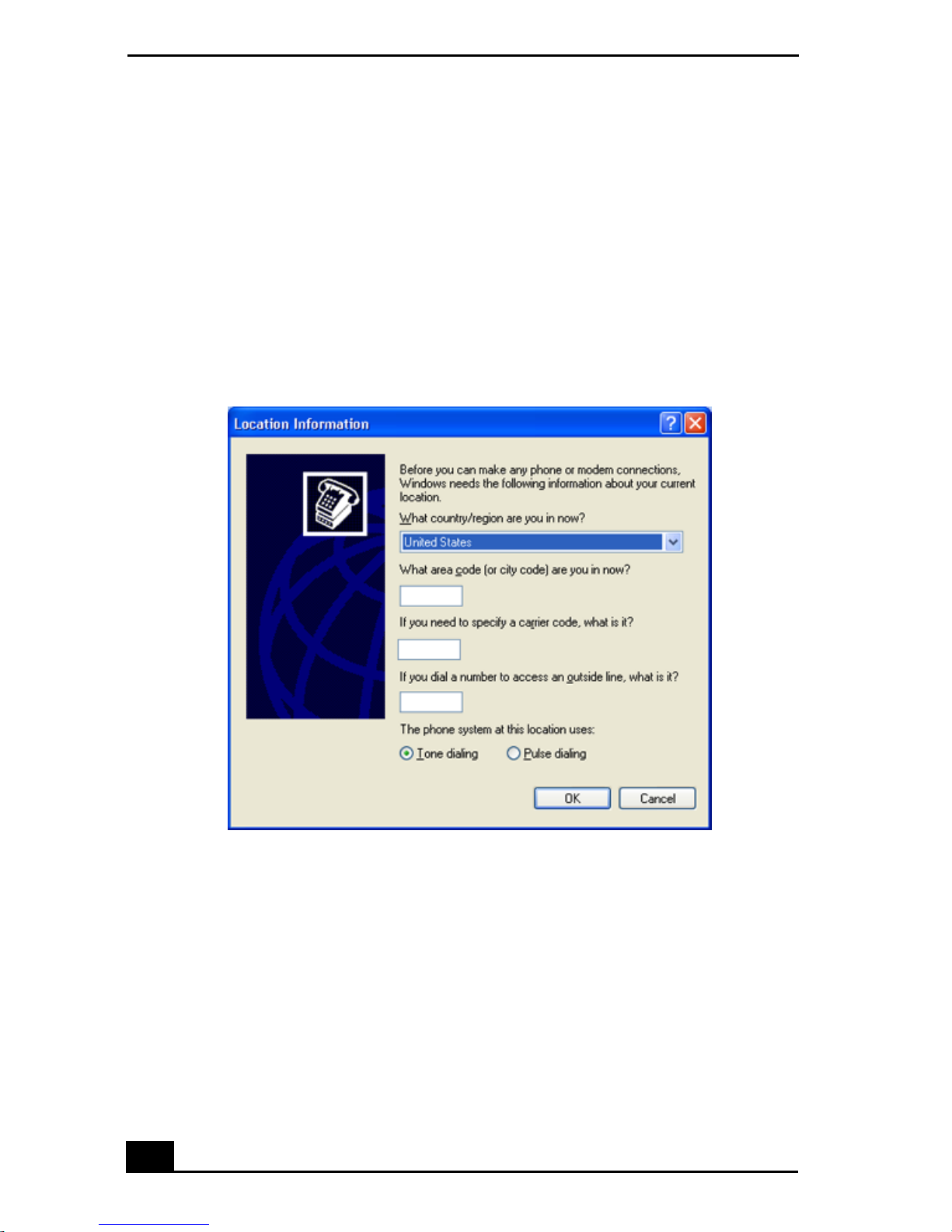
The first time you turn your computer on, follow these steps to set up your dialup connection:
1 Click Start from the Windows taskbar and select All Programs.
2 Point to Accessories, point to Communications, and then click New
Connection Wizard. The Location Information window appears.
Location Information window
20
Page 21
To Set Up Your Dial-up Connection
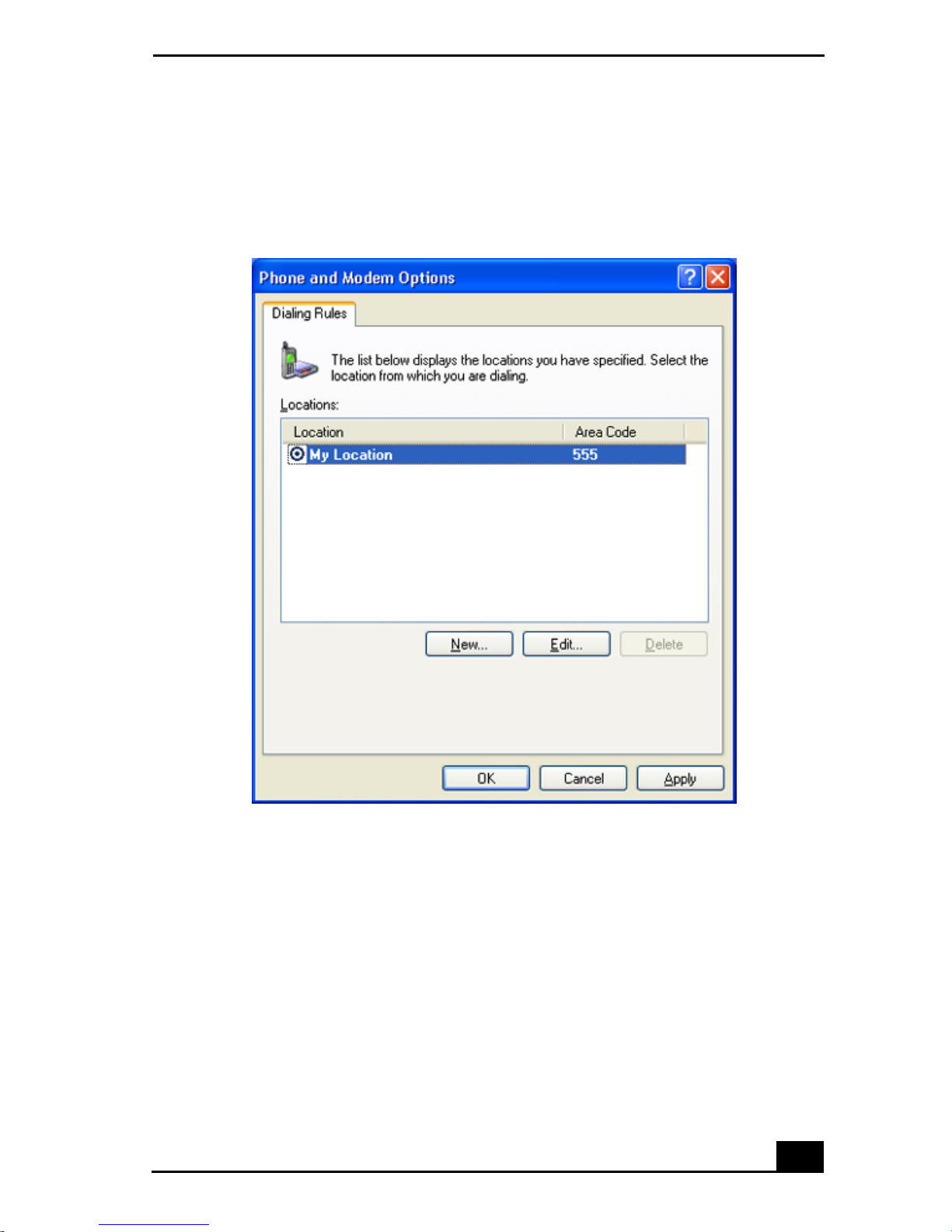
3 Enter in your information as requested. Click OK. The Phone and Modem
Options window appears.
Phone and Modem Options windo w
21
Page 22
VAIO Digital Studio QuickStart
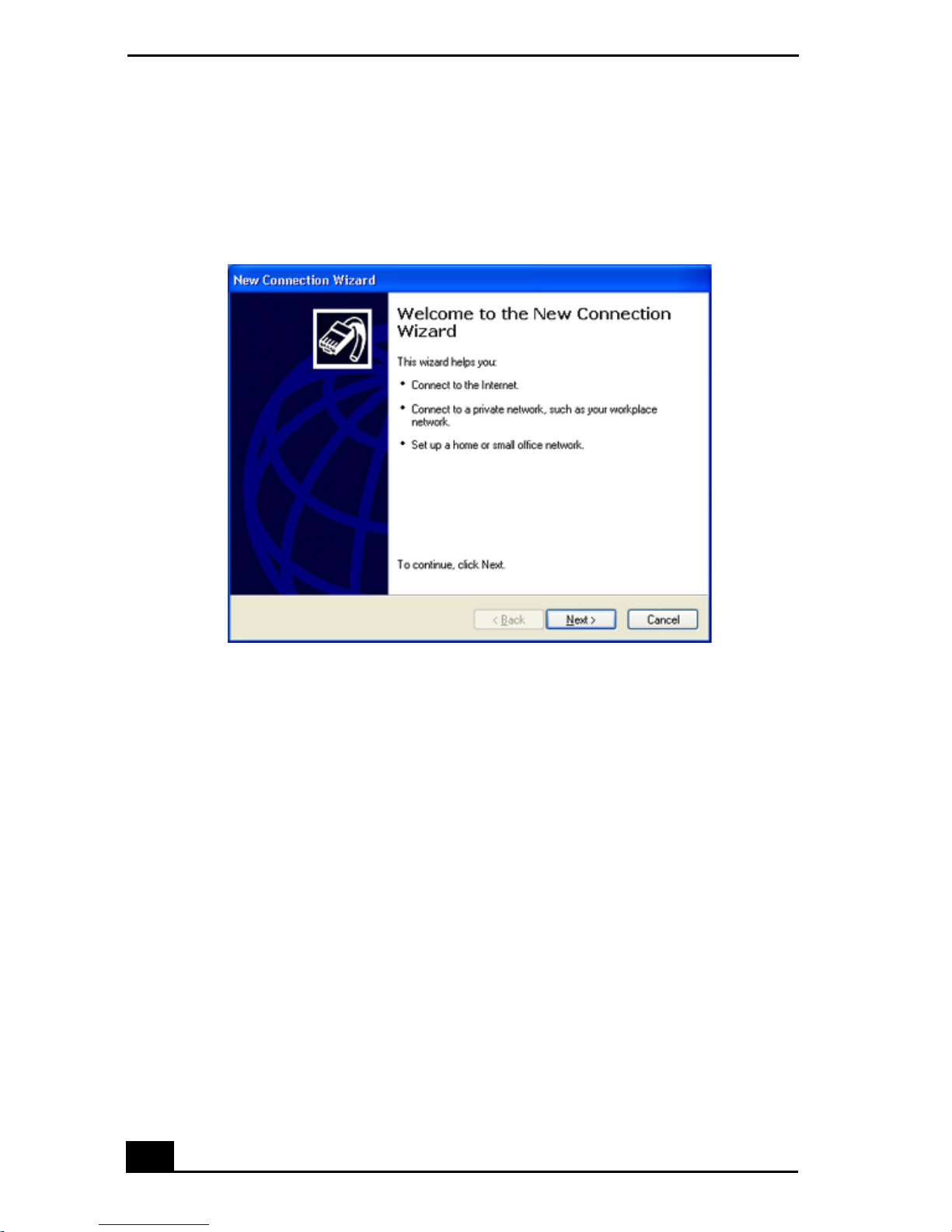
4 Click to select your dialing location and then click OK. The New Connection
Wizard appears.
New Connection Wizard window
5 Follow the on-screen instructions to finish setting up your dial-up
connection.
22
Page 23

To Set Up Power Management Modes
To Set Up Pow er Management Modes
When you plan to stop using you r computer for a short period of ti me, you can
set your system to automatically enter a power manageme nt mode. Your
computer may have difficulty resuming from a power-saving mode, if the power
scheme is not set up correctly.
Setting up your system’s power management
Sony recom mends following these steps for opt imum power management:
1 Click Start in the Windows® taskbar and select Control Panel.
2 Select Performance and Maintenance. The Performance and Maintenance
window appears.
3 Click Power Options. The Power Options Properties window appears.
4 Click the Hibernate tab and verify that the Enable hibernation check box is
selected. Click Apply.
5 Click the Power Schemes tab. Select the Home/Office Desk power scheme.
6 In the section, “Settings for Home/Office Desk power scheme,” use the drop-
down list to set a time value for System stand by or System hibernates. Do
not set time values for both settings. Click App ly.
7 Click the Advanced tab. In the Power buttons section, “When I press the
power button on my computer,” use the drop-down list and select Hibernate.
Click Apply.
8 Click OK.
Your computer is set to enter a power-saving mode automatically. You can
resume from this mode by briefly pressing the power button on your computer.
23
Page 24

VAIO Digital Studio QuickStart
Stand by mode indicators
You can identify power management mode the computer is in by the color of the
power indicator light
.
Color Mode
Amber Computer is in Stand by mode.
Blue Computer is in Normal mode, ready to use.
No color Computer is turned off or in Hibernate mode.
24
Page 25
To Shut Down Your Computer
To Shut Down Your Computer
When you are ready to turn o ff you r computer fo r an extended peri od of time, use
this procedure.
To avoid loss of data, do not use the Power switch to turn off the computer.
Turning off your computer
1 Click Start in the Windows taskbar, then select Turn Off Computer.
The Turn Off Computer dialog box appears.
2 Select the Turn Off option.
Respond to any prompts about saving your documents.
✍
3 Wait for your computer to turn off automatically—the power indicator light
turns off.
4 Turn off any peripheral devices connected to your computer.
If you plan to turn off your computer for a short period of time, you may want to use
✍
Stand by mode instead.
About the power switch
If your system stops responding, press and hold the Power switch for more than
six seconds to force your system to shut down. You may need to repeat this
procedure if your system does not shut down on the first attempt.
25
Page 26

VAIO Digital Studio QuickStart
26
Page 27

About The Software On Your
Computer
Your VAIO® computer is ready to help you work, play, learn, and
communicate as soon as you tur n it on. Thi s section provides an overvi ew
of the software titles preinstalled on your computer.
Overview of Software Applications
Your computer may not be supplied with all of the software applications listed,
✍
depending on the system configuration you purchased.
Adobe® Acrobat Reader®
Adobe Systems Inc.
Acrobat Reader software allows you to view, navigate, and print electronic
documents in Adobe’s Portable Document Format (PDF), an open file format
that is intended to preserve the fidelity of documents created on all major
computer platforms.
Adobe® Photoshop® Elements (On selected models)
Adobe Systems Inc.
Using state-of-the-art image editing tools, you can unleash your artistic ability
and create digital images for print, e-mail and posting to the Web. The versatile
image capturing options allow you to start working with digital and traditional
photos immediately. Explore endless creative possibilities f or your personal
images with Adobe Photosho p Elemen ts.
Adobe® Premiere
Adobe Systems Inc.
Adobe Premiere LE offers interface and editing tools for producing movies for
video, multimedia, or the Web. View source clips and edited footage
simultaneously on-screen. You can create your own personal video clips that are
up to three hours in length, with complete audio-video synchronization.
® LE (On selected models)
25
Page 28

VAIO Digital Studio QuickStart
America Online
®
America Online, Inc.
America Online is a popular Internet online service. Stay in touch with family
and friends with easy-to-use e-mail. Manage your personal finances, get the latest
news and sports scores, and chat with thousands of others who share your
interests.
ArcSoft PhotoPrinter™ 2000 Pro
ArcSoft Inc.
PhotoPrinter Pro is an easy-to-use, yet advanced printing program that lets you
quickly lay out multiple images in multiple sizes on a sin gle sheet of paper.
PhotoPrinter Pro offers a wide selection of templates including landscape,
portrait, free-style, mixed sizes, custom templates and more. The application
includes enhancement tools and special effects for improving photos while
giving you the ability to add text to any image. With PhotoPrinter 2000 Pro you
can create business cards, handouts, calendars, mailing labels, and much more.
DigitalPrint
Sony Electronics Inc.
This image management software makes it fun and easy to edit, imp ort, and
organize your digital pictures in a photo album for rich digital printing to any
standard color laser or inkjet printer. Digital Print can also be used to make
custom CD labels for your audio CDs.
DVgate
™
Sony Electronics Inc.
Connect a digital video camera recorder to the i.LINK® port and capture your
own video clips and still images. You can edit clips from your video, add new
clips, and combine clips into new movie segments. You can also save your
images in a variety of popular file formats.
DVDit!™ for VAIO (On selected models)
Sonic Solutions
DVDit! is a new and exciting production software that is easy to use. DVDit! has
easy-to-use features, that automatically convert your multimedia source files into
the correct format for recording onto a DVD-R or CD-R, or a DVD folder on
your system hard drive. You can combine your favorite AVI, MPEG and digital
stills to create professional, high quality DVDs.
26
Page 29

About The Software On Your Computer
EarthLink™ Network Total Access
EarthLink Network Inc.
An Internet Service Provider that supplies access, information, and assistance to
its customers, introducing them to the Internet. Member benefits include e-mail,
newsgroups, a Personal Start Page, a free 6 MB Web site, a member magazine,
and 24-hour technical support.
Giga Pocket™ Personal Video Recorder (On selected models)
Sony Electronics Inc.
Giga Pocket Personal Video Recorder is a unique set of hardware and software
components that provide you with excellent TV viewing, reco rding an d playback
experiences. You can watch and record your favorite TV programs from your
computer, create custom playlists, and play your Video Capsules on other
computers. Giga Pocket enables your computer , TV, VCR, and other video player
devices to work in harmony.
Media Bar™ DVD Player
Sony Electronics Inc.
Media Bar DVD Player is created especially for high-quality DVD playback.
You can enjoy the superior digital video quality and the effects features. Y o u can
rewind or fast-forward scenes from the DVD Player monitor as you would with
any ordinary DVD player, to easily find the scene you want to view. Typical
DVD playback features are available, such as multiple angles, audio language
tracks, and subtitles. Media Bar DVD Player seamlessly integrates a premium
audio/visual experience with an easy-to-use software interface.
Internet Explorer
Microsoft
®
Microsoft Corp.
Internet Explorer delivers the World Wide Web the way you want it. It's secure,
easy to use, and you can personalize how you access the Internet. Outlook
Express and other features of Internet Explorer deliver a great Internet
experience.
27
Page 30

VAIO Digital Studio QuickStart
Microsoft Office XP Professional (On selected models)
Microsoft Corp .
Microsoft Office XP redefines the relationship between people and software by
providing a smarter, simpler way of working. New Office XP features include
context-sensitive smart tags, enhanced formatting options, and more, that enable
you to continually integrate additional services into Office and access
information anytime.
Microsoft Office XP Small Business Edition (On selected models)
Microsoft Corp .
With Microsof t Of fice XP you’ll find a powerful new technology that will help
you get work done more quickly by providing real-time, context-sensitive
options for important actions, from formatting to error correction. Task panes
consolidate important tasks into a sing le integrated view, enabling you to conduct
searches, launch and format documents, and view the contents of your Clipboard
from one location.
Outlook® Express
Microsoft
®
Microsoft Corp .
This messaging tool that takes your e-mail and newsgroup communications to
new heights. Outlook Express is easy to set up and use, and provides you with
secure, personalized, and comprehensive features that protect and enhance your
online communication experience.
Word (On selected models)
Microsoft
®
Microsoft Corp .
Microsoft Word makes it easy to create common Web, e-mail, and print
documents for use around the world. It embraces HTML as a first-class file
format and extends Word's ease-of-use to the W eb and e-mail. Word also extends
that ease-of-use to international users, making it easy to create multilingual
documents.
MovieShaker™
Sony Electronics Inc.
Sony’s original MovieShaker software creates personal movies that have
transitions, backg round music, and text . Just import your vi deo clips and “shake”
with a click of the mouse. Your personal movies are easy to create and fun to
share with family and friends.
28
Page 31

About The Software On Your Computer
PC-Cillin® 2000
Trend Micro, Inc.
PC-Cillin provides portable, easy-to-use, real-time ant iviru s security at your
computer’s entry point (beaming, synchronization, Internet access) to defend
against potential threats hidden inside files, e-mail, or on the Web.
PicoPlayer™
Sony Electronics Inc.
PicoPlayer software is a video player application that enables you to use Giga
Pocket™ Personal Video Recorder functions on a computer that does not have
Giga Pocket Personal Video Recorder installed. You can play Video Capsules
created by Giga Pocket Personal Video Recorder. If a Giga Pocket equipped
computer is available on your home network, you can use Giga Pocket Server to
watch TV and use the Giga Pocket Server’s TV programming and recording
functions.
PictureGear™
Sony Electronics Inc.
This image management software displays images from your hard drive, a Sony
digital still camera, or a Sony Mavica®
camera. The images appear in a
convenient light-table format, so that you can easily view the contents of an
entire folder.
Quicken® 2002
Intuit Inc.
Quicken is the fastest, easiest way to organize your finances. Quicken works just
like your checkbook, so it's easy to learn and use. You can even pay your bills
online. Quicken manages all of your finances, bank accounts, credit cards,
investments, and loans.
RealJukebox®
RealNetworks Inc.
RealJukebox is a popular digital music system that gives you the ability to easily
acquire, play and manage digital music files. You can locate and download your
favorite music from the Internet and organize your own personal music
collection.
29
Page 32

VAIO Digital Studio QuickStart
RealPlayer®
RealNetworks Inc.
RealPlayer is a high-quality streaming media player that supports many digital
media formats. The user-friendly interface has enhanced navigation capabilities,
allowing you to access and enjoy aud io and video programming over the I nternet.
RealPlayer is your gateway to a superb Internet multimedia experience.
RecordNow™ DX (On selected models)
VERITAS Software Corp.
RecordNow is the ideal DVD-RW/CD-RW di sc masterin g software for all your
simple recording needs. The new RecordNow DX wizard makes it easy for the
novice user to start recording right away, while the more advanced user will
appreciate extended features such as simultaneous recording jobs, a detailed
activity log, and the ability to customize drive settings.
Simple DVD Maker (On selected models)
Sony Electronics Inc.
Simple DVD Maker software enables you to write Giga Pocket™ Video
Capsules and video Playlists to DVD-R/DVD-RW media, using DVD video
format. The DVDs that you create can be played back with compatible DVD
players and computers that have compatible DVD drives.
Smart Capture
Sony Electronics Inc.
Smart Capture is a fun new way to send multimedia messages via e-mail. Smart
Capture manages the i.LINK connection between your notebook and a Sony
Digital Handycam Camcorder that supports the i.LINK interf ace. It allows you to
capture compressed v ideo or st ill images and save t hem to your h ard disk drive or
share via e-mail. A smart solution for computer, digital audio/video and network
convergence.
SonicStage™ (On selected models)
Sony Electronics Inc.
This new jukebox application adds a host of new features to its predecessor,
OpenMG™ Jukebox. Continuing to take advantage of Sony’s copyrightprotected ATRAC3™ format for high-quality digital audio storage, SonicStage
sports a new Music Visualizer, a sleek new playe r s kin d esign, audio CD burning
capability, and a parametric equalizer for fine-tuning audio playback.
30
Page 33

About The Software On Your Computer
SonicStage™ Premium (On selected models)
Sony Electronics Inc.
SonicStage Premium software is a special jukebox application that supports high
quality digital audio playback and recording from the NetMD™, FM Tuner, and
DVD-RW devices in your VAIO® MX Desktop PC. Recording from external
analog and digital audio devices, such as CD players and MiniDisc players, is
also supported. SonicStage Premium software includes several standard jukebox
features, including a music visualizer, audio CD burning capability, and a
parametric equalizer for fine-tuning audio playback.
Sony on Yahoo!
Yahoo! Inc.
Personalize your own web portal with Sony on Yahoo! Get a free webmail
account, customized news and local weather reports, comics, and more.
VAIO Action Setup
Sony Electronics Inc.
VAIO Action Setup manages the settings for your computer's Shortcut keys.
VisualFlow™
Sony Electronics Inc.
VisualFlow software is a state-of-the-art Sony multimedia browser designed
specifically for Memory Stick® media. It displays any still picture, movie or
sound file stored in a Memory Stick media in a visually pleasing, artistic manner.
VisualFlow software not only plays a selected movie or sound file, but also
enables playback of files by other ap plications like PictureGear™, Memory Stick
Slideshow and Windows® Explorer.
WordPerfect®
Corel Corp.
WordPerfect is the word processor component of the WordPerfect Office suite.
Create professional-looking documents, such as newsletters, reports and
brochures with this robust word processing application, adding graphics, charts
and tables with ease. Features such as RealTime Preview enable you to preview
formatting before applying it to your documents, and Reveal Codes increases the
control you have over your document structure.
31
Page 34

VAIO Digital Studio QuickStart
For Answers to Your Software Questions
This section provides support information for your computer’s preinstalled
software applications. Check this support li sting to locate information from the
Internet, by e-mail, or by telephone.
Your computer may not be supplied with all of the software applications listed,
✍
depending on the system configuration you purchased.
Support for preinstalled software
Adobe® Acrobat Reader®, Photoshop® Elements, Premiere® LE
(On selected models)
(Adobe Systems Inc.)
Web site http://www . adobe.com
phone 206-675-6126 (fee-based support)
fax 206-628-5737
e-mail [email protected]
hours M - F, 6 AM - 5 PM PST
America Online® (America Online, Inc.)
Web site http://www. aol.com
phone 800-827-6364
hours 7 days a week, 24 hours a day
ArcSoft PhotoPrinter® 2000 Pro (ArcSoft, Inc.)
Web site http://www. arcsoft.com
phone 510-440-9901
e-mail [email protected]
hours M - F, 8:30 AM - 5:30 PM PST
32
Page 35

For Answers to Your Software Questions
DVDit!™ for VAIO (On selected models)
(Sonic Solutions)
Web site http://www.dvdit.com
Online Support http://www.dvdit.com/support
phone 877-DVD-1124
*
*
Telephone support is fee -based per incident and ava ilable only within the U. S. a nd Ca nada.
Online support is fr ee of charge.
EarthLink™ Network Total Access (EarthLink Network Inc.)
Web site http://help.earthlink.net/techsupport
phone 800-395-8410
e-mail [email protected]
hours 7 days a week, 24 hours a day
Microsoft® Windows® XP operating system, Internet Explorer, Office XP
Professional (On select e d models), Office XP Sma ll Business Edition (On
selected models), Outlook® Express, Word (On selected models )
(Microsoft Corporation)
Web site http://www.sony.com/pcsupport
phone 888-4-SONY-PC (888-476-6972)
*
hours 7 days a week, 24 hours a day
*
Support from 888-4-SONY-PC is free of charge for 90 days after the ori gi na l da te of purchase.
PC-Cillin® 2000 (Trend Micro, Inc.)
Web site http://www.antivirus.com/pc-cillin
phone 949-387-7800; 900-820-8324
*
*
Support from 949-987 -7800 is free of charge. Support from 90 0-820-8324 is fee-based.
33
Page 36

VAIO Digital Studio QuickStart
Quicken® 2002 Basic (Intuit, Inc.)
Web site and
http://www.intuit.com/support
online support
phone 900-555-4688
hours 7 days a week, 24 hours a day
RealPlayer®, RealJukebox (RealNetworks, Inc.)
Web site http://service.real.com/rjoptions.html
e-mail http://service.real.com/help/call.html
RecordNow™ DX (VERITAS Software Corp.)
Web site http://support.veritas.com
phone 800-326-9551
*
Telephone suppor t is pro vi ded by Sony.
*
Sony Applications (S ony Electronics Inc.)
Web site and
http://www.sony.com/pcsupport
online support
phone 888-4-SONY-PC (888-476-6972)
*
hours 7 days a week, 24 hours a day
*
Support from 888-4-SONY-PC is free of charge for 90 days after the original date of purchase.
WordPerfect® (Corel Corporation)
Web site http://www. corel.com/support/product_specific/wp10.htm
phone 613-274-0500
*
hours M - F, 8:30 AM - 7:30 PM EST
*
Support from 613-27 4-0500 is fee-based. The online support is free of charge.
Sony Service Center
For the Sony Service Center nearest you, call 1-888-4-SONY-PC
(1-888-476-6972). This service is free of charge for 90 days after the original
date of purchase.
34
Page 37

Troubleshooting
This section descr ibes how to solve common problems you may encount er
when using your computer. Many problems have simple solutions, so try
these suggestions before you call Sony Customer Support.
Topics
My computer does not start.
❑ Check that the computer is plugged into a power source and that it is turned
on. Check that the power light is lit on the front panel of the computer.
❑ Confirm that a disk is not in the floppy disk drive (unless you are using a
bootable floppy disk) .
❑ Confirm that the power cord and all cables are connected firmly.
❑ If you plugged the computer into a power strip or Uninterruptible Power
Supply (UPS), make sure the power strip or UPS is turned on and working.
❑ Check that the monitor is plugged into a power source an d turn ed o n. Check
that the brightness and contrast controls are adjusted correctly. See the
manual that came with your display for details.
❑ Check that the computer is not in stand by mode.
My files are corrupted or deleted. I want to recover applications that came with
my computer.
See “T o Use the Application Recovery CD(s)” in the online User Guide, for more
information. You can access the online User Guide as follows:
1 Click Start in the Windows taskbar, then click VAIO Help and Support.
2 From the VAIO Help and Support menu, click VAIO User Guide.
35
Page 38
VAIO Digital Studio QuickStart
My drivers are corrupted or del et ed. I want to r ecover drivers that came w ith my
computer.
See “To Use the Driver Recovery CD” in the online User Guide, for more
information. You can access the online User Guide as follows:
1 Click Start in the Windows taskbar, then click VAIO Help and Support.
2 From the VAIO Help and Support menu, click VAIO User Guide.
My computer or software application stopped responding.
You can try to locate and close the software application that has stopped
responding.
1 Press the Ctrl+Alt+Delete keys. The Windows Task Manager window
appears.
2 From the Applications tab, locate the application that has the status message,
“Not responding.”
3 Select the application that has a Not Responding status and click End Task.
Windows attempts to close the application.
If your computer does not respond or the application does not close, try the
following steps:
1 Save any open files, if possible.
2 Press the Alt+F4 keys. The Turn Off Computer window appears.
3 Click the Restart button.
If your computer still does not respond and you cannot restart, shut down your
computer by pressing and holding the power switch for more than six seconds.
If the software appli catio n co nti nues to s t op res pon ding or causes your compu ter
to stop responding, cont act the software publis her or designated technical supp ort
provider.
Pressing and holding the power switch for more than six seconds, may result
in the loss of data from files that are currently open.
36
Page 39

Troubleshooting
Why does the Windows® operating system stop responding during shutdown?
The Windows ope rating system may no t shut down properly for many reasons,
including incompatible or conflicting drivers, damaged files, or non-responsive
hardware. For troubleshooting information, you can search Windows Help.
1 Click Start in the Windows taskbar and select VAIO Help and Support. The
VAIO Help and Support dialog box appears.
2 Select Fixing a Prob lem and t hen select Start up and Sh ut Down p roblems. A
list of specific problem topics appears on the right side of the dialog box.
3 Select Startup and Shutdown Troubleshooter. Follow the on-screen
instructions according to your specific situation.
How do I change the parallel port type to ECP, EPP, or bi-directional?
You can change the parallel port type usin g the S ys tem Setup u tility (CMOS
Setup Utility). To access System Setup:
1 Click Start in the Windows taskbar and select Turn Off Computer. Select
Restart.
2 When the Sony screen displays, press the F2 key on your keyboard.
3 Select the Advanced tab from the Setup Utility screen.
4 Select “I/O Device Configuration” and press Enter.
5 Use the arrow keys to highlight Parallel Port Mode and press Enter.
You can toggle between the Normal (bi-directional), EPP, ECP, and ECP+EPP options
✍
using the directional arrow keys.
6 Select the desired setting displays, and press Enter.
7 Press the F10 key to Save and Exit.
37
Page 40

VAIO Digital Studio QuickStart
My optical drive tray does not open.
There are two methods for opening your optical drive tray:
❑
Use the Eject button
1 Make sure the computer is turned on.
2 Press the Eject button on the drive.
❑
Use the My Computer icon
1 Click Start in the Windows taskbar, then select My Computer.
2 Right-click the appropriate optical drive icon.
3 Select Eject from the shortcut menu.
Avoid using adhesive labels to identify your CD media. Adhesive labels may come off
✍
while the CD media is in use in your optical drive(s) and may cause damage to the
unit.
I cannot play a DVD or CD.
❑ After inserting your optical disc, wait a few seconds for it to be detected
before trying to access it.
❑ Verify that the disc is in the tray with the lab el side facing up.
❑ Install your CD or DVD software according to the manufacturer’s
instructions.
❑ If your drive reads some DVDs or CDs, but not others, check the shiny side
of the disc for dirt or scratches. You may also need to clean the disc drive
lens with an appropriate cleaner.
To recover the CD or DVD software applications that are preinstalled on your
✍
computer, see “To Use the Application Recovery CD(s)” for more information.
38
Page 41

Troubleshooting
I cannot play a DVD.
If a region code warning appears when you are using the DVD player
application, it may be that the region code of the DVD you are trying to play is
incompatible with the region code setting of your optical drive. A region code is
listed on the disc packaging. Region code indicators such as “1” or “ALL” are
labeled on some DVDs to indicate the type of player that can play the disc.
Unless a “1” or “ALL” appears on the DVD or on its packaging, you cannot play
the disc on this system.
If you hear audio but cannot see video, your computer’s vi deo resolution may be
set too high. To improve video resolution, verify that your screen area is set to
1024 x 768, using 32-bit color (preset factory default). To check your video
resolution, see th e Troubles hoo tin g to pi c, “How do I chan ge t h e vi deo res oluti o n
of my display?”
If your video card utilizes system memory, you may improve video resolution by
✍
changing your screen area to 800 x 600, using 16-bit color. See your Specifications
sheet for details about your computer’s video RAM.
If you see video but cannot hear audio, check all of the following:
❑ Verify that your DVD player ’s mute feature is turned off.
❑
Check the master volume setting in the Audio Mixer.
❑
Check the volume settings on your computer speakers.
❑
Check the connections between your speakers and the computer.
❑ Verify that drivers are installed properly, by following these steps:
1 Click Start in the Windows taskbar, then select Control Panel.
2 Click Performance and Maintenance and then click Systems. The
System Properties dialog box appears.
3 Select the Hardware tab and then select the Device Manager button to
view installed drivers.
A dirty or damaged disc may also caus e t he comp ut er t o s top resp onding while it
tries to read the disc. If nece ssary, remove the disc and check that it is not dirty or
damaged.
To recover the CD or DVD software applications that are preinstalled on your
✍
computer, see “To Use the Application Recovery CD(s)” for more information.
39
Page 42

VAIO Digital Studio QuickStart
When I click an application icon, a message such as “You must insert the
application CD into your drive” appears and the software does not start.
❑
Some software applications require specific files that are located on the
application’s CD-ROM. Insert the disc and try starting the program again.
❑
Check to make sure you inserted the CD-ROM with the label side facing up.
Why doesn't my optical drive (DVD-RW or CD-RW) record at the highest speed?
If you are having difficulty formatting DVD-RW or CD-R W media for recording
purposes, try changing the write speed to a lower setting.
See the online Help or documentation that came with your CD or DVD recording
software application for details on adjusting write speed settings.
Why is my computer operating improperly after downloading the CD-burning
component of RealJukebox® software?
If you choose to download and use the optional RealJukebox software’s CDburning component to create CDs, the software feature may interfere with your
computer’s normal system operations.
For VAIO® computers that are equipped with all of the necessary components
for creating a CD-R or CD-RW, Sony recommends using the SonicStage
software application to create CDs. SonicStage software is preinstalled on your
computer.
How do I change the video resolution of my display?
1 Click Start in the Windows taskbar and then select Control Panel.
2 Select Appearances and Themes, then select “Change the screen resolution.”
3 Click the Settings tab.
4 Change the Screen resolution and Color quality to th e desired levels.
5 Click Apply and then click OK.
40
Page 43

Troubleshooting
Why is there no sound in any application?
❑
Check that the speakers are plugged into the Headphones jack.
❑
If your speakers have a mute button, verify that it is turned off.
❑
If your speakers are powered by batteries, verify that the batteries are
inserted properly and that they are charged.
❑
If your speakers use an external power source, verify that the power cord is
plugged into a grounded wall outlet or power strip.
❑
If your speakers have volume control, check the volume level.
❑ You cannot hear sound from your speakers if headphones are connected to
your computer.
❑ If the software application you are using has its own volume control, check
that the volume is turned up.
❑ Check the volume controls in the Windows® operating system using these
steps:
1 Click Start in the Windows taskbar, then select Control Panel.
2 Select Sounds, Speech, and Audio Devices, then click “Adjust the
system volume.”
3 From the Volume tab, adjust the Device volume by moving th e slid er
bar to the desired sound level. Verify that the Mute option is not
selected.
❑ Check that the Mute check box is not selected in the Windows volume
control.
You may need to reinstall the sound drivers. See “To Use the Driver Recovery CD” for
✍
more information.
41
Page 44

VAIO Digital Studio QuickStart
My modem connection is slow.
Many factors influence modem connection speed:
❑
Telephone line noise
❑
Incompatibility with other telephone equipment such as fax machines or
other modems.
❑
Internet Service Providers (ISP) connection capability may vary.
If you think your modem is not connecting properly to other PC-based modems,
fax machines, or your ISP, check the following:
❑ Contact your phone company and ask them to verify that your phone line is
free from line noise.
❑ If your problem is fax-related, check that there are no problems with the fax
machine you are calling and that it is compatible with fax modems.
❑ For optimum performance, verify that your ISP point of presence (POP)
phone number is compliant with V.90 standards.
❑ If you are having a problem connecting with your ISP, check that they are
not experiencing technical problems.
❑ Try connecting your modem through another phone line, if available.
My modem does not work.
Your modem may be experiencing equipment or software conflicts. If your
modem is not functioning properly, check the following:
❑ Check that the phone line is plugged into the Line jack.
❑ Check that the phone line is working properly. You can verify the line by
plugging in an external device such as a standard telephone or fax machine
and list ening for a dial tone.
❑ Check that the access phone number (POP) is correct.
❑
All software applications that are preinstalled by Sony are compatible with
your computer’s modem. If you have installed other software, contact the
software publisher fo r inform ation o n how to configu re the s oftware i n order
to recognize the modem.
❑
If it appears that your modem is not functioning properly, check the device
status.
1 Click Start in the Windows taskbar, then click Control Panel.
42
Page 45

Troubleshooting
2 Click Printers and Other Hardware and then select Phone and Modem
Options.
3 From the Modems tab, click to select your modem.
4 Click Properties. The Modem Properties window appears.
5 Review the information in the Device status section. If your modem is
not working properly, click the Troubleshoot button. The VAIO Help
and Support Center window appears.
6 Follow the on-screen instructions to resolv e the prob lem.
You may need to reinstall the modem drivers. See “To Use the Driver Recovery CD” for
✍
more information.
How do I change my modem to rotary or Touch-Tone dialing?
1 Click Start in the Windows taskbar, then click Control Panel.
2 Click Printers and Other Hardware, then click Phone and Modem options.
3 From the Dialing Rules tab, click Edit. The Edit Location dialog box
appears.
4 Select the Tone or Pulse option. Click OK.
My microphone doe s not work.
Check that the microphone is plugged into the Microphone jack.
My microphone is too sensitive to background noise.
If you find there is too much background noise when you record sound, you
should adjust the microphone gain by following these steps:
1 Click Start in the Windows taskbar, then click Control Panel.
2 Click Sounds, Speech, and Audio Devices, then click Sounds and Audio
Devices.
3 From the Audio tab, locate the Sound record ing section an d click the Volume
button. The Recording Control dialog box appears.
43
Page 46

VAIO Digital Studio QuickStart
4 Select the Options menu and click Properties. The Properties dialog box
appears.
5 In the section, “Adjust volume for,” select the Recording option. Click OK.
6 From the Recording Control dialog box, decrease the microphone volume
level by moving the slider bar down.
7 Close the Recording Control dialog box and then close the Sounds and
Audio Devices Properties window.
My mouse does not work.
❑ Check that the mouse is plugged securely into the Mouse port.
❑ Save and close all open applications. Turn off your computer, wait
approximately 10 seconds, and then restart your computer.
❑ There may be dust or dirt inside the mouse mechanism. To clean the mouse,
follow these steps:
1 Save and close all applications, and turn off your computer.
2 Turn the mouse upside down.
3 Remove the mouse ball cover on the back of the mouse by turning
clockwise the ring that covers the mouse ball.
4 Turn the mouse upright, and drop the mouse ball into your hand.
5 Using a piece of tape, remove any dust or dirt on the mouse ball and
inside the mouse ball socket.
6 Return the mouse ball to the socket, and replace the mouse ball cover.
Secure the cover by turning the ring counter-clockwise.
You may need to reinstall the mouse drivers. See “To Use the Driver Recovery CD” for
✍
more information.
44
Page 47

Troubleshooting
My mouse needs to be set up for left-hand use.
1 Click Start in the Windows taskbar, then click Control Panel.
2 Click Printers and Other Hardware, then click Mouse. The Mouse Properties
dialog box appears.
3 From the Buttons tab, select “Switch primary and secondary buttons” under
the Button Configuration options.
4 Click Apply, then click OK.
My keyboard does not work.
❑ Check that the keyboard is securely plugged into the Keyboard port.
❑ Save and close all open applications. Turn off your computer, wait
approximately 10 seconds, and then restart your computer.
I cannot find the Windows® taskbar.
The Windows taskbar may be hidden or minimized.
❑ Use the mouse to locate a hidden taskbar by pointing to the left, right, top,
and bottom edges of the screen. The taskbar appears when the cursor is
placed over its location.
1 Right-click on the taskbar and select Properties from the shortcut menu.
2 Clear the check box for Autohide the taskbar, then click OK.
❑ Use the mouse to locate a minimized taskbar by pointing to the left, right,
top and bottom edges of the display screen. The taskbar has been located
when the cursor changes to a double arrow cursor. Left-click and drag away
from the edge of the display screen. The minimized taskbar resizes and
becomes visible.
Why is my system running slowly?
❑
The system responsiveness varies depending with the number of
applications that are open and running. Close any applications that you are
not currently using.
❑
Increasing the system memory may also help. For information on installing
memory, please see the online VAIO User Guide.
45
Page 48

VAIO Digital Studio QuickStart
How do I install a printer?
❑
If your printer has a USB, IEEE1394, or infrared connection, contact the
printer manufacturer for information or updates that may be required for
proper installation.
❑
Check the printer manufacturer’s Web site for the latest drivers for your
operating system before proceeding with installation. Some printers do not
function properly without the updated drivers for specific operating systems.
❑
To install your printer, follow these steps:
1 Click Start in the Windows taskbar, then click Control Panel.
2 Click Printers and Other Hardware, then click Add a Printer.
3 From the Add Printer Wizard, click Next.
4 Select Local Printer, then click Next.
Place a check mark in the box for “Automatically detect and install my Plug and Play
✍
printer”, if you are installing a recently manufactured printer with Plug and Play
capability.
5 Select the appropriate port, usually LPT1, and then click Next.
6 Select the appropriate printer manufacturer and model
7 Follow the on-screen instructions to print a test page and complete
printer installation.
If the printer is not included in the list and the printer manufacturer included a disk
✍
with a Windows XP Printer driver, choose Have Disk, enter the appropriate path for the
disk or CD and click OK.
If the printer is not included on the list and no drivers are included with the printer,
choose an alternate printer driver that your printer may emulate. Refer to the manual
that came with your printer for specific emulation information.
My connected printer doesn't function after the computer resumes from a power
saving mode.
Clear the printer memory by turni ng the printer of f for approximately 10 second s,
and then turning it back on.
46
Page 49

Troubleshooting
To contact Sony for technical support
For further technical assistance, call 1-888-4-SONY-PC (1-888-476-6972) or
access the Sony Computing Support Web site at:
http://www.sony.com/pcsupport.
47
Page 50

VAIO Digital Studio QuickStart
48
Page 51

Notes on Use
Notes on Use
The information in this section provides basic procedures to follow when
handling your computer, components, and accessories.
The power source
❑ Your computer operates on 100–120 V AC 50/60 Hz only.
❑ Plug all the power cords fo r your computer and its perip heral equipm ent into
the same AC supply line. AC derived from dif feren t su ppl y lin es may resul t
in voltage differences that can cause unstable operation or unwanted weak
currents at the time of connection.
❑ Do not share the AC outlet with any other power-consuming equipment,
such as copying machines or shredders.
❑ You can purchase a power strip with a surge protector. This device prevents
damage to your computer caused by sudden power surges such as those that
may occur during an electrical storm.
❑ If you live in an area that experiences frequent power fluctuations, you may
want to purchase an Uninterruptible Power Supply (UPS). This device
contains both a surge protector and a battery backup. The surge protector
prevents damage to your computer caused by power surges. The battery
backup safeguards your data during a brief period of power loss.
❑ The power control bu tto n on the front panel does not t ur n o f f the system AC
power. To remove power from the system, you must turn off the computer
and then unplug the AC power cord from the wall outlet or power strip.
❑ Do not place heavy objects on the power cord.
❑ Do not operate the system with the cover removed. Always reinstall the
cover before turning on the system.
❑ To disconnect the cord, pull it out by the plug. Never pull the cord itself.
❑ Unplug your computer from the wall outlet if you will not be using the
computer for a long time.
❑ Before touching anything inside the computer, turn the system off and let it
cool for ten minutes. This will ensure that the processor heat sink will not be
hot.
❑ Do not attempt to open the power supply. There are no user-serviceable parts
in the power supply. To avoid perso nal in jury or dama ge to your equi pmen t,
refer the repair or replacement of the power supply to qualified personnel
only.
49
Page 52

VAIO Digital Studio QuickStart
Disposal of the lithium battery
Dispose of the lithium battery properly. In some areas, the disposal of lithium
batteries in household or business trash may be prohibited. You can return your
unwanted lithium batteries to your nearest Sony Service Cen ter or Facto r y
Service Center. For the Sony Service Center nearest you, call 1-888-4-SONY-PC
(1-888-476-6972).
Do not handle damaged or leaking lithium batteries. The lithium battery may
explode if mistreated. Do not disassemble it or dispose of it in fire.
Replace the battery with a Sony CR2032 lithium battery. Using a type of
battery other than a CR2032 may present a risk of fire or explosion.
Handling the computer system
❑ Do not place your Sony computer in a location subject to:
❑ Heat sources, such as radiators or air ducts
❑ Direct sunlight
❑ Excessive dust
❑ Mechanical vibration or shock
❑ Strong magnets or speakers that are not magnetically shielded
❑ Ambient temperature of more than 95ºF (35ºC) or less than 50ºF (10ºC)
❑ High humidity, moisture, or rain
❑ Do not place electronic equipment near your computer. The computer’s
electromagnetic field may cause a malfunction.
❑ Provide adequate air circulation to prevent internal heat build-up. Do not
place your computer on loose surfaces (such as rugs or blankets) or near
materials (such as curtains or draperies) that may block its ventilation slo ts.
Leave a space of at least 8 inches from the back panel of your computer.
❑ Clean the cabinet with a soft, dry cloth or a soft cloth lightly moistened with
a mild detergent solution. Do not use any type of abrasive pad, scouring
powder , or s olvent s uch as al cohol or benzi ne, as it may damag e the fi nish of
your Sony computer.
50
Page 53

Notes on Use
❑
Should any solid object or liquid fall into the cabinet, keyboard, or mouse,
shut down your computer and then unplug it. You may want to have the
computer checked by qualified personnel before operating it any further.
❑
The computer uses high-frequency radio signals and may cause interference
to radio or TV reception. Should this occur, relocate the computer a suitable
distance away from the set.
❑
Use only specified peripheral equipment and interface cables; otherwise,
problems may result.
❑
Do not use cut or damaged connection cables.
❑ Always switch the power off before connecting your computer to peripheral
equipment; otherwise, damage may occur to the integrated circuits in your
computer.
❑ Your computer, keyboard, and mouse consist of high-precision electronic
parts. Do not drop them or bump them against other objects.
❑ Your Sony computer will not work with party lines, cannot be connected to a
coin-operated telephone, and may not work with multiple phone lines or a
private branch exchange (PBX).
❑ If the telephone company makes a service call to your home or office and
determines that your computer is responsible for the problem, the telephone
company may bill you for the service call. If you do not disconnect your
computer when it is adversely affecting the telephone line, the telephone
company has the right to disconnect your service until you correct the
problem.
Moisture condensation
If your computer is brought directly from a cold location to a warm one, moisture
may condense inside your computer. In this case, allow at least an hour before
turning on your computer. If any problem occurs, unplug your computer, and
contact your Sony Service Center.
51
Page 54

VAIO Digital Studio QuickStart
Upgrading the computer system
❑ The upgrading procedures described in the online manual, assume
familiarity with the general terminology associated with personal computers
and with the safety practices and regulatory compliance required for using
and modifying electronic equipment.
❑ Disconnect the system from its power source and from telecommunications
links, networks, o r mo dems befo re you open the system or follow any of the
upgrading procedures described in the online manual. Failure to do so may
result in personal injury or equipment damage.
❑ Electrostatic discharge (ESD) can damage disk drives, add-on cards, and
other components. Follow the upgrading procedures described in the online
manual while working at an ESD workstation. If such a station is not
available, use these precautions:
❑ Avoid working in a carpeted area.
❑ Do not handle materials that may produce or hold static electricity , such
as cellophane wrappers.
❑ Ground yourself by maintaining continuous contact with an unpainted
metal portion of the chassis while performing the procedure.
❑ When removing a slot cover, be careful not to damage components on the
system board or add-on cards. You may need to temporarily remove add-on
cards that are next to the slot cover you want to remove.
Handling a display
❑ Do not change the display refresh rate to 85 Hz, as DVD playback and the
DVgate software may not function correctly. Sony recommends that you
keep your display at the preset, optimal refresh rate (75 Hz).
❑ Do not place the display near a strong magnetic force.
❑
Do not block the ventilation slots on the display.
❑
Using the computer in low temperature conditions may produce a residual
image on the screen. This is not a malfunction. When the computer returns to
normal temperature, the screen returns to normal.
❑
A residual image may appear on the screen if the same image is displayed
for a lengthy period of time. The image disappears after a period of time.
You can use a screen saver to prevent residual images.
❑
The screen becomes warm during operation. This is normal and does not
indicate a malfunction.
52
Page 55

Notes on Use
Using the hard disk drive
❑ Do not place the computer in a location that is subject to vibration or shock.
❑ Do not move the computer during operation.
❑ Do not subject the computer to sudden changes in temperature.
❑ Do not turn off the power while the computer is accessing the hard disk
drive.
Handling floppy disks
❑ Do not open the shutter manually and touch the surface of the floppy disk.
❑ Keep floppy disks away from magnets.
❑ Keep floppy disks away from direct sunlight and other heat sources.
Handling CD or DVD media
❑ Do not touch the surface of the disc.
❑ Do not drop or bend the disc.
❑ Do not use adhesive labels to identify the disc. The label may come off while
the disc is in use in the optical drive and damage the drive.
Cleaning CD or DVD media
❑
Fingerprints and dust on the surface of a disc may cause read errors. Proper
care of the disc is essential to maintain its reliability. Do not use solvents
such as benzine, thinner , commercially available cleaners or anti-static spray,
as they may cause damage to the disc.
❑
For normal cleaning, hold the di sc by its edge and use a soft cloth to wipe the
surface from the center out.
❑ If the disc is badly soiled, moisten a soft cloth with water, wring it out well,
and use it to wipe the surface of the disc from the center out. Wipe off any
remaining moisture with a dry soft cloth.
53
Page 56

VAIO Digital Studio QuickStart
Resources
Sony provides several support options for your Sony computer. When you have
questions about your computer and the pr einstalled software, check these sources
for answers, in the following sequence:
VAIO QuickStart The QuickStart contains information on how to set up
your computer quickly and easily.
VAIO Computer
User Guide
Online (Electronic)
Documentation
Software ap pl i cation
manuals and online
help files
The User Guide contains information on how to get the
most from your comput er , find help, and sol ve common
problems. (Note: The User Guide is not available in
hard copy for all models.)
The User Guide is available electronically on you r hard
drive. Two additional guide s, Upgrading and
Maintaining Your VAIO Digital Studio Computer and
the Troubleshooting Help are also available online.
To access online documentation:
1 Click Start and point to VAIO Help and Support
Center.
2 Click on the VAIO User Guide.
Most manuals for preinstalled software are located on
your hard disk drive as online help files. You can access
online help files from the Help menu within the specific
application. A printed manual may be available for
some applications.
Knowledge Database This database provides instant access to information on
54
commonly encountered problems. Enter a description
of your problem and the Knowledge Datab ase searches
for the corresponding solutions online. You can access
the Sony Knowledge Database from the Sony
Computing Suppo rt Web site at
http://www.sony.com/pcsupport.
Page 57

Resources
Sony Fax-on-Demand This service provides you with answers to commonly
asked questions. You can use this automated service to
request a list of available topics. Select the topics that
you want to view. To contact the Sony fax-on-demand
service, call 1-888-4-SONY-PC (1-888-476-6972).
(Requires a fax machine or fax software.)
Software Updates You can download the latest software updates and
software patches for your Sony computer by selecting
Software Update s on the S ony Computi ng Support W e b
site at http://www.sony.com/pcsupport.
VAIO Computer
System Reference
Manual
This advanced reference manual supplies detailed
technical information about your computer's hardware.
This document is available on the Sony Computing
Support Web site at http://www.sony.com/pcsupport.
55
Page 58

VAIO Digital Studio QuickStart
56
Page 59

Index
A
Adobe Acrobat Reader 27
Adobe Photoshop Elements 27
Adobe Premiere LE 27
air circulation 52
America Online 28
audio problems 43
C
caution
lithium battery 52
speakers 52
CD
playback problems 40, 42
tray ejec t 40
CD-RW
recording problems 42
turning off 25
turning on 18
upgrading 54
connecting
cables 53
keyboard 15
modem cable 16
monitor/display 13
mouse 15
peripheral equipment 53
power cord 16, 51
printers 48
speakers 14
D
DigitalPrint 28
disconnecting power cords 51
computer
adjusting voltage settings 51
changing parallel port type 39
condensation 53
dispose of lithium battery 52
hard disk drive 55
proper handling 52
registration 19
removing side cover 51
setting up 13
shutting down 51
startup problems 37
system response problem 38
Display 11
display 13
refresh rate 54
DVD
playback problems 40, 41
region code warning 41
tray ejec t 40
DVDit! for VAIO 28
DVD-RW
recording problems 42
DVgate 28
59
Page 60

VAIO Digital Studio QuickStart
E
Earthlink Network
Total Access 29
electronic equipment 52
electrostatic discharge 54
Ergonomic considerations 11
G
Giga Pocket Personal
Video Recorder 29
H
handling your computer 52
hard disk drive
using 55
hardware
cooling the heat sink 51
disposing 52
losing power 51
M
magnetic shielding 52
Media Bar DVD Player 29
microphone
background noise 45
troubleshooting 45
Microsoft Internet Explorer 29
Microsoft Office XP
Professional 30
Microsoft Office XP
Small Business Edition 30
Microsoft Outlook Express 30
Microsoft Word 30
modem
I
i.LINK
interface 6
IEEE1394 6
interference 53
Internet
connecting to 20
K
keyboard 6
connecting 15
troubleshooting 47
L
Lighting
workspace planning 11
Limited warranty 19
connecting cable 16
slow connection 44
troubleshooting 44
moisture condensation 53
monitor
refresh rate 54
mouse
connecting 15
troubleshooting 46
MovieShaker 30
multiple telephone lines 53
O
Operating system locks up 39
optical drive
recording speed 42
tray eject 40
lithium battery
60
Page 61

Index
P
parallel port
changing type 39
party lines 53
PBX 53
PC-Cillin 2000 31
PictureGear 31
power
connecting power cord 16
cord 51
disconnecting power cord 51
fluctuations or loss 51
source 51
source, precautions 51
switch/button 25
Power Saving Mode 23
Power saving mode indicators 24
S
safeguarding data 51
setting up
computer 13
dial-up connection 20
electronic equipment 52
printers 48
shutting down computer 25, 51
slot cover 54
Smart Capture 32
Software
Adobe Acrobat Reader 27
Adobe Photoshop Elements
27
Adobe Premiere LE 27
America Online 28
audio problems 43
precautions on power source 51
preinstalled software 27
printer
installing 48
Q
Quicken 2002 31
R
radio interference 53
RealJukebox 31
RealPlayer 32
RecordNow DX 31
recovering drivers 38
Recovery CDs 10
region codes 41
registering your computer 19
removing side cover 51
CD playback problems 42
DigitalPrint 28
driver recovery 38
DVDit! for VAIO 28
DVgate 28
EarthLink Network
Total Access 29
Giga Pocket Personal
Video Recorder 29
Media Bar DVD Player 29
Microsoft Internet
Explorer 29
Microsoft Office XP
Professional 30
Microsoft Office XP Small
Business Edition 30
Microsoft Outlook
Express 30
61
Page 62

VAIO Digital Studio QuickStart
Microsoft Word 30
MovieShaker 30
PC-Cillin 2000 31
PictureGear 31
preinstalled 27
Quicken 2002 31
RealJukebox 31
RealPlayer 32
RecordNow DX 31
recovering applications 37
Smart Capture 32
SonicStage 32
Sony on Yahoo! 33
stopped responding 38
VisualFlow 33
WordPerfect 33
SonicStage 32
DVD playback problems 41
DVD-RW recording 42
keyboard 47
microphone 45
modem 44
modem speed 44
mouse 46
operating system locks up 39
optical drive tray eject 40
printer installation 48
recover applications 37
software audio problems 43
Sony customer support 19
startup problems 37
system response 47
Topics 37
turning off your computer 25, 51
Sony customer support 19
Sony on Yahoo! 33
speakers 14
caution 52
starting your computer 18
surge protectors 51
system response problem 47
T
telephone service 53
Troubleshooting 38
CD playback problems 42
CD/DVD playback problems
40
CD-RW recording 42
changing parallel port type 39
computer stopped responding
38
turning on your computer 18
TV interference 53
U
Uninterruptible Power Supply 51
upgrading
your computer 54
UPS 51
V
VAIO Action Setup 33
VAIO AV Applications 5
VAIO Smart keyboard 6
ventilation 11, 52
Viewing angle
display 11
viewing angle 11
VisualFlow 33
voltage settings 51
62
Page 63

W
WordPerfect 33
workspace planning 11
Index
63
Page 64

4-662-117-11 © 2002 Sony Electronics Inc. Printed in USA
 Loading...