

Page 1
Startup guide
Xperia™ Tablet Z
SGP551
Sony Mobile Communications AB
SE-221 88 Lund, Sweden
www.sonymobile.com
1272-5409.2
Page 2
Welcome
Important Information
Before you use your device, please read the
Important
Information
provided in your device regarding warranty,
safety and handling information.
Protecting your device from
water and dust
Your device has IP (Ingress Protection) ratings of IP55 and
IP58. These ratings mean that your device is dust resistant
and is protected against low pressure water stream as well
as against the effects of submersion for 30 minutes in
fresh (non-saline) water up to 1.5 metres deep.
Always firmly attach all covers to ensure the water and
dust resistance of the device. If liquid is detected inside
the device, for example, underneath one of the covers,
your warranty will be void.
Before using your device in water and in dusty conditions,
refer to the relevant section of the User guide for your
device for more detailed information. An online User guide
as well as a downloadable version is available at
www.sonymobile.com/support
.
Assembly
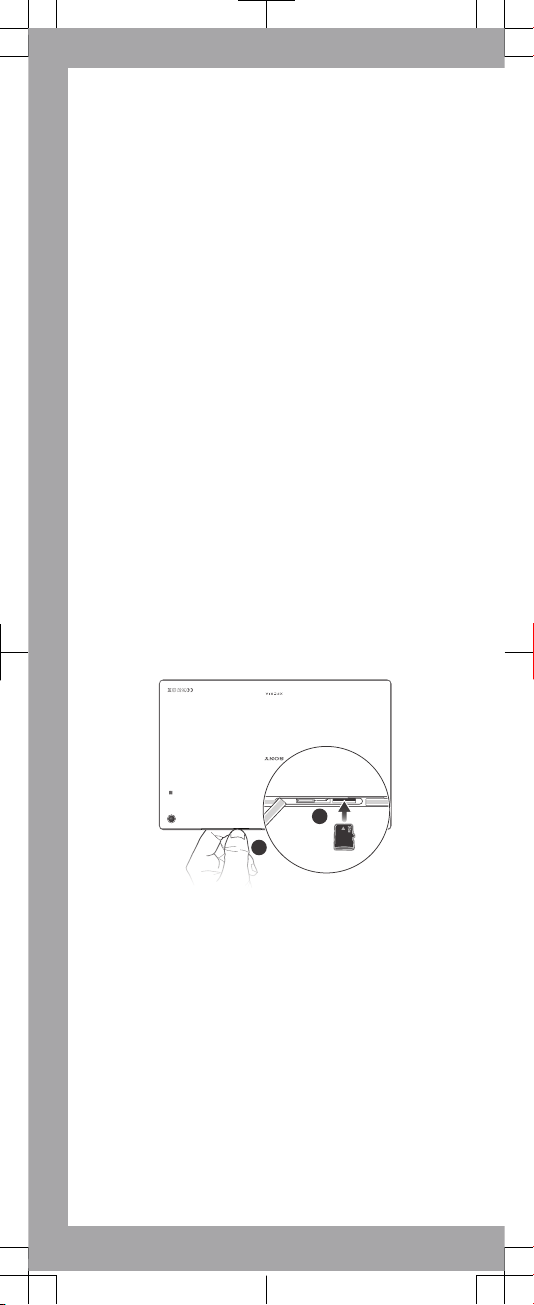
To insert a memory card
1
2
Page 3
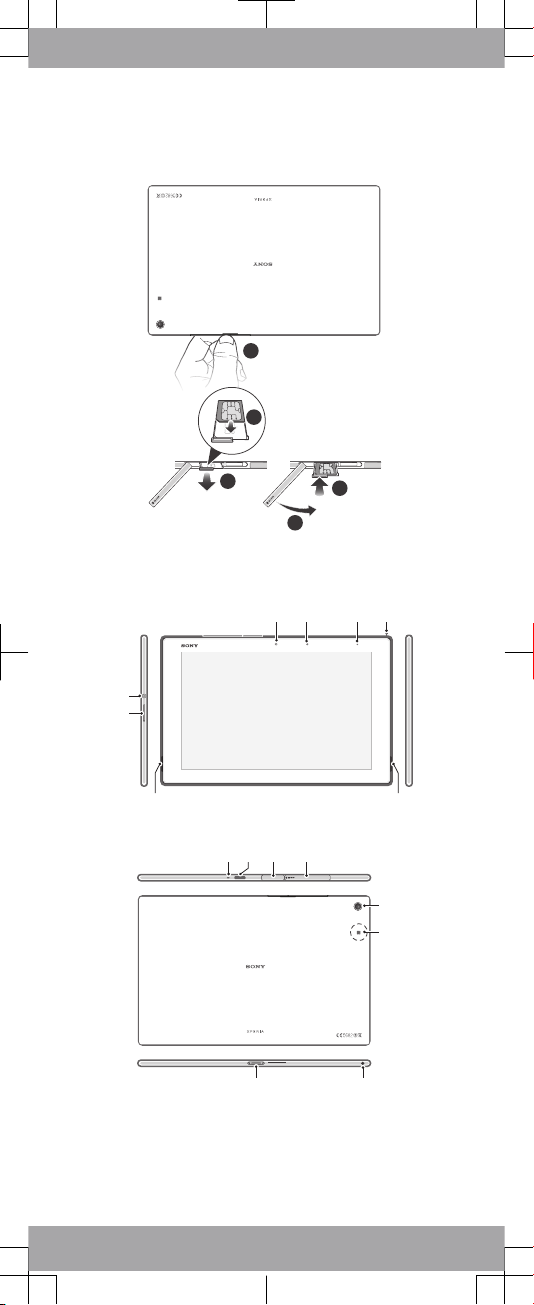
To insert the micro SIM card
1
2
4
5
3
Overview
65
8
7
1 2 3 4
00440245-162947-5
Model:SGPXXX TYPE:XX-XXXX-XX FCC ID:XXXXX-XXXX IC:XXXXX-XXXXXX 13W41 EFF MADE IN CHINA
9 10 11 12
13
14
1516
Page 4
1. Front camera
2. Light sensor
3. Charging light/
Notification light
4. TV antenna
5. Speaker A
6. Speaker B
7. Volume key
8. Power key
9. Microphone
10. Infrared sensor
11. Charger/USB port cover
12. Cover for memory card
slot and micro SIM slot
13. Main camera
14. NFC™ detection area
15. Headset jack
16. Charging dock
connector
Turning on the device
If it is the first time you turn on your device, make sure
that the battery is charged for at least 30 minutes
before you turn on the device for the first time.
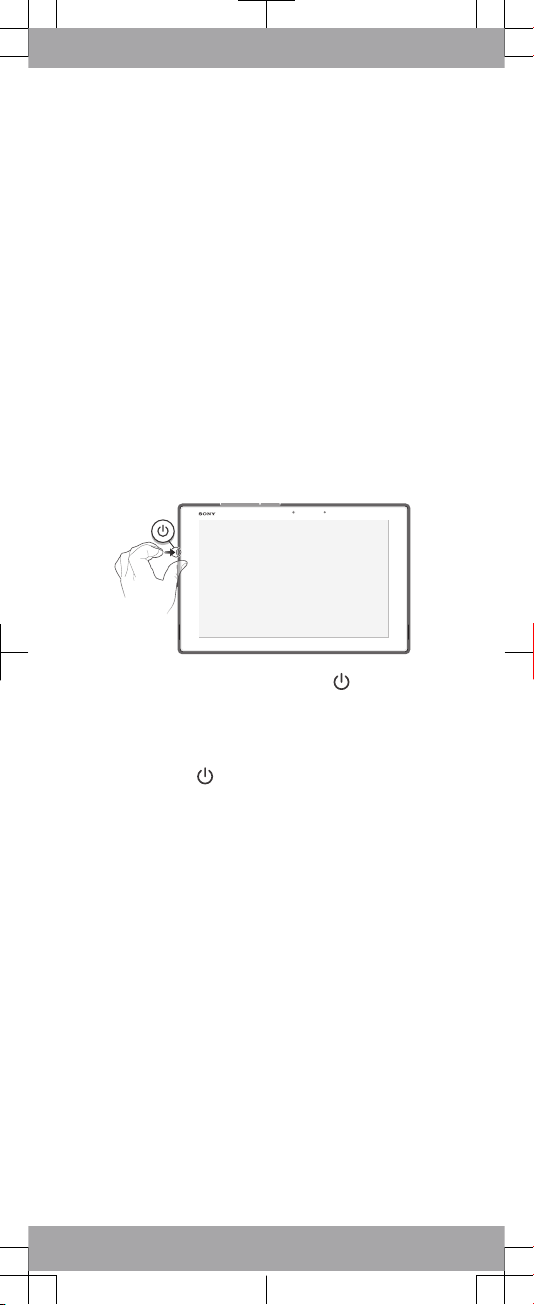
To turn on the device
1
Press and hold down the power key until the
device vibrates.
2
Wait a while for the device to start.
To force the device to shut down
1
Press and hold down both the volume up key and
the power key
for 10 seconds.
2
After your device vibrates three times, release the
keys. The device turns off automatically.
Page 5
Finding your way
Waking up the screen
To activate the screen
•
Briefly press the power key .
•
If Tap to wake up mode is enabled, double-tap the
screen.
To enable Tap to wake up mode, go to the Home
screen, then tap > Settings > Display > Tap to
wake up.
To unlock the screen
•
Place a finger on the right part of the screen and
swipe in any direction.
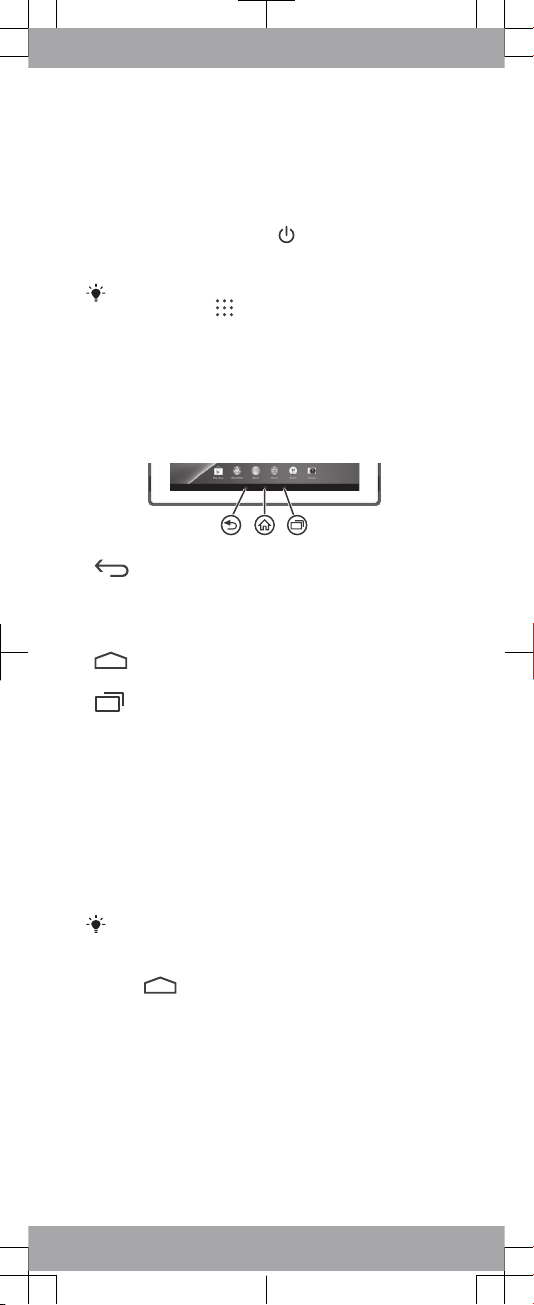
Using the keys
Back
•
Go back to the previous screen
•
Close the on-screen keypad, a dialog box,
an options menu, the Notification panel, or
an application
Home
•
Go to the Home screen
Task
•
Tap to open a window showing your most
recently used applications and a small apps
bar
Home screen
You can customise your Home screen with widgets,
shortcuts, folders, themes, wallpaper and other items.
You can also add more panes to it. You can view
content in other panes of the Home screen by flicking
left or right.
The items in the bar at the top of the screen are
always available for quick access.
To go to the Home screen
•
Press
.
To browse the Home screen
•
Flick right or left.
To add a widget to the Home screen
1
Touch and hold an empty area on your Home
screen, then tap Widgets.
2
Find and tap the widget that you want to add.
Application screen
The Application screen, which you open from your
Home screen, contains the applications that come pre-
Page 6
installed on your device as well as the applications you
download.
The Application screen extends beyond the regular
screen width, so you need to flick left and right to view
all content.
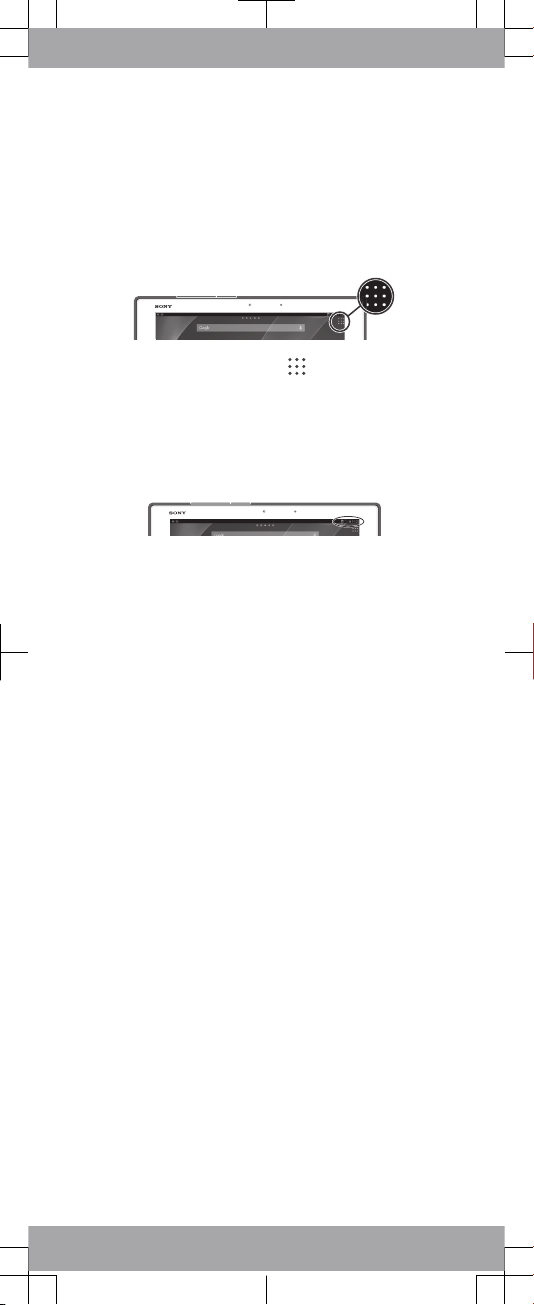
To open the Application screen
•
From your Home screen, tap .
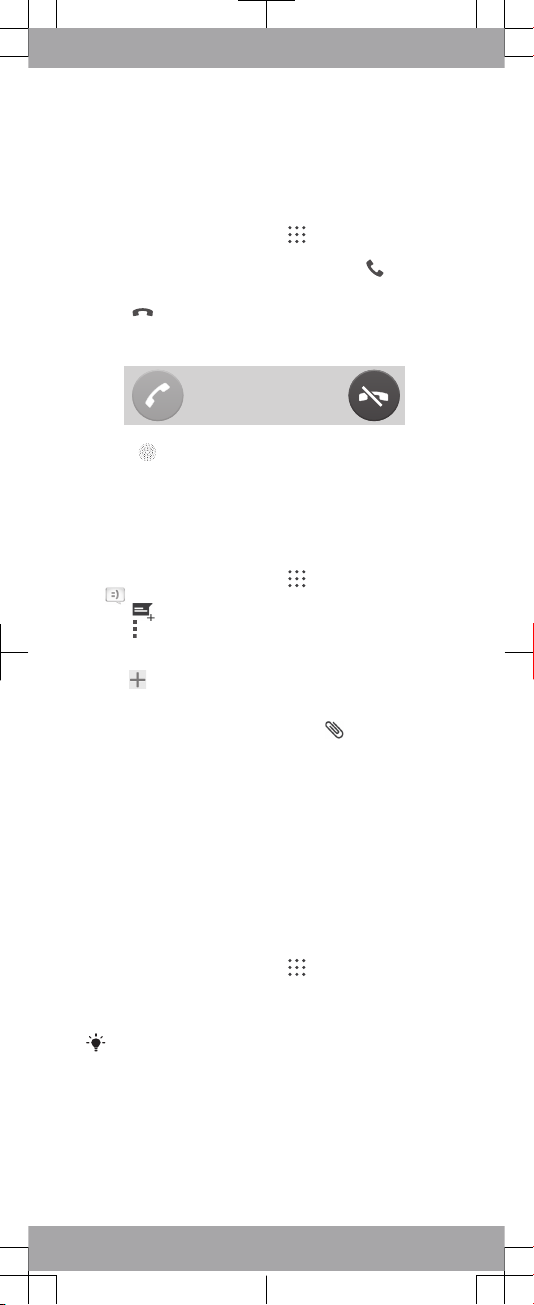
Status and notifications
The status bar at the lower right corner of your screen
shows what's going on in your device. For example,
new message and calendar notifications appear here.
To open the Notification panel
•
Drag the left side of the status bar downwards.
Page 7
More basics
Calling
To make a call by dialling
1
From your Home screen, tap .
2
Find and tap Phone.
3
Enter the number of the recipient and tap .
To end a call
•
Tap
.
To answer a call
•
Drag to the right across the screen.
Multimedia and text
messaging
To create and send a message
1
From your Home screen, tap
, then find and tap
.
2
Tap .
3
Tap
, then tap Add recipient and select a contact
from the Contacts list. If the recipient is not listed as
a contact, enter the recipient's number manually and
tap
.
4
When you are finished adding recipients, tap Done.
5
Tap Write message and enter your message text.
6
If you want to add a media file, tap
and select an
option.
7
To send the message, tap Send.
About Email
You can handle several email accounts at the same
time using the Email application, including corporate
Microsoft Exchange Active Sync accounts. Emails you
receive to your Gmail™ account can be accessed on
your device from both the Email and the Gmail™
applications.
To set up an email account
1
From your Home screen, tap
.
2
Find and tap Email.
3
Follow the instructions that appear on the screen to
complete the setup.
For some email services, you may need to contact
your email service provider for information on
detailed settings for the email account.
Accessing settings
View and change settings for your device from the
Settings menu. The Settings menu is accessible from
both the Notification panel and the Application screen.
Page 8
To access your device settings
1
From your Home screen, tap .
2
Find and tap Settings.
Page 9
Setting up your
device
Google™ account
With a Google™ account, you can use Gmail™ to send
emails, Hangouts™ to chat with friends, and Google
Play™ to download applications and games, music,
movies and books.
To set up a Google™ account on your device
1
From your Home screen, tap .
2
Find and tap Settings > Add account > Google.
3
Follow the registration wizard to create a Google™
account, or sign in if you already have an account.
You can also sign in to or create a Google™
account from the setup guide the first time you
start your device. Or you can go online and create
an account at
www.google.com/accounts
.
Basic settings
The first time you start your device, a setup guide
explains basic device functions and helps you enter
essential settings. You can also access the setup guide
later.
To access the setup guide manually
1
From the Home screen, tap .
2
Tap Settings > Setup guide.
Page 10
Legal information
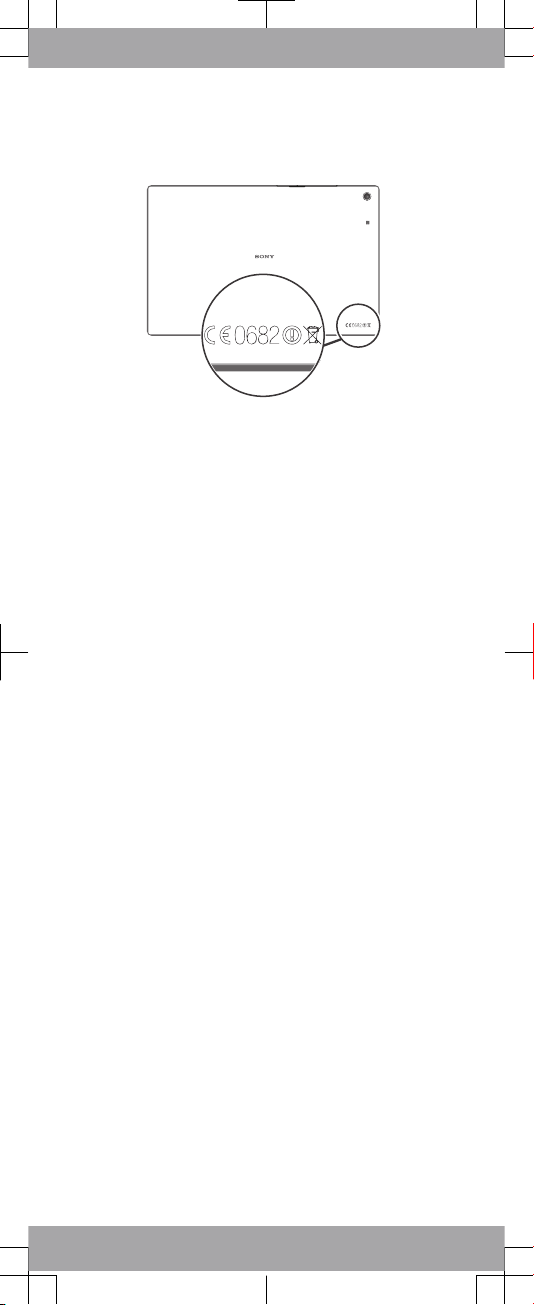
To view the CE mark
SonySGP551
Google Play™ is not available in all countries. Some of the services and
features described in this Startup guide are not supported in all countries/
regions or by all networks and/or service providers in all areas. Without
limitation, this applies to the GSM International Emergency Number 112.
Please contact your network operator or service provider to determine
availability of any specific service or feature and whether additional access or
usage fees apply.
This Startup guide is published by Sony Mobile Communications AB or its
local affiliated company, without any warranty. Improvements and changes to
this Startup guide necessitated by typographical errors, inaccuracies of
current information, or improvements to programs and/or equipment, may be
made by Sony Mobile Communications AB at any time and without notice.
Such changes will, however, be incorporated into new editions of this Startup
guide.
© 2013 Sony Mobile Communications AB. All rights reserved.
Publication number: 1272-5409.2
Your device has the capability to download, store and forward additional
content, e.g. ringtones. The use of such content may be restricted or
prohibited by rights of third parties, including but not limited to restriction
under applicable copyright laws. You, and not Sony, are entirely responsible
for additional content that you download to or forward from your device. Prior
to your use of any additional content, please verify that your intended use is
properly licensed or is otherwise authorized. Sony does not guarantee the
accuracy, integrity or quality of any additional content or any other third party
content. Under no circumstances will Sony be liable in any way for your
improper use of additional content or other third party content.
This Startup guide may reference services or applications provided by third
parties. Use of such programming or services may require separate
registration with the third party provider and may be subject to additional
terms of use. For applications accessed on or through a third-party website,
please review such websites’ terms of use and applicable privacy policy in
advance. Sony does not warrant or guarantee the availability or performance
of any third-party websites or offered services.
See regulatory information such as the CE mark in the label tray of the
device.
All product and company names mentioned herein are the trademarks or
registered trademarks of their respective owners. Any rights not expressly
granted herein are reserved. All other trademarks are property of their
respective owners.
Visit
www.sonymobile.com
for more information.
All illustrations are for illustration only and may not accurately depict the
actual device.
This product is protected by certain intellectual property rights of Microsoft.
Use or distribution of such technology outside of this product is prohibited
without a license from Microsoft.
Product compliance: This product has been manufactured by or on behalf of
Sony Mobile Communications, Mobilvägen, SE-221 88 Lund, Sweden.
Inquiries related to product compliance based on national legislation shall be
addressed to Sony Mobile Quality Officer, Sony Mobile Communications AB,
Mobilvägen, SE-221 88 Lund, Sweden. For any service or guarantee matters,
please refer to the contact details provided in the separate service or
guarantee documents.
Page 11
Our support to you –
Xperia™ Care
User guide
A User guide for your device is available at
www.sonymobile.com/support
.
Support in your device
Get user support directly in your device using the Help
application.
To access the Support application
1
From your Home screen, tap
.
2
Find and tap
.
Support on the web
Visit
www.sonymobile.com/support
to access a range
of support and get the most from your device.
Customer support
Customer support – if all else fails. Access the relevant
support number at
www.sonymobile.com
by clicking
the Contact us link at the bottom of the page.
Learn more
Learn more about how we can support you with
Xperia™ Care at
www.sonymobile.com/support
.
www.sonymobile.com
 Loading...