

Page 1
46
Sony Personal Entertainment Organizer PEG-UX50/UX00 X-XXX-XXX-11 (1)
Receiving e-mails
You can receive e-mails with CLIE Mail.
b For details on setup, sending or receiving e-mails, refer to “Internet/E-mail” in the “CLIÉ
Application Manual” installed on your computer.
1
Tap (Receive) in the CLIE Mail screen.
After connecting to the Internet, the Communication Status screen is displayed
and you can receive e-mails.
2
Tap [OK].
The received mail is displayed in [Inbox] in the CLIE Mail screen.
3
Tap (On line).
(Off line) is displayed when disconnected.
4
Tap the received mail.
The text of the received mail is displayed.
01US01COV.book Page 46 Friday, June 20, 2003 6:29 AM
Page 2
47
Sony Personal Entertainment Organizer PEG-UX50/UX00 X-XXX-XXX-11 (1)
Have a try
Have a try
Enjoying image files
You can take pictures and view image files using your CLIÉ handheld as a
digital still camera.
• Application to be used:
– Taking pictures: CLIE Camera
– Viewing image files: CLIE Viewer
b For details, refer to “Still images” in the “CLIÉ Application Manual” installed on your
computer.
Taking pictures
1
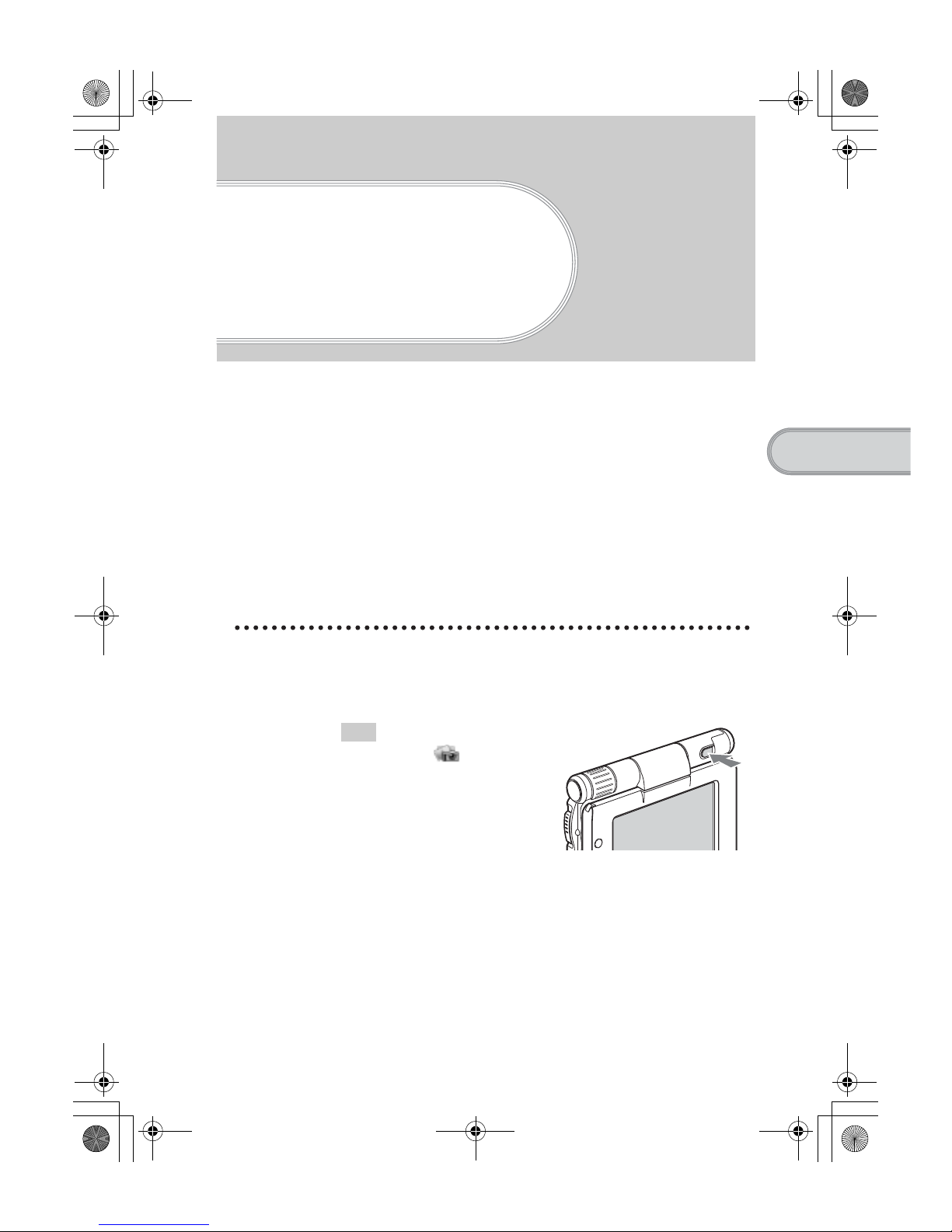
Press the CAPTURE/REC button to start CLIE Camera.
Tip
You can also tap (CLIE Camera)
in the CLIE 3D Launcher to start CLIE
Camera.
Continued on next page
• • • • • • • • • • • • • • • • • • • • •
01US01COV.book Page 47 Friday, June 20, 2003 6:29 AM
Page 3
48
Sony Personal Entertainment Organizer PEG-UX50/UX00 X-XXX-XXX-11 (1)
Viewing image files
You can view image files using CLIE Viewer.
b For details, refer to “Viewing handwritten memos and image files, and playing back
voice memos” on page 55.
Tip
You can also tap on the CLIE Camera screen to start CLIE Viewer.
2
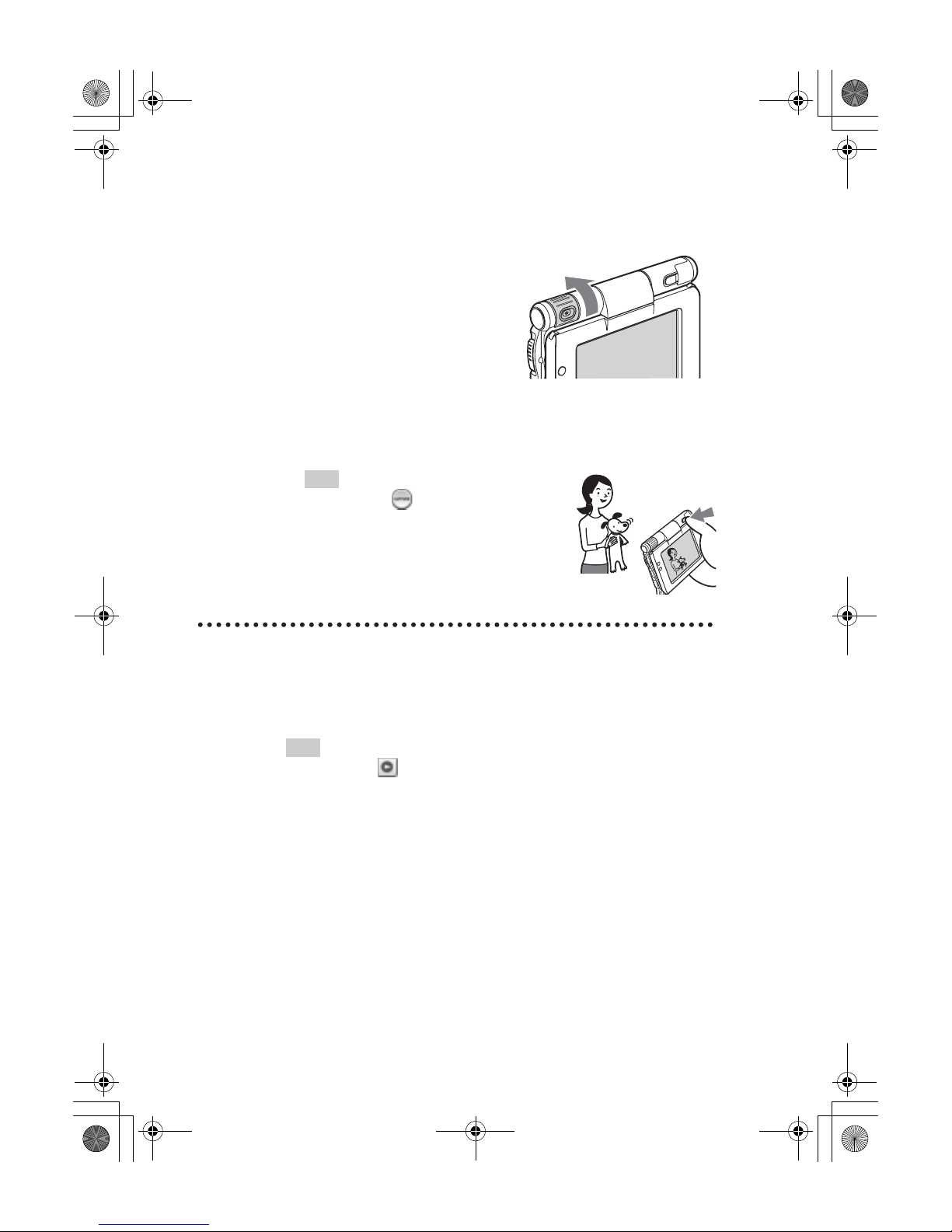
Point the built-in camera directly at the subject by
rotating the camera lens.
3
Position the subject in the viewfinder and press the
CAPTURE/REC button.
A picture is taken.
Tip
You can also tap (CAPTURE) on the CLIE
Camera screen to take a picture.
01US01COV.book Page 48 Friday, June 20, 2003 6:29 AM
Page 4
49
Sony Personal Entertainment Organizer PEG-UX50/UX00 X-XXX-XXX-11 (1)
Have a try
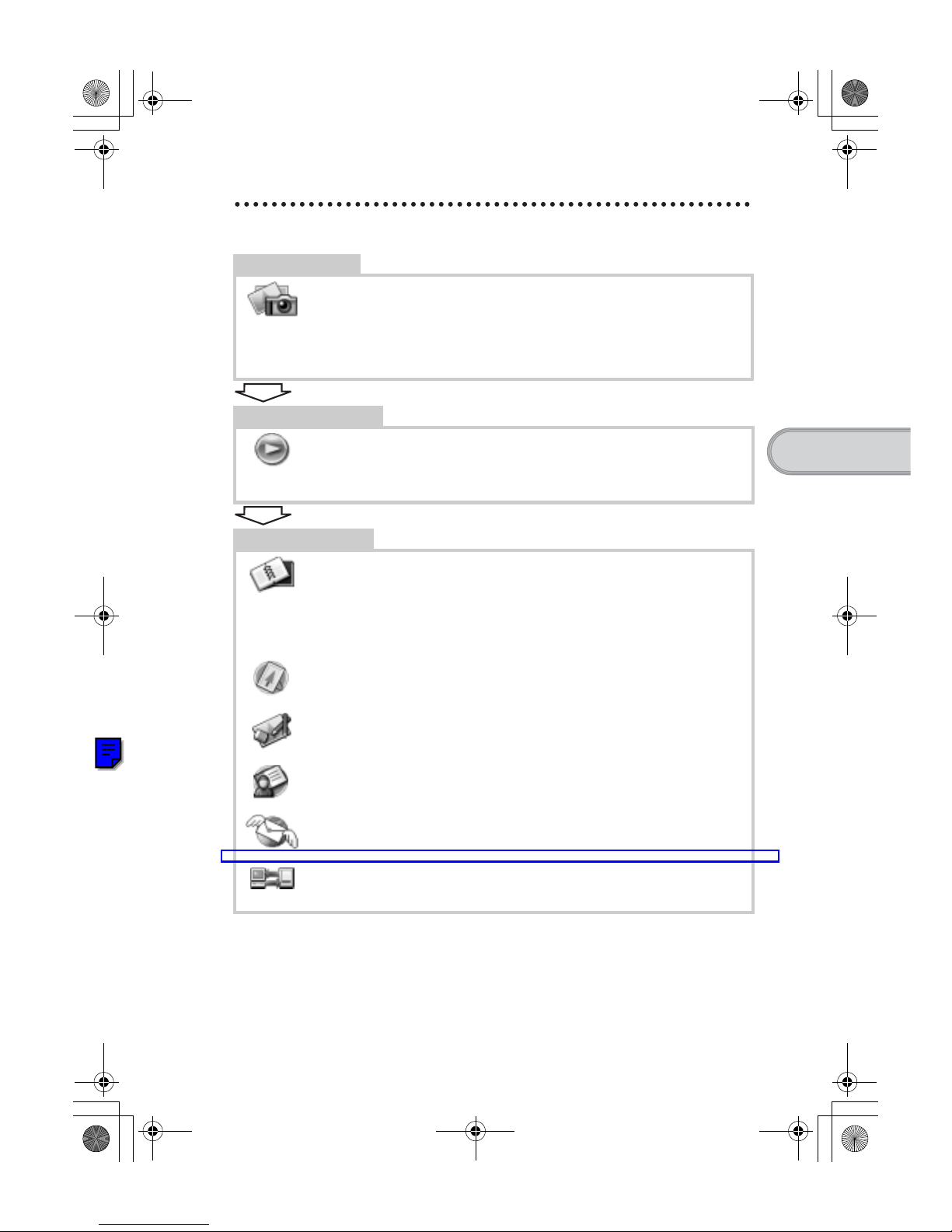
Enjoying image files
Getting Ready
Taking pictures
CLIE Camera................................................................................page 74
Importing image files from your computer
Image Converter...........................................................................page 76
Viewing/Selecting
Viewing/Selecting image files by searching
from the list
CLIE Viewer ................................................................................page 74
Utilizing features
Organizing image files in albums
CLIE Album.................................................................................page 75
Exporting image files to your computer
PictureGear Studio .......................................................................page 76
Displaying image files one after the other
PhotoStand ...................................................................................page 75
Editing image files
Photo Editor..................................................................................page 76
Attaching image files to addresses
Address Book ............................................................................... page 81
Sending image files with e-mail messages
CLIE Mail ....................................................................................page 80
Transferring image files to your computer
Data Import ..................................................................................page 84
01US01COV.book Page 49 Friday, June 20, 2003 6:29 AM
Page 5
50
Sony Personal Entertainment Organizer PEG-UX50/UX00 X-XXX-XXX-11 (1)
Enjoying movies
You can record movies using your CLIÉ handheld as you do with digital video
camera.
Movie files are saved on a “Memory Stick” media.
• Applications to be used:
– Recording movies: Movie Recorder
– Viewing movies: Movie Player or CLIE Viewer
b For details, refer to “Movies” in the “CLIÉ Application Manual” installed on your
computer.
Recording movies
1
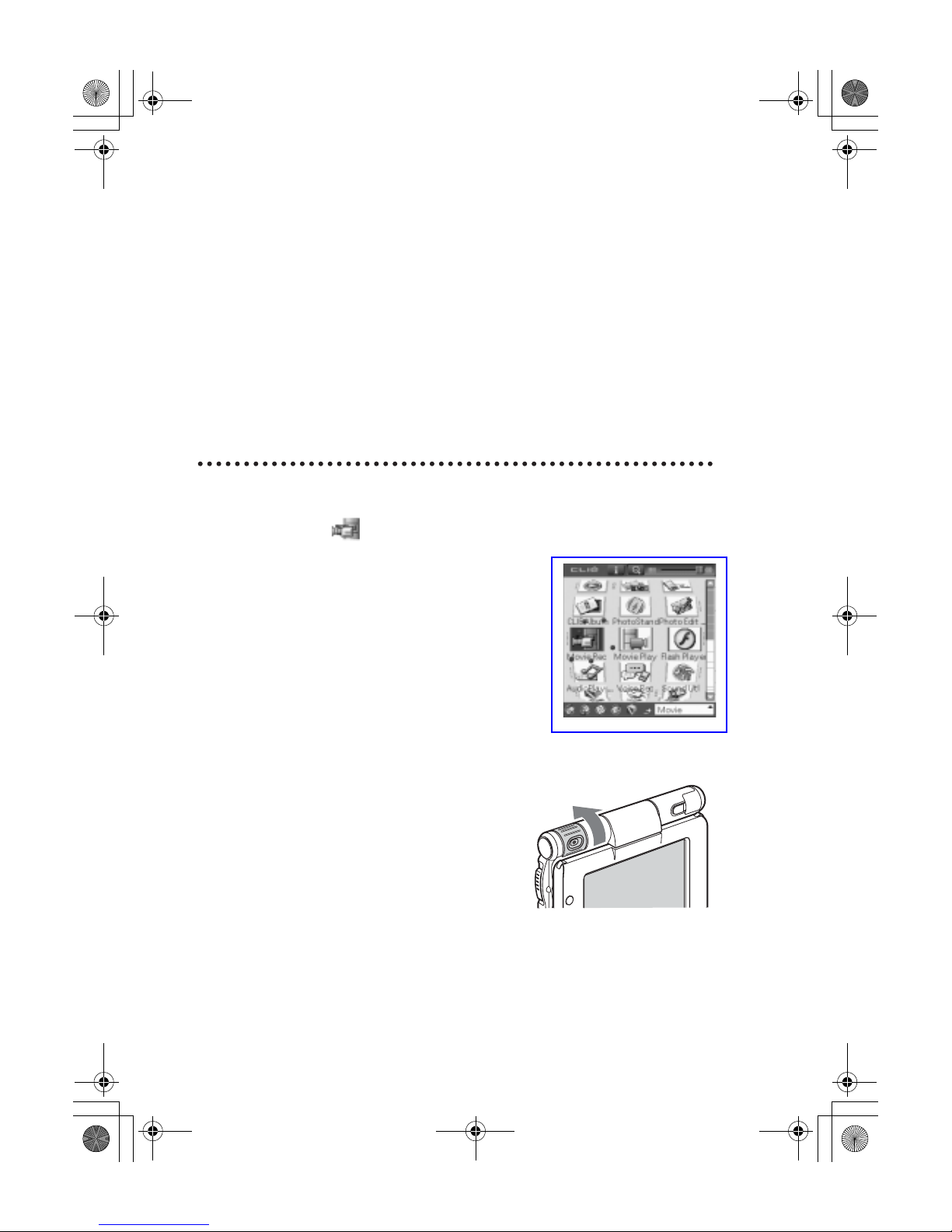
Select (Movie Rec) in the CLIE 3D Launcher to start
Movie Recorder.
2
Point the built-in camera directly at the subject by
rotating the camera lens.
01US01COV.book Page 50 Friday, June 20, 2003 6:29 AM
Page 6
51
Sony Personal Entertainment Organizer PEG-UX50/UX00 X-XXX-XXX-11 (1)
Have a try
Viewing movies
You can view movies in CLIE Viewer.
b For details, refer to “Viewing handwritten memos and image files, and playing back
voice memos” on page 55.
3
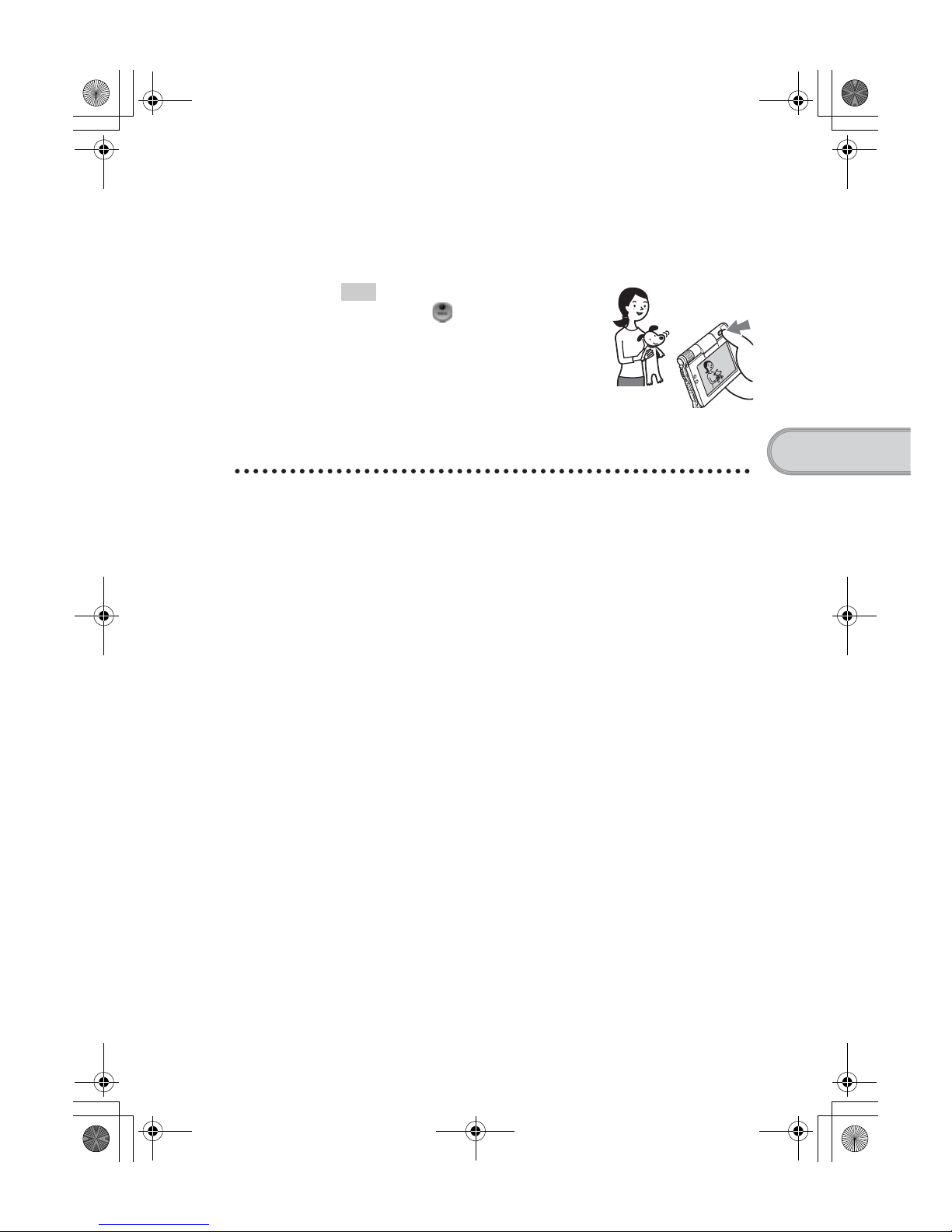
Position the subject in the viewfinder and press the
CAPTURE/REC button.
Movie recording starts.
Tip
You can also tap (REC) on the
Movie Recorder screen to record.
4
Press the CAPTURE/REC button again to stop recording.
01US01COV.book Page 51 Friday, June 20, 2003 6:29 AM
Page 7
52
Sony Personal Entertainment Organizer PEG-UX50/UX00 X-XXX-XXX-11 (1)
Enjoying movies
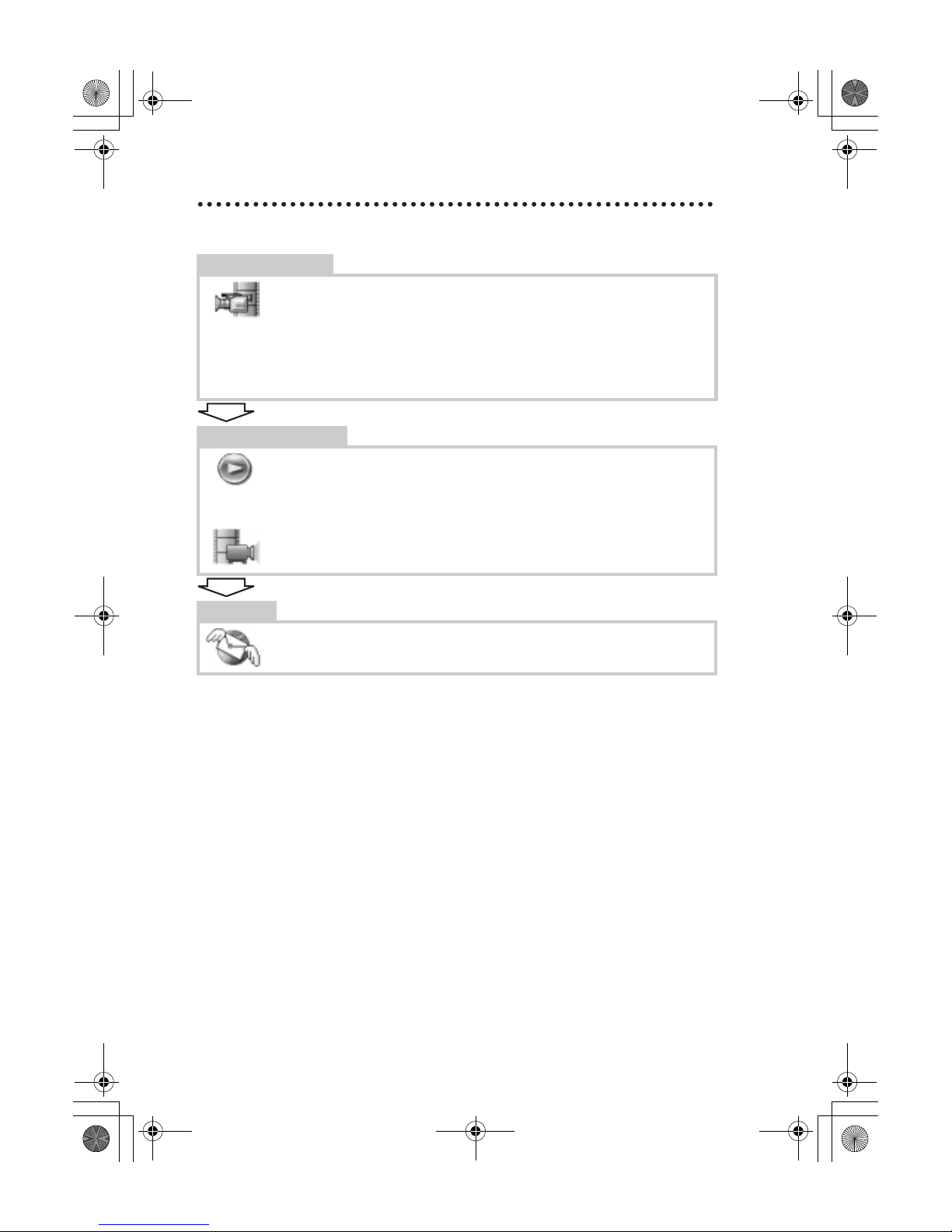
Getting Ready
Recording movies
Movie Recorder............................................................................page 77
Importing movie files from your computer
Image Converter...........................................................................page 76
Giga Pocket Plugin.......................................................................page 78
Viewing/Selecting
Viewing/Selecting movies by searching from a
list
CLIE Viewer ................................................................................page 74
Playing back movies
Movie Player ................................................................................page 77
Sending
Sending movies with e-mail messages
CLIE Mail.....................................................................................page 80
01US01COV.book Page 52 Friday, June 20, 2003 6:29 AM
Page 8
53
Sony Personal Entertainment Organizer PEG-UX50/UX00 X-XXX-XXX-11 (1)
Have a try
Recording a voice memo (Voice Recorder)
You can record sounds using the built-in microphone of your CLIÉ handheld.
You can also use the voice memo as an alarm sound or attach it to an e-mail.
• Applications to be used:
– Recording a voice memo: Voice Recorder
– Playing back a voice memo: Voice Recorder or CLIE Viewer
b For details, refer to “Voice Recorder” in the “CLIÉ Application Manual” installed on
your computer.
Recording a voice memo
1
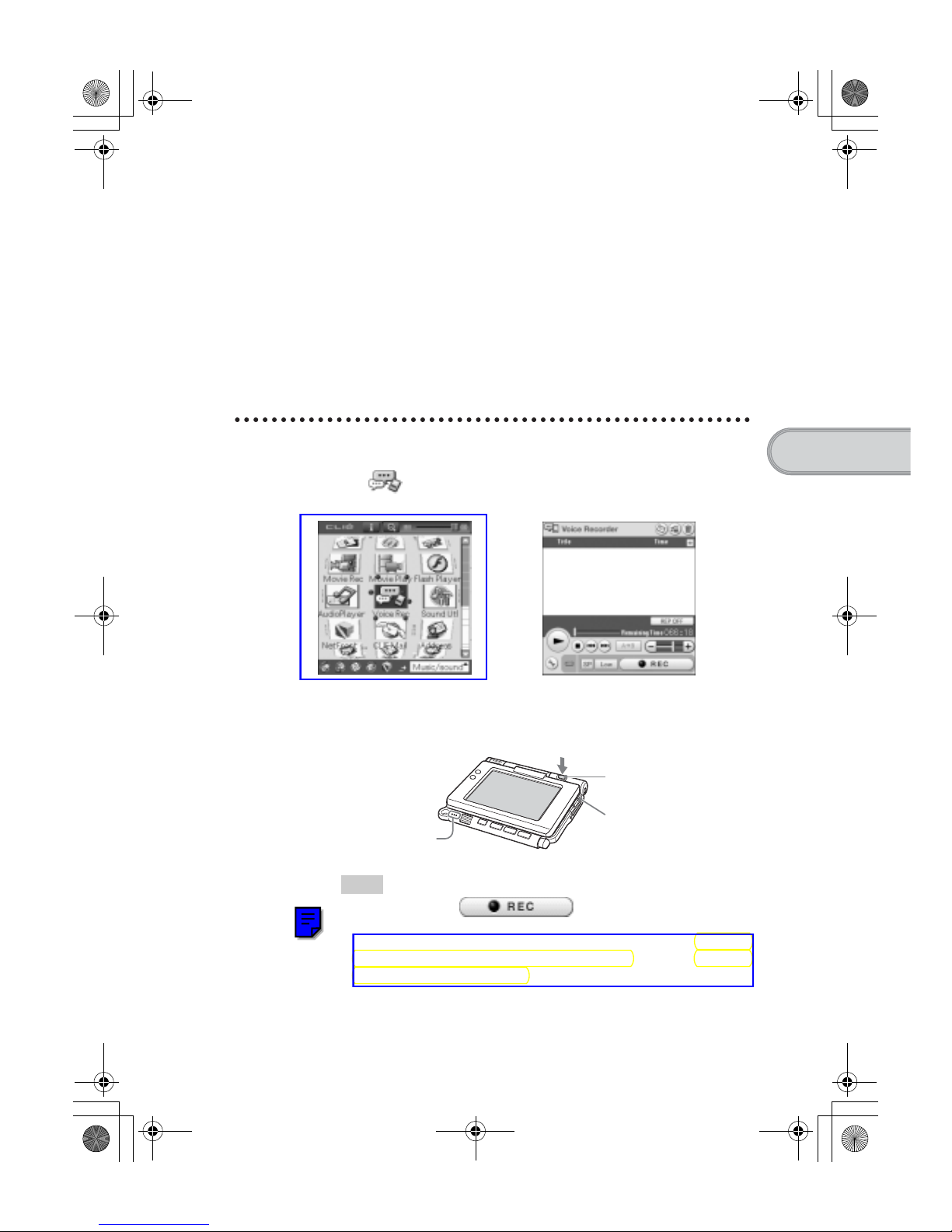
Select (Voice Rec) in the CLIE 3D Launcher to start
Voice Recorder.
2
Press the CAPTURE/REC button.
Voice memo recording starts.
Speak directly into the built-in microphone.
Tips
• You can also tap in the Voice Recorder
screen to start recording.
• There are two modes of recording for voice memo, High (to record
at meetings or in a quiet and/or spacious place) and Low (to record
dictation or in a noisy place).
b For details, refer to “Voice Recorder” in the “CLIÉ Application Manual”
installed on your computer.
b
Press the CAPTURE/REC
button.
REC LED lights when
recording.
Built-in microphone
Continued on next page
• • • • • • • • • • • • • • • • • • • • •
01US01COV.book Page 53 Friday, June 20, 2003 6:29 AM
Page 9
54
Sony Personal Entertainment Organizer PEG-UX50/UX00 X-XXX-XXX-11 (1)
Playing back a voice memo
You can play back a voice memo using Voice Recorder or CLIE Viewer.
b For details on Voice Recorder, refer to “Voice Recorder” in the “CLIÉ Application
Manual” installed on your computer.
b For details on CLIE Viewer, refer to “Viewing handwritten memos and image files,
and playing back voice memos” on page 55.
3
Press the CAPTURE/REC button again to stop recording.
Tip
You can also tap or
in the Voice Recorder
screen
to stop recording.
01US01COV.book Page 54 Friday, June 20, 2003 6:29 AM
Page 10
55
Sony Personal Entertainment Organizer PEG-UX50/UX00 X-XXX-XXX-11 (1)
Have a try
Viewing handwritten memos and image files,
and playing back voice memos
You can use CLIE Viewer to view handwritten memos, image files, and movie
files, and to play back the voice memos saved on your CLIÉ handheld or a
“Memory Stick” media. These different types of files are arranged by date to
easily find the file you want to open.
You can also attach image files or movie files to your e-mails, or select data to use
with applications, such as PhotoStand, CLIE Album, or Photo Editor.
• Application to be used: CLIE Viewer
• Data to be used:
– Image files: JPEG (DCF) format, PictureGear Pocket format
– Movie files: Movie Player format, MPEG Movie format
– Handwritten memos
– Voice memos
b For details on file formats you can play back or view with your CLIÉ handheld, refer to
“CLIE Viewer” in the “CLIÉ Application Manual” installed on your computer.
Opening/Playing back files
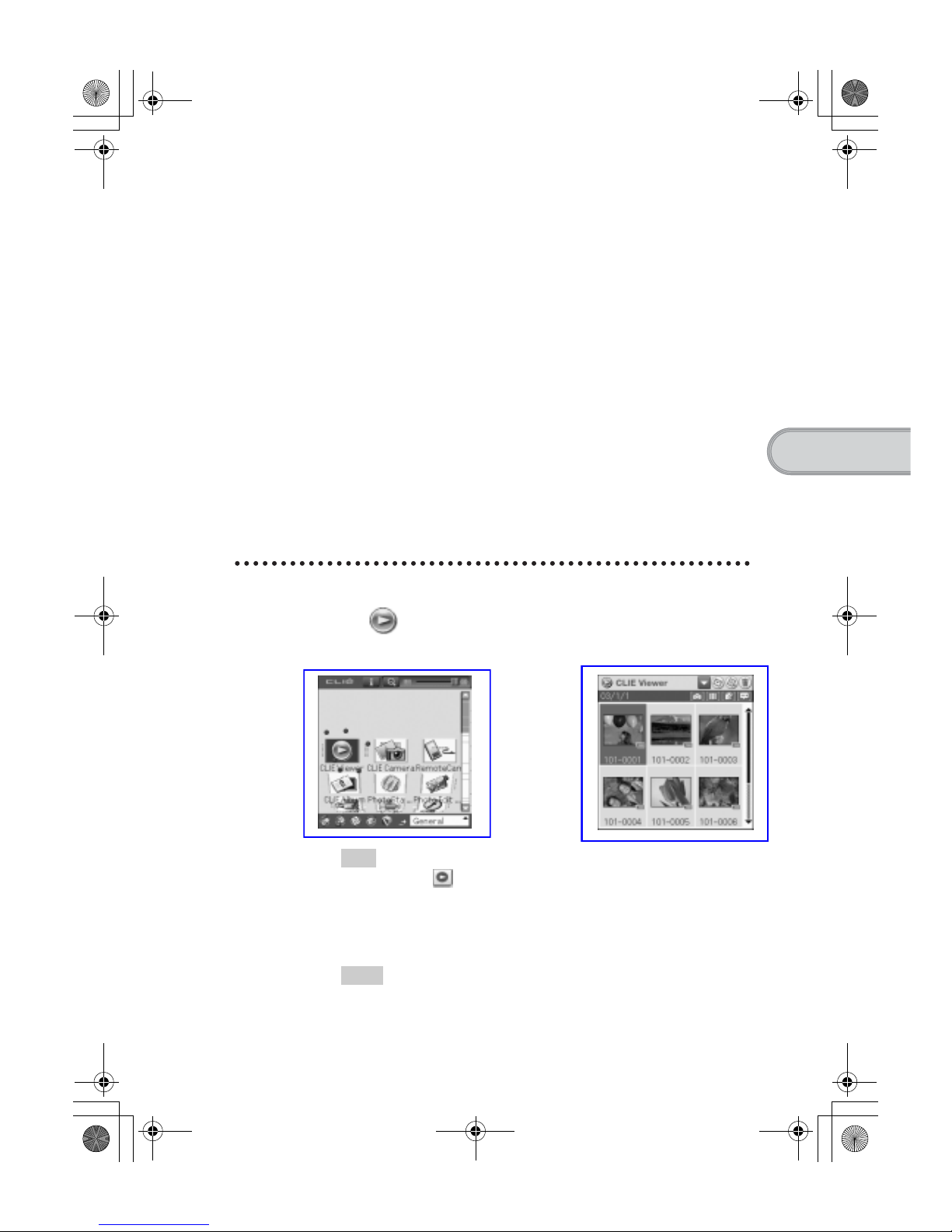
1
Select (CLIE Viewer) in the CLIE 3D Launcher to start
CLIE Viewer.
The file list screen is displayed.
Tip
You can also tap on the CLIE Camera screen to start.
2
Rotate the Jog Dial™ navigator to select the file you want
to display and press the Jog Dial™ navigator.
The selected file is displayed or played back.
Tips
• You can also tap the file to display or play it back.
• The files are displayed by date of creation.
b
01US01COV.book Page 55 Friday, June 20, 2003 6:29 AM
Page 11
56
Sony Personal Entertainment Organizer PEG-UX50/UX00 X-XXX-XXX-11 (1)
Selecting/Deleting files
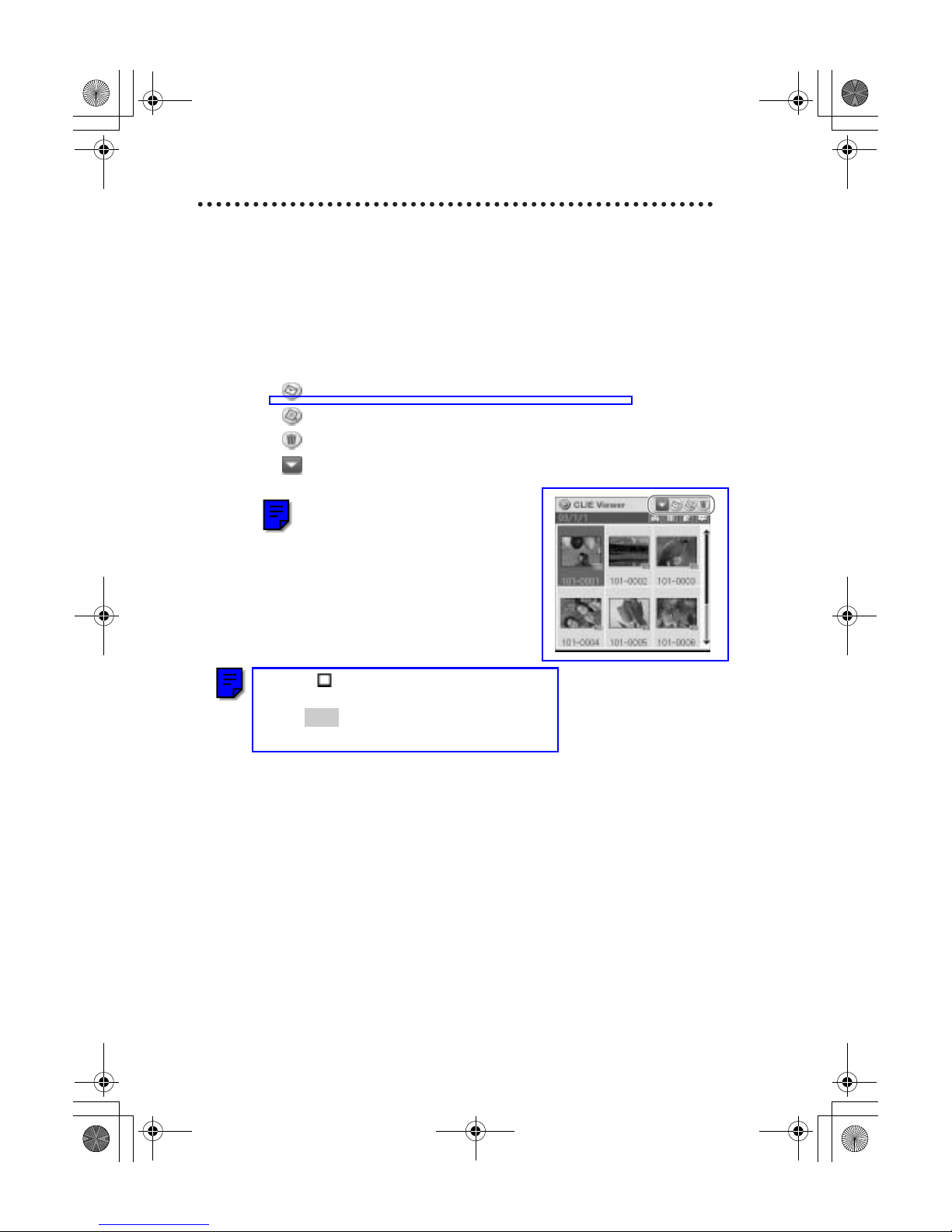
You can select an image or movie file from the list screen in CLIE Viewer
(including files on “Memory Stick” media) to attach to your e-mails, use the
image files in other applications, or delete files.
1
Start CLIE Viewer.
2
Tap a command button to select a function.
: The selected file will be attached to an e-mail
: The selected image file will be added to PhotoStand
: The selected file will be deleted
: Choose other applications, Photo Editor or CLIE Album by using
the pull-down menu
3
Tap (Check Box) to select the file.
Tip
Tap [Select all] to select all the files.
4
Tap [OK].
The function selected in step 2 is performed.
01US01COV.book Page 56 Friday, June 20, 2003 6:29 AM
Page 12
57
Sony Personal Entertainment Organizer PEG-UX50/UX00 X-XXX-XXX-11 (1)
Have a try
Listening to music
You can listen to music on your CLIÉ handheld by transferring music files
from your computer to the Internal media of your CLIÉ handheld or to a
“Memory Stick” media inserted into your CLIÉ handheld.
• Applications to be used:
– Transferring music files in ATRAC3 format: Audio Player and
SonicStage (for PC)
– Transferring music files in MP3 format: Data Import and Data Export
(for PC)
– Playing back music files on your CLIÉ handheld: Audio Player
• Required media: “Memory Stick” media (ATRAC3 format only)
• Formats to be used: ATRAC3 and MP3 formats
• Setup:
1 Connect your CLIÉ handheld to your computer.
b For details, refer to “Using your CLIÉ™ handheld with your computer” on page 16.
2 Install SonicStage and Data Export on your computer.
b For details, refer to “Music” in the “CLIÉ Application Manual” installed on your
computer.
Transferring music files to your CLIÉ
handheld
You can transfer music files from your computer to your CLIÉ handheld using
SonicStage or Data Export.
01US01COV.book Page 57 Friday, June 20, 2003 6:29 AM
Page 13
58
Sony Personal Entertainment Organizer PEG-UX50/UX00 X-XXX-XXX-11 (1)
Playing back music data
1
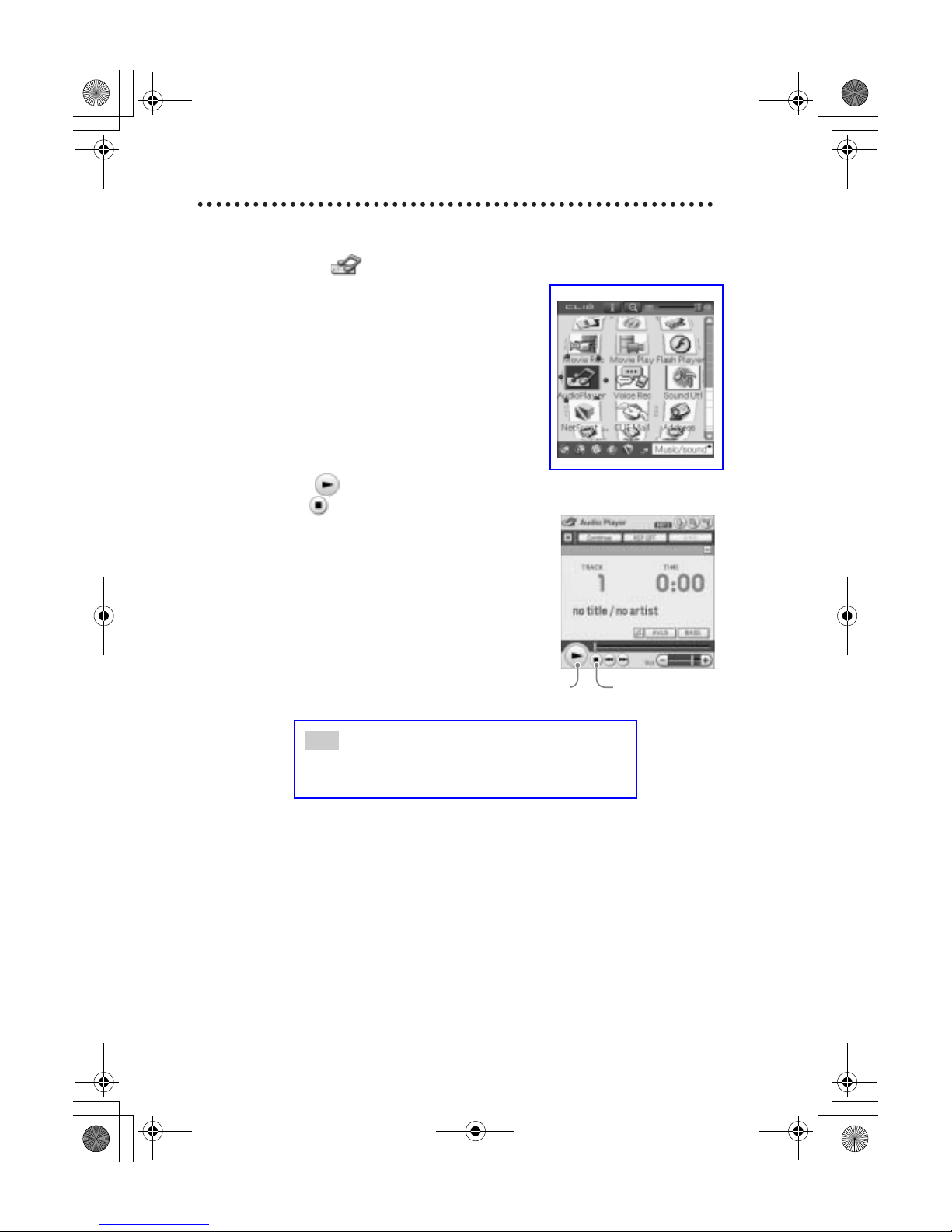
Select (Audio Player) in the CLIE 3D Launcher to start
Audio Player.
2
Tap (Playback) to play music.
Tap (Stop) to stop the music.
Tip
You can use separtely sold headphones.
(Your CLIÉ handheld accepts stereo mini-jack headphones.)
StopPlayback
01US01COV.book Page 58 Friday, June 20, 2003 6:29 AM
Page 14
59
Sony Personal Entertainment Organizer PEG-UX50/UX00 X-XXX-XXX-11 (1)
Have a try
Managing schedule events (Date Book)
You can save important dates and times, such as for conferences or business
trips.
• Application to be used: Date Book
b For details, refer to “Date Book” in the “CLIÉ Application Manual” installed on your
computer.
Entering a schedule event
1
Press the button on your CLIÉ handheld to start Date
Book.
2
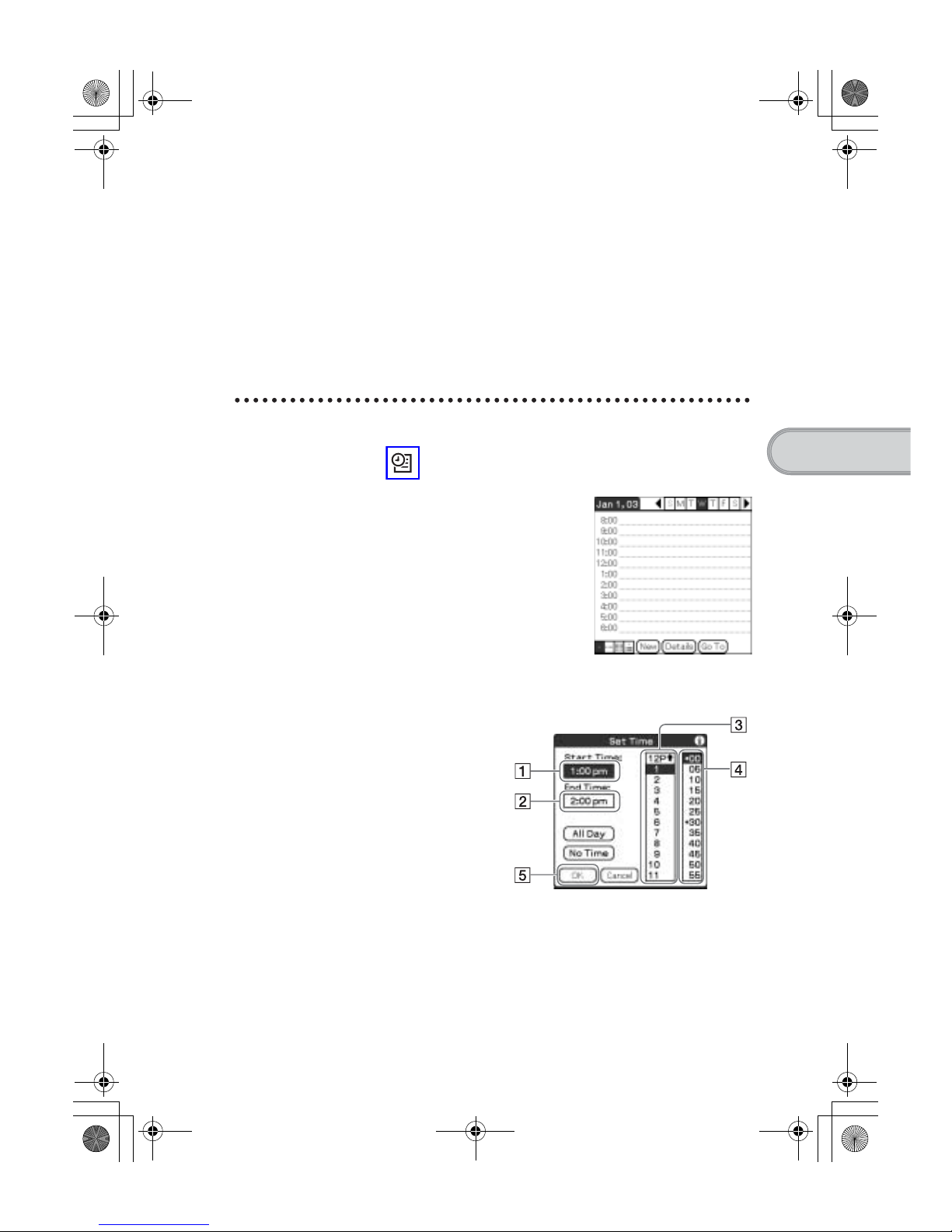
Tap [New] and set the start time and end time of the
schedule event.
1 Tap to set the start time.
2 Tap to set the end time.
3 Tap to select “hour”.
4 Tap to select “minute”.
5 Tap to confirm the settings.
Continued on next page
• • • • • • • • • • • • • • • • • • • • •
01US01COV.book Page 59 Friday, June 20, 2003 6:29 AM
Page 15
60
Sony Personal Entertainment Organizer PEG-UX50/UX00 X-XXX-XXX-11 (1)
Deleting a schedule event
3
Enter a schedule event.
Tip
b For details on entering text, refer to
“Entering text on your CLIÉ™ handheld”
in the supplied “Handbook”.
1
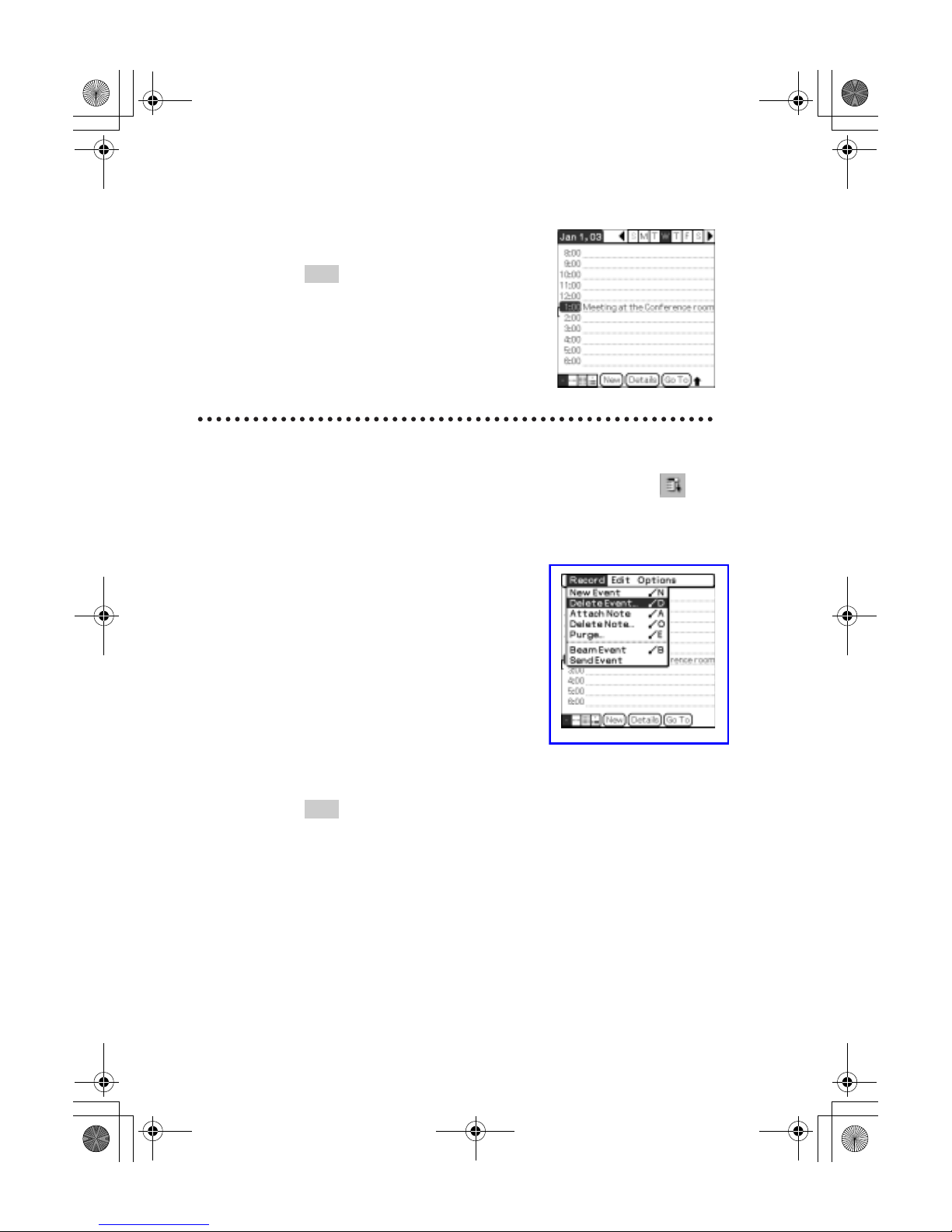
Tap a schedule event you want to delete and tap
(Menu).
The menu is displayed.
2
Tap [Delete Event...] from [Record].
The Delete Event dialog box is displayed.
3
Tap [OK].
Tip
The deleted data from your CLIÉ handheld will be saved on your computer the
next time you perform the HotSync
®
operation if you have selected [Save
archive copy on PC] on the Delete Event screen.
To view the saved data on your computer, open Palm™ Desktop for CLIÉ,
and select [Open Archive...] from [File] in the Date Book window.
01US01COV.book Page 60 Friday, June 20, 2003 6:29 AM
Page 16
61
Sony Personal Entertainment Organizer PEG-UX50/UX00 X-XXX-XXX-11 (1)
Have a try
Managing addresses and telephone numbers
(Address Book)
You can register information such as names, addresses and telephone numbers,
and attach an image.
You can also attach an image file or create a business card from your own
address information and send it to another CLIÉ handheld or Palm OS
®
compatible device via beaming.
• Application to be used: Address Book
b For details, refer to “Address Book” in the “CLIÉ Application Manual” installed on
your computer.
Entering a new address
1
Select (Address) in the CLIE 3D Launcher to start
Address Book.
2
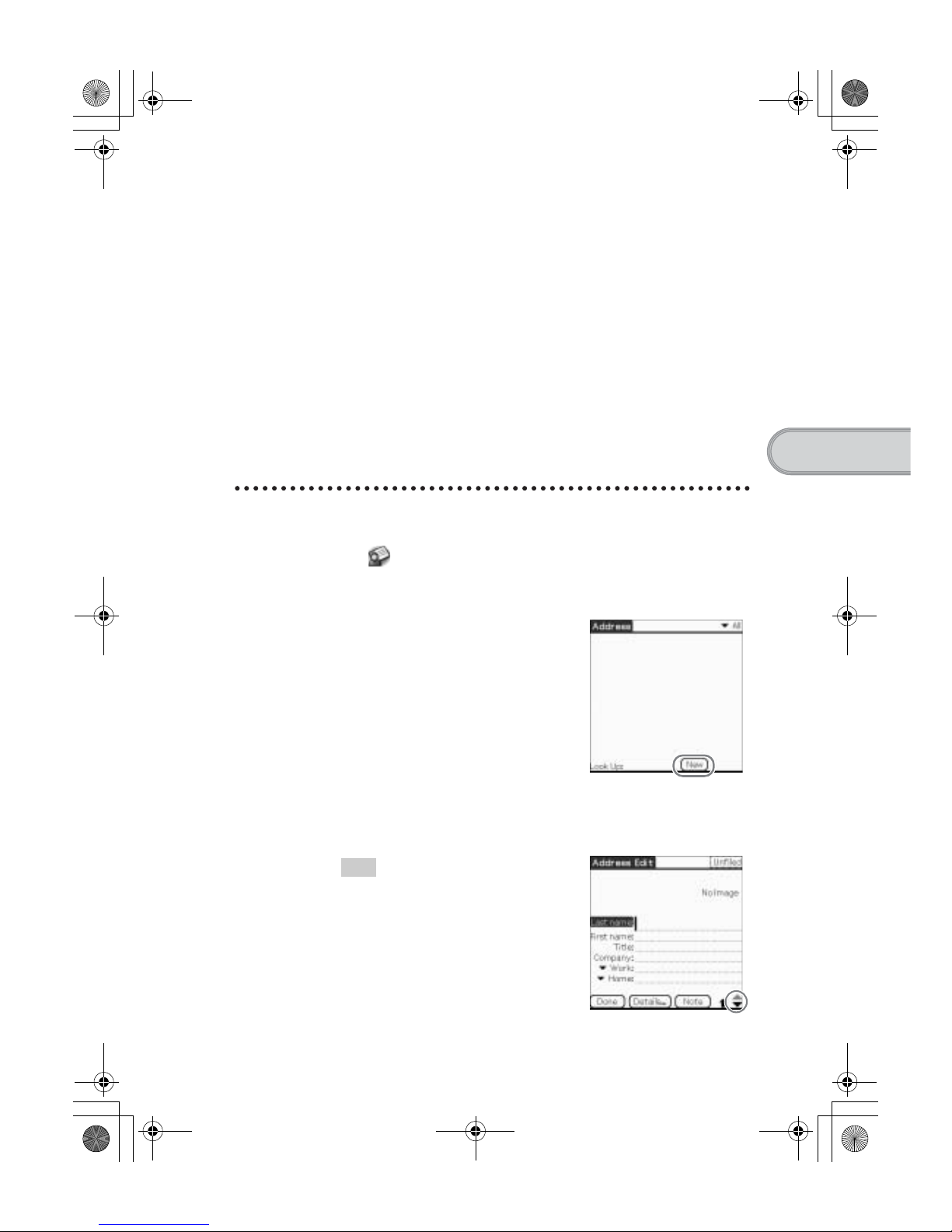
Tap [New].
The Address Edit screen is displayed.
3
Tap each item to enter details.
Tip
You can scroll the screen by tapping v/V at
the bottom right.
01US01COV.book Page 61 Friday, June 20, 2003 6:29 AM
Page 17
62
Sony Personal Entertainment Organizer PEG-UX50/UX00 X-XXX-XXX-11 (1)
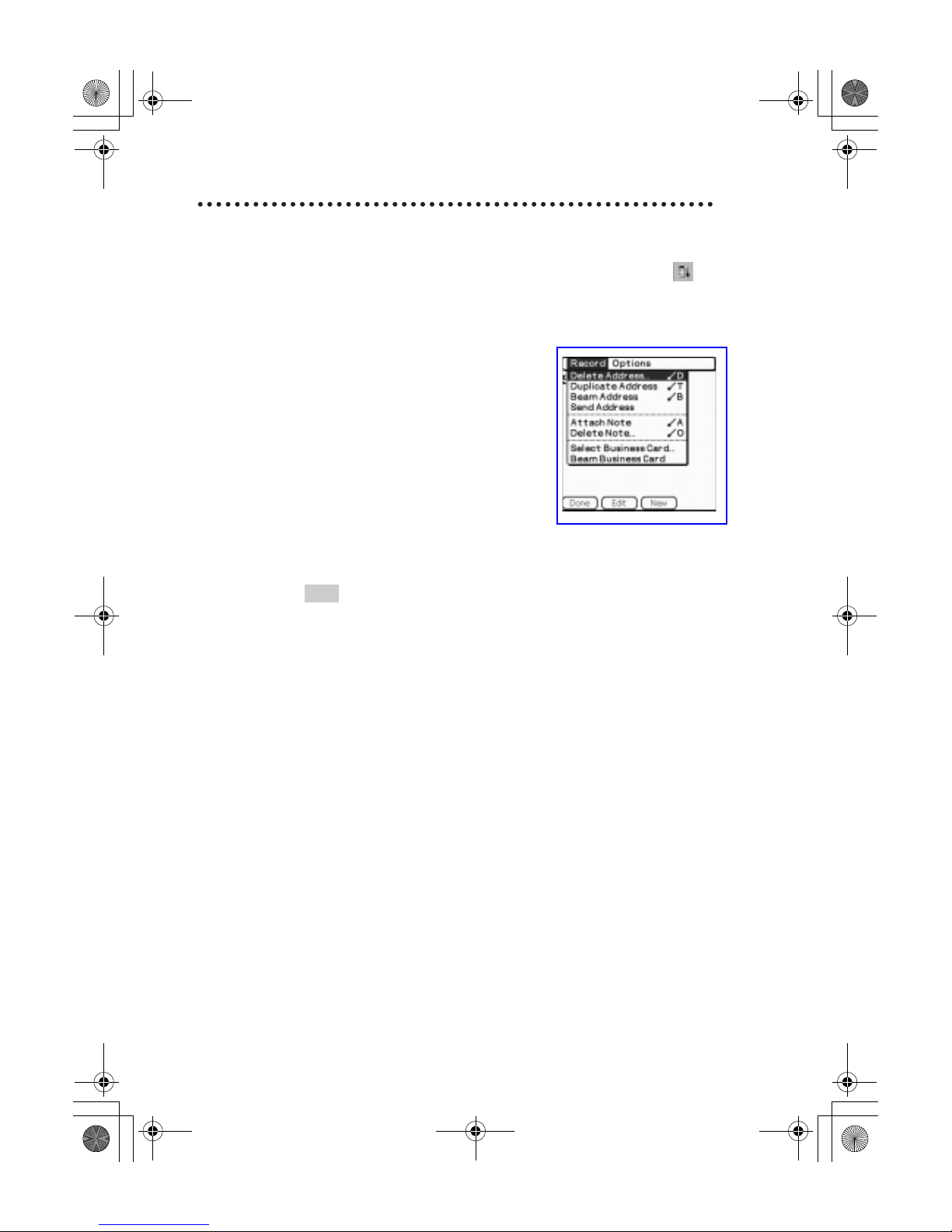
Deleting an address entry
1
Tap the address record you want to delete and tap
(Menu).
The menu is displayed.
2
Tap [Delete Address...] from [Record].
The Delete Address screen is displayed.
3
Tap [OK].
Tip
The deleted data from your CLIÉ handheld will be saved on your computer the
next time you perform the HotSync
®
operation if you have selected [Save
archive copy on PC] on the Delete Address screen.
To view the saved data on your computer, open Palm™ Desktop for CLIÉ,
and select [Open Archive...] from [File] in the Address Book screen.
01US01COV.book Page 62 Friday, June 20, 2003 6:29 AM
Page 18
63
Sony Personal Entertainment Organizer PEG-UX50/UX00 X-XXX-XXX-11 (1)
Have a try
Exchanging Date Book and Address Book data
between your CLIÉ handheld and computer
The HotSync® operation (page 21) enables you to exchange Date Book and
Address Book data between your CLIÉ handheld and computer.
Depending on the software on your computer, there are two ways to exchange
data.
Exchanging data between your CLIÉ
handheld and Palm™ Desktop for CLIÉ on
your computer
You can synchronize data between Date Book or Address Book managed
by Palm™ Desktop for CLIÉ on your computer, and your CLIÉ handheld.
• Setup: Install Palm™ Desktop for CLIÉ on your computer.
b For details on how to synchronize data with Palm™ Desktop for CLIÉ, refer to
“Synchronizing data between your CLIÉ handheld and computer (the HotSync
®
operarion)” on page 21.
Exchanging data between your CLIÉ
handheld and Microsoft
®
Outlook
(Intellisync
®
Lite) on your computer
• Setup: Install Intellisync Lite on your computer.
b For details on how to install, refer to the “CLIÉ Application Manual” installed on your
computer.
Tip
Intellisync Lite can be installed if you select [Synchronize with Microsoft
Outlook or Lotus Organizer] when you install Palm™ Desktop for CLIÉ.
b For details on how to start and set up, refer to [Help] in Intellisync Lite.
To view the help menu, click [Start], select [Programs] (for Windows XP, select
[All Programs])- [Intellisync Lite], and click [Intellisync Help].
01US01COV.book Page 63 Friday, June 20, 2003 6:29 AM
Page 19
64
Sony Personal Entertainment Organizer PEG-UX50/UX00 X-XXX-XXX-11 (1)
Viewing computer documents on your CLIÉ
handheld (Picsel Viewer for CLIE)
You can view documents created in Microsoft® Word/Excel/PowerPoint® or
PDF files on your CLIÉ handheld.
• Applications to be used: Picsel Viewer for CLIE, Data Import
and Data Export (for PC)
• Formats to be used: doc, xls, ppt, txt, JPEG, GIF, PNG, BMP, PDF,
and HTML formats
• Setup:
1 Connect your CLIÉ handheld to your computer.
b For details, refer to “Using your CLIÉ™ handheld with your computer” on page 16.
2 Install Data Export on your computer.
b For installation details, refer to the “CLIÉ Application Manual” installed on
your computer.
b For details, refer to “Picsel Viewer for CLIE” in the “CLIÉ Application Manual”
installed on your computer.
Transferring the documents to your CLIÉ
handheld
1
Prepare the documents on your computer that you want
to view on your CLIÉ handheld.
2
Connect your CLIÉ handheld to your computer (page 19).
3
Insert a “Memory Stick” media into your CLIÉ handheld.
b
For details on “Memory Stick” media, refer to “Using “Memory Stick” media” on
page 102.
01US01COV.book Page 64 Friday, June 20, 2003 6:29 AM
Page 20
65
Sony Personal Entertainment Organizer PEG-UX50/UX00 X-XXX-XXX-11 (1)
Have a try
Viewing the documents
4
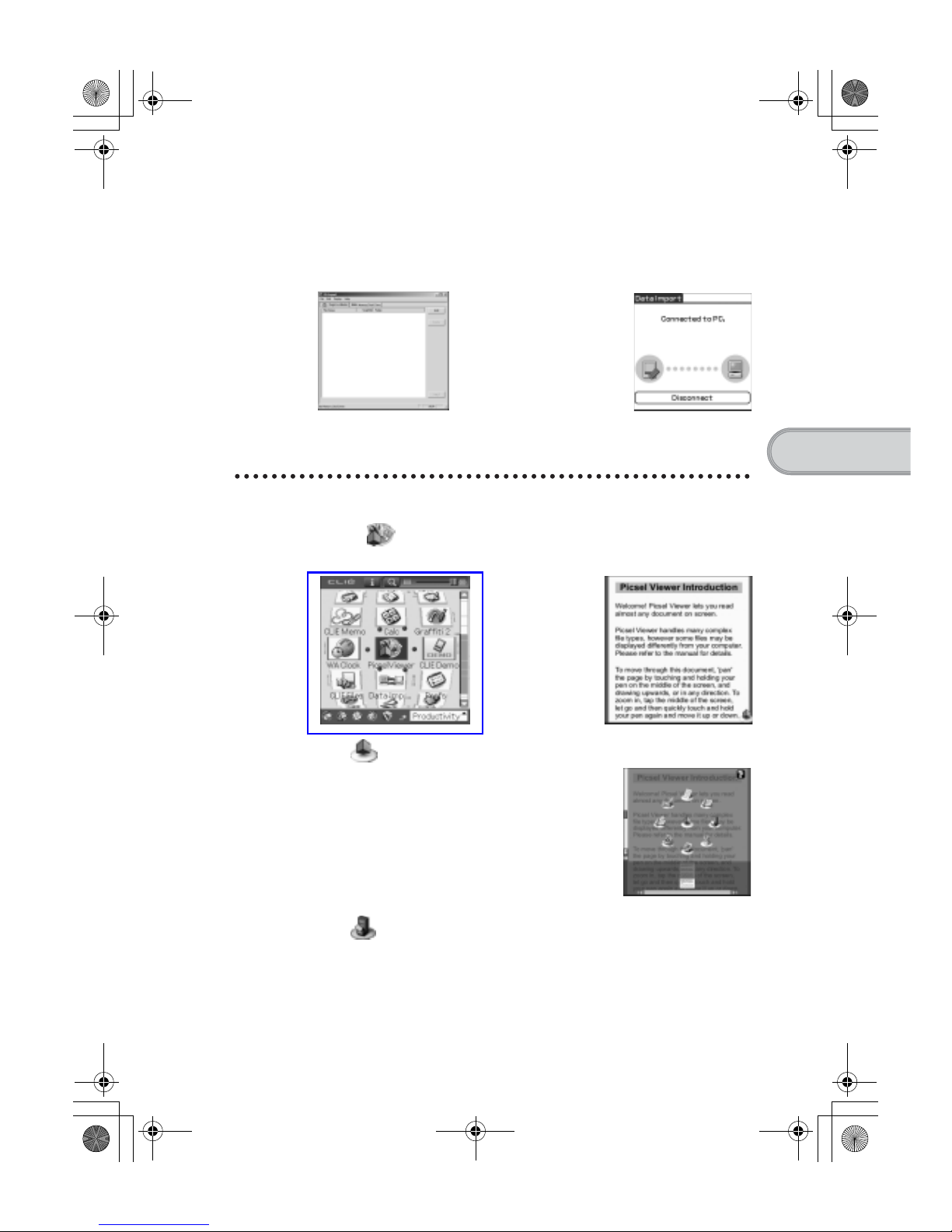
Transfer the documents to the “Memory Stick” media
inserted into your CLIÉ handheld.
Use Data Import and Data Export to transfer documents to the
“Memory Stick” media.
1
Select (PicselViewer) in the CLIE 3D Launcher to start
Picsel Viewer for CLIE.
2
Tap at the bottom right of the screen.
The Carousel menu screen is displayed.
3
Tap , then tap the document you want to view from
the “Memory Stick” media.
The document is displayed.
Data Export
(for PC)
Data Import
(for CLIÉ handheld)
B
01US01COV.book Page 65 Friday, June 20, 2003 6:29 AM
Page 21
66
Sony Personal Entertainment Organizer PEG-UX50/UX00 X-XXX-XXX-11 (1)
Using the Bluetooth® function
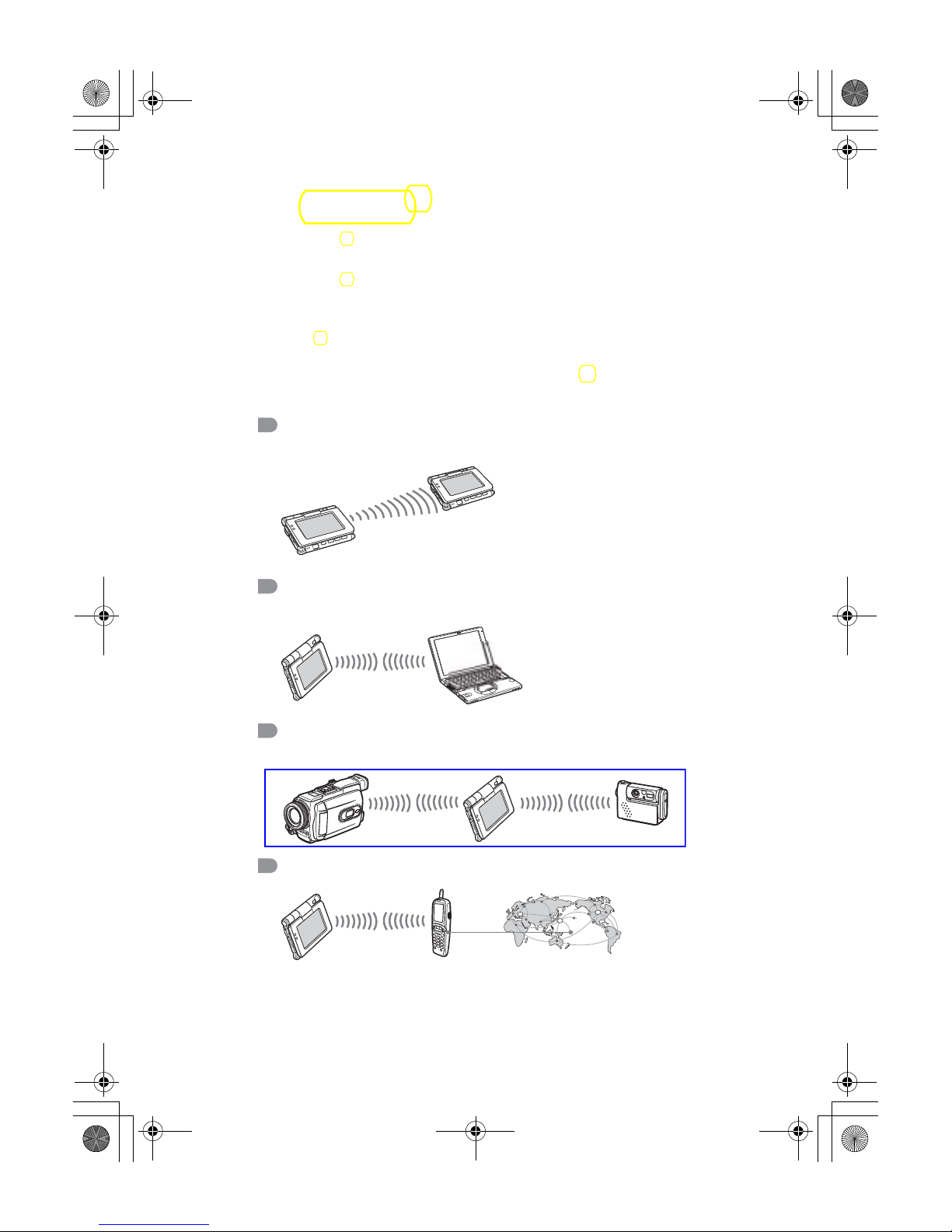
The Bluetooth® function is a new technology that enables wireless
communication for mobile phones, computers and other mobile devices.
The Bluetooth
®
function enables wireless communication within a range of
approximately 33 feet (approximately 10 meters)
1)
. You can use the function
to exchange data, such as image files, between your CLIÉ handheld and other
Bluetooth
®
compliant devices.
What you can do with the Bluetooth® function
Exchanging data such as image files or Date Book
data with another CLIÉ handheld
2)
Synchronizing your CLIÉ handheld with a
computer wirelessly
2)
Operating a digital still camera2) or camcorder
2)
from the CLIÉ handheld remotely
Connecting to the Internet via a mobile phone
2)
01US01COV.book Page 66 Friday, June 20, 2003 6:29 AM
Page 22
67
Sony Personal Entertainment Organizer PEG-UX50/UX00 X-XXX-XXX-11 (1)
Have a try
1)
The actual range will vary depending on factors such as obstacles between devices,
magnetic fields around a microwave oven, static electricity, interference, radio wave
conditions, reception sensitivity or antenna performance, the operating system, or
software application, etc.
2)
The Bluetooth® function needs to be available in the target devices.
b For information on compliant devices, refer to the URL shown on the back cover
of this manual.
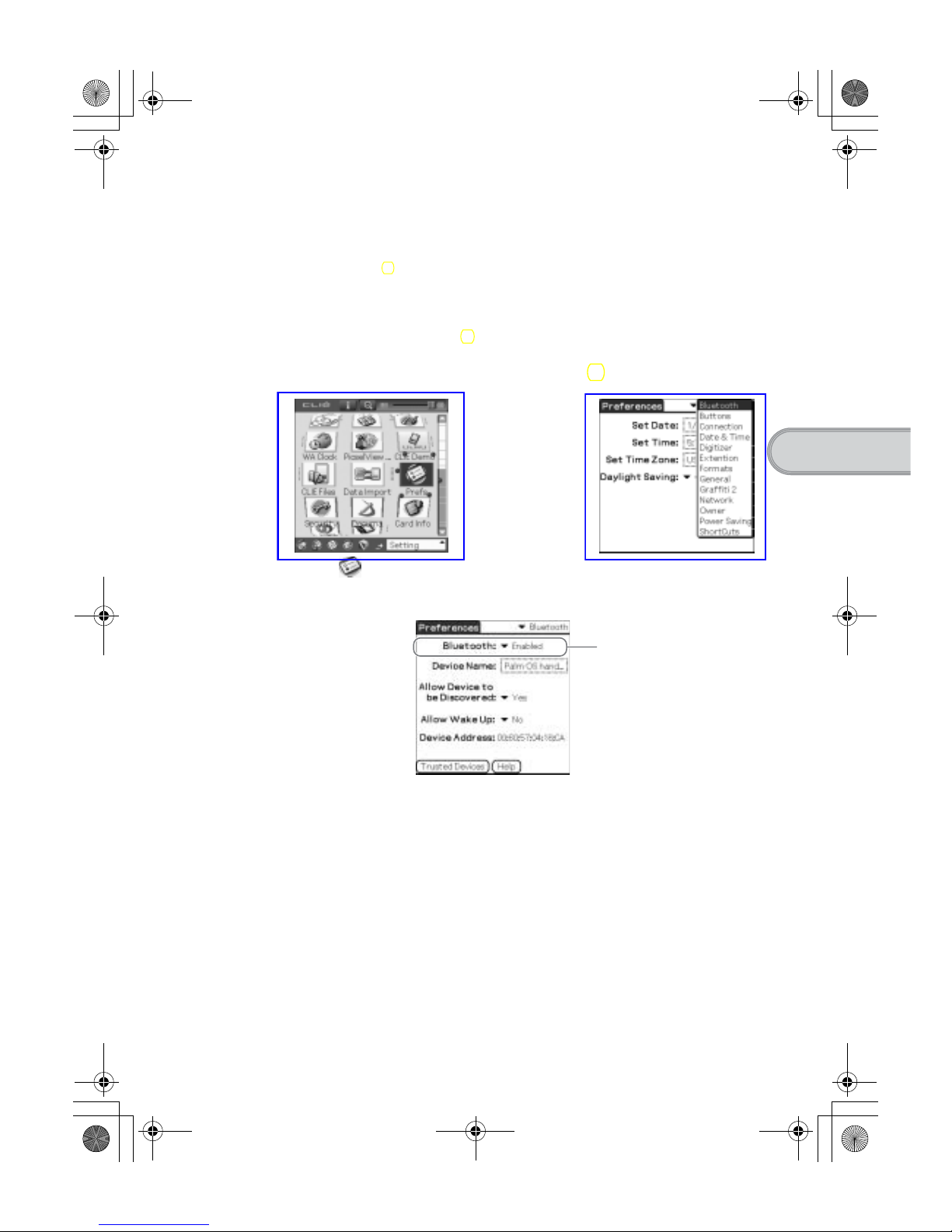
• Setup: Set the Bluetooth® function to be enable.
Enabling/Disabling the Bluetooth® function
b
Select (Prefs) in the
CLIE 3D Launcher
Tap V at the top right of the
screen and select [Bluetooth]
Select [Enabled]
or [Disabled]
b
Continued on next page
• • • • • • • • • • • • • • • • • • • • •
01US01COV.book Page 67 Friday, June 20, 2003 6:29 AM
Page 23
68
Sony Personal Entertainment Organizer PEG-UX50/UX00 X-XXX-XXX-11 (1)
b For details, refer to “Customizing your CLIÉ™ handheld (Preferences): Setting
the Bluetooth
®
function” in the supplied “Handbook”.
Notes
• Communication performance decreases if the antenna touches a metal
object.
• Avoid covering the antenna with your hand while using the Bluetooth
®
function, otherwise radio reception may be interrupted.
• You cannot use the Bluetooth
®
function and the Wireless LAN function
simultaneously.
When you change the setting of the Bluetooth
®
function or try to use the
Bluetooth
®
function while your CLIÉ handheld is connected to the
Wireless LAN, the Bluetooth dialog box is displayed, to confirm that
you want to disconnect from the Wireless LAN.
Tap [Yes] if you want to disconnect from the Wireless LAN or [No] if you
do not want to (if you tap [No], you cannot use the Bluetooth
®
function).
• Sending files using the Bluetooth
®
function may result in failure if you
continuously send many files one after another or a very large file,
depending on reception conditions.
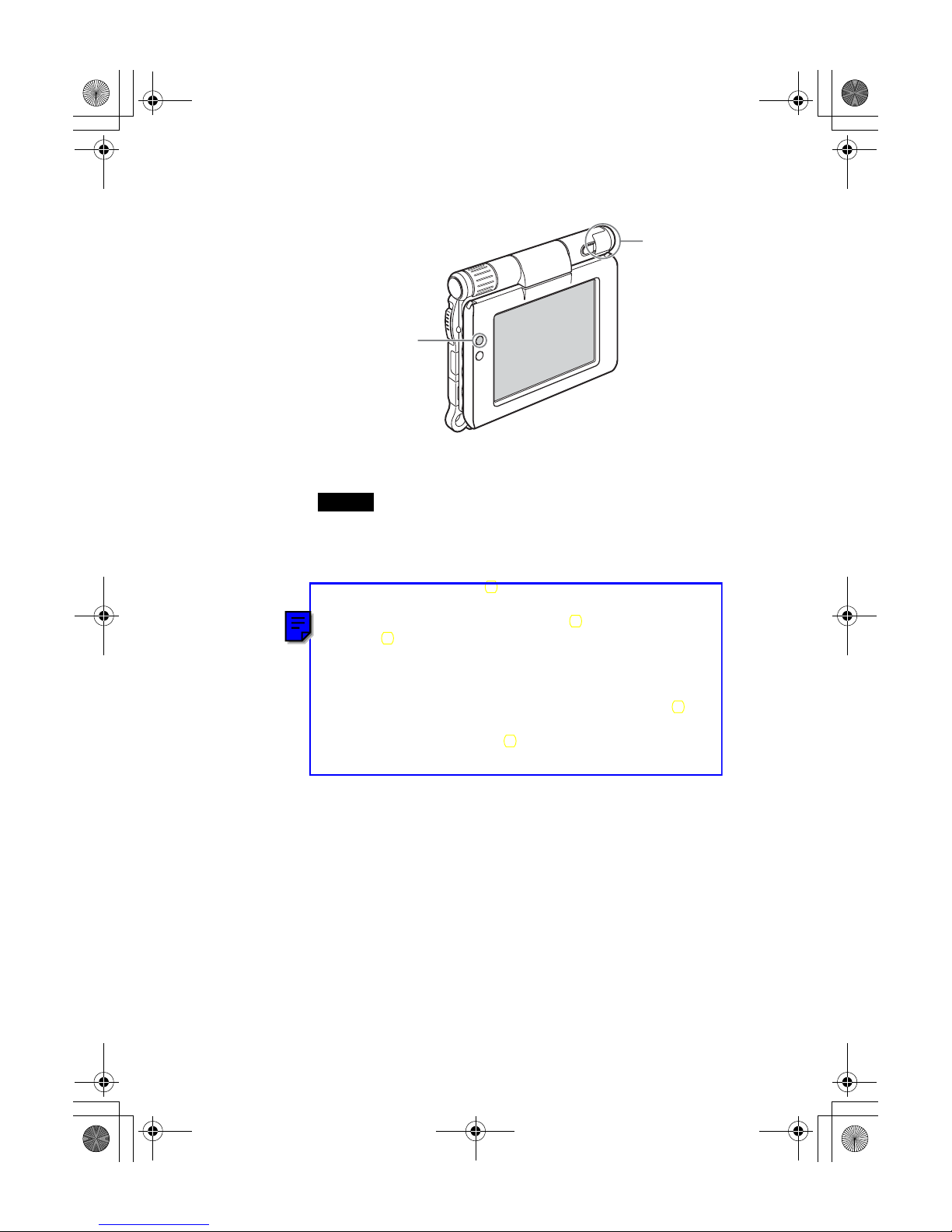
Bluetooth LED lights
during data exchange
using the Bluetooth
®
function and blinks
when the function is on
standby.
Built-in
Bluetooth
antenna
01US01COV.book Page 68 Friday, June 20, 2003 6:29 AM
Page 24
69
Sony Personal Entertainment Organizer PEG-UX50/UX00 X-XXX-XXX-11 (1)
Have a try
Exchanging data such as image files or Date
Book data with another CLIÉ handheld
Note
Depending on where you live, this function may not be available.
1
Select a file or data you want to send.
Sending an image file, movie file, voice memo
or handwritten memo
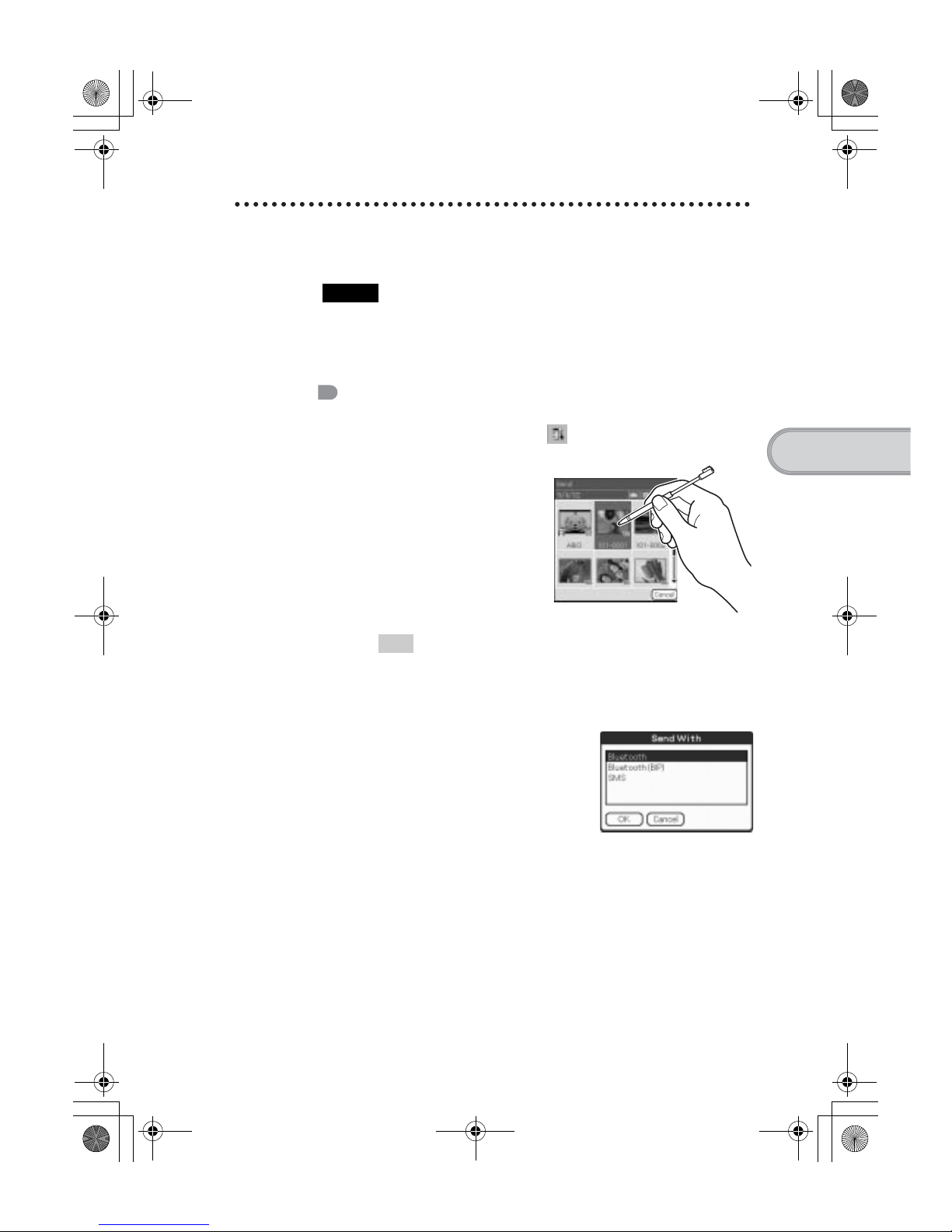
Start CLIE Viewer (page 55), tap (Menu) to display the menu,
select [Send…] from [Data], and tap the file you want to send.
Tip
Sending image files
You can select a method for sending data from the Send With dialog
box. (The dialog box below may not be displayed depending on your
operating environment)
Example
Bluetooth (BIP): This is to send file in an optimized format for the
target devices.
Continued on next page
• • • • • • • • • • • • • • • • • • • • •
01US01COV.book Page 69 Friday, June 20, 2003 6:29 AM
Page 25
70
Sony Personal Entertainment Organizer PEG-UX50/UX00 X-XXX-XXX-11 (1)
Synchronizing your CLIÉ handheld with a
computer wirelessly
If you are using a Bluetooth® compatible computer, you can wirelessly
synchronize files or data, between your CLIÉ handheld and computer without
connecting the supplied USB cable to the computer.
b For details, refer to “Exchanging and updating files/data using the HotSync
®
operation (Other HotSync® operations): Performing the HotSync® operation using the
Bluetooth
®
function” in the supplied “Handbook”.
b For information on the compliant devices, refer to the URL shown on the back cover
of this manual.
Note
Remote Camera is not available in some areas.
b For details, refer to “CLIÉ Application Manual” installed on your computer.
Sending Date Book or Address Book data
Tap the schedule or address data you want to send, tap (Menu) to
display the menu screen, and then select [Send Event] (for Date
Book) or [Send Address] (for Address Book) from [Record].
2
Send the file or data.
After the Bluetooth Discovery dialog box is displayed, the list of
Bluetooth
®
compatible CLIÉ handhelds within the range of the
communication area is displayed on the Discovery Results dialog box.
Tap to select the CLIÉ handheld to which you want to send data.
The Bluetooth Progress dialog box will be displayed on both CLIÉ
handhelds. Follow the on-screen instructions.
Tip
If you rename a target Bluetooth
®
compatible device after your CLIÉ handheld
has already detected it, the device may be listed under the previous name the
next time it is detected.
In this case, follow the procedure below.
1 Open the setup screen for the Bluetooth
®
(page 67) and tap (Menu).
2 Tap [Disable device name cache] from [Options].
3 Detect the target Bluetooth
®
compatible device again.
Note
To view or edit received files/data, applications supporting each file/data need
to be installed on your CLIÉ handheld.
01US01COV.book Page 70 Friday, June 20, 2003 6:29 AM
Page 26
71
Sony Personal Entertainment Organizer PEG-UX50/UX00 X-XXX-XXX-11 (1)
Have a try
Operating a digital still camera or
camcorder from the CLIÉ handheld remotely
Note
Depending on where you live, this function may not be available.
You can remotely control and capture images on a Bluetooth® BIP compatible
digital still camera (DSC-FX77)* and camcorder (DCR-TRV80 or DCRTRV80E)* using your CLIÉ handheld.
b For details, refer to “Remote Camera” in the “CLIÉ Application Manual” installed on
your computer.
* Not available in some areas.
Connecting to the Internet via a mobile
phone
You can browse websites or exchange e-mails via a Bluetooth® compatible
mobile phone.
• Application to be used:
– To browse websites: NetFront v3.0 for CLIE
– To exchange e-mails: CLIE Mail
• Required device: Bluetooth
®
compatible mobile phone
• Setup: Establish internet access through an internet service provider in
advance. To use the network, you need to configure the network properties,
set up an internet connection and register your mobile phone.
b For details, refer to “Using the Bluetooth
®
function: Connecting to the Internet by
communicating with a Bluetooth
®
compatible mobile phone” in the supplied
“Handbook”.
01US01COV.book Page 71 Friday, June 20, 2003 6:29 AM
Page 27
72
Sony Personal Entertainment Organizer PEG-UX50/UX00 X-XXX-XXX-11 (1)
This section introduces applications and the “CLIÉ Application Manual”. For details on
how to use applications, refer to the “CLIÉ Application Manual” for each application.
Types of applications
Applications are divided into two types:
• Applications already installed on your CLIÉ handheld
• Applications you need to install on your CLIÉ handheld and
computer
Using the CLIÉ Application Manual
You can read the “CLIÉ Application Manual” installed on your computer for
details on how to use applications.
Notes
• Prior to using applications, refer to “Step 1: Installing the software on your
computer” on page 16 to install Palm™ Desktop for CLIÉ. The “CLIÉ
Application Manual” will be installed at the same time.
• You need Microsoft Internet Explorer Version 5.0 or later to display the
“CLIÉ Application Manual” properly.
Using applications
01US01COV.book Page 72 Friday, June 20, 2003 6:29 AM
Page 28
73
Sony Personal Entertainment Organizer PEG-UX50/UX00 X-XXX-XXX-11 (1)
Have a try
Opening the CLIÉ Application Manual
1
Double-click (CLIÉ info) on the Windows desktop.
The SONY CLIÉ handheld information window is displayed.
2
Click [Manuals] and then [CLIÉ Application Manual].
The CLIÉ Application Manual window is displayed.
Tips
• To close the CLIÉ Application Manual window, click at the top right
of the window.
• You can minimize the CLIÉ Application Manual window by clicking
at the top right of the window. You can reopen the minimized window
by clicking the CLIÉ Application Manual button in the task bar.
• You can operate other software while the CLIÉ Application Manual
window is displayed on the Windows desktop.
• You can also open the “CLIÉ Application Manual” directly from the
Installation CD-ROM.
1 Insert the Installation CD-ROM into the CD-ROM drive of your
computer.
2 Click [Manuals].
3 Click [View] at the right of [View Manuals].
01US01COV.book Page 73 Friday, June 20, 2003 6:29 AM
Page 29
74
Sony Personal Entertainment Organizer PEG-UX50/UX00 X-XXX-XXX-11 (1)
Introducing applications
In this section, the applications are introduced in order of the CLIE 3D
Launcher groups.
b For details on the CLIE 3D Launcher groups, refer to “CLIÉ™ handheld basic
operations: Using CLIE 3D Launcher” in the supplied “Handbook”.
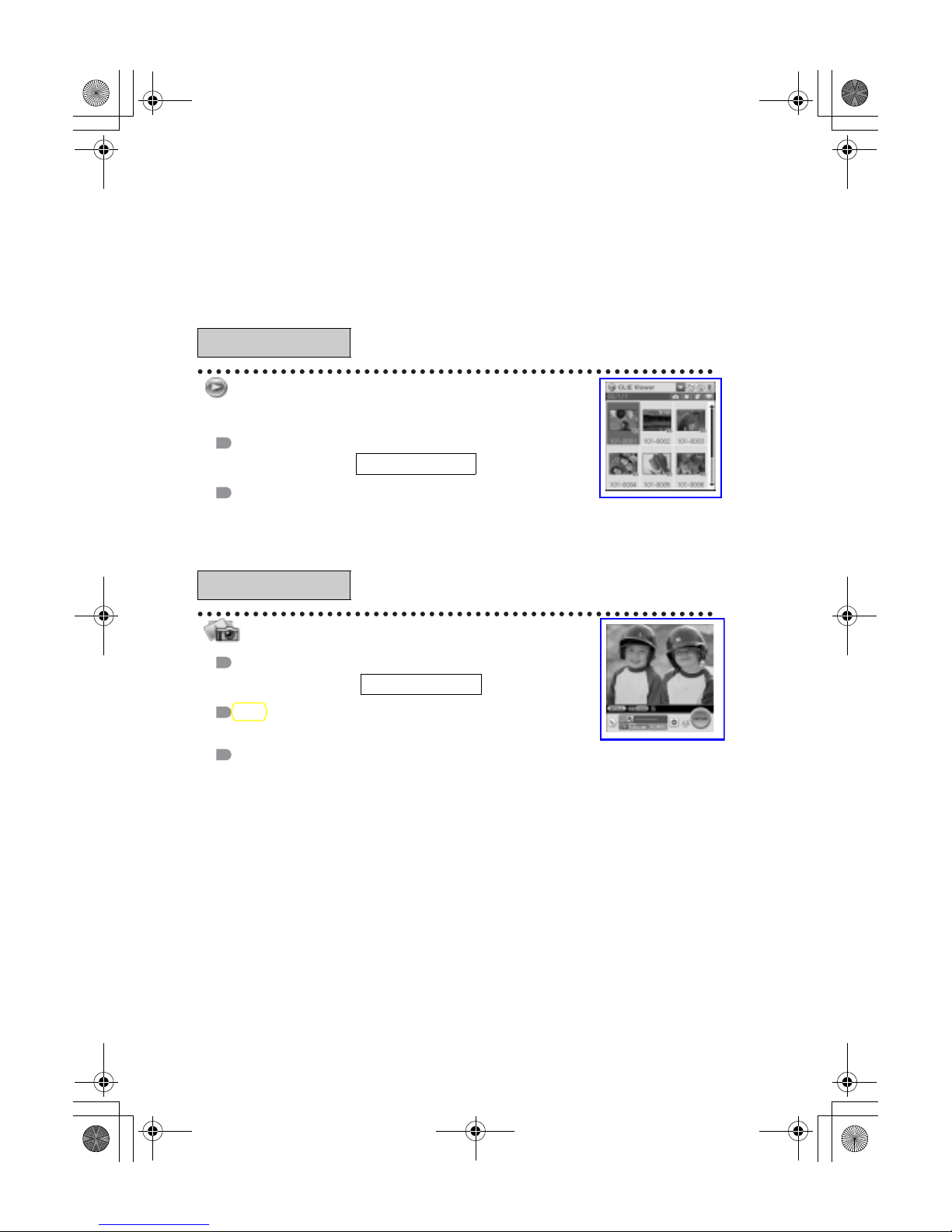
Viewing/Playing back a file after
selecting from the list
Application to be used
CLIE Viewer
Summary
For managing and displaying image files, movie files, handwritten memos and voice memo files.
b For details, refer to the “CLIÉ Application Manual” installed on your computer.
Taking pictures
Application to be used
CLIE Camera
Key
JPEG (DCF) format
Summary
For taking pictures using the built-in camera of your CLIÉ handheld.
b For details, refer to the “CLIÉ Application Manual” installed on your computer.
General
Picture
CLIÉ handheld
CLIÉ Handheld
01US09MAK.fm Page 74 Friday, June 20, 2003 1:26 PM
Page 30
75
Sony Personal Entertainment Organizer PEG-UX50/UX00 X-XXX-XXX-11 (1)
Have a try
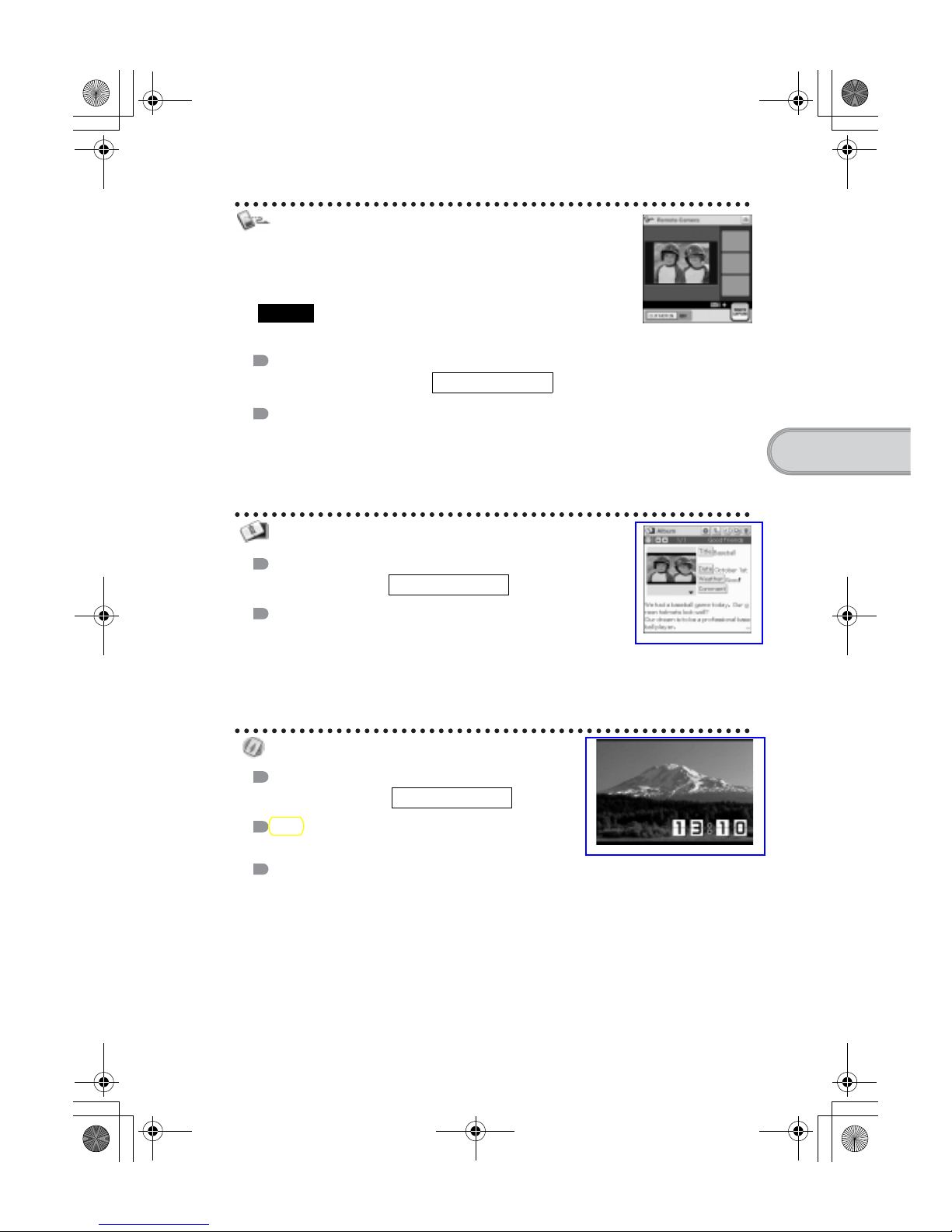
Operating a digital still camera or
camcorder from the CLIÉ handheld
remotely
Note
Depending on where you live, this function may not be available.
Application to be used
Remote Camera
Summary
You can remotely control and capture images on a Bluetooth BIP compatible digital still camera
(DSC-FX77)* and camcorder (DCR-TRV80 or DCR-TRV80E)* using your CLIÉ handheld.
b For details, refer to the “CLIÉ Application Manual” installed on your computer.
* Not available in some areas.
Organizing image files in albums
Application to be used
CLIE Album
Summary
For managing image files saved on your CLIÉ handheld, Internal
media or “Memory Stick” media, in an album format.
You can use the albums with your computer using PictureGear Studio installed on your
computer.
b For details, refer to the “CLIÉ Application Manual” installed on your computer.
Creating and playing slide show
Application to be used
PhotoStand
Key
JPEG (DCF) format
Summary
For automatically displaying image files one after the other.
b For details, refer to the “CLIÉ Application Manual” installed on your computer.
CLIÉ handheld
CLIÉ handheld
CLIÉ handheld
01US01COV.book Page 75 Friday, June 20, 2003 6:29 AM
Page 31
76
Sony Personal Entertainment Organizer PEG-UX50/UX00 X-XXX-XXX-11 (1)
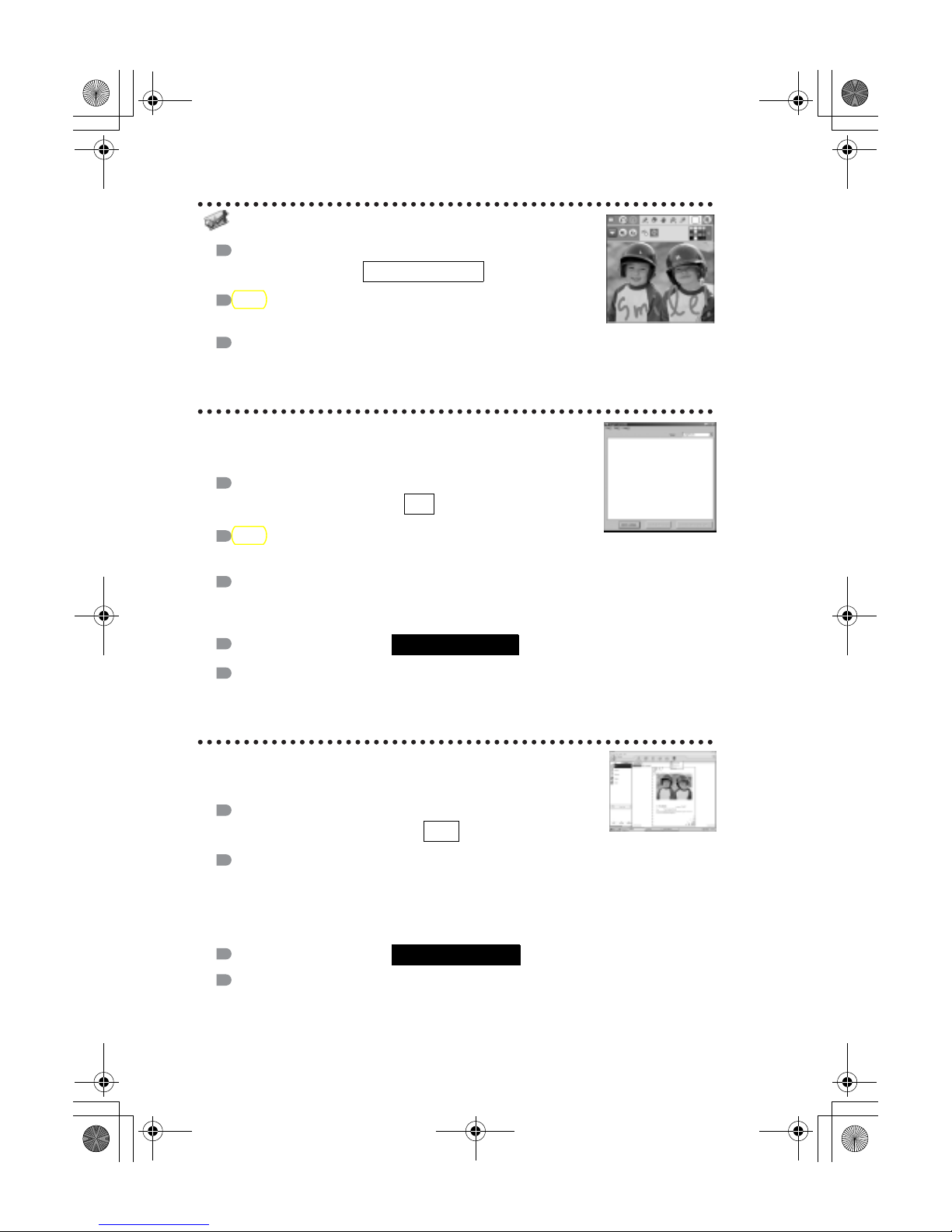
Editing image files
Application to be used
Photo Editor
Key
JPEG (DCF) format
Summary
For drawing or writing on an image file. You can also draw pictures on a new blank canvas.
b For details, refer to the “CLIÉ Application Manual” installed on your computer.
Importing image/movie files from
your computer
Application to be used
Image Converter
Key
JPEG (DCF) format, Movie Player format
Summary
For converting image and movie files on your computer to a format that is viewable on your
CLIÉ handheld.
Preparation for use:
Installation CD-ROM Menu
“CLIÉ Image”
b For details, refer to the “CLIÉ Application Manual” installed on your computer.
Exporting albums and binders to your
computer
Application to be used
PictureGear Studio
Summary
What you can do with PictureGear Studio:
• Create albums and binders on your computer and import binders to your CLIÉ handheld.
• Export images to your computer and manage them.
• Print out labels for CD-ROM, “Memory Stick” media and more.
Preparation for use:
Installation CD-ROM Menu
“CLIÉ Image”
b For details, refer to the “CLIÉ Application Manual” installed on your computer.
CLIÉ handheld
PC
Must be installed
PC
Must be installed
01US01COV.book Page 76 Friday, June 20, 2003 6:29 AM
Page 32
77
Sony Personal Entertainment Organizer PEG-UX50/UX00 X-XXX-XXX-11 (1)
Have a try
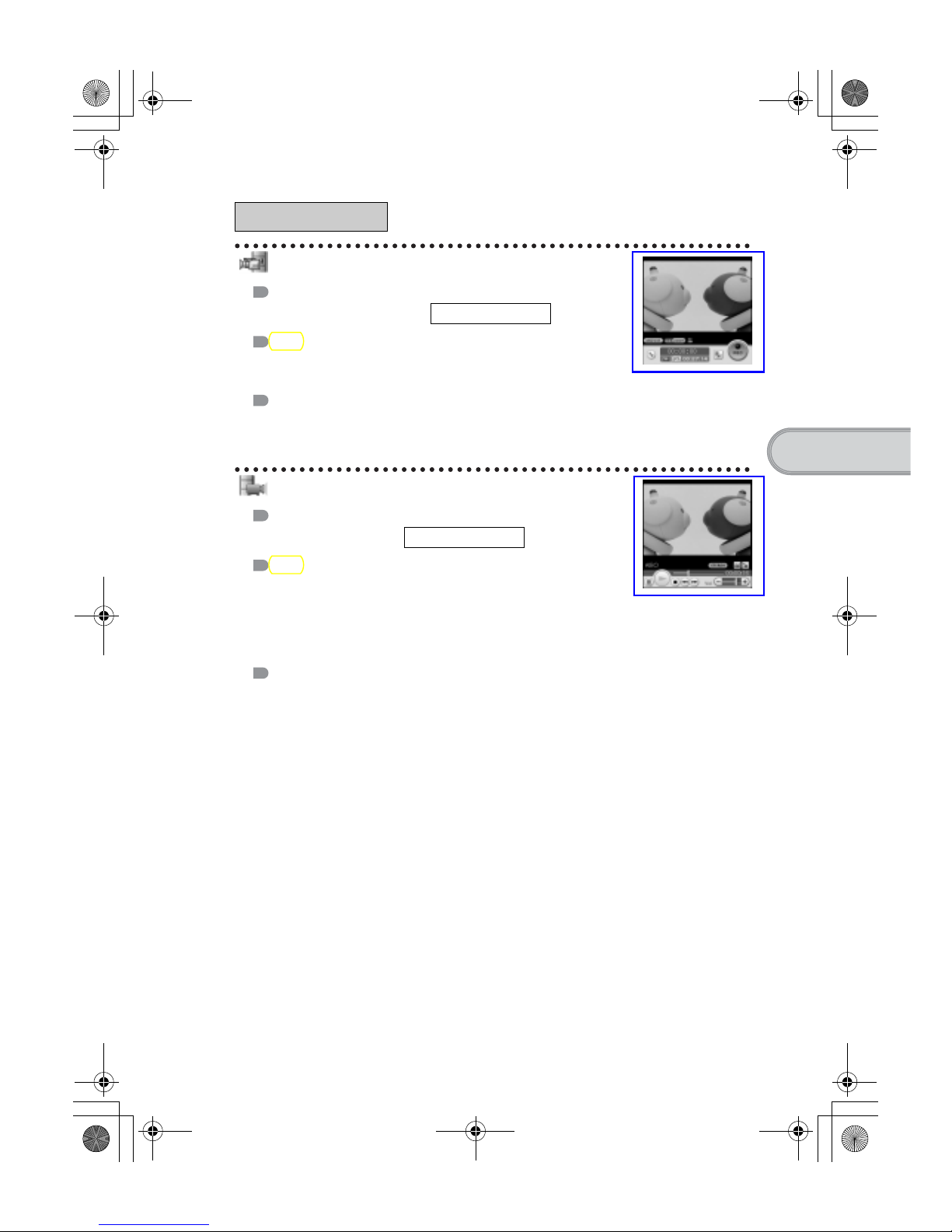
Recording movies
Application to be used
Movie Recorder
Key
Movie Player format (movie formats shot with your CLIÉ handheld
or converted using Image Converter or Giga Pocket Plugin)
Summary
For recording movies using the built-in camera of your CLIÉ handheld.
b For details, refer to the “CLIÉ Application Manual” installed on your computer.
Playing back movies
Application to be used
Movie Player
Key
Movie Player format (movie formats shot with CLIÉ handheld or
converted using Image Converter),
MPEG Movie format (MPEG1 format movie files shot with a Sony
Digital Still Camera or Handycam),
Play List, Repeat function, and Index function.
Summary
For playing back movies recorded with the built-in camera of your CLIÉ handheld or playing
back movies on your CLIÉ handheld using Image Converter or Giga Pocket Plugin on
your computer.
b For details, refer to the “CLIÉ Application Manual” installed on your computer.
Movie
www.aibo.com
CLIÉ handheld
www.aibo.com
CLIÉ handheld
01US01COV.book Page 77 Friday, June 20, 2003 6:29 AM
Page 33
78
Sony Personal Entertainment Organizer PEG-UX50/UX00 X-XXX-XXX-11 (1)
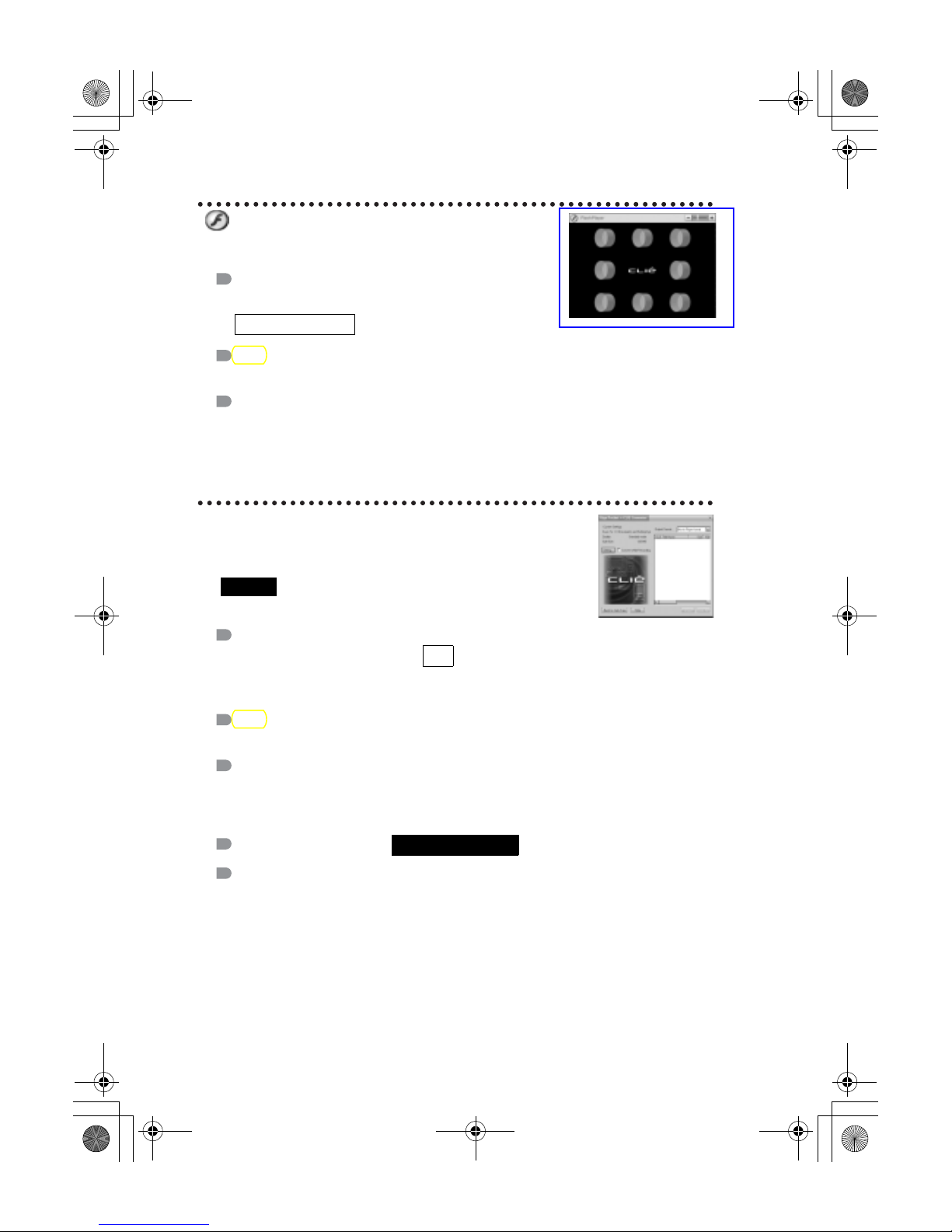
Playing back Macromedia
®
Flash
™ files
Application to be used
Macromedia Flash Player 5
Key
swf format
Summary
For playing back the Macromedia Flash contents.
Some Flash contents created for computers may not play back properly on your CLIÉ
handheld.
b For details, refer to the “CLIÉ Application Manual” installed on your computer.
Importing movie files from your
computer
Note
Only supported areas
Application to be used
Giga Pocket Plugin
b For details, refer to “CLIÉ Application Manual” installed on your computer.
Key
Movie Player format
Summary
For converting movie files on your computer to a format that is viewable on your CLIÉ
handheld.
You need to install Giga Pocket Version 2.0 or later for VAIO on your computer.
Preparation for use:
Installation CD-ROM Menu
“CLIÉ Image”
b For details, refer to [Help] in Giga Pocket Plugin installed on your computer.
CLIÉ handheld
PC
Must be installed
01US01COV.book Page 78 Friday, June 20, 2003 6:29 AM
Page 34
79
Sony Personal Entertainment Organizer PEG-UX50/UX00 X-XXX-XXX-11 (1)
Have a try
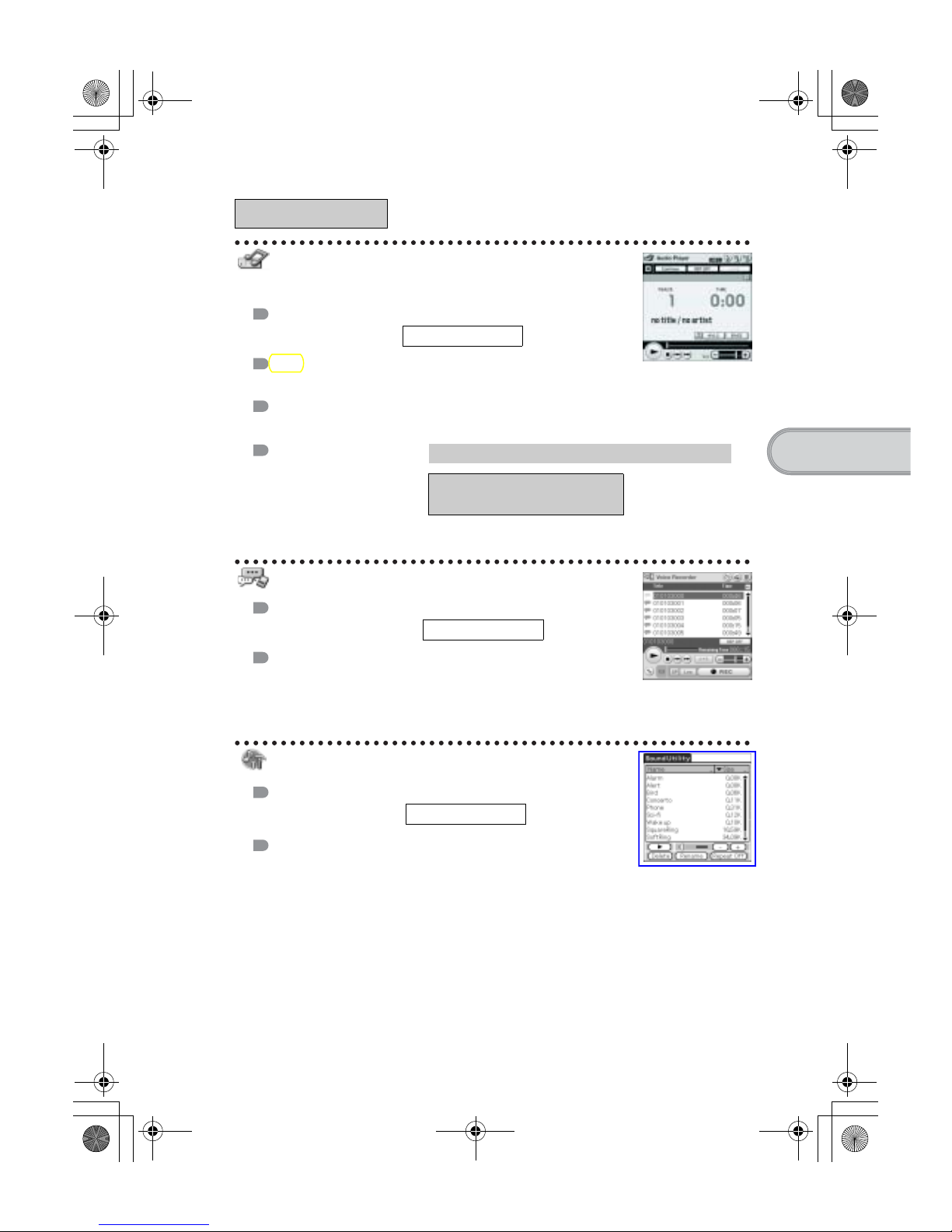
Listening to music with your CLIÉ
handheld
Application to be used
Audio Player
Key
MP3 format, ATRAC3 format
Summary
For playing back music files saved on a “Memory Stick” media or Internal Media.
Preparation for use:
b For details, refer to the “CLIÉ Application Manual” installed on your computer.
Recording voice memo
Application to be used
Voice Recorder
Summary
For recording and playing back a voice memo using the built-in
microphone of your CLIÉ handheld.
b For details, refer to the “CLIÉ Application Manual” installed on your computer.
Managing the ararm sound
Application to be used
Sound Utility
Summary
For managing alarm sound converted with Voice Recorder.
b For details, refer to the “CLIÉ Application Manual” installed on your computer.
Music/Sound
CLIÉ handheld
Needs to be connected to your computer
Requires a “Memory Stick”
(ATRAC3 format only)
CLIÉ handheld
CLIÉ handheld
01US01COV.book Page 79 Friday, June 20, 2003 6:29 AM
Page 35
80
Sony Personal Entertainment Organizer PEG-UX50/UX00 X-XXX-XXX-11 (1)
Transferring music files to your CLIÉ
handheld
Application to be used
SonicStage
Key
ATRAC3 format
Summary
For managing and creating music files on your computer, to be played back with your CLIÉ
handheld.
The application is also used for transferring music files to a “Memory Stick” media.
Preparation for use:
Installation CD-ROM Menu
“CLIÉ Audio”
b For details, refer to the “CLIÉ Application Manual” and [Help] in SonicStage installed on your
computer.
Browsing websites
Application to be used
NetFront v3.0 for CLIE
Key
Websites, Internet, WWW browser
Summary
For browsing websites with your CLIÉ handheld.
Preparation for use:
b For details, refer to the “CLIÉ Application Manual” installed on your computer.
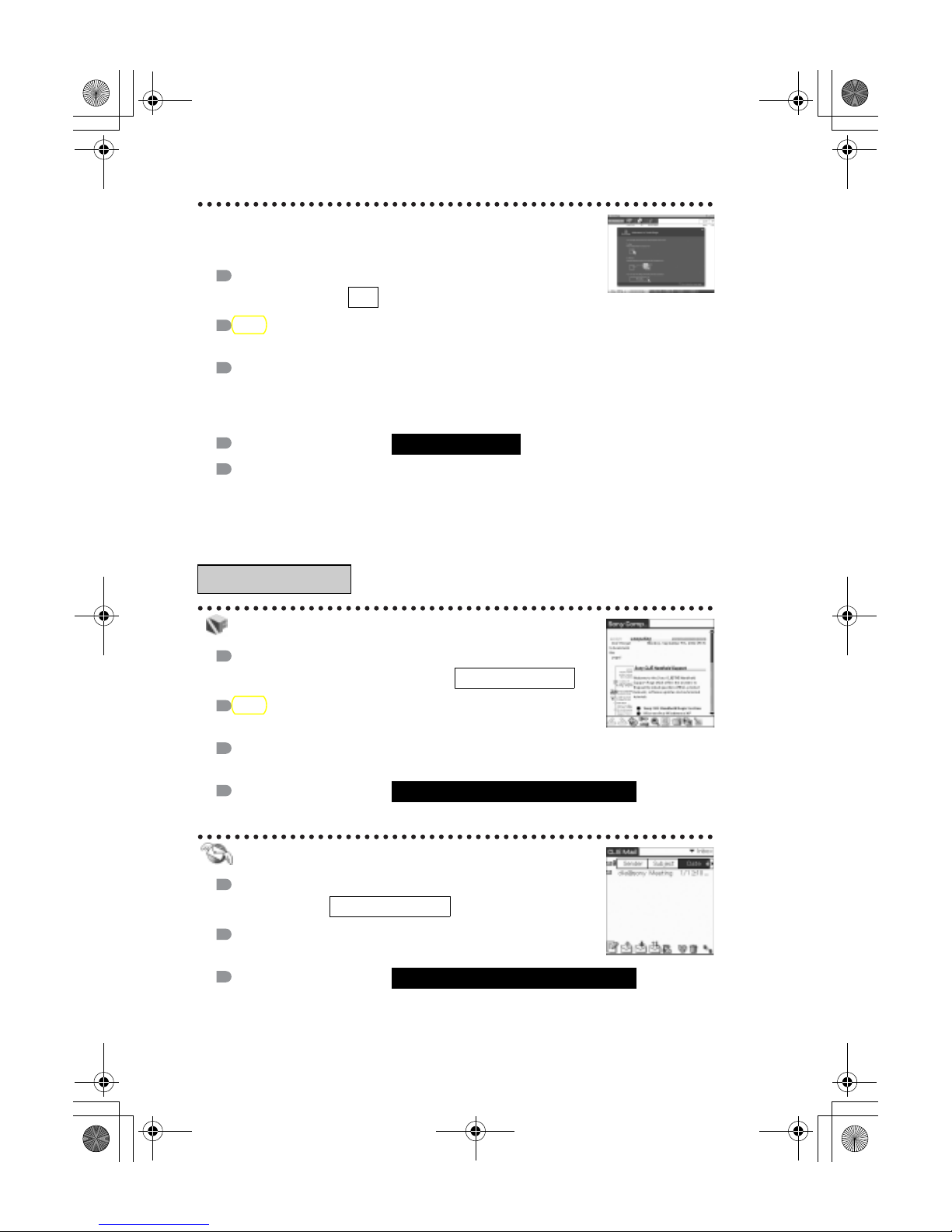
Sending and receiving e-mails
Application to be used
CLIE Mail
Summary
For sending and receiving e-mails on your CLIÉ handheld.
Preparation for use:
b For details, refer to the “CLIÉ Application Manual” installed on your computer.
Internet
PC
Must be installed
CLIÉ handheld
Must be connected to the Internet
CLIÉ handheld
Must be connected to the Internet
01US01COV.book Page 80 Friday, June 20, 2003 6:29 AM
Page 36
81
Sony Personal Entertainment Organizer PEG-UX50/UX00 X-XXX-XXX-11 (1)
Have a try
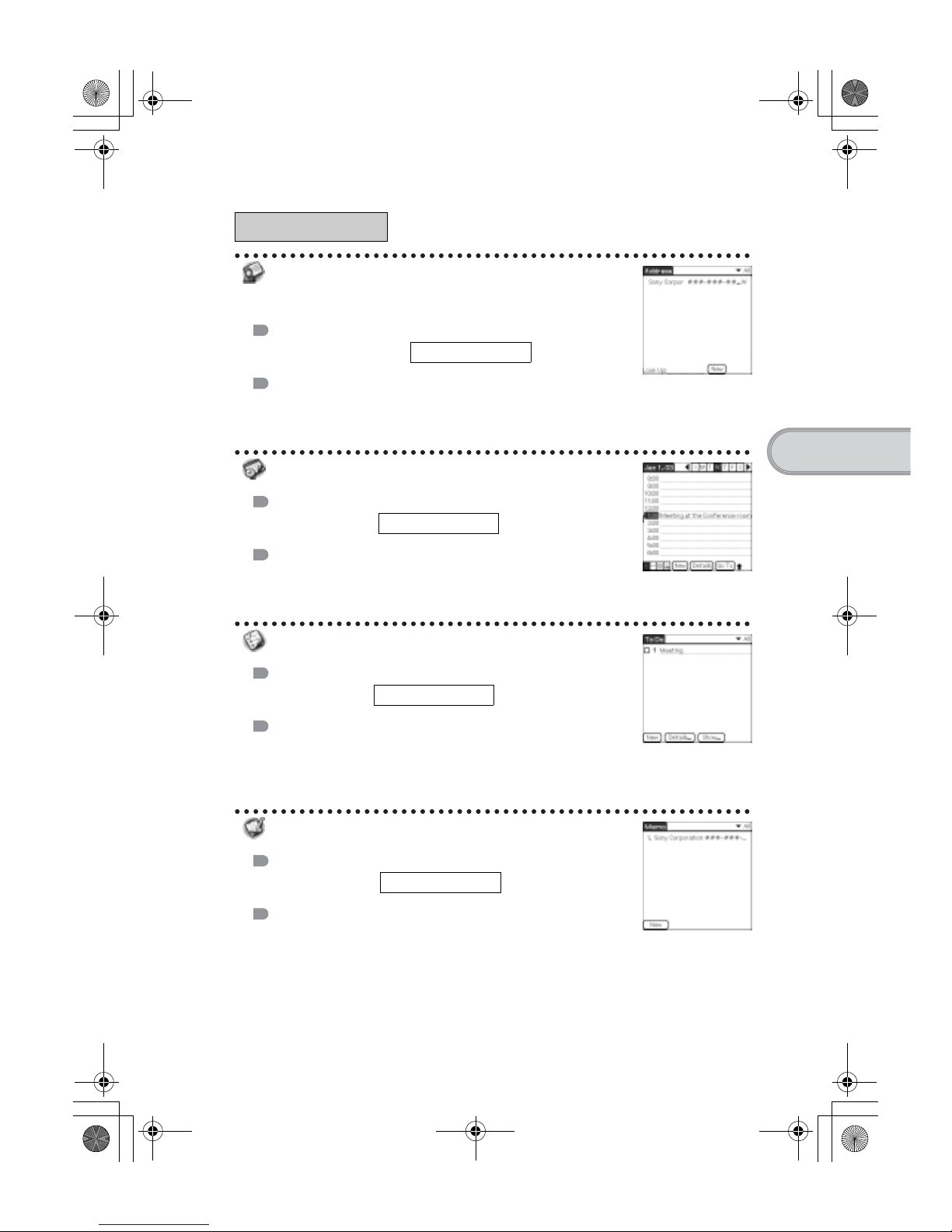
Managing addresses and
telephone numbers
Application to be used
Address Book
Summary
For entering and editing information such as names, addresses or telephone numbers.
b For details, refer to the “CLIÉ Application Manual” installed on your computer.
Managing schedule events
Application to be used
Date Book
Summary
For managing schedule events such as conferences or business trips.
b For details, refer to the “CLIÉ Application Manual” installed on your computer.
Managing tasks and things to do
Application to be used
To Do List
Summary
For displaying tasks that you want to be reminded of later. You can
assign a priority to any task.
b For details, refer to the “CLIÉ Application Manual” installed on your computer.
Taking memos
Application to be used
Memo Pad
Summary
For taking memos of text format.
b For details, refer to the “CLIÉ Application Manual” installed on your computer.
Organizer
CLIÉ handheld
CLIÉ handheld
CLIÉ handheld
CLIÉ handheld
01US01COV.book Page 81 Friday, June 20, 2003 6:29 AM
Page 37
82
Sony Personal Entertainment Organizer PEG-UX50/UX00 X-XXX-XXX-11 (1)
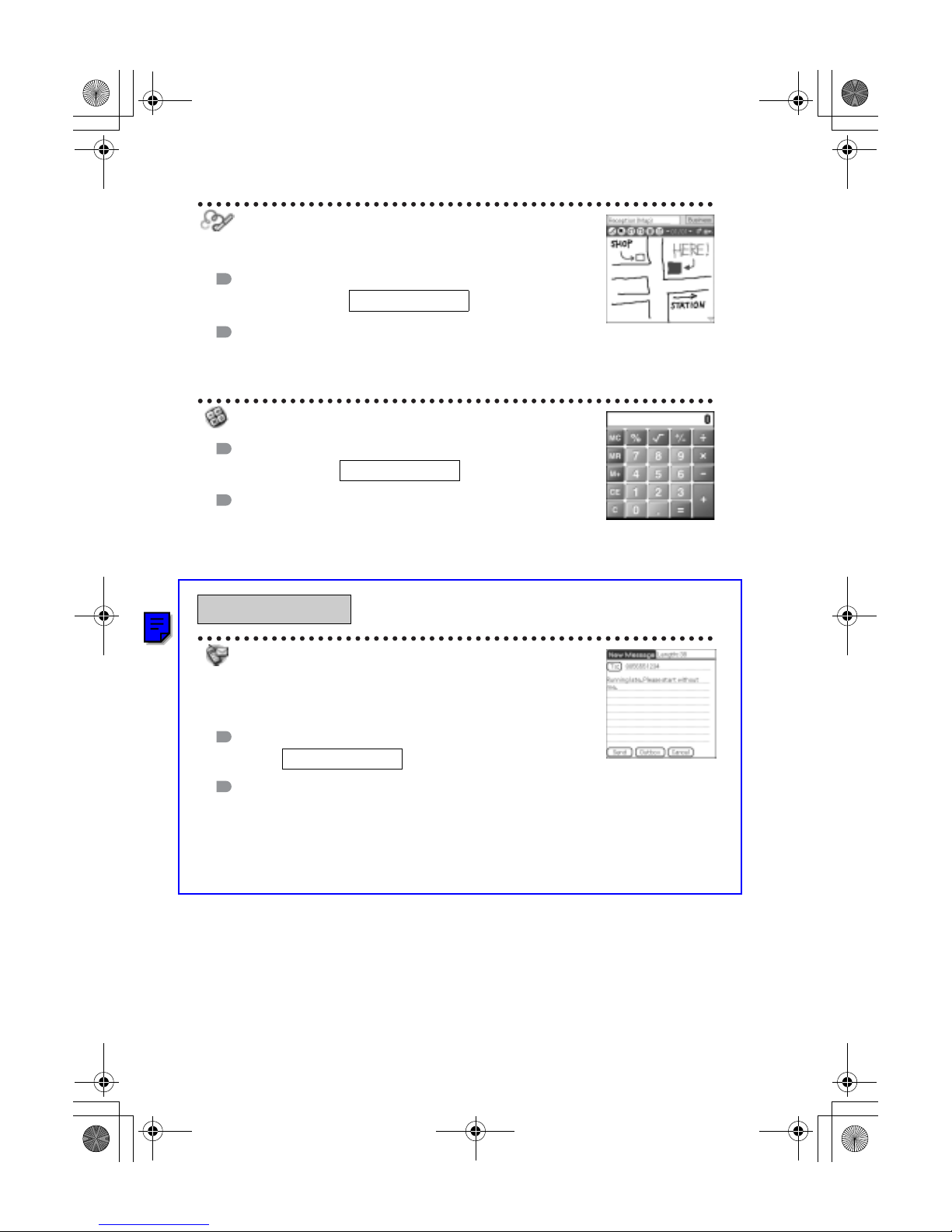
Taking handwritten memos using
the stylus
Application to be used
CLIE Memo
Summary
For taking handwritten memos using the stylus.
b For details, refer to the “CLIÉ Application Manual” installed on your computer.
Using the calculator
Application to be used
Calculator
Summary
For calculating with your CLIÉ handheld. You can save and recall
calculations with the calculator’s memory.
b For details, refer to the “CLIÉ Application Manual” installed on your computer.
Sending/Receiving messages and
data via a connected GSM mobile
phone device
Application to be used
SMS
Summary
For sending/receiving messages from your CLIÉ handheld via a connected GSM device, such
as a mobile phone.
b For details, refer to the “CLIÉ Application Manual” installed on your computer.
Telephone
CLIÉ handheld
CLIÉ handheld
CLIÉ handheld
01US01COV.book Page 82 Friday, June 20, 2003 6:29 AM
Page 38
83
Sony Personal Entertainment Organizer PEG-UX50/UX00 X-XXX-XXX-11 (1)
Have a try
Displaying the worldwide local
time
Application to be used
World Alarm Clock
Summary
For displaying worldwide local times. You can also use the application as an alarm clock.
b For details, refer to the “CLIÉ Application Manual” installed on your computer.
Viewing computer documents on
your CLIÉ handheld
Application to be used
Picsel Viewer for CLIE
Key
doc format, xls format, ppt format, txt format, JPEG format, GIF format, PNG format, BMP
format, PDF format, HTML format
Summary
For viewing documents created in Microsoft® Word/Excel/PowerPoint® or PDF files on your
CLIÉ handheld.
b For details, refer to the “CLIÉ Application Manual” installed on your computer.
Exchanging data between your
CLIÉ handheld and storage media
Application to be used
CLIE Files
Summary
For exchanging data (copy, move, delete) between your CLIÉ handheld and storage media
such as a “Memory Stick” media inserted into your CLIÉ handheld or Internal media, or for
exchange data between the storage media.
b For details, refer to the “CLIÉ Application Manual” installed on your computer.
Productivity
Data Control
CLIÉ handheld
CLIÉ handheld
CLIÉ handheld
01US01COV.book Page 83 Friday, June 20, 2003 6:29 AM
Page 39
84
Sony Personal Entertainment Organizer PEG-UX50/UX00 X-XXX-XXX-11 (1)
Accessing “Memory Stick” media
or Internal media in your CLIÉ
handheld from your computer
Application to be used
Data Import
Data Export
Summary
For installing applications or copying data from your computer to a “Memory Stick” media
or Internal media in your CLIÉ handheld, without using the HotSync
®
operation.
Preparation for use:
Installation CD-ROM Menu
“CLIÉ Utilities”
b For details, refer to the “CLIÉ Application Manual” installed on your computer.
Synchronizing data with Microsoft
®
Outlook or Lotus Organizer
Application to be used
Intellisync Lite
Summary
For synchronizing data of Date Book, Address Book, To Do List, etc., on your CLIÉ
handheld with Microsoft Outlook or Lotus Organizer on your computer.
Preparation for use:
Installation CD-ROM Menu
Select [Synchronize with Microsoft Outlook or Lotus Organaizer] when installing Palm™
Desktop for CLIÉ, and follow the on-screen instructions.
b For details, refer to the “CLIÉ Application Manual” and [Help] in Intellisync Lite installed on
your computer.
CLIÉ handheld
PC
Data Export must be installed
PC
Must be installed
Needs to be connected to your computer
01US01COV.book Page 84 Friday, June 20, 2003 6:29 AM
Page 40
85
Sony Personal Entertainment Organizer PEG-UX50/UX00 X-XXX-XXX-11 (1)
Have a try
This section describes how to solve common problems you may have when using your
CLIÉ handheld.
Making a backup of the data or applications on
your CLIÉ handheld
Sony recommends that you make a backup of your data or in case of
unexpected problems. Backing up your data will ensure that it can be restored
again on your CLIÉ handheld, even if you have to perform a hard reset.
Making a backup using the HotSync® operation
Data or applications on your CLIÉ handheld is backed up to your computer
when the HotSync
®
operation is performed. If you need to perform a hard reset,
this would erase all user data or applications stored on your CLIÉ handheld.
However, this can be restored with the next HotSync
®
operation.
Notes
• Some add-on applications (and data thereof) installed on your CLIE handheld via
infra-red beaming or via a memory stick, cannot be backed up using the
HotSync
®
operation.
• When you need to restore data, and so on, make sure to perform the HotSync
®
operation immediately after you perform a hard reset. Otherwise, if you create
new data on your CLIE handheld between the hard reset and performing the
HotSync
®
operation, the data may be lost.
Additional information
01US01COV.book Page 85 Friday, June 20, 2003 6:29 AM
Page 41
86
Sony Personal Entertainment Organizer PEG-UX50/UX00 X-XXX-XXX-11 (1)
Resetting your CLIÉ handheld to the factory
setting
When you want to reset your CLIÉ handheld to the factory setting, perform the following
to delete all data and applications stored on your CLIÉ handheld.
1
Perform a hard reset to delete all data or applications
stored on your CLIÉ handheld.
b
For details on hard reset, refer to “Restarting your CLIÉ handheld: Performing a
hard reset” on page 33.
2
Delete the data or applications saved in Power Saving
mode.
b
For details on Power Saving mode, refer to “Turning off your CLIÉ handheld
using Power Saving mode: To erase the saved data” on page 31.
3
Delete the data or applications stored on Internal media
using CLIE Files.
b
For details on CLIE Files, refer to “Using storage media such as “Memory
Stick™” media: Starting CLIE Files” in the supplied “Handbook”.
01US01COV.book Page 86 Friday, June 20, 2003 6:29 AM
Page 42
87
Sony Personal Entertainment Organizer PEG-UX50/UX00 X-XXX-XXX-11 (1)
Have a try
Troubleshooting
If you have problems, please follow the procedure below.
Make note of any messages or alerts that are displayed.
Note
Thousands of third party add-on applications are available for the Palm OS
®
platform. Sony does not support third party applications. If you have a problem with
a third party application, contact the developer or publisher of that application.
Step 1 Refer to “Troubleshooting Q&A” or the
manuals for the specific application
• Read “Troubleshooting Q&A” carefully.
• Double-click (CLIÉ Info) on your computer, and select [Manuals]
to read the details about the specific application.
Step 2 Refer to the Sony CLIÉ handheld Support
website
Double-click the (CLIÉ Info) on your computer, and select [Support
Information for CLIÉ handheld and Applications].
01US01COV.book Page 87 Friday, June 20, 2003 6:29 AM
Page 43
88
Sony Personal Entertainment Organizer PEG-UX50/UX00 X-XXX-XXX-11 (1)
Customer Support and Customer Registration
■ For customer support information
Double-click the (CLIÉ Info) on your computer, and select [Support
Information for CLIÉ handheld and Applications].
■ For online customer registration (For customers in the
U.S.A. and Canada only)
Double-click the (CLIÉ Info) on your computer, and select [Support
Information for CLIÉ handheld and Applications].
01US01COV.book Page 88 Friday, June 20, 2003 6:29 AM
Page 44
89
Sony Personal Entertainment Organizer PEG-UX50/UX00 X-XXX-XXX-11 (1)
Have a try
Notes on use
Handling your CLIÉ handheld
• Make sure you do not scratch or damage your CLIÉ handheld’s screen.
Always use the supplied stylus to tap on the screen.
Do not use a writing pen, pencil, or other sharp object on the screen.
• Do not expose your CLIÉ handheld to rain or moisture. Should water enter
the circuitry through the buttons and switches, your CLIÉ handheld may be
damaged.
• Your CLIÉ handheld’s screen is made of glass. Do not drop or submit your
CLIÉ handheld to excessive shock. Do not carry your CLIÉ handheld in your
pocket. If you sit down with your CLIÉ handheld in the pocket, your CLIÉ
handheld may break.
• Avoid using or storing your CLIÉ handheld in locations subject to:
– extremely high temperatures, such as inside a car exposed to the sun, or
near a heater.
– direct sunlight
– high humidity
– excessive dust
• The rubber feet of the charger cradle may lose their adhesion if they become
dirty. If this occurs, clean the rubber feet with a soft damp cloth.
Cleaning your CLIÉ handheld
• Clean your CLIÉ handheld with a soft, dry cloth.
• Wipe any dirt and dust from the camera lens by using a soft damp cotton
swab.
If condensation occurs
Turn off your CLIÉ handheld for approximately one hour to clear condensation
before use. If you leave condensation within the camera lens, you may not be
able to take clear pictures.
Cleaning the stylus
Tapping or dragging the screen with a dirty stylus may damage the screen
surface.
Wipe the stylus with a dry cloth when it gets dirty.
01US01COV.book Page 89 Friday, June 20, 2003 6:29 AM
Page 45
90
Sony Personal Entertainment Organizer PEG-UX50/UX00 X-XXX-XXX-11 (1)
Battery considerations
Battery safety
To avoid possible damage from battery leakage, observe the following:
• Do not use any other type of battery in your CLIÉ handheld.
• Do not charge the battery in any other way than as specified in this manual.
• Do not throw the battery into fire.
• Do not attempt to short-circuit the battery.
• Do not take the battery apart.
• Do not modify the battery.
• Do not heat the battery in an oven.
• Do not charge the battery near an open flame or in direct sunlight.
• Do not leave the battery in a car.
• Do not subject your CLIÉ handheld or the battery to excessive shock.
• Take care not to drop your CLIÉ handheld, give pressure to it with a sharp
object, or crush with a heavy object.
• If you have skin contact with battery leakage or get some in your eye, wash
with water immediately and consult a doctor.
Charging
• It takes approximately four hours to charge your CLIÉ handheld when the
battery is empty.
• If you charge your CLIÉ handheld every day, it takes only a few minutes to
charge the battery.
• You can operate your CLIÉ handheld while the battery is being charged.
Battery life
Battery life varies depending on the conditions and environment where you use
your CLIÉ handheld and applications used.
b For details about battery life, refer to “Specifications” on page 93.
01US01COV.book Page 90 Friday, June 20, 2003 6:29 AM
Page 46
91
Sony Personal Entertainment Organizer PEG-UX50/UX00 X-XXX-XXX-11 (1)
Have a try
Conserving the battery
• Turn off the backlight under good lighting conditions.
b For details on the backlight, refer to “POWER/HOLD switch” on page 101.
• Change the automatic power-off time setting so that your CLIÉ handheld
will automatically turn off after a short period of inactivity.
b For details, refer to “Customizing your CLIÉ™ handheld (Preferences): Setting the
automatic power-off time” in the supplied “Handbook”.
Using peripheral devices
If a low battery warning is displayed while using peripheral devices, change
your CLIÉ handheld immediately. If you continuously use it, it automatically
turns off and cannot operate until you charge it.
When the battery power gets low
• When the battery power gets low, a warning message is displayed on the
screen, “Memory Stick” media becomes inaccessible, and the backlight
adjustment no longer operates. If you continuously use it, it automatically
turns off and cannot operate until you charge it.
However, data or applications of your CLIÉ handheld will be automatically
saved before the battery power is completely gone.
In such case, you can restore the data or applications after charging, by
tapping [Yes] in the Backup data screen when your CLIÉ handheld turns
on again.
• If your CLIÉ handheld does not turn on when you slide down the POWER/
HOLD switch, charge your CLIÉ handheld immediately.
• The remaining battery indicator may not always reflect the actual battery
power remaining. To prevent loss of battery power, charge your CLIÉ
handheld frequently.
• You do not have to replace batteries. When battery power gets low, connect
your CLIÉ handheld to charger cradle and start charging immediately. Never
disassemble your CLIÉ handheld to take out the battery.
Other information
Your CLIÉ handheld may get warm if turned on for long periods of time. This
is not a malfunction.
Continued on next page
• • • • • • • • • • • • • • • • • • • • •
01US01COV.book Page 91 Friday, June 20, 2003 6:29 AM
Page 47
92
Sony Personal Entertainment Organizer PEG-UX50/UX00 X-XXX-XXX-11 (1)
Recycling Lithium-Ion batteries
The following information for recycling batteries is ONLY intended for
customers in the U.S.A. and Canada.
Lithium-Ion batteries are recyclable.
You can help preserve our environment by returning your used rechargeable
batteries to the collection and recycling location nearest you.
For more information regarding recycling of rechargeable batteries, call toll
free 1-800-822-8837, or visit the website (http://www.rbrc.org/).
When you dispose your CLIÉ handheld, remove the battery for recycling.
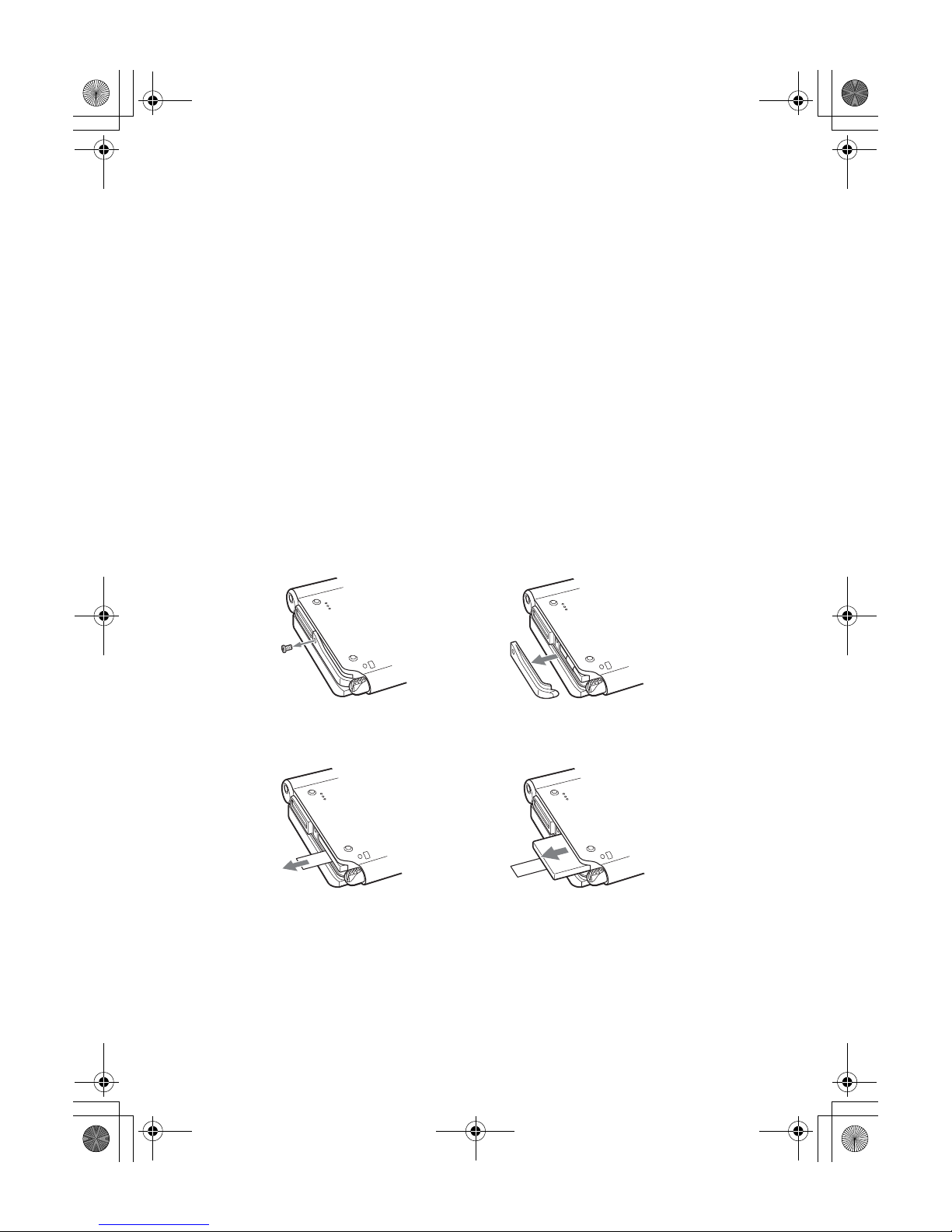
How to remove a rechargeable button battery
1
Remove the screw from the side
of your CLIÉ handheld with a
Phillips screwdriver.
2
Remove the battery cover.
3
Pull the ribbon attached to the
battery.
4
Take out the battery with the
ribbon.
Do not damage the released battery.
01US01COV.book Page 92 Friday, June 20, 2003 6:29 AM
Page 48
93
Sony Personal Entertainment Organizer PEG-UX50/UX00 X-XXX-XXX-11 (1)
Have a try
Specifications
OS
Palm OS® 5 (Ver.5.2)
CPU
Sony CDX2230GA
Memory
PEG-UX50: total 104 MB
User memory available:
CLIÉ handheld Approx. 16 MB
Internal Media Approx. 22MB
External input/output
USB
IrDA (1.2)
Bluetooth
®
Wireless LAN (IEEE802.11b)
“Memory Stick” slot
Display
TFT color display with backlight,
480 × 320 dots, 65,536 colors
Other functions
Monaural Speaker
Monaural Microphone
Headphone: Stereo mini-jack
Jog Dial™ navigator
BACK button
Dimensions (excluding
projections)
Approx. 4 1/8 × 3 1/2 ×23/32 inches
(103 × 86.5 × 17.9 mm) (w/h/d)
Weight
PEG-UX50: Approx. 7 oz (175 g)
PEG-UX00: Approx. oz ( g)
(including the supplied stylus)
Operating temperature
41 ºF to 95 ºF (5 ºC to 35 ºC)
Audio frequency response
20 Hz to 20,000 Hz
Audio recording format
ATRAC3
MP3 (32 k~320 kbps)
Sampling frequency
32 kHz (MP3)
44.1 kHz (ATRAC3, MP3)
48 kHz (MP3)
Maximum recording time
ATRAC3 format
(when using a 128MB “MagicGate
Memory Stick” media, sold
separately):
Approx. 120 minutes
(bit rate: 132 kbps)
Approx. 160 minutes
(bit rate: 105 kbps)
Approx. 240 minutes
(bit rate: 66 kbps)
MP3 format
(when using a 128MB “Memory
Stick” media, sold separately):
Approx. 65 minutes
(bit rate: 256 kbps)
Approx. 130 minutes
(bit rate: 128 kbps)
Approx. 170 minutes
(bit rate: 96 kbps)
Continued on next page
• • • • • • • • • • • • • • • • • • • • •
01US01COV.book Page 93 Friday, June 20, 2003 6:29 AM
Page 49
94
Sony Personal Entertainment Organizer PEG-UX50/UX00 X-XXX-XXX-11 (1)
Voice encoding/decoding
format
IMA ADPCM (1ch, 4bit)
SP mode (22 kHz),
LP mode (8 kHz)
Maximum audio recording
time
(when using a 128MB “Memory
Stick” media, sold separately)
SP mode: Approx. 190 minutes
LP mode: Approx. 520 minutes
Output
Headphone: Stereo mini-jack
Power requirements
AC power adapter (supplied):
DC 5.2 V (dedicated connector)
(Use an appropriate AC cord from
the supplied AC cords)
Battery:
Lithium-ion battery
Battery life
Operating PIMs (Personal
Information Management
applications):
Approx. 9 days
(when PIMs, such as Date Book,
are operated for 30 minutes per day
with the backlight off)
Approx. 5 days
(when PIMs, such as Date Book,
are operated for 30 minutes per day
with the backlight on*)
Approx. 14 days
(in power saving mode)
(when PIMs, such as Date Book,
are operated for 30 minutes per day
with the backlight off and your
CLIÉ handheld is turned off in
Power Saving mode)
Playing audio files
(in continuous mode):
Approx. 16 hours
(in HOLD mode)
Approx. 3 hours
(not in HOLD mode and the
backlight on*)
Recording movie files
(in continuous mode):
Approx. 1 hour
(not in HOLD mode and the
backlight on*)
Viewing movie files
(in continuous mode):
Approx. 5 hours
(with the backlight off)
Approx. 2.5 hours
(with the backlight on*)
Recording voice memos
(in continuous mode):
Approx. 11 hours
(in HOLD mode)
Approx. 3 hours
(not in HOLD mode and the
backlight on*)
Performing data communication
(in continuous mode with the
Bluetooth
®
function):
Approx. 3 hours
(with the backlight on*)
Performing data communication
(in continuous mode with the
Wireless LAN function, for PEGUX50 only):
Approx. 2.5 hours
(with the backlight on*)
The battery life span varies depending on
the temperature and conditions of use.
* The brightness level of the backlight is
at the highest when the backlight is on.
01US01COV.book Page 94 Friday, June 20, 2003 6:29 AM
Page 50
95
Sony Personal Entertainment Organizer PEG-UX50/UX00 X-XXX-XXX-11 (1)
Have a try
Camera
Effective pixels
Approx. 310,000 pixels
Image pickup device
1
/
5.5
inch progressive scan CMOS
image sensor (1,340,000 pixels in
total)
Lens
F2.8/focal length 2.6 mm
(35 mm film equivalent
f=approx. 34.3 mm)
Focus range
AF = 0.3 m to ∞
Camera Rotating Angle
Capable recording angle:
Approx. 240º
Camera lens angle:
Approx. 300º
Camera finder
On the CLIÉ handheld display
Image file: 320 × 240,
160 × 240 dots
Movie file: 320 × 224 dots
Others
White Balance:
Auto, Indoor A (incandescent
light), Indoor B (fluorescent light),
Outdoor
Picture effect:
Off, B&W, Sepia, Neg. Art
(negative art), Solarization
Brightness Control:
-2 to +2
Self-timer function:
Approx. 10 seconds (for image files
only)
Picture size (when recording)
Image file: 640 × 480, 320 × 480
(vertical frame), 320 ×
240, 160 × 120 dots
Movie file: 160 × 112 dots
Formats (when recording)
Image file: JPEG (DCF) format
Movie file: Movie Player format
Picture size (when viewing)
On the CLIÉ handheld display
Image file: 320 × 480, 320 × 240,
160 × 120 dots
Movie file: 426 × 320, 320 × 240
160 × 112 dots
Formats (when viewing)
Image file: JPEG (DCF) format
Movie file: Movie Player format,
MPEG Movie format
Continued on next page
• • • • • • • • • • • • • • • • • • • • •
01US01COV.book Page 95 Friday, June 20, 2003 6:29 AM
Page 51
96
Sony Personal Entertainment Organizer PEG-UX50/UX00 X-XXX-XXX-11 (1)
Maximum movie recording
time
(when using a 128MB “Memory
Stick” media, sold separately)
Note that the maximum movie
recording time in continuous
operation is approx. 60 minutes.
V:256/A: 32kbps :
Approx. 60 minutes
V:192/A: 32kbps :
Approx. 70 minutes
V:96/A: 32kbps :
Approx. 120 minutes
Maximum image file
recording capacity
(when using a 128MB “Memory
Stick” media sold separately)
640 × 480 dots: Approx. 1,000 files
320 × 480 dots: Approx. 1,500 files
320 × 240 dots: Approx. 2,000 files
160 × 120 dots: Approx. 6,000 files
Your CLIÉ handheld supports “Memory
Stick” media, “MagicGate Memory
Stick” media, “Memory Stick Duo”
media, and “Memory Stick PRO” media.
Note that data requiring the MagicGate
function cannot be viewed or recorded
with “Memory Stick PRO” media.
Bluetooth® function
Communication method
Bluetooth® standard Ver.1.1
Output
Bluetooth® standard Power Class 2
Communication range
1)
Line of sight approx. 10 m
Supported Bluetooth
®
profiles
2)
Serial Port Profile
Dial-up Networking Profile
LAN Access Profile
Object Push Profile
Basic Imaging Profile
Frequency band
2.4 GHz band
(2.4000 GHz - 2.4835 GHz)
1)
The actual range will vary depending
on factors such as obstacles between
devices, magnetic fields around a
microwave oven, static electricity,
areas with heavy radio and/or magnetic
interference, radio wave conditions,
reception sensitivity or antenna
performance, and the operating system
or software application, etc.
2)
Bluetooth® standard profiles specify
the requirements of the protocol
software and application software for
Bluetooth
®
devices to communicate
with each other.
01US01COV.book Page 96 Friday, June 20, 2003 6:29 AM
Page 52
97
Sony Personal Entertainment Organizer PEG-UX50/UX00 X-XXX-XXX-11 (1)
Have a try
Wireless LAN
function
Applied standard
IEEE 802.11b
Frequency band
2.4GHz band (1~11ch, ISM band)
WEP(data encryption)
128-bit/40-bit
Modulation method
DS-SS(in conformity to IEEE
802.11b)
System
requirements
The following are the system
specifications required to run Palm™
Desktop for CLIÉ and software
supplied on the Installation CD-ROM:
•OS:
Microsoft Windows 98 Second
Edition,
Windows Millennium Edition,
Windows 2000 Professional,
Windows XP Home Edition,
Windows XP Professional
• CPU: Pentium II 400MHz or faster
(Pentium III 500MHz or faster is
recommended)
• RAM: 96MB or more (128MB or
more is recommended, 256MB or
more is recommended for Windows
XP)
• Hard disc drive space: 200MB or
more (350MB or more is
recommended)*
* Requires 100MB or more to print
using PictureGear Studio.
• Display: High Color or better,
800 × 600 dots or more is
recommended
• CD-ROM drive
• USB port
• Pointing device such as a mouse or
touchpad
Design and specifications are subject
to change without notice.
01US01COV.book Page 97 Friday, June 20, 2003 6:29 AM
 Loading...