

Page 1
3-215-275-11(1)
Quick Start Guide
LocationFree Base Station LF-B20
For more details about this product, refer to the Operating
Instructions installed on the supplied CD-ROM.
©2007 Sony Corporation Printed in Japan
Page 2
AT/BE/CH/DE/DK/ES/FI/GB/IE/
IT/LU/NL/NO/PT/SE
English
Hereby, Sony Corporation declares that this LF-B20 is in compliance with the essential requirements and other relevant provisions of Directive
1999/5/EC. For details, please access the following URL: http://www.compliance.sony.de/
Français
Par la présente Sony Corporation déclare que l’appareil LF-B20 est conforme aux exigences essentielles et aux autres dispositions pertinentes de la
directive 1999/5/CE. Pour toute information complémentaire, veuillez consulter l’URL suivante :
http://www.compliance.sony.de/
Deutsch
Hiermit erklärt Sony Corporation dass sich diese LF-B20 in Übereinstimmung mit den grundlegenden Anforderungen und den anderen relevanten
Vorschriften der Richtlinie 1999/5/EG befindet. Weitere Informationen erhältlich unter: http://www.compliance.sony.de/
Español
Por medio de la presente Sony Corporation declara que el LF-B20 cumple con los requisitos esenciales y cualesquiera otras disposiciones aplicables o
exigibles de la Directiva 1999/5/CE. Para mayor información, por favor consulte la siguiente URL:
http://www.compliance.sony.de/
Nederlands
Hierbij verklaart Sony Corporation dat het toestel LF-B20 in overeenstemming is met de essentiële eisen en de andere relevante bepalingen van richtlijn
1999/5/EG. Nadere informatie kunt u vinden op: http://www.compliance.sony.de/
Svenska
Härmed intygar Sony Corporation att denna LF-B20 står i överensstämmelse med de väsentliga egenskapskrav och övriga relevanta bestämmelser
som framgår av direktiv 1999/5/EG. För ytterligare information gå in på följande hemsida:
http://www.compliance.sony.de/
2
Page 3

Italiano
Con la presente Sony Corporation dichiara che questo LF-B20 è conforme ai requisiti essenziali ed alle altre disposizioni pertinenti stabilite dalla
direttiva 1999/5/CE. Per ulteriori dettagli, si prega di consultare il seguente URL: http://www.compliance.sony.de/
Português
Sony Corporation declara que este LF-B20 está conforme com os requisitos essenciais e outras provisões da Directiva 1999/5/CE. Para mais
informações, por favor consulte a seguinte URL: http://www.compliance.sony.de/
Suomi
Sony Corporation vakuuttaa täten että LF-B20-tyyppinen laite on direktiivin 1999/5/EY oleellisten vaatimusten ja sitä koskevien direktiivin muiden
ehtojen mukainen. Halutessasi lisätietoja, käy osoitteessa: http://www.compliance.sony.de/
Dansk
Undertegnede Sony Corporation erklærer herved, at følgende udstyr LF-B20 overholder de væsentlige krav og øvrige relevante krav i direktiv 1999/5/
EF. For yderligere information gå ind på følgende hjemmeside: http://www.compliance.sony.de/
Norsk
Sony Corporation erklærer herved at utstyret LF-B20 er i samsvar med de grunnleggende krav og øvrige relevante krav i direktiv 1999/5/EF. Hvis du
vil har mer informasjon skal du gå til denne URL-adresse: http://www.compliance.sony.de/
In some of the countries listed above, Sony may not currently sell this product, even though such countries appear on the package and in the
operating instructions as countries of intended use.
This device is approved for the country or region of intended use. Using this device with the affixed approval label removed may be punishable by law.
3
Page 4
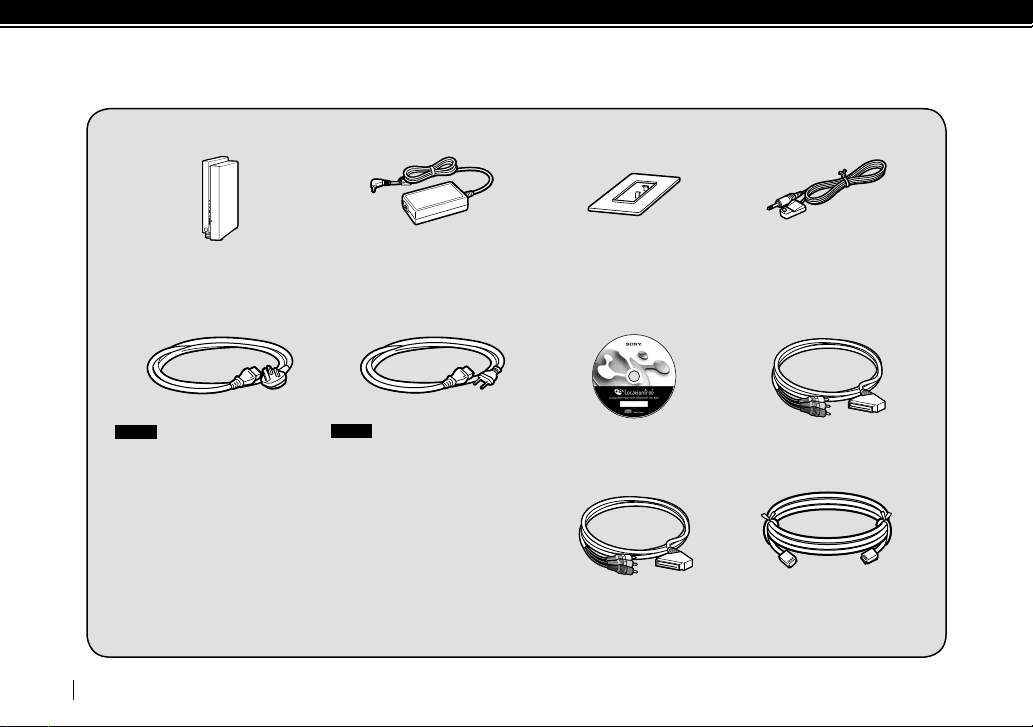
Package Contents
LF-B20 LocationFree Base Station AC-LX1B AC adapter LocationFree Base Station stand
Mains lead (Type BF) Mains lead (Type C-6) LFA-PC20 LocationFree Player
Notes
Use this mains lead if you use the unit
in the United Kingdom.
This mains lead may not be supplied
depending on the country.
Quick Start Guide (this guide)
Important Notice
EUROPEAN GUARANTEE INFORMATION DOCUMENT
Notes
Use this mains lead if you use the unit
outside the United Kingdom.
This mains lead may not be supplied
depending on the country.
software with Operating
Instructions and a serial key for
LocationFree Player software
A/V to Scart cable
(labeled with a blue label)
(for OUTPUT only)
4
IR Blaster
Scart to A/V cable
(labeled with a yellow label)
(for INPUT only)
LAN cable
Page 5

Table of Contents
Package Contents ....................................................................................... 4
Base Station Setup .....................................................................................6
Device Registration ..................................................................................34
Troubleshooting .......................................................................................35
5
Page 6
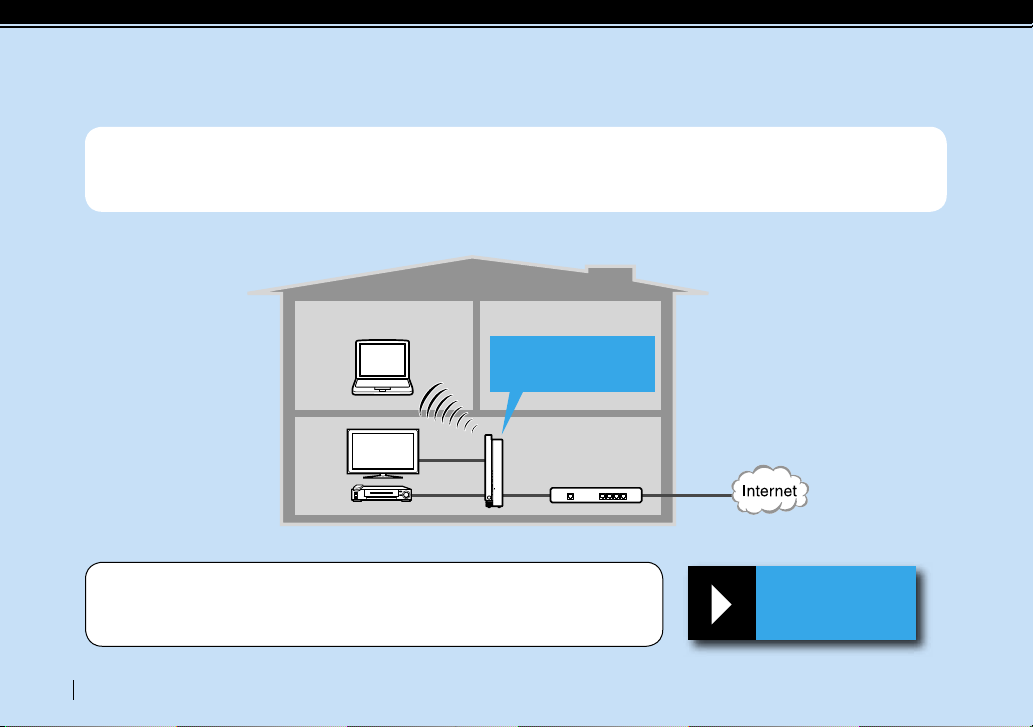
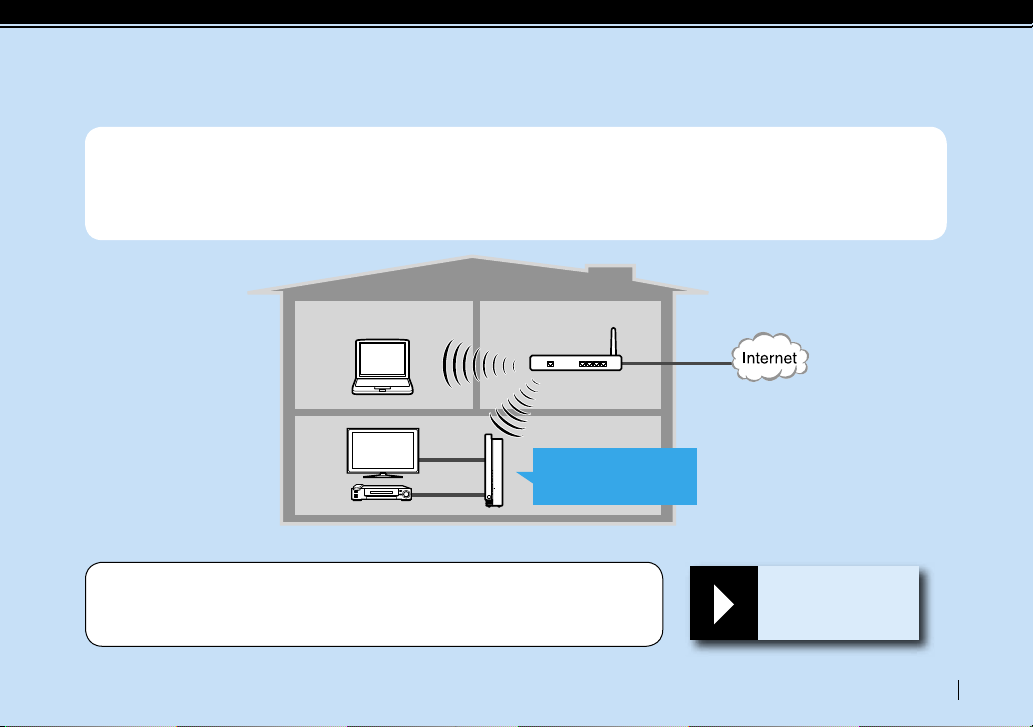
How would you like to set up the Base Station in your home?
Do you have
- The Base Station and the router in a same room?
PC
LocationFree
Base Station LF-B20
TV
Video
Wirelessly connect a client (e.g. PC, PSP) directly with the Base Station.
The Base Station and the router are connected with a LAN cable.
The Base Station is used only in your home without a router (no Internet connection).
Living room
Router
6
Jump TYPE A on Page 8
TYPE A
Page 7
Do you have
- The Base Station and the router in different rooms?
- A wireless router ?
PC
TV
Video
Wirelessly connect a client (e.g. PC, PSP) with the Base Station via the wireless router.
The Base Station and the wireless router are also connected wirelessly.
Wireless router
Living room
LocationFree
Base Station LF-B20
Jump TYPE B on Page 20
TYPE B
7
Page 8
CLIENTAP
WLAN
CLIENTAP
WLAN
TYPE A
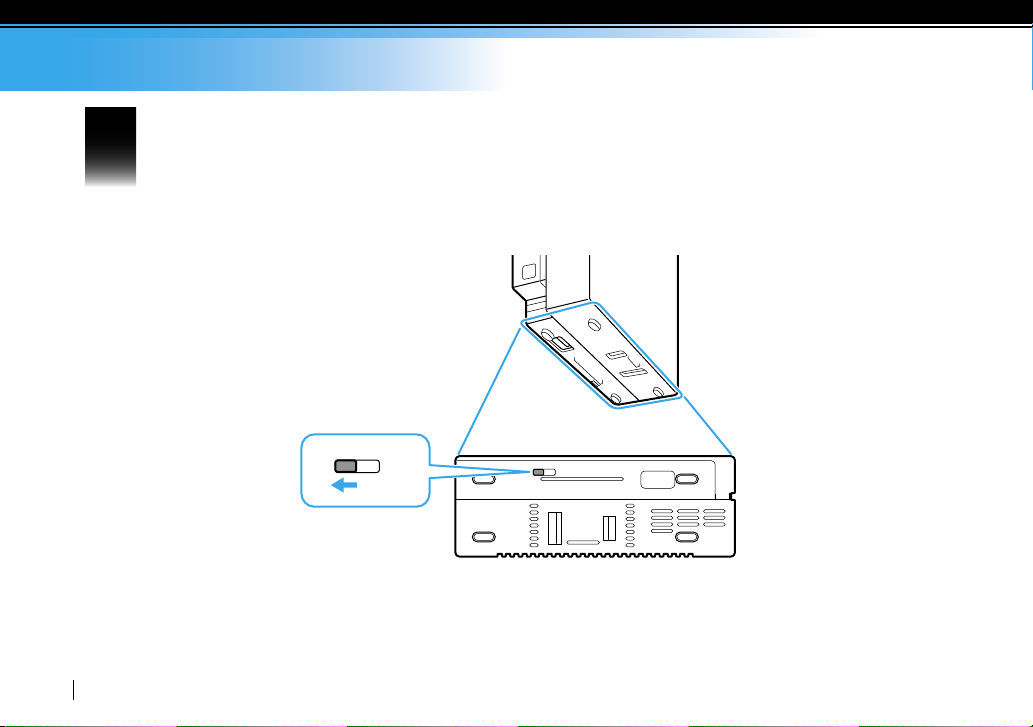
Make sure that the switch on the bottom of the Base Station is set to the Access Point
1
(AP) mode.
Set up the LocationFree Base Station
The bottom of the Base Station
8
Page 9
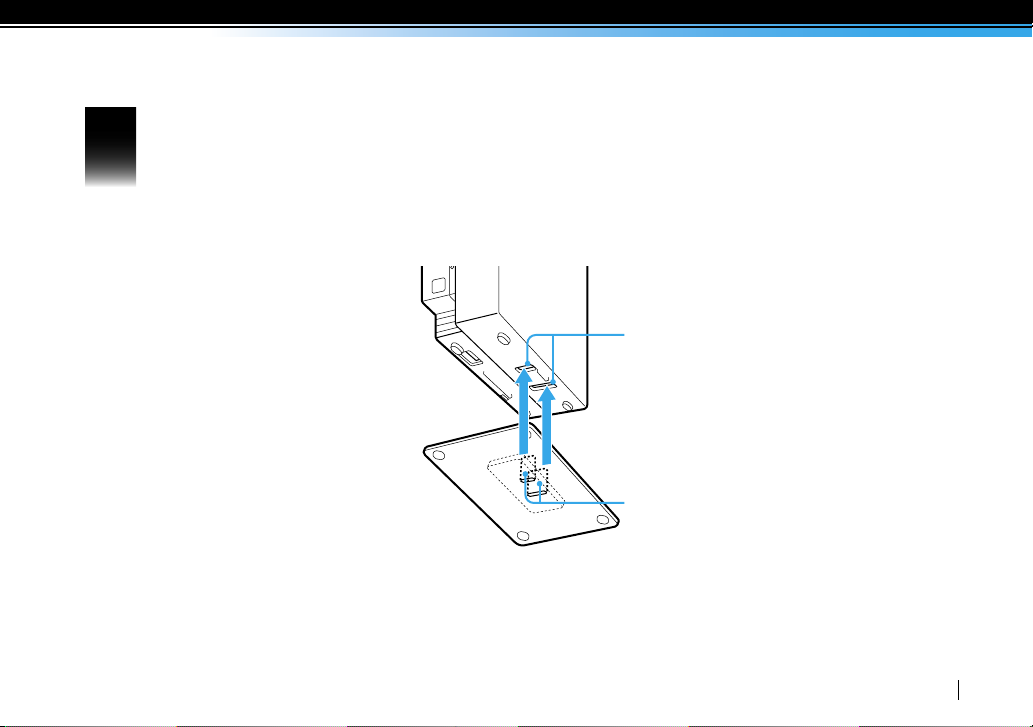
Attach the stand.
2
Holes
Claws
Stand
9
Page 10
TYPE A
IR BLASTER
LAN
1
2
S VIDEO
IN 1
INOUT
VIDEO
AUDIO
L
R
VIDEO
AUDIO
L
R
VIDEO
DC IN 12V
AUDIO
L
R
IN 2
OUT
VIDEO
AUDIO
L
R
OUT
IN
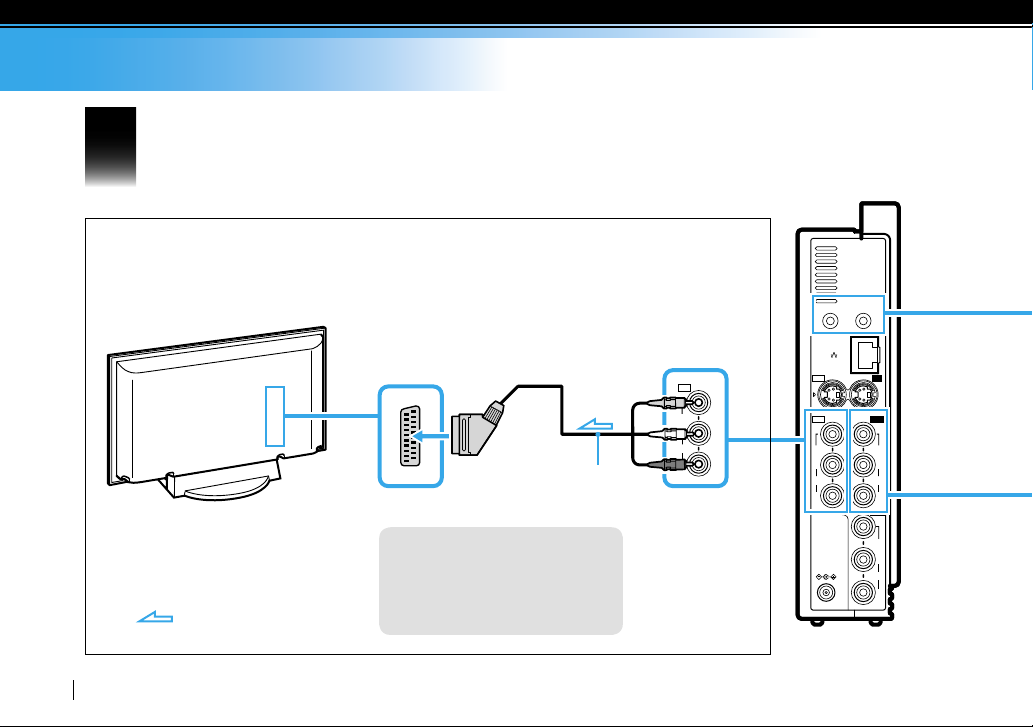
Connect video devices (PVR, DVD and STB) to the Base Station.
3
Connect your TV to the Base Station (refer to the illustration below).
Connect to your TV using VIDEO OUT if your video device has a single VIDEO OUT.
A/V to Scart cable
(blue label; supplied)
10
TV, etc.
: Audio/video signal flow
Video Input
Tip
You can also use S-video cables
(not supplied) to connect audio/
video devices to the Base Station.
Video Output
(Video signal from
Video Input 1 will
be emitted)
Rear of the
Base Station
Page 11
IN 1
VIDEO
AUDIO
L
R
OUT
IR BLASTER
1
2
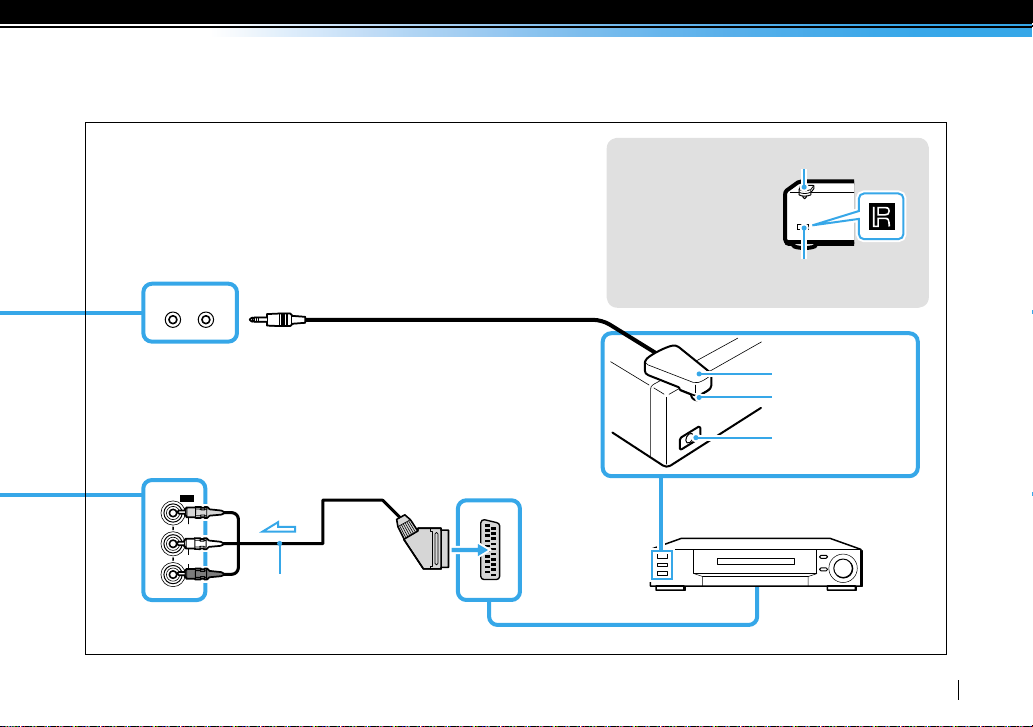
Connect the Base Station to your video devices.
Connect the Base Station to your video device(s) using a SCART to A/V
cable with a yellow label.
Plug the IR Blaster into the IR BLASTER port on the rear of the Base
Station to configure the on-screen remote control.
After you complete these settings, turn on the video device(s).
Tip
Orient the infrared
transmitter on the end
of the IR Blaster so that
it faces the infrared
receiver(s) on your
PVR, DVD and STB.
IR Blaster
Remote control
infrared receiver
IR BLASTER port 1 or 2
Both ports are available
Video Input 1 or 2 Video Output
Scart to A/V cable
(yellow label; supplied)
IR Blaster
Remote control
infrared transmitter
Remote control
infrared receiver
Video device
11
Page 12
TYPE A
LAN
1
2
S VIDEO
IN 1
INOUT
VIDEO
AUDIO
L
R
VIDEO
AUDIO
L
R
VIDEO
DC IN 12V
AUDIO
L
R
IN 2
OUT
DC IN 12V
IR BLASTER
WIRELESS
NETWORK
SETUP MODE/
NET AV
SETUP MODE
RESET
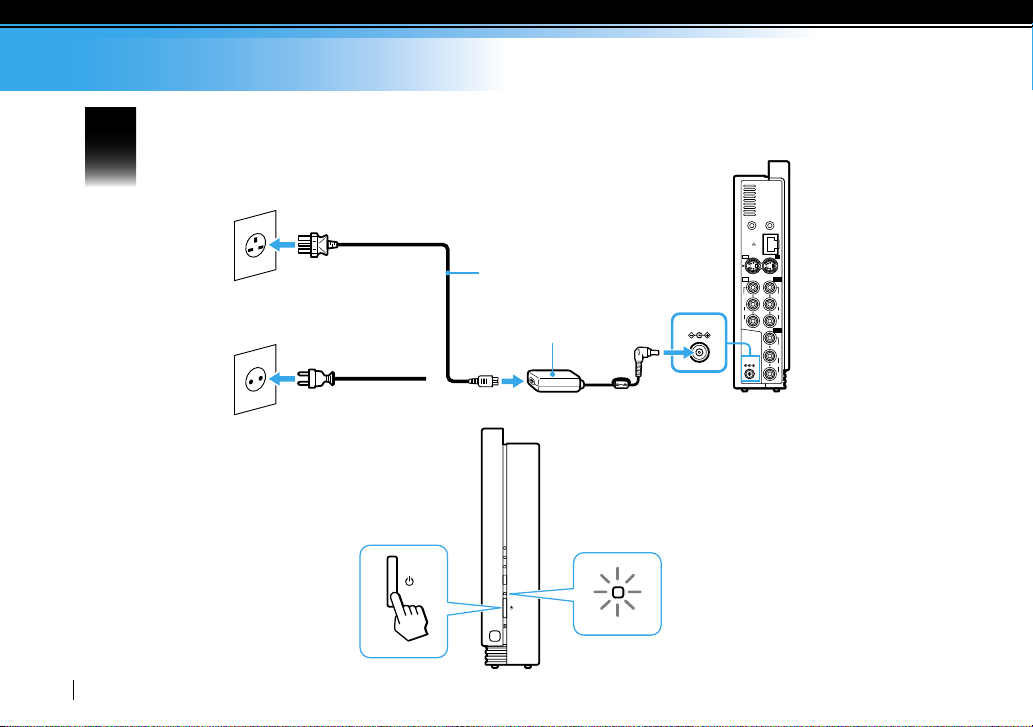
Plug in the mains lead and turn on the power.
4
12
Type BF
Type C-6
Mains lead (supplied)
or
AC adapter (supplied)
The POWER LED will
light in green
POWER LED
Page 13
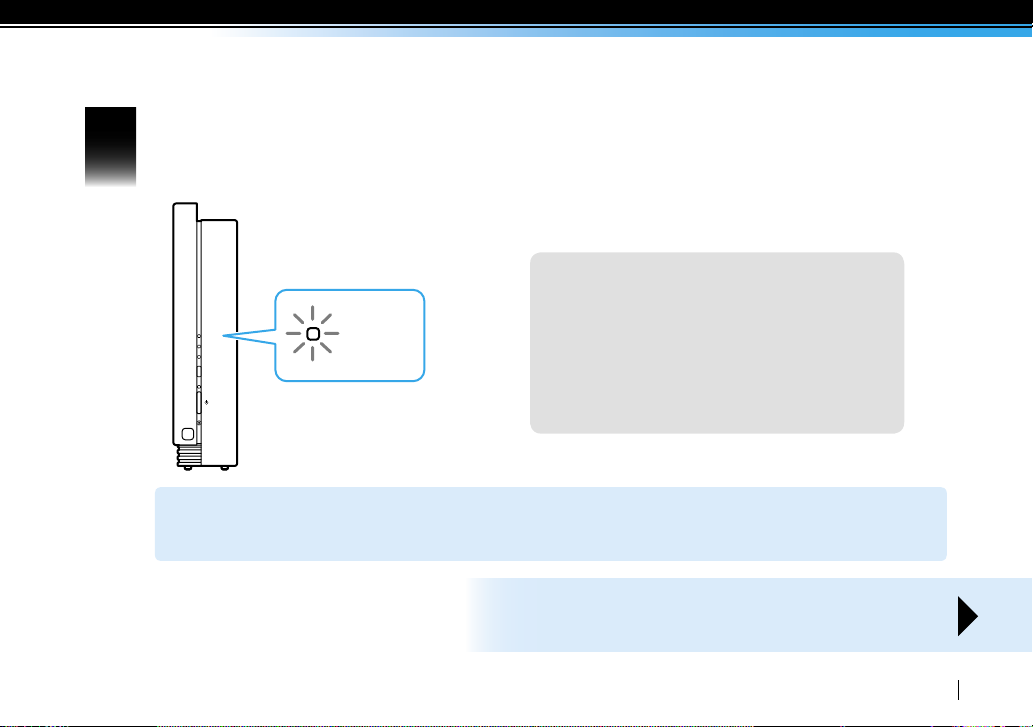
Make sure that the WIRELESS LED lights in green.
WIRELESS
NETWORK
SETUP MODE/
NET AV
SETUP MODE
RESET
WIRELESS
5
The LED will light in green
Tips
WIRELESS LED
Green light: Using the IEEE802.11b/g wireless
connection within the 2.4 GHz bandwidth.
Amber light: Using the IEEE802.11a wireless
connection within the 5 GHz bandwidth.
The bandwidth can be changed from the “Base
Station Settings” page.
You have completed connecting the Base Station to video device(s) in your home.
For access outside the home, go to page 18 to complete the client registration with the Base Station.
To watch the video content over the Internet,
proceed to the next page.
13
Page 14
TYPE A
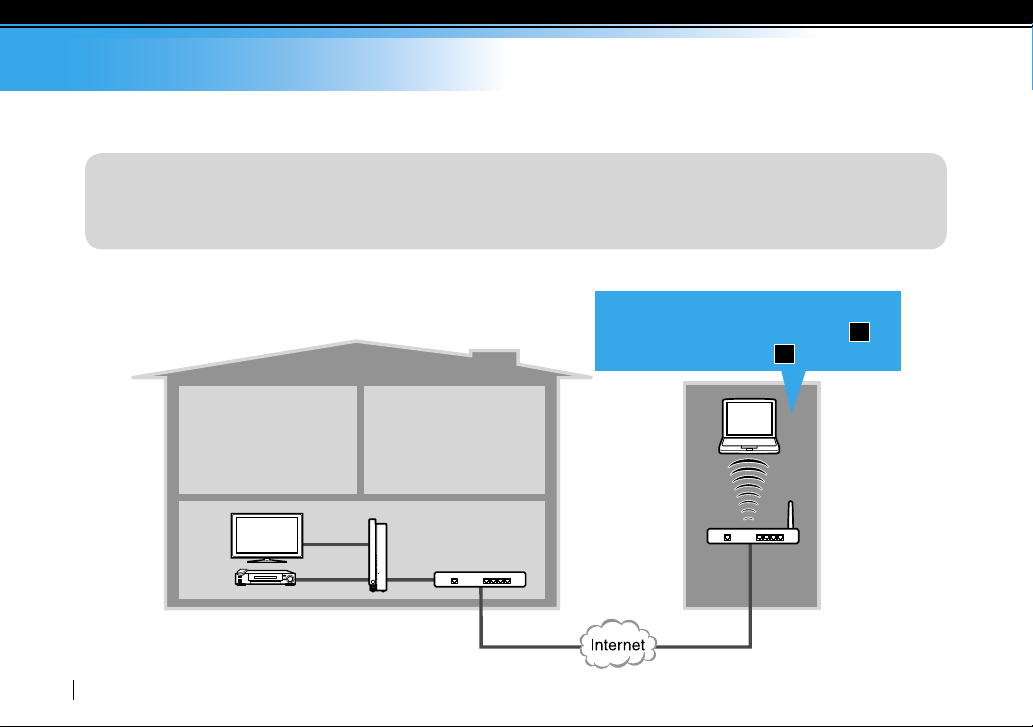
Set up to watch the video content over the Internet.
You will need:
A broadband Internet connection
A broadband router or a modem router
To connect your PC to the Base Station
over the Internet, proceed to Step 6
(page 15) through Step 11 (page 19).
PC
14
TV
Video
Base Station
Living room
Router
Page 15
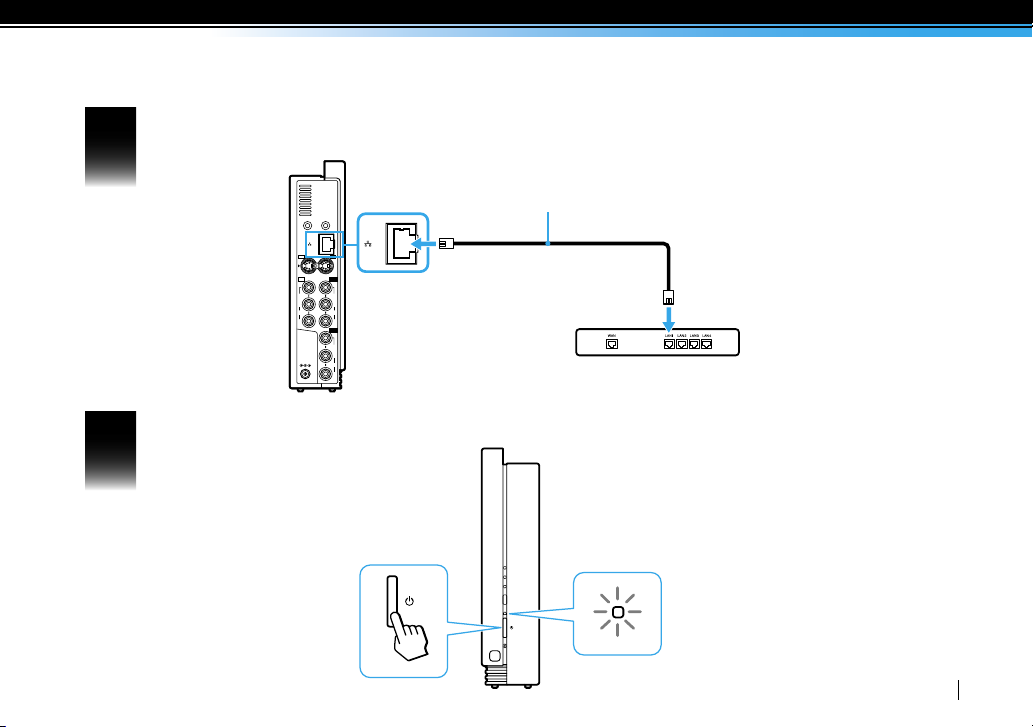
Turn off the power, and then connect the Base Station to your router using a LAN cable (supplied).
LAN
1
2
S VIDEO
IN 1
INOUT
VIDEO
AUDIO
L
R
VIDEO
AUDIO
L
R
VIDEO
DC IN 12V
AUDIO
L
R
IN 2
OUT
LAN
IR BLASTER
WIRELESS
NETWORK
SETUP MODE/
NET AV
SETUP MODE
RESET
6
LAN cable (supplied)
To a LAN outlet
Router
Turn on the power again.
7
The POWER LED will
light in green
POWER LED
15
Page 16
TYPE A
WIRELESS
NETWORK
SETUP MODE/
NET AV
SETUP MODE
RESET
NETWORK
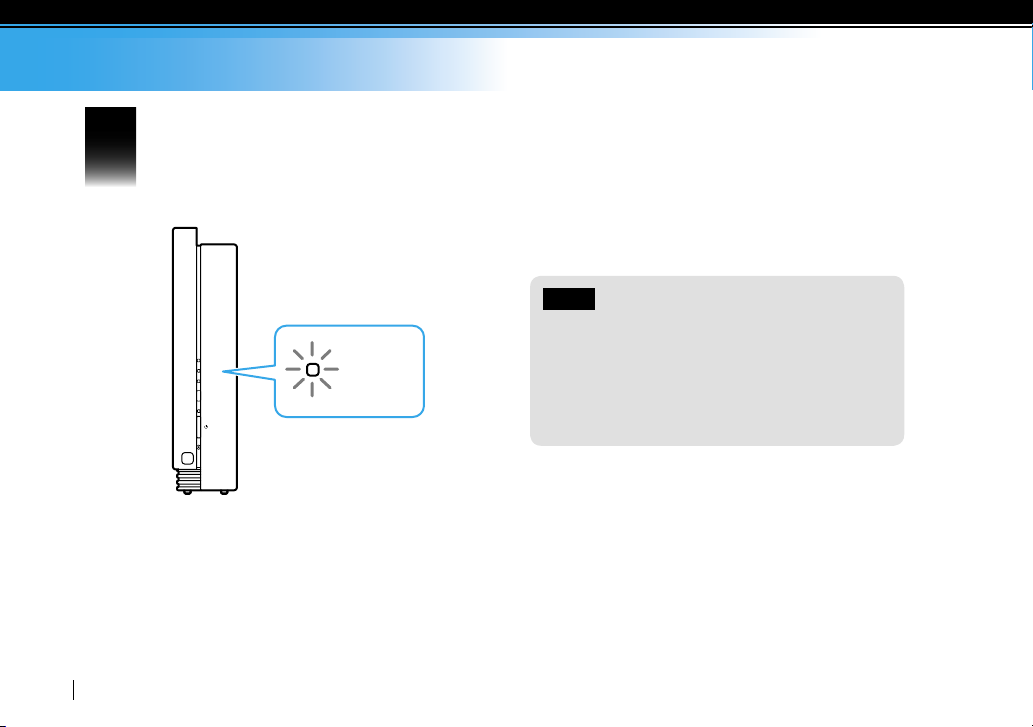
Make sure that the NETWORK LED lights in green.
8
16
The LED will light in green
Notes
The NETWORK LED will flash in green while the IP
address is being searched. The IP address search
may take a while.
If the NETWORK LED continues to flash, refer to the
Operating Instructions installed on the supplied
CD-ROM.
Page 17
WIRELESS
NETWORK
SETUP MODE/
NET AV
SETUP MODE
RESET
SETUP MODE/
NET AV
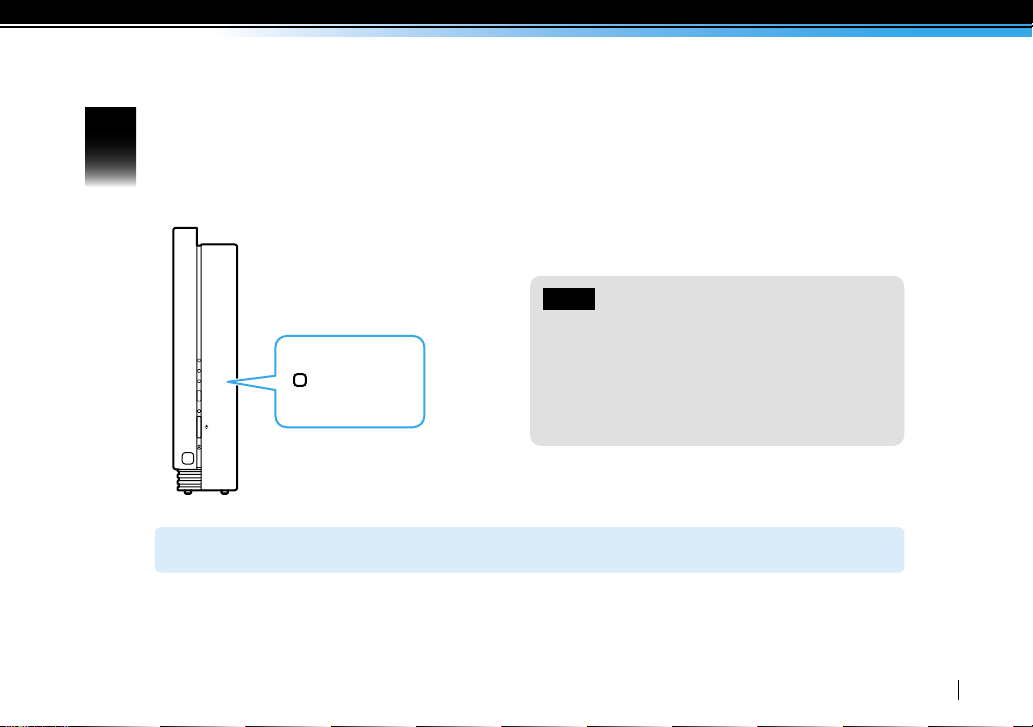
Wait until the SETUP MODE/NET AV LED turns off.
9
The LED will be turned off
The Base Station setup for use over the Internet is completed.
Notes
The settings are incomplete when the SETUP
MODE/NET AV LED lights in amber. Read the
Operating Instructions installed on the supplied
CD-ROM.
When the SETUP MODE/NET AV LED does not start
blinking, try power on/off again.
17
Page 18

TYPE A
10
You can also connect the Base Station to your router wirelessly, or with a LAN cable to establish the connection
between your PC and the Base Station.
Establish a wireless connection between your PC and the Base Station.
Windows Vista
Establish a connection to the network by clicking the Windows [Start] menu and click [Connect to].
Click [Wireless] in the [Show] list.
Select the same SSID as printed on the sticker of this Quick Start Guide from the list of wireless
networks and click [Connect].
Enter the WEP key printed on the sticker of the Base Station to the [Security key or a passphrase],
and click [Connect].
Windows XP
Click [Control Panel] from the Windows [Start] menu and double-click [Network Connections].
Double-click [Wireless Network Connection].
Select the same SSID as printed on the sticker of the Base Station from the list of wireless networks
and click [Connect].
Enter the WEP key printed on the sticker of the Base Station and click [Connect].
18
Page 19

11
Install and set up the LFA-PC20 LocationFree Player software.
Install the LFA-PC20 LocationFree Player software (supplied CD-ROM) on your PC.
* If you use the LFA-PC20 LocationFree Player software for the same Base Station with two or more PCs, the software
serial key for each PC is needed.
Double-click the LocationFree icon on your PC desktop and start the LocationFree
Player.
Register and set up your PC following the instructions after the LocationFree Player
window opens.
* If you wish to register other clients with the Base Station, go to page 34.
TYPE A setup is completed.
19
Page 20
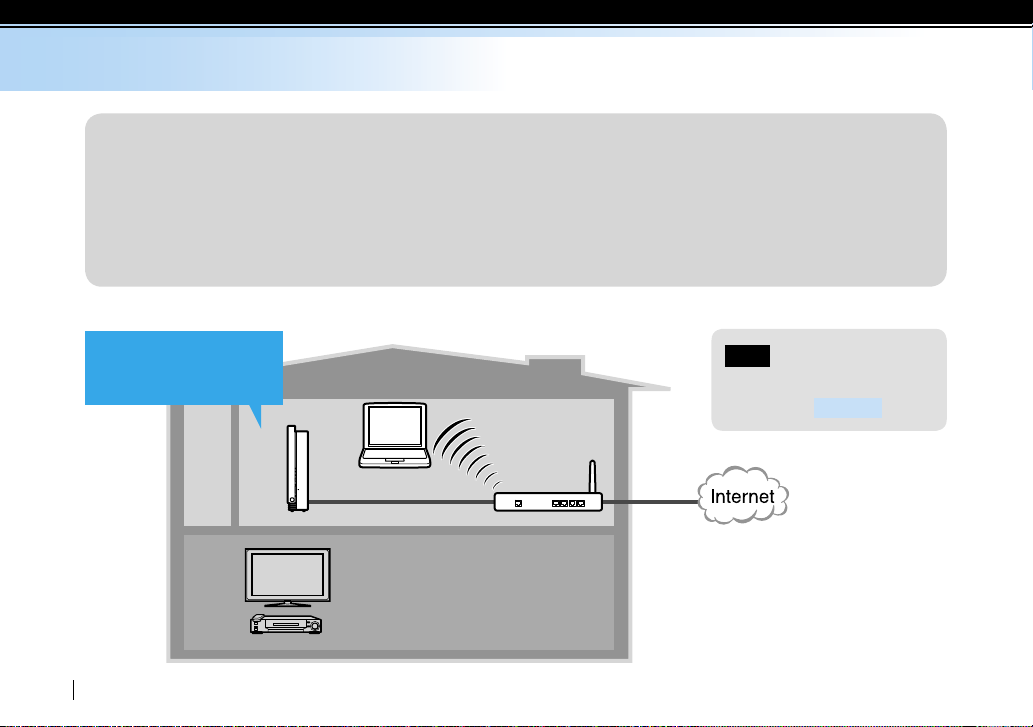
TYPE B
Set up the LocationFree Base Station
You will need:
A wireless router and its SSID, WEP key information. (This setup supports WEP only. WPA-PSK TKIP,
WPA2-PSK AES is not supported.)
A LAN cable (supplied)
A PC with the LFA-PC20 LocationFree Player software installed
Establish the connection
between the Base
Station and the router.
TV
Video
20
Base Station
PC with the
LFA-PC20 installed
Wireless
router
Living room
Note
LAN cable is necessary only to
configure the
TYPE B
setup.
Page 21
CLIENTAP
WLAN
CLIENTAP
WLAN
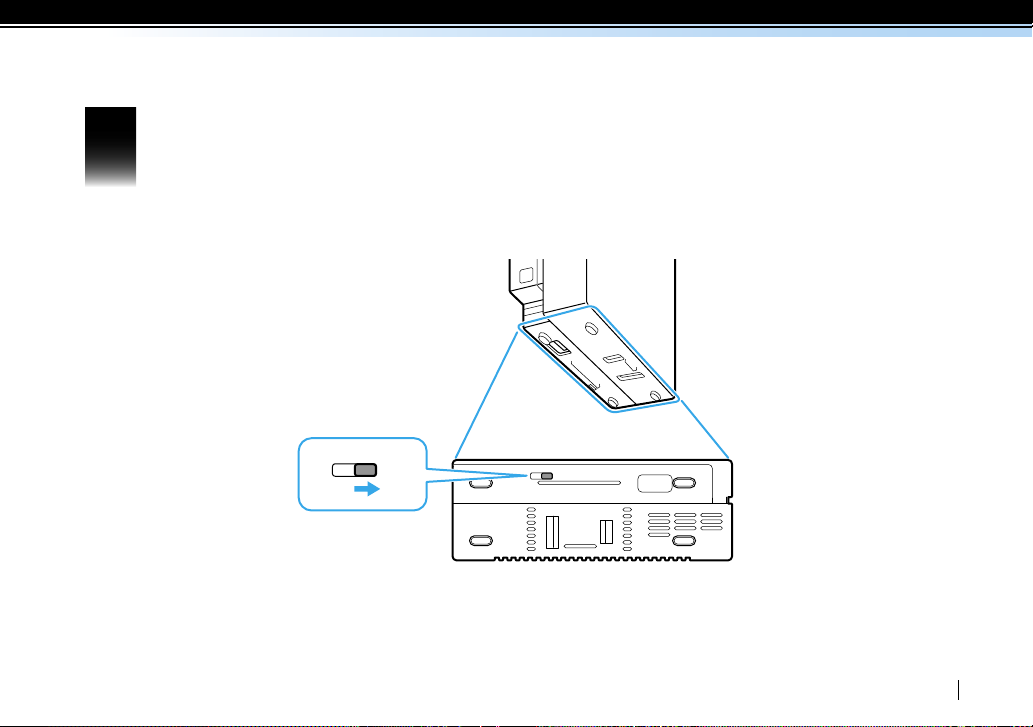
Make sure that the switch on the bottom of the Base Station is set
1
to the CLIENT mode.
The bottom of the Base Station
21
Page 22
TYPE B
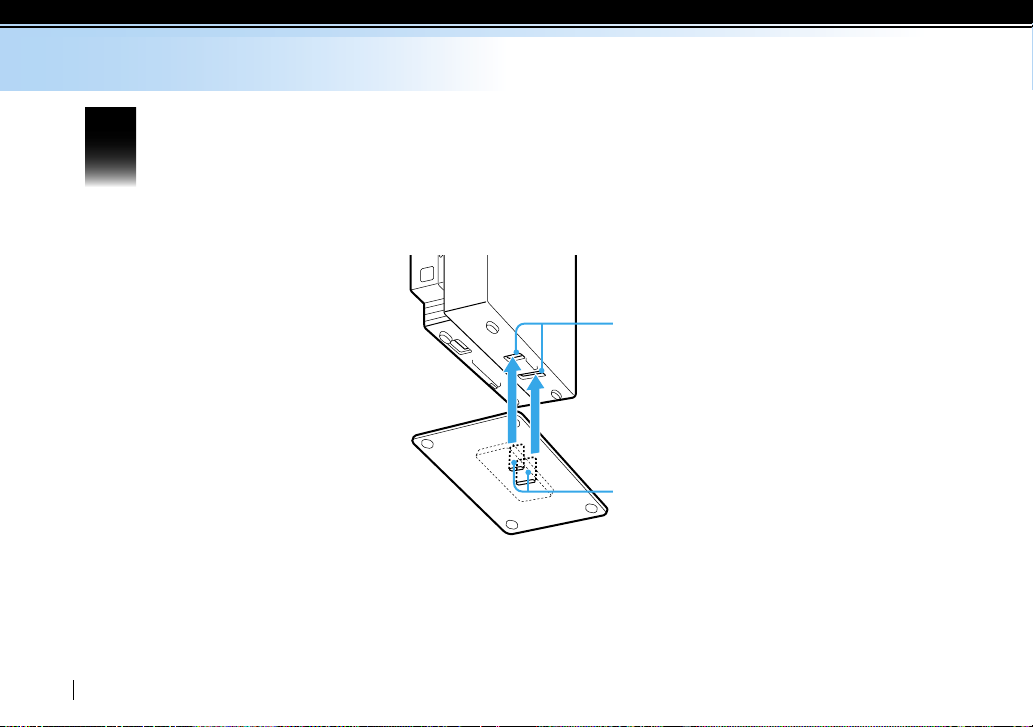
Attach the stand.
2
Holes
22
Stand
Claws
Page 23
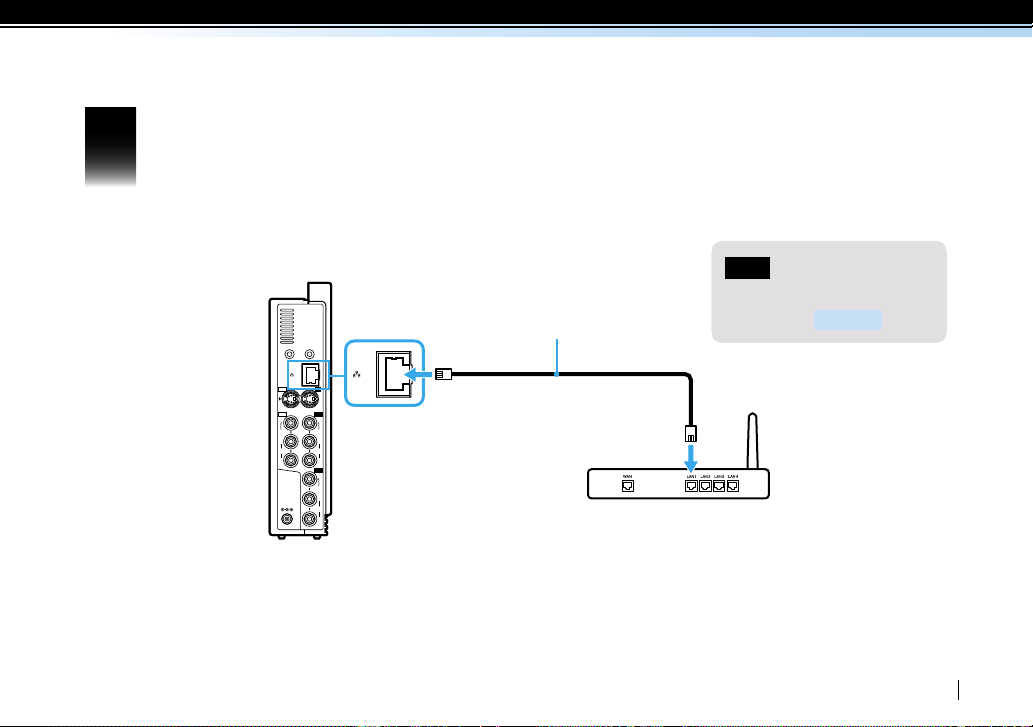
Connect the Base Station to the wireless router using a LAN cable (supplied).
IR BLASTER
LAN
1
2
S VIDEO
IN 1
INOUT
VIDEO
AUDIO
L
R
VIDEO
AUDIO
L
R
VIDEO
DC IN 12V
AUDIO
L
R
IN 2
OUT
LAN
3
LAN cable (supplied)
To a LAN outlet
Note
LAN cable is necessary only to
configure the
TYPE B
setup.
Wireless router
23
Page 24
TYPE B
LAN
1
2
S VIDEO
IN 1
INOUT
VIDEO
AUDIO
L
R
VIDEO
AUDIO
L
R
VIDEO
DC IN 12V
AUDIO
L
R
IN 2
OUT
DC IN 12V
IR BLASTER
WIRELESS
NETWORK
SETUP MODE/
NET AV
SETUP MODE
RESET
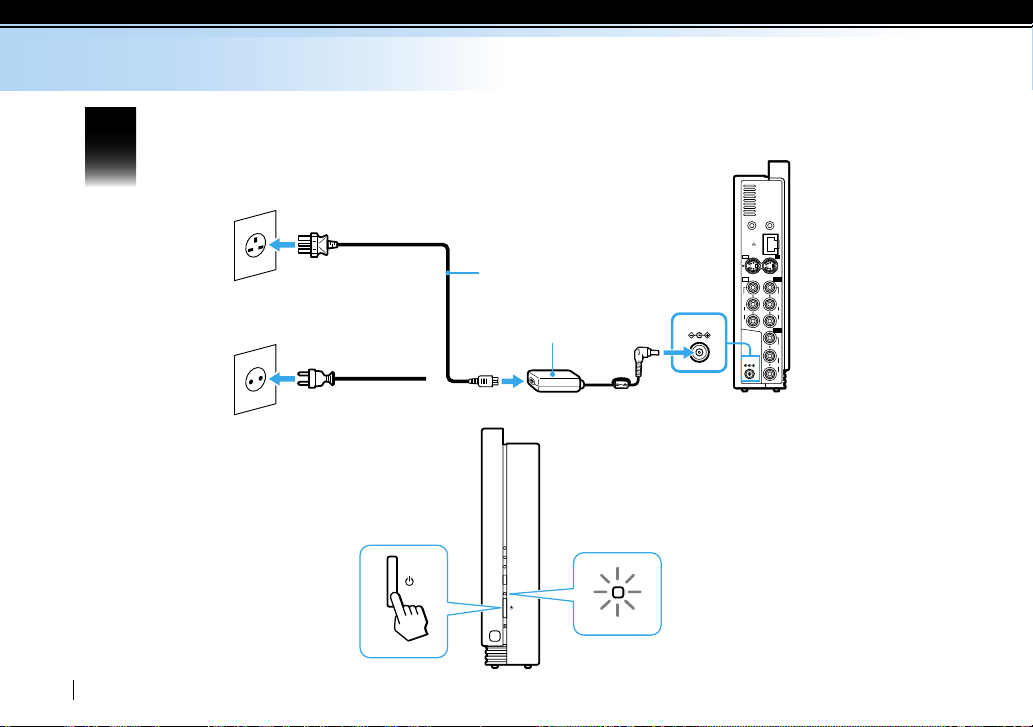
Plug in the mains lead and turn on the power.
4
24
Type BF
Type C-6
Mains lead (supplied)
or
AC adapter (supplied)
The POWER LED will
light in green
POWER LED
Page 25
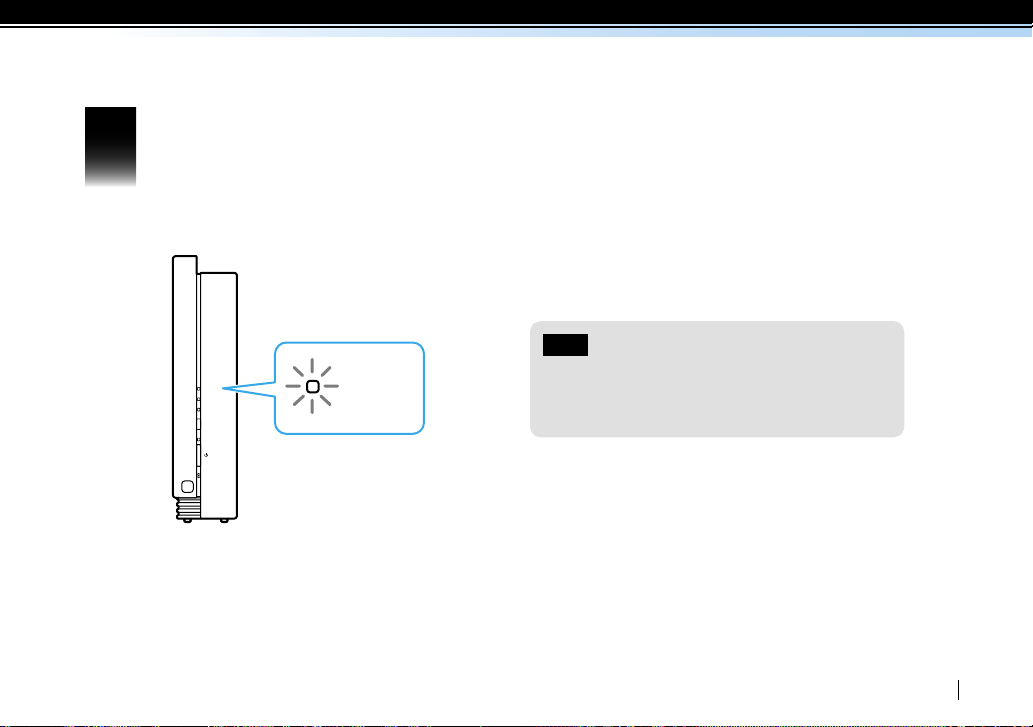
Make sure that the WIRELESS LED flashes in green.
WIRELESS
NETWORK
SETUP MODE/
NET AV
SETUP MODE
RESET
WIRELESS
5
The LED will flash in green
Note
If the WIRELESS LED remains lit and does not flash in
green, the wireless mode switch on the bottom of the
Base Station is likely set to “AP”. Select “CLIENT.”
25
Page 26
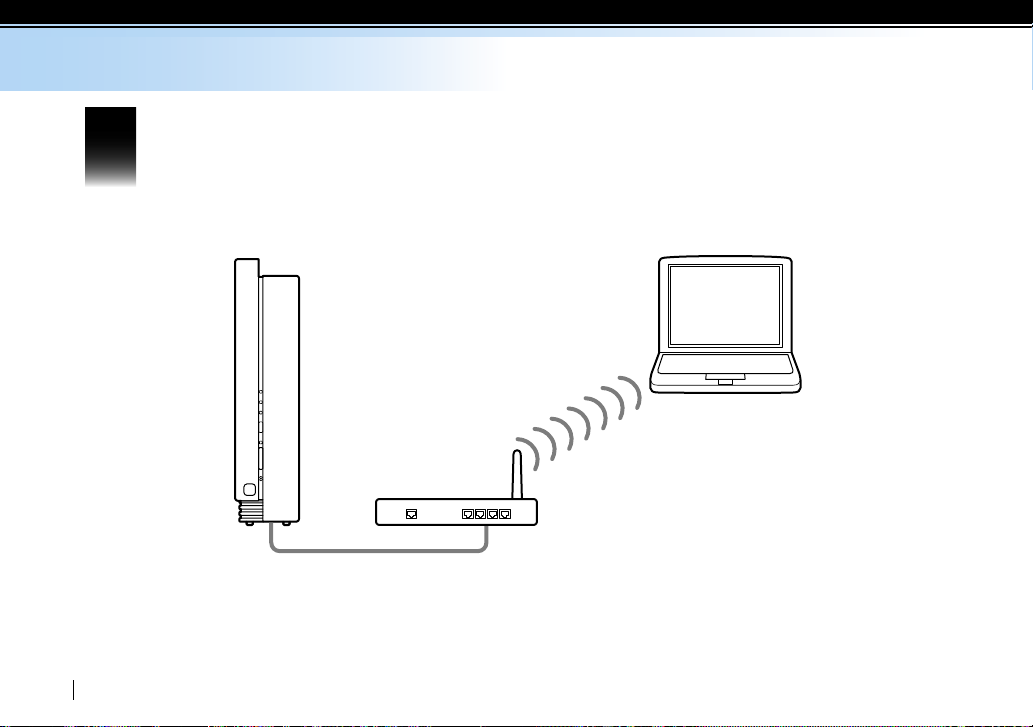
TYPE B
Connect your PC with the router.
6
26
Base Station
PC
Wireless router
Page 27
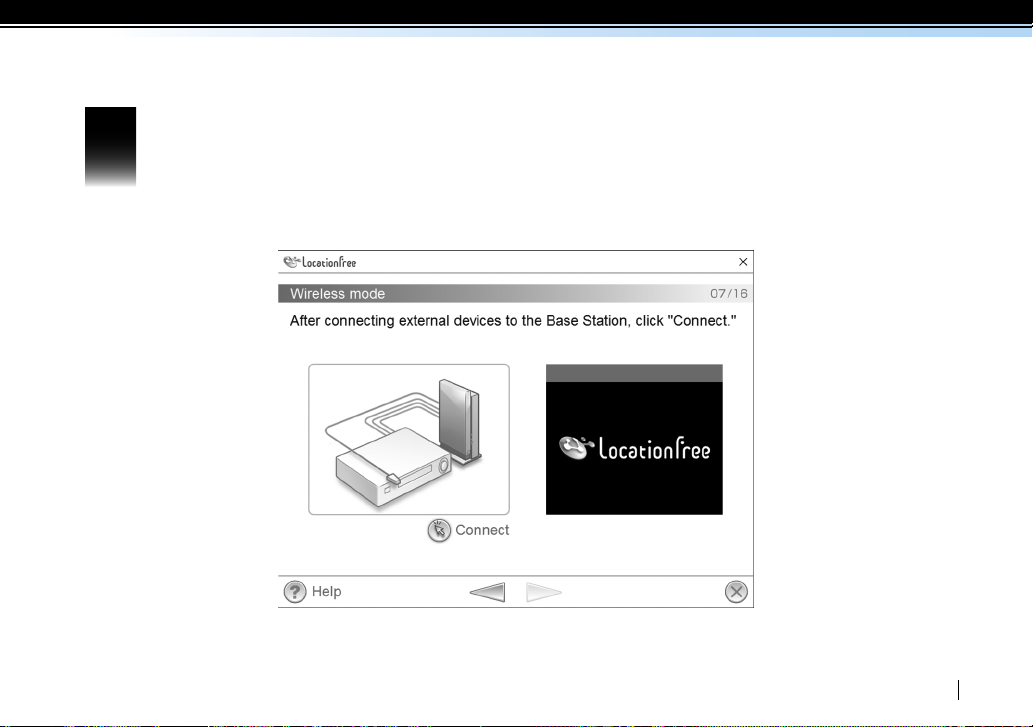
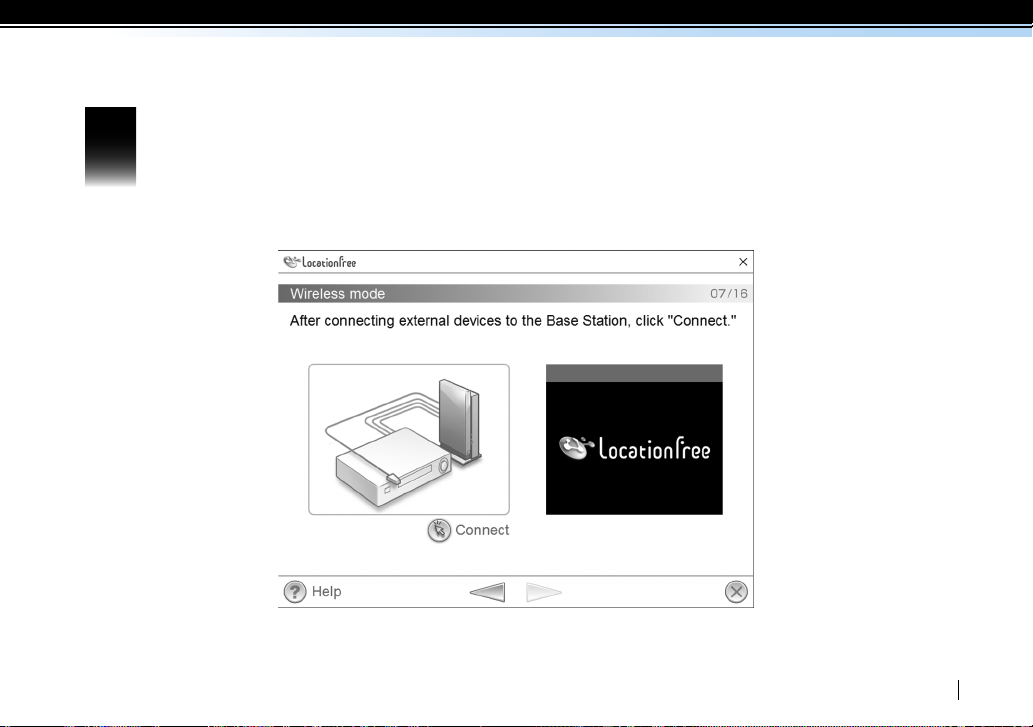
Insert the supplied CD-ROM (LFA-PC20) into the disc drive of your PC, install the LFA-PC20
7
LocationFree Player software, and launch it. Follow the wizard instructions until the
wizard screen shown below appears.
27
Page 28
TYPE B
WIRELESS
NETWORK
SETUP MODE/
NET AV
SETUP MODE
RESET
LAN
1
2
S VIDEO
IN 1
INOUT
VIDEO
AUDIO
L
R
VIDEO
AUDIO
L
R
VIDEO
DC IN 12V
AUDIO
L
R
IN 2
OUT
IR BLASTER
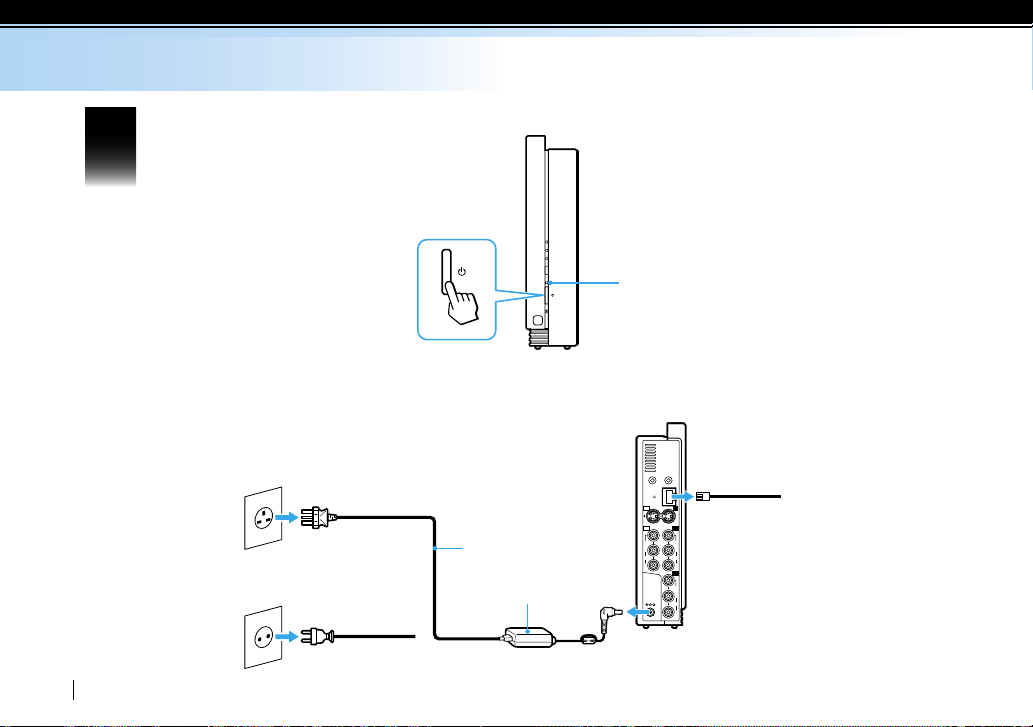
Turn off the power.
8
The green POWER LED
will be turned off
Unplug the mains lead and the LAN cable, and move the Base Station toward
the video device(s) that you wish to connect the Base Station to.
28
Type BF
Type C-6
LAN cable (supplied)
or
Mains lead (supplied)
AC adapter (supplied)
Page 29
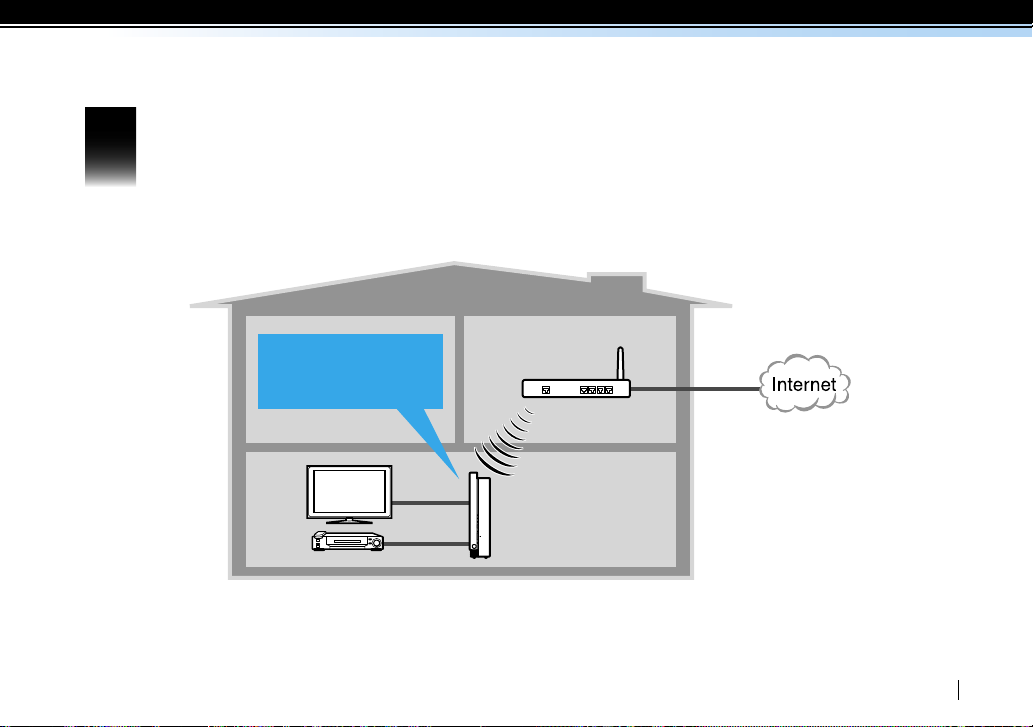
Move the Base Station toward your video device(s).
9
Move the Base Station
toward your video
device(s).
TV
Video
Wireless router
Living room
29
Page 30
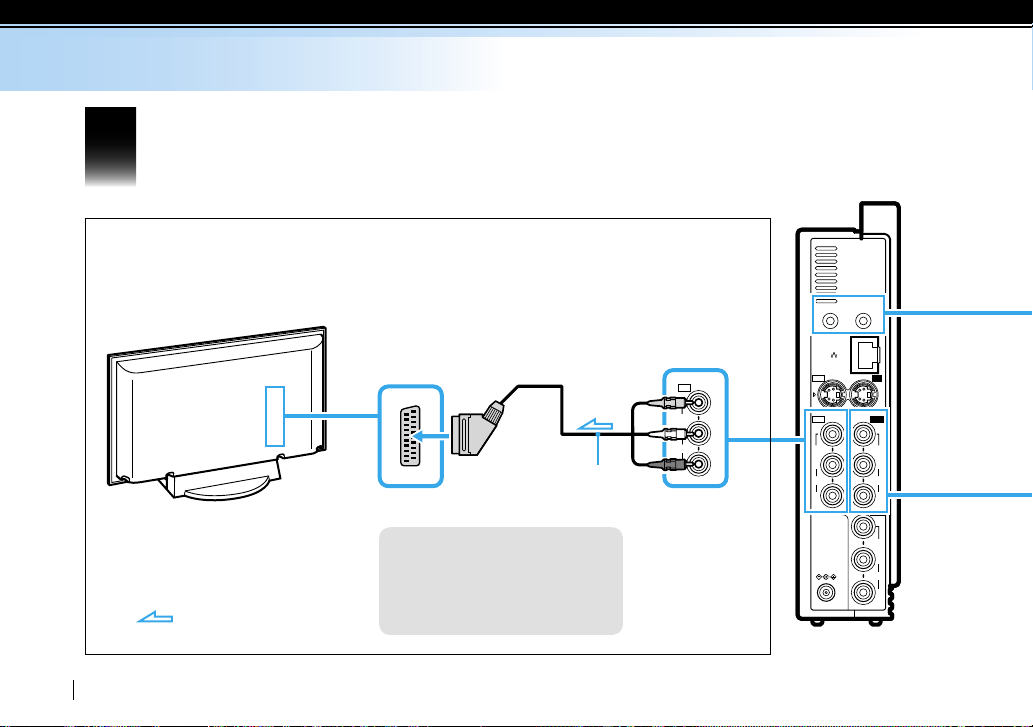
TYPE B
IR BLASTER
LAN
1
2
S VIDEO
IN 1
INOUT
VIDEO
AUDIO
L
R
VIDEO
AUDIO
L
R
VIDEO
DC IN 12V
AUDIO
L
R
IN 2
OUT
VIDEO
AUDIO
L
R
OUT
IN
10
Connect video devices (PVR, DVD and STB) to the Base Station.
Connect your TV to the Base Station (refer to the illustration below).
Connect to your TV using VIDEO OUT if your video device has a single VIDEO OUT.
A/V to Scart cable
TV, etc.
Video Input
Tip
You can also use S-video cables
(blue label; supplied)
(not supplied) to connect audio/
: Audio/video signal flow
video devices to the Base Station.
30
Video Output
(Video signal from
Video Input 1 will
be emitted)
Rear of the
Base Station
Page 31
IN 1
VIDEO
AUDIO
L
R
OUT
IR BLASTER
1
2
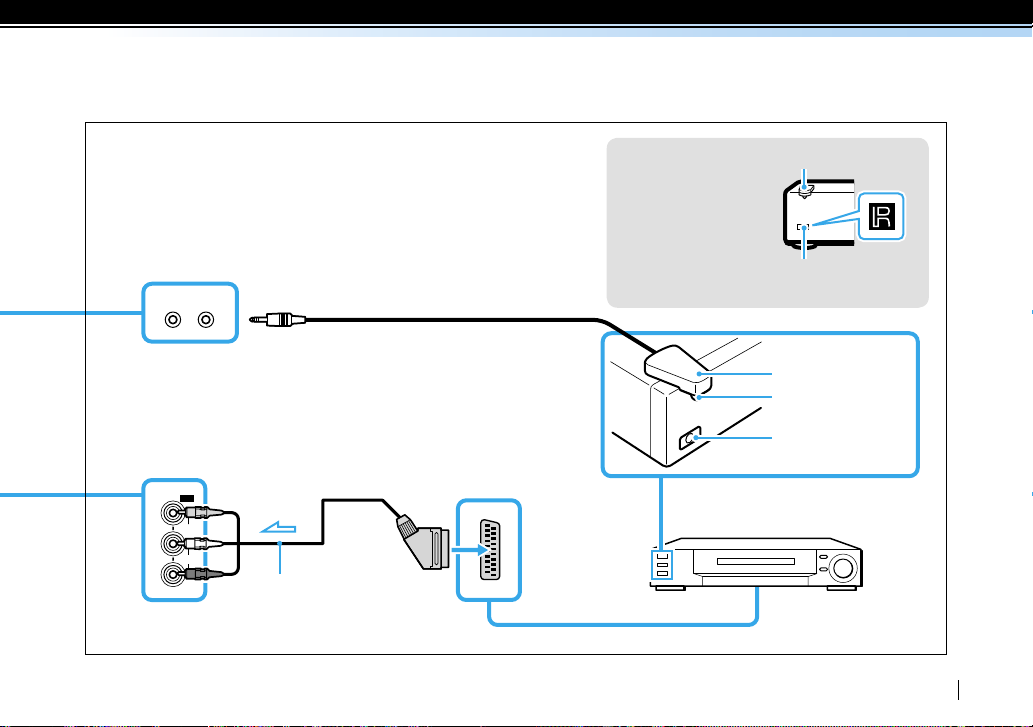
Connect the Base Station to your video devices.
Connect the Base Station to your video device(s) using a SCART to A/V
cable with a yellow label.
Plug the IR Blaster into the IR BRASTER port on the rear of the Base
Station to configure the on-screen remote control.
After you complete these settings, turn on the video device(s).
Tip
Orient the infrared
transmitter on the end
of the IR Blaster so that
it faces the infrared
receiver(s) on your
PVR, DVD and STB.
IR Blaster
Remote control
infrared receiver
IR BLASTER port 1 or 2
Both ports are available
Video Input 1 or 2 Video Output
Scart to A/V cable
(yellow label; supplied)
IR Blaster
Remote control
infrared transmitter
Remote control
infrared receiver
Video device
31
Page 32
TYPE B
LAN
1
2
S VIDEO
IN 1
INOUT
VIDEO
AUDIO
L
R
VIDEO
AUDIO
L
R
VIDEO
DC IN 12V
AUDIO
L
R
IN 2
OUT
DC IN 12V
IR BLASTER
WIRELESS
NETWORK
SETUP MODE/
NET AV
SETUP MODE
RESET
11
32
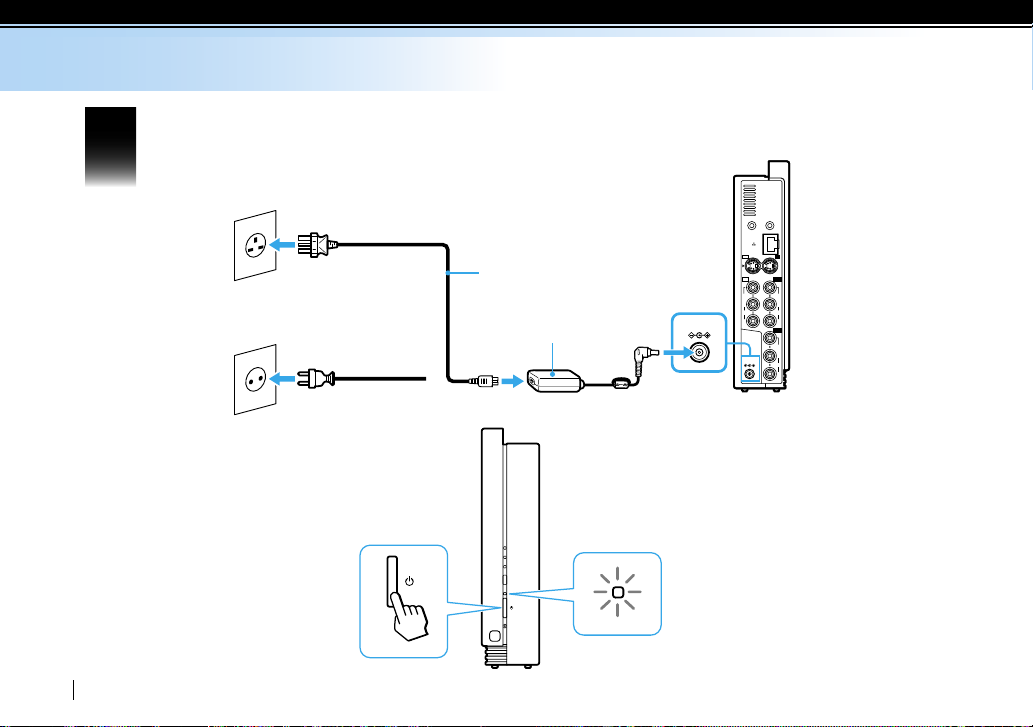
Plug in the mains lead and turn on the power.
Type BF
Mains lead (supplied)
or
Type C-6
AC adapter (supplied)
The POWER LED will
light in green
POWER LED
Page 33
12
Go back to the setup wizard on your PC screen to proceed with the LocationFree Player
setup.
* If you wish to register other clients with the Base Station, go to page 34.
33
Page 34
Device Registration
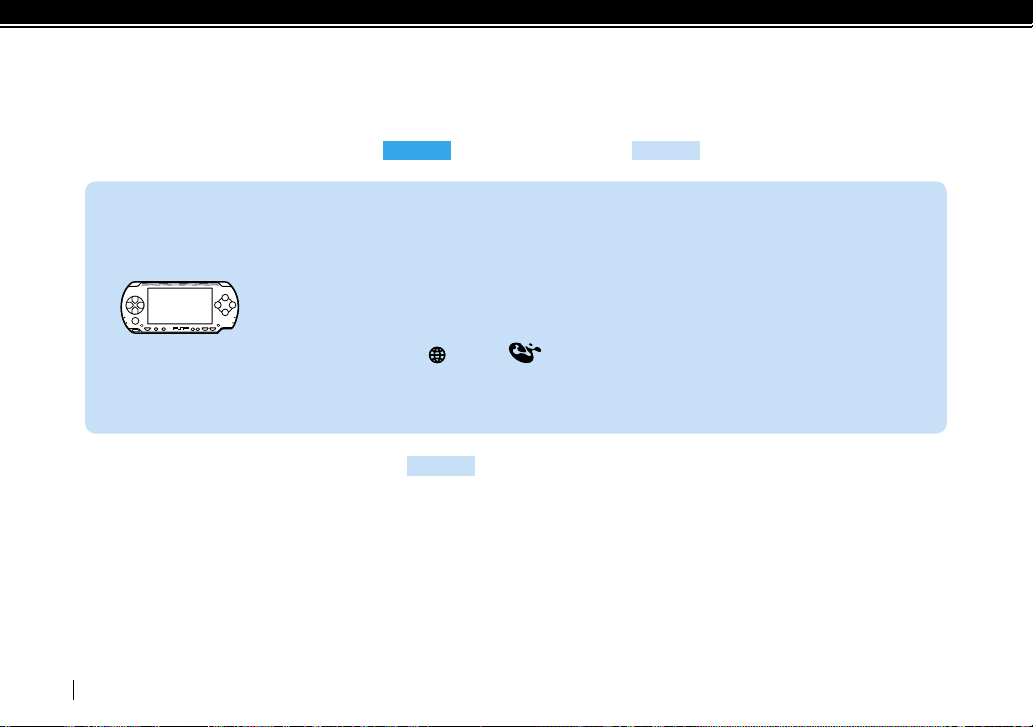
To register your PC, refer to page 18 for
Upgrade the PSP system software to the latest version.
TYPE A
, or refer to page 26 for
TYPE B
.
(To use this Base Station LF-B20 with your PSP system, version
3.11 or higher is required. For details on system software updates,
PSP
see http://www.yourpsp.com/).
Turn on the WLAN switch of the PSP system.
Select under from the home menu.
Register your PSP system following the on-screen
instructions.
* If you have set up your Base Station for
PSP, to connect to your wireless router.
For details about advanced settings and usage, refer to the Operating Instructions of your PC or PSP. Also, for
details about registering and settings of other devices, refer to the Operating Instructions of your devices.
TYPE B
, you also need to set up your LocationFree devices, such as a
34
Page 35
Troubleshooting
Picture shifts vertically and the horizontal black bar is visible.
- The color system may be different from the actual input video signal. You can configure the color system
settings from the “Color System Settings (PAL or NTSC)” of the LocationFree Player settings menu. You
can verify the on-screen remote control by clicking the [Power On/Off] button while the setup wizard is
running and the shifted picture is shown in the window on the on-screen remote configuration page.
The color system settings cannot be changed during this time.
The SETUP MODE/NET AV LED lights amber.
- The automatic NetAV check has failed. For more details refer to the Operating Instructions of your Base
Station.
- When you wish to watch video at home only, you can leave the SETUP MODE/NET AV LED lit in amber.
The SETUP MODE/NETAV LED is off but the setup to stream video over the Internet is
not complete.
- Make sure to reboot the Base Station before proceeding to page 17 (
TYPE A
How do I register client devices (e.g. PC, PSP) with the Base Station while away from
home?
- Make sure that you have completed the NetAV check at the Base Station Settings and enabled the Base
Station to accept the client device registration over the Internet. For more details, refer to the Operating
Instructions of your client devices.
How do I change the screen mode to the 16:9 ratio?
- Change the screen ratio by selecting the [Screen Mode] of the [Settings] menu of the LocationFree Player
after the Base Station setup is complete.
Step
9
).
35
Page 36

Note
Printed on 70% or more recycled paper
using VOC (Volatile Organic Compound)
-free vegetable oil based ink.
Be sure to handle the information, which is necessary for
registering your client device(s) to the LocationFree Base
Station, with care. Disclosing such information to stranger(s)
may result in allowing them to register their client device(s)
without your permission. For more details, refer to the
Operating Instructions installed on the supplied CD-ROM.
“LocationFree” is a trademark of Sony Corporation.
“PlayStation” is a registered trademark, and “PSP” is a trademark of Sony
Computer Entertainment, Inc.
Microsoft, Windows and Windows Vista are registered trademarks or
trademark of Microsoft Corporation in the United States and other
countries.
All other company names and product names mentioned here may be the
trademarks or registered trademarks of their respective companies.
The ™ and ® symbols are omitted in these instructions.
LocationFree Website
http://www.sony.net/Products/LocationFree/support/
 Loading...