

Page 1

4-090-229-62(1)
R
409022962
Trinitron Digital TV
Instruction Manual
®
GB
KD-32NX200U
KD-36NX200U
© 2002 by Sony Corporation
Page 2
NOTICE FOR CUSTOMERS IN THE UNITED KINGDOM
For KD-32NX200U models
A moulded plug complying with BS1363 is fitted to this equipment for your safety and convenience.
Should the fuse in the plug supplied need to be replaced, a 5 AMP fuse approved by ASTA or BSI
to BS 1362 (i.e. marked with or ) must be used. When an alternative type of plug is used it
should be fitted with a 5 AMP fuse, otherwise the circuit should be protected by a 5 AMP fuse at
the distribution board. If the plug supplied with this equipment has a detachable fuse cover, be sure
to attach the fuse cover after you change the fuse. Never use the plug without the fuse cover. If you
should lose the fuse cover, please contact your nearest Sony service centre.
For KD-36NX200U models
A moulded plug complying with BS1363 is fitted to this equipment for your safety and convenience.
Should the fuse in the plug supplied need to be replaced, a 13 AMP fuse approved by ASTA or BSI
to BS 1362 (i.e. marked with or ) must be used. When an alternative type of plug is used it
should be fitted with a 13 AMP Fuse, otherwise the circuit should be protected by a 13 AMP fuse
at the distribution board. If the plug supplied with this equipment has a detachable fuse cover, be
sure to attach the fuse cover after you change the fuse. Never use the plug without the fuse cover.
If you should lose the fuse cover, please contact your nearest Sony service centre.
ASA
T
ASA
T
FUSE
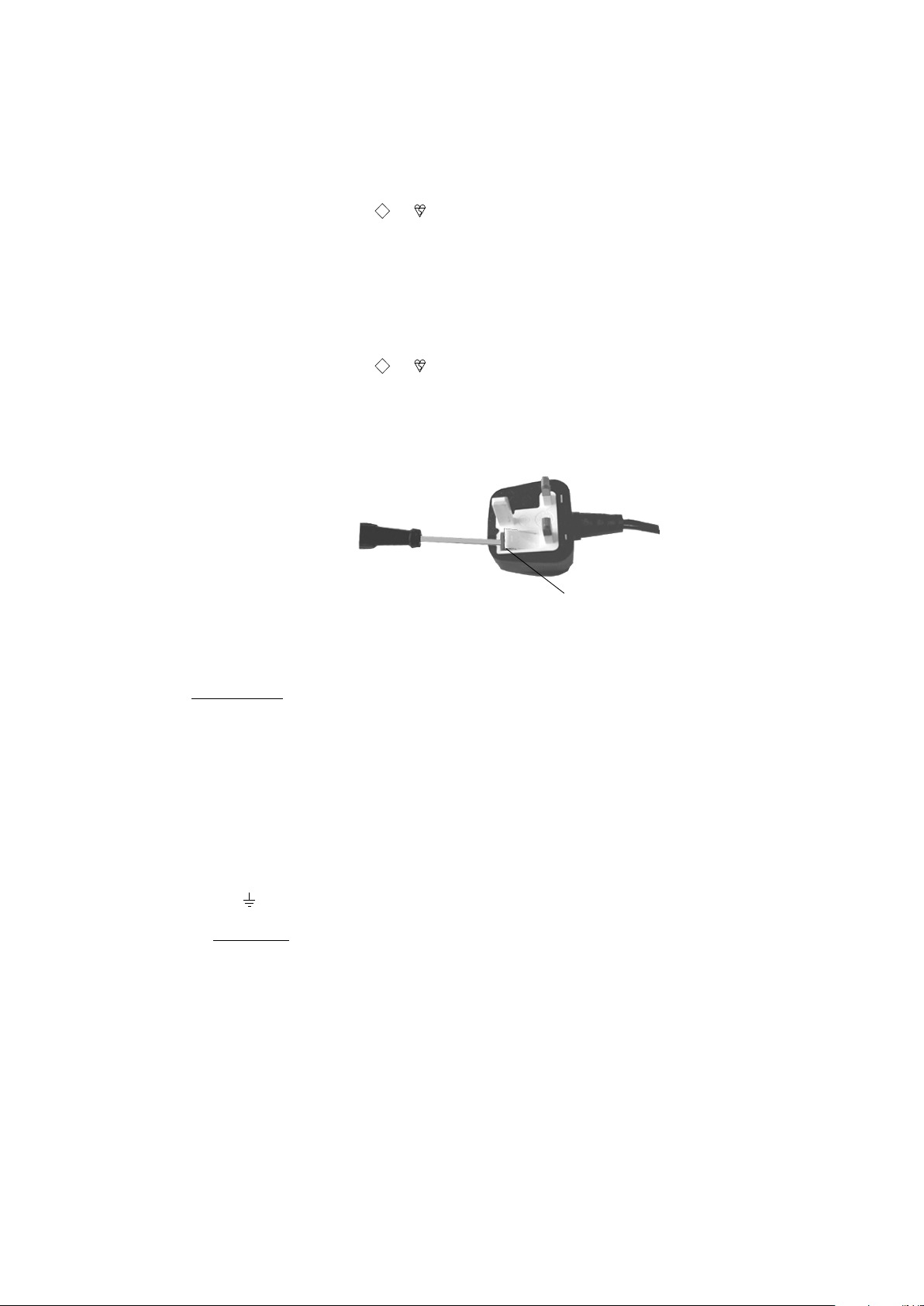
How to replace the Fuse
Open the fuse compartment with a flat blade screwdriver, and replace the fuse.
IMPORTANT
If the plug supplied is not suitable for the socket outlet in your home, it should be cut off and an
appropriate plug fitted in accordance with the following instructions:
The wires in this mains lead are coloured in accordance with the following code:
Blue Neutral
Brown Live
As the colours of the wires in the mains lead of this apparatus may not correspond with the coloured
markings identifying the terminals in your plug, proceed as follows:
The wire which is coloured blue must be connected to the terminal which is marked with the letter
N or coloured black. The wire which is coloured brown must be connected to the terminal which is
marked with the letter L or coloured red. Do not connect either wire to the earth terminal in the plug
which is marked by the letter E or by the safety earth
symbol or coloured green or green and yellow.
WARNING
• To prevent shock hazard, do not insert the plug cut off from the mains lead into a socket outlet.
This plug cannot be used and should be destroyed.
• To prevent fire or shock hazard, do not expose the unit to rain or moisture.
• Dangerously high voltages are present inside the set. Do not open the cabinet. Refer servicing
to qualified personnel only.
Page 3

Thank you for choosing this
FD Trinitron Integrated
Digital Television
Before operating the TV, please read this instruction
manual thoroughly and retain it for future reference.
1
Page 4
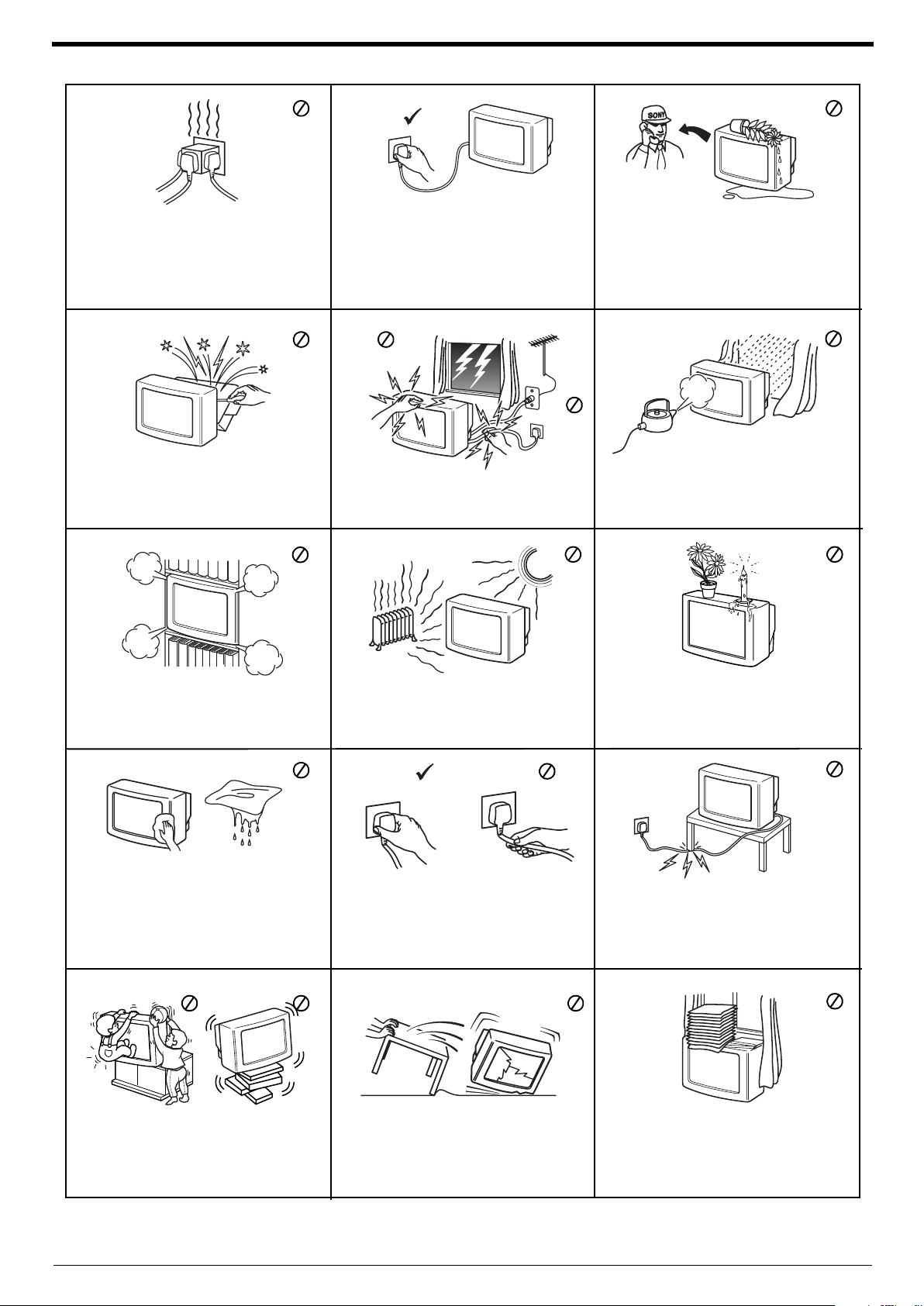
Safety information
This set is to operate on a 220-240V AC
supply only. Take care not to connect too
many appliances to the same power socket
as this could result in fire or electric shock.
Do not open the cabinet and the rear cover
of the TV. Refer to qualified service
personnel only.
For environmental and safety reasons, it is
recommended that the TV set is not left in
standby mode when not in use. Disconnect
from the mains.
For your own safety, do not touch any part
of the TV, power lead or aerial lead during
lightning storms.
Never push objects of any kind into the set
as this could result in a fire or electric shock.
Never spill liquid of any kind on the set. If
any liquid or solid object does fall through,
do not operate the TV. Have it checked
immediately by qualified personnel.
To prevent fire or shock hazard, do not
expose the TV to rain or moisture.
Do not cover the ventilation openings of the
TV. For ventilation, leave a space of at least
10cm all around the set.
Clean the TV with a soft, lightly dampened
cloth. Do not use benzine, thinner or any
other chemicals to clean the TV. Do not
scratch the TV screen. As a safety
precaution, unplug the TV before cleaning it.
Place the TV on a secure stable stand. Do
not allow children to climb on to it. Do not
place the TV on its side or face up.
Never place the TV in hot, humid or
excessively dusty places. Do not install the
TV where it may be exposed to mechanical
vibrations.
Pull out the power lead by the plug. Do not
pull on the power lead itself.
Unplug the power lead before moving the
TV. Avoid uneven surfaces, quick steps or
excessive force. If the set has been dropped
or damaged, have it checked immediately
by qualified service personnel.
Do not place any objects on the TV. To
prevent fire, keep inflammable objects or
naked lights (e.g. candles) away from the TV.
Take care not to place heavy objects on the
power lead as this could result in damage.
We recommend you wind any excess lead
around the holders provided on the rear of
the TV.
Do not cover the ventilation openings of the
TV with items such as curtains or
newspapers etc.
2
Page 5
Getting started
Checking the accessories supplied.................................................................................................. 4
Inserting batteries into the remote control ...................................................................................... 4
Connecting an aerial and a VCR to the TV...................................................................................... 5
Switching on the TV .........................................................................................................................5
Automatically tuning the TV.............................................................................................................. 6
Switching between digital and analogue programmes..................................................................... 7
Finding your video channel ............................................................................................................. 7
Basic operation
Overview of the TV buttons.............................................................................................................. 8
Overview of the remote control buttons ........................................................................................... 9
Viewing a digital text service............................................................................................................ 10
Viewing a traditional text service...................................................................................................... 11
Using the text menu ......................................................................................................................... 12
Changing the screen format manually .............................................................................................13
Digital features
The Digital Info display..................................................................................................................... 14
The Main menu ................................................................................................................................ 15
Favourite programme.............................................................................................................. 15
Wallpaper................................................................................................................................ 15
Parental control....................................................................................................................... 16
Auto Tuning ............................................................................................................................. 16
Manual Tuning......................................................................................................................... 17
PIN Code ................................................................................................................................ 17
Software Download................................................................................................................. 18
System Information................................................................................................................. 18
CAM Setup.............................................................................................................................. 19
The Channel Index menu................................................................................................................. 20
Searching for digital channels................................................................................................. 20
The Category pop-up list......................................................................................................... 21
Favourite programmes............................................................................................................21
The EPG menu................................................................................................................................. 22
To record programmes............................................................................................................23
To set the Manual Timer.......................................................................................................... 23
To cancel a recording.............................................................................................................. 23
Table of contents
TV menu system
Using the TV menu system.............................................................................................................. 24
Picture Adjustment menu ................................................................................................................. 24
Sound Adjustment menu.................................................................................................................. 25
Features menu ................................................................................................................................. 26
Set Up menu .................................................................................................................................... 26
Manual Set Up menu ....................................................................................................................... 27
Manual Programme Preset menu ....................................................................................................28
Further Programme Preset menu .................................................................................................... 29
Memory Stick operation
Inserting a Memory Stick .................................................................................................................30
Removing a Memory Stick ...............................................................................................................30
The Memory Stick menu..................................................................................................................30
Memory Stick precautions................................................................................................................ 33
Connecting Other Equipment to the TV
Connecting equipment to the rear sockets ...................................................................................... 34
Connecting equipment to the front sockets......................................................................................36
Using the remote control with VCR and DVD players ......................................................................37
Additional information
Specifications...................................................................................................................................38
Troubleshooting................................................................................................................................39
Index ................................................................................................................................................ 40
3
Page 6
Getting started
7
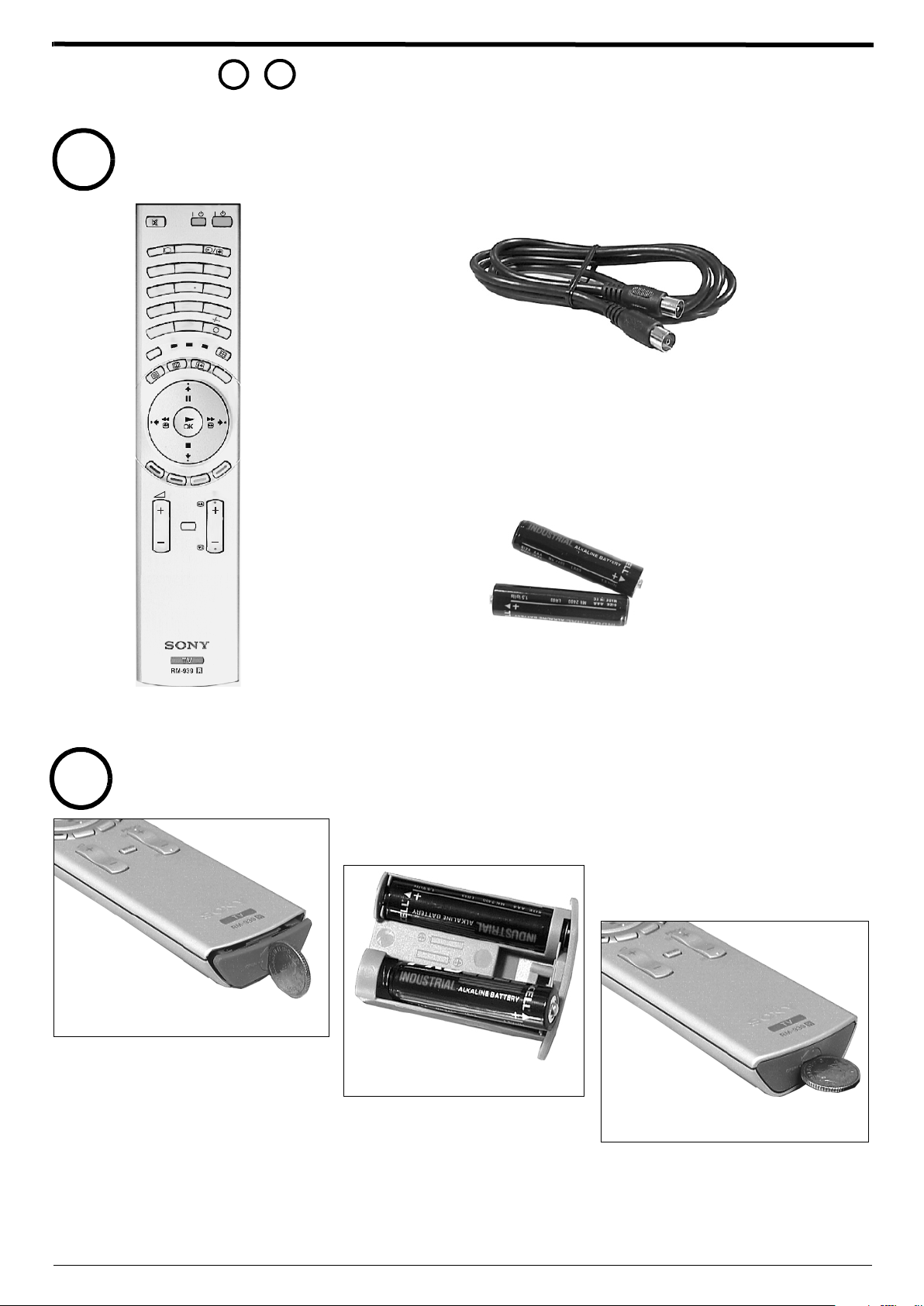
Follow steps - to install your TV and view the TV programmes.
1
1
Checking the accessories supplied
TV
VIDEO
/
/
STICK
Y
R
O
EM
M
L
A
IT
G
I
D
2
1
4
7
E
ID
U
G
E
D
O
M
3
5
6
8
9
0
TV
DVD
VTR
INDEX
PROG
MENU
RF Loopthrough cable
Remote control
2
Inserting batteries into the remote control
1.
Place a coin in the slot at the bottom of the
remote control. Turn anti clockwise to
release the battery compartment.
Batteries
2.
Insert the batteries as indicated in the
battery compartment.
3.
4
Replace the battery compartment and lock
in place by twisting the coin clockwise in
the slot.
Always remember to dispose of batteries in an environmentally friendly way.
Page 7
Getting started
3
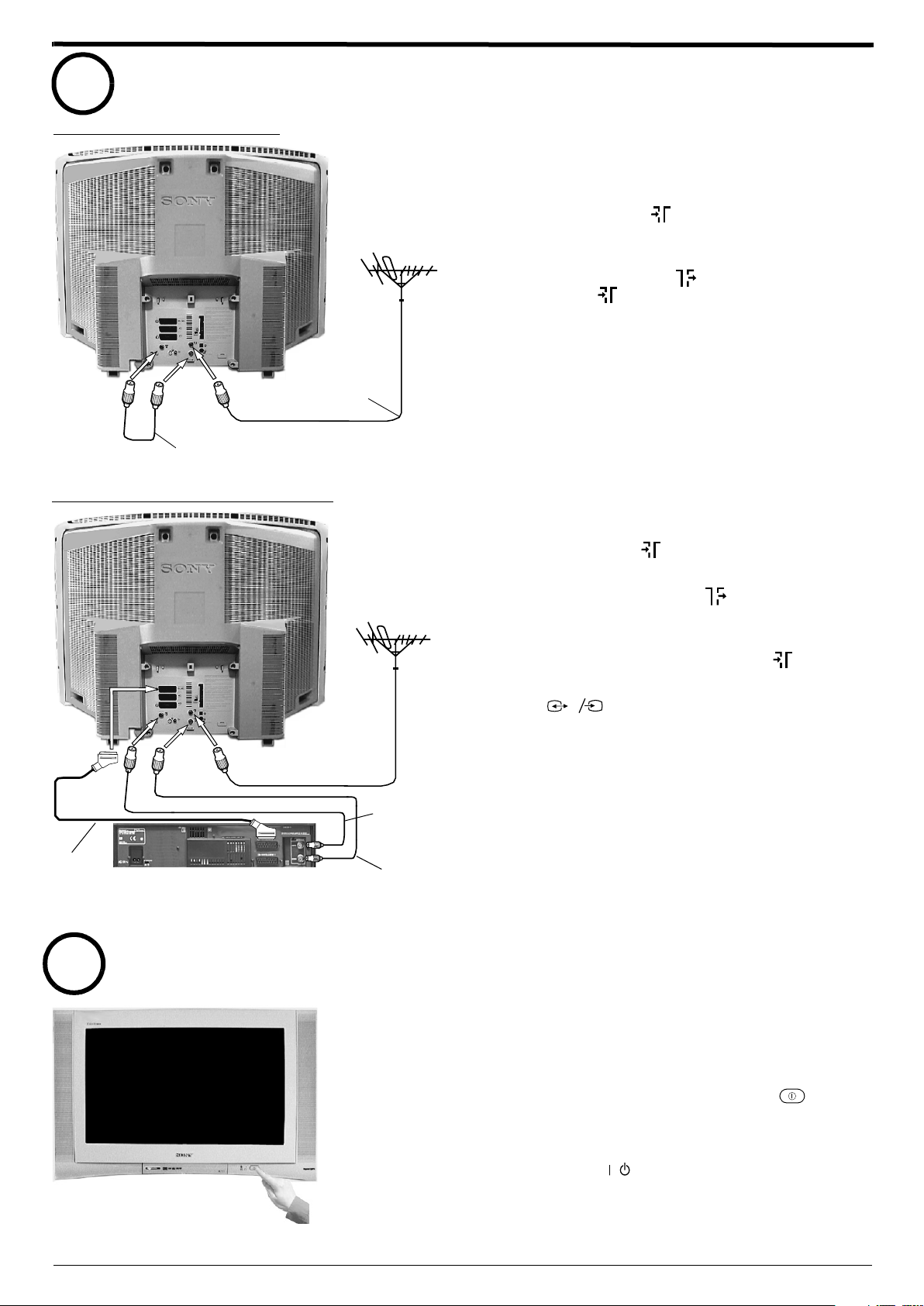
Connecting an aerial and a VCR to the TV
Connecting an aerial only
(SMARTLINK)
s
3
3
VCR
2
DVD
1
DIGITAL
OPTICAL OUTPUT
ANALOGUE
MODEM
. . .
5V 200mA
R/D/D/D
L/G/S/I
Existing
aerial lead
RF loopthrough
lead (supplied)
Connecting an aerial and a VCR
Connect your existing aerial lead to the digital
1.
socket marked on the rear of the TV as
shown.
Connect the supplied RF loopthrough cable from
2.
the socket marked to the analogue socket
marked .
Scart lead
(not supplied)
4
(SMARTLINK)
s
3
3
VCR
2
DVD
1
DIGITAL
OPTICAL OUTPUT
ANALOGUE
MODEM
. . .
5V 200mA
R/D/D/D
L/G/S/I
Switching on the TV
RF loopthrough
cable (supplied)
RF lead (not
supplied)
Connect your existing aerial lead to the digital
1.
socket marked on the rear of the TV as shown.
Connect the supplied RF loopthrough cable from
2.
the lower socket marked on the TV to the RF
IN socket on your VCR.
Connect a lead from the RF OUT socket of your
3.
VCR to the analogue socket marked on the TV.
Connect a scart lead from the socket marked
4.
3
s
on the rear of the TV to the scart socket
3
on your VCR (refer to your VCR instruction
manual).
Connect the VCR to the mains socket and switch
5.
on.
Insert a pre-recorded tape into the VCR and press
6.
the ‘PLAY’ button. This enables the TV to locate
and store the video channel during the
‘Automatically tuning the TV’ procedure.
Note:
Your VCR sockets may not be labelled RF IN and RF OUT. If not,
please refer to your VCR instruction manual for guidance.
Connect the TV plug to your mains socket
1.
(220 - 240 V AC, 50 Hz).
Push in the on/off button (labelled ) on the
2.
front of the TV.
Note:
If the red indicator on the front of the TV is lit the TV is in standby
mode. Press the TV button on the remote control to switch on
the TV. Please be patient as the picture may take a few moments to
/
appear on screen.
5
Page 8
Getting started
5
Automatically tuning the TV
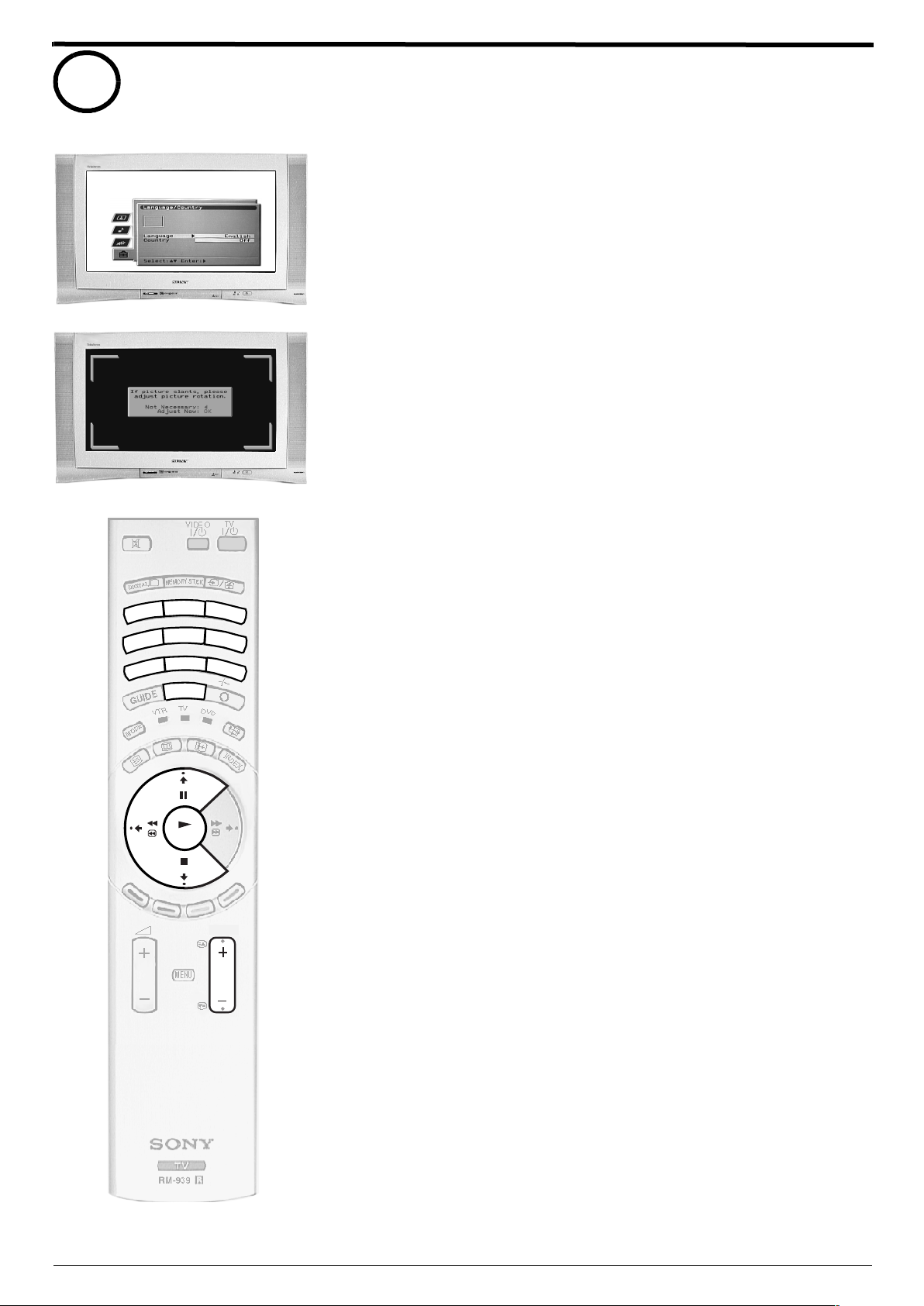
When you switch on the TV for the first time, the Sony logo appears on the TV
1.
screen followed by the ‘Memory Stick’ logo, then the Language/Country menu
with the word ‘English’ highlighted. Press the V or v buttons on the remote
control to highlight your required language. Press the OK button to confirm
your choice. From now on all menus appear in your chosen language.
The word Country is now highlighted. Press the V or v buttons to highlight the
2.
country in which you are using the TV. Press the OK button to confirm your
choice.
Note:
The digital features of this set are designed for use in Great Britain only.
The picture rotation prompt appears. Sometimes the Earth’s natural
magnetism can cause the screen to look tilted.
a) If no correction is required, press the B button.
b) If some correction is required, press the OK button. Press the V or v
button to rotate the picture over a range of -5 to +5. Press the OK button
to store.
The autotune prompt screen appears. Press the OK button to select Yes and
begin the digital autotune procedure.
When all the available digital programmes are found, the analogue tuning
display appears and all the analogue signals are captured and stored.
If no digital and no analogue signals are found, a display appears on screen
2
1
4
7
OK
3
5
6
8
9
0
PROG
asking you to confirm your aerial is connected. Check your aerial is
connected then press the OK button to repeat the tuning procedure.
Once all signals have been captured and stored, the TV returns to normal
operation and displays the digital programme captured on programme
number 1.
Note:
If no digital signals are captured, then the analogue programme stored on programme
number 1 is displayed.
To view programmes, press the PROG+/- button or the numbered buttons on
3.
the remote control.
6
Page 9
Getting started
DIGITAL
DIGITAL
PROG
DIGITAL
DIGITAL
6
7
Switching between digital and analogue programmes
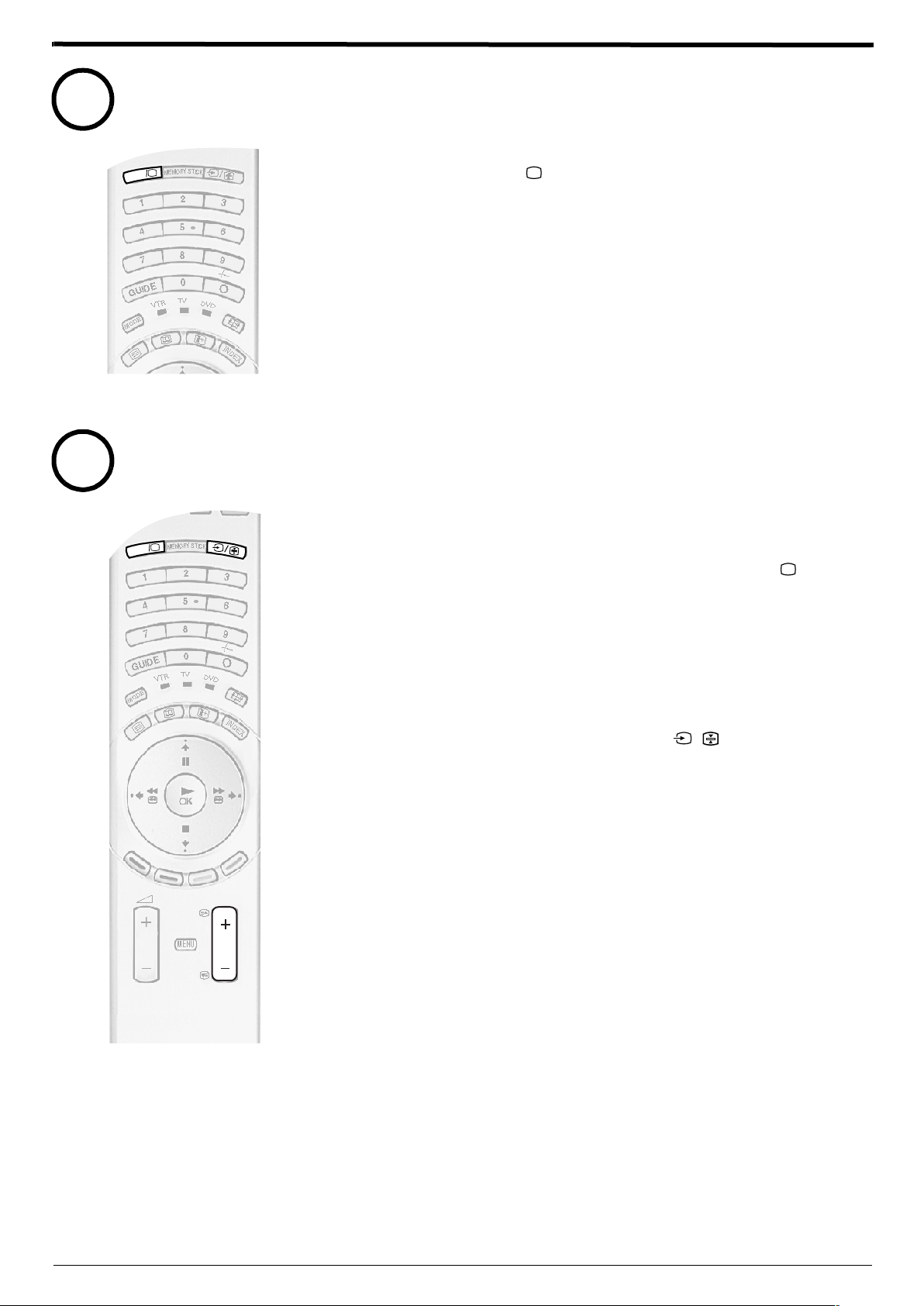
Press the DIGITAL/ button on the remote control to switch between
1.
digital and analogue mode.
Notes:
If the TV is in digital mode an information banner appears briefly on screen when you change
channels.
If the TV is in analogue mode the channel number appears in green lettering when you change
channels.
Finding your video channel
If you connected a VCR to your TV when following the ‘Connecting an aerial and a VCR
to the TV’ instructions, you now need to find your video channel.
Ensure the TV is in analogue mode. If not press the DIGITAL/ button on
1.
the remote control.
Press the PROG+/- button on the remote control until the picture from the
2.
pre-recorded tape appears on screen.
Notes:
If you wish to move your video channel to a different programme number, refer to the
‘Programme Sorting’ section of this manual.
If you connected your VCR using a scart lead, press the
remote control until the picture from the pre-recorded tape appears on the TV screen.
/ button repeatedly on the
7
Page 10
Getting started
Overview of the TV buttons
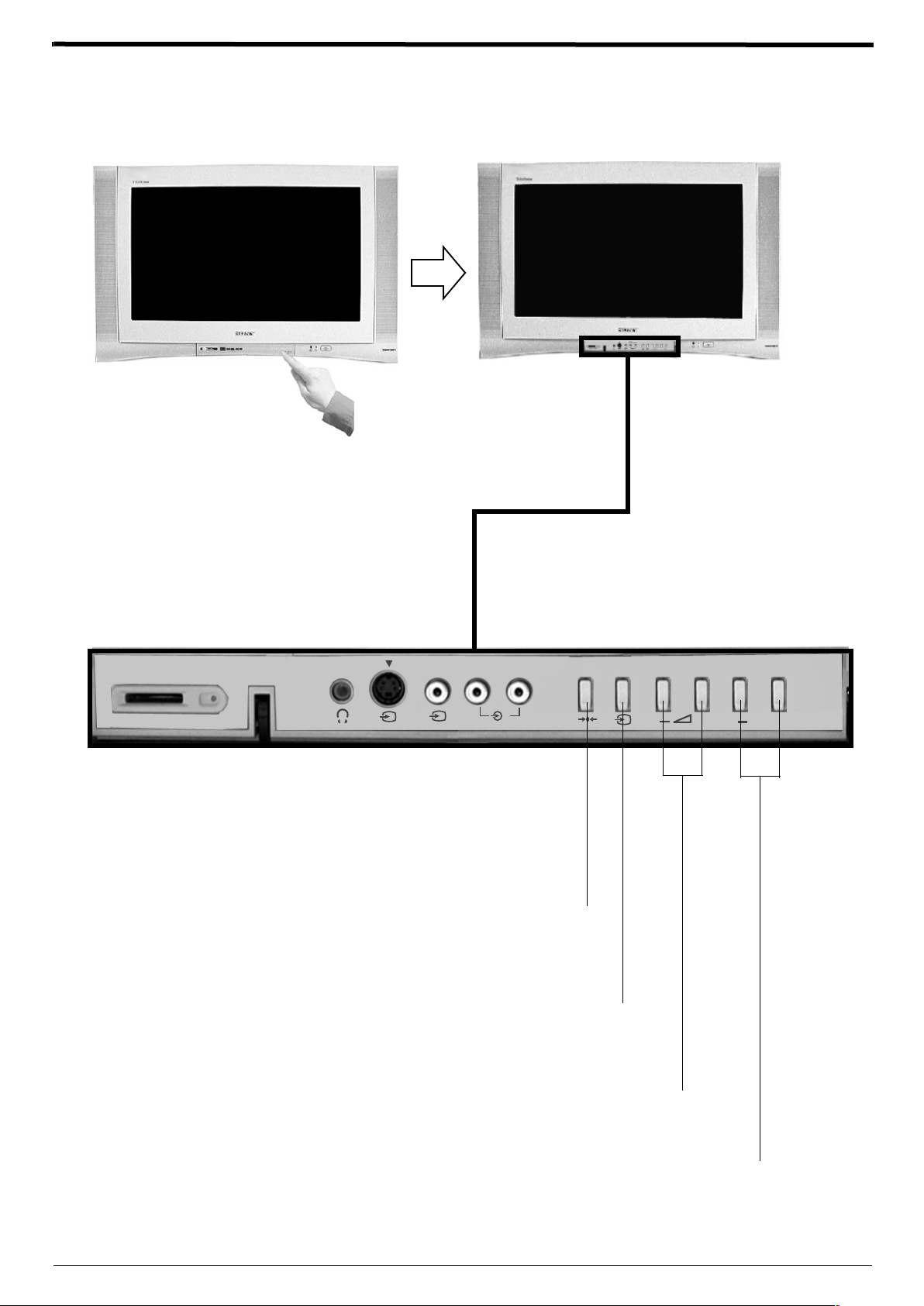
The TV buttons can be found on the control panel on the front of the TV. An expanded view is shown below.
MEMORY STICK
Note:
When the ‘Memory Stick’ is reading or
wriiting data, the memory stick indicator
lights up in red. Data stored on a
‘Memory Stick’ may become damaged or
erased if you remove the ‘Memory Stick’
during this time.
MONO
R/D/D/D
L/G/S/I
S
4
4
4
Reset button
Press to return picture and sound levels to
their factory settings.
Video input button
Press to select input signals from a
VCR etc.
Volume control buttons
Press to increase or decrease the volume.
+
P +
8
Programme Up or Down buttons
Press to move to the next or preceding
channel.
Page 11
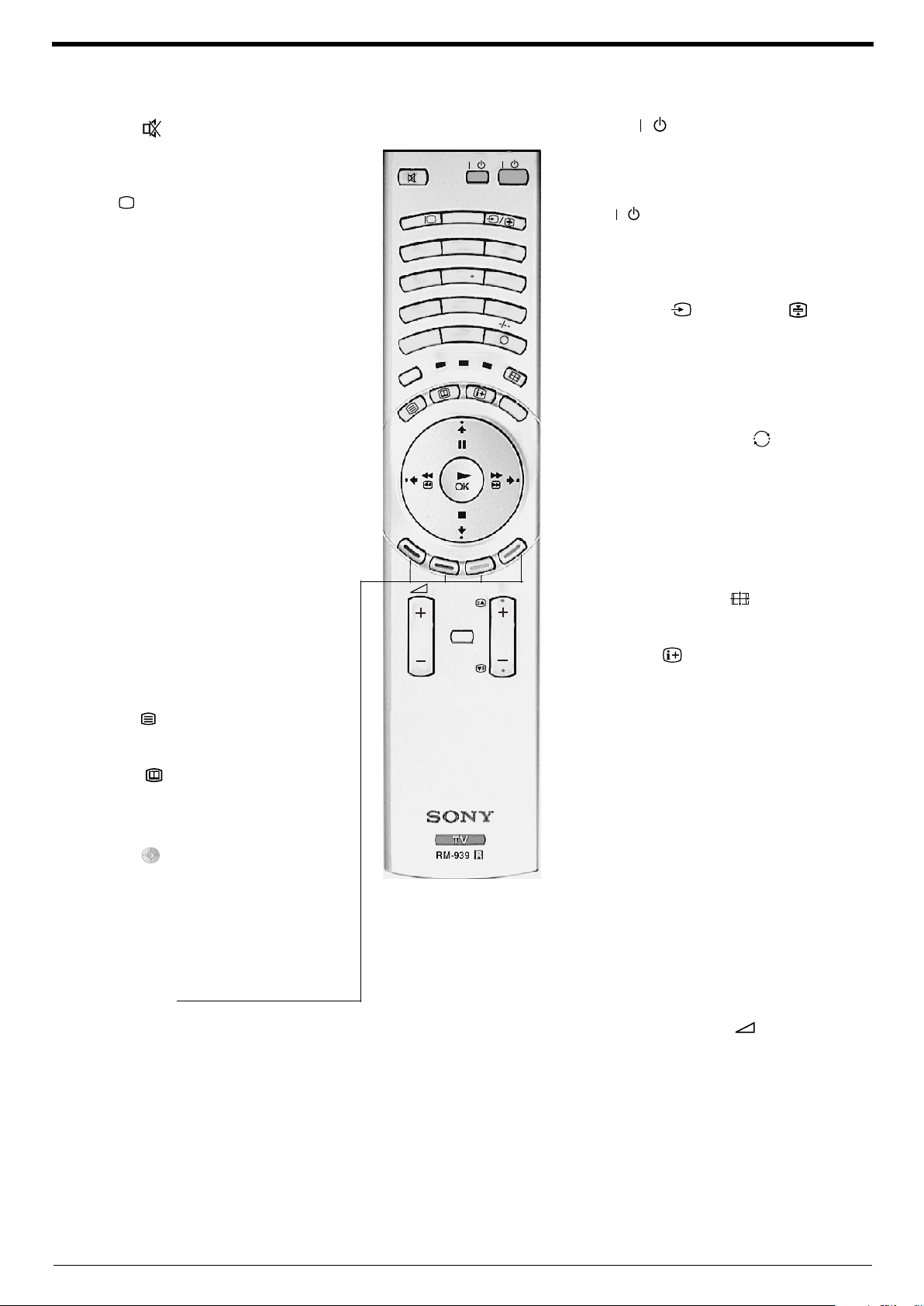
Overview of the remote control buttons
/
Basic operation
Mute button
Press to mute the sound. Press again to
restore.
DIGITAL/ button
Press to switch between digital and analogue
mode.
MEMORY STICK button
Press to display the Memory Stick menu.
Buttons 0 - 9
Press to input the required channel number.
For numbers 10 and above, enter the second
digit within 2 seconds.
GUIDE button
Press to launch digital text or digital interactive
services.
MODE button
This remote operates not only Sony DVDs and
VCRs, but also those made by other
manufacturers. Press this button repeatedly to
select the type of equipment you want to
control. A green light appears momentarily to
indicate the mode selected.
Note:
Before operating your VCR or DVD, you must enter
the correct configuration code. Please refer to the
section ‘Remote control operation for VCR and DVD
players’.
Text button
Press to enter the text mode.
EPG button
Press to display the Electronic Programme
Guide when in digital mode.
DIGITAL
1
4
7
GUIDE
E
D
O
M
VTR
MEMORY
MENU
VIDEO
2
5
8
0
TV
VIDEO button
TV
/
/
ST
IC
K
Press to switch off your VCR or DVD
temporarily. Press again to resume normal
operation.
TV button
/
Press to switch off your TV temporarily. The red
3
indicator on the front of the TV illuminates.
Press again to resume normal operation.
6
9
Input button /Hold button
Press to select signals from equipment
DVD
connected to the TV sockets (refer to
‘Connecting other equipment to the TV’).
In text mode press to keep a page on display.
INDEX
Press again to cancel.
Previous channel button
While watching Analogue TV pressing this
button will return you to the previous channel
you were watching.
While watching Digital TV pressing this button
can also act as an ‘EXIT’ key and cancel any
Digital text application that may be running.
PROG
Screen format button
Press repeatedly to change the screen format.
Info button
Press to display the INFO menu in digital
mode. When watching analogue programmes
press to reveal information such as programme
number etc.
INDEX button
When in digital mode, press to display the
Channel Index menu.
OK button
Control pad
Use these buttons to navigate through the
menu system of the TV.
Note:
When the MODE button has been set to VCR or
DVD, the control pad operates the main functions of
your VCR or DVD.
Press to display a list of channels on screen.
Press the V or v button to scroll through the list
until the channel you wish to view is
highlighted, then press the OK button to display
that channel on screen.
PROG +/- button
Press to select the next or previous
Coloured buttons
These buttons are used for the text and digital
menus. Refer to the relevant sections in this
instruction manual.
programme.
Volume + and - button
Press to adjust the volume to the desired level.
MENU button
Press to enter the menu system of this TV.
9
Page 12
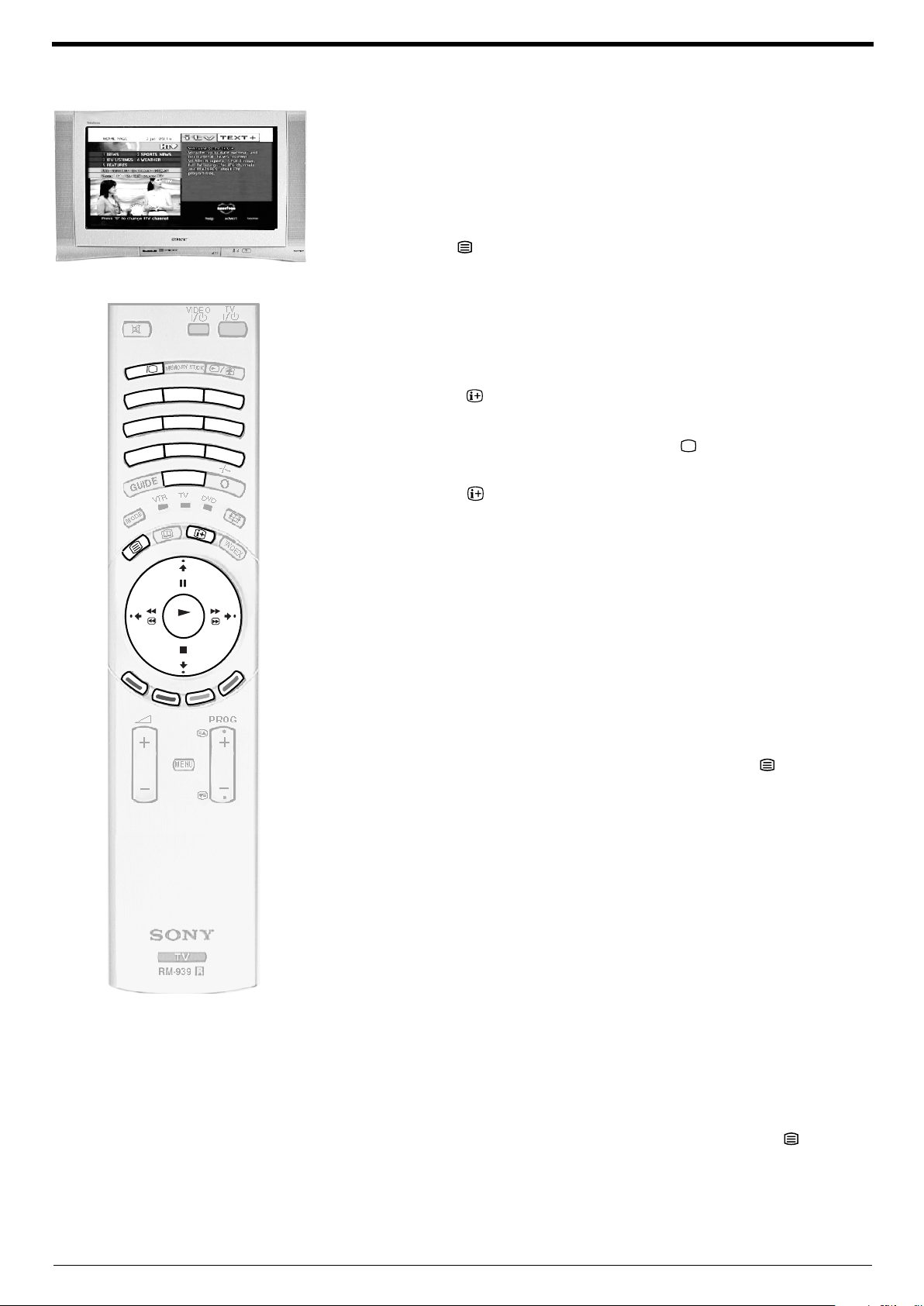
Basic operation
Viewing a digital text service
Most digital TV channels broadcast information via their text service. This digital service
includes high quality text and graphics along with advanced navigation options.
Additionally, this TV has access to dedicated text channels transmitted by the
broadcasting authorities. The appearance, content and navigation methods of all digital
text services are decided by the broadcaster. For example, the BBC’s digital text service
may look different to ITV’s digital text. However, the digital text services currently
available use simple navigation methods based on the following buttons:
The GUIDE button to load up the digital text,
The V, v, B and b buttons (to move around the screen),
The OK button or the numbered buttons (to select items on screen),
The four coloured buttons (to access shortcuts).
Selecting a dedicated digital text channel
L
L
ITA
ITA
IG
IG
D
D
2
1
4
7
3
5
6
8
9
0
1.
2.
Press the button on the remote control to check if you are in digital
mode. If you are watching a digital programme an Info display appears on
screen providing brief details for the current and next programme. If the
display does not appear, press the DIGITAL/ button to switch to digital
mode.
Press the button to remove the Info display from the TV screen then
select the programme number that is broadcasting the dedicated digital text
channel by using the numbered buttons on the remote control. If you do not
know the channel number of a dedicated digital text channel, you can use
the ‘Channel Index menu’ to find one. (Please refer to the ‘Channel index
menu’ section of this manual.)
OK
Once the text page is displayed, follow the on-screen instructions to obtain
3.
your required selection.
Note:
On some pages the TV programme may also be displayed on the text screen. Onscreen instructions will inform you how to change the displayed programme.
If you are instructed to press ‘OK’ or ‘Select’ when viewing the text pages,
4.
press the OK button.
When you have finished viewing the text service, press the button to exit.
5.
Selecting a text service from other digital channels
Normal text services may also be available on other digital channels. This is sometimes
indicated by a small symbol on your TV screen, superimposed on the programm
e you are watching.
Press the V, v, B, or b buttons to select the symbol, then press the OK
1.
button to display the chosen information.
Alternatively, you may be instructed to use the numbered or coloured
2.
buttons on your remote control to display the various pages of text
information. If you are instructed to press ‘OK’ or ‘Select’ when viewing the
text pages, press the OK button.
10
Once the text information is displayed, you can access required information
3.
by using the V, v, B, or b buttons, the coloured buttons and/or the numbered
buttons on the remote control.
When you have finished viewing the text service, press the button to
4.
exit.
Page 13
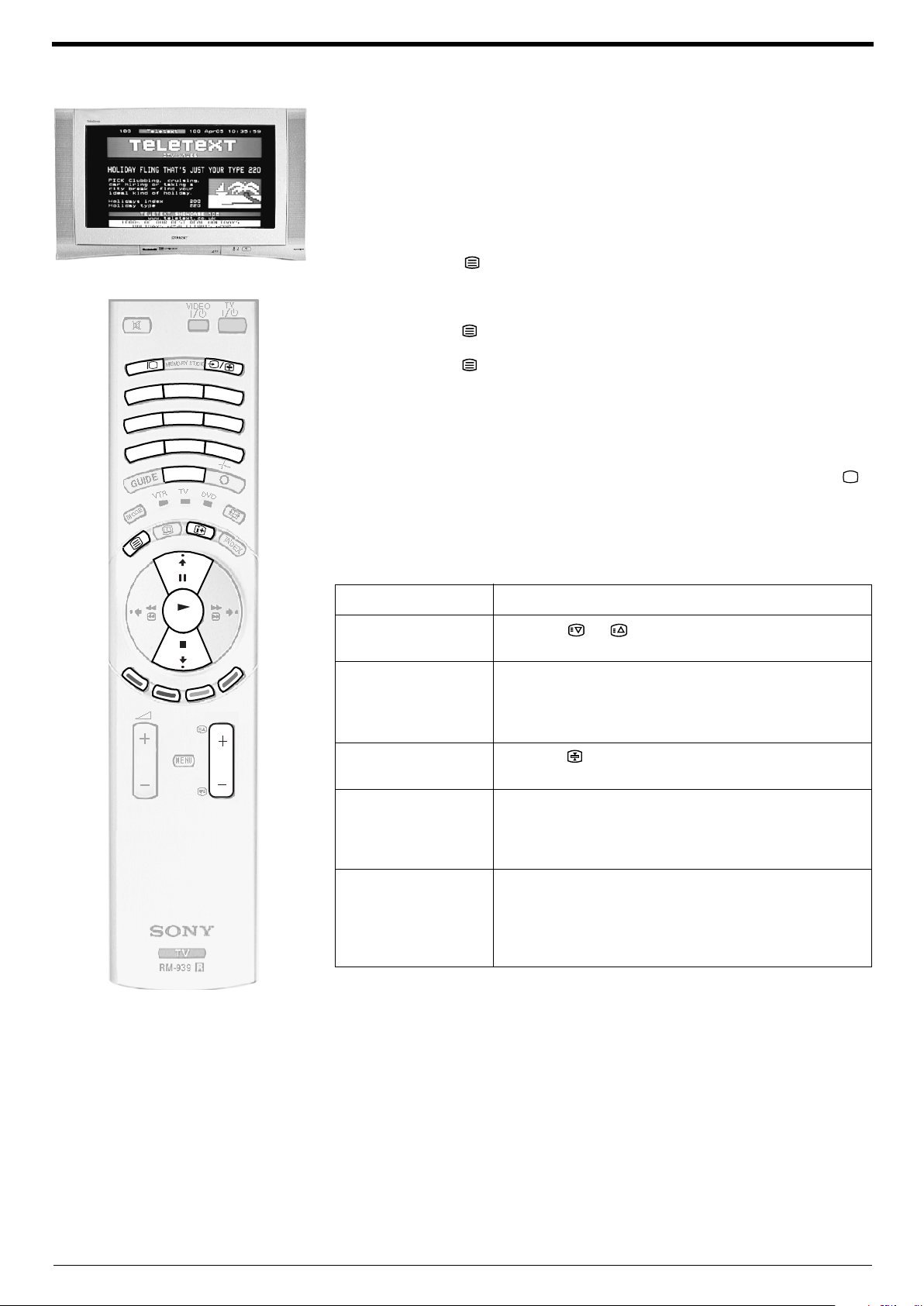
Viewing traditional teletext
Most analogue TV channels broadcast a text service. The index page (usually page
100) provides information on how to use the service. Please ensure you are receiving a
strong signal or some text errors may occur.
Switching on the text service
1.
2.
Basic operation
Select the TV channel that carries the text service you wish to view.
Press the button to enter Picture and Text (P&T) mode. The screen is
divided into two with the Text display on the left and the TV channel in the
right corner.
Press the button a second time to enter full screen Text mode.
L
L
ITA
ITA
IG
IG
D
D
2
1
4
7
3
5
6
8
9
0
Press the button a third time to enter Mix mode.
Press the numbered buttons to enter a three digit number for the text page
3.
you wish to view. Your selected page appears on screen.
Enter more 3 digit page numbers as required.
4.
When you have finished viewing the text service, press the DIGITAL/
5.
button to remove the text display from the screen.
How to use the text features
Text Features How to select
OK
PROG
To select the next or
Press the or button.
preceding page
To select a sub page A text page can consist of several sub pages. In this case
an information box is displayed at the bottom of the screen
showing the number of sub pages available. Select the sub
pages by pressing the V or v button.
To keep a page on
Press the button. Press again to cancel.
display
To use Fastext Fastext allows you to access pages with one button push.
When Fastext is available, four coloured items appear at
the bottom of the screen. Press the corresponding
coloured button on the remote control to display the page.
To use the Page
Catching feature
Select a page that contains several page numbers (e.g.
the index page), then press the OK button. Press the V or
v button to highlight the page number required, then press
the OK button again. Your selected page appears on
screen.
11
Page 14
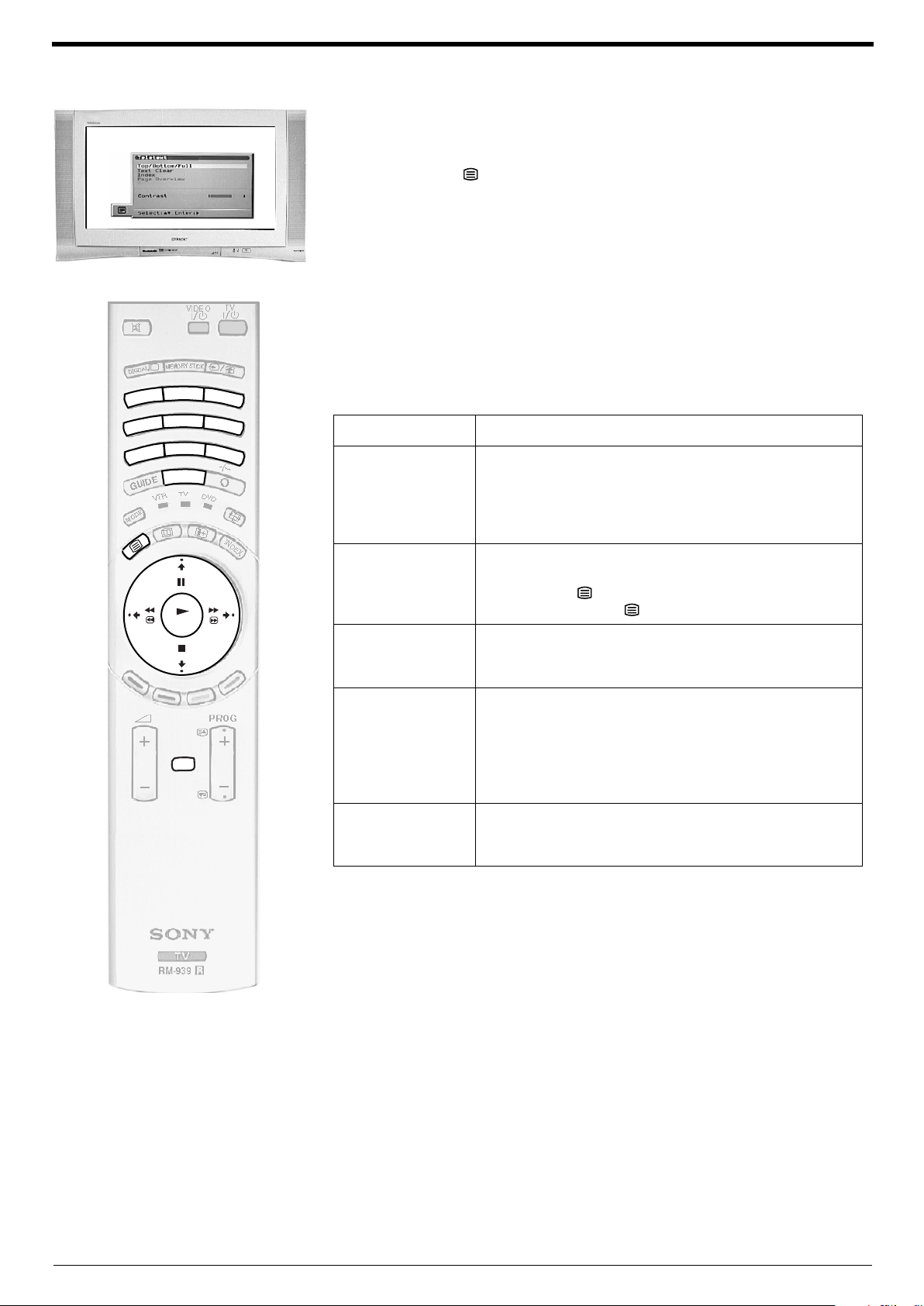
Basic operation
Viewing a traditional text service
Using the text menu
You can access more features by using the text menu:
Press the button on your remote control to enter the conventional text
1.
mode.
With the text display on screen, press the MENU button to display the
2.
‘Te le t ex t ’ menu.
Press the V or v button to highlight your desired feature, then press the b
3.
button to select.
Press the MENU button to remove the ‘Tel e t ex t ’ menu from the screen.
4.
The following table explains each feature and its function.
2
1
4
7
3
5
6
8
9
0
Feature Function
Top/Bottom/Full This feature allows you to enlarge sections of the displayed
page. Press the V button to enlarge the upper half of the
page or v to enlarge the bottom half. Press the OK button to
return the page to normal size. Press the MENU button to
return to the ‘Te l et e xt ’ menu.
OK
MENU
Text Clear
(not available in P&T
mode)
Use this feature to watch a TV programme when the text
service is searching for a page. Once the page has been
found, a blue symbol appears in the top left corner of
the screen. Press the button to view the page.
Index Most Text services contain an index page which lists all the
available pages and their 3 digit page number. Press the b
button to display the index page on screen.
Page Overview
(only for TOPText
broadcasts)
TOP-Text pages are divided into two columns. The first
column shows ‘blocks’ of pages and the second shows
‘groups’ of pages. Press the b or B button to select the
desired column, then press the V or v button to select the
relevant ‘group’ or ‘block’ of pages. Press the OK button to
display the chosen pages.
Contrast This feature allows you to adjust the contrast setting of Text
pages. Press the b or B button to increase or decrease the
contrast. Press the OK button to confirm.
12
Page 15
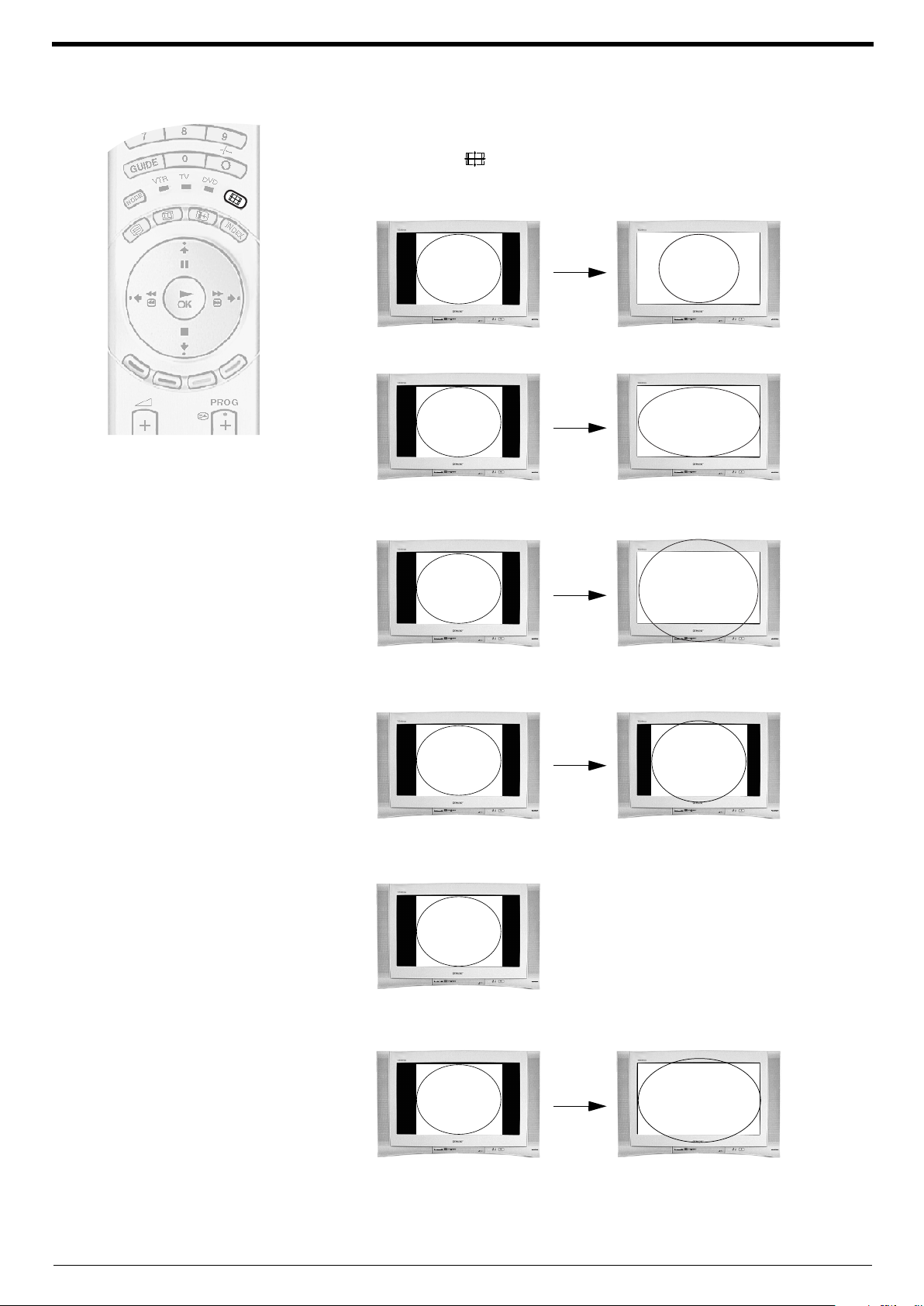
Changing the screen format manually
The broadcaster may transmit programmes in more than one format (e.g. 4:3 format or
Widescreen format). You can change the screen format manually to suit the broadcast you
are watching. Press the button on the remote control to choose one of the 5 formats
listed below.
Wide-
For 16:9 broadcasts.
Basic operation
Zoom-
14:9-
4:3-
For 4:3 broadcasts.
Imitation of wide screen effect for movies broadcast in cinemascopic (letter
box) format.
Compromise between the 4:3 and 16:9 format.
Conventional screen format.
Smart-
Imitation of wide screen effect for 4:3 broadcasts.
Note:
In Smart, Zoom and 14:9 modes, parts of the top and bottom of the screen are cut off. Press the V or v
button to adjust the position of the image on screen (e.g. to read subtitles).
13
Page 16

Digital features
OK
DIGITAL
DIGITAL
The Digital Info display
This display gives you information for the current programme being shown and for the
next scheduled programme.
Press the button on the remote control to view the Info display. If the
1.
display does not appear, press the DIGITAL/ button to switch to digital
mode, then press the button to view the Info display.
Press the b button to obtain a brief description of the next programme in the
2.
schedule. If the programme box is blank, there is no information currently
available. To return to the starting point, press the B button repeatedly until
the description for the current programme reappears.
Press the button on the remote control at any time to exit the Info display.
3.
Using other Info features
Subtitles
This feature places digital subtitles on the screen. With the Digital Info display on screen,
press the RED button to access the ‘Subtitles’ pop-up menu. Press the V or v button to
highlight the language you wish the subtitles to appear in, then press OK to select.
Audio
When a multi language broadcast is available, this feature allows you listen to the
broadcast in your selected language. With the Digital Info display on screen, press the
GREEN button to access the ‘Audio’ pop-up menu. Press the V or v button to highlight
the language required then press OK to select.
REC
When you highlight a current programme, the ‘REC’ feature allows you to automatically
set your VCR to record the selected programme (only if you have a Smartlink VCR), or
you can select ‘Wake up’ to have the TV switch to the correct channel automatically
when the programme starts. With the Digital Info display on screen, press the YELLOW
button to access the ‘REC’ pop-up menu. You can now press the RED button to record
the event or the GREEN button to activate the Wake up facility. If your VCR does not
have Smartlink a message is displayed reminding you to manually set your VCR. Press
the RED button to continue or press the BLUE button to return to the Info display.
When you highlight a future programme, the ‘Timer’ facility allows you to set your VCR
to automatically record the selected programme, or set the TV to automatically switch to
the correct channel when the selected programme starts. Press the RED button if you
wish your VCR to automatically record the selected programme when it starts (only if
your VCR has Smartlink facility), or press the GREEN button if you wish the programme
to appear on your TV screen when transmission begins.
Set-up
Press the BLUE button to access the ‘Main menu’. The Main menu is explained on the
following pages.
14
Page 17

OK
DIGITAL
DIGITAL
OK
The Main menu
Digital features
The Main menu contains several features that allow you to customise the digital side of
the TV. The Main menu is only available when watching digital channels. To check you
are in digital mode, press the DIGITAL/ button on the remote control. An information
banner appears briefly on screen when you change channels. If the banner does not
appear, press the DIGITAL/ button.
Favourite programme
This feature allows you to store your favourite channels in a list for quick access.
Press the button on the remote control to obtain the Digital Info display.
1.
Press the BLUE button to display the Main menu.
Press the V or v button to highlight ‘Favourite Programme’, then press the
2.
OK button to display the Favourite Programme menu.
Press the V or v button to scroll through the list until the programme you wish
3.
to store as a favourite is highlighted. If you do not wish to select any of the
displayed programmes as a favourite, press the RED or GREEN button to
display the previous or next 5 programmes in the list.
When you have found and highlighted a programme you want to store as a
4.
favourite, press the OK button. A tick appears alongside that programme in
the display. If you wish to cancel your selection, press the OK button again.
Repeat steps 3 and 4 to store other programmes as favourites, then press
5.
the BLUE button repeatedly until all menus are removed from the screen.
Note:
For information on how to use this list, please refer to the ‘Channel Index menu’.
Wallpaper
This feature allows you to customise the background pattern for all the digital menus.
Press the button on the remote control to obtain the Digital Info display.
1.
Press the BLUE button to display the Main menu.
Press the V or v button to highlight ‘Wallpaper’ then press the OK button to
2.
display the Wallpaper menu.
Press the V or v button to select your choice of wall paper then press the OK
3.
button to store.
Press the BLUE button repeatedly until all menus are removed from the
4.
screen.
15
Page 18

Digital features
OK
1
4
7
3
6
9
2
5
8
0
OK
The Main menu
Parental Control
This feature allows you to set an age limit for viewing programmes. If any films or
programmes classed above the age limit you have set are broadcast, you will be
requested to enter a PIN code before viewing is allowed.
If you have not already set a PIN code:
Press the button on the remote control to obtain the Digital Info display.
1.
Press the BLUE button to display the Main menu
Press the V or v button to highlight ‘Parental Control’ then press the OK
2.
button to display the Parental Control menu.
Press the RED button to display the PIN entry box on screen.
3.
Use the numbered buttons on the remote control to enter a 4-digit number of
4.
your choice. As you enter each digit it will be represented by a * in the PIN
entry box. Enter the code again to confirm.
Note:
This will be your PIN number for the future - please use a number you can remember
easily.
Press the OK button to confirm your PIN code.
5.
Press the BLUE button to return to the Detail Set-up menu.
6.
Press the BLUE button to return to the Digital Set-up menu.
7.
Follow Steps 2-5 of the instructions below:
If you have already set a PIN code:
Press the button on the remote control to obtain the Digital Info display.
1.
Press the BLUE button to display the Main menu.
Press the V or v button to highlight ‘Parental Control’ then press the OK
2.
button to display the Parental Control menu.
Using the numbered buttons on the remote control, enter your 4-digit PIN
3.
code. As you enter each digit it will be represented by a * in the PIN entry box.
Press the OK button to confirm your PIN code.
With the ‘Age’ box highlighted, press the V or v button to set the age limit you
4.
desire then press the OK button to confirm your setting
With the ‘Age’ box highlighted, press the V or v button to set the age limit you
5.
desire then press the OK button to confirm your setting
Auto Tuning
This feature allows you to automatically re-tune all available digital channels.
Press the button on the remote control to obtain the Digital Info display.
1.
Press the BLUE button to display the Main menu.
Press the V or v button to highlight ‘Auto Tuning’ then press the OK button to
2.
display the Auto Tuning menu.
Press the RED button to begin tuning in all available digital channels.
3.
Note:
If you wish to cancel the ‘Auto Tuning’ process, press the BLUE button.
16
Page 19

OK
OK
1
4
7
3
6
9
2
5
8
8
0
The Main menu
Digital features
Manual Tuning
This feature allows you to manually add digital channels one by one to your TV.
Press the button on the remote control to obtain the Digital Info display.
1.
Press the BLUE button to display the Main menu.
Press the V or v button to highlight ‘Detail Set-up’ then press the OK button
2.
to display the Detail Set-up menu.
Press the V or v button to highlight ‘Manual Tuning’ then press the OK button
3.
to display the Manual Tuning menu.
Press the V or v button to highlight the chosen programme number for your
4.
new channel. If you do not wish to select any of the programme numbers
listed, press the RED or GREEN button to display the previous or next 5
programme numbers on the list.
With your programme number highlighted, press the OK button to display the
5.
‘Manual Programme Search’ screen.
Press the V or v button if you wish to change the channel number, then press
6.
the b button to make the select search box active.
Press the V or v button to begin the search process. The words ‘Searching
7.
up’ or ‘Searching down’ appear in the select search box indicating that the TV
is searching. If no digital services are found on the channel you have chosen,
the channel number changes up or down automatically and the search
continues. When all services allocated to the selected channel have been
found, the service selection screen is displayed.
Press the V or v button to find and highlight the service you wish to allocate
8.
to the programme number selected in Step 4, then press the OK button to
store.
Repeat Steps 4 to 8 if you wish to manually add more channels to your TV.
9.
Press the BLUE button repeatedly to remove all menus from the screen.
PIN Code
This feature allows you to set a new 4-digit PIN code.
Press the button on the remote control to obtain the Digital Info display.
1.
Press the BLUE button to display the Main menu.
Press the V or v button to highlight ‘Detail Set-up’ then press the OK button
2.
to display the Detail Set-up menu.
Press the V or v button to highlight ‘PIN Code’ then press the OK button to
3.
display the PIN Code menu.
Enter your existing PIN code using the numbered buttons on the remote
4.
control. If you enter a wrong number, press the RED button to clear and start
again.
Once you have entered your PIN code, a new PIN screen appears. Enter your
5.
new PIN code, then enter once again as instructed for confirmation.
When both PIN codes match, a message appears to inform you that your new
6.
PIN code has been accepted. This is the PIN code you must use in future
Press the BLUE button repeatedly until all menus are removed from the
7.
screen.
Note:
If you have forgotten your PIN code, please use 9999. This PIN code will always be accepted.
17
Page 20

Digital features
OK
OK
The Main menu
Software Download
Periodically Sony will issue updates for the software that controls your TV. This feature
will allow you to automatically receive updates through your existing aerial.
Press the button on the remote control to obtain the Digital Info menu.
1.
Press the BLUE button to display the Main menu.
Press the V or v button to highlight ‘Detail Set-up’ then press the OK button
2.
to display the Detail Set-up menu.
Press the V or v button to highlight ‘Software Download’ then press the OK
3.
button to display the Software Download menu.
Press the V or v button to change the ‘Current Setting’. If you wish to receive
4.
downloads, set the ‘Current Setting’ to ‘On’. If you do not wish to receive
downloads, set the ‘Current Setting’ to ‘Off’.
Press the OK button to confirm.
5.
Press the BLUE button repeatedly until all menus are removed from the
6.
screen.
System Information
This is an information screen only. It tells you the current version of the software in your
TV together with the signal quality, as indicated by the coloured bar in the display.
Press the button on the remote control to obtain the Digital Info menu.
1.
Press the BLUE button to display the Main menu.
Press the V or v button to highlight ‘Detail Set-up’ then press the OK button
2.
to display the Detail Set-up menu.
Press the V or v button to highlight ‘System Information’ then press the OK
3.
button to display the System Information display.
Press the BLUE button repeatedly until all menus are removed from the
4.
screen
18
Page 21

OK
The Main menu
Digital features
CAM Setup
(depending on availability of service)
This feature allows you to access a pay-TV service once you have obtained a
Conditional Access Module (CAM) and a viewing card. Please contact a pay-TV
supplier for details.
Switch off the TV and unplug from the mains.
1.
Insert the CAM into the socket on the rear of the TV as shown. Take care
2.
not to damage the CAM when inserting.
Note:
If you have already attached the door that covers the rear sockets you will have to
unscrew and remove this to gain access to the CAM socket.
(SMARTLINK)
s
3
3
VCR
2
DVD
1
DIGITAL
ANALOGUE
R/D/D/D
L/G/S/I
OPTICAL OUTPUT
MODEM . . . 5V 200mA
Viewing card
and CAM
Insert your viewing card into the CAM.
3.
Connect the TV to the mains and switch on.
4.
Press the button on the remote control to obtain the Digital Info display.
5.
Press the BLUE button to display the Main menu.
6.
Press the V or v button to highlight ‘CAM Setup’, then press the OK button to
7.
display the set up menu of the service provider.
For further information regarding the services available, please contact a pay-TV
supplier.
19
Page 22

Digital features
The Channel Index menu
DIGITAL
DIGITAL
The Channel Index menu provides a quick and easy way to:-
a) View a complete list of programmes available for selection
b) Obtain a preview of the programmes contained in the list
c) Create a list relating to a category of programme, e.g. Sports or Movies
d) Store programmes into a personal favourite list
The Channel Index menu is only available in digital mode. To check you are
1.
in digital mode, press the DIGITAL/ button on the remote control. An
information banner appears briefly on screen when you change channels. If
the banner does not appear, press the DIGITAL/ button.
Press the INDEX button to display the Channel Index menu. This menu
2.
contains a list of all available programmes. The highlighted programme is
previewed in the top right corner of the screen with its number and channel
name displayed below it.
Press the V or v buttons to move the cursor up or down the list to select the
3.
desired programme. If you do not want to select a programme from the 6
channels listed, press the GREEN button to display the next 6 channels or
the RED button to display the preceding 6 channels.
Press the OK button to display the highlighted programme in the preview
4.
window*.
OK
MENU
INDEX
Press the OK button to exit the Channel Index menu and to view your
5.
selected programme in full screen size.
Note:
If an age limit for viewing has been set and the programme selected exceeds that age limit, you
will need to enter your PIN code before the preview is displayed. Refer to ‘The Main menu’ for
more information on the ‘PIN Code’ feature. Programmes that exceed the age limit you have
set are identified by a symbol.
20
Page 23

OK
The Channel Index menu
Digital features
The Category pop-up list
The Category pop-up list allows you to search for programmes quickly by dividing the
channels into different categories. For example, if you select ‘News’ from the Category
pop-up list, then only programmes related to News will be shown in the Channel Index
menu.
With the Channel Index menu on screen, press the YELLOW button to
1.
display the Category pop-up list.
Press the V or v buttons to highlight the required category.
2.
Press the OK button. The Channel Index list now contains programmes only
3.
of the type selected. The selected category is displayed in a title bar at the top
of the programme list along with the date and time. The following categories
are available:
Favourite Contains a list of your favourite programmes (see
below).
Choice contains a list of the programmes you most frequently
watch.
Recent Prog. Contains the last 5 programmes you watched.
All Categories Contains all available channels.
Sports Contains all sport channels.
News Contains all news channels.
Film Contains all film channels.
Entertainment Contains all entertainment channels.
Lifestyle Contains all lifestyle channels.
Education Contains all education channels.
Kids Contains all kids channels.
Press the BLUE button repeatedly until all menus are removed from the
4.
screen
Favourite Programmes
This feature allows you to create a list of your favourite programmes.
To add a programme to the Favourite list:
With the Channel Index menu on screen, press the V or v buttons to highlight
1.
the programme you want as a favourite.
Press the BLUE button to store the programme in the favourite list.
2.
To remove a programme from the Favourite list:
With the Channel Index menu on screen, press the YELLOW button to
1.
access the Category pop-up menu.
Press the V or v buttons to highlight the ‘Favourite’ category. Press the OK
2.
button to display the Favourite category list.
Press the V or v buttons to highlight the programme you wish to remove from
3.
the Favourite list.
Press the BLUE button to remove the programme.
4.
Press the YELLOW button and select the category you wish to return to, then
5.
press the OK button.
21
Page 24

Digital features
DIGITAL
DIGITAL
OK
OK
The EPG menu
The EPG menu (Electronic Programme Guide) provides a quick and easy way to:a) View a complete list of the programmes available.
b) Obtain a preview of the programmes currently being broadcast.
c) Create a list relating to a category of programme, e.g. Sports or Movies.
d) Record programmes.
The EPG menu is only available when watching digital channels. To check
1.
you are in digital mode, press the DIGITAL/ button on the remote control.
An information banner appears briefly on screen when you change
channels. If the banner does not appear, press the DIGITAL/ button.
Press the button to display the EPG menu screen. This screen consists
2.
of an information window, a preview window, a 2 hour timer bar (divided into
30 minute intervals) and a 5 channel programme list covering the 2 hour
period.
Press the V or v buttons to move the cursor bar up or down the programme
3.
list and the b or B buttons to move left and right. If you press the b button once
more after highlighting the last programme on the right, the programmes
scheduled for the next 2 hour period are displayed. As each programme is
highlighted, a brief description of the programme appears in the event
information box at the top left of the screen. If you do not wish to select a
programme from the 5 channels listed, press the GREEN button to display the
next 5 channels or RED button to display the previous 5 channels.
If a programme you highlight is currently being broadcast, you will be
4.
prompted to press the OK button to obtain a preview.
Note:
If an age limit for viewing has been set and the programme selected exceeds that age
limit, you will need to enter your PIN code before the preview is displayed. Refer to
‘The Main menu’ for more information on the ‘PIN Code’ feature. Programmes that
exceed the age limit you have set will be identified by a symbol.
When the programme in the preview screen is the one you want, press the
5.
OK button to exit the EPG menu and view the programme at full size.
The Category pop-up list
The Category pop-up list allows you to search for programmes quickly by dividing the
channels into different categories. For example, if you select ‘News’ from the Category
pop-up list, then only programmes related to News will be shown in the EPG menu.
With the EPG menu on screen, press the YELLOW button to display the
1.
Category pop-up list.
Press the V or v buttons to highlight the category you want, then press the OK
2.
button. The EPG programme list will now only contain programmes of the type
selected.
22
Some examples of category types are as follows:
Choice This is a list compiled from the programmes you view most
often.
Recent Prog. This list contains the last 5 channels you have watched.
Fav1 This list contains channels you have stored in this folder as
favourites.
Movies This list contains all the movies available for viewing.
All Programmes This is a complete list of all available programmes.
Your chosen category is displayed at the top of the list along with the date and
3.
time of day.
Press the button to exit the EPG menu.
4.
Page 25

OK
OK
The EPG menu
Digital features
To select a programme for recording or timed display
With the EPG menu on screen, press the V, v, B or b buttons to highlight a
1.
future programme in the EPG menu that you wish to record, then press the OK
button. The Timer screen appears.
Press the RED button and your VCR will automatically record the selected
2.
programme when it starts (only if your VCR has Smartlink facility), or press the
GREEN button if you wish the programme to appear on your TV screen when
transmission begins.
Notes:
If you do not have a Smartlink VCR, a message appears on screen informing you to set the timer
on your VCR. Press the RED button to continue, then set the timer recording function on your
VCR to correspond with the programme you have selected for recording. Press the BLUE button
to remove the Timer display.
When a programme has been stored for recording, a solid bar appears in the EPG display
directly under the timer bar. This solid bar shows you the amount of time allocated to a recording,
and reminds you that you are unable to record any other programmes during that period of time.
To set the Manual Timer
With the EPG menu on screen, press the BLUE button to display the Timer List
1.
menu, then press the RED button to select ‘Manual Rec’. If your VCR does not
have Smartlink, a message will be displayed reminding you to set your VCR
timer. Press the RED button to display the ‘Manual Timer Setup’ menu.
Press the V or v buttons to select the correct date. Press the b button to
2.
highlight the start time.
Press the V or v buttons to select the start time. Press the b button to highlight
3.
the stop time.
Press the V or v buttons to select the stop time. Press the b button to highlight
4.
the programme.
Press the V or v buttons to select the channel. Press the OK button to store.
5.
The Timer List menu is displayed. The event is now stored in the Timer List.
Press the BLUE button to return to the main EPG screen.
Press the RED button and repeat steps 2-5 if you wish to store further
6.
programmes for recording.
Press the button to return to normal TV operation.
7.
Set the timer recording function on your VCR to switch on and off to
8.
correspond with the programmes you have stored for recording.
Notes on Recording and Manual Timer modes:
After setting the recording you can put the TV into its standby mode, but do not switch off
completely or the recording will be cancelled. If you put the TV into standby mode, the standby
indicator on the front of the TV flashes green periodically to remind you that a recording has
been programmed. Once recording has started, do not change channels or switch to analogue
mode or the recording will be cancelled.
To cancel a recording
With the EPG menu on screen, press the BLUE button to display the Timer
1.
List.
Press the V, v, B or b buttons to highlight the programme/event you wish to
2.
cancel.
Press the YELLOW button to cancel.
3.
23
Page 26

TV menu system
OK
MENU
OK
The following pages explain the TV set up menus and their operation. Although most of these menus can be accessed whilst watching
digital programmes, we recommend you view them in analogue mode. To check which mode you are in, press the button on the
remote control. If you are watching a digital programme, an Info display appears on screen providing brief details for the current and
next programme. If this happens, press the DIGITAL/ button on the remote control to switch to analogue channels.
Using the TV menu system
This TV contains a menu system which is based on a series of on screen displays.
These displays help you get the most from your TV, from customising the picture and
sound to accessing advanced features. Use the following buttons on the remote control
to operate the TV menu system.
Press the MENU button to display the main menu.
1.
Use the following buttons to operate the menu:
2.
- Press the v or V buttons to highlight the required menu or option.
- Press the b button to enter the required menu or option.
- Press the B button to return to the last menu or option.
- Press the v, V, B or b buttons to alter the settings of the selected option.
- Press the OK button to confirm and store your selection.
Press the MENU button to remove the menu from the TV screen.
3.
Picture Adjustment menu
This menu allows you to customise the picture. Highlight the required option and press
b to select. The table below explains each option and how to use it.
Option How to use
Picture Mode
This option allows you to select one of four picture modes. Live,
Movie and Game modes are preset and only Contrast can be
adjusted. The Personal mode, however, also allows you to
adjust the Brightness, Colour and Sharpness options.
Contrast, Brightness, Colour, Sharpness
These options allow you to adjust the contrast, brightness,
colour and sharpness.
Note: Brightness, Colour and Sharpness can only be
adjusted when Picture Mode is set to Personal.
Reset
This option resets all picture settings to the factory preset levels. Press b to restore default
AI (Artificial Intelligence)
This option monitors the picture and limits any sudden increases
in Brightness and Contrast.
Noise Reduction
Sometimes a weak signal can produce a snowy picture (called
Picture Noise). This option can help to reduce this effect.
Press V or v to select Live,
Personal, Movie or Game.
Press OK to confirm.
Press B or b to set the
levels. Press OK to
confirm.
picture settings.
Press V or v to select On or
Off. Press OK to confirm.
Press V or v to select High,
Mid, Low, Auto or Off.
Press OK to confirm.
24
DRC Mode
DRC (Digital Reality Creation) Mode allows you to enjoy higher
quality pictures. The settings available are:
Off: Basic 100Hz picture quality.
DRC 50: Improved picture resolution.
DRC 100:Optimum picture resolution
Colour Tone
This option allows you to alter the tint of the picture. The settings
available are:
Warm : Gives the white colours a red tint.
Normal: Gives the white colours a neutral tint.
Cool: Gives the white colours a blue tint.
Press V or v to select Off,
DRC 50 or DRC 100. Press
OK to confirm.
Press V or v to select
Warm, Normal or Cool.
Press OK to confirm.
Page 27

TV menu system
OK
Sound Adjustment menu
This menu allows you to customise the sound. Highlight the required option and press
b to select. The table below explains each option and how to use it.
Option How to use
Sound Effect
This option allows you to select one of four sound
modes.
Press V or v to select Personal, Dolby V*,
Dynamic** or Natural**. Press OK to
confirm.
Equaliser Adjustment
This option allows you to customise the sound by
adjusting five frequency bands.
Note: This feature is only available when
Sound Effect is set to Personal.
Virtual Effect
This option allows you to adjust the level of the
surround sound effect when listening to a Dolby
surround sound broadcast.
Note: This option is only available when
Sound Effect is set to ‘Dolby V’.
Balance
This option allows you to set the balance of sound
between the left and right speakers.
Auto Vol. Control
Sometimes the broadcast volume level changes
(e.g. adverts tend to be louder than programmes).
This option allows you to cancel this effect, giving
a constant volume level.
Dual Sound
When receiving a bilingual broadcast: This
option allows you to choose which language to
listen to.
When receiving a stereo broadcast: This option
allows you to choose between mono or stereo
sound.
Press B or b to select the required band.
Press V or v to adjust the frequency level.
Press OK to confirm.
Press B or b to set the level of effect.
Press OK to confirm.
Press B or b to set the balance. Press
OK to confirm.
Press V or v to select Off or On. Press
OK to confirm.
Press V or v to select A to listen to the
first language or B to listen to the second
language. Press OK to confirm.
Press V or v to select Mono or Stereo.
Press OK to confirm.
/Audio-out Vol.
This option allows you to simultaneously set the
volume level for the headphone socket and the
volume level of the Audio output sockets on the
rear of the TV.
Dual Sound
When receiving a bilingual broadcast: This
option allows you to choose which language to
listen to.
When receiving a stereo broadcast: This option
allows you to choose between mono or stereo
sound.
Notes:
When ‘Dolby V’ is selected, the TV simulates the full effects of Dolby Pro Logic Surround sound
without the need for additional speakers. Manufactured under licence from Dolby Laboratories.
‘Dolby’, ‘Pro Logic’ and the double D symbol are trademarks of Dolby Laboratories.
‘Natural’ and ‘Dynamic’ are functions of the ‘BBE High Definition Sound System’. This system
enhances clarity, detail, presence of sound and increases musical realism.
Press B or b to set the volume for the
headphone and Audio output sockets.
Press OK to confirm.
Press V or v to select A to listen to the
first language or B to listen to the second
language. Press OK to confirm.
Press V or v to select Mono or Stereo.
Press OK to confirm.
25
Page 28

TV menu system
OK
OK
DIGITAL
DIGITAL
Features menu
This menu allows you to set the sleep timer and to set a signal to be output from the AV3
socket. The table below explains each option and how to use it:
Auto Format
With this option switched on, the TV can automatically
adjust the picture size to suit the broadcast.
Format Correction*
(*only if ‘Auto Format’ is switched on)
When viewing 4:3 or 14:9 broadcasts there will be dark
areas visible at the edge of the screen. The settings
available are:
Off: Dark areas remain on the TV screen.
On: The TV automatically switches to Smart mode,
eliminating any dark areas on the TV screen.
Press V or v to select ‘On’ or
‘Off’. Press OK to confirm.
Press V or v to select ‘On’ or
‘Off’. Press OK to confirm.
Sleep Timer
This option allows you to set a period of time after which
the TV switches itself into standby mode. This can be in 10
minute intervals up to a maximum of 90 minutes.
AV3 O u t put
This option allows you to set which signal source is output
from the AV3 scart socket (labelled ) on the rear of
the TV. If you connect a VCR to this socket you can record
from equipment connected to the other sockets of the TV.
The settings available are:
Ana. TV: Always outputs the tuned analogue TV signal.
Digi. TV: Always outputs the tuned digital TV signal.
AV1 : Outputs the signal from equipment connected to
AV2 : Outputs the signal from equipment connected to
AV3 : Outputs the signal from equipment connected to
AV4 : Outputs the signal from equipment connected to
the socket on the rear of the TV.
1
the socket on the rear of the TV.
2
the socket on the rear of the TV.
3/s 3
the socket on the front of the TV.
4/s 4
3/s 3
Press V or v to select the period
of time required. Press OK to
confirm.
Press V or v to select TV, AV1,
AV2, AV3, or AV4. Press OK to
confirm.
Set Up menu
This menu contains the following advanced features that allow you to customise the TV.
To check which mode you are in, press the button on the remote control. If you are
watching a digital programme, an Info display appears on screen providing brief details
for the current and next programme. If this happens, press the DIGITAL/ button on
the remote control to switch to analogue channels.
Auto Tuning
(for analogue channels only)
All the available channels were tuned in when the TV was first installed. The ‘Auto Tuning’
option in the ‘Set Up’ menu allows you to repeat that process (e.g. to re-install the TV at
an alternative location or search for new channels that have been launched by
broadcasters). With the ‘Auto Tuning’ option highlighted, press b to select. The autotune
prompt appears on screen. Press OK to start the auto tuning process. When all available
channels have been tuned the TV returns to normal operation.
26
Programme Sorting
(for analogue channels only)
The ‘Programme Sorting’ option in the ‘Set Up’ menu allows you to change the order in
which the channels are stored on the TV. With the ‘Programme Sorting’ option
highlighted, press b to enter the ‘Programme Sorting’ menu. Press v or V to highlight the
channel you wish to move to a new position, then press b to select. Press v or V to
highlight the new position for your channel, then press OK. Your chosen channel has now
moved to the new position. Repeat to move other channels if required.
AV Preset
The ‘AV Preset’ option in the ‘Set Up’ menu allows you to assign a name to any
equipment connected to the AV sockets of the TV. The name is displayed briefly on
screen when the equipment is selected. With the ‘AV Preset’ option highlighted, press b
to enter the ‘AV P r e s et ’ menu. Press v or V to highlight the socket you wish to name.
Press b to select the LABEL column. Press v or V to select the first character. Press b to
confirm this character. Select the other characters in the same way (up to a maximum of
five characters). After selecting all required characters, press OK to store.
Manual Set Up
With the ‘Manual Set Up’ option highlighted, press b to enter the ‘Manual Set Up’ menu.
The ‘Manual Set Up’ menu is explained on the following page.
Page 29

TV menu system
OK
Manual Set Up menu
This menu gives you access to more advanced features. The options are:
Language/Country
When you first installed the TV you were asked to select your language and country.
The ‘Language/Country’ option in the ‘Manual Set Up’ menu allows you to change these
settings. With the ‘Language/Country’ option highlighted, press b to enter the
‘Language/Country’ menu. Press v or V to select ‘Language’ or ‘Country’. Press b to
select. Press v or V to highlight the required setting. Press OK to confirm.
Manual Programme Preset
With the ‘Manual Programme Preset’ option highlighted, press b to enter the ‘Manual
Programme Preset’ menu. The ‘Manual Programme Preset’ menu is explained on the
following page.
Further Programme Preset
With the ‘Further Programme Preset’ option highlighted, press b to enter the ‘Further
Programme Preset’ menu. The ‘Further Programme Preset’ menu is explained on page
29.
RGB Set Up
When viewing signals from RGB equipment connected to the AV1 or AV2 sockets (e.g.
DVD player, PlayStation) the picture may need adjusting. The ‘RGB Set Up’ option in
the ‘Manual Set Up’ menu allows you to adjust the size and horizontal picture position of
signals from RGB equipment. With the ‘RGB Set Up’ option highlighted, press b to
enter the ‘RGB Set Up’ menu. Press b to select H Centre. Press v or V to centralise the
picture over a range of -10 to +10. Press OK to store. Press v to select H Size. Press v
or V to adjust the picture size over a range of -10 to +10. Press OK to store.
Note:
If there is no RGB equipment connected to either the AV1 or AV2 scart sockets the ‘RGB Set Up’
option will not be available.
Picture Rotation
Due to the Earth’s natural magnetism the picture might slant slightly. The ‘Picture
Rotation’ option in the ‘Manual Set Up’ menu allows you to cancel out this effect. With
the ‘Picture Rotation’ option highlighted, press b to select. Press v or V to rotate the
picture over a range of -5 to +5. Press OK to store.
Personal ID
The ‘Personal ID’ option in the ‘Manual Set Up’ menu allows you to enter a code which
could help to trace you should the TV be stolen and recovered. This code can only be
entered once - please make a note of it and keep it safe. With the ‘Personal ID’ option
highlighted, press b to select. Press v or V to display the first character of the code you
wish to use. Press b to select. Repeat until all characters have been entered. Press OK
to store. A confirmation screen is displayed. Press OK to confirm.
27
Page 30

TV menu system
OK
1
4
7
3
6
9
2
5
8
0
D
IG
IT
A
L
D
IG
IT
A
L
Manual Programme Preset menu
(for analogue channels only)
To check which mode you are in, press the button on the remote control. If you are
watching a digital programme, an Info display appears on screen providing brief details
for the current and next programme. If this happens, press the DIGITAL/ button on
the remote control to switch to analogue channels.
The ‘Manual Programme Preset’ option in the ‘Manual Set Up’ menu allows you to
manually tune in channels. With the ‘Manual Programme Preset’ option highlighted,
press b to enter the ‘Manual Programme Preset’ menu. Press v or V to highlight the
channel you wish to tune. Press b twice to select the SYS column. Press v or V to
select the TV broadcast system (Choose I for TV broadcasts or EXT for an external
input source). Press b to confirm and select the CH column. Press v or V to select the
channel tuning (C for terrestrial channels, S for cable channels or F for direct frequency
input). Press b to confirm. You now need to tune the channel by one of the following
methods:
(a) If you know the channel number of the TV broadcast, the VCR test signal or the
frequency:
Press the numbered buttons on the remote control to enter the channel number.
Press OK to store.
(b) If you do not know the channel number:
Press v to select SEARCH. The TV set automatically searches for the next
available TV broadcast channel or the VCR test signal. When a channel has
been found press either OK to store or v to continue searching.
(c) For external input sources (EXT):
Press v to select AV1, AV2, AV3, or AV4 depending on which socket you have
used to connect your equipment. Press OK to store.
Naming a channel
Names for channels are usually taken automatically from Teletext (if available). This
name is displayed briefly on screen when the channel is selected. The ‘LABEL’ option
in the ‘Manual Programme Preset’ menu allows you to assign a name of your choice up
to 5 characters or numbers. With the ‘Manual Programme Preset’ option highlighted,
press b to enter the ‘Manual Programme Preset’ menu. Press v or V to highlight the
channel number you require. Press b repeatedly to select the LABEL column. Press v
or V to select the first character. Press b to confirm this character. Select the other
characters in the same way. After selecting all required characters, press OK to store.
Skipping a channel
The ‘SKIP’ option in the ‘Manual Programme Preset’ menu allows you to skip unused
channel positions when selecting channels with the PROG+/- buttons. However, you
can still select skipped channels by using the numbered buttons on the remote control.
With the ‘Manual Programme Preset’ option highlighted, press b to enter the ‘Manual
Programme Preset’ menu. Press v or V to highlight the channel number you require.
Press b to select the SKIP column. Press v to select On (select Off to remove the SKIP
feature). Press OK to store.
28
Page 31

TV menu system
OK
DIGITAL
DIGITAL
Further Programme Preset menu
(for analogue channels only)
To check which mode you are in, press the button on the remote control. If you are
watching a digital programme, an Info display appears on screen providing brief details
for the current and next programme. If this happens, press the DIGITAL/ button on
the remote control to switch to analogue channels.
The ‘Further Programme Preset’ option in the ‘Manual Set Up’ menu allows you to
obtain a better picture if there is interference, set the volume level of an individual
channel, fine tune the TV and set up a channel for viewing signals from a Decoder. With
the ‘Further Programme Preset’ option highlighted, press b to enter the ‘Further
Programme Preset’ menu. Press v or V to highlight the channel number you require.
Press b repeatedly to select one of the following options:
(a) ATT (RF Attenuator). This allows you to improve the picture if there is interference
from other channels. Press v to select On. Press OK to store.
(b) VOL (Volume Level Offset). This allows you to set the volume level for an
individual channel. Press v or V to adjust the volume level over a range of -7 to
+7. Press OK to store.
(c) AFT (Automatic Fine Tune). This allows you to fine tune a channel. Press v or V
to select On. Alternatively, press v or V to manually adjust the tuning frequency
over a range of -15 to +15. Press OK to store.
(d) DECODER. This allows you to set a channel for viewing scrambled signals (e.g.
from a pay TV decoder). Press v or V to select AV1 or AV3 depending on which
socket the equipment is connected to. Press OK to store. The unscrambled signal
now appears on the selected channel.
29
Page 32

Memory Stick operation
M
EM
O
RY
STICK
Viewing Memory Stick pictures
A ‘Memory Stick’* is a new recording medium with a data capacity that exceeds a floppy
disk. It is specially designed for exchanging and sharing digital data among ‘Memory
Stick’ compatible products. Use ‘Memory Stick’ to display JPEG pictures (DCF version
1.0 format)** individually or as a slideshow presentation on the TV screen. Because it is
removable, ‘Memory Stick’ can also be used for external data storage.
Inserting a ‘Memory Stick’
Insert a memory stick into the front control panel of the TV set until it clicks into the
connector. The v symbol must be facing forwards. The red light flashes indicating that
the memory stick contents are being read.
Removing a ‘Memory Stick’
Confirm that the red light is off. Do not pull the memory stick. You must push the
memory stick and then release. The memory stick will spring out.
Note:
Data stored on a ‘Memory Stick’ may become damaged or erased if you remove the ‘Memory
Stick’ when it is reading or writing data.
The ‘Memory Stick’ menu
The ‘Memory Stick’ menu is displayed automatically when you insert the memory stick
into your TV set. Alternatively, if there is a memory stick already inserted, press the
MEMORY STICK button on the remote control to display the menu screen. There are 3
options available, namely ‘Index’, ‘Slideshow’ and ‘Setup’.
Notes:
Memory Stick’ and the logo are trademarks of Sony Corporation.
DCF (Design rules for Camera File systems) is a standard file name format for digital still cameras,
DV camcorders etc. It is supported by SONY and other manufacturers.
30
Page 33

Memory Stick Index
OK
D
IG
ITA
L
D
IG
ITA
L
MEMORY
STICK
D
IG
ITAL
D
IG
ITAL
MEMORY
STIC
K
OK
Page +
Page 1/3
Memory Stick operation
Index
This feature enables you to view on screen the JPEG DCF format pictures from your
memory stick.
Press the MEMORY STICK button on the remote control to display the
1.
‘Memory Stick’ menu on the TV screen.
Press the V or v button to highlight ‘Index’ then press the OK button to
2.
display the ‘Memory Stick Index’ screen.
Press the v, V, B or b buttons to highlight the required picture, then press the
3.
OK button to display the picture fully on the TV screen.
Note:
Only a limited number of pictures can be displayed on the Index screen at one time. If
your required picture is not visible, highlight
view the next set of pictures. Press the v, V, B or b buttons to select your desired
picture then press the OK button to view.
Use the v, V, B or b buttons to highlight ‘Back’. Press the OK button to return
4.
to the ‘Memory Stick’ menu or press the DIGITAL/ button at any time to
return to normal TV operation.
‘Page +’ then press the OK button to
Slideshow
This feature allows you to display all the memory stick pictures as a slideshow
presentation on the TV screen.
Press the MEMORY STICK button on your remote control to display the
1.
‘Memory Stick’ menu on the TV screen.
Press the V or v button to highlight Slideshow.
2.
Press the OK button to start the slideshow. (To change the length of time an
3.
image is displayed refer to the ‘Setup’ section on the following page.)
Press the OK button during the slideshow to return to the ‘Memory Stick’
4.
menu. Press the DIGITAL/ button to return to normal TV operation.
31
Page 34

Memory Stick operation
OK
D
IG
IT
A
L
D
IG
IT
A
L
MEMORY
STICK
Setup
This feature allows you to (1) set the length of time for a picture to be displayed during a
slideshow, (2) set a slideshow to continuously repeat, (3) display file information and (4)
rotate a picture on screen
Press the MEMORY STICK button on the remote control to display the
1.
‘Memory Stick’ menu on the TV screen.
Press the V or v button to highlight ‘Setup’ then press the OK button to
2.
display the ‘Memory Stick Setup’ menu.
Press the v or V button to highlight the option you require. The table below
3.
explains each option and its function.
Press the DIGITAL/ button to return to normal TV operation.
4.
Option How to use
Back
Use this option to return to the
‘Memory Stick’ menu.
With ‘Back’ highlighted, press the OK button to return to
the ‘Memory Stick’ menu.
Slideshow - Interval
This option allows you to set the
length of time a picture is
displayed during a slideshow.
Slideshow - Repeat
This option allows you to set a
slideshow to continuously repeat.
File Information
This option enables you to
display information about the
picture during a slideshow.
Rotate Picture
This option allows you to rotate
the picture on screen.
With ‘Slideshow - Interval’ highlighted, press the OK
button to adjust. Press the v or V button to select 5 sec,
10 sec, 1 min, 5 min or 15 min, then press the OK button
to confirm your choice.
With ‘Slideshow - Repeat’ highlighted, press the OK
button to adjust. Press the v or V button to select ‘On’ or
‘Off’ then press the OK button to confirm.
Highlight ‘File Information’ then press the OK button to
adjust. Press the v or V button to select ‘On’ or ‘Off’ then
press the OK button to confirm your choice.
Highlight ‘Rotate Picture’ then press the OK button to
display the ‘Rotate Picture’ screen. Press the v, V, B or b
buttons to highlight the required image. Press the OK
button to rotate the picture. When ready, press the v, V, B
or b buttons to highlight ‘Back’ then press the OK button
to return to the ‘Memory Stick Setup’ menu.
32
Page 35

Memory Stick operation
D
IG
IT
A
L
D
IG
IT
A
L
OK
MENU
Adjusting settings of Memory Stick pictures
You can adjust the contrast, brightness, colour and sharpness settings of memory stick
pictures whilst they are displayed on the TV screen.
Display a memory stick picture on screen (see ‘Index’ section on page 30).
1.
Press the MENU button to display the ‘Picture Adjustment’ menu.
2.
Press the b button to enter the ‘Picture Adjustment’ menu. Press the v or V
3.
button to highlight the option you require*. Press the b button to select.
Note:
Only the ‘Contrast’ ‘Sharpness’, ‘Brightness’ and ‘Colour’ options are available when
accessing the ‘Picture Adjustment’ menu whilst in Memory Stick mode.
Press the B or b button to set the level. Press the OK button to confirm.
4.
Press the MENU button to remove the ‘Picture Adjustment’ menu from the
5.
TV screen.
Press the DIGITAL/ button to return to normal TV operation.
6.
Note:
All the picture settings return to their normal levels when you press the DIGITAL/
button.
‘Memory Stick’ precautions
Label
• Do not remove the ‘Memory Stick’ while it is reading or writing data.
• We recommend that you make a backup copy of important data that you record on
the ‘Memory Stick’.
• When you set the ‘Memory Stick’ erasure prevention switch to ‘LOCK’, data cannot
be recorded, edited, or erased.
• Data may become damaged if:
- you remove the ‘Memory Stick’ or turn off the TV while it is reading or writing
data.
- you use the ‘Memory Stick’ in a location subject to the effects of static
electricity or electric noise.
• Do not attach anything other than the supplied label to the ‘Memory Stick’ labelling
position.
• Attach the label so that it does not stick out beyond the labelling position.
• Carry and store the ‘Memory Stick’ in its case.
• Do not touch the connector of the ‘Memory Stick’ with your finger or any metallic
object.
• Do not strike, bend, or drop the ‘Memory Stick’.
• Do not disassemble or modify the ‘Memory Stick’.
• Do not allow the ‘Memory Stick’ to get wet.
• Do not use or store the ‘Memory Stick’ in a location that is:
- extremely hot, such as in a car parked in the sun.
- under direct sunlight.
- very humid or subject to corrosive substances.
•‘Memory Stick’ supports JPEG DCF formatted files only. Any files not recognised
as DCF format will be displayed as “--------” . JPEG DCF formatted files that have
been created or modified on a PC may not appear correctly on the TV screen.
Erasure prevention switch
33
Page 36

Connecting other equipment
D
IG
IT
A
L
D
IG
IT
A
L
Connecting Other Equipment to the TV
A wide range of equipment can be connected to the TV through the front and rear sockets.
Connecting equipment to the rear sockets
C
B
VCR
DVD
Decoder/Set top box
(SMARTLINK)
s
3
3
VCR
2
DVD
1
DIGITAL
OPTICAL OUTPUT
MODEM
D
. . .
5V 200mA
A
ANALOGUE
R/D/D/D
L/G/S/I
Hi-Fi
Connecting a DVD player
Connect a scart lead from the B socket of the TV to a scart socket on your
1.
DVD player (refer to your DVD instruction manual)
E
MD/DAT
Note: Connecting cables are not supplied.
Insert a DVD into the DVD player, then press the ‘PLAY’ button. The picture
2.
appears automatically on the TV.
If not, press the / button on the remote control repeatedly until the
picture appears on screen.
Press the DIGITAL/ button when you wish to return to normal TV
3.
operation.
Connecting a Decoder/Set top box
Connect a scart lead from the A socket of the TV to a scart socket on your
1.
set top box (refer to your set top box instruction manual).
Switch on your set top box. The picture appears automatically on the TV.
2.
If not, press the / button on the remote control repeatedly until the
picture appears on screen.
Press the DIGITAL/ button when you wish to return to normal TV
3.
operation
Connecting a Smartlink VCR
Smartlink is a direct link between the TV and a Smartlink VCR. Ensure your Smartlink
VCR is connected to the C socket labelled (
wired 21 pin scart lead. For more information on Smartlink, refer to your Smartlink VCR
instruction manual.
SMARTLINK) i3/r3 VCR, using a fully
34
Page 37

Connecting equipment to the rear sockets
D
IG
IT
A
L
D
IG
IT
A
L
C
Connecting other equipment
B
VCR
DVD
Decoder/Set top box
(SMARTLINK)
s
3
3
VCR
2
DVD
1
DIGITAL
ANALOGUE
R/D/D/D
A
OPTICAL OUTPUT
MODEM
. . .
L/G/S/I
5V 200mA
D
Hi-Fi
Note: Connecting cables are not supplied.
Connecting a MD/DAT player
Connect a suitable optical lead from the E socket of the TV to the optical
1.
socket of your MD/DAT player.
E
MD/DAT player
Follow the instructions in your MD/DAT instruction manual if you wish to
2.
record on to your MD/DAT player.
Connecting a Hi-Fi
Connect a phono jack lead from the D sockets of the TV to your Hi-Fi
1.
(refer to your Hi-Fi instruction manual).
Use the ‘ Audio-out vol.’ option in the ‘Sound Adjustment’ menu to adjust
2.
the volume level (refer to page 24).
35
Page 38

Connecting other equipment
D
IG
IT
A
L
D
IG
IT
A
L
Connecting equipment to the front sockets
Headphones
H I
MONO
R/D/D/D
L/G/S/I
S
4
MEMORY STICK
4
4
+
P +
MONO
L/G/S/I
Camcorder
R/D/D/D
MEMORY STICK
Note: Connecting cables are not supplied.
S
4
4
4
F G
Connecting a PlayStation
Connect the lead supplied with your playstation to the sockets H (video
1.
input), and I (left and right audio input).
Switch on the PlayStation, insert a game, then press the / button on
2.
the remote control repeatedly until the picture appears on screen.
Press the DIGITAL/ button when you wish to return to normal TV
3.
operation
+
P +
PlayStation
Connecting an S-VHS/8mm/Hi8 Camcorder
Connect your camcorder to the sockets G and I or H and I as shown.
1.
Press the ‘PLAY’ button on your camcorder, then press the / button
2.
on the remote control repeatedly until the picture appears on screen.
Press the DIGITAL/ button when you wish to return to normal TV
3.
operation
Connecting headphones
Connect your headphones to the F socket on the TV.
1.
Use the ‘ Audio-out vol.’ feature of the TV to adjust the headphone volume
2.
(refer to the ‘Sound adjustment’ menu on page 24).
36
Page 39

Connecting other equipment
1
4
7
3
6
9
2
5
8
0
M
O
D
E
Using the remote control with VCR and DVD players
This remote control has been configured to operate not only Sony DVDs and VCRs but also those made by other manufacturers. To
operate other makes of DVD and VCR using this remote control, complete the following procedure:
Find the 3 digit code for your brand from the list below. If your brand has more than one code
1.
allocated to it, make a note of the first code only at this stage.
Press the MODE button on the remote control until either the VCR green light or the DVD
2.
green light illuminates.
With the required green light illuminated, press and hold down the YELLOW button for
3.
approximately 6 seconds, until the light starts to flash.
Using the numbered buttons, enter the 3 digit code for your DVD or VCR. Once a correct
4.
number has been entered, all three green lights will illuminate momentarily.
Turn on your DVD or VCR and check that the remote control operates the main functions. If
5.
not, repeat steps 2 - 4 and enter the next 3 digit code allocated to your brand of VCR or DVD.
When you wish to use the remote control to operate the TV again, press the MODE button until
6.
the TV green light illuminates. Don’t forget to select VCR or DVD using the MODE button every
time you wish to operate that equipment with this remote control.
Note:
The brand codes you set may be lost if weak batteries are not replaced immediately. Should this happen, use the
above procedure to reset the code. A small label has been attached to the inside of the battery cover for you to
make a note of your brand codes. Not all brands and models of DVDs or VCRs are covered in this list. However,
Sony will endeavour to update the software periodically, so please refer to the code table provided with your remote
control.
VCR Brand List DVD Brand List
Brand Code Brand Code
SONY (VHS) 301, 302, 303, 309 SONY 001
SONY (BETA) 301, 302, 303, 309 AIWA 021
SONY (DVD) 304, 305, 306 DENON 018, 027, 020, 002
AIWA 325, 331, 351 GRUNDIG 009, 028, 023, 024, 016. 003
AKAI 326, 329, 330 HITACHI 025, 026, 015, 004
DAEWOO 342, 343 JVC 006, 017
GRUNDIG 358, 355, 360, 361, 320, 351 KENWOOD 008
HITACHI 327, 333, 334 LG 015, 014
JVC 314, 315, 322, 344, 352, 353, LOEWE 009, 028, 023, 024, 016. 003
LG 332, 338 MATSUI 013, 016
LOEWE 358, 355, 360, 361, 320, 351 ONKYO 022
MATSUI 356, 357 PANASONIC 018, 027, 020, 002
ORION 328 PHILIPS 009, 028, 023, 024, 016. 003
PANASONIC 321, 323 PIONEER 004
PHILIPS 311, 312, 313, 316, 317, 318, SAMSUNG 011, 014
SAMSUNG 339, 340, 341, 345 SANYO 007
SANYO 335, 336 SHARP 019, 027
SHARP 324 THOMSON 012
THOMSON 319, 350 TOSHIBA 003
TOSHIBA 337 YAMAHA 018, 027, 020, 002
37
Page 40

Additional Information
4
Specifications
TV System I/DVB-T
Colour System PAL
NTSC 3.58, 4.43 (only Video In)
MPEG-2 MP@ML
Channel Coverage UHF: B21 - B69
Picture Tube KV-32NX200 FD Trinitron Approx. 82cm
KV-36NX200 FD Trinitron Approx. 91cm
Sound Output Left/Right: 2x20W (music power), 2x10W (RMS)
Subwoofer 1x30W (music power), 1x15W (RMS)
Power Consumption KV-32NX200 154W (1w standby)
KV-36NX200 182W (1w standby)
Dimensions (w x h x d) KV-32NX200 Approx. 910 x 445.5 x 590mm
KV-36NX200 Approx. 1010 x 645 x 607mm
Weight KV-32NX200 Approx. 67kg
KV-36NX200 Approx. 87kg
Rear Terminals 21-pin Euro connector (CENELEC standard) including audio/video
1
input, RGB input, TV audio/video output.
2
21-pin Euro connector (CENELEC standard) including audio/video
input, RGB input, TV audio/video output
3/s 3
21-pin Euro connector (CENELEC standard) including audio/video
input, S-video input, selectable audio/video output.
Conditional Access Module
Front Terminals
Accessories Supplied
RF In
Audio output - RCA phono jacks
s
4
4
RM-939 remote control (1)
IEC designated size AAA battery (2)
RF Loopthrough cable
Video input - phono jack
S video input - 4 pin DIN
Audio inputs - phono jacks
Headphones jack - minijack stereo
Design and specification are subject to change without notice
38
Page 41

Troubleshooting
Here are some simple solutions to problems which may affect the picture and sound.
Problem Possible causes Solutions
Additional Information
No picture, no sound. • Power off
• TV in standby.
• Aerial disconnected.
Poor or no picture (screen is
dark), but good sound.
No picture on any channel after
digital tuning.
Some channels are blank. • Scrambled or subscription-only channel.
• Picture preset level adjustment. • Select ‘Picture Adjustment’ menu then adjust the brightness,
• No digital transmission in your area.
• No digital transmissions from the
transmitter you are currently using.
• Unsuitable aerial.
• Weak signal.
• Programme used only for data (no
picture or sound).
• Programme not being transmitted.
• Plug in the TV.
• Press the
indicator is on press the button on the remote control.
• Check aerial connection.
picture and colour levels.
• Use the ‘Manually tuning analogue signals’ instructions of
this manual to tune in all available analogue channels. Then
contact a local installer to find out when digital transmissions
begin in your area.
• Contact a local installer to find out at which transmitter your
aerial should be pointing.
• Change your aerial to cover the channels used by digital
programmes.
• Ensure your aerial is correctly aligned to the transmitter.
• Ensure your aerial is plugged directly into the TV (not
through other equipment).
• Upgrade to a higher gain aerial.
• Subscribe to a pay-TV broadcaster.
• See ‘Skipping a programme’ section.
• See ‘Re-arranging your channels’ section.
button on the front of the TV. If the
Standby indicator flashing. • Fault (irregular flash).
• Digital mode Timer Record active
(regular flash).
Good picture, no sound. • Volume control. • Press the + button on the remote control.
Poor picture quality. • Wrong external mode selected for an
No colour on colour
programmes.
Remote control does not
function.
Distorted picture when
changing programmes or
selecting teletext.
RGB video source.
• Colour level setting. • Select the ‘Picture Adjustment’ menu then adjust the colour
• Batteries low. • Replace the batteries.
• Inputs from external equipment not
switched off.
• Do not open the cabinet, refer to qualified personnel.
• Contact your nearest SONY Service Centre.
• Clears when the Timer Recording stops.
• If is displayed on the screen, press the button on
the remote control.
• Press the button repeatedly until the RGB symbol
is displayed on screen.
setting.
• Switch off all additionally connected equipment.
• If you continue to have these problems, have your TV serviced by qualified personnel or you can contact the Sony
Customer Information Line on 0870 599 1999.
• NEVER open the casing yourself.
39
Page 42

Additional Information
INDEX
A
Aerial, connecting 5
AI (Artificial Intelligence)
Analogue and digital programmes, switching 7
Auto Format
AV3 Output 26
26
24
B
Balance, changing 25
Brightness, changing 24
C
CAM Setup 19
Camcorder, connecting
Channels, automatically tuning digital 16
Channels, automatically tuning analogue 26
Channels, fine tuning 29
Channels, manually tuning digital 17
Channels, manually tuning analogue 28
Channels, naming analogue 28
Channels, searching for analogue 13
Channels, searching for digital 20
Channels, skipping 28
Channels, sorting analogue 26
Colour, changing 24
Contrast, changing
Country, selecting 27
36
24
D
Decoder/Set top box, connecting 34
Digital and analogue programmes, switching 7
DRC Mode
Dual Sound
DVD, connecting
DVD, operating 37
24
25
34
E
Equaliser Adjustment 25
EPG
22
F
Features Menu 26
Format Correction
Further Programme Preset menu
26
29
H
Headphones, connecting 36
Headphones/Dual Sound
HiFi, connecting 35
25
L
Language, selecting 27
M
MD/DAT player, connecting 35
Memory Stick 30
N
Noise Reduction 24
O
Overview, TV set 8
Overview, remote control 9
Overview, front and rear sockets
P
Parental Control 16
Personal ID 27
Picture Mode
Picture Rotation
Picture Settings, adjusting 24
PIN Code
Playstation, connecting 36
Programmes, recording digital 23
24
27
17
R
Remote control, overview 9
Remote control, inserting batteries 4
Reset
24
RGB Set Up
27
S
Screen size, changing 13
Sharpness, changing
Sleep Timer
Smartlink VCR, connecting
Software Download
Sound Effect
Sound Settings, adjusting 25
Specifications
System Information
26
25
24
34
18
38
18
T
Text, analogue 11
Text, digital 10
Troubleshooting
TV, switching on 5
TV, menu system 24
39
V
VCR, connecting 5
VCR/DVD, operating
Video channel, finding
Virtual Effect
Volume, adjusting for audio output phono jacks 25
Volume Control, automatic 25
25
37
7
W
Wallpaper 15
40
Page 43

Additional Information
41
Page 44

Additional Information
42
Page 45

Additional Information
43
Page 46

Additional Information
44
Page 47

Page 48

= KD-32NX200
= KD-36NX200
Sony Corporation Printed in UK
Recyclable
 Loading...