

Page 1
XBR-75X910C / 65X900C / 55X900C
Television
Téléviseur
Reference Guide
US
Manuel de référence
FR
Sony Customer Support
U.S.A.:
http://www.sony.com/tvsupport
Canada:
http://www.sony.ca/support
United States Canada
1.800.222.SONY 1.877.899.SONY
Please Do Not Return the Product to
the Store
Service à la clientèle Sony
Canada :
http://support.sony.ca/fr
États-Unis :
http://www.sony.com/tvsupport
Canada États-Unis
1.877.899.SONY 1.800.222.SONY
Ne retournez pas le produit au magasin
Page 2
2
US
Table of Contents
IMPORTANT NOTICE . . . . . . . . . . . . . . . . 2
Safety information . . . . . . . . . . . . . . . . . 3
Precautions . . . . . . . . . . . . . . . . . . . . . . . 6
Parts and Controls . . . . . . . . . . . . . . . .8
Controls and Indicators . . . . . . . . . . . . . 8
Inputs and Outputs . . . . . . . . . . . . . . . . 9
Using Remote Control . . . . . . . . . . . . 11
Remote Control Parts Description. . . . 11
Using the Touchpad Remote
Control. . . . . . . . . . . . . . . . . . . . . . . . . . 13
Launching the Touchpad Remote
Control Introduction/Tutorial. . . . . . . . 13
Attaching the Table-Top Stand
(Alternative) . . . . . . . . . . . . . . . . . . . .14
Connecting the TV . . . . . . . . . . . . . . .16
Showing a Set Top Box with
COMPONENT connection . . . . . . . . . . . 16
Connecting MHL Device. . . . . . . . . . . . 17
Showing HD BRAVIA® Sync™ Basic
Connection . . . . . . . . . . . . . . . . . . . . . . 18
Showing HD Basic Connection with
Home Theater System . . . . . . . . . . . . . 19
Showing PC Connection with SD
VCR/DVD . . . . . . . . . . . . . . . . . . . . . . . . 20
Installing the TV to the Wall . . . . . . . 21
Using the supplied Wall-Mount
Bracket. . . . . . . . . . . . . . . . . . . . . . . . . . 21
Using an optional Wall-Mount
Bracket. . . . . . . . . . . . . . . . . . . . . . . . . . 27
Installing the TV against a wall or
enclosed area. . . . . . . . . . . . . . . . . . .29
Troubleshooting. . . . . . . . . . . . . . . . 30
Troubles and Solutions . . . . . . . . . . . .30
Specifications . . . . . . . . . . . . . . . . . . . 31
Introduction
Thank you for choosing this Sony product.
Before operating the TV, please read this manual
t
horoughly and retain it for future reference.
Note
• Images and illustrations used in Startup Guide and this
manual are for reference only and may differ from actual
product appearance.
Location of the identification label
Labels for the Model No. and Power Supply rating are
located on the rear of the TV.
CAUTION
To prevent electric shock and blade exposure, do not use
this AC plug with an extension cord, receptacle or other
outlet unless the blades can be fully inserted.
• Operate the TV only on 110-240 V AC (U.S.A./Canada 120 V
AC
)
• Some people may experience discomfort (such as eye
st
rain, fatigue, or nausea) while watching 3D video
images or playing stereoscopic 3D games. Sony
recommends that all viewers take regular breaks while
watching 3D video images or playing stereoscopic 3D
games. The length and frequency of necessary breaks will
vary from person to person. You must decide what works
best. If you experience any discomfort, you should stop
watching the 3D video images or playing stereoscopic 3D
games until the discomfort ends; consult a doctor if you
believe necessary. You should also review (i) the
instruction manual of any other device or media used
with this television and (ii) our website
(http://www.sony.com/tvsupport) for the latest
inf
ormation. The vision of young children (especially
those under six years old) is still under development.
Consult your doctor (such as a pediatrician or eye doctor)
before allowing young children to watch 3D video images
or play stereoscopic 3D games. Adults should supervise
young children to ensure they follow the
recommendations listed above.
• Do not use, store, or leave the 3D Glasses or battery near
a f
ire, or in places with a high temperature, e.g., in direct
sunlight, or in sun-heated cars.
The 75 class has a 74.5 inch
(189.3 cm) viewable image size,
t
he 65 class has a 64.5 inch
(163.9 cm) viewable image size
and the 55 cla
ss has a 54.6 inch
(138.8 cm) viewable image size
(measured diagonally).
IMPORTANT NOTICE
Owner’s Record
The model and serial numbers are located at the side
and rear of the TV. Record these numbers in the spaces
provided below. Refer to them whenever you call upon
your Sony dealer regarding this TV.
Model Name
Serial No.
Page 3

3
US
US
FCC Related Information
This equipment has been tested and found to comply with
the limits for a Class B digital device, pursuant to Part 15 of
the FCC Rules. These limits are designed to provide
reasonable protection against harmful interference in a
residential installation. This equipment generates, uses and
can radiate radio frequency energy and, if not installed and
used in accordance with the instructions, may cause
harmful interference to radio communications. However,
there is no guarantee that interference will not occur in a
particular installation. If this equipment does cause harmful
interference to radio or television reception, which can be
determined by turning the equipment off and on, the user
is encouraged to try to correct the interference by one or
more of the following measures:
• Reorient or relocate the receiving antenna.
• Increase the separation between the equipment and
re
ceiver.
• Connect the equipment into an outlet on a circuit
diff
erent from that to which the receiver is connected.
• Consult the dealer or an experienc
ed radio/TV technician
for help.
Safety and Regulatory
This device complies with Industry Canada licence-exempt
RSS standard(s). Operation is subject to the following two
conditions: (1) this device may not cause interference, and
(2) this device must accept any interference, including
interference that may cause undesired operation of the
device.
To prevent radio interference to the licensed service, this
devic
e is intended to be operated indoors and away from
windows to provide maximum shielding. Equipment (or its
transmit antenna) that is installed outdoors is subject to
licensing.
Only use Wireless LAN indoors when using it with IEEE
80
2.11a (5 GHz).
This equipment complies with FCC/IC radiation exposure
limits set forth for uncontrolled equipment and meets the
FCC radio frequency (RF) Exposure Guidelines in
Supplement C to OET65 and RSS-102 of the IC radio
frequency (RF) Exposure rules. This equipment has very low
levels of RF energy that it deemed to comply without
maximum permissive exposure evaluation (MPE). But it is
desirable that it should be installed and operated with at
least 20 cm and more between the radiator and person’s
body (excluding extremities: hands, wrists, feet and
ankles).
This device and its antenna(s) must not be co-located or
operating with any other antenna or transmitter except
Grant condition.
Note
This television includes a QAM demodulator which should
allow you to receive unscrambled digital cable television
programming via subscription service to a cable service
provider. Availability of digital cable television
programming in your area depends on the type of
programming and signal provided by your cable service
provider.
WALL-MOUNT BRACKET
Below information shows the correct handling of the WallMount Bracket. Be sure to read this information thoroughly
and use the Wall-Mount Bracket correctly.
To Customers:
Be sure to observe the following precautions for safety to
pr
event a serious injury through fire, electric shock, the
product toppling over, or the product dropping.
• Be sure to subcontract the installation to licensed
c
ontractors and keep small children away during
installation.
• Be sure to subcontract moving or dismounting of the TV
to
licensed contractors.
• Do not remove screws, etc., after mounting the TV.
• Do not make alterations to the parts of the Wall-Mount
Br
acket.
• Do not mount any equipment other than the specified
pr
oduct.
• Do not apply any load other than the TV on the WallMo
unt Bracket.
• Do not lean on or hang from the TV.
• Do not handle the TV with excessive force during cleaning
or
maintenance.
To Sony Dealers and Contractors:
The following instructions are for Sony dealers and
c
ontractors only. Be sure to read safety precautions
described below and pay special attention to safety during
the installation, maintenance and checking of this product.
• When handling or mounting the TV set, hold it on the
si
des. Do not lift the TV by the U-shaped Bar.
• Do not install the Wall-Mount Bracket on wall surfaces
wher
e the corners or the sides of the TV are protruding
away from the wall surface.
• Do not install the TV over or under an air-conditioner.
Safety information
Declaration of Conformity
Trad e Name: S ONY
Model: XBR-75X910C/XBR-65X900C/XBR-55X900C
Responsible Party: Sony Electronics Inc.
Address: 16530 Via Esprillo,
San Diego, CA 92127 U.S.A.
Telephone Number: 858-942-2230
This device complies with part 15 of the FCC rules.
Oper
ation is subject to the following two conditions:
(1) This device may not cause harmful interference, and
(
2) this device must accept any interference received,
including interference that may cause undesired
operation.
Pursuant to FCC regulations, you are cautioned that any
c
hanges or modifications not expressly approved in this
manual could void your authority to operate this
equipment.
U-shaped Bar
U-shaped Bar
Page 4
4
US
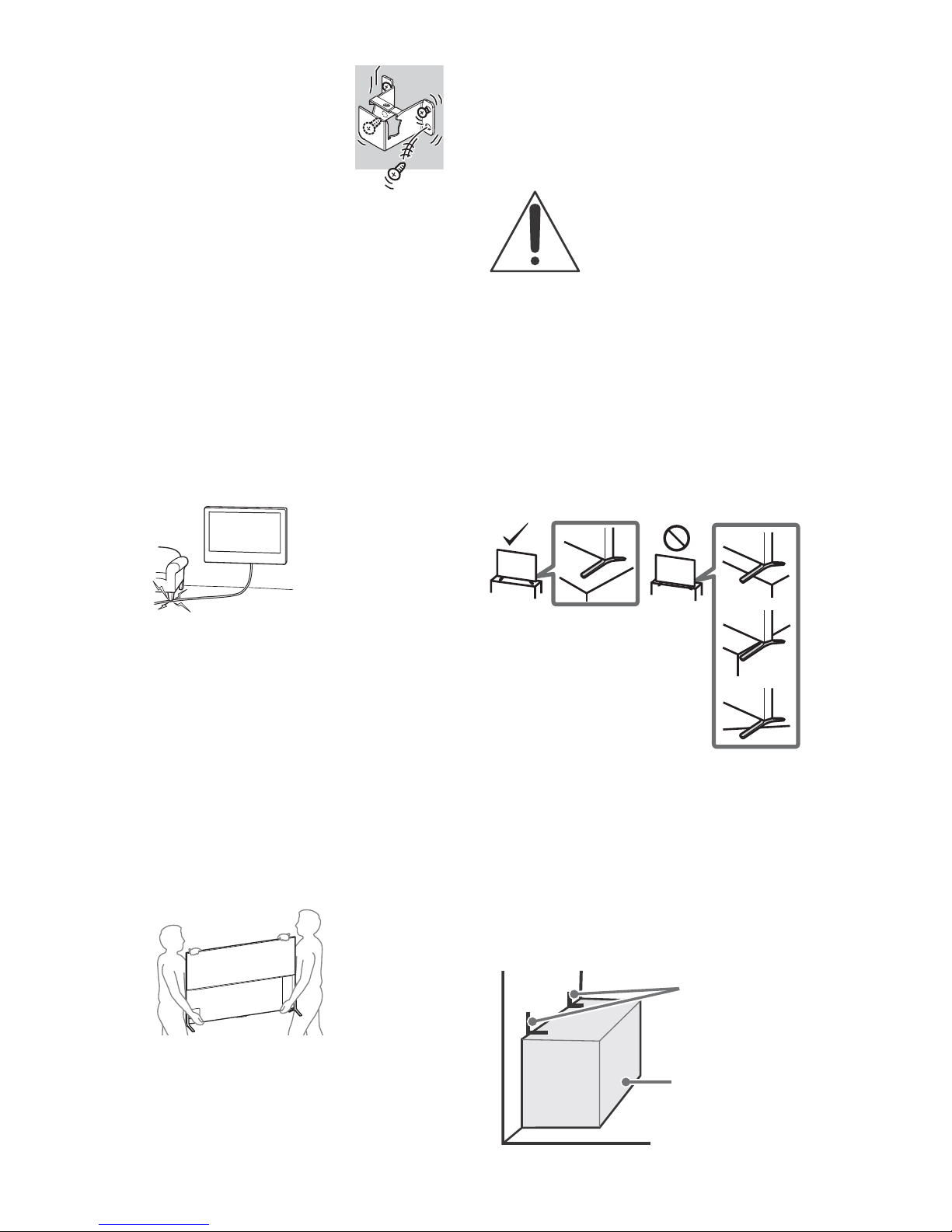
• Be sure to install the Wall-Mount
Bracket securely to the wall
following the instructions in this
instruction manual. If any of the
screws are loose or fall out, the
Wall-Mount Bracket may fall and
cause injury or property damage.
• Be sure to use the screws supplied
w
ith the Wall-Mount Bracket when
attaching the Wall-Mount Bracket
to the TV set. The supplied screws
are designed as indicated by
illustration when measured from the attaching surface of
the Wall-Mount Bracket.
The diameter and length of the screws differ depending
on the W
all-Mount Bracket model.
Use of screws other than those supplied may result in
int
ernal damage to the TV set or cause it to fall, etc.
See page 21 (Using the supplied Wall-Mount Bracket).
See page 27 (Using an optional Wall-Mount Bracket).
• Be sure to assemble the bracket properly following the
inst
ructed procedure explained in this instruction manual.
• Be sure to tighten the screws securely in the designated
po
sition.
• Be careful not to subject the TV to shock during
installa
tion.
• Be sure to install the TV on a wall that is both
per
pendicular and flat.
• After proper installation of the TV, secure the cables
pr
operly.
• Do not allow the AC power cord or the connecting cables
to be pin
ched as the internal conductors may become
exposed and cause a short circuit or an electrical break.
Before setting up your TV
Some TV models are packaged with a detached Table-Top
Stand so you can mount your TV to a wall right away. See
page 21 (Installing the TV to the Wall) if you want to mount
the TV to a wall. If you are not mounting the TV to a wall,
you will ne
ed to attach the Table-Top Stand. You will need a
Phillips screwdriver (not supplied) and the supplied screws
to c
omplete the task. Look for the supplied Table-Top Stand
instruction leaflet.
Be sure to consider the following while setting up your TV:
• Disconnect all cables when carrying the TV.
• Carry the TV with the adequate number of people; larger
siz
e TVs require two or more people.
• To avoid slipping and causing personal injury, do not step
on the T
V protection bag when unpacking the TV set.
• Pay attention so that a child does n
ot approach during the
Table-Top Stand installation.
• Correct hand placement while carrying the TV is very
im
portant for safety and to avoid damage.
• Ensure your TV has adequate ventilation, see page 29.
• For best picture quality, do not expose the screen to direct
illum
ination or sunlight.
• Avoid installing the TV in a room with reflective wall and
floor m
aterials.
• Avoid moving the TV from a c
old area to a warm area.
Sudden room temperature changes may cause moisture
condensation. This may cause the TV to show poor
picture and/or poor color. Should this occur, allow
moisture to evaporate completely before powering the TV
on.
Securing the TV
Sony strongly recommends taking
measures to prevent the TV from
toppling over.
Unsecured TVs may topple and result
in pr
operty damage, serious bodily
injury or even death.
Preventing the TV from Toppling
• Secure the TV to a wall and/or stand.
• Do not allow children to play or climb on furniture and TV
se
ts.
• Avoid placing or hanging items on the TV.
• Never install the TV on:
sl
ippery, unstable and/or uneven surfaces.
fu
rniture that can easily be used as steps, such as a
chest of drawers.
• Install the TV where it cannot be pulled, pushed, or
knock
ed over.
• Install the TV so that the T
V’s Tabl e-Top Sta nd doe s no t
protrudes out from the TV stand (not supplied). If the
Table-Top Stand protrudes out from the TV stand, it may
cause TV set to topple over, fall down, and cause personal
injury or damage to the TV.
• Route all AC power cords and connecting cables so that
they ar
e not accessible to curious children.
Recommended Measures to Secure the
TV
Consider the following measures when securing your TV to
a Stand (not supplied).
1 Secure the Stand for the TV.
Make sure the Stand can adequately support the weight
of
the TV. Use two angle braces (not supplied) to secure
the stand. For each angle brace use the appropriate
hardware to:
• Attach one side of the angle brace to the wall stud.
• Attach the other side to the Stand.
Angle brace
(not supplied)
Stand
Page 5

5
US
US
2 Remove the screws from the rear of the TV.
3 Secure the TV to the Stand.
Use the optional hardware listed as follows (not
supplied):
•
M6 eye bolt (screwed into the TV’s rear cover)
• A screw or similar (attach it to the Stand)
• Rope or chain (strong enough to support the weight of
the TV). Make sure that there is no excess slack in the
rope or chain.
The length of the M6 eye bolt differs depending on the
r
ope or chain diameter. Please see below illustration.
4 Anchor the TV to the wall by using bolts, wall anchor and
chain (or rope).
Please see below illustration for M6 eye bolt length.
Note
• Your TV is shipped with screws attached to the rear of the
TV depending on the TV model. (They are fastened in the
screw holes for wall mounting.) Be sure to remove the
upper two screws prior to anchoring the TV to a wall.
• Securing the TV to the stand without securing the TV and
the
stand to the wall provides minimum protection
against the TV toppling over. For further protection, be
sure to follow the three measures recommended.
Screw hole on the rear cover
M6 eye bolt
(not supplied)
Rope or chain (not supplied)
Screw (not supplied)
8-12 mm
18 mm or more
M6 eye bolts (not supplied)
Screw holes
Rope or
chain (not
supplied)
Wall-anchor
(not supplied)
8-12 mm
18 mm or more
Page 6
6
US
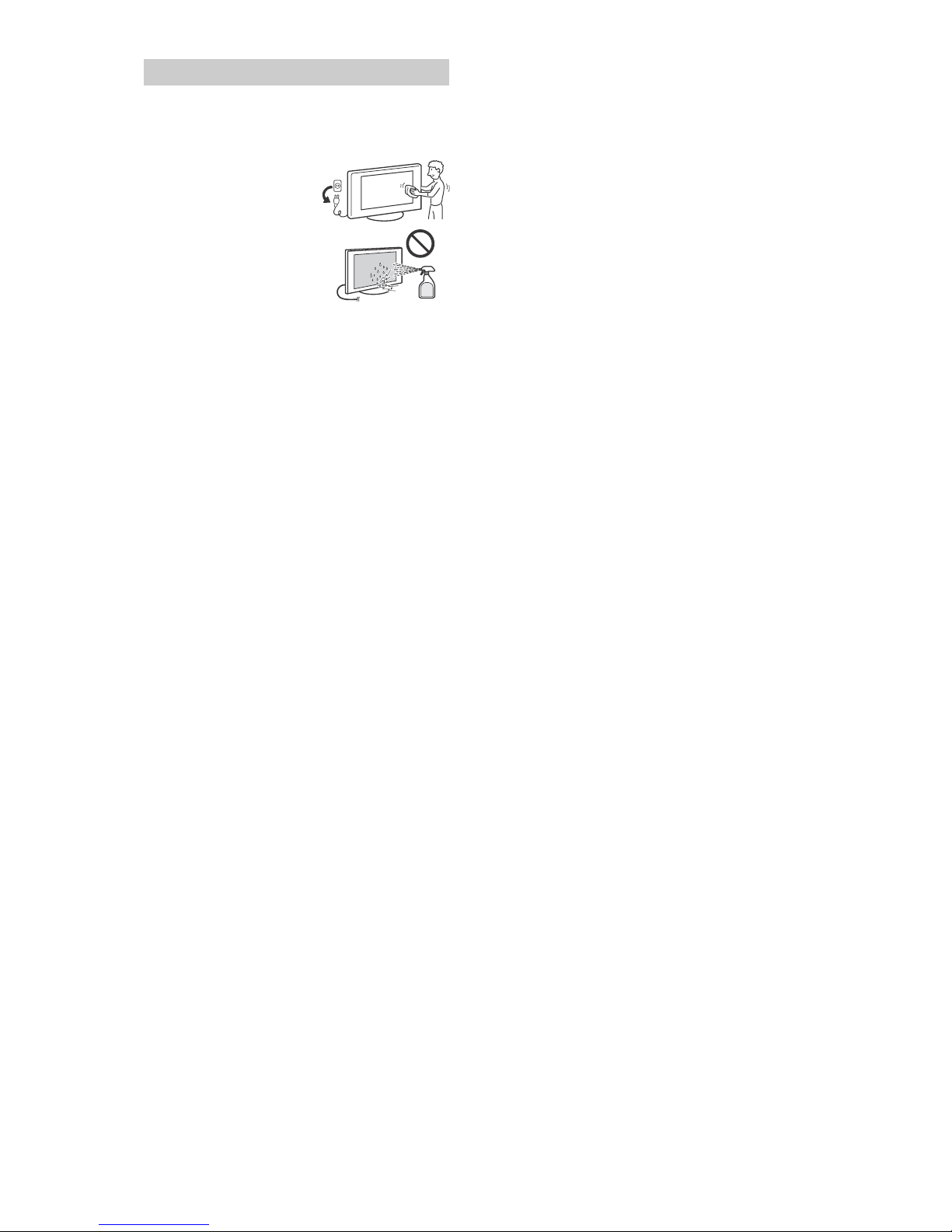
How to care for your BRAVIA TV
Safety is very important. Please read and follow the safety
documentation (Safety Booklet) separately provided.
Unplug the TV and other
c
onnected equipment from
the wall outlet before you
begin cleaning your TV.
• Wipe the LCD screen gently
wi
th a soft cloth.
• Stubborn stains may be
r
emoved with a cloth
slightly moistened with a
solution of mild soap and
warm water.
• If using a chemically
pr
etreated cloth, please follow the instruction provided
on the package.
• Never spray water or detergent directly on the TV set. It
m
ay drip to the bottom of the screen or exterior parts and
enter the TV set, and may cause damage to the TV set.
• Never use strong solvents such as a thinner, alcohol or
benzine f
or cleaning.
• Do not plug in the TV into the wall outlet until the
moist
ure from cleaning has evaporated.
• Do not touch the TV if your hand is covered in any
chem
ical substance such as hand cream or sunblock.
The TV should also be placed on a stable surface to prevent
it
from toppling over (see page 4). If you have young
children or pets at home, check regularly to ensure the TV is
secu
rely fastened.
WALL-MOUNT BRACKET
• If you use the TV installed on the Wall-Mount Bracket for a
long time, the wall behind or above the TV may become
discolored or the wallpaper may come unglued,
depending on the material of the wall.
• If the Wall-Mount Bracket is removed after installing it on
t
he wall, the screw holes remain.
• Do not use the Wall-Mount Bracket in a place where it is
subjec
ted to mechanical vibration.
Precautions
Page 7
7
US
US
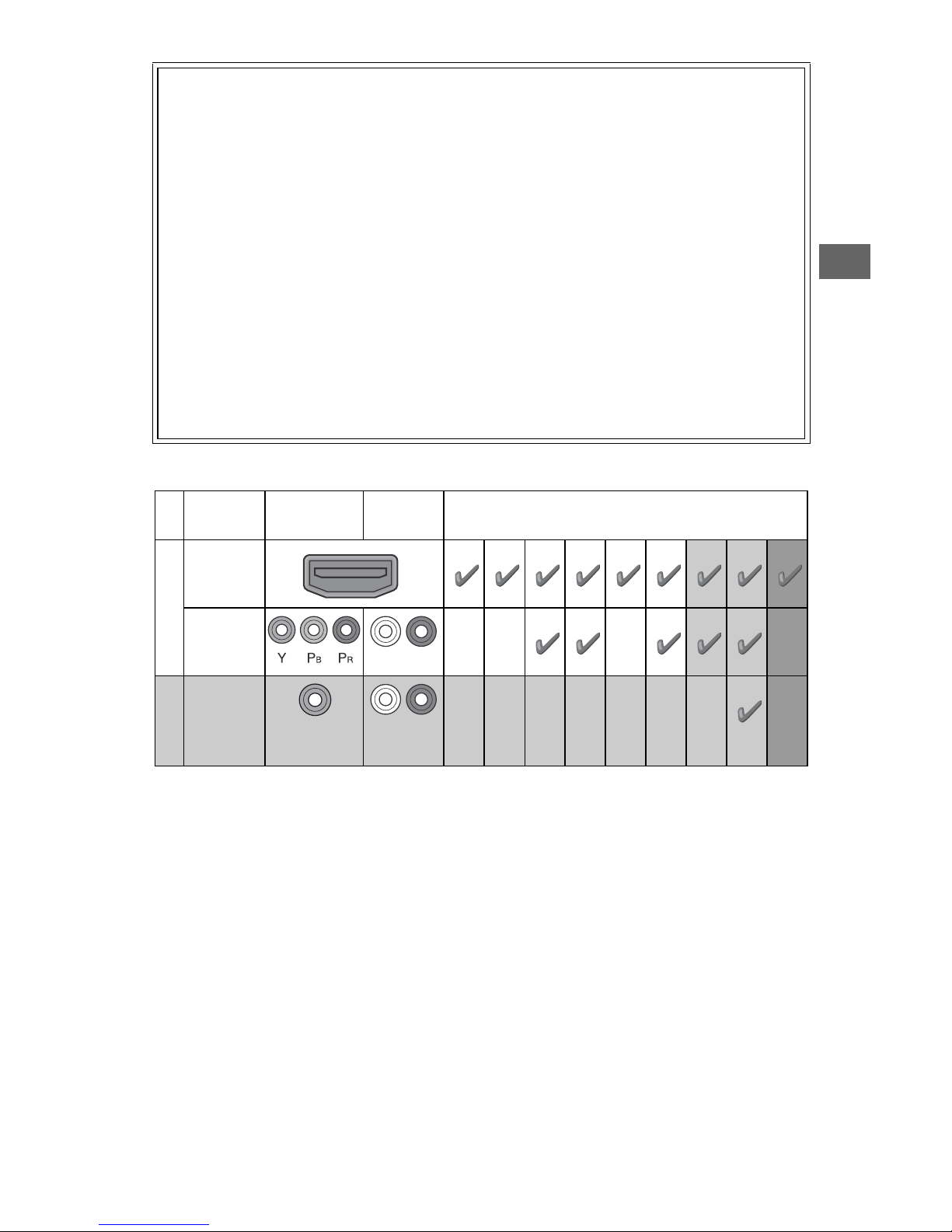
The following chart shows the high-definition (HD) and standard-definition (SD) video formats supported by your BRAVIA TV
inputs.
*1 For details of supported formats, refer to the “Specifications” in this manual.
*2
For supported PC formats refer to the Help Guide.
The BRAVIA® 4K TV Experience
Thank you for choosing Sony! Your new BRAVIA® TV
opens the door to the “4K TV Experience.” This
document will help you get the most out of your TV.
Please take a moment to register your TV at:
U.S.A.: http://productregistration.sony.com
Canada: http://www.sony.ca/registration
Four Steps to a 4K TV Experience
Set, Source, Sound, and Setup.
1 Set
Now that you have made the best selection in LED
ba
cklit LCD TV technology, be sure to remove all of the
accessories from the packaging before setting up your
TV.
2 Source
To experience the stunning detail of your BR
AVIA TV,
you need access to HD programming.
• Upgrade your signal or content source to high-
d
efinition (4K) by contacting your HD service provider.
• Bring the astonishing resolution of your Sony 4K Ultra
H
D TV to life with Sony 4K Ultra HD Media Player. (The
availability depends on region)
• Receive over-the-air HD broadcasts with an HDqua
lity antenna connected directly to the back of your
TV.
Visit htt
p://www.antennaweb.org for more
information on antenna selection and setup.
• Discover the wealth of entertainment now available
on s
uper-high resolution Blu-ray Disc™ player and
other Sony HD equipment.
3 Sound
Complete the high-definition experience with a BR
AVIA
Sync™ surround sound system or A/V receiver from
Sony.
4 Setup
Install your TV and connect your sources. See page 16
for sample connection diagrams. To help assure the
high
est quality for your 4K experience, use Sony HDMI
(High-Definition Multimedia Interface) cables.
To learn more about 4K TV, visit:
U.S.A.: http://www.sony.com/HDTV
Canada: http://www.sony.ca/hdtv
This TV displays all video input signals in a r
esolution of 3,840 dots × 2,160 lines.
INPUT VIDEO AUDIO
SUPPORTED FORMATS
4K*11080/
24p/30p
1080p*11080i
720/
24p/30p
720p*1480p 480i PC*
2
4K/
HD
HDMI
COMPONENT
Audio L/R
SD
VIDEO
Composite
video
connection
Audio L/R
Page 8
8
US
Parts and Controls
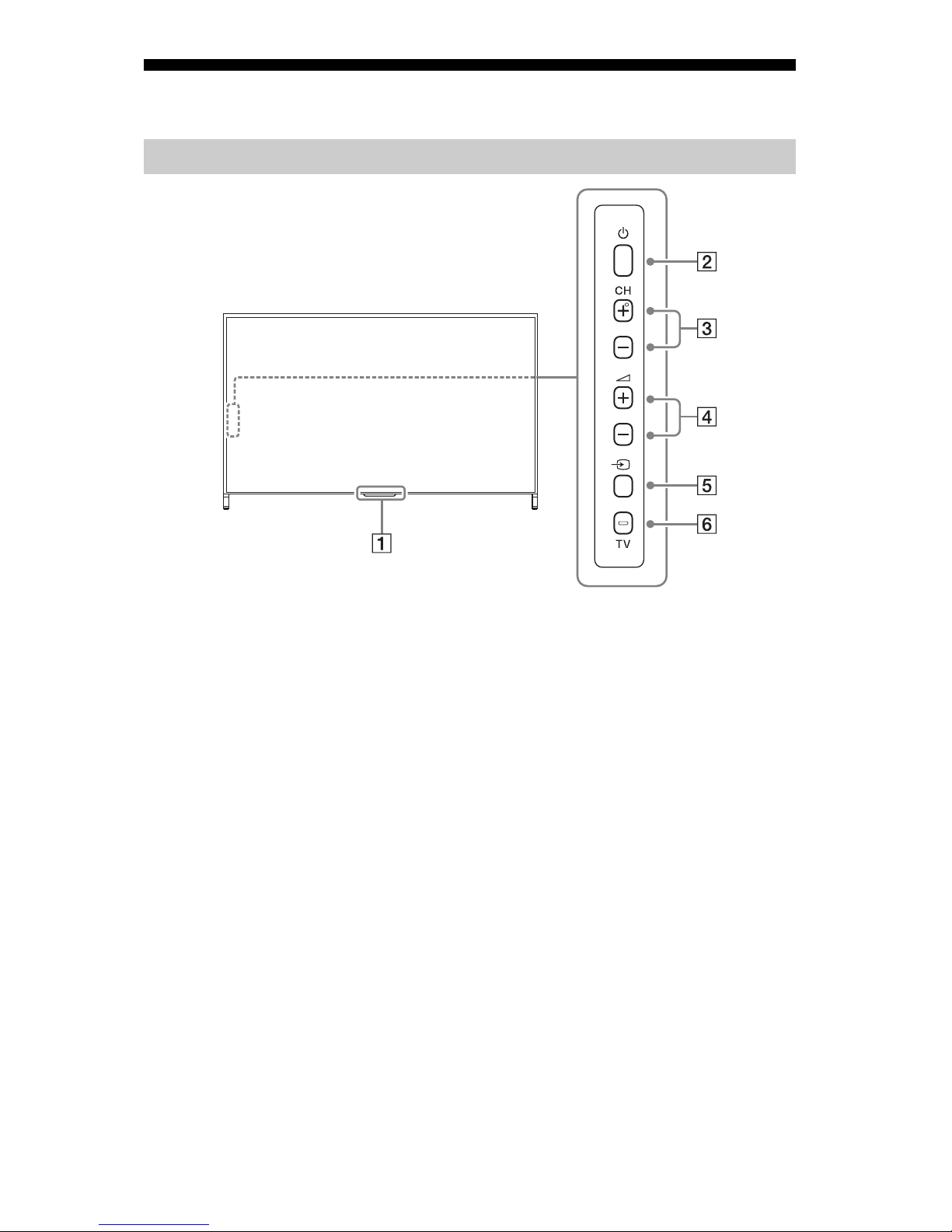
Remote Control sensor* / Light
sensor*
/ Illumination LED / 3D Sync
Transmitter (XBR-75X910C only)*
The illumination LED lights up or blinks
according to the status of the TV.
•White
When turning on the TV/picture off
mode/software update, etc.
•Cyan
When connecting with a mobile
device wirelessly.
•Amber
Timer is set.
(Power)
CH +/- (Channel)
+/- (Volume)
(Input select)
Display and select the input source.
TV
Switch to a TV channel or input from
other applications.
* Do not place anything near the sensor.
Controls and Indicators
Page 9
9
US
US
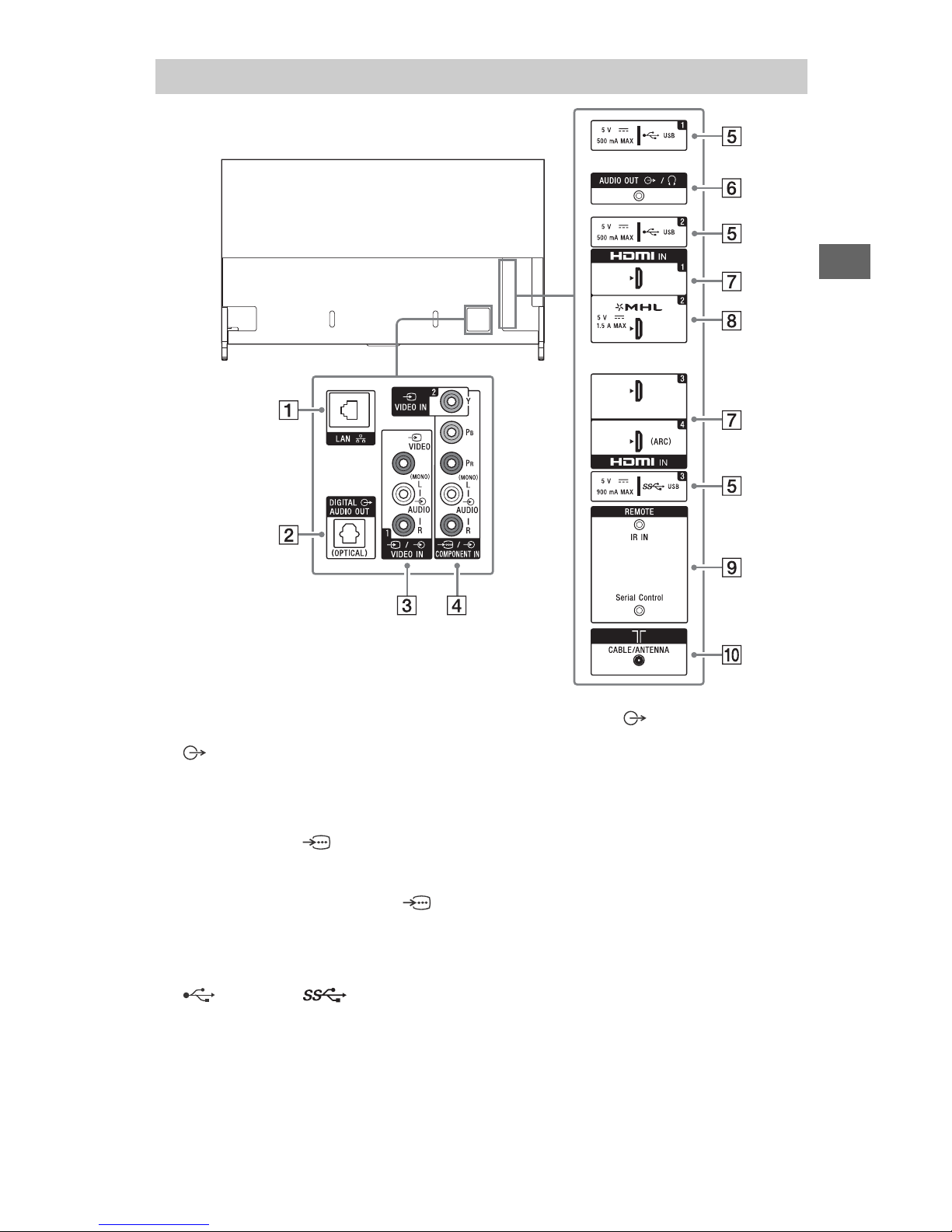
LAN
DIGITAL AUDIO OUT (OPTICAL)
/ VIDEO IN 1
For a composite connection*.
VIDEO IN 2, /
COMPONENT IN
• For a composite connection:
Use VIDEO IN, and (L/R) of /
COMPONENT IN*.
• For a component connection:
Use Y, PB, PR, and (L/R).
(USB 1/2), (USB 3)
• Connecting a large USB device may
interfere with other connected
devices beside it.
• When connecting a large USB device,
connect to the USB 1 jack.
AUDIO OUT /
• To listen to the TV's sound through
the connected equipment, press
HOME. Select [Settings] [Sound]
[Headphone/Audio out] and then
select the desired item.
HDMI IN 1/3/4
• If connecting a digital audio system
that is compatible with Audio Return
Channel (ARC) technology, use HDMI
IN 4. If not, an additional connection
with DIGITAL AUDIO OUT (OPTICAL) is
necessary.
HDMI IN 2/MHL
• You can connect your MHL (Mobile
High-definition Link) device using an
HD quality MHL cable.
Inputs and Outputs
Page 10

10
US
REMOTE IR IN
REMOTE Serial Control
• These jacks are for receiving the
external control signal. Enables
extended control of the TV using
RS232C via the IR IN and Serial Control
jacks.
IR IN : connect to the IR out terminal
of the home controller.
Serial Control : connect to the RS232C
terminal of the home controller.
• Take care to not connect to
headphones or an external audio
system.
• If [RS232C control] is set to [On],
[BRAVIA Sync settings] is not
available.
CABLE/ANTENNA
Connect to your cable or antenna.
* When connecting mono equipment, connect to
the L (MONO) audio jack.
Page 11
11
US
US
Using Remote Control
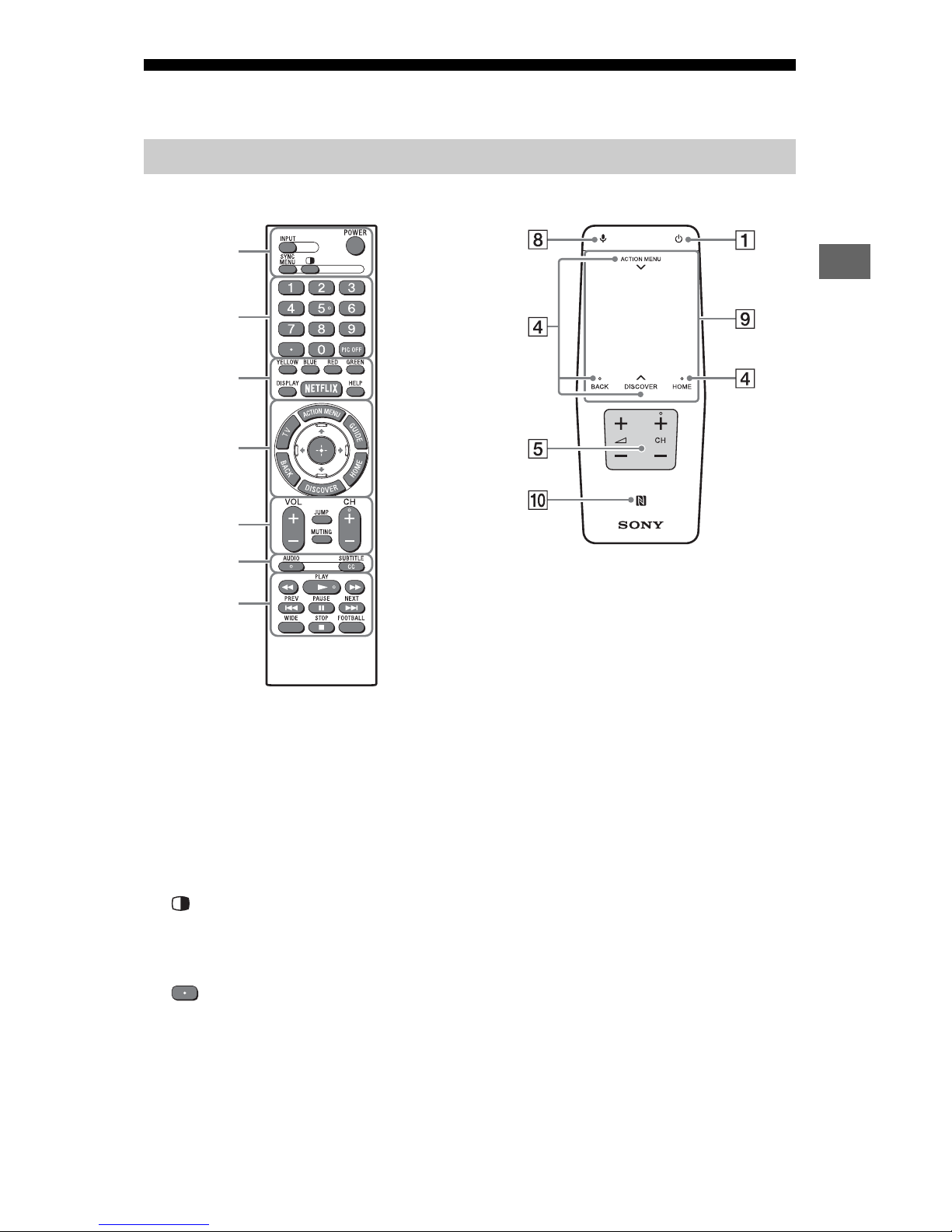
INPUT
Display and select the input source.
POWER/
Turn on or turn off the TV (standby
mode).
SYNC MENU
Display the BRAVIA Sync Menu.
(Twin picture/PIP)*1*
2
Display two pictures simultaneously.
Number buttons
Use with the 0-9 buttons to select
digital channels.
PIC OFF*
2
Turn the picture off, while sound
remains on.
Color buttons
Execute correspondent function at that
time.
DISPLAY
Display information about the channel/
program/input you are viewing.
NETFLIX
Access the “NETFLIX” online service.
HELP
Display Help Menu.
Remote Control Parts Description
Ȫ
ȩ
ȫ
Ȭ
ȭ
Ȯ
ȯ
IR (infrared) Remote Control Touchpad Remote Control
Page 12
12
US
ACTION MENU
Display a list of contextual functions.
You can also display it by slide down
your finger from ACTION MENU on the
Touchpad Remote Control.
TV
Switch to a TV channel or input from
other applications.
GUIDE*
1
Display the digital program guide.
BACK
Return to previous screen.
HOME
Display the TV Home Menu.
DISCOVER
Bring up the Content Bar to search for
content.
You can also launch Content Bar by
slide up your finger from DISCOVER on
the Touchpad Remote Control.
//// (Item select/Enter)
VOL +/– (Volume)
Adjust the volume.
JUMP
Jump back and forth between two
channels or inputs. The TV alternates
between the current channel or input
and the last channel or input that was
selected.
MUTING
Mute the sound. Press again to restore
the sound.
CH +/– (Channel)
Select the channel.
AUDIO
Change the language for the program
currently being viewed.
CC/SUBTITLE
Turn subtitles on or off (when the
feature is available).
//////
Operate media contents on TV and
connected BRAVIA Sync-compatible
device.
WIDE
Change the screen format.
FOOTBALL
Turn Live Football Mode on or off (when
the feature is available).
(Microphone)
Use Voice Function. (e.g., Search various
content by voice.)
Touc hpad
Operate the TV with the touchpad.
(NFC)
Touch the device (e.g. some models of
Xperia) corresponding to the One-touch
mirroring function, then its screen is
displayed on the TV.
*1 The location, availability and function of
remote control button may vary depending on
your country/region/TV model.
*2 Twin Picture/PIC OFF function will be available
from July 2015. You will receive Twin Picture/
PIC OFF function automatically as a network
software upgrade. Make sure your TV is
connected to the Internet. If you do not have a
network connection, you will be able to
download the software from the Sony support
website using your PC. For details on how to
upgrade, please visit the Sony support
website.
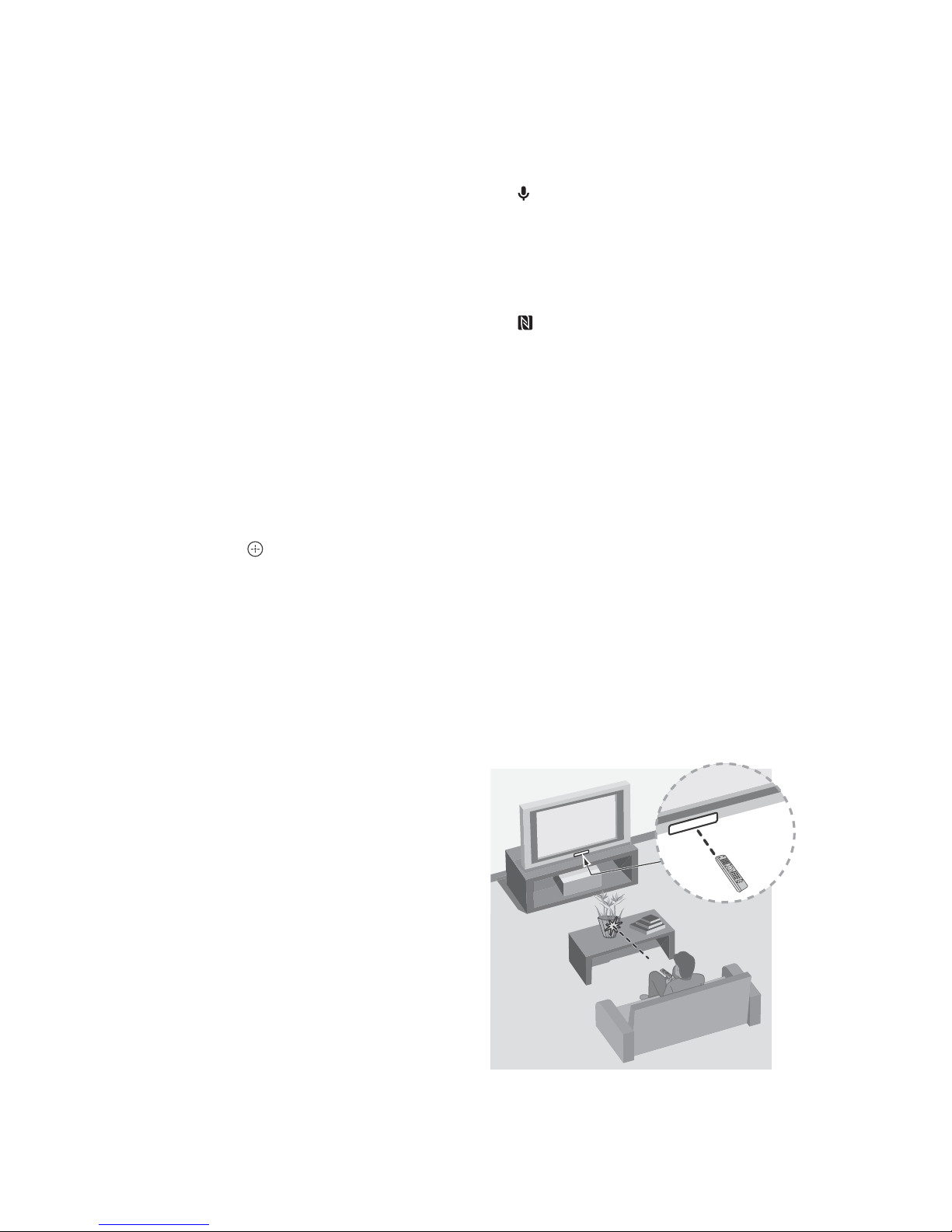
Guidelines for IR Remote Control
• Point your remote control directly at
the IR sensor located on your TV.
• Make sure that no objects are blocking
th
e path between the remote control
and the IR sensor on your TV.
• Fluorescent lamps can interfere with
y
our remote control; try turning off the
fluorescent lamps.
Page 13
13
US
US
• If you are having problems with the
remote control, reinsert or replace your
batteries and make sure that they are
correctly inserted.
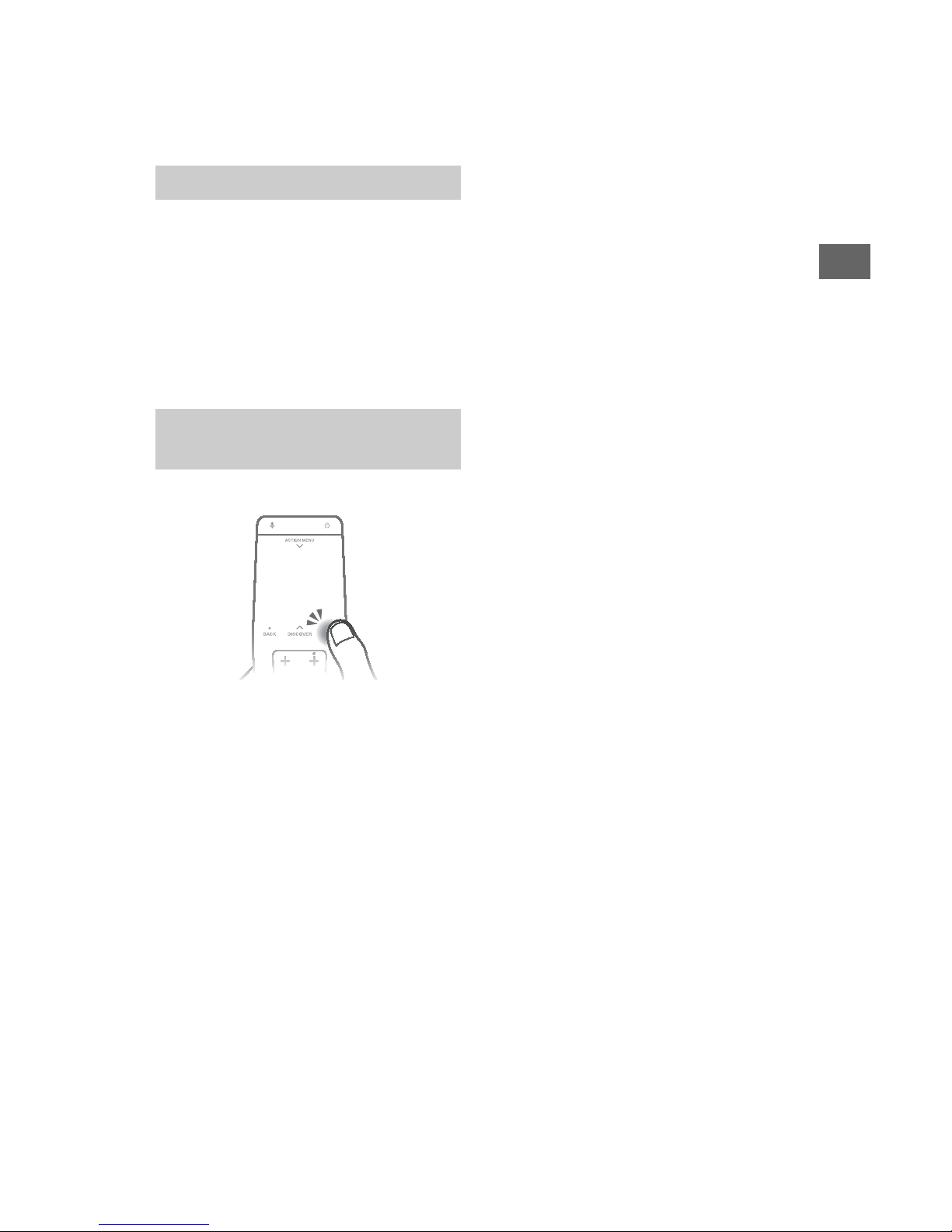
Touchpad Remote Control can only be used
after pairing with the TV.
To pair, follow the pairing screen
ins
truction.
Pairing screen can be displayed by pressing
the button on the TV for 5 seconds, or
select [Settings] - [Touchpad Remote
Control settings] - [Pair Touchpad Remote
Control].
1 Press HOME.
2 Select [Settings] - [Touchpad
Remote Control settings] - [Start
Introduction/Tutorial].
Using the Touchpad Remote Control
Launching the Touchpad Remote
Control Introduction/Tutorial
Page 14
14
US
Attaching the Table-Top
Stand (Alternative)
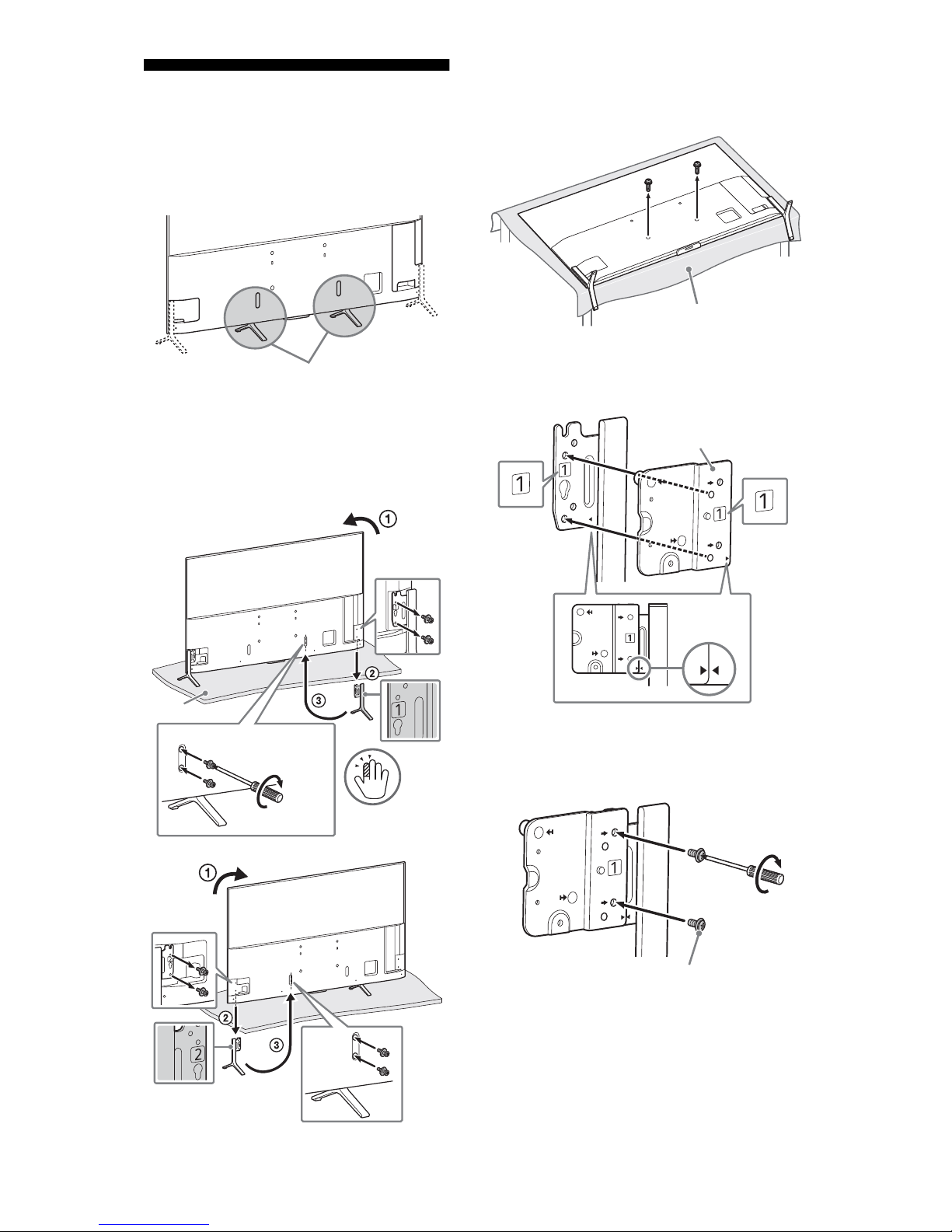
You can change the Table-Top Stand from
the edge to the middle position by referring
to the instructions below.
Note
• Two or more people are needed to carry out this
installation.
• Be careful not to pinch the finger during
installa
tion.
XBR-75X910C/65X900C
XBR-55X900C
1 Remove the lower screws, and then
one of the Table-Top Stand.
2 Attach the stand plate (supplied
with the TV) to the detached TableTop Stand.
3 Fix the stand plate to the Table-Top
Stand with screws (M5×10) (supplied
with the TV).
Middle position
Thick cushion
1
1.5 N∙m/1,5 N∙m
{15 kgf∙cm}
2
Soft cloth
Stand plate
M5 × 10
1.5 N∙m/1,5 N∙m
{15 kgf∙cm}
Page 15
15
US
US
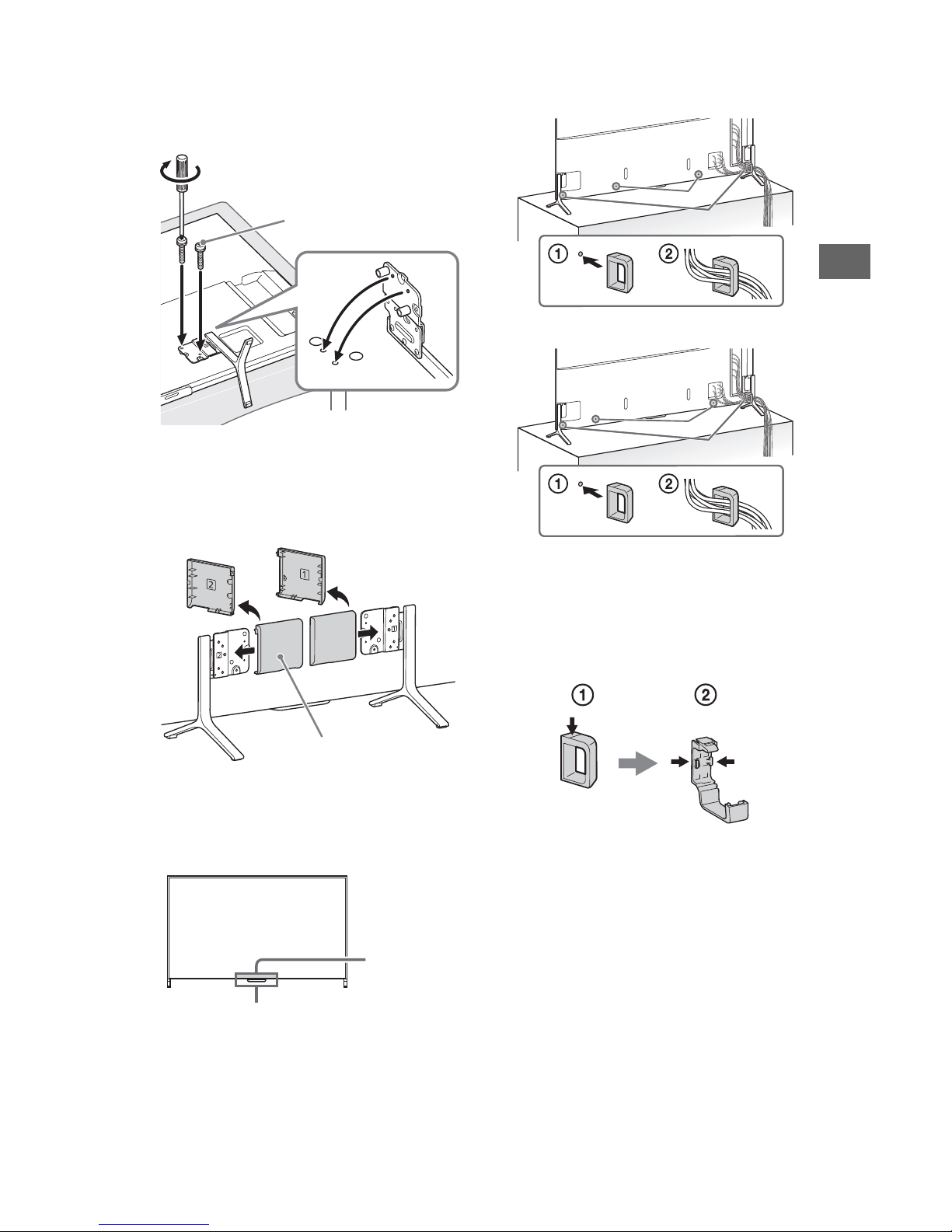
4 Attach the Table-Top Stand with
stand plate to the middle position,
and fix with screws (M6×32)
(supplied with the TV.)
5 Take the same procedure for the
other side of the Table-Top Stand.
6 Attach stand covers (supplied with
the TV.)
Note
• Two or more people are needed to carry out this
installation.
• Ensure that there are no objects in front of the
TV
.
To bundle the cables
XBR-75X910C/65X900C
XBR-55X900C
*1 Location of cable clamper when the Table-Top
Stand is attached to middle position.
*2 Location of cable clamper when the Table-Top
Stand is attached to edge position.
Note
• To detach the cable clamper from the TV, press
the top of the clamper , then pinch as
illustrated.
M6 × 32
1.5 N∙m/1,5 N∙m
{15 kgf∙cm}
Stand cover
IR Sensor
3D Sync
Trans mitter
(XBR75X910C
only)
*
2
*
1
*
2
*
1
Page 16
16
US
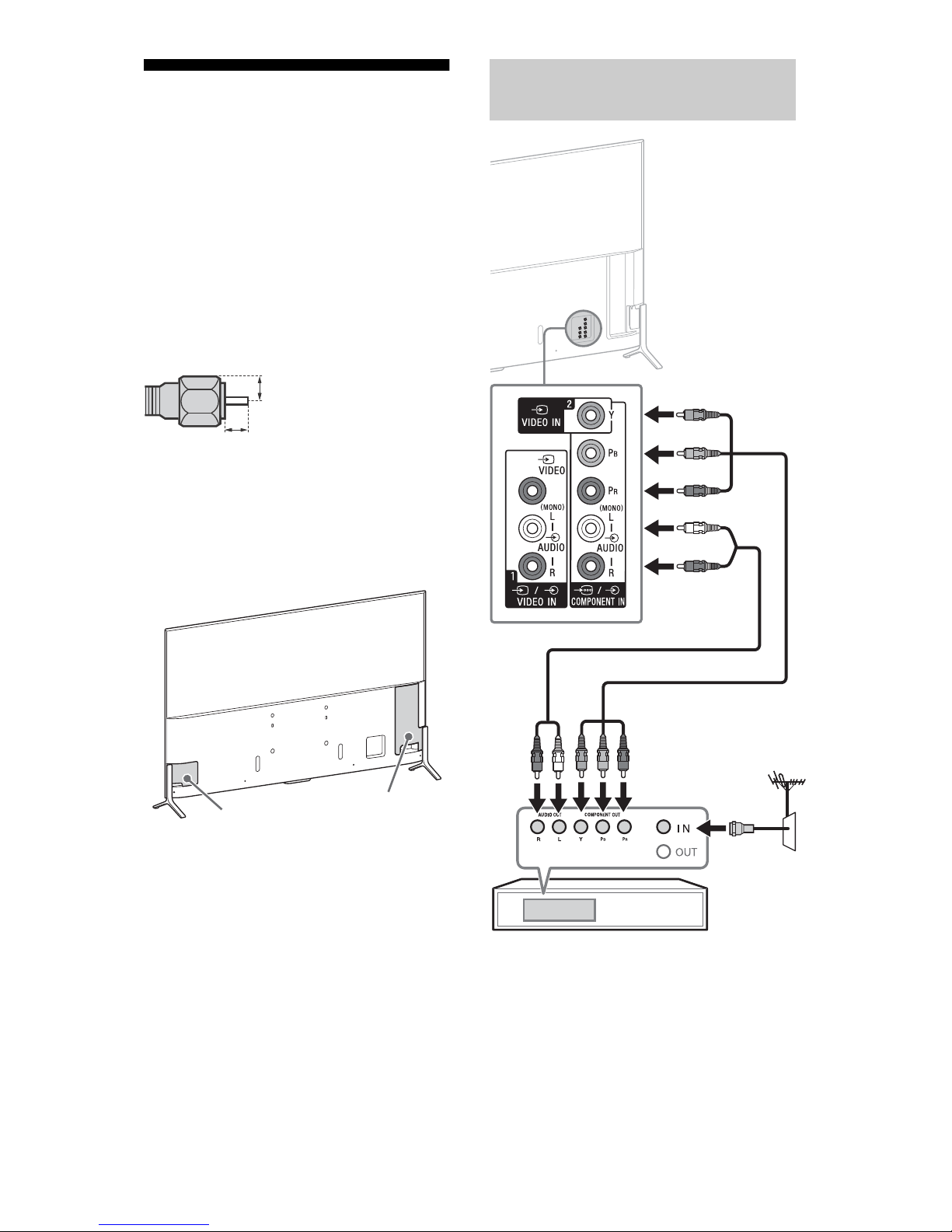
Connecting the TV
For more information on connections, refer
to the Help Guide.
Note
• When connecting the cable to the Cable/
Antenna, input finger tighten only, over
tightening the connection can damage the TV.
• For the FMP-X1, connect it to the HDMI IN 2 jack
only (The av
ailability depends on region).
• To select an input device connected to the TV,
pr
ess INPUT.
Recommendation for an F type plug
Projection of the inner wire from the
connection part must be less than 1.5 mm.
To attach the terminal cover
After connecting cables, attach the terminal
cover.
(Reference drawing for an F type plug)
1.5 mm max.
7 mm max.
Term inal cover (left)
Terminal cover (right)
Showing a Set Top Box with
COMPONENT connection
Set Top Box
Page 17
17
US
US
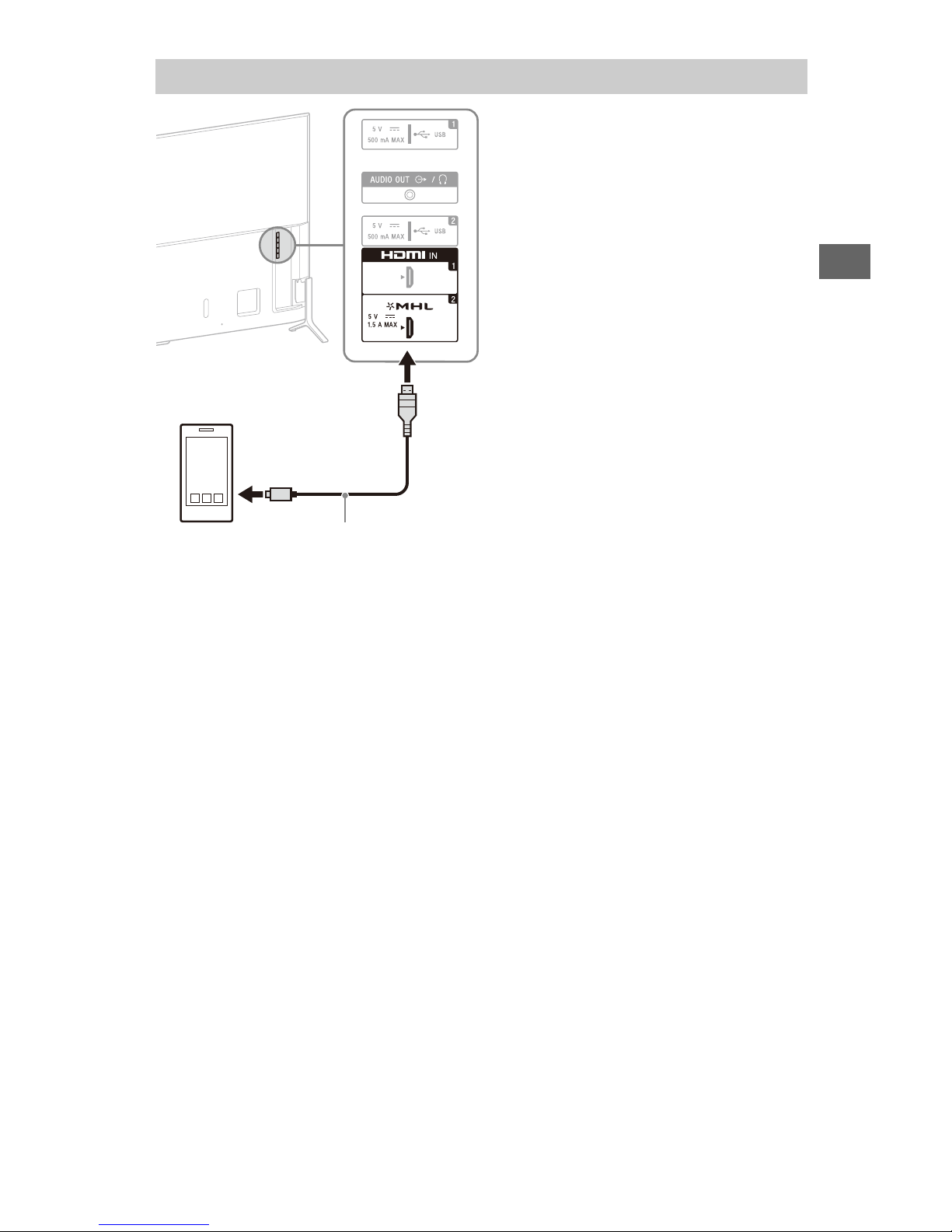
The TV simultaneously charges the MHL-compatible connected device while playing photo/
music/video files. You can use the TV remote control to control the connected MHLcompatible device.
Note
• If [Charge MHL during power off] is set to [On], you can continue charging the MHL-compatible device
even when the TV is in standby mode.
• Use authorized MHL 3 CABLE with MHL logo for 4K smartphone or mobile devices.
Connecting MHL Device
Use authorized MHL CABLE
with MHL logo (not supplied)
MHL device
Page 18

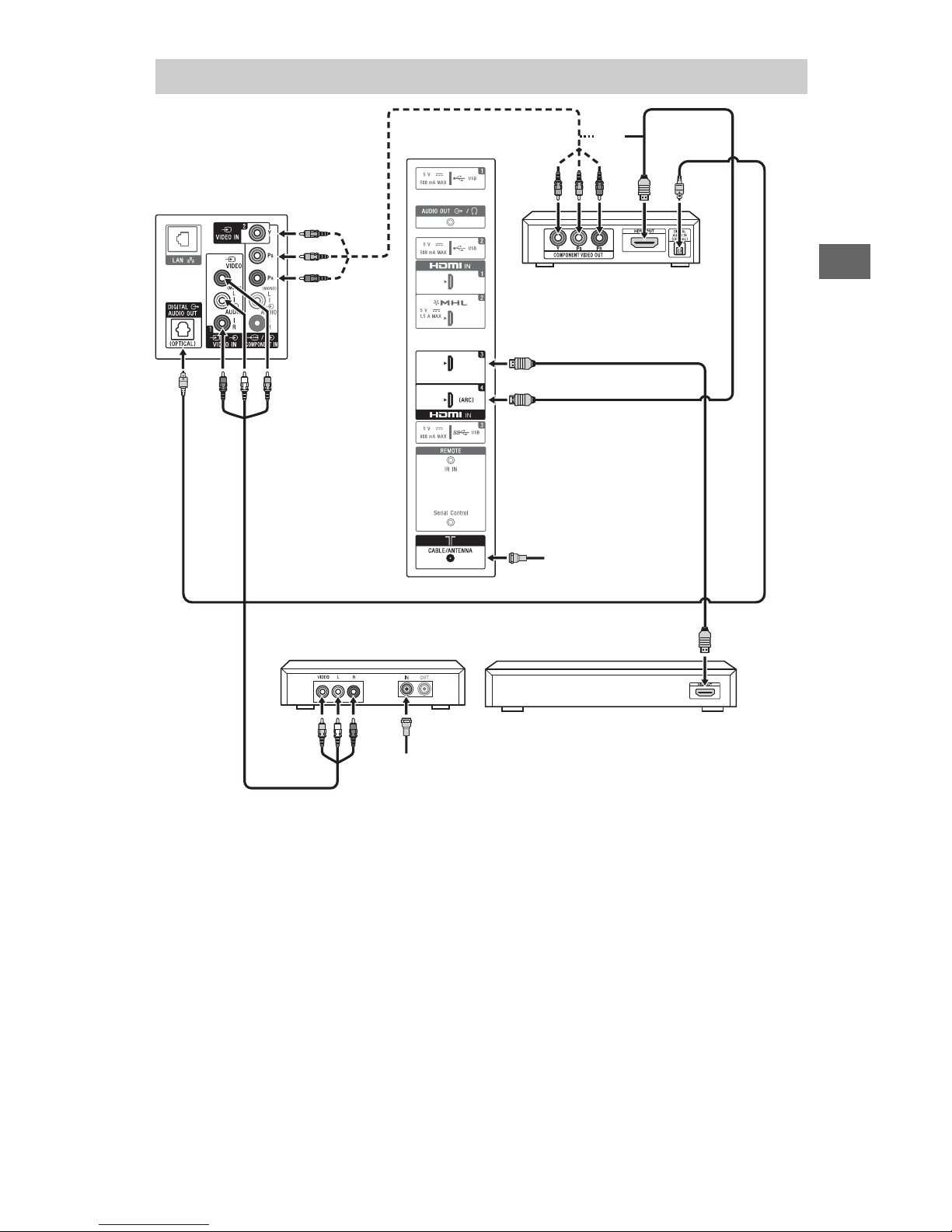
18
US
*1Signifies a BRAVIA Sync capable device.
*2The optical connection is only needed for A/V receivers that do not support ARC (Audio
Return Channel).
Set the speaker settings to audio out, press HOME, then select [Settings] [Sound]
[Speakers] [Audio system].
Set the HDMI CEC settings on the TV and AV receiver to allow for system audio control for
ARC connections.
Showing HD BRAVIA® Sync™ Basic Connection
*1Side Panel
*
1
Blu-ray Disc
HD Cable Box or
HD Satellite Receiver
*
1
A/V Receiver
SAT (Dish)
Cable/Antenna
*
2
Optical Connection
*
1
Rear of TV
Page 19
19
US
US
* The optical connection is only needed for home theater system that do not support ARC
(Audio Return Channel) when connecting with HDMI.
Set the speaker settings to audio out, press HOME, then select [Settings] [Sound]
[Speakers] [Audio system].
Set the HDMI CEC settings on the TV and AV receiver to allow for system audio control for
ARC connections.
Showing HD Basic Connection with Home Theater System
Cable/Antenna
Blu-ray Disc/DVD
SD Cable Box or
SD Satellite Receiver
Cable/SAT (Dish)
Home Theater System
*Optical Connection
Rear of TV
Side Panel
or
Page 20
20
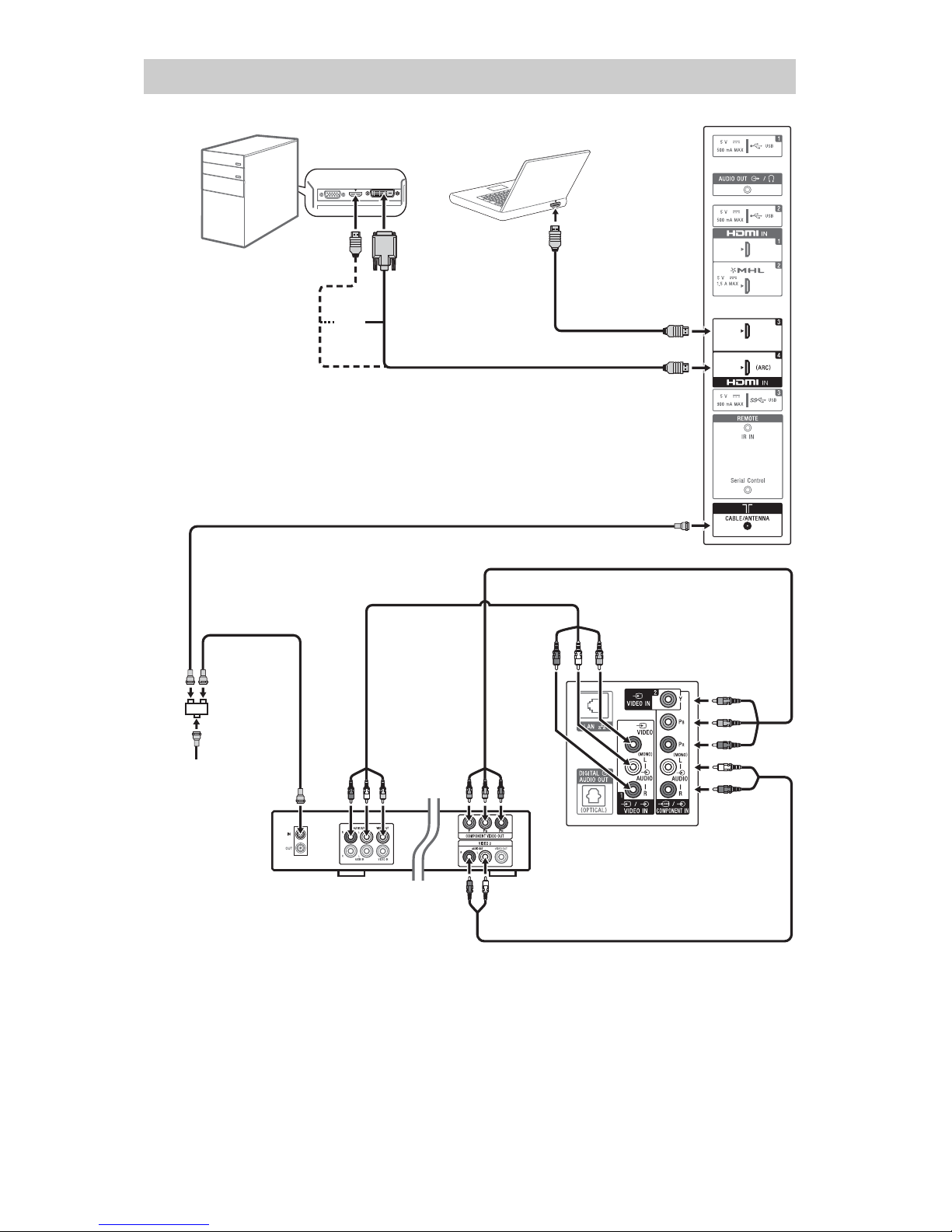
US
* DVI does not support audio signals. Connect the audio output of the PC to the PC speakers
or an A/V receiver to listen to sound from the PC.
Showing PC Connection with SD VCR/DVD
Rear of TV
PC
DVD
VCR
Splitter
Cable/Antenna
VCR/DVD
Combo
*DVI
or
Side Panel
Notebook PC
Page 21
21
US
US
Installing the TV to the Wall
Your TV can be mounted on a wall using a Wall-Mount Bracket (supplied with the TV) out of
the box as packaged.
Prepare the TV for the Wall-Mount Bracket before making cable connections.
For product protection and safety reasons, Sony strongly recommends that installation of
your TV on the wall be performed by qualified professionals. Do not attempt to install it
yourself.
Follow the instruction guide provided with the Wall-Mount Bracket for your model. Sufficient
expertise is required in installing this TV, especially to determine the strength of the wall for
withstanding the TV’s weight.
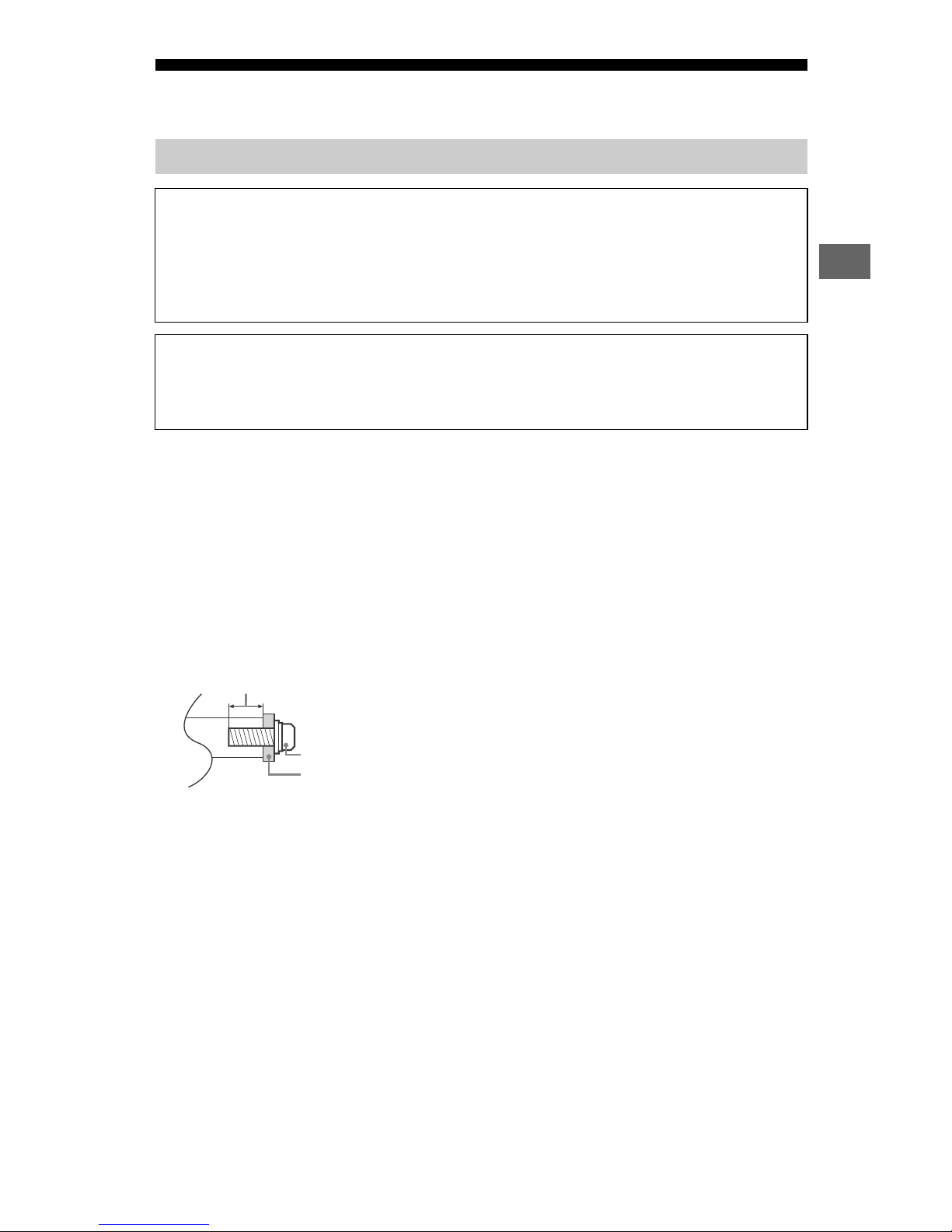
The length of the screw for Wall-Mount Bracket differs depending on the Wall-Mount Bracket
thickness. Please see below illustration.
Note
• Read the supplied Safety Booklet for additional safety information.
• See page 3 (Safety Information) and page 6 (Precautions) on WALL-MOUNT BRACKET before carrying out
Wall-Mount Bracket installation.
• When attaching the Table-Top Stand again, be sure t
o fasten the screws (previously removed) to the
original holes on the rear of the TV.
Using the supplied Wall-Mount Bracket
To Customers
Sufficient expertise is required for installing this product. Be sure to subcontract the
installation to Sony dealers or licensed contractors and pay special attention to safety
during the installation. Sony is not liable for any damages or injury caused by mishandling
or improper installation, or installing any other than the specified product. Your Statutory
Rights (if any) are not affected.
To Sony Dealers and Contractors
Sufficient expertise is required for installing this product. Be sure to read this instruction
manual thoroughly to do the installation work safely. Sony is not liable for any damages or
injury caused by mishandling or improper installation.
Wall-Mount Bracket
Screw (M6)
8 mm - 12 mm
Page 22
22
US
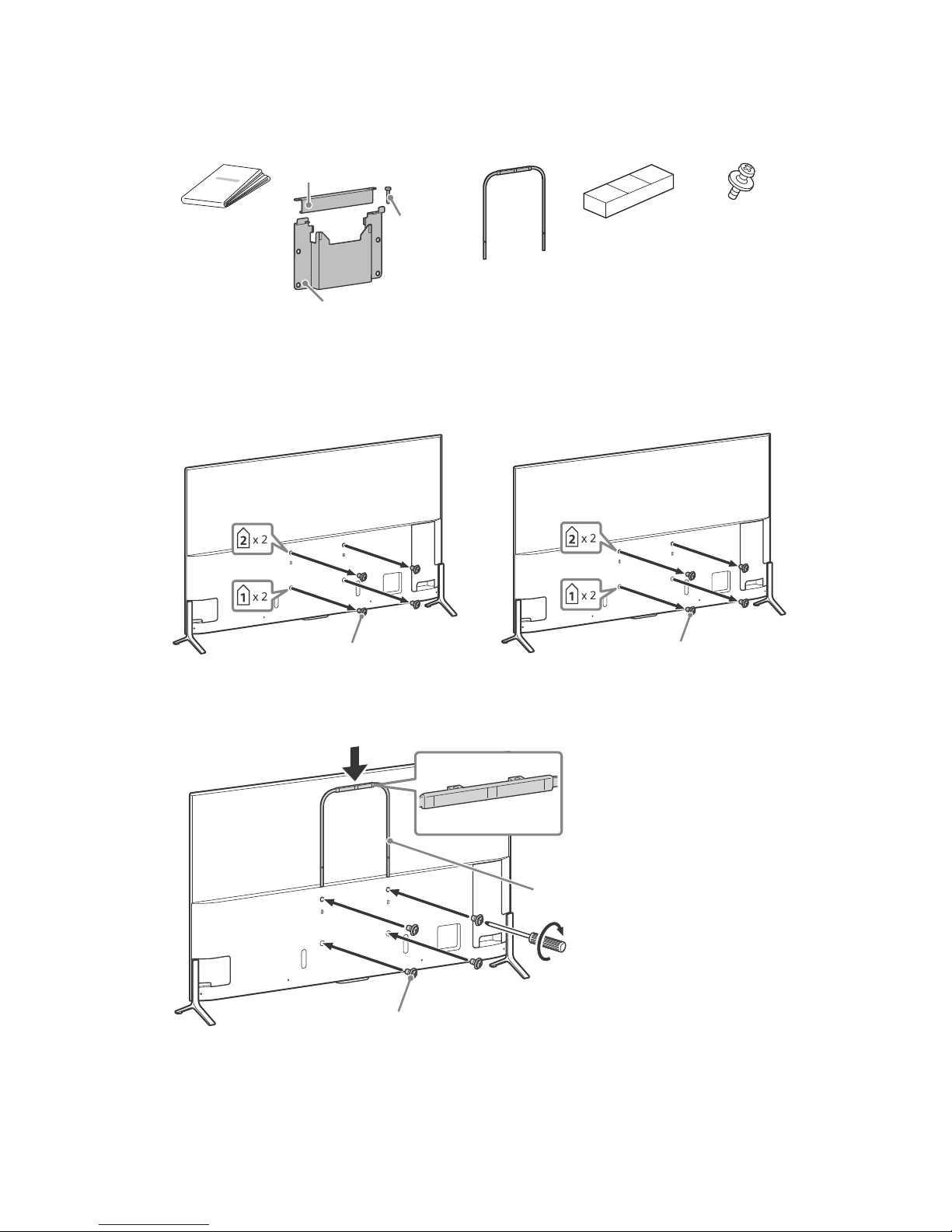
1 Prepare necessary items.
Wall-Mount Bracket accessories (supplied)
Screws for Wall-Mount Bracket (8 mm in diameter, not supplied) (4)
2 Remove the screws from the rear of the TV.
3 Attach the U-shaped Bar J (supplied with the TV) to the rear of the TV.
A Paper
Templa te
H Wall-Mount
Bracket
J U-shaped Bar K Cushion
Lock plate
Lock pin
Wall-Mount Bracket
L M6 × 20
XBR-75X910C
(4)
M6 × 12
XBR-75X900C
XBR-65/55X900C
M6 × 16
M6 × 20 L
U-shaped Bar J
1.5 N∙m/1,5 N∙m
{15 kgf∙cm}
XBR-75X900C
Page 23
23
US
US
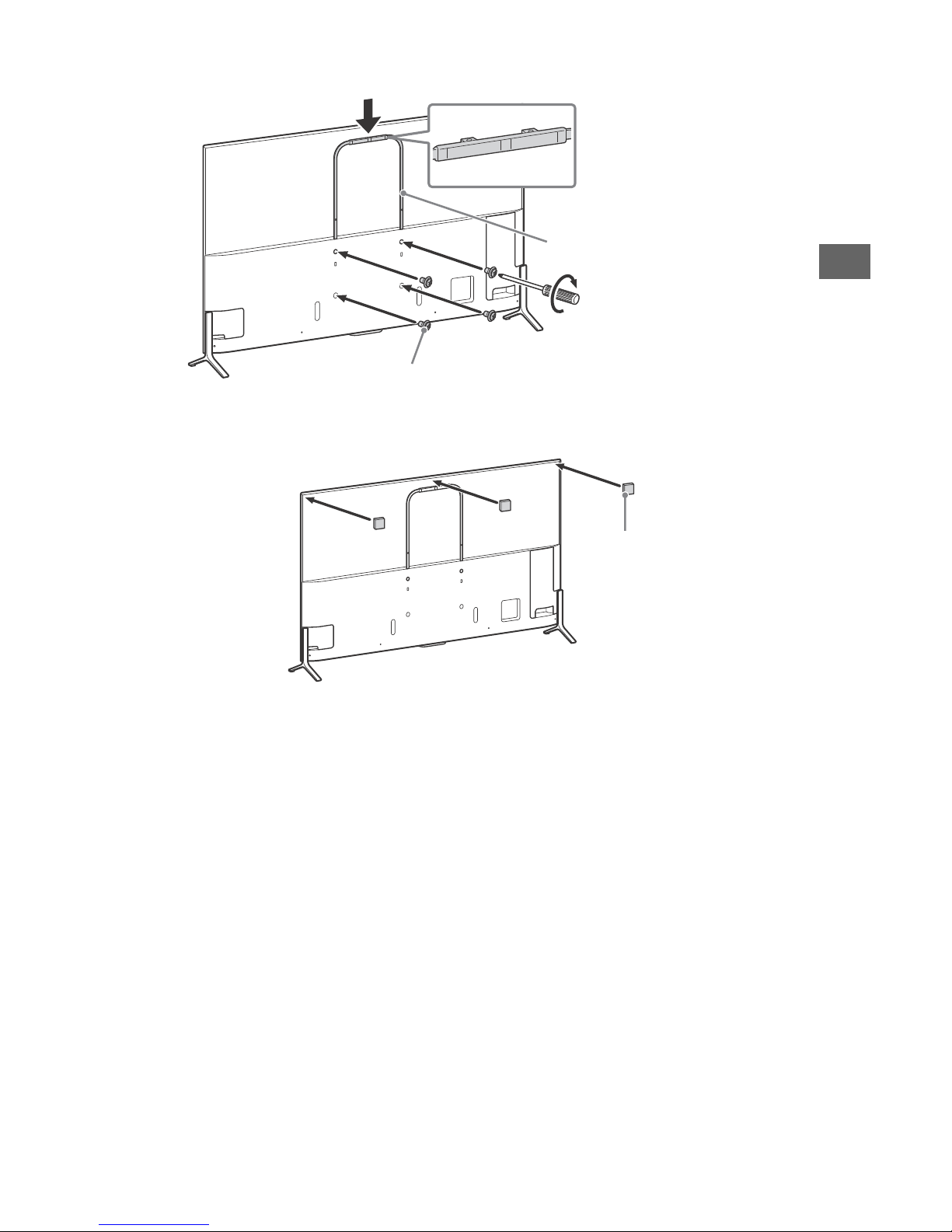
4 Attach the cushions K to the rear of the TV.
M6 × 16
U-shaped Bar J
1.5 N∙m/1,5 N∙m
{15 kgf∙cm}
XBR-65/55X900C
Cushions K
Page 24
24
US
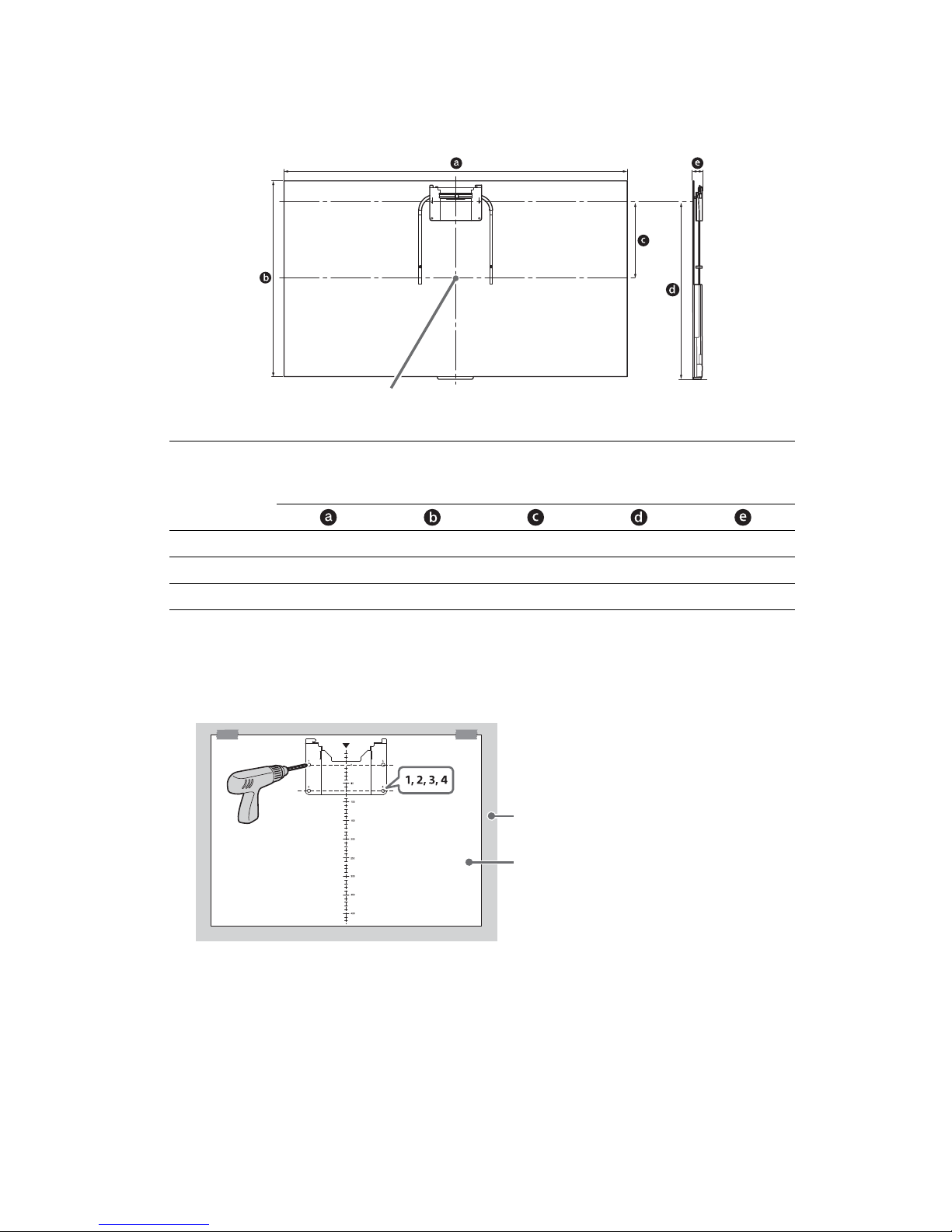
5 Make sure that the wall has enough space for the TV and is capable of supporting
a weight of at least four times that of the TV.
Refer to the following table on installing the TV to the wall. See page 31-34
(Specifications) for the TV’s weight.
Unit: mm
Note
• Figures in the table may differ slightly depending on the installation.
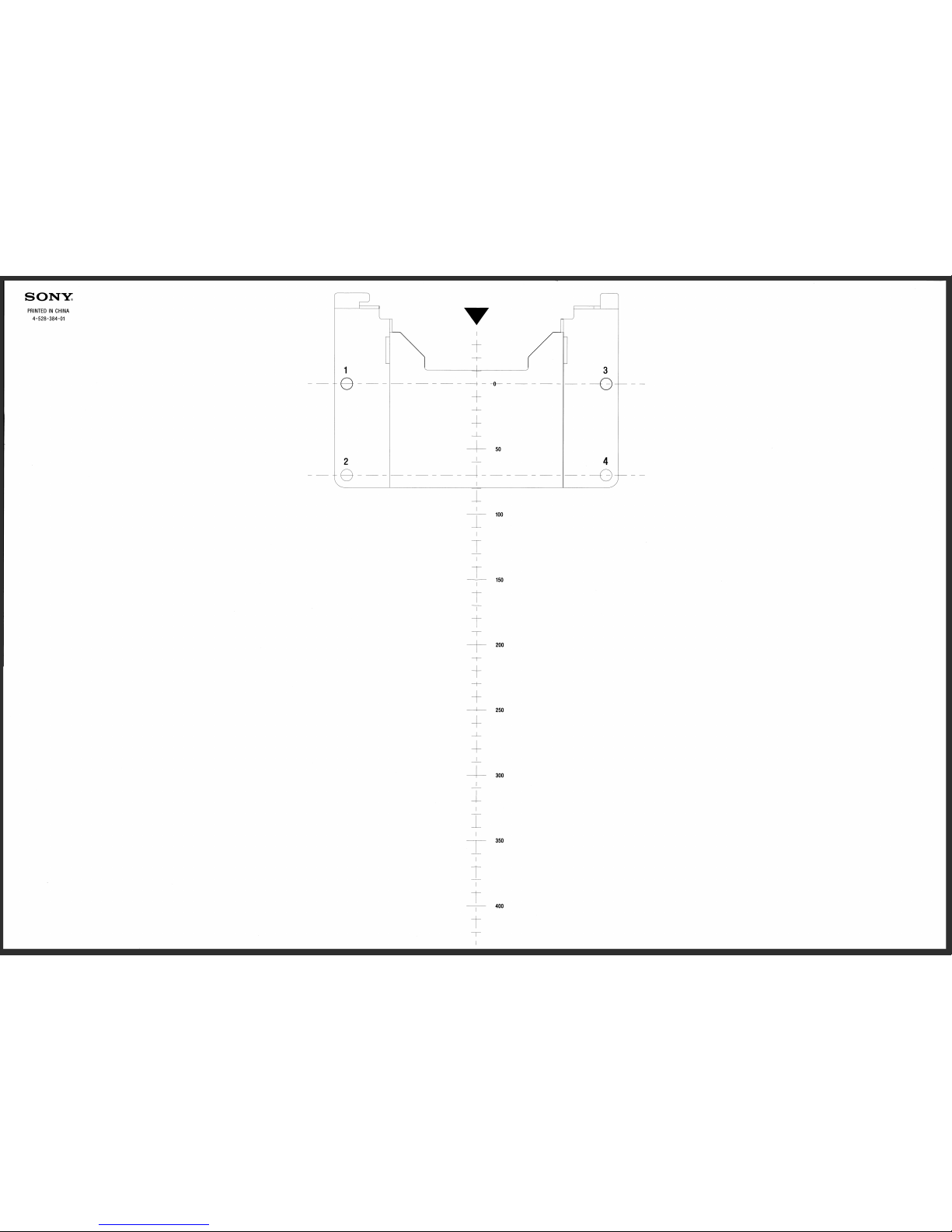
6 Tape the Paper Template A to the wall and drill holes according to the
numbering on the Paper Template A using an electric drill.
7 Remove the Paper Template A off from the wall.
Model Name
XBR-
Display dimensions
Screen
ce
nter
dimension
Length for mounting
75X910C 1,672 959 387 871 50
65X900C 1,451 835 325 747 40
55X900C 1,232 712 263 624 40
Screen center point
Wall
A
Page 25
25
US
US
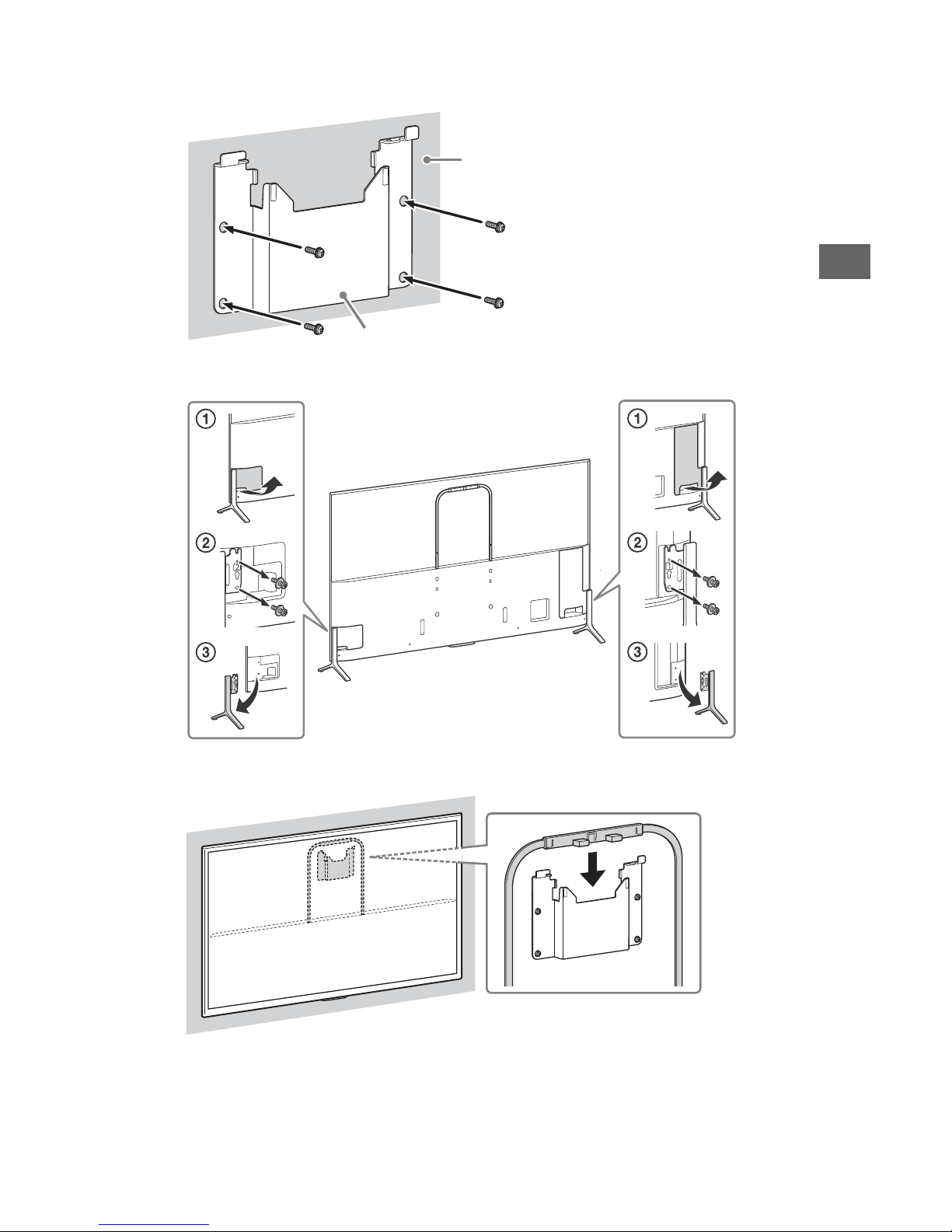
8 Attach the Wall-Mount Bracket H (supplied with the TV) to the wall correctly
using the screws (8 mm in diameter, not supplied).
9 Remove the terminal covers and detach the Table-Top Stand from the TV.
10 Hang the U-shaped Bar to the Wall-Mount Bracket on the wall.
Wall-Mount Bracket H
Wall
Page 26
26
US
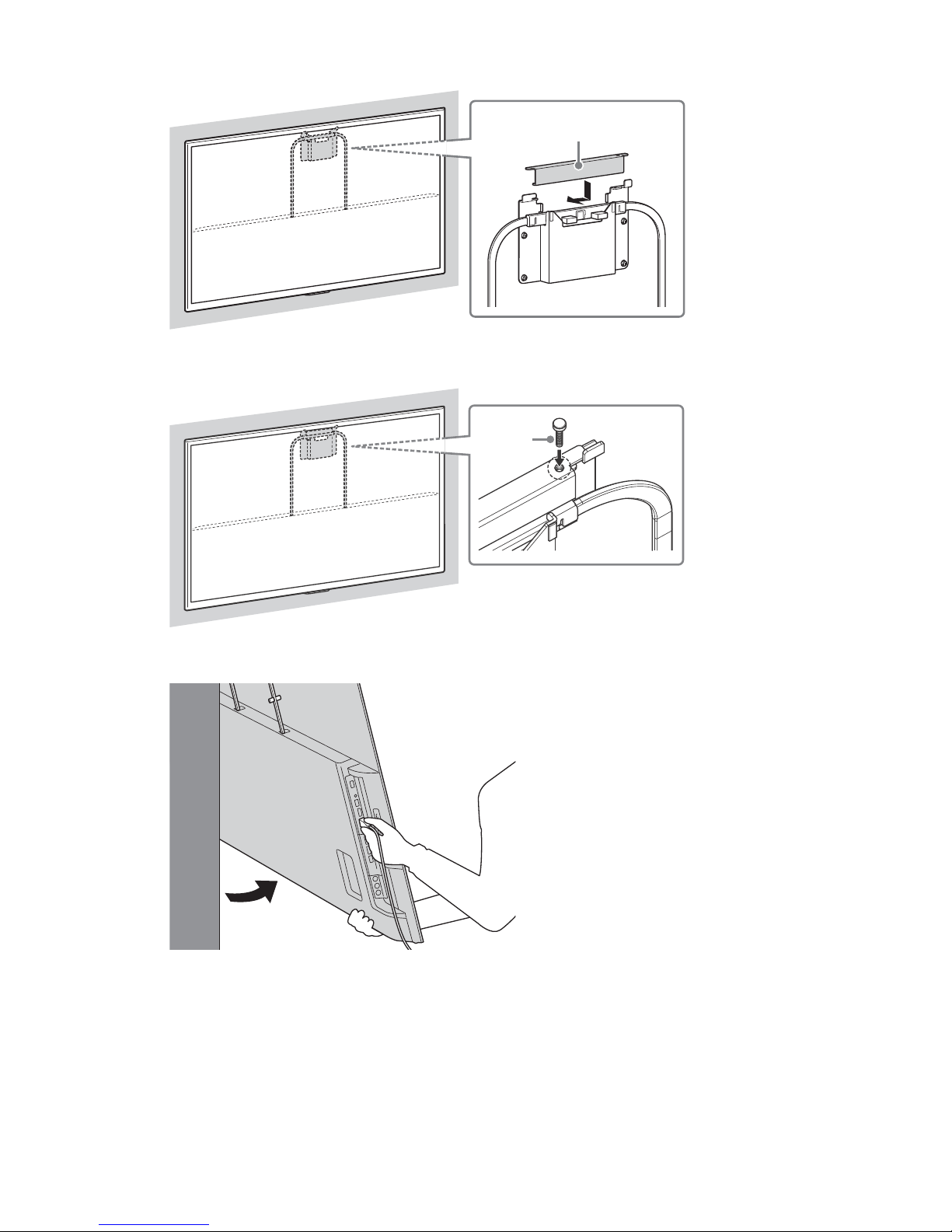
11 Attach the lock plate H (supplied with the TV).
12 Insert the lock pin H (supplied with the TV).
13 Connect cables with TV by tilting it forward.
Note
• Two people are needed to carry out this installation.
• Be sure to fasten the U-shaped Bar when attaching them to the TV.
• Use only a flat head screwdriver to install the U-shaped Bar
. Use of another tool might result in over
torqueing the U-shaped Bar and damaging the TV.
• If using an electric screwdriver, set the torque at approximately 1.5 N·m {15 kgf·cm}.
Lock plate H
Lock
pin H
Page 27
27
US
US
This TV’s instruction manual only shows the steps on preparing the installation of the TV
before installing to the wall.
Your TV can be mounted on a wall using a Wall-Mount Bracket (not supplied) out of the box
as packaged. If the Table-Top Stand is attached to the TV, the TV may require detaching the
Table-Top Stand.
Prepare the TV for the Wall-Mount Bracket before making cable connections.
For product protection and safety reasons, Sony strongly recommends that installation of
your TV on the wall be performed by qualified professionals. Do not attempt to install it
yourself.
Follow the instruction guide provided with the Wall-Mount Bracket for your model. Sufficient
expertise is required in installing this TV, especially to determine the strength of the wall for
withstanding the TV’s weight.
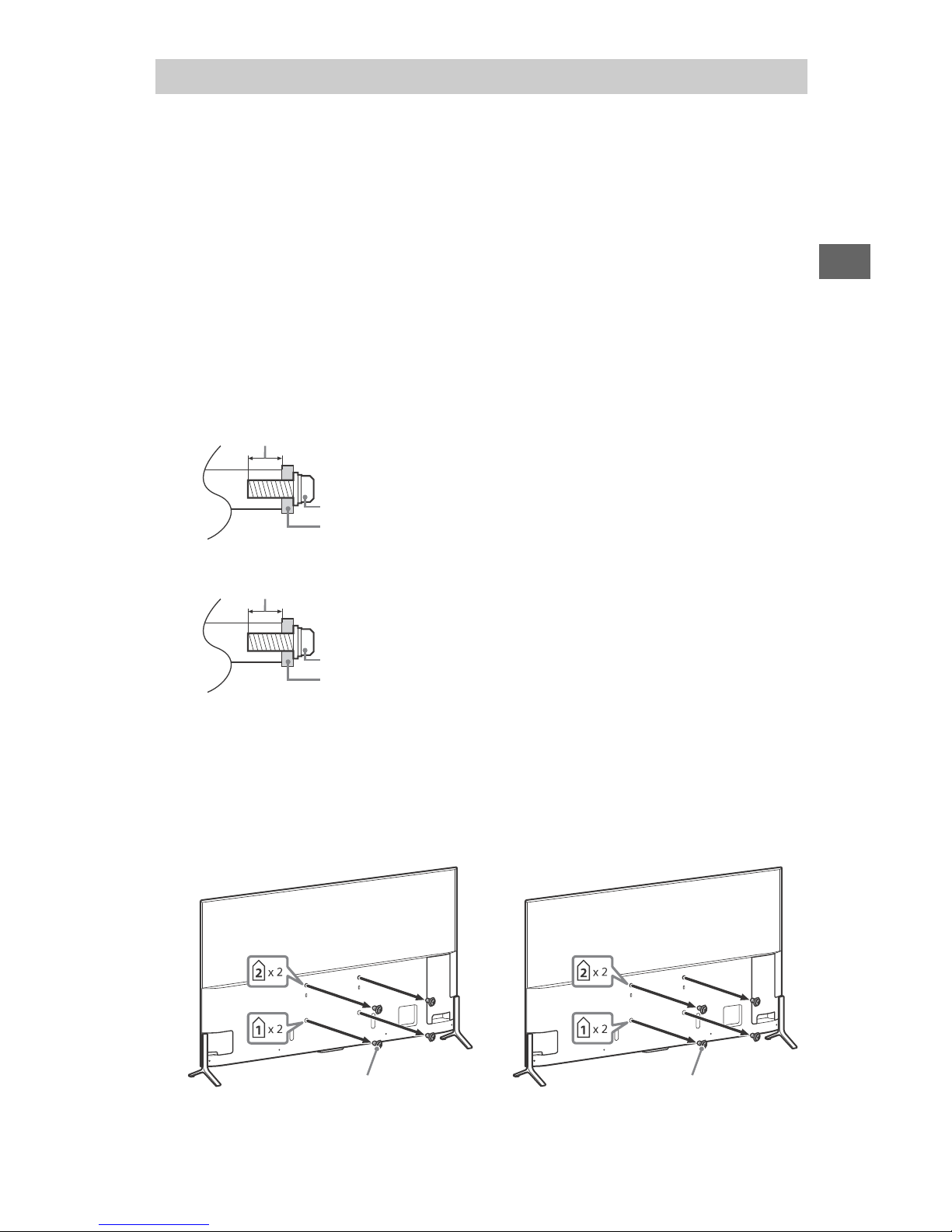
The length of the screw for Wall-Mount Bracket differs depending on the Wall-Mount Bracket
thickness. Please see below illustration.
Screw hole for the optional Wall-Mount Bracket (Upper side)
Screw hole for the optional Wall-Mount Bracket (Lower side)
Be sure to store the unused screws and Table-Top Stand in a safe place until you are ready to
attach the Table-Top Stand. Keep the screws away from small children.
Note
• Read the supplied Safety Booklet for additional safety information.
1 Remove the screws from the rear of the TV.
Using an optional Wall-Mount Bracket
Screw (M6)
Wall-Mount Bracket
8 mm - 12 mm
Screw (M6)
Wall-Mount Bracket
24 mm - 30 mm
M6 × 12
XBR-75X900C
XBR-65/55X900C
M6 × 16
Page 28
28
US
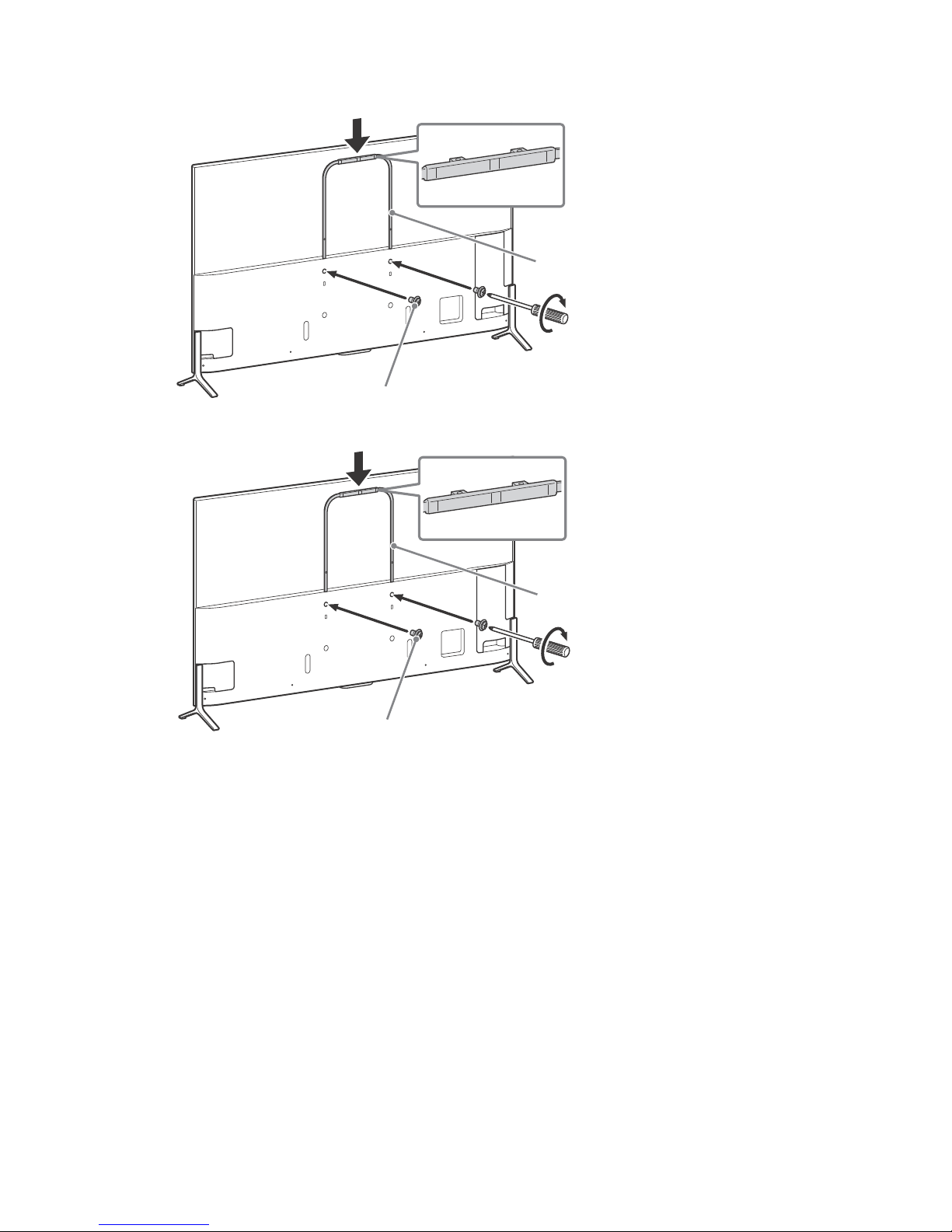
2 Attach the U-shaped Bar J (supplied with the TV) to the rear of the TV.
M6 × 20 L
U-shaped Bar J
1.5 N∙m/1,5 N∙m
{15 kgf∙cm}
XBR-75X900C
M6 × 16
U-shaped Bar J
1.5 N∙m/1,5 N∙m
{15 kgf∙cm}
XBR-65/55X900C
Page 29
29
US
US
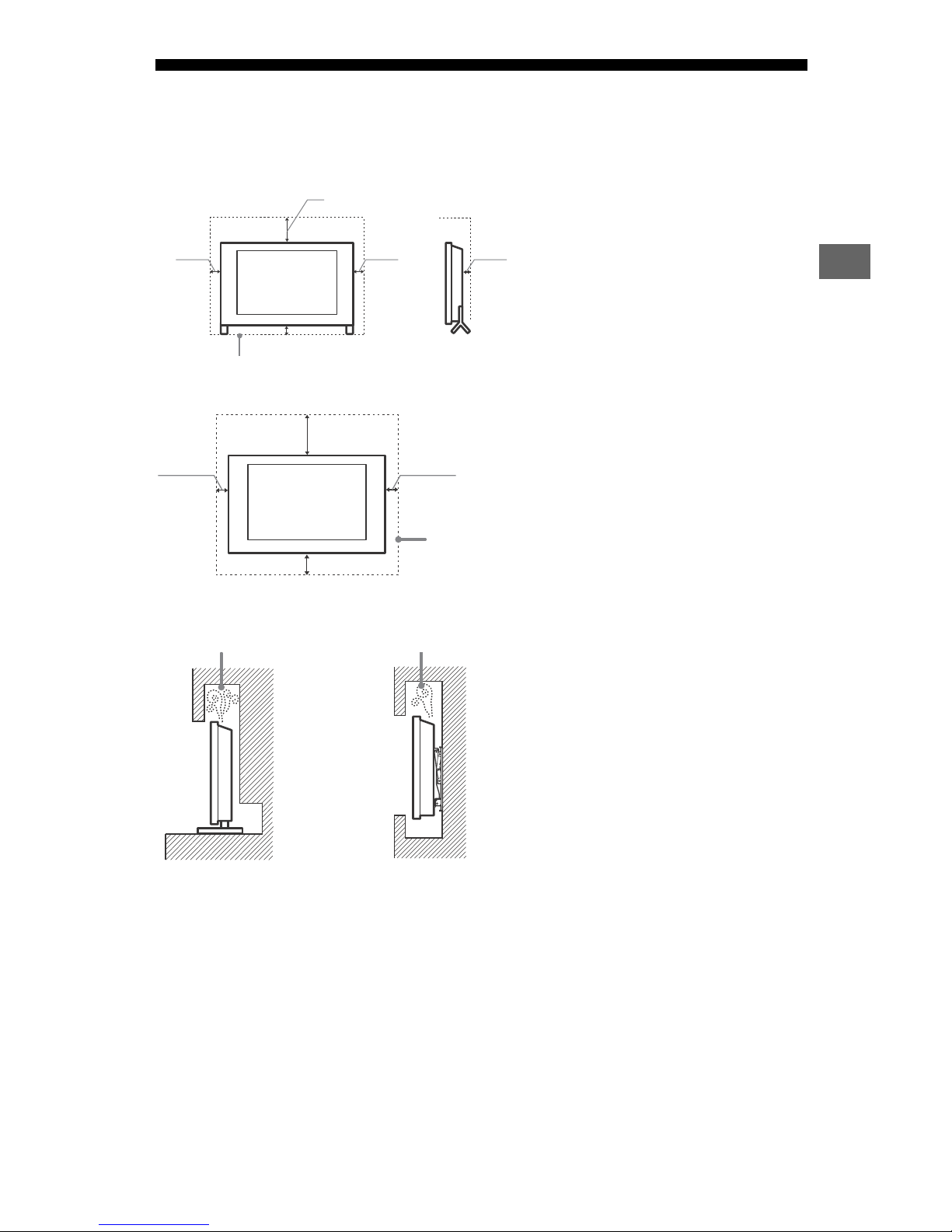
Installing the TV against a wall or enclosed area
Make sure that your TV has adequate ventilation. Allow enough space around the TV as
shown in the illustration.
Note
• Inadequate ventilation can lead to overheating of the TV and may cause damage to your TV or cause a
fire.
• Do not place anything directly below the TV.
Do not place anything directly below the TV.
Installed with stand
4 inches
11
7
/8 inches
(30 cm)
4 inches
2
3
/8 inches
(10 cm)
(10 cm) (6 cm)
Installed on the wall
Leave at least this much space around the set.
4 inches
4 inches (10 cm)
4 inches
11 7/8 inches
(30 cm)
(10 cm) (10 cm)
Never install the TV set as follows:
Air circulation is blocked. Air circulation is blocked.
Wall Wall
Page 30

30
US
Troubleshooting
In order to keep your TV software up-todate, it is necessary to download the latest
software information via the digital
broadcasting system or internet and to
update the software. Select [Update Now]
to start a software update. The illumination
LED flashes white while the software is
updating. Do not unplug the AC power cord
during the software update. If you do, the
software update may not finish completely,
and it may cause a software malfunction.
Software updates can take up to 30
minutes. If you do not wish to update the
software automatically, press HOME and
select [Help] [System software update]
[Automatic software download] [Off].
When you plug in TV, the TV may not be
able to turn on for a while even if you press
the power button on the remote control or
the TV, because it takes time to initialize the
system. Wait for about one minute, then
operate it again. When you turn on by
pressing the power button on the remote
control or the TV, it takes some time to turn
on the illumination LED and for the remote
control to be functional.
When the illumination LED is flashing red,
count how many times it flashes (interval
time is three seconds).
If the illumination LED flashes red, reset the
TV by disconnecting the AC power cord for
two minutes, then turn on the TV.
If the problem persists, contact Sony
Customer Support (information provided
on the front cover) with the number of
times the illumination LED flashes red
(interval time is three seconds). Disconnect
the AC power cord, and contact Sony
Customer Support.
When the illumination LED is not
flashing, check the items as follows.
You can also refer to [Troubleshooting] in
the Help Guide or perform self-diagnosis by
selecting [Help] [Self diagnostics]. If the
problem persists, contact Sony Customer
Support (information provided on the front
cover).
Troubles and Solutions
There is no picture (screen is dark) and no
sound.
Check the cable/antenna connection.
Connect the TV to AC power, and press the
b
utton on the TV or POWER button on the
remote control.
Some programs cannot be tuned.
Check the antenna/cable connection.
The remote control does not function.
Replace the batteries.
The Parental lock password has been
forgotten.
Enter 4357 for the PIN code. (PIN code 4357 is
always accepted.)
The TV and its surroundings become
warm.
When the TV is used for an extended period
of time, the TV and its surroundings may
become warm to the touch. This is not a
malfunction of the TV.
How to reset the TV to factory settings
Turn on the TV. You can reset the TV to
factory settings by pressing HOME, t
hen
select [Settings]
[Storage & reset]
[Factory data reset].
WARNING: The reset will clear all of your
cus
tomized settings including the [Parental
lock] setting.
For security purposes, be sure to remove all
personal and account information before
discarding, selling or passing your TV to
someone else by: unlinking/unregistering,
signing out of and deactivating all network
services as well as factory reset the TV.
Frozen audio or video, a blank screen, or
the TV does not respond to TV or remote
control buttons.
Perform a simple reset of the TV by
unplugging the AC power cord for two
minutes, then plug it in again.
Page 31
31
US
US
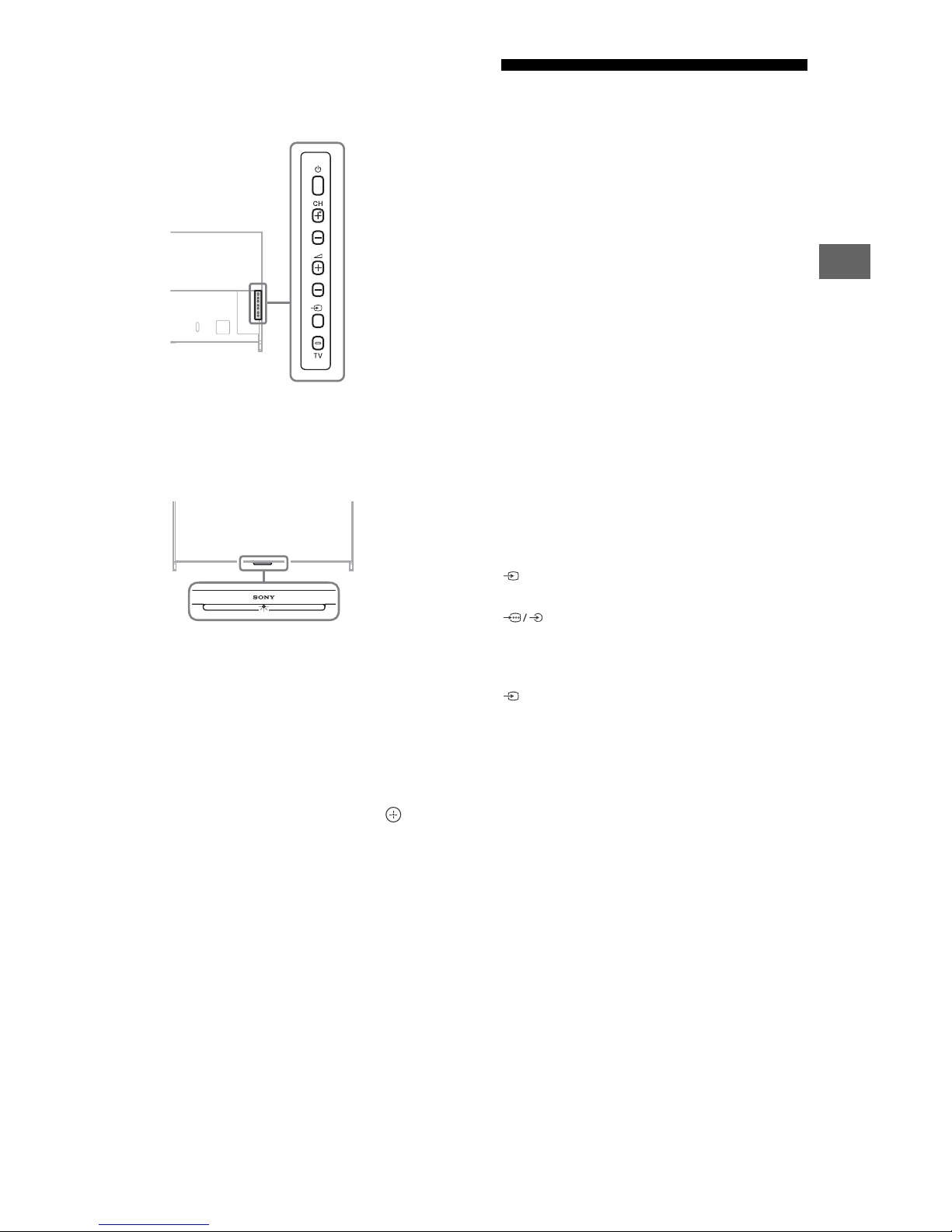
The , CH+/–, +/–, and TV buttons
cannot be located on the TV.
See below illustration for location of the
buttons on the TV.
The illumination LED is turned on.
If you do not wish to light up the illumination
LED, you can turn it off.
Press HOME, t
hen select [Settings]
[Illumination LED] [Off].
Cannot connect to a wireless router by
WPS (Wi-Fi Protected Setup).
If you use WEP security, select [Easy]
[Wi-Fi] [Connect by scan list]. Then, select
the network name (SSID) you want to
connect.
Cannot find the required network name
in network setup.
Select [[Manual entry]] and press to enter
network name.
Specifications
System
Television system
NTSC: American TV standard
ATSC (8VSB terrestrial): ATSC compliant 8VSB
QAM on cable: ANSI/SCTE 07 2000 (Does not
include
CableCARD functionality)
Channel coverage
Analog terrestrial: 2 - 69 / Digital terrestrial:
2 - 69
Analog Cable: 1 - 135 / Digital Cable: 1 - 135
Panel system
LCD (Liquid Crystal Display) Panel, LED
Backlight
Speaker output
7.5 W + 7.5 W + 7.5 W + 7.5 W
Wireless technology
Protocol IEEE802.11ac/a/b/g/n
Bluetooth Version 4.1
Input/Output jacks
CABLE/ANTENNA
75-ohm external terminal for RF inputs
/VIDEO IN 1
Video / Audio input (phono jacks)
COMPONENT IN
YPBPR (Component Video): 1080p (60 Hz),
1080i (60 Hz), 720p (60 Hz), 480p, 480i
Audio input (phono jacks)
VIDEO IN 2
Video input (common phono pin with Y
input)
HDMI IN 1/2/3/4 (Support 4K resolution)
Video (2D):
4096 × 2160p (60Hz)*
1*2
, 4096 × 2160p
(24 Hz)*
2
, 3840 × 2160p (60 Hz)*1, 3840 ×
2160p (24, 30 Hz), 1080p (30, 60 Hz), 1080/
24p, 1080i (60 Hz), 720p (30, 60 Hz), 720/
24p, 480p, 480i, PC Formats
*
1
YCbCr 4:2:0 / 8bit only
*
2
3840 × 2160p is displayed when 4096 ×
2160p is input
Video (3D):
Frame Packing: 1080p (30 Hz), 1080/24p,
1080
i (60 Hz), 720p (30, 60 Hz), 720/24p
Side-by-Side: 1080p (60 Hz), 1080/24p,
1080
i (60 Hz), 720p (60 Hz)
Over-Under: 1080p (30, 60 Hz), 1080/24p,
1080
i (60 Hz), 720p (60 Hz)
Audio: 5.1 channel linear P
CM: 32, 44.1, 48,
88.2, 96, 176.4 and 192 kHz, 16, 20 and
24 bits, Dolby Digital and DTS
ARC (Audio Return Channel) (HDMI IN 4 only)
Rear of TV
Page 32
32
US
MHL (HDMI IN 2)
Video (2D):
4096 × 2160p (24 Hz)*, 3840 × 2160p (24,
30 Hz), 1080p (30, 60 Hz), 1080/24p, 1080i
(60 Hz), 720p (30, 60 Hz), 720/24p, 480p,
480i
* 3840 × 2160p is displayed when 4096 ×
2
160p is input
Video (3D):
Frame Packing: 1080p (30 Hz), 1080/24p,
1
080i (60 Hz), 720p (30, 60 Hz), 720/24p
Side-by-Side: 1080p (60 Hz), 1080/24p,
1
080i (60 Hz), 720p (60 Hz)
Over-Under: 1080p (60 Hz), 1080p (30 Hz),
1
080/24p, 1080i (60 Hz), 720p (60 Hz)
Audio: 5.1 channel linear PCM: 32, 44.1, 48,
88
.2, 96, 176.4 and 192 kHz, 16, 20 and
24 bits, Dolby Digital and DTS
DIGITAL AUDIO OUT (OPTICAL)
Digital optical jack (Two channel linear PCM,
Dolby Digital, DTS)
AUDIO OUT / (Stereo mini jack)
Headphone, Audio Output, Subwoofer
1, 2, 3
USB port 1 and 2 support High Speed USB
(USB2.0).
USB port 3 supports Super Speed USB
(U
SB3.0).
LAN
10BASE-T/100BASE-TX connector
(Connection speed may differ depending on
the network environment. 10BASE-T/
100BASE-TX communication rate and
communication quality are not guaranteed
for this TV.)
Home Network
Refer to the Help Guide for supported
formats.
REMOTE
RS232C, Serial Control mini jack; IR IN mini
jack.
These jacks are for receiving the external
co
ntrol signal.
Others
Optional accessories
Wireless Subwoofer: SWF-BR100
MHL Cable: DLC-MC20
4K Media Player: FMP-X10 (U.S.A. only)
Active 3D Glasses: TDG-BT500A (XBR75
X910C)
Passive 3D Glasses: TDG-500P (XBR-65/
55
X900C)
Operating temperature
32 ºF – 104 ºF (0 ºC – 40 ºC)
Power and others
Power requirement
110 V - 240 V AC, 50/60 Hz (U.S.A./Canada
120 V AC, 60 Hz)
Power consumption
in use
XBR-75X910C: 309 W
XBR-65X900C: 278 W
XBR-55X900C: 241 W
in standby*
Less than 0.5 W
Screen size (inches measured diagonally)
(Approx.)
XBR-75X910C: 74.5 inches (75 class)
XBR-65X900C: 64.5 inches (65 class)
XBR-55X900C: 54.6 inches (55 class)
Display resolution
3,840 dots (horizontal) × 2,160 lines (vertical)
Output Rating
USB 1
5 V, , 500 mA MAX
USB 2
5 V, , 500 mA MAX
USB 3
5 V, , 900 mA MAX
MHL (HDMI IN 2)
5V, 1.5 A MAX
* Standby power consumption will increase
w
hen your TV is connected to the network.
Dimensions (Approx.)
with stand
Edge position:
XBR-75X910C: 1,672 × 1,031 × 336 mm /
65
7
/8 × 40 5/8 × 13 1/4 inches
XBR-65X900C: 1,451 × 897 × 257 mm /
57
1
/4 × 35 3/8 × 10 1/8 inches
XBR-55X900C: 1,232 × 774 × 257 mm /
48
5
/8 × 30 1/2 × 10 1/8 inches
Middle position:
XBR-75X910C: 1,672 × 1,031 × 336 mm /
65
7
/8 × 40 5/8 × 13 1/4 inches
XBR-65X900C: 1,451 × 897 × 257 mm /
57
1
/4 × 35 3/8 × 10 1/8 inches
XBR-55X900C: 1,232 × 766 × 257 mm /
48
5
/8 × 30 1/2 × 10 1/8 inches
Page 33
33
US
US
without stand
XBR-75X910C: 1,672 × 959 × 50 mm /
65
7
/8 × 37 7/8 × 2 5/8 inches
XBR-65X900C: 1,451 × 835 × 39 mm /
57
1
/4 × 32 7/8 × 1 9/16 inches
XBR-55X900C: 1,232 × 712 × 39 mm /
48
5
/8 × 28 1/8 × 1 9/16 inches
wall-mount hole pattern
XBR-75X910C: 400 × 300 mm
XBR-65X900C: 300 × 300 mm
XBR-55X900C: 300 × 300 mm
wall-mount screw size (mm)
M6 (length: see diagram on page 27.)
Stand width (Approx.)
Edge position:
XBR-75X910C: 1,669 mm
XBR-65X900C: 1,449 mm
XBR-55X900C: 1,230 mm
Middle position:
XBR-75X910C: 740 mm
XBR-65X900C: 576 mm
XBR-55X900C: 530 mm
Mass (Approx.)
with stand
XBR-75X910C: 35.1 kg / 77.4 lb.
XBR-65X900C: 24.0 kg / 52.9 lb.
XBR-55X900C: 19.7 kg / 43.4 lb.
without stand
XBR-75X910C: 33.7 kg / 74.3 lb.
XBR-65X900C: 23.2 kg / 51.2 lb.
XBR-55X900C: 18.4 kg / 40.6 lb.
Note
• Optional accessories availability depends on
countries/region/TV model/stock.
• Design and specifications are subject to change
w
ithout notice.
• This TV set incorporates MHL 3.
Licensing Information
• The terms HDMI and HDMI High-
Definition Multimedia Interface, and
the HDMI Logo are trademarks or
registered trademarks of HDMI
Licensing LLC in the United States and
other countries.
• Fergason Patent Properties, LLC:
U.S. Patent No. 5,717,422
U.S. Patent No. 6,816,141
• Manufactured under license from
Dolby La
boratories. Dolby and the
double-D symbol are trademarks of
Dolby Laboratories.
• “BRAVIA” and , S-Force,
Motionflow, BRAVIA Sync, and are
trademarks or registered marks of
Sony
Corporation.
• Gracenote, Gracenote eyeQ, Gracenote
V
ideoID, Gracenote Video Explore, the
Gracenote logo and logotype, and the
“Powered by Gracenote” logo are
either registered trademarks or
trademarks of Gracenote in the United
States and/or other countries.
•Opera® Devices SDK from Opera
Softw
are ASA. Copyright 1995-2014
Opera Software ASA. All rights
reserved.
• Wi-Fi, Wi-Fi Direct, Miracast and Wi-Fi
P
rotected Setup are trademarks or
registered trademarks of Wi-Fi
Alliance.
• MHL, Mobile High-Definition Link and
th
e MHL Logo are trademarks or
registered trademarks of MHL
Licensing, LLC.
• For DTS patents, see
http://patents.dts.com
. Manufactured
under license from DTS, Inc. DTS, the
Symbol, & DTS and the Symbol
together are registered trademarks,
and DTS Digital Surround is a
trademark of DTS, Inc. © DTS, Inc. All
Rights Reserved.
• Designed with UEI Technology™ Under
Lic
ense from Universal Electronics Inc.
Portions © UEI 2000 - 2014
• The Bluetooth® word mark and logos
a
re owned by the Bluetooth SIG, Inc.
and any use of such marks by Sony
Corporation is under license. Other
trademarks and trade names are those
of their respective owners.
• TUXERA is a registered trademark of
T
uxera Inc. in the US and other
countries.
• USB-IF SuperSpeed USB Trident logo is
a r
egistered trademark of USB
Implementers Forum, Inc.
• The N Mark is a trademark or
r
egistered trademark of NFC Forum,
Inc. in the United States and in other
countries.
Page 34
34
US
Page 35
©2015 Sony Corporation Printed in U.S.A. 4-562-198-12(1)
For Your Convenience
Online
Registration:
Be sure to register your TV.
United States
Canada
http://productregistration.sony.com
http://www.sony.ca/registration
Software
Updates:
Your TV is capable of receiving software updates. For the
latest information about software updates for your TV, visit:
United States
Canada
http://www.sony.com/tvsupport
http://www.sony.ca/support
NOTE: If your TV is connected to the Internet, you can check
for software updates by selecting [Help], [System software
update] and then [Check for a system software update].
Pour votre commodité
Enregistrement
en ligne
:
Faire en sorte de compléter l’enregistrement de votre
téléviseur.
Canada
États-Unis
http://www.sony.ca/fr/registration
http://productregistration.sony.com
Mise à jour du
logiciel :
Votre téléviseur est en mesure de recevoir des mises à jour
logicielles. Pour obtenir les renseignements les plus à jour
sur les mises à jour du logiciel de votre téléviseur, visitez :
Canada
États-Unis
http://support.sony.ca/fr
http://www.sony.com/tvsupport
REMARQUE : Si votre téléviseur est connecté à Internet,
vous pouvez vérifier les mises à jour du logiciel en
sélectionnant [Aide], [Mise à jour du logiciel], puis [Vérifier
les mises à jour du logiciel].
Page 36
M5 × 10
XBR-65X900C / 55X900C
M5
×
12
XBR-75X910C
(4)
XBR-55X900C
XBR-75X910C/
65X900C (2),
XBR-55X900C (4)
M6 × 32
XBR-55X900C
(3) XBR-75X910C (4)
M6 × 20
AAA
(2)
Television
Téléviseur
Televisor digital a
color con pantalla de
cristal líquido
Startup
Guide
Startup Guide
US
Guide de démarrage
FR
Guía de inicio
ES
Television
Reference Guide
US
Guide de référence
FR
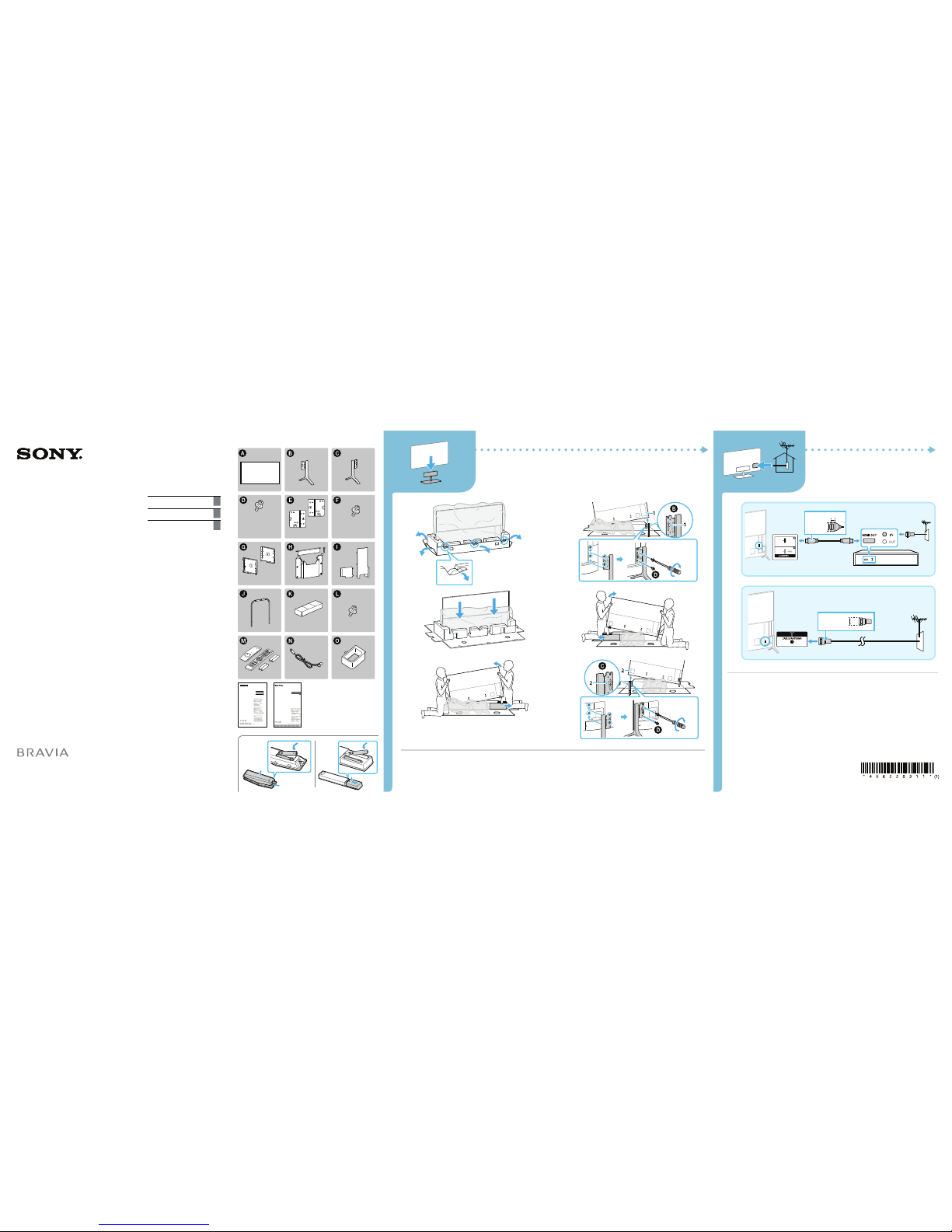
1
2
3
4
5
6
1.5 N∙m/1,5 N∙m
{15 kgf∙cm}
1.5 N∙m/1,5 N∙m
{15 kgf∙cm}
A
CATV
< 14 mm
B
HDMI
< 12 mm
< 21 mm
CATV
Connections Refer to "Connecting the TV" in
the Reference Guide for additional
connection information.
Raccordements Reportez-vous à « Raccorder
le téléviseur » dans le Guide de référence
pour les autres méthodes de raccordement.
Conexiones Consulte la “Conexión del TV” en
la Guía de Referencia para obtener
información sobre otros métodos de
conexión.
Refer to “Safety Information” in the
Reference Guide before transporting the TV.
To change the Table-Top Stand to an
alternative position, refer to Reference
Guide.
Reportez-vous aux « Consignes de
sécurité » du Guide de référence avant de
transporter le téléviseur.
Pour mettre le support de table dans une
autre position, reportez-vous au Guide de
référence.
Consulte la “Información sobre seguridad”
en la Guía de Referencia antes de
transportar el TV.
Para cambiar el soporte para mesa a una
posición alternativa, consulte la Guía de
Referencia.
× 6
XBR-75X910C / 65X900C / 55X900C
© 2015 Sony Corporation Printed in U.S.A. 4-562-203-11(1)
Television
Téléviseur
Televisor digital a
color con pantalla de
cristal líquido
Startup
Guide
Startup Guide
US
Guide de démarrage
FR
Guía de inicio
ES
Sony Customer Support
U.S.A.:
http://www.sony.com/tvsupport
Canada:
http://www.sony.ca/support
United States
1.800.222.SONY
Canada
1.877.899.SONY
Please Do Not Return
the Product to the Store
Service à la clientèle Sony
Canada :
http://support.sony.ca/fr
États-Unis :
http://www.sony.com/tvsupport
Canada
1.877.899.SONY
États-Unis
1.800.222.SONY
Ne retournez pas le produit au magasin
Centro de Asistencia de
Sony
http://esupport.sony.com/ES/LA/
Llame al número telefónico que
aparece en su póliza de garantía.
Por favor no devuelva el producto a la
tienda donde adquirió el producto.
Page 37
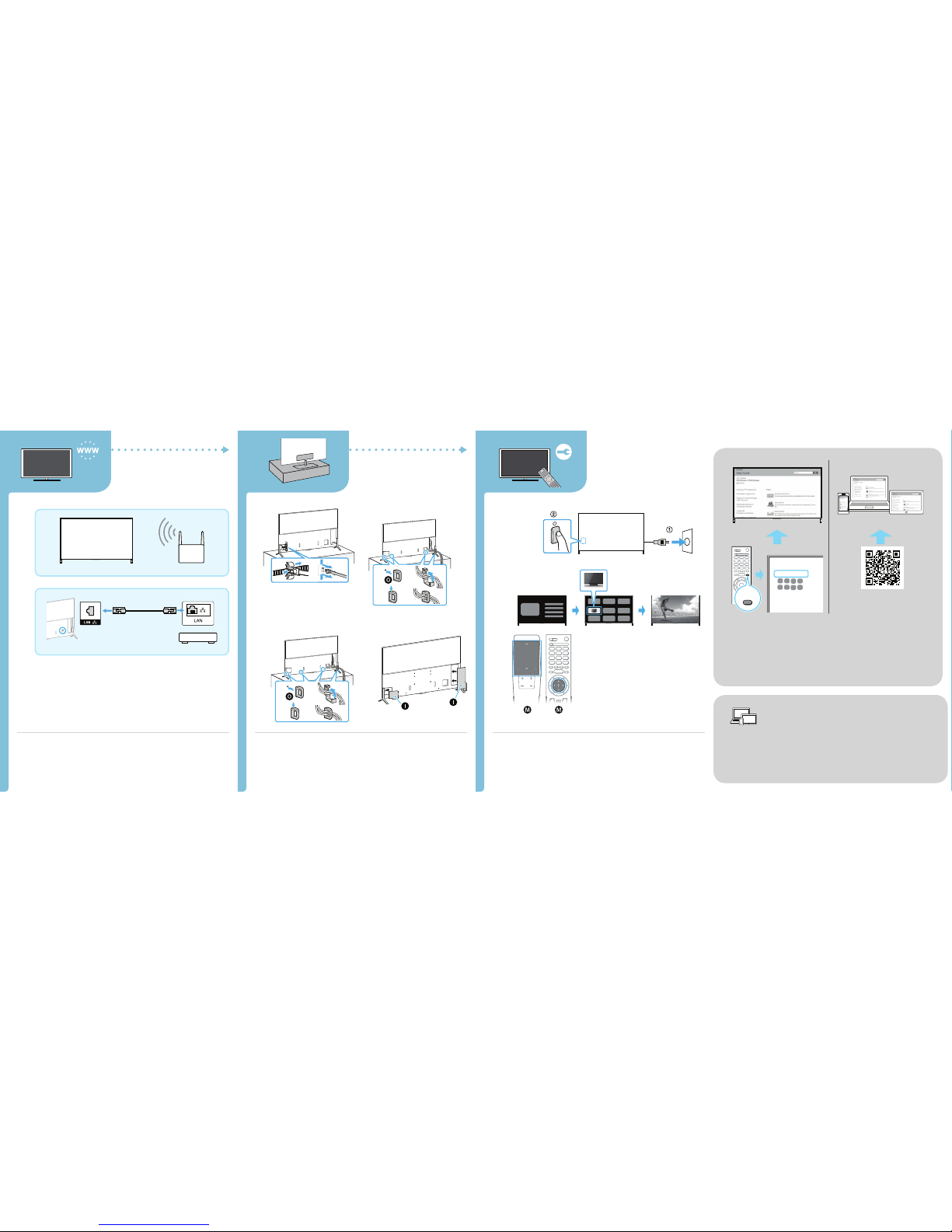
Installation Do not bundle the AC power
cord together with other cables.
Installation Ne regroupez pas le cordon
d’alimentation secteur avec d’autres câbles.
Instalación No una el cable de alimentación
de CA con otros cables.
Turn on the TV and perform the initial setup.
Allumez le téléviseur et effectuez la
configuration initiale.
Encienda el TV y lleve a cabo la instalación
inicial.
A
B
ROUTER / ROUTEUR / RUTEADOR
ROUTER / ROUTEUR / RUTEADOR
Internet connection wireless (A), wired (use
category 7 LAN cable) (B). Refer to the
manual supplied with the router for the
router's settings.
Connexion Internet sans fil (A), câblée
(utilisez un câble LAN de catégorie 7) (B).
Reportez-vous au manuel fourni avec le
routeur pour obtenir les paramètres de
routeur appropriés.
Conexión inalámbrica a Internet (A),
cableada (utilice el cable LAN de categoría 7)
(B). Consulte el manual suministrado con el
ruteador en la configuración del ruteador.
1
XBR-55X900C
ʓʕ
ʔʖ
23
ʔʓ
ʓʕ
ʔʖ
XBR-75X910C/65X900C
1
2
HELP
+HOS
+HOS*XLGH
http://rd1.sony.net/help/tv/
cusltn1/h_us/
Help Guide : Information on how to use
the TV's features. Available on both the TV
and the Web.
Guide d’aide : Informations sur l’utilisation
des fonctions du téléviseur. Disponible sur
le téléviseur et le Web.
Guía de ayuda: Información acerca de
cómo usar las funciones del TV. Disponible
tanto en el TV como en la Web.
http://rd1.sony.net/help/tv/cusltn2/h_us/
Android TV Setup Guide:
Available on the Web.
Guide de configuration de télévision
Android :
Disponible sur le Web.
Guía de Instalación de TV de Android:
Disponible en la Web.
Page 38
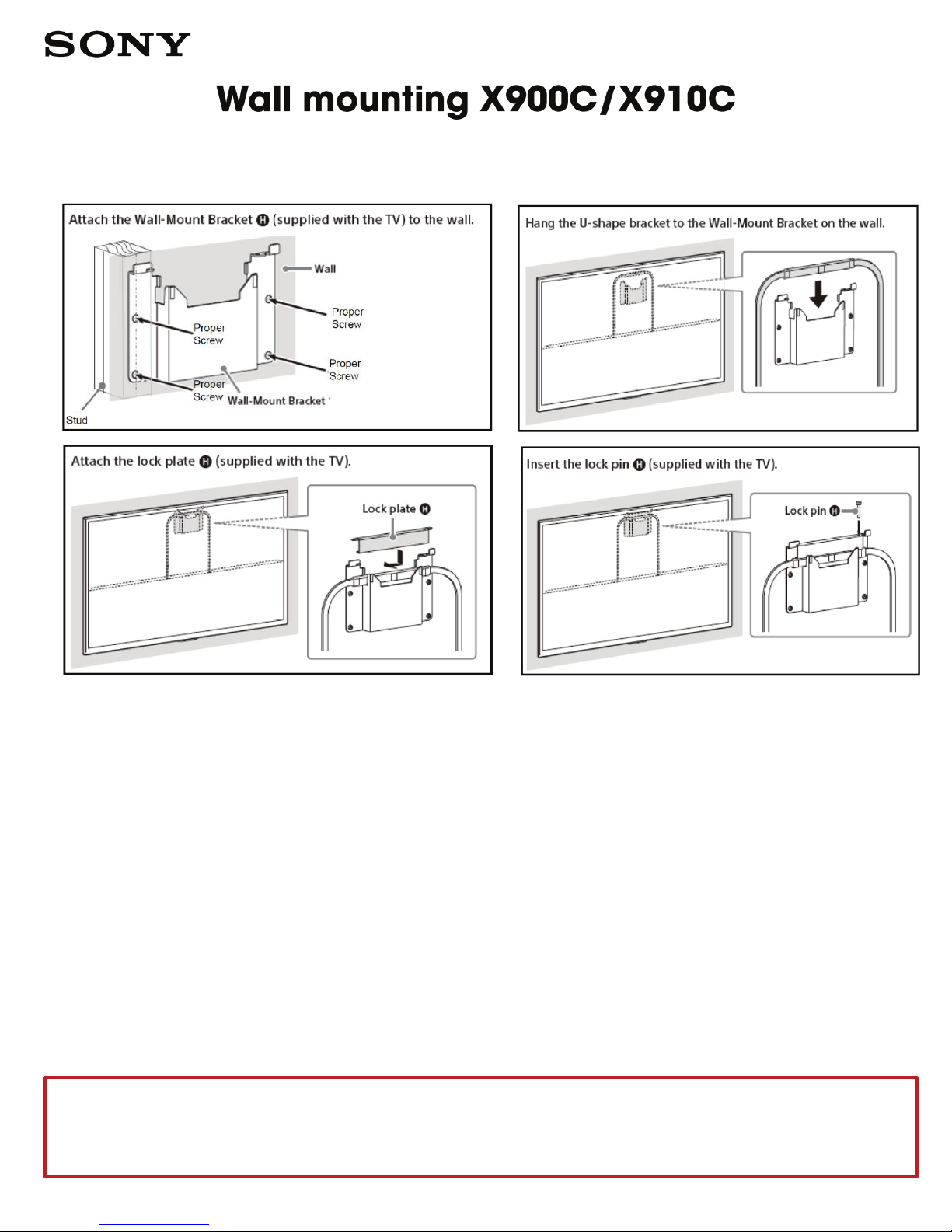
Please consult professional advice prior to installation.
Wall construction and mounting location can vary widely. For safety, TV mount screws have not been included.
1. Do not install the wall mount on curved wall surfaces such as a pillar, or where the corners or the
sides of the TV protrude away from the wall surface.
2. Install the TV on a wall that is both vertical and flat. (installing the TV on an overhanging,
unstable, or uneven wall may cause the TV to fall and cause injury or property damage)
3. If mounting to wooded joint, make sure that the mounting screws are anchored into the center
of the stud. The use of a stud finder is highly recommended. Spacing of the 4 holes in the wall
mount bracket are too far apart for more than 2 lag bolts to hit a vertical wall stud.
4. Installers are responsible for providing any hardware not included in the packaging necessary to
mount the TV.
5. Installer must verify that the supporting surface will safely support 4 times the combined weight
of the equipment and all attached hardware and components. The wall mount can handle a
television weight and all attached hardware and components up to 110lb.
Please ensure that the supplied wall mount bracket is secured to a surface
using a combination of screws into studs and anchors/toggle bolts that can
support 4 times the weight of the TV.
Model Weight (without Stand)
•XBR-55X900C : Approx. 41 lbs (19 Kg)
•XBR-65X900C : Approx. 52 lbs ( 24 Kg)
•XBR-75X910C : Approx. 75 lbs ( 34 Kg)
Page 39
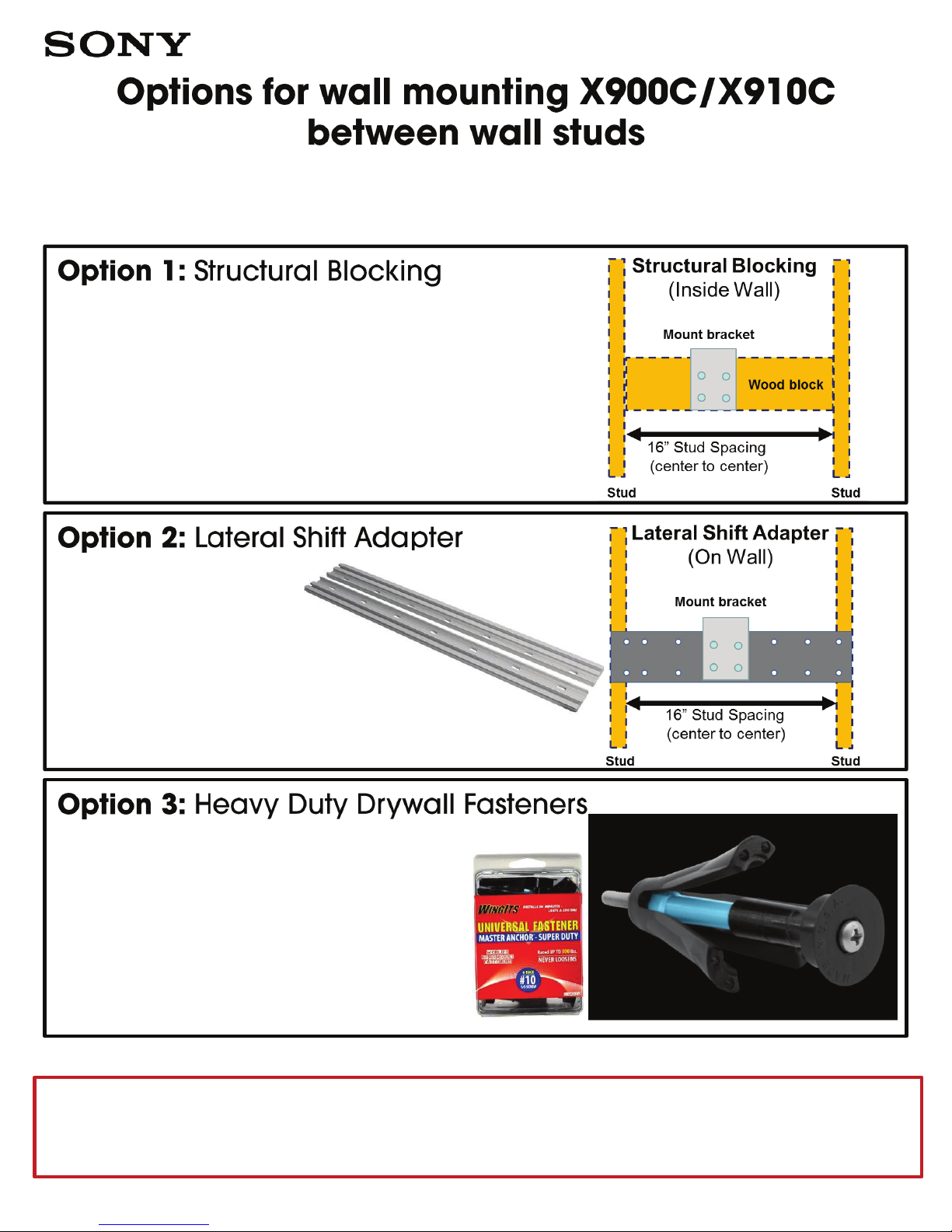
Please consult professional advice prior to installation.
Wall construction and mounting location can vary widely. For safety, TV mount screws have not been included.
• Cut hole in the drywall
• Add wood brace behind drywall
• Replace drywall
• Bolt bracket to wood brace
Example: Chief PAC125
• Retail price $64.99
• No need to cut hole in Drywall
• Adds ½” of thickness
Example: WingIts Anchor™ Super Duty
• Retail Price $18.99
• No need for structural blocking
• Guaranteed to never loosen
• Rated up to 300 lbs.
Please ensure that the supplied wall mount bracket is secured to a surface
using a combination of screws into studs and anchors/toggle bolts that can
support 4 times the weight of the TV.
Model Weight (without Stand)
•XBR-55X900C : Approx. 41 lbs (19 Kg)
•XBR-65X900C : Approx. 52 lbs ( 24 Kg)
•XBR-75X910C : Approx. 75 lbs ( 34 Kg)
Page 40
Page 41
Page 42
English
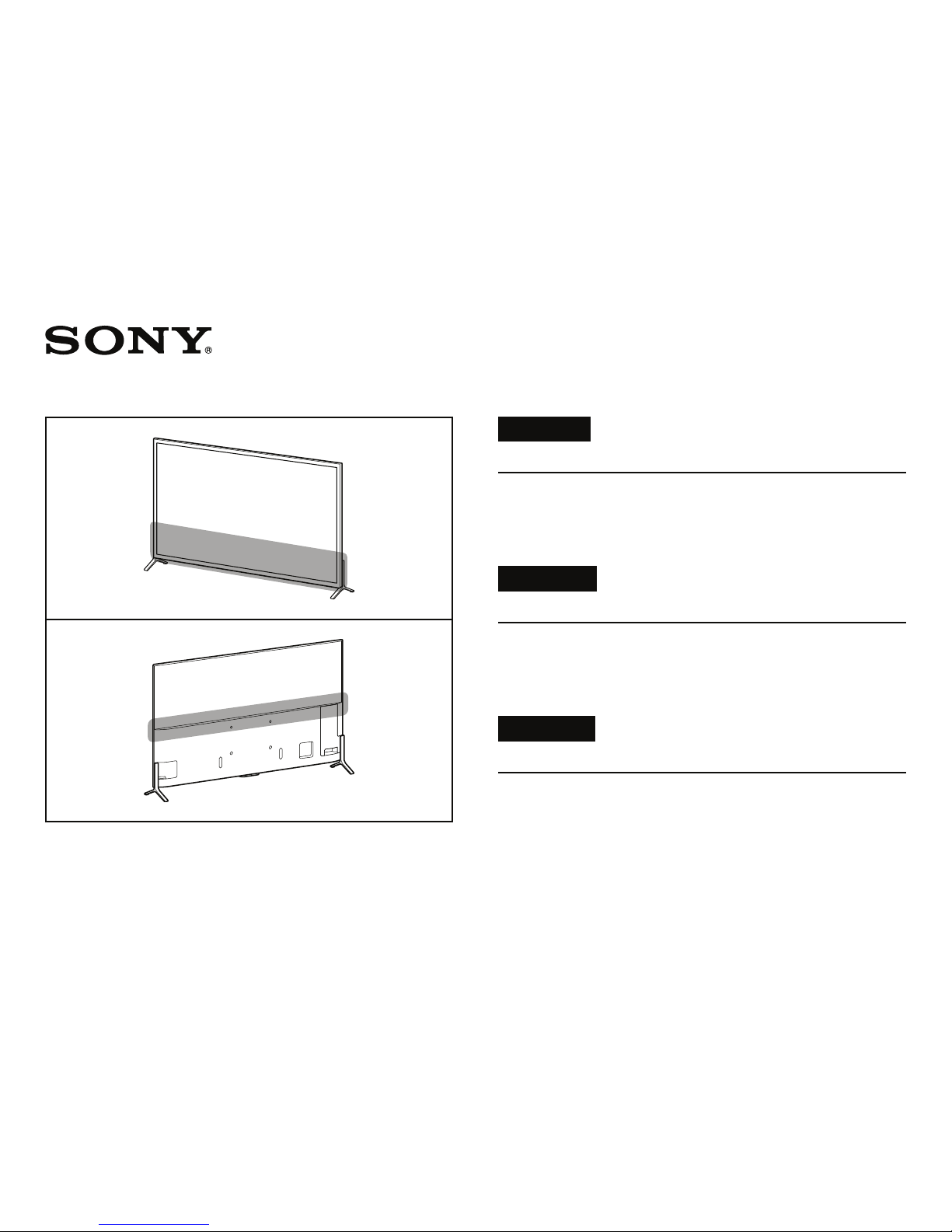
About TV Temperature
When the TV is used for an extended period of time, the
front, bottom and rear of the TV may become warm to the
touch.
Français
À propos de la température du téléviseur
Lorsque le téléviseur est utilisé pendant une longue période,
l’avant, le dessous et l’arrière du téléviseur peuvent devenir
chauds au toucher.
Español
Acerca de la temperatura del TV
Cuando el TV se utiliza durante un período de tiempo
prolongado, es posible que el frente, la parte inferior y la
parte trasera del TV se sientan calientes al tocarlos.
4-577-024-11(1)
© 2015 Sony Corporation Printed in Mexico
Page 43
4-570-726-12(1)
English
Note
When you plug in TV, the TV may not be able to turn on for a while even
if you press the power button on the remote control or the TV, because
it takes time to initialize the system. Wait for about one minute, then
operate it again.
When you turn on by pressing the power button on the remote control
or the TV, it takes some time to turn on the illumination LED and for the
remote control to be functional.
Use of this TV requires consent to Google Terms of Service and Privacy
Policy. Please visit
http://www.google.com/policies/terms/
http://www.google.com/policies/privacy/
Français
Remarque
Lorsque vous branchez le téléviseur, le téléviseur pourrait ne pas
s’allumer pendant un moment même si vous appuyez sur la touche
d’alimentation de la télécommande ou du téléviseur, car l’initialisation
du système prend quelques instants. Attendez environ une minute, puis
faites-le fonctionner de nouveau.
Lorsque vous l’allumez en appuyant sur la touche d’alimentation de la
télécommande ou du téléviseur, il faut un certain temps pour que la DEL
d’éclairage s’allume et que la télécommande fonctionne.
L’utilisation de cette TV exige d’accepter les conditions d’utilisation et la
politique de confidentialité de Google. Veuillez cliquer
http://www.google.com/policies/terms/
http://www.google.com/policies/privacy/
Page 44

Español
Nota
Luego de conectar el TV, es posible que el TV no encienda por un
momento, incluso si presiona el botón de encendido del control remoto
o del TV, ya que iniciar el sistema toma un poco de tiempo. Espere
alrededor de un minuto e intente encenderlo nuevamente.
Si enciende el TV a través del botón de encendido del control remoto o
del TV, el LED de iluminación demora un momento en encenderse y el
control remoto demora un momento en funcionar.
El uso de este TV requiere el consentimiento de las Condiciones de
Servicio y Política de Privacidad de Google. Por favor, visite
http://www.google.com/policies/terms/
http://www.google.com/policies/privacy/
© 2015 Sony Corporation
Page 45
Page 46
ENGLISH
FRANf;AIS
ESPANOL
Preventing
TV
Tip-Over
Accidents
The
U.S.
Commission
at
were treated in
rooms because
TV
2005,
deaths. More
deaths involved young children. The injuries
and deaths frequently take place when kids
climb
up
chests and televisi
televisions placed
and cause a child
sometimes fatal injury.
Consumer Product Safety
(CPSC)
least 3,000 children younger
tip-overs. In addition, from 2000
CPSC
onto, fall against
on
shelves, bookcases, dressers, desks,
estimates
U.S.
hospitals emergency
of
injuries associated
received reports
than
80 percent
on
stands. In some
on
top
to
suffer a traumatic and
that
than
of
36 TV
of
all these
or
pull themselves
of
furniture
in 2005
age 5
with
through
tip-over
cases,
tip
over
Watch Out!
Faites attention!
Eviter les accidents
renversement
La
commission
de consommation
qu'en 2005 au moins 3 000 enfants de moins
de
cinq ans
d'urgence des hopitaux etats-uniens
blessures associees
televiseurs. De plus, de 2000
re~tu
des rapports de 36 deces causes par
renversement de teh?viseur. Plus de 80
cent
de
enfants.
lieu lorsque les enfants
grimpent
bibliotheques, des commodes, des bureaux,
des armoires
Dans certains
des meubles
blessure grave
de
surveillance des produits
(CSPC)
ont
ete traites dans les
ces
deces
Les
impliquaient
blessures
ou
se
hissent sur des tablettes, des
et
des supports de televiseur.
cas,
les
se
renversent
et
parfois fatale a
de
de
televiseur
des t.-U. estime
sa
lies
pour
a des renversements de
a 2005,
Ia
CSPC
un
pour
de
et
les deces
tom
televiseurs places sur
jeunes
ont
bent
centre,
et
causent une
I'
enfant.
souvent
des
Prevencion
de
accidentes
vuelco y caida del televisor
La
Comision de Seguridad
EE.UU.
(CPSC)
lo menos 3,000 nines menores
recibieron
hospitales de Estados Unidos
lesiones recibidas
Asimismo, entre los a nos 2000 y 2005,
a
recibio informes de 36 muertes causadas
por
volcarse un televisor. Mas del80o/o de
las
muertes fueron
frecuencia,
cuando
sobre el o trata
escritorios o bases
cases, cuando
de
un
causando trauma ffsico y hasta
nines.
calcula
tratamiento
al
las
lesiones y muertes suceden
un
nino
se
de
se
mueble, este puede volcarse y caer
:"~'
coloca
de
que
en
de emergencia en
volcarse
de
nines pequenos. Con
trepa a
un
subirse en repisas, roperos,
de
televisor.
un
II
por
Productos
el
2005
de
debido a las
un
televisor,
En
televisor encima
Ia
por
5 a nos
televisor.
Ia
cae
algunos
muerte
;:.
de
CPSC
en
))
jCuidado!
The following safety tips are
to
recommended
furniture or
• Verify
that
furniture
added security
attach
entertainment
shelving, and bureaus using appropriate
hardware, such
toggles.
• Place
appropriate
rise base.
•
Push
• Place electrical cords and audio/visual cables
out
play
• Remove items
climb
and remote controls, from
furniture.
See
information
television
that
is
to
the
wall
units,
the
television
for
the
television
of
a child's reach, and teach kids
with
them
.
that
on
or
near
the
operating instruction
on
prevent
TV
tip-overs:
is
placed
stable on its
it
is
recommended
or
anchor
TV
stands, bookcases,
as
brackets, screws,
on
sturdy furniture
the
size
of
the
as
far back
might
the
how
tempt
television, such
top
to
secure
only
own.
to
the
TV
as
of
for
the TV.
on
For
that
floor
or
or
on
possible.
not
kids
to
as
the
TV and
more
you
all
a low-
to
toys
Les
conseils
de
securite suivants
sont recommandes pour eviter
de
les renversements
de
ou
• Assurez-vous
• Placez le televiseur sur un
• Poussez le televiseur aussi loin
• Placez les cordons electriques
• Retirez
televiseurs :
que
seulement sur
par lui-meme. Pour
il est recommande de fixer au
sol toutes les unites
supports de televiseur,
les tablettes
Ia
quincaillerie appropriee,
supports, des vis ou des boulons
approprie
une base basse.
vers l'arriere .
audio/video
montrez-leur de
du
meubles les objets
enfants
a
com
Reportez-vous aux directives
pour
Ia
grim
me
des jouets
obtenir
fa~ton
de
le televiseur est place
un
meuble
augmenter
de
et
les bureaux au moyen de
pour
Ia
taille
hors
de
Ia
ne
dessus
pas
du
qui
per sur ou pres
ou
d'autres renseignements sur
securiser le televiseur.
meubles
qui
est stable
Ia
securite,
mur
divertissement, les
les
ou au
bibliotheques,
comme
des
a ailettes.
meuble
du
portee
jouer
televiseur
pourraient inciter les
des telecommandes.
robuste
televiseur
que
et
les cables
des enfants
avec eux.
et
des
du
televiseur,
d'ut
ilisation
ou
possible
sur
~
A continuacion
algunos consejos
se
presentan
de
seguridad
recomendados para prevenir el
de
vuelco y Ia caida
• Asegurese de
colocado sobre muebles
si. Para
en
que
todas
bases para televisor, libreros, repisas o buros
se
sujeten a
mensulas, tornillos o abrazaderas adecuadas.
• Coloque
adecuado
que
base
• Coloque
que
sea
• Coloque los cables electricos y del sistema
audiovisual fuera del alcance
enseneles a
• Retire cualquier
et
o controles
televisor o del
los nines a treparse en
el.
Consulte
funcionamiento
informacion sobre
televisor.
que
mayor seguridad,
las
unidades de entretenimiento,
Ia
pared o
el
televisor en
al
tamano
no
sea
alta.
el
televisor lo mas atras del
posible.
que
no
objeto
remote
mueble y que
las
instrucciones
para
televisores:
el
televisor sola
que
al
pi
so
un
mueble
del aparato o en una
deben
jugar
como
que
este encima del
el
televisor o cerca
de
obtener
como
asegurar
mente
sean estables
se
recomienda
usando
de
juguetes
pudiera incitar a
mas
este
las
solido
mueble
los nines y
con cables.
de
el
© 2009 Sony Corporation Printed
in
U.S.A.
Page 47
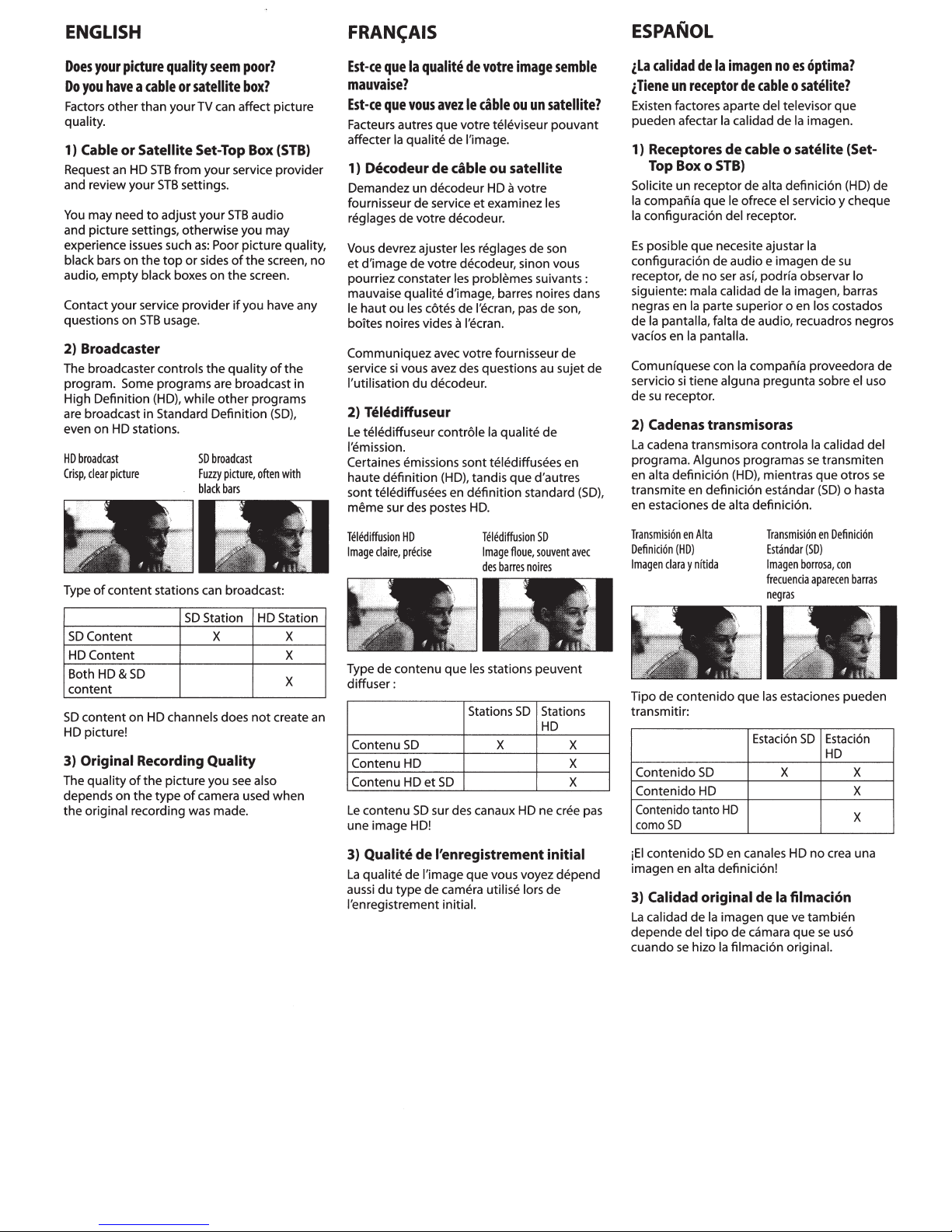
ENGLISH
Does
your
picture
quality
seem
Do
you
have a cable
Factors
other than your
quality.
1)
Cable
or Satellite
Request
and review your
You
and
experience
black
audio, empty black
Contact your service provider
questions on
2) Broadcaster
The
program.
High Definition
are
even
HD
Crisp,
an
HD
may need to adjust your
picture settings, otherwise you may
issues
bars
on the top or
broadcaster controls the quality
Some
broadcast
on
HD
broadcast
clear
picture
or
satellite
TV
can
Set-Top
STB
from your service provider
STB
settings.
STB
such
as:
Poor
sides
boxes
on the
STB
usage.
programs
(HD)
in
Standard Definition
stations.
are
, while other programs
SD
broadcast
Fuzzy
picture, often
black
bars
poor?
box?
affect picture
Box
(STB)
audio
picture quality,
of
the
screen,
screen.
if
you have any
of
broadcast in
the
(SD),
with
FRAN~AIS
Est-ce
que
Ia
qualite
de
votre
mauvaise?
Est-ce
que
vous
avez
le
cable
Facteurs
affecter
1)
Demandez un decodeur
fournisseur
reglages de votre decodeur.
Vous
no
et d'image de votre decodeur, sinon vous
pourriez con stater
mauvaise qualite d'image, barres noires
le
boites noi
Communiquez
service
!'utilisation du decodeur.
2) Teh!diffuseur
Le
!'emission.
Certaines emissions sont telediffusees
haute definition
sont telediffusees
meme sur
autres que votre
Ia
qua lite de !'image.
Decodeur de cable
de
service et
devrez ajuster
haut ou
les
res
si
vous
telediffuseur
des
les
les
c6tes de l'ecran,
vides a l'ecran.
avec
votre fournisseur de
avez
des
contr61e
(HD),
en
definition standard
postes HD.
teh~viseur
ou
HD
exam
reglages de
problemes suivants :
questions
Ia
tandis que d'autres
image
ou
un
satellite?
satellite
a votre
inez
les
son
pas
de
au
qua lite de
semble
pouvant
dans
son,
sujet de
en
(SD),
ESPANOL
zla
caUdad
de
Ia
imagen
zTiene
un
receptor
Ex
isten facto
pueden afectar
1)
Receptores
Top
Solicite un receptor de alta definici6n
Ia companfa que
Ia
configuracion del receptor.
Es
posible que necesite ajustar
configuracion de audio e imagen de
receptor, de no
siguiente: mala calidad de
negras
Ia
de
vacfos
Comunfquese con
servicio
su
de
2)
Cadenas
La
cadena transmisora controla
programa. Algunos programas
en
alta definicion
transmite
en
estaciones de alta definicion.
res
a parte del televisor que
Ia
de cable o satelite (Set-
Box o STB)
ser
en
Ia
parte superior o
pantalla, falta de audio, recuadros negros
en
Ia
pantalla.
si
tiene alguna pregunta
receptor.
transmisoras
en
definicion estandar
noes
de
cable o satelite?
calidad de
le
ofrece
asf,
Ia
(HD)
Ia
el
servicio y cheque
podrfa observar lo
Ia
imagen,
en
com
pan
fa
, mientras que otros
optima?
imagen.
Ia
los
costados
proveedora de
sob
Ia
calidad del
se
transmiten
(SD) o hasta
(HD)
su
barras
re
el
de
uso
se
Type
of
content stations
SDContent
HDContent
Both HD&SD
content
SD
content on
HD
picture!
3)
Original
The
quality
depends on the type
the original recording
HD
channels does not create
Recording
of
the picture you
can
broadcast:
SD
Station
X X
Quality
of
camera
was
made.
see
HD
also
used
Station
X
X
when
Telediffusion
Image
claire, precise
Type
de
diffuser :
an
Contenu
Contenu
Contenu
Le
contenu
une image HD!
3)
Qua
lite de !'enregistrement initial
La
qualite
aussi
du type de camera utilise lors de
!'enregistrement initial.
HD
contenu que
SD
HD
HD
et
SD
sur
de
!'image que vous voyez depend
SD
des
Telediffusion
Image
floue,
des
barres
noires
les
stations peuvent
Stations
SD
X X
canaux
HD
SD
souvent
Stations
HD
ne
cree
avec
X
X
pas
Transmision
Definicion
Imagen
Tipo de contenido que
transmitir:
Contenido
Contenido
Contenido
comoSD
iEI
imagen
3)
La
depende del tipo de camara que
cuando
en
Alta
(HD)
clara y nftida
Estaci6n
SD
HD
tanto
HD
contenido
SD
en
en
alta definicion!
canales
Calidad original de
calidad de
se hizo
Ia
imagen que
Ia
filmacion original.
Transmision
Estandar
(SD)
Imagen
borrosa, con
frecuencia
negras
las
estaciones pueden
SD
X X
HD
Ia
filmacion
ve
en
Definicion
aparecen
Estaci6n
HD
no
crea
tam bien
se
uso
barr
X
X
una
as
Page 48
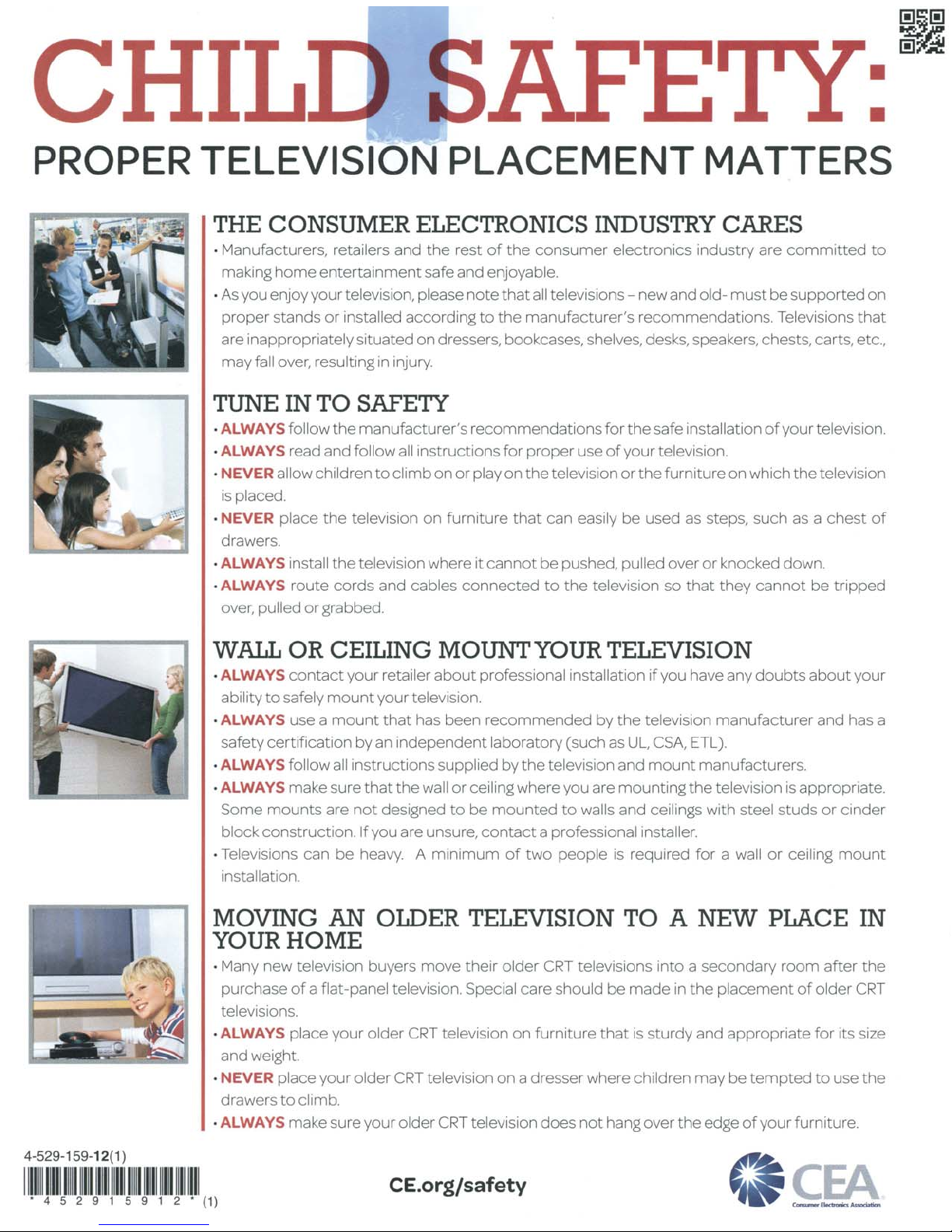
•
CHIL~
........
AFE
•
PROPER TELEVISION PLACEMENT MATTERS
THE
· Manufacturers, retailers and the rest
•
are inappropriately situated
TUNE
·ALWAYS follow
·ALWAYS read and follow all instructions
·
is placed.
·
drawers.
·ALWAYS install the television where
·ALWAYS route cords
over, pulled
CONSUMER
mak1ng
As
proper stands
may fall over, resu
NEVER
NEVER
home
entertai
you enjoy your television, please
or
installed according to
lt1
ng
IN
TO
SAFETY
the
manufacturer's recommendations for the safe installation
allow children
place the television
or
grabbed.
ELECTRONICS
nment
on
1n
injury.
to
climb
and
cables connected
of
the
consumer electronics industry are
safe and enjoyable.
note
that
all televisions-new and old-
the
manufacturer's recommendations. Televisions that
dressers, bookcases. shel
for
proper use
on
or
play
on
the
television
on
furniture
it
cannot
that
can easily
be pushed, pulled over
to
the television so
INDUSTRY
ves.
desks, speakers. chests, carts, etc.,
of
your television.
or
the
furniture
be
used as steps. such as a
or
that
CARES
committed
must
be
supported
of
your television.
on
which
the
knocked down.
they
cannot
be tripped
to
on
television
chest
of
WALL
·ALWAYS
ability to safely
·ALWAYS use a
safety
·ALWAYS follow all instructions supplied by the television
·ALWAYS make sure
Some
block construction.
· Televisions can be heavy. A
installation.
MOVING AN
YOUR
· Many new television buyers move their ol
purchase
televisions.
·ALWAYS place your older
and
·
NEVER
drawers
·ALWAYS make sure your
OR
CEILING
contact
cert
ification by an independent laboratory (such
mounts
your retailer
mount
are
your television.
mount
that
that
not
designed to be
If
you are unsure,
OLDER
MOUNT
about
has been
the wall
minimum
professional installation
recommended
or
ceiling where you are mounting
mounted
contact
of
TELEVISION
HOME
of
a flat-panel television.
weight.
place your older
to
climb.
CRT
CRT
older
SpeCial
television
television on a dresser where children may
CRT
television does
YOUR
by
to
walls and ceilings
a professional installer.
two
peop
le is required for a wall
der
CRT
televisions
care should
on
furniture
that
not
TELEVISION
if
you have any
the
television manufacturer and has a
as
UL,
CSA,
ETL).
and
mount
TO
be
made
is
sturdy and appropriate
hang over
manufacturers.
the
w1th
A NEW
into
a secondary
in the pl
the
edge
doubts
television
steel
or
PLACE
acement
be
tempted
of
your furniture.
is
appropriate.
studs
ceiling
room
of
about
your
or
cinder
mount
IN
after the
older
CRT
for
its size
to use the
4-529-159-12(1)
llllll
llllllllllllllllllll
. 4 5 2 9 1 5 9 1 2 • (1)
lllllllllllllll
lll
llllllllll
l
CE
.orgfsafety
'~
---
Page 49
Page 50
Upgrade
to
DIRECTV and
get
the
ultimate
TV experience!
1
The channels you want!
Amazing Picture
DIRECTV
del
ivers the full-time
HD
channels that you
really want, including
local
channels' and the
sports
you
really
wantP
Plus, ac
cess to the best
in
3m
You'll
get access to movies in
1080p'
with
Dolby
~
Digital
5.1
Surround
Sound
~
f
or
a viewing experience
that
redefines
home
most
ever,
only
from
OIRECTV.
An
HO
OVR
so
advanced,
your
every
TV
wish
is
granted.
•
One
HD
DVR
powers your whole
home
?
•
Genie
eliminates
inconvenient
cable
boxes
?
• Genie stores
all
your favorites.
• Genie lets
you
record any 5 shows at
once
~
AlllinlsWBill!ll'iA!IIinlnllitlml--llsl!W71lnlllla-leoqs lftiGIMI•alar.llmll ' ·
I!I!IIS16ftll!llli51t)~f~l'ill'G~~~IIIJIISNI4.:nlllataliii.MSen\2;:t
lla1ll$•JI!PIIi1lali1JIIbJ!*iltlbildlllliia~·lpJIS~
ilsllklrm'g!lirlr
...
i:lll1
•
~
i=Ei~l
NBA
l£AGUE
PASS
... ,.....,au
•
II
,.
ONLY
OH
DIRECTV.
__
..
No
matter
wha
t game, no
matter
what
season,
DIRECTV has you covered? No one has a
better
lineup of out-
of-market
sports
packages.
Sharpest
picture
available
with
the
most
movies
in
1080p, '
many
with
Dolb
~
Digital
5.1
Surround
Sound
5
X X
*aiiHO~MIIIUil-
Exclusive
provider
of
NFL
SUNDAY
TICKET
X X
For
13
years
In a row
, DIRECTV
rated
higher
in
customer
X X
satisfaction
than
cable.
IV
proodl!rs.lDI3.Imelbl
lllslam!rSabs1lcllonhla
Special Offer: s
120
Savings
~
X X
The ultimate television experience!
--
--=---==--=-----=-=-
--·
--·
-"""'
=----
•1
in
Spor
ts
From your favorite teams
to your fantasy teams,
DIRECTV
sports
coverage
is
undefeated~
so
Start
-Up
Costs
No equipment to buy.
FREE
professional installation.
~euselaxadjustmeol
mayapp!J
on
die
rl!!ail...wto
f
llleii$Ul1alion.
Access
to
the
HD
channels
you
want
More of the channels you
really
want
to watch
in
full-time
HD~
SAVE
$120
ONLY
WHEN
YOU
CALL
THIS
DEDICATED
NUMBER:
1-800-496·7068
lt>s
-
Wbellyou
crderllleSllECJli'Package
Dll'igher.14-monlhapmem
reqlnd
7'
e
A
•
Page 51
SONY.
9 1 1
{1)
111
11
11
{t)
•
4-562-079-11
111111111111111111111111111111111111111111111111
4 5
•
6 2
7
0
CERTAINS
POUR
ec
El
Sony
15
20
©
mmm
IMPORTANT-
INDICATES
PRODUCT
not
do
you
If
time
below)
and
included
hi
T
In
censes
li
materials
Software
accompanying
Produc
or
Note
wish
Disputes
This
se
ot
Entertainment
Content
So
conn
to
use.
In
speed
Providers
graphics
Party
the
provided
require
Ser
used
admi
may
You
not
which
associated
airt
provid
Operation
be
ntern
I
provid
time
to
you
to
should
you
Sony
se
U
End
s
"),
("Sony
c.
defined
as
wh
and
including
t,
downloaded
EULA
This
:
opt out
to
; Arbitration;
Product
Sony
content
ected
l
So
an
th
her
Serv
Software
ny
n.
tio
ec
Internet
ur
yo
ability
Your
provid
ternet
your
of
. The
kenesses
li
,
Provide
l of
contro
pursuant
ition
add
and
s
vice
non
for
access
,
sion
s
anged
ch
be
tand
ers
und
to
mited
li
are
you
with
harge
e c
im
service
's
er
of
or
limited
connect
et
by
ed
by
ich
i
Your
-
the
th
Inc.
cs
i
on
tr
THIS
READ
to
agree
in
Sony
unwilling
and
promptly
Software
License
r
licensor
the
be
be
ll
sha
Sony's
of
that
printed
update
the
to
contains
these
of
so
al
rvices
se
lectronics
E
ny
Network
wh
ces"),
thi
under
lity
abi
provider's
access
to
serv
's
er
broadband
content,
so
,
("Content")
rs
Third
the
the
to
fees
al
nt
Co
the
theatrical
, or
any
at
acknow
,
ility
ab
ur
yo
re
lely
so
In
your
qua
e
Th
s.
and
Sony
restricted
nd
a
ion
rtie
ird pa
USER
END
CONTRAT
CERTAIN
FOR
SERVICES
ET
LOGICIELS
Reserved
Righls
All
AGREEMENT
ACCEPTANCE
YOUR
this
of
terms
the
discretion,
its
allow
to
Sony
contact
refund
for a
the
of
xc
"E
as
iv
ect
l
col
ili
aff
online
modified
or
s
Prod
binding
a
provisions
Claims
es
lud
c
in
("Services
c.
In
al
e
ur
feat
services
ch
ULA.
s E
access
to
service
Serv
the
terms.
and
ce
service
including
text,
,
ftware
and
Provider
Party
and
s
term
registration
on
may
exhibition.
fee
nd
a
time
and
edge
l
access
to
ponsible
connection,
th
of
lity
nd
a
and
depending
.
ce
rvi
se
which
over
s
("
software
lud
ely
ates
u
doc
via
ct
u
,
the
("Third
pr
so
and
The
the
and
ces
i
from
but
the
condi
be
ly
or
is char
ay
m
agree
the
You
.
Sony
e
is
So
on
You
Agreement
ow,
l
or
Sony
Small
i
i
and/or
ent
viewing
s
ternet
terms,
Product
LICENSE
LICENCE
DE
SOFTWARE
YOUR
WITH
.
BEFORE
OF
ULA
E
is
Sony
access
to
you
nstructions
for i
purc
the
of
is
EULA")
ther
(o
Software")
ed
to
d
re
refer
third
and
mentation_
software
method,
any
individual arbitration cl
follow
please
"
Waiver
Ente
Sony
third
from
")
Party
ovides
ted
rela
Entertainm
Sony
ces,
i
Serv
terms
the
and
,
quality
ideo
V
Int
your
ited
lim
not
me
,
video
ility
availab
Content
The
s.
ons
ti
ith
w
for
sed
u
viewing
any
, or
ged
unava
be
that
Sony
le
so
re
a
including
Content
dependent
so
al
Software,
ny
capabi
e
th
understand
has
Sony
AGREEMENT
D'UTILISATION
SERVICE
AND
PRODUCT
SONY
ETRE
DEVANT
USING
AGREEMENT.
THIS
applicable
Sony's
or
to
unwilling
Sony
the
on
price
se
ha
agreement
legal
a
the
than
lud
c
in
"Sony
the
as
censors
li
party
Sony
The
provided
,
not
but
instructions
the
below.
rtainment
content
party
s"
Provider
access
you
("Sony
content
nt
e
qu
the
and
the
as
well
as
of
quality
pict
and
provider
ernet
, mu
data
to
tags
s,
ge
ssa
Services
the
of
nd
a
Third
at
th
of
Party
hird
T
the
n
ow
your
hibition
ex
or
public
any
for
from
ilable
certain
to
access
Services
&
Content
respon
ly
liti
,
no
but
Services
&
upon
nd
a
,
es
ack
control.
ible
s
not
access
nd
ba
nowled
TO
UTILISES
YOUR
license
Services
return
the
e
th
of
software
this
in
ed
Software
"T
(
ftware
So
you
to
Excluded
ause
Network
providers
courtesy
a
as
)
ected
l
se
to
Content")
Network
of
ality
broadband
Services
the
si
re
u
and
sic,
other
or
,
are
ces
i
Serv
Party
Provide
personal
for
exhibition
to
time
Sony
for
ted
limi
pre
spee
the
to
idth
w
a
ge
prov
The
BE
AVEC
SONY
rivacy
p
the
Sony
betwe
wh
Sony
hird
includes
by
and
in
eature
f
Sony
eat
f
the
var
ze
deliv
sound,
at
of
ov
Pr
priv
,
which
tim
requires
,
ym
pa
to
nted
se
of
d
the
or t
ag
nd
isi
USED
VOTRE
PRODUCT.
policy,
So
Sony
Content
&
entire
he
t
of
ct
u
Prod
you
en
governed
is
h
ic
Product
is E
Th
."
Li
Party
whe
,
Sony
Software
class
Section
which
including
yo
to
content
ll
sha
requires
ure
s
ice
Serv
internet
nt
ese
pr
and
es
i
by
ery
io
aud
s,
l
materia
le
so
the
Th
h
eac
Pr
der.
i
ough
hr
r t
viewing,
ate
in
(or
viewing
or
e.
t
Produc
an
any
of
ent
internet
ubject
is s
nternet
i
your
Content
Sony
l limit
nica
h
ec
at
th
ee
r
lit
qua
on,
PRODUIT
USING
amended
as
(as
ware
ft
defined
(as
ny
So
Sony
and
by
relat
and
covers
ULA
censors")
in
software
stored
er
th
defined
as
waiver
action
entitled "
provide
Sony
Sony
e
Th
u.
rvice
se
considered
be
both
int
an
presented
tion
c
ne
con
sub
are
ed,
dependent
is
Party
Third
the
photographs,
,
provided
discretion
Provider
Party
ird
Content
mium
e
comp
a
nd
a
venue
a
Th
.
including
s,
feature
connection
ternet
In
party
third
provider
e
rvic
se
your
to
service.
Se
&
s
ation
con
Internet
ab
il
ava
y,
SONY
in
Prinled
YOUR
from
defined
below)
Product
Electronic
other
ed
Sony
the
and
Sony
your
medi
on
below.
II
.
Resolving
access
s
entities
("Sony
s
ernet
s
re
, a
speed
to
ect
j
upon
imag
Third
by
unde
nd
a
ma
The
er.
ut
not
ll
sha
which)
in
i
Serv
e
fees
ternet
In
ces
rvi
ur
yo
of
ectiv
n
nd
ility a
U.S.A.
and
you
ubj
are
ces
or
, m
s
to
ect
you
your
th
es,
r
y
be
an
bu
fo
ay
ty
i
,
a
e
t
r
is
Page 52
security
of
such
Internet
parties
.
THE
SONY
SOFTWARE
AND/OR
OTHER
SONY
PRODUCT
SOFTWARE
You
Sony
Sony
and
Software
more
decompile
or
sublicense, or
part
Software
upgrades
Sony
shall
Software
deface
the
Software's
suppliers
EXCLUDED
Notwithstanding
software
EULA ("Excluded
licenses
licenses
any
that
to
which
Products/Linux
time,
changed
licenses
,
of
i
any
will
Open
Software, such
USER
As
Party
for
and
of
DATA
Any
to
is
each
SONY
If
including
and
such
property
the
changed,
Sony
Furthermore, you
compensation
contained
limited
using
ideas, know-how,
TRANSMITTED
Internet
information
that a particular
message
DIGITAL
Content
their
WMDRM-protected
ask
protected
protected
owners may
will
ADVERTISEMENTS,
Inclusion
or
and/or
necessary
the
apply
(and
Entertainment
advertisements, service
Sony
PROVIDERS
LEGALITY, RELIABILITY, OR
CONTENT, AS
ADVERTISEMENTS, SERVICE
OBJECTIONABLE
Certain
or
acknowledge
the
of
minor. If
LICENSE
cannot
use
and
its
Third
Product.
you
agree
is
licensed
than
one
or
in
part
for
any
of a sale
or
(including
of
the
and
its
Third
not
(a)
bypass, modify, defeat,
or
any
any
trademarks
software, network
performance
(software
SOFTWARE
subject
("Open
by
the
license
that, as a condition
the
distributor
Open
Source
may
include
and
the
by
the
covering
this
EULA.
To
of
the
restrictions
not
apply
Source
Components
ACCOUNT
part
of
the
Providers
which
you
maintain/promptly
any
and
all
COLLECTION
Services
collect
data
not
in
any
way
such
Service
'S
RIGHTS
you
send
any
any
will
be
treated
Materials
rights,
right
to
approve
copied, disclosed, licensed, performed, posted, published, sold, transmitted,
anywhere
in
the
to
developing, manufacturing, having
such
Materials.
transmissions
you
to
Sony
RIGHTS
owners
intellectual
Microsoft
Content.
Content,
require
not
be
able
of
the
recommends
Content
in
order
SEN
and/or
and
you
other
services
Corporation
DISCLAIM
Content
identified
as
that
Content, including
the
Sony
Product, the
you
are
connectivity,
AND
THIRD
PARTIES
AND
OTHER
the
Sony
Software
Party
Licensors
The
Sony
Software
that
any
such
as a single
device
unless
disassemble
purpose
sell
applicable
to
agreement
must
of
provided
about
selections, comments,
to
Corporation
will
Network
WELL
other
the
Sony
transfer
of
all
copies,
Sony
Software,
Party
Licensors
mechanisms
or
notices
services,
may
suppliers,
the
foregoing
to
other
terms
Software"). Certain
Source
Components"), which
Open
Source
make
the
Components
but
are
for a list
of
terms
applicable
third
Open
Source
the
extent
in
this
such
Open
offer
is
hereby
to
and/or
other
provide
update
your
passwords
by
Third
you
and/or
liable
for
before
using
TO
USER'S
communications
as,
non-confidential
violates
any
rights
of
publicity, rights
the
way
in
the
world, in
hereby
assign
you,
any
ideas,
Materials, whether
However,
concepts,
MATERIAL
are
send
to
Sony
message
(for
does
not
MANAGEMENT
use
Windows
property, including
Content.
Revocation
you
agree
you
to
to
access
Content
SERVICE
Service
of a Third
that
Third
may
include
for
the
Services
PSN
Terms
be
required
available
may
announcements,
is
not
responsible
ALL
AS
ANY
CONTENT
may
not
be
having
explicit
you
are
using
any
Sony
under
the
software
and
THE
SERVICES
MAY
TO
COLLECT
DEVICES
except
grant
may
data
files
are
product,
expressly
the
Sony
Software
than
allowed
Software, but
the
Sony
Product
component
and
this
retain
or
operatively
on
the
or
other
depend
might
service
providers, Third
limited
license
and
conditions
Excluded
Initiative
or
of
distribution
software
available
are
provided
not
limited
to
applicable
Excluded
and
conditions
party
at
Components,
the
terms
of
EULA
with
Source
Component.
require
Sony
made.
allow
you
to
third
parties
them
with
true, accurate, current,
such
information. You
associated
Party
Providers
about
such
never
cause
("Microsoft
Party
Content
age
the
data
collection
it.
MATERIAL
or
materials
data,
of
your
rights
Sony
uses
any
medium,
all
right,
know-how, concepts,
or
not
you
agree
or
techniques
completely
may
be
read
example, credit
Sony
Media
digital
copyrights. This
If
the
WMDRM
")
does
not
that
Microsoft
upgrade
WMDRM
that
requires
COMMUNICATIONS
Party
Provider
advertisements
to
be
of
Use/Service
to
agree
through
it)
result
in
you
nor
WARRANTIES, EXPRESS
VALIDITY
LIABILITY
COMMUNICATIONS,
AND
RULES
suitable
for
language, or
the
Services
that
Software, Excluded
of
16,
you
ALLOW
DATA
RUNNING
as
specified
you a limited
create
data
deemed
and
you
may
authorized
in
whole
under
you
may
provided
parts, any
EULA),
and
all
rights
circumvent
linked
to
Sony
Software.
products
other
be
interrupted
grant, you
governing
Software
means
any
substantially
of
the
in
source
to
you
together
the
"Help"
Software
governing
any
time
without
the
terms
the
licenses
respect
to
To
to
make
an
access, browse, or
may
require
with
any
that
use
of
that
and
to
Sony
questions, suggestions, or
and
non-proprietary.
including
to
credit
for
such
Materials.
forever
title,
and
patentable, for
manufactured,
and
understand
or
Materials, and
private
or
intercepted
card
to
have
any
rights
software
to
revoke
affect
unprotected
may
include a revocation
to
access
the
Provider
does
or
its
Content.
("Advertisements"),
provided.
and
the
to
them.
You
as
well
as
receiving
administrative
liable
for.
OF
ANY
ADVERTISEMENT, SERVICE
ARISING
UNDER
FOR
MINORS
minors
or
other
otherwise
at
your
may
be
offensive.
should
ask
services
are
the
SONY,
FROM, CONTROL,
OR
files
to
be a part
by
Sony.
this
transfer
media,
the
that
any
the
any
software
or
applicable
such
the
offer
are
such
you
Service.
you
moral
material
and
interest in,
or
information)
special
management
Sony
fails
the
upgrade.
If
you
SEN
understand
other
or
being
SONY, ITS
AND
being
own
Software, the
your
THE
INTERACTING
herein.
The
license
not
or
you
of
Sony
Party
"About"
extent
that
by
techniques, or
secure.
Service's
not
OR
Sony
to
use
automatically
of
the
separate
You
agree
in
part
or
EULA.
In
addition,
all
of
your
retain
no
printed
recipient
agrees
this
EULA
does
the
functions
Software; or
You
understand,
than
the
Sony
or
discontinued
Providers, etc.)
acknowledge
the
use
of
may
be
covered
software
similar
licenses,
licensed
code
format.
with
this
menus. Please
included
in
its
use.
Such
liability
to
of
such
licenses
to
Open
Open
Source
the
terms
to
provide
use
the
you
establish a user
and
complete
responsible
Account.
access
may
Sony
should
consult
electronic
Thus, you
rights, privacy
or
ideas, or
Any
Material
without
attribution
and
Sony
any
purpose
licensing, marketing,
that
Sony
you
have
You
by
others,
is
encrypted
responsibility
technology
Product
to
protect
ability
Content.
their
Content.
mean
that
You
understand
and
use
the
Sony
and/or
PSN
and
services
than
shown
messages,
AFFILIATES,
IMPLIED, AS
ANY
THEORY
CONTENT.
(UNDER
AGE
users. Such
for a mature
risk
and
that
You
are
responsible
Services,
parent(s)
sole
its
to
copies, transfer
materials,
such
licenses
EULA
you.
source
Services
Corporation
mail
understand
unless
uses
If
Privacy Policy
recommendations
news
responsibility
THIRD
PARTY
AND/OR
WITH
the
for
Sony
use
this
Components, such
for
also
the
may
other
is
no
the
you
list
Sony
that
agree
16)
Content
or a guardian
MONITOR
THE
SONY
Software
is
Sony
component
not
rights
to
not
or
(b)
Software
that
by
under
Terms
terms
To
will
Source
of
maintaining
the
or
give
rights, proprietary
is
whatsoever,
not
right
to
WMDRM
Content,
to
If
you
and
Entertainment
those
TO
OF
audience.
Sony
licensed, not
Software
use
with
the
Software. The
parts
to
modify,
the
Sony
Software
you
may
not
under
this
all
versions
the
terms
expressly
protections
remove, alter,
acknowledge, and
upon
at
the
discretion
or
Sony.
the
Sony
Product
software
other
open
source
approved
including
such
license,
and
conditions
and/or
stored
visit
http://oss.sony.neV
Sony
Product
and
conditions
the
extent
apply
in
Components
the
licenses
code
in
connection
and
the
account
information
allow
Third
does
relevant
privacy
otherwise
like, all
such
up
any
claim
any
other
right,
be
adapted, broadcast
or
compensation
free
to
use, without
intellectual
including
and
obligated
to
compel
that
any
there
is a special
(sent
in
you
.
("WMDRM
software
Content
use
WMDRM
download
with
the
licenses.
decline
an
approves of,
agree
that
these
Advertisements
for
that
use
of
provided
updates
and
AND
ITS
THIRD
THE
ACCURACY
COMMUNICATIONS,
LAW
FOR
may
or
Therefore, you
has
no
liability
for
supervising
and
the
Content
before
of
such
third
PROVIDERS,
THE
SOFTWARE
only
on
the
Sony
Software
Sony
for
use
on
reverse
engineer
in
whole
rent,
lease,
EULA
only
all
of
the
Sony
and
any
of
this
EULA
grant
to
you.
of
the
Sony
cover, or
agree
which
the
Sony
of
the
includes
than
this
software
as
open
source
but
not
limited
requires
applicable
in
your
Device
from
time
may
be
required
by
lieu
of
the
terms
prohibit
restrictions
applicable
with
Content, Third
("Account")
about
yourself
the
confidentiality
Party
Providers
not
control
policy
("Materials
"),
Materials
are,
that
use
or
other
including
,
or
used
by
to
you.
any
property
rights
but
not
selling
products
to
use
any
such
such
use.
message
or
notice
code).
Sending
")
to
protect
to
access
owners
to
play
or
for
Content
upgrade, you
or
endorses
the
Services
Network
service
your
country
that
service
by
Sony
and/or
the
like
which
PARTY
,
not
be
to
you
the
by
any
you: (i)
copy
are
rated
licenses
THE
may
e-mail
information
bulletin
EXCLUSION
.
YOU
UNDERSTAND,
PROVIDED
OVER
sold
as
.
You
that
to
the
to
and
for
of
may
OR
for
use
.
,
,
to
the
a
,
will
WHICH
AVAILABILITY
THIRD
TERMS
CONTENT
ACCESS, BROWSING, AND
YOU,
AND
PAYMENT
CHARGES)
WITH
THE
SERVICE
TECHNICAL
PARTY
DELIVERY,
THE
SONY
ARE
FURNISHED
OTHERWISE,
PARTY
IMPLIED, INCLUDING
TITLE,
THIRD
SOFTWARE
YOUR
REQUIREMENTS
THE
CONTENT
ITS
THIRD
ANY
REPRESENTATIONS
THE
SONY
ACCURACY,
BY
SONY, ITS
WARRANTY
CONDITION.
DOCUMENTATION,
A
SONY
SERVICING,
LIMITATION
IN
NO
EVENT
TO
THIRD
LICENSORS
INCIDENTAL,
BUT
NOT
ARISING
PRODUCT,
OF
PRESENT
PROFITS,
SONY,
BEEN
ADVISED
ACCOMPANYING
FOR
USE
THIRD
IMPLIED
ANY
OTHER
THIS
EULA.
Some
jurisdictions
exclusions
implied
LIMITED
In
situations
for a period
Software
This
limited
exclusive
WARRANTIES
CONDITIONS
PARTICULAR
DELIVERY.
WARRANTY
WARRANTY
WHICH
FEES
Sony
and
Content
In
addition,
charged
Party
Provider
charges, however, you
INTELLECTUAL
AGENT
Sony
respects
policy,
Providers
intellectual
intellectual
terms
of
,
Software
other
intellectual
trademarks,
By
making
Providers
trademarks,
the
Content
criminal
all
copies
Third
Party
licensors, Third
You
are
browsing, or
Account
the
Content
anything
to
any
data,
messages,
Sony
via
the
Service; (ii)
about
you
board
or
enter
OF
WARRANTY
BY
THIRD
SONY
OF
SUCH
PARTY
PROVIDER
AND
CONDITIONS
AND/OR
SOFTWARE.
FOR
WHICH
OF
ANY
THIRD
FOR
SUCH
SERVICES.
MAY
BE
LIMITED
LIMITATIONS
PROVIDERS
PROVIDERS
MERCHANTABILITY, AND
PARTY
AUTHORIZED
ITS
PARTY
warranty
VARY
or
for
FOR
at
such
statutes. All
responsible
(as
SHALL
OR
FAILURE
SOFTWARE
TO
OF
ANY
EXPRESSLY
LICENSORS,
OR
ACCOMPANYING
WILL
PARTY
LICENSORS, AND
SOFTWARE, THE
RELIABILITY
AFFILIATES,
OR
CONDITION, OR
SHOULD
THE
REPAIR,
OF
LIABILITY
WILL
SONY
PARTY
LICENSORS
OR
ITS
THIRD
PUNITIVE,
LIMITED
TO
OUT
OF
OR
DOCUMENTATION, THE
OR
PROSPECTIVE
OR
OTHER
AFFILIATES, ITS
OF
THE
DOCUMENTATION,
AT
YOUR
OWN
PROVIDERS
WARRANTY
LEGAL
THEORY
may
or
limitations
lasts, so
WARRANTY
where
the
of
ninety
is
furnished
warranty
remedy
will
OR
CONDITIONS
OF
MERCHANTABILITY, TITLE, NON-INFRINGEMENT, AND/OR
PURPOSE,
SOME
JURISDICTIONS
OR
CONDITION
GIVES
YOU
FROM
its
Third
Party
new
Services
Third
Party
access
to
obtain
PROPERTY I NOTICE
NOTICE
the
intellectual
its
discretion
or
users
of
property
rights
property
rights
Third
Party
and
Content
property
likenesses, and
the
Sony
Software
are
not
granting
likenesses, or
may
violate
or
portions
Providers.
Party
for
use
of
the
defined
in
for
lawful
you
may
copy
text,
software,
and
tags,
for
send
in
any
or
offers a prize;
any
chatroom;
ACKNOWLEDGE,
PARTY
PROVIDERS
HAS
NO
CONTROL.
CONTENT
OR
OTHER
THAT
YOU
USAGE
YOU
ARE
PARTY
ACCESS
AND
OPERATION
OR
RESTRICTED
OF
YOUR
HAVE
TO
STORE
AND
ACCOMPANYING
YOU "AS
IS"
KIND.
SONY, ITS
BUT
NOT
LIMITED
AND
OR
THAT
BE
UNINTERRUPTED
OR
CONDITIONS
SERVICES
OR
OTHERWISE.
OR A SONY
THE
SOFTWARE, MEDIA
SERVICES, OR
REPRESENTATIVE)
OR
CORRECTION
(INCLUDING
OR
PARTY
EXEMPLARY,
COMPENSATION, REIMBURSEMENT
RELATING
TO
PROFITS,
COMMERCIAL
THIRD
POSSIBILITY
RISK.
SONY,
WILL
OR
CONDITION, BREACH
RELATED
not
allow
of
implied
the
above
ON
MEDIA
Sony
Software
(90)
days
from
to
you
will
be
extends
only
be
replacement
ON
ARE
LIMITED
LASTS, SO
SPECIFIC
JURISDICTION
Providers
or
to
portions
Providers
any
portion
your
prior
agreement
may
not
have
property
as
appropriate,
the
Services
of
Sony, its
violations
Provider
are
protected
laws
and
trade
and
you
any
trade
names. Any
copyright
right, title, and
thereof,
are
All
rights
not
Licensors,
all
your
activities
Services
the
User
Account
purposes
only.
from
the
Sony
likenesses,
any
business, commercial, or
information;
(iv)
join
any
or
(vi)
buy
anything
AND
AGREE
THAT
AND/OR
SOFTWARE
THE
SELECTION, PROVISION, QUALITY, PICTURE
AND/OR
SOFTWARE
THIRD
THE
SOLELY
FEES
DISCLAIM
FITNESS
ITS
DOCUMENTATION,
THE
IN
NOT
exclusions
may
or
names
laws,
owned
suppliers
by
PARTY. YOU
THIRD
PARTY
FURTHER
OF
OF
NO
ANY
AND
ANY
THIRD
PROVIDERS
THIS
SERVICES, THE
PARTY
warranties
limitations
free
to
THE
DO
LEGAL
TO
reserve
who
's
by
treaties.
Content
license
interest
specifically
you
UNDERSTAND,
THE
SERVICES
RESPONSIBLE, INCLUDING
(SUCH
AS
FOR
THE
INTERNET
RESPONSIBILITY
THIRD
OPERATION
ITS
OR
LOSS,
OF
THE
ITS
BE
or
the
you
of
NOT
charge
all
access
FOR
rights
(a)
Third
to
procedures
copyright
You
Software, the
photographs,
INTERNET
DISPLAY
OR
SONY
ENTERTAINMENT
DEPENDING
SERVICE. SONY,
USER
COMMUNICATIONS
DOCUMENTATION,
WITHOUT
WARRANTIES
AFFILIATES,
ALL
WARRANTIES
TO
THE
IMPLIED
FOR A PARTICULAR
PARTY
OF
OR
ERROR
THIRD
PARTY
REGARDING
OR
THE
CONTENT
NO
ORAL
AUTHORIZED
WAY
CHANGE
ON
THE
.
BUT
TO
from
the
IN
JURISDICTION.
of
of
may
Third
trademark
or
WHICH
CONTENT
ASSUME
NOT
LIMITED
PARTY
PROVIDERS), ITS
BE
LIABLE
CONSEQUENTIAL
EULA,
ON
ACCOUNT
CONTENT, DOWN
LOSS
OF
OR
FOR
LICENSORS, OR
SUCH
DAMAGES.
SERVICES, AND
AFFILIATES, ITS
LIABLE
FOR
OF
CONTRACT, NEGLIGENCE,
THE
SONY
or
limitations
or
conditions,
or
exclusions
any
part
thereof
date
of
its
delivery
defects
as
the
original
media
not
MEDIA,
INCLUDING
DURATION
ALLOW
THESE
LIMITATIONS
RIGHTS,
AND
the
right
at
the
existing
fees
for
the
Content
to
pay
such
to
paid
Content
CLAIMS
OF
of
others, and
to
terminate
infringe
Party
Providers
Party
Providers
for
laws
There
may
found
in
the
available
on
to
utilize
those
unauthorized
laws,
in
and
to
by
Sony, its
granted
and/or
Third
hereunder,
by
others
section). You
may
not
distribute,
club
PROVIDERS
ITS
PROVIDERS
THE
OR
REPRESENTATIVE
THE
DATA, INFORMATION
ANY
in
TO
LIMITATIONS
Content
access
or
protection
Sony
the
licensors, Third
including
who
Services, or
images,
(iii)
enter
any
or
group;
(v)
online.
THE
CONTENT
IS
PROVIDED
ARE
THE
SOLE
AGREE
TO
COMPLY
MAY
ACKNOWLEDGE,
REQUIRES
INTERNET
SERVICE
DELIVERY
OF
ADVERTISEMENTS
NETWORK
ON
THE
CAPABILITIES, BANDWIDTH
ITS
FOR
THIRD
SERVICES,
THE
FREE.
PROVIDERS
THE
WRITTEN
THIS
PROVE
ENTIRE
OTHER
DAMAGES
SOFTWARE,
is
materials
licensee.
meeting
NINETY
YOU
any
and/or
charges.
AFFILIATES, AND
THE
TIMELINESS,
OR
THE
OR
CONDITIONS,
PARTY
AND
CONDITIONS,
WARRANTIES
PURPOSE.
DO
NOT
OR
SONY
SOFTWARE, THE
FURTHERMORE,
DO
USE
OR
THE
IN
TERMS
OF
INFORMATION
EXCLUSION
THE
SOFTWARE
DEFECTIVE, YOU
COST
TO
ANY
NEGLIGENCE
AFFILIATES, ITS
TO
YOU
FOR
DAMAGES
OR
DAMAGES
OF
THE
TIME
REASON
ITS
THIRD
THE
SONY
THE
CONTENT
THIRD
PARTY
FOR
THE
of
incidental
or
allow
limitations
may
not
apply
furnished
on
to
you,
the
and
workmanship
Sony's
Sony's
THE
IMPLIED
(90)
ON
HOW
MAY
NOT
MAY
ALSO
time
to
charge
or
Services,
to
their
Content.
the
Services
If
you
or
Services
INTELLECTUAL
we
ask
disable
infringe
or
others;
and
others
of
intellectual
international
proprietary
Software,
Services, Sony
proprietary
use
of
the
the
laws
of
Sony
Software
this
EULA
Providers.
all
legal
use
the
Services
use
the
exchange,
the
graphics,
purpose. As
you
the
logos,
the
logos, service
Sony
privacy
Party
liability
Sony
Content, including
and/or
repeatedly
and
be
the
under
Party
may
public
contest
or
game
post
any
information
AND
SERVICES
BY
THIRD
RESPONSIBILITY
WITH
SET
BUT
PROVIDER
PERSONALIZED
SERVICES, AND
LICENSORS,
THE
NOT
ITS
SHALL
OF
ANY
OF
LOSS
PARTY
SOFTWARE
BREACH
SERVICES,
or
media,
media
entire
limited
DAYS
APPLY
HAVE
fees
do
for
PROPERTY
to
Content
and/or
for
copyright
Content, or
and
are
Software,
modify,
audio,
long
ANY
FOR
ITS
SERVICE
AND
AGREE
SERVICE
NOT
LIMITED
OR
AIRTIME
FEATURE
DELETION,
STATUTORY
AND
EXPRESS
OF
NON-INFRINGEMENT
SONY, ITS
WARRANT
OF
ARE
LICENSORS,
consequential
unless
not
AFFILIATES,
THAT
CONTENT
SERVICES, OR
SONY,
ITS
WARRANT
RESULTS
OF
CORRECTNESS
OR
CREATE
WARRANTY
IS
FURNISHED,
(AND
ALL
IN
OF
WHATSOEVER, EVEN
or
NOT
NECESSARY
ISSUES
THIRD
SPECIAL,
ANY
KIND, INCLUDING
CONNECTION
OF
USE
OF
AND
YOUR
ANY
KIND,
PROVIDERS
AND
FURNISHED
OF
ANY
STRICT
THE
on
how
to
you.
Sony
warrants
on
which
under
liability
warranty.
WARRANTIES
FITNESS
FOR
FROM
THE
LONG
AN
IMPLIED
TO
YOU.
OTHER
for
access
the
Services
In
no
event
Sony
consent
which
such
VIOLATIONS
do
the
same.
of
Third
the
copyrights
(b)
to
forward
review
and
property
rights.
treaties, as
service
marks,
on
and
the
Third
marks
Software, the
and
publicity,
the
Content,
Licensors, suppliers
reserved
by
incurred
via
your
Sony
the
sell,
or
music,
sound,
as
you
comply
that
requires
on
any
ARE
PARTIES
SIZE, AND
OF
SUCH
AND
ALL
,
THAT
PROVIDED
TO
THE
INCLUDED
AND
THE
OR
ITS
THIRD
MIS-
SETTINGS.
THE
CONTENT
OR
ITS
THIRD
OR
THE
SONY
WILL
MEET
AFFILIATES,
OR
MAKE
THE
USE
OF
,
ADVICE
GIVEN
A
AND
SONY
OR
RELATED
PARTY
INDIRECT
,
WITH
,
THE
SONY
TIME, LOSS
BUSINESS
IF
HAVE
TO
YOU
AND
ITS
EXPRESS
LIABILITY
OR
CONTENT, OR
damages
,
long
an
that
the
Sony
normal
and
to
use.
your
ANY
IMPLIED
AND
A
DATE
OF
THIS
RIGHTS
to
new
as a whole
will
you
be
and/or a Third
such
charges
apply.
AND
It
is
Sony's
Party
or
other
reports
action
per
the
The
Sony
well
as
the
Services
Party
,
Services,
or
and
civil
and
and
any
and
and/or
Sony, its
from
access,
Product
or
Services, and
transmit
but
not
limited
video
,
with
BY
,
ITS
OR
the
.
of
.
Page 53
nontransferable,
erms
:ntertainment
urther
)oftware,
you
I
ntellectual
or
Sony's,
s
nformation
>n
ork
v
>ervice
letail
:tatement
:opyright
1enalty
intellectual
Jr
1ehalf.
ollo
12127;
NDEMNIFICATIDN
rou
imployees,
ndirect
including
:onnection
nanner,
third
1
>ottware
:onsented
>ony
the
lY
eserve
·
my
udgment
ndemnified
IUTDMATIC
'rom
)oftware
md
features
lf
tgree
1se
nodifications.
tpplies
\ny
eature
>ervices
hereto.
JR
~OTICE
>USPEND
~ONTENT,
NITH
prevent
o
your
Jf
HIGH
rhe
on-line
1s
he
:
Jirect
death
o
:ACH
>PECIFICALLY
11GH
~ESTRICTIONS
rhe
lxport
;ubsequent
icense
3ecurity.
echnology
:
1ccepting
he
:
egulations
·
:ransfer,
;uch
US
The
)tales
~ommercial
Technical
;tate
~A
JURY
THE
DR
:ommenced
ENTIRE
This
3nd
agreement
and
Services
constitute
unenforceable,
lhe
THIRD
Each
,
of
service,
TERM
This
with
accompanying
you
Network
to
not
agree
Service
the
your
believe
property
Service.
particular
the
may
you
written
a
in
copyright
the
of
behalf
intellectual
other
or
where
and
may
we
that
s:
w
agree
and/or
matter
time
enhancement
that
of
such
THE
RISK
Sony
operation
RISK
Sony
purchase
restrictions
GOVERNMENT
Sony
or
92127
PARTIES
RELATING
EULA
any
the
intent
Third
and
EULA
its
will
that
you
by
intellectual
or
perjury,
of
property
agent
's
Sony
Intellectual
(858)
Facsimile
indemnity,
to
information
(collectively,
parent(s)
without
,
any
with
information
any
(ii)
rights,
party's
Services
the
,
Sony
by
to
Indemnified
Indemnified
at
,
right
the
otherwise
settlement
,
Party
UPDATE
,
time
to
example
for
,
other
or
activities
such
Software
Sony
the
Sony
Sony
the
to
additions,
apply
shall
Content
the
,
MAY
SONY
CONTENT
SONY
WITHOUT
AND
TERMINATE
OR
AND/OR
TERMS
THE
violation
the
to
access
ACTIVITIES
Software
control
nuclear
of
support
life
personal
,
THIRD
THE
OF
DISCLAIM
ACTIVITIES.
ON
Software
Soft
Sony
of
re-export
authorization
other
or
further
You
acquired
and
license
this
use
and
relating
Sony
the
of
or
Software
Government
Computer
and
Data
or
w
la
local
.
WAIVER
TRIAL
HERETO
TO
within
AGREEMENT,
limited
the
,
additional
between
Any
Content.
failure
The
.
waiver
a
that
EULA
this
of
BENEFICIARIES
PARTY
Licensor
Party
have
shall
content
and
effective
is
giving
by
terms
documentation
recourse
no
have
interrupVdisrupt
or
work
rights
contact
the
find
that
for
Property
limitation,
claim
(iv)
Party(s)
its
subject
,
without
FEATURE
Sony
,
security
of
aspects
may
Software,
changes
soon
as
,
ADD
THE
AND
of
Services
not
is
equipment
machines,
injury
PARTY
EXPORT
and
are
w
acknowledge
to
Software
regulations.
RESTRICTED
is
is
Computer
regulation
THIS
one
terms
you
notice
of
of
provision
the
as
,
to
feature
Content
the
been
has
otherwise
have
are
you
If
Sony's
(a)
notice:
other
or
property
that
material
material;
the
a
have
you
owner
property
above
the
authorized
or
owner
of
notice
Agent
942-1111;
and
,
defend
providers
"Indemnified
attorneys
arising
submit
you
damage
any
Content.
the
or
,
Indemnified
or
/
and
Party(s).
defense
in
expense,
own
indemnification
to
attachment,
prior
the
I
parties
third
or
limited
not
but
features
the
of
occur
may
your
upon
change
,
to
add
the
removals
or
,
they
as
the
or
/
and
CHANGE,
,
SERVICES
LIABILITY.
EULA
THIS
CONTENT
SONY
CONDITIONS
enforce
to
or
/
and
Sony
if
,
fault-tolerant
hazardous
in
facilities,
weapons
or
severe
or
,
LICENSORS
EXPRESS
ANY
ENCRYPTION
OF
Content
the
Content
the
or
software
such
of
from
Sony
from
,
agreement
Sony
the
of
export
the
the
or
RIGHTS
ith
w
provided
restrictions
to
subject
clause
Software
Software
Manufacturer
.
TRIAL
WAIVE
Any
EULA.
after
year
(1)
WAIVER,
NOTICE,
accompanying
warranty
conditions
and
Sony
and
Sony
by
exercise
to
Sony
or
right
such
shall
other
the
and
,
each
and
enforce
to
right
applicable,
terminated.
until
notice
you
and
,
against
access
attempt
or
any
in
copied
unable
Intellectual
electronic
an
intellectual
you
that
claim
you
your
(d)
faith
good
,
information
copyright
Sony
c/o
,
hold
licensors
,
'
of
out
to
caused
Counsel
and
You
or
assume
to
lien,
or
written
MODIFICATION
may
to
Such
.
Soft
Sony
Sony
at
complete
,
Services,
posted.
are
Content
Sony
DISCONTINUE,
TEMPORARILY
,
WITHOUT
AS
OF
this
believes
and
aircraft
physical
may
containing
by
U.S.
the
the
that
not
is
agree
you
product
control
Content
RESTRICTED
at
clause
BY
cause
the
respect
with
hereunder
provision.
enforced
be
parts
Third
each
,
such
of
Sony
such
In
.
copies
all
Sony,
nonexclusive
a
you
grants
Sony
EULA,
this
of
,
and
Services
the
interrupVdisrupt
to
way.
constitutes
that
way
a
in
violated,
been
its
harmless
fees
(i)
Party(s)
settlement
or
for
,
or
or
TO
IMMEDIATELY
THIS
navigation
systems
,
OR
contain
a
of
FAR
JURY
of
claim
SEVERABILITY
posted
or
Party
its
such
contact
to
Property
physical
or
property
been
has
claim
infringing
is
telephone
,
address
the
that
belief
the
or
agent,
notice
your
in
the
on
act
to
intellectual
other
or
Electronics
Sony
licensees
and
from
")
Parties
costs)
and
breach
any
hereunder,
Sony
alleged
or
by
select
you
prior
counsel
your
of
exclusive
the
you.
by
other
any
Sony
of
consent
EULA
OF
automatically
purposes
or
updates
including
are,
w
discretion
sole
's
installation
any
remove
Content
the
or
/
and
terms
any
continuing
By
so
after
REMOVE,
OR
PREJUDICE
SERVICES,
THE
Sony
EULA.
including
EULA,
discretion
its
in
designed
not
is
environments
or
which
in
,
environmental
or
OF
EACH
AND
IMPLIED
TECHNOLOGY
encryption
encryption
located
person
Department
Software
Sony
for
intended
by
abide
to
acquired,
being
cryptographic
prohibited
a
to
RIGHTS.
forth
set
as
19
52.227
FAR
DOD
at
Electronics
Sony
is
RESPECT
WITH
ou
y
action
cause
or
Sony
the
the
on
Sony
the
to
be
may
any
enforce
part
y
an
If
maximum
the
to
remain
will
Provider
of
provision
party.
terminate
may
you
,
event
have
ou
y
its
,
affiliates
Content
the
the
copyright
contact
first
please
Party
Third
below)
(listed
Agent
signature
a
(b)
;
interest
infringed;
on
located
is
number
use
disputed
a
(f)
and
;
law
accurate
is
or
copyright
property
16530
Inc.,
its
of
all
and
incurred
or
to
will
any
You
act
of
modifications
part,
posted
posted,
PERMANENTLY
UPON
requiring
communication
THEIR
WARRANTY
of
use
all
in
,
may
of
Product,
Services
made
right
of
in
is
this
must
made
Third
content
,
affiliates
,
against
and
the
by
breach
alleged
breach
any
(iii)
been
have
to
defense
for
being
counsel
cooperate
Sony
claim.
defense
not
shall
to
adverse
Indemnified
and/or
SERVICES
TO
AS
or
update
correction
error
you
features
that
and
acceptance
or
or
,
term
any
at
the
in
access
to
are
you
SUSPEND
OR
OTHER
ANY
TO
SONY
THE
NOTICE
take
may
without
,
y
that
manufactured
,
fail-safe
failure
the
damage
RESPECTIVE
OR
technology.
technology
of
outside
Commerce
Content
the
or
foreign
a
by
U.S.
relevant
but
including
not
and
items
country
duplication
Use,
subparagraphs
subparagraph
and
252.227-7013
Inc.
ANY
TO
with
have
arises.
action
Sony
together
,
the
Product,
letter
by
provision
or
EULA
this
extent
and
force
full
express
an
with
EULA
EULA
this
destroy
them.
of
Licensors,
Party
(c)
otherwise
ou
or
the
right
limited
forth
set
as
operation
infringement
the
Provider
with
person
the
of
description
description
a
Service,
such
e-mail
and
,
authorized
not
is
statement
that
and
intellectual
infringement
right
Esprillo
Via
directors,
,
agents
providers,
and
any
Indemnified
you
by
alleged
or
caused
settlement
or
engaged
fully
as
and/or
settlement,
or
event
any
in
interest
the
improvement
,
change
may
rely
may
may
Sony
such
of
condition
without
time
Entertainment
Sony
Services
the
indicating
ANY
ANY
AT
,
RIGHTS
CONTENT
YOU
IF
legal
y
an
limitation,
violating
are
intended
or
performance
systems
Sony
the
of
Risk
High
("
AFFILIATES
CONDITION
acknowledge
You
from
United
the
Bureau
's
containing
government
export
limited
not
transfer
to
otherwise
or
(c)(1)
(c)(i)(ii)
any
and
Via
16530
,
MATIERS
to
respect
then-current
's
constitute
Software
Sony
e-mail,
,
this
of
invalid,
held
is
permissible
effect.
intended
respect
immediately
Software
Sony
addition,
In
use
to
this
in
Sony
the
of
Party
Third
content
the
or
,
following
the
authorized
copyrighted
the
of
the
of
with
address
,
you
by
the
are
you
property
Diego
San
,
officers
and
liability
all
Parties
EULA
this
of
breach
to
you
by
claim
a
of
represent
to
reasonably
as
Indemnified
and
consent
Sony
of
Party(s).
the
modify
of
delete
or
upon.
condition
or
update
EULA
the
of
notice
prior
Sony
the
,
acceptance
your
THE
OF
WITHOUT
,
TIME
SONY
,
SERVICES
COMPLY
TO
FAIL
technical
and
immediate
this
for
,
traffic
air
,
Software
Activities
FITNESS
OF
United
the
requires
States
Industry
of
encryption
end
and
laws
those
to
authorize
or
,
violation
in
disclosure
(c)(2)
and
the
of
comparable
Esprillo
ARISING
Services
the
privacy
entire
the
the
,
posting
or
shall
EULA
illegal
as
so
third-party
software
the
to
you
if
and
termination
upon
Third
its
or
Sony
the
You
EULA.
your
that
or
,
Provider
issue
at
act
to
particular
enough
a
(e)
;
the
by
under
made
copyright
owner's
as
is
CA
,
,
direct
costs
and
in
any
in
you
by
Sony
the
must
you
required
Party(s)
of
control
any
to
any
or
Sony
features
nature
the
hereby
You
continued
it
as
you.
to
Network
Content
SERVICES
MAY
THE
,
remedies
termination
EULA.
resale
or
use
in
as
such
control,
could
SONY,
).
"
FOR
any
that
or
States
a
and
By
user.
regulations
the
any
of
United
the
by
the
of
Rights
federal,
Diego
San
,
UNDER
must
policy
Services
the
on
not
or
,
maintain
to
beneficiary
,
comply
to
fail
Party
Providers
Services
DE-REGISTRATION
Should
accordance
Product
Sony
RESPONSIBLE
THIRD
SONY
RESOLVING
This
Computer
Further,
this
to
Dispute
a
If
Esprillo,
attempt
to
may
validity
controvers
Product
and
possible
ANY
DESCRIBED
of
begin
To
arbitration
be
Expedited
and
Consumer-Related
effect
in
778-7879
between
rules
administrative
their
agree
federal
et
1,
,
decision
The
only
jurisdiction
Despite
limited
of
and
controversy)
Despite
provision
made
is
days
30
the
by
made.
Any
litigated
San
of
Notwithstanding
respect
equivalent
an
lead
with
and
damages
that
any
NOTICES
This
subject
and
LGPL
Source
http:/
in
FEEDBACK
Should
Technical
in
,
be
,
,
inability
your
for
Content.
the
or
,
OF
your
return
you
by
Product;
PARTIES
PRODUCT.
EULA
the
EULA.
San
this
skip
of
Sony
,
meaning
DISPUTE
arbitration
when
you
Consumers
for
fees
differently
or
,
seq.
will
arbitrator
the
to
the
long
as
anything
and
;
after
Dispute
Dispute
by
Diego
to
term
any
cause
will
y
Son
other
product
to
different
and
code
oss.sony.neVProducts
/
you
this
with
deleting
(ii)
and
FOR
AND
DISPUTES;
be
not
will
Information
Nations
United
you
,
arises
,
Diego
resolve
to
informal
intellectual
proceeding
or
y,
Software
that
THAT
ABOVE
take
will
Procedures
disputes
claim
the
visiting
or
us
and
fees
expenses
and
the
,
law
state
govern
will
binding
be
award
may
necessary
extent
the
over
you
above,
jurisdiction
such
as
satisfied.
are
to
you'
(1)
if:
you
(2)
particular
the
procedures
determined
party
either
the
in
or
the
matter
any
of
type
condition
or
irreparable
be
would
necessary
deems
remedies
LICENSES
AND
includes
GNU
the
or
/
and
other
some
these
for
any
have
Response
EULA,
any
reset
MAINTAINING
ANY
governed
Transactions
California
any
negotiation
property
will
IS
SHALL
either
,
place
of
www.adr.org.
but
,
Disputes
and
arbitration
shall
the
parties
in
court
the
ve
mail
United
foregoing
arising
urgent
inadequate
that
certain
General
additional
licenses
executables
questions
Center
the
use
to
DEVICE
YOUR
Product
Sony
and
ARBITRATION;
agree
Sony
,
NOT
the
is
in
expenses.
of
govern
and
have
the
contrary
already
not
in
may
EULA
this
if
or
accounts
all
Sony
the
THE
USERNAMES
interpreted
or
Act
Convention
give
first
to
,
92127
at
for
Dispute
procedure
.
rights
you
between
Services
enforced
be
RESOLVED
RESOLVED
BE
we
or
you
single
a
before
Commercial
applicable
when
may
You
filed.
The
shall
event
no
provided
This
arbitration
the
take
will
substance
the
itself
arbitration
except
final,
declaratory
provide
to
enforce
may
right
the
States
United
proper
has
this
in
begun
notice
written
was
change
previously
you
to
subject
competent
of
court
a
District
States
contrary,
the
to
or
of
out
relief)
legal
EULA
this
Sony,
to
harm
you
and
,
appropriate
or
available
be
SOFTWARE
FOR
source
open
License(GPL),
Public
copyright
disclaimers
,
and
Linux/
/
concerning
Gatewa
12451
,
Sony
2015
©
or
Software
Sony
purchase,
of
place
its
to
terminated,
is
have
may
you
original
its
to
Product
CONFIDENTIALITY
PASSWORDS
AND
CLAIMS
SMALL
(UCITA)
on
Attn:
least
"Dispute"
and
&
.
THROUGH
must
arbitrator.
filing
for
does
place
for
injunctive
or
relief
the
litigate
to
jurisdiction
EULA
authorized
to
is
/
arbitration
in
is
you
by
its
consent
libraries
Electronics
way
any
in
any
or
for
Contracts
by
us
to
notice
Department
Legal
except
,
days
14
Disputes
for
defined
is
Sony
any
this
or
Content
THE
EXCLUSIVELY
written
a
make
will
It
Rules
Arbitration
")
Rules
("
of
copy
a
get
begin
to
fees
ever
fees
your
when
and
to
,
the
made.
agreed
connection
sought.
to
or
licenses,
y
AAA
by
prohibit
not
appropriate
the
in
any
of
not
limited
a
warranted
arbitrator's
any
extent
the
and
you
,
use
address
Should
to
and
jurisdict
Court
either
constitute
will
affiliates
to
such
in
under
Sony
IN
USED
other
GNU
notices
and
can
EULA
this
Boulevard
which
at
,
county
Dispute.
state
any
right
relief
Dispute
all
may
of
and
not
the
for
party
with
You
or
Sony
circumstances.
THIS
software
disclaimers
be
,
,
Inc.
entity
of
AAA's
Library
you
accompanying
the
transfer
agree
you
established
factory
ANY
OF
ASSOCIATED
WAIVER
referring
by
act
other
International
the
contacting
and
,
that
enforcing,
any
as
related
Dispute
EULA.
INFORMAL
THROUGH
demand
administered
be
the
and
,
American
the
Rules
carry
and
the
exceed
point
arbitrator
the
pursuant
state
and
The
on
law
appeal
of
favor
in
only
party
that
by
decision.
small
in
amount
the
requirements
other
changes
reject
Sony
the
immediately
the
in
situation
a
such
existing
initiated
either
in
on
i
Southern
initiate
may
Agreement
this
that
agree
unlawful
an
party
third
obtaining
contract
PRODUCT
originating
Lesser
/
and
reproduced
are
using
obtained
contact
may
Myers
Fort
Rights
All
documentation
Sony
your
de-register
(i)
to:
have
or
on
settings.
ACCOUNTS
WITH
any
to
from
derived
Sale
Electronics
Sony
engaging
Sony
or
you
protecting
disagreement
arising
or
to
to
is
NEGOTIATION
BINDING
other
the
to
in
Supplementary
Arbitration
contacting
by
arbitration
out
amount
will
Sony
giving
from
Rules
the
to
where
Arbitration
Federal
arbitration.
the
under
party
the
of
individual
's
court
claims
does
issue
at
made
at
Product
preceding
arise
change
the
before
claims
small
in
Superior
the
of
District
litigation
for
violation
any
unfair
and
licensors
injunctive
any
remedies
These
in
or
law
at
,
from
General
The
notices.
the
in
following
the
Sony
33913
Florida
,
Reserved
Product
the
accessed
SOLELY
ARE
YOU
HAVE
YOU
USE
YOUR
on
based
law
related
or
shall
Goods
of
Inc.
faith
good
in
of
any
(or
concerning
or
,
of
cause
,
the
of
out
the
given
be
PROCESS
ARBITRATION
arbitration.
for
with
keeping
Proceedings
Association
at
AAA
be
will
by
allowable
additional
all
cover
winning
the
Unless
.
and
live,
you
Act,
arbitrator's
The
Arbitration
Federal
seeking
Any
claim.
other
or
exceed
not
amount
(including
binding
the
to
the
time
the
paragraph
still
will
you
,
rejected
you
court
for
Court
California.
immediately
equitable
which
non-compliance
or
of
business
monetary
which
for
equitable
or
in
are
.
equity
parties
third
License(LGPL)
Public
terms
exact
this
in
menu
link:
writing
by
USA.
,
.
the
,
in
Sony
the
through
WITH
THE
OF
Uniform
the
UCITA.
to
apply
not
16530
at
negotiations
affiliates)
its
the
claim
action,
Sony
broadest
.
The
the
for
("AAA
(800)
shared
special
the
party
and
you
applicable
C.
U.S.
9
and
,
relief
court
similar
,
$15
in
arbitration
was/
change
within
bound
be
was
be
will
County
the
with
relief
practice
relief
addition
is
that
GPL,
of
product.
Sony
to
Via
we
§
Act.
with
court
000
(or
,
to
,
")
,
Page 54
SONY.
Safety and Regulatory Booklet
3-299-071-09 (1)
Read
your new
Feuillet de consignes d'utilisation
Veuillez lire et vous assurer de comprendre le contenu de ce feuillet
avant d'utiliser votre nouveau televiseur.
Folleto de instrucciones de seguridad
Lea y entienda el contenido de este folleto antes de operar su nuevo
televisor.
and
understand the contents
TV.
of
this booklet before operating
et
de securite -
_____
g
© 2014 Sony Corporation
Page 55
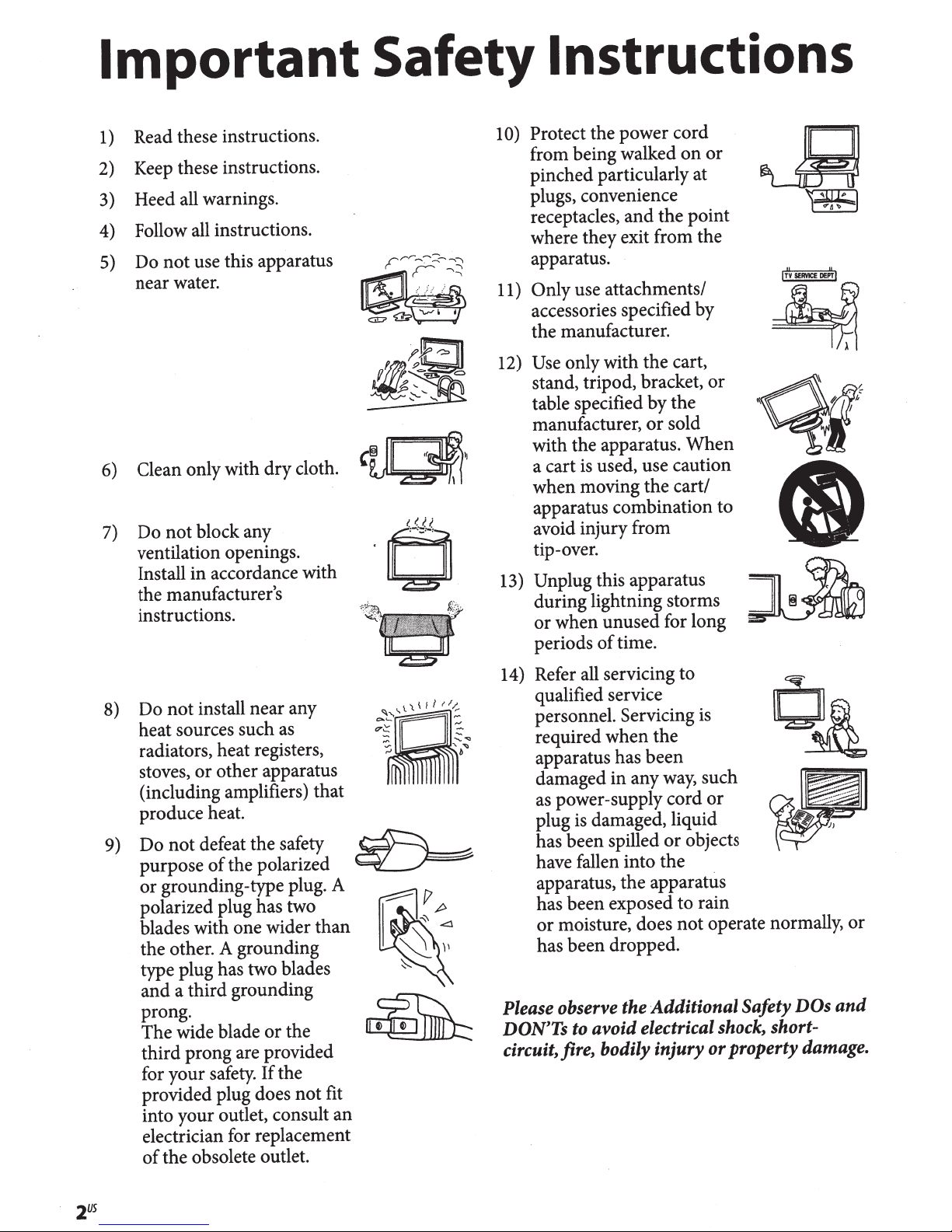
Important
Read these instructions.
1)
Keep these instructions.
2)
Heed all warnings.
3)
Follow all instructions.
4)
Do not use this apparatus
5)
near water.
~
Clean only with dry cloth.
6)
block any
7)
not
Do
ventilation openings.
Install in accordance with
the manufacturer's
instructions.
~J3~
Safety Instructions
Protect the power cord
10)
or
from being walked
pinched particularly at
plugs, convenience
receptacles, and the point
where they exit from the
rrr.-..~:::<--""''
.
I
•
apparatus.
use attachments/
Only
11)
accessories specified by
the manufacturer.
on
~
'I>
~
DE.:\-!
SERVICE
;~
I
~
only with the cart,
Use
12)
sold
When
or
~f
Cl
~
0
stand, tripod, bracket,
table specified by the
manufacturer,
with the apparatus.
used, use caution
a cart
when moving the cart/
apparatus combination to
avoid injury from
tip-over.
Unplug this apparatus
13)
during lightning storms
is
or when unused for long
periods
of
or
time.
install near any
not
Do
8)
heat sources such as
radiators, heat registers,
stoves, or other apparatus
(including amplifiers) that
produce heat.
Do not defeat the safety
9)
the polarized
purpose
or grounding-type plug. A
polarized plug has two
blades with one wider than
the other. A grounding
type plug has two blades
and a third grounding
prong.
The wide blade
third prong are provided
for your safety. If the
provided plug does not fit
into your outlet, consult an
electrician for replacement
of
of
or
the obsolete outlet.
the
(?._
......
~g
-
-;:,
~
-
"~
b~
....
m
~
J[~
Refer all servicing to
14)
qualified service
way,
objects
or
is
such
or
OA
Safety
DOs
and
personnel. Servicing
required when the
apparatus has been
damaged in any
power-supply cord
as
damaged, liquid
is
plug
has been spilled
have fallen into the
apparatus, the apparatus
has been exposed to rain
or moisture, does not operate normally, or
has been dropped.
Please
DON'Ts to avoid electrical shock, shortcircuit, fire, bodily injury or property damage.
observe the
Additional
2us
Page 56
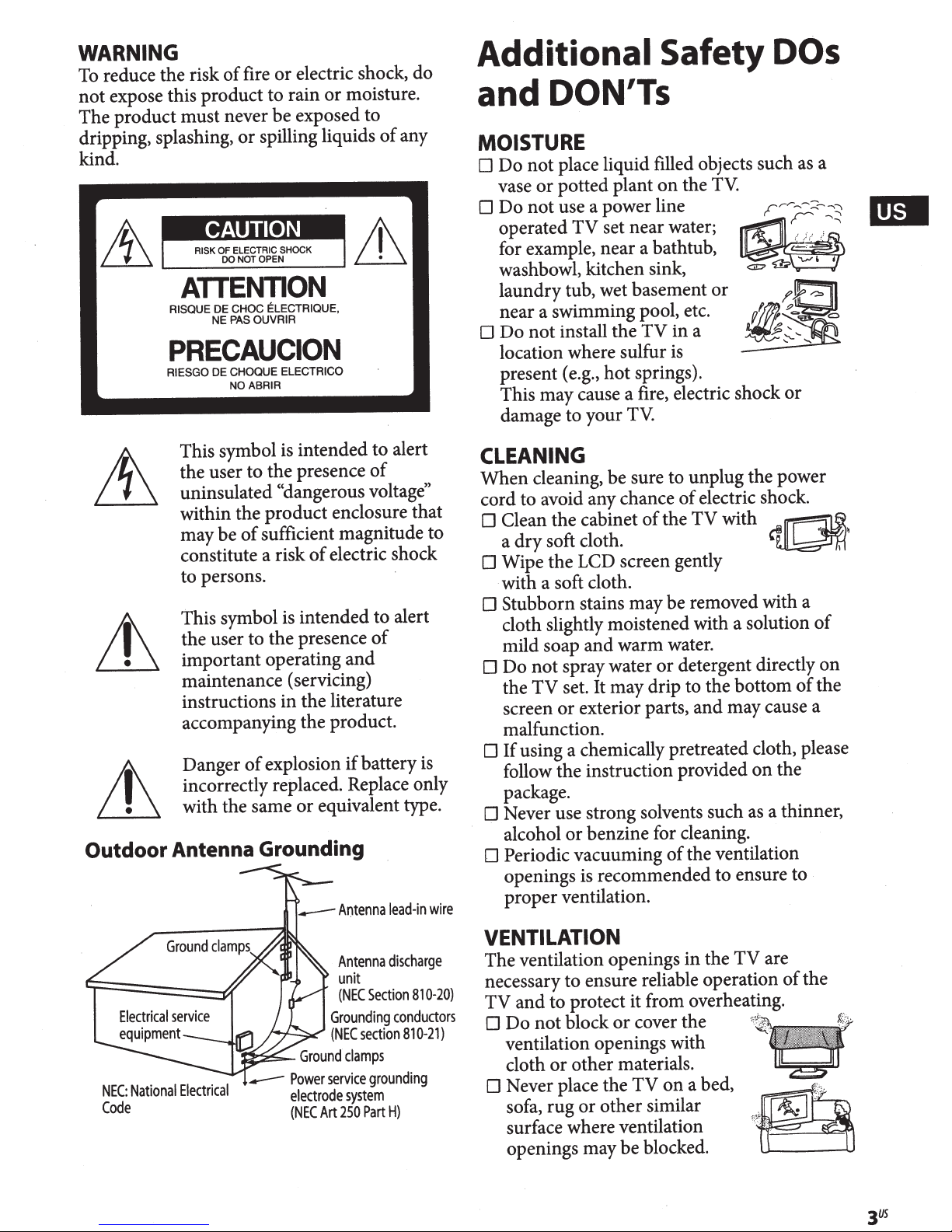
WARNING
reduce the risk
To
expose this product to rain
not
of
moisture.
or
electric shock, do
or
fire
The product must never be exposed to
spilling liquids
dripping, splashing,
or
kind.
ATTENTION
RISQUE
NE
PAS
OUVRIR
ELECTRIQUE,
CHOC
DE
PRECAUCION
RIESGO
CHOQUE
DE
NO
ELECTRICO
ABAIR
of
any
Additional Safety DOs
and
MOISTURE
0 Do
vase
Do
0
~!e~~:!p1~
washbowl, kitchen sink,
laundry tub, wet basement
near a swimming pool, etc.
0 Do
location where sulfur
present (e.g.,
This may cause a fire, electric shock
damage to your
DON'Ts
place liquid filled objects such as a
not
TV.
the
potted plant
or
use a power line
not
~~~~:~a~~~~~
not
install
the
hot
on
in a
TV
is
springs).
TV.
~~~
c:::iD
or
pm~
~~~
-
rrr~~
·
='
=:
<Is>"""'~
•
/'§
or
-
Outdoor
This symbol is intended to alert
the user to the presence
uninsulated
within the
may be
constitute a risk
"dangerous voltage"
product
sufficient magnitude to
of
of
of
enclosure that
electric shock
to persons.
intended to alert
This symbol
the user to
important operating
is
presence
the
of
and
maintenance (servicing)
the literature
instructions
in
accompanying the product.
battery
Danger
explosion
of
if
incorrectly replaced. Replace only
equivalent type.
with the same
or
Antenna Grounding
is
CLEANING
When
cord to avoid any chance
0 Clean the cabinet
0 Wipe the LCD screen gently
0 Stubborn stains may be removed with a
0 Do
0
0 Never use strong solvents such
D Periodic vacuuming
cleaning, be sure to unplug the power
electric shock.
of
d
~
a
dry
soft cloth.
the TV with
of
with a soft cloth.
cloth slightly moistened with a solution
warm water.
mild soap
not
TV
the
screen
and
detergent directly
spray water
or
set. It may drip to the bottom
may cause a
exterior parts,
or
and
malfunction.
using a chemically pretreated cloth, please
If
the
follow the instruction provided
on
package.
a thinner,
as
benzine for cleaning.
. alcohol
openings
or
the ventilation
of
recommended to ensure to
is
proper ventilation.
~~
of
of
on
the
Power
National
NEC:
Code
Electrical
.---
electrode
(NEC
Antenna
unit
Section
(NEC
Grounding
section
(NEC
grounding
service
system
Part
250
Art
discharge
20)
0-
81
conductors
810-21)
H)
VENTILATION
are
TV
the
The ventilation openings
necessary to ensure reliable operation
to protect it from overheating.
and
TV
cover the
0 Do
not
block
or
ventilation openings with
other materials .
or
cloth
0 Never place the
sofa, rug
or
TV
other
surface where ventilation
openings may
be
in
a bed,
on
similar
blocked.
of
the
Page 57
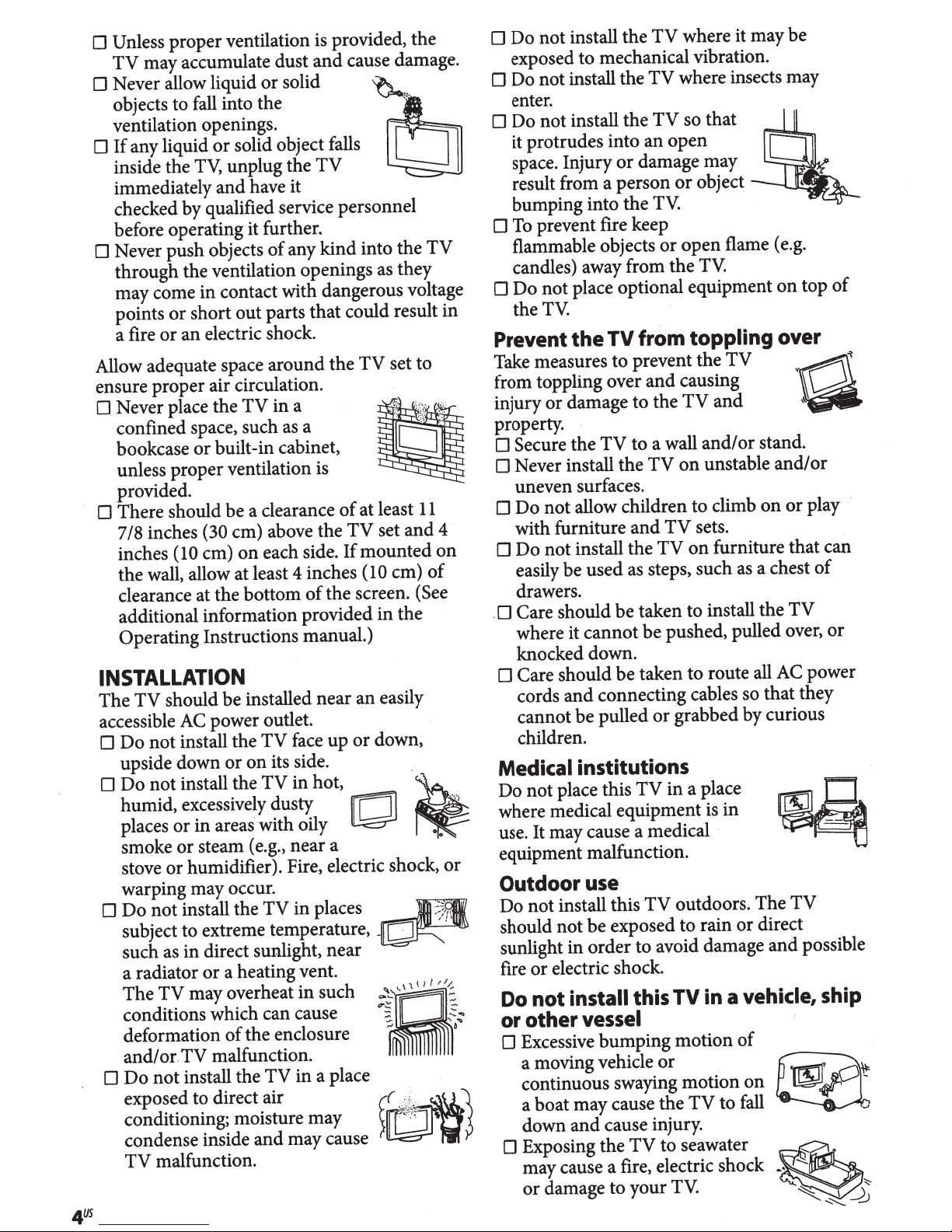
where it may be
Unless
0
TV
0 Never allow liquid
objects to fall into the
ventilation openings.
If
0
inside the
immediately
checked by qualified service personnel
before operating it
0 Never push objects
through
may come in contact with dangerous voltage
points
a fire
Allow adequate space around the
ensure proper air circulation.
0 Never place the
confined space, such
bookcase
unless proper ventilation is
provided.
0 There should be a clearance
7/8
inches
the wall, allow at least
clearance at the bottom
additional information provided
Operating Instructions manual.)
proper ventilation is provided, the
cause damage.
may accumulate dust
or
solid object falls
any liquid
or
inches
or
unplug the
TV,
have it
and
further,
the ventilation openings as they
short out parts
or
an electric shock.
TV
in
built-
or
em) above the
(30
each side.
on
em)
(10
and
solid
TV
any kind into
of
could result in
that
in a
a
as
cabinet,
of
If
inches
4
the screen. (See
of
TV
~
c·:·
the
set to
TV
~
~
set
in
11
and
em)
the
at least
mounted
(10
TV
4
on
of
INSTALLATION
easily
should be installed near
TV
The
power outlet.
accessible
Do
0
upside down
Do
0
humid, excessively dusty
places
smoke
stove
warping may occur.
0 Do
subject to extreme temperature,
such as in direct sunlight, near
a radiator
The
conditions which can cause
deformation
and/
0 Do
exposed -to direct air
AC
face
install the
not
install the
not
in
or
steam (e.g., near a
or
humidifier). Fire, electric shock,
or
install the
not
or
may overheat
TV
malfunction.
TV
.
or
install the
not
TV
its side. .
on
or
in hot,
TV
with oily
areas·
in
TV
a heating vent.
in
the enclosure
of
in
TV
~~~~~t!~~~~~i~:~:a~~~use
malfunction.
TV
an
or
up
[OJ
places
such
a place
down,
~
•
or
~
-~
~
~?
r~~-
>LO
·w
0 Do not install the
mechanical vibration.
exposed
0 Do not install the
enter.
0 Do not install the
it protrudes into an
space. Injury
result from a person
bumping into the
To
0
flammable objects
candles) away from
0 Do
the
to
prevent fire keep
place optional equipment
not
TV.
Prevent the TV
Take measures
from toppling over
damage to
injury
property.
0 Secure the
0 Never install the
0
0 Do not install the
. 0 Care should be taken to install the
0 Care should be taken
or
TV
uneven surfaces.
not allow children to climb
Do
with furniture
easily be used as steps, such as a chest
drawers .
where it
knocked down.
cords
cannot be pulled
children.
cannot
connecting cables so that they
and
Medical institutions
place this
not
Do
,
...
===--
where medical equipment is in
use. It may cause a medical
equipment malfunction.
Outdoor
Do not install this
should not
sunlight in
or
fire
not
Do
other
or
0 Excessive bumping motion
a moving vehicle
~
P
continuous swaying
a boat may cause
down
0 Exposing the
may cause a fire, electric shock
or
use
be
order
electric shock.
install
vessel
cause injury.
and
damage
TV
where insects may
TV
so that
TV
open
damage may
or
object
or
TV.
flame (e.g.
open
or
TV.
the
from
prevent the
to
to
and
TV
exposed to rain
to avoid damage
this
TV
your
to
toppling over
TV
causing
and
and
TV
the
a wall
TV
be pushed, pulled over,
or
TV
and/or
unstable
on
sets.
TV
furniture that can
on
TV
route all AC power
to
grabbed by curious
place
a
in
outdoors. The
or
vehicle,
a
in
TV
of
or
motion
TV
the
seawater
to
TV.
on
to fall
of
top
on
~
'kd
,\!
stand.
and/or
play ·
or
on
of
TV
or
D
~
TV
direct
possible
and
ship
@2!
~
l!!if~
-
_
Page 58
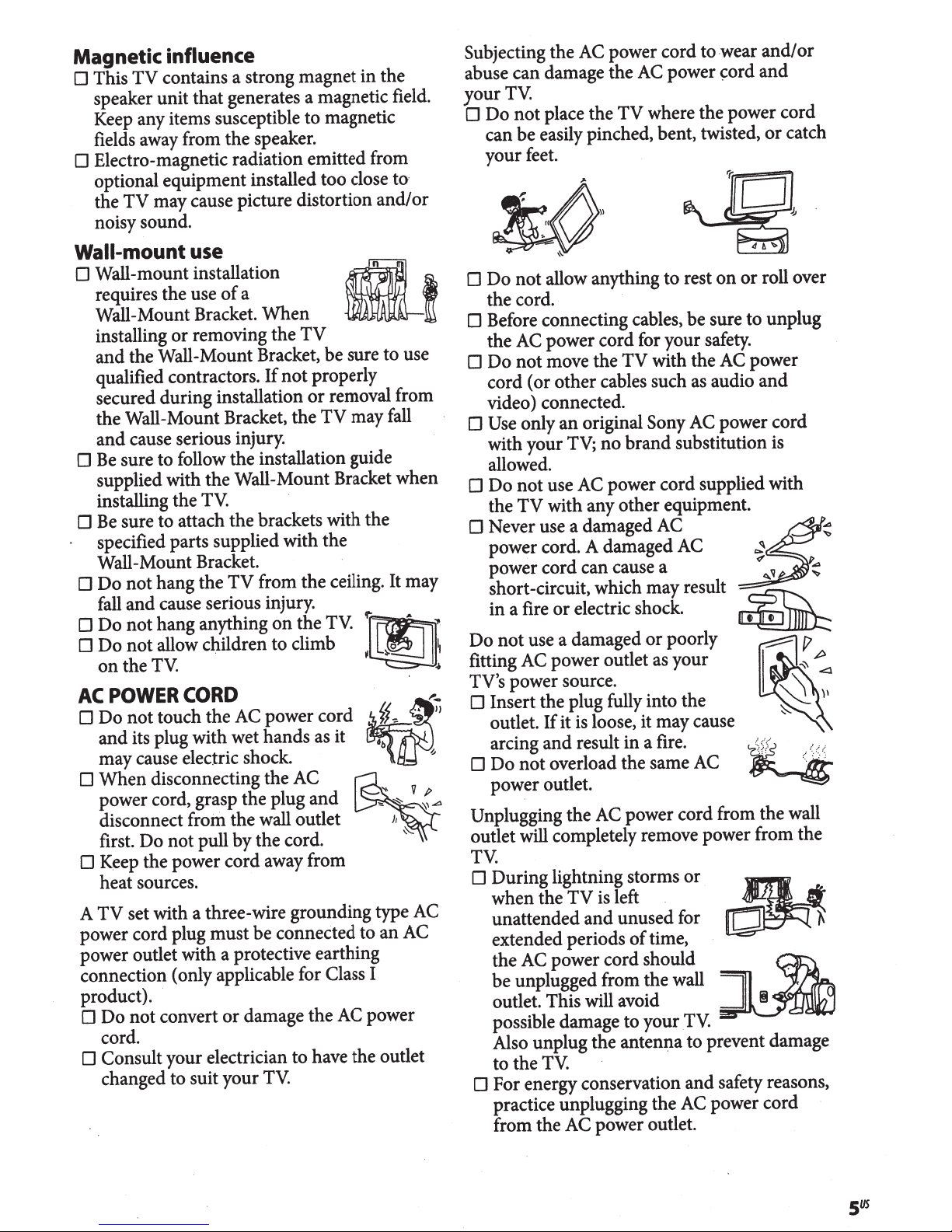
Magnetic
0 This
speaker unit
Keep any items susceptible to magnetic
fields away from the speaker.
0 Electro- magnetic radiation emitted from
optional equipment installed too close
the
noisy sound.
influence .
contains a strong magnet tn the
TV
generates a magnetic field.
that
may cause picture distortion
TV
to
and/
Wall-mount use
0 Wall-
0
0 Be sure to attach the brackets with the
0
0
0
AC
0
0
0
A
power cord plug
power outlet with a protective earthing
connection (only applicable for Class I
product).
0
0 Consult your electrician to have the outlet
mount
requires the use
Wall-Mount Bracket.
installing
the Wall-Mount Bracket, be sure to use
and
qualified contractors.
secured during installation
the Wall-Mount Bracket, the
cause serious injury.
and
sure to follow
Be
supplied with the Wall-Mount Bracket when
installing the
specified parts supplied with the
Wall-Mount Bracket.
not
Do
and
fall
not
Do
not
Do
the
on
POWER
not
Do
its plug with wet hands as it
and
may cause electric shock.
When
power cord, grasp the plug
disconnect froin the wall outlet
Do
first.
the power cord away from
K~ep
heat sources.
set with a three-wire grounding type AC
TV
not
Do
cord.
changed to suit your
installation
a
of
When
removing the
or
the
TV.
TV
the
hang
cause serious injury.
hang anything
allow children to climb
TV.
TV
properly
not
If
or
TV
installation guide
·
from the ceiling. It may
the
on
CORD
touch the AC power cor
disconnecting the AC
and
pull by the cord.
not
be connected to an AC
must
·
damage the AC power
convert
or
TV.
n~
A
removal from
may fall
·
If';~;,
TV.
~~
j
b
d~
or
·
.~
...
~
~
~
Subjecting the AC power cord to .wear
abuse can damage the AC power
TV.
your
where the power cord
place the
not
Do
0
can be easily pinched, bent, twisted,
your feet.
allow anything
not
Do
0
the cord.
0 Before connecting cables, be sure to unplug
the AC power cord for your safety.
move the
not
Do
0
cord (or
video) connected.
0 Use only
with your
allowed.
Do
0
the
0 Never use a damaged AC
power cord. A damaged AC
power cor can cause a
short-circuit, which may result in
not
Do
fitting AC power outlet as your
TV's power source.
0 Insert the plug fully into the
outlet.
~~i~~t~:e~f~~t
0
power outlet.
Unplugging the AC power cord from the wall
outlet will completely remove power from the
TV.
0 During lightning storms
when the
unattended
extended periods
the AC power cord should
be
outlet. This will avoid
possible damage to your
Also unplug the
to the
0 For energy conservation
practice unplugging the AC power cord
from the AC power outlet.
other
an
TV;
use AC power cord supplied with
not
with any other equipment.
TV
d
or
a fire
use a damaged
it is loose, it may cause
If
TV
unplugged from the wall
TV.
TV
rest
to
with the AC power
TV
cables such as audio
AC power cord
original
electric shock.
is left .
and
Sony
brand substitution is
no
poorly
or
as~~
:~e
unused for
of
anten~a
AC
or
time,
TV.
to prevent damage
and
on
and/or
and
~ord
catch
or
roll over
or
and
~~
~
~
~
~
¢
<~..
~
I
~
~
v
~
,\
~
A
~
f/
~
~
i
·
~
\'
,,
J
1!1
safety reasons,
''
Page 59
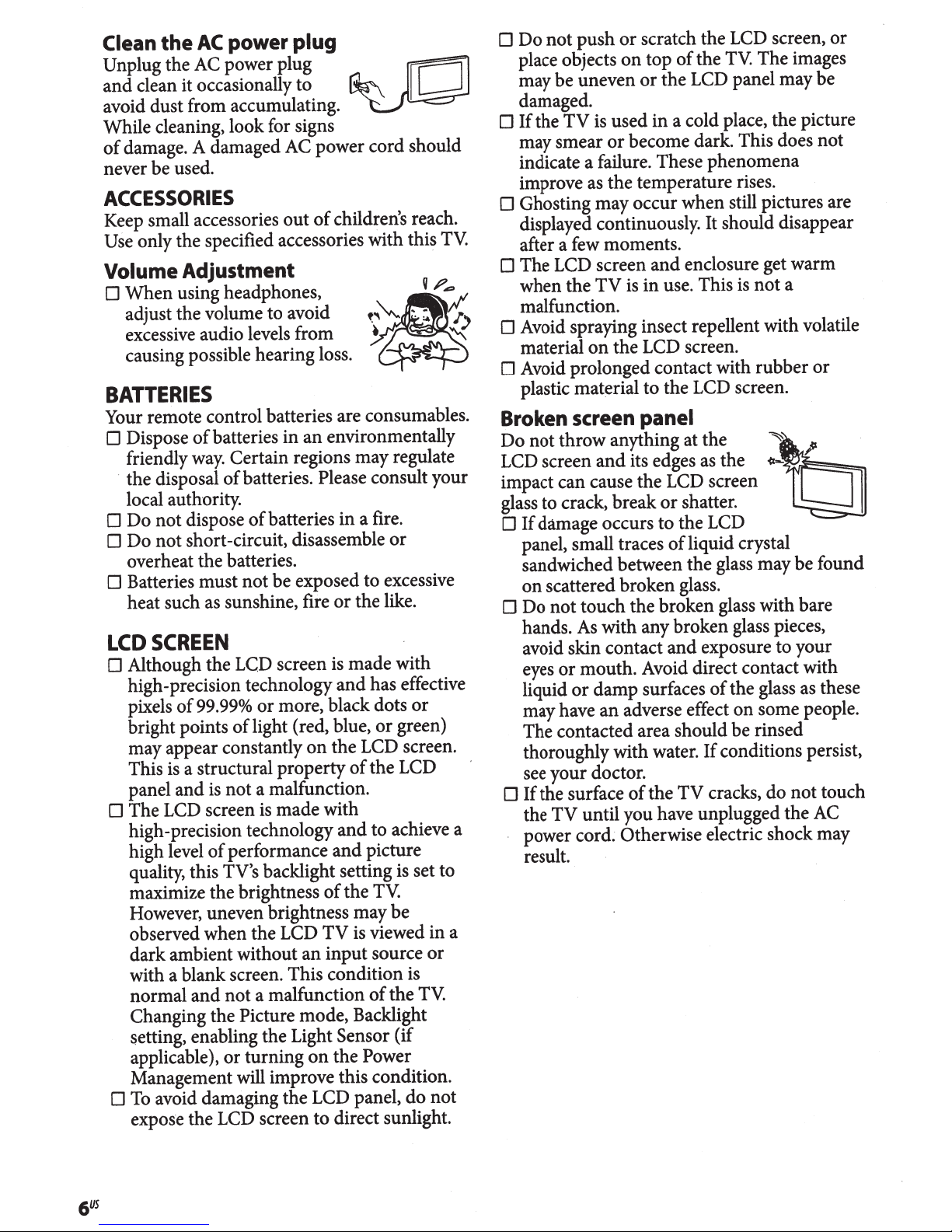
Clean
Unplug the AC power plug
and
avoid dust from accumulating.
While cleaning, look for signs
of
never be used.
the
~]
clean it occasionally to
damage. A damaged AC power cord should
power plug
AC
ACCESSORIES
Keep small accessories
only the specified accessories with this
Use
Volume
When
0
adjust the volume to avoid
excessive audio levels from
causing possible hearing loss.
Adjustment
using headphones,
out
TV.
children's reach.
of
BATTERIES
Your remote control batteries are consumables.
batteries in an environmentally
0 Dispose
friendly
the disposal
local authority.
Do
0
0 Do
overheat the batteries.
0 Batteries must
heat such as sunshine, fire
LCD
0 Although the
high-precision technology
pixels of99.99% or more, black dots
bright points
may appear constantly
This
panel and
0 The LCD screen
high-precision technology
high level
quality, this TV's
maximize the brightness
However, uneven brightness may be
observed when the LCD
dark ambient without an input source
with a blank screen. This condition is
normal and not a malfunction
Changing the Picture mode, Backlight
setting, enabling the Light
applicable),
Management will improve this condition.
To
0
expose the LCD screen to direct sunlight.
of
Certain regions may regulate
way.
batteries. Please consult your
of
batteries in a fire.
dispose
not
short -circuit, disassemble
not
of
be exposed to excessive
not
the like.
or
or
SCREEN
made with
screen
LCD
light (red, blue,
of
a structural property
is
not a malfunction.
is
made with
is
performance
of
backlight setting is set to
turning
or
avoid damaging the LCD panel, do
is
has effective
and
green)
or
the LCD screen.
on
the LCD
of
to achieve a
and
picture
and
TV.
the
of
viewed in a
is
TV
the
of
(if
Power
on
Sensor
the
or
or
TV.
not
a
not
or
not
or
'
touch
AC
0 Do
0
0 Ghosting may occur when still pictures are
0 The LCD screen
not
The images
TV.
the
of
top
place objects
may be uneven
damaged.
TV
the
If
may smear
indicate a failure. These phenomena
improve as the temperature rises.
displayed continuously. It should disappear
after a few moments.
when the
malfunction.
0 Avoid spraying insect repellent with volatile
material
0 Avoid prolonged contact with rubber
plastic material to the LCD screen.
Broken
Do
LCD screen
impact can cause the LCD screen
glass to crack, break
If
0
panel, small traces
sandwiched between the glass may be found
on
0 Do
hands.
avoid skin contact
eyes
liquid
may have
The contacted area should be rinsed
thoroughly with water.
see your doctor.
If
0
the
power cord. Otherwise electric shock may
result.
screen
throw anything at the
not
damage occurs to the LCD
scattered broken glass.
not
or
or
the surface
TV
on
the LCD panel may be
or
used in a cold place, the picture
is
become dark. This does
or
enclosure get warm
and
not
in use. This
is
TV
the LCD screen.
on
is
panel
~b
the
its edges.
and
touch the broken glass with bare
with any broken glass pieces,
As
mouth. Avoid direct contact with
damp surfaces
adverse effect on some people.
an
the
of
until you have unplugged the
as
shatter.
or
liquid crystal
of
exposure to your
and
of
conditions persist,
If
cracks, do
TV
~--
the glass as these
scratch the LCD screen,
or
push
Page 60
SERVICING
you
if
use the
not
Do
suspect the
TV
the
if
or
the
not
TV
0 Do
TV
damaged
is
TV
damaged.
is
attempt to service
yourself since
opening the cabinet may
expose you to dangerous
other
voltage levels
hazards. Refer
or
all·
servicing to qualified service personnel.
replacement parts are
If
0
required, acquire a written
~
certification from. the service
technician which states that
adequate replacement parts
similar characteristics as the
the same
or
original parts have been used.
result
substitutions
shock
or
may
other hazards.
with
Unauthorized
a fire, an electric
in
Safety check
TV
any
Upon
0
servicing
completion
or
service technician to perform
routine safety checks
specified by Sony
certify that the
qualified service technician dispose
not
is
it
if
TV
of
repair, ask the
as
to
and
is safe to operate. Have a
TV
safe to operate.
oa:;.
~~~SERVICE
1
·
A
the
of
CAUTION
0 Some people may experience discomfort
nausea) while
eye strain, fatigue,
(such
as
watching 3D video images
stereoscopic 3D games. Sony recommends
that all viewers take regular breaks while
watching 3D video images
stereoscopic 3D games. The length and
necessary breaks will vary
frequency
from person
what works best.
of
person.
to
you experience any
If
discomfort, you should stop watching the
playing stereoscopic 3D
3D video images
or
games until the discomfort ends; consult a
you believe necessary. The vision
doctor
of
six years old)
if
young children (especially those
under
still
is
Consult your doctor (such as a pediatrician
eye doctor) before allowing young
or
children to watch 3D video images
stereoscopic 3D games. Adults should
supervise young children to ensure they
follow the recommendations listed above.
or
playing
or
playing
or
must decide
You
development.
under
play
or
Page 61

Printed in
U.S.A.
3-299-071-09(1)
111~111~~~11111111111
3299071091
Page 62
Page 63
Page 64
4-144-386-02(2)
4-452-014-01
LCD Television 12M
LIMITED WARRANTY (U.S. ONLY)
SONY ELECTRONICS INC. (“SONY”) warrants this product against defects in material or workmanship
for the original and any subsequent end user owner(s) (“Y ou” or “Your”) for the time periods and as set
forth below when purchased directly from Sony or a Sony Retailer. Under this Limited Warranty, SONY
will, at its option, (i) repair the product using new or refurbished parts or (ii) replace the product with a
new or refurbished product. “Refurbished” means a product or part that has been returned to its original
specifications. These are Your exclusive remedies. SONY does not warrant that the operation of
the product will be uninterrupted or error-free.
Term: One (1) year from the original date of purchase of the product (or ninety (90) days from original
date of purchase for commercial use). This Limited Warranty is transferable. However, any transfer of this
product does not extend the term. A copy of the dated receipt from Sony or a Sony Retailer or
bill of sale from the original end user purchase is required to determine coverage. Online
auction confirmations are not accepted for warranty verification.
Product Coverage: Only the hardware components packaged with the Product are covered. Technical
assistance for hardware or software usage and any software products are not covered. Any software
is provided “AS IS” unless expressly provided for in any enclosed software Limited Warranty. When
a product or part is exchanged, the original item becomes SONY’s property. Any replacement product
provided under this limited warranty may vary in the color and/or cosmetic design from the original
product and may not include any original engraving or similar customization.
Instructions: Y ou must contact SONY or an authorized servicer prior to returning any product for warranty
service. SONY will not reimburse You for service performed by others. Unless otherwise instructed by
SONY or an authorized servicer, You must deliver the product, freight prepaid, in either its original
packaging or packaging affording an equal degree of protection to the facility specified by SONY.
For specific instructions on obtaining warranty service for your product,
Visit SONY’s Web Site: www.sony.com/support
Or call the Sony Customer Information Service Center
1-800-222-SONY (7669)
For an accessory or part not available from Your authorized dealer, call:
1-800-488-SONY (7669)
If Y ou purchased an extended service plan, please refer to the service plan for the coverage, duration and
terms of service as they are not governed by this Limited Warranty.
Repair/Replacement Warranty: This Limited Warranty shall apply to any repair, replacement part or
replacement product for the remainder of the original Limited Warranty period or for ninety (90) days,
whichever is longer.
(See reverse for additional terms and conditions.)
Printed in Japan
Printed in Japan
Printed in USA
Page 65
Limitations: This Limited Warranty only covers product issues caused by defects in material or
workmanship during ordinary consumer use; it does not cover product issues caused by any other reason,
including but not limited to, (i) product issues due to acts of God or nature; (ii) misuse; (iii) accidental
damage, including but not limited to, contact with liquid, extreme heat or foreign material; (iv) customer
instruction, installation, set up adjustments or signal reception issues; (v) limitations of technology; (vi)
modification of or to any part of the SONY product, including the antenna; (vii) cosmetic damage; (viii)
use or installation inconsistent with the owner’ s manual and other SONY instruction; (ix) use of parts or
peripherals not recommended by SONY; damage caused by servicing not authorized by SONY or thirdparty calibration; or (x) damage caused by computer or internet viruses, bugs, worms, T rojan Horses or
cancelbots; or products purchased from other than Sony or a Sony Retailer. To determine if a retailer is
part of the Sony Retailer Network, please contact Sony’s Customer Service Call Center or go to
www.sonystyle.com/retailernetwork. This Limited Warranty does not cover up to .01% pixel
outages (small dot picture elements that are dark or incorrectly illuminated). A Display contains hundreds
of thousands of individual pixels. Displays typically contain a small number of pixels that do not function
normally.
This Limited Warranty does not cover SONY products sold “AS IS”, “Open Box”, “WITH ALL FAULTS”
or similar notations and does not cover consumables (such as fuses or disposable batteries). SONY will
not replace missing components from any package purchased “AS IS”, “Open Box” or through an online
auction. This Limited Warranty is invalid if the factory-applied serial number has been altered or removed
from the product. This Limited Warranty is valid only on products purchased and located in the United
States (excluding territories) or United States military facilities.
SONY specifically does not represent that it will be able to repair any product under this warranty or make
a product exchange without risk to or loss of programs or data.
LIMITATION ON DAMAGES: SONY SHALL NOT BE LIABLE FOR ANY INCIDENTAL OR CONSEQUENTIAL
DAMAGES FOR BREACH OF ANY EXPRESS OR IMPLIED WARRANTY ON THIS PRODUCT NOR SHALL
RECOVERY OF ANY KIND AGAINST SONY BE GREATER THAN THE PURCHASE PRICE OF THE
PRODUCT.
DURATION OF IMPLIED WARRANTIES: EXCEPT TO THE EXTENT PROHIBITED BY APPLICABLE LAW,
ANY IMPLIED WARRANTY OF MERCHANTABILITY OR FITNESS FOR A PARTICULAR PURPOSE ON
THIS PRODUCT IS LIMITED IN DURA TION TO THE DURA TION OF THIS W ARRANTY. WITH RESPECT TO
COMMERCIAL PURCHASERS, ALL IMPLIED WARRANTIES, INCLUDING THE IMPLIED WARRANTIES
OF MERCHANTABILITY AND FITNESS FOR A PARTICULAR PURPOSE, ARE EXCLUDED AND
DISCLAIMED.
Some states do not allow the exclusion or limitation of incidental or consequential damages, or allow
limitations on how long an implied warranty lasts, so the above limitations or exclusions may not apply
to You. This Limited W arranty gives You specific legal rights and You may have other rights which vary
from state to state.
No Sony reseller, agent or employee is authorized to make any modification, extension or addition to
this warranty.
445201401
4144386022
 Loading...