

Page 1

Device basics
4
1
5
2
3
6
8
7
9
1 Charging/Notification light
2 Nano SIM/Memory card slot
3 NFC
4 Volume/Zoom key
5 Fingerprint sensor
6 Power key
7 Wireless charging coil
8 Camera key
9 USB port/Charger/Audio adapter
To insert either two nano SIM cards or
a nano SIM card and a memory card
Do not cut your SIM cards, as this may damage your
device.
1 Drag out the SIM card tray.
2 Place the main SIM card securely in position for SIM1, as
shown in the illustration.
3 Place either the second SIM card or the memory card
securely in the tray, in the correct orientation as shown
in the illustration.
Page 2

4 Gently push the tray back into the slot until it fits into
place.
To turn on your device
Before you turn on your device for the first time, it is
recommended to charge the battery for at least 30
minutes. If you use a USB cable to charge, make sure to
use a USB Type-C™ cable (provided) as other types of
USB cables can damage your device.
1 Press and hold down the power key until the device
vibrates.
2 Wait a moment for the device to start.
To activate the screen
• Briefly press the power key.
Screen protection
Before using your device, remove all protection films to
enable full functionality.
Screen covers and protectors may help you protect your
device against damage. We recommend you use only those
screen covers intended for your Xperia™ device. The use of
third party screen protection accessories may prevent your
device from working correctly by covering sensors, lenses,
speakers, or microphones and can invalidate the warranty.
Support for you
Use the Support app to find device and software
information. You can read support topics, troubleshoot or
use helpful apps such as the device test. Visit our Web
support directly from the app to read User guides,
knowledge articles or the Support forum.
Support contact information is available from the Contact
us menu even without a network connection.
To access the Support app
• Find and tap .
Warranty, SAR and usage guidelines
For information about warranty, SAR (Specific Absorption
Rate) and safety guidelines, please read the Important
information provided under Settings > System > About
phone > Legal information on your device.
Transferring contacts and content
For transferring contacts, messages, photos or other data
from an old device to your new device, we recommend that
you use the Xperia Transfer Mobile application. On your
new device you will find it in Settings > System.
Visit
https://www.sonymobile.com/xperiatransfer
for more
information.
Page 3
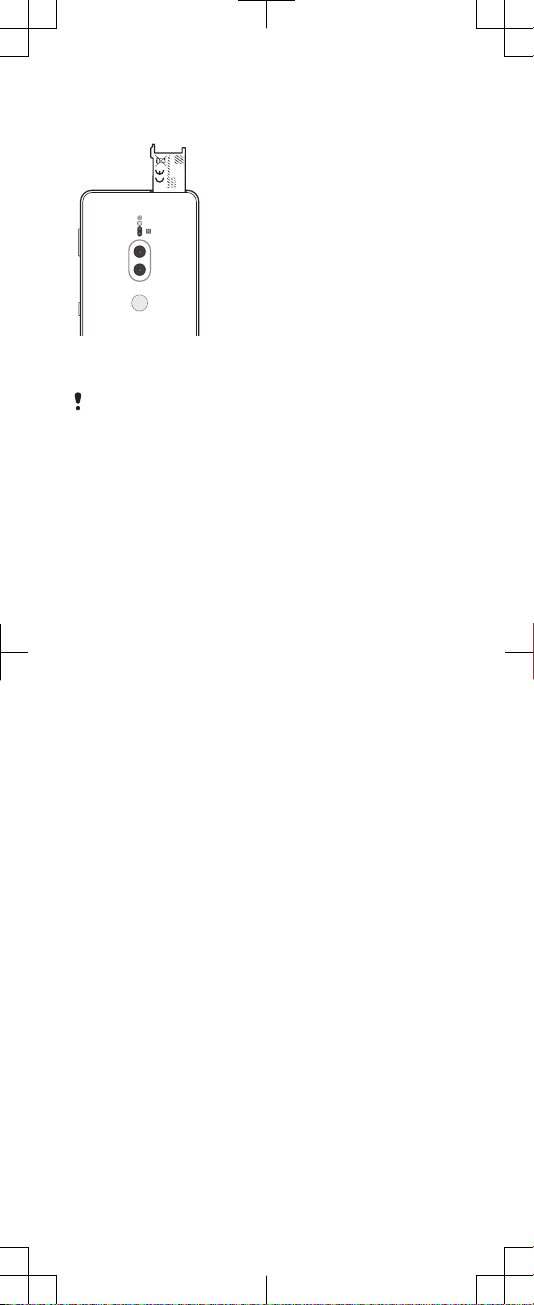
To view the CE marking and the FCC ID
0
-
0
0
0
0
0
X
0
0
0
0
-
X
X
0
0
0
0
-
0
0
0
0
1 Drag out the SIM card tray.
2 Drag out the label strip in the same way.
To see the full text of the EU declaration of conformity,
visit:
http://www.compliance.sony.de/
To view the regulatory compliance
mark
• Open the phone dialer, then enter *#07#.
Legal information
Publication number: XXXX-XXXX.1
This Startup guide is published by Sony Mobile Communications Inc. or its local aliated company,
without any warranty. Improvements and changes to this Startup guide necessitated by typographical
errors, inaccuracies of current information, or improvements to programs and/or equipment, may be
made by Sony Mobile Communications Inc. at any time and without notice. Such changes will, however,
be incorporated into new editions of this Startup guide. All illustrations are for illustration only and may
not accurately depict the actual device.
See regulatory information such as the device CE marking in the relevant label tray in the device.
All product and company names mentioned herein are the trademarks or registered trademarks of their
respective owners. Any rights not expressly granted herein are reserved.
Visit
https://www.sonymobile.com/global-en/legal/
for more information.
Manufacturer: Sony Mobile Communications Inc., 4-12-3 Higashi-Shinagawa, Shinagawa-ku, Tokyo,
140-0002 Japan. For EU product compliance: Sony Belgium, bijkantoor van Sony Europe Limited, Da
Vincilaan 7-D1, 1935 Zaventem, Belgium.
© 2018 Sony Mobile Communications Inc. All rights reserved.
Supported frequency bands
Some frequency bands might be turned o in certain markets or by certain operators.
You can find your model number under Settings > System > About phone.
H8166
UMTS HSPA+ (Bands 1, 2, 4, 5, 6, 8, 19) GSM GPRS/EDGE 850, 900, 1800, 1900 LTE (Bands 1, 2, 3, 4, 5, 7, 8,
12, 13, 17, 19, 20, 26, 28, 29, 32, 38, 39, 40, 41, 46, 66) WLAN, 2.4G/5G, NFC
GSM 850/900 : Power Class 4, DCS(1800)/PCS(1900) : Power Class 1, UMTS : Power Class 3,
LTE : Power Class 3, 2.4GHz<100mW, 5.15-5.35GHz<200mW, 5.47-5.725GHz<200mW,
5.735-5.835GHz<25mW, NFC 13.56MHz
Page 4
Startup guide
Xperia XZ2 Premium
H8166
XXXX-XXXX.1
 Loading...