

Page 1
Phonak EasyCall
User Guide
Page 2
Contents
1. Welcome 5
2. Getting to know your EasyCall 7
2.1 How the device works 7
2.2 Device description 8
3. Getting started 9
3.1 9
Understanding the indicator light
3.2
3.3
3.4
3.5
3.6
3.7
4. Attaching EasyCall onto the cell phone 19
4.1 Attaching using the Phonak hard case 19
4.2 Attaching using double-sided adhesive tape 20
Charging the battery
Initial pairing to a phone
Connecting to the cell phone
Testing the connection to the hearing aids
11
12
13
15
16
18
2
Page 3

5. Daily use 25
5.1 Correct holding position 25
5.2 Making a call 27
5.3 Accepting a call 28
5.4 Setting the phone volume during call 29
5.5 Ending a call 29
6. More detailed information 30
6.1 Low battery indication 30
6.2 Transferring a call 30
6.3 Second incoming call 31
6.4 Deleting paired Bluetooth devices 32
6.5 Removing EasyCall from the phone 33
3
Page 4

Contents
7. Troubleshooting 34
8. Service and warranty 40
8.1 Local warranty 40
8.2 International warranty 40
8.3 Warranty limitation 41
9. Compliance information 42
10. Information and explanation of symbols 45
11. Important safety information 49
4
Page 5
1. Welcome
Phonak EasyCall is a quality product developed by
Phonak, one of the world’s leading companies in hearing
technology.
The intended use is to wirelessly connect your Phonak
hearing aids to your cell phone.
Please read the user instructions thoroughly in order to
benet from all the possibilities EasyCall has to oer.
Phonak – life is on www.phonakpro.com
0560
CE mark applied: 2014
5
Page 6

1. Welcome
Hearing aid compatibility
This product uses a dedicated wireless link to Phonak
hearing aids. Please ask your hearing care professional
about your hearing aids compatibility.
This user guide is valid for:
Phonak EasyCall
Compatible with wireless Spice, Spice+ and Quest based
hearing aids.
Phonak EasyCall II
Compatible with wireless Venture based hearing aids
and newer.
6
Page 7
2. Getting to know your EasyCall
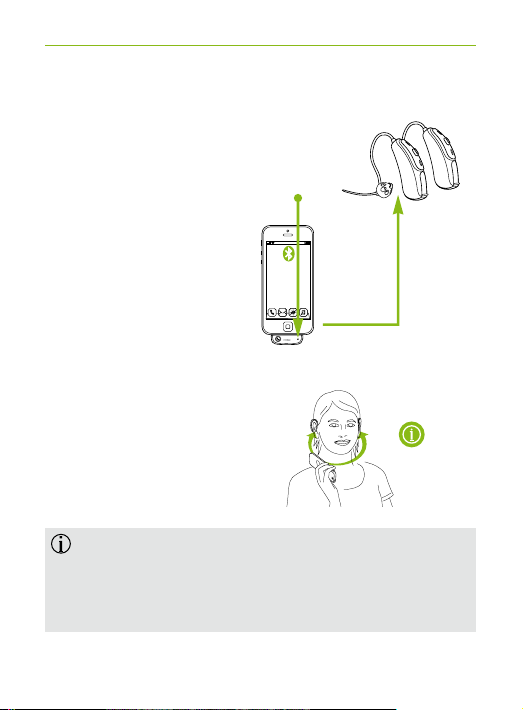
2.1 How the device works
Phonak EasyCall is securely
attached to a cell phone.
Own voice
It picks up the call from
the phone via Bluetooth®
and transmits the
max. 25 cm
(10")
callers voice directly to
both hearing aids
simultaneously.
Communication
Caller’s voice
During the call, hold the cell
phone (with EasyCall attached)
within 25 cm (10") distance
to both hearing aids.
max. 25 cm
(10")
EasyCall is designed for speech and cell phone use
only. Music streaming and video calls are usually
not supported, although some phones are capable
of doing this.
Bluetooth® is a registered trademark owned by the Bluetooth SIG, Inc.
7
Page 8
2. Getting to know your EasyCall
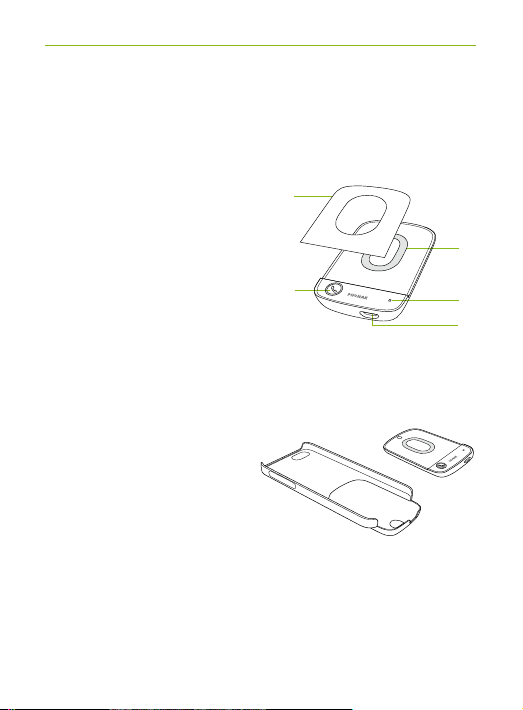
2.2 Device description
A Call button with
built-in light indicator
B Micro-USB
charging input
C Microphone
opening
D Cell phone scratch-
protection ring
E Optional double-
sided adhesive tape
Optional accessories
For the best placement of
EasyCall, check the
availability of a Phonak
EasyCall hard case to
match your cell phone on
www.phonak.com/easycall
E
A
D
C
B
8
Page 9

3. Getting started
3.1 Understanding the indicator light
Switching on
Pairing mode
During phone call
Bluetooth connected
On and ready to
connect
Low battery warning
Green for 2 seconds
Red for 2 seconds
Rapid blue blink
Solid blue
Blink blue every
5 seconds
(max. 1 minute)
Blink green every
5 sec. (max. 1 hour)
13 short red blinks
every minute
9
Page 10
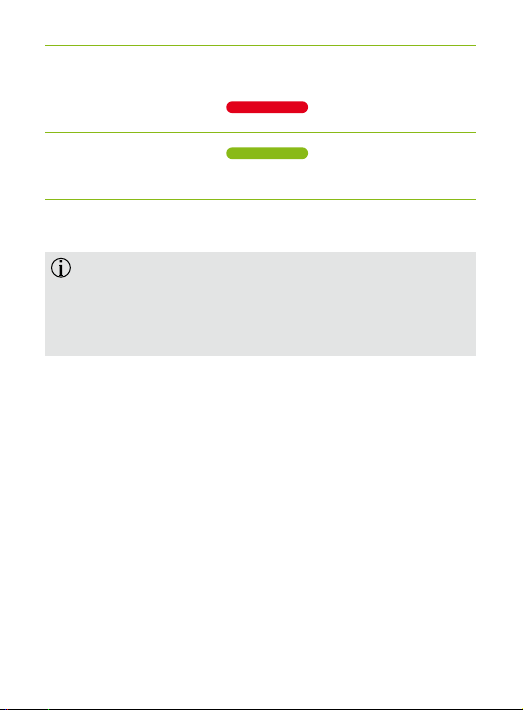
Charging
Solid red
Fully charged while
Solid green
charger attached
60 seconds after no call is in progress, the blue
blinking will stop to save power. Pressing the
call button will lit the indicator light as long as
EasyCall is switched on.
10
Page 11
3. Getting started
3.2 Charging the battery
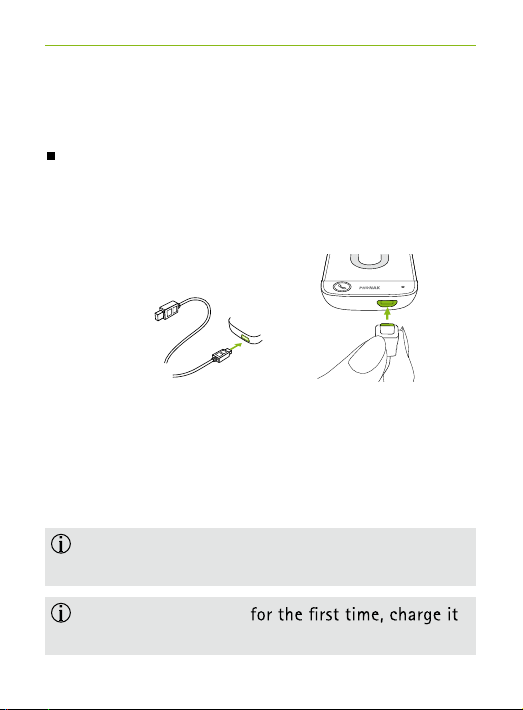
Plug the larger end of the charging cable into a USB
power source. Plug the smaller end into the
micro-USB port on EasyCall.
The indicator light is red during charging and will
turn green when charging is complete.
This may take up to 3 hours. If the EasyCall is used
while charging, the charging may take longer.
EasyCall has a non-removable rechargeable
battery.
Before using EasyCall
for at least 3 hours.
11
Page 12
It is safe to leave EasyCall connected to the
charger overnight.
The full performance of a new battery is achieved
only after three complete charge and discharge
cycles.
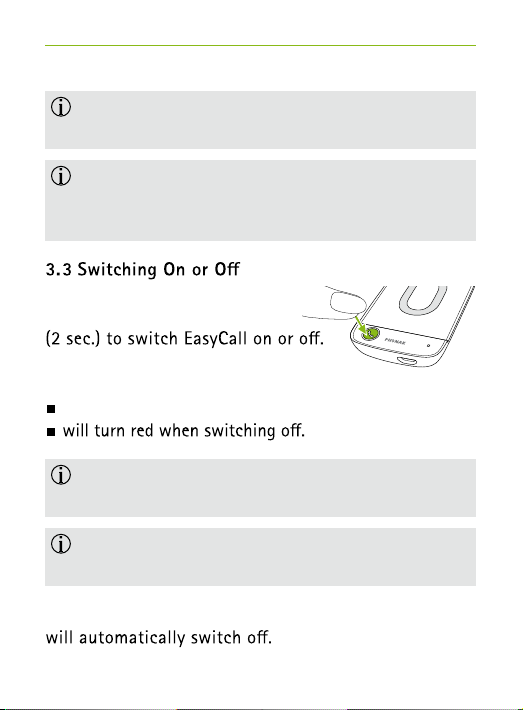
Press and hold the call button
The integrated indicator light
will turn green when switching on.
Pressing the button twice within 2 seconds will also
switch on EasyCall.
Release the button immediately after turning red to
avoid the start of Bluetooth pairing.
If a phone is not connected for 60 minutes, EasyCall
12
Page 13
3. Getting started
3.4 Initial pairing to a phone
Before using EasyCall with a cell phone, the devices must
Make sure EasyCall and the cell phone are within
1 meter (3 ft.) range.
Enable Bluetooth on the cell phone.
If EasyCall has never been paired, it will
automatically be in pairing mode after switching
on. This is indicated by a rapidly blinking blue
indicator light.
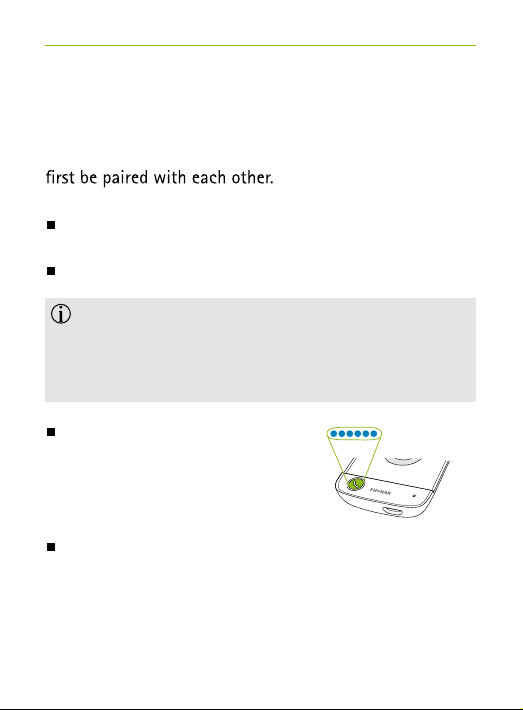
To manually start pairing on
EasyCall, press and hold the call
button for 10 seconds until the
indicator light starts to rapidly
blink blue.
Start the pairing process on the phone within 1 minute
according to the phone user guide.
13
Page 14
Your phone shows a list of found Bluetooth devices.
Select “Phonak EasyCall” from this list and enter
code “0000” if prompted.
Completion of pairing
After successful pairing, the EasyCall indicator light
will stop rapidly blinking blue. This can take up to
2 minutes but usually occurs within a few seconds.
The phone only needs to be paired once. It
Pairing to another cell phone
To use EasyCall with another cell phone, manually start
the pairing again as described on the previous page.
14
Page 15

3. Getting started
3.5 Connecting to the cell phone
Switch EasyCall on by
pressing the call button for
2 seconds.
After your phone has been paired
to EasyCall, they will automatically
connect to each other. This is
indicated by the corresponding
Bluetooth symbol on the phone and
may take up to 30 seconds.
If they do not connect automatically
Ensure the phones’ Bluetooth feature is turned on.
connect EasyCall with the cell phone (for some older
phones this may be a necessary step).
15
Page 16
If it still does not connect, go to your phone’s
Bluetooth menu and select EasyCall from the list of
paired Bluetooth devices. Open the EasyCall Bluetooth
settings and set the “Allow automatic connection” to
“yes”.
The connection will be maintained as long as
the devices remain switched on, within a 3 meter
(10 ft.) range and the Bluetooth feature is enabled.
3.6 Testing the connection to the hearing aids
Before attaching EasyCall to a cell phone you
should do a basic function test.
With the EasyCall connected to a phone, dial a number
such as your voicemail box.
The EasyCall indicator light should turn solid blue.
16
Page 17
3. Getting started
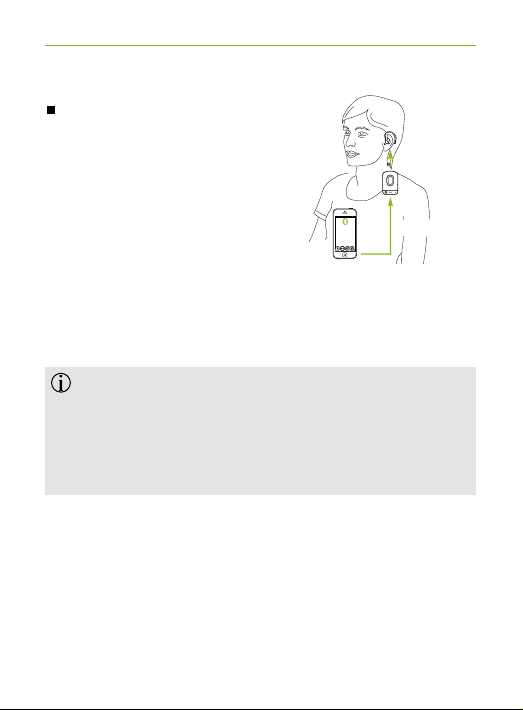
Keep the phone and EasyCall
within a 0.5 meter (20") range
while holding the EasyCall
<25 cm (10")
device next to your hearing
aids (<25 cm / 10").
<50 cm (20")
Your hearing aids switch to the phone streaming
program and you can hear the phone signal through
your hearing aids.
If you cannot hear the phone signal through your
hearing aids while the EasyCall indicator light is
solid blue, ask your hearing care professional about
the compatibility of EasyCall or EasyCall II with
your hearing aid model.
17
Page 18
3.7 Setting the phones’ ringtone prole
As long as EasyCall is Bluetooth-connected to the
phone, ringtones, SMS alerts, etc., will be transmitted
via Bluetooth to EasyCall.
If EasyCall is more than 25 cm (10") away from your
hearing aids, you will not be able to hear these tones.
After your phone connected to EasyCall via Bluetooth:
when connected to “Bluetooth headset”.
Also consider enabling the vibrating alert.
Please consult your phone’s user guide for more
18
Page 19
4. Attaching EasyCall onto the cell
phone
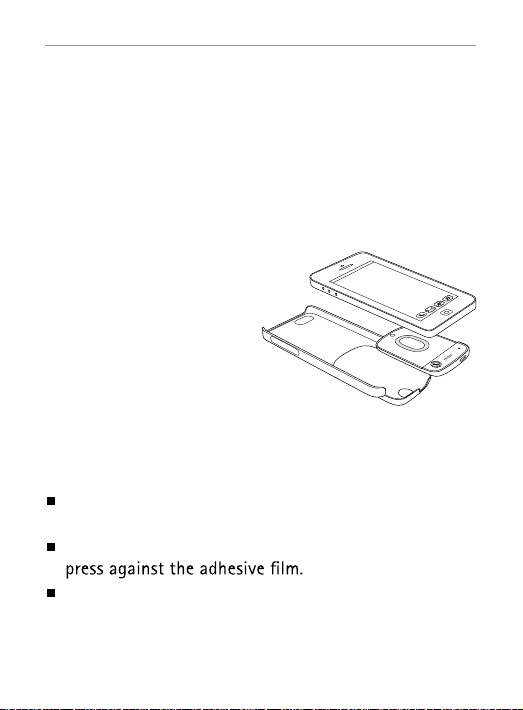
To ensure EasyCall is never forgotten or lost, it should
stay securely attached onto the back of your phone.
4.1 Attaching using the Phonak hard case
For some phone models,
Phonak provides hard cases
that allow for the most
convenient placement of
EasyCall onto the phone.
Check our website on
http://www.phonak.com/easycall to see if a Phonak
EasyCall hard case is available for your phone.
Remove the protection foil from the adhesive tape
on the hard case side.
Insert EasyCall into the hard cases's cavity and gently
Clip the hard case onto your phone.
19
Page 20
4.2 Attaching using double-sided adhesive tape
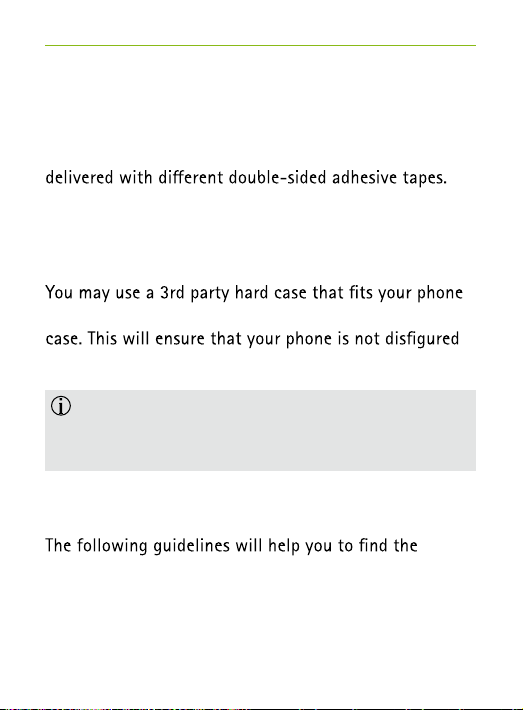
To support virtually any cell phone shape, EasyCall is
Use one of the tapes to attach EasyCall onto the back
of your cell phone.
model and attach EasyCall onto the back of the hard
by the adhesive tape.
Before attaching EasyCall, ensure pairing and
connection to your phone was successful (see
chapter 3.5).
Finding the correct position for EasyCall
appropriate location for the placement of EasyCall.
Remember that EasyCall, once attached, should always
stay with your phone.
20
Page 21
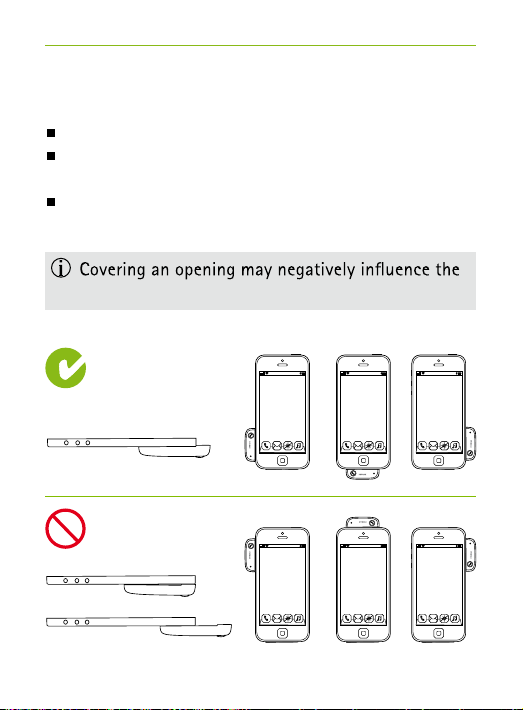
4. Attaching EasyCall onto the cell phone
Place EasyCall
On the back of the phone.
Near the bottom part to ensure the microphone
opening is close to the mouth.
On a solid area with no openings, such as
microphones, camera lens, speaker opening, etc.
performance of the phone.
21
Page 22
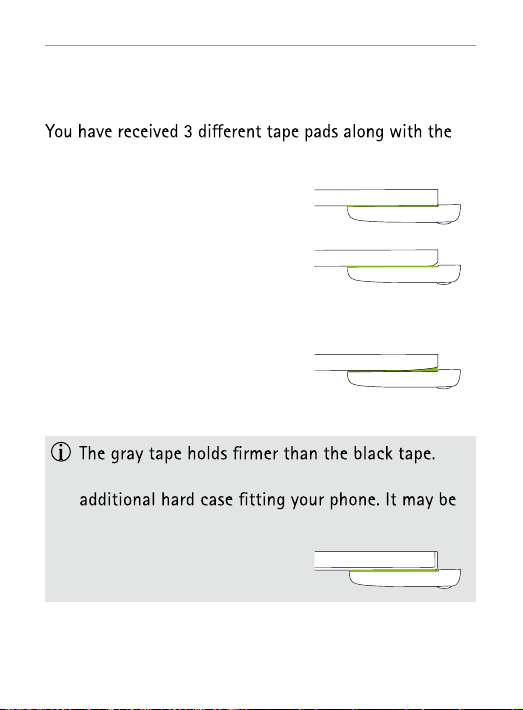
Choosing the right tape
EasyCall.
For straight surfaces use the thin
transparent tape.
For curved surfaces use the
thicker black tape.
Only use it if you attach EasyCall onto an
impossible to remove the EasyCall from
the phone later.
22
Page 23
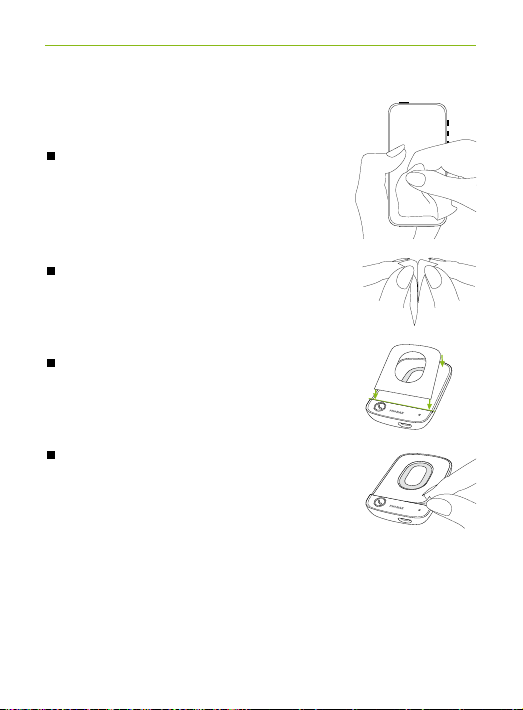
4. Attaching EasyCall onto the cell phone
Attaching EasyCall on the phone
Ensure to clean all dirt and grease
on the phone and EasyCall to ensure
the tape holds well.
Remove the backing from one side
of the double-sided adhesive tape.
Carefully align and press the tape
against EasyCall.
Remove the second backing and
place EasyCall on the best possible
position on your phone as shown
on the two previous pages.
23
Page 24
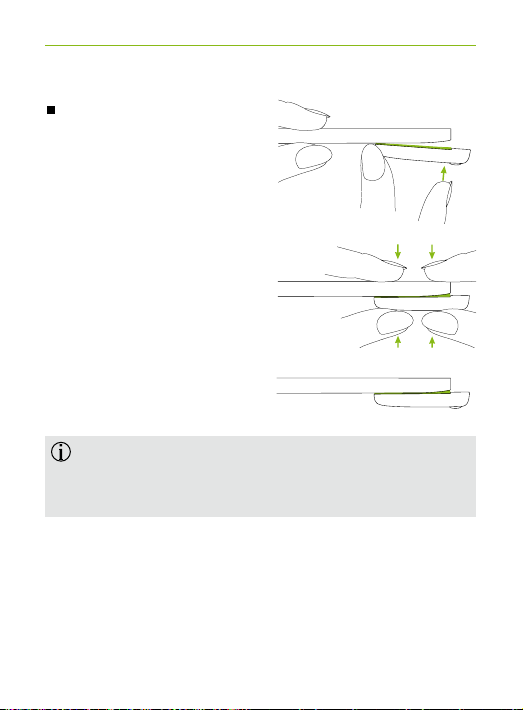
Gently press EasyCall
against your phone
for 5 seconds to allow
the adhesive tape to
bond.
5 sec.
It takes at least 20 minutes until the adhesive tape
holds well enough. Full adhesive force is achieved
after 24 hours.
24
Page 25
5. Daily use
Before any phone call:
Insert the hearing aids
into your ears correctly
and switch them on.
Ensure EasyCall is switched
on and connected to the
cell phone as described in
chapter 3.6.
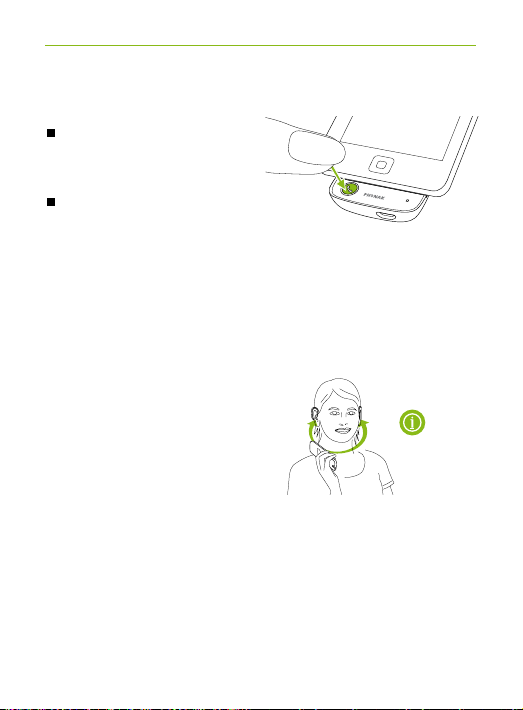
5.1 Correct holding position
The microphone opening of
EasyCall picks up your voice.
For the whole duration
of the call, hold your cell
phone (with EasyCall
attached) close to your
hearing aids and your mouth.
Your hearing aids will switch to the phone program
automatically during the call and when EasyCall is
within the wireless link distance.
max.
25 cm (10")
25
Page 26
EasyCall streams the speech signal from the cell phone
to both hearing aids simultaneously.
The maximal range of EasyCall to the hearing aids is
25 cm (10").
Within this range the cell phone can be held on the
left or right ear, or can be moved. Please note that when
moving the phone, short interruptions of the signal
might occur.
Hold the phone in front of your face to check if
you can hear the sound via the wireless transmission
and not with the hearing aid microphone.
If you hear distortions in the phone signal, move
or turn the phone (with EasyCall attached) until
the signal is stable again.
The greater the surrounding noise, the closer the
EasyCall should be held to the mouth.
26
Page 27
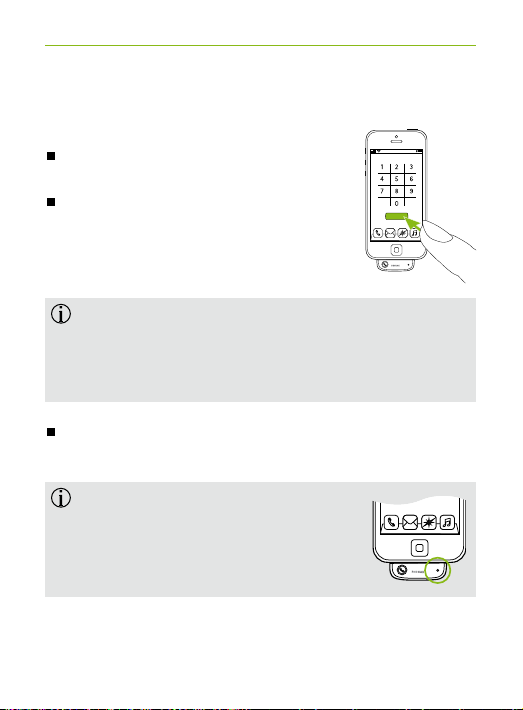
5. Daily use
5.2 Making a call
Enter the phone number using
the phone keypad.
Press the dial button on the
phone.
Call
For some older phones, it may be required to
additionally press the EasyCall call button
to manually connect EasyCall to the phone once
the call is in progress.
Hold the phone (with EasyCall attached) close to your
hearing aids as described in chapter 5.1.
Make sure the EasyCall microphone
is not covered during a phone call.
27
Page 28
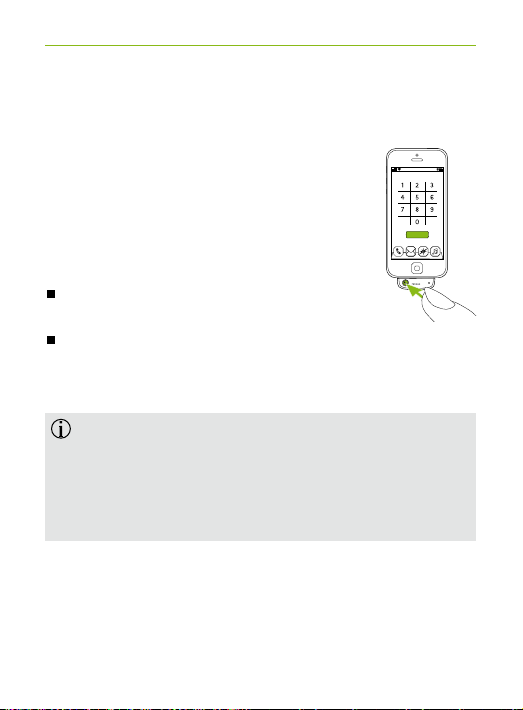
5.3 Accepting a call
If there is an incoming call on your cell
phone, the EasyCall indicator light will
start to rapidly blink blue, and the phone
will vibrate or ring according to your
settings.
Press the EasyCall call button to accept
the call.
Hold the phone (with EasyCall attached)
close to your hearing aids as described
in chapter 5.1.
Always accept the call via the EasyCall button.
Some phones will not transfer the call after
accepting the call via the phone.
See chapter 6.2 on how to switch a call between
the phone speaker and EasyCall.
28
Call
Page 29
5. Daily use
5.4 Setting the phone volume during call
Use the phone’s volume buttons to adjust the phone
volume to a comfortable level.
5.5 Ending a call
End the call by pressing the EasyCall call button or via
the phone menu.
When ending the call or if EasyCall is moved out of
range, the hearing aids will automatically switch
back to the previously active hearing program. This
takes 2 to 5 seconds, depending on the hearing aid
model.
29
Page 30
6. More detailed information
6.1 Low battery indication
If the EasyCall battery is low, the indicator light will
rapidly blink red 13 times every minute. This signals
that you should charge EasyCall.
During a call you will hear short alarm beeps through
your hearing aids every minute.
indication will be approximately 60 minutes.
6.2 Transferring a call
This allows you to hand your phone over to another
person while in a call.
Press and hold the EasyCall call button for 2 seconds
to transfer the call to the phone.
Your hearing aids will switch back to the previously
active hearing program.
Use the phone menu to transfer back to EasyCall.
30
Page 31
6. More detailed information
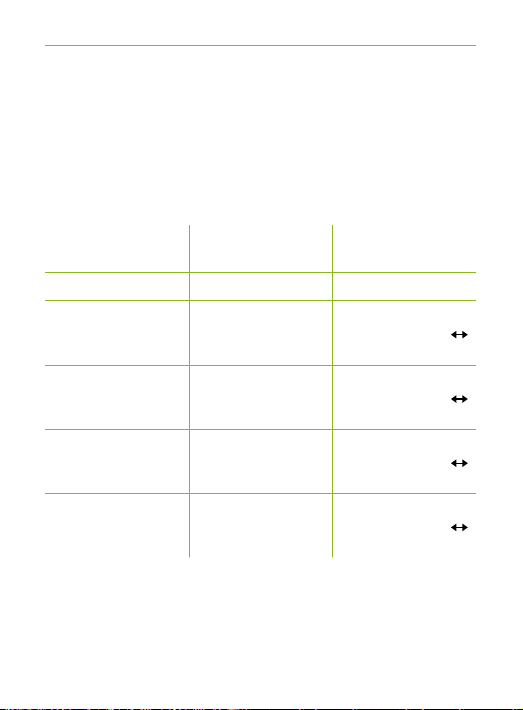
6.3 Second incoming call
If your phone supports call-waiting (second incoming
call while a call is in progress on the same phone),
the EasyCall button can be used in the following way:
1st incoming call
1st call ongoing
2nd incoming call
(1st call ongoing)
1st call on hold
(2nd call ongoing)
Back to 1st call
Short press Press and hold
Accept call Reject call
End call Audio transfer
Hold 1st call and
accept 2nd call
End 2nd call, return
to 1st call
End 1st call Audio transfer
(2 sec.)
(toggle: EasyCall
cell phone)
Audio transfer
(toggle: EasyCall
cell phone)
Audio transfer
(toggle: EasyCall
cell phone)
(toggle: EasyCall
cell phone)
All other 3-way calling options must be controlled by
the cell phone menu.
31
Page 32
6.4 Deleting paired Bluetooth devices
If you encounter issues with one of the paired devices,
consider deleting the pairings from EasyCall.
Deleting the pairing of Bluetooth devices removes
the ability to connect to any previously paired
Bluetooth device.
Press and hold the EasyCall call button for 20 seconds,
until it stops rapidly blinking blue.
Delete the EasyCall pairing entries on your cell phone
before any re-pairing.
Repeat the pairing procedure as described in
chapter 3.5.
32
Page 33
6. More detailed information
6.5 Removing EasyCall from the phone
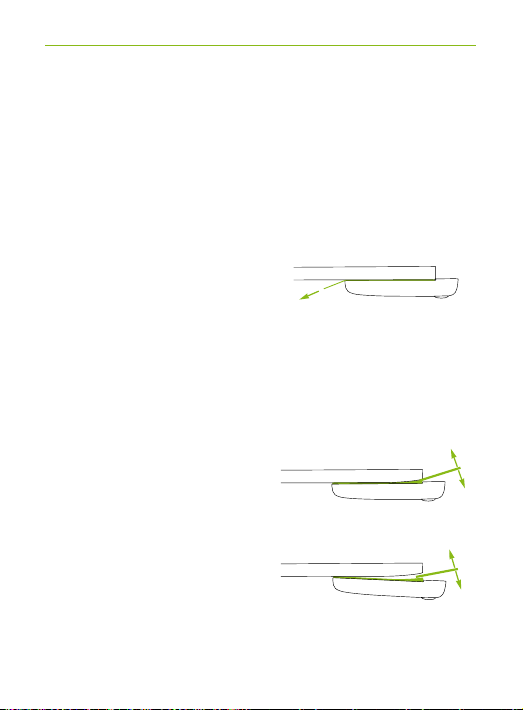
If at some point you wish to remove EasyCall from a
phone, proceed as follows.
The thin transparent tape can be easily removed by
pulling the transparent strap.
The thicker tape can only be removed by gently
levering EasyCall from the phone.
Be careful not to scratch or break the phone or
EasyCall.
33
Page 34
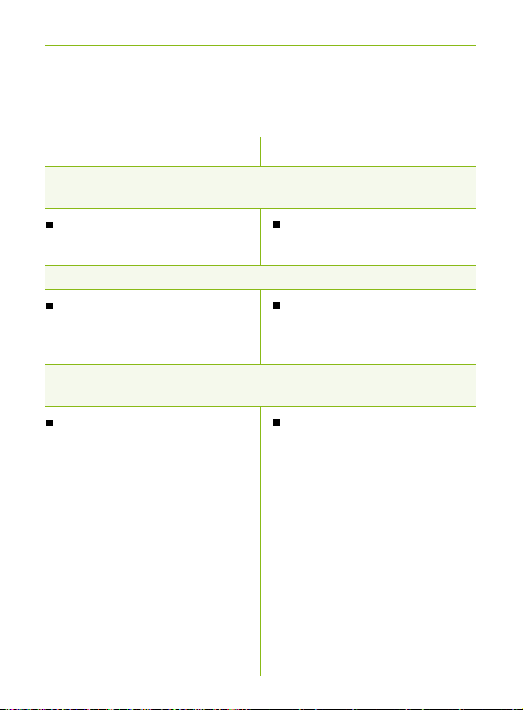
7. Troubleshooting
For any problems not listed in this user guide, please contact
your hearing care professional.
Causes
EasyCall is unresponsive or there is no indicator light when
switching On.
EasyCall may be completely
discharged.
I see a rapidly blinking blue indicator light on the EasyCall.
EasyCall has never been
paired and is always in
pairing mode.
During Bluetooth pairing my other device is prompting
for a code, what do I have to enter?
The pairing code is
required for the initial
coupling of EasyCall
with your Bluetooth
device.
34
What to do
Charge for at least 1 hour.
Complete the pairing as
described in 3.5.
Enter "0000" (four zeros)
when prompted for a code.
Page 35
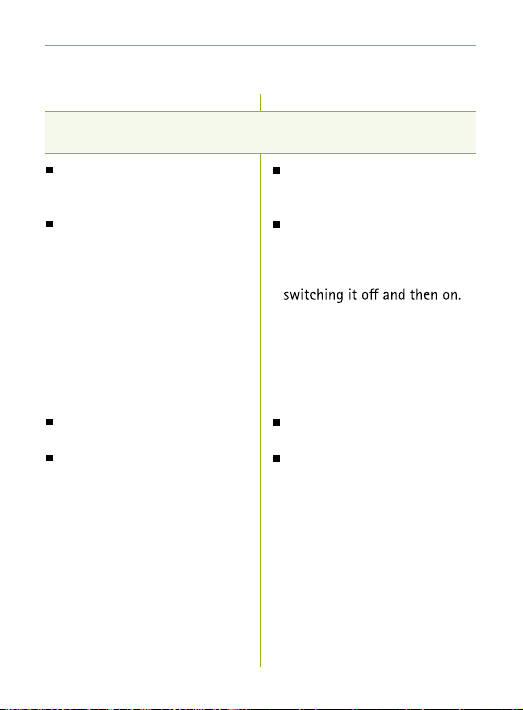
7. Troubleshooting
Causes What to do
The phone is ringing but the indicator light is not blinking blue
and there is no ringing signal through the hearing aids.
Bluetooth is disabled in the
phone.
EasyCall and your phone are
not connected to each other.
Ensure Bluetooth is enabled
according to your phone’s user
guide.
1. Disable the Bluetooth
functionality in your phone
and turn it on again.
2. Restart EasyCall by
EasyCall is not paired
to the phone.
Ringtone signals are usually
not heard through EasyCall
due to 25 cm (10") streaming
distance.
The Bluetooth functionality
will be automatically
reactivated.
3. Activate EasyCall by
selecting it in the phone’s
Bluetooth menu.
Follow the pairing process in
this guide.
Enable the acoustic ringtones
and the vibrating alert on
your phone during Bluetooth
connection.
35
Page 36
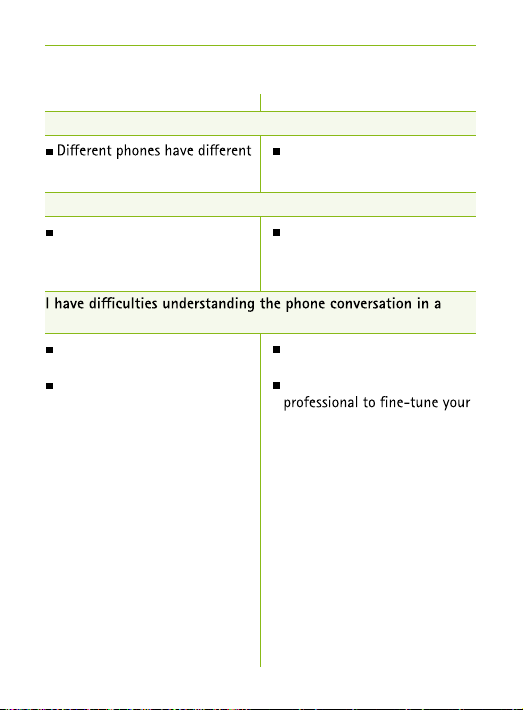
Causes What to do
The volume of the phone conversation is too loud or too quiet.
outputs.
I have interruptions while my audio streaming is active.
EasyCall is too far away
from the hearing aids while
streaming.
Use the phone buttons to
change the volume.
Hold the phone with EasyCall
within 25 cm (10") range to
your hearing aids.
noisy environment.
The phone volume is too low.
Your hearing aid microphones
are set too high - default
streaming program is not
optimal.
Use the phone volume button
to increase the phone volume.
Please ask your hearing care
hearing aids.
36
Page 37
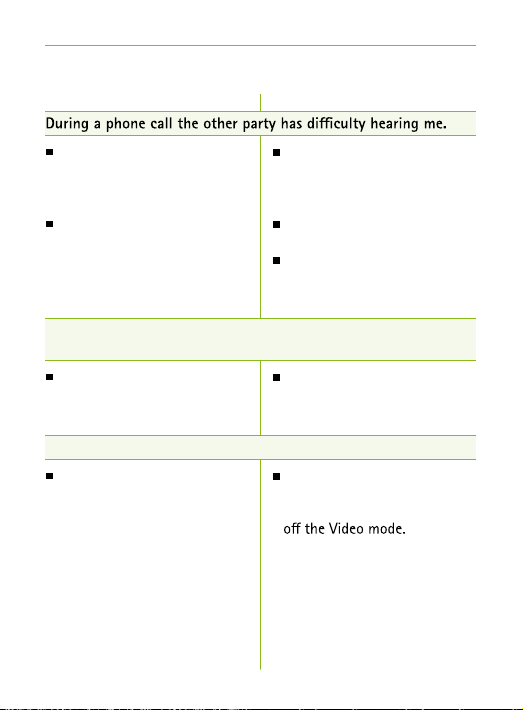
7. Troubleshooting
Causes What to do
EasyCall microphone
opening may be covered.
The surrounding noise may
be too loud.
I started the music player on the phone but cannot hear music
through the EasyCall connection.
Audio streaming other than
phone call is not supported.
When doing a Skype video call, I get audio interruptions.
The maximal distance of
EasyCall to the hearing aids is
25 cm (10"). Looking at the
screen at the same time is not
possible.
Make sure the microphone
opening is not covered by part
of your body, clothing
or dirt and debris.
Bring EasyCall closer to your
mouth.
Suggest to your callers that
they increase the phone
volume.
For music streaming use
Phonak ComPilot or ComPilot
Air streamers.
Skype and other VoIP
technologies can be used
for speech calls. Switch
37
Page 38
Causes What to do
Can EasyCall only be used by cell phones?
EasyCall can connect any device
supporting headset (HSP) or
hands-free (HFP) Bluetooth-
It can also support Bluetooth
enabled cordless phones or
tablets.
Must EasyCall be attached to the cell phone to operate it?
The link between EasyCall and
the cell phone is based on
Bluetooth wireless technology.
The maximum distance to the
cell phone is 3 meters (10 ft.).
The charging time is longer than usual.
The device is being used during
charging.
The charger is not providing
enough charging current.
Whatever the connected
device you must keep the
maximal distance of 25 cm
(10") between EasyCall and
your hearing aids during a
call.
To ensure EasyCall is always
ready to use, never forgotten
or lost, it is recommended to
leave it attached to the phone.
Charging during use is
possible, although this
increases the charging time
by 30%.
Only use chargers approved by
Phonak.
38
Page 39
7. Troubleshooting
Causes
The operating time of your EasyCall is reduced substantially.
The battery typically needs
several charging cycles to
achieve full performance.
Please consult the datasheet
for the typical operating
time.
How to reset EasyCall.
EasyCall is unresponsive.
What to do
Charge for at least 3 hours
EasyCall.
Let a new EasyCall
discharge completely three
times.
Press the EasyCall button for
45 seconds to reset the device
(this will also delete the
paired Bluetooth devices).
39
Page 40
8. Service and warranty
8.1 Local warranty
Please ask the hearing care professional, where you
purchased your device, about the terms of the local
warranty.
8.2 International warranty
valid as of the date of purchase. This limited warranty
covers manufacturing and material defects. The warranty
only comes into force if proof of purchase is shown.
rights that you might have under applicable national
legislation governing sale of consumer goods.
40
Page 41
8. Service and warranty
8.3 Warranty limitation
This warranty does not cover damage from improper
handling or care, exposure to chemicals, immersion in
water or undue stress. Damage caused by third
parties or non-authorized service centers renders the
warranty null and void. This warranty does not
include any services performed by a hearing care
Serial number:
Date of purchase:
Authorized hearing
care professional
(stamp / signature):
41
Page 42

9. Compliance information
Declaration of conformity
Hereby Phonak AG declares that this Phonak product is
in compliance with the essential requirements of
the Radio and Telecommunications Terminal Equipment
Directive 1999/5/EC. The full text of the Declaration
of Conformity can be obtained from the manufacturer or
the local Phonak representative whose address can be
taken from the list on http://www.phonak.com
(worldwide locations).
Australia:
Supplier Code Number
New Zealand:
Supplier Code Number Z1285
42
N15398
Page 43
9. Compliance information
Notice 1:
This device complies with Part 15 of the FCC Rules and
with RSS-210 of Industry Canada. Operation is subject to
the following two conditions:
1) this device may not cause harmful interference, and
2) this device must accept any interference received,
including interference that may cause undesired
operation.
Notice 2:
expressly approved by Phonak may void the FCC
authorization to operate this device.
Notice 3:
This device has been tested and found to comply with the
limits for a Class B digital device, pursuant to Part 15
of the FCC Rules and ICES-003 of Industry Canada. These
limits are designed to provide reasonable protection
against harmful interference in a residential installation.
This device generates, uses and can radiate radio
frequency energy and, if not installed and used in
accordance with the instructions, may cause harmful
interference to radio communications.
43
Page 44
However, there is no guarantee that interference will not
occur in a particular installation. If this device does
cause harmful interference to radio or television reception,
which can be determined by turning the equipment
interference by one or more of the following measures:
Reorient or relocate the receiving antenna.
Increase the separation between the device and
receiver.
Connect the device into an outlet on a circuit
connected.
Consult the dealer or an experienced radio / TV
technician for help.
Notice 4:
Japanese Radio Law and Japanese Telecommunications
Business Law Compliance. This device is granted pursuant
to the Japanese Radio Law (電波法) and the Japanese
Telecommunications Business Law (電気通信事業法).
designation number will become invalid).
44
Page 45
10. Information and explanation of
symbols
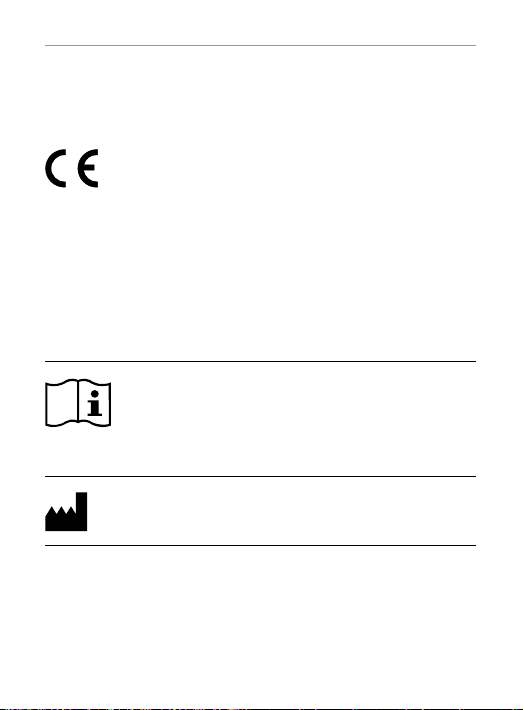
The CE symbol is conrmation by
Phonak AG that this Phonak product
XXXX
meets the requirements of the
R&TTE Directive 1999/5/EC on Radio
and Telecommunication Terminal
Equipment. The numbers after the CE
symbol are the numbers of consulted
certied bodies under the above
mentioned directives.
This symbol indicates that it is
important for the user to read and
take into account the relevant
information in this user guide.
Indicates the device manufacturer.
45
Page 46
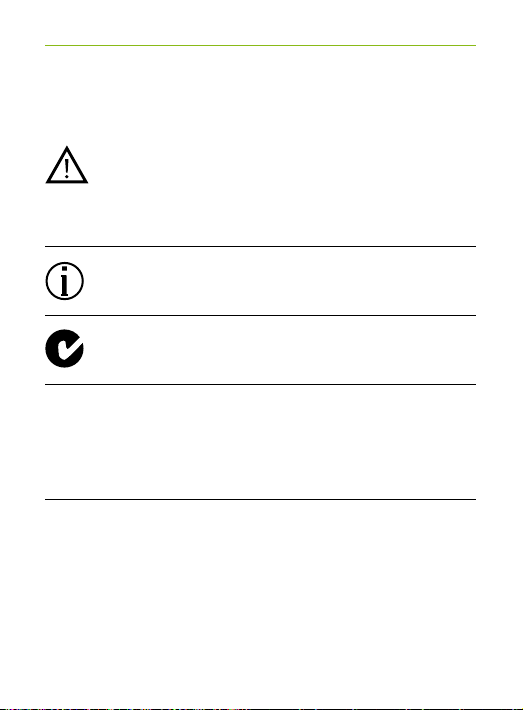
This symbol indicates that it is
important for the user to pay attention
to the relevant warning notices in this
user guide.
Important information for handling
and product safety.
MC and radio communications
compliance label Australia.
Operating
conditions
46
The device is designed such that
it functions without problems or
restrictions if used as intended, unless
otherwise noted in this user guide.
Page 47
10. Information and explanation of symbols
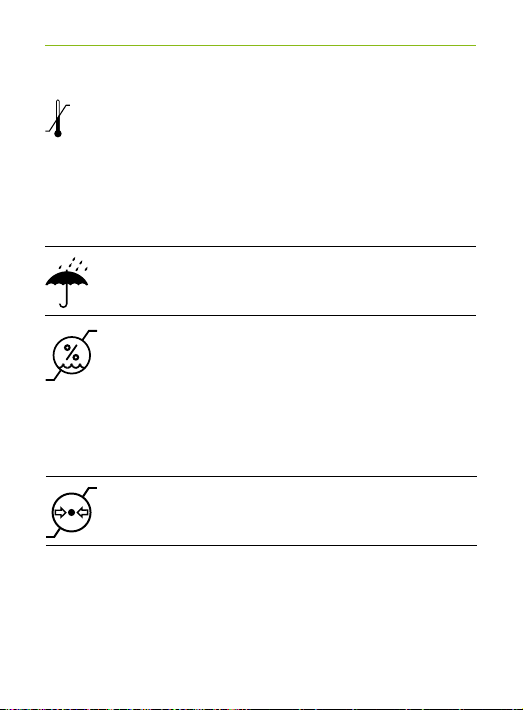
Temperature transport and storage:
–20° to +60° Celsius
(–4° to +140° Fahrenheit).
Temperat ure operation:
0° to +40° Celsius
(+32° to +104° Fahrenheit).
Keep dry.
Humidity transportation: up to 90%
(non condensing).
Humidity st orage: 0% to 70%, if not
in use.
Humidity operation: <85% (non
condensing).
Atmospheric pressure: 500 hPa to
1100 hPa.
47
Page 48
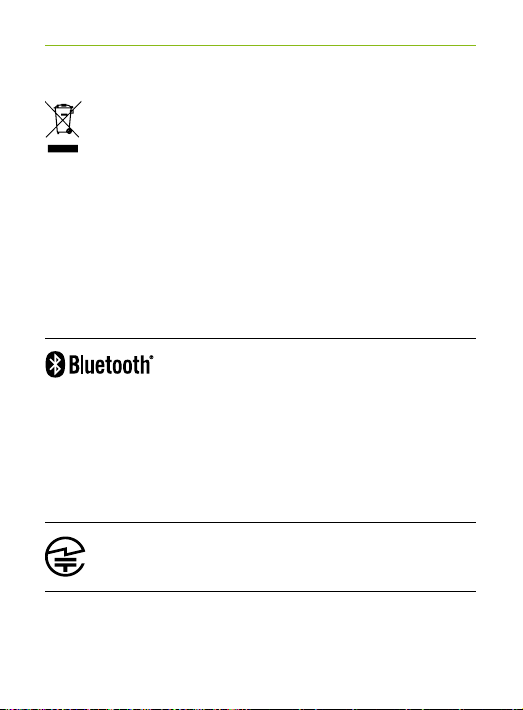
The symbol with the crossed-out
garbage bin is to make you aware
that this device may not be thrown
away as normal household waste.
Please dispose of old or unused device
at waste disposal sites intended for
electronic waste, or give your device
to your hearing care professional
for disposal. Proper disposal protects
the environment and health.
The Bluetooth® word mark and logos
are registered trademarks owned
by Bluetooth SIG Inc., and any use
of such marks by Phonak is under
license. Other trademarks and trade
names are those of their respective
owners.
Japanese mark for certied radio
equipment.
48
Page 49
11. Important safety information
The following pages contain important safety
information.
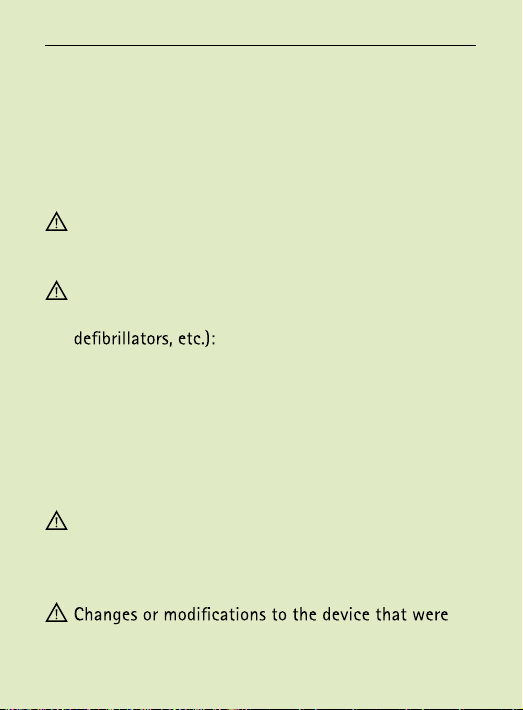
Hazard warnings
Keep this device out of reach of children and
mentally challenged people or pets.
The following is only applicable for persons with
active implantable medical devices (i.e. pacemakers,
It is recommended that pacemaker users do not keep
this device in a breast pocket. If you experience any
interference, do not use the device and contact the
manufacturer of the active implant (please, note
that interference can also be caused by power lines,
electrostatic discharge, airport metal detectors, etc.).
Only use hearing aids that have been specially
programmed for you by your hearing care
professional.
not explicitly approved by Phonak are not permitted.
49
Page 50
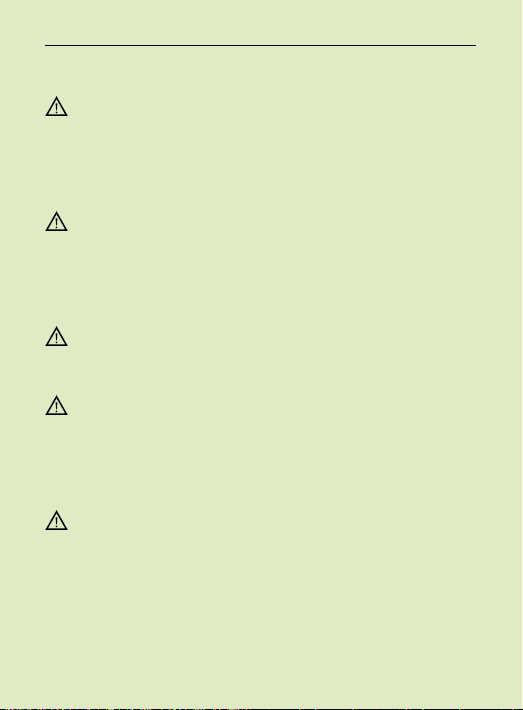
Opening the device might damage it. If problems
occur which cannot be resolved by following the
remedy guidelines in the troubleshooting section of
this user guide, consult your hearing care professional.
This product has an embedded, non-replaceable
battery. Do not attempt to open the product or remove
the battery as this may cause injury and damage the
product.
Dispose of electrical components in accordance with
your local regulations by Phonak AG.
External devices may only be connected if they have
been tested in accordance with corresponding
IECXXXXX standards. Only use accessories approved
by Phonak AG, to avoid any electrical shock.
Using the device, its connectors or cables in any way
contradictory to their intended purpose as described
in this user guide (e.g., wearing the USB cable
around the neck) can cause injury.
50
Page 51
11. Important safety information
The USB port is to be used for the described purpose
only.
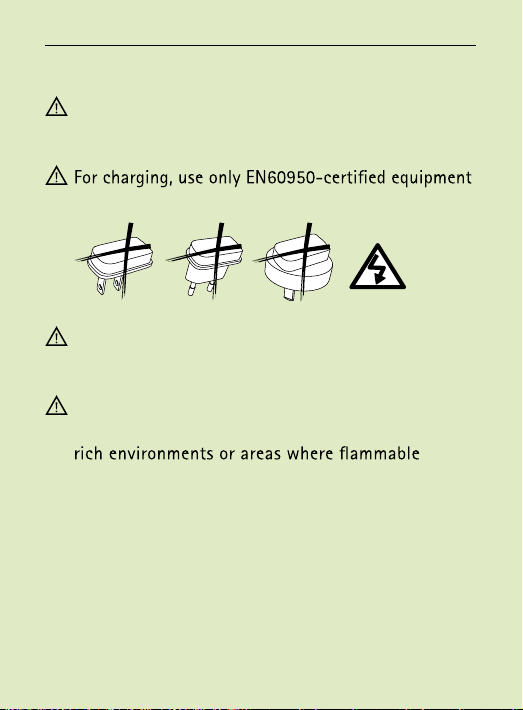
with a rating of 5 VDC, min. 500 mA.
Caution: electric shock. Do not insert plug alone into
electrical outlets.
Do not use the device in explosive areas (mines
or industrial areas with danger of explosions, oxygen-
anesthetics are handled) or where electronic
equipment is prohibited.
51
Page 52
Information on product safety
depending on the cell phone or hard case surface.
On greasy surfaces the tape may not hold well
and you risk losing EasyCall.
EasyCall presides over the phone. Be careful when
carrying it in clothing, such as the back pockets of
trousers. Sitting on EasyCall may break it.
Be very careful not to damage the phone when
removing EasyCall from the double sided adhesive
tapes.
Protect the device from excessive moisture (bathing,
swimming), heat (radiator, car dashboard) or direct
Do not drop the device. Dropping onto a hard surface
can damage the device.
52
Page 53
11. Important safety information
Special medical or dental examination including
correct functioning of your device. Remove and
keep it outside the examination room/area before
undergoing:
Medical or dental examination with X-ray
(also CT scan).
Medical examinations with MRI/NMRI scans,
Protect the device and the power supply from dirt
and debris.
Clean the device using a damp cloth. Never use
household cleaning products (washing powder, soap,
etc.) or alcohol to clean the device. Never use a
microwave or other heating devices to dry the device.
The digitally coded, inductive transmission technology
used in the device is highly reliable and experiences
virtually no interference from other devices. It
should be noted, however, that when operating the
hearing system near computer equipment, larger
electronic installations or other strong electromagnetic
53
Page 54
away from the interfering device to ensure proper
operation.
Keep the device at least 10 cm (4") away from any
kind of magnets.
Do not connect an USB cable exceeding 3 meters
(9 ft) in length to the device.
it safely.
54
cm (24")
Page 55

Phonak AG
Laubisrütistrasse 28
CH-8712 Stäfa
Switzerland
029-0306-02/ V1.00/2014-12/A+W/FO Printed in Switzerland © P honak AG All rights reserved
www.phonak.com
0560
 Loading...