

Page 1
Sonoff Pow R2 User Guide
Hi, welcome to use Sonoff Pow R2! Sonoff Pow R2 supports to monitor
connected device’s real-time power, current and voltage, measure power
usage for a specified period, set threshold values to protect from overload
and check daily/monthly power usage. It supports 90~ 250V AC
input, the max. current is 16A, the max. power is 3500W.
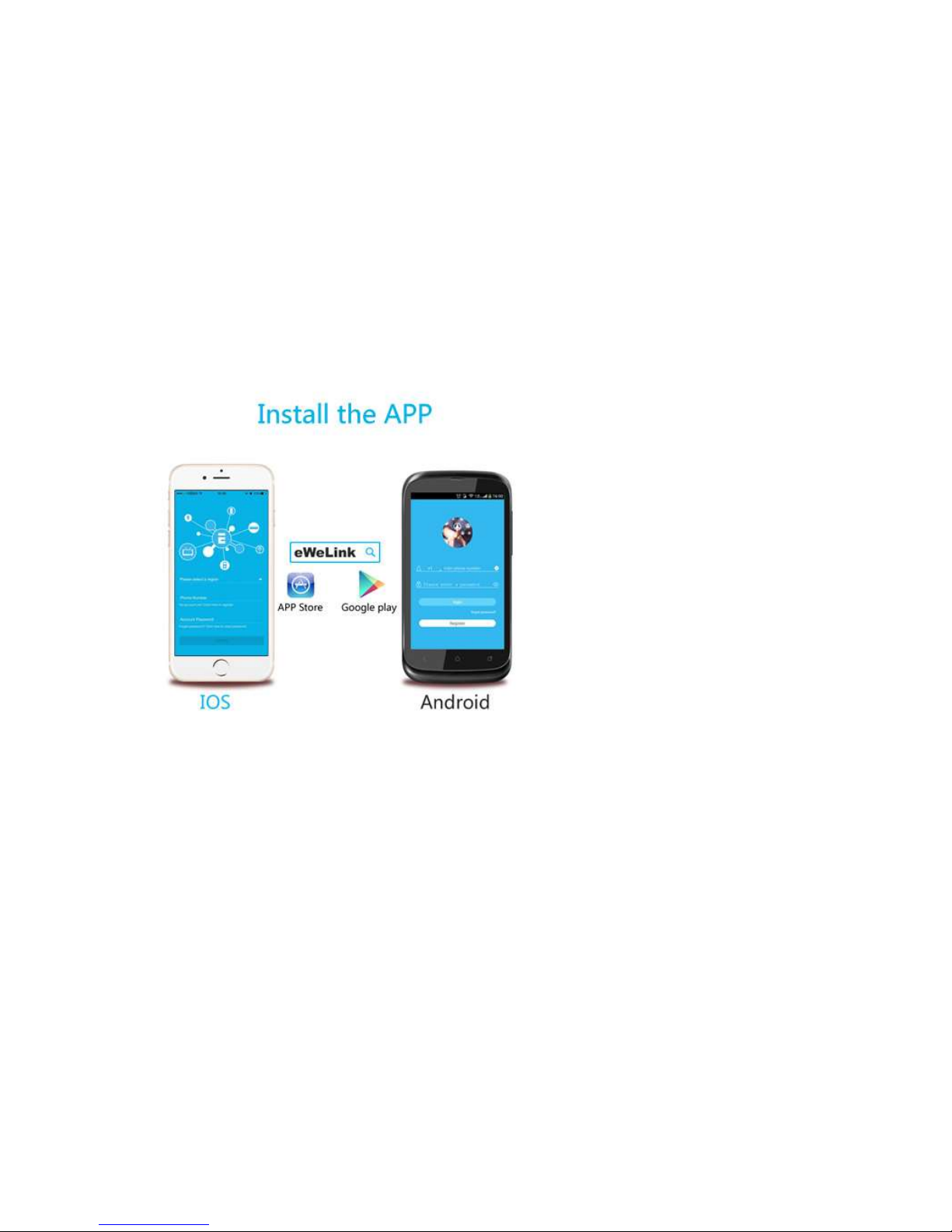
1. Download “eWeLink” app.
Search “eWeLink” in App Store for iOS version or Google play for Android
version.
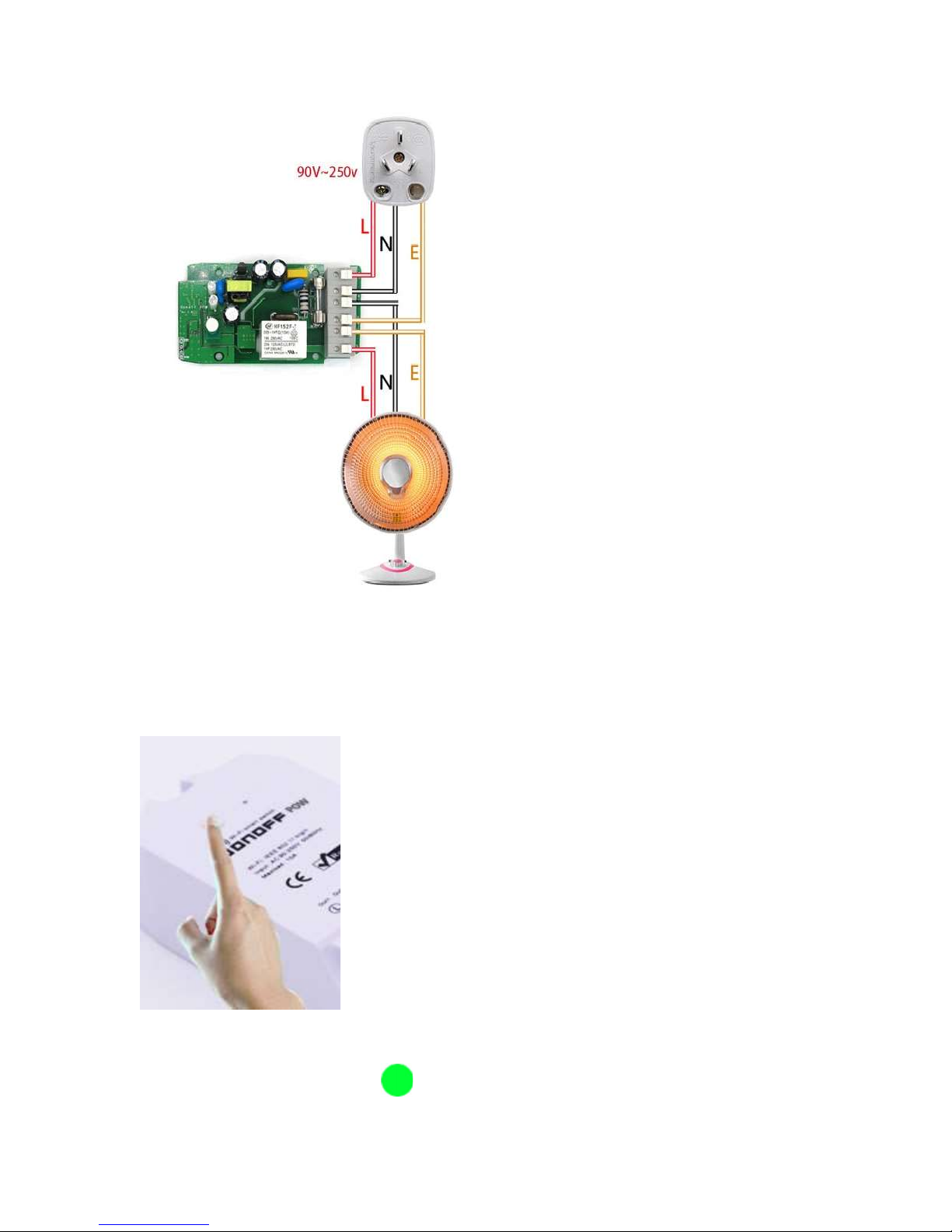
2. Wiring instruction
Please make sure you have read and follow the L, N, E print on the
enclosure. Compare with the old version, the new version has a different
layout.
Page 2
3. Add device
1. Power up your device.
2. Press the button for 7 seconds until the green LED blinks like this: blinks
3 times and on repeatedly:
Page 3
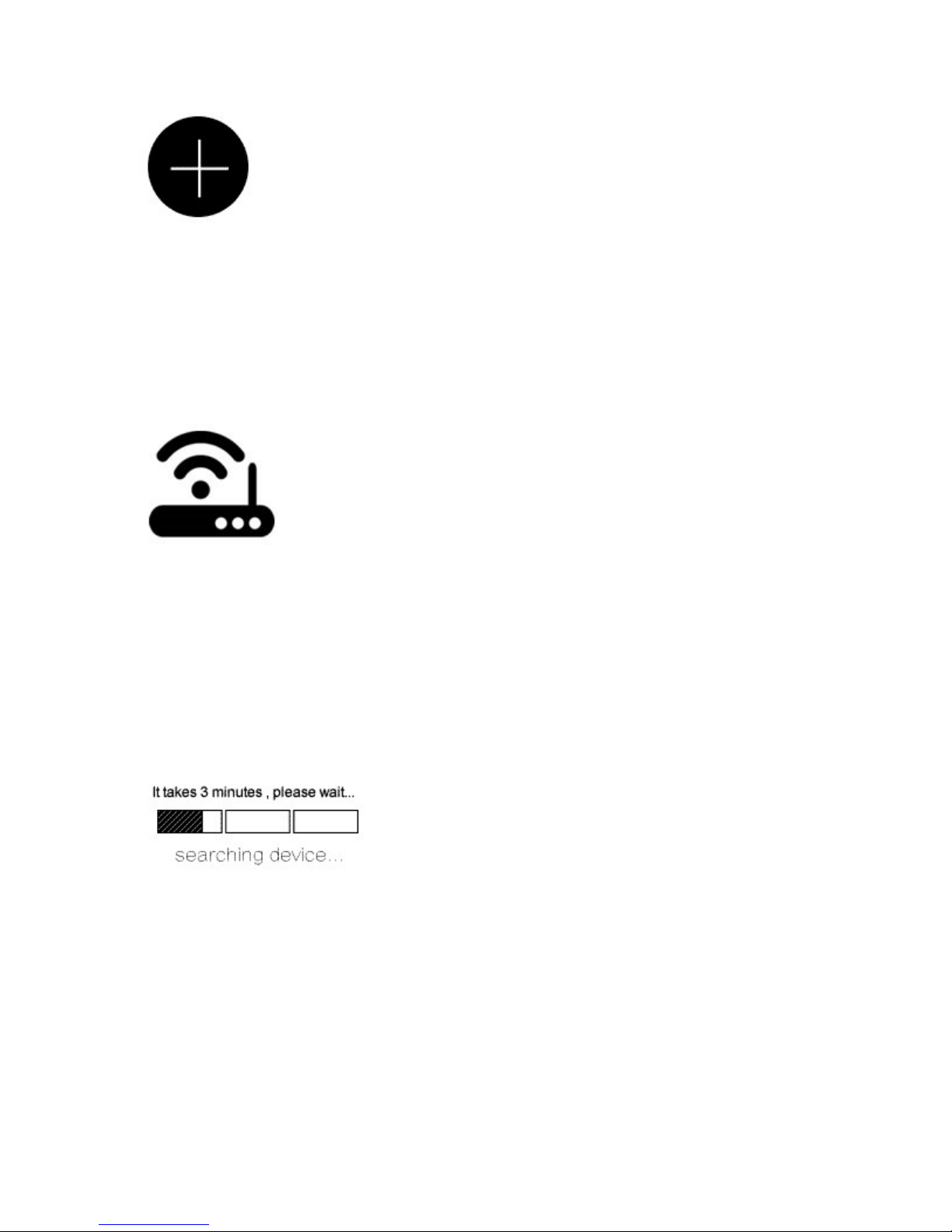
3. Open eWeLink app, click the “+” icon.
Then select the Quick Pairing Mode (TOUCH), click Next.
The App will auto-search the device.
4. Input your home SSID & password:
4.1 If no password, keep it blank.
4.2 Now eWeLink only support 2.4G WiFi communication protocol, 5GWiFi is not supported.
5. Next, the device will be registered by eWelink and add it to your account
,it takes 1-3 minutes.
Page 4

6. Name the device to complete.
7. Maybe the device is “Offline” on eWeLink, for the device needs 1 minute
to connect to your router and server. When the green LED on, the device is
“Online”, if eWeLink shows still “Offline”, please close eWeLink and reopen.
3. APP features
1. WiFi remote control and device state
Turn on/off by tapping on device icon. Device state always simultaneous
display APP.
2. View real-time power, current and voltage
Enter the device control interface, users can view real-time power, current
and voltage of the appliances Pow R2 connect with.
3. Calculate energy consumption for a specified period
Tap Statistics, users can tap START to calculate the how much energy
the connected appliance consumes. When they want to stop the
measurement, they can tap END to view how much it consumes during the
period.
4. View the daily and monthly energy consumption and total cost
Page 5
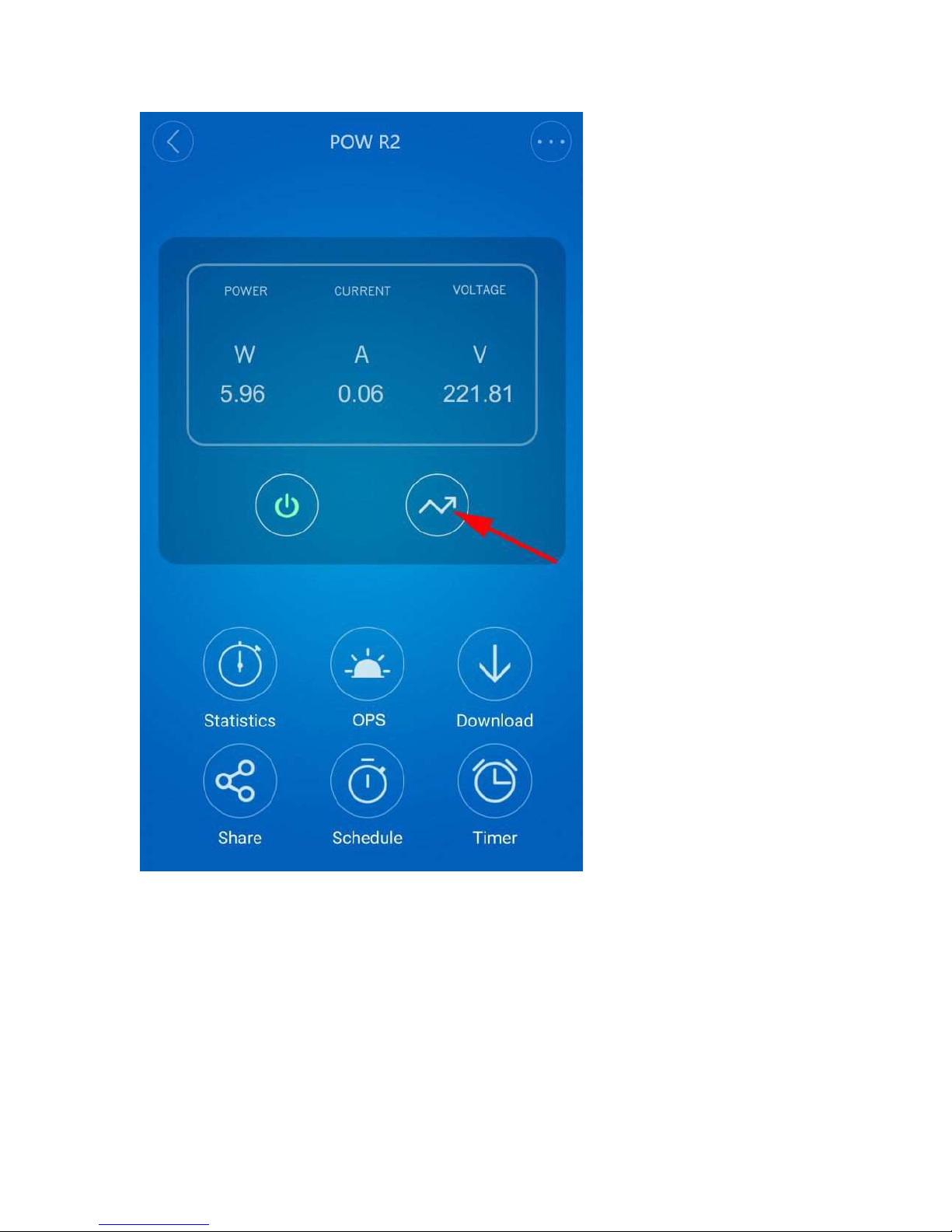
Tap the icon the red arrow pointed to view maximum 100-day energy
consumption. You can see daily and monthly energy consumption graph
and cost. If you want to change the cost unit price, please go to device
control interface, go to Device Setting to change it.
5. OPS (overload protection system)
Page 6
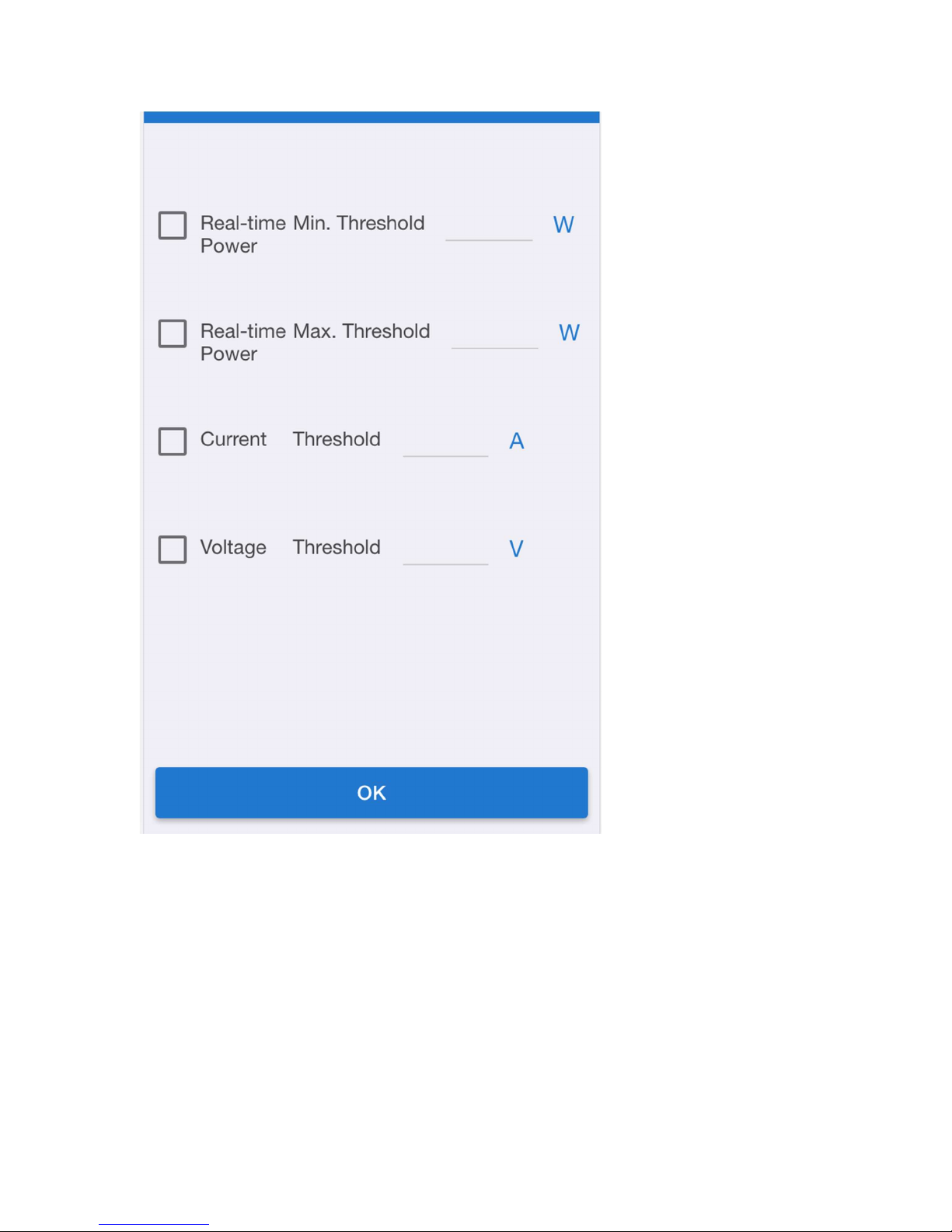
Tap OPS, you’ll enter overload protection system to set select and set
threshold value for real-time minimum power, real-time maximum power,
current and voltage. Once your appliance reaches the threshold value
you’ve set and selected, your device will be auto-off to protect from
overload.
6. Download the energy consumption history
Tap Download, your energy consumption history will be downloaded
instantly to your phone.
Page 7
7. Share Control
The owner can share the devices to other eWeLink accounts. While sharing
devices, both should stay online on eWeLink. Because if the account you
want to share is not online, he/she will not receive the invitation message.
How to make it possible? Firstly click Share, input the eWeLink account
(phone number or email address) you want to share, tick the timer
permissions (edit/delete/change/enable) you want to give, then click Next.
The other account will receive an invitation message. Click Accept, the
device has shared successfully. The other user will have access to control
the device.
8. Timing
Support totally 8 enabled single/repeat/countdown timing tasks each
device.
Page 8

9. Scene/Smart Scene
Scene allows triggering on/off your devices automatically. Note that only
device owner can create scenes. Scenes can’t be shared. Scene Settings is in
the upper right corner of Device List. You can set up scenes or smart scenes
to trigger on/off the device.
Users should select “Click to execute” in the condition, add different
existing devices, name the scene and save it.
10. Security mechanism
One device one owner. Other people can not add the devices that have
already been added. If you want to add your device to another account,
don’t forget to delete it first.
 Loading...