

Page 1
User’s Guide
This document is the property of Sonostar Inc. Any unauthorized reproduction is prohibited.
Page 1
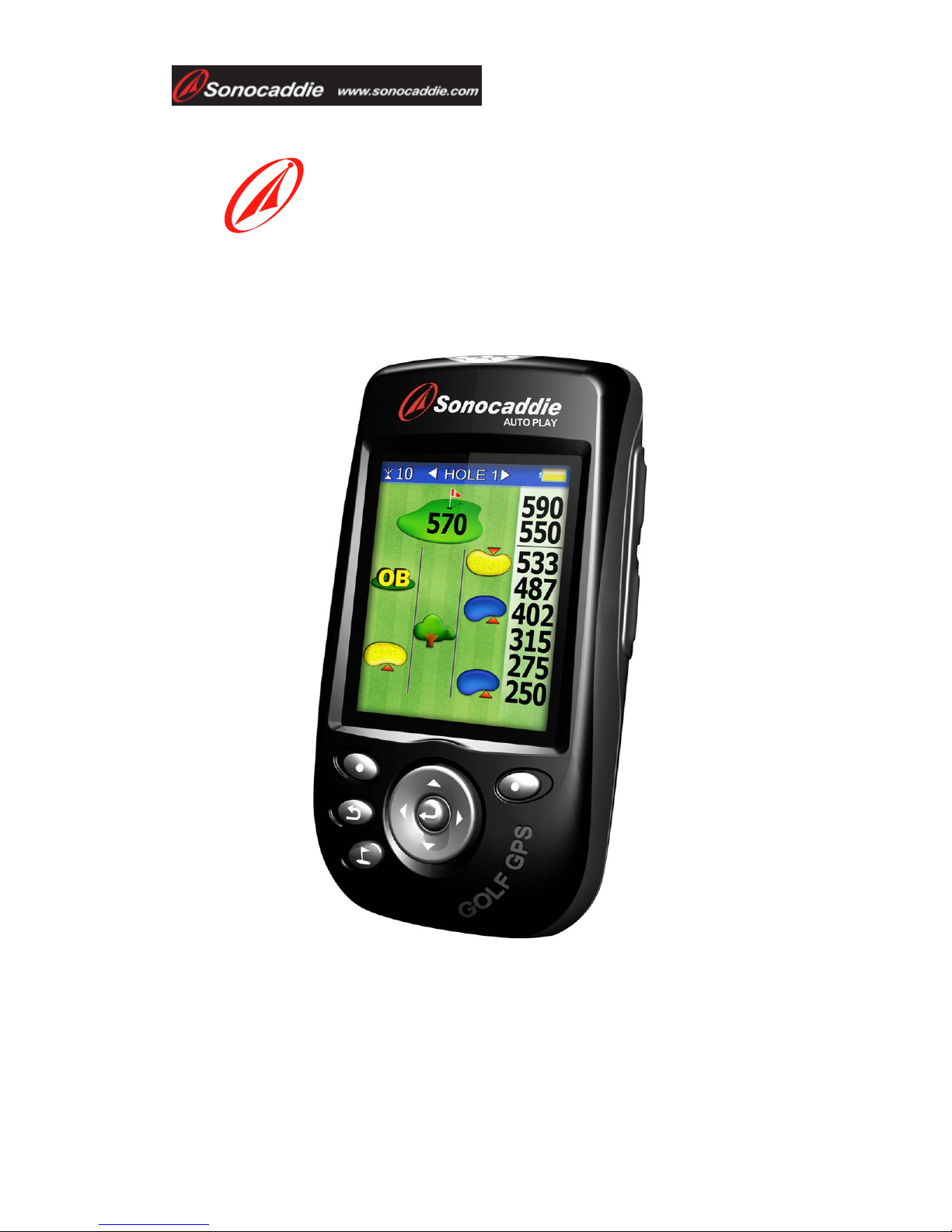
Sonocaddie AUTO PLAY
Golf GPS
User’s Guide
Sonostar Inc.
V.3.0.0.1_E
Page 2

User’s Guide
This document is the property of Sonostar Inc. Any unauthorized reproduction is prohibited.
Page 2
Contents
Welcome ........................................................................................................................4
Warnings................................................................................................................4
Cautions .................................................................................................................4
Chapter 1. Introduction ..................................................................................................5
1.1 Features............................................................................................................5
1.2 Display .............................................................................................................6
1.2.1 Symbol Description ..............................................................................7
1.2.2 Status Area............................................................................................7
1.2.3 Battery level..........................................................................................7
Chapter 2. Getting started ..............................................................................................8
2.1 Charging...........................................................................................................8
Chapter 3. Before starting a Game.................................................................................8
3.1 Power ON/OFF ................................................................................................8
3.2 Main Menu....................................................................................................... 9
3.2.1 GPS : Provides the GPS reception status information..........................9
3.2.2 Settings..................................................................................................9
Chapter 4. Course Management...................................................................................10
4.1 Before Uploading Course Information ..........................................................10
4.1.1 Login or Join Free Sonocaddie Membership......................................10
4.1.2 Install “AUTO PLAY Software" in Your Computer .....................10
4.1.3 Connect AUTO PLAY and Computer................................................12
4.2 Update Course Data .......................................................................................12
4.2.1 Manage data in AUTO PLAY ............................................................14
Chapter 5. Starting a game........................................................................................... 16
5.1 Start with Existing Courses............................................................................16
5.1.1 Course Auto Search ............................................................................16
5.1.2 Search Courses from COURSE LIST (Manual Search).....................17
5.1.3 Auto Hole............................................................................................ 17
5.2 Course Management for AUTO PLAY device..............................................18
5.2.1 Create a New Course ..........................................................................18
5.2.2 Delete a Course...................................................................................18
5.2.3 To Rename a Course...........................................................................19
5.3 Adding New Reference Points....................................................................... 19
5.3.1 Mapping a hole ...................................................................................19
5.4 Reference Points next to Green......................................................................20
5.5 Reference Points on Green.............................................................................20
5.6 Editing Reference Points................................................................................20
Page 3

User’s Guide
This document is the property of Sonostar Inc. Any unauthorized reproduction is prohibited.
Page 3
5.7 Delete Reference Points.................................................................................21
5.8 Green Close-Up Function ..............................................................................21
5.8.1 Double Green......................................................................................21
5.9 Mark Function (Shot Measurement)..............................................................22
5.10 Scorecard Function (Optional Function) .....................................................23
5.10.1 Activate your scorecard function ...................................................... 23
5.10.2 NORMAL and PRO function ...........................................................23
5.10.3 Enter Scores ......................................................................................24
5.10.4 Review Scorecard and View Analysis..............................................24
Appendices...................................................................................................................25
A. Specification....................................................................................................25
B. System Requirement .......................................................................................26
C. Description Abbreviations...............................................................................27
D. FAQs ...............................................................................................................28
Regulatory Agency Compliance..................................................................................30
Page 4

User’s Guide
This document is the property of Sonostar Inc. Any unauthorized reproduction is prohibited.
Page 4
Welcome
Welcome to the Sonocaddie guide. This guide has been designed to provide you with
everything you need to know about operating your Sonocaddie. Please read the user
guide thoroughly in order to understand the features of the Sonocaddie.
Note that there are multiple ways to navigate and use the various Sonocaddie
functions. Sonocaddie is very intuitive to use, so feel free to use which ever way you
find to be the easiest.
Warnings
Please read the guidelines below, since failure to do so may result in mis-use of the
equipment and may be dangerous or illegal.
The Global Positioning System (GPS) is operated by the government of the
United States, which is solely responsible for its accuracy and maintenance. The
system is subject to changes which could affect the accuracy and performance of
all GPS equipment.
z Operating
¾ Sonocaddie may take at least 10~15 minutes to receive satellite
signals the first time you turn it on. It may take longer to receive
signals if it has been off for 4 or more hours, or if you traveled more
than 100 miles away from the last location where you used your
Sonocaddie.
¾ Sonocaddie performs best under clear sky. Furthermore, 6 satellite
signals should be sought, so it might be necessary to wait for these to
be registered.
¾ Should you experience any problems with your Sonocaddie (e.g.
malfunction/damage) please contact Sonocaddie Customer Service at
www.Sonocaddie.com. Do not attempt any repairs on your own as this
may void the warranty.
¾ The USB cable provided is solely for the use of Sonocaddie devices (see
the accessory list). Do not connect any other cable for data transfer as this
could damage the data port (I/O port).
¾ A full battery charge may take 4 hours. We recommend not charging over
8 hours.
Cautions
z Golf course
¾ Sonocaddie should not be used while driving any vehicle including golf
carts. Always place Sonocaddie in a secure place to avoid any impact
which could cause damage to it.
z GPS reception
¾ Sonocaddie has a built-in GPS antenna. This antenna should face upward
to gain the best signals and should not be covered with anything as this
may affect the quality of reception. GPS reception might be affected by
the following environmental factors such as rain, dense clouds, fog,
solar flares, high voltage electricity, cellular phone towers, etc.
¾ Coverage/reception levels may be adversely affected by forests and/or
buildings. Optimal usage will be gained in wide open areas.
Page 5
User’s Guide
This document is the property of Sonostar Inc. Any unauthorized reproduction is prohibited.
Page 5
Packing List
¾ Sonocaddie AUTO PLAY
¾ Mini USB Cable
¾ Rechargeable Battery
¾ User’s Guide
¾ Belt Clip
¾ AC Charger Adaptor
¾ Carry Pouch
Chapter 1. Introduction
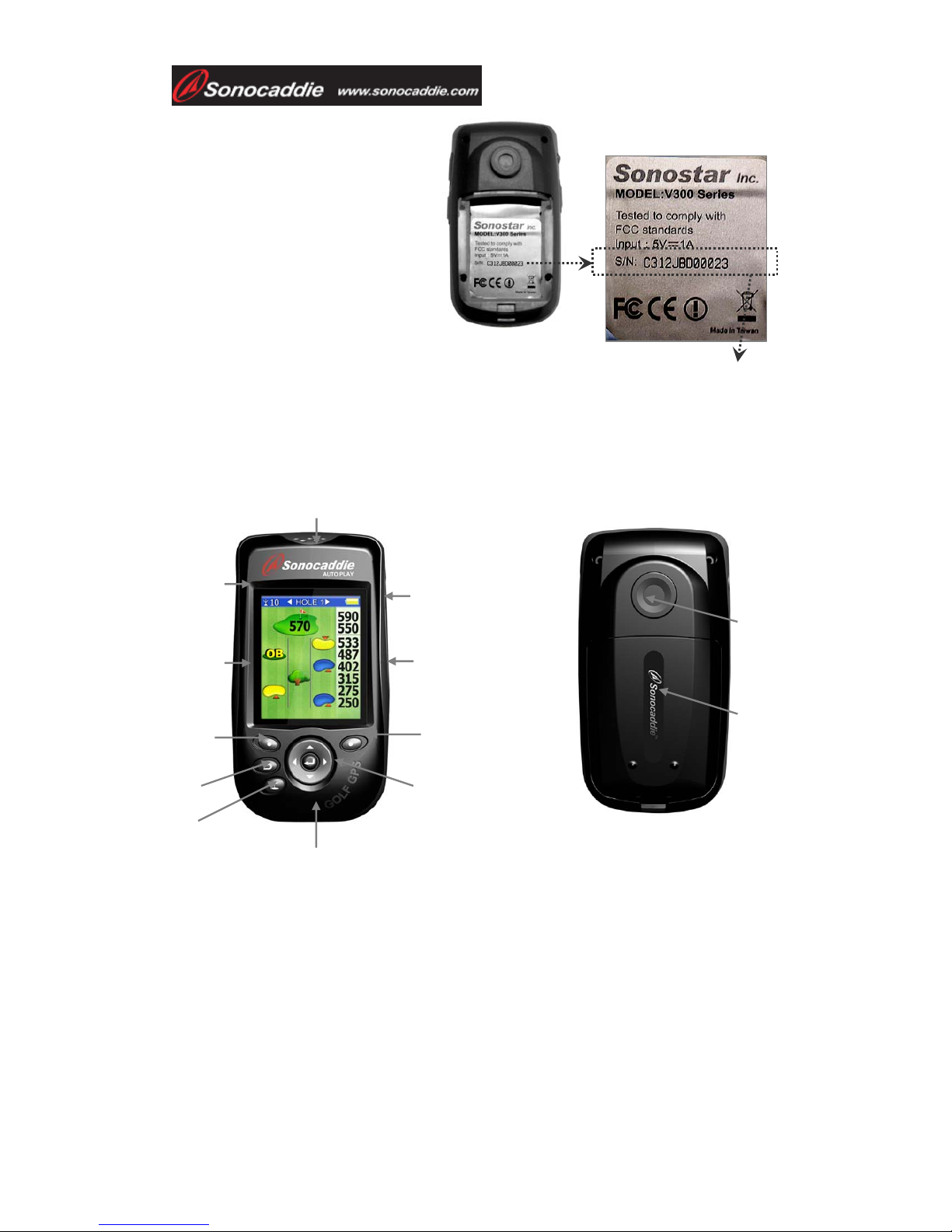
1.1 Features
Power button/
5-way key
Scorecard button
Green View
button
GPS antenna
Mark button
Right soft key Left soft key
Esc
Hole selection
Mini-USB Cable & Charging Port
1. Left / -
2. Right / +
3. Up / +
4. Down / -
5. Select / Save
Battery cover
The Serial Number
Page 6
User’s Guide
This document is the property of Sonostar Inc. Any unauthorized reproduction is prohibited.
Page 6
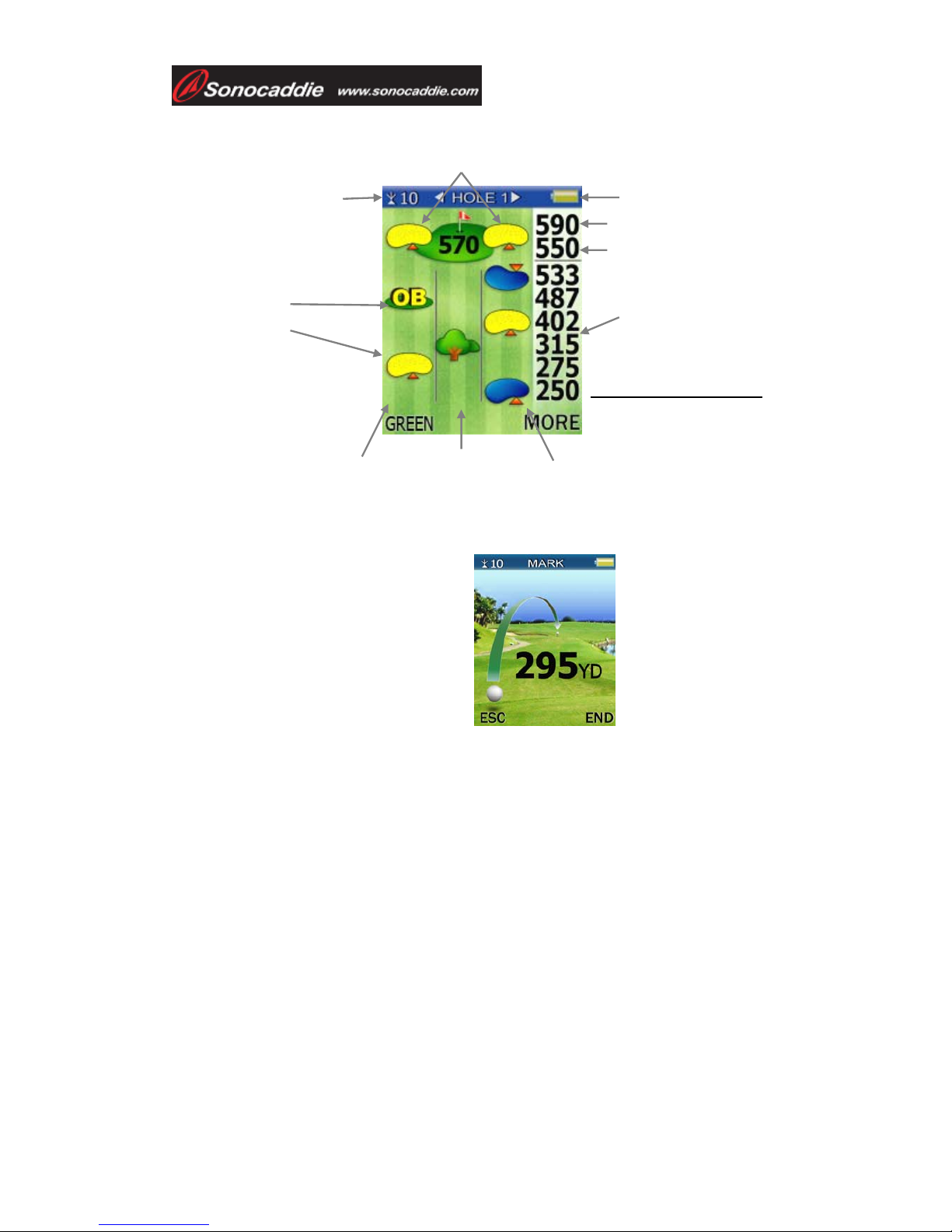
1.2 Display
Rough/Fairway Right
Fairway
Rough/Fairway Left
Battery level
Side of Green
Distance for each
reference point
Distance from front
/ back of the green
Satellite signal
Reference
point on the
fairway
Distance unit
YD= Yard
M= Meter
ML= Mile
KM= Kilometer
Fig: Course info screen
Press “Mark” button or enter “Mark”
function from “Main” screen to enter
the shot distance screen.
Page 7
User’s Guide
This document is the property of Sonostar Inc. Any unauthorized reproduction is prohibited.
Page 7
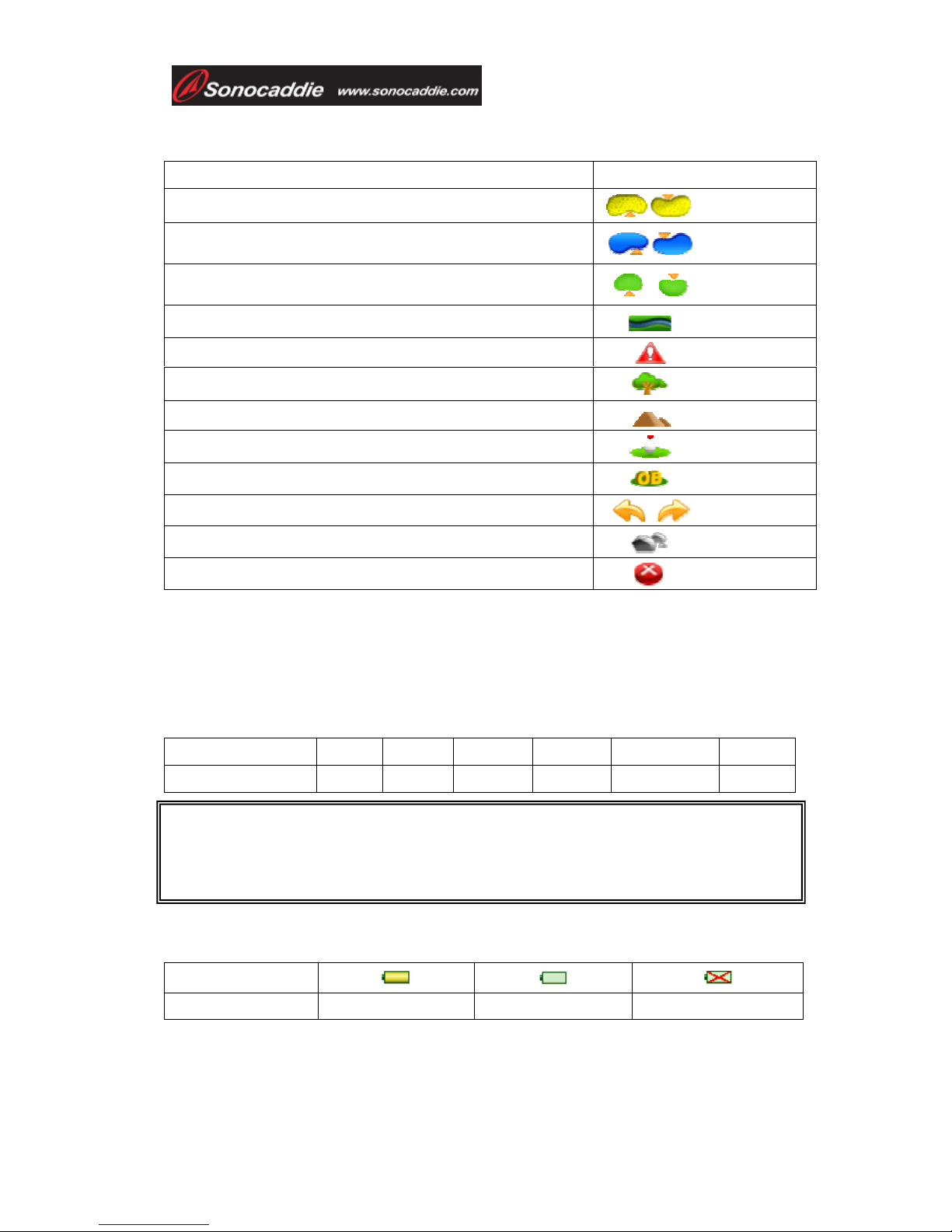
1.2.1 Symbol Description
*Note: For some courses that have two greens on one hole these icons provide
distance for the extra green.
1.2.2 Status Area
¾ Satellite signal
Satellite signal 0~2 3~5 5~6 6~8 8~10 >10
Accuracy
None Poor Fair Good Very good Optimal
1.2.3 Battery level
Quickly confirm remaining battery level with the on-screen battery gauge.
Scale of power
Conditions
Full Empty
No battery *
* Note: This symbol indicates that: 1.The unit is without battery. 2. The battery is
inserted incorrectly. 3. The battery is defective (contact customer service).
Status explanation Symbol
Bunker Front/ Back
Water Front/ Back (includes major water hazards)
* 2nd Green Front/ 2nd Green Back
Creek (includes: river, ditch and stream)
Trap
Tree (includes: shrubbery and forest)
Hills or Mounds
Lay-up area
Out of Bounds (OB)
Dogleg Left/ Right
Rock
Delete
Important!
To achieve optimum accuracy it is advised that Sonocaddie performs
best under clear sky conditions. Furthermore, 6 satellite signals should be sought, so it
might be necessary to wait for these to be registered.
Page 8
User’s Guide
This document is the property of Sonostar Inc. Any unauthorized reproduction is prohibited.
Page 8
Chapter 2. Getting started
2.1 Charging
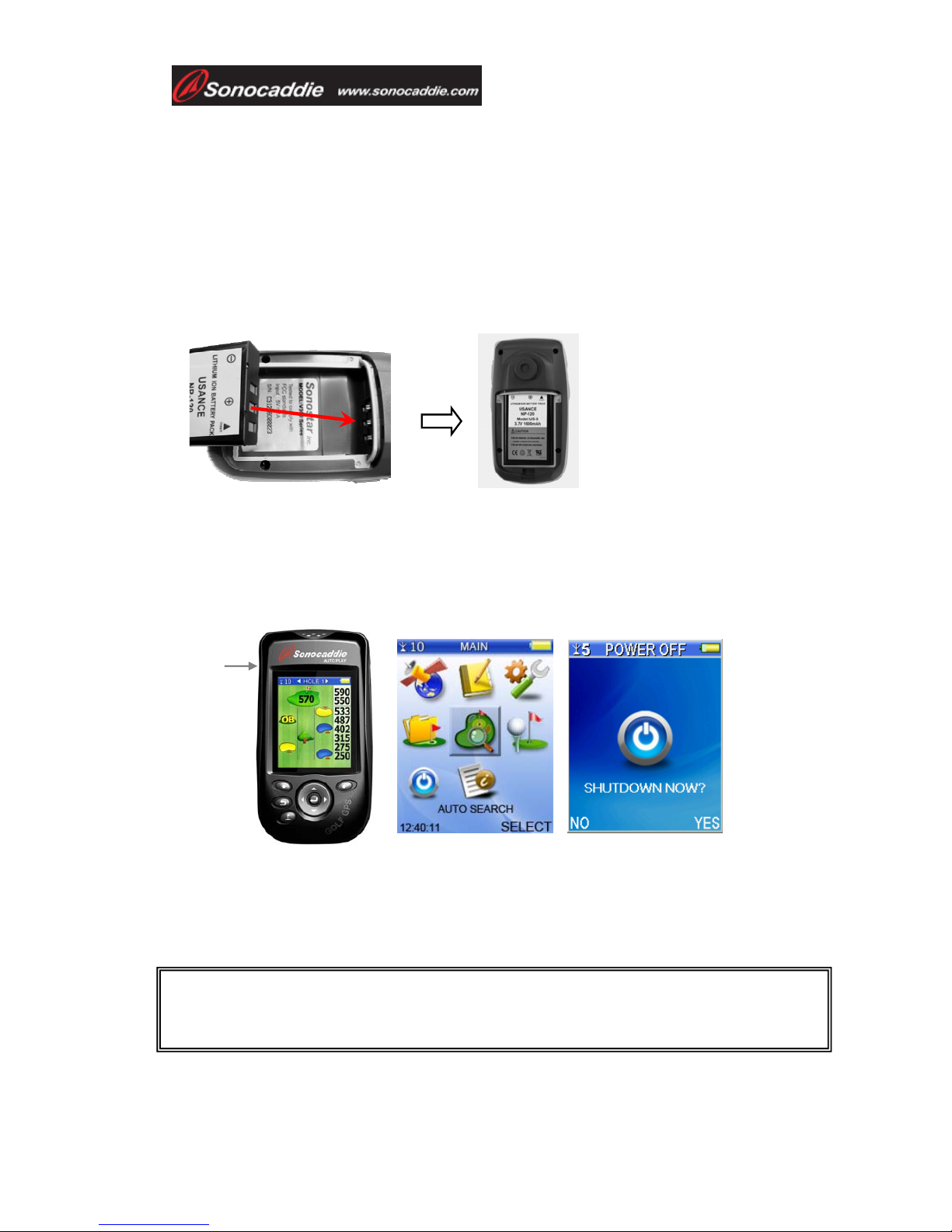
Please insert the supplied rechargeable battery correctly as below. A full battery
charge may take up to 4 hours and we recommend that you do not charge over 10
hours.
* Note:
1. Please charge the battery at least 8 hours for first time use.
2. Please remove the battery if you will not use the unit for a long period of time to
avoid the battery leaking and damaging the Sonocaddie.
Chapter 3. Before starting a Game
3.1 Power ON/OFF
Power ON: Press the “Power button” for at least 3 seconds to turn the Sonocaddie
on. The MAIN screen will appear.
Power OFF: To switch Sonocaddie off, simply press the “Power button” for at least
3 seconds or select “OFF” function from the “MAIN” menu and then press “YES”.
Important!
Please allow approximately 5~10 minutes when turning the Sonocaddie on to search for
GPS signals (make sure to be in an open-sky area).
Power
button
Page 9
User’s Guide
This document is the property of Sonostar Inc. Any unauthorized reproduction is prohibited.
Page 9
3.2 Main Menu
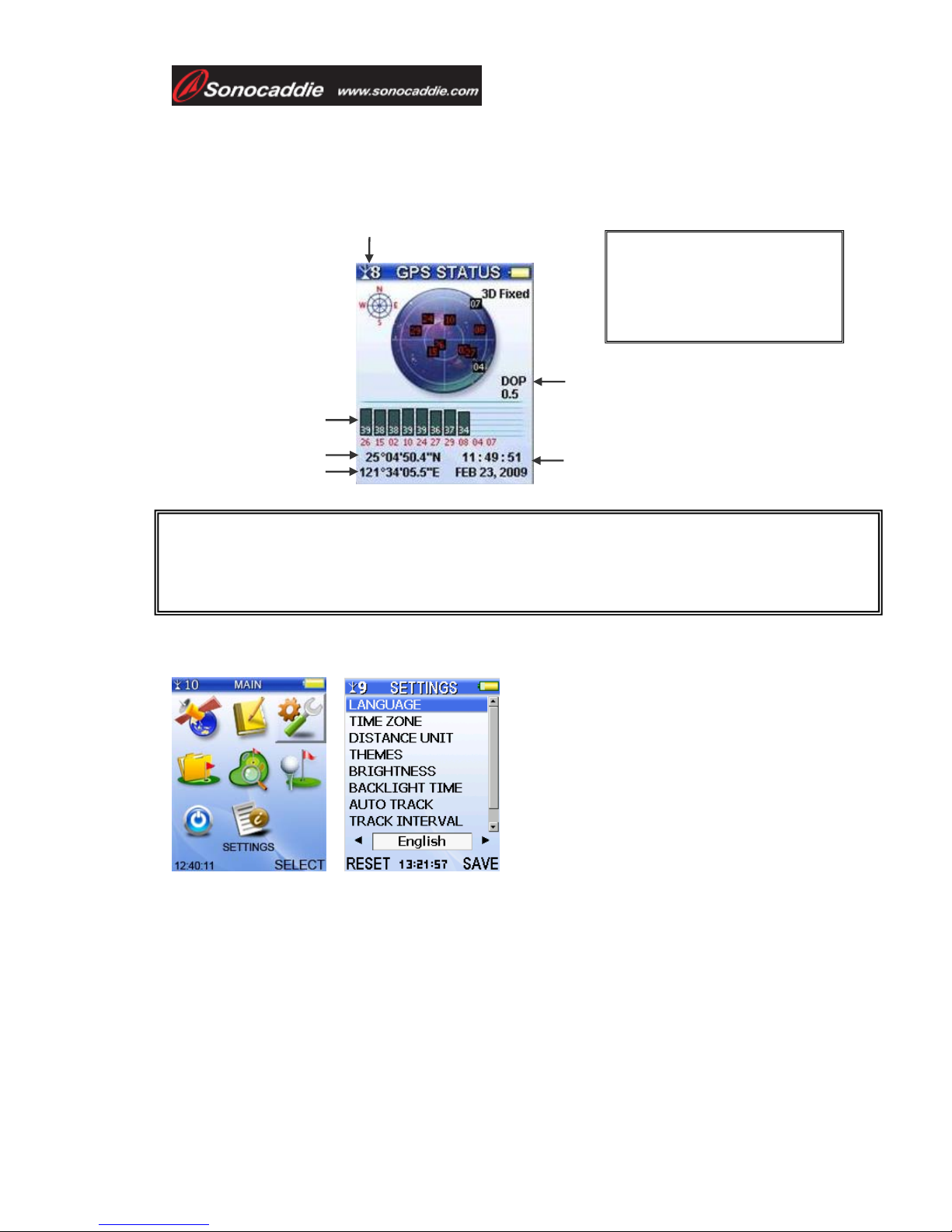
3.2.1 GPS : Provides the GPS reception status information.
Note: Lower DOP numbers provide better accuracy.
3.2.2 Settings
There are 9 selections in SETTINGS:
1. LANGUAGE: English/ French/ Deutsch/ Spanish/ Simplified Chinese/ Japanese/
Traditional Chinese
2. TIME ZONE: Please choose your correct time zone
3. DISTANCE UNIT: YARD / METER/ MILE/ KILOMETER
4. THEMES: BLUE / PURPLE/ GREEN/ ORANGE
Important !
To achieve optimum accuracy please be aware that Sonocaddie performs best under clear sky
conditions. Since at least 6 satellite signals should be sought, it might be necessary to wait for
these to be registered.
DOP = Dilution of Precision
Dilution of precision (DOP) is a measure of the
quality of the GPS data being received from the
satellites. DOP is a mathematical representation for
the quality of the GPS position solution. The main
factors affecting DOP are the number of satellites
being tracked and where these satellites are
positioned in the sky.
Number of Satellite being received
Dilution of Precision
Time/ Date Display
Each satellite signal strength
Latitude
Longitude
Page 10
User’s Guide
This document is the property of Sonostar Inc. Any unauthorized reproduction is prohibited.
Page 10
5. BRIGHTNESS: OFF/1/2/3/4/5
6. BACKLIGHT TIME: ALWAYS/ 15 SECONDS/ 30 SECONDS / 60 SECONDS/
ALWAYS
7. AUTO TRACK: ON /OFF
8. TRACK INTERVAL: 10 SECONDS/ 20 SECONDS/ 30 SECONDS
9. AUTO HOLE: ON/ OFF
10. SCORECARD: NORMAL/ PRO
※ Please be sure to press “SAVE” after completing all settings.
Chapter 4. Course Management
All available courses are preloaded in your device. If you need to update the course
information, please read the instructions in chapter 4.
4.1 Before Uploading Course Information
4.1.1 Login or Join Free Sonocaddie Membership
A free membership account is required to update course data. Please link to
“Member” on AUTO PLAY Software or go to AUTO PLAY website, “Member”
page at www.sonocaddie.com to join the membership in advance.
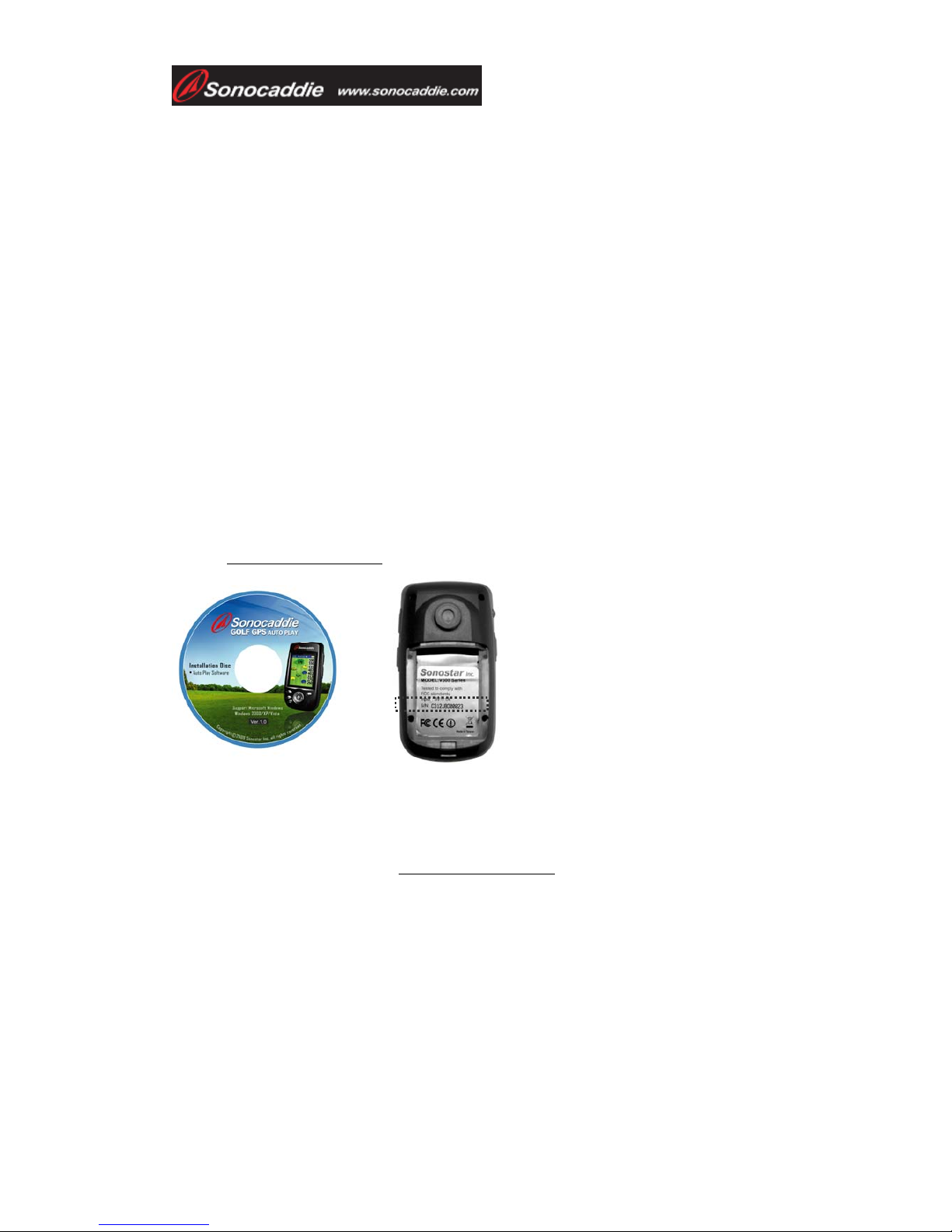
4.1.2 Install “AUTO PLAY Software" in Your Computer
This application software is used for you to access and download course information
and manage your AUTO PLAY personalized course folder. Please install it from
enclosed CD or from website at www.sonocaddie.com.
System Support: Microsoft Windows 2000/ XP/ Vista
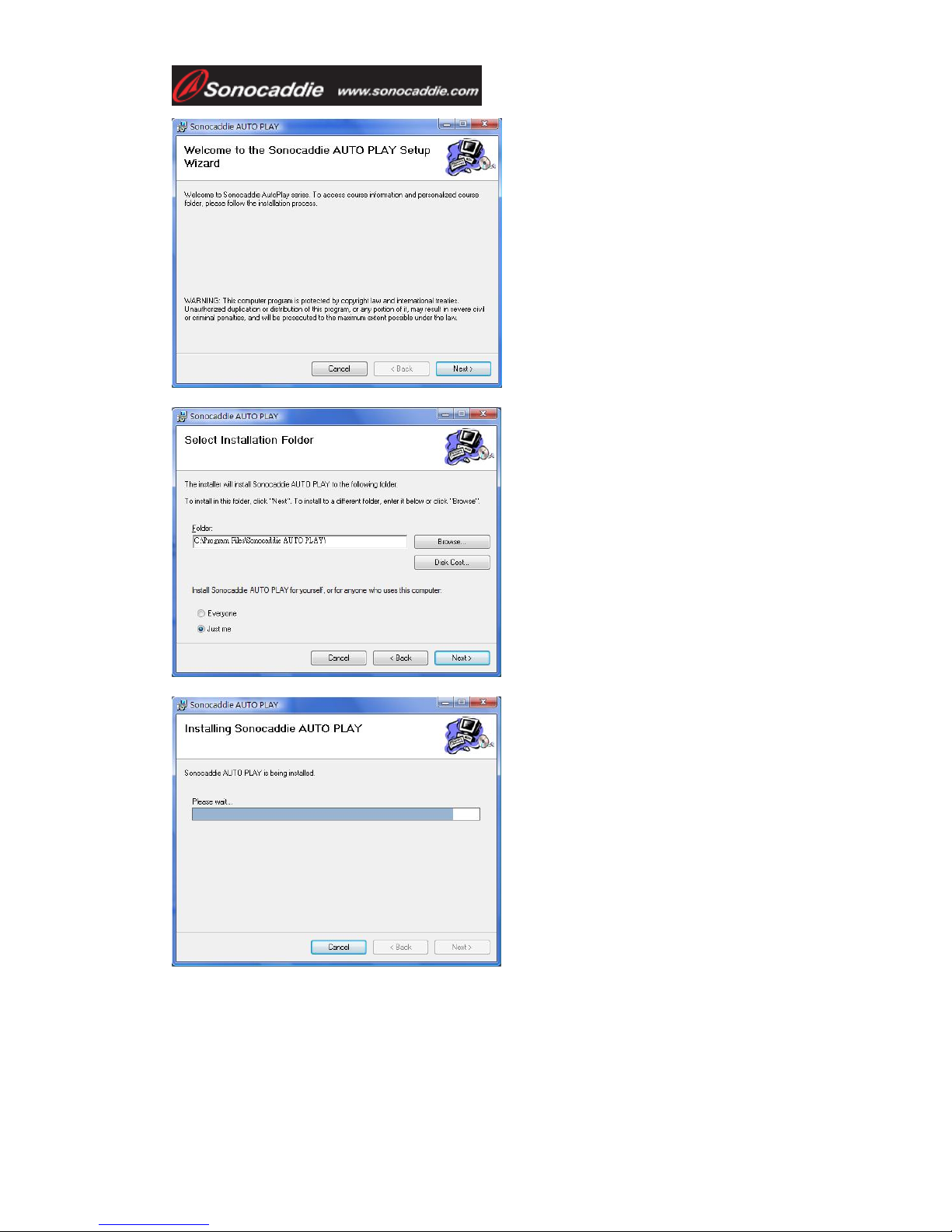
1. Follow the instructions displayed on the screen to complete the installation.
Important!
Serial Number (S/N) is required to join
Sonocaddie AUTO PLAY membership.
Page 11
User’s Guide
This document is the property of Sonostar Inc. Any unauthorized reproduction is prohibited.
Page 11
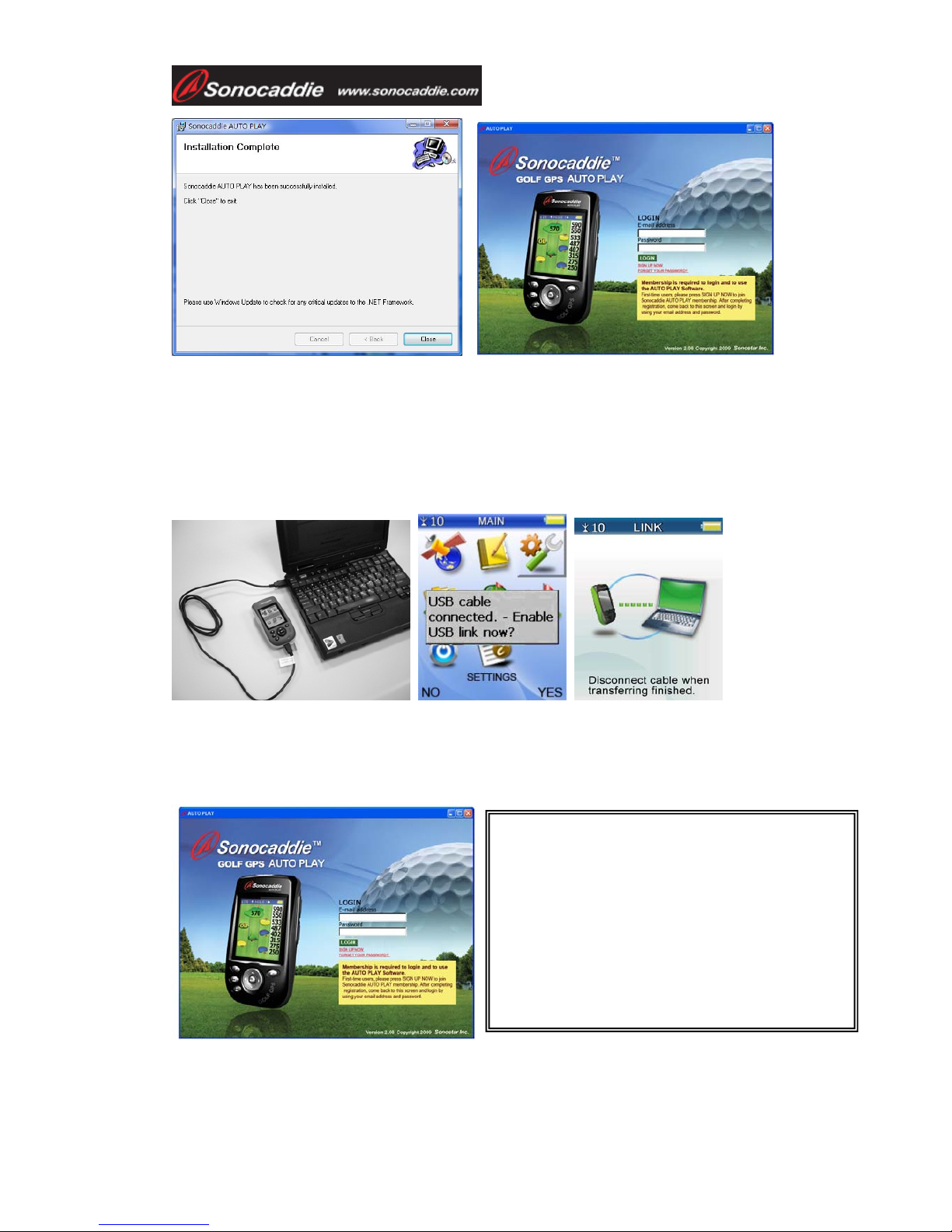
2. After completing installation, please press “Close” to finish. A Sonocaddie shortcut
will appear on your desktop. Double clicking the Sonocaddie shortcut icon will start
“Sonocaddie AUTO PLAY” software.
Page 12
User’s Guide
This document is the property of Sonostar Inc. Any unauthorized reproduction is prohibited.
Page 12
4.1.3 Connect AUTO PLAY and Computer
Step 1. Turn on Sonocaddie AUTO PLAY.
Step 2. Connect the USB Cable between Sonocaddie AUTO PLAY and Computer.
On your Sonocaddie display you will see the message “USB cable connected. Enable
USB link now? ”. Press “YES” (right soft key) to link the unit with your computer.
4.2 Update Course Data
Step1. Open Sonocaddie AUTO PLAY Software and Log in.
Important!
Internet connection is required to log into
AUTO PLAY Software to update course data.
You must fill in your email and password to run
AUTO PLAY Software. This is the same email
address and password you used to create your
member account.
Page 13
User’s Guide
This document is the property of Sonostar Inc. Any unauthorized reproduction is prohibited.
Page 13
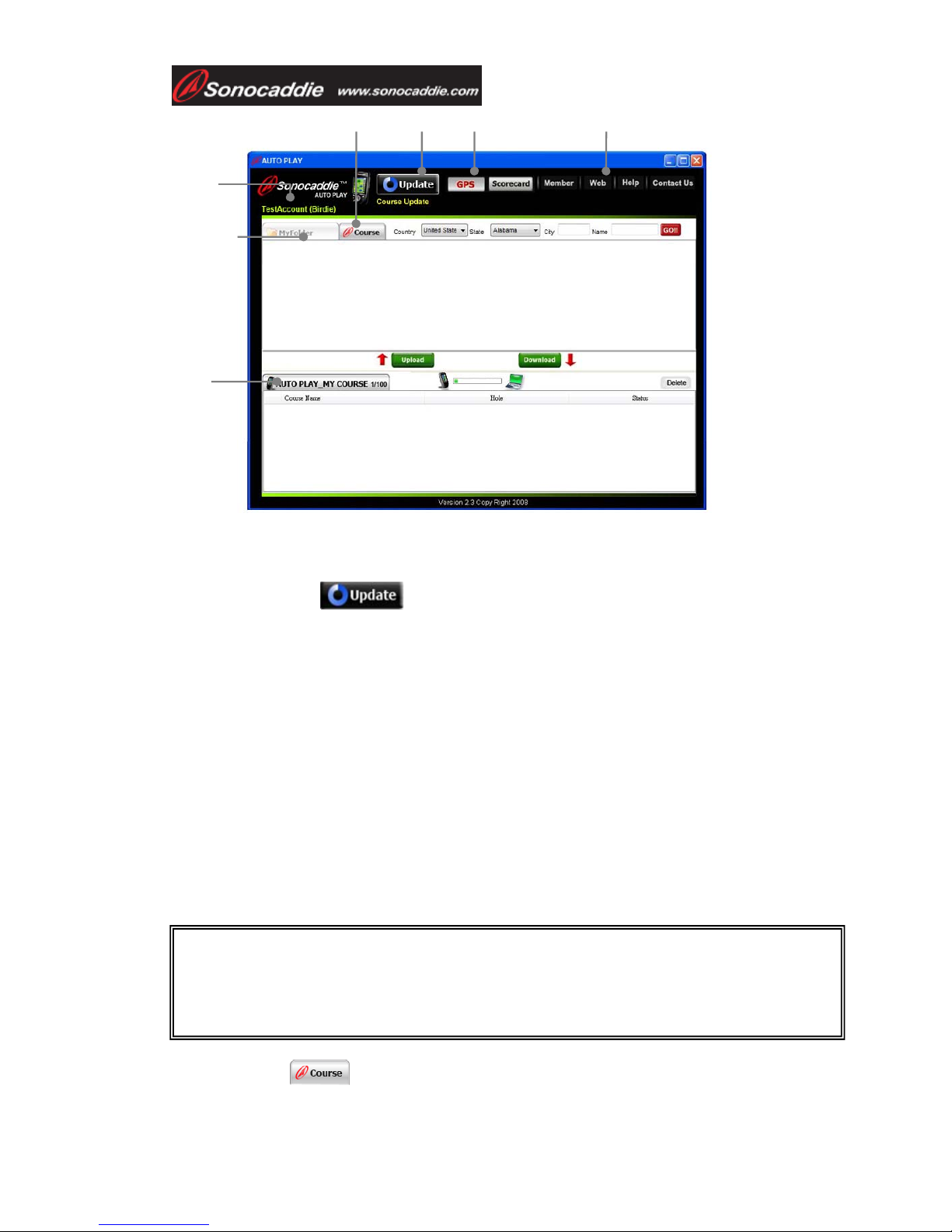
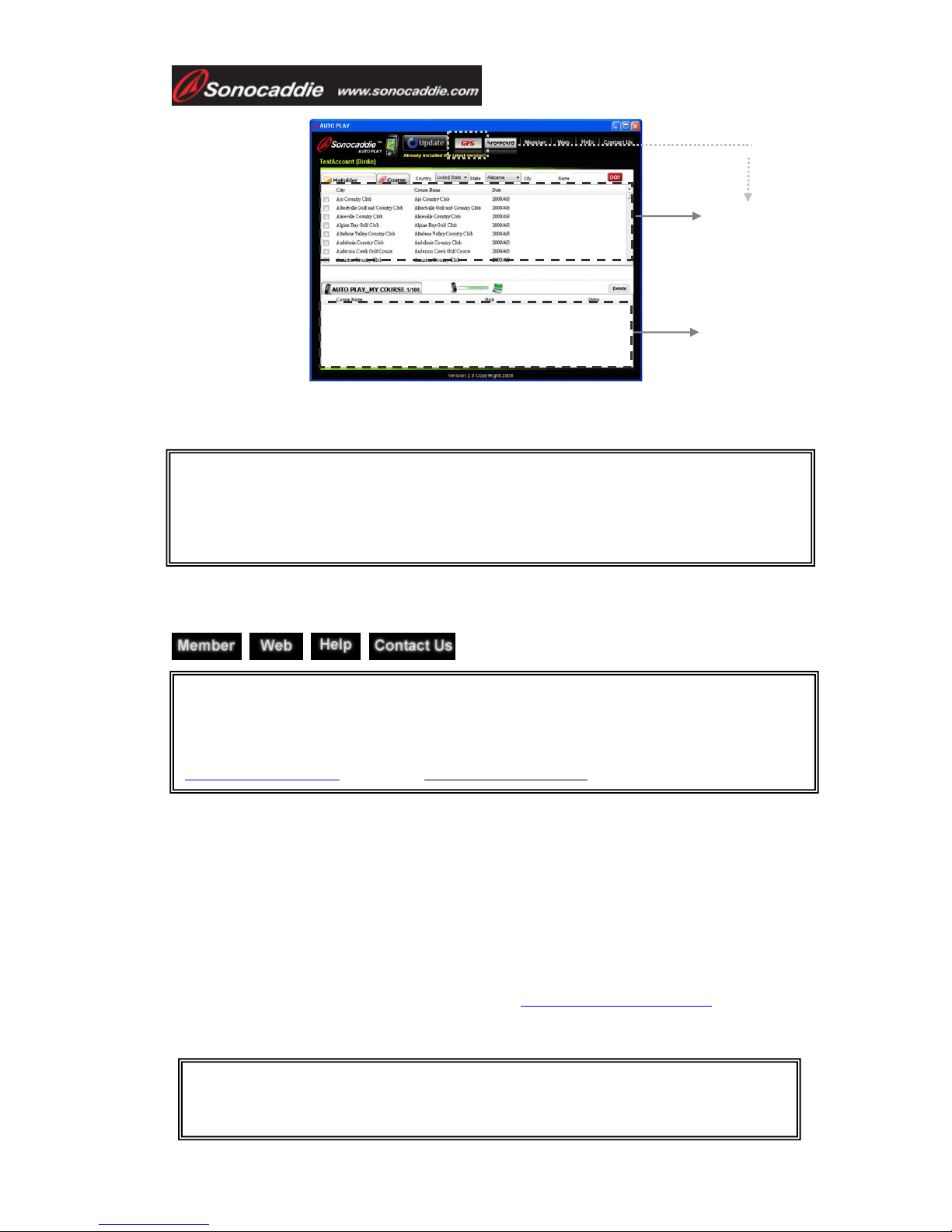
A. Information bar: User’s name/ Type of Membership Plan/ Membership Valid
Period/ Registered Country
B. Update button:
You can update your COURSE LIST by pressing “Update” button when there are
new updated courses available. The update button will only appear on the screen
when there are new courses available in our database.
Steps to update course data:
Step1. Press Update button on the screen. The update process on the computer will
take approximately 15~20 minutes to complete.
Step2. Disconnect the USB Cable between Sonocaddie AUTO PLAY and computer
after the updating process is finished on the software. The device will take few
minutes to update the course data.
Step3. Press “ESC” button after the updating process is finished in the device.
Sonocaddie AUTO PLAY will shutdown automatically.
Step4. Turn on the AUTO PLAY, and the course data will be the most up to date.
C. Course Tab
E.
A.
C.
D.
F. G.
Important!
Please do not disconnect the cable between AUTO PLAY device and computer when
updating.
B.
Page 14
User’s Guide
This document is the property of Sonostar Inc. Any unauthorized reproduction is prohibited.
Page 14
The Course Tab can only update the course information for individually selected
courses. Please see function B. for further information.
4.2.1 Manage data in AUTO PLAY
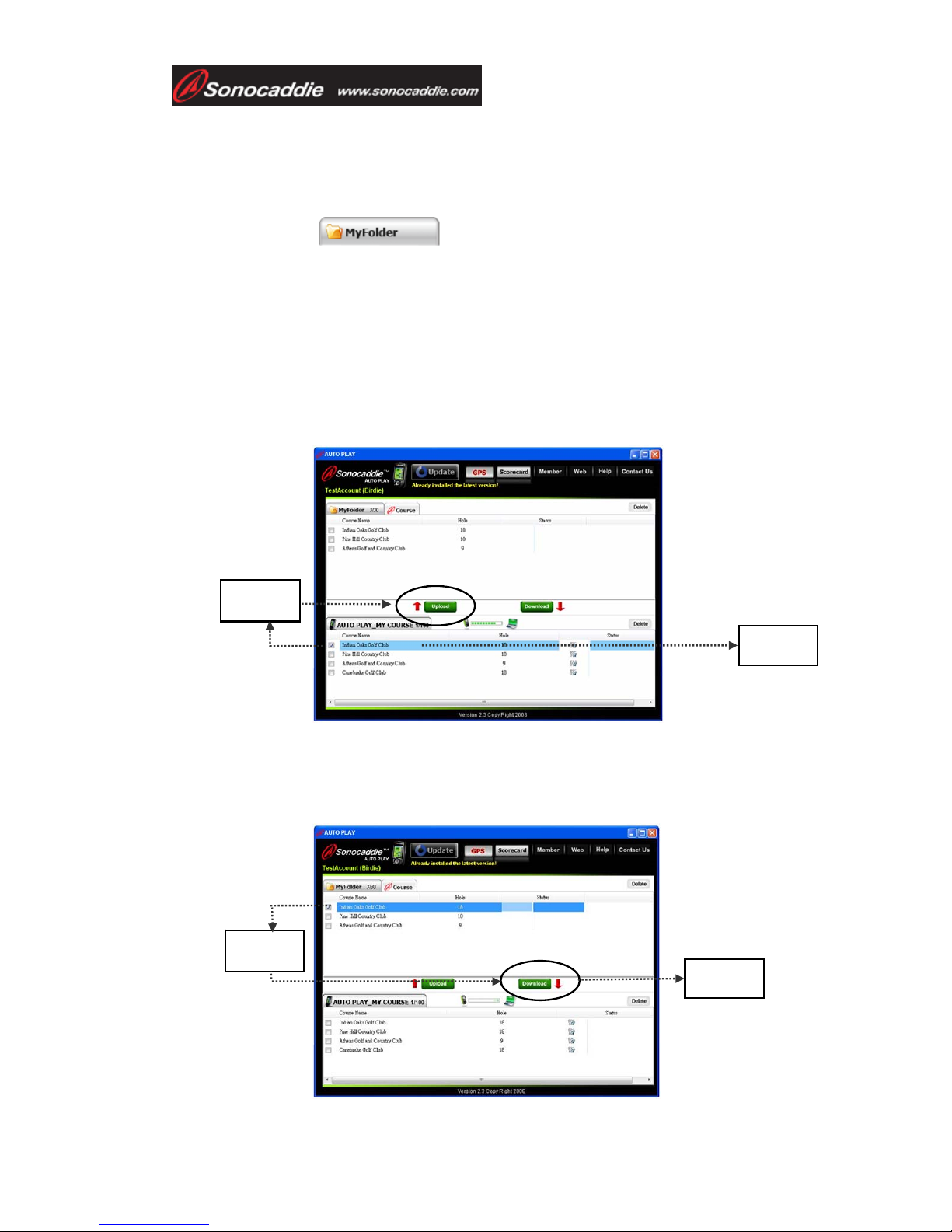
D. My Folder Tab: for uploading or downloading course data.
This is the personal folder to manage your data. You can upload or download GPS
data (30 courses) or Scorecard (100 records) between your AUTO PLAY unit and this
folder. (Par level member has NO access to “My Folder” unless the membership has
been upgraded.)
Steps to upload course data from Sonocaddie AUTO PLAY to MyFolder:
Step1. Select the specific course in your device.
Step2. Press “Upload” to upload course data to MyFolder.
Steps to download course data from MyFolder to Sonocaddie AUTO PLAY:
Step1. Select the specific course in MyFolder.
Step2. Press “Download” to download course data to Sonocaddie AUTO PLAY.
Step 1
Step 2
Step 2
Step 1
Page 15
User’s Guide
This document is the property of Sonostar Inc. Any unauthorized reproduction is prohibited.
Page 15
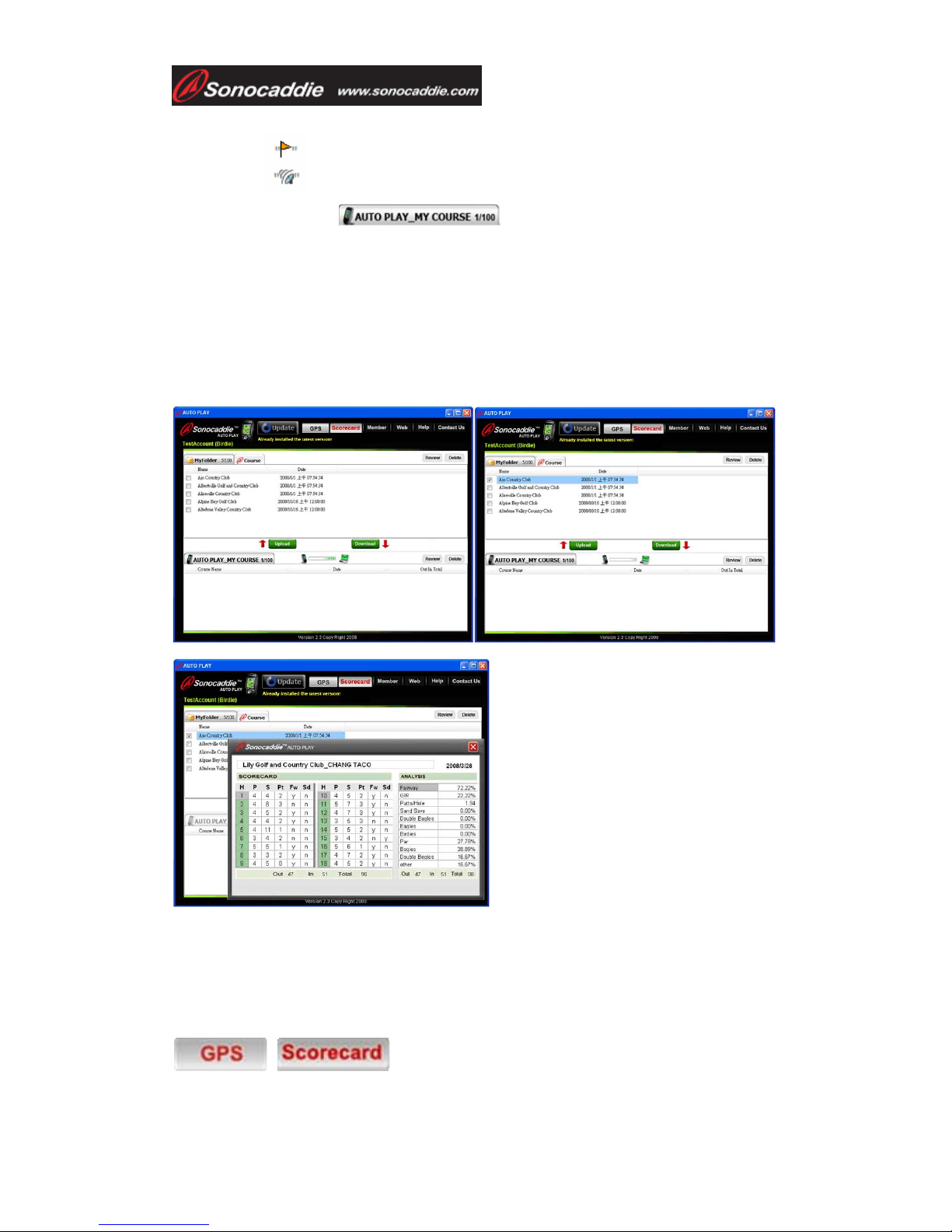
E. AUTO PLAY T ab:
When linking with AUTO PLAY device, the course data/ scorecard in “MY
COURSE” is ready to be uploaded, deleted, renamed and reviewed (scorecard record
only).
-Upload: You can upload the Scorecard (up to 100 records) data to “My Folder” tab.
-Delete: Check the box beside the course data/scorecard you wish to delete, and press
“Delete” button to remove the data.
-Rename: Double click the data name to rename.
-Review (scorecard only): Review scores and analysis of your round(s).
Note: Please do not disconnect the USB cable between AUTO PLAY device and
computer when transferring data.
F. GPS/ Scorecard buttons on the top of the display:
These buttons bring up the course data from your Sonocaddie AUTO PLAY unit. You
can switch to review GPS and Scorecard data simply by pressing the buttons.
To review scorecard record, please press
“Scorecard” button on the top of the
display, then check the record you want to
review. Press the “Review” button, and the
scores and analysis will show on the
display for you to review your game.
You can review the scorecard records both
in “AUTO PLAY” tab and “My Folder”
tab.
This picture indicates this specific golf course has scorecard information.
This picture indicates this specific golf course has GPS information.
Page 16
User’s Guide
This document is the property of Sonostar Inc. Any unauthorized reproduction is prohibited.
Page 16
Note: Please do not disconnect the cable between AUTO PLAY device and computer
when transferring.
G. More functions:
Pressing the function buttons at the top-right of the screen will link you to the
Sonocaddie AUTO PLAY website for further information and assistance.
Chapter 5. Starting a game
5.1 Start with Existing Courses
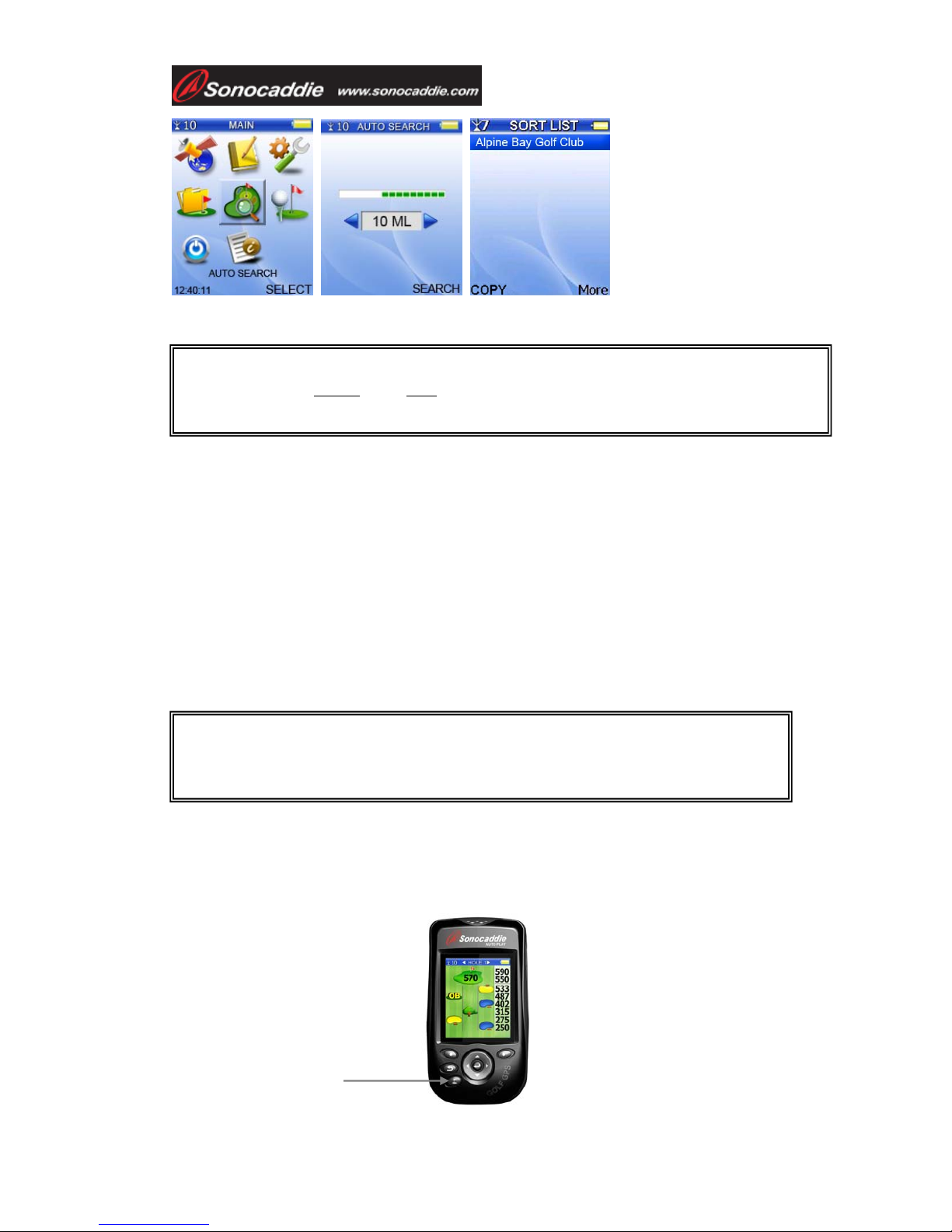
5.1.1 Course Auto Search
Select “AUTO SEARCH” from the “Main” menu to enter the searching function.
Select a range from 5 miles to 50 miles, and all courses within the area will be
displayed. The nearest course will be on top of the list. (NOTE: If a course is not
displayed it is not in your AUTO PLAY Unit. See Section 4.2.B to update your
course list, or 5.2 to self map a course, or contact [email protected]
to have
us map this course for you.)Press “More” to select the course you want to play or
arrange the order of courses by distance or by course name.
Important !
If your membership has expired, access to AUTO PLAY Software will not be allowed
unless the membership is renewed. The Sonocaddie system will remind you by email
prior the expiration date. For further information or assistance, please go to
www.sonocaddie.com or email to [email protected] for help.
GPS
GPS
Important!
When you are in the “AUTO PLAY” tab and press the “GPS” button, the “My Folder”
tab will also switch to GPS data. When pressing the “Scorecard” button, both “AUTO
PLAY” and “My Folder” tab will also switch to scorecard data.
Important!
If you want to edit the selected course, by pressing “COPY”, the selected course
will be copied into MY COURSE for you to edit the reference points.
Page 17
User’s Guide
This document is the property of Sonostar Inc. Any unauthorized reproduction is prohibited.
Page 17
Note: This function can only be activated when there is GPS reception.
5.1.2 Search Courses from COURSE LIST (Manual Search)
Select “COURSE LIST” from “Main” menu to enter the searching function. There are
two methods for you to search your course from all available courses preloaded in the
device:
1. By Country: All the courses are listed by country. You can find your course
by selecting “Country”, “State” and “City”. Press “SEARCH” button after every
selection, then you will see all the available courses within the area.
2. By History: Previous play will automatically add to COURSE LIST sorted
by history. This function can memorize the last 30 courses.
5.1.3 Auto Hole
First, user must select the starting hole manually. After finishing a hole and entering
the next tee box, the Auto Hole function will advance to the next hole automatically.
Important!
You must select a course and a hole first. Then, SCORECARD function and reference
points function can be used.
Hole selection
button
Important!
If you want to edit the selected course, by pressing “COPY”, the selected course
will be copied into MY COURSE for you to edit the reference points.
Page 18
User’s Guide
This document is the property of Sonostar Inc. Any unauthorized reproduction is prohibited.
Page 18
5.2 Course Management for AUTO PLAY device
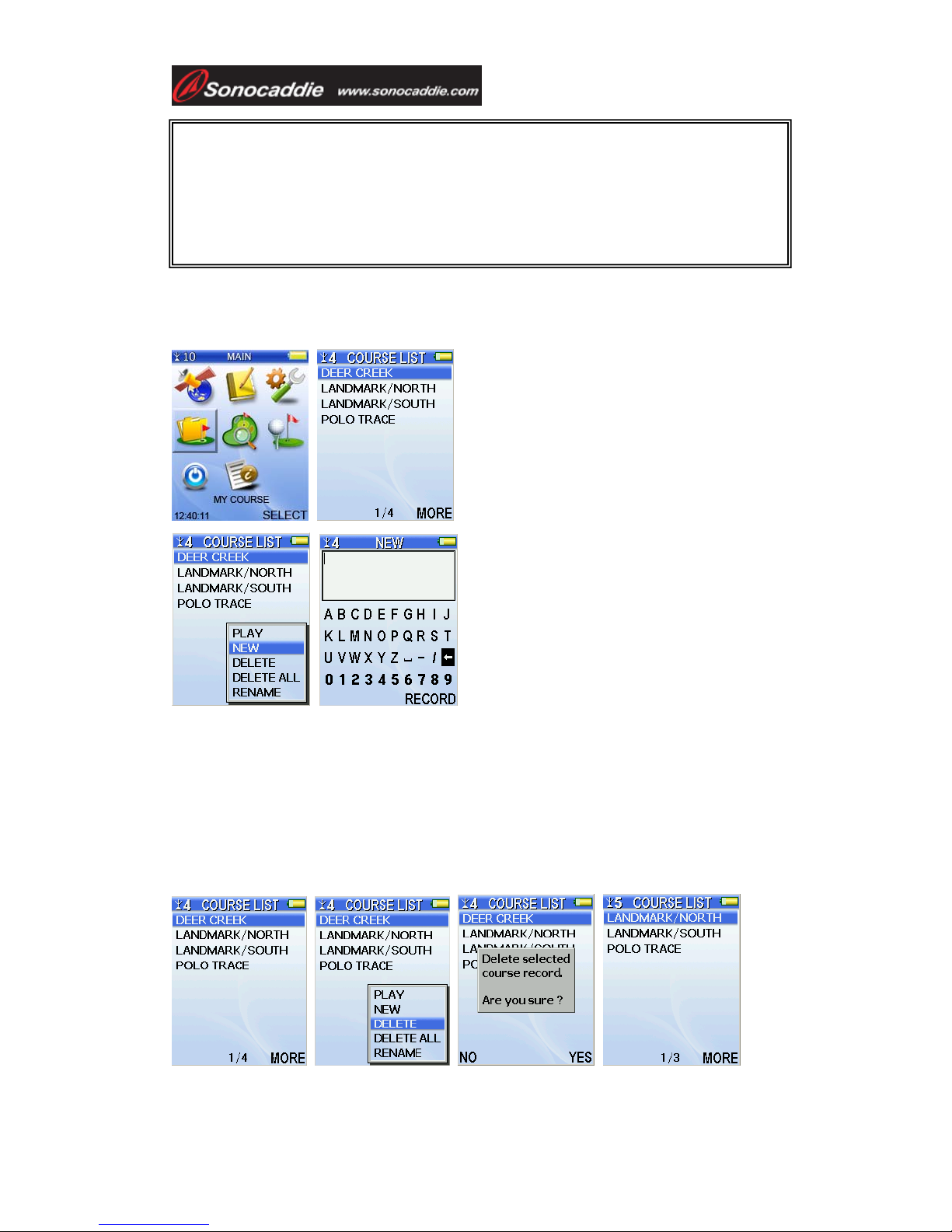
5.2.1 Create a New Course
5.2.2 Delete a Course
From the “COURSE LIST” screen, select a course name, and press “MORE”. Select
“DELETE/DELETE ALL” to delete the selected course or to delete all courses at
once. When the confirmation dialog box opens, press “YES” to confirm or “NO” to
go back. Once “YES” is selected, the course information and all reference points will
be deleted permanently.
Select “MY COURSE” from the “Main” menu and
press “MORE” to select “NEW” after you entered the
course list.
Key in the course name by using the 5-way key. Then
please press “Record” to save it. The new course you
created will show on the course list right away.
Important!
The user can choose to change holes manually at anytime using the” Hole
Selection” button, or by scrolling left or right through the holes using the “5 way”
key.
Auto Hole function can be turned on/off from “SETTINGS”.
Page 19
User’s Guide
This document is the property of Sonostar Inc. Any unauthorized reproduction is prohibited.
Page 19
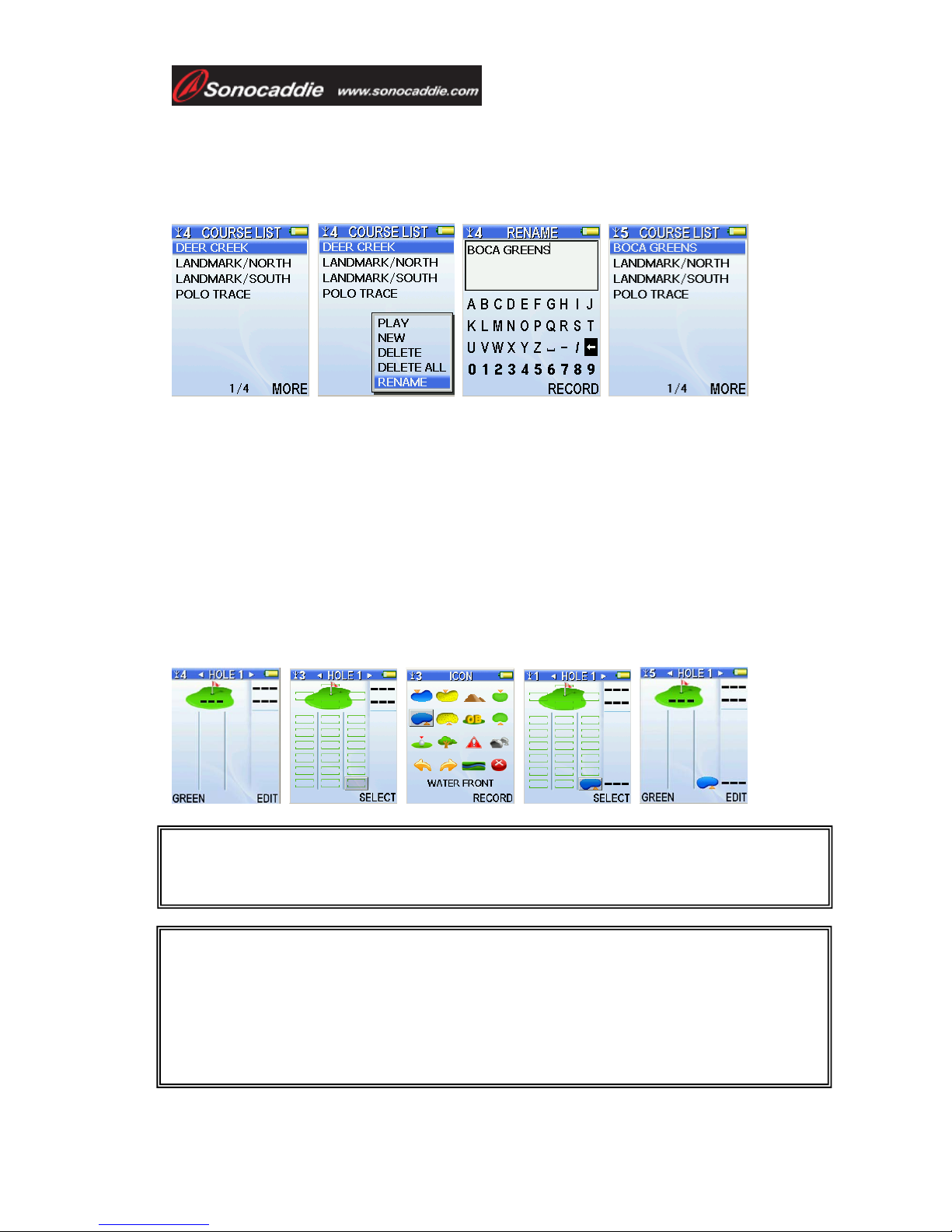
5.2.3 To Rename a Course
From the “COURSE LIST” screen, select the course you wish to rename. Press
“MORE” and select “RENAME” from the pop-up list using the 5-way key. To
rename, use the 5-way key to edit the course name.
5.3 Adding New Reference Points
Users can record reference points on the course while playing.
5.3.1 Mapping a hole
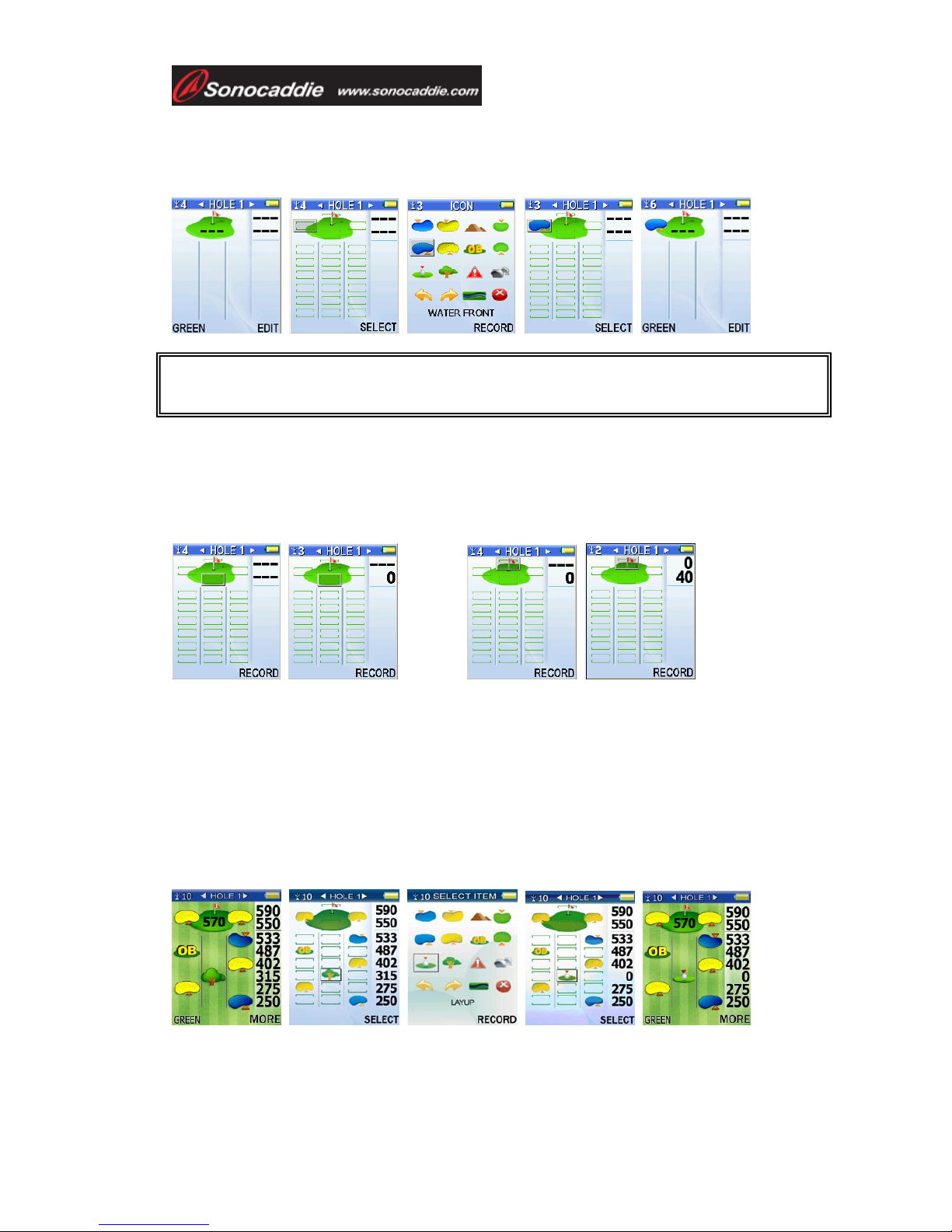
Bring up the “Course info” screen. Standing at the reference points which you would
like to add, press “EDIT”, and navigate the cursor to the appropriate location on the
screen. Press “SELECT” to go to the “ICON” screen. Choose the correct icon for the
new reference point, and while standing still, press “RECORD”. Press “Esc” key to
complete the mapping and return to the Course Layout Screen.
Important!
Sonocaddie performs best under clear sky. Furthermore, 6 satellite signals should be
sought, it might be necessary to wait for these to be registered.
Important!
Each row only allows one reference point. Maximum of 10 reference points per
hole-(on/off fairway, Green Front/Back and next to Green) can be recorded. It is suggested
that each reference point should be recorded based on the order of course features for that
hole. All reference points’ distance will disappear when standing within 5 yards. To record
a reference point, the player must stand still for 5 seconds at the reference point before
pressing “Record”. The yardage will show “0” right away when you press record.
Page 20
User’s Guide
This document is the property of Sonostar Inc. Any unauthorized reproduction is prohibited.
Page 20
5.4 Reference Points next to Green
To add icons to the side of the green, (for example, add a water icon to the left of the
green) press “SELECT” (right soft key) and then choose from the icons.
5.5 Reference Points on Green
To add Green reference points, stand at the front or back of the green, select the Green
front or back icon and press “RECORD” to record the coordinates.
Add Green Front: Add Green Back:
5.6 Editing Reference Points
Users can edit existing reference points according to their preference while playing on
the course.
If the icon on the screen of the actual course is incorrect and needs to be changed,
stand at the reference point, press “EDIT” and choose the particular reference point
icon that requires editing. Then press “SELECT” and choose one icon from the icon
page. Press “RECORD” and the icon is now changed to the new icon.
If the Sonocaddie shows an incorrect distance to the course feature, users can update
the new coordinates by standing at the reference point, pressing “EDIT” and choosing
Important!
These two reference points do not provide any distance yardage.
Page 21
User’s Guide
This document is the property of Sonostar Inc. Any unauthorized reproduction is prohibited.
Page 21
the particular reference point icon that requires updating. Press “SELECT” to go to
the icon page. Highlight the same icon on the icon page, and press “RECORD”. The
distance is now corrected permanently.
5.7 Delete Reference Points
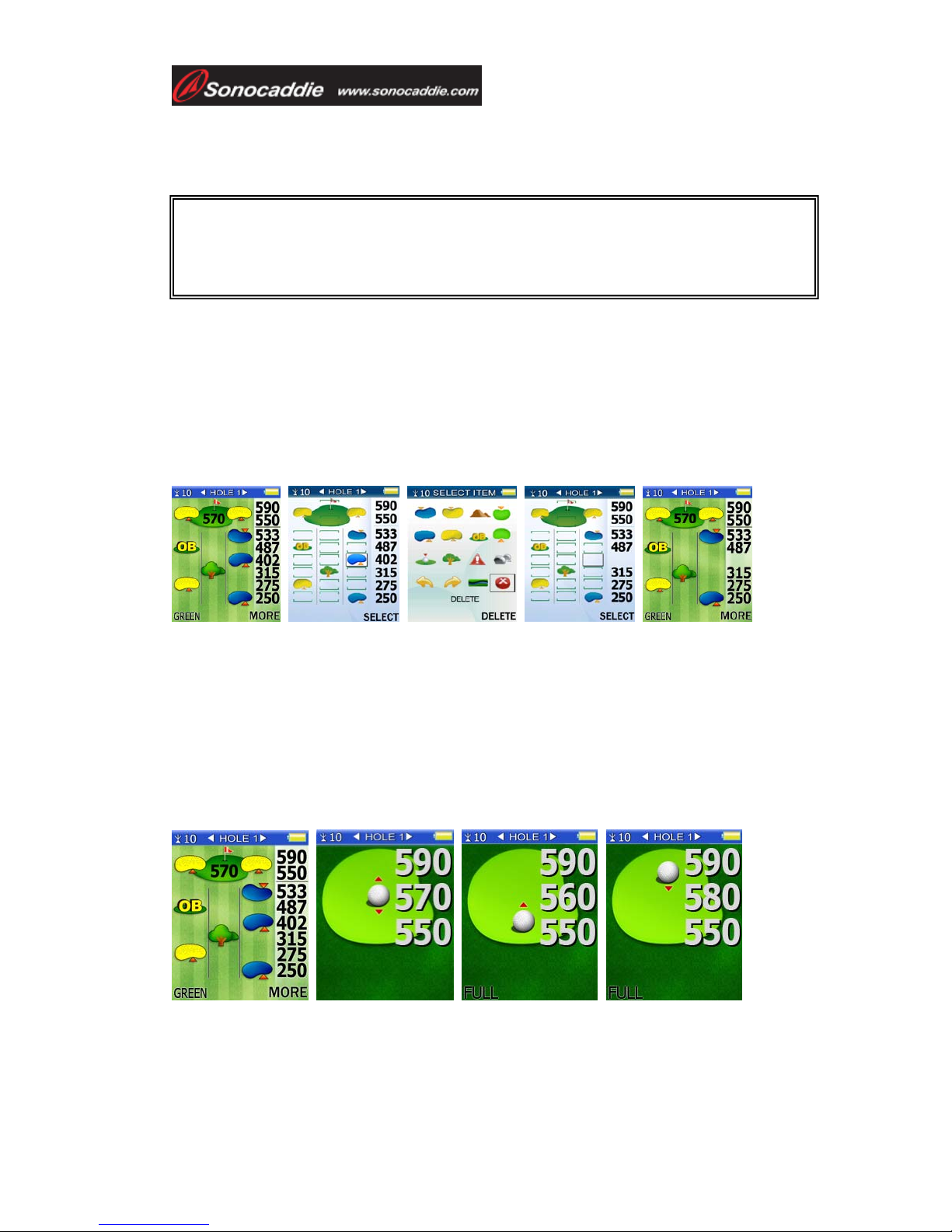
Press “EDIT” and then highlight the particular reference point icon that requires
erasing. Press “SELECT” to go to the icon page. Highlight the “DELETE icon” and
press “DELETE”.The reference point is now deleted.
Once erased, the previous reference point icon and yardage distance will disappear
from the screen. (Note: the same procedure should be followed to erase reference
point icons on both sides of green)
5.8 Green Close-Up Function
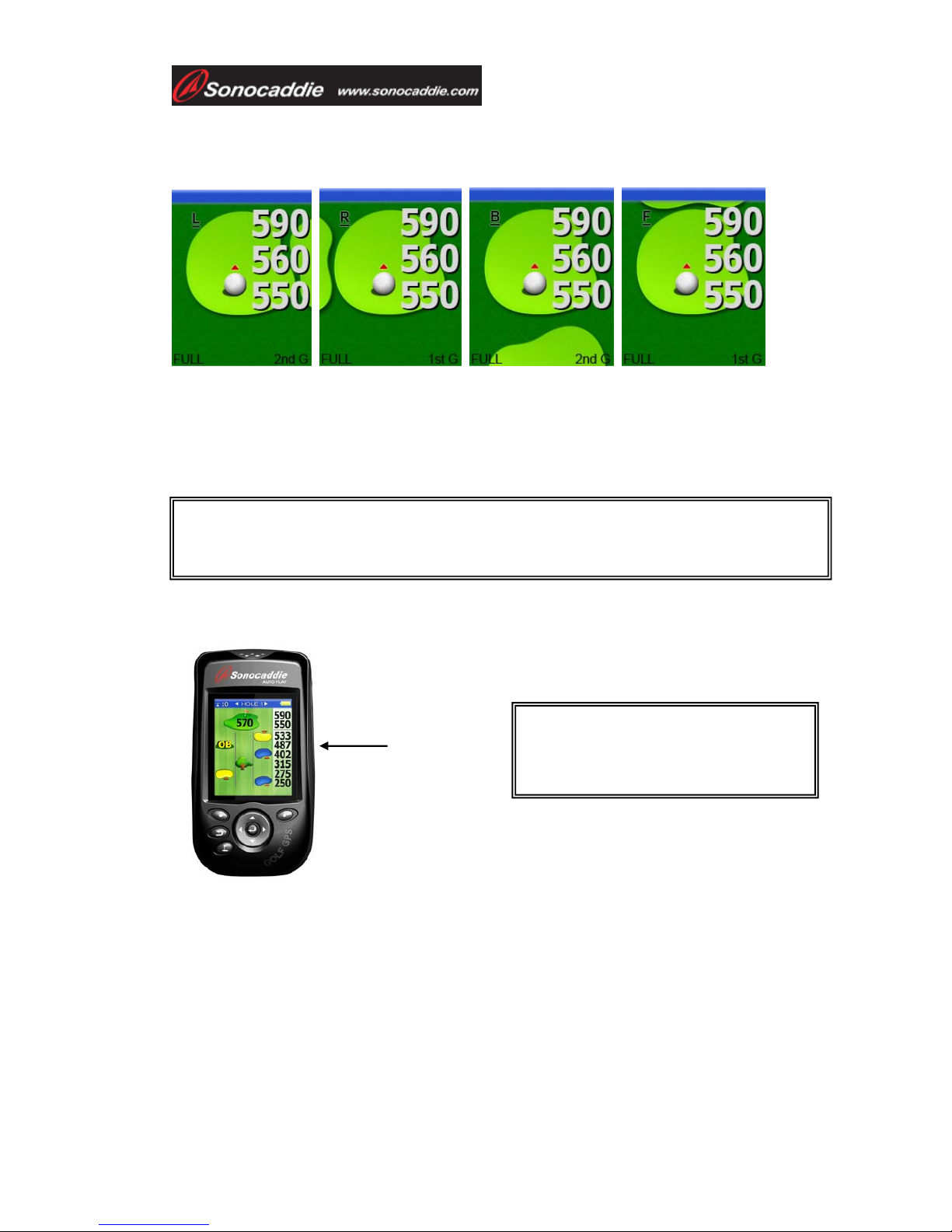
At any time during your round, press “GREEN” to get a close-up view of the putting
green. There are 2 additional coordinates other than the distance of front, center and
back of the green, the yardage will change continually showing three intermediate
distances on the green indicated by the changing ball location. Press any button to
lock in your desired location. Press “FULL” to go back to the previous screen.
5.8.1 Double Green
Sometimes a hole will have a double green. In this event, AUTO PLAY will show
double green. To be sure you are viewing the correct green. the first green display will
Important!
To record a reference point the player must stand still for 5 seconds at the reference
point before pressing “RECORD”. The yardage will show “0” right away when you
press record.
Page 22
User’s Guide
This document is the property of Sonostar Inc. Any unauthorized reproduction is prohibited.
Page 22
show the second green according to its position. For example, if the first green is on
the left of the second green, it will show an L on the left top side of the first green.
Press “2nd G” to go to the second green display and press “1
st
G” to return.
5.9 Mark Function (Shot Measurement)
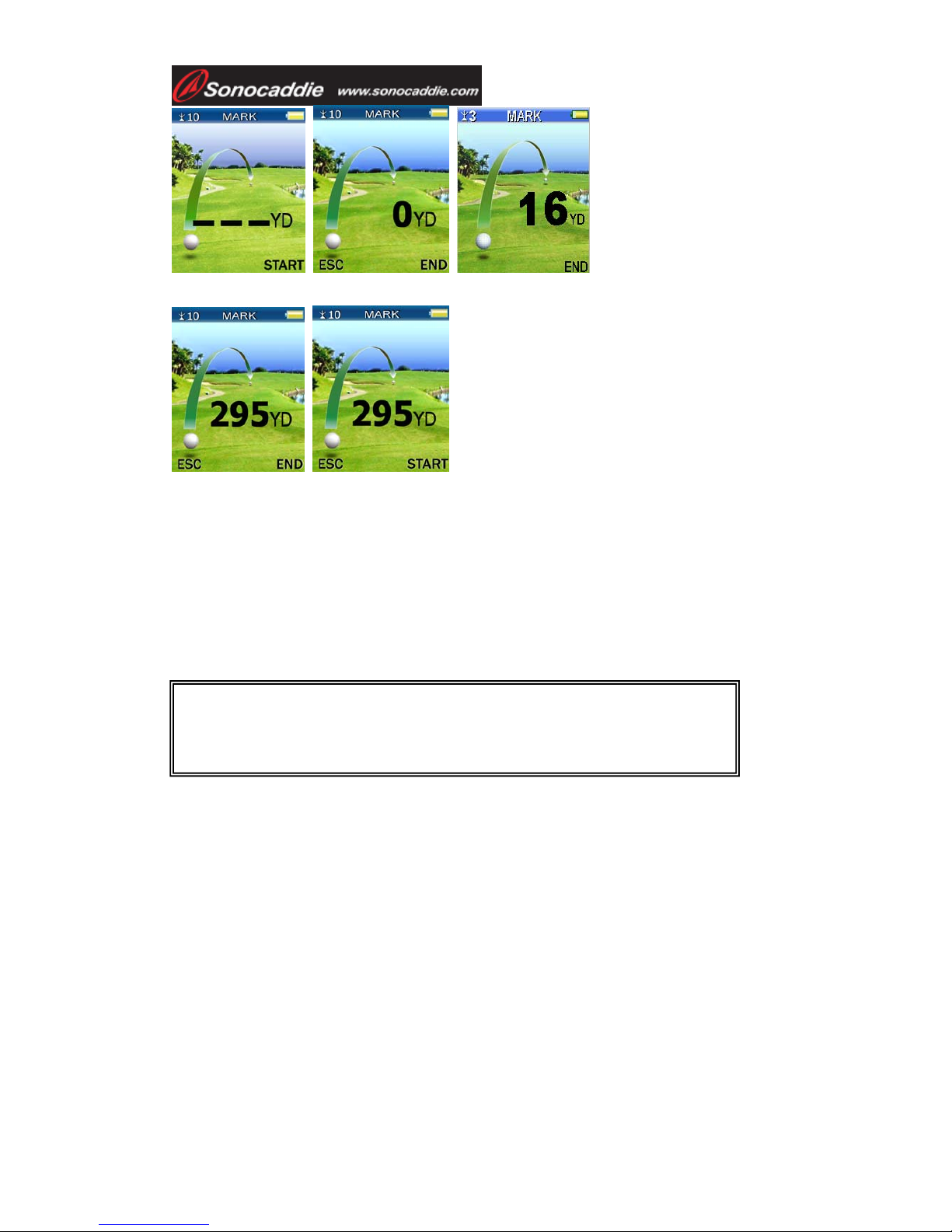
The Mark function is used to measure distance of each shot. After hitting a shot, press
the ‘START’ button and proceed to the ball. The distance figure will lock after
pressing ‘END’. The display then shows the distance of the actual shot.
The Mark Function can be used anytime, except when the ‘Green View’ function is
activated. Press ‘MARK’ button (Right side key) directly.
To begin, press “START” at the point from where the shot is taken. The screen will
show ‘0’ on the display. When you move toward the ball position, the yardage
number will increase according to your location.
Important!
This function can only be activated
when there is GPS reception.
Important!
The user does not have to travel in a straight line to the ball. The distance shown on the
display is always the straight line distance from where the ‘START’ button was pressed.
Mark button
Page 23
User’s Guide
This document is the property of Sonostar Inc. Any unauthorized reproduction is prohibited.
Page 23
5.10 Scorecard Function (Optional Function)
5.10.1 Activate your scorecard function
After you join or upgrade membership, the scorecard function is ready to be activated.
Steps to activate the scorecard function:
Step 1. Connect the cable between AUTO PLAY device and PC.
Step 2. Log in to the AUTO PLAY Software.
5.10.2 NORMAL and PRO function
Sonocaddie provides a scorecard function that allows you to score your personal
round and provides an analysis of your round…
There are 2 types of scorecard functions, “NORMAL” and “PRO”. Normal keeps
track of total strokes only, and adds all strokes to provide scores for both front nine
(out) and back nine (in).
To choose either “NORMAL” or “PRO”, go to the “SETTINGS” screen, scroll
down to “SCORECARD” and choose either “NORMAL” or “PRO” with the left-right
5-way key. Press “SAVE” (right soft key) to save the setting..
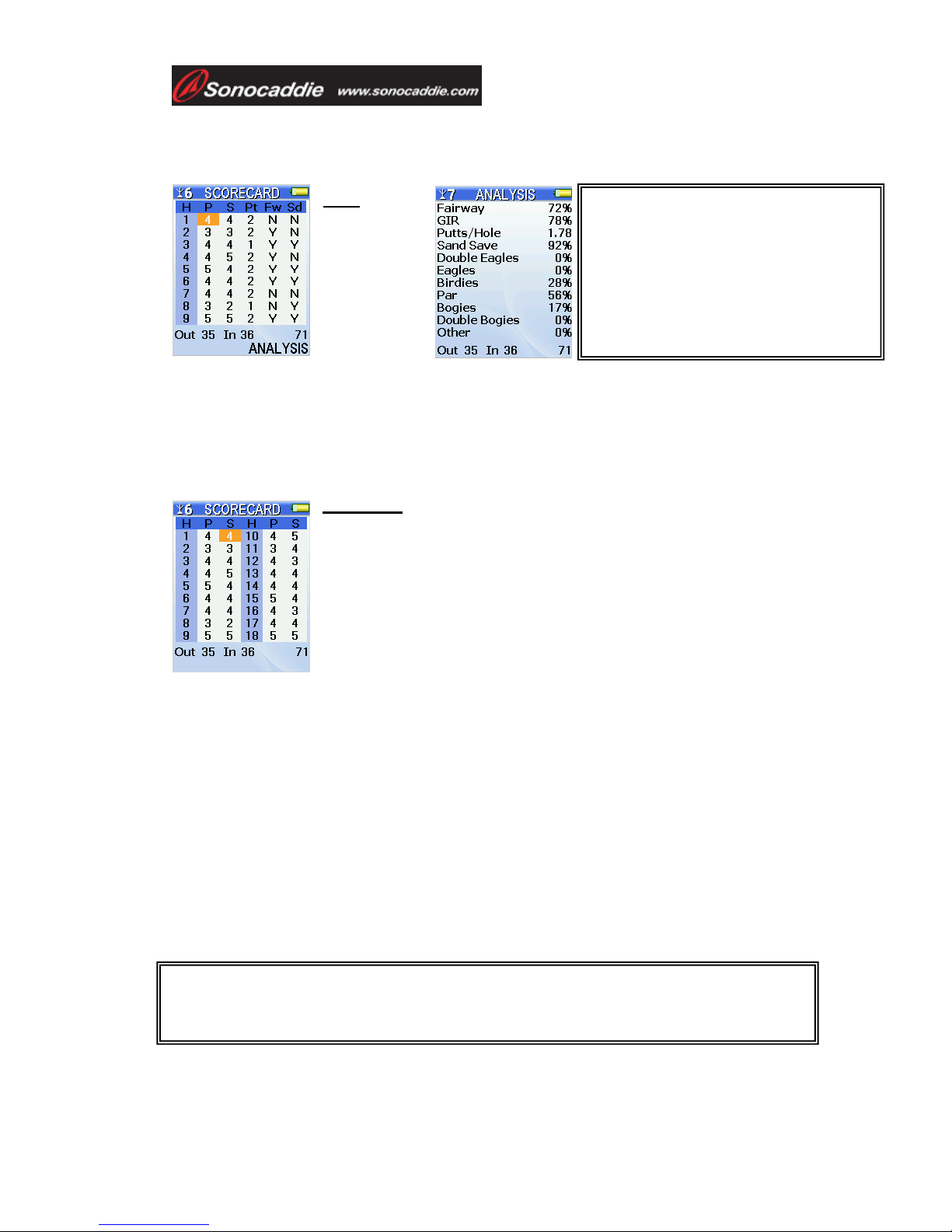
In the “PRO” scorecard you can enter Par (P), Strokes (S), Putts (Pt) in numeric form,
and Faiway Hit (Fw) and Sand Save (Sd) as either Y (yes) or N (no). Note: when
Once reaching the ball position, the the distance
of the shot is shown. Pressing “END” locks in
the number until “START” is pressed again.
ESC
Important!
Scorecard is an optional function in AUTO PLAY. Please visit our website
for further information.
Page 24
User’s Guide
This document is the property of Sonostar Inc. Any unauthorized reproduction is prohibited.
Page 24
Sonocaddie has the course information stored, and you go to the “SCORECARD”
screen during the round, the “Par” field will automatically show the par for the hole
you are playing.
PRO
H = Hole
P = Par
S = Score
Pt = Putt
Fw = Fairway
Sd = Sand
Use 5-way key left or right to select the item which you want to change. Up and down
to enter your scores. After finishing the 1~9 holes scores, please use 5-way key to go
to next 9 holes. Press ‘Esc’ button to go back to the previous page. All scores will be
saved automatically. Press “ANALYSIS” to view compiled statistics and the scores
for that round.
NORMAL
H = Hole
P = Par (unchangeable)
S = Score
NOTE: When using “NORMAL” scorecard, there is NO
“ANALYSIS” function available.
Use the up and down 5-way key to choose the hole number and
then use the left or right 5-way key to enter your scores. Press the ‘Esc’ key to go
back to the previous page and the scores will be saved automatically.
5.10.3 Enter Scores
Select the course to play, press “Scorecard button” during the game, and enter scores
directly.
5.10.4 Review Scorecard and View Analysis
Sonocaddie can save scores for up to 100 rounds. To view prior scores, go to
“SCORECARD” from the “MAIN” menu and “SELECT” one course. With this
feature you can review previous scores, analysis and also edit them.
Important!
Scorecard’s scores will be saved for that Course until the user clears the scores or deletes
the course.
Important!
To have GIR analysis, Par number,
Score and number of Putt are required
to input.
To have Sand Save analysis, input “Y
(yes)” or “N (no)” on “Sd” space, and
it will automatically calculate
a
ccording
to
your scores
.
Page 25

User’s Guide
This document is the property of Sonostar Inc. Any unauthorized reproduction is prohibited.
Page 25
Appendices
A. Specification
z Size
¾ H 108mm×W 53.5mm×T 28.4mm (H 4.3”×W 2.3”×T 1.1”)
z Weight
¾ 140g ( 4.9 ounces)
z Screen
¾ 2.2” high-resolution color LCD w/ Backlight
z Operating temperature
¾ Maximum 70 º C / 158 º F
¾ Minimum -5 º C / 23 º F
z Storage
¾ Course: 30
¾ Scorecard: 100
z Battery
¾ Rechargeable battery
¾ 12 hours in normal operation (may be different by the frequency of
backlight on)
¾ Battery charging time: 8 hours in operation mode, 5 hours in power-off
mode
z Acquisition Rate
¾ Cold start: Approx 5~10 minutes
z Accuracy
¾ 3 Meters CEP (80%), 7 Meters CEP(90%) horizontal, SA off
z Built-in GPS Receiver
z Built-in High Sensitivity GPS Antenna
z Waterproof, IPX6
Page 26

User’s Guide
This document is the property of Sonostar Inc. Any unauthorized reproduction is prohibited.
Page 26
B. System Requirement
¾ Windows 2000/XP/Vista
¾ CD-ROM
¾ 512 MB RAM (XP)、1 GB RAM (Vista) or higher
¾ 12 MB or more hard disk space
Page 27

User’s Guide
This document is the property of Sonostar Inc. Any unauthorized reproduction is prohibited.
Page 27
C. Description Abbreviations
Lat = Latitude
Lon = Longitude
DOP = Dilution of Precision
P = Par
S = Score
H = Hole
Hcp = Handicap
Pt = Putt
Fw = Fairway
Sd = Sand
GIR = Green in Regulation
B/BK = Back
F/FT= Front
CT = Centre
YD = Yard
M = Meter
ML = Mile
KM = Kilometer
ESC = Escape/ Previous page
1st G = First Green
2nd G = Second Green
R = Right
L = Left
F = Front
B = Back
Page 28

User’s Guide
This document is the property of Sonostar Inc. Any unauthorized reproduction is prohibited.
Page 28
D. FAQs
Q1. What do I do when my Sonocaddie is not detecting a signal?
A. Your Sonocaddie uses the global satellite positioning system, (GPS) and works
best in wide, open spaces, regardless of weather. In order to receive GPS signals you
must be in an open sky area, away from buildings, trees cliffs, etc. The first time you
start Sonocaddie in a new area it may take up to 10~15 min. to receive sufficient
satellite signals. You may monitor GPS signal reception on the ‘GPS Status’ screen.
Once you receive 6 or more stable satellite signals Sonocaddie will provide very good
accuracy.
Otherwise it won't receive GPS signal and will show nothing on the display. After
turn-on, there should be a number on the upper-left corner of the screen, which means
the number of satellites received. If showing “X”, it means no signal.
If you are on the course, all distance numbers will automatically show on the screen.
However the limit of displayed number is set to 999 yards. Therefore any distance
beyond 999 yard will show 999 only. Besides, if the unit shows " ─ ─ " when the
satellite is available, it means that the distance is within 0~5 yards.
Q2. How can I track my driving distance?
A. Sonocaddie uses the global positioning satellite system (GPS). Simply press a
button to record the beginning coordinates of your shot and the end coordinates of
your shot and Sonocaddie will accurately calculate the shot distance. Please consult
the user guide for more details.
Q3. Can I connect my Sonocaddie to other computer devices?
A. Apart from the computer systems approved by Sonocaddie, we do not provide any
assurances, and advise against attempting to connect it to any non-approved devices.
Q4. Why is the distance of the course marker different from the distance
measured by Sonocaddie?
A. 1. First, please make sure that the distance unit either in Sonocaddie or the course
is the same (i.e. “YARDS” vs. “METERS”). If they are different, please go to
‘Settings' in main menu and select “Yard” or “Meter” as the right unit.
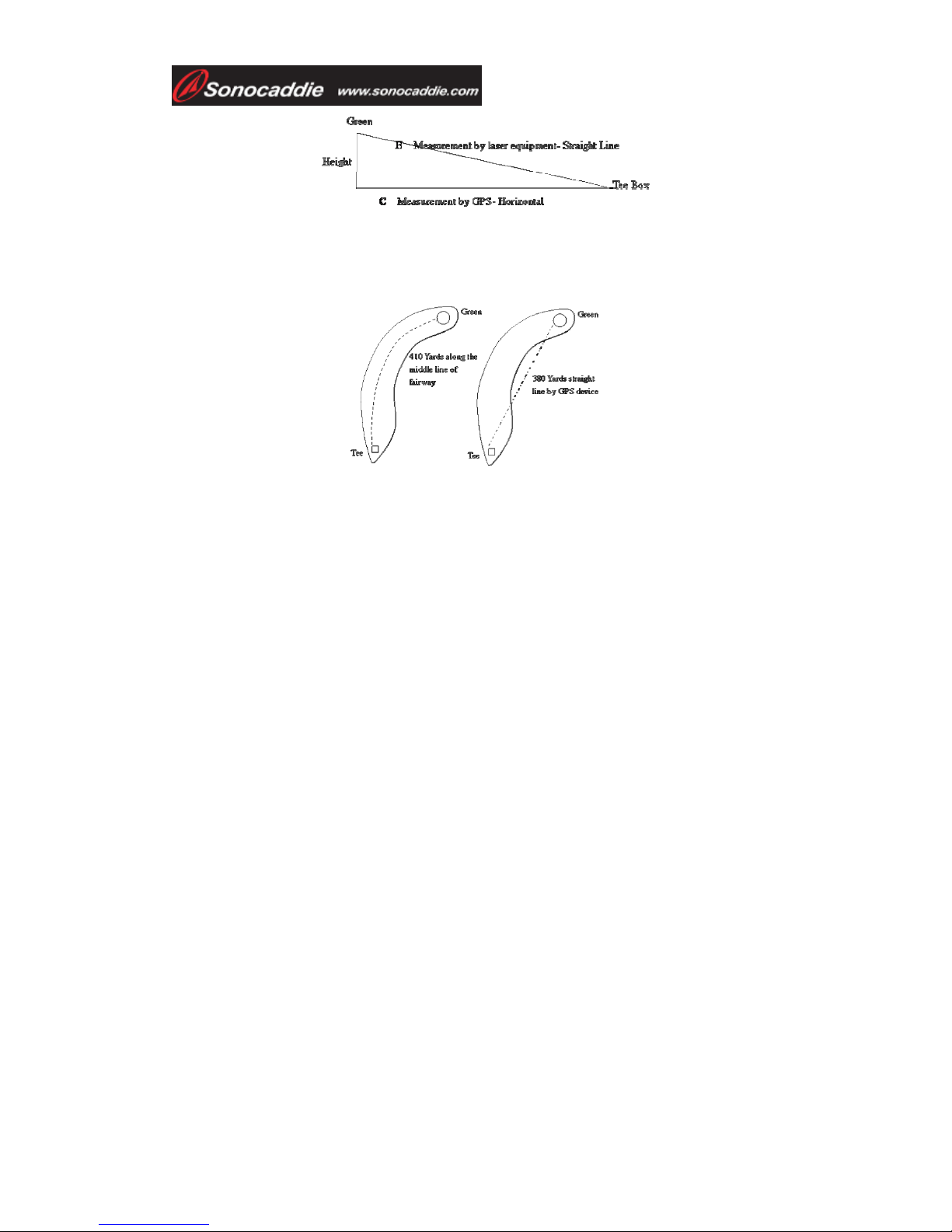
2. Some courses measure the distances by using laser equipment. If the Green and Tee
box are not at the same horizontal level, the yardage numbers could be different from
the one of Sonocaddie. Most Golf GPS devices measure the distance only in
horizontal level, which is more useful for golfers than straight-line of laser unit.
Page 29
User’s Guide
This document is the property of Sonostar Inc. Any unauthorized reproduction is prohibited.
Page 29
3. However, some courses measure the distance from tee box to the green along the
middle line of fairway. For example, the distance on the tee mark or scorecard shows
410 yards, but Sonocaddie only shows 380 yards. Please see figure below.
Q.5 Will I lose my data when the power goes off on my Sonocaddie?
A. The data you store in your Sonocaddie will never be lost unless you edit or erase
the data on purpose.
Q6. Why are the distances shown on Sonocaddie incorrect for each hole on this
course?
A. Please check the GPS reception on the GPS Status screen at the time to be sure you
have at least 6 stable satellite signals. Also check the Settings menu (Wrench icon) to
be sure the distance units (yard or meter) are correct.
In addition, the distance in GPS device is not related with the locations of tee
boxes-The distance is calculated based on the difference between the apparent
position and the known position. The apparent position is the moveable location of the
GPS device which receives the signal. The known position is the position of the target
or reference point.
The known position is fixed and is the coordinates, such as bunker and green,
downloaded from the database of website. Therefore when you stand by the tee box
(apparent position of GPS device you carry), the unit will calculate the distance
between you and the green (known position).
Q7. Can I connect Sonocaddie to Mac OS?
Sonocaddie is not compatible with Apple Mac OS systems including X Leopard and
Windows XP under Virtual PC in the short term.
Page 30

User’s Guide
This document is the property of Sonostar Inc. Any unauthorized reproduction is prohibited.
Page 30
Regulatory Agency Compliance
Federal Communications Commission (FCC)
This device complies with part 15 of the FCC Rules. Operation is subject to the
following two conditions: (1) this device may not cause harmful interference, and (2)
this device must accept any interference received,
including interference that may cause undesired operation.
NOTICE The FCC warns that user modifications of this device without the express
approval of Sonostar Inc. could void the user’s authority to operate the device.
Page 31

User’s Guide
This document is the property of Sonostar Inc. Any unauthorized reproduction is prohibited.
Page 31
Page 32

User’s Guide
This document is the property of Sonostar Inc. Any unauthorized reproduction is prohibited.
Page 32
V.3.0.0.1_E
 Loading...