

Page 1
Reference Guide
Professional
Foot / Inch / Fraction
Calculator
SONIN INC.
Phone: 800-223-7511 Website: www.sonin.com
© 2003 Sonin Inc. All Rights Reserved
Printed in China 019-0000-0003 Rev.2
InchMate® PRO
InchMate
®
PRO
Model DT210
INTRODUCTION 3
Key Pad Information 3-8
General Purpose Keys 3-4
Memory Keys 4-5
Other Functions Keys 5-6
Dimension Keys 6-8
Triangle Keys 8
GETTING STARTED 9-15
Working with Dimensions and Units 9-10
Addition 9
Subtract 10
Multiply 10
Divide 10
Default Settings 11
Reduced Fraction Mode 11
Weight/Volume 11
Conversions 12-13
Linear Conversions 12
Area Conversions 13
Volume Conversions 13
Temperature Conversion 13
Paperless Tape Review 14-15
EXAMPLE PROBLEMS 16-24
Complex Area 16
Carpentry Rough Opening 17
Carpentry Joist Numbers 17
Costing a Concrete Walkway 18
Squaring a Foundation 19
CONTENTS
- 1 -
CONTENTS
- 2 -
Board Feet Lumber 19
Circle Solutions 20
Simple Concrete Footings 21
Concrete Weight/Volume 22
Roof Rise 23
Roof Pitch Given Rise & Run 24
REFERENCE 25-26
Chaining 25
Error/Overflow 25
Auto-Range 25
Care 26
Battery 26
Resetting Your Calculator 26
APPENDIX 27-31
Conversion Tables 27
Area Formulas 28
Volume Formulas 29
Lumber Sizes 30
FCC Statement 31
WARRANTY & REGISTRATION 32-34
Warranty Information 32
Customer Service 33
Warranty Registration Card 34
Page 2
- 3 -
INTRODUCTION
If you build or design things you know the importance of
working with accurate dimensions. The most frustrating and
costly construction headaches can usually be traced to
dimensional errors.
The INCH
MATE
PRO is part of the new generation of Sonin
Feet-Inch-fraction Calculators helping people who work
with dimensions to simplify difficult and tedious calculations.
KEY PAD INFORMATION
General Purpose Keys
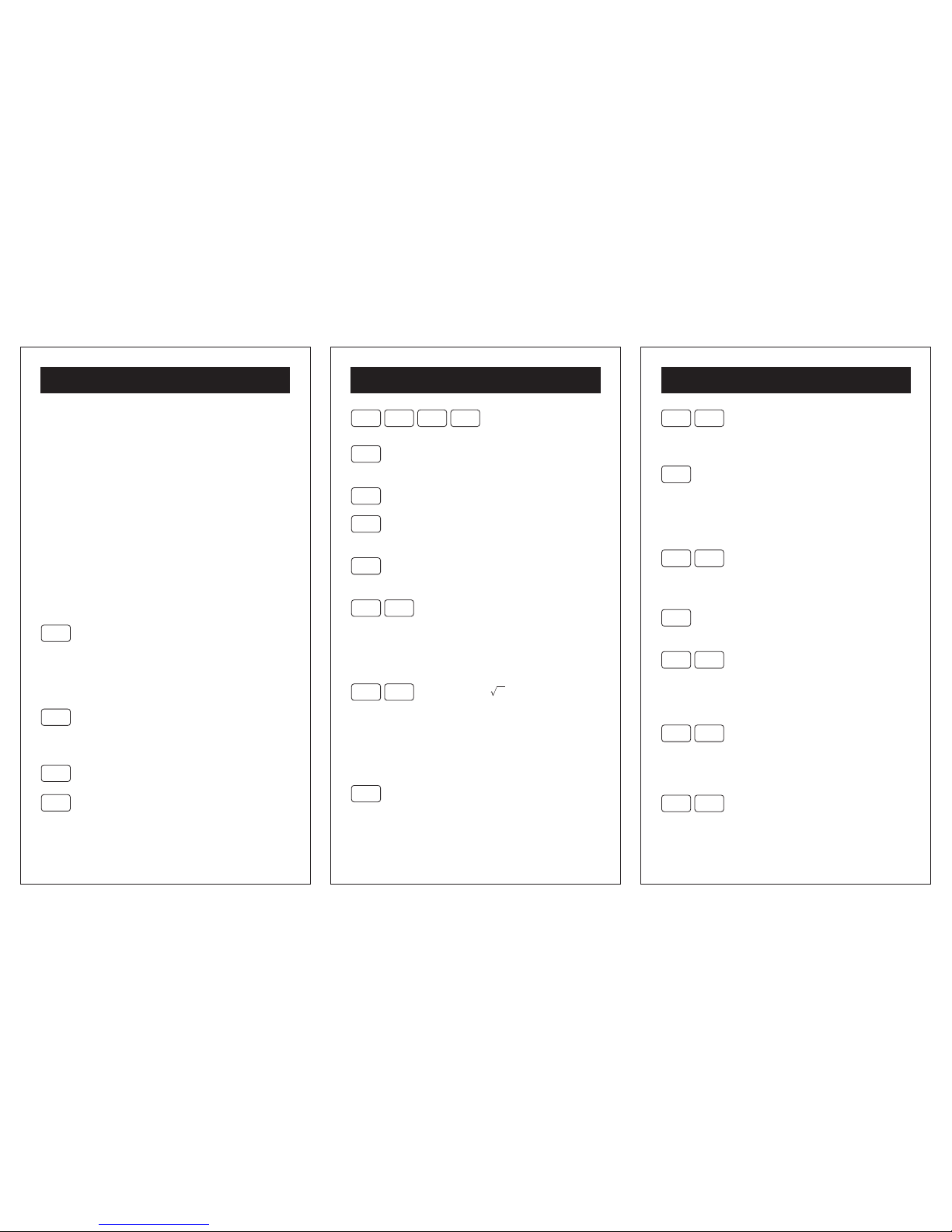
Note: The key to be pressed appears between the left and
right brackets, e.g., [+] except when referring to numerals.
On/Off
Turns calculator ON and OFF.
To save the battery, calculator will turn off
automatically after approximately 10 - 12
minutes of inactivity at which time the displayed
value and memory content will be cleared.
CE/CLR
Press this key once clears the current entry.
Pressing it twice clears display to 0.
Memory register & default setting are not affected.
0
Enters the numbers 0 thru 9 into the display.
to
9
- 4 -
KEY PAD INFORMATION
4321
Performs arithmetic operation.
5
Completes all previously entered arithmetic
operations and displays the result.
·
Enters a decimal point.
2ND
Activates the 2ND Function for designated
keys. 2ND function is indicated above keys.
%
Percent is used to find a given percentage
of a number.
6
2ND
X2 is used to take the square (quantity
multiplied by itself) of the number on the
display. No operation is performed if the
square of an area or cubic dimensioned
number is taken, Error will be displayed.
9
2ND
Square Root - takes the square root
of a number. Error will display if you try
to take square root of a linear or volume
value.
Memory Keys
M+
If memory is clear, enters displayed quantity
into memory. If a value is already stored
in memory this will add displayed quantity
to memory.
- 5 -
KEY PAD INFORMATION
2ND M+
Subtracts displayed quantity from
memory. The result is then placed in
memory.
RCL
Memory Recall retrieves data from
selected memory & displays it.
NOTE: To display & keep in memory
press [RCL] [ M+ ] . To display and
remove from memory press [RCL] [RCL].
2ND
RCL
CLEARS MEMORY without displaying it.
Other Functions Keys
Cost
Cost is used when calculating the cost of
items.
%
2ND
Restore Defaults allows the calculator to
restore ALL changed default values
(NOTE: effects Wt/Vol., fraction, stair,
rake, jack & hip/valley settings).
3
2ND
p is used to insert the value of Pi
(3.141592) onto the display for use in
subsequent calculations, or for use as
part of a mathematical process.
0
2ND
English/Metric Mode changes the first
function Imperial unit keys to their
corresponding metric unit functions.
It allows the user to enter a series of
Page 3
- 6 -
KEY PAD INFORMATION
metric values without having to use the
second function key. The
Metric
icon is
active when the metric mode has been
selected. To return back to English mode
press [2ND] [ 0 ] again.
5
2ND
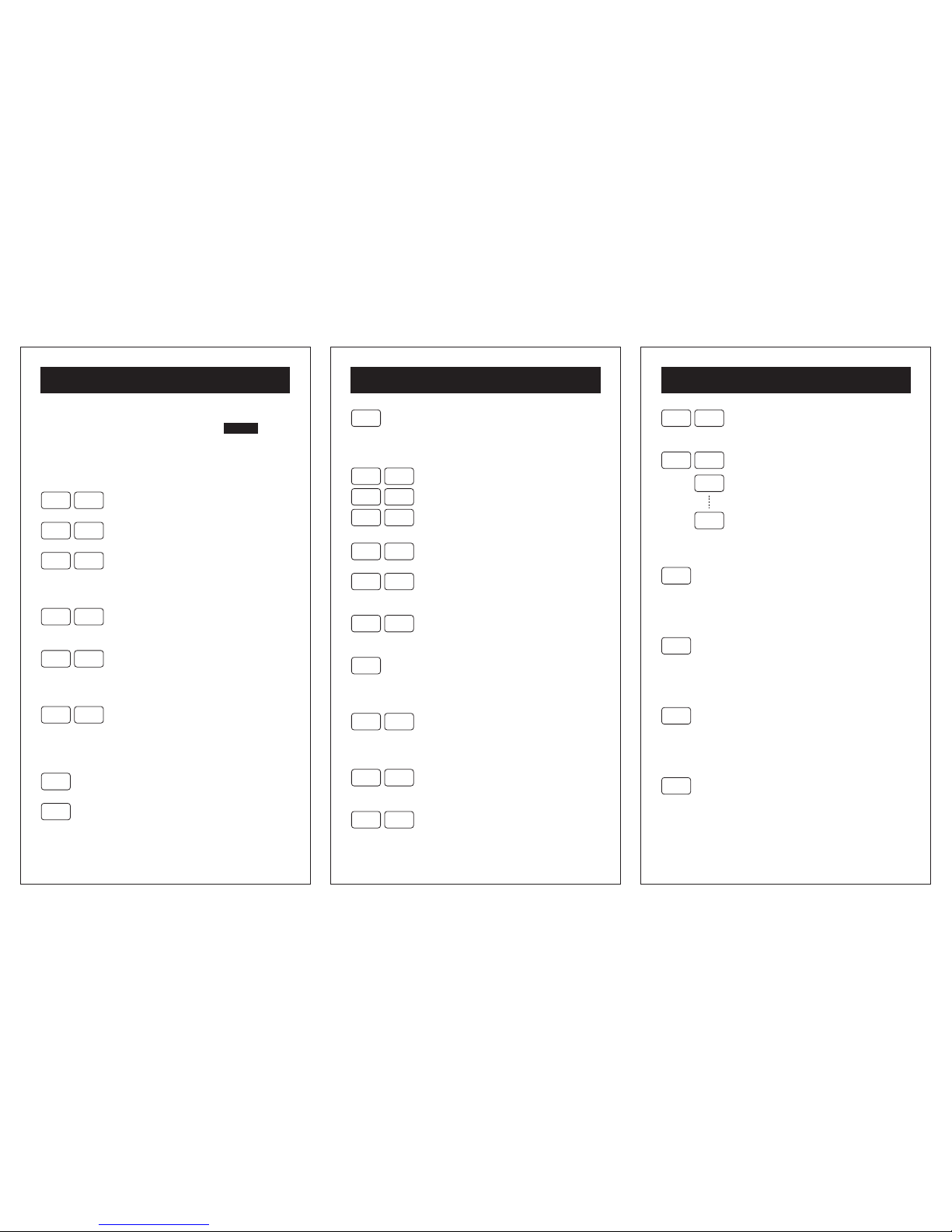
Paperless Tape Review Access.
·
2ND
Paperless Tape Review Exit.
5
2ND
Weight Per Volume displays and enters
a weight per volume (density) to be used
in calculating weight. (see Default Values)
8
2ND
Weight is used to calculate the total
weight of a volume of material.
2
2ND
+/- Change Sign changes the sign of
displayed value between positive and
negative.
4
2ND
Inverse 1/X divides the number 1 by the
number on the display
Dimension Keys
Yard
Yards Use for entering or converting yards.
Feet
Feet Use for entering or converting feet.
You may stop entry after feet or continue
by entering inches and fractions.
- 7 -
KEY PAD INFORMATION
Inch
Inch Use for entering inches. You may
continue by entering fractions. Or press
twice for decimal inches.
Fraction of an Inch Denominator keys-
They complete your fraction entries. Only
fraction inches are defined.
Yard
2ND
m Use for entering or converting meters.
Feet2ND
cm Use for entering or converting
centimeters.
Inch
2ND
mm Use for entering or converting
millimeters.
Sq
Square Use for entering square units.
Press the [Sq] key before the units key.
Example: Enter 5 [Sq] [Feet]
2ND
Sq
Cube Use for entering cubic units.
Press [2ND] [Sq] before the entering units
key. Example: Enter 5 [2ND] [Sq] [Feet]
1
2ND
Bd Ft Use for entering or converting board
feet.
7
2ND
Circle is used to find the circumference
and area of a known diameter of a circle.
/ 2
/ 4
/ 8 / 16
/ 32 / 64
- 8 -
KEY PAD INFORMATION
42ND
Arc is used to find the length of an arc
after diameter and angle are entered.
2ND
2
Fixed Fraction mode is used to select a
desired fraction result.
Triangle Keys
Pitch
Pitch is used to calculate the pitch (slope)
of a right triangle. Once pitch entered
continued pressing of pitch key will cycle
through Angle, Rise and Ratio.
Run
Run is used to enter or calculate.
To calculate the run, you must enter any
two of the following: rise, pitch, diagonal
(length).
Rise
Rise is used to enter or calculate.
To calculate the rise, you must enter any
two of the following: run, pitch diagonal
(length)
Diag
Diagonal/Length is used to enter or
calculate. To calculate the diagonal/length,
you must enter any two of the following:
Rise, Run, Pitch.
/ 2
/ 64
Page 4
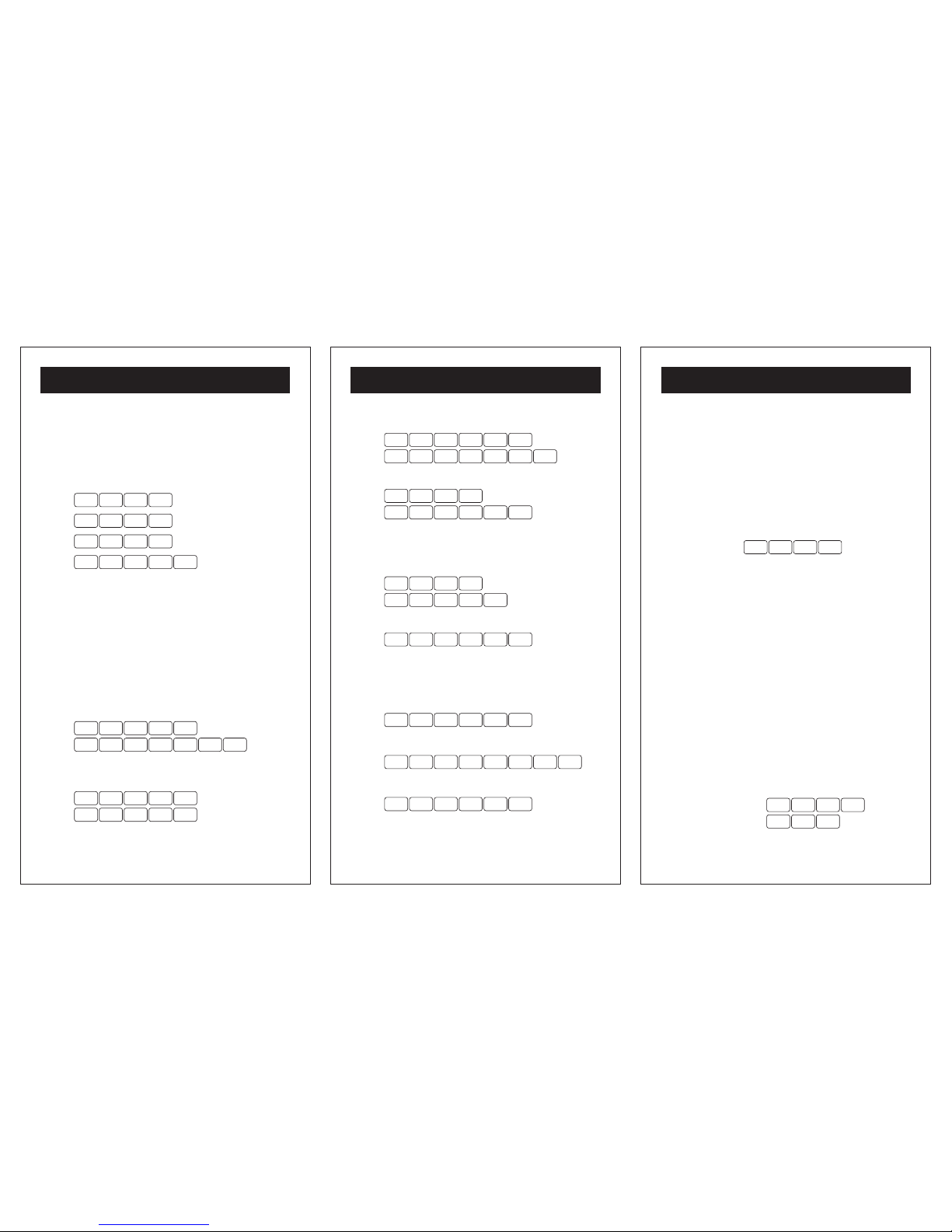
To activate battery, carefully remove plastic tab from battery
compartment.
Your calculator utilizes chaining logic allowing you to carry
our successive intermediate operations using the [=] key to
finalize operations. See page 25 for Chaining
1 5
2 5
3 5
4 5
8.
28.
4.
8.
53
9 5
74
7 92
Working with Dimensions and Units
When entering dimensional values, you must always enter
the largest dimension first. When entering fractions, enter
the numerator followed by the dedicated denominator key
( [/2] [/64] ). If an operation is performed with mixed units,
your calculator will automatically convert the result to the
units of first entry.
Addition:
Enter
1
5
Feet Inch
/ 16
7
9
5
6 1Feet Inch
12 Ft - 4 1/16 INCH
Enter
1
5
Feet756·
· 6 Feet
12.3 Ft
- 9 -
GETTING STARTED
- 10 -
GETTING STARTED
Subtract:
Enter
6 Ft - 6 3/4 INCH
Feet Inch
/ 4
9
4
131
Feet Inch 1
5
2
Enter
2
5
13 Ft - 3 INCH
Feet
7 56
2 0
· Feet
Multiply:
Enter
21.6 SQ Ft
Feet81
2·1 Feet
3
5
Enter
54 INCH
Inch81 3
3 5
Divide:
Enter
12 INCH
Inch63 3
4 5
Enter
7 Ft - 0 3/64 INCH
Feet / 3241 23
4 5
Enter
2.5
Inch5 2 Inch
4 5
- 11 -
GETTING STARTED
DEFAULT SETTINGS
Reduced Fraction Mode
Your calculator is set to Reduced Fraction mode which give
the most accurate result (to the /64th). To change your results
to a Fixed Fraction you must press [2ND] [2] and desired
denominator. The FIX icon will blink. To confirm your selection
press [2ND] again.
Example: To change to /8th fixed fraction:
Press
/ 822ND 2ND
. Your calcula-
tions will now result to the nearest /8th.
To Restore back to Reduced Fraction Mode press [2ND] [2]
Weight/Volume
The density default values are 1.5 Tons/Cu Yd, 3000 lb/Cu
Yd, and 1779.829 kg/Cu M. The density is used in calculating
weight. When using English units, the density is entered as
tons per cubic yard or pounds per cubic yard; when using
metric units, the density is entered as kilograms per cubic
meter.
You can recall the density by entering [2ND] [5]. Continuing
to press 5 causes the calculator to cycle through the various
units: Tons/Cu Yd, LB/Cu Yd and kg/Cu M. You can set a
new density by entering the weight followed by [2ND] [5].
Example: To change and work in a density of
4000 LB/CuYd.
Enter:
450
2ND
0 0
5
Display : 4000 LB/Cu Yd
Page 5
- 12 -
GETTING STARTED
To store and proceed press [CE/CLR]. Your Wt/Vol. is now
set at 4000 Lb/CuYD
CONVERSIONS
Linear Conversions
Key Sequence Result Displayed
To Convert 1 Yard 1 [Yard] 1. Yd
To Feet [Feet] 3. Ft
To Inches [Inch] 36. INCH
To Centimeters [2ND] [Feet] 91.44 CM
To convert between decimal feet and feet, inch, fractions
press the [Feet] key to cycle through them.
Key Sequence Result Displayed
Convert 1.6 feet 1.6 [Feet] 1.6 Ft
To feet, inch, [Feet] 1 Ft- 7 13/64 INCH
fraction
To convert a displayed fraction to another, only the desired
fraction key need to be pressed
Key Sequence Result Displayed
Convert 7/32" 7 [/32] 0 7/32 INCH
To /16th [2ND] [/16] 0 4/16 INCH
- 13 -
GETTING STARTED
Area Conversions
Key Sequence Result Displayed
Convert 10.5625
10.5625 Sq Ft [Sq] [Feet] 10.5625 SQ Ft
To Square Meters [2ND] [Yard] 0.981288 SQ M
To Square [2ND] [Feet] 9812.884 SQ CM
Centimeters
Volume Conversions
Key Sequence Result Displayed
Convert 9 9 [2ND] [Sq]
Cubic Meters [2ND] [Yard] 9. CU M
To Cubic Feet [Feet] 317.832 CU Ft
To Cubic Inches [Inch] 549213.7 CU INCH
Temperature Conversion
Key Sequence Result Displayed
Convert 104°F 104 [F°] 104. °F
To Celsius [2ND] [F°] 40. °C
- 14 -
GETTING STARTED
Paperless Tape Review
The Paperless Tape Review feature allows you to review up
to 20 entry steps and calculation results. The display will
show the entered or calculated value, along with the entry
step number.
Clear Calculator and enter a string of numbers
(i.e. 2 + 3 + 4 - 6 + 7 = 10)
Enter Tape Review
5
2ND
Tape
icon is activated
Display will read
Tape
06 = 10.
The [+] and [-] keys allow you to step forward and backward
through the last 20 steps entered into the calculator. After
the initial display of the result, the [+] key starts sequencing
through the series of entries and calculations starting with
the first step of the sequence. The [-] starts sequencing
through the series in the reverse order starting with the next
to last entry.
To review 2 + 3 + 4 - 6 + 7 = 10 in the forward direction
Key Sequence Result Displayed
[2ND] [=]
Tape
06= 10.
[+]
Tape
01 2.
[+]
Tape
02+ 3.
[+]
Tape
03+ 4.
[+]
Tape
04- 6.
[+]
Tape
05+ 7.
[+]
Tape
06= 10.
Page 6
- 15 -
GETTING STARTED
To review in the reverse direction
Note: If more than one series of calculations have been
performed, the Paperless Tape will only review the last series
of calculations. Previous series of calculations will be deleted.
Example:
Enter Calculation Series #1:
41 2 3
1 51 1
10.
Then Enter Calculation Series #2:
Feet 42 3
3 5
Feet
3
Feet
24 CU Ft
Your paperless tape will only review the Calculation
Series #2
To exit Paperless Tape Review press
2ND ·
.
Key Sequence Result Displayed
[-]
Tape
05+ 7.
[-]
Tape
04- 6.
Etc.
- 16 -
EXAMPLE PROBLEMS
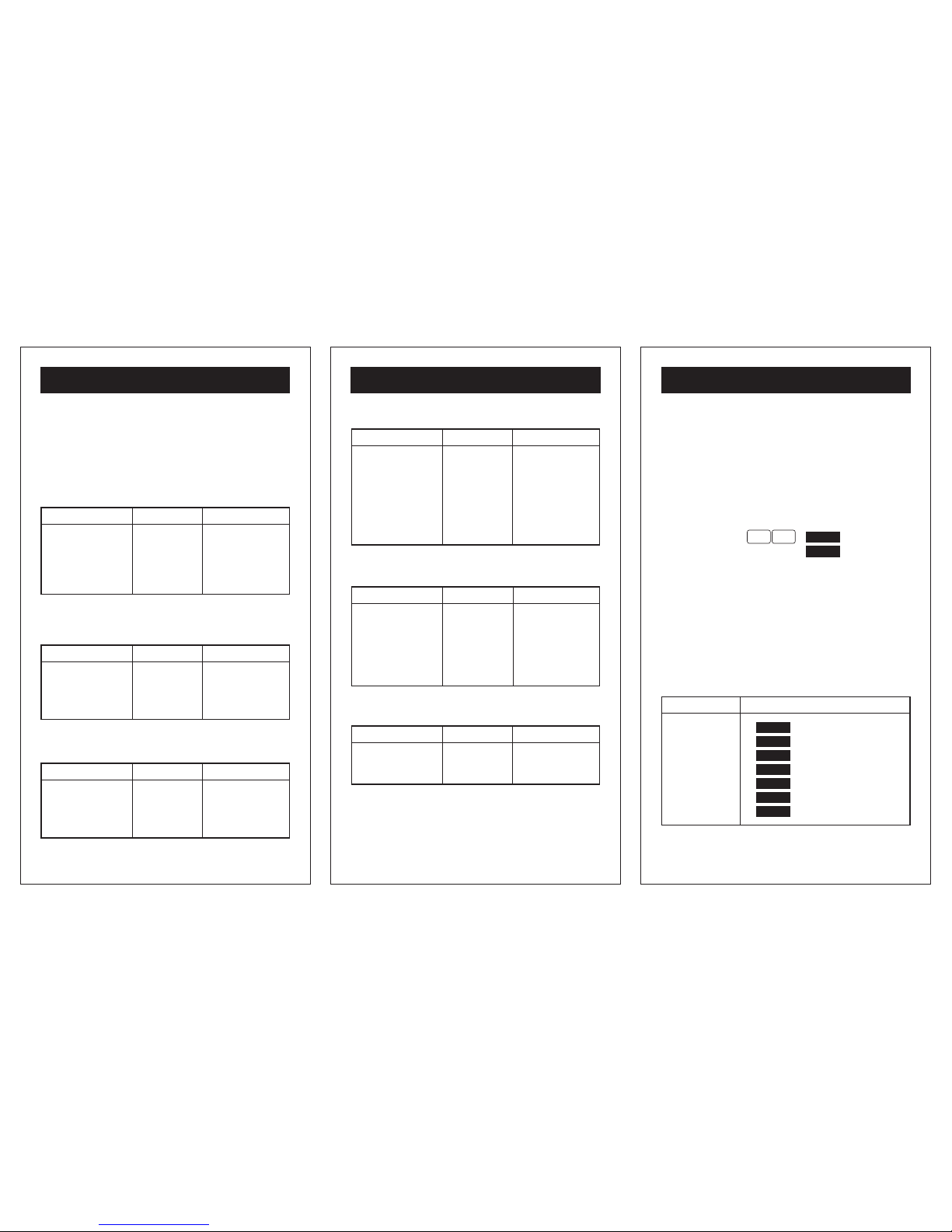
Complex Area
Determining the square feet of an L shaped room when
depth is unknown.
Enter:
RCL2ND
to clear Memory.
Enter:
Feet Inch8
9 5
1
2
3
3
5
Feet Inch
Answer: 536.8542 SQ Ft
Press:
M+
to store in memory.
Enter:
Feet
Inch
130
3
5
Feet1 0
Answer: 102.5 SQ Ft
Press:
2ND M+
(to subtract from memory) then
Press:
RCL RCL
to recall total 434.3542 SQ Ft.
NOTE: [RCL] [RCL] should only be used when you no longer
need to keep in memory otherwise use [RCL] [M+] to recall
and keep in memory.
29' 5"
10'
18' 3"
10' 3"
- 17 -
EXAMPLE PROBLEMS
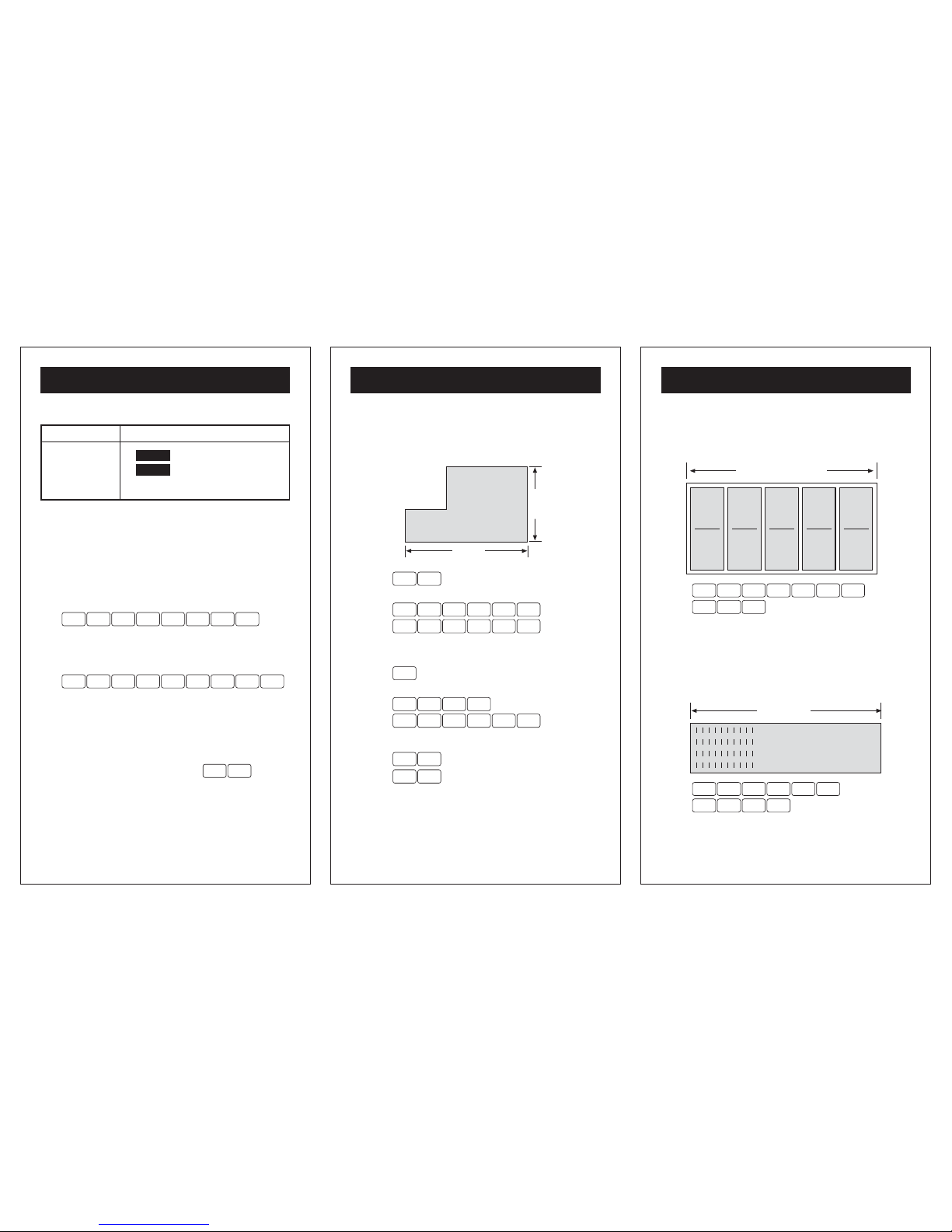
Carpentry Rough Opening
Given 5 windows, each 2' 11 7/16" wide, find their overall
width if they are placed side by side in a wall.
Enter:
Feet Inch / 167
5
12
3
1
5
Answer: 14 Ft- 9 3/16 INCH
Carpentry Joist Numbers
Find the number of joists on 16" centers needed for a 32' 4"
long room.
Enter:
Feet Inch4
61
23
4
5
Inch
Answer: 24.25
( Add 1 for the end = 25.25 and round up to 26 )
2' 11 7/16" × 5 = ??
32' - 4"
Page 7
- 18 -
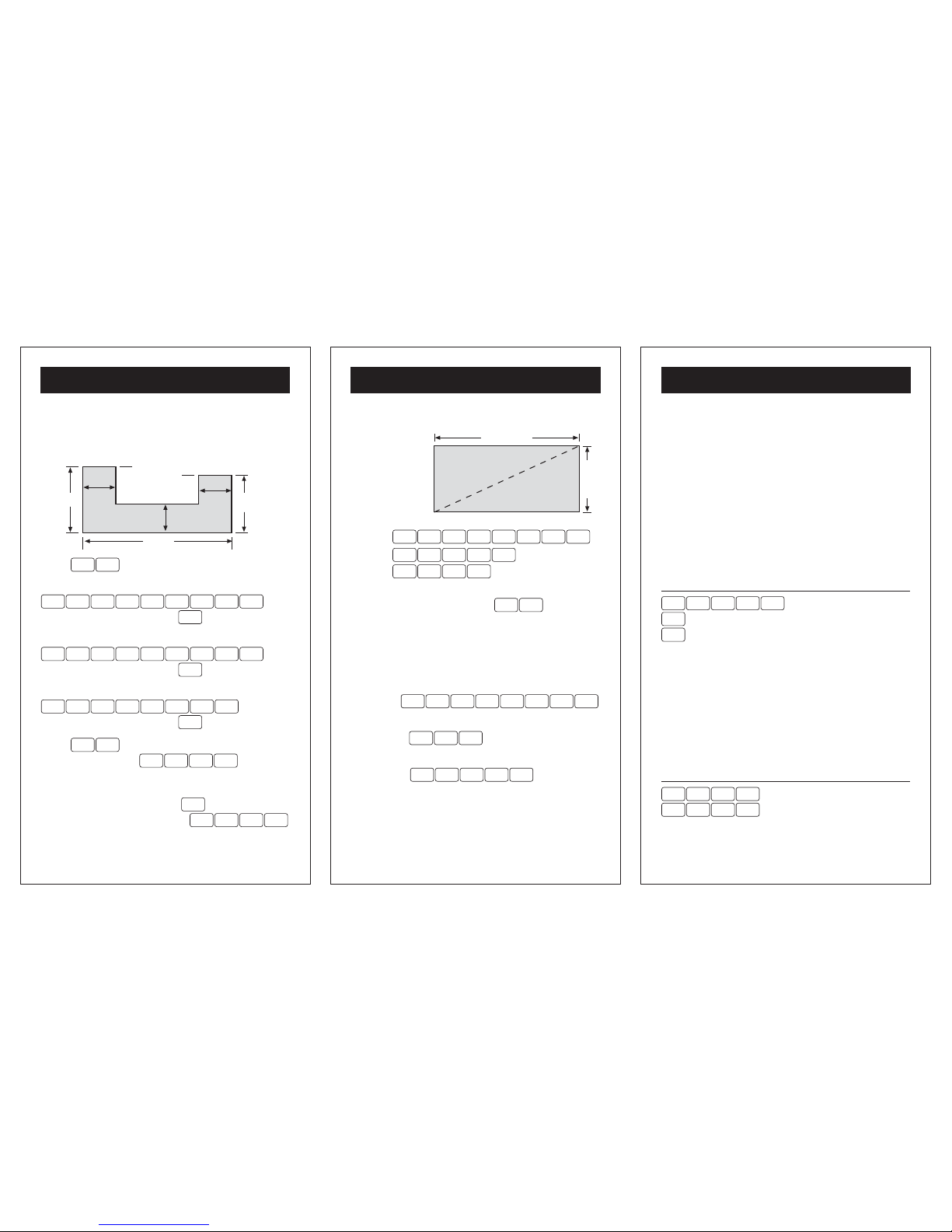
Costing a Concrete Walkway
To find the cost of concrete for this courtyard when the
concrete costs $50.00 per cubic yard:
Press
RCL2ND
to clear Memory.
First you must find the area of {a} Enter:
Feet Inch5 6 3 0
3 5
Inch
Answer: 13.75 SQ Ft Press M+ to add to memory.
Find Area of {b} Enter:
Feet Inch9 6 3 0
3 5
Inch
Answer: 23.75 SQ Ft Press M+ to add to memory.
Find Area of {c} Enter:
Feet Inch53 0
3 5
3
Answer: 87.5 SQFt Press M+ to store in memory.
Press
RCL RCL
to recall 125 total SQ Ft
then multiply by depth
Inch4
3 5
Answer: 41.66667 CU Ft
To convert to Cubic Yards press
Yard
Answer: 1.54321 CU Yd Press:
5 0 Cost
3
Answer: $77.16
EXAMPLE PROBLEMS
35'
30"
12'
8'
9' 6"
5' 6"
30"
b
c
a
30"
- 19 -
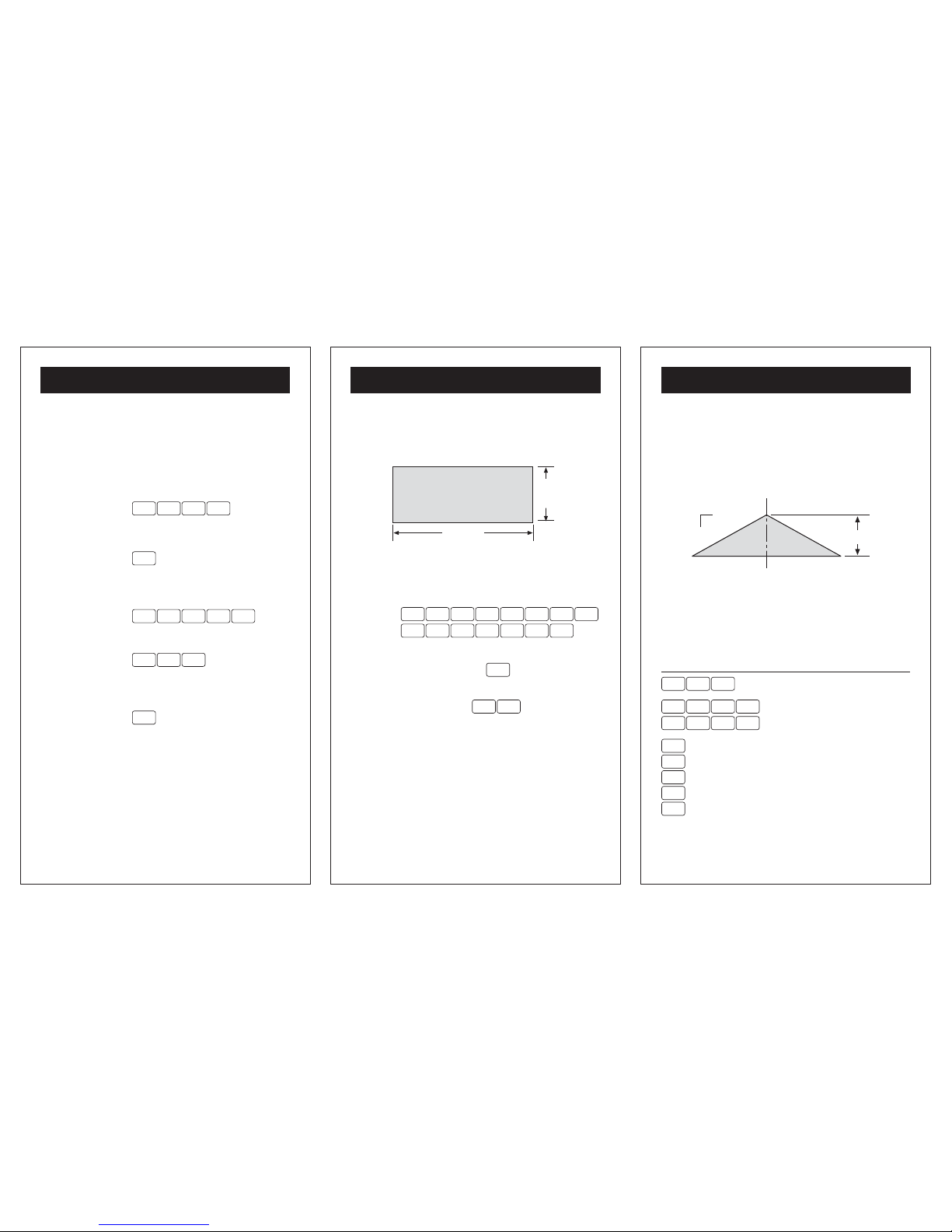
Squaring a Foundation
Calculate the
DIAGONAL
of this rectangle
Press:
RunFeet Inch / 2856 1
Then
Rise Diag
Feet Inch
/ 4
9 41
3
Answer: 68 Ft - 6 9/64 INCH
To convert answer to /8ths press
/ 82ND
Board Feet Lumber
Find the total cost for eight 2 inch x 4 inch x 12 foot piece
of lumber when the unit price is $1.60/Bd Ft.
Enter:
4 12 2ND
3 3
2 1
Answer: 8. B Ft
Then press:
8
3 5
Answer: 64. B Ft
Then press:
61 · Cost
3
Answer: $102.40
Remember: 1 board foot is 144 cubic inches or 0.08333
cubic foot of lumber, conversions can only be done to and
from other cubic measurements.
EXAMPLE PROBLEMS
65' - 8 1/2"
19' - 4 3/4"
diagonal
?
- 20 -
EXAMPLE PROBLEMS
Circle Solutions
After entering the diameter of a circle, the Circle function is
used to find the circumference and area of a circle. After
finding the circumference of a circle, the area of the circle
may be found by entering [7] a second time. Entering [7] a
third time displays the circle diameter.
Circumference & Area
To find the circumference and the area of a circle whose
diameter is 10 inches.
Enter Display
Inch 71 0 2ND
DIA 10 INCH
7
CIRC 31 27/64 INCH
7
AREA 78.53982 SQ INCH
Arc Length
The Arc function is used to find the length of an arc. Note
that the circumference will display as soon as [2ND] [7] is
pressed, and will remain on the display until [2ND] [4] is
pressed. To find the arc length of an 85° arc whose diameter
is 5 inches.
Enter Display
Inch 75 2ND
DIA 5 INCH
8 45 2ND
ARC 3 45/64 INCH
Page 8
- 21 -
EXAMPLE PROBLEMS
Simple Concrete Footings
Determine how much cement is needed to pour 5 concrete
footings that have an 8 inch diameter and are 12 inches
deep
Enter Diameter
by pressing:
Inch 78 2ND
Find surface area
by continuing to
press the:
7
key twice.
Answer: AREA 50.26548 SQ INCH
Then compute
volume by entering:
Inch1 2
3 5
Answer: 603.1858 CU INCH
Then multiply:
5
3 5
Answer: 3015.929 CU INCH
Convert to feet
by pressing:
Feet
Answer: 1.745329 CU Ft
- 22 -
EXAMPLE PROBLEMS
Concrete Weight/Volume
Determine the weight and volume for this concrete patio.
Use default 1.5Tn/Cu Yd and depth of 6"
First check weight/volume default by pressing [2ND] [5]. If
not 1.5 Tn/Cu Yd see Default Section
Enter:
Feet Inch8
5 6
13
3
5
3 3
Feet Inch
3
Inch
Answer: 225.8472 CU Ft
Convert to Cubic yards: Press
Yard
Answer: 8.364712 CU Yd
To determine weight: Press
82ND
Answer: 12.54707 Tn
33' 8"
13' 5"
- 23 -
EXAMPLE PROBLEMS
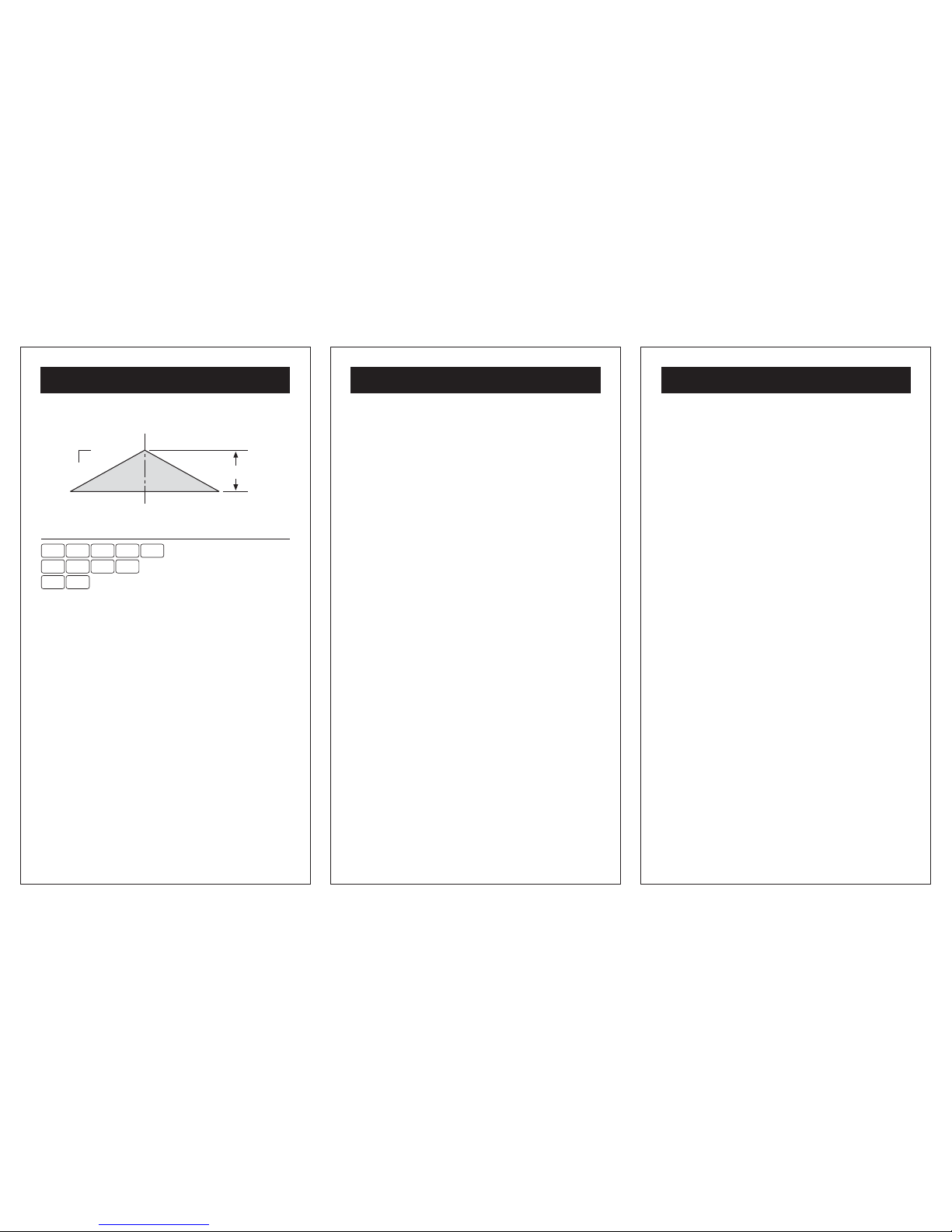
Roof Rise
Given any two - pitch, rise, run or diagonal will automatically
solve for the other two. Here is a useful calculation in determining wall heights. This example will figure the RISE of a roof
knowing the PITCH is 4 in 12 and the RUN is 13' - 2 3/8"
Remember: The PITCH of a roof equals its RISE in INCHES
over a RUN of 12" thus a 4/12 roof has a SLOPE of 4".
(when entering SLOPE always use inches) In Metric pitch
is expressed in millimeters over 1,000 millimeters of run.
Enter Display
PitchInch4
PTCH 4 INCH
Run
Feet
Inch / 8
1 23
3
RUN 13 Ft - 2 3/8 INCH
Rise
RISE 4 Ft - 4 51/64 INCH
Diag
DIAG 13 Ft - 10 15/16 INCH
Pitch
PTCH 4 INCH
Pitch
PTCH 0.333333 (In Ratio)
Pitch
PTCH 18.43495°
rise
Run = 13 2 3/8
Rise = ??
4
Pitch
12
run
Page 9
- 24 -
EXAMPLE PROBLEMS
Roof Pitch Given Rise & Run
Enter Display
RiseFeet Inch86
RISE 6 Ft- 8 INCH
RunFeet2 0
RUN 20 Ft- 0 INCH
Pitch Pitch
PTCH 4 INCH
Remember: Pitch is always rise in inches over a run of 12
inches.
rise
Run = 20 0
Rise = 6 8
Pitch = ??
12
run
- 25 -
REFERENCE
Chaining
Your calculator utilizes chaining logic allowing you to carry
out successive intermediate operations using the [=] key to
finalize operations. Since the chaining logic works from left
to right, you must use care when combining operation such
as addition and multiplication by first addressing operations
within brackets.
Example: 1 + 2 x 3 + 4 = 13 Enter the values and operators
as they are written and press [=] to get the answer.
Example: (1 + 2) x (3 + 4) = 21
Enter 1 [+] 2 [=] [M+]
Then enter 3 [+] 4 [x] [RCL] [M+] [=]
NOTE:
To recall and remove from memory press [RCL] [RCL].
To recall & keep in memory storage press [RCL] [M+].
Error/Overflow
An error/overflow condition occurs when the result of a
calculation has more than 7 digits to the left of the decimal
point, or when you attempt to divide a value by zero or
calculate mixed units that are not alike. An Error condition
is indicated by the "Error" displayed. You must clear the
calculator display by pressing [CE/CLR] before continuing
operations. Clearing an Error condition will not clear
values stored in the memory registers.
Auto-Range
If the input or calculation result with small units is out of the
7 digit range of the display, the answer will be expressed in
- 26 -
REFERENCE
the next larger units instead of showing "Error"
Care
Dont leave calculator in direct sunlight for long periods, or
store it where excessive temperatures are possible. Dont
leave the calculator on when not in use (NOTE- To save the
battery, calculator will turn off automatically after 10-12
minutes of inactivity, at which time the displayed value and
memory contents will be cleared.
Battery
This unit requires one 3V lithium battery (CR2016 or
equivalent). The average battery operating life is 1000 hours.
When the display slows down and/or becomes dim, it is time
for a new battery.
To change the battery
1.) Turn power off.
2.) Remove screw from battery lid & slide cover off.
3.) Before removing the battery, be sure to touch a metal
object. This is to avoid any accidental discharge of
static electricity, which may harm the circuit board.
4.) Install new battery with the (+) side up.
Resetting Your Calculator
To reset your calculator, turn unit over and see RESET.
Press with point of ball point pen. You calculator is now reset.
NOTE: RESETTING YOUR CALCULATOR WILL ERASE
ANYTHING IN MEMORY OR PAPERLESS TAPE.
Page 10
- 27 -
APPENDIX
Conversion Tables
1 square inch = 6.4515 sq centimeters
1 square foot = 144 square inches
1 square foot = 0.92903 sq meters
1 square yard = 9 square feet
1 square yard = 0.836127 sq meters
1 cubic inch = 16.3871 cu centimeters
1 cubic foot = 1728 cubic inches
1 cubic foot = 0.02831 cu meters
1 cubic yard = 27 cubic feet
1 cubic yard = 0.76455 cu meters
1 mile = 5,280 feet
1 mile = 1.609344 kilometers
1 acre = 43,560 square feet
1 ounce = 28.349532 grams
1 pound = 0.4535924 kilograms
1 (U.S.) gallon = 3.7854118 liters
1 (U.K.) gallon = 4.546090 liters
1 fluid ounce = 29.574 milliliters
Fahrenheit = 9/5 (C) + 32
Centigrade = 5/9 (F - 32)
pi (p) = 3.141593
- 28 -
APPENDIX
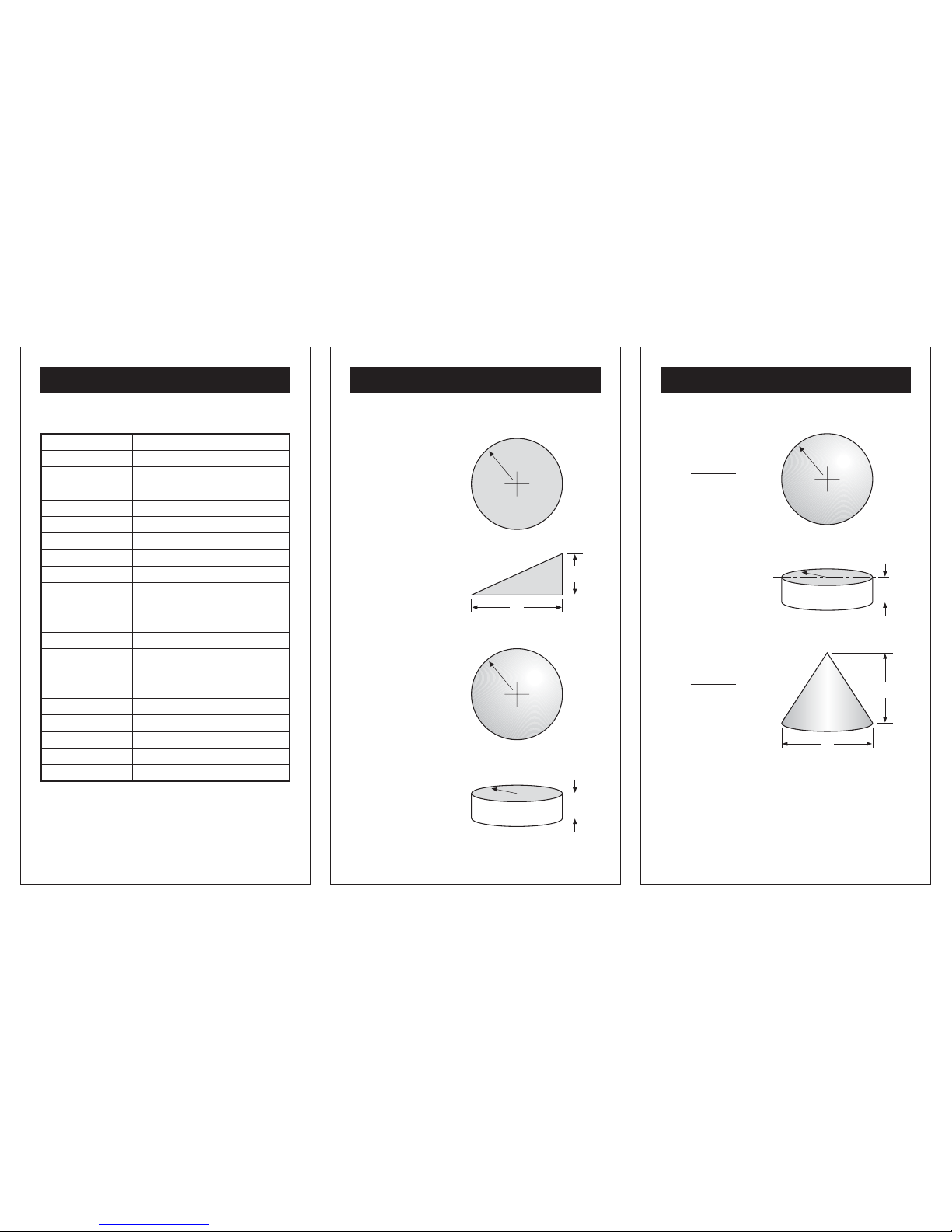
Area Formulas
Circle
Triangle
Sphere
Cylinder
ab
2
r
a
b
r
I
r
p r
2
4p r
2
2p r(r+I)
- 29 -
APPENDIX
Volume Formulas
Sphere
Cylinder
Cone
4p r
3
3
p b2 a
12
r
I
a
b
r
p r2I
Page 11
- 32 -
CUSTOMER SERVICE
TECHNICAL ASSISTANCE
If you have any questions or need technical
assistance, e-mail to:
CUSTOMER SERVICE
SONIN takes pride in offering unmatched customer
service to owners of SONIN products. If you have
any questions or would like additional information,
please call:
or e-mail to:
1 - 800 - 223 - 7511 (USA)
- 30 -
APPENDIX
Lumber Sizes
Normal Size Actual Size (S4S)
1" x 2" 3/4" x 1 1/2"
1" x 3" 3/4" x 2 1/2"
1" x 4" 3/4" x 3 1/2"
1" x 6" 3/4" x 5 1/2"
1" x 8" 3/4" x 7 1/4"
1" x 10" 3/4" x 9 1/4"
1" x 12" 3/4" x 11 1/4"
2" x 2" 1 1/2" x 1 1/2"
2" x 3" 1 1/2" x 2 1/2"
2" x 4" 1 1/2" x 3 1/2"
2" x 6" 1 1/2" x 5 1/2"
2" x 8" 1 1/2" x 7 1/4"
2" x 10" 1 1/2" x 9 1/4"
2" x 12" 1 1/2" x 11 1/4"
4" x 4" 3 1/2" x 3 1/2"
4" x 6" 3 1/2" x 5 1/2"
4" x 8" 3 1/2" x 7 1/4"
4" x 10" 3 1/2" x 9 1/4"
4" x 12" 3 1/2" x 11 1/2"
- 31 -
APPENDIX
FCC Statement
This device has been tested and found to comply
with the limits for a Class B device, pursuant to
part 15 of the FCC Rules. These limits are
designed to provide reasonable protection against
harmful interference in a residential installation.
This device generates, uses and can radiate radio
frequency energy and, if not used in accordance
with the instructions, may cause harmful
interference to radio communications. However,
there is no guarantee that interference will not
occur in a particular installation. If this equipment
does cause harmful interference to radio or
television reception, which can be determined by
turning the device off and on, the user is
encouraged to try to correct the interference by
one or more of the following measures:
- Reorient or relocate the receiving antenna
- Increase separation between the device and
receiver
 Loading...