

Page 1
ABN 66 169 561 871
Sonifex Pty Ltd T/A Innes Corporation
12/6 Leighton Pl
Hornsby, NSW 2077, Australia
Phone: +61 2 9987 0499
Fax: +61 2 9476 4950
E-mail: [email protected]
Website: http://www.innescorp.com.au
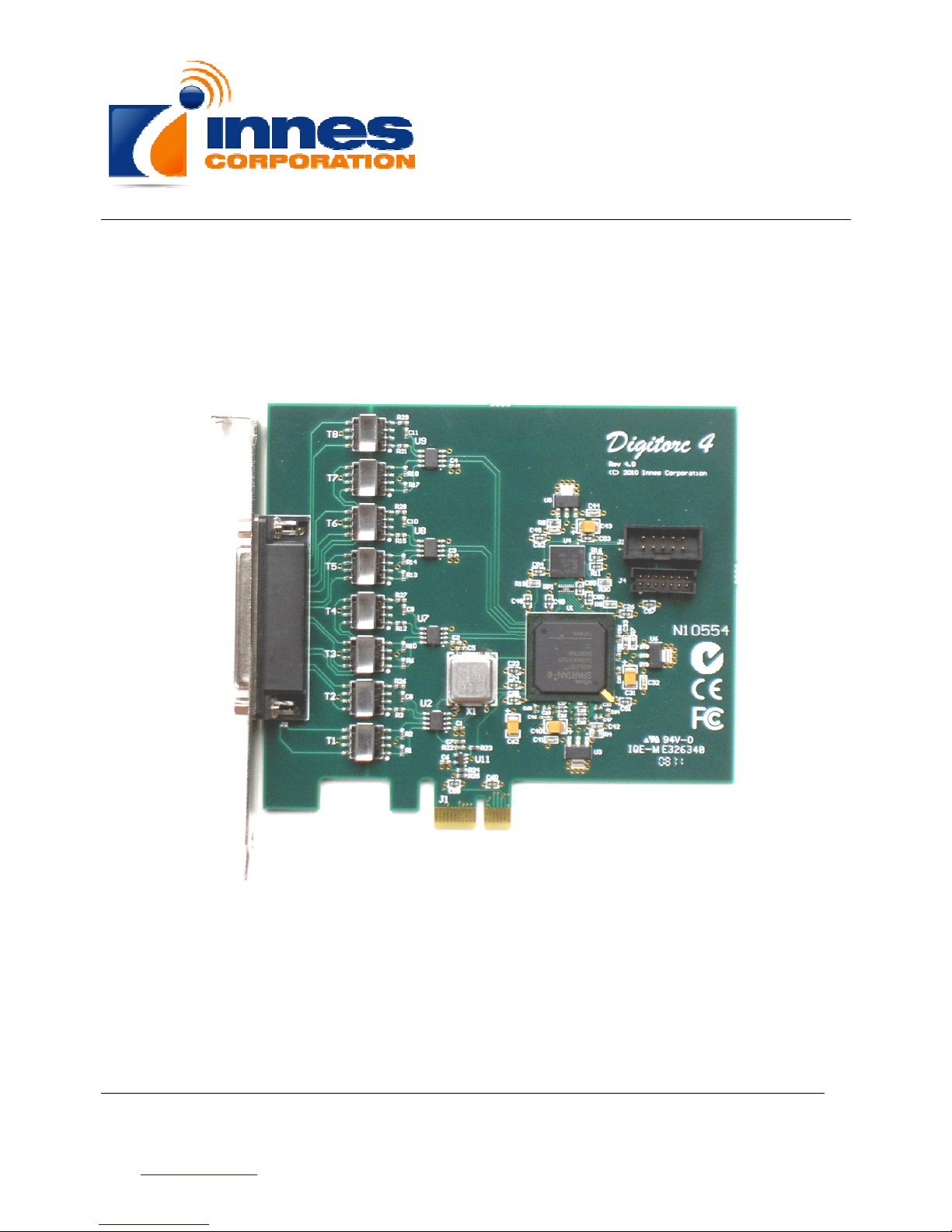
Digitorc 4
Manual
Page 2

Sonifex Pty Ltd T/A Innes Corporation
12/6 Leighton Pl
Hornsby, NSW 2077, Australia
Phone: +61 2 9987 0499
Fax: +61 2 9476 4950
E-mail: [email protected]
Website: http://www.innescorp.com.au
2
Digitorc 4 Manual
Overview
The Digitorc 4 is a professional-quality AES3 (formerly AES/EBU) audio input-output card
designed and manufactured in Australia by Innes Corporation, providing full sound card
functionality under Windows XP, Server 2003, Vista, Server 2008, Windows 7, Server 2008-R2,
Windows 8 and Server 2012.
The card has four independent AES3 inputs and outputs, using high performance screened
coupling transformers. Additionally, any of the inputs can be used for synchronisation.
The four 24 bit AES3 transceivers are implemented in a Xilinx Spartan 6 FPGA, along with
asynchronous sampling rate conversion, level adjustment, audio mixing, buffering and a single
lane PCIe 1.1 interface. Output physical sampling rates of 96kHz, 88.2kHz, 48kHz, 44.1kHz and
32kHz are available, with the Windows sampling rate converter providing the full range of
software sampling rates and bit depths. The AES3 inputs will accept any rate from 32kHz to
96kHz and are automatically converted to whatever software recording rate and bit-depth is
requested. The Windows Wave, MCI, DirectSound, DirectShow and Core Audio APIs are
supported, as are a variety of audio compression modes via the Windows Audio Compression
Manager or other software compression systems.
Specifications
Operating system: XP (SP2 or later), Server 2003, Vista, Server 2008, Windows
7, Server 2008-R2, Windows 8 and Server 2012 (32-bit and
64-bit versions)
Digital audio interface: AES3 (formerly known as AES/EBU)
Output sampling rates: 96kHz, 88.2kHz, 48kHz, 44.1kHz and 32kHz
Input sampling rates: 32kHz to 96kHz
Hardware resolution: 24 bits
Software resolution: 32, 24, 16 or 8 bits
Page 3

Sonifex Pty Ltd T/A Innes Corporation
12/6 Leighton Pl
Hornsby, NSW 2077, Australia
Phone: +61 2 9987 0499
Fax: +61 2 9476 4950
E-mail: [email protected]
Website: http://www.innescorp.com.au
3
Digitorc 4 Manual
Electromagnetic Compatibility
This product complies with the relevant tested clauses of AS/NZS CISPR 22:2009 +A1:2010 and
AS/NZS CISPR 13:2012.
This product complies with the relevant tested clauses of EN55022:2010, EN55013:2013,
EN55024:2010, EN61000-3-2:2009 and EN61000-3-3:2013.
Note: This equipment has been tested and found to comply with the limits for a Class A digital device,
pursuant to part 15 of the FCC Rules. These limits are designed to provide reasonable protection against
harmful interference when the equipment is operated in a commercial environment. This equipment
generates, uses, and can radiate radio frequency energy and, if not installed and used in accordance
with the instruction manual, may cause harmful interference to radio communications. Operation of this
equipment in a residential area is likely to cause harmful interference in which case the user will be
required to correct the interference at his own expense.
WARNING
This is a Class A product. In a domestic environment this product may cause radio
interference in which case the user may be required to take adequate measures.
Page 4

Sonifex Pty Ltd T/A Innes Corporation
12/6 Leighton Pl
Hornsby, NSW 2077, Australia
Phone: +61 2 9987 0499
Fax: +61 2 9476 4950
E-mail: [email protected]
Website: http://www.innescorp.com.au
4
Digitorc 4 Manual
Notes Regarding Windows Version Differences
Windows XP and Server 2003 are the only current versions of Windows that provide complete
support for WDM audio drivers. The following limitations apply when using the Digitorc 4 with
other versions of Windows.
• Windows Vista / 7 / 8 virtualise the mixer API to each application, providing only a mute and
volume control on each input and output. These controls affect only the audio levels going to
and from that application. A Windows XP compatibility mode is available to provide full mixer
access to the hardware if needed.
• Peak meters for WDM drivers are only available through the mixer API under Windows XP
and Server 2003 (and Windows Vista running in XP-compatibility mode). Windows Vista / 7 /
8 provide an IAudioMeterInformation interface as part of their EndpointVolume API, but this
isn’t supported on any of the earlier platforms.
• In all versions prior to Windows Vista, Microsoft’s sampling rate converter, which is
automatically switched in when playing multiple audio streams of differing sampling rates
through a single physical output, is slightly inaccurate when doing some conversions. The
error is typically at most about 0.3%. The most common conversion, that of 44.1kHz to or
from 48kHz, is handled correctly, though, as are simple 2:1 ratios.
Page 5

Sonifex Pty Ltd T/A Innes Corporation
12/6 Leighton Pl
Hornsby, NSW 2077, Australia
Phone: +61 2 9987 0499
Fax: +61 2 9476 4950
E-mail: [email protected]
Website: http://www.innescorp.com.au
5
Digitorc 4 Manual
Installation
Switch off the computer and carefully install the Digitorc 4 card in any free PCIe slot, observing
the normal precautions against static electricity discharge. The card can be used in single-lane
or multi-lane sockets as the PCIe protocol automatically determines the number of lanes in use.
Switch the computer back on and boot Windows.
Windows XP (SP2 or later), Server 2003, Vista, Server 2008 – Windows will report that new
hardware has been found. Insert the driver CD supplied with the Digitorc 4 and proceed through
the installation wizard. Allow Windows to search for the driver – do NOT specify a driver location
or file name.
Windows 7, 8, Server 2008-R2, Server 2012 – Windows no longer searches removable media
for drivers. Open Device Manager, where the Digitorc 4 will be listed under Other Devices as a
Multimedia Audio Controller. Right-click on it, select Update Driver Software, then click on
Browse my computer for driver software and click on the Browse button to navigate to the
driver’s location. Click on Next to install the driver.
Windows 8, 7, Vista, Server 2012, Server 2008-R2 and Server 2008 will recognise Innes
Corporation’s own digital signature on the driver and invite you to proceed with the installation. If
you wish you can tick the box to always accept Innes Corporation drivers.
At the completion of the installation process, a loudspeaker symbol should appear in the toolbar
at the bottom of the screen. Your Digitorc 4 is now fully operational. On Windows XP and Server
2003, if the speaker does not appear, it may be necessary to reboot your PC. This typically
happens if there has been no sound card previously installed in the PC. Server 2003 by default
has the loudspeaker symbol turned off; to enable it, go into Control Panel, select Sounds,
Speech and Audio Devices, then click on Sounds and Audio Devices, and finally tick the box
marked Place volume icon in the task bar.
Note also that on Windows Server installations, the audio subsystem may not be enabled by
default and needs to be activated before the card can be used.
Page 6

Sonifex Pty Ltd T/A Innes Corporation
12/6 Leighton Pl
Hornsby, NSW 2077, Australia
Phone: +61 2 9987 0499
Fax: +61 2 9476 4950
E-mail: [email protected]
Website: http://www.innescorp.com.au
6
Digitorc 4 Manual
Configuration
There are two configuration settings for the Digitorc 4, these being Output Sampling Rate and
Synchronisation Source.
The output sampling rate can be set to 32kHz, 44.1kHz, 48kHz, 88.2kHz or 96kHz. Note that
this sets only the physical output sampling rate – the card can play audio files recorded at any
sampling rate as rate-conversion is automatically inserted by Windows when required.
The synchronisation source can be set to Off, any of the four inputs, or the host PC’s real
time clock. In the latter case, a comparison is taken of the card’s master oscillator and the real
time clock, averaged over several days. When used in conjunction with an internet time
standard (such as ntp.org), a very high sampling rate precision can be achieved.
To change the configuration, right-click on the My Computer icon on the desktop (or in the Start
menu in the case of XP and Server 2003), select Properties, then click on Device Manager.
Open Sound, video and game controllers, then right-click on Digitorc 4 and select
Properties. Now click on the Configuration tab and select the desired output rate and/or
synchronisation. After clicking on OK it may take up to a minute for Windows to reconfigure
itself and the screen may flicker during this time.
Topology
The playback topology consists of a master output level, mute control and peak meter, a wave
level and mute control, and input monitor level and mute controls for each of the line inputs.
The record topology consists of a master input level, mute control and peak meter, line input
level controls for each of the physical inputs and a digital loopback level control and mute.
The digital loopback allows the output of the card to be digitally mixed back into the input. On
Windows Vista / 7 / 8, these inputs are only visible if Show Disabled Devices is checked on the
recording device settings (right-click on any of the devices to set this).
The range on the input and output master controls is -96dB to +6dB, while the individual line
controls range from -96dB to 0dB.
To access the playback and record mixer controls on Windows 2000, XP and Server 2003,
double-click on the loudspeaker symbol at the bottom right hand corner of the screen. On
Windows Vista / 7 / 8, right-click on the loudspeaker symbol, select Playback Devices or
Recording Devices, select the desired endpoint, click on Properties, and then click on the
Levels tab.
Page 7

Sonifex Pty Ltd T/A Innes Corporation
12/6 Leighton Pl
Hornsby, NSW 2077, Australia
Phone: +61 2 9987 0499
Fax: +61 2 9476 4950
E-mail: [email protected]
Website: http://www.innescorp.com.au
7
Digitorc 4 Manual
Windows Vista / 7 / 8 Mono Recording Bug
Windows Vista, Windows 7 and Windows 8 have a bug which causes mono recording streams
to capture only the left channel of the source, rather than mixing the left and right as previous
versions did. As a workaround until this is fixed, the driver provides a Mono Mix recording
endpoint for each of the card’s inputs. By default these are disabled, but can be individually
enabled as follows.
Right-click on the loudspeaker symbol in the bottom right hand corner of the screen and select
Recording Devices. Right-click on any of the sources and check Show Disabled Devices,
which should then reveal four additional sources called Input 1 Mono Mix, Input 2 Mono Mix,
Input 3 Mono Mix and Input 4 Mono Mix. To enable these, right-click on them and select
Enable. Note that, after enabling, it will still show as currently unavailable as these endpoints
are multiplexed with the normal stereo inputs and are only activated when opened by a
recording application. Also be aware that, for the same reason, the stereo and mono mix
endpoints for the same source can’t be used simultaneously.
The Mono Mix endpoints should be used for communications applications such as Skype which
open a mono capture stream.
Page 8

Sonifex Pty Ltd T/A Innes Corporation
12/6 Leighton Pl
Hornsby, NSW 2077, Australia
Phone: +61 2 9987 0499
Fax: +61 2 9476 4950
E-mail: [email protected]
Website: http://www.innescorp.com.au
8
Digitorc 4 Manual
Operation on Windows Vista / 7 / 8 / Server 2008 / 2008-R2 / 2012
The audio subsystem of Windows Vista / 7 / 8 has changed substantially from earlier versions of
Windows, although most applications should continue to work without modification. The major
differences likely to affect users of the Digitorc 4 are described below.
Audio Endpoints
Key to the new system is the concept of audio endpoints. These are the physical audio sources
and destinations, such as microphones, speakers and line connectors.
Previously, an audio capture device would typically have multiple inputs which were combined
in a mixer or selector. Under Windows Vista, each input is represented by its own device, and
Windows itself operates the card’s selector to route the chosen source to the input stream.
In the case of the Digitorc 4, each of the physical line inputs is represented by an endpoint
device, and as the hardware has separate AES3 transceivers for each one, they can be used
simultaneously. There are also endpoint devices for the digital loopback sources, although by
default these are disabled. To enable these sources, right-click on the loudspeaker symbol at
the bottom right-hand corner of the screen, select Recording Devices, right-click anywhere in
the window and select Show Disabled Devices. Now right-click on the desired Wave Out Mix
device and select Enable. This source will now appear as one of the available audio recording
devices. Note that when an application is recording from a loopback endpoint, the
corresponding line input is unavailable, and vice versa.
Windows Vista has a default playback endpoint and a default recording endpoint, which are
typically used by applications where the input or output device cannot be explicitly chosen. After
the Digitorc 4 driver is first installed, these may be randomly set to any of the outputs and
inputs. To set the default endpoints, right-click on the loudspeaker symbol, select Playback
Devices or Recording Devices, and then right-click on the desired endpoint and select Set as
Default Device. The default device is remembered across reboots and should not need to be set
again unless additional audio hardware is installed, in which case the defaults may need
resetting.
Windows 7 and 8 provide separate defaults for communications applications. When enabled,
the Mono Mix inputs become the default communications source.
Mixer API
By default, the mixer API under Windows Vista / 7 / 8 is virtualised for each application,
providing just a mute and volume control for each endpoint and affecting only the audio going to
and from that application. The hardware controls on the card itself are not accessible from the
mixer API in this default mode.
Page 9

Sonifex Pty Ltd T/A Innes Corporation
12/6 Leighton Pl
Hornsby, NSW 2077, Australia
Phone: +61 2 9987 0499
Fax: +61 2 9476 4950
E-mail: [email protected]
Website: http://www.innescorp.com.au
9
Digitorc 4 Manual
For applications that need direct access to the hardware mixer controls, or that need access to
the line input monitor controls or peak meter nodes, there are two options. Firstly, if it is a new
application being written specifically for Windows Vista / 7 / 8, it can be designed to use the
Core Audio APIs, which include the DeviceTopology API and the EndpointVolume API (which
includes the IAudioEndpointVolume and IAudioMeterInformation interfaces). These are
documented in the Windows Vista SDK which is available from Microsoft, however note that
these APIs don’t work with earlier versions of Windows.
Alternatively, applications can be given access to the hardware mixer controls through the mixer
API by right-clicking on the application’s icon, selecting Properties, clicking on the Compatibility
tab and selecting Run this program in compatibility mode for Windows XP Service Pack 2. Be
aware, though, that in this compatibility mode, the Digitorc 4 card is represented by a single
mixer device with destination lines for each of the individual inputs and outputs, which is slightly
different to its behaviour under Windows XP where each input/output pair had its own mixer
device. How this will work with any particular application that uses the mixer API can only be
determined by experimentation.
Audio Engine
The audio engine in Windows Vista / 7 / 8 runs at a fixed sampling rate and bit depth. The
Digitorc 4 driver sets this to be the same as the card’s hardware sampling rate and with 24-bit
resolution on all inputs and outputs. The Windows sampling rate converter is used whenever a
different sampling rate or bit depth is requested by applications.
The Digitorc 4 supports the event-driven pull mode on Windows 7 and 8, providing lower latency
and more robust performance.
DirectSound and WDM Kernel Streaming
Microsoft's DirectSound and Windows Driver Model (WDM) are designed to work hand in hand
to take full advantage of audio card hardware and provide kernel-mode software emulation of
features not directly supported. Kernel streaming allows audio data to be passed directly
between driver modules resulting in a robust, high performance integrated sound processing
system.
With its WDM driver, the Digitorc 4 can play MIDI files and audio CD's, in addition to Wave files.
The kernel mixer allows multiple sounds from the same or different applications to be played
simultaneously, while the kernel splitter automatically splits an input source to multiple
applications. Sampling rate conversion is automatically inserted if any of the multiple playback
or recording streams have different sampling rates.
Page 10

Sonifex Pty Ltd T/A Innes Corporation
12/6 Leighton Pl
Hornsby, NSW 2077, Australia
Phone: +61 2 9987 0499
Fax: +61 2 9476 4950
E-mail: [email protected]
Website: http://www.innescorp.com.au
10
Digitorc 4 Manual
Extended Bit Depth Audio
Traditionally, PC-based audio capture and playback has been restricted to either 8 bit or 16 bit
encoding, with the WAVE_FORMAT_PCM descriptor used to define the audio parameters such
as samples per second, bits per sample and number of channels.
With the advent of 24 bit A/D and D/A converters, there was a need to support extended bit
depth. To achieve this, Microsoft introduced a new data format descriptor called
WAVE_FORMAT_EXTENSIBLE. This provides additional information, including the number of
valid bits per sample and support for specifying channel placement in multichannel streams.
The WAVE_FORMAT_EXTENSIBLE descriptor may be used in place of the normal
WAVE_FORMAT_PCM in setting up playback and recording through either the Winmm (wave)
API or the DirectSound API. For further information refer to the Microsoft DirectX 8
documentation.
Some audio editing applications, such as Syntrillium’s Cooledit 2000 and Adobe Audition,
support extended bit depth audio and work well with the Digitorc 4 using 24 or 32 bit recording.
Page 11

Sonifex Pty Ltd T/A Innes Corporation
12/6 Leighton Pl
Hornsby, NSW 2077, Australia
Phone: +61 2 9987 0499
Fax: +61 2 9476 4950
E-mail: [email protected]
Website: http://www.innescorp.com.au
11
Digitorc 4 Manual
Digitorc 4 Pinout
1
20
2
21
3
22
4
23
5
24
6
25
7
8
9
10
11
12
13
14
15
16
17
18
19
Output 1
Output 2
Output 3
Output 4
Input 1
Input 2
Input 3
Input 4
Shield
 Loading...