

Page 1
2
TM
TM
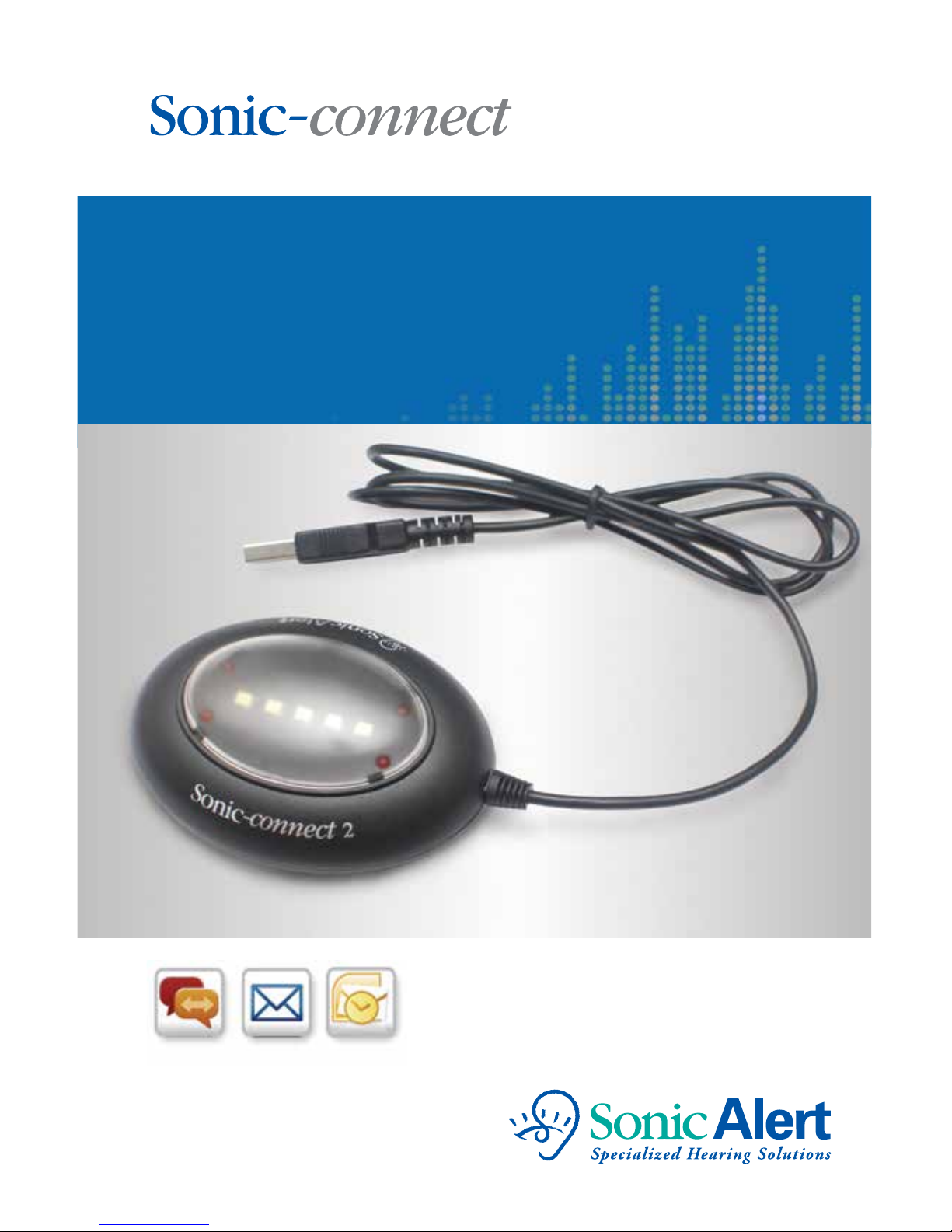
Users Manual
SEC100, SEC200 USB Media Alert
Version 5.0 10/7/2014
Page 2
1
Thank you
for purchasing the Sonic-connect™ USB Media Alert
Device, your companion to help you stay connected
with today’s specialized communication media.
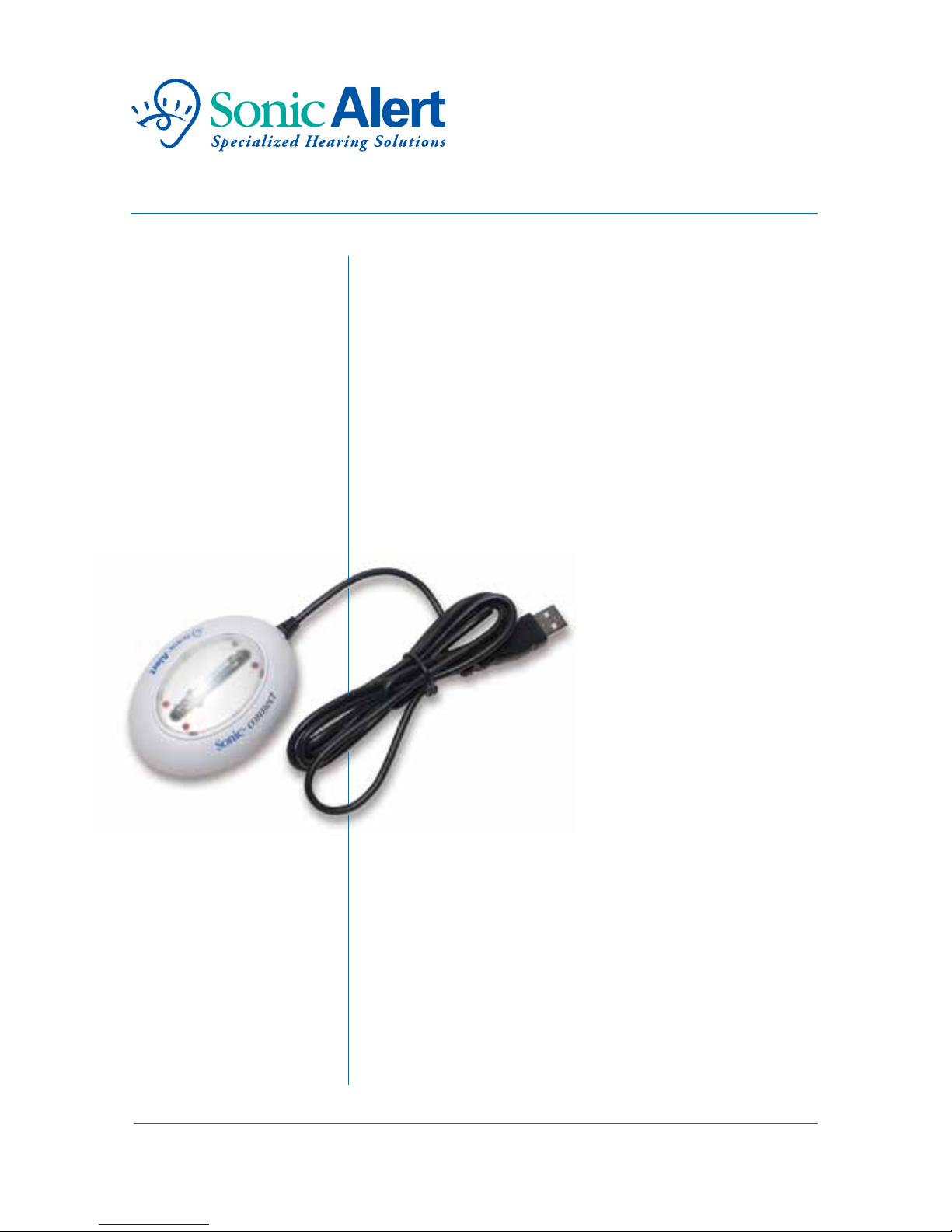
The Sonic-connect is a USB-based device that can be
set up to interface with many email accounts, instant
message services via your personal computer (see page
16). When somebody sends you an email or instant
message, your Sonic-connect 2 will alert you with
any combination of a ashing light, loud audio alert,
or vibration.
The Sonic-connect 1 will
alert you with a bright
strobe. You can also use
the Sonic-connect with
your Microsoft
®
Outlook®
Calendar and task reminders.
Never miss another appointment or
task reminder again.
To receive customized communication alerts and
schedule reminders when you have stepped away from
your computer, simply congure the three different alert
options; a loud beeping sound, vibration or bright ashing
lights. You can customize the way you want to be alerted.
Page 3
2
Getting started
Unpack 3
System requirements 3
Download and install SEC program
3
Plug in Sonic-connect 4
Launch the program 4
Understanding your Sonic-connect
Message status 5
Choose your settings 6
Congure your programs
Email 7-8
Instant Messages 9
Calendars and Tasks 10-11
Using your Sonic-connect
Sleep and active mode 12
Notications 13
Additional setup information
Email specications 14
Compatible media 15
Warranty
Page 4
Unpack:
Carefully unpack your Sonic-connect. Be sure to use
in a dry location and avoid any contact with water
or other uids.
System requirements:
PC with Microsoft Windows XP, Windows Vista,
or Windows 7. Available USB 1.0, USB 2.0 port.
*Not compatible with Apple
®
products.
Download SEC program:
Go to www.sonicalert.com/sec to get the latest version
of the Sonic-connect program (as well as the Users
guide, a quick guide and trouble shooting information).
Important Note:
If running a previous version of the program, you will
rst need to uninstall it before installing the newer
version. Go to your control panel and choose ‘add/
remove programs’ to remove the previous version.
Install program:
You may need to click several “yes”, “OK” or “run”
when your operating system security alerts you to the
addition of the new program. Launch the program and
follow the prompts. Once the program is installed,
connect your Sonic-connect.
3
?
!
TIP
?
New
?
!
TIP
Page 5
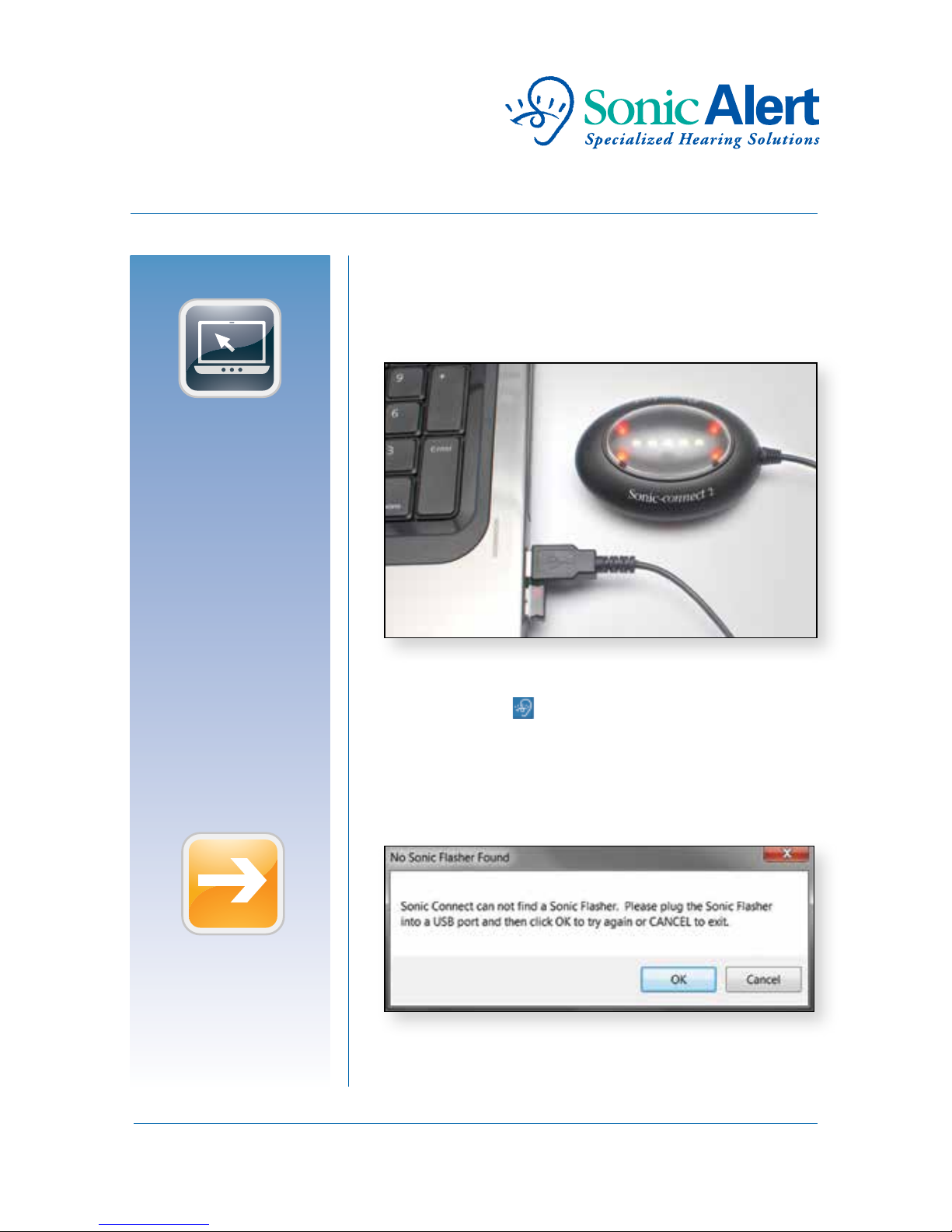
Plug in Sonic-connect
Locate an open USB port on your laptop or desktop
computer. Be sure the connection is secure.
Launch the program
Double click the icon on the desktop. If the
Flasher is not securely connected, or there is a problem
with your USB connection, the following message will
be shown:
4
@
?
i
New
!
TIP
?
New
!
TIP
Page 6
5
Once the program is successfully launched, this icon
will be shown in your Windows system tray at the
bottom of your screen.
Message Status:
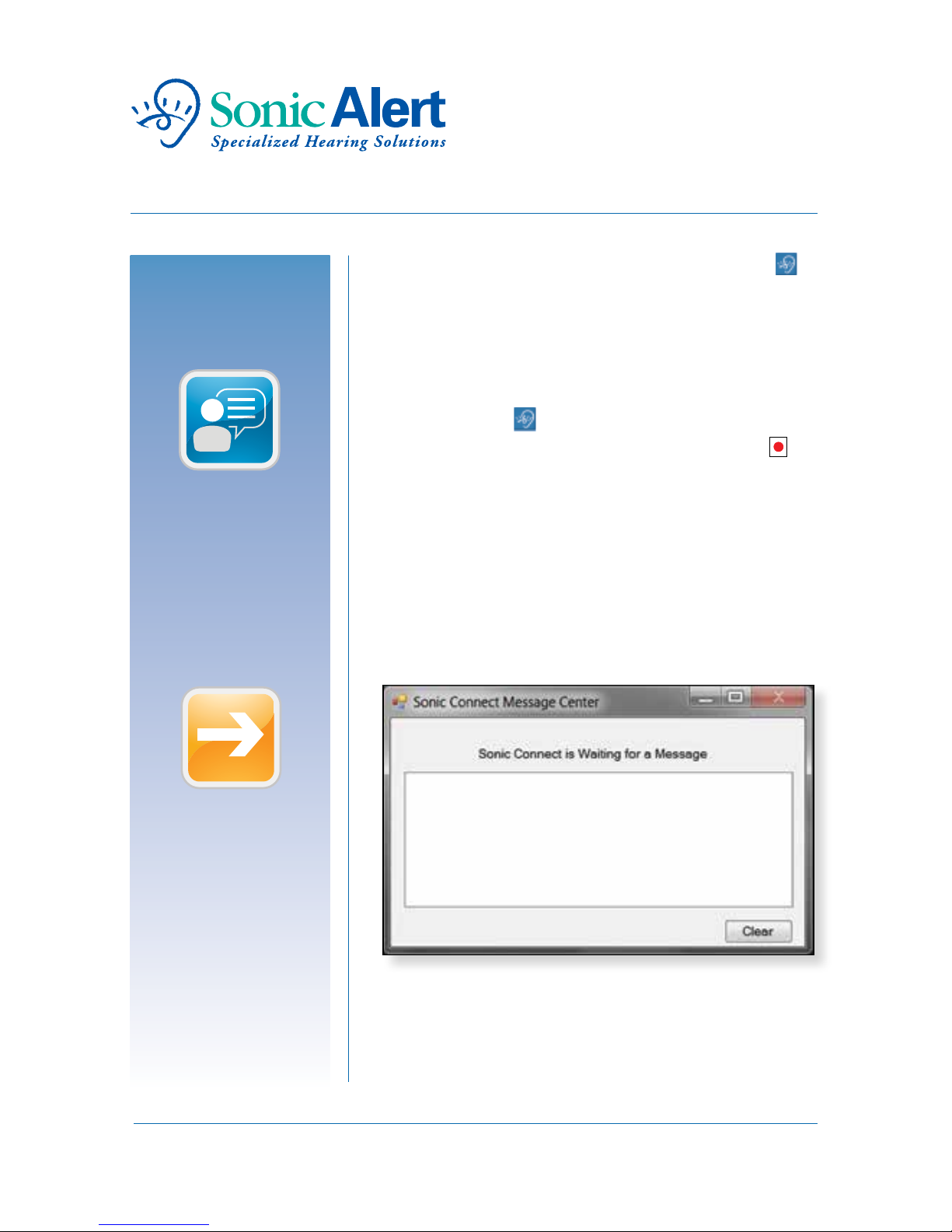
By default the Sonic-connect program is set to “Active”
(indicated by the icon in the system tray). You can
change the mode to “Fall Asleep” (indicated by the
icon) if you are actively using your computer and do
not want to be disturbed by the Sonic-connect alerts.
However, the Sonic-connect “wakes up” after a cer tain
time when you step away from your desk and are not
actively using your computer keyboard. When the
program wakes up, the icon changes back, and the
following window shows up on your desktop:
@
?
New
TIP
?
New
!
TIP
Page 7
6
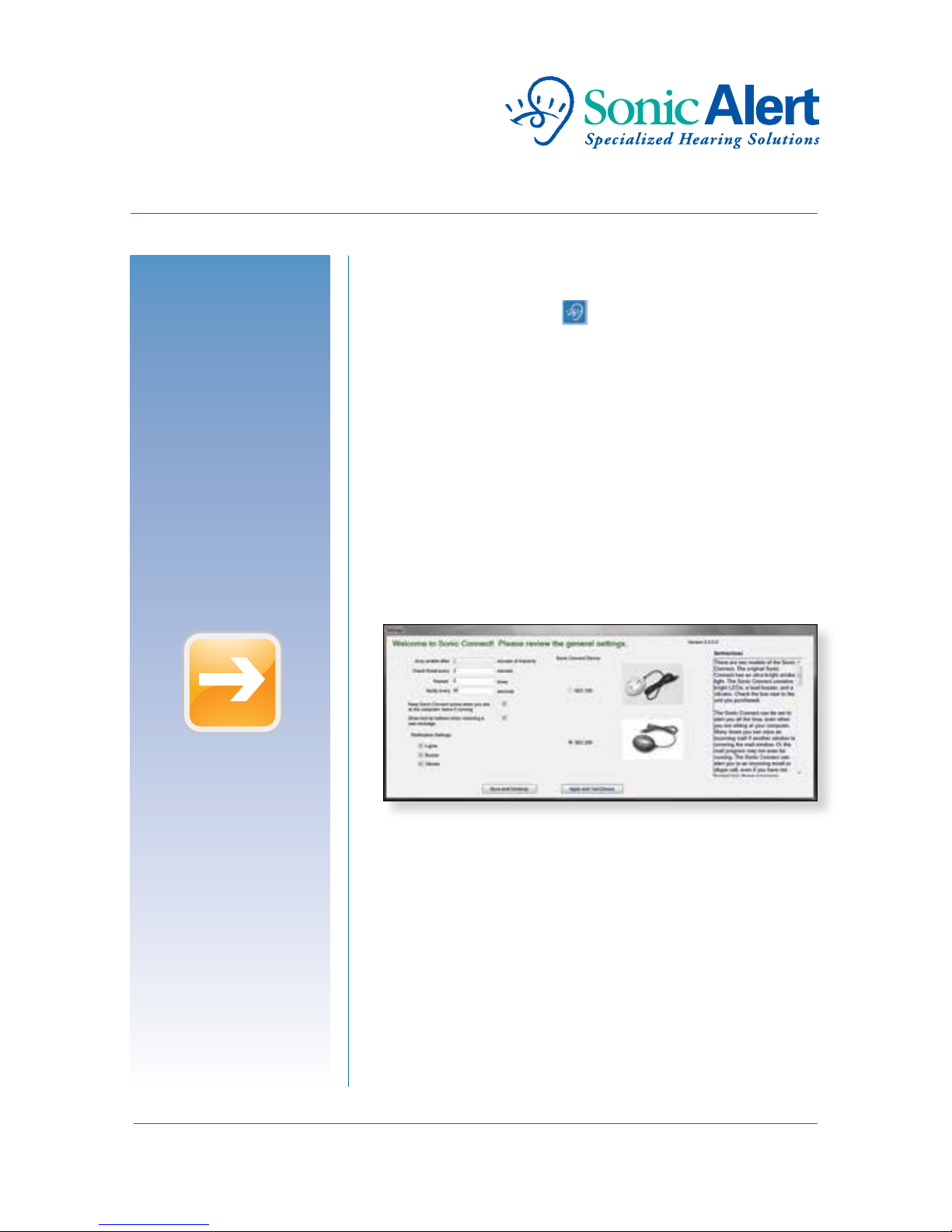
Choose your settings:
The Sonic-connect is now ready to provide message
alerts. Right click on the icon to bring up the list
of functions that can be congured. Start with the
General Setting page. This page allows you to modify
how frequently your email is checked, how many times
you want to be alerted to an incoming call or message,
the time between alerts, and the waiting time for the
Sonic-connect to wake up from sleep mode (or no
sleep mode at all). The Sonic-connect 2 allows you to
congure three alert signals: Lights, Buzzer or Vibration.
You can select any combination of the alerts, or all of
them at once.
?
New
!
TIP
Page 8
7
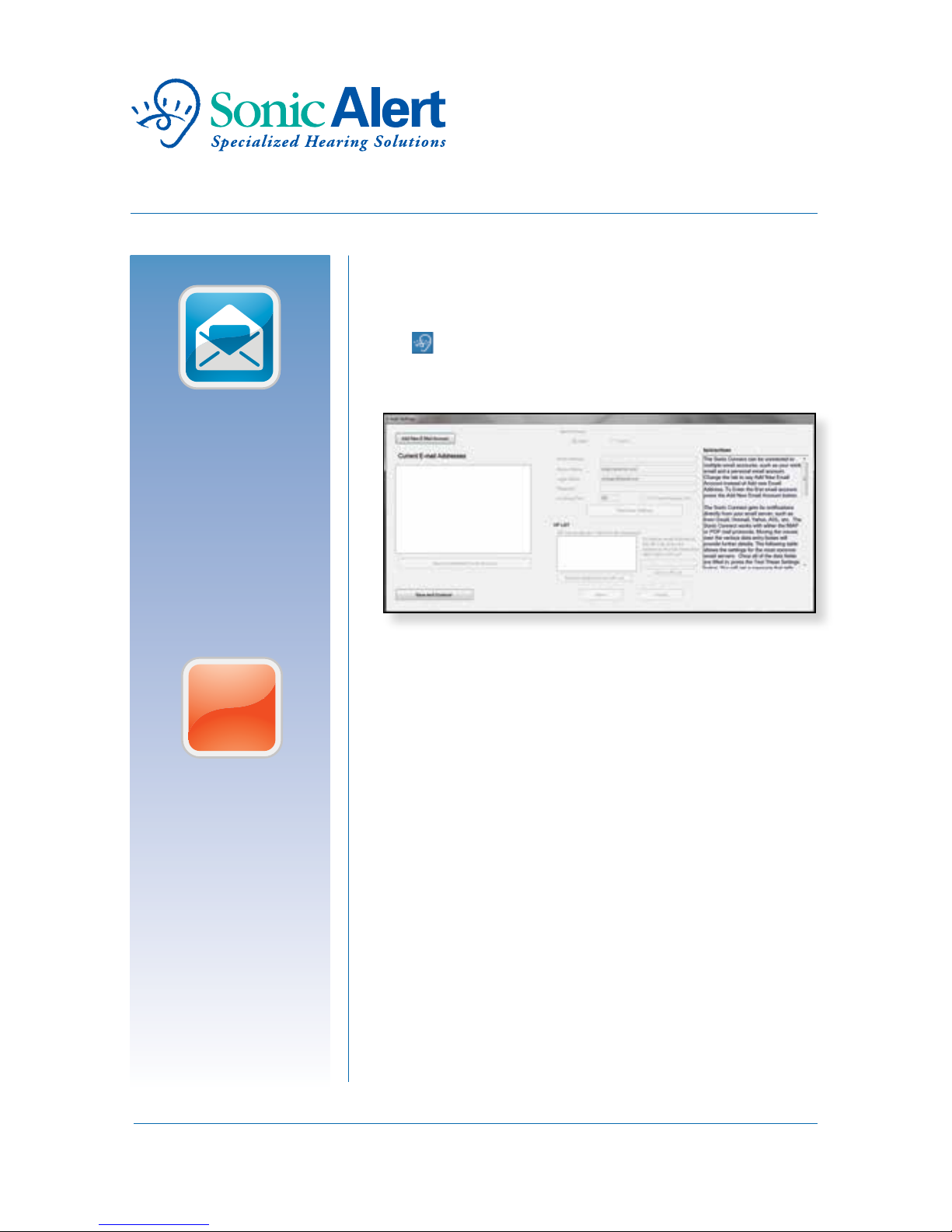
Congure your email:
The Sonic-connect works with many popular email
programs, providing a choice of alerts. Right click on
the icon to bring up the E-mail settings window
and ll in the information requested.
Before continuing, you will need:
n
IMAP or POP server information. Refer to
page 15 of this manual for details and a list of
common settings. For full IMAP information,
please go to www.sonicalert.com/sec
n
A list of your email accounts that you wish to
associate with the device. Each email account needs
the following: address, password, and IMAP / POP info.
n
For each email account, you can choose to add a
VIP list, alerting incoming messages from those
addresses only. If not selected, all incoming emails
will produce an alert.
@
?
New
TIP
?
TIP
Page 9
8
Email Accounts:
There are two places to enter emails in the settings
window. The open box on the left is where you store
your own email accounts. To add an email address,
click “Add New E-mail Address”, and ll in email address,
IMAP / POP server name, user name and password. You
can test the setting using the “Test these Settings” button.
If an error occurs, check the spelling to make sure all
information entered is correct.
The open box on the right is used to store important
recipients email addresses for each of your email accounts.
Add the emails that you want the Sonic-connect to
provide an alert function for. All addresses entered here
will be the only addresses you will be alerted to. If you
leave the open box blank, all incoming emails will generate
an alert.
@
i
New
Page 10
9
Conguring Instant Messages:
The Sonic-connect instantly recognizes and is compatible
with many instant messenger services such as Yahoo
Messenger, AOL Instant Messenger and many more.
No extra conguration is needed; your Sonic-connect is
ready to alert you when your IM service is operating.
Sonic-connect continuously monitors your IM program,
and will alert you when it receives an incoming message.
@
?
New
!
TIP
Page 11
10
Microsoft Outlook:
The Sonic-connect is compatible with Microsoft
Outlook’s email, task and calendar reminders. No
conguration is needed. You will be automatically
alerted after setting up your alert function for email,
appointment/event schedule reminder on your
calendar page.
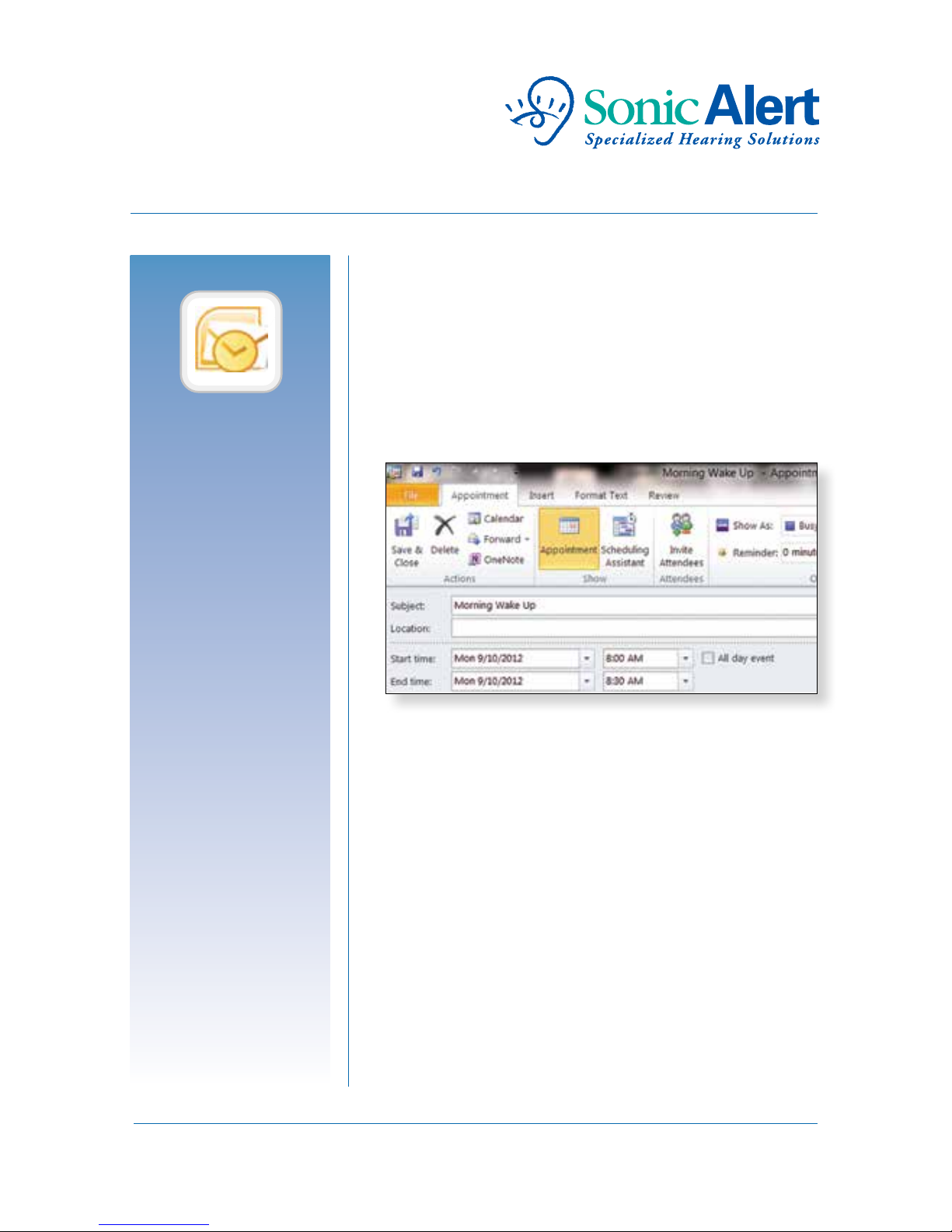
Select the reminder box by checking it, then select
from the drop menu the amount of time to be alerted
to before the event. Your Sonic-connect will not alert
you if the “Reminder” is not checked. If you would like
to have a recurring alert, such as a daily wake up call,
or a weekly meeting, you can use the “Recurrence”
function of the Microsoft Outlook scheduling window.
You can use your Sonic-connect as your smart alarm
clock that is totally managed by your Outlook
scheduling system!
?
!
TIP
Page 12
11
Important To Know:
Your Sonic-connect relies on your computer to run the
program to check for your messages and provide alerts.
In order for your device to work, you need to leave your
computer powered on. If your computer is turned off, in
hibernation or in sleep mode, the Sonic-connect will not
provide alerts.
In order for your Sonic-connect
to remain active
and ready for alerts, you need to leave your computer
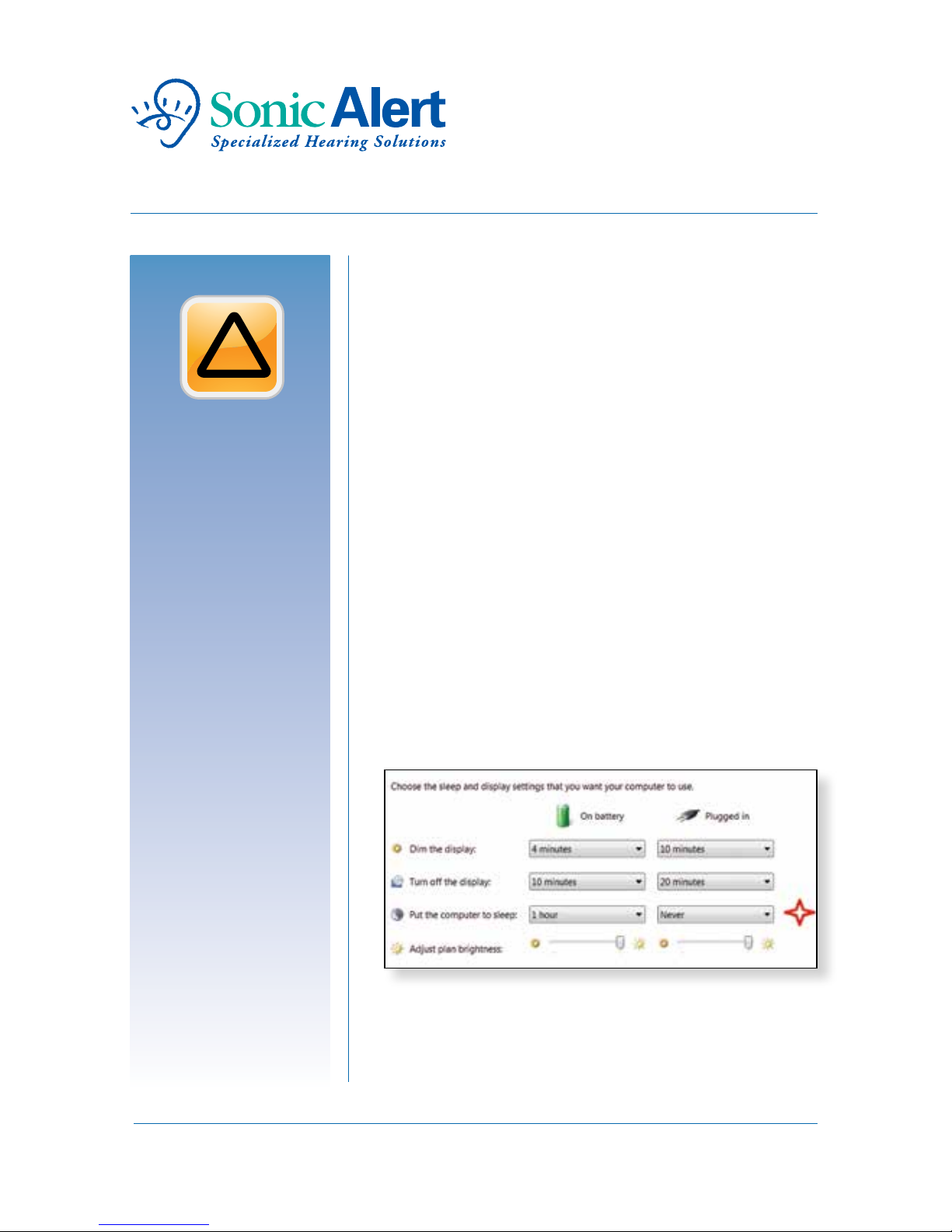
powered on, also you will need to congure your
Windows operation system’s power saving option, so
your computer does not automatically turn off, go into
hibernation or sleep mode after a period of inactivity.
You can nd and change your computer’s power saving
option by nding the icon under the Control Panel.
Make sure to check the “never” choice under hibernation
or sleep options:
?
!
TIP
Page 13
12
Using Your Device:
Now that you have congured your Sonic-connect,
it is ready to help you stay connected and will start
automatically when your computer is powered up.
Make sure your Sonic-connect is connected to your
computer’s USB port. The Sonic-connect can run
in the sleep mode (indicated by the icon in your
system tray) or active mode (indicated by the icon),
depending on how you set it up. When you install the
Sonic-connect it will be in active mode. To change to
sleep mode, deselect the “Keep Sonic-connect active”
check box in the General Settings menu.
Modes:
Active mode: The Sonic-connect will stay active,
even if you are working at your computer. This way
you always receive the Sonic-connect aler ts.
Sleep mode: The Sonic-connect program will not
alert you while you are working on your computer.
Many people will see or hear when a new mail or
message comes in. When the program detects a
period of inactivity (not using the mouse), the
program will automatically switch to the Active
mode. The amount of time of inactivity required to
switch to the Active mode is set in the General
Settings menu. Once you start to use the computer
again, the program will switch back to Sleep mode.
@
?
New
!
TIP
Page 14
13
Notications:
Once set up, the Sonic-connect program will
automatically log onto your email accounts and
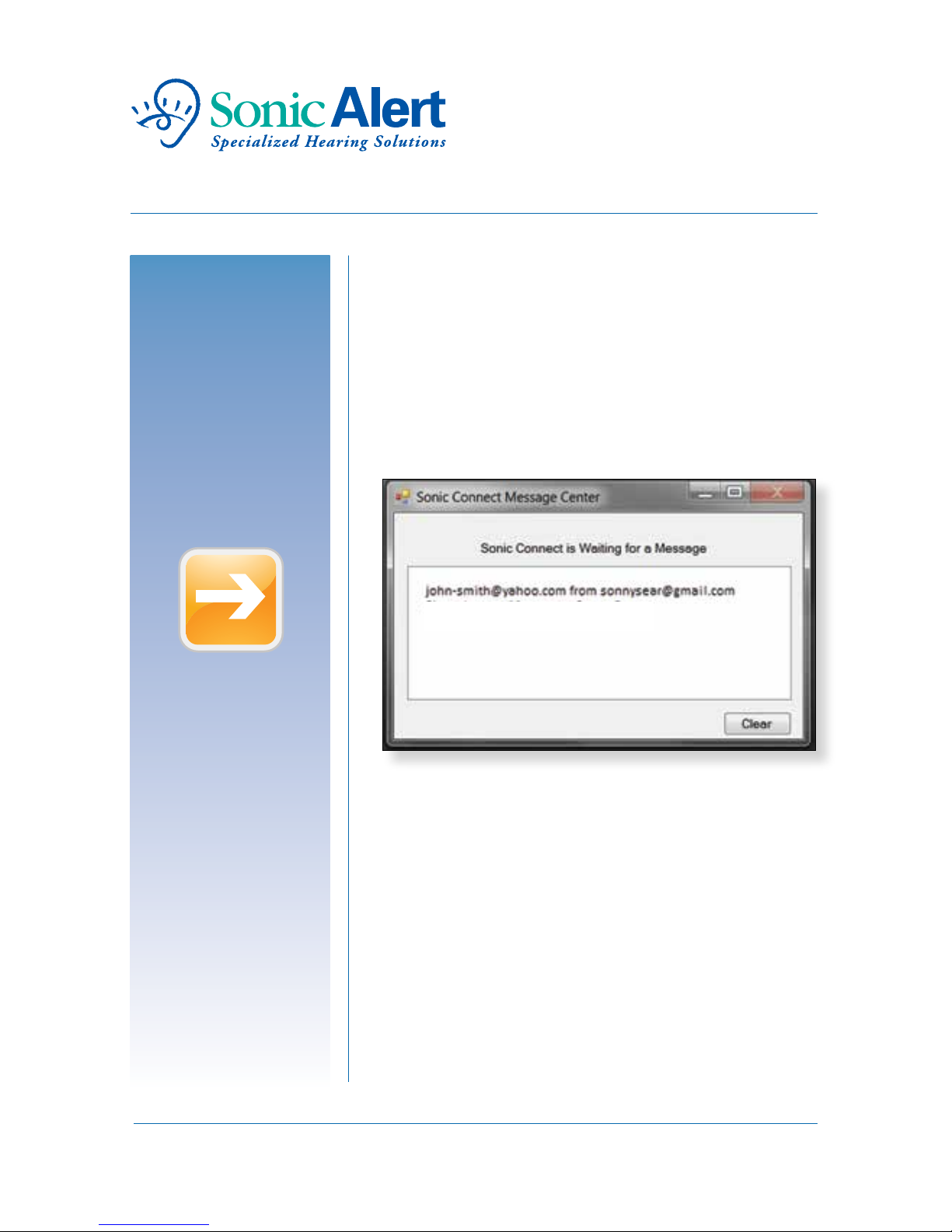
monitor their activity. When an Instant message or
email, comes in, your Sonic-connect will beep, vibrate
or ash depending on your set up, and a text message
will show on your Message Window:
Once there is an alert, the red LEDs will stay lit to
remind you there are messages on the list. Click on the
“Clear” button to clear the message list as well as turn
off the red LED reminder signals.
?
New
!
TIP
Page 15
14
E-Mail Server Information:
n
The Internet Message Access Protocol (IMAP) and
Post Ofce Protocol (POP) are Application Layer
Internet Protocols that allows an e-mail client to
access e-mail on a remote mail server.
n
The Sonic-connect driver acts as a mail client,
directly accessing the IMAP or POP server of your
internet email accounts. This means you don’t need
to leave your internet web email browser or your
Outlook open in order to be alerted to a new mail.
n
Ask your network administrator or contact your
email provider for server information. You may also
nd it quickly with a web search. For example
”What is the imap for port AOL?” (The rst result
shows imap.aol.com). For full IMAP information,
please go to www.sonicalert.com/sec.
@
?
New
TIP
Page 16
15
Compatible Media:
n
Internet web based email services. The Sonic-connect
connects to your mail server using the IMAP or
POP protocols.
n
Other IM instant messaging: Google, Yahoo IM,
AIM, ooVoo.
n
Microsoft Outlook: Calendar and task reminder
event alerts.
Updates:
The Sonic-connect program will evolve as we
add interfaces to more programs. Your software
will automatically alert you to updated versions.
Addresses may vary for users in other countries.
www.sonicalert.com/sec
@
?
i
New
!
TIP
?
New
Page 17

Warranty
Sonic Aler t warrants it’s product against any defect in materials or workmanship
for the period of one year from the date of purchase. Should you experience a
problem, contact our customer service department. Be sure to save your sales
receipt as proof of purchase date should you need warranty service. Within a
period of one year from purchase date, Sonic Alert will repair or replace (our
discretion) your product at no cost, if a defect in materials or workmanship is
found. If we elect to replace your product, we may replace it with a new or
reconditioned product of the same or similar design. Repair or replacement will
be warranted for a period of 90 days or the original time on the original warranty,
whichever is longer. The warranty does not cover accidents, negligence or breakage
to any parts. This includes shipping damage, failure to follow instructions, misuse,
re, oods, use of incompatible accessories or acts of God. The product must
not be tampered with or taken apart by anyone who is not an authorized Sonic
Alert representative. Tampering with the product will void any written or implied
warranties. Sonic Alert shall not be responsible for loss of time, inconvenience,
property damage caused by your product or any other accidental or consequential
damages. Warranty service is available only with proof of purchase. To have your
item repaired, rst contact Sonic Alert to obtain an RMA number. Then ship the
product to the Repair Center address that we will provide. The cost to ship to the
Repair Center is paid by the customer. Return shipping is paid by Sonic Alert.
The product is covered by the legal guarantee of conformity as provided
by applicable law.
Sonic Alert
®
, Inc.
Troy, MI 48083
Customer Service
Email: [email protected]
Website: www.sonicalert.com/sec
This Users Guide is written for the Sonic-connect USB Media Aler t Device,
Driver version 3.0.0.0
Copyright © Sonic Alert® 2012
Directive: EMC Directive2004/108/ED
Standards: EN 55022:2010, EN 55024:2010
 Loading...