

Page 1

SoundGate 2
User Guide
www.sonici.com
Page 2

Page 3

soundgate 2 · user guide
03
Congratulations on the purchase of your
new SoundGate 2. Your SoundGate 2 device
allows you to connect wirelessly between
your hearing instruments and a wide range
of audio devices via Bluetooth®.
Whether communicating wirelessly via your mobile
phone device or streaming audio through your
television, computer, or MP3 player, this guide will
offer the instructions necessary to get you on
your way to better hearing.
Please read the entire contents of this booklet before
using your SoundGate 2 device. It contains instructions
and important information about its use and handling.
Page 4

sonic · soundgate 2
04
Instructions for Use
The following models are covered by these
instructions: SoundGate 2.
The SoundGate 2 is intended to be used as:
1. A remote control of your hearing instruments.
SoundGate 2 may be used as a remote control,
enabling you to adjust the hearing instrument
volume control and listening programs.
2. A streaming interface between external audio
devices and your hearing instruments.
The SoundGate 2 may be connected to a large
range of audio devices (mobile phones, TV, etc.)
to reduce listening effort.
Page 5

soundgate 2 · user guide
05
Table of Contents
General Warnings and Safety Guidelines 07
Introduction 10
Getting Started 13
Battery Indication 15
Battery Life 17
Attaching the Neck Strap 18
Wearing the SoundGate 2 20
Use of the Protective Skin 21
Microphone 22
SoundGate 2 Operation 23
Turning your SoundGate 2 ON and OFF 24
Volume and Program Adjustment 26
Pairing to a Mobile Phone
or other Bluetooth
®
Devices 28
Using with a Mobile Phone 31
Using with an MP3 Player or Computer 36
Wired Connection 38
Using the Telecoil 40
Page 6

sonic · soundgate 2
06
SoundGate 2 Wireless Range 42
Visual Indicators 45
Troubleshooting 48
Maintenance 56
International Warranty 57
Information to the User Regarding
the Radio Communication Part of the Device 58
Declaration of Conformity 61
Information and Explanation of Symbols 62
Service 64
Page 7
soundgate 2 · user guide
07
General Warnings and Safety Guidelines
Familiarize yourself with the following general
warnings before using your SoundGate 2 device.
Hazard warnings
SoundGate 2 is not a toy and should be kept
away from children and anyone else who might
swallow parts or otherwise cause injury to
themselves. Special attention should be paid
to the smaller components in order to prevent
swallowing or choking. If a part is swallowed,
see a doctor immediately.
Never expose the SoundGate 2 to excessive heat,
such as putting it in an oven, micro wave, burning
it or leaving it inside a parked car in the sun.
There is a risk in these events that it will explode
and cause serious injury.
If by accident the neck strap should get caught
on something while the user is wearing it, the
neck strap is constructed to break automatically.
Therefore, never try to shorten or modify the
neck strap in an unauthorized way. The neck strap
should not be used for children who weigh less
than 11 kg (24 lbs).
Page 8
sonic · soundgate 2
08
Using SoundGate 2 with a mobile phone while
driving may be distracting. If traffic laws or
driving conditions demand it, pull off the road
and park your vehicle prior to making and
answering calls.
SoundGate 2 should not be used in an aircraft
unless specifically permitted by the flight
personnel.
SoundGate 2 is designed to comply with
the most stringent Standards of International
Electromagnetic Compatibility. However,
SoundGate 2 might cause interference with
other medical devices such as defibrillators
and pacemakers.
· Please contact the manufacturer of your
implantable device for information about the risk
of disturbance.
· Immediately remove the SoundGate 2 if
interference is suspected. Do not use
SoundGate 2 and seek advice.
· Interference can also be caused by power
line disturbances, airport metal detectors,
electromagnetic fields from other medical
devices, radio signals and electrostatic
discharges.
Page 9

soundgate 2 · user guide
09
The safe use of the SoundGate 2 with the Auxiliary
input cable is determined by an external signal
source. When the input cable is connected to
mains-operated equipment, this equipment must
comply with IEC-60065, IEC-60950, IEC-60601
or equivalent safety standards.
The safety of recharging batteries with
the USB connector is determined by the external
equipment which should be UL approved or
comply with equivalent IEC-60065, IEC-60950,
IEC-60601 or other equivalent safety standards.
Page 10
10
sonic · soundgate 2
Introduction
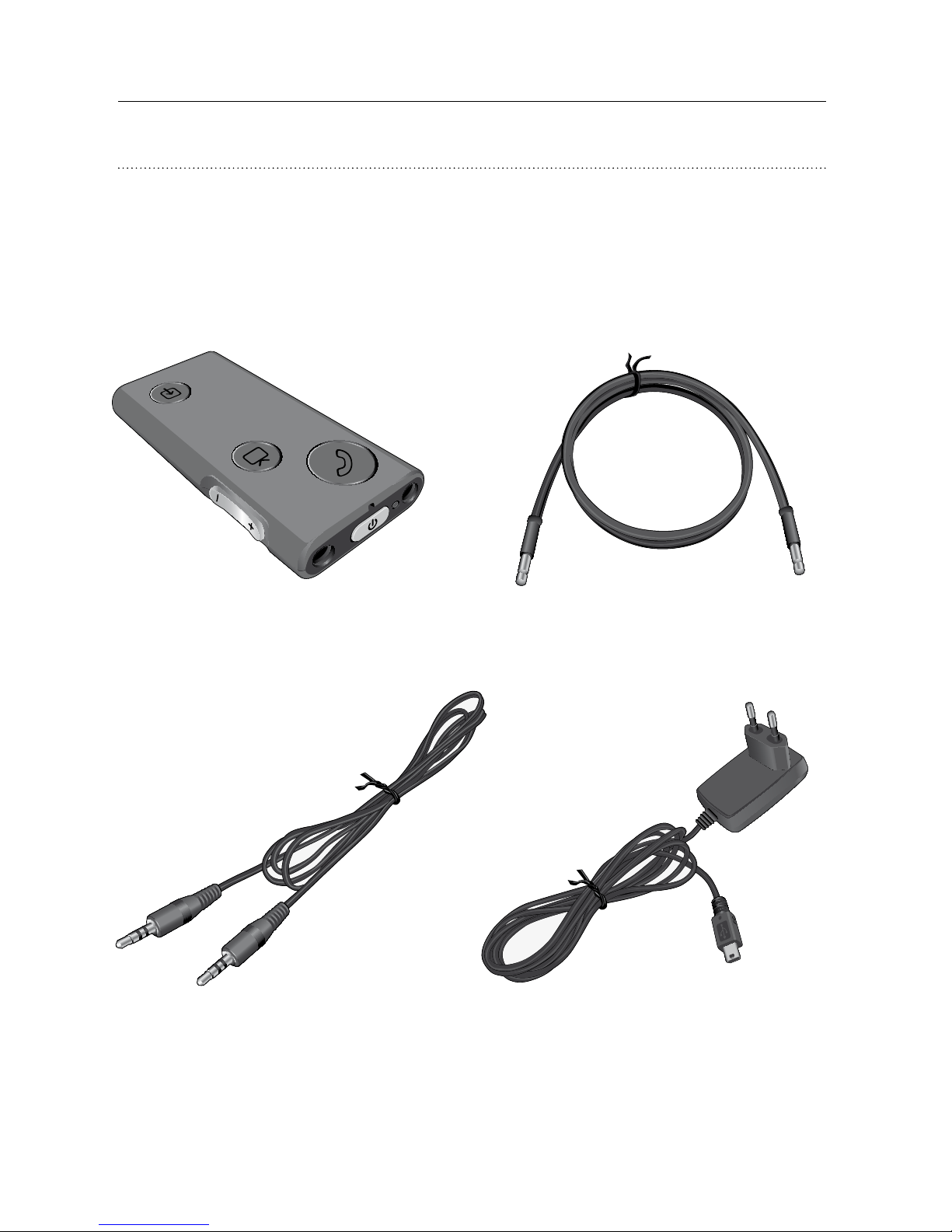
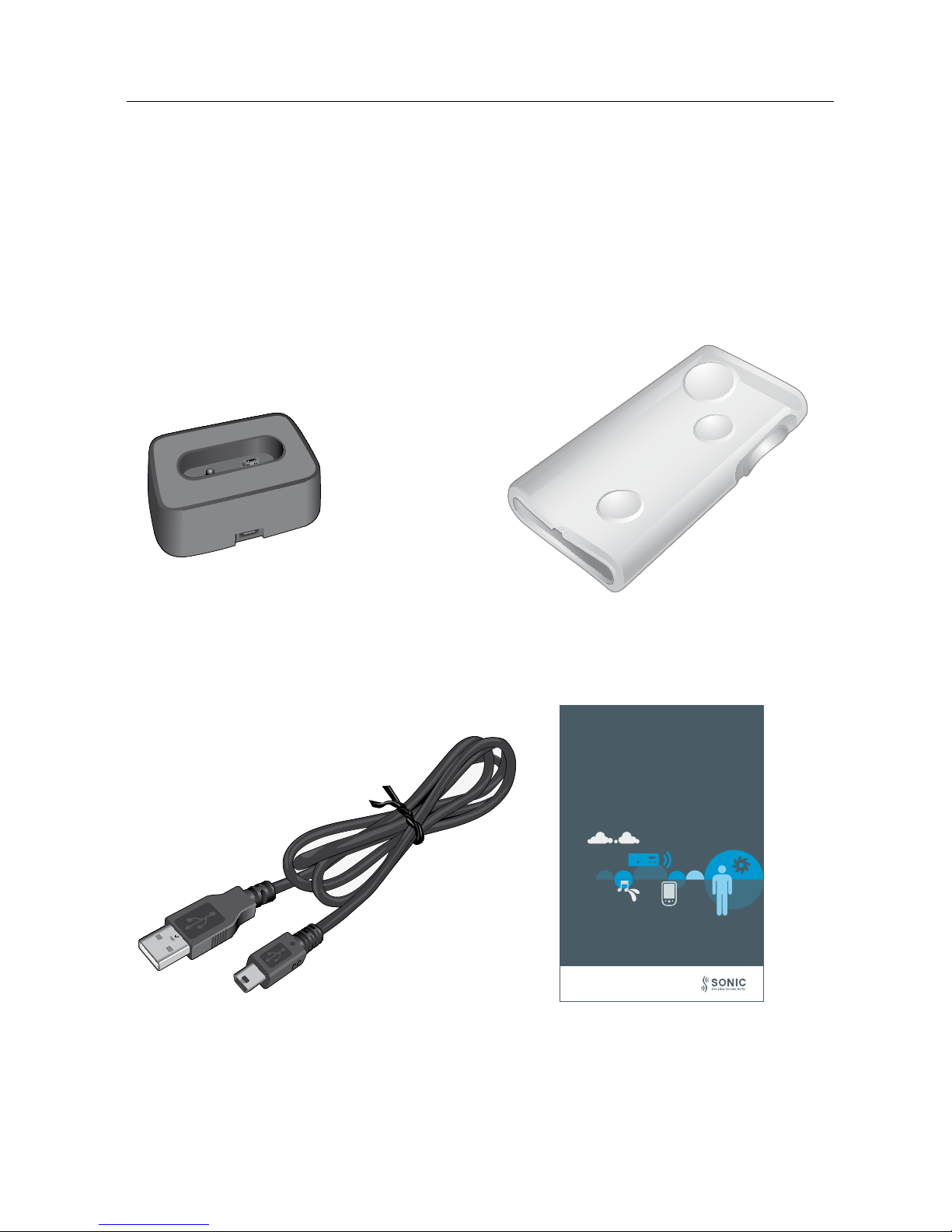
The following items are included within your
SoundGate 2 package and will be covered within this
instruction guide:
3.5 mm stereo cable Power adapter
SoundGate 2 Neck strap
Page 11
11
soundgate 2 · user guide
USB charging cable User Guide
Charger cradle Protective skin
www.sonici.com
SoundGate 2
User Guide
Page 12
12
sonic · soundgate 2
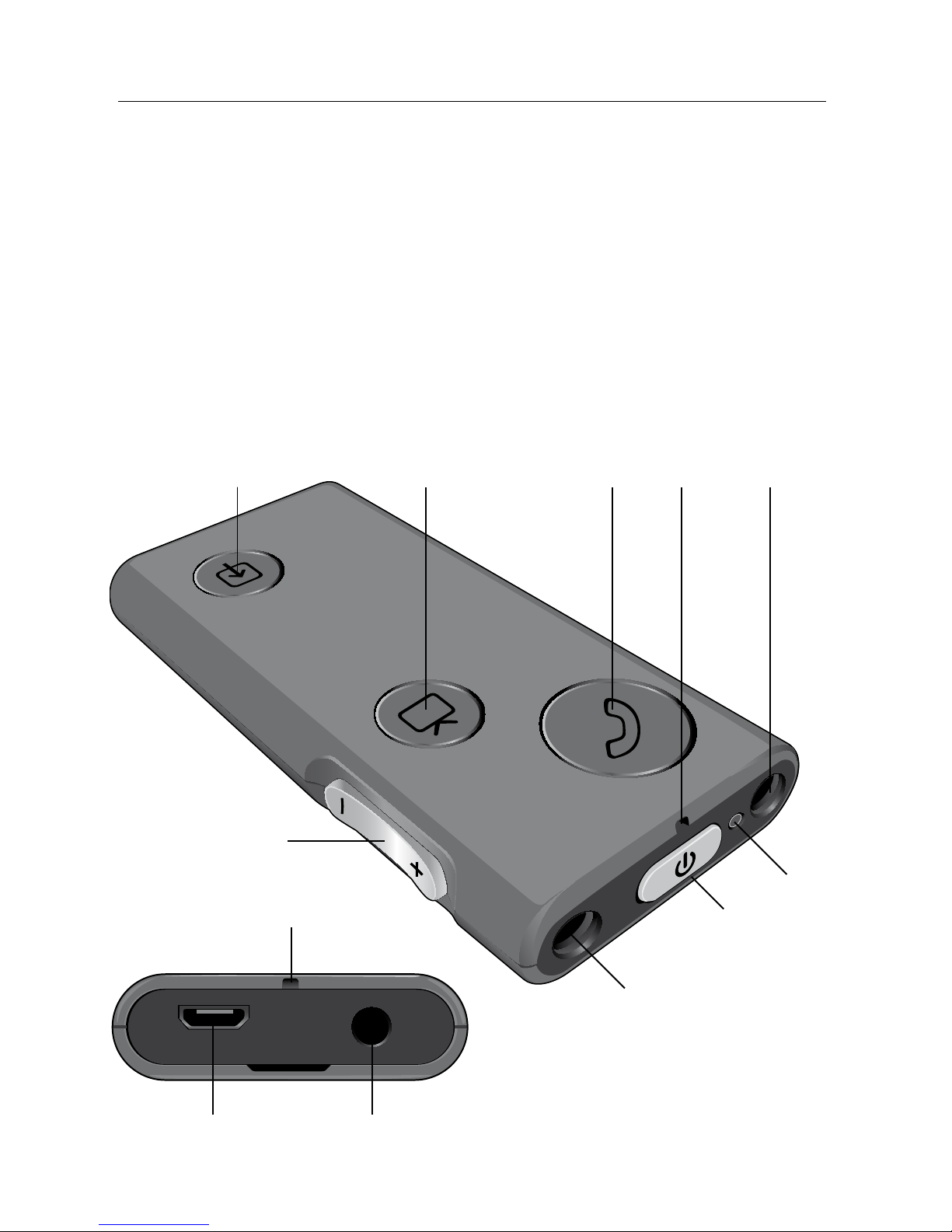
SoundGate 2 overview
4 5 6 7
10
9
8
3
2
1
8
1 Power on/off
2 LED indicator
3 Volume control
4 Auxiliary input key
5 TV key
6 Phone key
7 Microphone inlet
8 Neck strap jacks
9 3.5 mm auxiliary input
10 Micro-USB charger jack
7
Page 13

13
soundgate 2 · user guide
Getting Started
The SoundGate 2 contains a rechargeable battery.
Ensure your battery is completely charged prior
to using your SoundGate 2.
Charging the battery
The SoundGate 2 should be charged daily to ensure
sufficient battery life during normal hours of operation.
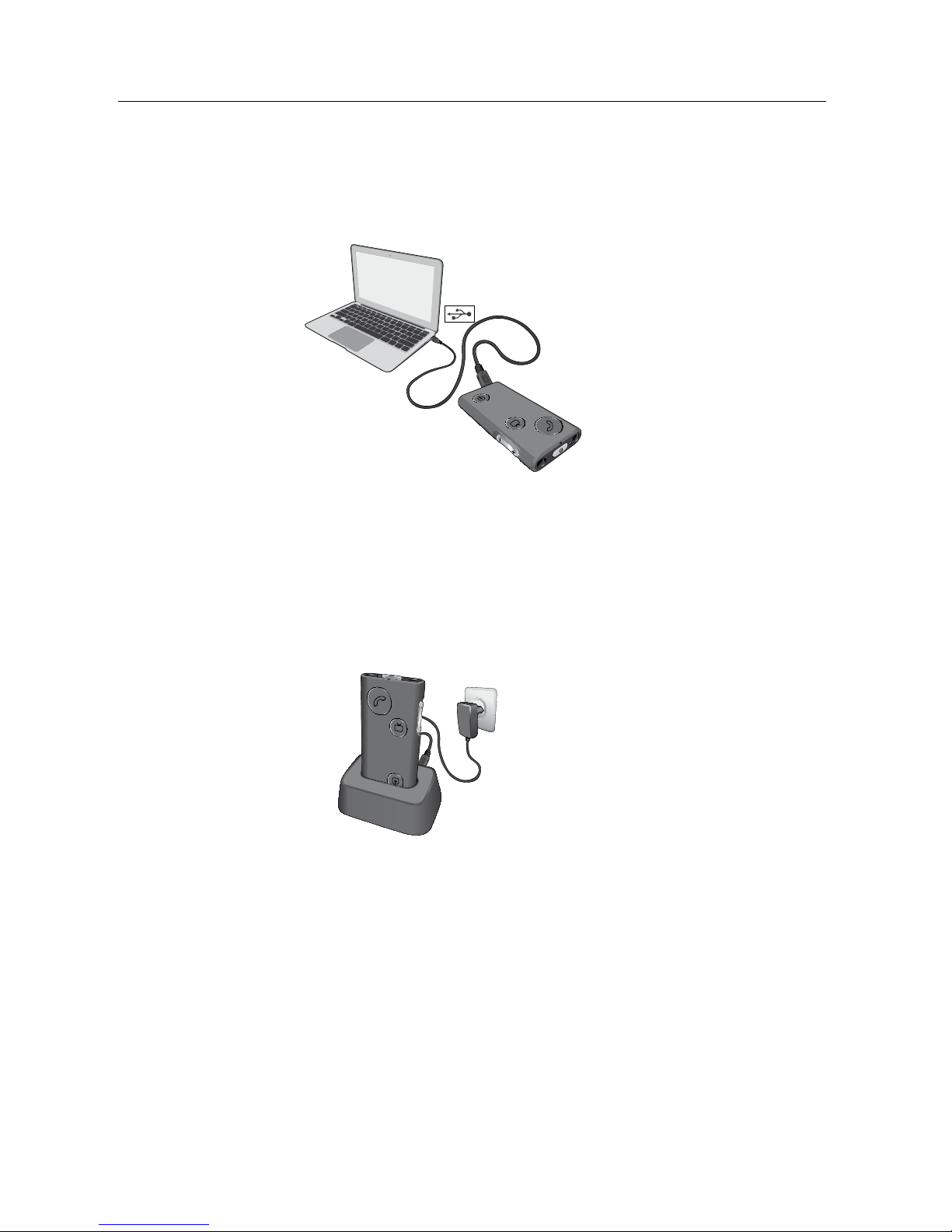
The SoundGate 2 can be charged in the following ways:
· Connect the power adapter to the micro-USB charger
jack on the SoundGate 2. Then plug the power adapter
into a wall socket.
Page 14
14
sonic · soundgate 2
· Connect the USB charging cable to the micro-USB
charger jack on the SoundGate 2. Then plug the
opposite end into the USB port on your computer.
· Plug the power adapter into the micro-USB jack
of the charger cradle. Then plug the power adapter
into a wall socket, and mount your SoundGate 2
into the cradle with the power key facing up.
· When using the SoundGate 2 in a vehicle, you may
connect the USB charging cable to the micro-USB
charger jack on the SoundGate 2. Then plug the
opposite end into a 12 V car USB port or adapter
(not included).
Page 15
15
soundgate 2 · user guide
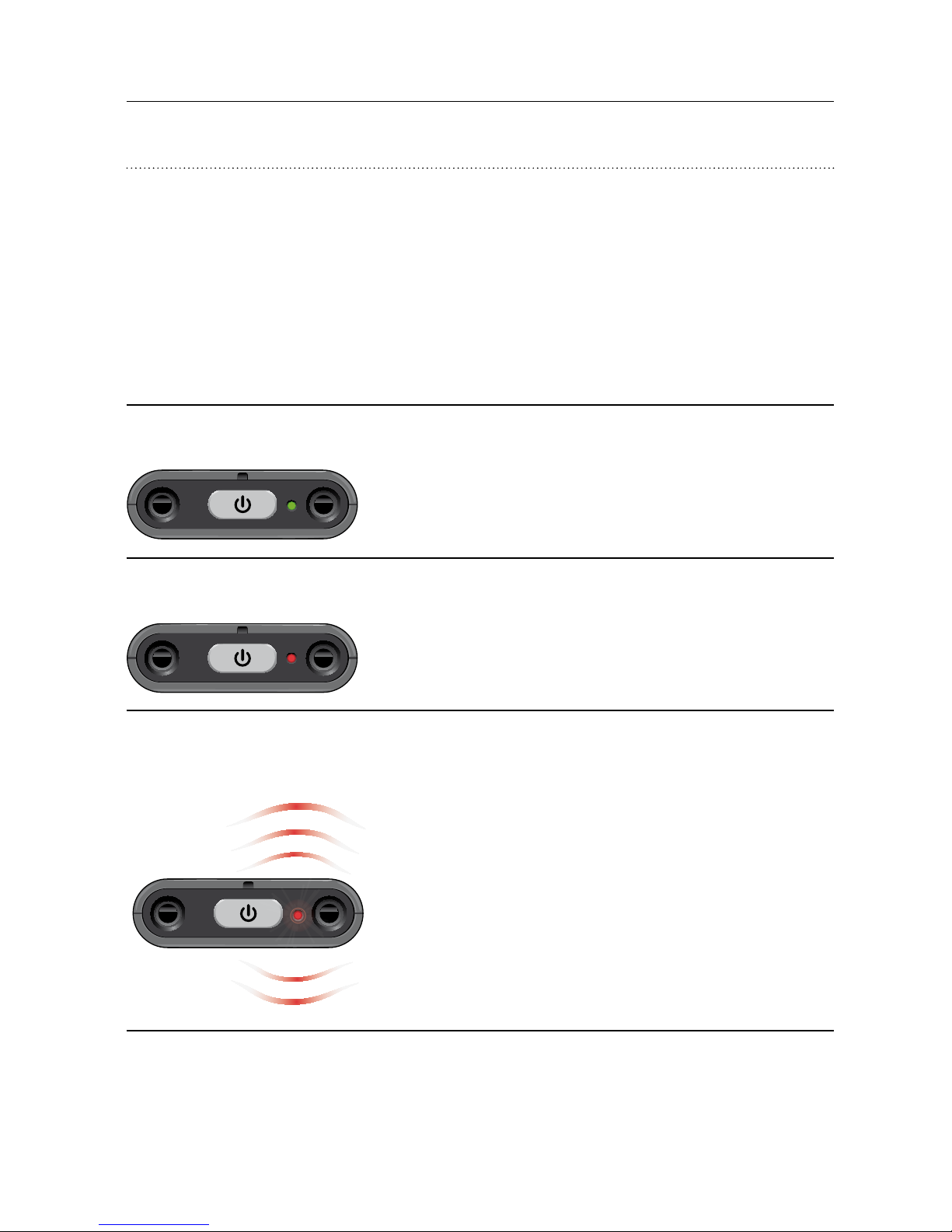
Battery Indication
The LED indicator on the top of your SoundGate 2
will help you monitor the status of your battery life
and/or charging.
LED indication Status
Green
Battery status is OK
Red
Battery life is low (approx.
20 minutes remaining)
Red (pulsing every
2 – 3 seconds)
Battery life is critically
low (approx. 5 minutes
remaining)
Page 16
16
sonic · soundgate 2
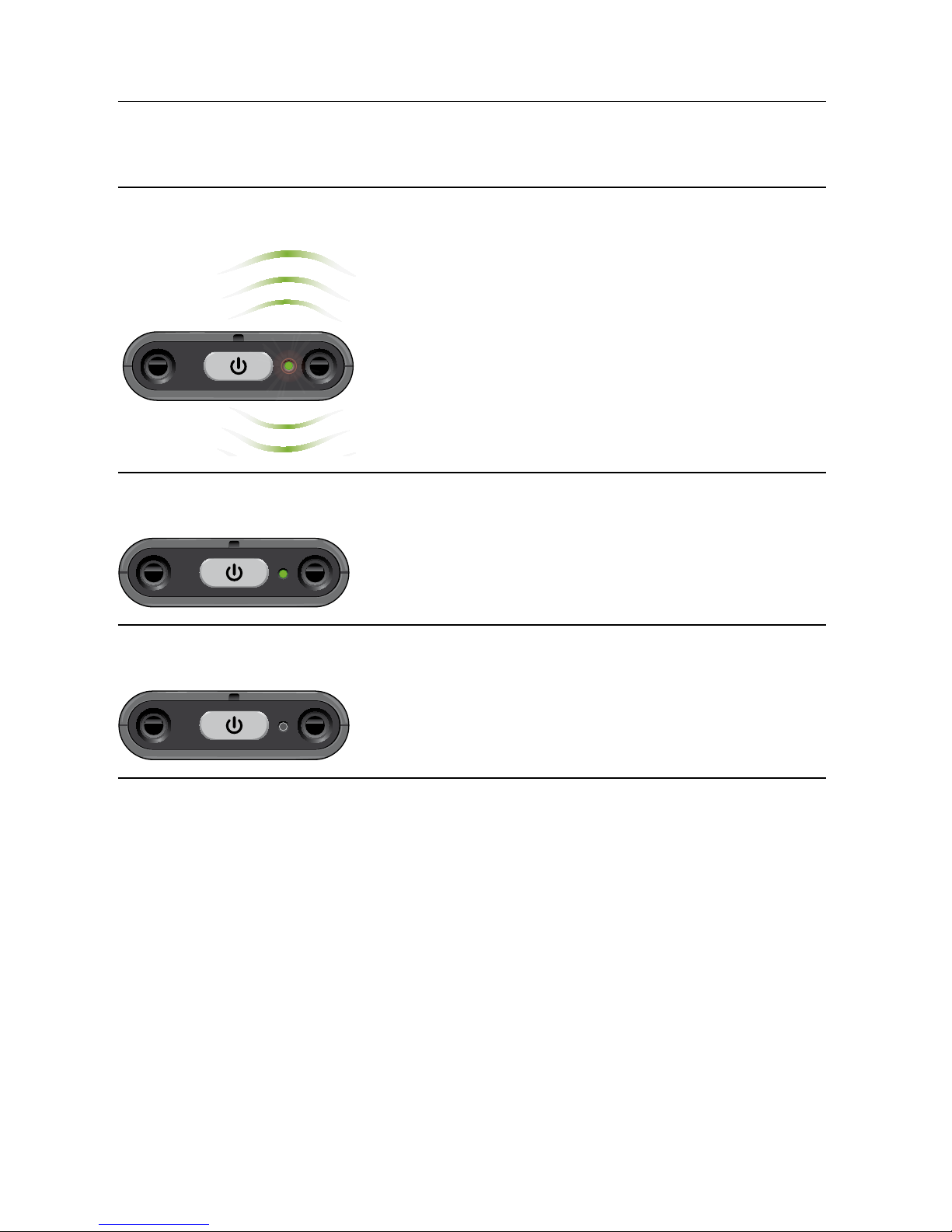
LED indication Status
Green (flashing)
Battery is connected
to a power source
and actively charging
Green
Battery is charged
completely (SoundGate 2
powered ON)
OFF
Battery is charged
completely (SoundGate 2
powered OFF)
Page 17
17
soundgate 2 · user guide
Battery Life
The battery life of your SoundGate 2 device depends
on the type and duration of usage. The table below
indicates the maximum time a completely charged
SoundGate 2 battery will run for various functions.
Function Maximum
battery life (hrs)
Stand-by up to 60 hours
Streaming audio with
neck strap attached
up to 10 hours
Battery charge time 2 hours
Stand-by mode is when the SoundGate 2 is powered
ON but is not actively being used. Phone calls
with connected Bluetooth
®
mobile phones may still
be received in stand-by mode.
Note!
The rechargeable battery should not be
drained completely. Keeping the battery fully
charged will prolong its life. You cannot
replace the battery yourself. Please return
the device to your hearing care provider
for service, if necessary.
Page 18

18
sonic · soundgate 2
Attaching the Neck Strap
It is recommended to use your neck strap at all
times when streaming audio from the SoundGate 2.
The neck strap serves as an antenna and helps
direct the audio signal to your hearing instruments.
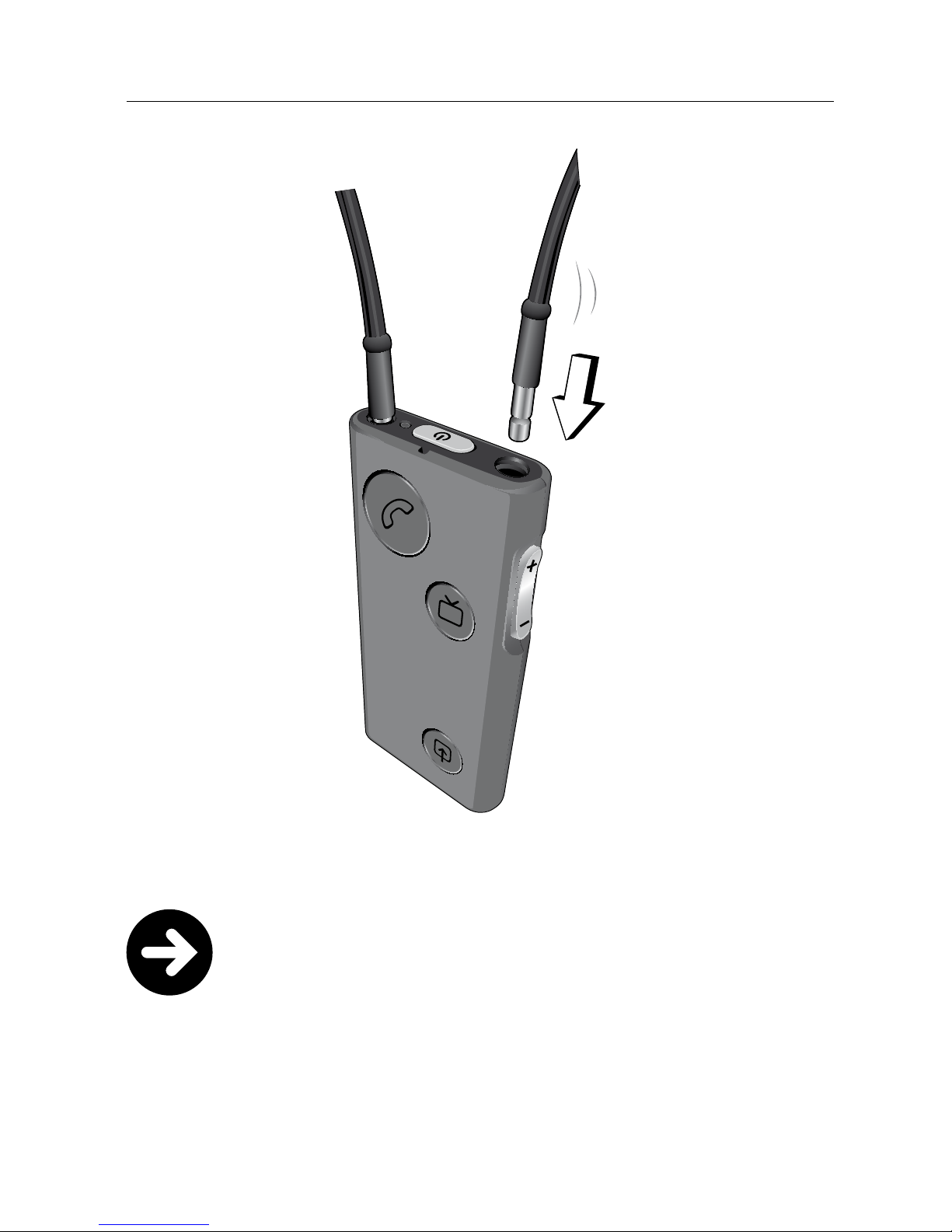
Insert both ends of the neck strap into the neck strap
jacks of your SoundGate 2. When the neck strap is
inserted completely, it will click.
Page 19
19
soundgate 2 · user guide
Note!
Using SoundGate 2 without the neck strap
requires more power – consequently
maximum streaming time is reduced to
5 hours on one full battery charge.
Page 20
20
sonic · soundgate 2
Wearing the SoundGate 2
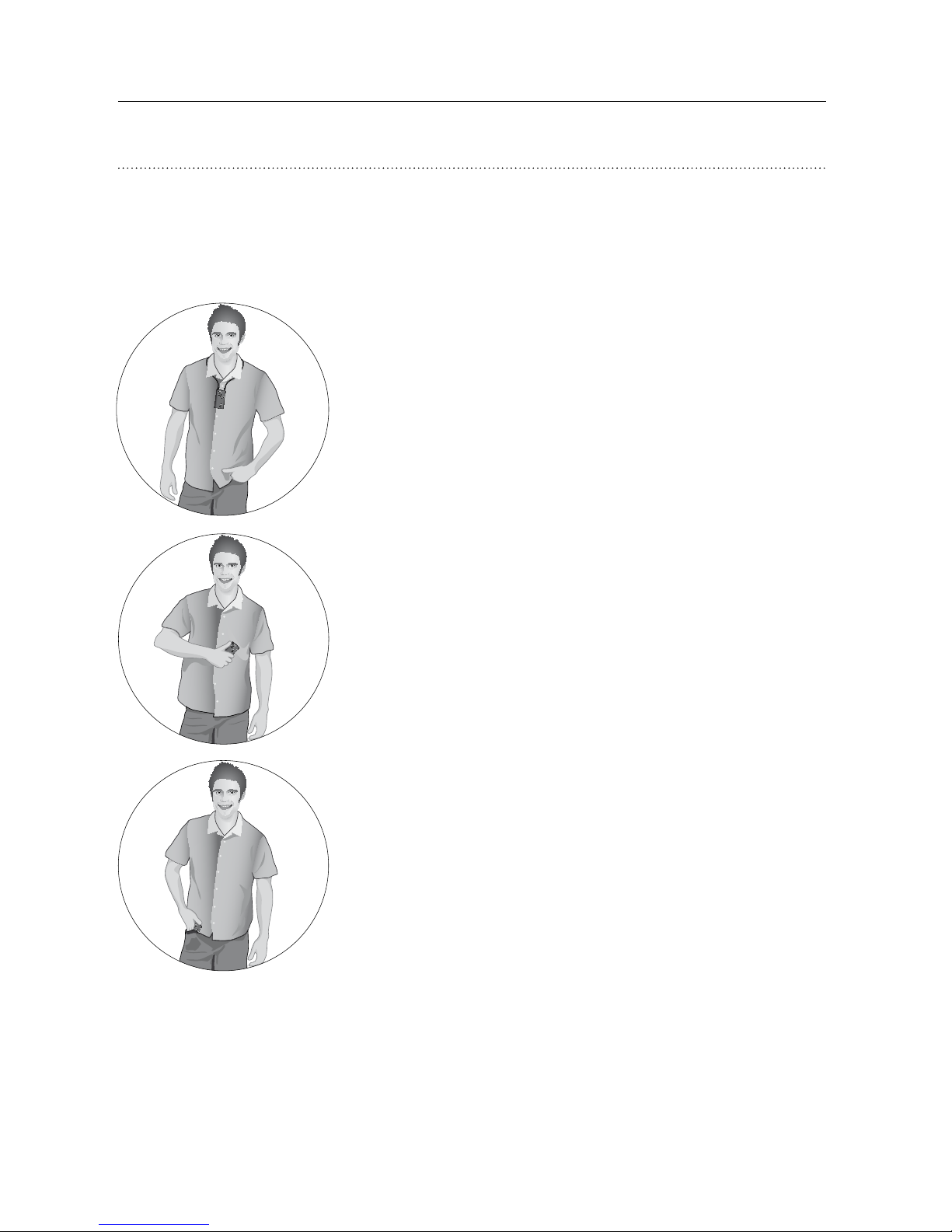
Please use the guidelines below to determine how your
SoundGate 2 should be worn for different types of use.
Hands free with neck strap
Recommended uses:
Bluetooth® streaming, wired
connection to MP3 or PC
Hand held or in the pocket
Recommended use:
remote control
Page 21
21
soundgate 2 · user guide
Use of the Protective Skin
A protective skin is included in your SoundGate 2
package to help protect the device from debris
and light moisture. The protective skin may be used
in any of the recommended wearing positions.
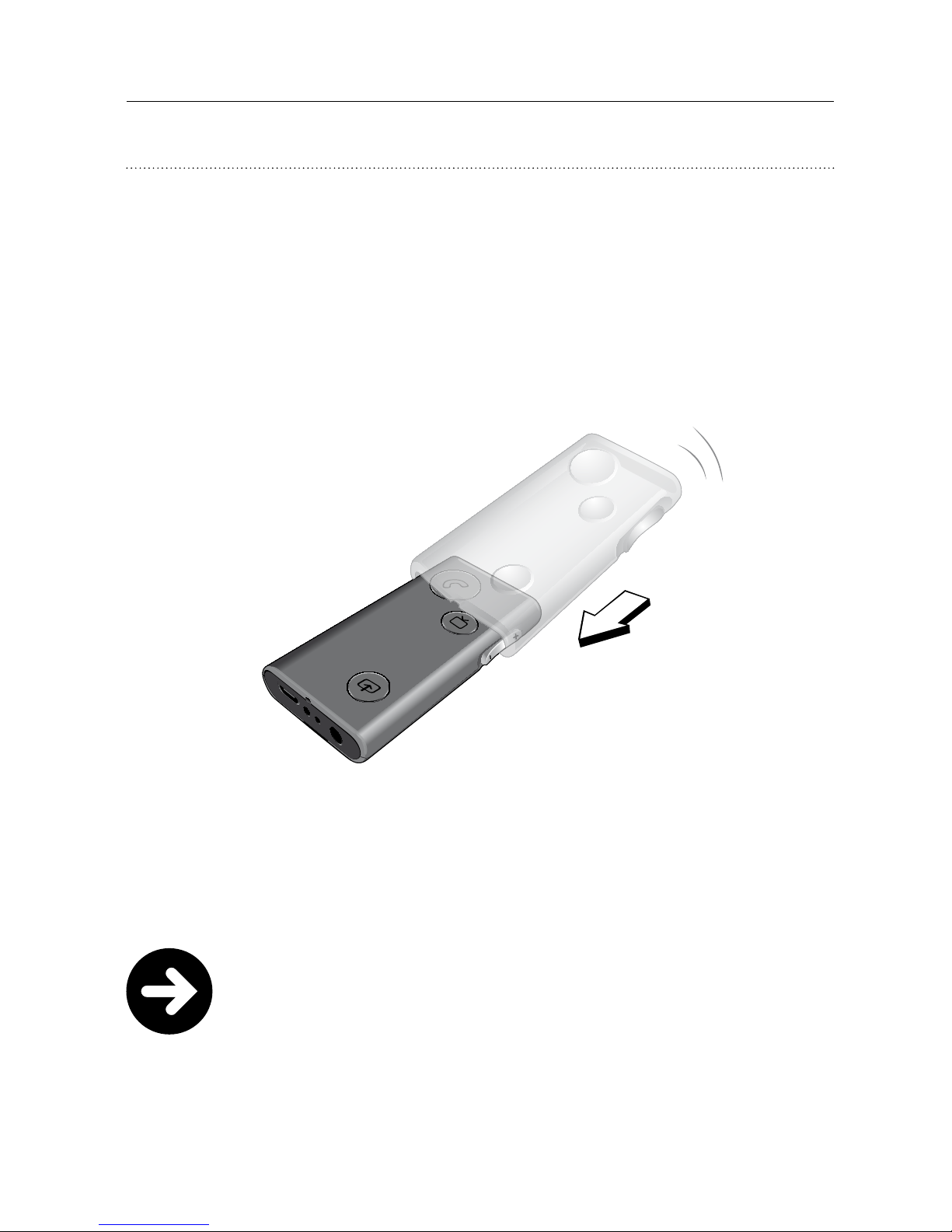
To use, insert the SoundGate 2 completely into
the protective skin as indicated below.
Note!
Clean your protective skin with soap
and warm water, and ensure it is completely
dry before reinserting your SoundGate 2
device.
Page 22
22
sonic · soundgate 2
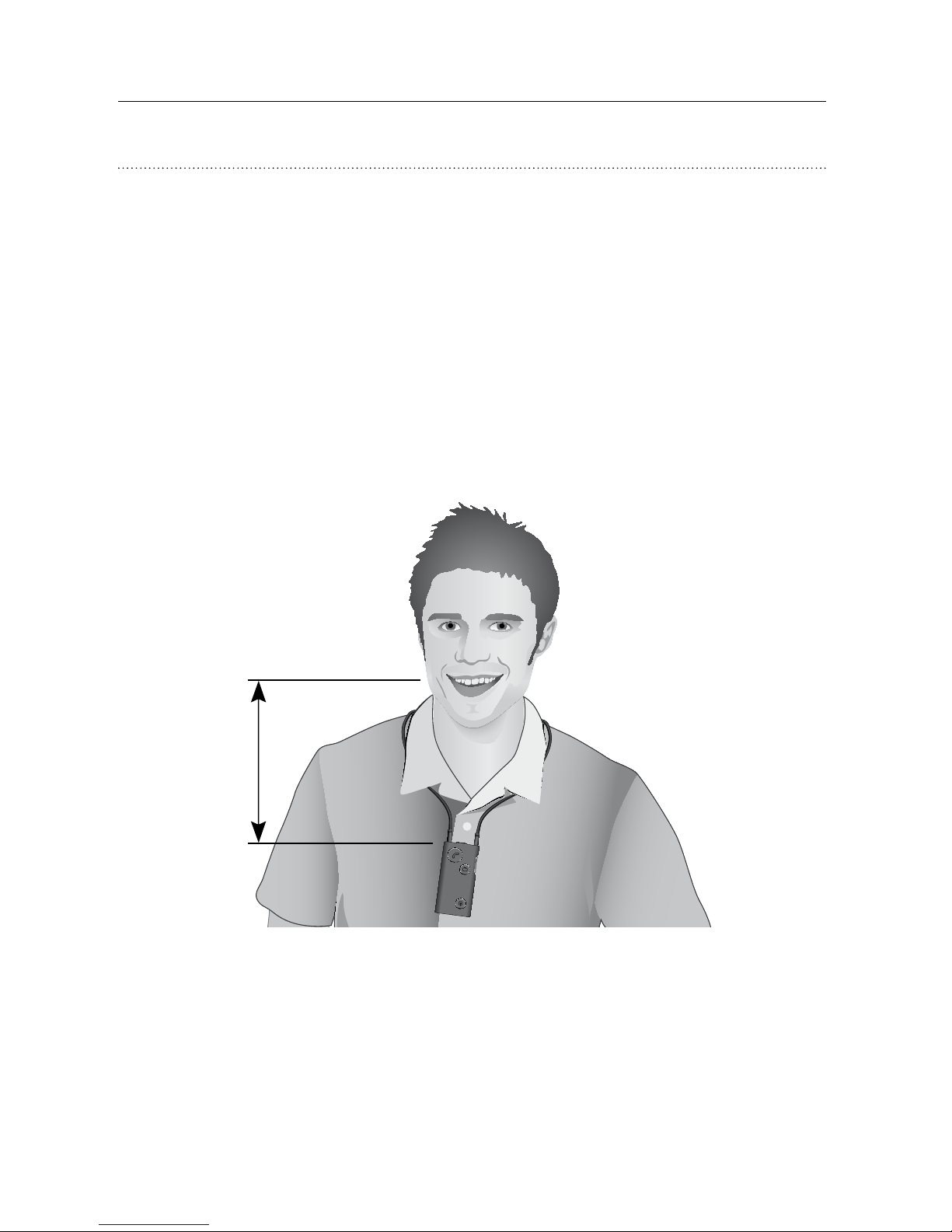
Microphone
The microphone in the SoundGate 2 is only active
during streamed phone calls. In all other situations
the microphone is turned off.
To ensure optimal sound quality for the person you
are speaking with during streamed phone calls, it is
recommended to position the SoundGate 2 microphone
4–12 inches (10 –30 cm) from your mouth.
12 inches
Page 23

23
soundgate 2 · user guide
SoundGate 2 Operation
Your SoundGate 2 can be used in many ways to improve
communication and add convenience for daily listening.
Whether using the SoundGate 2 as a remote control
to change your hearing instrument volume settings
and listening programs or streaming audio from
Bluetooth®-enabled devices, the following pages
will help you to become better acquainted with your
SoundGate 2 operation.
Page 24

24
sonic · soundgate 2
Turning Your SoundGate 2 ON and OFF
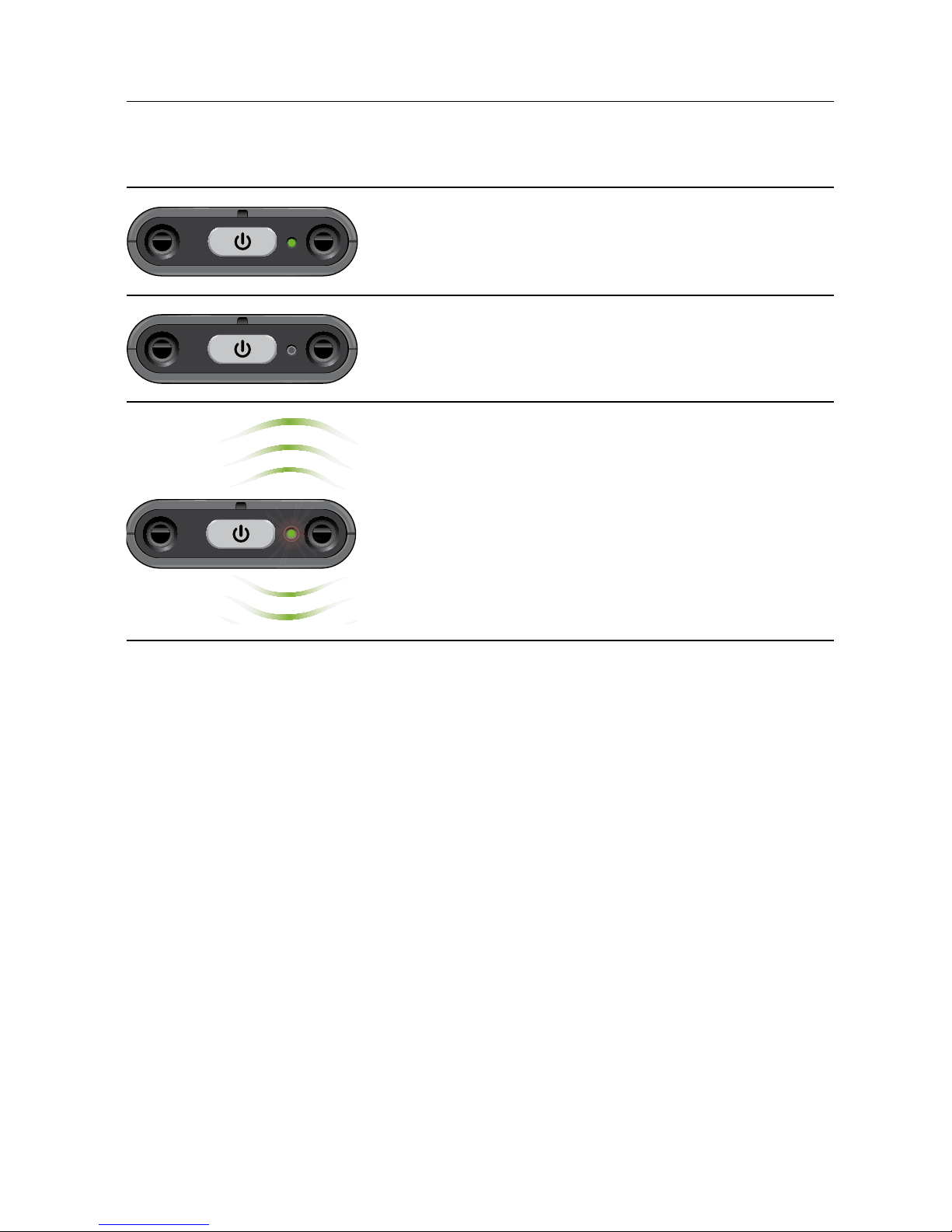
Press the SoundGate 2 power key for approximately
2 seconds to turn your SoundGate 2 device ON/OFF.
The LED indicator on the top of the SoundGate 2
will be green when your device is powered ON
with a charged battery.
The LED indicator will be off when your SoundGate 2
is powered OFF.
If the SoundGate 2 is powered OFF and its battery
is being charged, the LED indicator will flash green.
Page 25
25
soundgate 2 · user guide
LED indicator SoundGate 2 status
Power ON
with charged battery
Power OFF
Power OFF
with connected
power source
Page 26
26
sonic · soundgate 2
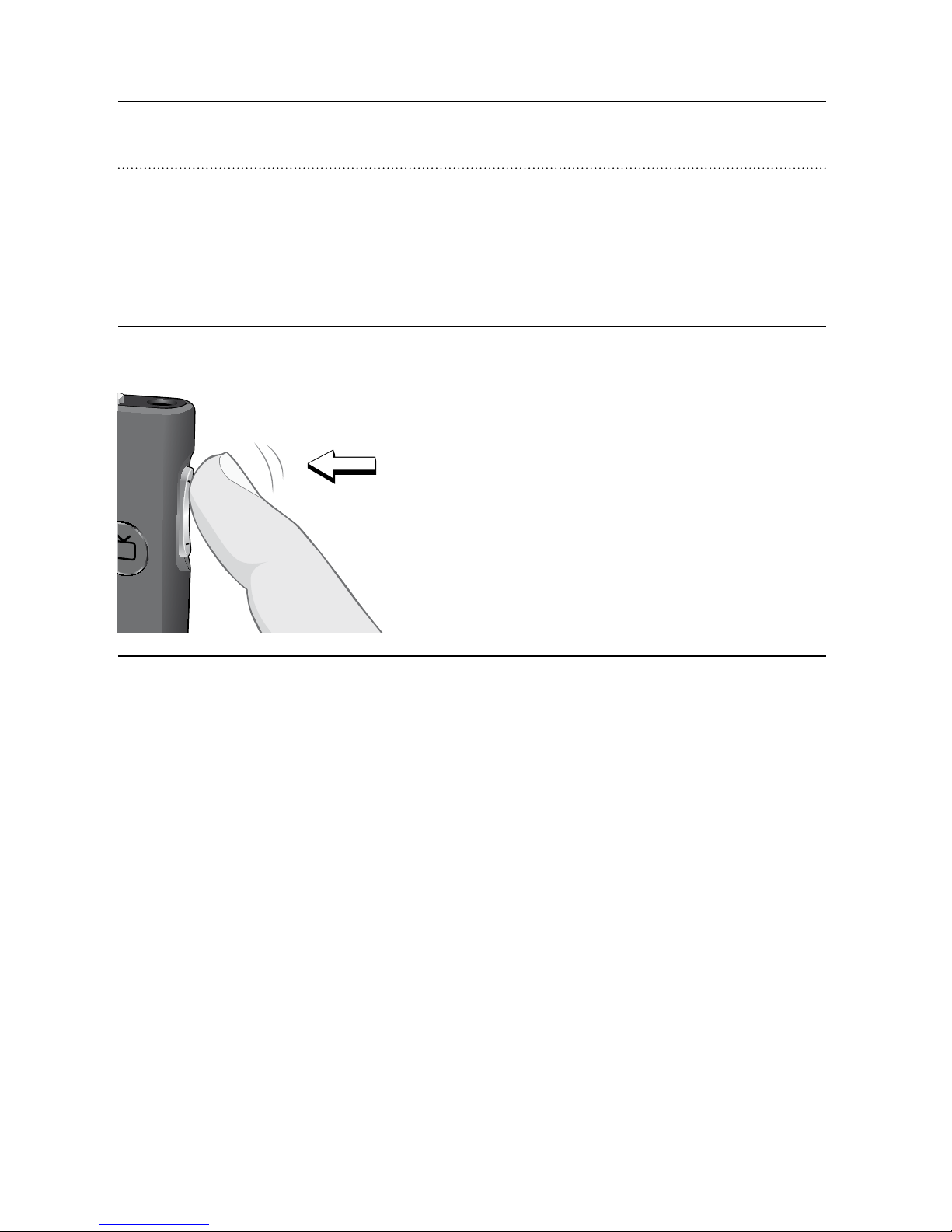
Volume and Program Adjustment
The SoundGate 2 may be used to optimize your hearing
instrument(s) Volume Control and listening program
settings.
Adjusting volume
A short press to the
SoundGate 2 volume up
or down key will adjust
the listening volume in
your hearing instrument(s).
Page 27
27
soundgate 2 · user guide
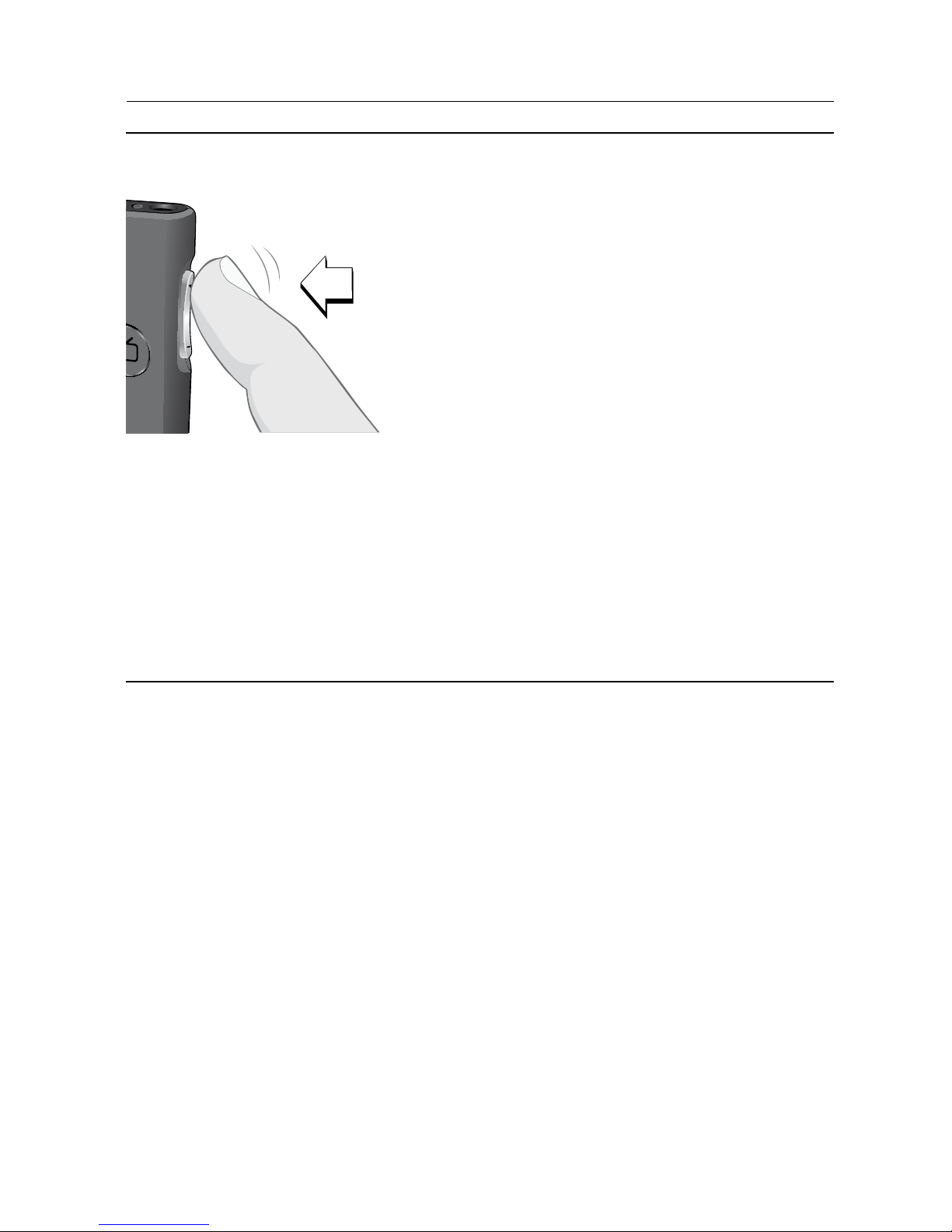
Changing programs
2 sec.
If multiple listening programs
have been configured,
you may cycle forward or
backward through the
available programs by
pressing and holding the
SoundGate 2 volume up
or down key for approximately
2 seconds.
Note: When streaming audio,
it is not possible to change
listening programs. You
must first disconnect from
the streamed audio source.
Page 28
28
sonic · soundgate 2
Pairing to a Mobile Phone
or other Bluetooth® Devices
Before streaming audio to your hearing instruments,
a secure connection must be established between
the SoundGate 2 and a Bluetooth®-enabled device
(i.e., mobile phone). Ensure the SoundGate 2 and
Bluetooth® device to be paired are within one meter
of each other during the pairing process.
Prepare
Bluetooth®
device
for pairing
Refer to the manual of
the mobile phone or audio
device and prepare the device
for Bluetooth® pairing
as instructed.
Set the
SoundGate 2
into pairing
mode
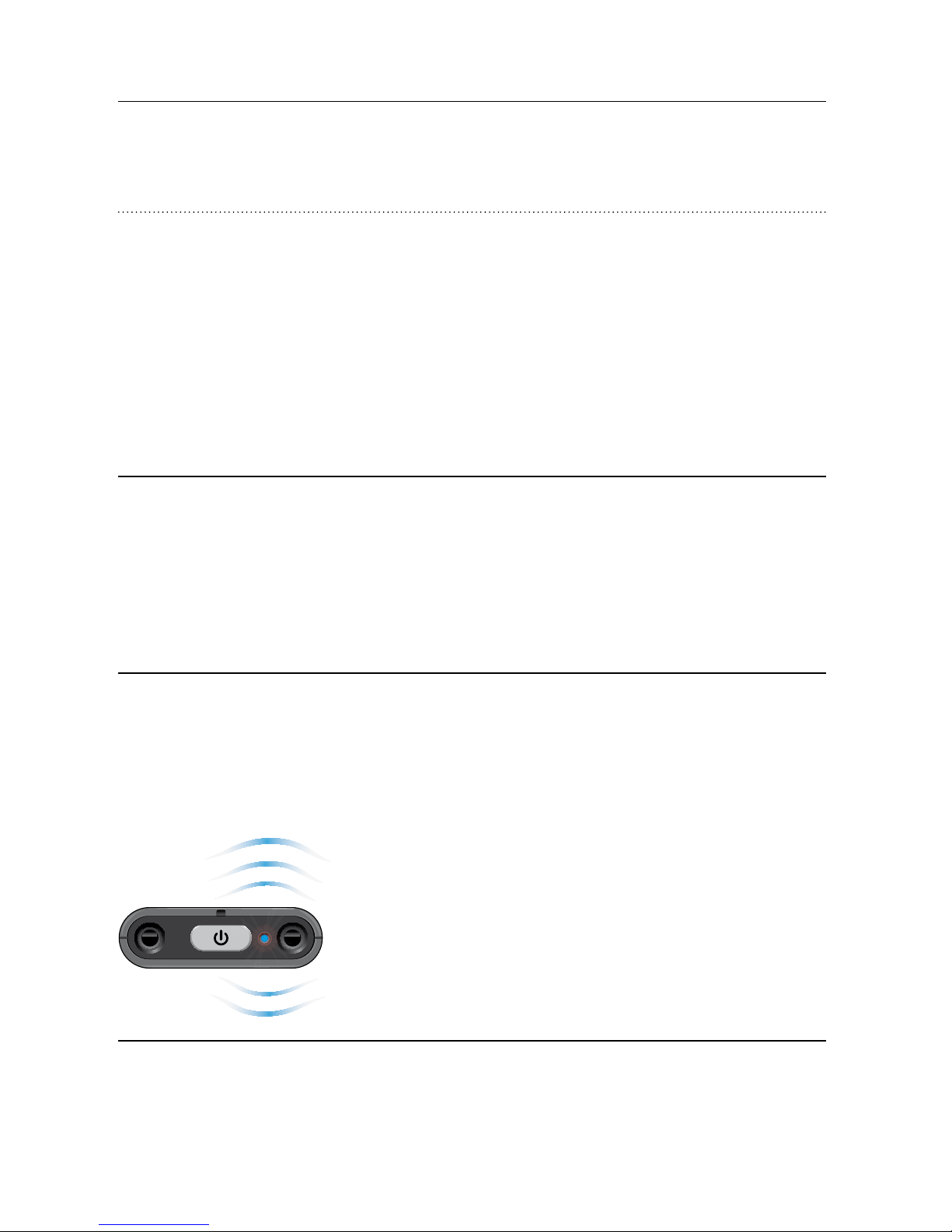
Press and hold the power key
for approximately 5 – 6 seconds until
the LED indicator flashes rapidly
blue.
Pairing mode will be active
for 2 minutes and may be cancelled
by pressing the power key for
3 seconds.
Page 29

29
soundgate 2 · user guide
Activate
pairing on
the Bluetooth®
device
When your Bluetooth® device
searches for and locates the
SoundGate 2, “SoundGate 2” will
appear in the device display.
Select the SoundGate 2 from
your device menu and when
prompted to enter a pin code,
enter “0000”.
Some devices may require you
to select “Connect” in the display
menu. Please refer to the manual
of your Bluetooth® device for its
specific instructions.
The SoundGate 2 is capable of storing up to 8 paired
devices at the same time. When the maximum number
of paired devices is reached, the SoundGate 2 will begin
to overwrite the oldest pairings.
If you would like to clear all previously paired devices,
press and hold the volume up key and power key
at the same time for more than 5 seconds.
Page 30

30
sonic · soundgate 2
Connecting to paired Bluetooth® devices
When the SoundGate 2 has been paired and is within
range of a Bluetooth® device, the devices will
automatically locate each other. Use the appropriate
button on your SoundGate 2 to activate whichever
Bluetooth® source you wish to listen to.
Page 31
31
soundgate 2 · user guide
Using with a Mobile Phone
Your SoundGate 2 provides a Bluetooth® link between
your hearing instrument(s) and your mobile phone
to act like a wireless headset. You should wear
SoundGate 2 with the neck strap at all times when
using with a mobile phone. Once you have paired
your mobile phone to the SoundGate 2 as instructed
above, the phone will automatically indicate that
a Bluetooth® connection is active.
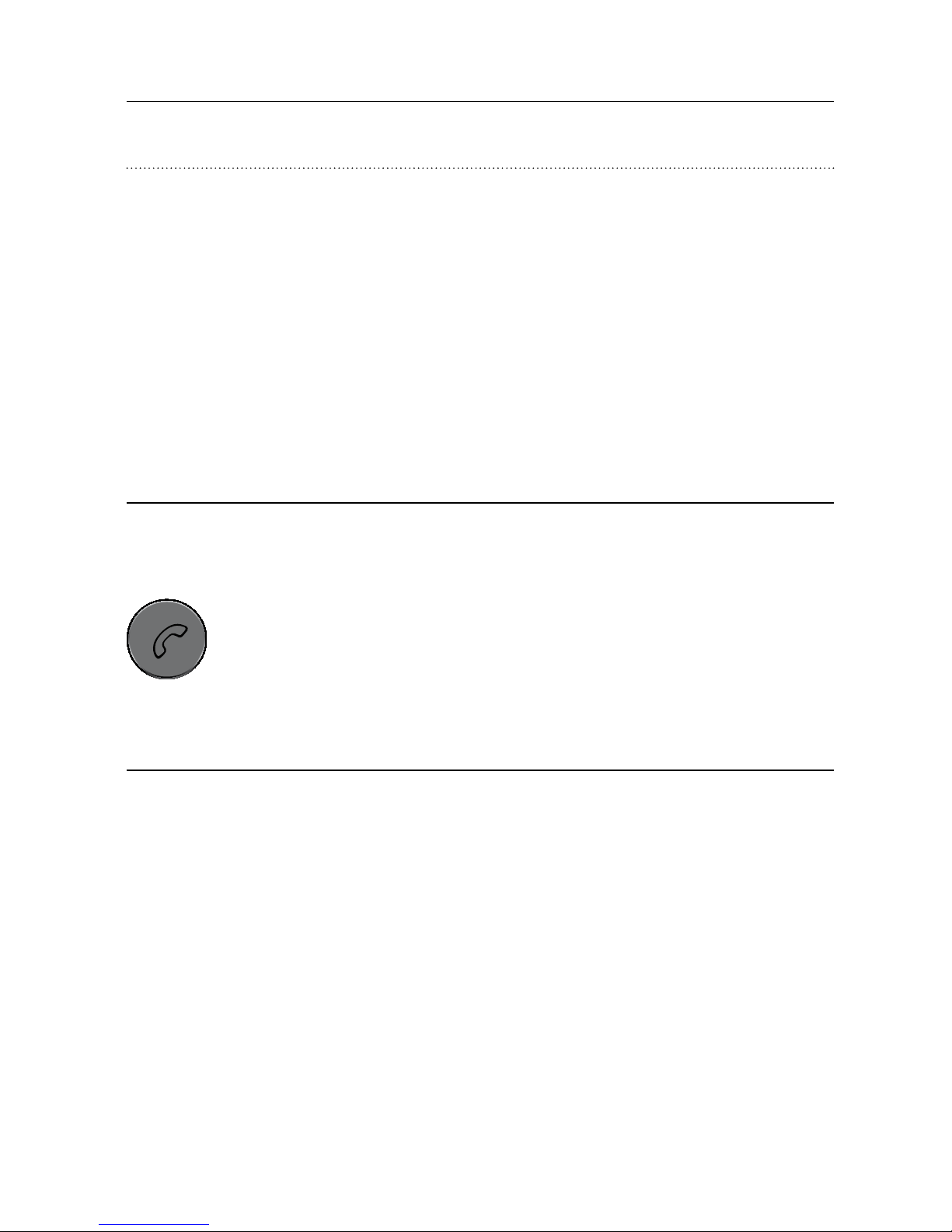
Make an outgoing
phone call
When connected via Bluetooth®
to your SoundGate 2, calls
made by your mobile phone will
automatically be transmitted
to your hearing instrument(s).
You do not need to operate
the SoundGate 2.
Page 32
32
sonic · soundgate 2
Answer
an incoming
phone call
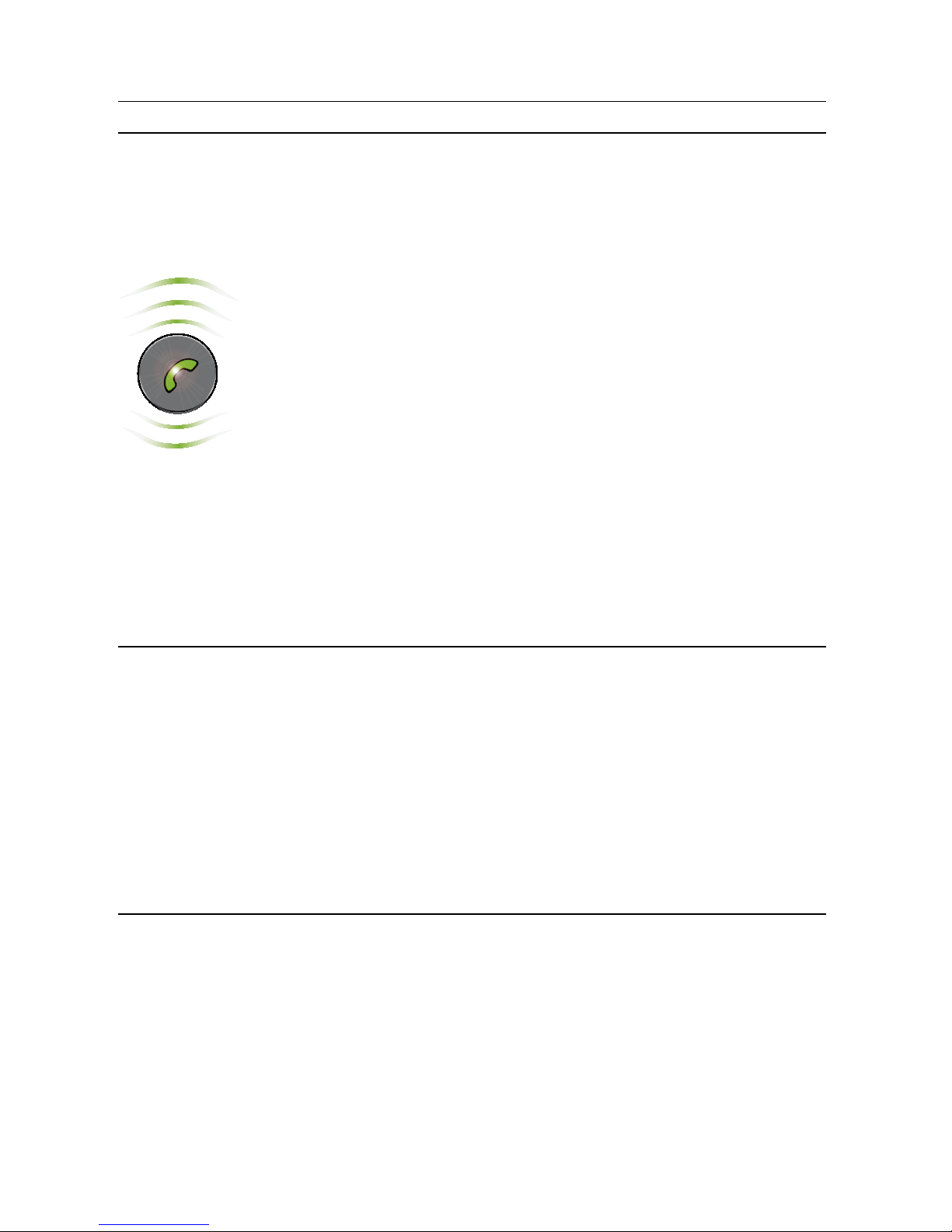
You will hear a ringing tone
in your hearing instruments
when you receive phone calls
to your Bluetooth®-connected
mobile phone. The phone key
on your SoundGate 2 will
also flash rapidly green.
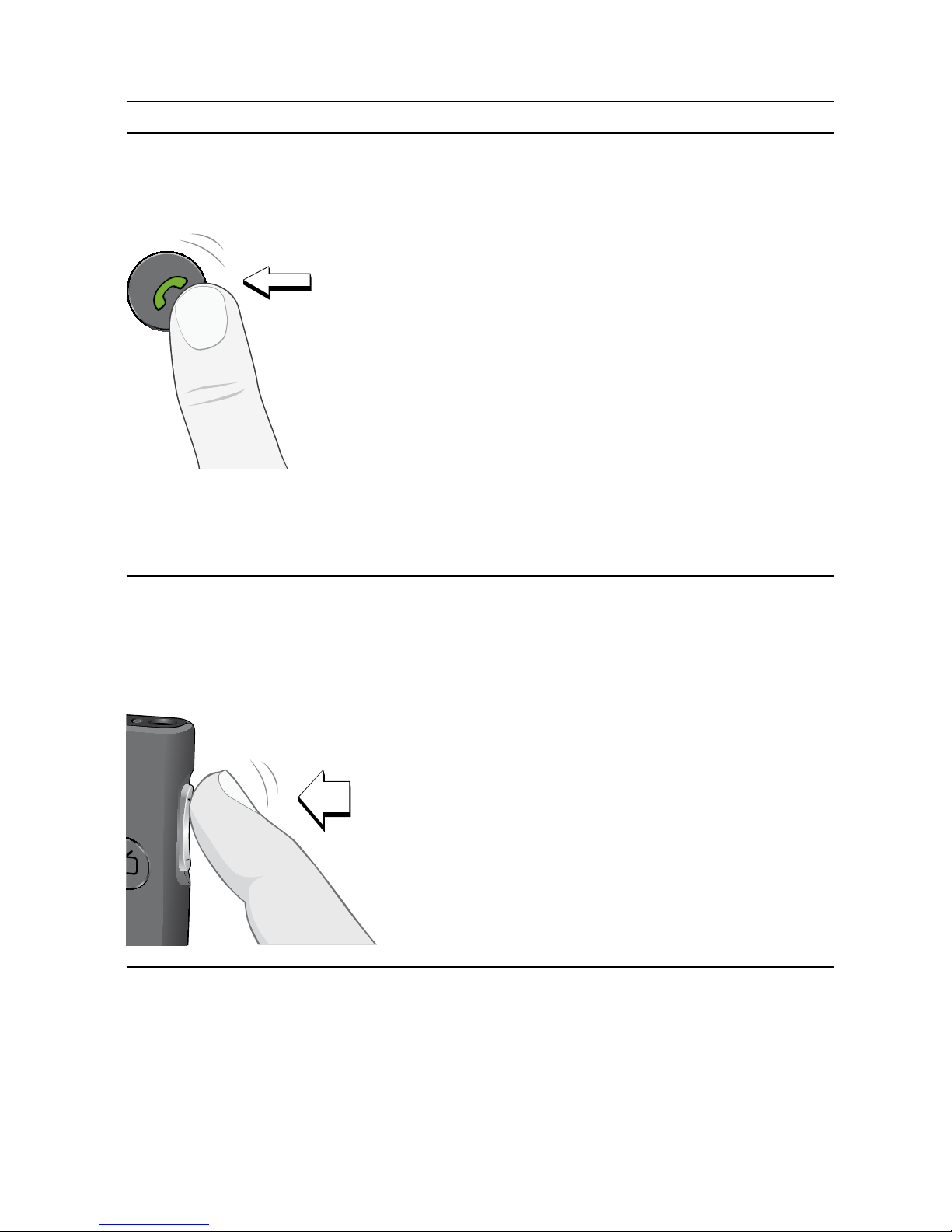
A short press to the
SoundGate 2 phone key
will accept the incoming call.
The phone key will remain
illuminated green as long
as the call is active.
While talking Speak into the microphone
of the SoundGate 2
(optimal distance between
your mouth and the
SoundGate 2 microphone
is approximately
12 inches/30 cm).
Page 33
33
soundgate 2 · user guide
Transfer a call back
to the mobile phone
When in a call, press and hold
the SoundGate 2 Phone key
for 2 – 3 seconds to transfer
control of the call back to the
mobile phone. A subsequent
2 – 3 second press will return
control to the SoundGate 2.
Such call transfers typically
must also be acknowledged/
accepted on the connected
mobile phone.
Mute hearing
instrument
microphones
2 sec.
If distracted by background
noise during a mobile phone
call, you may press and hold
the volume up or down key
for 2 – 3 seconds to mute
your hearing instrument
microphones.
Page 34
34
sonic · soundgate 2
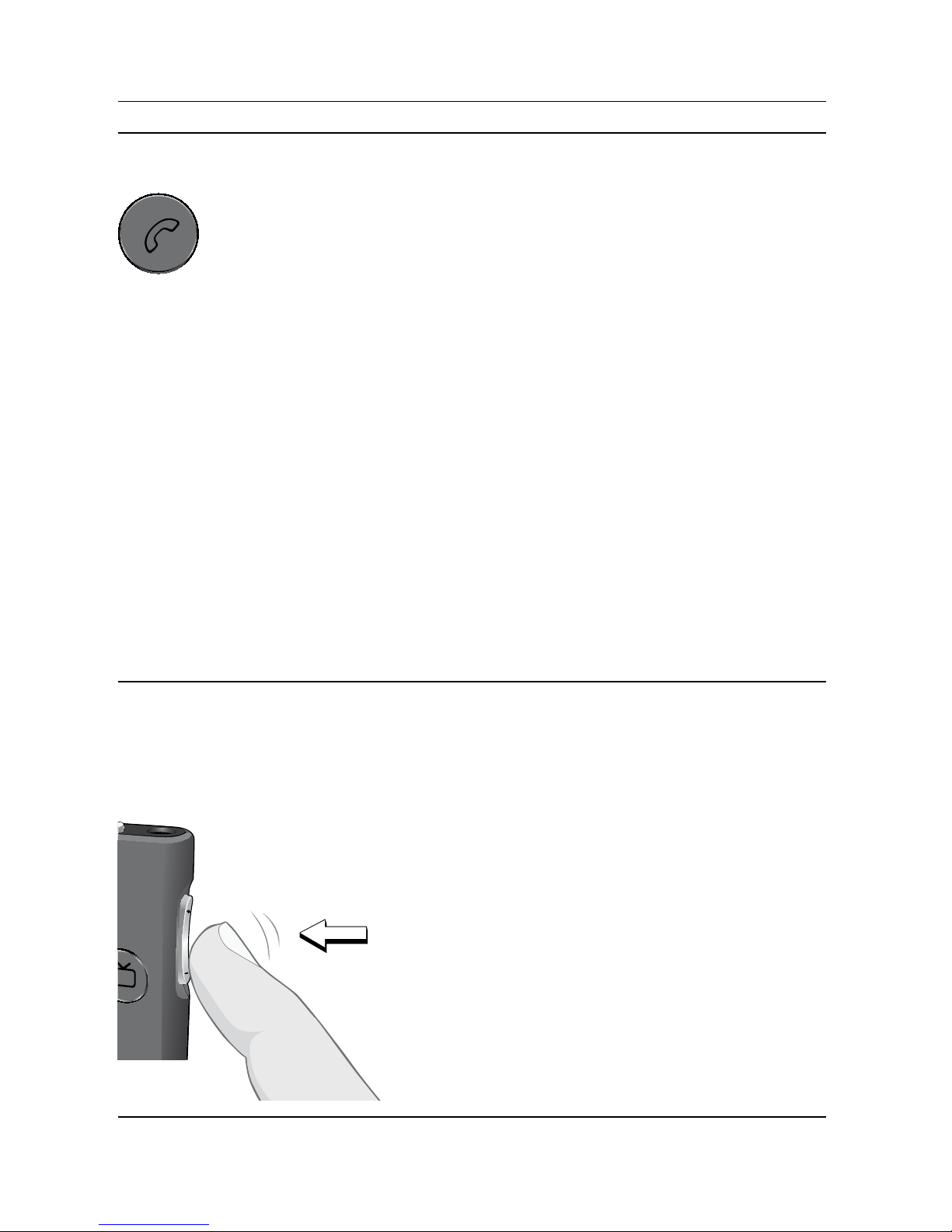
End a phone call
When a phone call is
complete, a short press on
the SoundGate 2 phone key
will terminate the call.
The previous listening
program or streaming state
will resume.
You may also end the call from
your mobile phone or wait
for the person on the other
end to terminate the call.
The previous listening program
or streaming state will also
resume in this case.
Reject an
incoming
phone call
A short press on the
SoundGate 2 volume down key
will reject an incoming call
and the current listening
program or streaming state
will resume.
Page 35
35
soundgate 2 · user guide
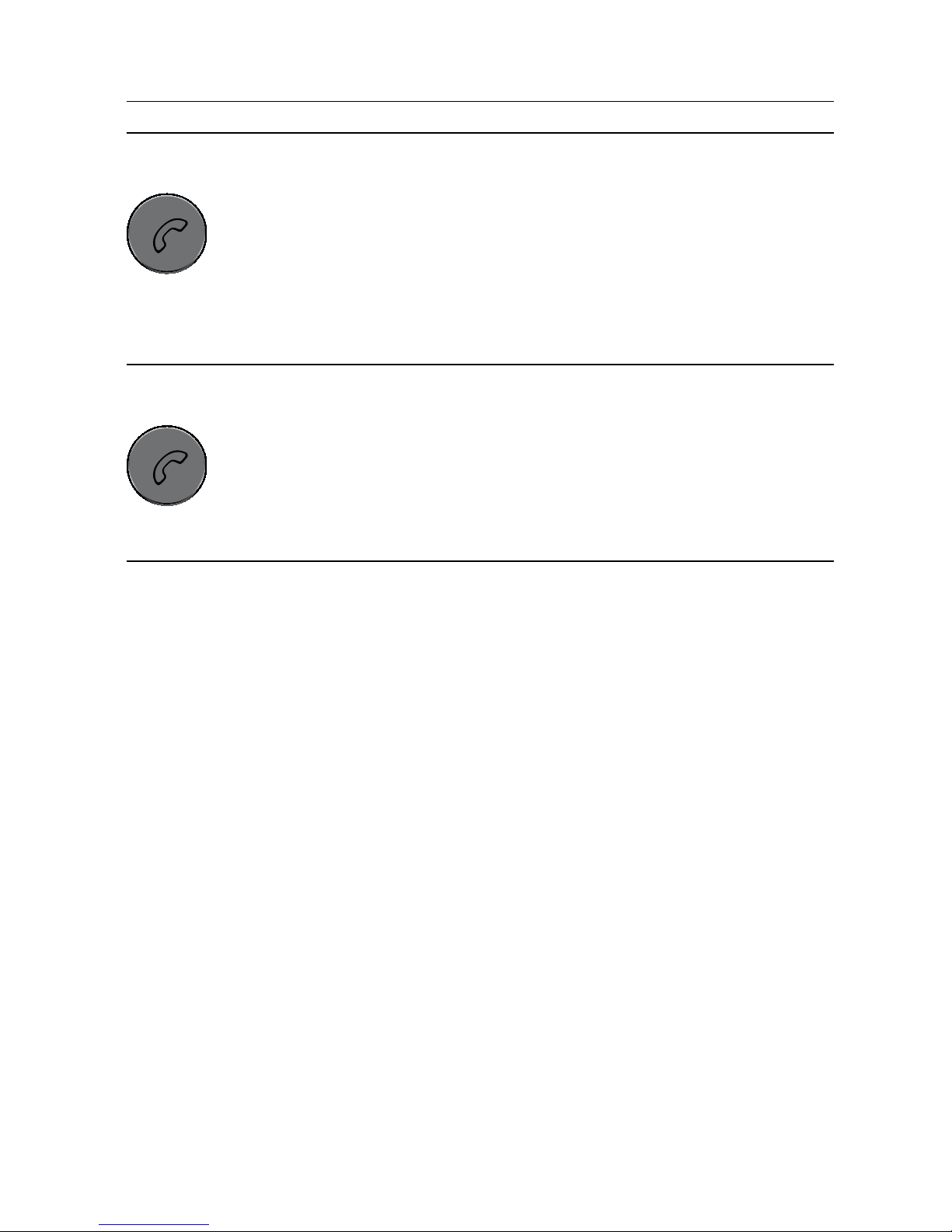
Last call return
To automatically prompt a call
to the last number dialed
from your paired Bluetooth®
mobile phone, press and hold
the SoundGate 2 phone key
for 2 – 3 seconds.
Voice dialing
For connected mobile phones
which support voice dialing,
a short press on the
SoundGate 2 phone key will
enable the voice dial function.
Page 36

36
sonic · soundgate 2
Using with an MP3 Player or Computer
The SoundGate 2 can be used to connect to audio
sources such as MP3 players or personal computers
either:
· Via a wireless Bluetooth
®
connection, or
· Via a wired cable connection
Wireless connection
To hear music or audio wirelessly from, for example,
an MP3 player or computer with built-in Bluetooth
®
,
make sure the device has been paired to your
SoundGate 2 (pages 28 to 30), that both devices
are powered on, and are within range of each
the other (< 33 feet / 10 meters).
Page 37
37
soundgate 2 · user guide
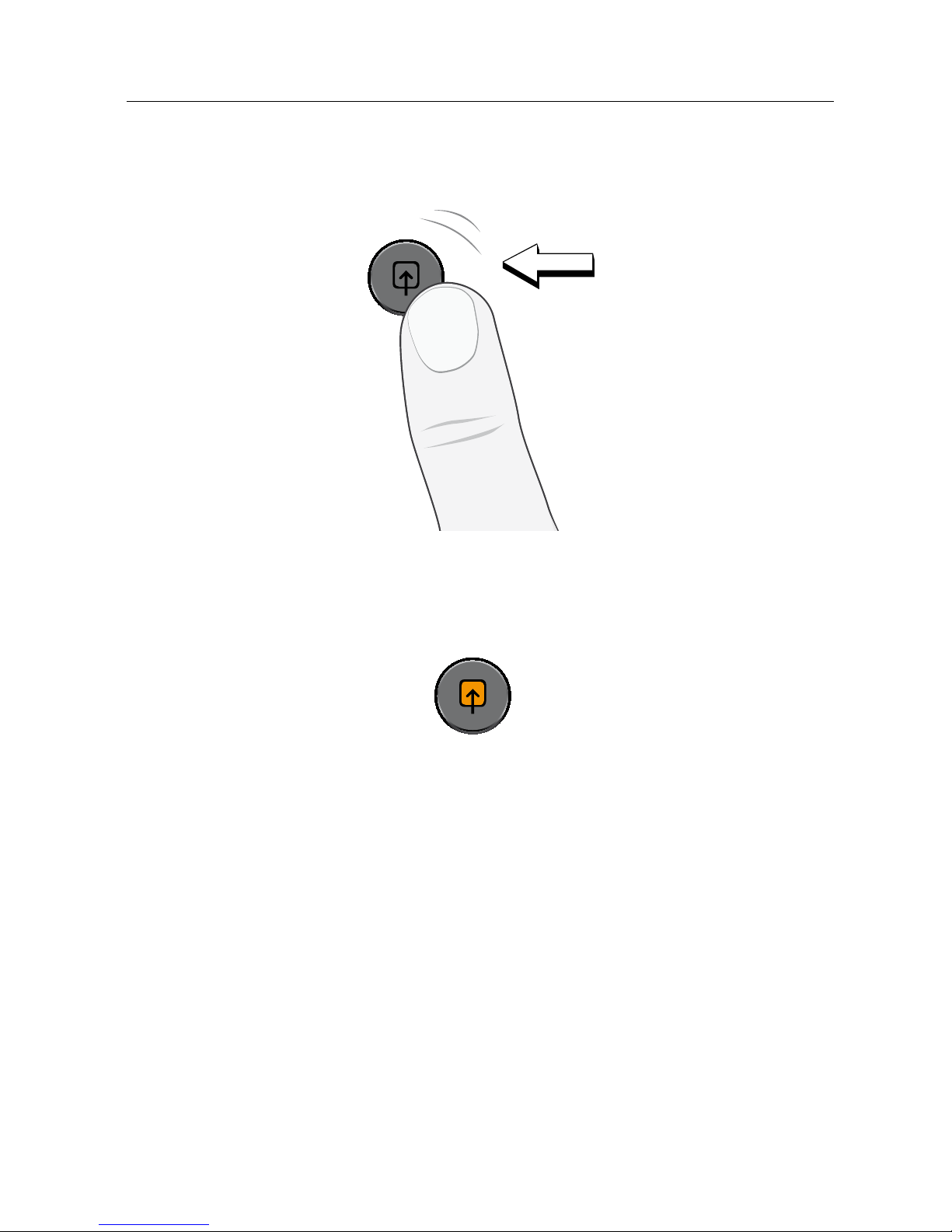
Begin audio streaming by giving a short press to
the SoundGate 2 auxiliary input key.
When audio streaming is active, the auxiliary input key
will illuminate orange.
To end listening through the wireless source and
resume the previous listening program or streaming
state, give another short press to the auxiliary input
key.
Page 38

38
sonic · soundgate 2
Wired Connection
The SoundGate 2 can also be used with a wide range
of audio devices via a wired connection.
Plug one end of the 3.5 mm stereo cable included
with your SoundGate 2, into the appropriate 3.5 mm
headset jack of the MP3, computer or audio source
of choice. Plug the opposite end into the 3.5 mm
auxiliary input jack of the SoundGate 2.
Ensure the music or audio source in your device
is playing and un-muted, and give a short press
to the SoundGate 2 auxiliary input key to begin
listening.
To end listening through the wired source and resume
the previous listening program or streaming state,
give another short press to the auxiliary input key.
Page 39

39
soundgate 2 · user guide
Note!
The SoundGate 2 has been linked to your
hearing instrument(s) by your hearing
care provider. The hearing instrument(s)
will only accept remote control commands
and audio streaming from the SoundGate 2
to which they are linked. This ensures that
other hearing instruments cannot intercept
phone calls or other audio from your
SoundGate 2.
Audio streaming is one-way communication
from the SoundGate 2 to the hearing
instrument(s). When audio streaming is
stopped, the SoundGate 2 instructs the hearing
instruments to release the controls and
resume normal operation.
Page 40

40
sonic · soundgate 2
Using the Telecoil
The SoundGate 2 has a built-in induction loop receiver,
which can be used to pick up audio information from
auditoriums, churches or public buildings which have
an installed audio loop.
If you are unsure if a location has an audio loop
installed, look for the universal symbol below.
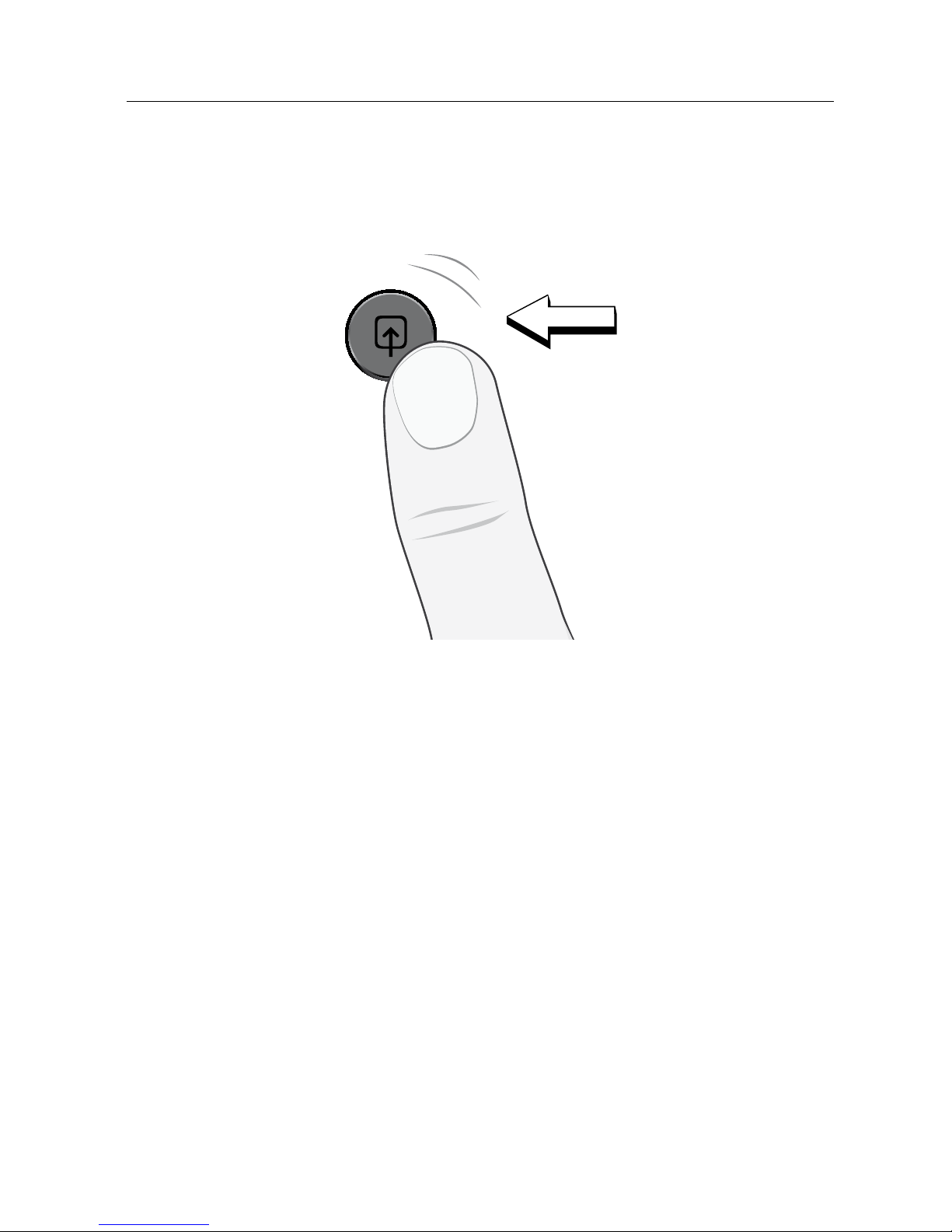
To activate and begin listening via an installed
audio loop, press and hold the SoundGate 2
auxiliary input key for 2 – 3 seconds.
Page 41
41
soundgate 2 · user guide
To end listening through the looped source and resume
the previous listening program or streaming state, give
another 2 – 3 second press to the auxiliary input key.
Page 42

42
sonic · soundgate 2
SoundGate 2 Wireless Range
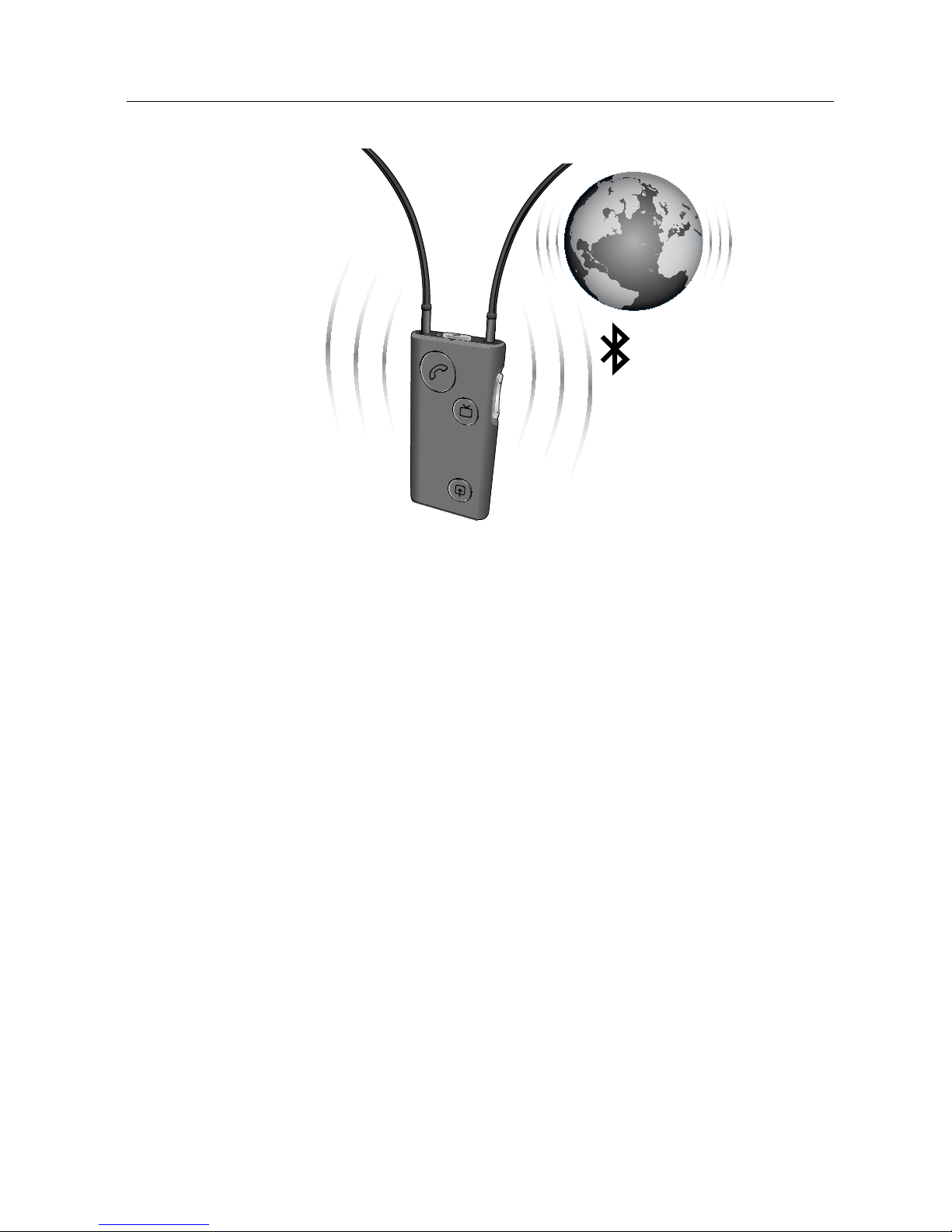
External audio device SoundGate 2 (Bluetooth®)
The SoundGate 2 has a built-in Bluetooth® receiver,
which is used to receive audio signals from external
communication devices that also use Bluetooth®.
Mobile phones, wireless headsets and laptop
computers are all among the devices you may wish
to stream audio from. See pages 28 to 30 of this
manual for step-by-step instructions to pair your
SoundGate 2 to a specific Bluetooth®-enabled device.
In order to pair to or stream audio information
from an external Bluetooth®-enabled device, it is
recommended to keep your SoundGate 2 within
a range of approximately 33 feet (10 meters). This
range may be affected by objects between the
SoundGate 2 and the connected Bluetooth® source.
This range may also be affected by the quality
of the other device’s antenna.
Page 43
43
soundgate 2 · user guide
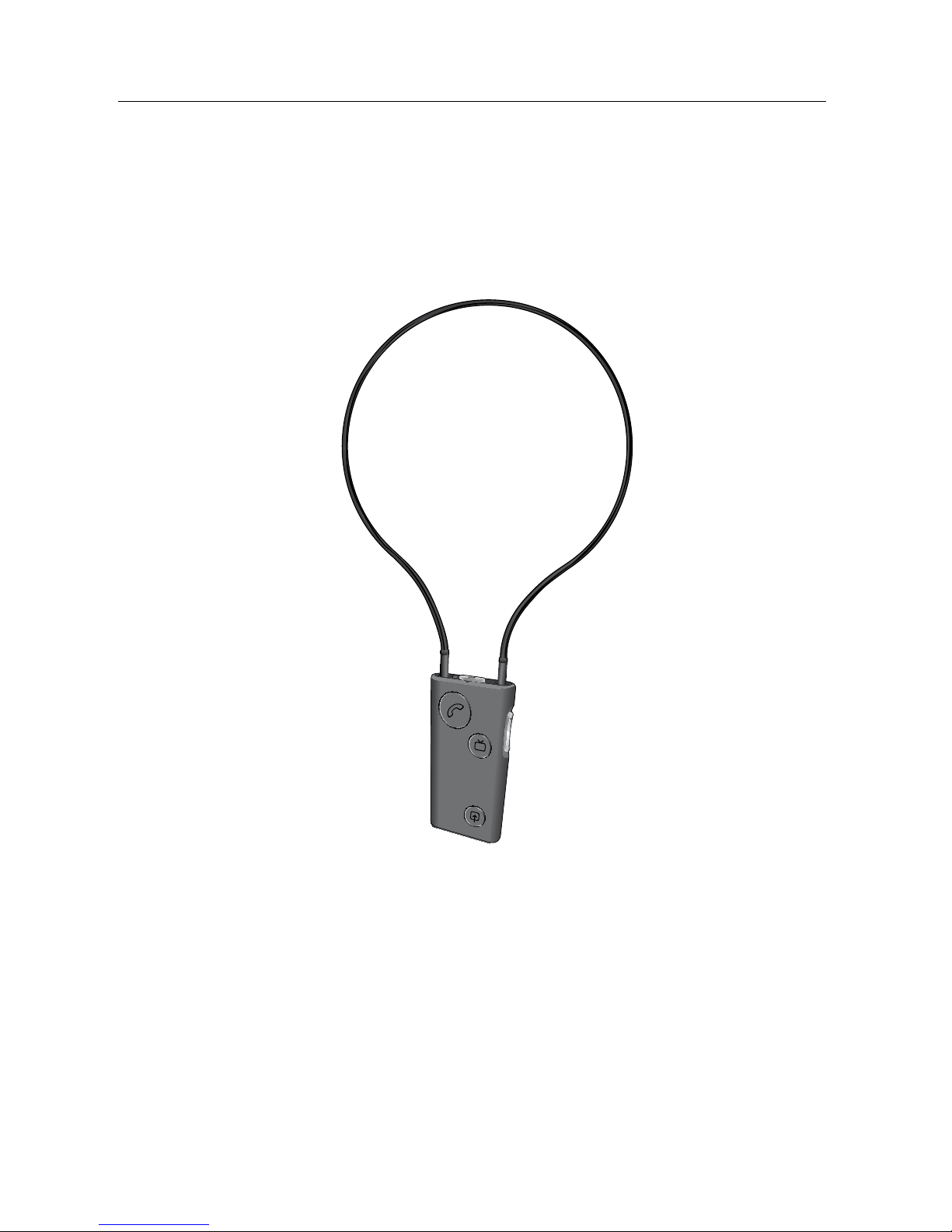
SoundGate 2 hearing instrument range
The SoundGate 2 has a built-in wireless transmitter,
which automatically streams audio information to your
hearing instrument(s).
In order to stream information without interruption,
it is recommended to keep your SoundGate 2 unit
and your hearing instrument(s) within a range of
approximately 40 inches (1 meter). This range could
be reduced by metal objects and/or strong magnetic
fields.
Page 44
44
sonic · soundgate 2
Always wear the neck strap antenna while streaming
audio from your SoundGate 2.
Page 45
45
soundgate 2 · user guide
Visual Indicators
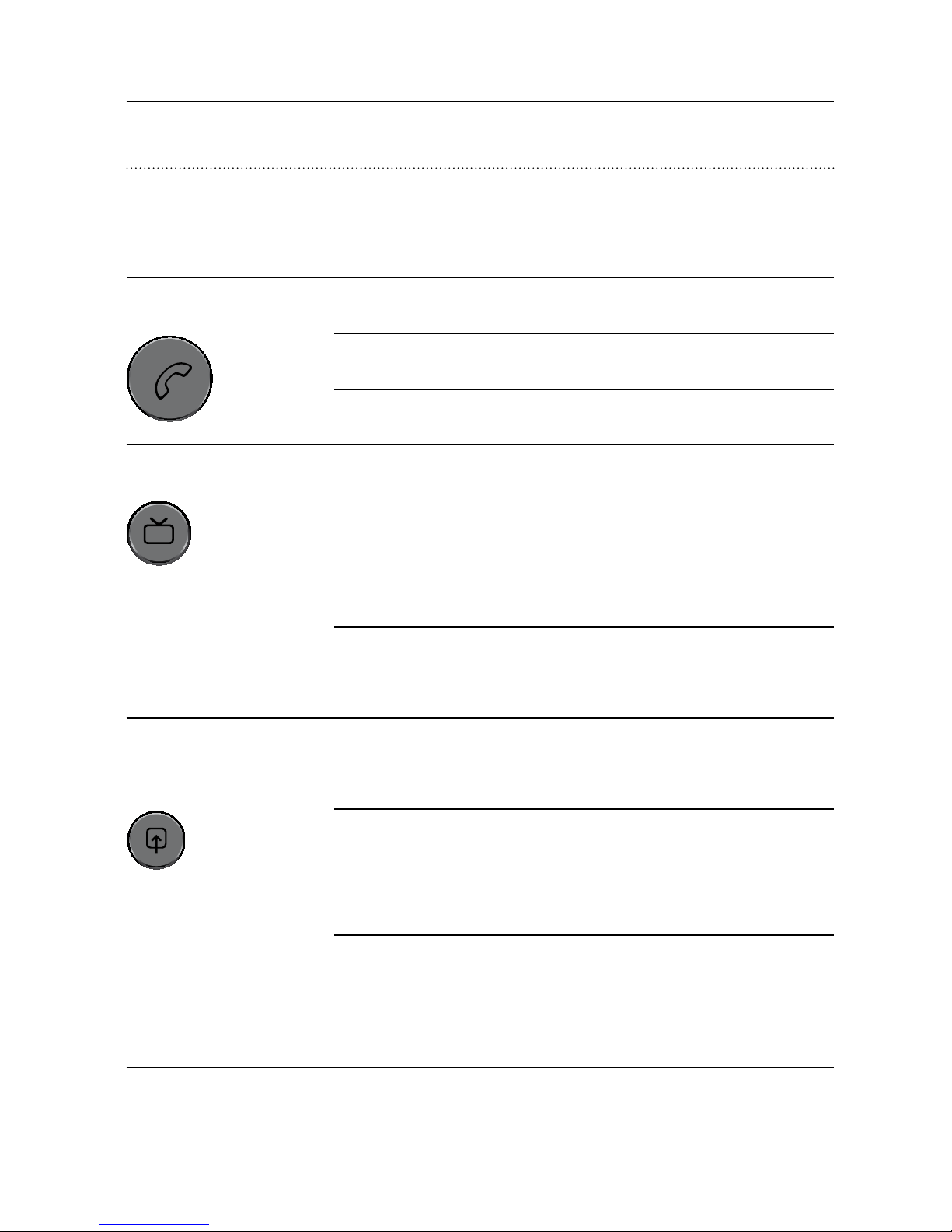
Light Action Status
Phone key
Blinking GREEN Phone ringing
Steady GREEN Active phone call
No light No active calls
TV key
Blinking
ORANGE
Pairing to TV
Adapter
Steady
ORANGE
Active streaming TV
Adapter
No light No streaming
TV Adapter
Auxiliary
input key
Fading
ORANGE
(Paired) Auxiliary
source available
Steady
ORANGE
Active streaming
Auxiliary
source, T-coil
No light No streaming
Auxiliary source,
T-coil
Page 46
46
sonic · soundgate 2
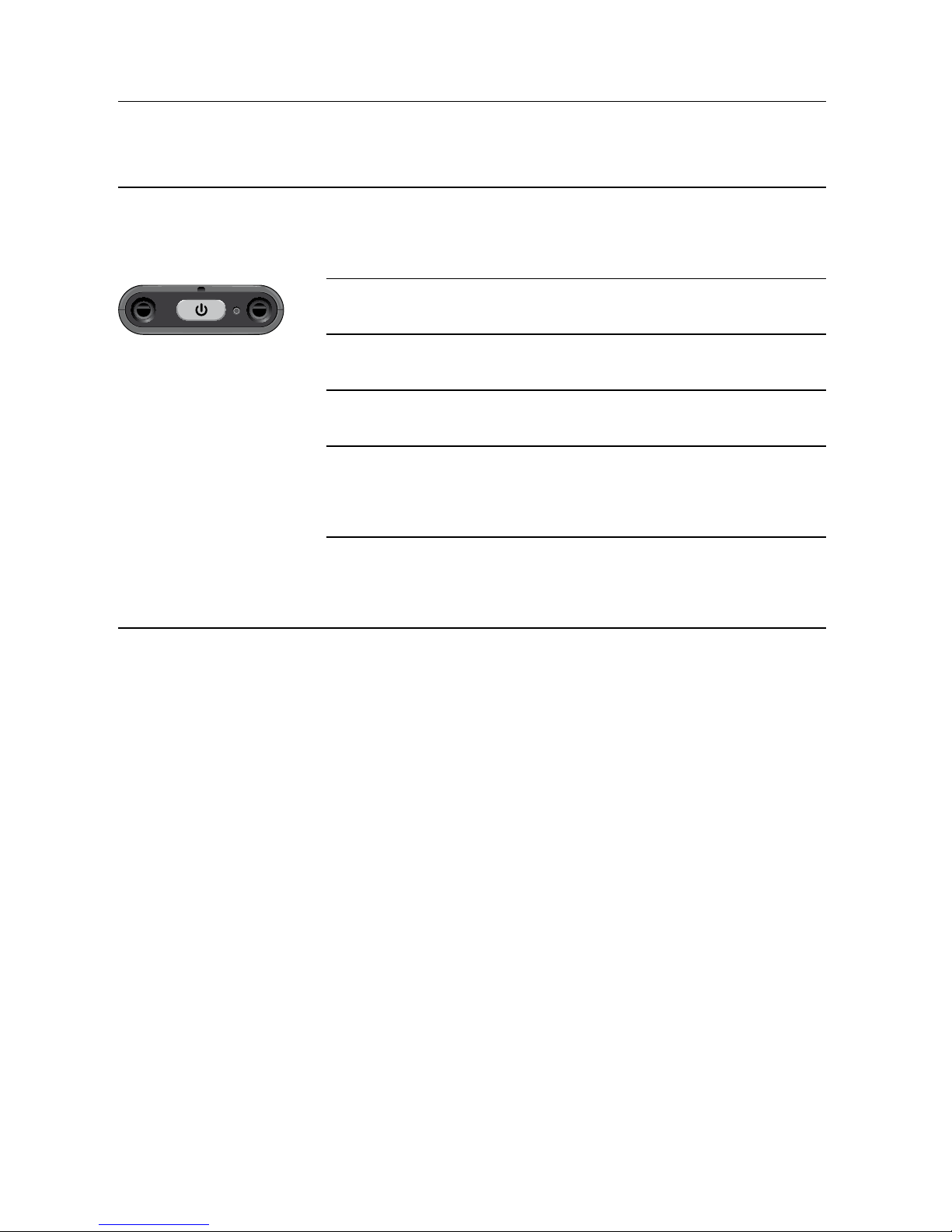
Light Action Status
LED
indicator
Blinking BLUE Bluetooth® pairing
mode
Steady GREEN Battery OK
Blinking GREEN Battery charging
Steady RED Battery is low
Blinking RED Battery is
critically low
No light SoundGate 2
is OFF
Page 47

47
soundgate 2 · user guide
Notes
Page 48

48
sonic · soundgate 2
Pairing Problem Solution
SoundGate 2 will not
enter Bluetooth®
pairing mode
The SoundGate 2 is powered OFF Turn the SoundGate 2 ON
The SoundGate 2 battery
is critically low
Recharge the SoundGate 2 battery
My Bluetooth®
device is not
locating the
SoundGate 2
The SoundGate 2 is out
of range
Ensure the paired SoundGate 2 and Bluetooth
are within 33 feet (10 meters) of each other
The SoundGate 2 is already
connected and within range of
another active Bluetooth® device
Turn OFF any active Bluetooth
have previously been paired to the SoundGate 2
Pairing was
unsuccessful
The SoundGate 2 and/or
Bluetooth® device was
not in pairing mode when
attempting to pair
Ensure the SoundGate 2 and Bluetooth
are actively in their pairing states when repeating
the pairing process. Press and hold the SoundGate 2
power key for approximately 5 – 6 seconds until
the LED indicator flashes rapidly blue. The
SoundGate 2 pairing mode is active for 2 minutes.
The incorrect passcode
was entered
Repeat the pairing process and enter the
password: 0000 (four zeros) into the Bluetooth
Troubleshooting
Page 49

49
soundgate 2 · user guide
Recharge the SoundGate 2 battery
Ensure the paired SoundGate 2 and Bluetooth® device
are within 33 feet (10 meters) of each other
Turn OFF any active Bluetooth® devices which
have previously been paired to the SoundGate 2
Ensure the SoundGate 2 and Bluetooth® device
are actively in their pairing states when repeating
the pairing process. Press and hold the SoundGate 2
power key for approximately 5 – 6 seconds until
the LED indicator flashes rapidly blue. The
SoundGate 2 pairing mode is active for 2 minutes.
Repeat the pairing process and enter the
password: 0000 (four zeros) into the Bluetooth® device
Page 50

50
sonic · soundgate 2
Phone Problem Solution
The SoundGate 2
phone key does not
blink when the
phone is ringing,
and there is no
ringing indication
in the hearing
instruments
The SoundGate 2 and phone
are not paired to each other
Pair the SoundGate 2 and selected Bluetooth
(see pages 28 to30)
The Bluetooth® function and/or
power are turned OFF on the
SoundGate 2 or Bluetooth®
phone
Ensure the SoundGate 2 and Bluetooth
are powered ON. Refer to the manual of your
Bluetooth
is active.
The SoundGate 2 battery
is critically low
Recharge the SoundGate 2 battery
The SoundGate 2
phone key is blinking
when the phone is
ringing but I hear no
ringing indication in
my hearing instruments
The SoundGate 2 is out of range Ensure the SoundGate 2 is kept within 20 inches (50 cm)
of the hearing instruments. For optimum performance
always use the neck strap antenna
The audio in my
hearing instruments
drops out
The SoundGate 2 is out
of Bluetooth® range
Ensure the SoundGate 2 and Bluetooth
within the recommended 33 feet (10 meters) of each
other
The neck strap antenna is not
mounted to the SoundGate 2
While streaming, it is recommended to use
the neck strap antenna to prevent drop outs
Page 51

51
soundgate 2 · user guide
Pair the SoundGate 2 and selected Bluetooth® phone
(see pages 28 to30)
Ensure the SoundGate 2 and Bluetooth® phone
are powered ON. Refer to the manual of your
Bluetooth® phone to ensure Bluetooth® function
is active.
Recharge the SoundGate 2 battery
of the hearing instruments. For optimum performance
always use the neck strap antenna
Ensure the SoundGate 2 and Bluetooth® phone are
within the recommended 33 feet (10 meters) of each
other
While streaming, it is recommended to use
the neck strap antenna to prevent drop outs
Page 52

52
sonic · soundgate 2
Phone Problem Solution
The other party
has difficulty
hearing my voice
on the phone
The SoundGate 2 microphone
is not picking up your voice
clearly
Ensure the SoundGate 2 microphone is positioned
within 12 inches / 30 cm of your mouth during
phone conversation
I have difficulty
understanding
the other party
when I am in noisy
environments
Environmental sounds
interfere with speech
understanding
Press and hold the volume up or down key
for 2 – 3 seconds to mute the hearing instrument
microphones.
Caution: Do not mute the hearing instrument
microphones in listening situations that require
your better hearing, e.g., traffic.
Volume is insufficient Adjust the volume on your SoundGate 2 device
to a sufficient volume to improve understanding
I hear beeps in
my hearing
instruments
when operating
my mobile phone
The key press feature is
activated in your mobile phone
Refer to the manual of your phone to deactivate the
key press tone feature
Page 53

53
soundgate 2 · user guide
Ensure the SoundGate 2 microphone is positioned
within 12 inches / 30 cm of your mouth during
phone conversation
Press and hold the volume up or down key
for 2 – 3 seconds to mute the hearing instrument
microphones.
Caution: Do not mute the hearing instrument
microphones in listening situations that require
your better hearing, e.g., traffic.
to a sufficient volume to improve understanding
Refer to the manual of your phone to deactivate the
key press tone feature
Page 54

54
sonic · soundgate 2
Wired audio Problem Solution
There is no audio
in the hearing
instruments
The audio source needs
to be turned on and connected
to the SoundGate 2
Verify that the audio source is powered ON and
the 3.5 mm jack stereo cable is completely connected
to both the SoundGate 2 and the selected device.
Refer to the wired connection steps on page 38 of
this manual.
Volume level
is too high
Volume needs to be adjusted on
the connected wired audio
source
Adjust the volume on the audio source to a level
that suits you
Charging Problem Solution
SoundGate 2 does
not work even while
charging
The battery is drained completely The SoundGate 2 battery must be charged for at least
20 minutes before it can operate. For optimal use,
avoid draining the battery completely.
Page 55

55
soundgate 2 · user guide
Verify that the audio source is powered ON and
the 3.5 mm jack stereo cable is completely connected
to both the SoundGate 2 and the selected device.
Refer to the wired connection steps on page 38 of
this manual.
Adjust the volume on the audio source to a level
that suits you
20 minutes before it can operate. For optimal use,
avoid draining the battery completely.
Page 56

56
sonic · soundgate 2
Maintenance
The SoundGate 2 requires a minimum amount of
regular maintenance to ensure proper function.
Wipe the SoundGate 2 daily with a dry or slightly
damp cloth to remove any debris from its surface.
The microphone opening and audio input ports must
be kept free of dirt and debris at all times. The small
cleaning brush for your hearing instrument(s) may
be used to clean these areas.
Do not submerge your SoundGate 2 or its neck strap
into water or other liquids at any time.
The SoundGate 2 is sealed and you should not attempt
to open it. If problems occur which cannot be solved
by the guidelines within this manual, you should
contact your hearing care provider.
Page 57

57
soundgate 2 · user guide
International Warranty
The Sonic SoundGate 2 has a limited warranty,
covering defects in materials and workmanship.
This warranty covers the SoundGate 2 itself, but not
accessories such as charger units, cable, etc.
This warranty becomes invalid if a defect is a result
of misuse or maltreatment.
This warranty is void if non-authorized personnel
have repaired the SoundGate 2. Please review the
warranty card with your hearing care provider
and make sure that your warranty card is completed.
In addition to the Bluetooth® transmitter, the
SoundGate 2 contains a radio transmitter using
short range magnetic induction technology
working at 3.84 MHz. The magnetic field strength
of the transmitter is < – 15 dBµA/m @ 10 m.
The emission power from the SoundGate 2 is below
international emission limits for Human Exposure.
For comparison, the radiation of the SoundGate 2
is less than unintended electromagnetic radiation
from hair dryers, electric shavers, etc.
The SoundGate 2 complies with the international
standards concerning electromagnetic compatibility.
Page 58

58
sonic · soundgate 2
Information to the User Regarding the Radio
Communication Part of the Device
Sonic Innovations, Inc.
SoundGate 2
FCC ID ZTOSGATE2
IC: 9799A-SGATE2
Statement of compliance:
This device complies with part 15 of the
FCC Rules and RSS-210 of Industry Canada.
Operation is subject to the following two conditions:
1. This device may not cause harmful interference, and
2. This device must accept any interference received,
including interference that may cause undesired
operation.
This Class B digital apparatus complies with Canadian
ICES-003.
Page 59

59
soundgate 2 · user guide
Note:
This equipment has been tested and found to comply
with the limits for a Class B digital device, pursuant
to part 15 of the FCC Rules.
These limits are designed to provide reasonable
protection against harmful interference in a residential
installation. This equipment generates uses and can
radiate radio frequency energy and, if not installed and
used in accordance with the instructions, may cause
harmful interference to radio communications.
However, there is no guarantee that interference will
not occur in a particular installation.
If this equipment does cause harmful interference
to radio or television reception, which can be
determined by turning the equipment off and on,
the user is encouraged to try to correct the interference by one or more of the following measures:
Reorient or relocate the receiving antenna
· Increase the separation between the equipment
and receiver
· Connect the equipment into an outlet on a circuit
different from that to which the receiver is
connected
· Consult the dealer or an experienced radio/TV
technician for help
Page 60

60
sonic · soundgate 2
Caution:
Changes or modifications not expressly approved by
Sonic Innovations, Inc. could void the user’s authority
to operate the equipment.
Page 61
61
soundgate 2 · user guide
Declaration of Conformity
This device is classified as accessory in Class I for
medical devices and is in conformance with the
essential requirements of the Directive 93/42/EEC
of the Council of the European Communities
concerning medical devices, MDD. The radio
communication part of the device complies with
the essential requirements of the Directive 1999/5/EC
of the European Parliament on radio equipment
and telecommunications terminal equipment, R&TTE.
This is certified by applying for the following marking:
0682
Page 62
62
sonic · soundgate 2
Information and Explanation of Symbols
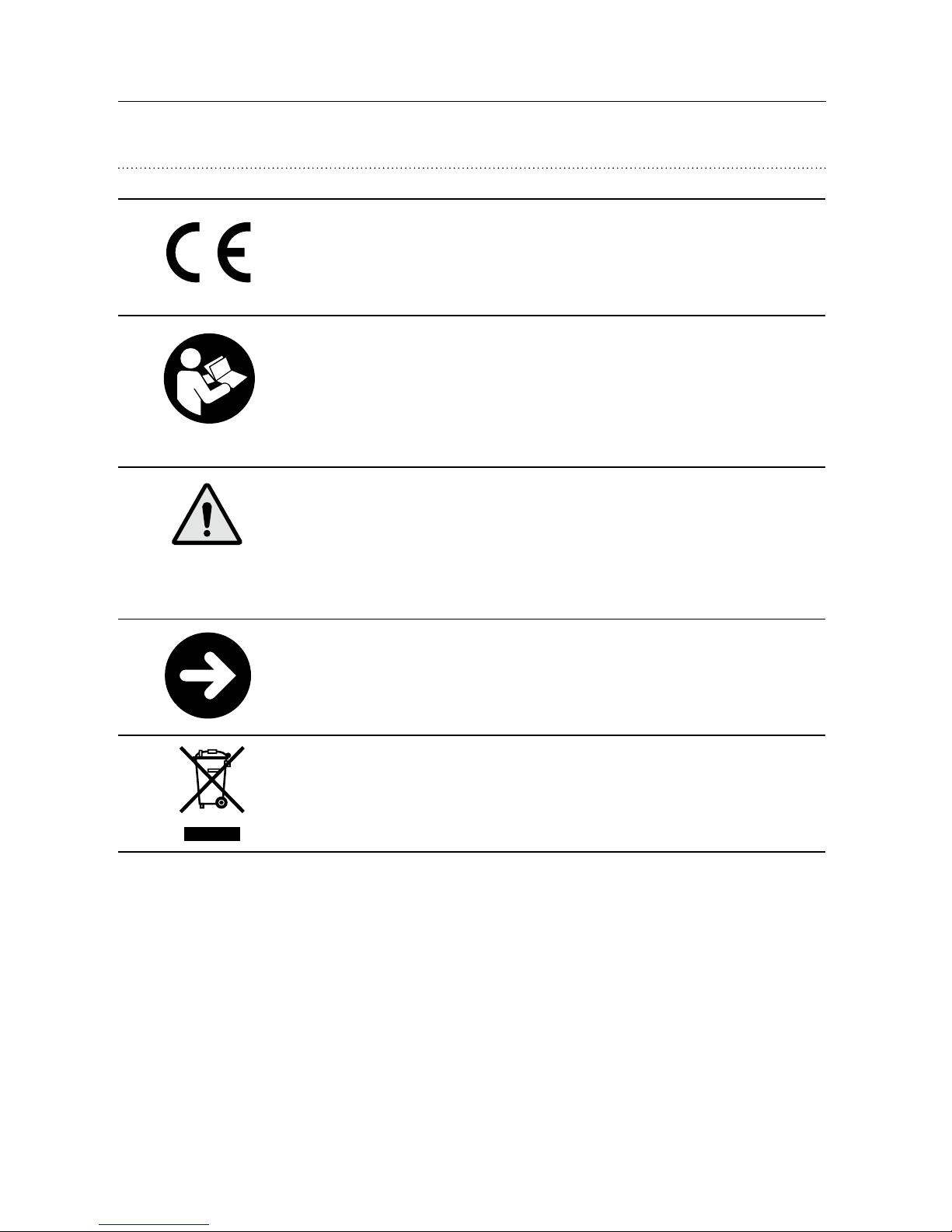
The CE conformity marking indicates
conformance to all applicable
European Directives
This symbol indicates that it is
important for the user to read and take
into account the relevant information
in these instructions for use
This sign indicates important safety
information that must be observed
to minimize risks or to avoid
hazardous situations
Important information for handling and
product safety
The crossed-out wheeled bin indicates
that the European Directive on waste of
electronic equipment applies
Page 63

63
soundgate 2 · user guide
Operating
conditions
The product is designed such that
it functions without problem
or restrictions if used as intended,
unless otherwise noted in these
instructions for use. The operating
temperature for the SoundGate 2
is 10°– 45° C.
Transport
and storage
conditions
During transport or storage,
the temperature should not exceed
the limit value of – 25°/60° C.
Page 64

64
sonic · soundgate 2
Service
If the information listed on the previous pages did not
solve a problem you are having with your SoundGate 2
device, please contact your hearing care provider.
Do not attempt to repair your SoundGate 2 device
yourself.
Place stamp with dispenser name and address here:
Page 65

65
SOUNDGATE 2 · USER GUIDE
Notes
Page 66

66
sonic · soundgate 2
Notes
137740 | UK
Page 67

Page 68
www.sonici.com
Canada
Sonic Innovations Canada Ltd.
2885-B le Corbusier Blvd
Laval, Québec H7L 4J5
+ 1 800 667 7664
Australia
Sonic Innovations Pty Ltd
Wholesale & Equipment Division
629 Nudgee Road
Nundah QLD 4012
+ 61 7 3250 0369
International
Sonic AG
Morgenstrasse 131B
3018 Bern, Switzerland
+ 41 31 560 21 21
World Headquarters
Sonic Innovations, Inc.
2501 Cottontail Lane
Somerset, NJ 08873 USA
+ 1 888 423 7834
02.14 | 137740 | UK
0000137740000001
 Loading...