

Page 1
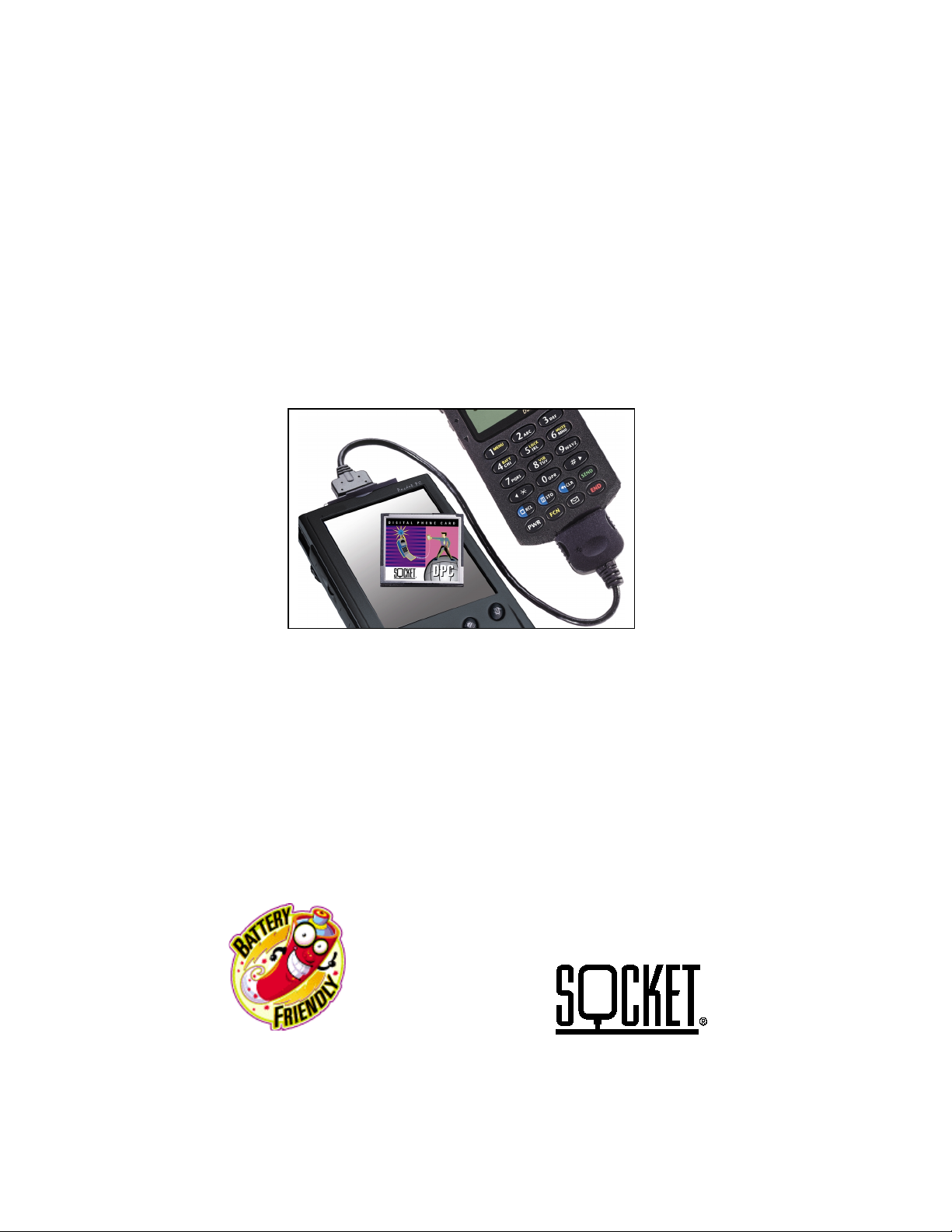
Mobile Email PocketPak™
User’s Guide
Featuring the Socket Digital Phone Card
for connecting Windows Powered Pocket PCs
to mobile phones
®
Page 2

Limited Warranty
Socket Communications, Incorporated (Socket) warrants this product against defects
in material and workmanship, under normal use and service, for the following
periods from the date of purchase:
CompactFlash card and non-removable cable: Lifetime
(Three years if not registered)
Incompatibility is not a defect covered by Socket’s warranty. During the warranty
period, Socket will, at its option, repair or replace the defective product at no charge
when furnished with proof of retail purchase, provided that you deliver the product
to Socket or to an authorized Socket Service Center.
The returned product must be accompanied by a return material authorization
(RMA) number, issued by Socket or an authorized Socket Service Center. If you
ship the product, you must use the original container or equivalent, and you must
pay the shipping charges to Socket. Socket will pay shipping charges back to any
location in the contiguous United States. This warranty applies only to the original
retail purchaser and is not transferable.
Socket may, at its option, replace or repair the product with new or reconditioned
parts, or refund to Customer the purchase price paid for the defective product, and
the returned product becomes Socket's property. Socket warrants the repaired or
replaced products to be free from defects in material or workmanship for ninety (90)
days after the return shipping date, or for the duration of the original warranty
period, whichever is greater.
This warranty does not cover the replacement of products damaged by abuse,
accident, misuse or misapplication, nor as a result of service or modification other
than by Socket.
SOCKET IS NOT RESPONSIBLE FOR INCIDENTAL OR CONSEQUENTIAL
DAMAGES RESULTING FROM BREACH OF ANY EXPRESS OR IMPLIED
WARRANTY, INCLUDING DAMAGE TO PROPERTY AND, TO THE EXTENT
PERMITTED BY LAW, DAMAGES FOR PERSONAL INJURY. THIS
WARRANTY IS IN LIEU OF ALL OTHER WARRANTIES INCLUDING
IMPLIED WARRANTIES OF MERCHANTABILITY AND FITNESS FOR A
PARTICULAR PURPOSE.
Some states do not allow limitation of implied warranties, or the exclusion or
limitation of incidental or consequential damages, so that the above limitations or
exclusions may not apply to you. This warranty gives you specific legal rights and
you may also have other rights which vary from state to state.
This product may contain fully tested, recycled parts, warranted as if new.
For warranty information, phone (510) 744-2700.
To register your product online, please visit:
www.socketcom.com/prodreg.html
Page 3

October 2000 Document # 6410-00160 A
Copyright Notice
Copyright © 2000 Socket Communications, Inc. All rights reserved.
Socket and the Socket logo are registered trademarks of Socket
Communications, Inc. Socket Communications, Socket Mobile Email
PocketPak, Socket Digital Phone Card, and Battery Friendly are trademarks
of Socket Communications, Inc. All other brand and product names are
trademarks of their respective holders.
The Digital Phone Card includes technology licensed under United States
Patent Nos. 4,543,450, 4,603,320, 4,686,506, and 4,972,470.
Reproduction of the contents of this manual without the permission of
Socket Communications is expressly prohibited. Please be aware that the
products described in this manual may change without notice.
This manual has been prepared with the greatest care regarding its contents.
However, in the event that it contains omissions, errors or any other
misinformation, please contact SOCKET COMMUNICATIONS at:
Socket Communications, Inc.
37400 Central Court
Newark, CA 94560
Call Socket Communications at (510) 744-2700, or FAX (510) 744-2727.
If you have technical questions, call Socket’s technical support department
at: (510) 744-2720. But before calling for technical support, please prepare
yourself with the information listed in Appendix E, “Need More Help?”
Other than the above, Socket Communications can assume no responsibility
for anything resulting from the application of information contained in this
manual.
Socket Communications requests that you refrain from any applications of
the Socket Digital Phone Card that are not described in this manual.
Please refrain from disassembling the Digital Phone Card. Disassembly of
this device will void the product warranty.
For new product information, software updates and technical bulletins,
please visit Socket’s web page at:
www.socketcom.com/phone.htm
Page 4

Regulatory Compliance
This equipment has been tested and found to comply with the limits for a
Class B digital device, pursuant to Part 15 of the FCC rules. This equipment
is also CE EN55022 and C-TICK compliant. These limits are designed to
provide reasonable protection against harmful interference when the
equipment is operated in a commercial environment.
This equipment generates, uses, and can radiate radio frequency energy and,
if not installed and used in accordance with the instruction manual, may
cause harmful interference to radio communications. Operation of this
equipment in a residential area is likely to cause harmful interference in
which case the user will be required to correct the interference at his or her
own expense.
If this equipment does cause harmful interference to radio or television
reception, which can be determined by turning the equipment off and on, the
user may try to correct the interference by one or more of the following
measures:
• Reorient or relocate the receiving antenna of the radio or television.
• Increase the distance separating the equipment and the receiver.
• Connect the equipment to an outlet on a different branch circuit than
that of the receiver.
• Consult the dealer or an experienced radio/TV technician for help.
The user may find the following booklet helpful:
How to Identify and Resolve Radio-TV Interference Problems
This booklet is available from the U.S. Government Printing Office,
Washington, D.C. 20402.
Page 5

How this Manual is Organized
This manual is designed to help you install and operate the Socket Mobile
Email PocketPak, which features the Socket Digital Phone Card (DPC).
Chapter 1,
summarizes the installation process and product features, and identifies the
PocketPak package contents.
Chapter 2,
installation procedure, including running the installation CD, inserting the
DPC into your mobile computer, and connecting it to your mobile phone. It
also shows how to remove the DPC from your mobile computer.
Chapter 3,
remote networking and how to make a data call. It also includes a Network
Information Form, which should be completed to ease remote networking
setup.
Appendix A,
Appendix B,
Appendix C,
problems you may encounter while using the DPC.
Appendix D,
known to work with a Pocket PC.
Appendix E,
support department. It lists important information you should prepare
yourself with before calling for technical support.
Introduction
PocketPak Installation
Remote Networking
Specifications
Hints and Tips
Troubleshooting
ISP Resources
Need More Help?
, briefly describes the Mobile Email PocketPak,
, covers the hardware and software
, explains how to set up your Pocket PC for
, provides technical specifications for the DPC.
, gives tips for using the system efficiently.
, gives advice for fixing the most common
, lists some Internet Service Providers that are
, tells you how to reach Socket’s technical
Page 6

Table of Contents
TABLE OF CONTENTS 1
CHAPTER 1
The World is Your Network 2
Overview of PocketPak Setup 2
Features 3
Contents of the Mobile Email PocketPak 3
CHAPTER 2
Overview 4
Using Your Pocket PC Wirelessly 4
Getting Started is Easy 5
Activating Data Services 5
Installing the Software 5
Inserting the DPC into Your Pocket PC 5
Connecting the DPC to Your Phone 6
Removing the Digital Phone Card 6
CHAPTER 3
Overview 7
Network Information Form 7
Setting up Remote Networking 8
Making a Data Call 11
Ending a Data Call 12
APPENDIX A
INTRODUCTION 2
POCKETPAK INSTALLATION 4
REMOTE NETWORKING 7
SPECIFICATIONS 13
APPENDIX B
Optimizing Signals and Connections 14
Choosing the Right Applications 14
Using Multiple Modems 14
APPENDIX C
APPENDIX D
APPENDIX E
How to Contact Socket 22
HINTS AND TIPS 14
TROUBLESHOOTING 15
ISP RESOURCES 19
NEED MORE HELP? 22
Table of Contents - 1
Page 7
Chapter 1
Introduction
The World is Your Network
With the Socket Mobile Email PocketPak, you can email from anywhere —
wirelessly and easily! The PocketPak also makes browsing the Internet,
synchronizing schedules and contacts, transferring files, and connecting to
your office network wireless and convenient.
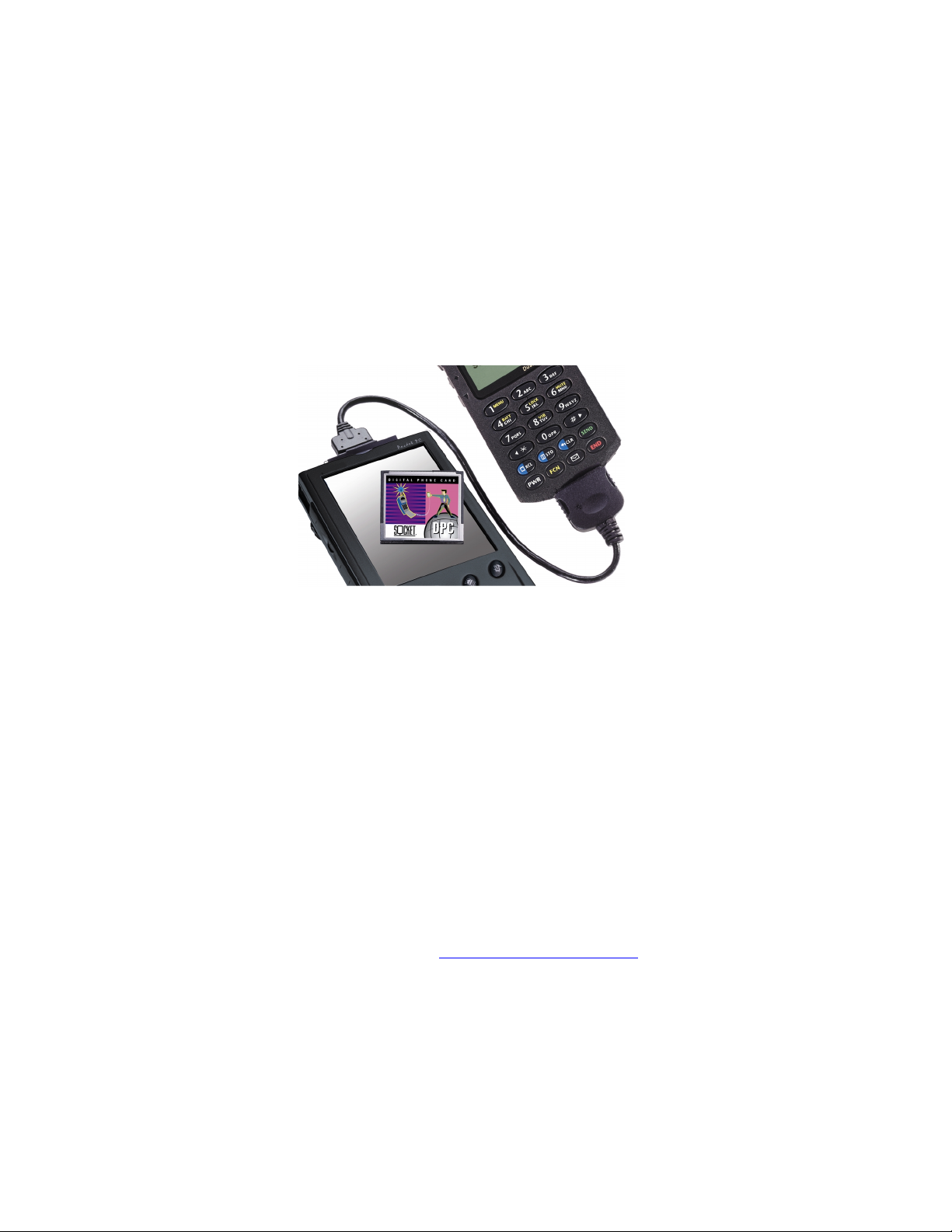
The Mobile Email PocketPak features the Socket Digital Phone Card
(DPC), a CompactFlash plug-in card that lets a mobile phone work as a
wireless modem with Windows Powered Pocket PCs.
By eliminating the need for an analog modem, the DPC significantly
reduces power consumption and increases reliability. The PocketPak works
with remote networking or any other application that you use with a regular
modem.
Overview of PocketPak Setup
To have your Pocket PC recognize the DPC, in most cases, you must run the
included
software drivers. After installing the hardware and connecting the hardware,
you must also configure your Pocket PC for remote networking.
Importantly, to make sure your mobile phone can handle data calls, you may
also need to contact your phone carrier and request to activate data services.
For software updates, please visit:
Socket Mobile Email PocketPak Installation CD
www.socketcom.com/phone.htm
to install the
2 - Chapter 1 Introduction
Page 8

Features
The Mobile Email PocketPak includes the Digital Phone Card (DPC), a
CompactFlash plug-in card that lets a mobile phone work as a wireless
modem with Windows Powered Pocket PCs.
Advantages of the DPC include:
•
CompactFlash Connection
The card works in the Type I CompactFlash I/O slot of Windows
Powered Pocket PCs.
•
Reliability
The rugged, card-based connection resists strain and vibration and does
not require the two-dimensional stability of an IrDA connection.
•
Energy Efficiency
Socket’s
connected digital phone for up to twice as long as other cabling
solutions.
•
Simplicity and Convenience
A short, single cable plugs into the mobile phone handset. This makes
everything easy to carry, eliminating any exposed connectors or dangling
cables that can get in the way.
•
Compatibility
The DPC is certified for operation with Windows CE.
Battery Friendly
™ technology lets you use your Pocket PC-
Contents of the Mobile Email PocketPak
The Socket Mobile Email PocketPak includes these items:
• A Socket Digital Phone Card (CompactFlash Type I)
• A cable, already attached, to connect the DPC to a specific range of
mobile phones
• The
• The
• A registration card
To register your DPC online, please visit:
Socket Mobile Email PocketPak Installation CD
Mobile Email PocketPak Quick Start Guide
www.socketcom.com/prodreg.htm
Chapter 1 Introduction - 3
Page 9

Chapter 2
PocketPak Installation
Overview
The Socket Mobile Email PocketPak
lets you connect your mobile phone to
a Windows Powered Pocket PC, so you
can send and receive email and faxes,
browse the web, connect to your office
network and synchronize files —
wirelessly!
This chapter shows how to install the
PocketPak’s hardware and software.
all
Using Your Pocket PC Wirelessly
You can use your Windows Powered Pocket PC’s remote communications
capabilities to make your mobile phone work as a wireless modem.
Wireless Email
You have four options for using the PocketPak for wireless email access on
your mobile computer:
• Set up your PocketPC’s Inbox to directly access your office network or
Internet Service Provider (ISP).
• Use the included American Online (AOL) and Microsoft Network
(MSN) email clients.
• Access web-based email services with Pocket Internet Explorer.
• Use
Wireless Web Browsing
After wirelessly connecting to your office network or ISP, you can use
Pocket Internet Explorer, included with all Pocket PCs, to browse the
Internet.
Wireless ActiveSync
While running
your Pocket PC works as if it were directly connected to a host computer.
For information about
manual. For help in setting up
MIS department for assistance.
ActiveSync
Outlook or Exchange running on your host computer.
to synchronize your PocketPC’s Inbox with Microsoft
ActiveSync
wirelessly with the Mobile Email PocketPak,
ActiveSync
, please refer to your Pocket PC’s user
ActiveSync
, you may need to ask your office’s
4 - Chapter 2 PocketPak Installation
Page 10
C
Getting Started is Easy
1. Make sure your carrier has activated data services for your phone.
2. If necessary, run the
3. Connect the DPC to your Pocket PC and phone.
4. Set up your Pocket PC for remote networking.
5. Dial and connect!
Mobile Email PocketPak Installation CD
.
Activating Data Services
Some mobile phone carriers activate data services only when requested and
may charge small fees. If necessary, ask your phone carrier for this feature.
Installing the Software
If you have an HP Jornada 540, 545, or 548 Pocket PC, the software drivers
for the DPC are already installed. No software installation is needed to run
the DPC.
For any other Pocket PC, follow these steps BEFORE inserting the DPC:
1. Establish an active connection between your Pocket PC and a host PC.
Use your Pocket PC’s serial connection cable.
2. Insert the
drive of your host PC. Click Start/Run on your host PC, type D:\SETUP
(use your CD drive letter) and follow the instructions on your host PC.
3. When installation is complete, reset your Pocket PC.
For software updates, please visit:
Socket Mobile Email PocketPak Installation CD
www.socketcom.com/phone.htm
into the CD
Inserting the DPC into Your Pocket PC
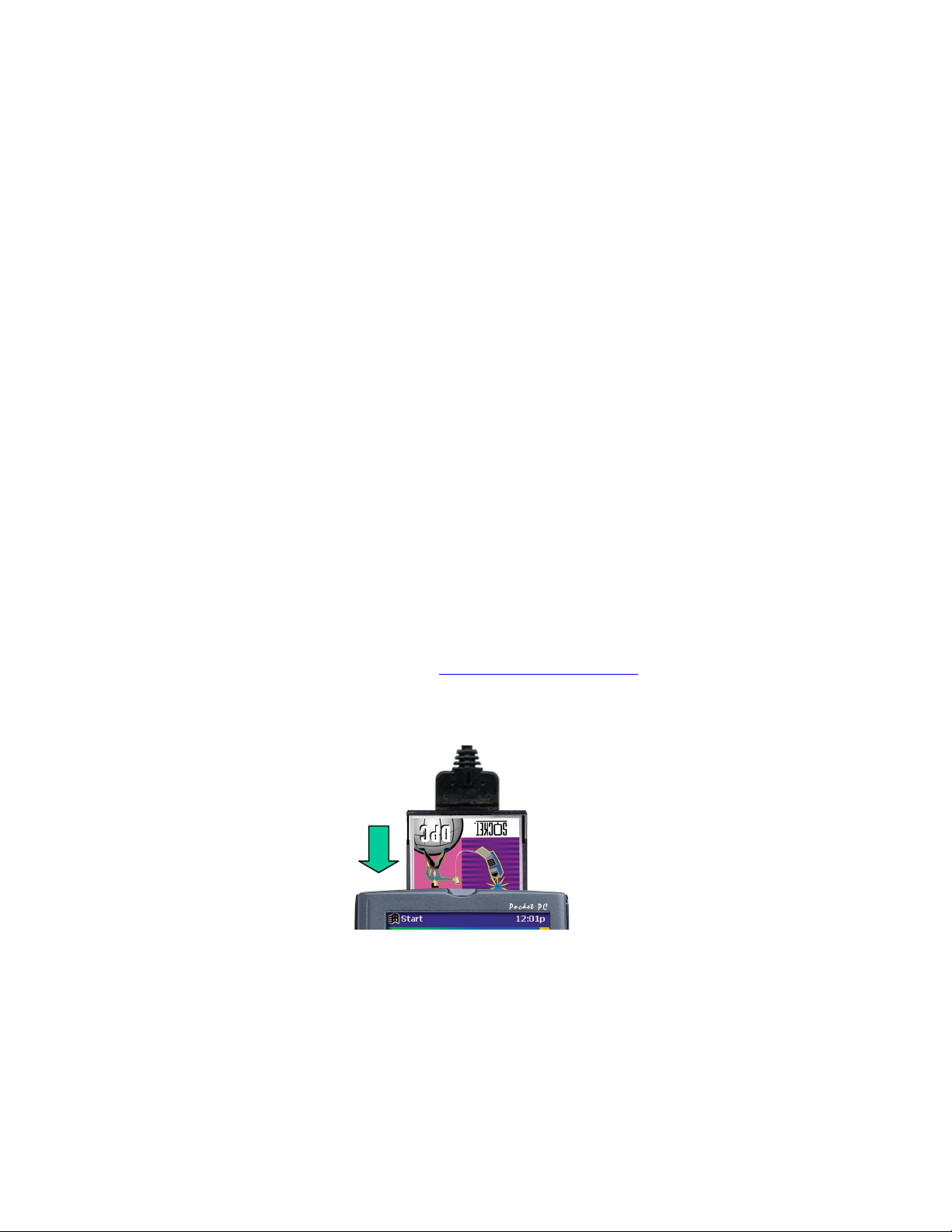
Use the DPC in the CompactFlash I/O slot of your Pocket PC:
Plug the DP
directly into
the slot
Chapter 2 PocketPak Installation - 5
Page 11
Connecting the DPC to Your Phone
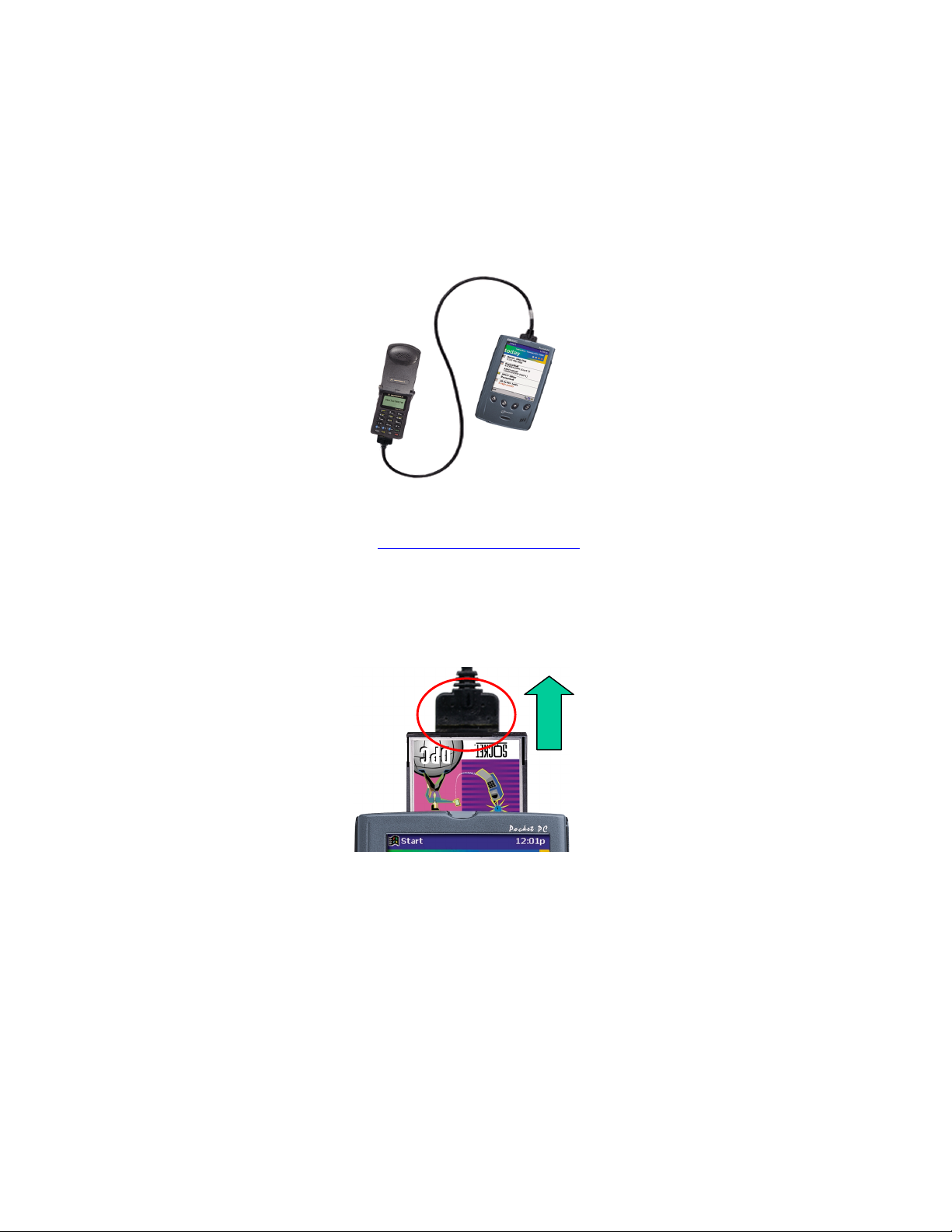
After inserting the Digital Phone Card into your Pocket PC, connect the free
end of the data cable to the data port of your mobile phone.
Your PocketPak’s retail box may not provide a complete listing of all the
mobile phones compatible with your DPC version. For a complete, up-todate listing, please visit:
www.socketcom.com/dpclist.htm
Removing the Digital Phone Card
Remove the DPC by gripping the black plastic connector that protrudes
from the card and pulling outwards. DO NOT pull the cable.
Pull the black connector that
protrudes from the card.
DO NOT PULL THE CABLE.
6 - Chapter 2 PocketPak Installation
Page 12

Chapter 3
Remote Networking
Overview
This chapter explains how to configure your Pocket PC for remote
networking and how to make a data call. Set up remote networking only
after installing the PocketPak’s hardware and software, as described in
Chapter 2, “PocketPak Installation.”
Network Information Form
Before configuring your Pocket PC for remote networking, contact
your office network administrator or Internet Service Provider (ISP)
for the following information:
1. Does the network support Dynamic Host Configuration Protocol
(DHCP)?
Yes. If
No. If No, then answer both remaining questions.
2. What are the following IP addresses? (Ask which ones you need.)
Pocket PC IP address: _____ . _____ . _____ . _____
, then skip to Question 3.
Yes
Subnet Mask: _____ . _____ . _____ . _____
Default Gateway: _____ . _____ . _____ . _____
Primary DNS: _____ . _____ . _____ . _____
Secondary DNS: _____ . _____ . _____ . _____
Primary WINS: _____ . _____ . _____ . _____
Secondary WINS: _____ . _____ . _____ . _____
Note: In some cases, you may need to use the IP address of your host
PC instead of a Primary WINS address.
Host computer IP address: _____ . _____ . _____ . _____
3. What is the following dial-up information?
Dial-up number: ( ____ ) _______________
User name: _________________________
Password: _________________________
Chapter 3 Remote Networking - 7
Page 13
Setting up Remote Networking
Before setting up dial-up networking, you must have remote access to either
your office network or an ISP account.
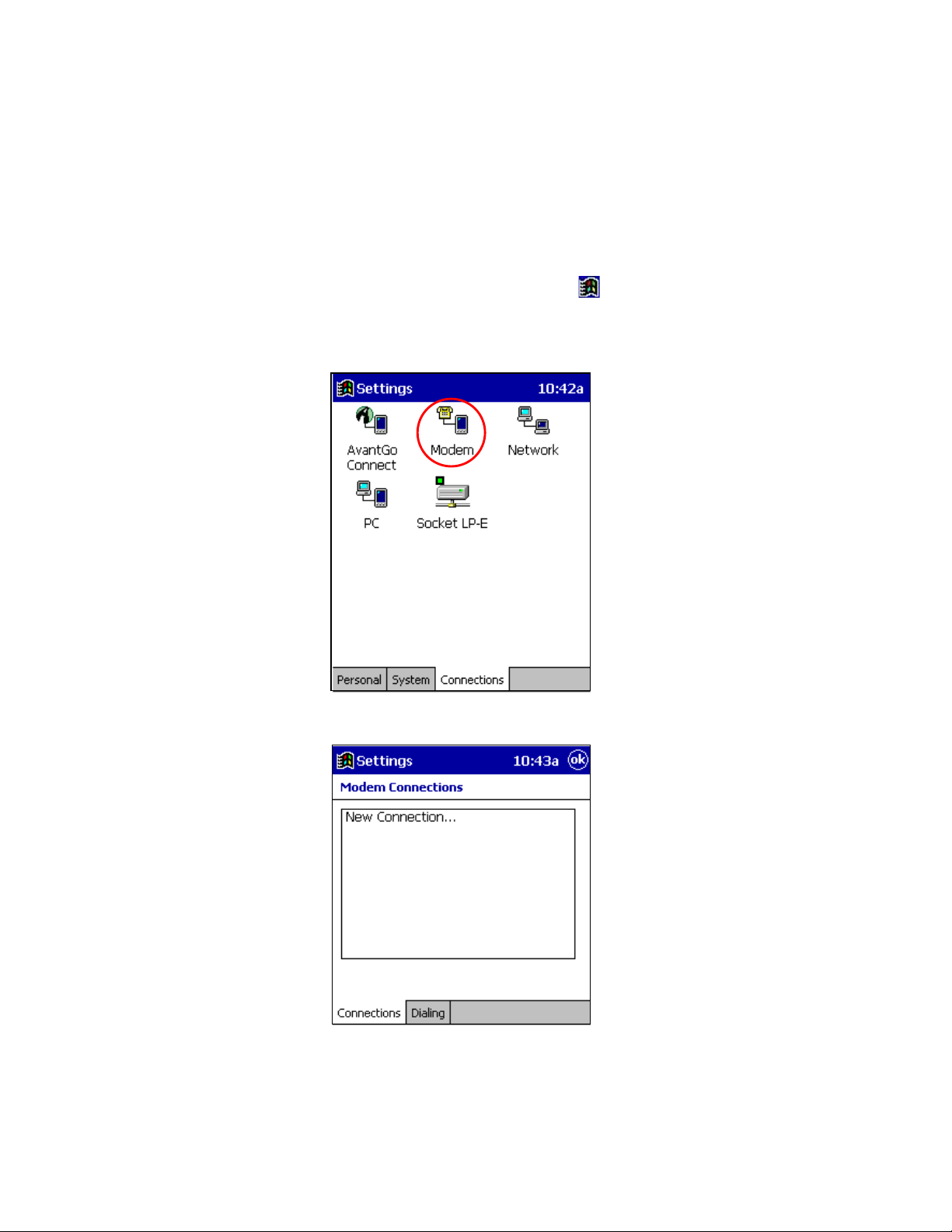
1. With the DPC inserted into your Pocket PC, tap Start
Settings. On the bottom of the Settings window, tap the Connections tab.
2. On the Connections screen, tap the Modem icon:
and then
3. The Modem Connections screen will appear. Tap New Connection…
8 – Chapter 3 Remote Networking
Page 14
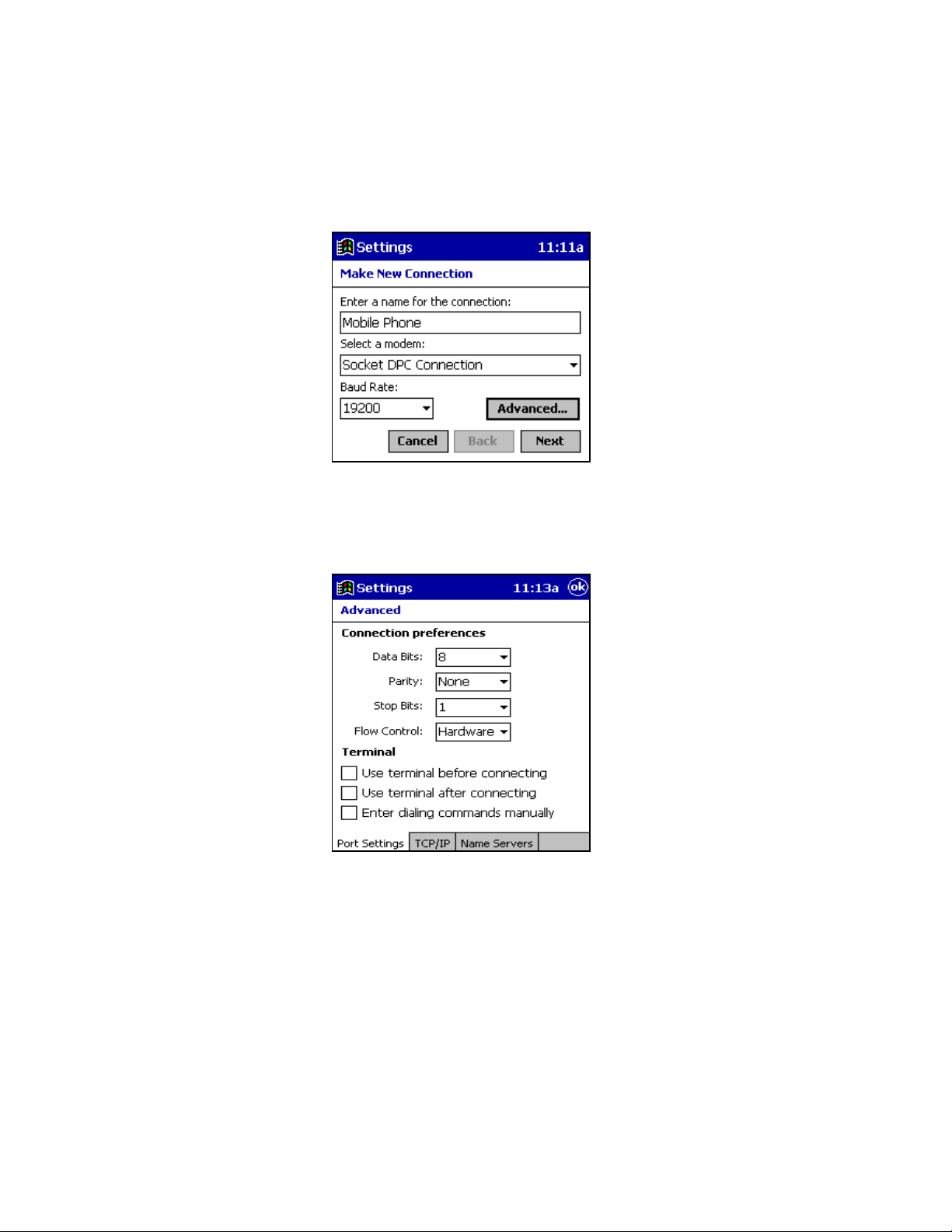
4. The Make New Connection screen will appear:
In the top box, enter a name, such as “Mobile Phone.” In the
Select a modem box, select Socket DPC Connection.
5. Tap Advanced… Do not change the default settings in Port Settings.
6. If you use server-assigned IP addresses (e.g., DHCP), you can probably
keep the default settings in the TCP/IP and Name Servers windows.
Otherwise, follow the instructions from your network administrator or
ISP to configure specific IP and name server addresses.
If you don't know what to enter, tap
ok.
Chapter 3 Remote Networking - 9
Page 15
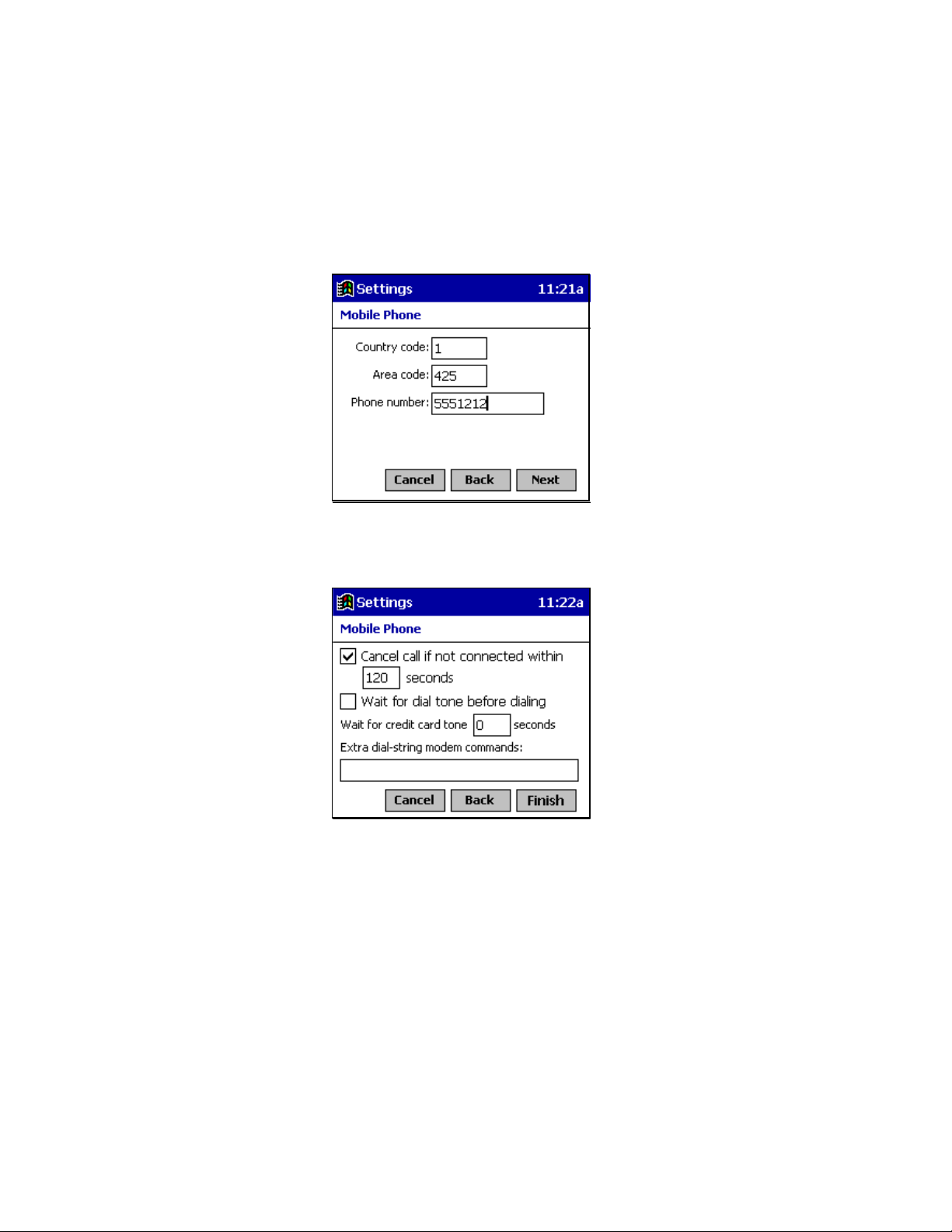
7. When you return to the Make New Connection window, tap Next. The
Mobile Phone screen will appear. Enter the phone number of your office
network or ISP and tap Next.
Note: Spaces or dashes are not required within the phone number.
8. In the next screen, uncheck Wait for dial tone before dialing. Then tap
Finish.
10 – Chapter 3 Remote Networking
Page 16
Making a Data Call
After installing the PocketPak and configuring your Pocket PC for remote
networking, you are ready to make a data call.
Preliminary checkpoints
1. Make sure the cable and connectors are fastened securely to your mobile
computer and your phone.
2. Make sure the phone is receiving a digital signal. A
appear on the display of some phones.
3. Make sure the signal strength is sufficient. A minimum signal strength of
two bars is recommended, although some phones may successfully
transfer data with only one. To optimize the signal, extend the antenna,
position the phone upright and, if necessary, move to a different location.
4. Make sure your phone has enough battery power for your data call.
Placing the call
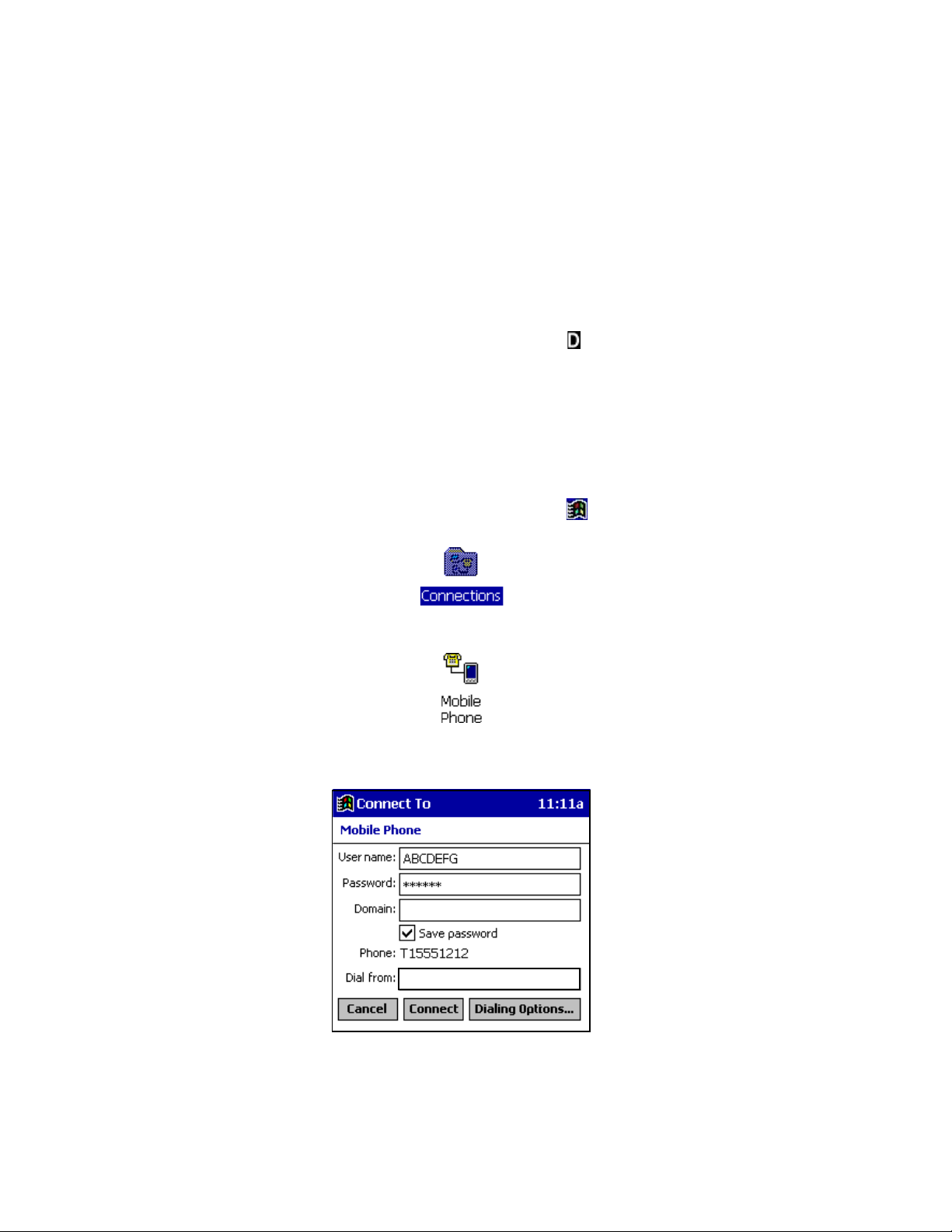
1. With the DPC inserted in your Pocket PC, tap Start
Programs. On the Programs screen, tap the Connections icon:
or equivalent will
and then
2. On the Connections screen, tap the icon with the name you gave your
DPC connection:
3. The Connect To window will appear. Enter your User name and
Password. In the Dial from box, select Home.
Home
Chapter 3 Remote Networking - 11
Page 17
4. (Optional) For convenience, you can check the Save password box, but
your password will be saved only after you start the connection.
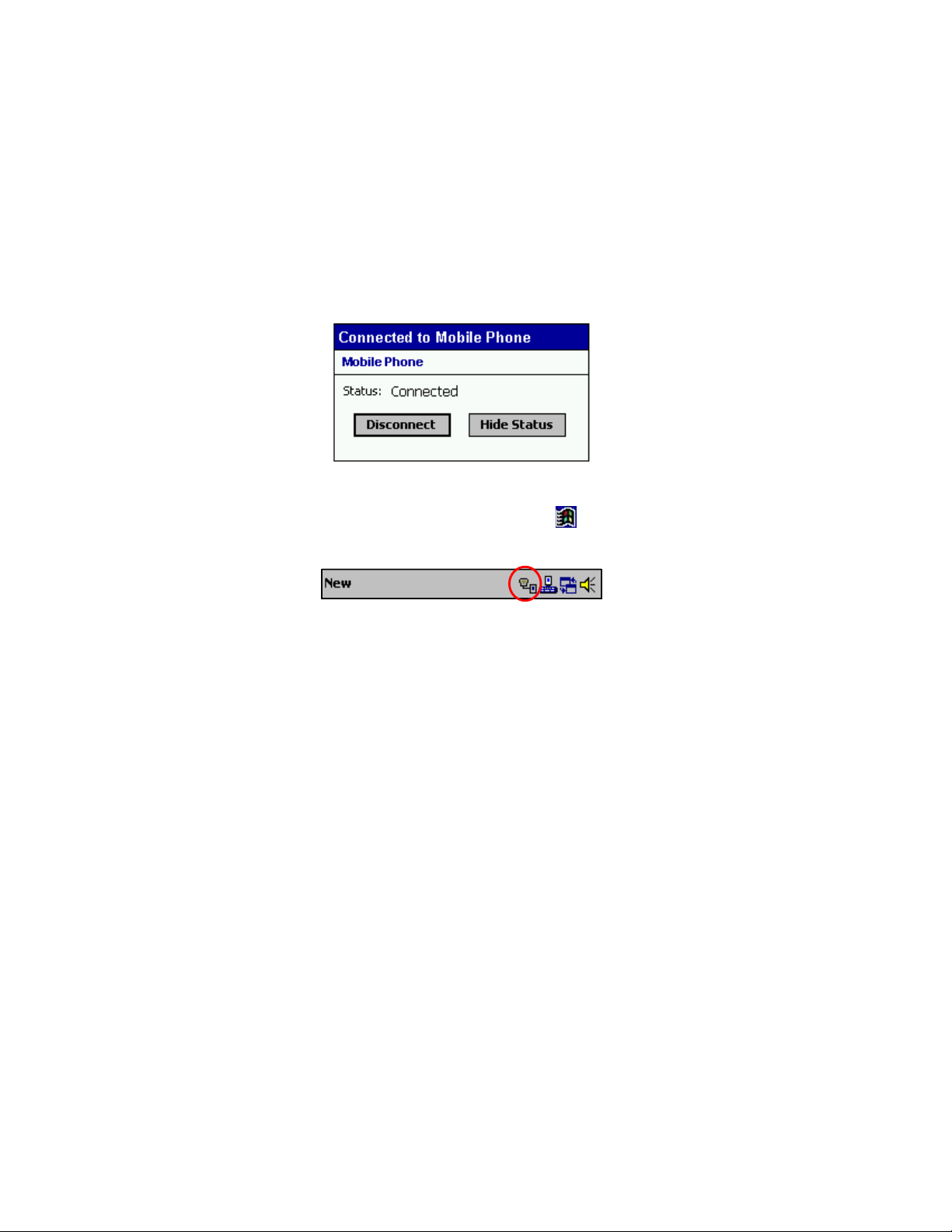
5. Tap Connect. A connection status screen will appear. When it reports
that the call has Connected, you are ready to use your email, fax, web-
browsing and file synchronization applications — wirelessly!
Ending a Data Call
When you are ready to end your data call, go to Start , then Today and
tap the connection icon in your Pocket PC’s task tray.
A connection status window will appear, as illustrated above. Tap
Disconnect to end the connection. The connection icon will leave the task
tray, and your mobile phone will hang up.
12 – Chapter 3 Remote Networking
Page 18

Appendix A
Physical Characteristics:
CF Card Size:
Interconnect Cable Length:
Power Consumption:
Standby:
Typical:
Interface Standards:
CompactFlash Interface:
Serial Communications:
Baud rate:
Operating System Support:
Pocket PCs running Windows CE (v3.0)
Mobile Phones Supported:
For the latest list of compatible phones, visit:
Software Compatibility: Windows COM port
Hardware Compatibility:
All Windows Powered Pocket PCs.
Third Party Software Included:
American Online (AOL) email client
Microsoft Network (MSN) email client
WAP browser for EZOS (trial version)
Primer™ PDF Viewer from Ansyr (trial version)
BSQUARE bUseful Utilities Pak (trial version)
Compatible Applications:
Windows Remote Dialup, ActiveSync, Pocket Outlook, FTP, Telnet,
AvantGO, Citrix, pcANYWHERE, streaming video, etc.
Warranty:
CompactFlash Card and Non-removable Cable:
if not registered)
To register your product online, visit:
Certification:
FCC: Part 15, Class B, CE: EN55022, C-TICK s.182
1.43 x 1.69 x 0.13 in (36.4 x 42.8 x 3.3 mm)
22 in (559 mm)
0 mA (0 mW)
3 mA (10 mW)
CompactFlash CF I/O Type I
TTL
Up to 115.2 Kbps
Specifications
www.socketcom.com/dpclist.htm
Lifetime (Three years
www.socketcom.com/prodreg.html
Appendix A Specifications - 13
Page 19

Appendix B
Hints and Tips
Optimizing Signals and Connections
For best results, follow these guidelines before connecting for a data call:
1. Make sure the cable and connectors are fastened securely to your
mobile computer and your phone.
2. Make sure the phone is receiving a digital signal. A
will appear on the display of some phones.
3. Make sure the signal strength is sufficient. Socket recommends a
minimum signal strength of two bars, although some phones may
successfully transfer data with only one. To optimize the signal, extend
the antenna, position the phone upright and, if necessary, move to a
different location.
4. Make sure your phone has enough battery power for your data call.
or equivalent
Choosing the Right Applications
Not all applications are ideal for wireless networking. For example, it takes
longer to download a large file wirelessly than it does over a landline phone
line with a regular modem. Experiment with your applications to find out
which work best wirelessly.
Using Multiple Modems
Pocket PCs can support multiple modems, but each modem needs a separate
dial-up connection. When making a data call, be sure to choose the
connection for the modem in use.
To make multiple dial-up connections, follow the steps outlined in the
“Setting up Remote Networking” section for your device, but include the
following modifications:
1. In the Make New Connection screen, when naming connections, select
names that clearly distinguish the modem in use, such as "Internet
Service Provider-Wireless" and "Internet Service Provider-Landline."
2. In the Select a modem box, choose Socket DPC Connection for a wireless
connection. Choose your existing modem for a landline connection.
For other applications, such as faxing, refer to your fax program’s user
documentation on using multiple modems or changing between modems.
14 –
Appendix B
Hints and Tips
Page 20
Appendix C
Troubleshooting
SYMPTOM:
My computer ...
… does not recognize my mobile phone [modem].
… does not respond to AT commands.
… cannot place a call.
POSSIBLE REASONS SOLUTION
Your mobile phone is turned off. Turn on your mobile phone.
Your phone is not communicating
properly with your computer.
The data cable is loose or
detached.
Other software is using the COM
port.
The software is set up for a modem
other than the mobile phone.
Your fax software is set to Auto
Answer and uses the COM port.
Turn your mobile phone off, then
turn it on again.
Make sure you are using the right
data cable and securely fasten it.
Deactivate the software using the
COM port.
HotSync
Configure your software for the
mobile phone as its modem.
Disable the Auto Answer feature
on your fax software.
usually use the COM port.
ActiveSync
and
SYMPTOM:
My call fails immediately, or I get a message like
FAILED
POSSIBLE REASONS SOLUTION
The phone battery died.
Temporary network anomaly.
on my phone.
Recharge or replace the battery.
Call again.
disappears after a second try. If it
doesn’t, turn your phone off, then
on again. If the problem persists,
your mobile service may be down.
CALL FAILED
CALL
usually
Appendix C
Troubleshooting - 15
Page 21
SYMPTOM:
I get a message like
POSSIBLE REASONS SOLUTION
You left the mobile coverage area
during the call.
NO NETWORK
Raise the phone antenna. If needed,
return to the coverage area to call.
on my phone.
SYMPTOM:
My computer dials but cannot connect.
POSSIBLE REASONS SOLUTION
The software is set up for a modem
other than the mobile phone.
You are dialing the wrong number. Check the number, including the
The number you are dialing is long
distance.
The modem you are calling is out
of service.
You have left the mobile phone
coverage area.
Your user name and/or password
are incorrect.
Configure your software for your
mobile phone as the modem.
area code. Verify the number with
your Internet Service Provider or
corporate network support.
Check the area code of the number
you are dialing. You may need to
add a 1 for long distance.
Contact your ISP or office network
support to verify the status of their
server and modems.
Raise the phone antenna. If needed,
return to the coverage area to call..
Enter the correct information.
SYMPTOM:
My phone shows that the call connected, but my
communications software does not.
POSSIBLE REASONS SOLUTION
The call took so long to connect
that the software timed out.
Increase your software’s time-out
interval and try calling again.
16 –
Appendix C
Troubleshooting
Page 22
SYMPTOM:
My communications software shows that the call is
connected, but my phone does not.
POSSIBLE REASONS SOLUTION
Your call was dropped, but your
software is still waiting to connect.
Cancel the call from your software
and try again.
SYMPTOM:
I get a message like
or
CHECK OPERATOR SERVICES
POSSIBLE REASON SOLUTION
The mobile phone account needs
updating.
NETWORK NOT RESPONDING
Call your mobile phone service
provider.
SYMPTOM:
I get disconnected in mid-session.
POSSIBLE REASONS SOLUTION
The mobile phone signal has faded,
or you have left the mobile phone
coverage area.
Your phone battery died.
The data cable is loose or
detached.
The modem you are calling is out
of service.
Raise the phone antenna. If you
still don’t get digital coverage,
return to the coverage area to call
Recharge or replace the battery.
Securely fasten the data cable.
Contact your ISP or office network
support to verify the status of their
server and modems.
on my phone.
Your call was dropped. Try the call again.
You were automatically
disconnected due to inactivity.
Appendix C
Some software will end a call after
some inactivity. Disable or change
the automatic disconnect feature.
Troubleshooting - 17
Page 23
SYMPTOM:
The data is transmitting slowly.
POSSIBLE REASONS SOLUTION
The network has a maximum
connection speed of 19,200 bps.
Due to heavy loads, dial-in or web
servers are responding slowly.
For advice on efficient usage, visit:
www.DigitalPhoneCard.com
Connect another time, when your
office network or ISP is less busy.
SYMPTOM:
I cannot receive voice calls.
POSSIBLE REASONS SOLUTION
Your mobile phone is set up to
receive data or fax calls only.
Follow the instructions that came
with the phone to set up for voice
calls, usually via the phone menu.
SYMPTOM:
I cannot receive data calls.
POSSIBLE REASONS SOLUTION
The phone is not set up to receive
data calls.
Your communications software is
not answering in time.
Follow the instructions that came
with the phone to set up for data
calls, usually via the phone menu.
Set your software to answer after
fewer rings, preferably 0. Consult
the software's user manual for help.
SYMPTOM:
I cannot access my email or use my web browser.
POSSIBLE REASONS SOLUTION
You are not connected to your
corporate network or ISP.
Connect again.
Your dial-up networking settings
are incorrect.
Your user name(s) and/or
password(s) for your services are
incorrect.
18 –
Appendix C
Troubleshooting
Reconfigure with the right settings
for your office network or ISP.
Enter the correct information for
all services, including email, NT
servers and proxy servers.
Page 24

Appendix D
ISP Resources
Here are a few Internet Service Providers (ISPs) that are known to work
with the Pocket PC. The information in this listing is subject to change
without notice.
For the most accurate, up-to-date information on connecting to a specific
ISP with a Pocket PC, please contact the ISP directly or go visit:
http://www.pocketpc.com
Name of ISP
Advanced Systems Network DNS: 205.167.153.4
http://www.as.net/
POP3 server: pop3.as.net
SMTP mail host: smtp.as.net
Alternate Access DNS: Server
http://www.aa.net
POP3 server: mail.aa.net
SMTP mail host: mail.aa.net
AT&T WorldNet Service DNS: 204.127.160.2
http://www.att.com/worldnet/
POP3 server: postoffice.worldnet.att.net
SMTP mail host: mailhost.worldnet.att.net
Note: Login name and password are different from pop3 user
CompuServe DNS: 149.174.211.5
http://www.compuserve.com/
POP3 server: pop.site1.sci.com
SMTP mail host: smtp.site1.csi.com
Note: See http ://www.craigtech.co.uk/hpc/cservefaq .html
Drizzle DNS: 216.162.192.2
http://www.drizzle.com
POP3 server: pop.drizzle.com
SMTP mail host: smtp.drizzle.com
Note: Logon using <username>-ppp
Earthlink DNS: 207.217.126.81
http://www.earthlink.net
POP3 server: mail.earthlink.net
SMTP mail host: mail.earthlink.net
Note: Requires ELN/ before the logon user name. For more help,
ISP Settings for Pocket PCs
Alt DNS: 205.167.153.2
Alt DNS: Server
Alt DNS: 204.127.129.2
name and password.
Alt DNS: 149.174.213.5
Alt DNS: 216.162.192.3
Alt DNS: 207.217.77.82
see: http://help.earthlink.net/techsupport/other/wince/menu.html
Appendix D
ISP Resources - 19
Page 25

Erols Internet DNS: 205.252.116.10
http://www.erols.com/
POP3 server: pop.erols.com
SMTP mail host: smtp.erols.com
Note: Add 4-6 commas after dial string if not using K56Flex.
MCI WorldCom Internet DNS: 204.70.127.127
http://www.wcom.com
POP3 server: mail.internetmci.com
SMTP mail host: mail.internetmci.com
MindSpring DNS: 207.69.188.185
http://www.mindspring.com
POP3 server: pop.mindspring.com
SMTP mail host: mail.mindspring.com
MSN POP3 server: email not supported
http://www.msn.com
Note: Requires MSN/ before user name. Great for browsing the
Nocharge.com DNS: not needed
http://www.nocharge.com/
Note: Username: guest; Password: password; Can use Hotmail
Prodigy Internet DNS: 198.83.19.241
http://www.prodigy.com
POP3 server: pop.prodigy.net
SMTP mail host: smtp.prodigy.net
Quik Internet DNS: 204.182.160.1
http://www.quik.com
POP3 server: mail.quik.com
SMTP mail host: mail.quik.com
Southwestern Bell DNS: 151.164.1.8
http://www.swbell.net
POP3 server: postoffice.swbell.net
SMTP mail host: mail.swbell.net
Sympatico-British Columbia DNS: 204.174.64.1
http://www.bc.sympatico.ca
POP3 server: pop.bc.sympatico.ca
SMTP mail host: smtp.bc.sympatico.ca
UUNet DNS: 198.6.1.1
http://www.uu.net/
POP3 server: vpop1-alterdial.uu.net
SMTP mail host: vsmtp1-alterdial.uu.net
Note: Alternatives for POP3 and SMTP are:
vpop2-alterdial.uu.net and vsmtp0-alterdial.uu.net
Alt DNS: 205.252.116.19
Alt DNS: 204.70.127.128
Alt DNS: 207.69.188.186
STMP mail host: email not supported
web. Email not supported for Pocket PCs at this time, but
Hotmail can be used.
Alt DNS: not needed
or Yahoo Mail for email.
Alt DNS: 198.83.19.244
Alt DNS: 205.162.86.17
Alt DNS: 151.164.1.7
Alt DNS: 205.174.64.2
Alt DNS: 198.6.1.2
(use Hotmail®)
(use Hotmail®)
20 –
Appendix D
ISP Resources
Page 26

Verio DNS: 129.250.35.250
http://www.verio.com
POP3 server: pop.veriomail.com
SMTP mail host: smtp.veriomail.com
Verizon Online DNS: 206.124.64.253
http://www.verizon.net
POP3 server: mail.gte.net
SMTP mail host: smtp.gte.net
Note: Requires GTE/ before user name.
Alt DNS: 129.250.35.251
Alt DNS: 206.124.65.253
Appendix D
ISP Resources - 21
Page 27

Appendix E
Need More Help?
How to Contact Socket
If you cannot resolve a technical problem with the Mobile Email PocketPak,
contact Socket’s technical support department prepared with the following
information:
• The serial number of your DPC
• The Windows CE version number on your Pocket PC
• The Windows version on your host PC
• The manufacturer and model number of your Pocket PC
• The manufacturer, model number and carrier of your mobile phone
• What you did to try to correct the problem
• What you do to consistently replicate the problem
To reach Socket’s technical support department:
• Visit
• Email
• Phone
• Fax
Please refrain from disassembling the Digital Phone Card. Disassembly of
this device will void the product warranty.
www.socketcom.com/phone.htm
[email protected]
510-744-2720
510-744-2727
22 –
Appendix E
Need More Help?
Page 28

6410-00160 A
PRINTED IN U.S.A.
 Loading...