

Page 1

SmartVM
23900 Mercantile Road
Cleveland, Ohio 44122
Tel # 1-866-999-3210, Fax # 1 -216-765-0548
Internet : www.smartvm.com Mail : sales@smartvm.com
User
Manual
KVM-SW-8/16
1RU Rackmount USB KVM Switch
Page 2

Rev. : 0.1 P.1
KVM-SW-8/KVM-SW-16 User Manual
1.Table Of Content
1. Table of Content
P.1
2. Read Before Installation
P.2
3. Introduction
P.3
4. Features
P.3
5. Package Contents
P.4
6. Optional Accessories
P.5
7. Peripheral products
P.5
8. Important Safeguard
P.6
9. Structure Diagram
P.7
10. Dimension Diagram
P.8
11. KVM Session
Front View
P.9
Rear View
P.10
Installation Steps
P.11
Cascading
P.12
12. Start Up
P.13
Hot Key Command
P.13
Hot Key Operation
P.14-15
OSD Operation
P.16-22
13. FAQ
P.23
14. Technical Specification
P.24
Page 3
Rev. : 1.1 P.1
KVM-SW-8/KVM-SW-16 User Manual
2 . Read Before Installation
Technical Notes
For Windows 98/98 SE systems
●
HID (Human Interface Device) driver must be installed
prior
to using
the USB KVM switch. To install the HID driver, first connect a USB
keyboard and mice directly to computer (before installing KVM switch)
then follow theWindows installation instructions, this will install the HID
device driver and allow the use of the KVM switch.
Note :
Failure to do so may result in Windows not being able to detect
keyboard and mouse.
●
If a mouse recognition error is displayed during system boot:
“Windows did not detect a mouse attached to the computer.You can
safely attach a serial mouse now. To attach a mouse to a PS/2 mouse
port, you must first turn the computer off”
a) Press the
Tab
key once to select the check box.
b) Press the
Space bar
once which will place a check in the box
“Do not show this message again”
c) Press the
Enter
key once and Windows will continue to boot and
will then recognize the mouse.
Operating System Compatibility
●
Any USB-enabled operating system such as Windows® 98,
Windows® 98SE, Windows® 2000, Windows® XP or higher.
●
Windows® 95 are not recommended because of immature USB
support.
Page 4

Rev. : 1.0 P.3
KVM-SW-8/KVM-SW-16 User Manual
3. Introduction
As the server density increases, you run out of spaces in racks and server
room quickly. CV Series USB KVM Switch is slim 1U form factor to provide
effective assistant for an administrator to control multiple PCs
All models are OSD (On-Screen-Display) menu equipped to simply the server
management. It fit different applications and can be cascaded together
expanding the capacity up to 128 computers, and providing the maximum
flexibility.
4. Features
●
Multi-platform
- Mix PCs, SUN Microsystems, IBM compatibles,
HP, Compaq and Dell.
●
Hot Pluggable
- Add PCs or remove connected PCs for
maintenance without powering down the USB
KVM switch or PCs.
●
No S/W required
- Easy PC selection via on screen display manual,
push buttons and hot-key.
●
Built-in microprocessor emulation for each port boots up process.
●
High video quality with up to 1,920 x 1,440 and 200MHz bandwidth.
●
Name servers up to 16 characters long.
●
Scan mode with Monitor servers at intervals 5 to 99 seconds.
●
Support eight characters password protection and search PC server name.
●
VGA and USB two-in-one by 15pin HDDB connector at KVM side.
●
Cascade for use up to 128 servers.
Disclaimer
This information is subject to change without notice. The producer of thismanual accepts no
responsibility for damage or claims, resulting from misuse or misinterpretation.
Page 5
Rev. : 1.0 P.4
KVM-SW-8/KVM-SW-16 User Manual
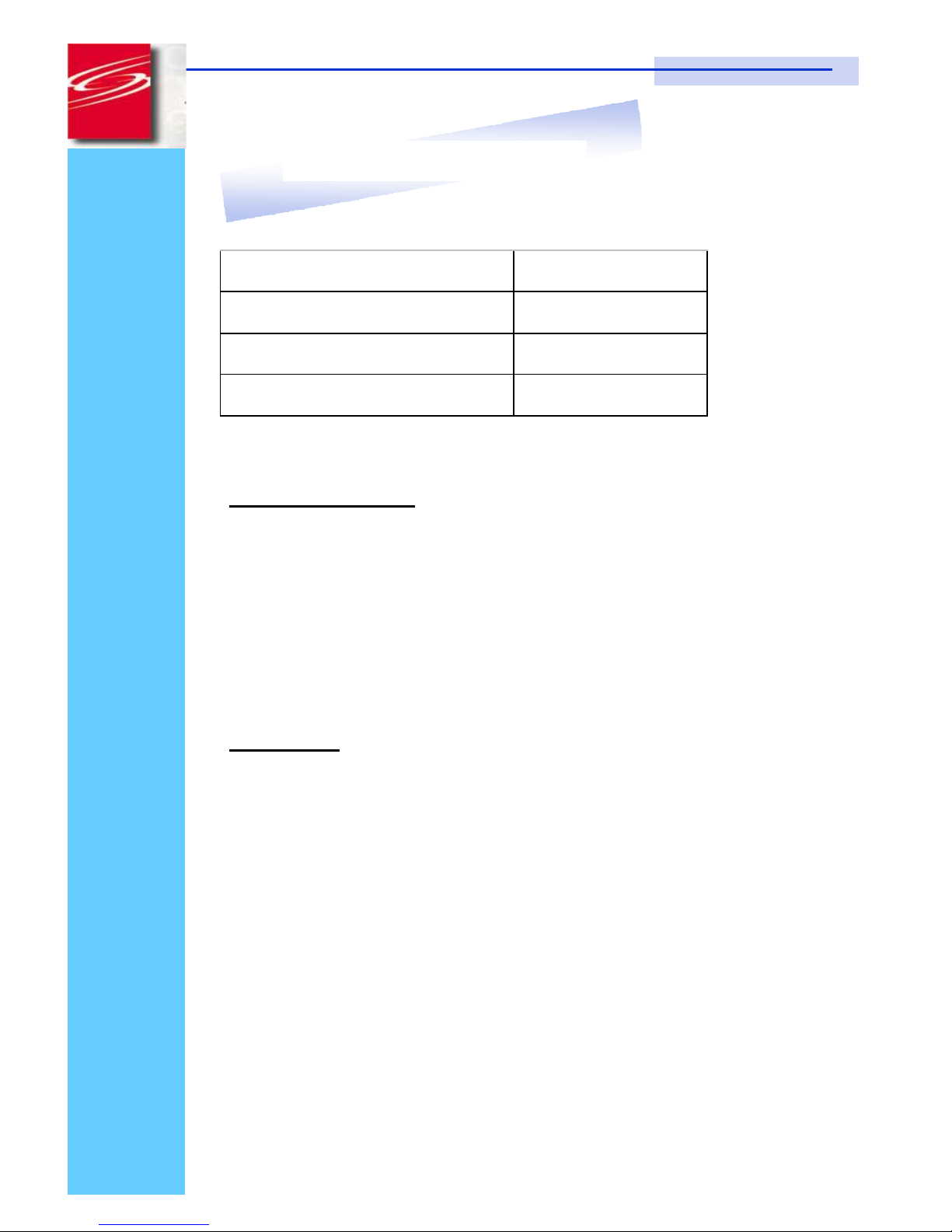
5. Package Contents
US B KV M Switch
1 Pi eces
User’s manual
1 Pi eces
DC Power A dap ter
1 Pi eces
19 ” Mounting Bracket
1 Pair
Before Unpacking
It is very important to locate the USB KVM switch in a suitable environment.
1. The surface for placing and fixing USB KVM switch should be stable and
level or mounted into a suitable cabinet.
2. Make sure the place is ventilated and out of direct sunlight, away from
sources of excessive dust, dirt, heat, water, moisture and vibration.
3. Convenience for connecting USB KVM switch to the related facilities
should be well considers too.
Unpacking
The USB KVM Switch comes with the standard parts shown as above. Check
and make sure they are included and in good condition. If anything is
missing, or damage, contact the supplier immediately.
Page 6
Rev. : 1.0 P.5
KVM-SW-8/KVM-SW-16 User Manual
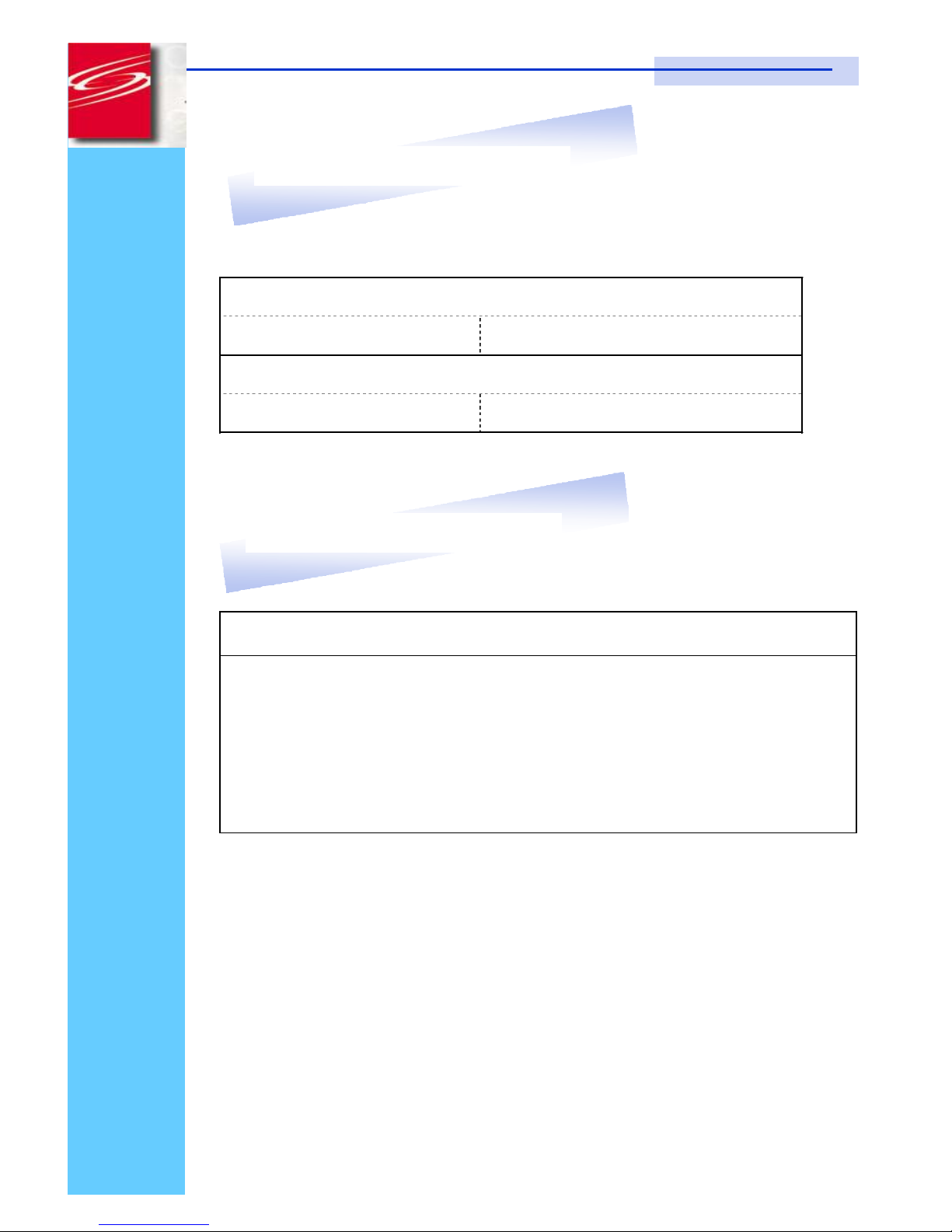
6. Optional Accessories
KVM Cable
CB-6 / 10 / 15 6ft / 10ft / 15ft PS/2 3-in-1 cable
Cascade Cable
????
7. Peripheral Products
Description
CAT.5 USB KVM extender
1U 15” LCD Monitor Drawer
6U(15") / 7U(17") / 8U(19") LCD Monitor
1U LCD Keyboard Drawer
Page 7

Rev. : 1.0 P.6
KVM-SW-8/KVM-SW-16 User Manual
8. Important Safeguards
Please read all of these instructions carefully before you use the device.
Save this manual for future reference.
●
Unplug the USB KVM switch from the power outlet before cleaning.
●
Do not sprayliquid cleaners or aerosol directly on the device.Wet a cloth with
a neutral detergent (e.g. clean water) and squeeze it tight, then clean the
screen slightly with it.
●
Do not expose the USB KVM switch directly to rain, water, moisture or
sunlight.
●
Do not attempt to service the device yourself. Improper operation may void
your warranty. Refer all servicing to qualified service personnel.
●
Safe storage environment of the PS/2 KVM switch is ranging between –20oC
and 60oC. Permanent damage could occur if the USB KVM switch is stored
outside the safe range.
●
Unplug the keyboard drawer with USB KVM switch immediately and call a
qualified service personnel under the following conditions:
1. If the USB KVM switch has been exposed to rain, liquid or water.
2. If the USB KVM switch has been dropped or the casing has been
damaged.
What the warranty does not cover
1. Any product, on which the serial number has been defaced, modified or
removed.
2. Damage, deterioration or malfunction resulting from:
a) Accident, misuse, neglect, fire, water, lightning, or other acts of nature,
unauthorized product modification, or failure to follow instructions supplied
with the product.
b) Repair or attempted repair by anyone not authorized by us.
c) Any damage of the product due to shipment.
d) Removal or installation of the product.
e) Causes external to the product, such as electric power fluctuation or failure.
f) Use of supplies or parts not meeting our specifications.
g) Normal wear and tear.
h) Any other causes which does not relate to a product defect.
3. Removal, installation, and set-up service charges.
Page 8
Rev. : 1.0 P.7
KVM-SW-8/KVM-SW-16 User Manual
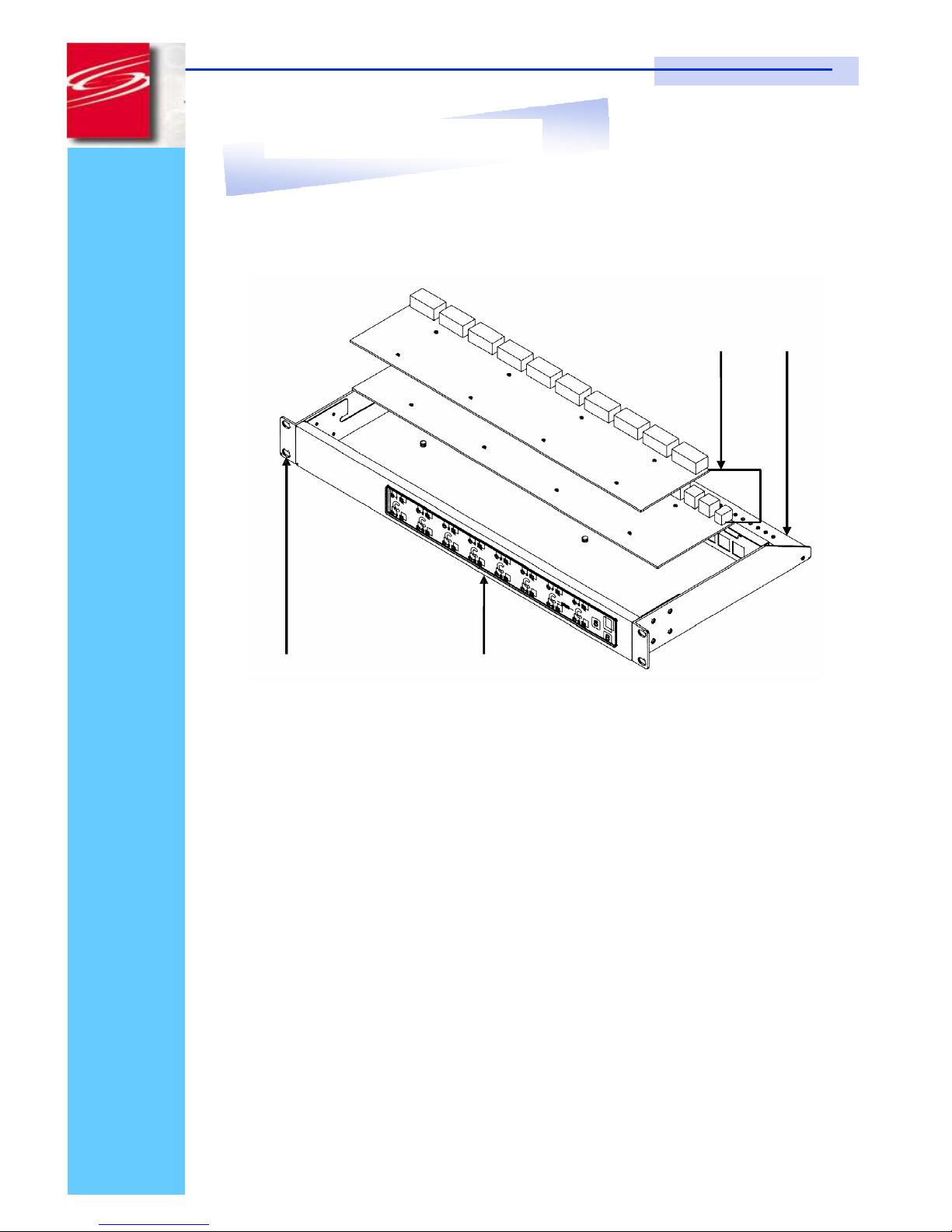
9. Structure Diagram
1.
USB KVM Switch
2.
Cable Mounting Kit
3.
19” Mounting Kit
4.
KVM Membrane
Page 9

Rev. : 1.0 P.8
KVM-SW-8/KVM-SW-16 User Manual
10. Dimension Diagram
KVM-SW-8 / KVM-SW-16
Page 10

Rev. : 1.0 P.9
KVM-SW-8/KVM-SW-16 User Manual
11. KVM Session
Front View
Bank No.
Selected Channel Bank Button
Online Channel Channel Select Button Shift Button
LED Indication
Selected Channel - Displayed channel on monitor & red in
LED.
Channel select button - Press to select channel from 1 – 8.
Shift button - Press & Hold follow with a channel
button to select channel from 9 – 16.
Online Channel - Green LED state the PC has
connected and power on.
Bank No.. - Display the Bank no. from 1 – 8.
Bank button - Select the bank from 1 – 8 (for cascade
only)
Page 11

Rev. : 1.0 P.10
KVM-SW-8/KVM-SW-16 User Manual
11. KVM Session
Rear View
DC
Power
Cascade
Port
Console
Port
Channel
Port
USB
Port
KVM-SW-8
KVM-SW-16
DC Power
- connect to external 12V DC power adapter.
Cascade Port
- connect to additional KVM switch for channel
expansion.
Console Port
- connect to monitor, PS/2 keyboard & mouse.
Channel Port
- connect to PC computer with CD-6 3-in-1 KVM cable.
USB Port
- connect to USB mouse & keyboard
Page 12

Rev. : 1.0 P.11
KVM-SW-8/KVM-SW-16 User Manual
11. KVM Session
Installation Steps
Before installation, please make sure all computers are turned on and its
operating system are running properly with keyboard and mouse.
1. Connect the 2-in-1KVM cable to the one of your server.
●
USB Type A Male connector to the USB Port
●
HDDB 15-pin Male connector to the VGA Port
2. Plug the power adapter included to the switch.
DC
Power
3. Connect USB keyboard and mouse the console port of the switch.
4. Connect the another end of the 2-in-1 cable to the USB KVM switch
. . . . . . .
5. Connect a monitor to the console port of the USN KVM Switch.
6. Reset USB KVM Switch by membrane
Page 13

Rev. : 1.0 P.12
KVM-SW-8/KVM-SW-16 User Manual
11. KVM Session
Cascading
Using USB KVM cable to connect from Bank 1’s “Cascade port” to Bank 2’s
“Console port”. After connected please press “Bank” & “Channel” button on
the front of the USB KVM switch to reset the KVM switch.
Bank 1
Bank 2
Bank 8
(Max.)
USB Cascade cable
USB Cascade cable
Cascade level Max. : 8 level
●
Max. PC connection is 128 or with additional 122 PCs.
●
All USB KVM switch is compatible & can cascade with each other.
●
Using USB KVM cable to cascade.
●
Normal distance from one USB KVM to another is 15 feets.
Page 14

Rev. : 1.0 P.13
KVM-SW-8/KVM-SW-16 User Manual
12. Start Up
1. The channels that have PC connected and it is switch on will have a
green LED on that channel.
2. The red LED will indicate the selected channel.
3. 7 segments LED will display the bank number.
4. Press channel button to select the channel.
5. Enter the password, default is “00000000” eight zeros. Otherwise the
keyboard & mouse will be locked.
6. If you forget your password, send back to Manufacturer.
Hot Key Command
●
Simple key sequence.
●
Press “ Scroll Lock” twice within 2 seconds.
●
Follow with a beep sound, going into the hot key mode.
●
Need to key in the hot key within 2 seconds.
●
Go back to Operation System Control state.
Page 15

Rev. : 1.0 P.14
KVM-SW-8/KVM-SW-16 User Manual
+2+
12. Start Up
Hot-key Command Operation
1. Calling OSD Menu
Scroll
+
Scroll
+
Space Bar
2. Switch to Previous Port (powered on PC only)
Scroll
+
Scroll
+
3.
Switch to Next Power On Port (powered on PC only)
Scroll
Scroll
+ +
4. Switch to Previous Bank
Scroll
+
Scroll
Pg
+
Up
First digit of Port Number:
0 for Port 0-9
1 for Port 10-
5. Switch to Specific Port
Second digit of
port Number
Scroll
Scroll
+ +
Bank
1~8
No.
+
0 or 1
+
No.
0 - 9
Example :
a) Bank 1 Port 4
Scroll
+
Scroll
1
+
0
+
4
b) Bank 2 Port 16
Scroll
+
Scroll
+
1
+
6
Page 16

Rev. : 1.0 P.15
KVM-SW-8/KVM-SW-16 User Manual
B
SRF
12. Start Up
HotKey Command Operation
6. Switch to Next Bank
Scroll
+
Scroll
+
PgDn
7. Enable / Disable beeper sound
Scroll
+
Scroll
+
Note:
The default Beeper function is ON and beeper control is only for
8. Auto Scan for Powered on PC
Scroll
+
Scroll
+
9. Reset to factory Default Setting
Scroll
+
Scroll
+
ROM REFLASH
Note:
Not available for password reset.
10. Find Port by name
Scroll
+
Scroll
+
F I N D :
█
Note:
When the above dialogue appear,type the PC name and the OSD Menu
will search PC name starting from 1stpowered on PC port.
Page 17

Rev. : 1.0 P.16
KVM-SW-8/KVM-SW-16 User Manual
12. Start Up
OSD Operation
Note:
When using the keyboard arrow key to move the cursor, the keypad
arrow key (Up, Down, Right, Left) is unable to work at this menu.
1.
“MAIN CONTROLS” - OSD Menu of USB KVM switch
●
To pop up MAIN CONTROLS—OSD menu of USB KVM switch,
please use hot keys command .
●
To operate MAIN CONTROLS, please use keyboard and mouse.
◇
Mouse Operating:
You may also simply use mouse, twice
clicking left button, to choose a category. Clicking “?” will bring
up
HELP
window and click “X” for exiting.
◇
Keyboard Operating
: In MAIN CONTROLS window, use the
Up “” or the Down ”” Key to select a category and press
“Enter” Key to get into designated option. Pressing “F1” Key
brings up
HELP
window and
Esc
key to exit.
●
To enter the sub menu e.g. LANGUAGE or PORTNAME, please
use keyboard or mouse to move the highlight bar cursor.
●
When you reach the sub menu you want to activate press “Enter” or
double click the highlight bar cursor.
MAIN CONTROLS ?X
ENTER A CHOICE :
01 LANGUAGE
02 PORTNAME
03 TIMEVIEW
04 SECURITY
05 FINDPORT
06 PASSWORD
07 CONSOLE
Page 18

Rev. : 1.0 P.17
KVM-SW-8/KVM-SW-16 User Manual
12. Start Up
LANGUAGE Menu
LANGUAGE ?X
CHOOSE A LANGUAGE :
01 ENGLISH
Mouse Operation :
●
Move mouse and click the left button to choose a language, and click left
key again to save.
Keyboard Operation :
●
Press
/
to choose a language and press
ENTER
to save.
Page 19

Rev. : 1.0 P.18
KVM-SW-8/KVM-SW-16 User Manual
12. Start Up
PORTNAME Menu
PORTNAME ?X
Bank 1
01
SYSTEM 01
Bank Session
02 ☼ SYSTEM 02
0
3
☼ SYSTEM 03
04 ☼ SYSTEM 04
05
☼ SYSTEM 05
PC Name
Session
06 ☼ SYSTEM 06
07
☼ SYSTEM 07
08 ☼ SYSTEM 08
09
SYSTEM 09
Use “
Tab
” key to select session like Bank, PC, OSD, SCAN, CHANGE PASS-
WORD, CONSOLE ON/OFF, etc…
Bank Session
Use
Page Up&Page Down
to switch previous or next bank
PC Name Session
1. “☼” next to the PC name represents the PC system is powered on
Mouse Operation :
1. Click the arrow key “” or down arrow key “” to scroll upward or
downward of the PC name list.
2. Right click the highlighted PC name for editing PC
Keyboard Operation :
1. Use up key ““ or the down key ““ from the keyboard to select port
for destination PC name
2.
Press “
Ins
” key or for editing PC name
Note:
PC name should not be more than 8 characters.
3. When editing is finished press “
Enter”.
Page 20

Rev. : 1.0 P.19
KVM-SW-8/KVM-SW-16 User Manual
12. Start Up
TIMEVIEW Menu
TIMEVIEW ?X
OSD TIME :
10
SEC
SCAN :
10 SEC
1.
OSD TIME
means the display period of OSD windows or PC system name on
your monitor. You can modify it from 05 sec to 99 sec. The factory default
value is 10 sec...
2.
SCAN TIME
means the scan interval from one PC port to next PC port. The
default SCAN time is 10 sec and the maximum scan time is 99 sec.
Mouse Operation :
●
Click the right button of mouse to select and modify OSD and SCAN
TIME
Keyboard Operation :
●
Use "" and "" key or press the “INS” key to select and modify OSD
and SCAN TIME
Page 21

Rev. : 1.0 P.20
KVM-SW-8/KVM-SW-16 User Manual
12. Start Up
SECURITY Menu
SECURITY ?X
ENTER PASSWORD
_ _ _ _ _ _ _ _
ENTER NEW PASSWORD
_ _ _ _ _ _ _ _
RETYPE NEW PASSWORD
_ _ _ _ _ _ _ _
●
To
CHANGE PASSWORD
for avoiding all PCsystems to be intruded by the
others. The default password is 8 digits “ 00000000 “.
●
Please follow the steps below to cahnge the password.
1. Enter the factory default password “00000000” in the first row
“ENTER
PASSORD”
and press the “Enter”.
ENTER PASSWORD
••••••••
2. Enter your new password in the second row
“ENTER NEW PASWORD”
and press the “Enter”.
ENTER NEW PASSWORD
••••••••
3. Retype the new password in last row
“RETYPE NEW PASSWORD”
and press the “Enter” for confirmation
RETYPE NEW PASSWORD
••••••••
Note:
The OSD menu will return back to MAIN CONTROLS if the retyped
password matched with the new password
Page 22

Rev. : 1.0 P.21
KVM-SW-8/KVM-SW-16 User Manual
12. Start Up
FINDPORT Menu
FINDPORT ?X
ENTER NAME : _ _ _ _ _ _ _ _ _ _
“FINDPORT“
option helps you to find the PC system by its name.
●
Enter PC system name and press ENTER, it will search the matching PC
system and given the message for searching result.
Note:
PC system name
is defined in PORTNAME function
Example
:
a) When you enter “SYSTEM 01” and press ENTER, if there is matching
PC systems, the window will show the PC system name “SYSTEM 01”
and which BANK it belongs to.
Note:
Enter
wild card “ * “ and combine the other characters from A~Z and 0~9
to search all of system name lists matched the same format .
FINDPORT ?X
BANK : 1
01
SYSTEM 01
b) If there is no match PC system name were found, the window will show
“PORTNAME NO FOUND!”
message displayed.
FINDPORT ?X
BANK : 1
PORTNAME NO FOUND !
Note:
To use “
PgUp
“ key or “
PgDn
” for searching at the previous or next
Bank
Page 23

Rev. : 1.0 P.22
KVM-SW-8/KVM-SW-16 User Manual
12. Start Up
CONSOLE Menu
CONSOLE ?X
ENABLE
DISABLE
●
ENABLE – any user can use the console
●
DISABLE – user is not allowed to use the console port, unless password
is entered.When password is entered already and pass the KVM switch
authentication, the
CONSOLE
will be set to
ENABLE
.
●
Default – ENABLE no password is required
Note:
After finish the usage of KVM switch, please don’t forget to set up
CONSOLE ENABLE state to DISABLE state.
HELP Menu
HELP ?X
ESC : QUIT
ENTER : COMPLETE
INSERT : EDIT
///
: SELECT
PaUp / PaDn : BANK SELECT
101
☼
SYSTEM 01
●
To call the HELP menu, please click the“?” at the right corner of theOSD
●
To operate the options in HELP menu by using
Esc,Enter,Ins
, arrows,
and
Page Up/Page Down
keys on keyboard.
Page 24

Rev. : 1.0 P.23
KVM-SW-8/KVM-SW-16 User Manual
13. FAQ
1.
Keyboard or mouse dose not work or not be compatible with the PC.
Please make sure the keyboard or mouse works when directly plug into the
computer. If the problem persists, please try another keyboard or mouse.
2.
Mouse doesn’t work in Auto Scan mode
.
You can press any key on the keyboard or the front button on the face plate
for returning standard mode and then use the Keyboard or Mouse again.
3. The recommended VGA cable distance is 5 meters maximum without
ghosting and degradation. Normally, the cable length is based on driver
capacity of your VGA card. Ensure that all cables are well seated. Label all
of cables with the number for each respective computer to avoid confusion.
4. The maximum keyboard or mouse cable is 5 meters feet maximum.
5. When you use Japanese windows OS with 106 key keyboard, there are
some special keys like “¥” need 106 key driver (Microsoft native driver in
O.S. CD-ROM). Please follow procedures below and click the mouse to
add new driver.
For Win98/SE/ME
:
Control panel → Add new hardware → Next → Next → Select "No, the device isn't in
the list" → Select →"No, I want to select the hardware from a list" → Select keyboard
→ Select standard keyboard → Select Japanese 106 key keyboard → Reboot
PC
For Win2000
:
Control panel → System → Hardware → Device manager → Keyboards → Standard
keyboard → Click mouse right key → Properties → Driver → Update driver → Display a list
of the known drivers → For this device so that I can choose a specific driver →
Standard keyboard → Standard Japanese 106 key keyboard → Reboot PC
For WinNT
:
Control panel → Keyboard → General → Change → Show all devices → Standard
Japanese 106 key keyboard → Reboot PC
For WinXP
:
Control panel → System → Hardware → Device manager → Keyboards → Standard
keyboard → Click mouse right key → driver → Update driver → Install from a list or
specific location (advanced) → Don't search. I will choose the driver to install → Dese-
lect show compatible hardware → Standard keyboard → Standard Japanese
106 key keyboard → Reboot PC
Page 25

Rev. : 1.0 P.24
KVM-SW-8/KVM-SW-16 User Manual
14. Technical Specifications
Item
Specification
KVM Channel Port
KVM-SW-8: 8 port / KVM-SW-16: 16 port
KVM Channel Interface
HDDB 15 pin Female
USB Port : Type A Female
PC Computer Interface
VGA : HDDB 15pin Female
Cascade Port Connector
HDDB 15pin Female
KVM Cable Connection
2-in-1 HDDB 15-pin KVM Cable (CB-6/ 10/ 15)
PC selection
On Screen Display, Hot Key & Push Button
1 Bank LED
LED
8 / 16 Online LED (Green) & Selected LED (Red)
On Screen Display Control
Yes
Scan Mode Intervals
5~99 Sec.
VGA Resolution
1,920 x 1,440
Bandwidth
200MHz
Cascade MAX. Level
8 levels with addition 120 / 128 PCs connection
Housing
Metal
Power Adapter
DC 12V 1A
Operation Temperature
0~40C
Storage Temperature
-20 ~ 60
C
Humidity
0~80%, Non-Condensing
Dimension
449 W x 44H x 110D mm
Weight
KVM-SW-8 : 3.5 Kg / KVM-SW-16 : 4 Kg
 Loading...