

Page 1
Quick start guide
Created by
Page 2

iPad Essentials - Quick start guide (Version 1.0)
English (UK)
Copyright 2019 Smartbox Assistive Technology
For support, video tutorials, webinars and further information visit us at
thinksmartbox.com
Page 3
Welcome
What is in the box?
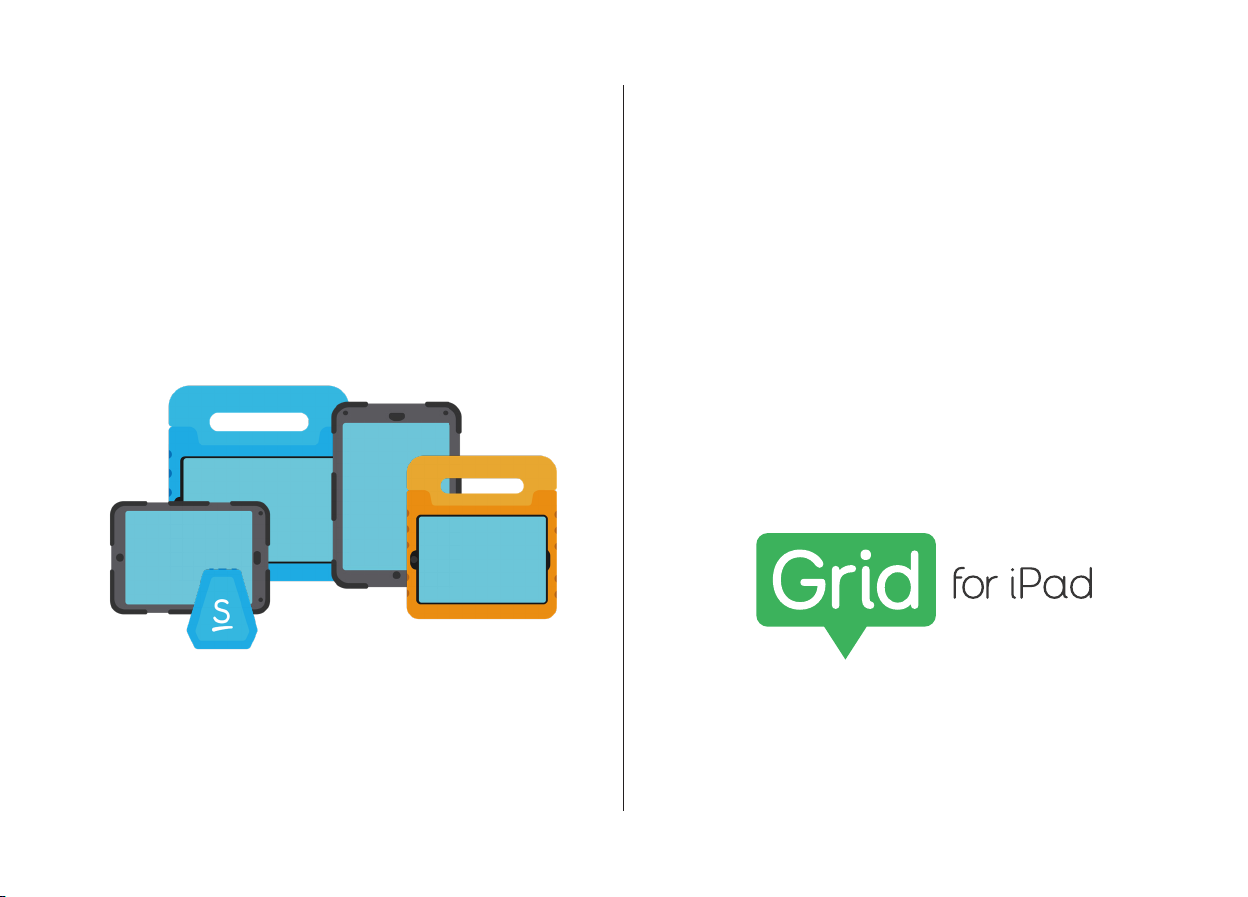
The Smartbox iPad Essentials pack includes
all you need to get started with touch based
AAC.
• iPad (Standard or Mini)
• iPad case (soft foam or tough shell)
• Lightning cable and Charging plug
• Bluetooth speaker and USB charging
cable
• Carry case
• Shoulder strap (iPad Standard with
tough shell only)
Software
Page 4
Essentials options
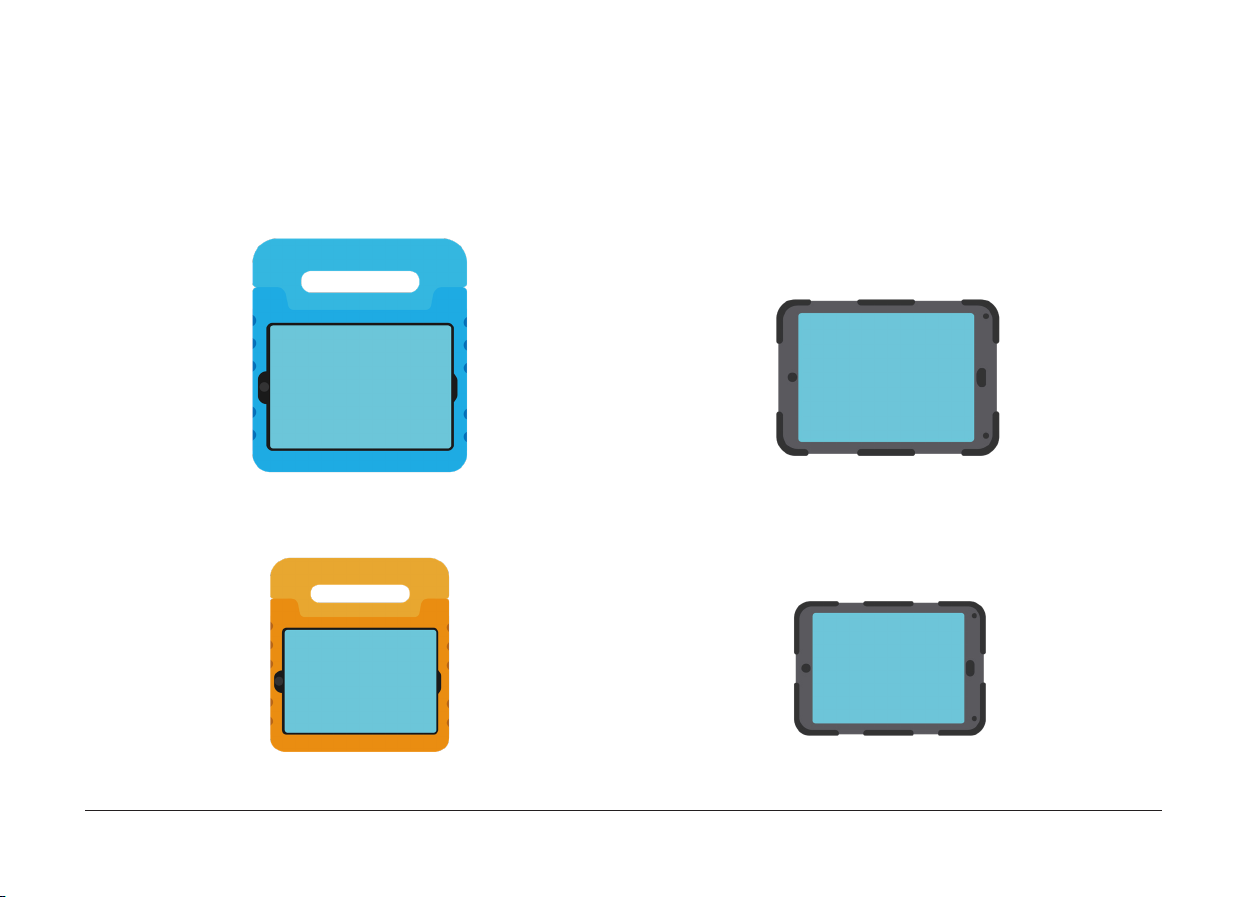
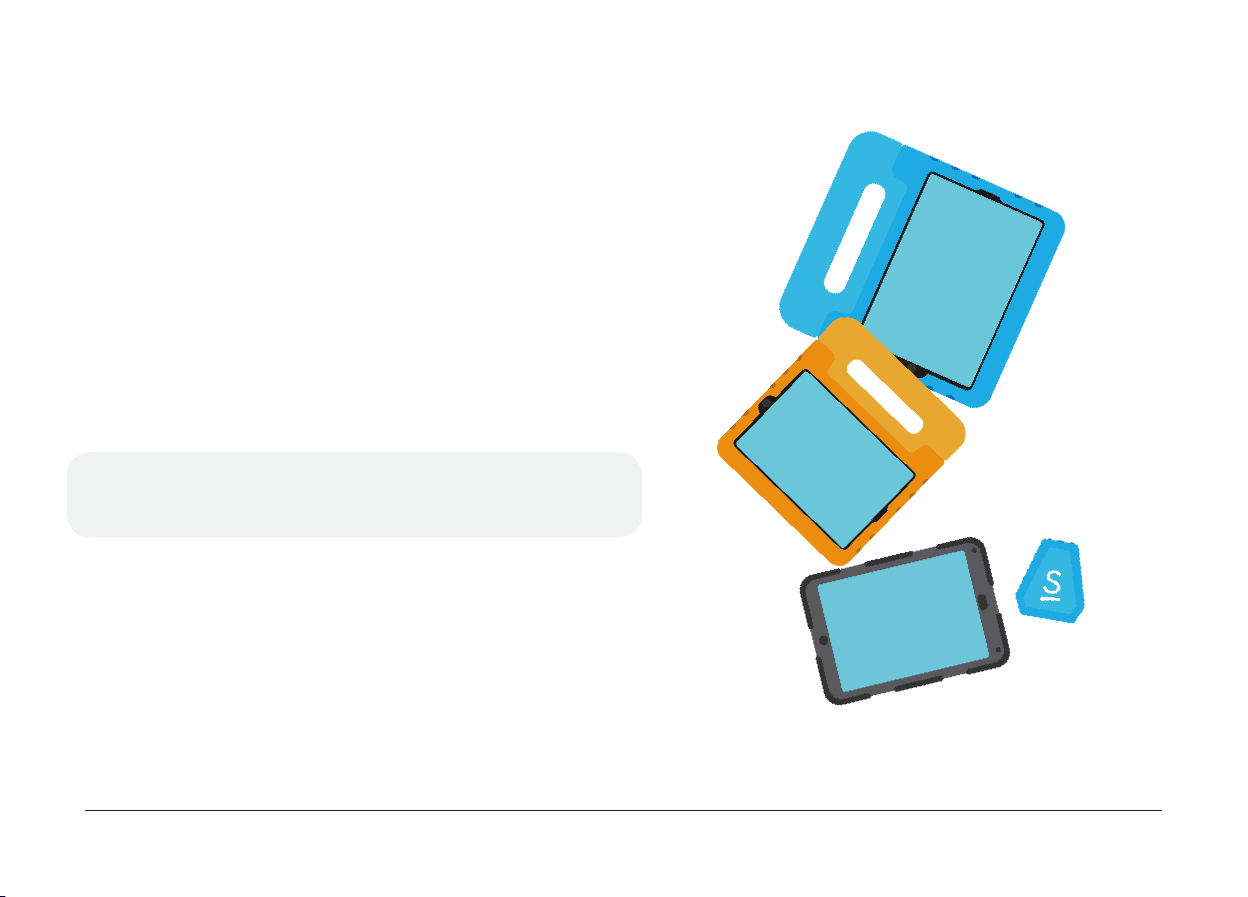
Your iPad has been supplied with either a soft foam or tough shell case. Both are designed to help
protect your iPad from knocks, bumps and drops.
iPad in soft foam case iPad in tough shell case
iPad Mini in soft foam case
iPad Mini in tough shell case
Page 5
iPad guide
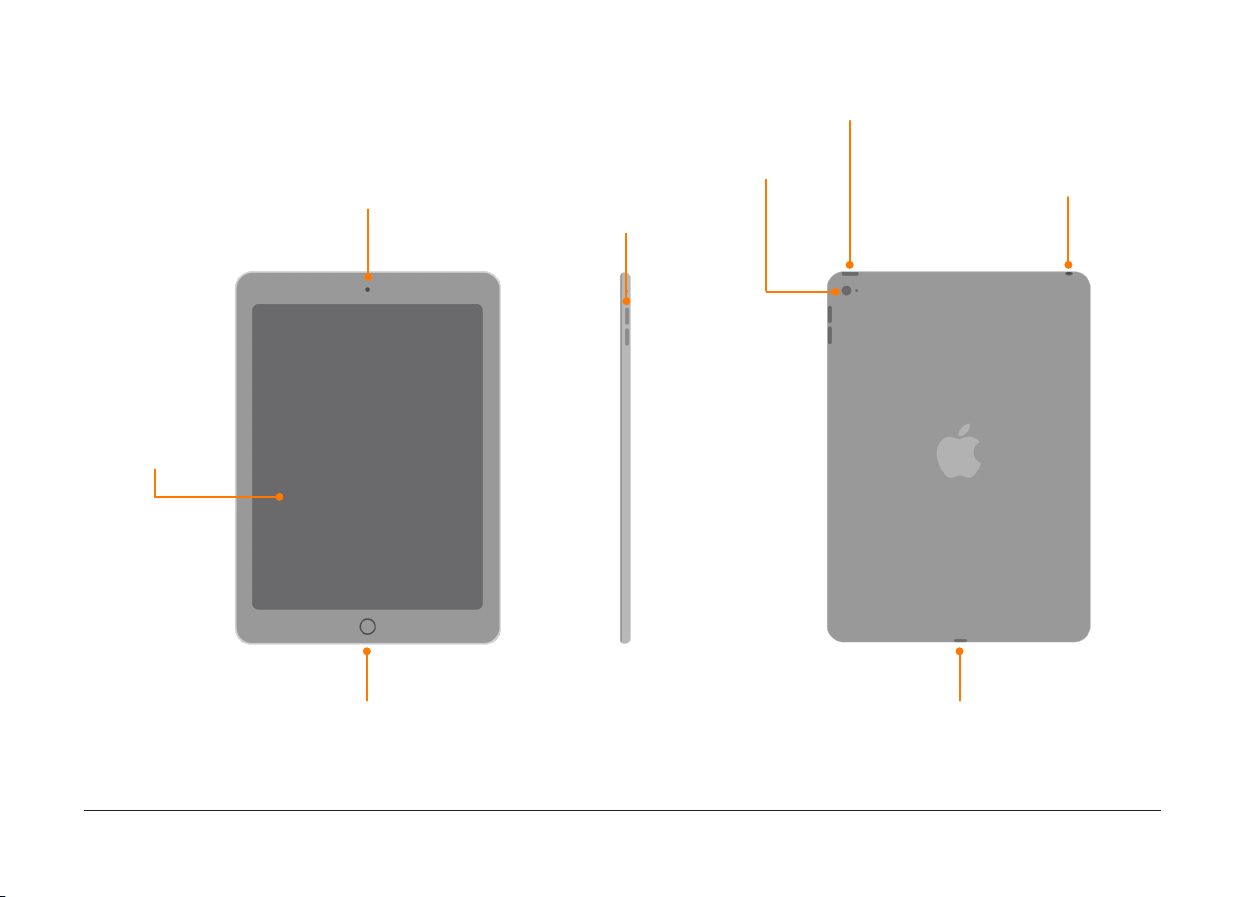
Power button
Touch screen
Front camera
Home button
Rear camera
Headphone port
Volume control
Lightning port
All ports and buttons are accessible through hatches or cut outs on the case.
Page 6
Setting up your iPad
Press the power button to switch on the device
and follow the on screen instructions.
Be sure to be in a location where you have access
to wi-fi.
If this is your first iPad you will need to create an
Apple ID. You can do this as part of the iPad setup.
If you already have an Apple ID you will be able to
sign in as part of the setup.
Note: Without an Apple ID you will not be able to
redeem the code for Grid for iPad!
During setup, you will have several options
regarding settings and services, many of these
are optional and you can set them up at a later
time in Settings if you need them.
Page 7

Getting started with Grid for iPad
Step 1
Follow the instructions on your Grid for iPad
card to redeem your Grid for iPad code.
Step 2
Start the app by selecting its icon.
Step 3
Select Get Started on the Grid for iPad start
page to begin setup.
Tip: If you already have a Smartbox Account
you can sign in here to restore your grid sets
Step 4
Follow the setup choosing your language
and voice as well as privacy options.
Step 5
Depending on your privacy settings, you
may get a few notifications when you
complete the setup. Choose Allow to confirm
these.
Step 6
Welcome to Grid for iPad! You are now ready
to add some grid sets to start chatting. To
begin adding grid sets follow the on screen
instructions to open the menu and select
Add grid sets. You will need to be connected
to a wi-fi network to download new grid sets.
Page 8
Choosing your grids
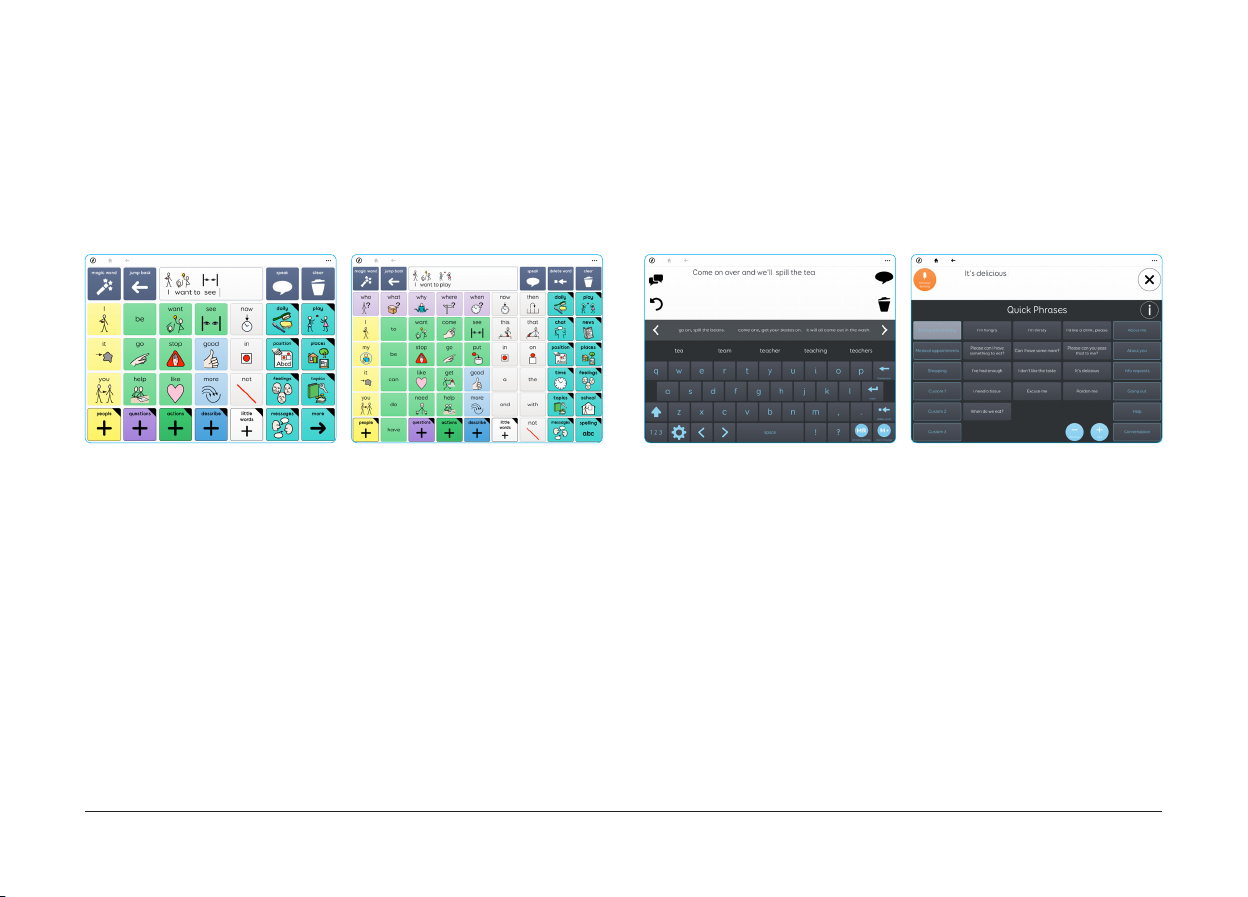
Grid sets are flexible communication packages that have unique features to build your sentences.
Below are two popular grid sets, but there are many more available. Grid for iPad also has a complete
suite of creation and editing tools to let you design and build your own custom grids!
Super Core
Super Core is a symbol-based core vocabulary,
designed to help AAC users experience success
with symbol communication.
You’ll find lots of vocabulary relating to daily
and play activities, making it easier to learn and
explore language with activities that are fun and
familiar – and encourage AAC to be used all day,
every day!
Text Talker
Text Talker is a fast way to type what you
want to say. The grid set combines a series of
innovative features to make communication for
literate users intuitive.
Features such as SwiftKey prediction and Chat
history make building the message you want to
say even simpler.
Page 9
Bluetooth speaker
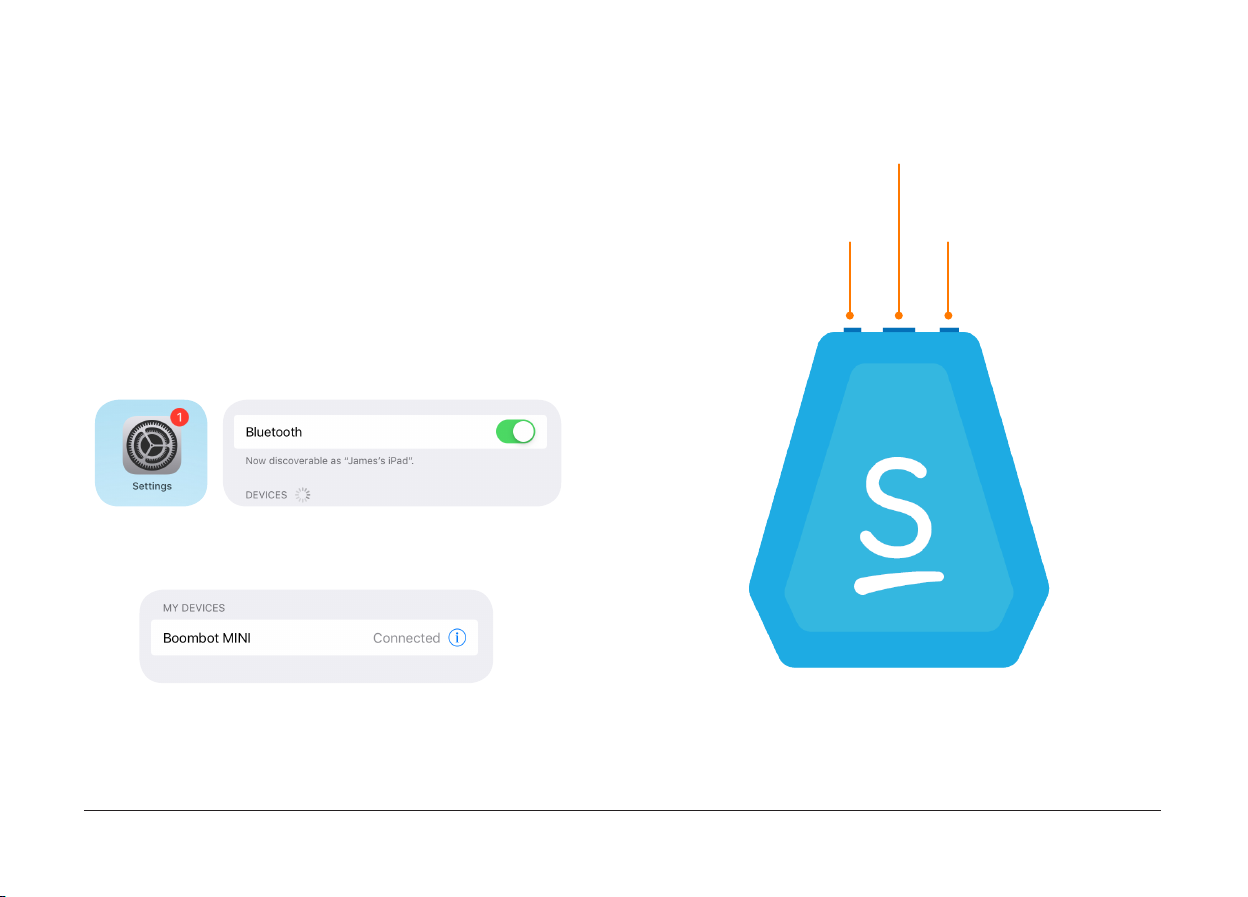
The Bluetooth speaker will need to be paired to
your iPad before you can use it.
Step 1: Press and hold the On/Off button on the
speaker until the LED begins to blink.
Step 2: On your iPad go to Settings, then Bluetooth
and make sure it is switched on.
Step 3: Boombot MINI will appear in the list of
devices. Tap this to connect.
The speaker will then pair and make a chime to
signal it is ready to use. For more information on
the Bluetooth speaker visit thinksmartbox.com.
Hold for On/Off
Volume down
Volume up
Page 10

Smartbox support
Online support
The Smartbox team is here to help. You can raise a support ticket over email, phone (9am - 5pm UK
time) or use our online chat box.
thinksmartbox.com/smart-support
Knowledge base
Our Smartbox Knowledge base is full of tips, guides and troubleshooting tools.
thinksmartbox.com/knowledge-base
Facebook community
Our Facebook Community is a great way to get in touch and keep up with the latest news. This group
of Smartbox users is growing everyday and is the perfect place to ask for advice, share ideas and
find inspiration.
thinksmartbox.com/facebook
Page 11

Warranty
iPad Essentials is covered by a standard warranty of 2 years from the date of purchase.
Repairs
Please do not attempt to dismantle your iPad as it may invalidate your warranty. To organise a repair
please contact our support team.
Page 12
thinksmartbox.com
IPE-MAN-UK-A
 Loading...