

Page 1
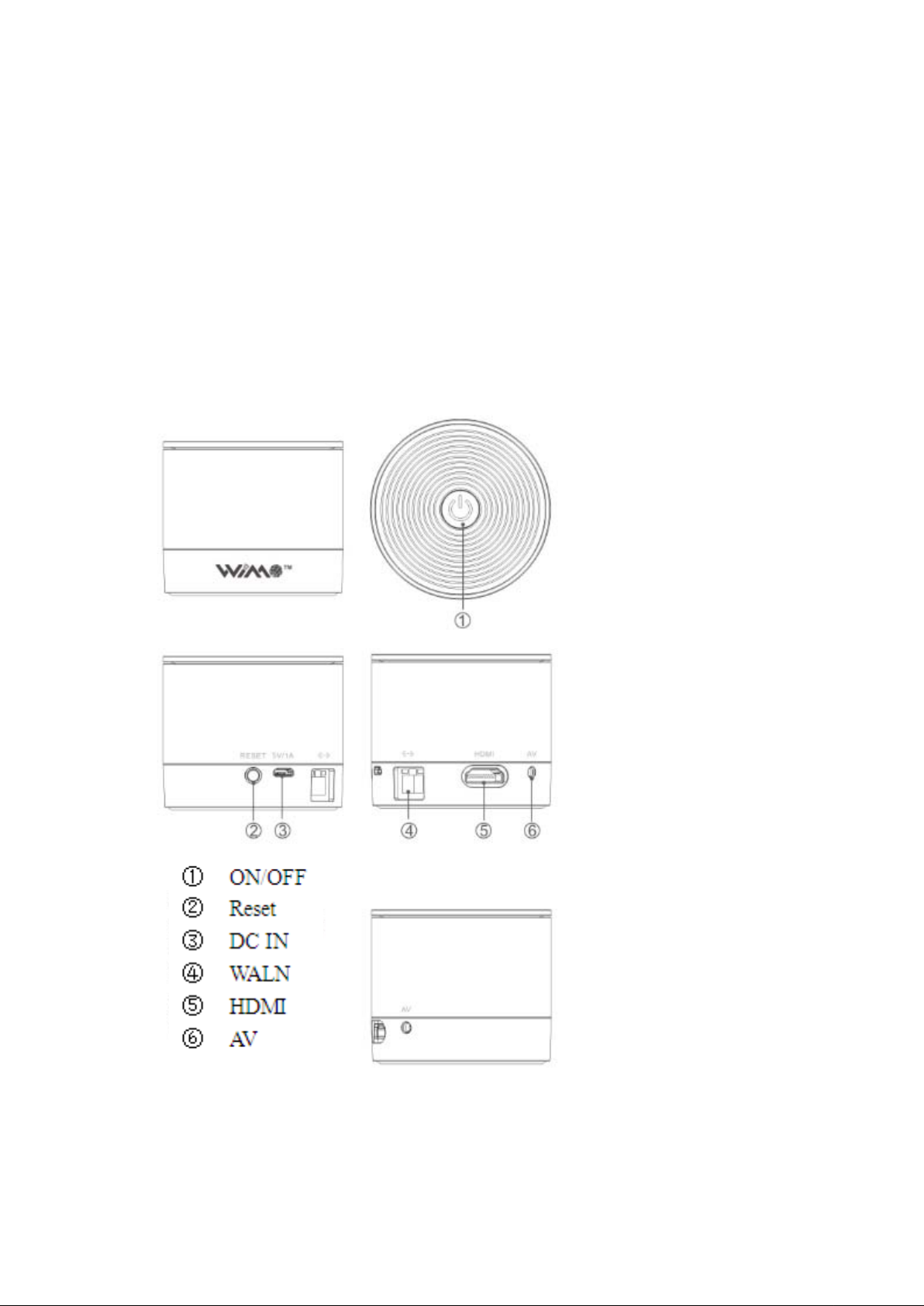
Wireless Display Receiver
User Manual
1. Multimedia Streaming...........
2. Screen Mirroring.............
1.)IOS Mirroring........
2.)Android Mirroring.......
3.)Windows Mirroring.....
3. Internet Settings and Online Upgrade..........
WiMo1
Page 2
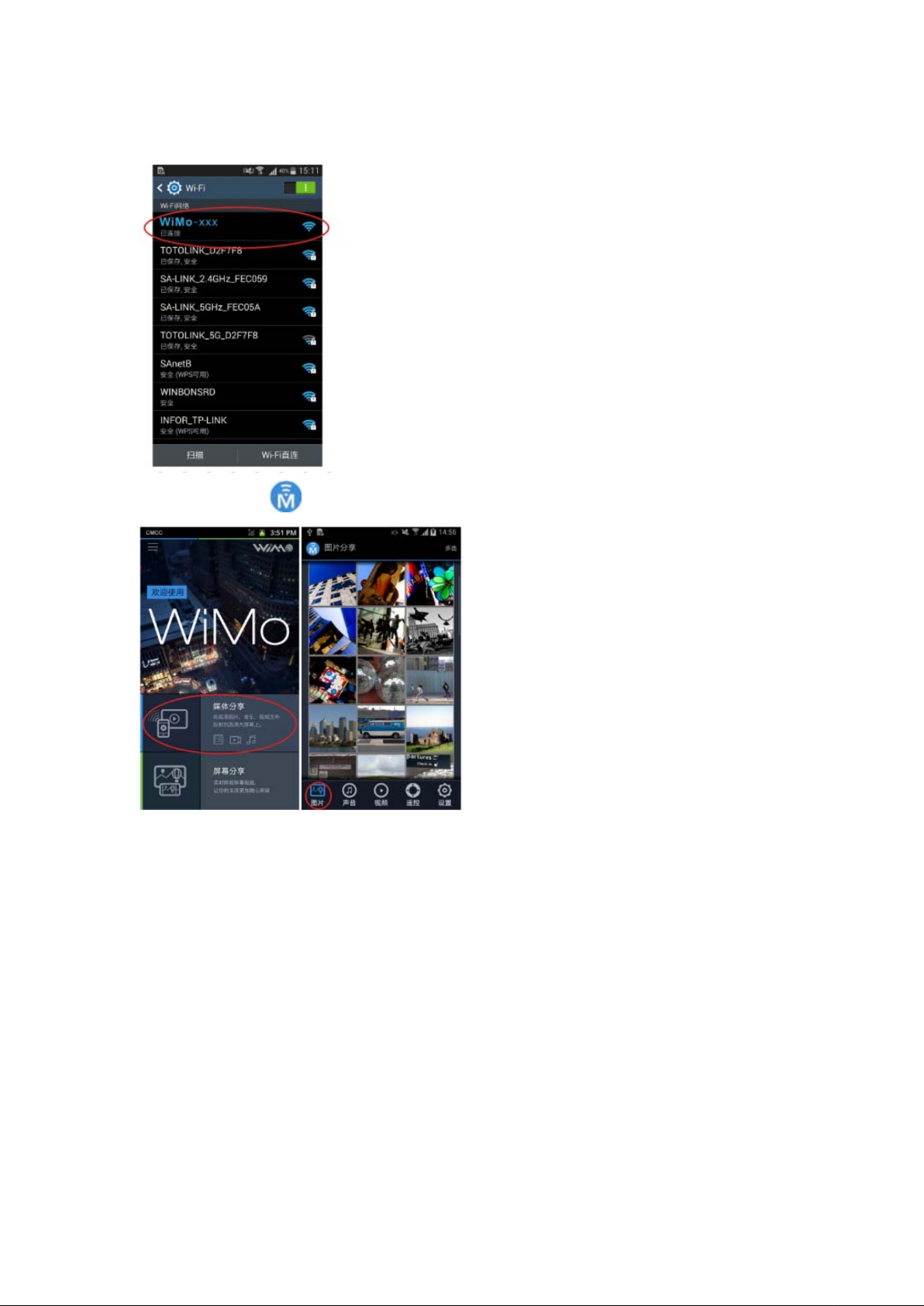
1.Multimedia Streaming:
Connect WiMo-xxx in your wireless network:
Open WiMo client ‘
2. Screen Mirroring:
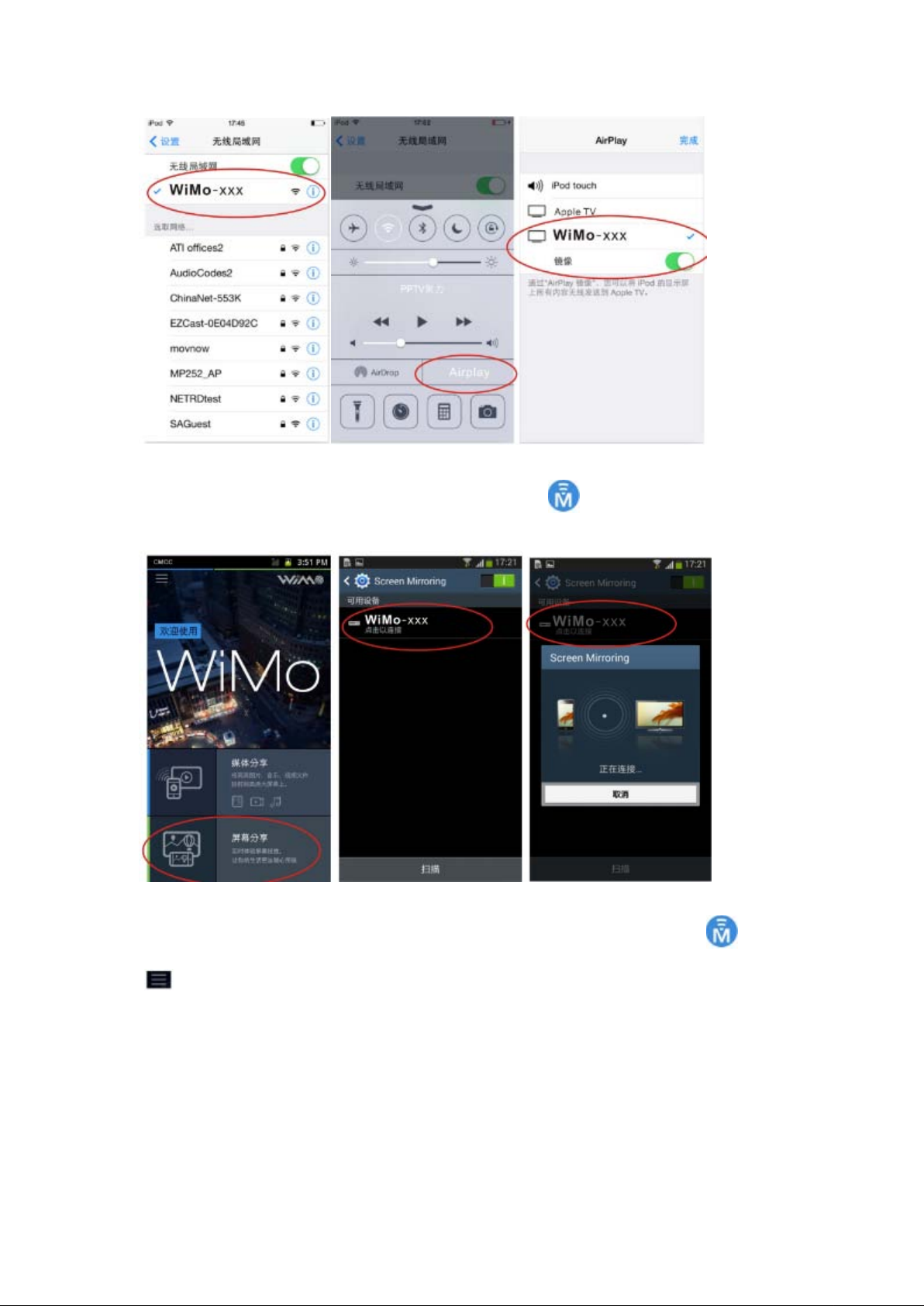
1.)IOS Mirroring: choose and connect ‘WiMo-xxx’ in the wifi settings of your Iphone. Open
airplay and mirroring function. Example as IOS7:
’, choose ‘Multimedia Streaming’:
Page 3
2. )Android Mirroring( android4.2+): Open WiMo clinet ‘
Example as below:
If your mobile doesn’t support Mircast, pls root your mobile. Then open WiMo clinet ‘
’, choose ‘Screen Mirroring’.
’, click
‘
’, open ‘screen rorate control’. Example as below:
Page 4
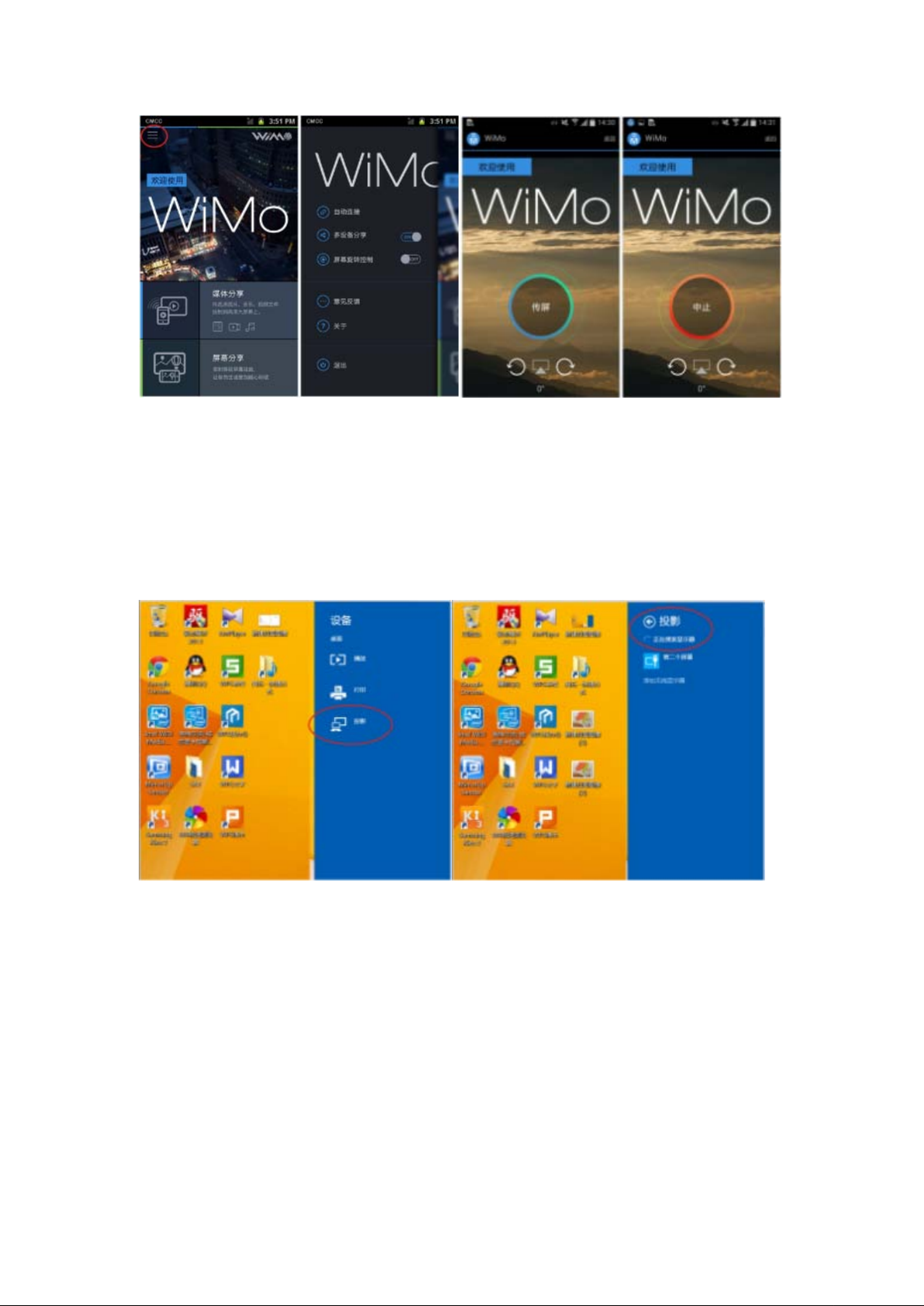
3.) Windows Mirroring(windows 8.1+): move the mouse to the edge of windows, choose
‘device’-’projector’-’add wireless displayer’, then select WiMo-xxx. Example as below:
Page 5
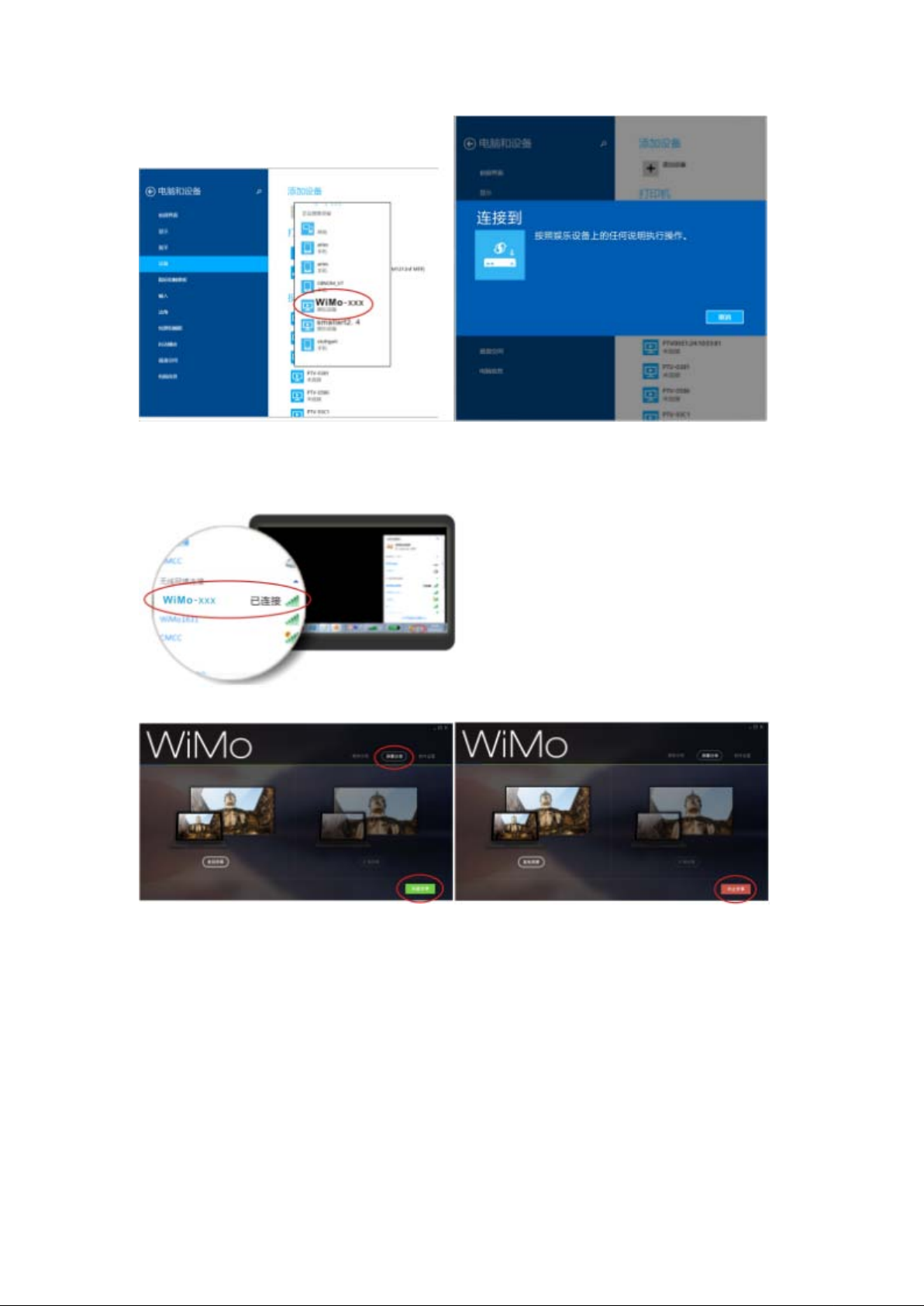
For windows XP/Vista/7, pls download WiMo client of Windows first.
Connect WiMo-xxx in your wireless net of your computer:
Open WiMo client, choose ‘screen mirroring’:
3. Internet Settings and Online Upgrade:
1). connect WiMo-xxx,
Page 6
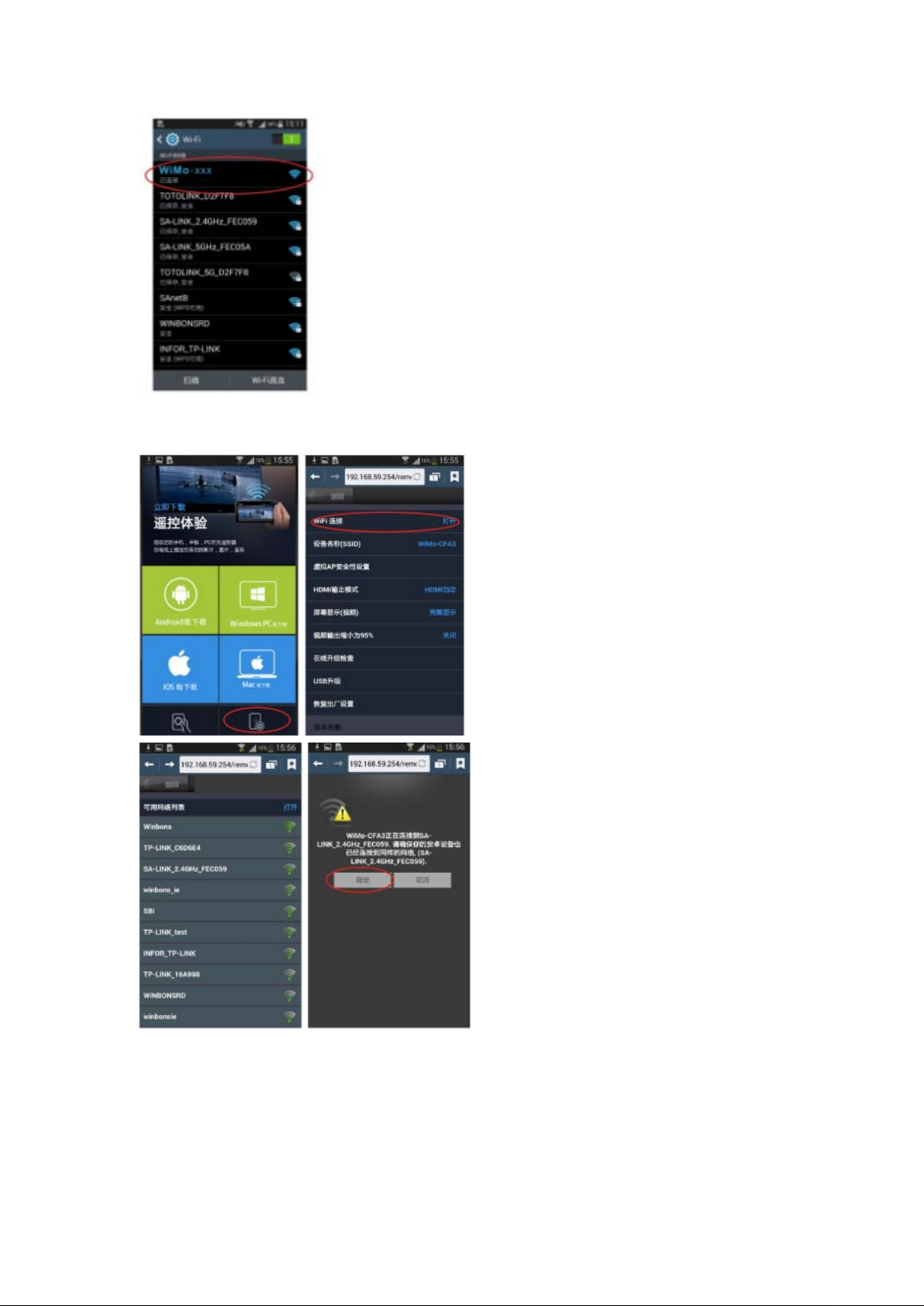
open the browser and input ‘192.168.59.254’ , click ‘setup’, set the wifi connecting. Pictures as
below:
Meanwhile, you will not find the ‘WiMo xxx’ in wifi settings, just need to connect the same
network . Pictures as below:
Page 7
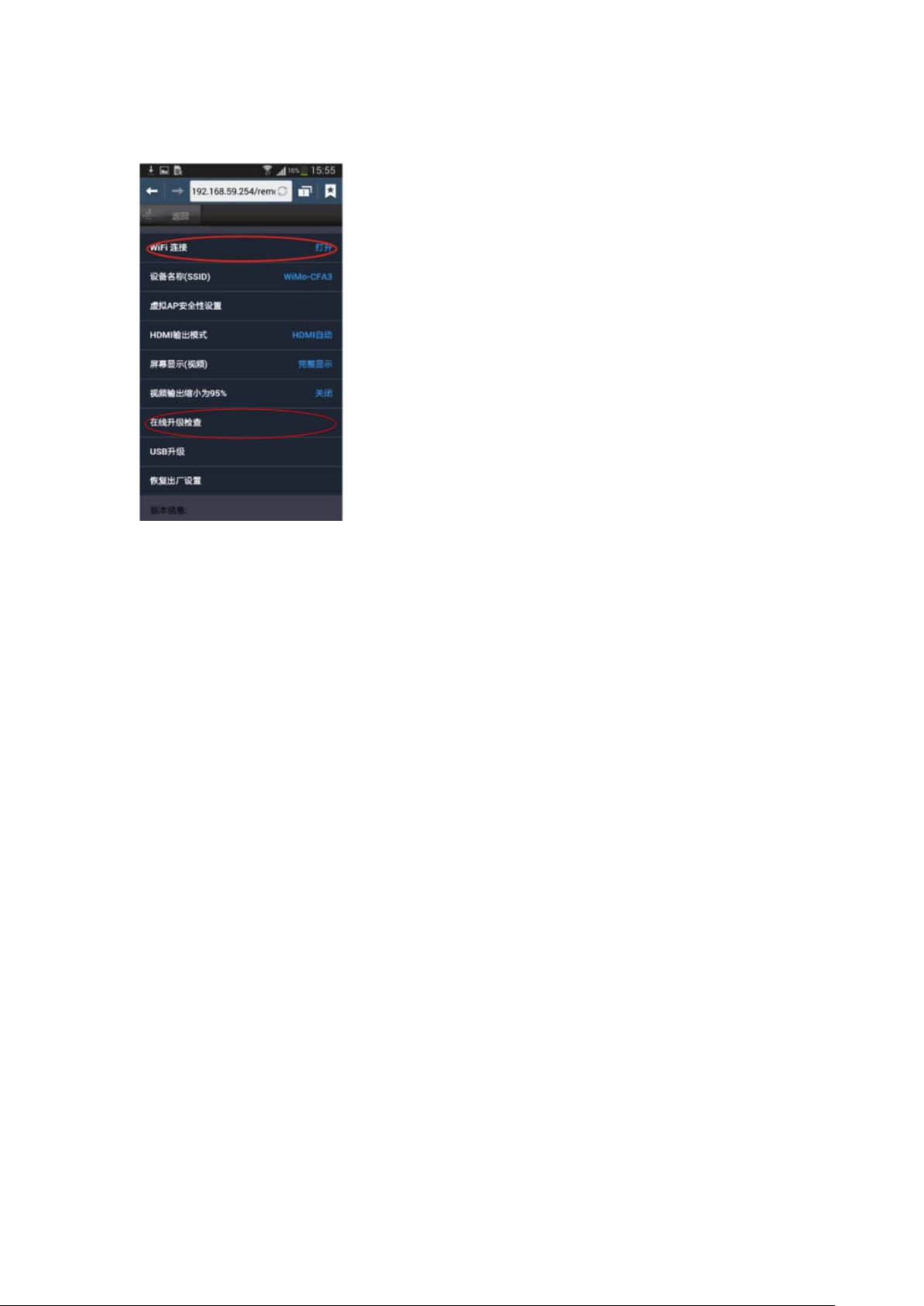
2) Online Upgrade:Internet connects successfully, input the ‘192.168.xx.xxx’, click ‘setup’,
choose the ‘online upgrade’ function.
NOTE: Pls don’t plug out the power before WiMo returns to desktop during upgrading
process.
Button on device:
Long press more than 5seconds, it will restore the factory settings.
Page 8

FCC Information and Copyright
This equipment has been tested and found to comply with the limits for a Class B digital device,
pursuant to part 15 of the FCC Rules.
These limits are designed to provide reasonable protection against harmful interference in a residential
installation. This equipment generates,
uses and can radiate radio frequency energy and, if not installed and used in accordance with the
instructions, may cause harmful interference
to radio communications. However, there is no guarantee that interference will not occur in a particular
installation. If this equipment does
cause harmful interference to radio or televisi on reception, which can be determined by turnin g t he
equipment off and on, the user is
encouraged to try to correct the interference by one or more of the following measures:
—Reorient or relocate the receiving antenna.
—Increase the separation between the equipment and receiver.
—Connect the equipment into an outlet on a circuit different from that to which the receiver is
connected.
—Consult the dealer or an experienced radio/TV technician for help.
This device complies with part 15 of the FCC Rules. Operation is subject to the
following two conditions:
(1)This device may not cause harmful interference, and
(2) this device must accept any interference received, including interference that may
cause undesired operation.
changes or modifications not expressly approved by the party responsible for compliance could
void the user's authority to operate the equipment.
This equipment complies with FCC radiation exposure limits set forth for an uncontrolled
environment .This equipment should be installed and operated with minimum distance 20cm
between the radiator& your body. This transmitter must not be co-located or operating in
conjunction with any other antenna or transmitter.
For 5150-5250 MHZ in indoor use only.
 Loading...