

Page 1
QUICK START GUIDE
Page 2
WELCOME!
Thank you for buying the SlingboxTM SOLO. Follow these instructions to connect your new
Slingbox and start watching your TV anywhere on your laptop or mobile*.
For more information on setup, visit support.slingmedia.com.
Remote Control
IR Cable
S-Video
Cable
Composite A/ V
Cable
B
C
D
E
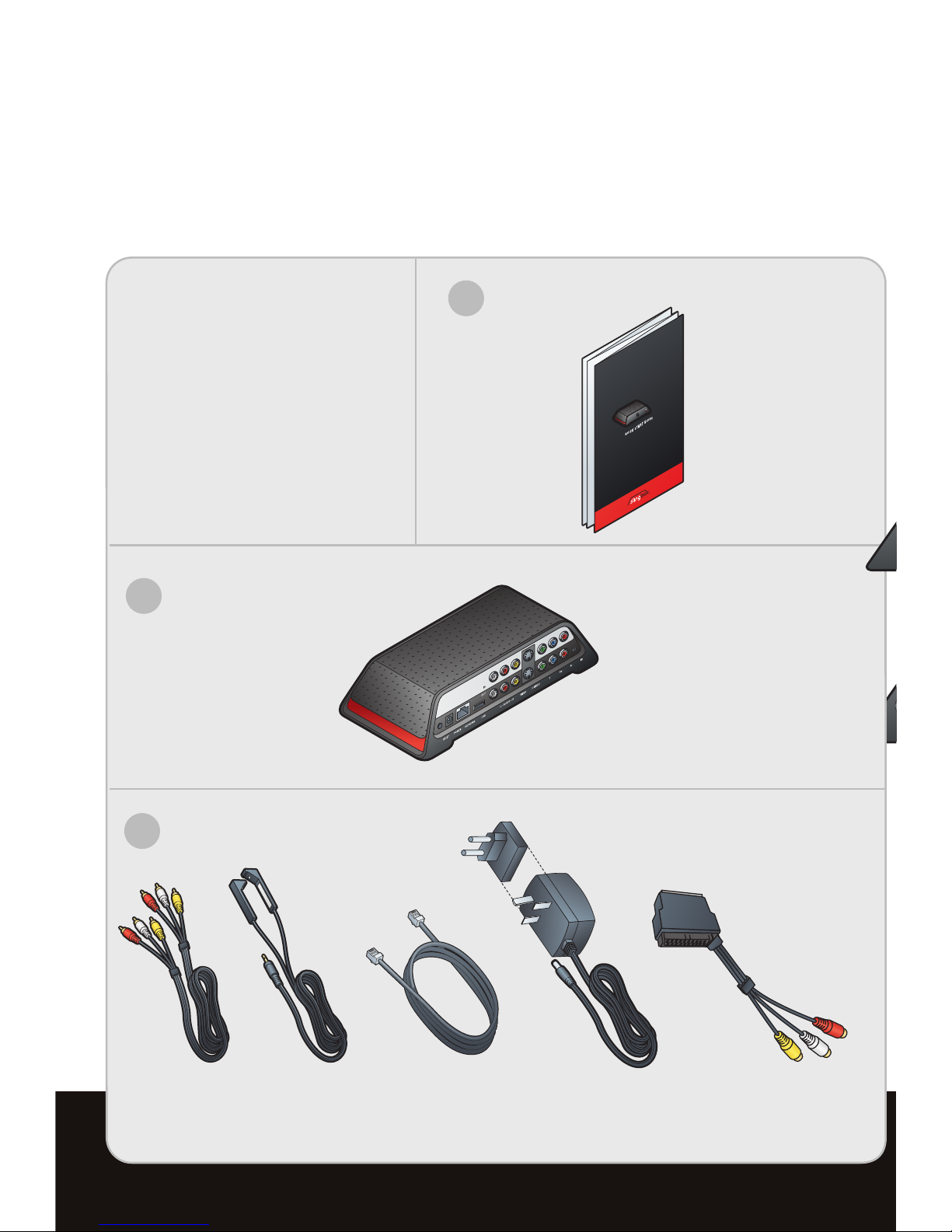
WHAT’S IN THE BOX:
A/V Pack
Power/Network Pack
Slingbox HD Connect
Quick Start Guide Slingbox SOLO
Power
Adapter
Ethernet
Cable
B
WHAT’S IN THE BOX:
A
Remote Control
IR Cable
Composite A/V
Cable
C
Quick Start Guide
Slingbox SOLO
Accessories Pack
SCART to RCA
Adapter
Page 3
STEP 1: CONNECT VIDEO/AUDIO SOURCE
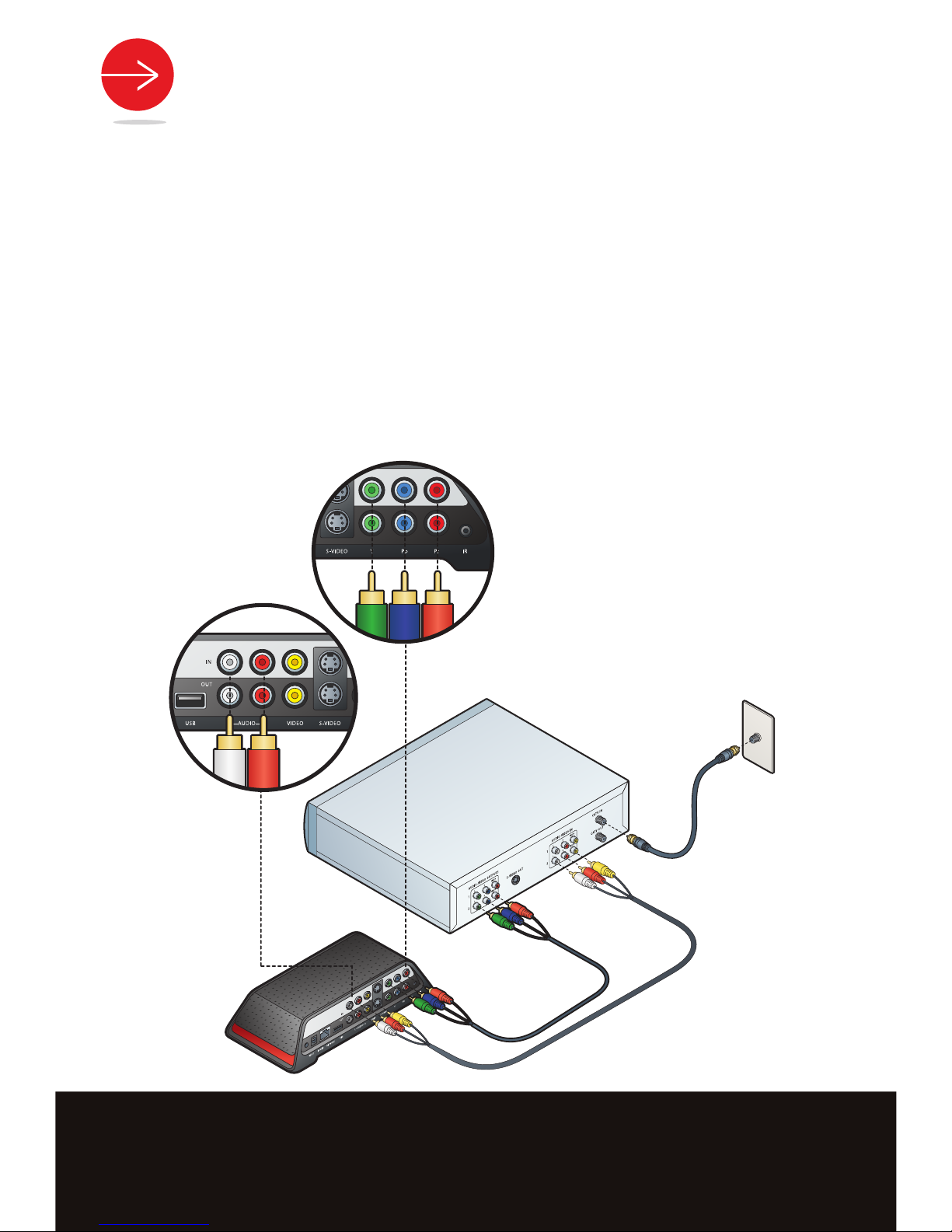
HD COMPONENT and AUDIO CONNECTIONS
The Slingbox SOLO can connect to one High Definition (HD) device or one Standard Definition
(SD) device such as a DVR, Cable Box, Satellite Receiver or DVD Player.
Visit http://support.slingmedia.com for a list of compatible devices.
*To watch your Slingbox on your mobile device you must purchase SlingPlayer™ Mobile software separately. There
are versions of SlingPlayer Mobile specific to many PDAs, mobile phones and smart phones. A free 30-day trial is
available at http://www.slingmedia.com. SlingPlayer Mobile is not compatible with all PDAs, mobile phones, smart
phones or providers.
It may not work or be used in all countries. Note that some providers charge additional usage fees for video streaming. Go to http://www.support.slingmedia.com for a list of supported mobile devices.
AUDIO
HD COMPONENT
If your A/V source has component output, use a component cable (sold separately).
• Connect the component cable (green, blue, red) from the A/V source output to the Slingbox
Component IN. This supplies the video signal only.
• To connect audio, remove the composite A/V cable from your accessories pack.
• Connect the red and white composite connectors from the A/V source output to the Slingbox
Audio IN.
Page 4
SCART/COMPOSITE CONNECTION
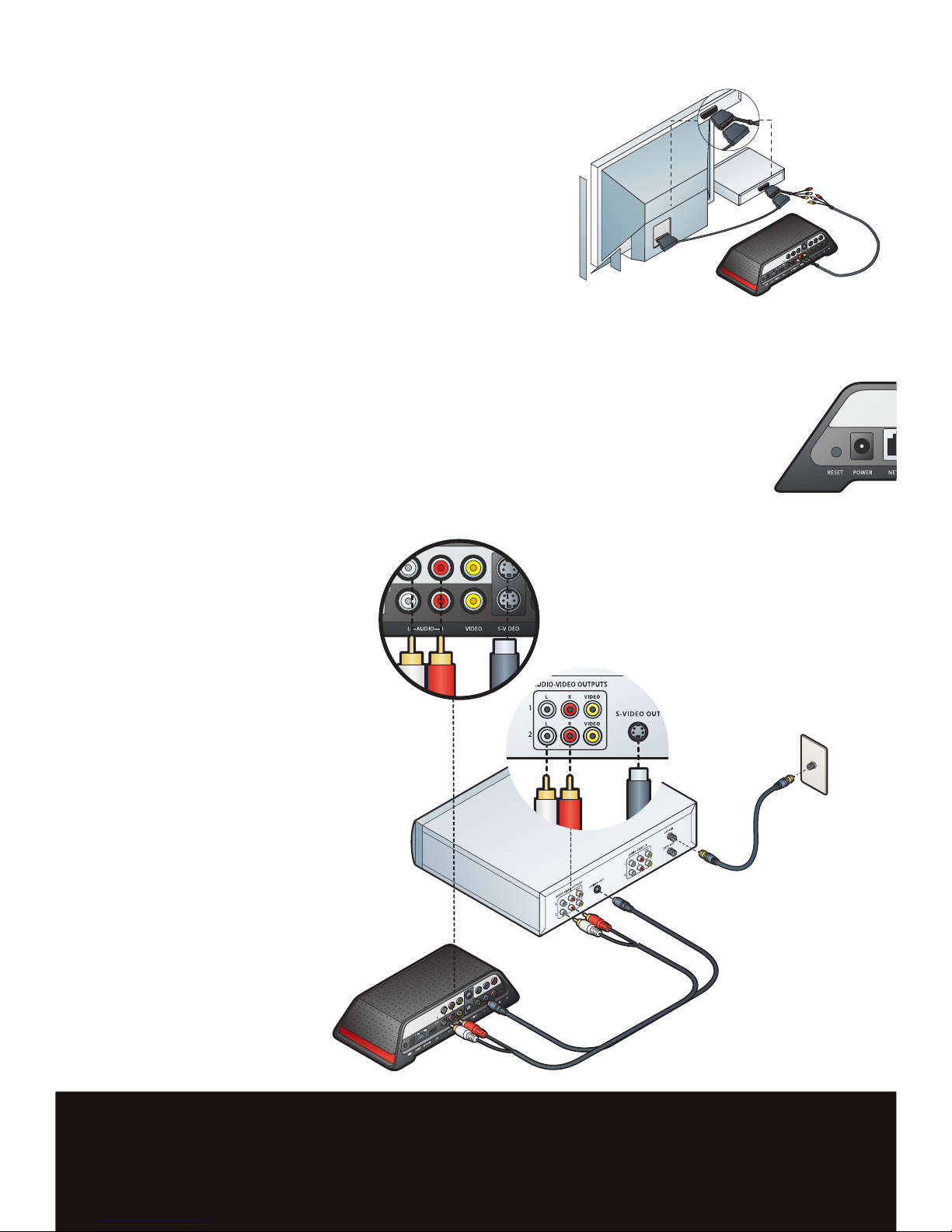
• Remove the composite A/V cable from the A/V Pack.
• Connect the composite A/V cable to your A/V source OUT.
• Connect the other end of the composite A/V cable to the
Slingbox IN connection.
For SCART connections, use the supplied SCART to RCA
adapter. (NOTE: The supplied SCART to RCA adapter will
only work with the composite A/V cable.)
• Connect the S-Video (sold separately) and audio cables to your A/V source OUT.
• Connect the other end of the S-Video and audio cables to the Slingbox IN connection.
S-VIDEO CONNECTION
Page 5
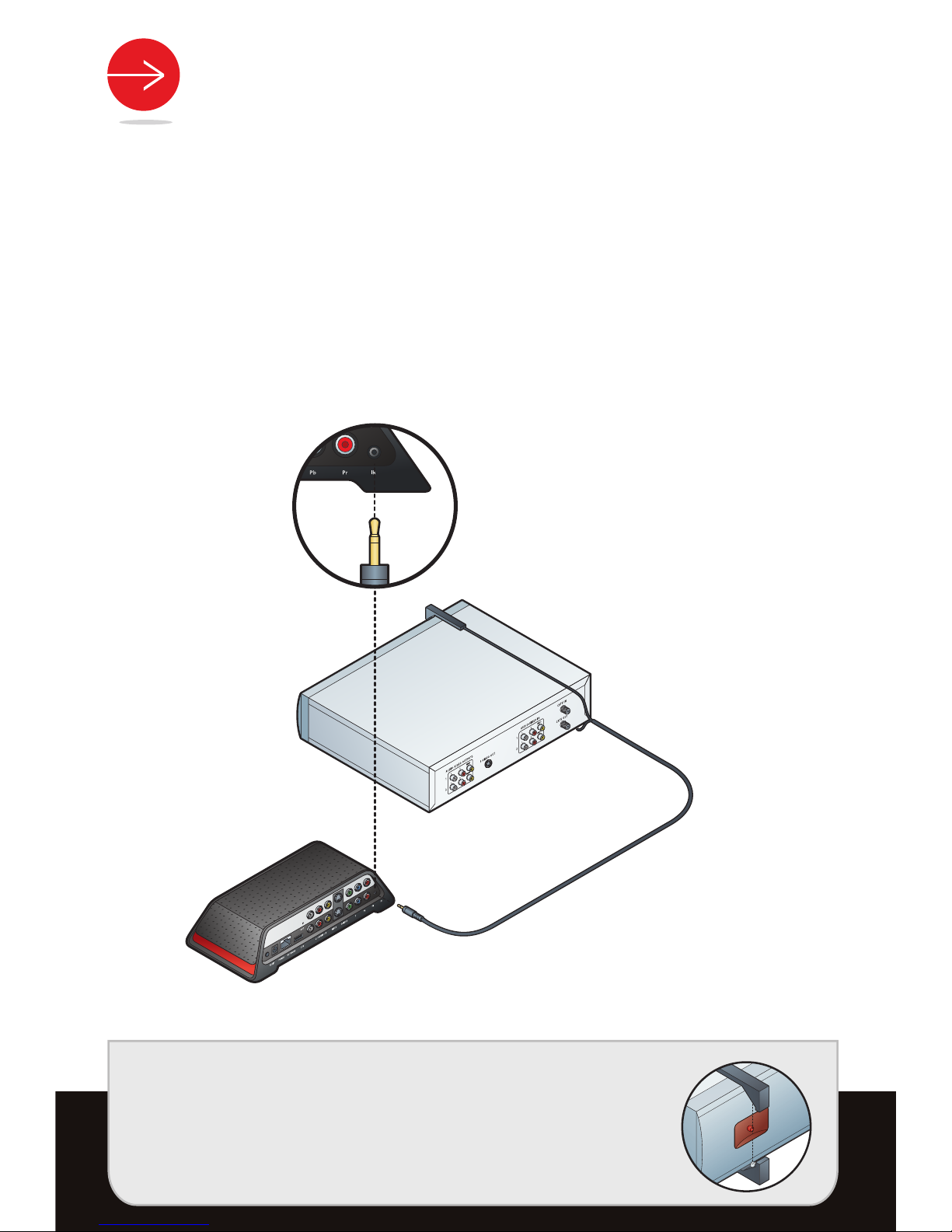
STEP 2: CONNECT REMOTE CONTROL IR CABLE
• Remove the remote control IR cable from the accessories pack.
• Connect the remote control IR cable to the IR connection on the Slingbox.
• Place the remote control IR cable heads on the top or bottom of your DVR and/or
Cable/Satellite Box so they point at its IR sensor.
TIP: The IR sensor is on the front of your Cable/Satellite box or
DVR, usually behind a dark, sometimes reddish plastic
window. If you don’t see the sensor, shine a flashlight through
the window and look for a small bulb similar to the one on the
end of the remote control IR cable.
Make sure they extend out far enough over the front of the
device to send a signal to your DVR or Cable/Satellite Box. You
may want to affix the remote control IR cables using the
adhesive pads after installation is complete.
Page 6
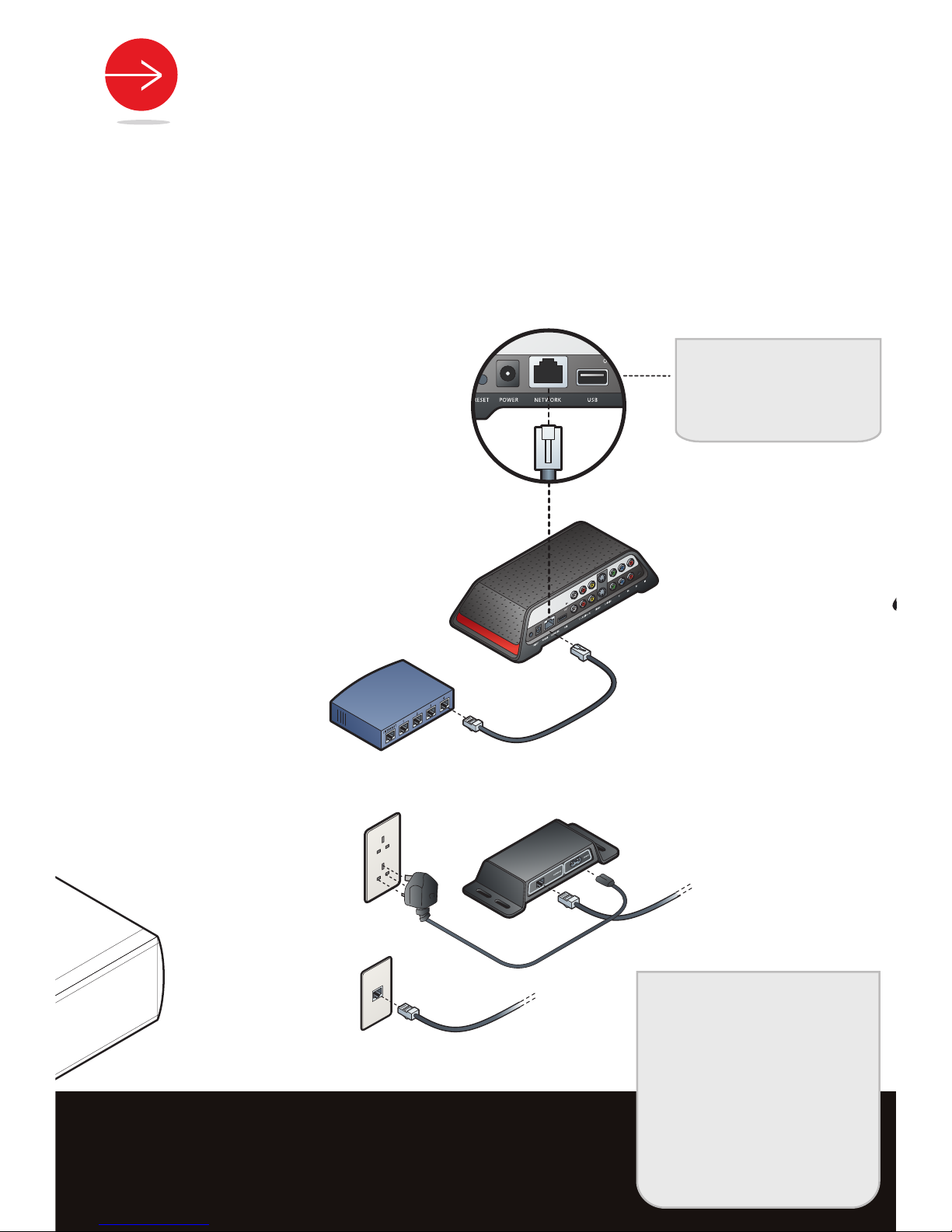
STEP 3: CONNECT TO YOUR NETWORK
• Remove the Ethernet cable from the accessories pack.
• Plug one end of the Ethernet cable into the Slingbox NETWORK connection.
• Connect the other end to your home network router.
—or—
ETHERNET JACK
(Connected to Router)
—or—
SLINGLINK*
(Connected to Router)
ROUTER
(Direct Connect)
* SlingLink sold separately.
TIP: If you have multiple
routers on your home
network, please go to
support.slingmedia.com
for instructions on how to
set up the Slingbox on
your network.
The Slingbox works with any high-speed Internet connection or broadband
home network. You must have a router to use the Slingbox.
NOTE: The USB port has
been designated for
future use.
Page 7
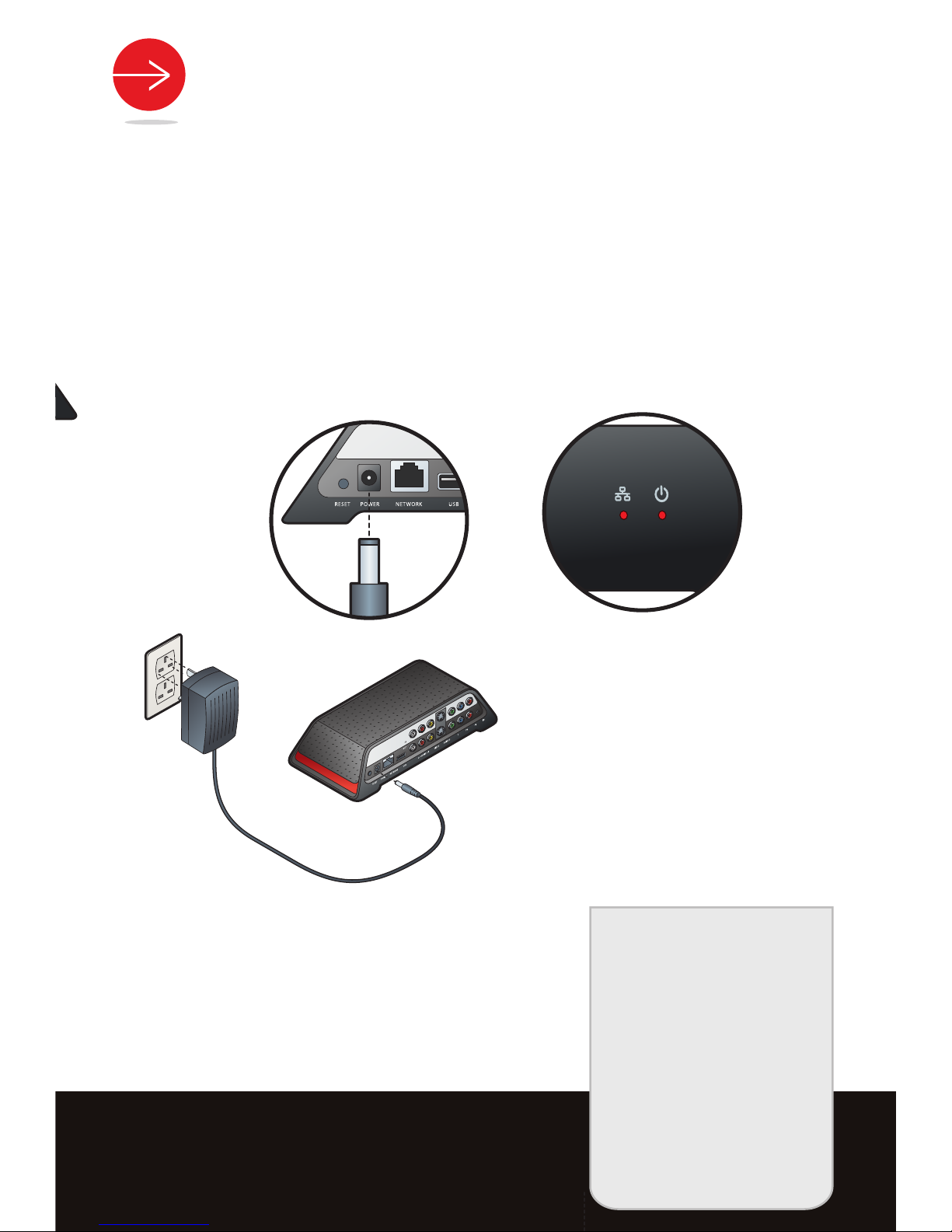
STEP 4: CONNECT POWER SOURCE
• Remove the power adapter from the accessories pack.
• Connect the power adapter into the Slingbox POWER connection.
• Plug the power adapter into an electrical outlet.
TIP: If the network light
does not come on within
30 seconds, make
sure that the Slingbox is
correctly connected
to your network/router.
See Troubleshooting on
the reverse side for more
solutions, or go to:
support.slingmedia.com
When plugged in, the lights blink a few times as the Slingbox starts up.
Once the lights stop blinking, your Slingbox is ready.
NETWORK POWER
Page 8

To enjoy your Slingbox, you will need:
• TV signal (Cable, Satellite, Freeview™, DVR)
• Broadband Internet Service
• A router on a home network
• PC or Mac Computer
You will also need to write down the type, brand and model of the audio/video device that will be
connected to your Slingbox SOLO. You’ll need this information later on for the software portion of
the setup.
DEVICE TYPE: (EX: Satellite)
BRAND: (EX: Thompson)
MODEL: (EX: DTI2300)
WHERE IT IS CONNECTED:
COMPONENT
SCART/COMPOSITE
S-VIDEO
WHAT YOU’LL NEED:
Page 9
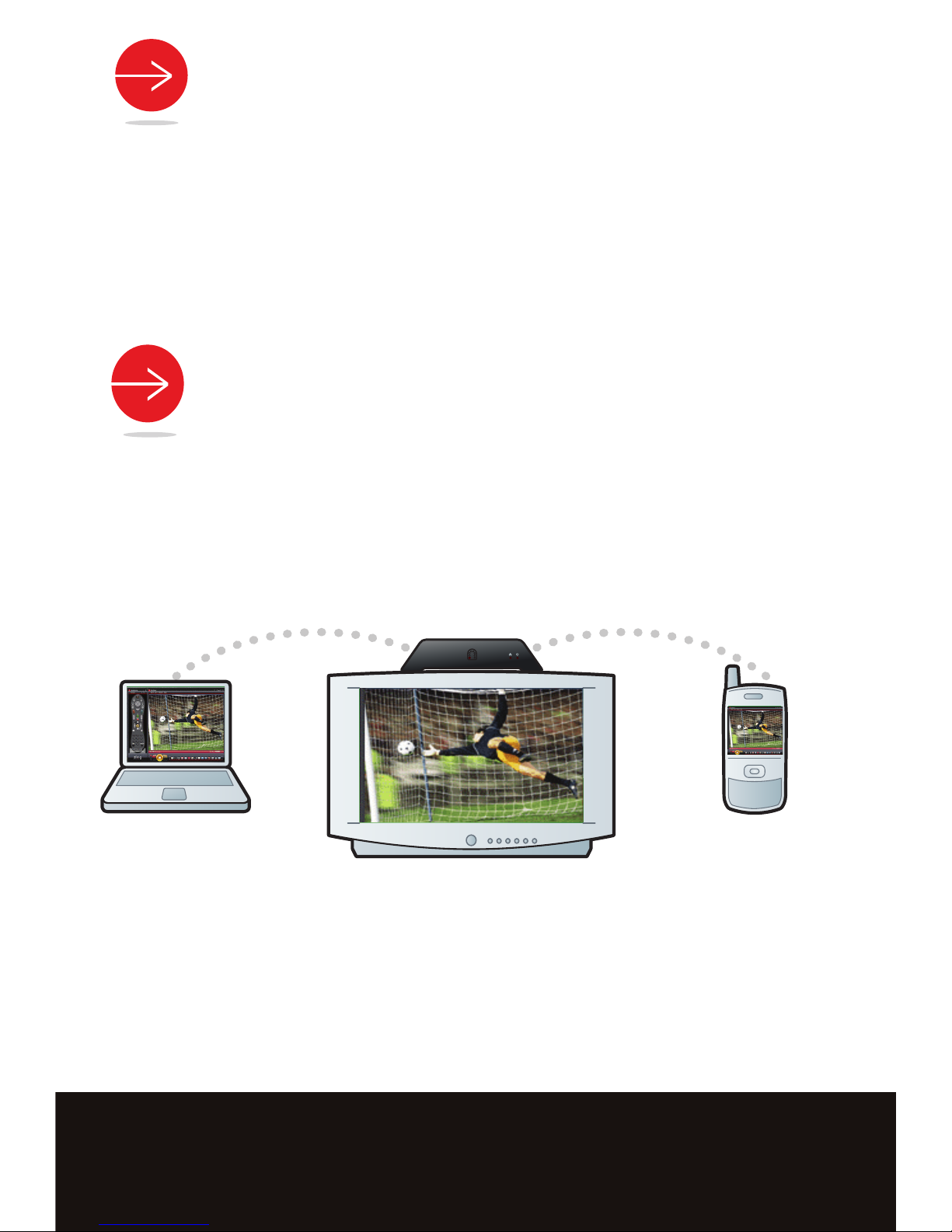
STEP 5: SOFTWARE SETUP
Now that you have the Slingbox setup, you are ready to install the software.
Before you begin, make sure your computer is on the same network as your Slingbox.
Please go to http://
downloads.slingmedia.com and follow the instructions to download the latest
SlingPlayer software for your computer.
STEP 6: USING YOUR SLINGBOX
Congratulations! You are now ready to enjoy your TV on your PC, Mac or mobile*—at home or 3,000
miles away—via the Internet. Thanks for buying the Slingbox SOLO.
*To watch your Slingbox on your mobile device you must purchase SlingPlayer™ Mobile software separately. There
are versions of SlingPlayer Mobile specific to many PDAs, mobile phones and smart phones. A free 30-day trial is
available at http://www.slingmedia.com. SlingPlayer Mobile is not compatible with all PDAs, mobile phones, smart
phones or providers.
It may not work or be used in all countries. Note that some providers charge additional usage fees for video streaming. Go to http://www.support.slingmedia.com for a list of supported mobile devices.
Page 10

TROUBLESHOOTING
1. If the power light is not on:
Disconnect the power cable from both the Slingbox and the electrical outlet
and reconnect them - making sure that they are secure.
2. If the network light is not on:
Disconnect the Ethernet cable from the back of the Slingbox and re-insert it.
You will hear a click when it is fully inserted.
Do the same with the other end of the Ethernet cable, making sure that it is
attached to your router, optional SlingLink
TM
or optional wireless game adapter.
Make sure your router and/or wireless game adapter is on the same network
as your Slingbox.
3. If the network light is continuously blinking:
Press and hold the reset button on the back of the Slingbox for five seconds.
The lights on the front of the Slingbox quickly flash from left to right, then flash
slowly. This resets the Slingbox to factory settings.
Turn your router off and back on again. Note: Most routers do not have on/off
switches. You may need to unplug and plug the router back into the electrical
outlet.
4. The Setup Wizard and the SlingPlayer
TM
application do not discover
the Slingbox on your network:
Some firewall security software blocks the Slingbox from being recognized on
your home network. If this occurs, you need to change your security software
settings to see the Slingbox as a device on your network.
5. You don’t see your audio/video source while installing the SlingPlayer software:
Re-check the cable connections between your A/V devices and the Slingbox.
Make sure the cables are fully inserted into the connectors on the back of the
Slingbox. The cables should fit snugly.
6. The Setup Wizard and the SlingPlayer application are not controlling
your device:
Make sure the remote control IR cable is fully inserted.
Move the emitters to a different location on the front of your Cable/Satellite
box or DVR.
7. If your TV is no longer receiving a signal:
Connect the output of the Slingbox to your TV’s inputs. Check to make sure
your TV is set to the correct input.
NEED MORE HELP?
Go to s
upport.slingmedia.com.
Page 11

Copyright © 2007 Sling Media, Inc., Sling Media, Slingbox, SlingCatcher, SlingPlayer, SlingPlayer Mobile, and
SlingStream are the registered trademarks of Sling Media, Inc. Other products and companies mentioned are
the trademarks of their respective owners and not Sling Media, Inc. This product is designed in the United
States and manufactured in China. 082-10013
 Loading...