

Page 1
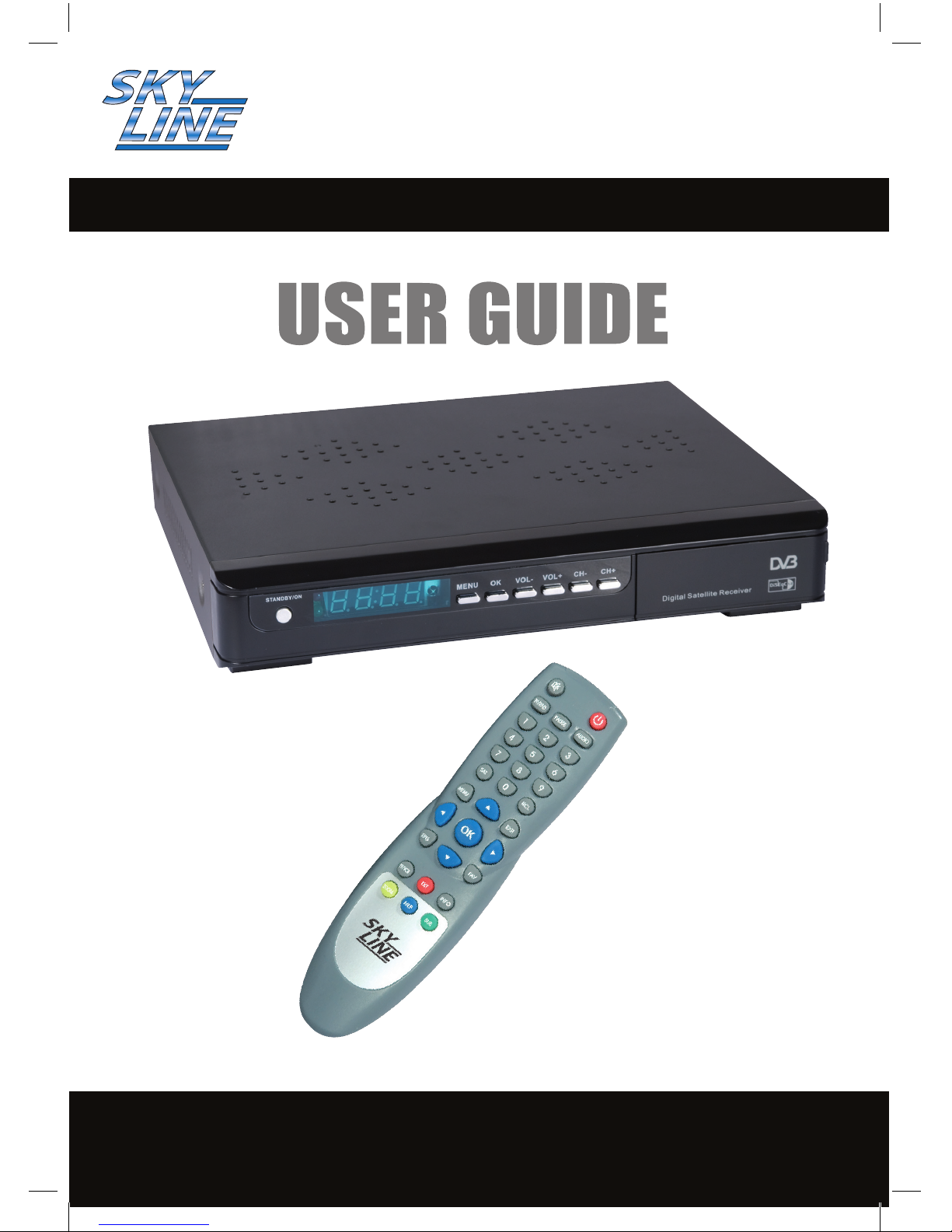
FREE - TO - AIR SATELLITE RECEIVER
28207RF
Customer Careline 0901 293 0038*
*Careline calls are charged at £1 per minute from a BT landline. Call charges from other networks may vary.
Page 2

04 Safety Instructions
05 1. General Information
05 1.1 Main Features
05 1.2 Satellite Receiver Accessories
05 1.3 General Operation of Receiver
06 1.4 Front Panel
06 1.5 Rear Panel
07 1.6 Remote Control Unit
08 2 . Installation of Receiver
08 2.1 Connection to Dish and TV via SCART
08 2.2 VCR SCART Connection
09 2.3 Connecting to TV using RF support
09 3. Menu Information
10 4. System Installation
10 4.1 Antenna Setting
10 4.2 Automatic Search
11 4.3 Manual Search
11 4.4 Blind Search
12 4.5 Motor Setting
12 4.6 Factory Default
13 5. Preferences
13 5.1 System Options
13 5.2 AV/RF Setting
13 5.3 Video Adjust
13 5.4 Time Setting
14 5.5 Timer
14 5.6 Parental Control
14 5.7 About Receiver
15 6. Channel Manager
15 6.1 Channel Manager
15 6.2 Set Favorites
Contents
2
Customer Careline: 0901 293 0038
Calls are charged at £1 per minute from a BT landline.
Call charges from other networks may vary
Technical Support: http://technical.philex.com
Page 3

16 7. General Viewing Function
16 7.1 Channel List
16 7.2 Select Channel
16 7.3 Previous Channel Recall
16 7.4 TV/Radio Mode
16 7.5 DTV/TV Mode
16 7.6 Channel Information
16 7.7 Favorite LIST
17 7.8 Volume/Audio Control
17 7.9 Sat (list programs by sat)
17 7.10 Zoom function
17 7.11 PIP (Multi-screen preview)
17 7.12 SUB
17 7.13 TXT
17 7.14 Pause Function
18 8. Games
18 9. EPG (Electronic Program Guide)
19 10. Technical Specication
20 10. Technical Specication
21 11. Trouble Shooting
22 12. Satellite Dish Alignment settings
23 12. Satellite Dish Alignment settings
24 12. Satellite Dish Alignment settings
Contents
3
Customer Careline: 0901 293 0038
Calls are charged at £1 per minute from a BT landline.
Call charges from other networks may vary
Technical Support: http://technical.philex.com
Page 4

Before installation please make sure you read these instructions carefully and
observe the safety guidelines set out below
Avoid exposing your equipment to harsh conditions such as wet or damp places, high humidity, strong
vibration, extremely high or low temperatures, strong sunlight and places that are very dusty.
Do not cover or place heavy objects on the receiver unit. Make sure there is sucient clearance around the
unit to allow adequate ventilation.
Never push objects into holes or ventilation slots.
To save power, switch o mains power or pull out the mains power plug when you are not using the
equipment.
Don’t continue to use this equipment if you have spilt liquids in it, if it is damaged in any way or if it does
not work normally. Immediately unplug the equipment and get expert advice.
Pull the mains plug out of the wall socket during thunderstorms and disconnect the satellite antenna.
Cleaning: disconnect the mains supply and use only a lightly dampened soft cloth. Do not use
chemical solvents or strong detergents as these may damage the cosmetic nish.
• To prevent electric shock, do not remove any cover.
• If anything goes wrong, don’t try and x it yourself, get a qualied engineer to look at it
• Do not expose this equipment to dripping or splashing
• Never put a naked ame source on or near the equipment
• This product is not a toy. Do not let young children play with the equipment.
Important Safety Instructions
4
Customer Careline: 0901 293 0038
Calls are charged at £1 per minute from a BT landline.
Call charges from other networks may vary
Technical Support: http://technical.philex.com
Page 5

5
Your digital satellite receiver allows you to view digital satellite programs
when connected to a properly aligned satellite dish and LNB.
This user’s manual covers the installation of the receiver and the necessary
steps to operate various features. It also explains in detail the special features
built in to this receiver.
1.1 Main Features
• Conexant CX24303 single chip solution
• MPEG-II & DVB-S compliant
• Supports 10 OSD languages (English, Arabic, Turkish, German, French, Italian, Russia, Greek,
Spanish, Dutch)
• RF modulator with RF IN and RF OUT
• Channel search in automatic, manual, network search and blind Search Max. 4000 channels receivable
• DiSEqC control version 1.0 and 1.2 compatible for multi-satellites (63 satellites max)
• Dish alignment help feature
• Channel list organizer supports Lock, Favorite, Move, Rename and Delete
• Timer function, automatically switches On/O once, daily, weekly, monthly or one time
• Multi-picture browsing (supports 9,12 & 16 pictures)
• Video picture zooming function
• Auto detect program video format (PAL/NTSC/SECAM)
• User-friendly EPG and information plate
• Teletext supports both OSD and VBI mode
• Supports 256 color On-Screen-Display
• Games included
• Easy and fast software upgrade through RS-232 port
1.2 Satellite Receiver Accessories
Your satellite receiver is supplied with remote control unit (RCU) and SCART lead.
1.3 General Operation of Receiver
This manual contains full instructions for everyday operation of your receiver.
There are a series of user friendly menus displayed on screen when you turn on the unit. These menus will
guide you through installation, channel organization, program viewing and many other functions.
All functions can be selected by using the buttons on the RCU, and some functions can also be selected
by using the buttons on the front panel.
Please note that any software upgrades uploaded may change the functions on your receiver.
Should you encounter any diculties with the operation of your unit, please nd help from the Trouble
Shooting section in this manual, or call our Helpline.
General Information
1
Customer Careline: 0901 293 0038
Calls are charged at £1 per minute from a BT landline.
Call charges from other networks may vary
Technical Support: http://technical.philex.com
Page 6
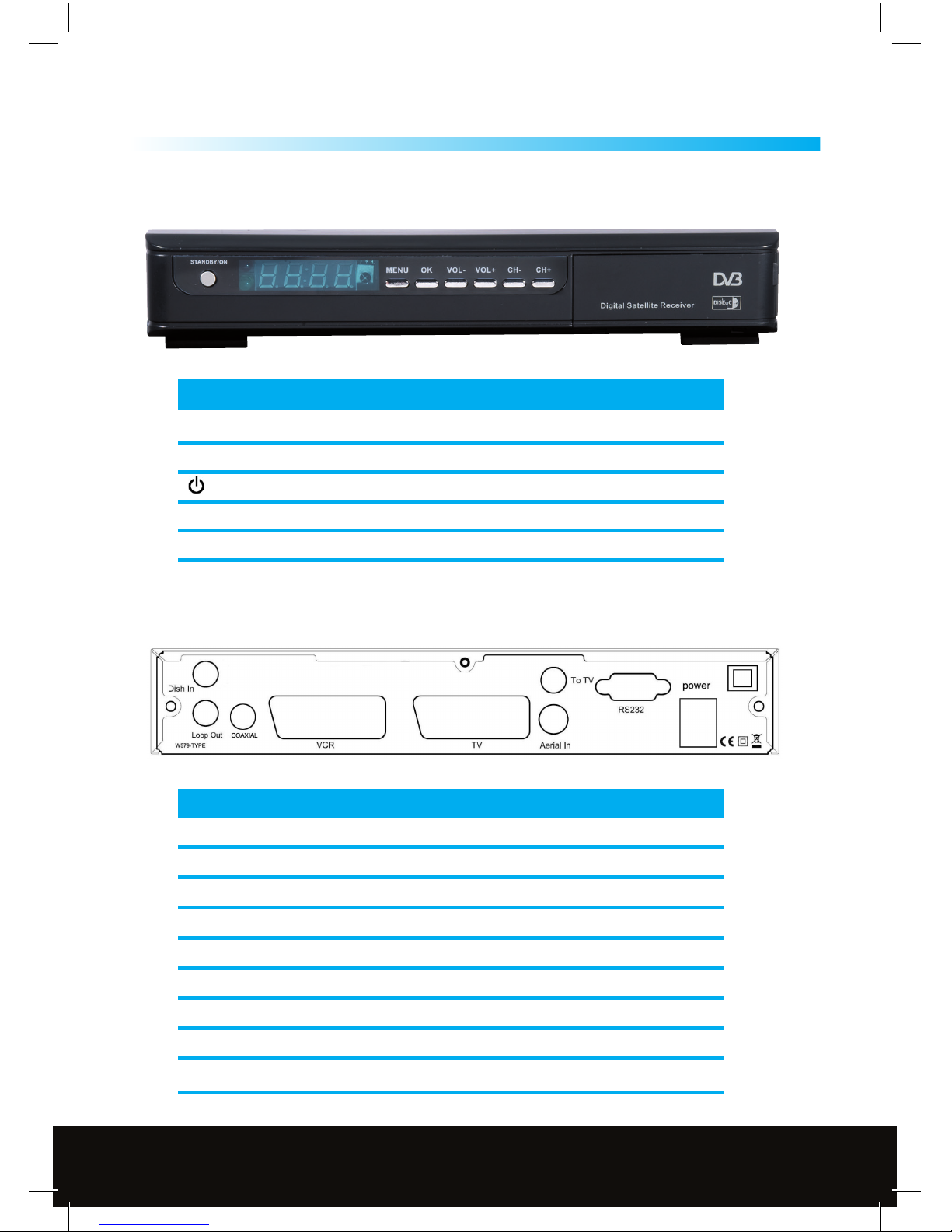
1.4 Front Panel
General Information
6
1
KEY FUNCTION
MENU Show the main menu and back to previous menu
OK Conrm the selection, or jump back to last menu
Power on/o the receiver
CH+/- Channel change(up/down)
VOL+/- Volume control(left/right)
CONNECTION FUNCTION
DISH IN Connect to satellite antenna cable
LOOP OUT
RF loop through output to another receiver
RS-232
Connects to PC for software updates
COAXIAL
Phono socket digital stereo output to TV or HiFi audio
VCR SCART Connect to recording device (VCR/DVD) using SCART cable
TV SCART Connect to TV using SCART cable
AERIAL IN Signal input from local CATV network or outdoor TV antenna
TO TV UHF RF output to TV set’s antenna in
POWER ON/OFF Power on/o the receiver
1.5 Back Panel
Customer Careline: 0901 293 0038
Calls are charged at £1 per minute from a BT landline.
Call charges from other networks may vary
Technical Support: http://technical.philex.com
Page 7
7
General Information
1
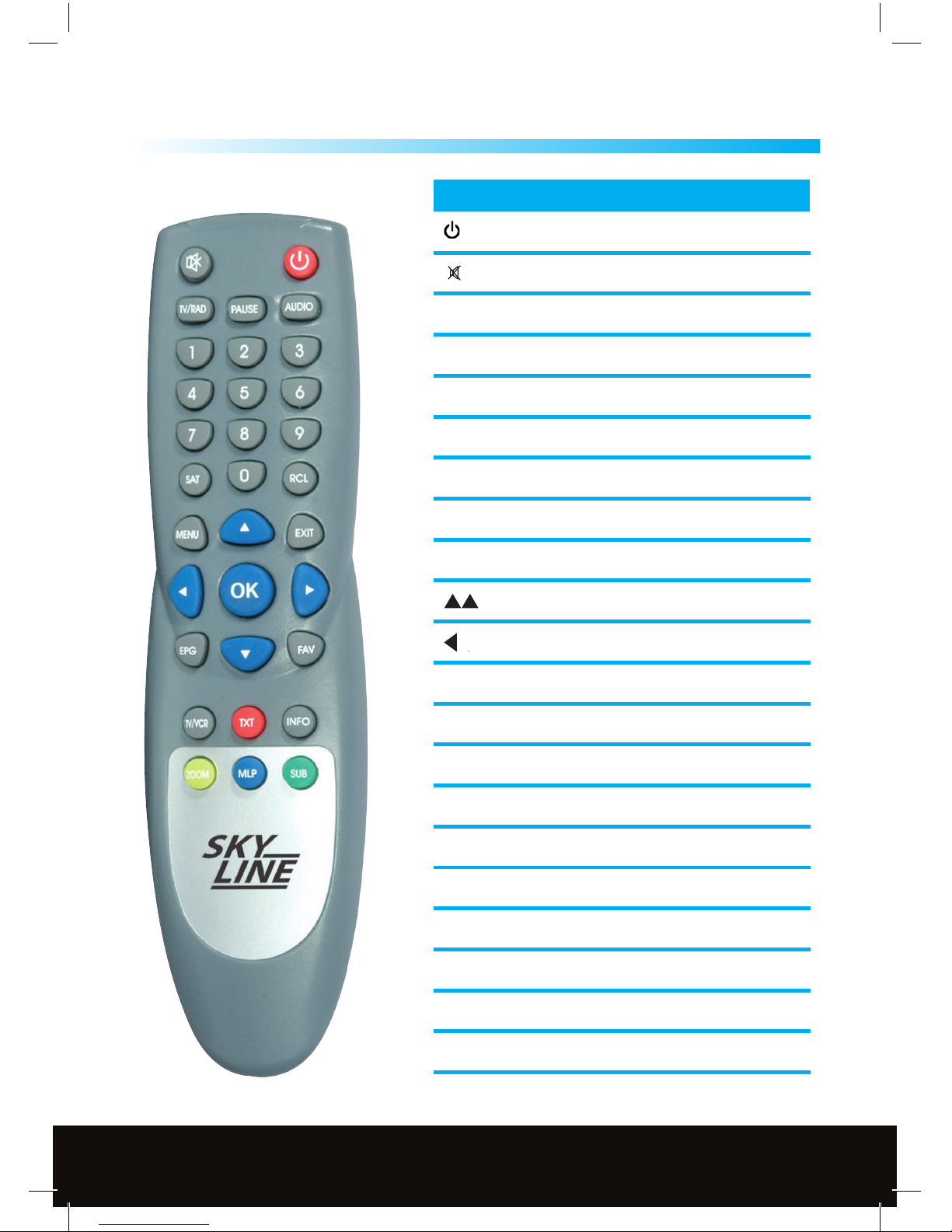
1.6 Remote Control Unit
KEY FUNCTION
Power ON/OFF
Mutes the sound
TV/RAD Switches between TV and Radio mode
PAUSE Freeze frame
FAV Display the favuorite channel list
SAT Display satellite list
TV/VCR Switch between TV and VCR mode (Scart)
0-9 Keys to select channel
INFO Shows current channel information
Channel change, or move cursor up/down
Volume up/down, or more cursor
left/right
RCL Return to previous channel viewed
OK
Conrm the selected item in a menu screen
or show the Channel list
MENU
Show main menu, or return to previous
menu from sub-menu
EPG Show EPG (Electronic Program Guide)
AUDIO Enter audio setting menu
MLP 9, 12 or 16 pictures for preview
TTX Teletext Key
SUB Subtitle Key
Zoom Zoom in/out of selected picture
EXIT Exits current menu
Customer Careline: 0901 293 0038
Calls are charged at £1 per minute from a BT landline.
Call charges from other networks may vary
Technical Support: http://technical.philex.com
Page 8
Receiver Installation
8
Before connecting equipment to your satellite receiver please check the
instruction manual for each device.
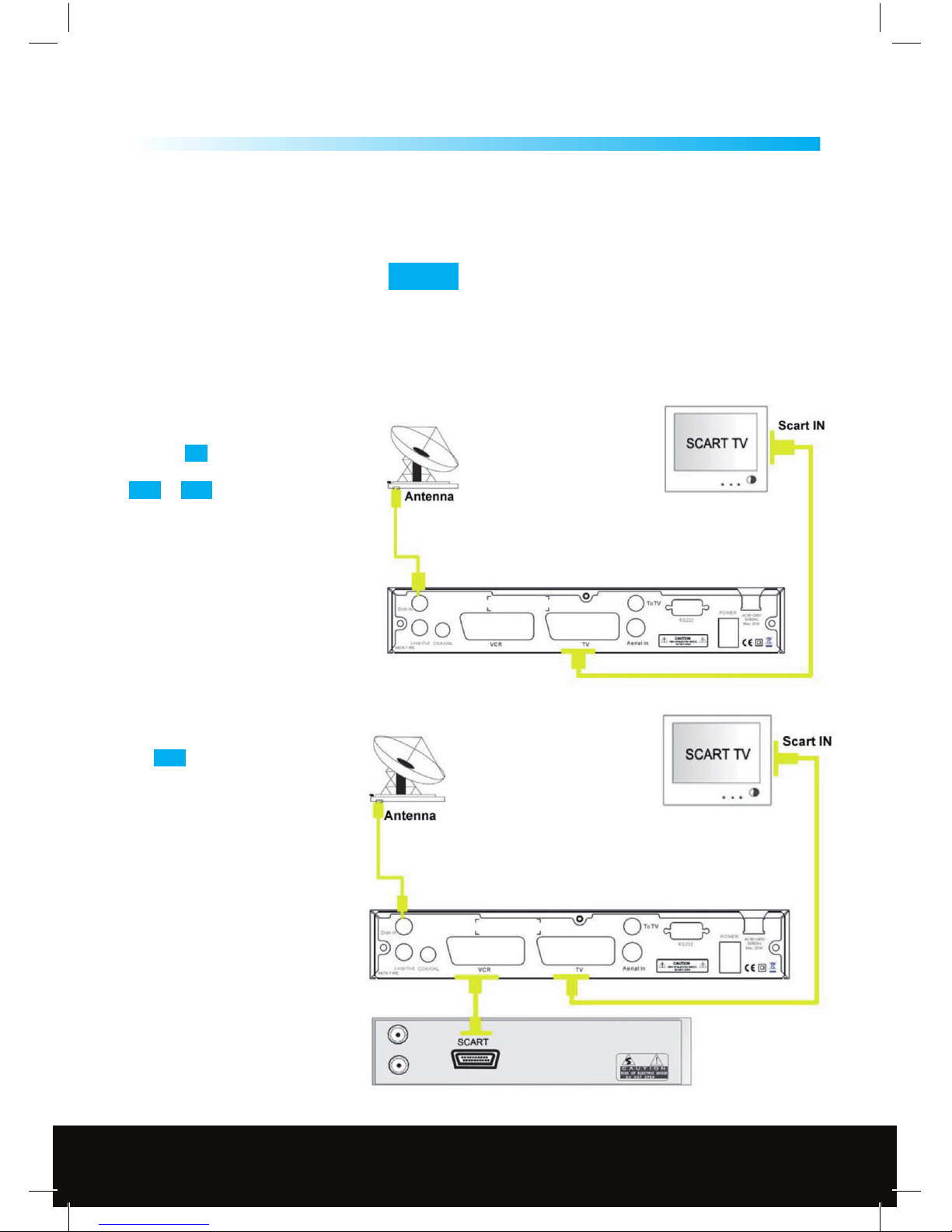
The downlead from your satellite dish is connected via the F connector on the
back of your receiver marked Dish In ..
There are two options for connecting your satellite receiver to your TV shown
below and opposite.
2
2.1 Connection to Dish and TV via SCART
Connect the SCART lead supplied to the
SCART socket on back of receiver
marked TV and to either of the SCART
sockets on the back of the TV marked
AV1 or AV2
2.2 VCR SCART Connection
Connect the TV to the receiver as
shown in 2.1 and connect
the VCR SCART socket to your
recording device using a
SCART lead.
Customer Careline: 0901 293 0038
Calls are charged at £1 per minute from a BT landline.
Call charges from other networks may vary
Technical Support: http://technical.philex.com
Page 9
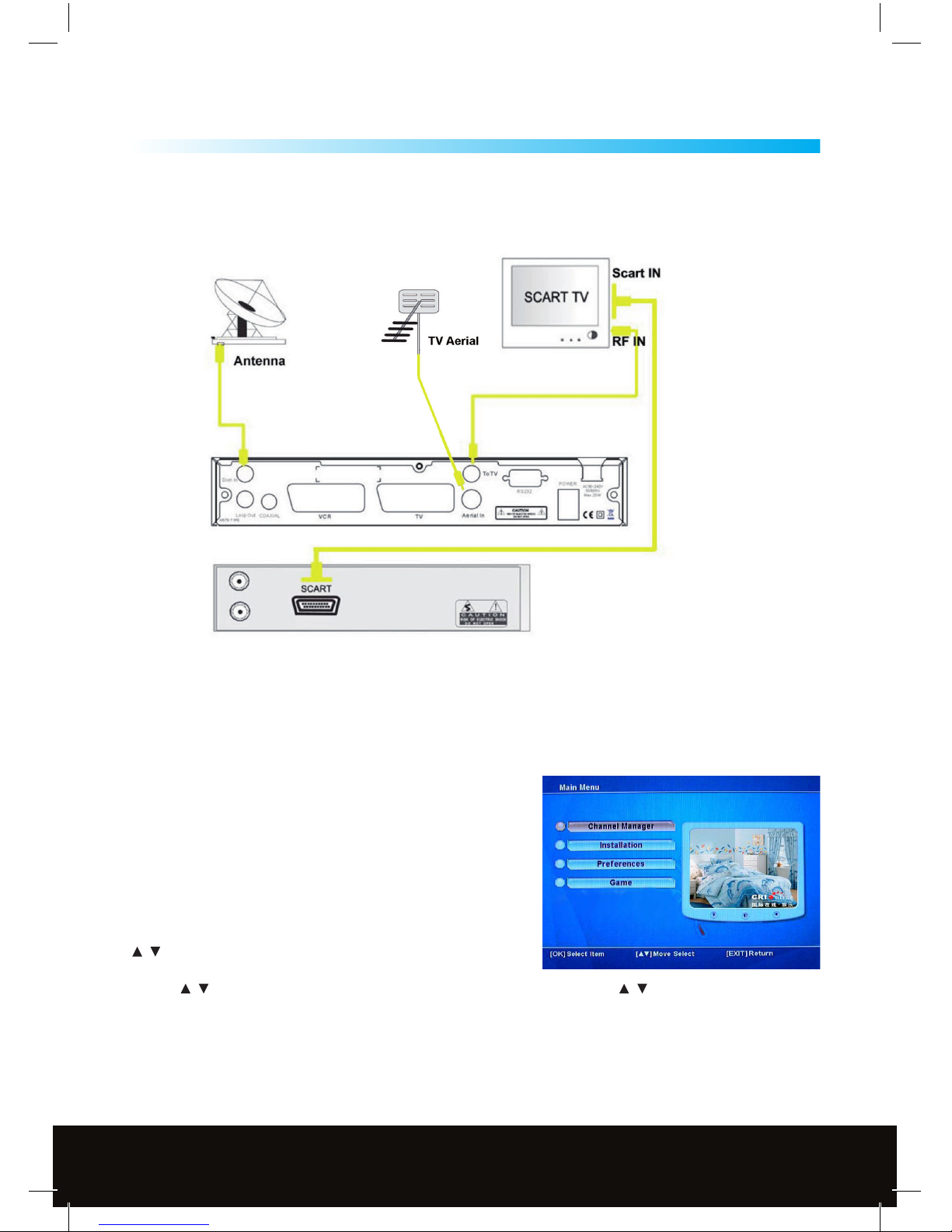
9
Receiver Installation - Menu
2-3
3. Menu Information
After completing all your connections switch on the receiver,
the main menu will be displayed, which consists of the
4 menu items listed below.
• Channel Manager
• Installation
• Preferences
• Game
During installation the OK Keys conrms a selection and the
/ Keys shows the menu options. You can also use the
numeric Keys on the RCU to select a channel while watching TV.
Use the / Keys to move up or down from one line to another line. Use the / Keys to move the cursor
up or down in the sub-menu. To quit the menu system at anytime, press the EXIT Key on the RCU.
2.3 Connecting to TV using RF support
Customer Careline: 0901 293 0038
Calls are charged at £1 per minute from a BT landline.
Call charges from other networks may vary
Technical Support: http://technical.philex.com
Page 10
System Installation Menu
10
4
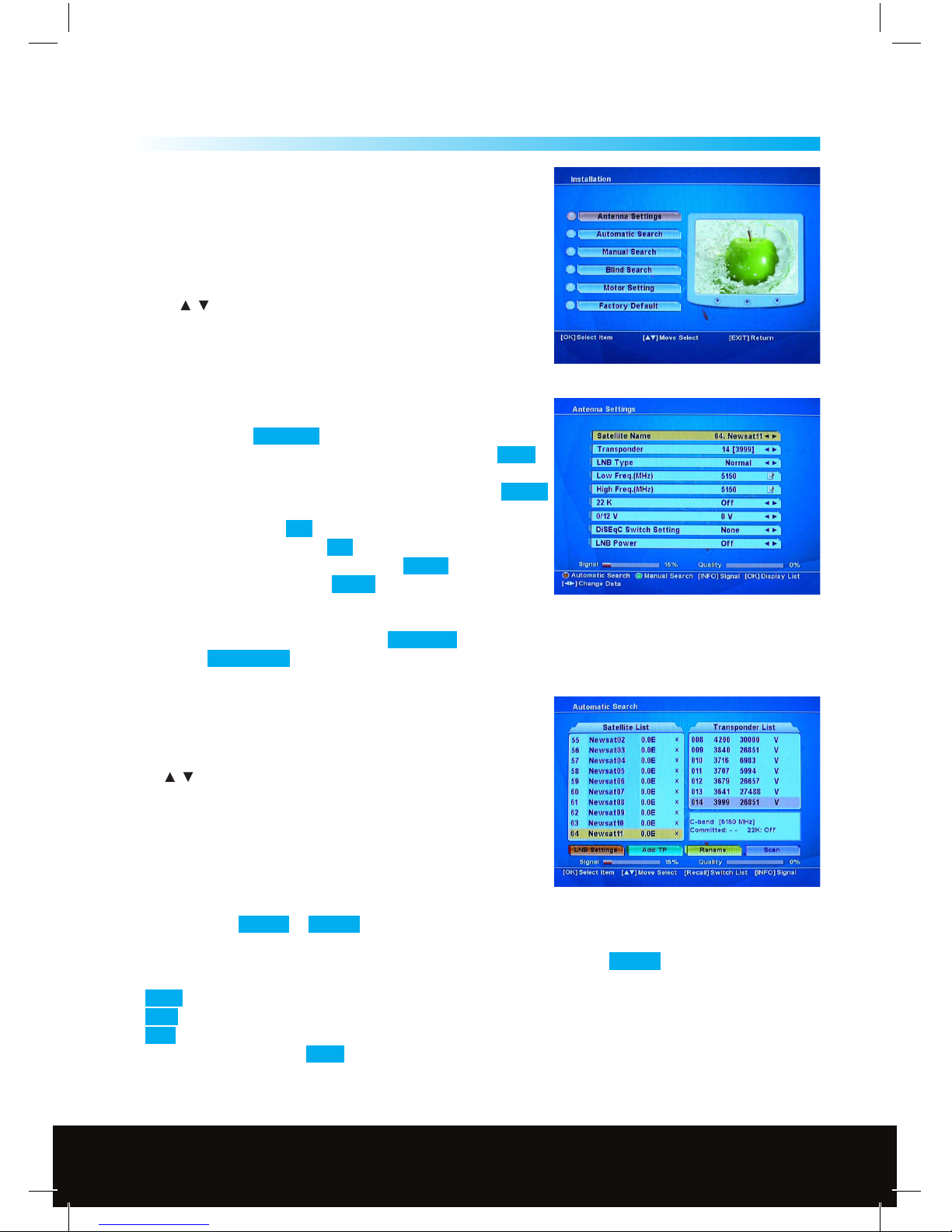
This menu consists of 6 sub-menus.
• Antenna Setting
• Automatic Search
• Manual Search
• Blind Search
• Motor Setting
• Factory Default
Use the / Keys to move up or down from one sub-menu
to another. Use the OK Key to open the sub-menu selected.
4.1 Antenna Settings
1. Satellite Name: Choose the satellite you want to view
2. Transponder: Set to TP search - this only needs to be altered if
you need to view new transponders, see www.lyngsat.com
3. LNB Type: Select Universal
4. LNB Freq. - Low Freq. MHz this should be already set to 9750
(use the RCU number Keys to reset if necessary).
5. LNB Freq. - High Freq. MHz this should be already set to 10600
(use the RCU number Keys to reset if necessary).
6. 22k - should be set to O
7. 0/12V - this should be set to 0 V
8. DisEqC Switch Setting - should be set to NONE
9. LNB Power - should be set to AUTO
After selecting your antenna settings, you can enter the
Automatic Search Menu by pressing the Red (TTX) Key,
or press the Green (Sub) Key to enter the Manual Search Menu.
4.2 Automatic Search
The Automatic Search function allows the Satellite receiver to
search multiple satellites in one operation. If you have a xed dish
and a single LNB it is best to search one satellite at a time.
Press / to scroll through available satellites press OK to select
the highlighted satellite, for the UK (English language channels)
set to Astra 2A, B 28.2E, a tick will appear. Before going any
further check the quality bar in the bottom right hand corner of
the screen (or press Info to magnify quality and signal bars) -
Quality should read at least 50%.
If quality is sucient press the Blue Key. A sub-menu will appear giving two options.
1. The option of NIT On or NIT O . NIT stands for Network Information Table and is a table of service
information included in the data stream from the transponder if you wish to search this information
set the NIT search to On, usually we would advise you to leave this set to NIT O .
2. Option 2 allows you to choose the type of channels to search for:
FREE : Only searches the Free to air (Unencrypted) TV and Radio Channels
CAS : Only searches the Conditional Access Channels/Encrypted Channels (not available on this receiver).
ALL : Includes both of the above.
We advise you to set this to FREE and press OK to start the search.
A window will open to show when the search is complete, press EXIT to quit the menu.
Customer Careline: 0901 293 0038
Calls are charged at £1 per minute from a BT landline.
Call charges from other networks may vary
Technical Support: http://technical.philex.com
Page 11

11
System Installation Menu - Searches
4
4.3 Manual Search
1. Satellite Name: Press the / Keys to select the satellite you want to
search, for the UK (English Language Channels) normally Astra 2.
2. Transponder: Press the / Keys to select a transponder to search, or
press the OK Key to activate a transponder list, settings for the
transponder can be found on www.lyngsat.com or www.satcodx.com
3 & 4. Frequency and Symbol Rate: Enter the Frequency and Symbol
rate of the Transponder with the number Keys on the RCU.
5. Polarization: Enter the correct polarization for transponder HOR for Horizontal Polarization,
VER for Vertical polarization, if you select the wrong polarization the Signal Quality will show Zero.
6. Search Type allows you to choose the type of channels to search for:
FREE : Only searches for the Free to air (Unencrypted) TV and Radio Channels
CAS :
Only searches for the Conditional Access Channels/Encrypted Channels (not available on this receiver).
ALL : Includes both of the above. We advise you to set the Search Type to FREE .
7. Select NIT On or NIT O . NIT stands for Network Information Table and is a table of service information
included in the data stream from the transponder if you wish to search this information set the NIT search
to On, usually we would advise you to leave this set to NIT O .
When you have made all your settings press the Blue Function Key to start the channel search.
Red Function Key: To switch to the LNB Settings. Green Function Key: To Delete an Unwanted or Inactive TP
(Transponder) from the default TP list. Yellow Function Key: Allows the user to input the Audio, Video and
PCR PID’s with the numeric Keys on the RCU these can again be found in the channel information at
www.lyngsat.com or www.satcodx.com Blue Function Key: To start the Search function.
4.4 Blind Search
If you do not know the channels or transponders that are available on a
particular satellite then you can use this function to scan the satellite for
all the active transponders and channels, this will also nd TV, Radio and
Data feeds which you may not want.
Satellite: Press the OK Key to activate the satellite list then use the or
Keys to select the Satellite you wish to search, for the UK (English
Language Channels) this will normally be Astra 2. Use the numeric Keys
on the RCU to set the following:
Start Frequency: set to 10700 for a Universal LNB. End Frequency: set to 12750 for a Universal LNB.
Start Symbol: Set to the Lowest Symbol rate you wish to search normally 1000
End Symbol: Set to the Highest Symbol rate you wish to search normally 45000
Polarization: Set to All to search both Horizontal and Vertical Transponders this is the default setting, Select
HOR to search for Horizontal Polarization Transponders only or VER to search for Vertical Polarization
Transponders only.
NIT Search: Allows you to search the Network Information Table
Red Function Key: To change the Antenna Settings (See 4.1 opposite
Blue Function Key: To start the Search function
Customer Careline: 0901 293 0038
Calls are charged at £1 per minute from a BT landline.
Call charges from other networks may vary
Technical Support: http://technical.philex.com
Page 12

12
System Installation Menu - Searches
4.5 Motor Setting
Satellite Name
Press the
/ Keys to select the satellite you want to set.
Motor Setting
Disabled: This is the default setting and will only need to be changed
if you are using a motorized dish system
DiSEqC 1.2: Consult the manual which came with the DiSEqC Motor
on installation.
USALS: Consult the manual which came with the USALS Motor
on installation.
Transponder
Press the
/ Keys to select the transponder you want to set, you can also press the OK Key to activate a
transponder list, the parameters (settings) of the transponder can be found on www.lyngsat.com or
www.satcodx.com, some dish motor manuals come with a preferred transponder setting for each satellite
this is usually the strongest transponder on the Satellite.
Move
Use the Keys to turn the dish further West or the Key to turn the dish further East.
Save position
This saves the position of the Dish for the satellite selected above.
Recalculate position
This function automatically calculates and sets all the pre-programmed satellites positions with reference to
the position of a single satellite.
Go to Reference
This function positions the dish motor at the 0 degree (Due South) position and resets the internal counter
of the dish motor, all the position settings in the memory are calculated from this position
Limit Setting
This function allows limits to be set in cases of obstructions which may cause damage to the dish to be
avoided, (See the Manual for your Dish motor for further information)
USAL (Universal Satellite Automatic Location System) calculates the position of the satellites from a
geographical position. Use the numeric Keys on the remote control to set the following which can be found
at www.dishpointer.com or www.multimap.com
Local Longitude: Degrees, East or West of Greenwich Meridian use / Keys to toggle between East and West.
Local Latitude: Degrees, North or South of the Equator use / Keys to toggle between North and South.
4.6 Factory Default
If you want to reset the box to its factory settings,
Select Factory Default and press the OK Key, a warning
message will be displayed as you will lose all the data
and channel information you have previously installed
so only do this as a last resort, if you still want to
proceed then press the OK Key again.
4
Customer Careline: 0901 293 0038
Calls are charged at £1 per minute from a BT landline.
Call charges from other networks may vary
Technical Support: http://technical.philex.com
Page 13

13
Preferences
5
5. Preferences
Preferences consists of 7 sub-menus, as follows:
• System Options
• AV Setting
• Video Adjust
• Time Settings
• Timer
• Parental Control
• About Receiver
5.1 System Options
You can change the following options by pressing the OK Key to
activate a list and then using the / or alternatively / Keys.
OSD Language This changes the On Screen Display Language to
the most convenient language.
OSD Transparance This alters the transparency of the On Screen
Display so a picture can easily be seen underneath the display.
OSD Timeout This alters the time that the On Screen Display is
shown on screen.
Audio Language This changes the audio to a more convenient
language if available.
5.2 AV/RF Setting
Screen Ratio Set this to the aspect ratio of your screen most older
CRT Screens are 4:3, more modern LCD Screens are 16:9.
Screen Mode If you are watching a wide screen picture, Pan Scan
removes part of the width of the picture; Letterbox shows the
entire picture with reduced height.
Monitor Type Dierent monitor’s types can be used, Default
should be Auto.
Video Output Set to RGB (Red, Green, Blue) if your display
allows it, otherwise set to CVBS (Composite Video).
RF Type PAL B/G, PAL I, PAL D/K, NTSCM - select appropriate type -
for UK select PAL I.
RF Channel Enter the number of the RF channel you want to tune
your TV to, to watch the RF input (any channel with no signal).
5.3 Video Adjust
Use the / Keys to adjust the Brightness, Contrast, Saturation
and Hue, then move the OK in the dialogue box, press OK
to conrm (use the
/ Keys to navigate up and down).
5.4 Time Setting
Using the cursor / / and OK Keys, enter the dierence
between your local time and GMT (Greenwich Mean Time) for the
UK this should be set to GMT London. If your region is currently
using Summer Time then set this option to On, this will advance
the time by one hour when activated during the summer time.
Using the Red Function Key to toggle between the Date Keys,
Enter the current day, month and year. Enter the current time by
using the numeric Keys; the receiver will also automatically get time
information from the Satellite channel when you have a signal.
Customer Careline: 0901 293 0038
Calls are charged at £1 per minute from a BT landline.
Call charges from other networks may vary
Technical Support: http://technical.philex.com
Page 14
14
Preferences
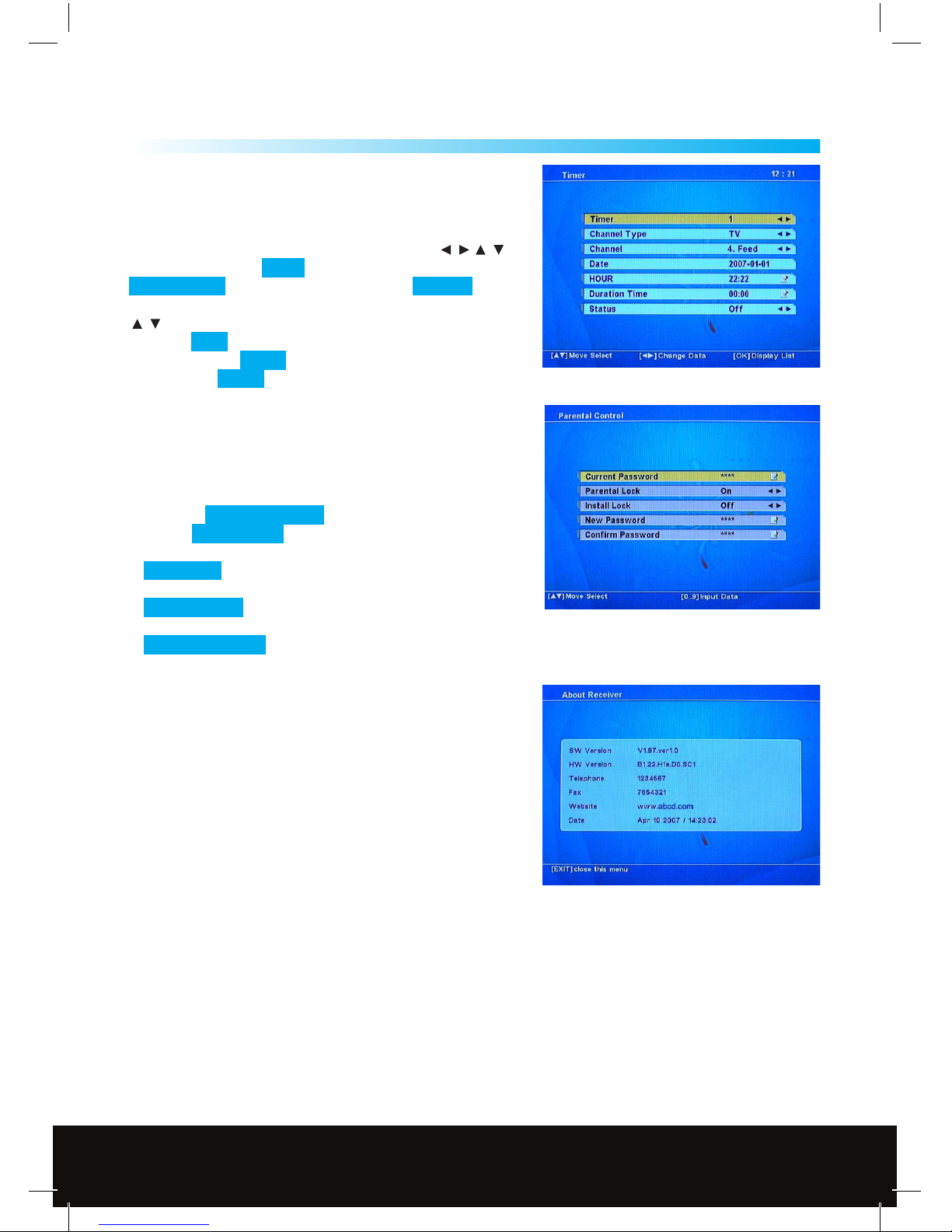
5.5 Timer
If you want to automatically switch the satellite channel at
a specic time so you do not miss an important program,
you can use the Timer function. Using the cursor
/ /
and OK Keys, set the Timer event number and then set the
Channel Type (TV or Radio), next enter the Channel
from the channel list by pressing the OK Key and use the
/ Keys to select the channel then press the OK Key.
Enter the Date (see Time Setting) and then use the numeric
Keys to enter the HOUR (start time) and the Duration Time
nally set the Status to either Once, Daily, Weekly or O.
5.6 Parental control
If you want to prevent access to certain channels by children
for instance then you can set a password (Default 0000),
(See Section 6 Channel Manager, Lock for details).
To change the password
1. Enter the Current Password
2. Set the Parental Lock to On
3. If you want to prevent unauthorised installation, set the
Install Lock to On
4. Enter your new password with the numeric Keys in the
New Password Box
5. Re enter you new password in the
Conrm Password Box
6. Press MENU or EXIT
5.7 About Receiver
Hardware and Software revision information for the receiver
can be found here.
5
Customer Careline: 0901 293 0038
Calls are charged at £1 per minute from a BT landline.
Call charges from other networks may vary
Technical Support: http://technical.philex.com
Page 15
15
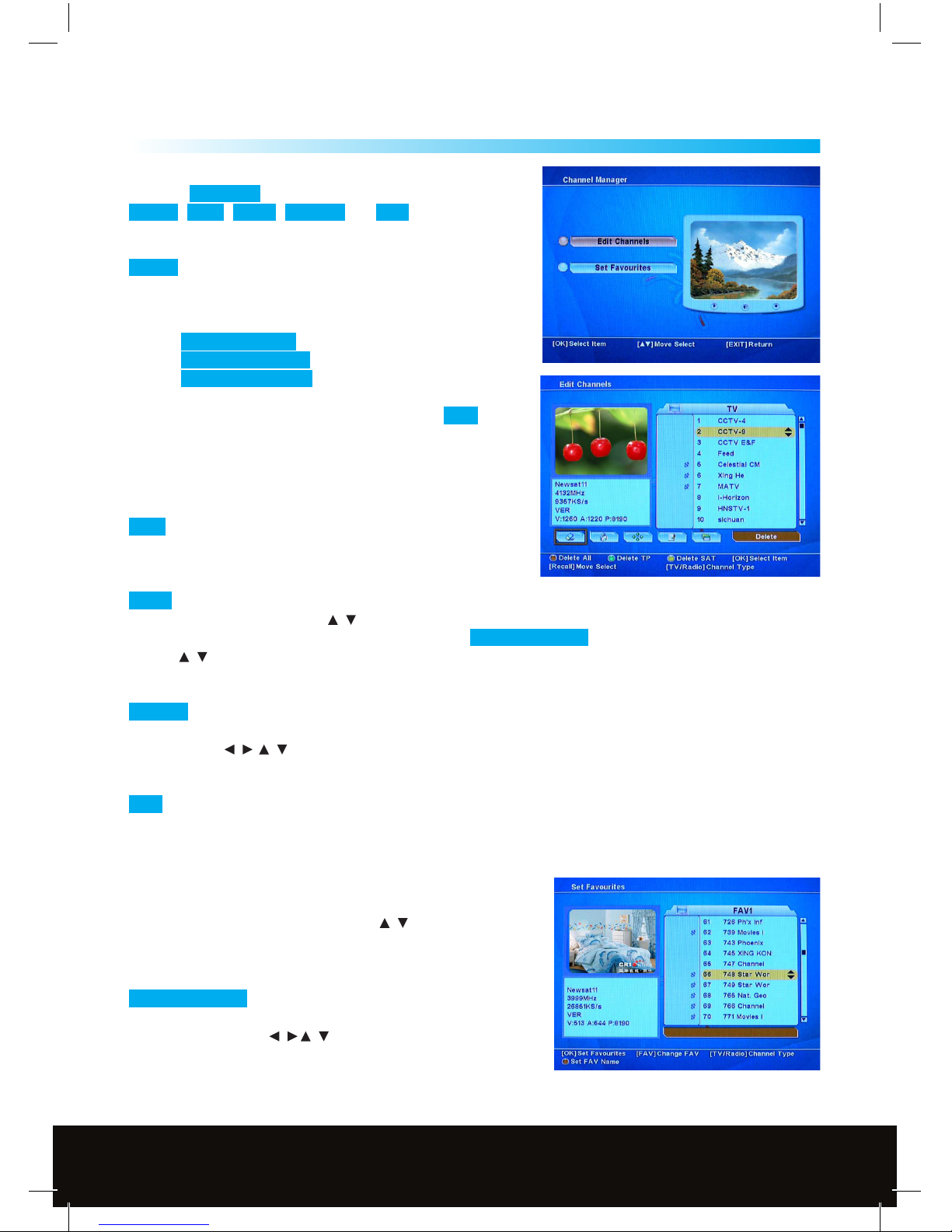
Channel Manager
6.1 Edit Channels
Press the Recall Key (RCL) to choose
Delete , Lock , Move , Rename and Sort functions.
To manage the existing channels.
Delete To delete selected channels from channel list.
Press OK to select a channel for deletion, press OK again to
deselect. An X symbol will appear in front of selected channel
names which are selected for deletion.
Use the Red function Key to delete all channels.
Use the Green function Key to delete unwanted transponder.
Use the Yellow function Key to delete whole satellite.
If you want to delete the selected channels press EXIT ,
a message will appear - “Do you want to delete” - choose Yes or
No to execute or cancel the deletion.
Note: The deleted channels cannot be recovered unless you
search again
Lock Lock the channel to be accessed by password.
The parental Lock must be set up in advance before using
this function.
Move You can move channels to a better or more logical place in the channel list. Select the channel(s)
you wish to move by using the / Keys and then the OK Key if you wish to move a block of channels then
repeat this step for all of the channels, then press the Red Function Key to conrm the selection,
use the / Keys to move your selection to the required place in the channel list and then press the OK Key
to conrm.
Rename Choose the channel you want to rename some channels are listed as TV Ch in the channel list
these can be renamed to make identication easier. Press the OK Key, a Keyboard will be displayed on the
screen use the / / Keys to edit the channel name when you have nished move the cursor to the OK
Icon and then press the OK Key.
Sort You can sort the channels by Alphabet, Satellite, FTA/CAS Channels or Favorite channels.
Press TV/Radio Key to change between TV and Radio channels. Radio channel management is the same
operation as TV channels.
6.2 Set Favourite
Press the FAV Key to select the Favourite list you wish add the
channel to, select the channel with the
/ Keys and then press
OK, a
♥ (Heart Symbol) will be displayed on the left hand side of
the selected channel, repeat for any other favourite channels,
when you have nished press the EXIT Key to save.
Red Function Key To change the name of a Favourites channel
group, press the red function Key, a Keyboard will be displayed
on the screen use the / / Keys to edit the Favourites name
when you have nished move the cursor to the OK Icon and then
press the OK Key.
6
Customer Careline: 0901 293 0038
Calls are charged at £1 per minute from a BT landline.
Call charges from other networks may vary
Technical Support: http://technical.philex.com
Page 16

16
General Viewing Functions
The following describes the basic functions of your satellite receiver while
watching satellite TV or listening to satellite radio. While watching, the current
channel information will be shown on the bottom of the screen if you press
the INFO button on the remote control.
7.1 Channel list
In channel display mode, press the OK key to view the channel list.
The list of existing channels will be shown.
RED function Key to go to advanced Channel list mode.
(List by Alphabet, Satellite, FAV, CAS).
BLUE function Key to switch channel list Mode between FTA,
CA and All Channel.
TV/RAD Key switch between TV/Radio Channels list.
7.2 Select Channel
To select a Radio or TV channel use the / Keys on the front panel of the receiver or the / Keys or the
numeric keys on the remote control unit (RCU). Also while listening to a Radio Channel or Watching a TV
channel press the OK key this will display a channel list on the right hand side of the screen to select a
channel use the / on the RCU when you have selected the desired channel press the OK key to watch
or listen. Pressing the EXIT key removes the channel list from the screen.
7.3 Recall
Press RCL Key on the RCU to move to the channel you watched previously.
7.4 T V/Radio Mode
Press the TV/Radio key on the RCU to toggle between TV and Radio channel modes
7.5 TV/VCR Mode
The TV/VCR Key on the RCU lets you change the Scart control between VCR and TV. Press once tomove to
the TV mode, Press twice to come back to the VCR mode.
7.6 Channel Information
Everytime you change channels, you will receive program information for a few seconds.While watching
the channel you can see the current channel information at anytime by pressing the INFO Key on the RCU.
Note: Channel information will be displayed for 5 seconds by default and will disappear. You can adjust the
display time interval from 1 to 10 seconds. (see section 5.1.3)
7.7 Favourite List
To select a favourite group list press the FAV Key on the RCU. You can access the next favourite group by
pressing the FAV Key again
7
Customer Careline: 0901 293 0038
Calls are charged at £1 per minute from a BT landline.
Call charges from other networks may vary
Technical Support: http://technical.philex.com
Page 17

17
Channel Manager
7.8 Volume & Audio Control
Volume Control To increase or decrease volume, use the / Keys on the RCU.
Mute To mute the sound, press the
Key on the RCU. To restore volume press the Key again.
Audio Control You can change the Audio language and Audio output modes, by pressing the AUDIO Key,
if more than one language is shown then use the
/ Keys to select the required language, pressing the
/ Keys toggles the Audio output between Stereo, Left, Right or Swap. The current audio setting is
displayed in the channel information screen.
7.9 Sat
If you have a motorised system or multiple LNB’s tted to your system, you can select the required Satellite by
pressing the SAT Key on the RCU (Remote control unit) a satellite list will be displayed use the
/ Keys to
select the required satellite then press the OK Key
7.10 ZOOM function
The Zoom function allows you to enlarge part of the picture, press the
ZOOM (Yellow) Key and use the
/ / Keys to select the area to be
enlarged then press the OK Key, the selected area will be enlarged
on the screen.
7.11 PIP (Multi-screen preview)
Press the MLP (Blue) Key to go into the multi-picture preview mode,
use the
/ Keys to select 9, 12 or 16 pictures for previewing then press
the OK Key, pictures will start to appear on the screen this may take a
while, one of the pictures will be highlighted in orange this will is the
live picture and sound, use the the
/ / Keys to move the
highlighted picture, press the Exit key to view full screen.
7.12 SUB
Pressing the SUB (Green) Key will show any sub-title information available for the satellite channel selected.
7.13 TXT
If a satellite channel is transmitting Teletext information this can be viewed by pressing the TXT (Red) Key ,
some providers use a specic coded signal on there transmissions these will not be able to be viewed on this
receiver.
7.14 Pause Function
If you want to temporarily pause (Freeze Frame) the picture then press the Pause Key .
7
Customer Careline: 0901 293 0038
Calls are charged at £1 per minute from a BT landline.
Call charges from other networks may vary
Technical Support: http://technical.philex.com
Page 18
18
General Viewing Functions
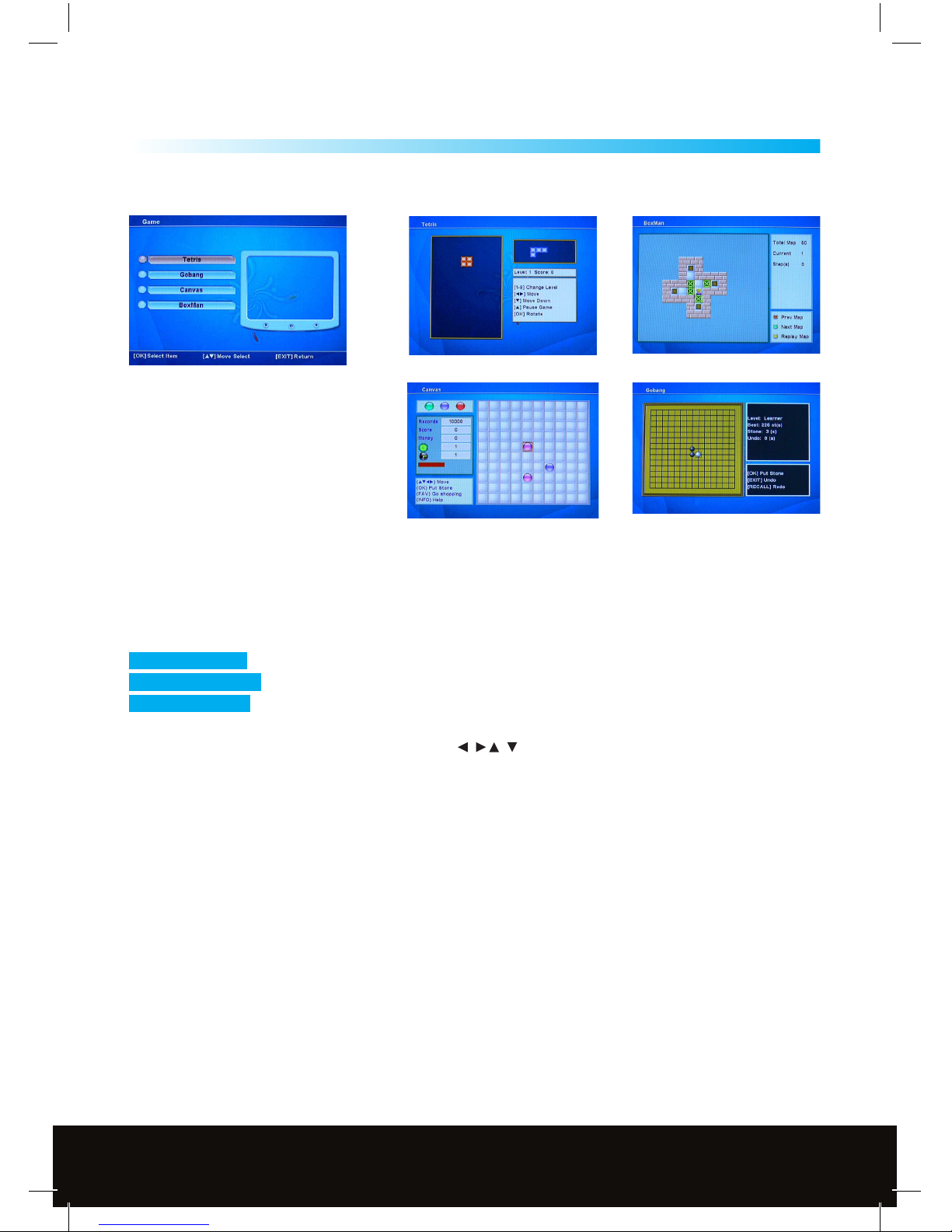
8. Games
There are four games programmed into the receiver. They can be played using the remote control.
8-9
Tetris Box Man
Canvas Gobang
9.EPG(ElectronicProgramGuide)
The receiver provides an EPG function this provides the information from the channel or network like
program titles, times, Satellite, Transponder etc, some European satellite networks provide a 7/10/14 day
guide, while others only provide Now and Next program information
Red Function Key Shows yesterdays guide
Green Function Key Shows tomorrows guide
Blue Function Key Shows a more detailed guide to the program information
Press the OK to activate the Timer function; use the
/ / Keys to change the Timer number as required
and Timer Status to either Once, Daily, Weekly or O, then select either OK or cancel and then press the OK
Key (see also 5.5 Timer Setting)
Customer Careline: 0901 293 0038
Calls are charged at £1 per minute from a BT landline.
Call charges from other networks may vary
Technical Support: http://technical.philex.com
Page 19

19
10. Technical Specication
10
TRANSMISSION STANDARDS
DVB, MPEG-2
INPUT/ DEMODULATION
Connector Type 2x F Type, 3/8-32UNEF-2A (1 input/1 loop through)
Input
Frequency 950 to 2150 MHz
Signal
Input level -65 to - 25 dBm
Band
Switch control 22 KHz
LNB
Supply 13.0V + 0.5V / 18V + 0.7V, max 400mA
Dem odulation
Type QPSK / FEC Coding (DVB ETS 300 421)
Symbol
Rate 2 < Rs < 45 Mbaud (SCPC/MCPC)
TV SCART
Video output
CVBS/75Ω unbalanced
RGB
bandwidth 5MHz
Fast
blanking 0V to 3V
Function
switch
6V - 16:9 aspect ratio image (AV Mode)
12V - 4:3 aspect ratio image (AV Mode)
Audio
output
“Left, Right”/ 600Ω unbalanced
Level
1.0V rms ± 2dB into 10kΩ
VCR SCART
Video output
CVBS/75Ω unbalanced/5MHz
Video input
CVBS/75Ω unbalanced/5MHz
Audio output
“Left, Right”/ 600Ω unbalanced
Level
1.0V rms ± 2dB into 10kΩ
Audio input
“Left,
Right”/10kΩ unbalanced
Level
1.0V rms ± 2dB into 10kΩ
AUDIO/VIDEO PROCESSING
Audio Decompression MPEG-1 layer I and II / Musicam
Audio Outputs Stereo Digital Coaxial
Video Decompression MPEG-2 Main Prole @ Main Levels With Letter
Video buer 64 Mbits of SDRAM is provided
Data rate Up to 15Mbits/s (Max. burst rate: 228 Mbits/s)
Video output PAL-25 frame @720 x 576 NTSC-30 frame @720 x 480
Video format 4:3, 16:9
Customer Careline: 0901 293 0038
Calls are charged at £1 per minute from a BT landline.
Call charges from other networks may vary
Technical Support: http://technical.philex.com
Page 20

20
10
10. Technical Specication
DATA SERVICE PORT
Connector 9-pin D-sub female
Data protocol
RS232C interface. The DVB-DSR is seen as the Data Communication
Equipment (DCE) and the PC (or other terminal) is seen as the
DataTerminal Equipment (DTE).
Data rate Maximum of 625K bits/s
POWER SUPPLY
Main input voltage
2 3 0VA C
Nominal power consumption 12W
SAFETY
Insulation resistance
More than 10MΩ @500VDC Ambient conditions of 28 ± 2% & 70% RH
Withstand Voltage (Hi-Pot) I/p to O/p: 3kV(1 min)
Temperature Rise < 75°C on winding & core < 50°C on casting At 264Vac @ 50Hz
Safety Standard Designed to meet IEC 9
MICROPROCESSOR
Microprocessor CONEXTANT
Clock frequency 130MHz
SDRAM Memory 8Mb
Flash memory 1Mb
PHYSICAL CHARACTERSTICS
Front panel
Keys 7 Keys
Indicators Power ON/OFF
Remote control input Infra-red receiver
Display 4Digital (7 Segment)
Rear panel
Connectors
1 LNB Input / 1 Loop through output (2F-type)
1 x Scart output , 1 x VCR Scart
1 x Digtal stereo audio coaxial
1 x RS-232 (9-pin D-sub male)
1 x RF in/TV aerial in
1 x RF out
Customer Careline: 0901 293 0038
Calls are charged at £1 per minute from a BT landline.
Call charges from other networks may vary
Technical Support: http://technical.philex.com
Page 21

21
Troubleshooting
11
PROBLEM
No display on front panel
No sound or picture, but the
front panel red light is ON
No sound or picture
Bad picture/Blocking error
No picture (Video)
The Remote Control is
not working
POSSIBLE CAUSES
Powercord is not plugged in
The unit is in standby mode
The satellite dish is not
pointing at the satellite
No signal or weak signal
The satellite dish is not
pointing at the satellite
Signal is too strong
Satellite dish is too small
LNB noise factor too high
The LNB is faulty
The system is connected by
SCART cable and TV is not in
AV/EXT mode
Battery Exhausted
RCU is aimed in the wrong
direction
WHAT TO DO
Check powercord is plugged properly into
power socket
Press the standby button
Adjust the dish
Check the Signal Level in the Antenna
Setup menu
Check the cable connections, LNB and
other equipment connected between the
LNB and receiver, and/or adjust the dish
Adjust the dish
Connect a signal attenuator to the LNB
Change to a larger dish
Change to an LNB with lower noise factor
Change the LNB
Select AV/ EXT mode on the TV
Consult the manufactures instruction
manual
Change the battery
Aim the RCU at the unit, and make sure
there are no obstacles between the front
panel and RCU
Customer Careline: 0901 293 0038
Calls are charged at £1 per minute from a BT landline.
Call charges from other networks may vary
Technical Support: http://technical.philex.com
Page 22

22
Satellite dish alignment settings for Astra 2A, 2B, 2D and Eurobird 1
28.2 Degrees East for the UK and Eire (English Language Channels)
For other satellite settings see www.dishpointer.com
12
12. Satellite dish alignment settings
Town County Elevation Azimuth Polarization
Aberdeen Aberdeenshire 19.76 145.17 -10.55
Abergavenny Gwent 23.96 142.37 -14.66
Aberystwyth Dyfed 23.05 141.46 -14.84
Alnwick Northumberland 21.39 145.06 -11.48
Ampthill Bedfordshire 24.77 145.24 -13.03
Athlone West Meath 20.62 137.71 -16.14
Aviemore Highland 19.12 143.34 -11.37
Ayr Ayrshire 20.32 141.85 -13.04
Ban Aberdeenshire 19.16 144.87 -10.43
Barnstaple Devon 24.16 140.96 -15.81
Basingstoke Hampshire 25.22 144.29 -13.92
Bath Avon 24.61 142.91 -14.61
Belfast Antrim 20.53 140.27 -14.24
Berwick-Upon-Tweed Northumberland 20.96 144.86 -11.38
Birmingham West Midlands 23.84 143.83 -13.57
Blackpool Lancashire 22.27 143.06 -13.28
Bodmin Cornwall 24.38 139.98 -16.66
Boston Lincolnshire 24.10 146.10 -12.12
Bournemouth Dorset 25.37 143.19 -14.80
Brecon Powys 23.71 142.02 -14.79
Brighton & Hove East Sussex 25.95 145.16 -13.65
Bristol Avon 24.44 142.68 -14.70
Bude Cornwall 24.17 140.33 -16.29
Burnley Lancashire 22.59 143.95 -12.84
Bury Saint Edmunds Suolk 25.02 146.66 -12.16
Caernarfon Gwynedd 22.36 141.52 -14.41
Cambridge Cambridgeshire 24.85 145.97 -12.56
Campbeltown Argyll & Bute 19.96 140.89 -13.47
Cardi Mid Glamorgan 24.19 142.06 -15.01
Cardigan Ceredigion 23.08 140.69 -15.41
Carlisle Cumbria 21.40 143.56 -12.48
Carmarthen Carmarthenshire 23.42 140.98 -15.39
Cavan Cavan 20.41 138.52 -15.41
Chelmsford Essex 25.37 146.21 -12.64
Chester Cheshire 22.86 143.01 -13.63
Colwyn Clwyd 22.43 142.12 -14.03
Cork Cork 21.57 136.57 -17.60
Coventry West Midlands 24.05 144.26 -13.37
Crainlarich Stirlingshire 19.53 142.26 -12.31
Dingwall Highland 18.58 142.81 -11.40
Dolgellau Gwynedd 22.84 141.78 -14.49
Douglas Isle of Man 21.44 141.64 -13.81
Dover Kent 26.23 146.91 -12.53
Dublin(Baile Atha Cliath) Dublin 21.36 139.47 -15.30
Dundee Angus 20.02 144.02 -11.43
Edinburgh Midlothian 20.39 143.60 -11.91
Elgin Grampian 18.91 144.01 -10.83
Exeter Devon 24.69 141.40 -15.76
Customer Careline: 0901 293 0038
Calls are charged at £1 per minute from a BT landline.
Call charges from other networks may vary
Technical Support: http://technical.philex.com
Page 23

23
Town County Elevation Azimuth Polarization
Felixstowe Suolk 25.51 147.27 -11.96
Fishguard Dyfed 23.02 140.32 -15.65
Folkestone Kent 26.24 146.76 -12.64
Fort William Highland 19.00 141.86 -12.26
Gairloch Highland 18.08 141.56 -11.90
Galway/Gaillimh Galway 20.28 136.52 -16.80
Glasgow Lanarkshire 20.09 142.45 -12.50
Gloucester Gloucestershire 24.24 143.22 -14.20
Great Yarmouth Norfolk 25.04 147.96 -11.29
Grimsby Lincolnshire 23.61 146.25 -11.78
Guildford Surrey 25.45 144.84 -13.64
Hastings East Sussex 26.22 146.01 -13.17
Hereford Hereford and Worcester 23.89 142.79 -14.33
Holyhead Gwynedd 22.09 141.17 -14.51
Ipswich Suolk 25.35 147.08 -12.02
Kendal Cumbria 21.95 143.56 -12.77
Killarney Kerry 20.99 135.57 -17.99
Kilmarnock Ayrshire 20.22 142.13 -12.79
King’s Lynn Norfolk 24.45 146.46 -12.04
Kingston upon Hull Humberside 23.30 145.98 -11.82
Kyle of Lochalsh Highland 18.42 141.37 -12.23
Lancaster Lancashire 22.17 143.40 -12.99
Largs Ayrshire 19.97 141.80 -12.86
Larne Antrim 20.35 140.47 -14.00
Leeds Yorkshire 22.83 144.69 -12.45
Leicester Leicestershire 24.00 144.74 -13.00
Limerick Limerick 20.93 136.72 -17.07
Lincoln Lincolnshire 23.70 145.62 -12.26
Liverpool Merseyside 22.63 142.99 -13.52
London Greater London 25.37 145.48 -13.15
Londonderry Londonderry 19.65 138.93 -14.64
Ludlow Shropshire 23.63 142.89 -14.12
Luton Bedfordshire 24.93 145.26 -13.09
Lyme Regis Dorset 24.92 142.04 -15.41
Maidstone Kent 25.83 146.07 -12.95
Mallaig Highland 18.59 141.16 -12.47
Manchester Greater Manchester 22.87 143.85 -13.05
Middlebrough North Yorkshire 22.30 145.38 -11.73
Moat Dumfries and Galloway 20.85 143.14 -12.46
Montrose Angus 20.01 144.64 -11.02
Newark upon Trent Nottinghamshire 23.74 145.24 -12.53
Newcastle upon Tyne Tyne and Wear 21.78 145.03 -11.69
Newhaven East Sussex 26.07 145.35 -13.57
Newry Down 20.70 139.69 -14.75
Newtown Isle of Wight 25.58 143.72 -14.51
Northampton Northamptonshire 24.45 144.93 -13.09
Norwich Norfolk 24.89 147.45 -11.56
Nottingham Nottinghamshire 23.69 144.81 -12.81
Oban Argyll & Bute 19.21 141.36 -12.71
12
12. Satellite dish alignment settings
Customer Careline: 0901 293 0038
Calls are charged at £1 per minute from a BT landline.
Call charges from other networks may vary
Technical Support: http://technical.philex.com
Page 24

24
Town County Elevation Azimuth Polarization
Oxford Oxfordshire 24.75 144.27 -13.71
Peebles Borders 20.69 143.56 -12.09
Pembroke Pembrokeshire 23.30 140.27 -15.84
Penrith Cumbria 21.68 143.70 -12.53
Perth Perth & Kinross 19.94 143.52 -11.71
Peterborough Cambridgeshire 24.40 145.70 -12.54
Peterhead Aberdeenshire 19.54 145.63 -10.16
Pitlochry Perth & Kinross 19.57 143.31 -11.65
Plymouth Devon 24.69 140.59 -16.37
Portree Skye 18.13 140.90 -12.37
Reading Berkshire 25.10 144.44 -13.76
Rosslare Wexford 22.20 138.93 -16.21
Scarborough Yorkshire 22.82 146.12 -11.49
Settle Yorkshire 22.35 144.00 -12.68
Sevenoaks Kent 25.70 145.72 -13.13
Sheeld South Yorkshire 23.22 144.63 -12.70
Shrewsbury Shropshire 23.32 143.02 -13.87
Sligo Sligo 19.74 137.48 -15.74
Southampton Hampshire 25.40 143.80 -14.37
Staord Staordshire 23.49 143.74 -13.45
Stirling Stirlingshire 19.99 142.84 -12.18
Stoke on Trent Staordshire 23.28 143.71 -13.36
Stranraer Dumfries and Galloway 20.61 141.31 -13.56
Stratford-upon-Avon Warwickshire 24.18 143.95 -13.65
Swansea (Abertawe) Swansea 23.76 141.28 -15.35
Swindon Wiltshire 24.24 143.41 -14.06
Tain Highland 18.54 143.28 -11.08
Thirsk North Yorkshire 22.55 145.07 -12.06
Thurso Highland 18.05 144.11 -10.28
Torquay Devon 24.92 141.31 -15.96
Tralee (Tra Li) Kerry 20.73 135.45 -17.92
Truro Cornwall 24.40 139.56 -17.00
Uig Skye 17.20 140.31 -12.17
Ullapool Highland 18.08 142.14 -11.54
Waterford Waterford 21.90 138.12 -16.62
Watford Hertfordshire 25.13 145.20 -13.24
Westport Mayo 19.65 136.21 -16.62
Weymouth Dorset 25.22 142.51 -15.22
Wick Highland 18.32 144.51 -10.19
Worcester Hereford and Worcester 23.97 143.38 -13.95
Workington Cumbria 21.37 142.79 -12.98
Yeovil Somerset 24.86 142.45 -15.08
York North Yorkshire 22.88 145.25 -12.10
12
12. Satellite dish alignment settings
Waste electrical and electronic products must
not be disposed of with household waste.
Please recycle where facilities exist.
Check with your Local Authority for recycling advice.
Customer Careline: 0901 293 0038
Calls are charged at £1 per minute from a BT landline.
Call charges from other networks may vary
Technical Support: http://technical.philex.com
 Loading...